reset NISSAN NV PASSENGER VAN 2018 User Guide
[x] Cancel search | Manufacturer: NISSAN, Model Year: 2018, Model line: NV PASSENGER VAN, Model: NISSAN NV PASSENGER VAN 2018Pages: 426, PDF Size: 4.52 MB
Page 202 of 426
USB (Universal Serial Bus)
Connection Port
WARNING
Do not connect, disconnect, or operate
the USB device while driving. Doing so
can be a distraction. If distracted you
could lose control of your vehicle and
cause an accident or serious injury.
CAUTION
∙ Do not force the USB device into theUSB port. Inserting the USB device
tilted or up-side-down into the port
may damage the port. Make sure that
the USB device is connected correctly
into the USB port.
∙ Do not grab the USB port cover (if so equipped) when pulling the USB de-
vice out of the port. This could dam-
age the port and the cover.
∙ Do not leave the USB cable in a place where it can be pulled unintentionally.
Pulling the cable may damage the
port.
The vehicle is not equipped with a USB de-
vice. USB devices should be purchased
separately as necessary. This system cannot be used to format USB
memory devices. To format a USB device,
use a personal computer.
In some jurisdictions, the USB device for the
front seats plays only sound without im-
ages for regulatory reasons, even when the
vehicle is parked.
This system supports various USB
memory devices, USB hard drives and
iPod® players. Some USB devices may not
be supported by this system.
∙ Partitioned USB devices may not play correctly.
∙ Some characters used in other lan- guages (Chinese, Japanese, etc.) may
not appear properly in the display. Using
English language characters with a USB
device is recommended.
General notes for USB use ∙ For additional information, refer to your device manufacturer’s owner informa-
tion regarding the proper use and care
of the device. Notes for iPod® use
iPod® is a trademark of Apple Inc., regis-
tered in the U.S. and other countries.
∙ Improperly plugging in the iPod® may cause a check mark to be displayed on
and off (flickering). Always make sure
that the iPod® is connected properly.
∙ An iPod® nano (1st Generation) may re- main in fast forward or rewind mode if it
is connected during a seek operation. In
this case, please manually reset the
iPod®.
∙ An iPod® nano (2nd Generation) will continue to fast-forward or rewind if it is
disconnected during a seek operation.
∙ An incorrect song title may appear when the Play Mode is changed while
using an iPod® nano (2nd Generation).
∙ Audiobooks may not play in the same order as they appear on an iPod®.
∙ Large video files cause slow responses in an iPod®. The vehicle center display
may momentarily black out, but will
soon recover.
Monitor, climate, audio, phone and voice recognition systems4-39
Page 203 of 426
∙ If an iPod® automatically selects largevideo files while in the shuffle mode, the
vehicle center display may momen-
tarily black out, but will soon recover.
iPod®* player
∙ Some characters used in other lan-guages (Chinese, Japanese, etc.) are not
displayed properly on the vehicle center
screen. We recommend using English
language characters with an iPod®.
∙ Large video podcast files cause slow responses in the iPod®. The vehicle cen-
ter display may momentarily black out,
but it will soon recover.
∙ If the iPod® automatically selects large video podcast files while in the shuffle
mode, the vehicle center display may
momentarily black out, but it will soon
recover.
∙ Improperly plugging in the iPod® may cause a checkmark to be displayed on
and off (flickering). Always make sure
that the iPod® is connected properly.
∙ The iPod® nano (2nd Generation) will continue to fast forward or rewind if it is
disconnected during a seek operation. ∙ An incorrect song title may appear
when the Play Mode is changed while
using the iPod® nano (2nd Generation).
∙ Audiobooks may not play in the same order as they appear on the iPod®.
∙ The iPod® nano (1st Generation) may remain in fast forward or rewind mode if
it is connected during a seek operation.
In this case, please manually reset the
iPod®.
∙ If you are using an iPod® (3rd Generation with Dock connector), do not use very
long names for the song title, album
name or artist name to prevent the
iPod® from resetting itself.
∙ Be careful not to do the following, or the cable could be damaged and a loss of
function may occur:
∙ Bend the cable excessively (1.6 in (40 mm) radius maximum).
∙ Twist the cable excessively (more than 180 degrees).
∙ Pull or drop the cable.
∙ Do not force the iPod® cable connec- tor into the device port. ∙ Close the center console lid on the
cable or connectors.
∙ Store objects with sharp edges in the storage where the cable is stored.
∙ Spill liquids on the cable and connec- tors.
∙ Do not connect the cable to the iPod® if the cable and/or connectors are wet. It
may damage the iPod®.
∙ If the cable and connectors are ex- posed to water, allow the cable and/or
connectors to dry completely before
connecting the cable to the iPod® (wait
24 hours for it to dry).
∙ If the connector is exposed to fluids other than water, evaporative residue
may cause a short between the con-
nector pins. In this case, replace the
cable, otherwise damage to the iPod®
and a loss of function may occur.
∙ If the cable is damaged (insulation cut, connectors cracked, contamination
such as liquids, dust, dirt, etc. in the con-
nectors), do not use the cable and con-
tact a NISSAN dealer to replace the
cable with a new one.
4-40Monitor, climate, audio, phone and voice recognition systems
Page 207 of 426
Clock Set1. Press the ENTER/SETTING button.
2. Turn the TUNE/FOLDER knob to select “Clock Adjust”.
3. Press the ENTER/SETTING button.
4. Turn the TUNE/FOLDER knob to adjust hours.
5. Press the ENTER/SETTING button.
6. Rotate the TUNE/FOLDER knob to ad- just minutes.
7. Press the ENTER/SETTING button.
8. Press the
BACK button to finish.
DISP button
The display screen can be turned off by
pressing the DISP button. You can listen to
music while the display is off. If you want to
turn the screen on, either press the DISP
button or press the FM·AM, CD or MEDIA
button.
iPod MENU button
This button can only be used for iPod® op-
erations. For additional information, refer to
“iPod® player operation without Navigation
System” in this section.
BACK button
Press the
BACK button to return to
the previous menu screen.
FM/AM radio operation
FM·AM button
Press the FM·AM button to change the
band as follows:
AM →FM1 →FM2 →AM
If another audio source is playing when the
FM·AM button is pressed, the audio source
playing will automatically be turned off and
the last radio station played will begin play-
ing.
TUNE/FOLDER knob (Tuning)
Turn the TUNE/FOLDER knob to the lef t or
right for manual tuning.
SEEK/TRACK tuning
Press the
TRACK button orSEEK button to tune from low to high or
high to low frequencies and to stop at the
next broadcasting station. SCAN tuning
Press the SCAN button to stop at each
broadcasting station for 5 seconds. SCAN
will appear on the screen while the radio is
scan tuning.
Pressing the button again during this
5 second period will stop SCAN tuning and
the radio will remain tuned to that station. If
the SCAN button is not pressed within
5 seconds, SCAN tuning moves to the next
station.
1 to 6 Station memory operations
Six stations can be set for the AM band.
Twelve stations can be set for the FM band
(six for FM1, six for FM2).
1. Choose the radio band AM, FM1 or FM2 using the FM·AM button.
2. Tune to the desired station using manual, SEEK or SCAN tuning. Press
and hold any of the desired station
memory buttons (1 – 6) until the preset
number is updated on the display and
the sound is briefly muted.
3. The channel indicator will then come on and the sound will resume. Pro-
gramming is now complete.
4-44Monitor, climate, audio, phone and voice recognition systems
Page 208 of 426
4. Other buttons can be set in the samemanner.
If the battery cable is disconnected, or if the
fuse opens, the radio memory will be can-
celed. In that case, reset the desired sta-
tions.
Compact disc (CD) player
operation
If the radio is already operating, it automati-
cally turns off and the compact disc begins
to play.
MEDIA button
With a CD loaded, press the MEDIA button
until the CD mode is displayed on the
screen.
CD/MP3 display mode
While listening to an MP3/WMA CD, certain
text may be displayed on the screen if the
CD has been encoded with text informa-
tion. Depending on how the MP3/WMA CD
is encoded, information such as Artist,
Song and Folder will be displayed.
The track number and the total number of
tracks in the current folder or on the cur-
rent disc are displayed on the screen as
well.
SEEK/TRACK (Reverse or Fast Forward) button
Press and hold the SEEK/TRACK
button
orfor 1.5 seconds while
the compact disc is playing to reverse or
fast forward the track being played. The
compact disc plays at an increased speed
while reversing or fast forwarding. When
the button is released, the compact disc
returns to normal play speed.
SEEK/TRACK button
Press the
SEEK/TRACK button while a
CD or MP3/WMA CD is playing to return to
the beginning of the current track. Press
the
SEEK/TRACK button several times
to skip backward several tracks.
Press the
SEEK/TRACK button while a
CD or MP3/WMA CD is playing to advance
one track. Press the
SEEK/TRACK but-
ton several times to skip forward several
tracks. If the last track on a CD is skipped,
the first track on the disc is played. If the last
track in a folder of an MP3/WMA CD is
skipped, the first track of the next folder is
played. TUNE/FOLDER knob (MP3/WMA CD only)
If a MP3/WMA CD with multiple folders is
playing, turn the TUNE/FOLDER knob to
change folders. Turn the knob to the lef t to
skip back a folder. Turn the knob to the right
to skip ahead a folder.
RPT (repeat) button
When the RPT button is pressed while a
compact disc is playing, the play pattern
can be changed as follows:
CD:
1 Track Repeat
←→OFF
CD with MP3 or WMA:
1 Folder Repeat →1 Track Repeat →OFF
1 Track Repeat: the current track will be
repeated.
1 Folder Repeat: the current folder will be
repeated.
OFF: No repeat play pattern is applied. The
indicator on the display will turn off.
The current play pattern of the CD is dis-
played on the screen unless no pattern is
applied.
Monitor, climate, audio, phone and voice recognition systems4-45
Page 214 of 426
1 to 6 Station memory operations
Six stations can be set for the AM band.
Twelve stations can be set for the FM band
(6 for FM1, 6 for FM2). Eighteen channels can
be set for the satellite radio (6 for XM1, 6 for
XM2, 6 for XM3).1. Choose the radio band AM, FM1 or FM2 using the FM·AM select button, or
choose the satellite band XM1, XM2 or
XM3 using the XM button.
2. Tune to the desired station using manual, SEEK or SCAN tuning. Press
and hold any of the desired station
memory buttons (1 – 6) until the preset
number is updated on the display and
the sound is briefly muted.
3. The channel indicator will then come on and the sound will resume. Pro-
gramming is now complete.
4. Other buttons can be set in the same manner.
If the battery cable is disconnected, or if the
fuse opens, the radio memory will be can-
celed. In that case, reset the desired sta-
tions.Compact disc (CD) player
operation
If the radio is already operating, it automati-
cally turns off and the compact disc begins
to play.
MEDIA button
With a CD loaded, press the MEDIA button
until the CD mode is displayed on the
screen.
CD/MP3 display mode
While listening to an MP3/WMA CD, certain
text may be displayed on the screen if the
CD has been encoded with text informa-
tion. Depending on how the MP3/WMA CD
is encoded, information such as Artist,
Song and Folder will be displayed.
The track number and the total number of
tracks in the current folder or on the cur-
rent disc are displayed on the screen as
well.
SEEK/CAT (Reverse or Fast Forward) button
Press and hold the SEEK/CAT button
orfor 1.5 seconds while the compact
disc is playing to reverse or fast forward the
track being played. The compact disc plays at an increased speed while reversing or
fast forwarding. When the button is re-
leased, the compact disc returns to normal
play speed.
SEEK/CAT button
Press the
SEEK/CAT button while a
CD or MP3/WMA CD is playing to return to
the beginning of the current track. Press
the
SEEK/CAT button several times to
skip backward several tracks.
Press the
SEEK/CAT button while a
CD or MP3/WMA CD is playing to advance
one track. Press the
SEEK/CAT button
several times to skip forward several
tracks. If the last track on a CD is skipped,
the first track on the disc is played. If the last
track in a folder of an MP3/WMA CD is
skipped, the first track of the next folder is
played.
TUNE/SCROLL knob (MP3/WMA CD only)
If a MP3/WMA CD with multiple folders is
playing, turn the TUNE/SCROLL knob to
change folders. Turn the knob to the lef t to
skip back a folder. Turn the knob to the right
to skip ahead a folder.
Monitor, climate, audio, phone and voice recognition systems4-51
Page 219 of 426
SEEK tuning
When in FM or AM mode, press the seek
buttons
orto tune from low to
high or high to low frequencies and to stop
at the next broadcasting station.
When in SXM mode, press the seek
buttons
orto change the cat-
egory.
1 to 6 Station memory operations
Twelve stations can be set for the FM band
(6 for FM1, 6 for FM2) and 6 stations can be
set for the AM band. Eighteen stations can
be set for the SXM band (6 for SXM1, 6 for
SXM2, 6 for SXM3).1. Choose the radio band AM, FM1 or FM2 using the FM·AM button or choose the
radio band SXM1, SXM2, SXM3 using the
SXM button.
2. Tune to the desired station using manual or seek tuning. Press and hold
any of the desired station memory
(1 – 6) until a beep sound is heard. 3. The channel indicator will then come
on and the sound will resume. Pro-
gramming is now complete.
4. Other buttons can be set in the same manner.
If the battery cable is disconnected or if the
fuse opens, the radio memory will be can-
celed. In that case, reset the desired sta-
tions.
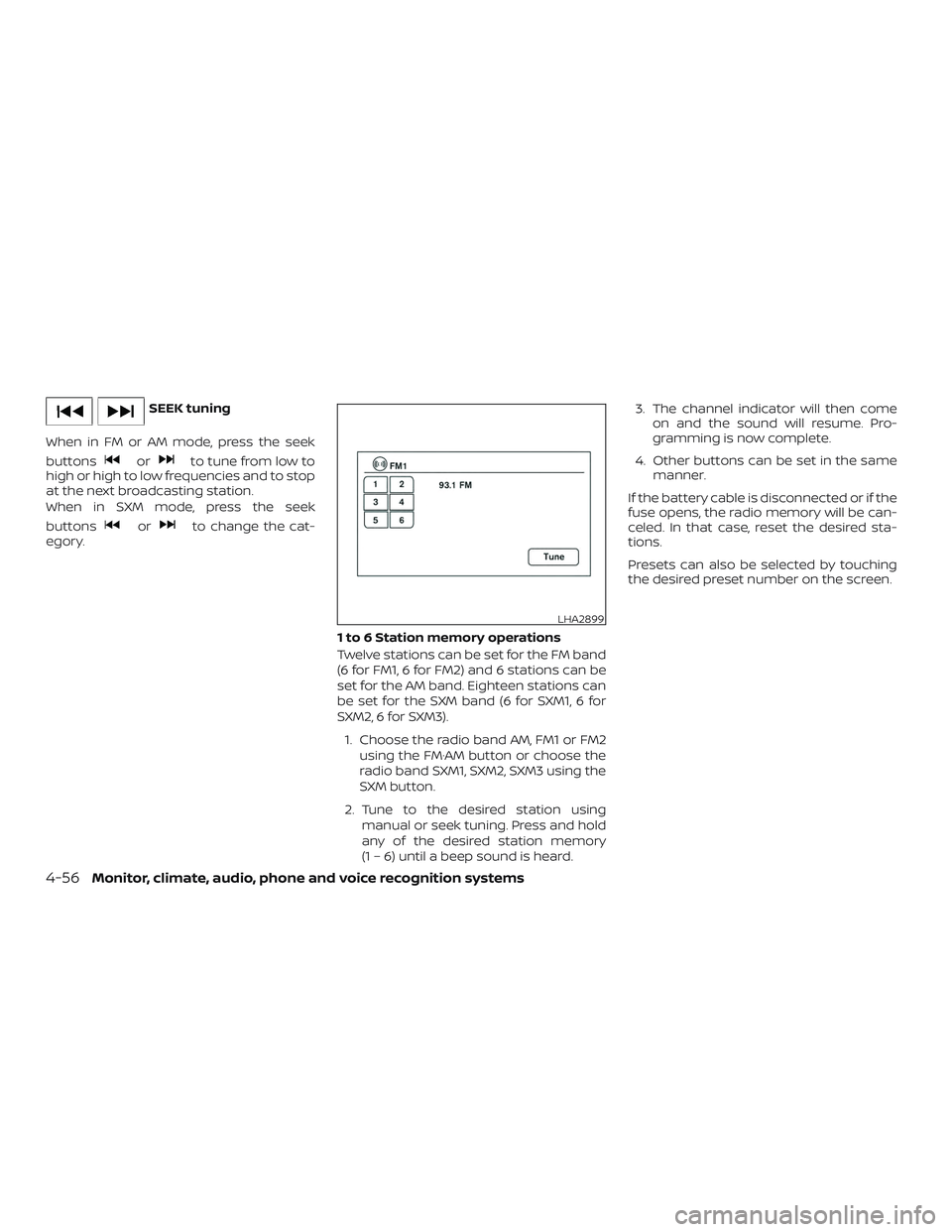
Presets can also be selected by touching
the desired preset number on the screen.
LHA2899
4-56Monitor, climate, audio, phone and voice recognition systems
Page 220 of 426
Smart Favorites Preset Setup
(if so equipped)
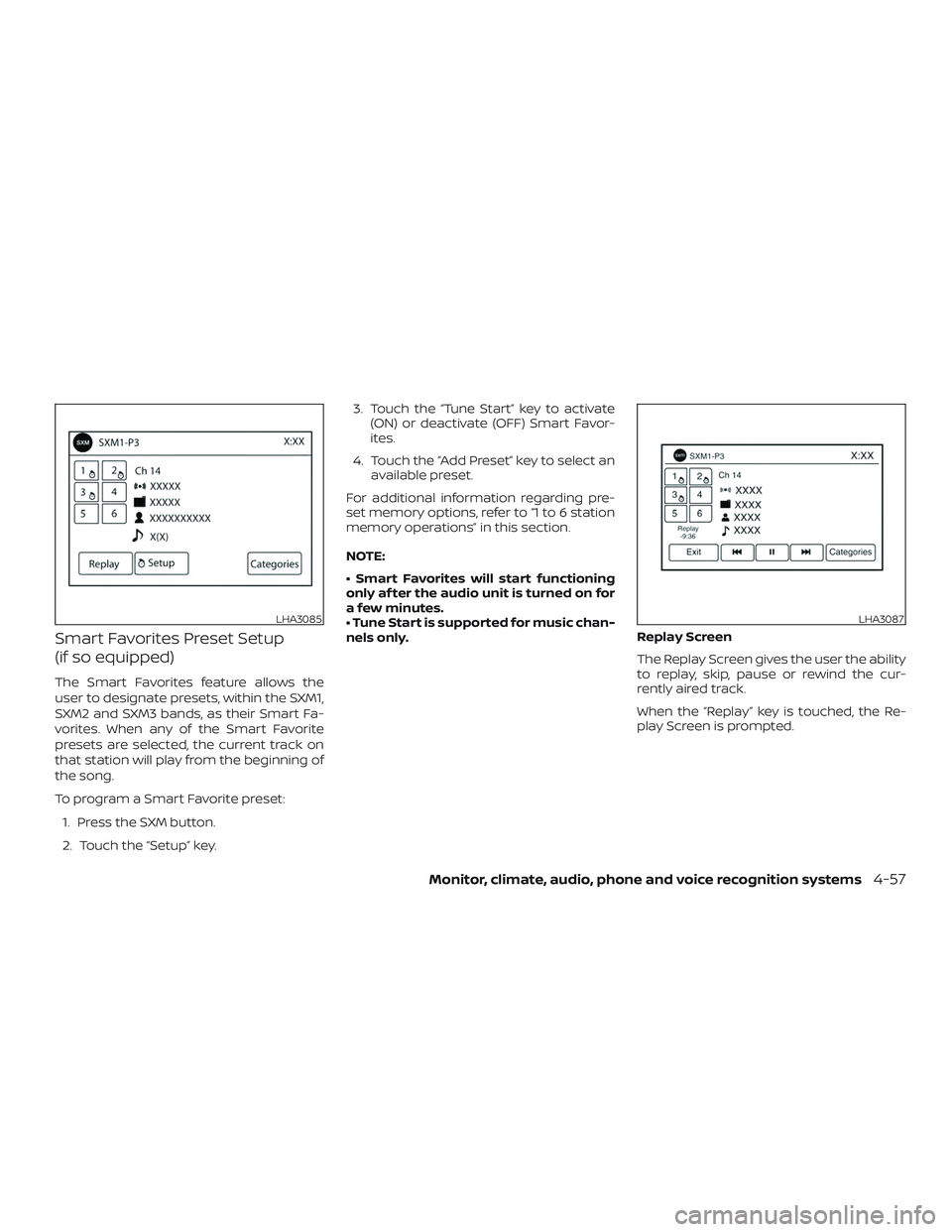
The Smart Favorites feature allows the
user to designate presets, within the SXM1,
SXM2 and SXM3 bands, as their Smart Fa-
vorites. When any of the Smart Favorite
presets are selected, the current track on
that station will play from the beginning of
the song.
To program a Smart Favorite preset:1. Press the SXM button.
2. Touch the “Setup” key. 3. Touch the “Tune Start” key to activate
(ON) or deactivate (OFF) Smart Favor-
ites.
4. Touch the “Add Preset” key to select an available preset.
For additional information regarding pre-
set memory options, refer to “1 to 6 station
memory operations” in this section.
NOTE:
• Smart Favorites will start functioning
only af ter the audio unit is turned on for
a few minutes.
• Tune Start is supported for music chan-
nels only. Replay Screen
The Replay Screen gives the user the ability
to replay, skip, pause or rewind the cur-
rently aired track.
When the “Replay” key is touched, the Re-
play Screen is prompted.
LHA3085LHA3087
Monitor, climate, audio, phone and voice recognition systems4-57
Page 236 of 426
SOURCE switch
Press the SOURCE switch to change the
mode in the following sequence:
AM→FM1 →FM2 →(XM1 →XM2 →XM3
(satellite radio, if so
equipped))→(SXM1→SXM2→SXM3 (satellite,
if so equipped))→ CD*→USB/iPod®* →
Bluetooth® Audio* (if so equipped) →AUX*
→ AM.
* These modes are only available when
compatible media storage is inserted into
the device or connected to the system.
Volume control switch
Push the + or – volume control switch to
increase or decrease the volume.
Tuning switch
While the display is showing a map or audio
screen, tilt the Tuning switch upward or
downward to select a station, track, CD or
folder. For most audio sources, tilting the
switch up/down for more than 1.5 seconds
provides a different function than a tilting
up/down for less than 1.5 seconds. AM and FM
∙ Tilt up/down for less than 1.5 seconds to increase or decrease the preset station.
∙ Tilt up/down for more than 1.5 seconds to seek up or down to the next station.
XM/SXM (if so equipped) ∙ Tilt up/down for less than 1.5 seconds to increase or decrease the preset station.
∙ Tilt up/down for more than 1.5 seconds to go to the next or previous category.
iPod® ∙ Tilt up/down for less than 1.5 seconds to increase or decrease the track number.
CD ∙ Tilt up/down for less than 1.5 seconds to increase or decrease the track number.
∙ Tilt up/down for more than 1.5 seconds to increase or decrease the folder num-
ber (if playing compressed audio files)
or to fast forward or rewind the current
track. USB
∙ Tilt up/down for less than 1.5 seconds to increase or decrease the track number.
Bluetooth® Audio ∙ Tilt up/down for less than 1.5 seconds to skip ahead or back to the next song.
ANTENNA
The antenna cannot be shortened, but can
be removed. When you need to remove the
antenna, turn the antenna rod counter-
clockwise.
To install the antenna rod, turn the antenna
clockwise. Tighten the antenna rod to
specification using a suitable tool such as
an open-end wrench. The antenna rod
tightening specification is 3.4 – 3.6 N·m (30 –
32 in-lb). Do not use pliers to tighten the
antenna as they can leave marks on the
antenna surface. The antenna rod cannot
be hand tightened to the proper specification.
CAUTION
Always properly tighten the antenna
rod during installation or the antenna
rod may break during vehicle operation.
Monitor, climate, audio, phone and voice recognition systems4-73
Page 268 of 426
∙ The TIRE PRES warning does not appearif the low tire pressure warning light illu-
minates to indicate a TPMS malfunc-
tion. Instead, TPMS ERROR will appear in
the trip computer.
∙ Tire pressure rises and falls depending on the heat caused by the vehicle’s op-
eration and the outside temperature.
Do not reduce the tire pressure af ter
driving because the tire pressure rises
af ter driving. Low outside temperature
can lower the temperature of the air
inside the tire which can cause a lower
tire inflation pressure. This may cause
the low tire pressure warning light to
illuminate. If the warning light illumi-
nates, check the tire pressure for all four
tires.
∙ The Tire and Loading Information label is located in the driver’s door opening.
For additional information, refer to “Low tire
pressure warning light” in the “Instruments
and controls” section and “Tire Pressure
Monitoring System (TPMS)” in the “In case of
emergency” section of this manual.WARNING
∙ Radio waves could adversely affect electric medical equipment. Those
who use a pacemaker should contact
the electric medical equipment
manufacturer for the possible influ-
ences before use.
∙ If the low tire pressure warning light illuminates while driving, avoid sud-
den steering maneuvers or abrupt
braking, reduce vehicle speed, pull off
the road to a safe location and stop
the vehicle as soon as possible. Driv-
ing with under-inflated tires may per-
manently damage the tires and in-
crease the likelihood of tire failure.
Serious vehicle damage could occur
and may lead to an accident and could
result in serious personal injury.
Check the tire pressure for all four
tires. Adjust the tire pressure to the
recommended COLD tire pressure
shown on the Tire and Loading Infor-
mation label to turn the low tire pres-
sure warning light off. If you have a flat
tire, replace it with a spare tire as soon
as possible. (For additional informa-
tion, refer to “Flat tire” in the “In case of
emergency ” section of this manual.) ∙ When replacing a wheel without the
TPMS such as the spare tire, when a
spare tire is mounted or a wheel is
replaced, tire pressure will not be indi-
cated, the TPMS will not function and
the low tire pressure warning light will
flash for approximately 1 minute. The
light will remain on af ter 1 minute.
Have your tires replaced and/or TPMS
system reset as soon as possible. It is
recommended that you visit a NISSAN
dealer for this service.
∙ Replacing tires with those not origi- nally specified by NISSAN could affect
the proper operation of the TPMS.
∙ Do not inject any tire liquid or aerosol tire sealant into the tires, as this may
cause a malfunction of the tire pres-
sure sensors.
CAUTION
Do not place metalized film or any
metal parts (antenna, etc.) on the win-
dows. This may cause poor reception of
the signals from the tire pressure sen-
sors, and the TPMS will not function
properly.
Starting and driving5-5
Page 282 of 426
∙ If the cruise control system malfunc-tions, it cancels automatically. The SET
indicator light illuminates in the trip
computer then blinks to warn the driver.
For additional information, refer to
“Cruise set switch indicator light” in the
“Instruments and controls” section of
this manual.
∙ If the SET indicator light blinks, push the ON/OFF switch off and have the system
checked. It is recommended that you
visit a NISSAN dealer for this service.
∙ The SET indicator light may blink when the ON/OFF switch is pushed on while
pushing the ACCEL/RES, COAST/SET, or
CANCEL switch. To properly set the
cruise control system, use the following
procedures.
WARNING
Do not use the cruise control when driv-
ing under the following conditions:
∙ When it is not possible to keep thevehicle at a set speed.
∙ In heavy traffic or in traffic that varies in speed.
∙ On winding or hilly roads. ∙ On slippery roads (rain, snow, ice, etc.).
∙ In very windy areas.
Doing so could cause a loss of vehicle
control and result in an accident.
CRUISE CONTROL OPERATIONS
The cruise control allows driving at a speed
between 25 - 89 mph (40 - 144 km/h) without
keeping your foot on the accelerator pedal.
To turn on the cruise control,
push the
ON/OFF switch on. The CRUISE indicator
light in the trip computer will illuminate.
To set cruising speed, accelerate the ve-
hicle to the desired speed, push the
COAST/SET switch and release it. The SET
indicator light in the trip computer will illu-
minate. Take your foot off the accelerator
pedal. Your vehicle maintains the set
speed.
∙ To pass another vehicle, depress the
accelerator pedal. When you release the
pedal, the vehicle returns to the previ-
ously set speed.
∙ The vehicle may not maintain the set speed when going up or down steep
hills. If this happens, drive without the
cruise control. To cancel the preset speed,
use one of the
following three methods:
∙ Push the CANCEL switch; the SET indi- cator light in the trip computer goes
out.
∙ Tap the brake pedal; the SET indicator light goes out.
∙ Push the ON/OFF switch off. Both the CRUISE indicator light and SET indicator
light in the trip computer go out.
The cruise control is automatically can-
celed and the SET light in the trip computer
goes out if: ∙ You depress the brake pedal while pushing the ACCEL/RES or SET/COAST
switch. The preset speed is deleted
from memory.
∙ The vehicle slows down more than 8 mph (13 km/h) below the set speed.
∙ You move the shif t lever to N (Neutral).
To reset at a faster cruising speed, use
one of the following three methods:
∙ Depress the accelerator pedal. When the vehicle attains the desired speed,
push and release the COAST/SET
switch.
Starting and driving5-19