climate settings NISSAN PATHFINDER 2009 Owner´s Manual
[x] Cancel search | Manufacturer: NISSAN, Model Year: 2009, Model line: PATHFINDER, Model: NISSAN PATHFINDER 2009Pages: 471, PDF Size: 5.9 MB
Page 235 of 471
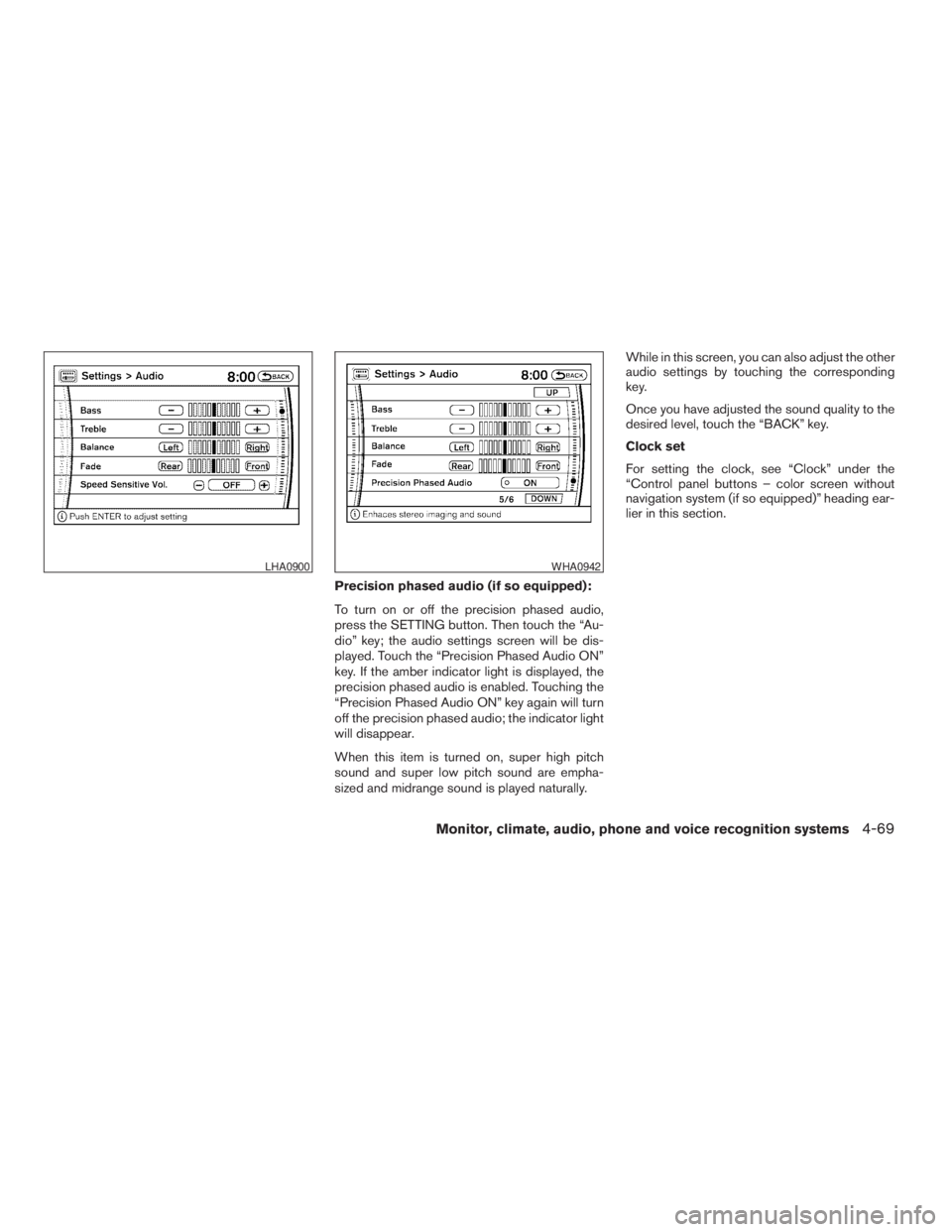
Precision phased audio (if so equipped):
To turn on or off the precision phased audio,
press the SETTING button. Then touch the “Au-
dio” key; the audio settings screen will be dis-
played. Touch the “Precision Phased Audio ON”
key. If the amber indicator light is displayed, the
precision phased audio is enabled. Touching the
“Precision Phased Audio ON” key again will turn
off the precision phased audio; the indicator light
will disappear.
When this item is turned on, super high pitch
sound and super low pitch sound are empha-
sized and midrange sound is played naturally.While in this screen, you can also adjust the other
audio settings by touching the corresponding
key.
Once you have adjusted the sound quality to the
desired level, touch the “BACK” key.
Clock set
For setting the clock, see “Clock” under the
“Control panel buttons – color screen without
navigation system (if so equipped)” heading ear-
lier in this section.
LHA0900WHA0942
Monitor, climate, audio, phone and voice recognition systems4-69
ZREVIEW COPYÐ2009 Pathfinder(pat)
Owners ManualÐUSA_English(nna)
05/29/08Ðdebbie
X
Page 243 of 471
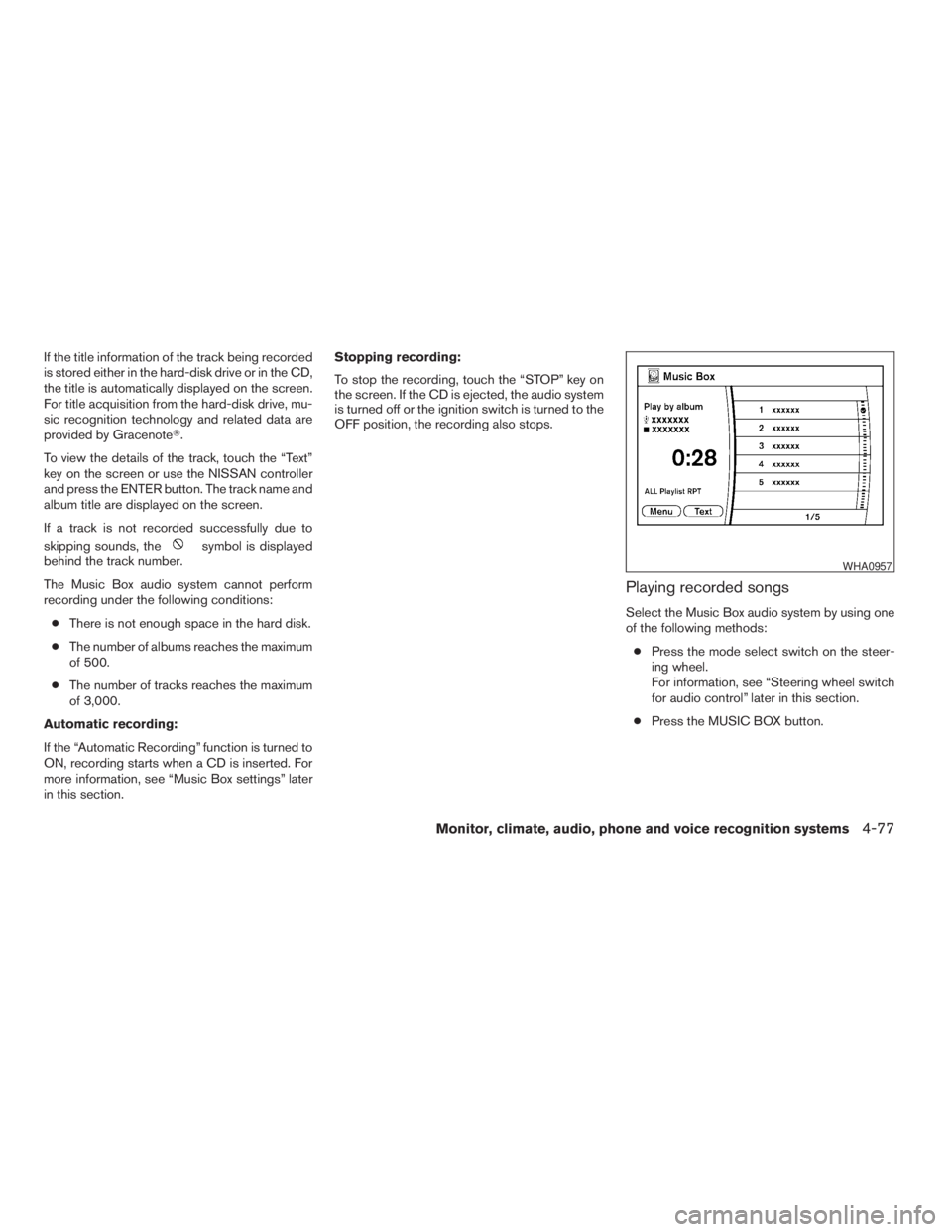
If the title information of the track being recorded
is stored either in the hard-disk drive or in the CD,
the title is automatically displayed on the screen.
For title acquisition from the hard-disk drive, mu-
sic recognition technology and related data are
provided by GracenoteT.
To view the details of the track, touch the “Text”
key on the screen or use the NISSAN controller
and press the ENTER button. The track name and
album title are displayed on the screen.
If a track is not recorded successfully due to
skipping sounds, the
symbol is displayed
behind the track number.
The Music Box audio system cannot perform
recording under the following conditions:
cThere is not enough space in the hard disk.
cThe number of albums reaches the maximum
of 500.
cThe number of tracks reaches the maximum
of 3,000.
Automatic recording:
If the “Automatic Recording” function is turned to
ON, recording starts when a CD is inserted. For
more information, see “Music Box settings” later
in this section.Stopping recording:
To stop the recording, touch the “STOP” key on
the screen. If the CD is ejected, the audio system
is turned off or the ignition switch is turned to the
OFF position, the recording also stops.
Playing recorded songs
Select the Music Box audio system by using one
of the following methods:
cPress the mode select switch on the steer-
ing wheel.
For information, see “Steering wheel switch
for audio control” later in this section.
cPress the MUSIC BOX button.
WHA0957
Monitor, climate, audio, phone and voice recognition systems4-77
ZREVIEW COPYÐ2009 Pathfinder(pat)
Owners ManualÐUSA_English(nna)
05/29/08Ðdebbie
X
Page 246 of 471
cSearch Song Details
Set the conditions and touch the “Start
Song Search” key to search for a desired
song that is stored in the system. The con-
ditions are as follows:
– Music Tempo (All, Slow, Normal and Fast)
– Decade (All, ’70s, ’80s, ’90s, ’00s, ’10s
and After)
– Group (All, Male Artist, Female Artist,
Group and Duo)
– Category (Rock, Pop, Latin, Jazz, R&B,
Hip Hop, Club/Dance, Punk, Reggae,
Folk, Blues, Country, Metal, Easy Listen-
ing, New Age, Soundtrack, Gospel & Re-
ligious, World, Classical, Children’s and
Other)
cSearch Keywords
Input a search keyword using the keypad
displayed on the screen.
For information, see “How to use the touch
screen” earlier in this section.
cEdit Albums
Select a category (Rec. (Recorded) Date,
Name, Released Year and Artist) and edit
the details using the keypad displayed on
the screen.
For information, see “How to use the touch
screen” earlier in this section.cMusic Box System Info.
Displays the following information about the
Music Box audio system:
– Music Box Used / Free Space
Information about Saved Albums, Saved
Tracks and Remaining Time is displayed.
– Mood Categories
Number of saved tracks and their catego-
ries Relaxing Music, Lively Music, Slow
Music, Upbeat Music and Others are dis-
played.
– Deleted Items
Information about the deleted tracks is
displayed.
– Search Missing Titles
If titles are not displayed for CDs that
have been recorded, titles can be ac-
quired using one of the following meth-
ods:
cRetrieve from HDD
Searches the title using the database in
the hard-disk.
cRetrieve from CF
Searches the title from the information
acquired on the Internet.
cTransfer Missing Titles to CF
Transfers the information of the albumrecorded without titles to a Compact-
Flash™ card. Visit www.nissanusa.com/
gracenote/ for details.
– Music Box Settings
For information, see “Music Box settings”
later in this section.
– CDDB Version
The version of the built-in GracenoteT
Database is displayed.
4-80Monitor, climate, audio, phone and voice recognition systems
ZREVIEW COPYÐ2009 Pathfinder(pat)
Owners ManualÐUSA_English(nna)
05/29/08Ðdebbie
X
Page 248 of 471
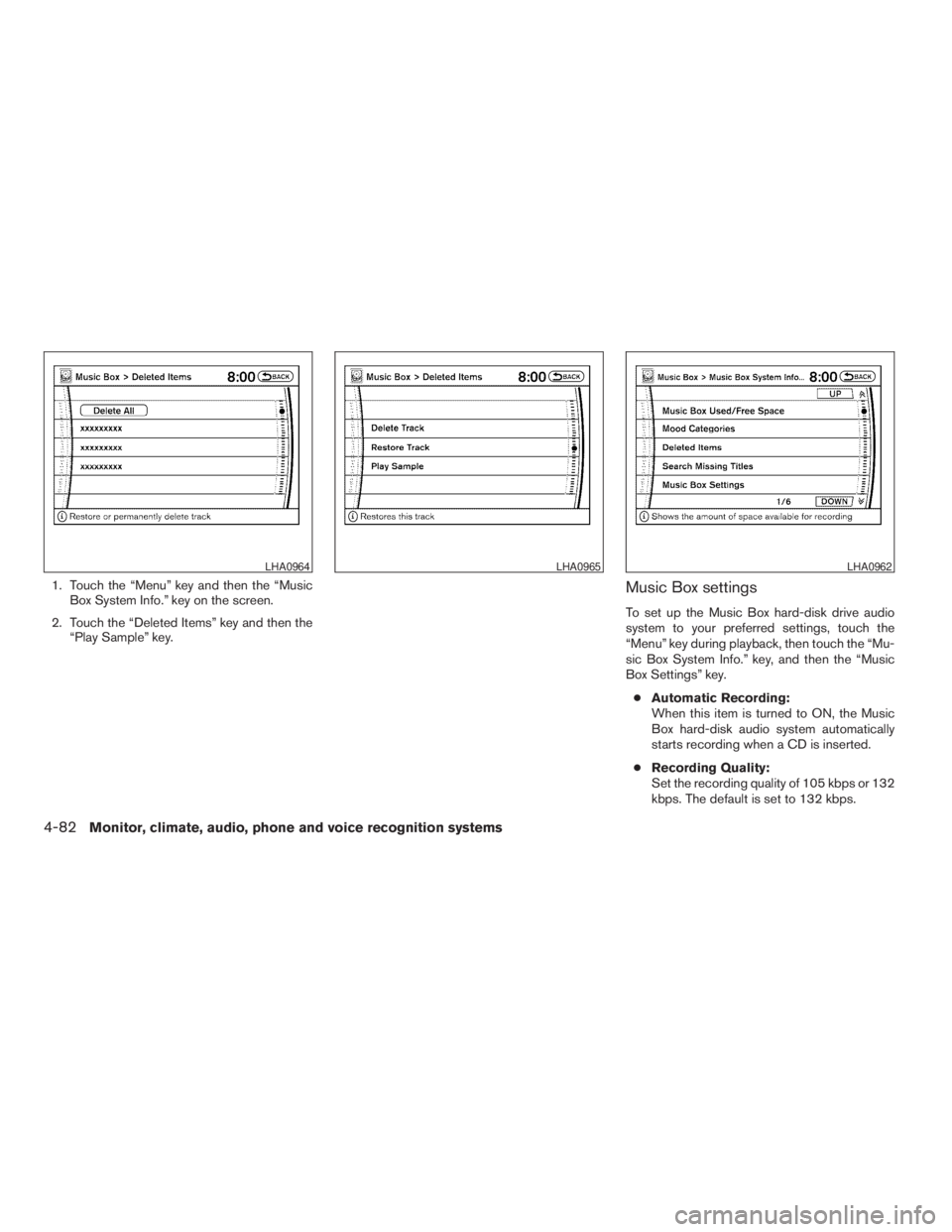
1. Touch the “Menu” key and then the “Music
Box System Info.” key on the screen.
2. Touch the “Deleted Items” key and then the
“Play Sample” key.Music Box settings
To set up the Music Box hard-disk drive audio
system to your preferred settings, touch the
“Menu” key during playback, then touch the “Mu-
sic Box System Info.” key, and then the “Music
Box Settings” key.
cAutomatic Recording:
When this item is turned to ON, the Music
Box hard-disk audio system automatically
starts recording when a CD is inserted.
cRecording Quality:
Set the recording quality of 105 kbps or 132
kbps. The default is set to 132 kbps.
LHA0964LHA0965LHA0962
4-82Monitor, climate, audio, phone and voice recognition systems
ZREVIEW COPYÐ2009 Pathfinder(pat)
Owners ManualÐUSA_English(nna)
05/29/08Ðdebbie
X
Page 260 of 471
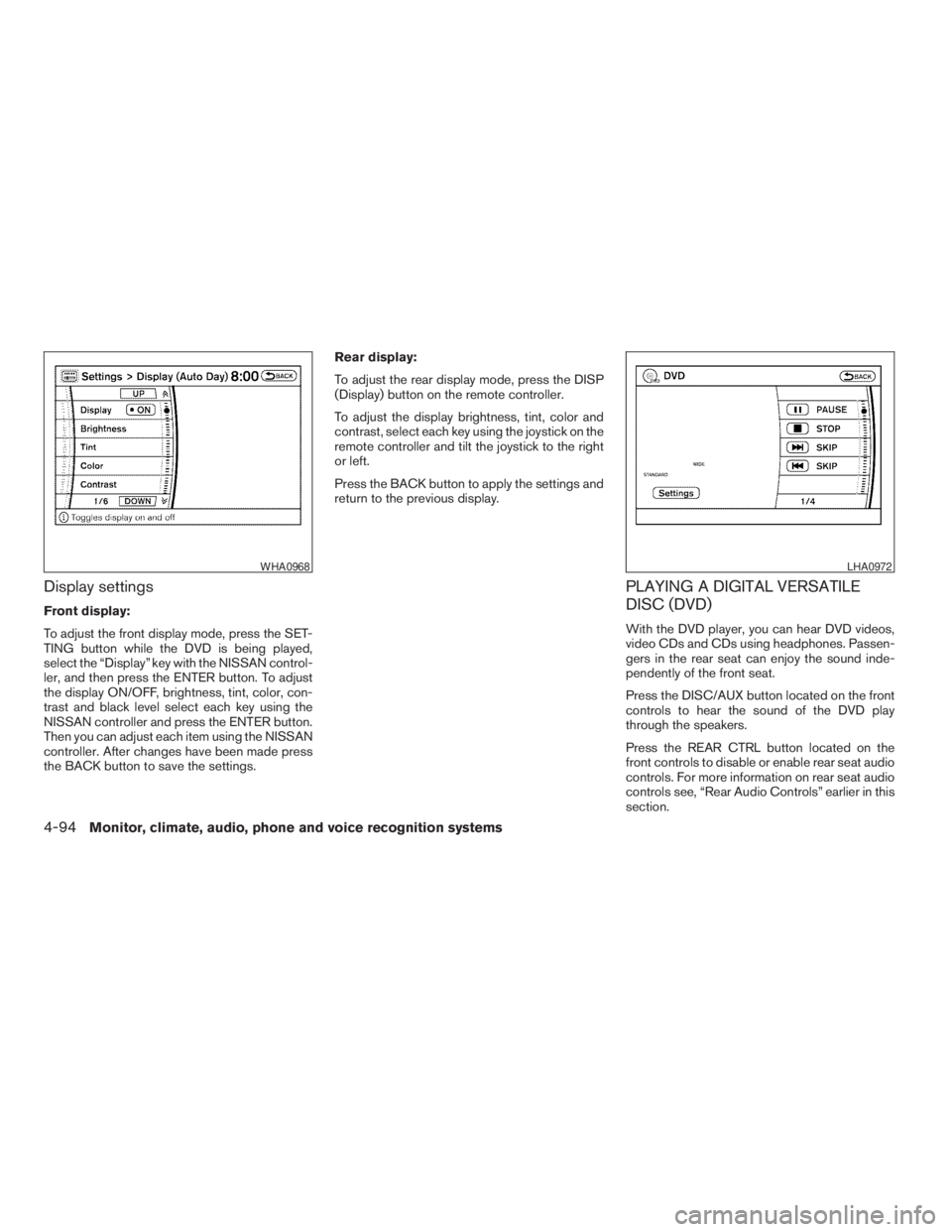
Display settings
Front display:
To adjust the front display mode, press the SET-
TING button while the DVD is being played,
select the “Display” key with the NISSAN control-
ler, and then press the ENTER button. To adjust
the display ON/OFF, brightness, tint, color, con-
trast and black level select each key using the
NISSAN controller and press the ENTER button.
Then you can adjust each item using the NISSAN
controller. After changes have been made press
the BACK button to save the settings.Rear display:
To adjust the rear display mode, press the DISP
(Display) button on the remote controller.
To adjust the display brightness, tint, color and
contrast, select each key using the joystick on the
remote controller and tilt the joystick to the right
or left.
Press the BACK button to apply the settings and
return to the previous display.
PLAYING A DIGITAL VERSATILE
DISC (DVD)
With the DVD player, you can hear DVD videos,
video CDs and CDs using headphones. Passen-
gers in the rear seat can enjoy the sound inde-
pendently of the front seat.
Press the DISC/AUX button located on the front
controls to hear the sound of the DVD play
through the speakers.
Press the REAR CTRL button located on the
front controls to disable or enable rear seat audio
controls. For more information on rear seat audio
controls see, “Rear Audio Controls” earlier in this
section.
WHA0968LHA0972
4-94Monitor, climate, audio, phone and voice recognition systems
ZREVIEW COPYÐ2009 Pathfinder(pat)
Owners ManualÐUSA_English(nna)
05/29/08Ðdebbie
X
Page 262 of 471

SKIP (rewind) key:
Touch the “
” SKIP key to skip the chapter(s)
of the disc backward. The chapters will go back
the number of times the “
” SKIP key is
touched.
Touch and hold the “
” SKIP key for more
than 1.5 seconds to rewind the disc. When the
“
” SKIP key is released the disc will be
played normally.
To skip the chapter(s) backward, it is also pos-
sible to press the
button on the keypad of
the remote controller.
DVD settings
Touch the “Settings” key to adjust the following
settings while playing a DVD.
When all the changes have been made, press
BACK button to save all the settings.
LHA0969LHA0970
4-96Monitor, climate, audio, phone and voice recognition systems
ZREVIEW COPYÐ2009 Pathfinder(pat)
Owners ManualÐUSA_English(nna)
05/29/08Ðdebbie
X
Page 264 of 471
DRC:
DRC (Dynamic Range Compression) allows you
to tune the dynamic range of the sound recorded
in the DolbyTDigital format. Touch the “–” key or
the “+” key to tune the DRC.
DVD auxiliary input jacks
The auxiliary input jacks are located on the front of
the DVD player which is located inside the center
console. NTSC and PAL compatible devices
such as video games, camcorders and portable
video players can be connected to the auxiliary
jacks.
The auxiliary jacks are color coded for identifica-
tion purposes.
cYellow - video input
cWhite - left channel audio input
cRed - right channel audio input
Before connecting a device to a jack, power off
the portable device and turn off the DVD player.
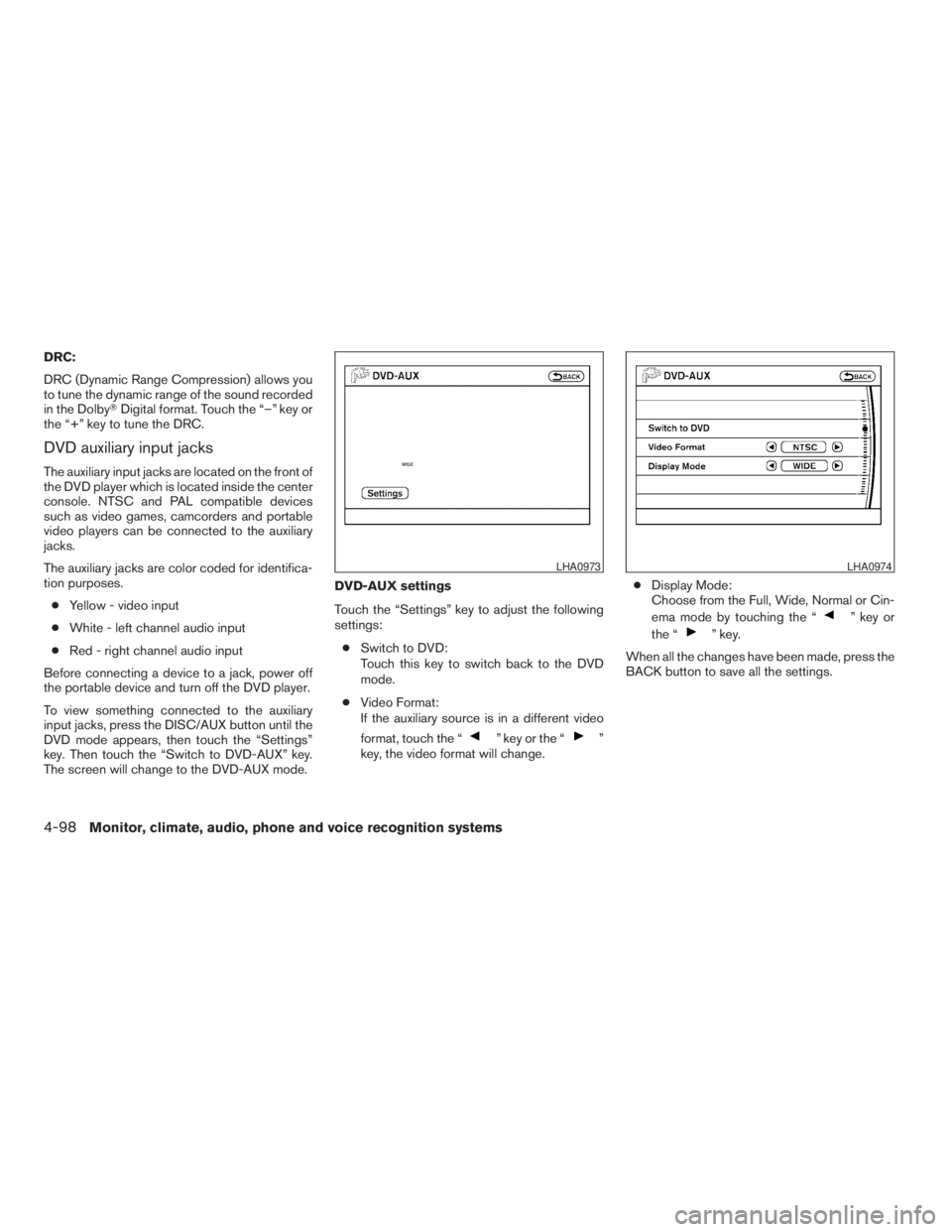
To view something connected to the auxiliary
input jacks, press the DISC/AUX button until the
DVD mode appears, then touch the “Settings”
key. Then touch the “Switch to DVD-AUX” key.
The screen will change to the DVD-AUX mode.DVD-AUX settings
Touch the “Settings” key to adjust the following
settings:
cSwitch to DVD:
Touch this key to switch back to the DVD
mode.
cVideo Format:
If the auxiliary source is in a different video
format, touch the “
” key or the “”
key, the video format will change.cDisplay Mode:
Choose from the Full, Wide, Normal or Cin-
ema mode by touching the “
” key or
the “
” key.
When all the changes have been made, press the
BACK button to save all the settings.
LHA0973LHA0974
4-98Monitor, climate, audio, phone and voice recognition systems
ZREVIEW COPYÐ2009 Pathfinder(pat)
Owners ManualÐUSA_English(nna)
05/30/08Ðbarbara
X
Page 294 of 471
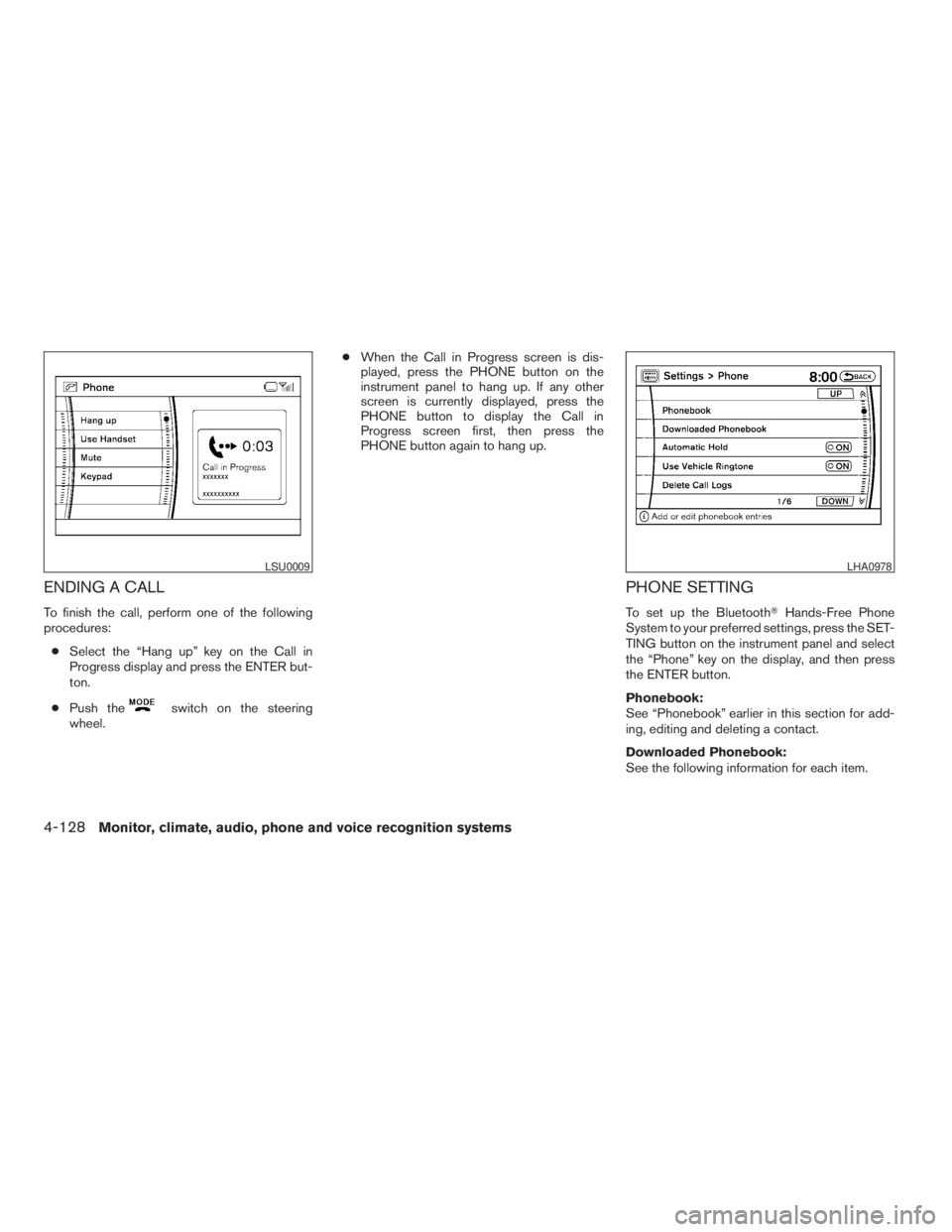
ENDING A CALL
To finish the call, perform one of the following
procedures:
cSelect the “Hang up” key on the Call in
Progress display and press the ENTER but-
ton.
cPush the
switch on the steering
wheel.cWhen the Call in Progress screen is dis-
played, press the PHONE button on the
instrument panel to hang up. If any other
screen is currently displayed, press the
PHONE button to display the Call in
Progress screen first, then press the
PHONE button again to hang up.
PHONE SETTING
To set up the BluetoothTHands-Free Phone
System to your preferred settings, press the SET-
TING button on the instrument panel and select
the “Phone” key on the display, and then press
the ENTER button.
Phonebook:
See “Phonebook” earlier in this section for add-
ing, editing and deleting a contact.
Downloaded Phonebook:
See the following information for each item.
LSU0009LHA0978
4-128Monitor, climate, audio, phone and voice recognition systems
ZREVIEW COPYÐ2009 Pathfinder(pat)
Owners ManualÐUSA_English(nna)
05/29/08Ðdebbie
X
Page 296 of 471
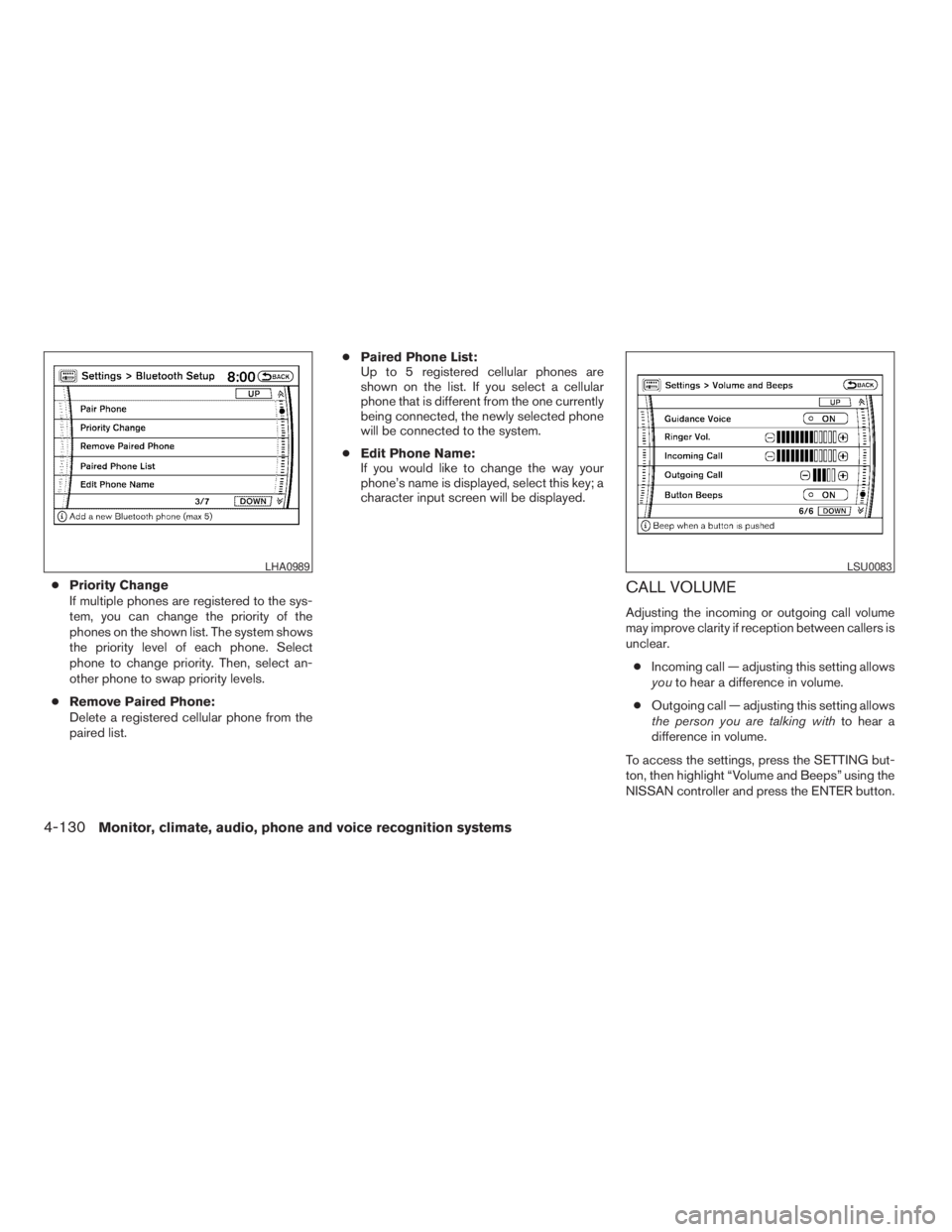
cPriority Change
If multiple phones are registered to the sys-
tem, you can change the priority of the
phones on the shown list. The system shows
the priority level of each phone. Select
phone to change priority. Then, select an-
other phone to swap priority levels.
cRemove Paired Phone:
Delete a registered cellular phone from the
paired list.cPaired Phone List:
Up to 5 registered cellular phones are
shown on the list. If you select a cellular
phone that is different from the one currently
being connected, the newly selected phone
will be connected to the system.
cEdit Phone Name:
If you would like to change the way your
phone’s name is displayed, select this key; a
character input screen will be displayed.CALL VOLUME
Adjusting the incoming or outgoing call volume
may improve clarity if reception between callers is
unclear.
cIncoming call — adjusting this setting allows
youto hear a difference in volume.
cOutgoing call — adjusting this setting allows
the person you are talking withto hear a
difference in volume.
To access the settings, press the SETTING but-
ton, then highlight “Volume and Beeps” using the
NISSAN controller and press the ENTER button.
LHA0989LSU0083
4-130Monitor, climate, audio, phone and voice recognition systems
ZREVIEW COPYÐ2009 Pathfinder(pat)
Owners ManualÐUSA_English(nna)
05/29/08Ðdebbie
X
Page 298 of 471
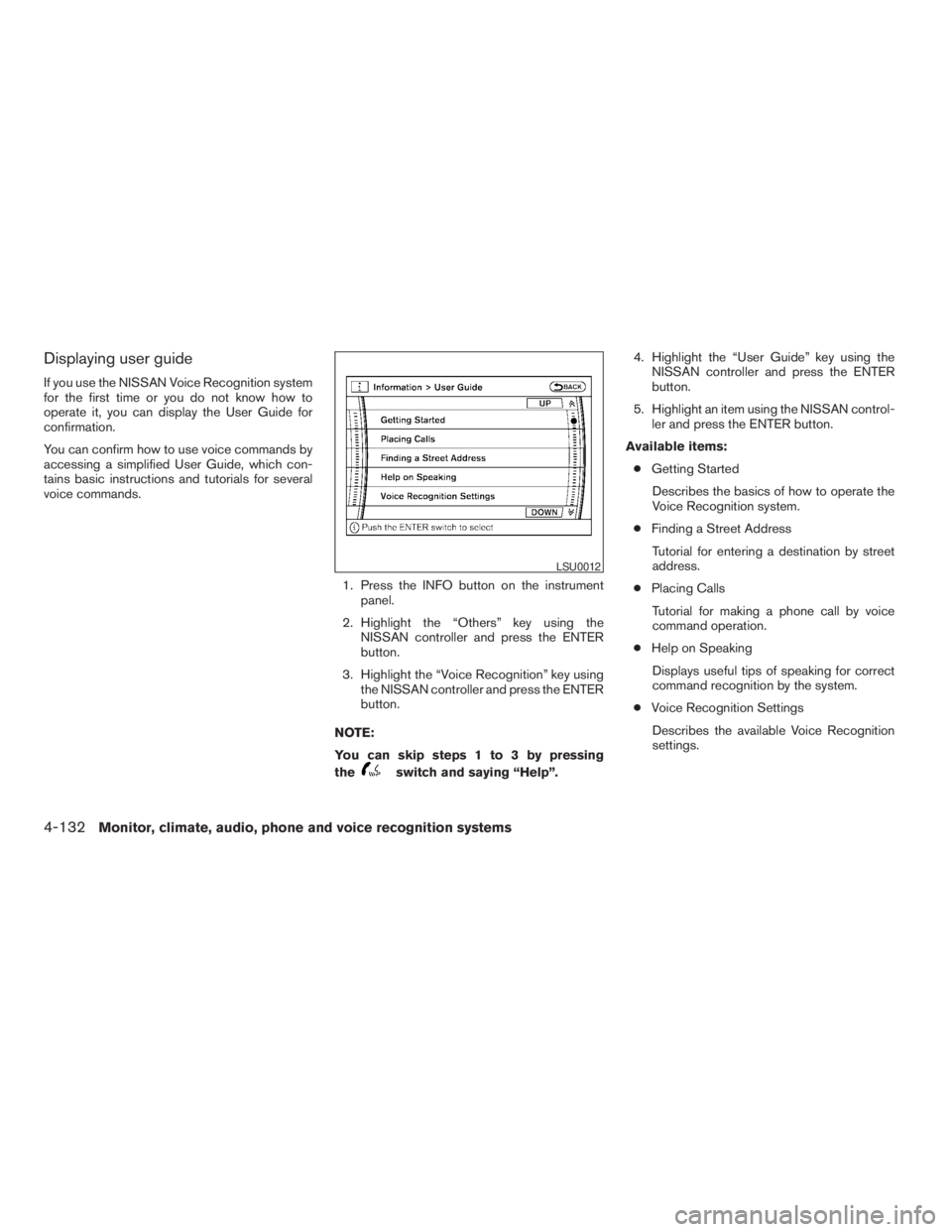
Displaying user guide
If you use the NISSAN Voice Recognition system
for the first time or you do not know how to
operate it, you can display the User Guide for
confirmation.
You can confirm how to use voice commands by
accessing a simplified User Guide, which con-
tains basic instructions and tutorials for several
voice commands.
1. Press the INFO button on the instrument
panel.
2. Highlight the “Others” key using the
NISSAN controller and press the ENTER
button.
3. Highlight the “Voice Recognition” key using
the NISSAN controller and press the ENTER
button.
NOTE:
You can skip steps 1 to 3 by pressing
the
switch and saying “Help”.4. Highlight the “User Guide” key using the
NISSAN controller and press the ENTER
button.
5. Highlight an item using the NISSAN control-
ler and press the ENTER button.
Available items:
cGetting Started
Describes the basics of how to operate the
Voice Recognition system.
cFinding a Street Address
Tutorial for entering a destination by street
address.
cPlacing Calls
Tutorial for making a phone call by voice
command operation.
cHelp on Speaking
Displays useful tips of speaking for correct
command recognition by the system.
cVoice Recognition Settings
Describes the available Voice Recognition
settings.
LSU0012
4-132Monitor, climate, audio, phone and voice recognition systems
ZREVIEW COPYÐ2009 Pathfinder(pat)
Owners ManualÐUSA_English(nna)
05/29/08Ðdebbie
X