radio NISSAN PATHFINDER 2009 Owner´s Manual
[x] Cancel search | Manufacturer: NISSAN, Model Year: 2009, Model line: PATHFINDER, Model: NISSAN PATHFINDER 2009Pages: 471, PDF Size: 5.9 MB
Page 237 of 471
TUNE/FLDR (Tuning) knob:
To manually tune the radio, turn the TUNE/FLDR
knob to the right or left.
SEEK/CAT and TRACK
tuning buttons:
Press the SEEK/CAT
button or the
TRACK
button for less than 1.5 seconds
to tune from high to low or low to high frequen-
cies and stop at the next broadcasting station.
SCAN·RPT (SCAN tuning) button:
Press the SCAN·RPT button to initiate scan tun-
ing. Scan tuning will stop at each broadcasting
station for 5 seconds. Press the SCAN·RPT but-
ton again during this 5 second period to stop
scan tuning; the radio will remain tuned to that
station. If the SCAN·RPT button is not pressed
within 5 seconds, scan tuning moves to the next
station.
PRESET A·B·C (Station memory opera-
tions):
18 stations can be set for the FM, AM and SAT
(satellite, if so equipped) radio to the A, B and C
preset button in any combination of FM, AM or
SAT stations.
1. Choose preset bank A, B or C using the
PRESET A·B·C select button.2. Select the desired FM, AM or SAT station
band.
3. Tune to the desired station using manual,
SEEK or SCAN tuning. Press and hold any
of the desired station memory buttons (1 –
6) until a beep sound is heard.
4. The channel indicator will then come on and
the sound will resume. Programming is now
complete.
5. Other buttons can be set in the same man-
ner.
If the battery cable is disconnected, or if the fuse
opens, the radio memory will be canceled. In that
case, reset the desired stations.
Radio data system (RDS):
RDS stands for Radio Data System, and is a data
information service transmitted by some radio
stations on the FM band (not AM band) . Cur-
rently, most RDS stations are in large cities, but
many stations are now considering broadcasting
RDS data.
RDS can display:
cStation call sign, such as “WHFR 98.3”.
cStation name, such as “The Groove”.
cMusic or programming type such as “Clas-
sical”, “Country”, or “Rock”.cArtist and song information.
If the station broadcasts RDS information, the
RDS icon is displayed.
Compact disc (CD) player operation
Turn the ignition key to the ACC or ON position
and insert the compact disc into the slot with the
label side facing up. The compact disc will be
guided automatically into the slot and start play-
ing.
If the radio is already operating, it will automati-
cally turn off and the compact disc will play.
If the system has been turned off while the com-
pact disc was playing, pressing the VOL/
ON·OFF control knob will start the compact disc.
DISC/AUX button:
When the DISC/AUX button is pressed with the
system off and the compact disc loaded, the
system will turn on and the compact disc will start
to play.
When the DISC/AUX button is pressed with the
compact disc loaded but the radio playing, the
radio will automatically be turned off and the
compact disc will start to play.
Monitor, climate, audio, phone and voice recognition systems4-71
ZREVIEW COPYÐ2009 Pathfinder(pat)
Owners ManualÐUSA_English(nna)
05/29/08Ðdebbie
X
Page 238 of 471
SEEK/CAT and TRACK
buttons:
When the SEEK/CAT
button is pressed
while a compact disc is playing, the track being
played returns to its beginning. Press several
times to skip back through tracks. The compact
disc will go back the number of times the button
is pressed.
When the TRACK
button is pressed while
the compact disc is playing, the next track will
start to play from its beginning. Press several
times to skip through tracks. The compact disc
will advance the number of times the button is
pressed. (When the last track on the compact
disc is skipped through, the first track will be
played.)
The NISSAN controller can also be used to se-
lect tracks when a CD is being played.
SEEK/CAT and TRACK
(Rewind·Fast Forward)
buttons:
Press and hold the SEEK/CAT
(rewind)
button or the TRACK
(fast forward) button
while a compact disc is playing; the compact disc
will play while rewinding or fast forwarding. Whenthe button is released, the compact disc will
return to normal play speed.
When the CD button is pressed with the system
off and the compact disc loaded the system will
turn on and the compact disc will start to play.
When the CD button is pressed with the com-
pact disc loaded with the tape or the radio play-
ing, the tape or radio will automatically be turned
off and the compact disc will start to play.
TUNE FLDR (Folder) knob
While playing an MP3/WMA CD, turn the TUNE/
FLDR knob right or left to scan forward or back-
ward through available folders.
SCAN·RPT (random and repeat) button:
When the SCAN·RPT button is pressed while the
compact disc is being played, the play pattern
can be changed as follows:
CD:
1 DISC RPT!1 TRK RPT!1 DISC RDM!1
DISC RPT
MP3/WMA CD:
1 DISC RPT!1 FOLDER RPT!1 TRK RPT!
1 DISC RDM!1 FOLDER RDM!1 DISC RPT1 DISC RPT: the entire disc will be repeated.
1 TRK RPT: the current track playing will be
repeated.
1 DISC RDM: all tracks will be played randomly.
1 FOLDER RPT: the folder currently being ac-
cessed will be repeated.
1 FOLDER RDM: the tracks in the current folder
being accessed will be played randomly.
REAR CTRL:
Pressing the REAR CTRL button turns the rear
seat audio controller on. Rear Controls UN-
LOCKED will display. Pressing the REAR CTRL
button again will turn the rear seat audio control-
ler off. Rear Controls LOCKED will display. If the
vehicle is not equipped with a rear seat audio
controller, the display will show “Rear Controls
Not Available”.
Press and hold the REAR CTRL button for ap-
proximately 1.5 seconds to turn on the rear dis-
play screen on. Rear Display ON will display.
Press and hold the REAR CTRL button again will
turn the rear display screen off. Rear Display OFF
will display. If the vehicle is not equipped with a
rear display screen, the display will show “Rear
Controls Not Available”.
4-72Monitor, climate, audio, phone and voice recognition systems
ZREVIEW COPYÐ2009 Pathfinder(pat)
Owners ManualÐUSA_English(nna)
05/29/08Ðdebbie
X
Page 244 of 471
cGive voice commands.
For information, see “NISSAN Voice Recog-
nition system (if so equipped)” later in this
section.
Stopping playback:
The system stops playing when:
cAnother mode (radio, CD, CompactFlash™
or AUX) is selected.
cThe audio system is turned off.
cThe ignition switch is placed in the OFF
position.
SEEK/CAT and TRACK buttons:
Press the
SEEK/CAT button or theTRACK button while a track is being played; the
next track or the beginning of the current track will
be played.
Press and hold the
SEEK/CAT (rewind)
button or the
TRACK (fast forward) button
for more than approximately 1.5 seconds; the
track will play while rewinding or fast forwarding.
When the
SEEK/CAT (rewind) button or
the
TRACK (fast forward) button is re-
leased, the track will return to the normal playing
speed.The NISSAN controller can also be used to se-
lect tracks.
For more information on how to use the NISSAN
controller, see “How to use the NISSAN control-
ler” earlier in this section.
Play mode selection:
To change to another album or artist, turn the
TUNE/FLDR knob.
SCAN·RPT button:
Pressing the SCAN·RPT button while a track is
playing, the play pattern can be changed as fol-
lows:
ALL Playlist RPT!1 Playlist RPT!1 TRK RPT
!ALL Playlist RDM!1 Playlist RDM!ALL
Playlist RPT
ALL Playlist RPT: the entire playlist will be re-
peated.
1 Playlist RPT: the playlist currently being played
will be repeated.
1 TRK RPT: the current track playing will be
repeated.
ALL Playlist RDM: all the tracks in the playlist will
be played randomly.
1 Playlist RDM: the tracks in the current playlist
will be played randomly.Music Box menu
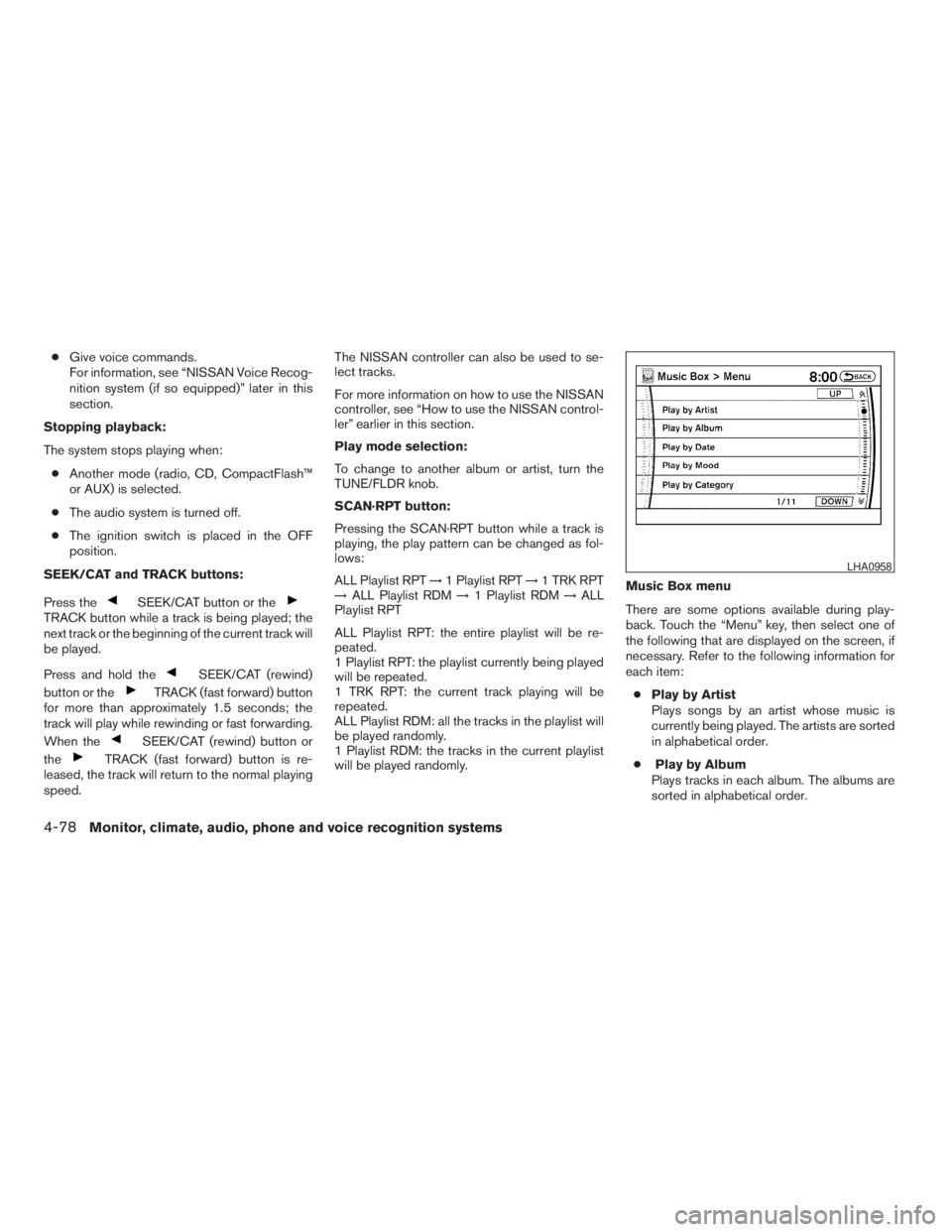
There are some options available during play-
back. Touch the “Menu” key, then select one of
the following that are displayed on the screen, if
necessary. Refer to the following information for
each item:
cPlay by Artist
Plays songs by an artist whose music is
currently being played. The artists are sorted
in alphabetical order.
cPlay by Album
Plays tracks in each album. The albums are
sorted in alphabetical order.
LHA0958
4-78Monitor, climate, audio, phone and voice recognition systems
ZREVIEW COPYÐ2009 Pathfinder(pat)
Owners ManualÐUSA_English(nna)
05/29/08Ðdebbie
X
Page 253 of 471
Volume control switch
Push the volume control switch up or down to
increase or decrease the volume.
Tuning
Memory change (radio):
While in one of the preset radio station banks (A,
B or C) , push the tuning switch
orfor less than 1.5 seconds to change to the next
preset station in memory.
Seek tuning (radio):
Push the tuning switch
orfor more
than 1.5 seconds to seek the next or previous
radio station.
Next/Previous track (CD/CF):
Push the tuning switch
orfor less
than 1.5 seconds to return to the beginning of the
present track or skip to the next track. Push
several times to skip back or skip through tracks.
This system searches for the blank intervals be-
tween selections. If there is a blank interval within
1 program or there is no interval between pro-
grams, the system may not stop in the desired or
expected location.Next/Previous track (Music Box):
Push the tuning switch
orfor less
than 1.5 seconds to return to the beginning of the
present track or skip to the next track. Push
several times to skip back or skip through tracks.
Push and hold the tuning switch
orfor more than 1.5 seconds to change playlists.
When the last playlist is playing, the next playlist
will be selected.
Change disc (CD) (if so equipped):
Push the tuning switch
orfor more
than 1.5 seconds to change the playing disc up
or down.
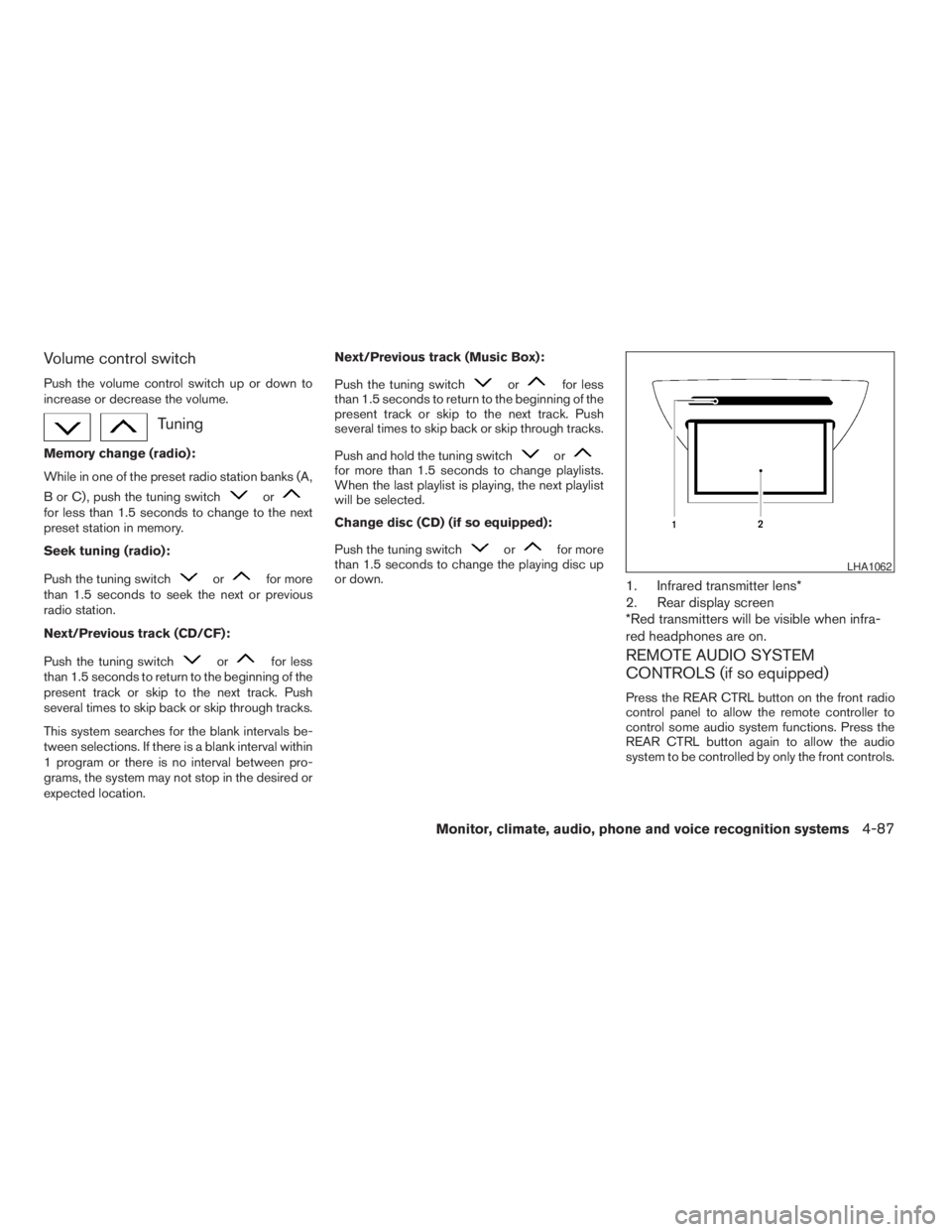
1. Infrared transmitter lens*
2. Rear display screen
*Red transmitters will be visible when infra-
red headphones are on.
REMOTE AUDIO SYSTEM
CONTROLS (if so equipped)
Press the REAR CTRL button on the front radio
control panel to allow the remote controller to
control some audio system functions. Press the
REAR CTRL button again to allow the audio
system to be controlled by only the front controls.
LHA1062
Monitor, climate, audio, phone and voice recognition systems4-87
ZREVIEW COPYÐ2009 Pathfinder(pat)
Owners ManualÐUSA_English(nna)
05/29/08Ðdebbie
X
Page 254 of 471
Press thebutton on the front radio control
panel; the headphones symbol and the message
“Headphones ON” illuminates on the front dis-
play when the headphones are on.
One or two infrared headphones and one remote
controller are included if the vehicle is equipped
with the DVD entertainment system.
For vehicles equipped with the FM/AM/SAT radio
with compact disc player, if the rear headphones
are turned on, the rear speakers will be disabled.
The rear passengers can use the wireless head-
phones to listen to a different media than the front
passengers. The rear passengers can listen to
the same media along with the front passengers
or they can listen to a different media.
For more information on the remote controller,
see “NISSAN Mobile Entertainment System
(MES)” later in this section.
VOL (volume) wireless headphones
dial:
The VOL dial on the wireless headphones allows
the rear passengers to adjust the headphone
volume level.
Speaker control (front panel) but-
ton:
Press the
button on the front radio control
panel to turn the rear speakers off and the wire-
less headphones on. Press the
button
again to turn rear speakers back on and wireless
headphones off.
MODE (remote control) button:
The MODE button on the remote controller al-
lows the rear passengers to change between
Preset A, Preset B, Preset C, Music Box**, CD*,
CompactFlash*, DVD* and AUX. When a source
of media is selected, the media type will be dis-
played on the rear screen.
*These modes are only available when compat-
ible media storage is inserted into the device.
**This mode is only available when music has
been downloaded into the Music Box hard-disk
drive audio system.
Seek (remote control)
buttons:
In AM or FM mode, the
or theseek
buttons on the remote controller allow the rear
seat passengers to find the next or previous
preset radio station.In CD, Music Box hard-disk drive audio system
and CompactFlash™ mode, the
or
the
seek buttons allow the rear passen-
gers to find the next or previous selection.
REW and FF (remote
control) buttons:
When the
(rewind) or the(fast for-
ward) button on the remote controller is pressed
while in AM or FM mode, the radio will tune to the
next frequency.
When the
(rewind) or the(fast for-
ward) button on the remote controller is pressed
while in CD, Music Box hard-disk audio system,
or CompactFlash™, the media will play while re-
winding or fast forwarding.
ANTENNA
Window antenna
The antenna pattern is printed inside the rear
passenger and driver side windows.
4-88Monitor, climate, audio, phone and voice recognition systems
ZREVIEW COPYÐ2009 Pathfinder(pat)
Owners ManualÐUSA_English(nna)
05/29/08Ðdebbie
X
Page 268 of 471
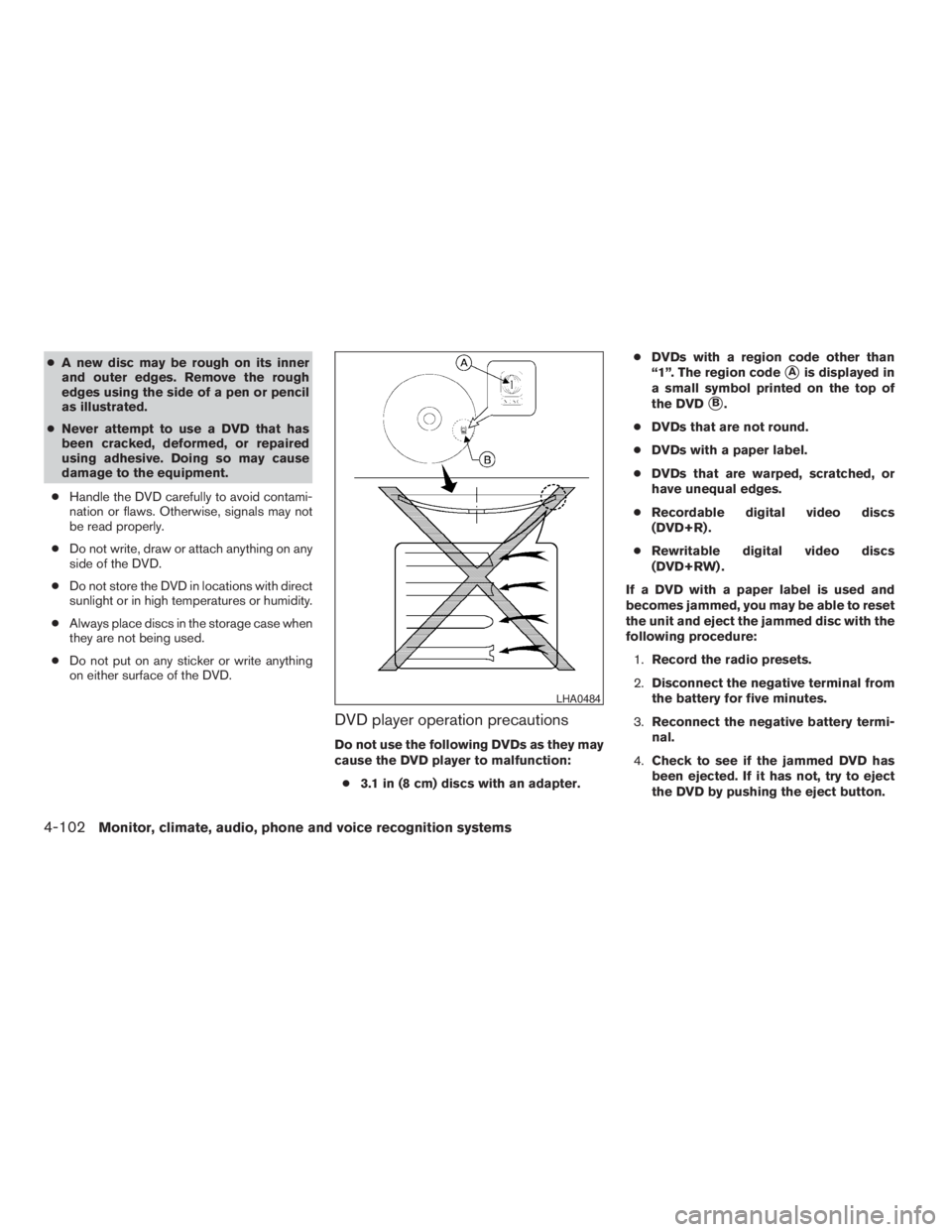
cA new disc may be rough on its inner
and outer edges. Remove the rough
edges using the side of a pen or pencil
as illustrated.
cNever attempt to use a DVD that has
been cracked, deformed, or repaired
using adhesive. Doing so may cause
damage to the equipment.
cHandle the DVD carefully to avoid contami-
nation or flaws. Otherwise, signals may not
be read properly.
cDo not write, draw or attach anything on any
side of the DVD.
cDo not store the DVD in locations with direct
sunlight or in high temperatures or humidity.
cAlways place discs in the storage case when
they are not being used.
cDo not put on any sticker or write anything
on either surface of the DVD.
DVD player operation precautions
Do not use the following DVDs as they may
cause the DVD player to malfunction:
c3.1 in (8 cm) discs with an adapter.cDVDs with a region code other than
“1”. The region code
sAis displayed in
a small symbol printed on the top of
the DVD
sB.
cDVDs that are not round.
cDVDs with a paper label.
cDVDs that are warped, scratched, or
have unequal edges.
cRecordable digital video discs
(DVD+R) .
cRewritable digital video discs
(DVD+RW) .
If a DVD with a paper label is used and
becomes jammed, you may be able to reset
the unit and eject the jammed disc with the
following procedure:
1.Record the radio presets.
2.Disconnect the negative terminal from
the battery for five minutes.
3.Reconnect the negative battery termi-
nal.
4.Check to see if the jammed DVD has
been ejected. If it has not, try to eject
the DVD by pushing the eject button.
LHA0484
4-102Monitor, climate, audio, phone and voice recognition systems
ZREVIEW COPYÐ2009 Pathfinder(pat)
Owners ManualÐUSA_English(nna)
05/29/08Ðdebbie
X
Page 269 of 471
5.If the disc cannot be ejected see your
NISSAN dealer for further assistance.
6.Re-program the radio presets.
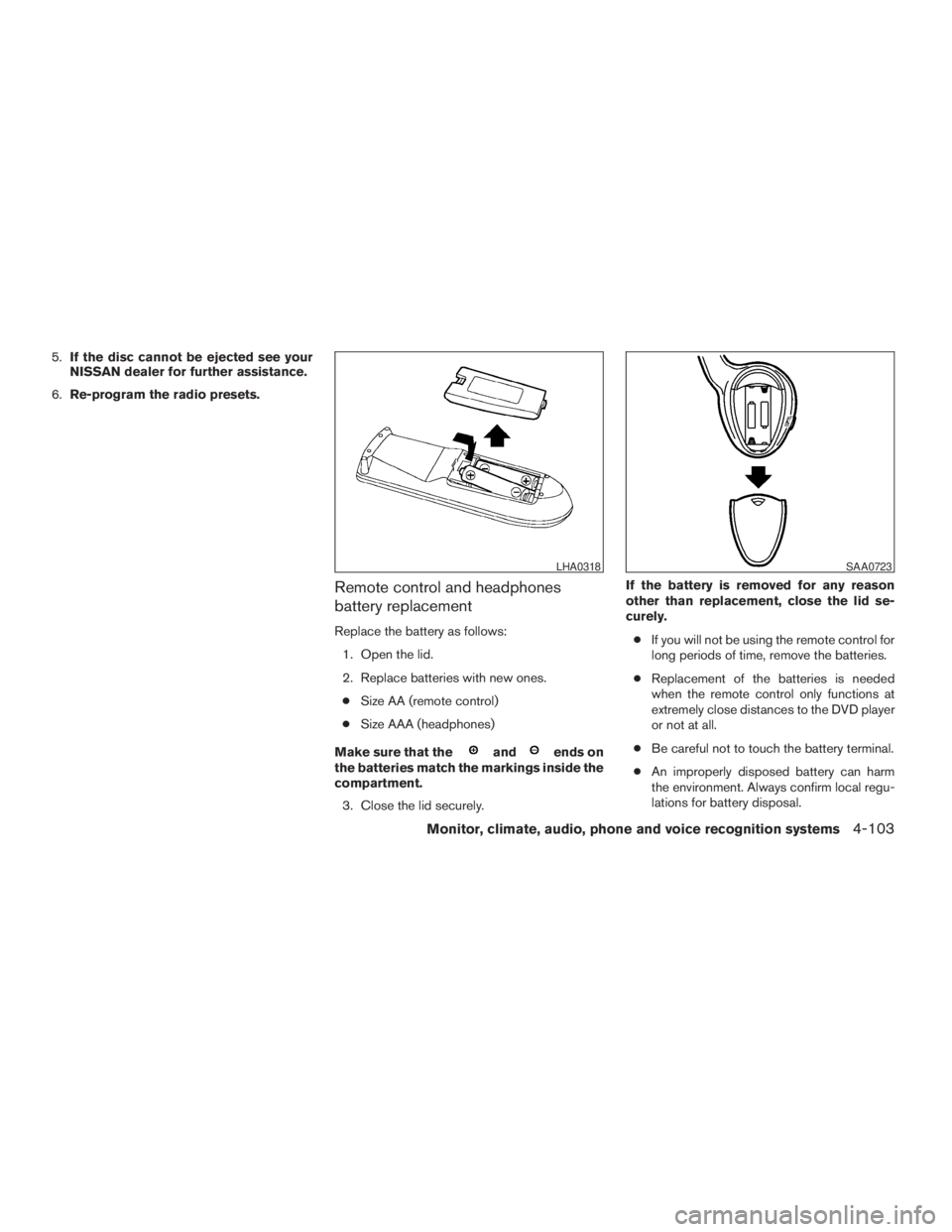
Remote control and headphones
battery replacement
Replace the battery as follows:
1. Open the lid.
2. Replace batteries with new ones.
cSize AA (remote control)
cSize AAA (headphones)
Make sure that the
andends on
the batteries match the markings inside the
compartment.
3. Close the lid securely.If the battery is removed for any reason
other than replacement, close the lid se-
curely.
cIf you will not be using the remote control for
long periods of time, remove the batteries.
cReplacement of the batteries is needed
when the remote control only functions at
extremely close distances to the DVD player
or not at all.
cBe careful not to touch the battery terminal.
cAn improperly disposed battery can harm
the environment. Always confirm local regu-
lations for battery disposal.
LHA0318SAA0723
Monitor, climate, audio, phone and voice recognition systems4-103
ZREVIEW COPYÐ2009 Pathfinder(pat)
Owners ManualÐUSA_English(nna)
05/29/08Ðdebbie
X
Page 270 of 471
cWhen changing batteries, do not let dust or
oil get on the remote control and head-
phones.
FCC Notice:
Changes or modifications not expressly ap-
proved by the party responsible for compli-
ance could void the user’s authority to op-
erate the equipment. This device complies
with Part 15 of the FCC Rules and RSS-210
of Industry Canada. Operation is subject to
the following two conditions: (1) This de-
vice may not cause harmful interference,
and (2) this device must accept any inter-
ference received, including interference
that may cause undesired operation of the
device.When installing a CB, ham radio or car phone in
your NISSAN, be sure to observe the following
precautions; otherwise, the new equipment may
adversely affect the engine control system and
other electronic parts.
WARNING
cA cellular telephone should not be used
while driving so full attention may be
given to vehicle operation. Some juris-
dictions prohibit the use of cellular tele-
phones while driving.
cIf you must make a call while your ve-
hicle is in motion, the hands free cellu-
lar phone operational mode (if so
equipped) is highly recommended. Ex-
ercise extreme caution at all times so
full attention may be given to vehicle
operation.
cIf you are unable to devote full attention
to vehicle operation while talking on
the phone, pull off the road to a safe
location and stop your vehicle.
CAUTION
cKeep the antenna as far away as pos-
sible from the electronic control
modules.
cKeep the antenna wire more than 8 in
(20 cm) away from the electronic con-
trol system harnesses. Do not route the
antenna wire next to any harness.
cAdjust the antenna standing-wave ratio
as recommended by the manufacturer.
cConnect the ground wire from the CB
radio chassis to the body.
cFor details, consult a NISSAN dealer.
cDo not ground electrical accessories
directly to the battery terminal. Doing
so, will bypass the variable voltage con-
trol system and the vehicle battery may
not charge completely. Refer to “Vari-
able voltage control system” in the
“Maintenance and do-it-yourself” sec-
tion later in this manual.
cUse electrical accessories with the en-
gine running to avoid discharging the
vehicle battery.
CAR PHONE OR CB RADIO
4-104Monitor, climate, audio, phone and voice recognition systems
ZREVIEW COPYÐ2009 Pathfinder(pat)
Owners ManualÐUSA_English(nna)
05/29/08Ðdebbie
X
Page 272 of 471
module when the ignition switch is placed in the
ON position with the paired cellular phone turned
on and carried in the vehicle.
You can register up to 5 different BluetoothT
cellular phones to the in-vehicle phone module.
However, you can talk on only one cellular phone
at a time.
Before using the BluetoothTHands-Free Phone
System, refer to the following notes.
cSet up the wireless connection between a
cellular phone and the in-vehicle phone
module before using the hands-free phone
system.
cSome BluetoothTenabled cellular phones
may not be recognized by the in-vehicle
phone module. Please visit
www.nissanusa.com/bluetooth for a recom-
mended phone list and pairing.
cYou will not be able to use a hands-free
phone under the following conditions:
– Your vehicle is outside of the cellular ser-
vice area.
– Your vehicle is in an area where it is
difficult to receive a cellular signal; such
as in a tunnel, in an underground parking
garage, near a tall building or in a moun-
tainous area.– Your cellular phone is locked to prevent it
from being dialed.
cWhen the radio wave condition is not ideal
or ambient sound is too loud, it may be
difficult to hear the other person’s voice dur-
ing a call.
cDo not place the cellular phone in an area
surrounded by metal or far away from the
in-vehicle phone module to prevent tone
quality degradation and wireless connection
disruption.
cWhile a cellular phone is connected through
the BluetoothTwireless connection, the bat-
tery power of the cellular phone may dis-
charge quicker than usual. The BluetoothT
Hands-Free Phone System cannot charge
cellular phones.
cIf the hands-free phone system seems to be
malfunctioning, see “Troubleshooting guide”
later in this section. You can also visit
www.nissanusa.com/bluetooth for trouble-
shooting help.
cSome cellular phones or other devices may
cause interference or a buzzing noise to
come from the audio system speakers. Stor-
ing the device in a different location may
reduce or eliminate the noise.cRefer to the cellular phone Owner’s Manual
regarding the telephone charges, cellular
phone antenna and body, etc.
REGULATORY INFORMATION
FCC Regulatory information
– CAUTION: To maintain compliance with
FCC’s RF exposure guidelines, use only the
supplied antenna. Unauthorized antenna,
modification, or attachments could damage
the transmitter and may violate FCC regula-
tions.
– Operation is subject to the following two con-
ditions:
1. This device may not cause interference and
2. this device must accept any interference,
including interference that may cause un-
desired operation of the device.
IC Regulatory information
– Operation is subject to the following two con-
ditions: (1) this device may not cause interfer-
ence, and (2) this device must accept any
interference, including interference that may
cause undesired operation of the device.
– This Class B digital apparatus meets all re-
quirements of the Canadian Interference-
Causing Equipment Regulations.
4-106Monitor, climate, audio, phone and voice recognition systems
ZREVIEW COPYÐ2009 Pathfinder(pat)
Owners ManualÐUSA_English(nna)
05/29/08Ðdebbie
X
Page 273 of 471
BLUETOOTHtis a
trademark owned by
Bluetooth SIG, Inc.,
U.S.A. and licensed to
Visteon.
USING THE SYSTEM
The NISSAN Voice Recognition system allows
hands-free operation of the BluetoothTPhone
System.
If the vehicle is in motion, some commands may
not be available so full attention may be given to
vehicle operation.
Initialization
When the ignition switch is turned to the ON
position, NISSAN Voice Recognition is initialized,
which takes a few seconds. If the
button is
pressed before the initialization completes, the
system will announce “Hands-free phone system
not ready” and will not react to voice commands.
Operating tips
To get the best performance out of the NISSAN
Voice Recognition system, observe the following:
cKeep the interior of the vehicle as quiet as
possible. Close the windows to eliminate
surrounding noises (traffic noises, vibration
sounds, etc.) , which may prevent the system
from recognizing voice commands correctly.
cWait until the tone sounds before speaking a
command. Otherwise, the command will not
be received properly.
cStart speaking a command within 5 seconds
after the tone sounds.
cSpeak in a natural voice without pausing
between words.
Giving voice commands
To operate NISSAN Voice Recognition, press
and release the
button located on the
steering wheel. After the tone sounds, speak a
command.
The command given is picked up by the micro-
phone, and voice feedback is given when the
command is accepted.
cIf you need to hear the available commands
for the current menu again, say “Help” and
the system will repeat them.cIf a command is not recognized, the system
announces, “Command not recognized.
Please try again.” Repeat the command in a
clear voice.
cIf you want to go back to the previous com-
mand, you can say “Go back” or “Correc-
tion” any time the system is waiting for a
response.
cYou can cancel a command when the sys-
tem is waiting for a response by saying,
“Cancel” or “Quit.” The system announces
“Cancel” and ends the VR session. You can
also press the
button on the steering
wheel at any time. Whenever the VR session
is cancelled, a double beep is played to
indicate you have exited the system.
cIf you want to adjust the volume of the voice
feedback, press the volume control switches
(+ or -) on the steering wheel while being
provided with feedback. You can also use
the radio volume control knob.
cIn most cases you can interrupt the voice
feedback to speak the next command by
pressing the
button on the steering
wheel.
Monitor, climate, audio, phone and voice recognition systems4-107
ZREVIEW COPYÐ2009 Pathfinder(pat)
Owners ManualÐUSA_English(nna)
05/29/08Ðdebbie
X