wheel NISSAN PATHFINDER 2009 Owner´s Manual
[x] Cancel search | Manufacturer: NISSAN, Model Year: 2009, Model line: PATHFINDER, Model: NISSAN PATHFINDER 2009Pages: 471, PDF Size: 5.9 MB
Page 288 of 471
REGULATORY INFORMATION
FCC Regulatory information
– CAUTION: To maintain compliance with
FCC’s RF exposure guidelines, use only the
supplied antenna. Unauthorized antenna,
modification, or attachments could damage
the transmitter and may violate FCC regula-
tions.
– Operation is subject to the following two con-
ditions:
1. This device may not cause interference and
2. this device must accept any interference,
including interference that may cause un-
desired operation of the device.
IC Regulatory information
– Operation is subject to the following two con-
ditions: (1) this device may not cause interfer-
ence, and (2) this device must accept any
interference, including interference that may
cause undesired operation of the device.
– This Class B digital apparatus meets all re-
quirements of the Canadian Interference-
Causing Equipment Regulations.
BLUETOOTHtis a
trademark owned by
Bluetooth SIG, Inc.,
U.S.A. and licensed to
Xanavi Informatics
Corporation.
VOICE COMMANDS
You can use voice commands to operate various
BluetoothTHands-Free Phone System features
using the NISSAN Voice Recognition system. For
more details, see “NISSAN Voice Recognition
System (if so equipped)” later in this section.
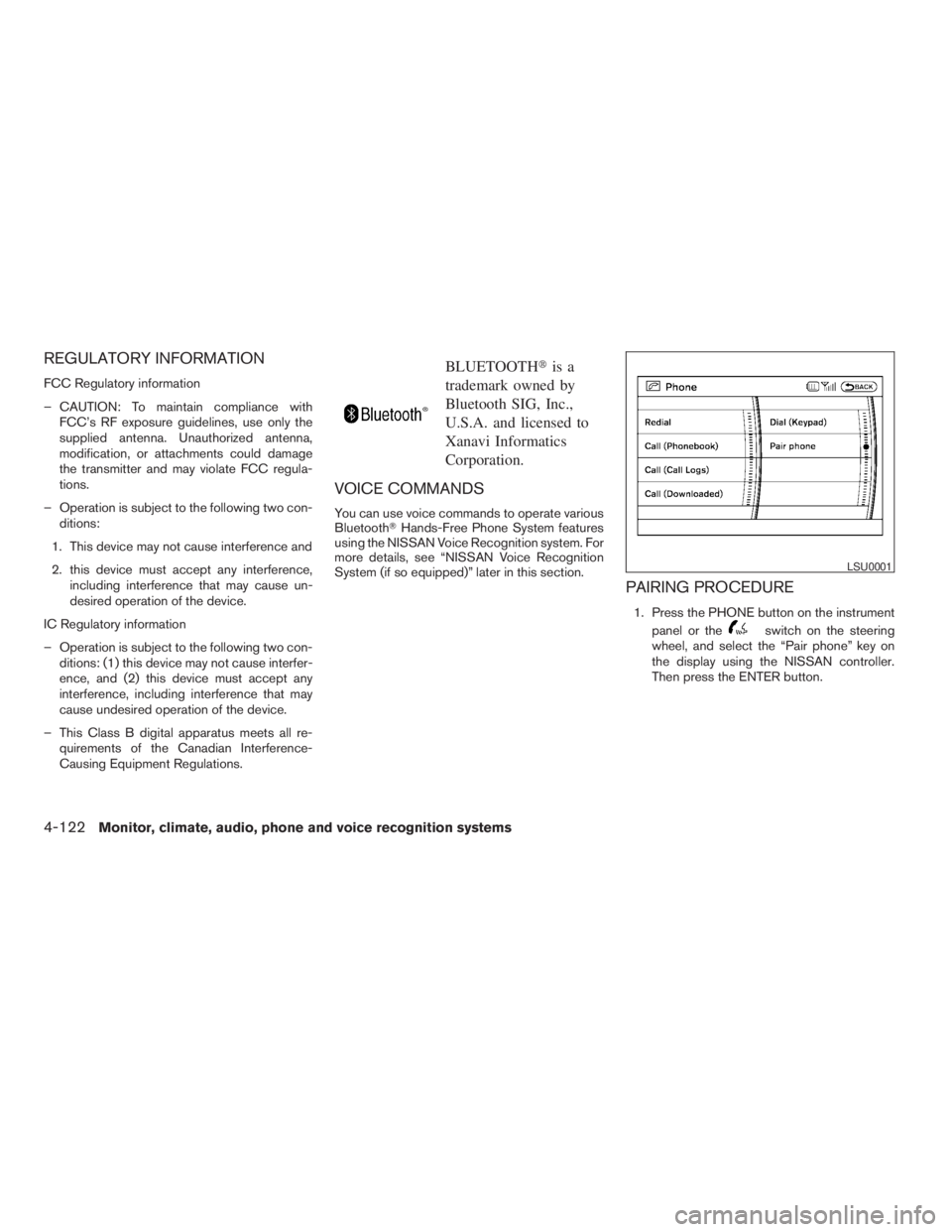
PAIRING PROCEDURE
1. Press the PHONE button on the instrument
panel or the
switch on the steering
wheel, and select the “Pair phone” key on
the display using the NISSAN controller.
Then press the ENTER button.
LSU0001
4-122Monitor, climate, audio, phone and voice recognition systems
ZREVIEW COPYÐ2009 Pathfinder(pat)
Owners ManualÐUSA_English(nna)
05/29/08Ðdebbie
X
Page 291 of 471
There are different methods to input a phone
number. Select one of the following options for
Step 4 above.
Enter Data by Keypad:
Input the name and phone number manually us-
ing the keypad displayed on the screen. For in-
formation on how to use the touch screen, see
“How to use the touch screen” earlier in this
section.Copy from Downloaded Phonebook:
Copy a phonebook from the BluetoothTcellular
phone. The availability of this function depends
on each cellular phone. The copying procedure
from the cellular phone also varies according to
each cellular phone. See the cellular phone own-
er’s manual for more details.
Copy from Outgoing Call Logs:
Store the name and phone number from the
outgoing call list.
Copy from Incoming Call Logs:
Store the name and phone number from the
incoming call list.
Transfer via Bluetooth:
Transfer a contact from the BluetoothTcellular
phone. Availability of this function depends on
each cellular phone. The transferring procedure
from the cellular phone also varies according to
each cellular phone. See the cellular phone own-
er’s manual for more details.
Delete:
Delete a contact that is registered in the phone-
book.MAKING A CALL
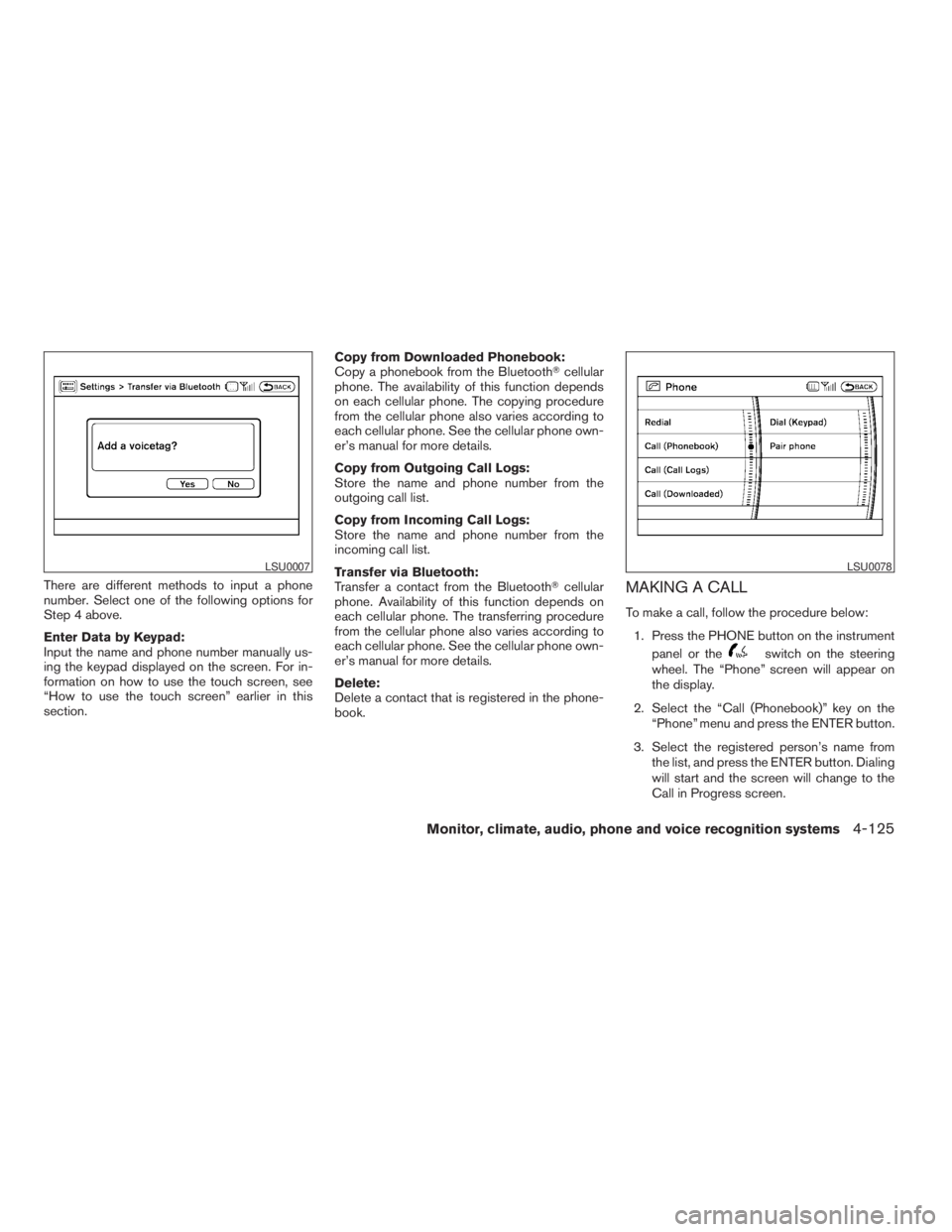
To make a call, follow the procedure below:
1. Press the PHONE button on the instrument
panel or the
switch on the steering
wheel. The “Phone” screen will appear on
the display.
2. Select the “Call (Phonebook)” key on the
“Phone” menu and press the ENTER button.
3. Select the registered person’s name from
the list, and press the ENTER button. Dialing
will start and the screen will change to the
Call in Progress screen.
LSU0007LSU0078
Monitor, climate, audio, phone and voice recognition systems4-125
ZREVIEW COPYÐ2009 Pathfinder(pat)
Owners ManualÐUSA_English(nna)
05/29/08Ðdebbie
X
Page 292 of 471
4. After the call is over, perform one of the
following to finish the call:
a. Select the “Hang up” key on the Call in
Progress screen and press the ENTER
button.
b. Press the
switch on the steering
wheel.
c. When the Call in Progress screen is dis-
played, press the PHONE button on the
instrument panel to hang up. If any other
screen is currently displayed, press the
PHONE button to display the Call in
Progress screen first, then press the
PHONE button again to hang up.
There are different methods to make a call. Select
one of the following options instead of “Call
(Phonebook)” in Step 2 above.
cRedial:
Dial the previously dialed number again.
cCall (Call Logs):
Select the name or phone number from the
incoming or outgoing call logs.cCall (Downloaded):
Select the name or phone number from the
downloaded call list.
cDial (Keypad):
Input the phone number manually using the
keypad displayed on the screen. For infor-
mation on how to use the touch screen, see
“How to use the touch screen” earlier in this
section.
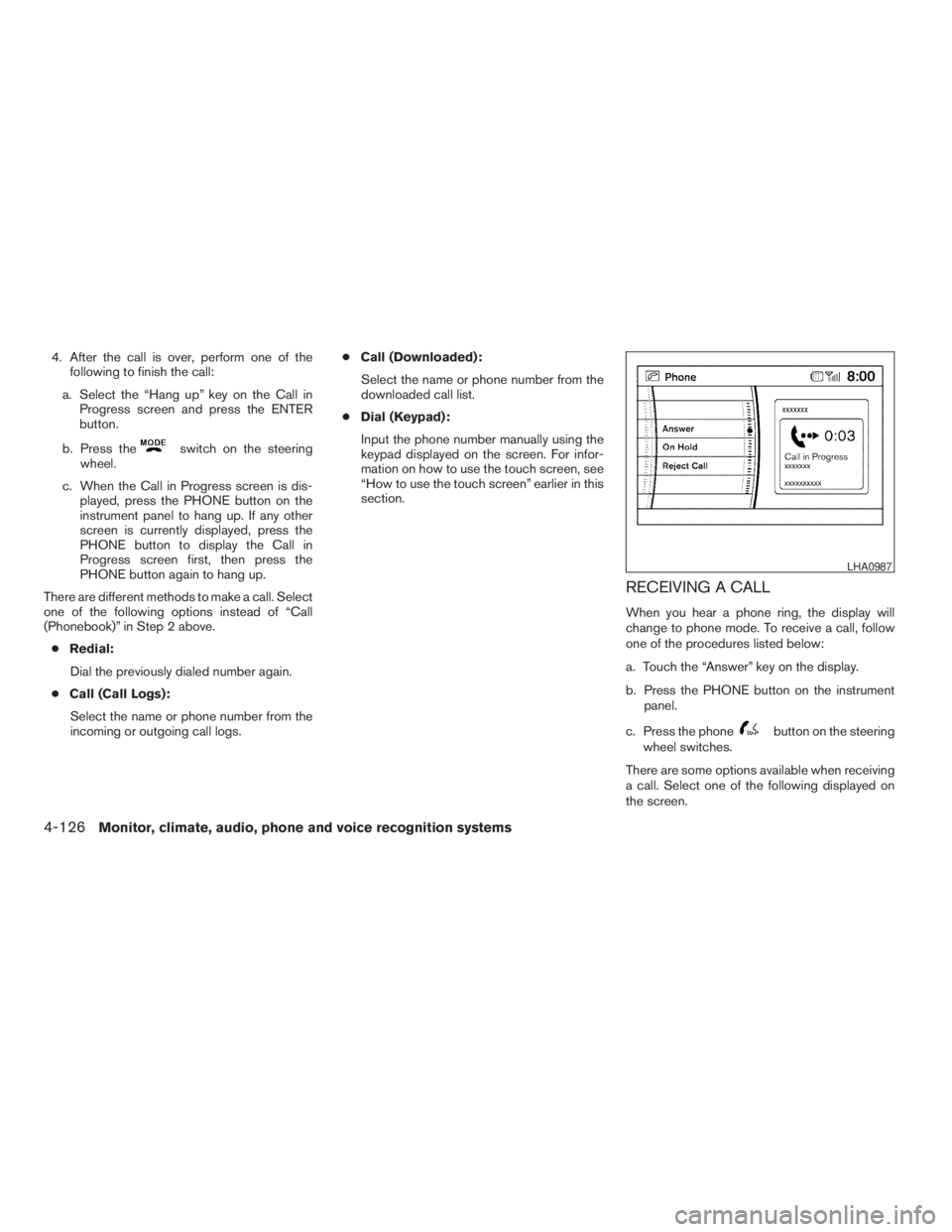
RECEIVING A CALL
When you hear a phone ring, the display will
change to phone mode. To receive a call, follow
one of the procedures listed below:
a. Touch the “Answer” key on the display.
b. Press the PHONE button on the instrument
panel.
c. Press the phone
button on the steering
wheel switches.
There are some options available when receiving
a call. Select one of the following displayed on
the screen.
LHA0987
4-126Monitor, climate, audio, phone and voice recognition systems
ZREVIEW COPYÐ2009 Pathfinder(pat)
Owners ManualÐUSA_English(nna)
05/30/08Ðbarbara
X
Page 293 of 471
Answer:
Accept an incoming call to talk.
On Hold:
Put an incoming call on hold.
Reject Call:
Reject an incoming call.
To finish the call, follow one of the procedures
listed below:
a. Touch the “Reject Call” key on the display.
b. Press the PHONE button on the instrument
panel.
c. Press and hold the phone
button on the
steering wheel switches.
DURING A CALL
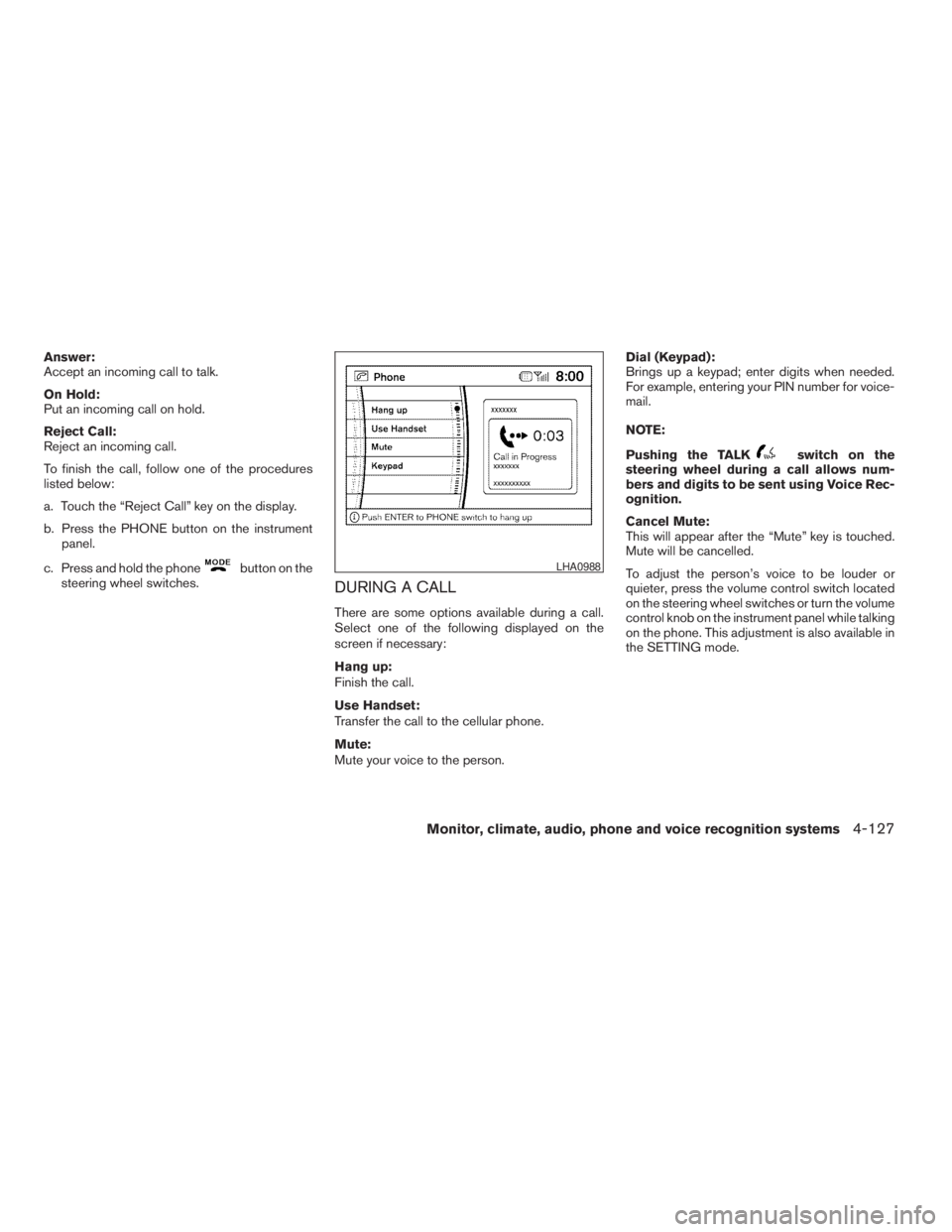
There are some options available during a call.
Select one of the following displayed on the
screen if necessary:
Hang up:
Finish the call.
Use Handset:
Transfer the call to the cellular phone.
Mute:
Mute your voice to the person.Dial (Keypad):
Brings up a keypad; enter digits when needed.
For example, entering your PIN number for voice-
mail.
NOTE:
Pushing the TALK
switch on the
steering wheel during a call allows num-
bers and digits to be sent using Voice Rec-
ognition.
Cancel Mute:
This will appear after the “Mute” key is touched.
Mute will be cancelled.
To adjust the person’s voice to be louder or
quieter, press the volume control switch located
on the steering wheel switches or turn the volume
control knob on the instrument panel while talking
on the phone. This adjustment is also available in
the SETTING mode.
LHA0988
Monitor, climate, audio, phone and voice recognition systems4-127
ZREVIEW COPYÐ2009 Pathfinder(pat)
Owners ManualÐUSA_English(nna)
05/29/08Ðdebbie
X
Page 294 of 471
ENDING A CALL
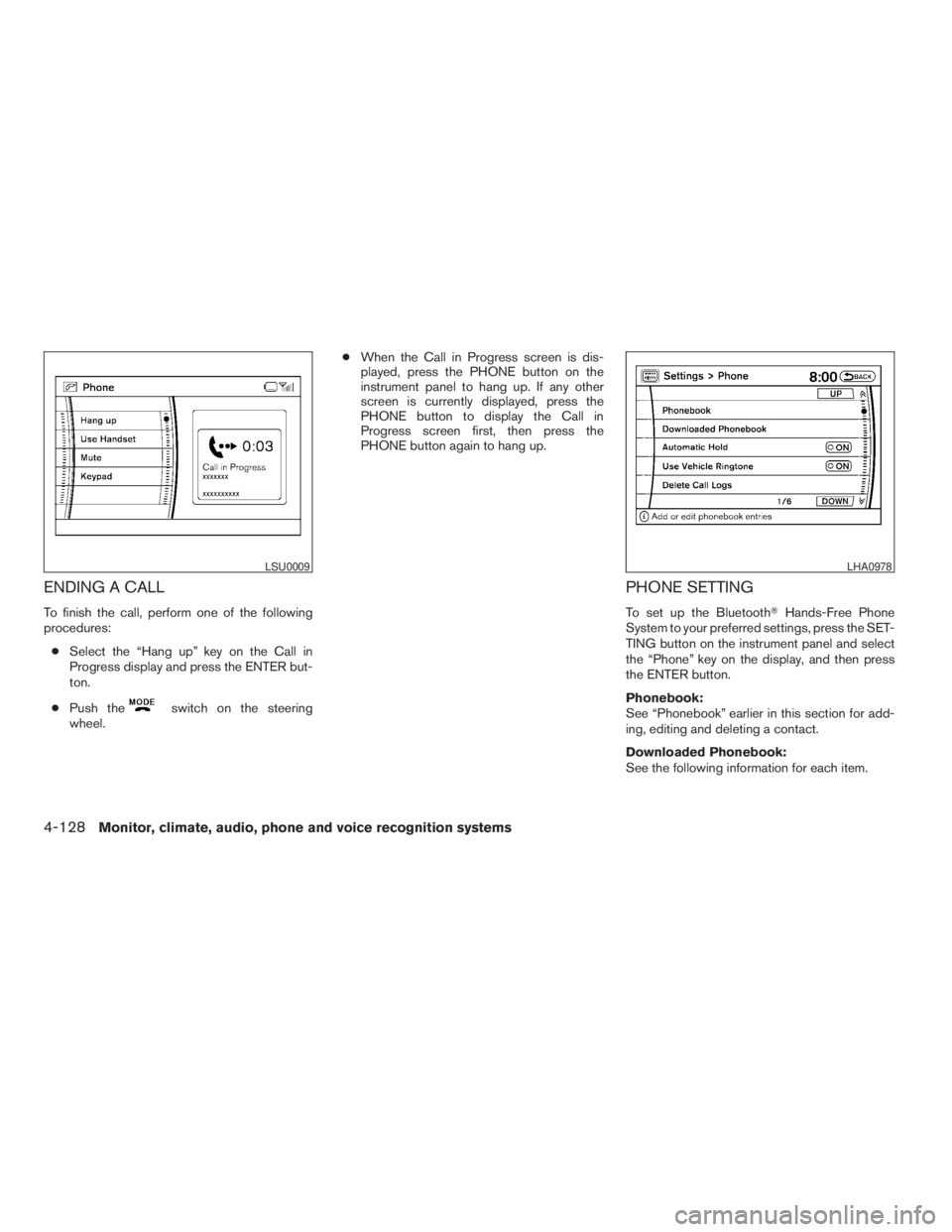
To finish the call, perform one of the following
procedures:
cSelect the “Hang up” key on the Call in
Progress display and press the ENTER but-
ton.
cPush the
switch on the steering
wheel.cWhen the Call in Progress screen is dis-
played, press the PHONE button on the
instrument panel to hang up. If any other
screen is currently displayed, press the
PHONE button to display the Call in
Progress screen first, then press the
PHONE button again to hang up.
PHONE SETTING
To set up the BluetoothTHands-Free Phone
System to your preferred settings, press the SET-
TING button on the instrument panel and select
the “Phone” key on the display, and then press
the ENTER button.
Phonebook:
See “Phonebook” earlier in this section for add-
ing, editing and deleting a contact.
Downloaded Phonebook:
See the following information for each item.
LSU0009LHA0978
4-128Monitor, climate, audio, phone and voice recognition systems
ZREVIEW COPYÐ2009 Pathfinder(pat)
Owners ManualÐUSA_English(nna)
05/29/08Ðdebbie
X
Page 297 of 471
You can also adjust the volume of an incoming
voice during a call by pushing the volume control
switch on the steering wheel or by turning the
volume control knob on the instrument panel.NISSAN Voice Recognition allows hands-free
operation of the systems equipped on this ve-
hicle, such as phone and vehicle information.
There are two voice recognition modes of opera-
tion available. They are:
cStandard Mode
cAlternate Command Mode
In Standard Mode (the factory default setting) ,
commands that are available are always shown
on the display and announced by the system. You
can complete your desired operation by simply
following the prompts given by the system. In this
mode, hands-free operation of Audio Climate
Control and Display is not available through
NISSAN Voice Recognition.
For advanced operation, you can change to an
Alternate Command Mode that enables the op-
eration of the display, audio, and climate control
through NISSAN Voice Recognition. When this
mode is active, an expanded list of commands
can be spoken after pushing the TALK
switch on the steering wheel, and the voice com-
mand menu prompts are turned off.
In Alternate Command Mode the recognition
success rate may be affected because the num-
ber of available commands and the ways of
speaking each command are increased. See“NISSAN Voice Recognition Alternate Com-
mand Mode” later in this section.
To improve the recognition success rate when
Alternate Command Mode is active, try using the
Speaker Adaptation Function available in that
mode. See “Speaker Adaptation Function” later
in this section. Otherwise, it is recommended that
Alternate Command Mode be turned off and
Standard Mode be used for the best recognition
performance.
For the voice commands for the navigation sys-
tem, refer to the Navigation System Owner’s
Manual of your vehicle.
For vehicles in the U.S., the factory default setting
is the Standard Mode. See “Standard Mode” in
this section. For vehicles in Canada, the factory
default setting is the Alternate Command Mode.
See “Alternate Command Mode” later in this sec-
tion.
NISSAN VOICE RECOGNITION
STANDARD MODE
The Standard Mode enables control of naviga-
tion, phone and vehicle information. With this
setting active, commands that are available are
always shown on the display and announced by
the system.
NISSAN VOICE RECOGNITION
SYSTEM (if so equipped)
Monitor, climate, audio, phone and voice recognition systems4-131
ZREVIEW COPYÐ2009 Pathfinder(pat)
Owners ManualÐUSA_English(nna)
05/29/08Ðdebbie
X
Page 300 of 471
USING THE SYSTEM
Initialization
When the ignition switch is placed in the ON
position, NISSAN Voice Recognition is initialized,
which takes a few seconds. When completed,
the system is ready to accept voice commands. If
the
switch is pressed before the initializa-
tion completes, voice commands will not be ac-
cepted. Please wait until the NISSAN Voice Rec-
ognition initialization is completed.
BEFORE STARTING
To get the best recognition performance from
Voice Recognition, observe the following:
cThe interior of the vehicle should be as quiet
as possible. Close the windows to eliminate
the surrounding noises (traffic noise and vi-
bration sounds, etc.) , which may prevent the
system from correctly recognizing the voice
commands.
cWait until the tone sounds before speaking a
command.
cSpeak in a natural conversational voice with-
out pausing between words.
cIf the air conditioner is set to “Auto”, the fan
speed is automatically lowered so that your
commands can be recognized more easily.
GIVING VOICE COMMANDS
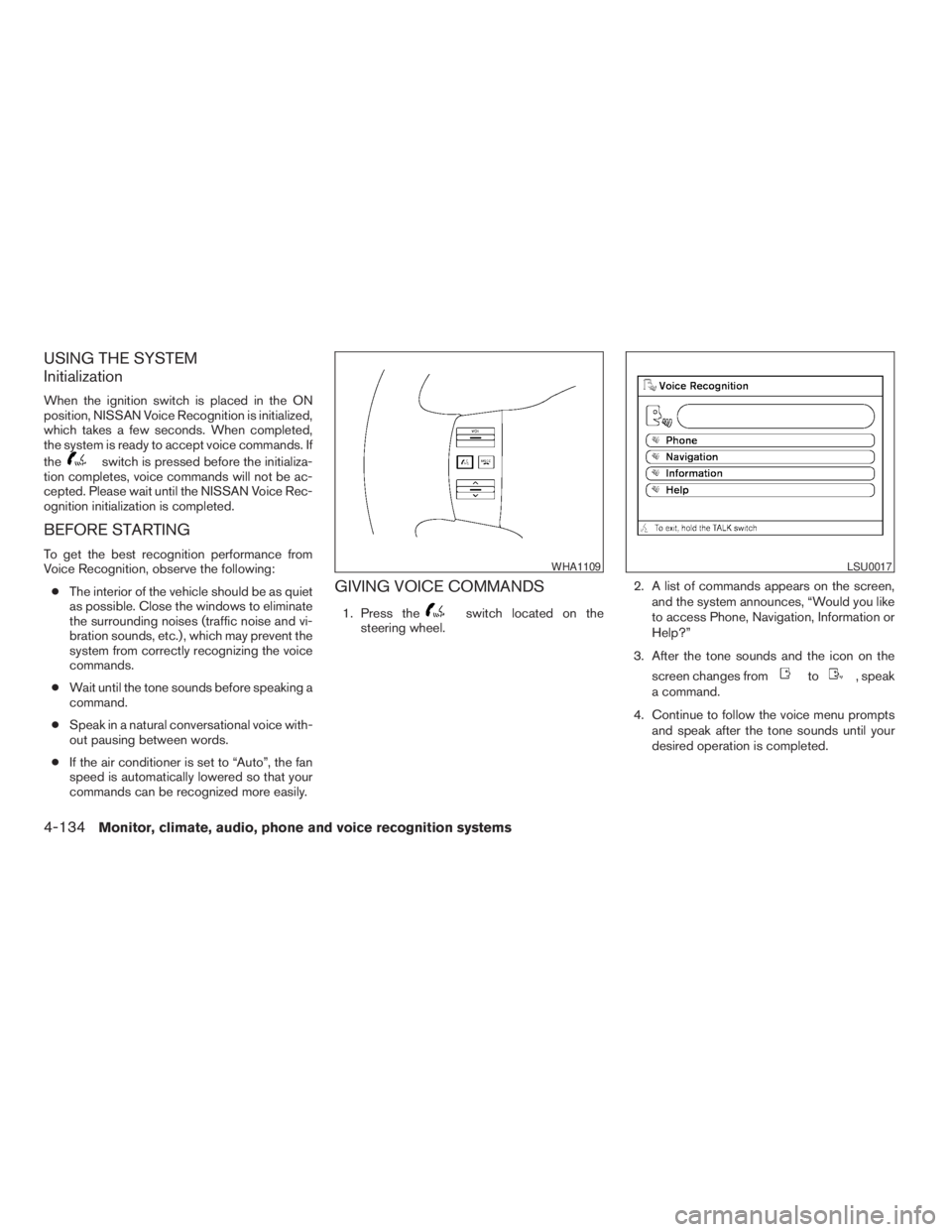
1. Press theswitch located on the
steering wheel.2. A list of commands appears on the screen,
and the system announces, “Would you like
to access Phone, Navigation, Information or
Help?”
3. After the tone sounds and the icon on the
screen changes from
to, speak
a command.
4. Continue to follow the voice menu prompts
and speak after the tone sounds until your
desired operation is completed.
WHA1109LSU0017
4-134Monitor, climate, audio, phone and voice recognition systems
ZREVIEW COPYÐ2009 Pathfinder(pat)
Owners ManualÐUSA_English(nna)
05/29/08Ðdebbie
X
Page 301 of 471
Operating tips
cSay a command after the tone. Voice com-
mands cannot be accepted when the icon
is
.
c
Commands that are available are always
shown on the display and spoken through
voice menu prompts. Commands other than
those that are displayed are not accepted.
Please follow the prompts given by the system.
cIf the command is not recognized, the sys-
tem repeats the announcement. Repeat the
command in a clear voice.
cPress the
switch on the steering
wheel to return to the previous screen.
cIf you want to cancel the command, press
and hold the
switch. The message,
“Voice cancelled” will be announced.
cIf you want to adjust the volume of the sys-
tem feedback, push the volume control
switch on the steering wheel or use the
audio system volume knob while the system
is making an announcement.
How to speak numbers
Voice Recognition requires a certain way to
speak numbers when giving voice commands.
Refer to the following examples.General rule:
cOnly single digits 0 (zero) to 9 can be used.
cWhen saying the phone number 800-662-
6200, the system will accept “eight-
hundred” in addition to “eight zero zero” or
“eight oh oh”. 500, 700, and 900 are also
supported.
Examples:
c1-800-662-6200
– “One eight zero zero six six two six two
zero zero”
– “One eight hundred six six two six two
zero zero”
Improving Recognition of Phone numbers:
You can improve the recognition of phone num-
bers by saying the phone number in three groups
of numbers. For example, when you try to call
800-662-6200, say “eight zero zero” first, and
the system will then ask you for the next three
digits. Then, say “six six two”. After recognition,
the system will then ask for the last four digits.
Say, “six two zero zero”. Using this method of
phone digit entry can improve recognition perfor-
mance.NOTE:
When speaking a house number, speak the
number “0” as “zero” or “oh”. If the letter
“O” is included in the house number, it will
not be recognized as “0” even if you speak
“oh” instead of “zero”.
Monitor, climate, audio, phone and voice recognition systems4-135
ZREVIEW COPYÐ2009 Pathfinder(pat)
Owners ManualÐUSA_English(nna)
05/29/08Ðdebbie
X
Page 304 of 471
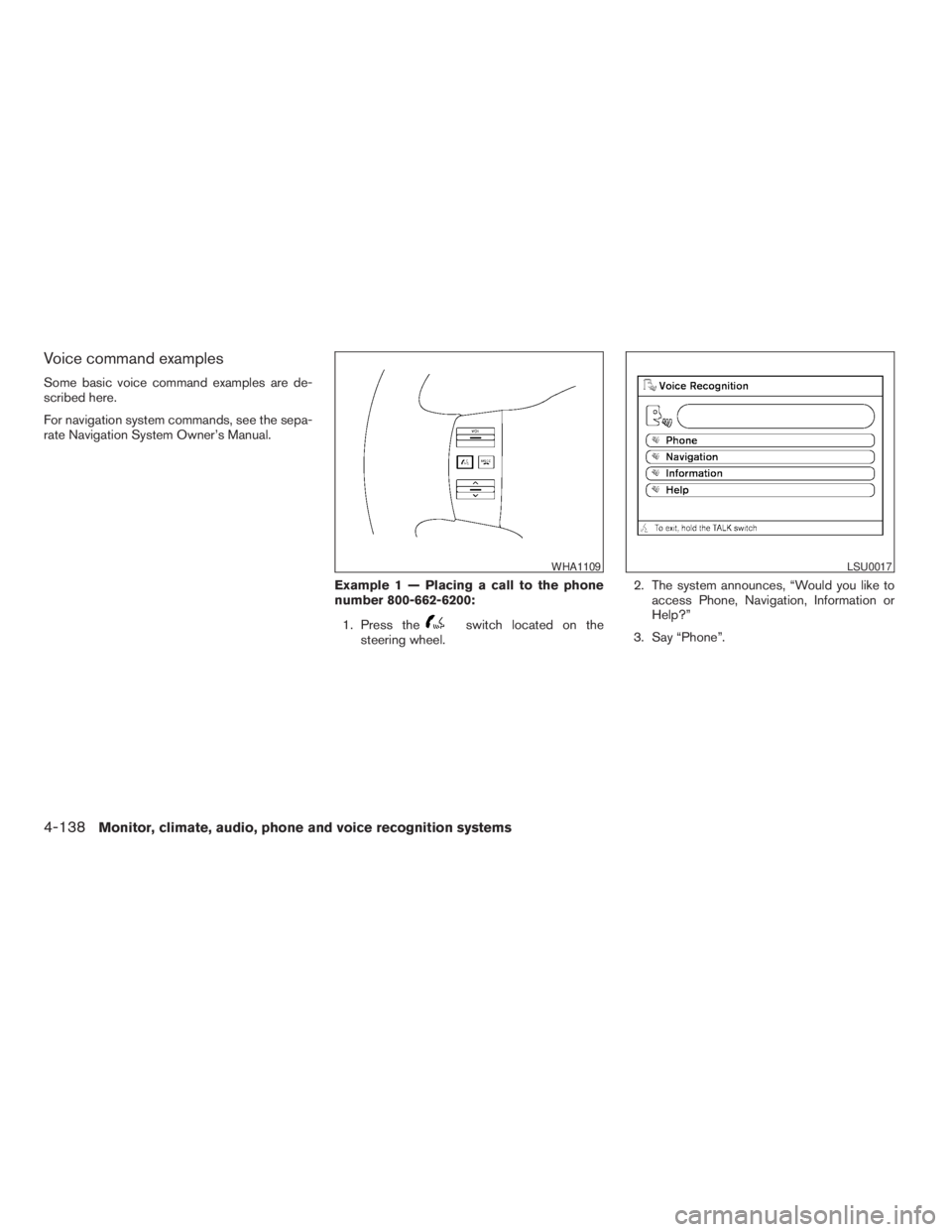
Voice command examples
Some basic voice command examples are de-
scribed here.
For navigation system commands, see the sepa-
rate Navigation System Owner’s Manual.
Example 1 — Placing a call to the phone
number 800-662-6200:
1. Press the
switch located on the
steering wheel.2. The system announces, “Would you like to
access Phone, Navigation, Information or
Help?”
3. Say “Phone”.
WHA1109LSU0017
4-138Monitor, climate, audio, phone and voice recognition systems
ZREVIEW COPYÐ2009 Pathfinder(pat)
Owners ManualÐUSA_English(nna)
05/29/08Ðdebbie
X
Page 307 of 471
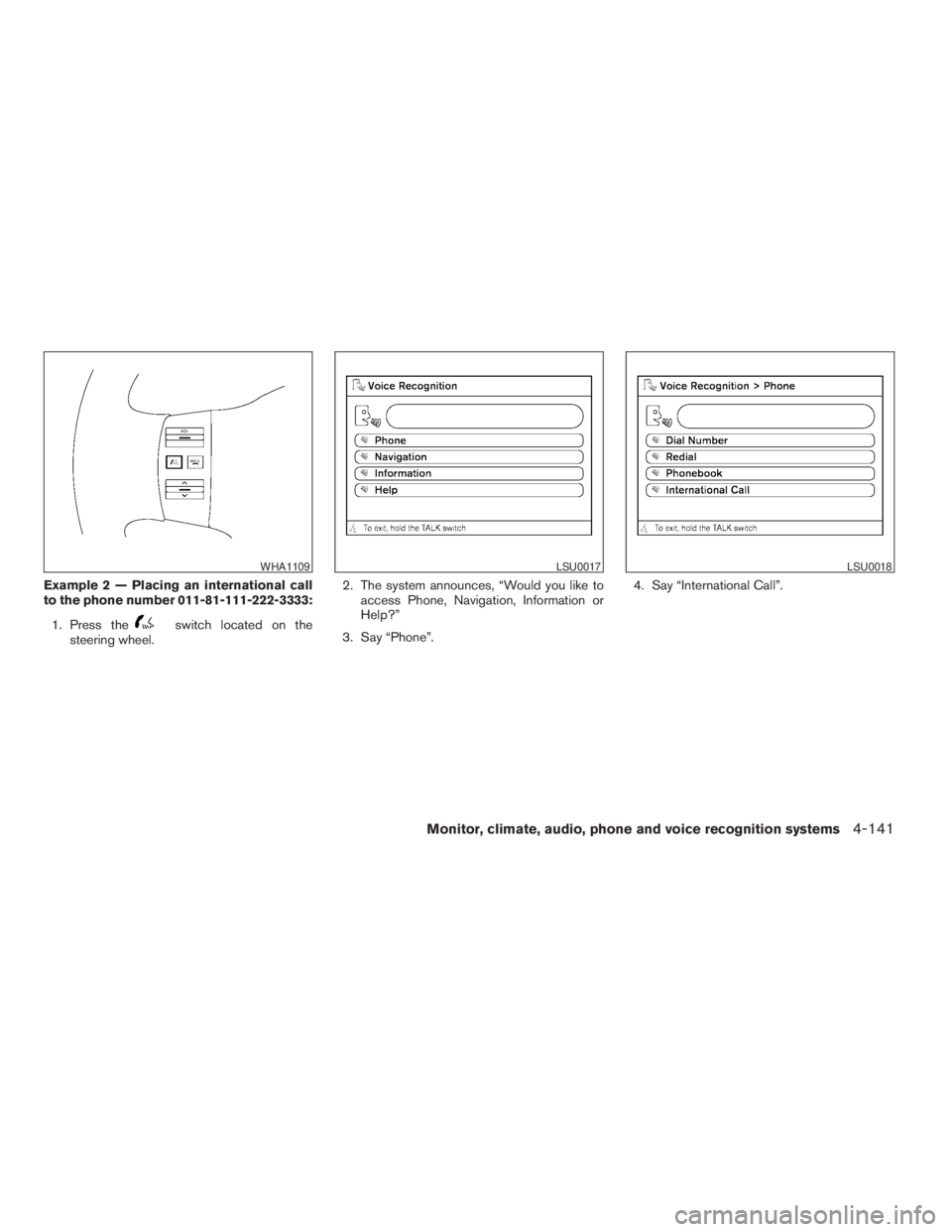
Example 2 — Placing an international call
to the phone number 011-81-111-222-3333:
1. Press the
switch located on the
steering wheel.2. The system announces, “Would you like to
access Phone, Navigation, Information or
Help?”
3. Say “Phone”.4. Say “International Call”.
WHA1109LSU0017LSU0018
Monitor, climate, audio, phone and voice recognition systems4-141
ZREVIEW COPYÐ2009 Pathfinder(pat)
Owners ManualÐUSA_English(nna)
05/29/08Ðdebbie
X