display NISSAN PATHFINDER 2009 Owner´s Manual
[x] Cancel search | Manufacturer: NISSAN, Model Year: 2009, Model line: PATHFINDER, Model: NISSAN PATHFINDER 2009Pages: 471, PDF Size: 5.9 MB
Page 237 of 471
TUNE/FLDR (Tuning) knob:
To manually tune the radio, turn the TUNE/FLDR
knob to the right or left.
SEEK/CAT and TRACK
tuning buttons:
Press the SEEK/CAT
button or the
TRACK
button for less than 1.5 seconds
to tune from high to low or low to high frequen-
cies and stop at the next broadcasting station.
SCAN·RPT (SCAN tuning) button:
Press the SCAN·RPT button to initiate scan tun-
ing. Scan tuning will stop at each broadcasting
station for 5 seconds. Press the SCAN·RPT but-
ton again during this 5 second period to stop
scan tuning; the radio will remain tuned to that
station. If the SCAN·RPT button is not pressed
within 5 seconds, scan tuning moves to the next
station.
PRESET A·B·C (Station memory opera-
tions):
18 stations can be set for the FM, AM and SAT
(satellite, if so equipped) radio to the A, B and C
preset button in any combination of FM, AM or
SAT stations.
1. Choose preset bank A, B or C using the
PRESET A·B·C select button.2. Select the desired FM, AM or SAT station
band.
3. Tune to the desired station using manual,
SEEK or SCAN tuning. Press and hold any
of the desired station memory buttons (1 –
6) until a beep sound is heard.
4. The channel indicator will then come on and
the sound will resume. Programming is now
complete.
5. Other buttons can be set in the same man-
ner.
If the battery cable is disconnected, or if the fuse
opens, the radio memory will be canceled. In that
case, reset the desired stations.
Radio data system (RDS):
RDS stands for Radio Data System, and is a data
information service transmitted by some radio
stations on the FM band (not AM band) . Cur-
rently, most RDS stations are in large cities, but
many stations are now considering broadcasting
RDS data.
RDS can display:
cStation call sign, such as “WHFR 98.3”.
cStation name, such as “The Groove”.
cMusic or programming type such as “Clas-
sical”, “Country”, or “Rock”.cArtist and song information.
If the station broadcasts RDS information, the
RDS icon is displayed.
Compact disc (CD) player operation
Turn the ignition key to the ACC or ON position
and insert the compact disc into the slot with the
label side facing up. The compact disc will be
guided automatically into the slot and start play-
ing.
If the radio is already operating, it will automati-
cally turn off and the compact disc will play.
If the system has been turned off while the com-
pact disc was playing, pressing the VOL/
ON·OFF control knob will start the compact disc.
DISC/AUX button:
When the DISC/AUX button is pressed with the
system off and the compact disc loaded, the
system will turn on and the compact disc will start
to play.
When the DISC/AUX button is pressed with the
compact disc loaded but the radio playing, the
radio will automatically be turned off and the
compact disc will start to play.
Monitor, climate, audio, phone and voice recognition systems4-71
ZREVIEW COPYÐ2009 Pathfinder(pat)
Owners ManualÐUSA_English(nna)
05/29/08Ðdebbie
X
Page 238 of 471
SEEK/CAT and TRACK
buttons:
When the SEEK/CAT
button is pressed
while a compact disc is playing, the track being
played returns to its beginning. Press several
times to skip back through tracks. The compact
disc will go back the number of times the button
is pressed.
When the TRACK
button is pressed while
the compact disc is playing, the next track will
start to play from its beginning. Press several
times to skip through tracks. The compact disc
will advance the number of times the button is
pressed. (When the last track on the compact
disc is skipped through, the first track will be
played.)
The NISSAN controller can also be used to se-
lect tracks when a CD is being played.
SEEK/CAT and TRACK
(Rewind·Fast Forward)
buttons:
Press and hold the SEEK/CAT
(rewind)
button or the TRACK
(fast forward) button
while a compact disc is playing; the compact disc
will play while rewinding or fast forwarding. Whenthe button is released, the compact disc will
return to normal play speed.
When the CD button is pressed with the system
off and the compact disc loaded the system will
turn on and the compact disc will start to play.
When the CD button is pressed with the com-
pact disc loaded with the tape or the radio play-
ing, the tape or radio will automatically be turned
off and the compact disc will start to play.
TUNE FLDR (Folder) knob
While playing an MP3/WMA CD, turn the TUNE/
FLDR knob right or left to scan forward or back-
ward through available folders.
SCAN·RPT (random and repeat) button:
When the SCAN·RPT button is pressed while the
compact disc is being played, the play pattern
can be changed as follows:
CD:
1 DISC RPT!1 TRK RPT!1 DISC RDM!1
DISC RPT
MP3/WMA CD:
1 DISC RPT!1 FOLDER RPT!1 TRK RPT!
1 DISC RDM!1 FOLDER RDM!1 DISC RPT1 DISC RPT: the entire disc will be repeated.
1 TRK RPT: the current track playing will be
repeated.
1 DISC RDM: all tracks will be played randomly.
1 FOLDER RPT: the folder currently being ac-
cessed will be repeated.
1 FOLDER RDM: the tracks in the current folder
being accessed will be played randomly.
REAR CTRL:
Pressing the REAR CTRL button turns the rear
seat audio controller on. Rear Controls UN-
LOCKED will display. Pressing the REAR CTRL
button again will turn the rear seat audio control-
ler off. Rear Controls LOCKED will display. If the
vehicle is not equipped with a rear seat audio
controller, the display will show “Rear Controls
Not Available”.
Press and hold the REAR CTRL button for ap-
proximately 1.5 seconds to turn on the rear dis-
play screen on. Rear Display ON will display.
Press and hold the REAR CTRL button again will
turn the rear display screen off. Rear Display OFF
will display. If the vehicle is not equipped with a
rear display screen, the display will show “Rear
Controls Not Available”.
4-72Monitor, climate, audio, phone and voice recognition systems
ZREVIEW COPYÐ2009 Pathfinder(pat)
Owners ManualÐUSA_English(nna)
05/29/08Ðdebbie
X
Page 240 of 471
DISC/AUX button:
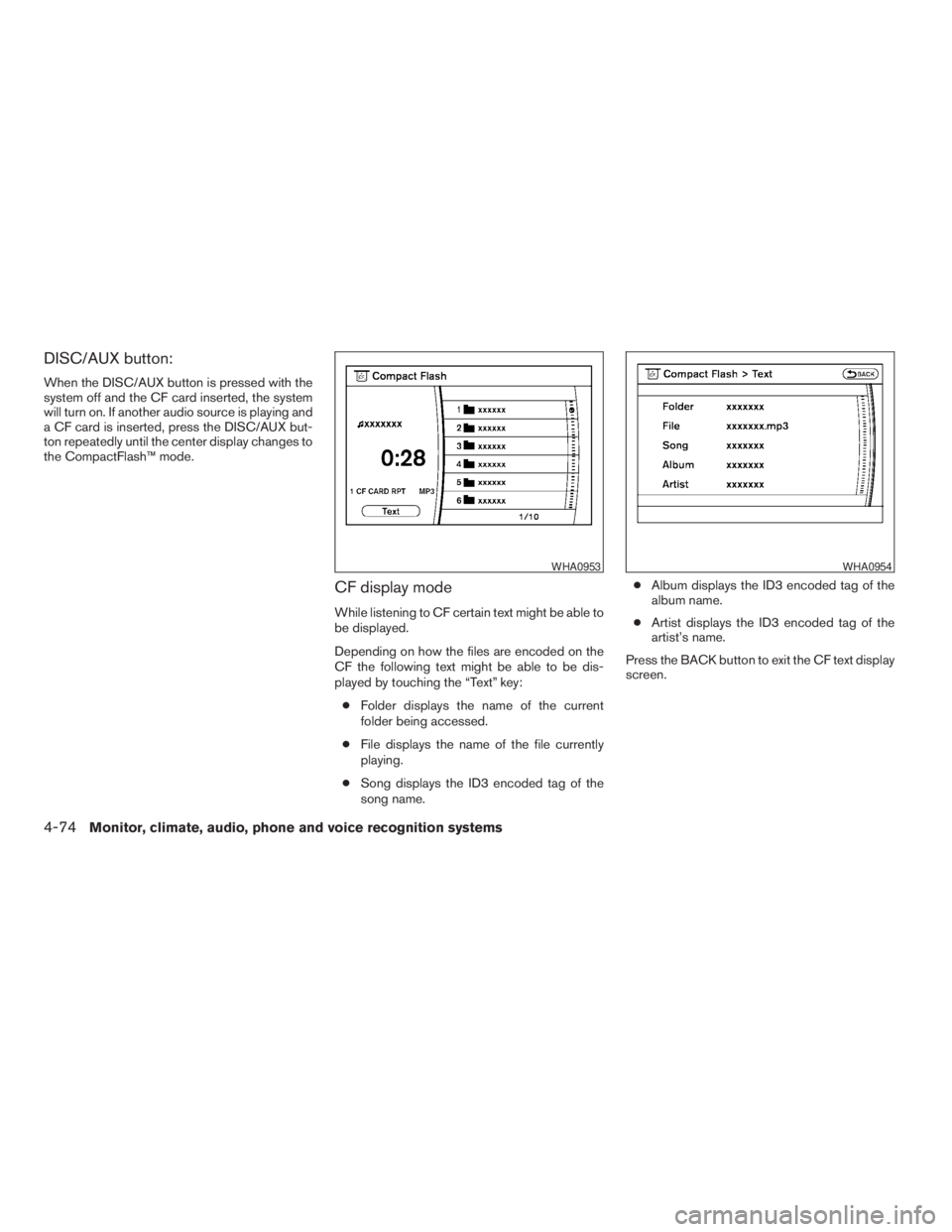
When the DISC/AUX button is pressed with the
system off and the CF card inserted, the system
will turn on. If another audio source is playing and
a CF card is inserted, press the DISC/AUX but-
ton repeatedly until the center display changes to
the CompactFlash™ mode.
CF display mode
While listening to CF certain text might be able to
be displayed.
Depending on how the files are encoded on the
CF the following text might be able to be dis-
played by touching the “Text” key:
cFolder displays the name of the current
folder being accessed.
cFile displays the name of the file currently
playing.
cSong displays the ID3 encoded tag of the
song name.cAlbum displays the ID3 encoded tag of the
album name.
cArtist displays the ID3 encoded tag of the
artist’s name.
Press the BACK button to exit the CF text display
screen.
WHA0953WHA0954
4-74Monitor, climate, audio, phone and voice recognition systems
ZREVIEW COPYÐ2009 Pathfinder(pat)
Owners ManualÐUSA_English(nna)
05/29/08Ðdebbie
X
Page 241 of 471

SEEK/CAT and TRACK buttons:
Press theSEEK/CAT button or theTRACK button while the CF card is being played,
the next track or the beginning of the current track
on the CF will be played.
Press and hold the
SEEK/CAT (rewind)
button or the
TRACK (fast forward) button
for more than approximately 1.5 seconds, the CF
card will play while rewinding or fast forwarding.
When the
SEEK/CAT (rewind) button or
the
TRACK (fast forward) button is re-
leased, the CF card will return to the normal
playing speed.
The NISSAN controller can also be used to se-
lect tracks when the CF card is being played.
For more information on how to use the NISSAN
controller, see “How to use the NISSAN control-
ler” earlier in this section.
Folder selection:
To change to another folder in the CF card either:
cTurn the TUNE/FLDR knob right or left.
cTouch the desired folder key on screen.
cUse the NISSAN controller.
SCAN·RPT button:
Pressing the SCAN·RPT button while the CF
card is playing, the play pattern can be changed
as follows:
1 CF CARD RPT!1 FOLDER RPT!1 TRK
RPT!1 CF CARD RDM!1 FOLDER RDM!
1 CF CARD RPT
1 CF CARD RPT: the entire CF card will be
repeated.
1 FOLDER RPT: the folder currently being ac-
cessed will be repeated.
1 TRK RPT: the current track playing will be
repeated.
1 CF CARD RDM: all the tracks on the CF card
will be played randomly.
1 FOLDER RDM: the tracks in the current folder
being accessed will be played randomly.
CF eject:
Press the knob next to the CF slot while a CF
card is inserted, the CF card will be ejected.
Troubleshooting messages:
The following messages will be displayed under
certain conditions:
cReading CompactFlash™
The system is reading the CF card inserted
in the slot.cNo CompactFlash™ card
A CF card is not inserted in the slot.
cCompactFlash™ read error
The system cannot read the CF card.
cUnplayable file
The system cannot play a music file.
cNo audio file
The CF card inserted in the slot or its folder
does not contain any music files.
Compatibility with other media:
If a commercially available CompactFlash™
adapter is inserted into the slot, other memory
media can also be used.
MUSIC BOX HARD-DISK DRIVE
AUDIO SYSTEM (if so equipped)
The Music Box hard-disk drive audio system can
store songs from CDs being played. The system
has a 9.3 gigabyte (GB) storage capacity and
can record up to 200 hours (approximately 2,900
songs) .
The following CDs can be recorded in the Music
Box hard-disk drive audio system:
cCDs without MP3/WMA files.
cHybrid Compact Disc Digital Audio (Hybrid
CD-DA) specification in Super Audio CDs.
Monitor, climate, audio, phone and voice recognition systems4-75
ZREVIEW COPYÐ2009 Pathfinder(pat)
Owners ManualÐUSA_English(nna)
05/29/08Ðdebbie
X
Page 243 of 471
If the title information of the track being recorded
is stored either in the hard-disk drive or in the CD,
the title is automatically displayed on the screen.
For title acquisition from the hard-disk drive, mu-
sic recognition technology and related data are
provided by GracenoteT.
To view the details of the track, touch the “Text”
key on the screen or use the NISSAN controller
and press the ENTER button. The track name and
album title are displayed on the screen.
If a track is not recorded successfully due to
skipping sounds, the
symbol is displayed
behind the track number.
The Music Box audio system cannot perform
recording under the following conditions:
cThere is not enough space in the hard disk.
cThe number of albums reaches the maximum
of 500.
cThe number of tracks reaches the maximum
of 3,000.
Automatic recording:
If the “Automatic Recording” function is turned to
ON, recording starts when a CD is inserted. For
more information, see “Music Box settings” later
in this section.Stopping recording:
To stop the recording, touch the “STOP” key on
the screen. If the CD is ejected, the audio system
is turned off or the ignition switch is turned to the
OFF position, the recording also stops.
Playing recorded songs
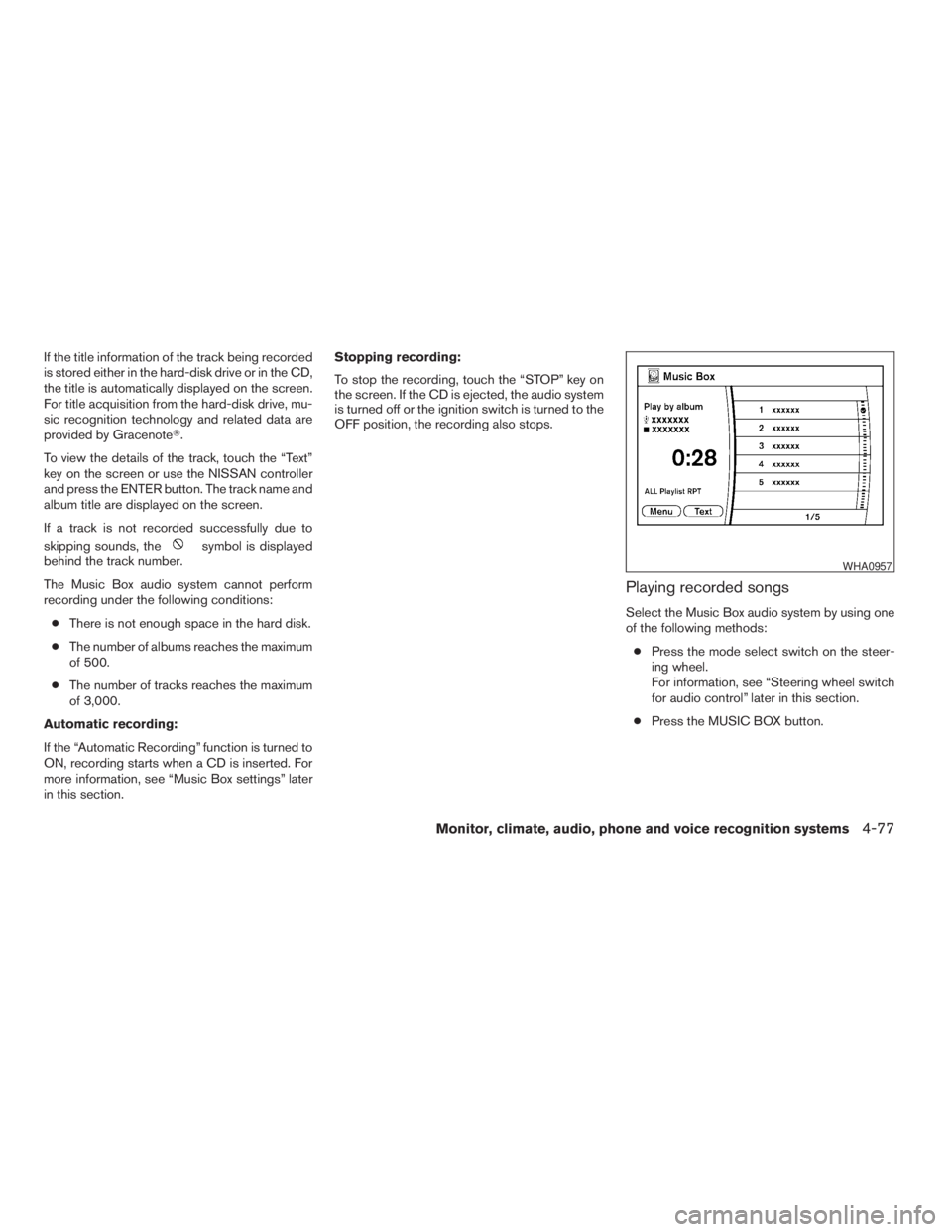
Select the Music Box audio system by using one
of the following methods:
cPress the mode select switch on the steer-
ing wheel.
For information, see “Steering wheel switch
for audio control” later in this section.
cPress the MUSIC BOX button.
WHA0957
Monitor, climate, audio, phone and voice recognition systems4-77
ZREVIEW COPYÐ2009 Pathfinder(pat)
Owners ManualÐUSA_English(nna)
05/29/08Ðdebbie
X
Page 244 of 471
cGive voice commands.
For information, see “NISSAN Voice Recog-
nition system (if so equipped)” later in this
section.
Stopping playback:
The system stops playing when:
cAnother mode (radio, CD, CompactFlash™
or AUX) is selected.
cThe audio system is turned off.
cThe ignition switch is placed in the OFF
position.
SEEK/CAT and TRACK buttons:
Press the
SEEK/CAT button or theTRACK button while a track is being played; the
next track or the beginning of the current track will
be played.
Press and hold the
SEEK/CAT (rewind)
button or the
TRACK (fast forward) button
for more than approximately 1.5 seconds; the
track will play while rewinding or fast forwarding.
When the
SEEK/CAT (rewind) button or
the
TRACK (fast forward) button is re-
leased, the track will return to the normal playing
speed.The NISSAN controller can also be used to se-
lect tracks.
For more information on how to use the NISSAN
controller, see “How to use the NISSAN control-
ler” earlier in this section.
Play mode selection:
To change to another album or artist, turn the
TUNE/FLDR knob.
SCAN·RPT button:
Pressing the SCAN·RPT button while a track is
playing, the play pattern can be changed as fol-
lows:
ALL Playlist RPT!1 Playlist RPT!1 TRK RPT
!ALL Playlist RDM!1 Playlist RDM!ALL
Playlist RPT
ALL Playlist RPT: the entire playlist will be re-
peated.
1 Playlist RPT: the playlist currently being played
will be repeated.
1 TRK RPT: the current track playing will be
repeated.
ALL Playlist RDM: all the tracks in the playlist will
be played randomly.
1 Playlist RDM: the tracks in the current playlist
will be played randomly.Music Box menu
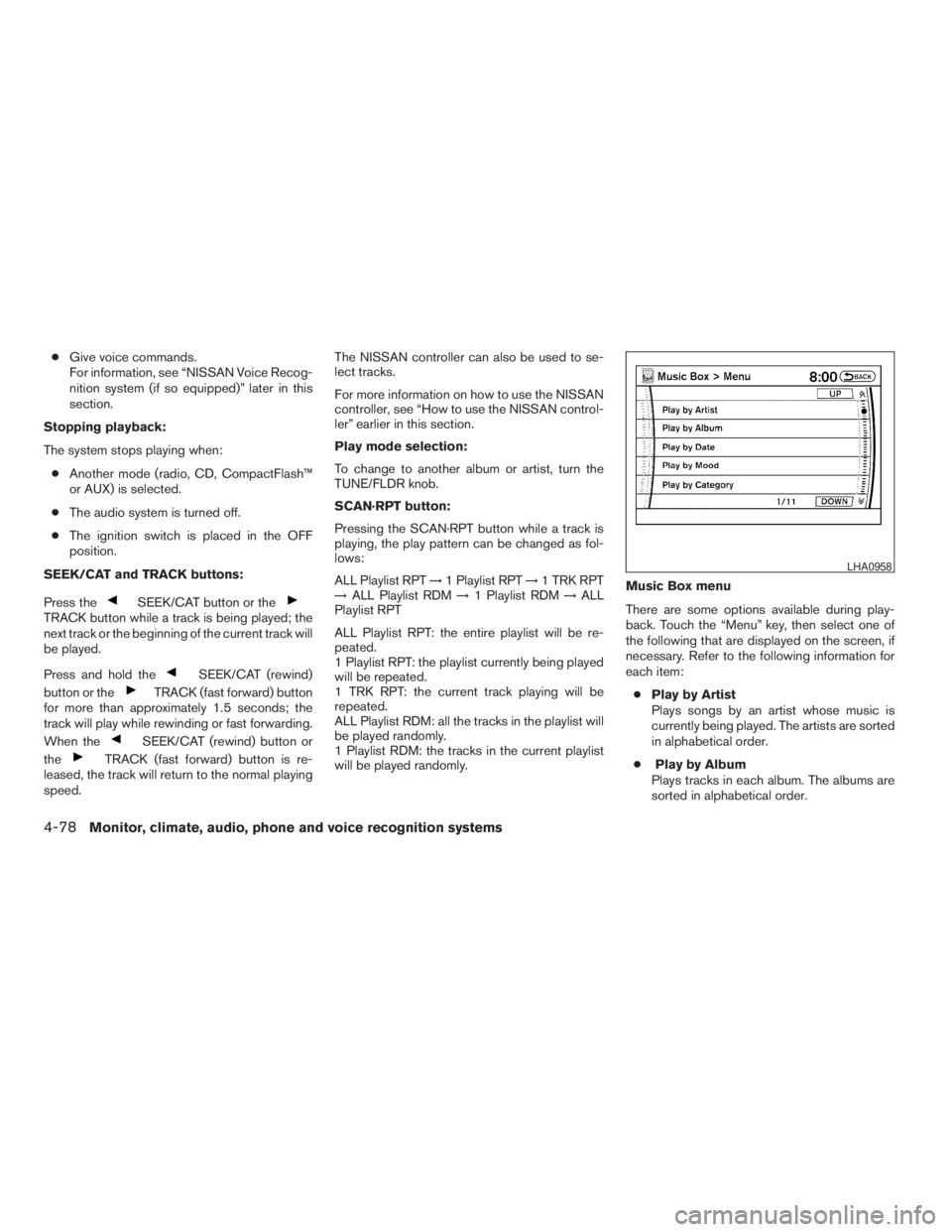
There are some options available during play-
back. Touch the “Menu” key, then select one of
the following that are displayed on the screen, if
necessary. Refer to the following information for
each item:
cPlay by Artist
Plays songs by an artist whose music is
currently being played. The artists are sorted
in alphabetical order.
cPlay by Album
Plays tracks in each album. The albums are
sorted in alphabetical order.
LHA0958
4-78Monitor, climate, audio, phone and voice recognition systems
ZREVIEW COPYÐ2009 Pathfinder(pat)
Owners ManualÐUSA_English(nna)
05/29/08Ðdebbie
X
Page 245 of 471
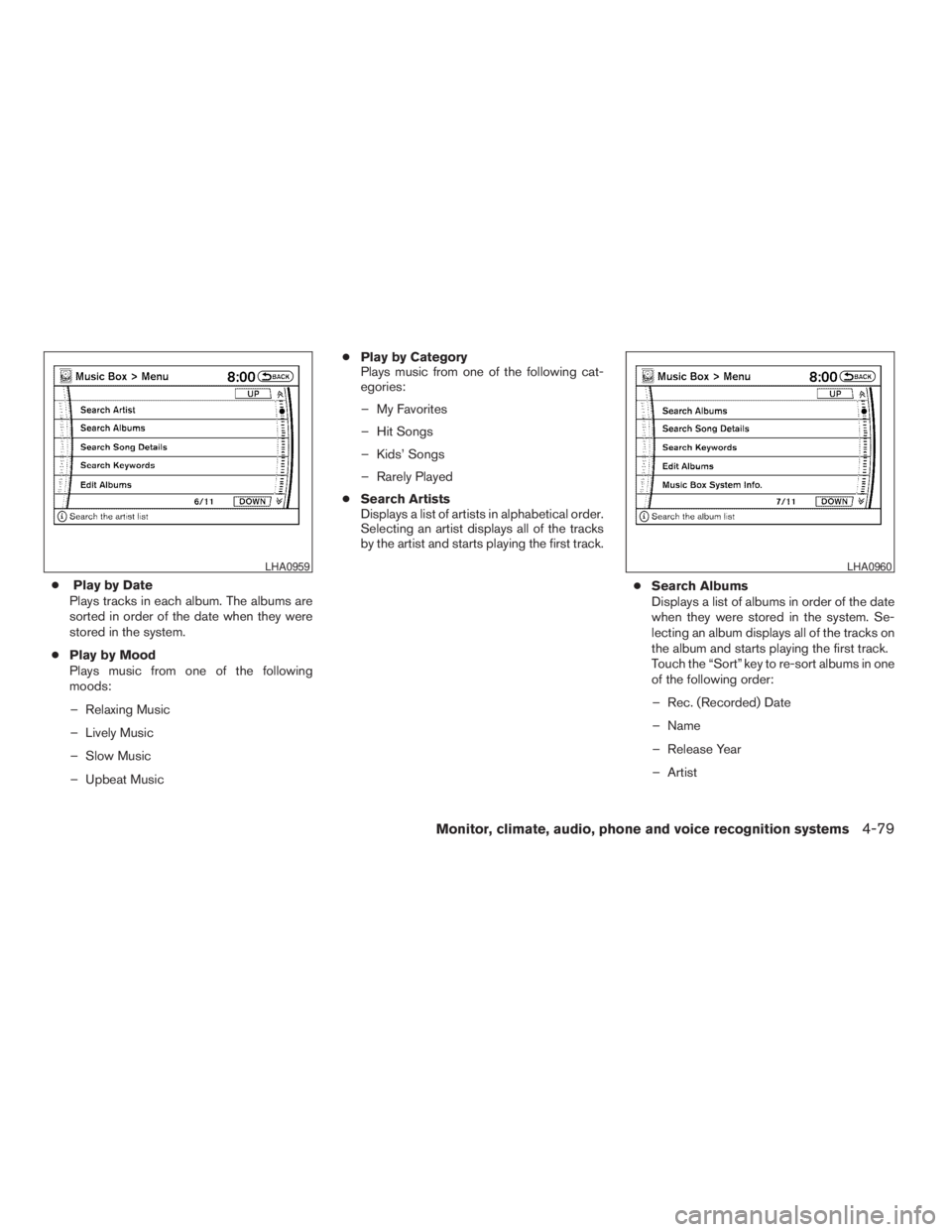
cPlay by Date
Plays tracks in each album. The albums are
sorted in order of the date when they were
stored in the system.
cPlay by Mood
Plays music from one of the following
moods:
– Relaxing Music
– Lively Music
– Slow Music
– Upbeat MusiccPlay by Category
Plays music from one of the following cat-
egories:
– My Favorites
– Hit Songs
– Kids’ Songs
– Rarely Played
cSearch Artists
Displays a list of artists in alphabetical order.
Selecting an artist displays all of the tracks
by the artist and starts playing the first track.
cSearch Albums
Displays a list of albums in order of the date
when they were stored in the system. Se-
lecting an album displays all of the tracks on
the album and starts playing the first track.
Touch the “Sort” key to re-sort albums in one
of the following order:
– Rec. (Recorded) Date
– Name
– Release Year
– Artist
LHA0959LHA0960
Monitor, climate, audio, phone and voice recognition systems4-79
ZREVIEW COPYÐ2009 Pathfinder(pat)
Owners ManualÐUSA_English(nna)
05/29/08Ðdebbie
X
Page 246 of 471
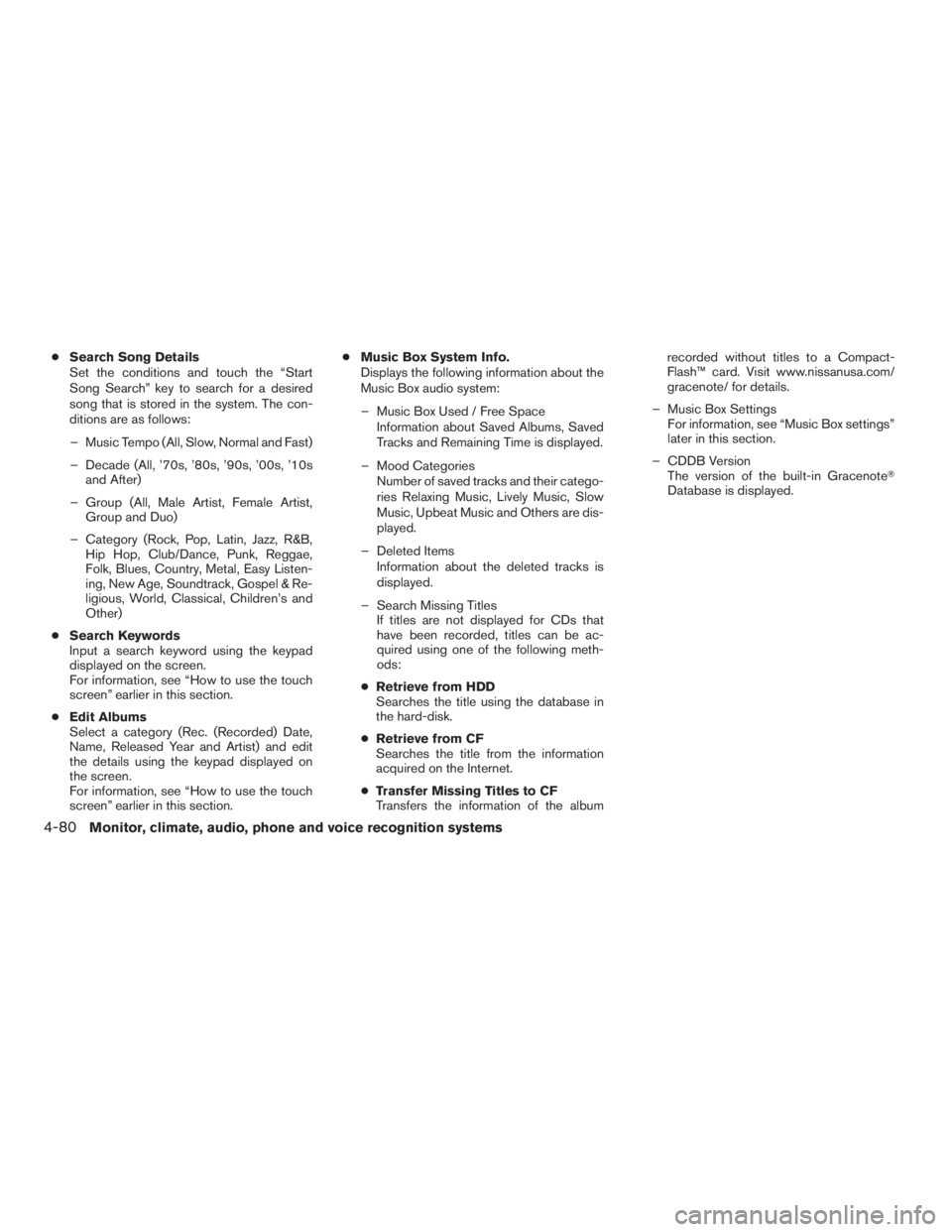
cSearch Song Details
Set the conditions and touch the “Start
Song Search” key to search for a desired
song that is stored in the system. The con-
ditions are as follows:
– Music Tempo (All, Slow, Normal and Fast)
– Decade (All, ’70s, ’80s, ’90s, ’00s, ’10s
and After)
– Group (All, Male Artist, Female Artist,
Group and Duo)
– Category (Rock, Pop, Latin, Jazz, R&B,
Hip Hop, Club/Dance, Punk, Reggae,
Folk, Blues, Country, Metal, Easy Listen-
ing, New Age, Soundtrack, Gospel & Re-
ligious, World, Classical, Children’s and
Other)
cSearch Keywords
Input a search keyword using the keypad
displayed on the screen.
For information, see “How to use the touch
screen” earlier in this section.
cEdit Albums
Select a category (Rec. (Recorded) Date,
Name, Released Year and Artist) and edit
the details using the keypad displayed on
the screen.
For information, see “How to use the touch
screen” earlier in this section.cMusic Box System Info.
Displays the following information about the
Music Box audio system:
– Music Box Used / Free Space
Information about Saved Albums, Saved
Tracks and Remaining Time is displayed.
– Mood Categories
Number of saved tracks and their catego-
ries Relaxing Music, Lively Music, Slow
Music, Upbeat Music and Others are dis-
played.
– Deleted Items
Information about the deleted tracks is
displayed.
– Search Missing Titles
If titles are not displayed for CDs that
have been recorded, titles can be ac-
quired using one of the following meth-
ods:
cRetrieve from HDD
Searches the title using the database in
the hard-disk.
cRetrieve from CF
Searches the title from the information
acquired on the Internet.
cTransfer Missing Titles to CF
Transfers the information of the albumrecorded without titles to a Compact-
Flash™ card. Visit www.nissanusa.com/
gracenote/ for details.
– Music Box Settings
For information, see “Music Box settings”
later in this section.
– CDDB Version
The version of the built-in GracenoteT
Database is displayed.
4-80Monitor, climate, audio, phone and voice recognition systems
ZREVIEW COPYÐ2009 Pathfinder(pat)
Owners ManualÐUSA_English(nna)
05/29/08Ðdebbie
X
Page 247 of 471
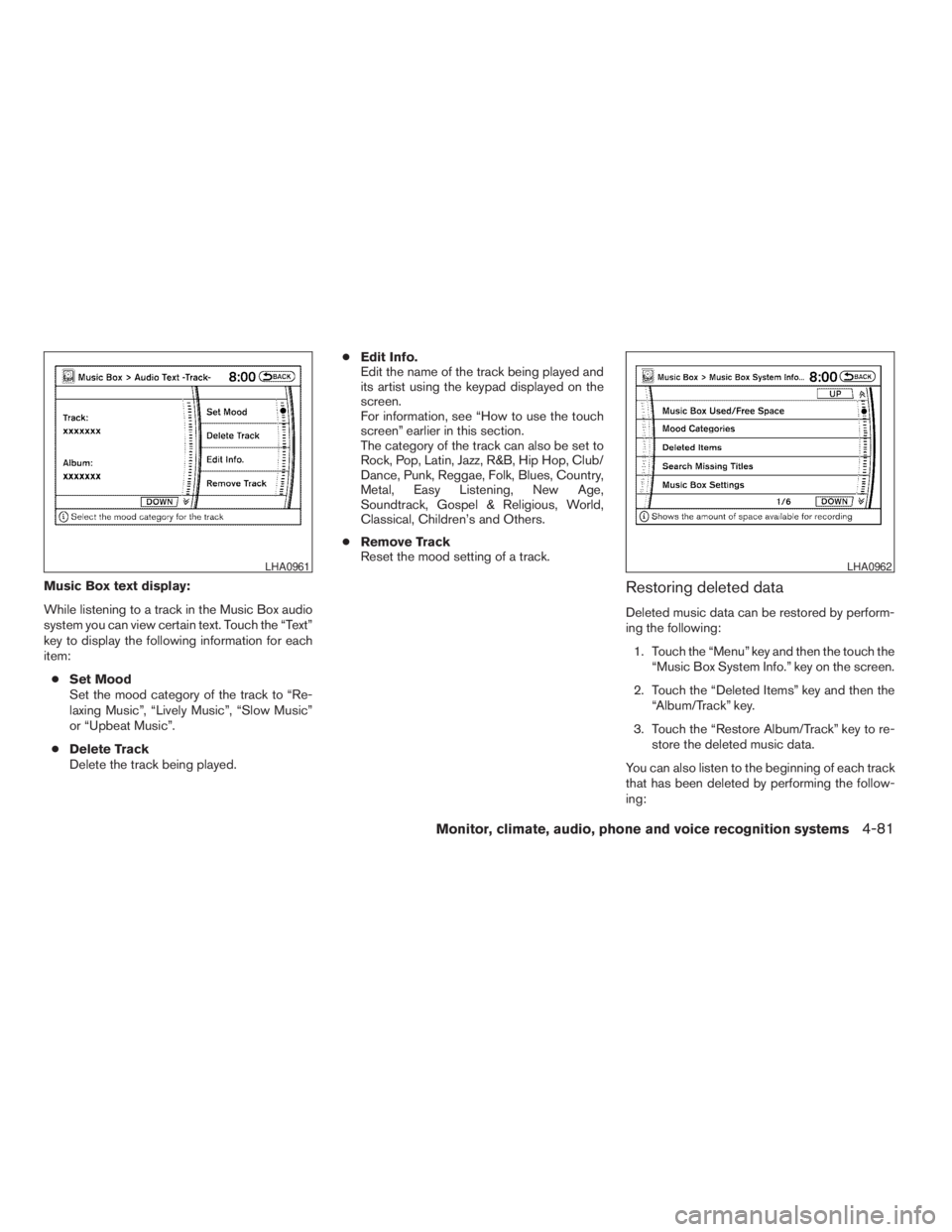
Music Box text display:
While listening to a track in the Music Box audio
system you can view certain text. Touch the “Text”
key to display the following information for each
item:
cSet Mood
Set the mood category of the track to “Re-
laxing Music”, “Lively Music”, “Slow Music”
or “Upbeat Music”.
cDelete Track
Delete the track being played.cEdit Info.
Edit the name of the track being played and
its artist using the keypad displayed on the
screen.
For information, see “How to use the touch
screen” earlier in this section.
The category of the track can also be set to
Rock, Pop, Latin, Jazz, R&B, Hip Hop, Club/
Dance, Punk, Reggae, Folk, Blues, Country,
Metal, Easy Listening, New Age,
Soundtrack, Gospel & Religious, World,
Classical, Children’s and Others.
cRemove Track
Reset the mood setting of a track.Restoring deleted data
Deleted music data can be restored by perform-
ing the following:
1. Touch the “Menu” key and then the touch the
“Music Box System Info.” key on the screen.
2. Touch the “Deleted Items” key and then the
“Album/Track” key.
3. Touch the “Restore Album/Track” key to re-
store the deleted music data.
You can also listen to the beginning of each track
that has been deleted by performing the follow-
ing:
LHA0961LHA0962
Monitor, climate, audio, phone and voice recognition systems4-81
ZREVIEW COPYÐ2009 Pathfinder(pat)
Owners ManualÐUSA_English(nna)
05/29/08Ðdebbie
X
Page 253 of 471
Volume control switch
Push the volume control switch up or down to
increase or decrease the volume.
Tuning
Memory change (radio):
While in one of the preset radio station banks (A,
B or C) , push the tuning switch
orfor less than 1.5 seconds to change to the next
preset station in memory.
Seek tuning (radio):
Push the tuning switch
orfor more
than 1.5 seconds to seek the next or previous
radio station.
Next/Previous track (CD/CF):
Push the tuning switch
orfor less
than 1.5 seconds to return to the beginning of the
present track or skip to the next track. Push
several times to skip back or skip through tracks.
This system searches for the blank intervals be-
tween selections. If there is a blank interval within
1 program or there is no interval between pro-
grams, the system may not stop in the desired or
expected location.Next/Previous track (Music Box):
Push the tuning switch
orfor less
than 1.5 seconds to return to the beginning of the
present track or skip to the next track. Push
several times to skip back or skip through tracks.
Push and hold the tuning switch
orfor more than 1.5 seconds to change playlists.
When the last playlist is playing, the next playlist
will be selected.
Change disc (CD) (if so equipped):
Push the tuning switch
orfor more
than 1.5 seconds to change the playing disc up
or down.
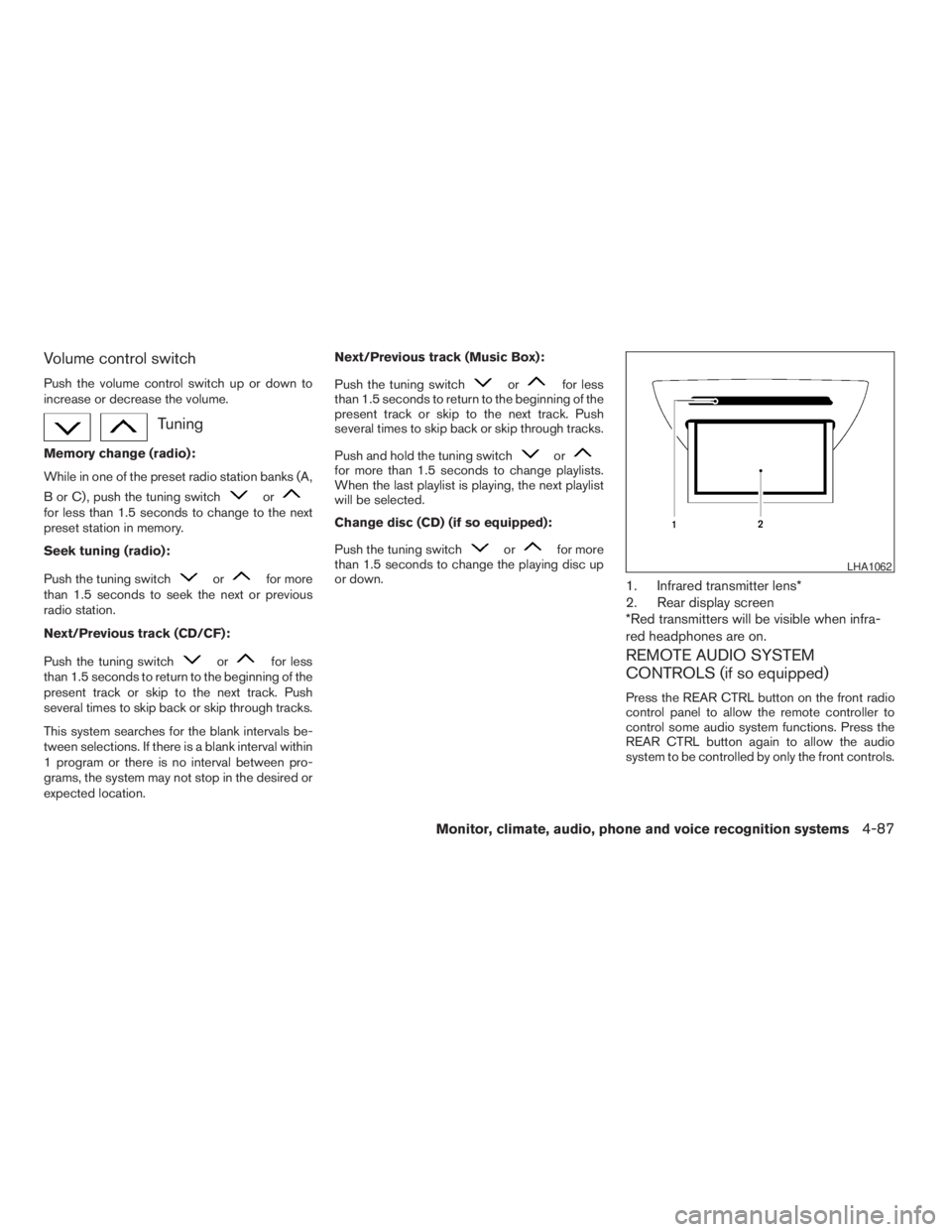
1. Infrared transmitter lens*
2. Rear display screen
*Red transmitters will be visible when infra-
red headphones are on.
REMOTE AUDIO SYSTEM
CONTROLS (if so equipped)
Press the REAR CTRL button on the front radio
control panel to allow the remote controller to
control some audio system functions. Press the
REAR CTRL button again to allow the audio
system to be controlled by only the front controls.
LHA1062
Monitor, climate, audio, phone and voice recognition systems4-87
ZREVIEW COPYÐ2009 Pathfinder(pat)
Owners ManualÐUSA_English(nna)
05/29/08Ðdebbie
X