seat NISSAN PATHFINDER 2010 Owner´s Manual
[x] Cancel search | Manufacturer: NISSAN, Model Year: 2010, Model line: PATHFINDER, Model: NISSAN PATHFINDER 2010Pages: 463, PDF Size: 5.69 MB
Page 235 of 463
SEEK/CAT and TRACK
buttons:
When the SEEK/CAT
button is pressed
while a compact disc is playing, the track being
played returns to its beginning. Press several
times to skip back through tracks. The compact
disc will go back the number of times the button
is pressed.
When the TRACK
button is pressed while
the compact disc is playing, the next track will
start to play from its beginning. Press several
times to skip through tracks. The compact disc
will advance the number of times the button is
pressed. (When the last track on the compact
disc is skipped through, the first track will be
played.)
The NISSAN controller can also be used to se-
lect tracks when a CD is being played.
SEEK/CAT and TRACK
(Rewind·Fast Forward)
buttons:
Press and hold the SEEK/CAT
(rewind)
button or the TRACK
(fast forward) button
while a compact disc is playing; the compact disc
will play while rewinding or fast forwarding. Whenthe button is released, the compact disc will
return to normal play speed.
When the CD button is pressed with the system
off and the compact disc loaded the system will
turn on and the compact disc will start to play.
When the CD button is pressed with the com-
pact disc loaded with the tape or the radio play-
ing, the tape or radio will automatically be turned
off and the compact disc will start to play.
TUNE FLDR (Folder) knob
While playing an MP3/WMA CD, turn the
TUNE/FLDR knob right or left to scan forward or
backward through available folders.
SCAN·RPT (random and repeat) button:
When the SCAN·RPT button is pressed while the
compact disc is being played, the play pattern
can be changed as follows:
CD:
1 DISC RPT!1 TRK RPT!1 DISC RDM!1
DISC RPT
MP3/WMA CD:
1 DISC RPT!1 FOLDER RPT!1 TRK RPT!
1 DISC RDM!1 FOLDER RDM!1 DISC RPT1 DISC RPT: the entire disc will be repeated.
1 TRK RPT: the current track playing will be
repeated.
1 DISC RDM: all tracks will be played randomly.
1 FOLDER RPT: the folder currently being ac-
cessed will be repeated.
1 FOLDER RDM: the tracks in the current folder
being accessed will be played randomly.
REAR CTRL:
Pressing the REAR CTRL button turns the rear
seat audio controller on. Rear Controls UN-
LOCKED will display. Pressing the REAR CTRL
button again will turn the rear seat audio control-
ler off. Rear Controls LOCKED will display. If the
vehicle is not equipped with a rear seat audio
controller, the display will show “Rear Controls
Not Available”.
Press and hold the REAR CTRL button for ap-
proximately 1.5 seconds to turn the rear display
screen on. Rear Display ON will display. Press
and hold the REAR CTRL button again to turn the
rear display screen off. Rear Display OFF will
display. If the vehicle is not equipped with a rear
display screen, the display will show “Rear Con-
trols Not Available”.
Monitor, climate, audio, phone and voice recognition systems4-71
Page 236 of 463
(SPEAKER CONTROL) button:
Press the
button to turn the rear speakers
off and the headphones on. Press this button
again to turn rear seat speakers back on and the
headphones off.
CD EJECT button:
When the
button is pressed with the com-
pact disc loaded, the compact disc will be
ejected.
When the
button is pressed while the
compact disc is being played, the compact disc
will eject and the system will turn off.
AUX jack
The AUX jack
s1is located below the air condi-
tioner controls. The AUX audio input jack accepts
any standard analog audio input, such as from a
portable cassette tape player, MP3 player or a
laptop computer.
Press the DISC/AUX button to play a compatible
device when it is plugged into the AUX jack.
COMPACTFLASHT(CF) PLAYER
OPERATION (if so equipped)
Place the ignition switch in the ACC or ON
position, and insert a CF card
s1into the Com-
pactFlashTplayer slot
s2. Then press the
DISC/AUX button repeatedly to switch to the
CompactFlashTmode.
If the system has been turned off while the Com-
pactFlashTcard was playing, pressing the
VOL/ON·OFF control knob will start the Com-
pactFlashTcard.
LHA1017LHA1018
4-72Monitor, climate, audio, phone and voice recognition systems
Page 251 of 463
Press thebutton on the front radio control
panel; the headphones symbol and the message
“Headphones ON” illuminates on the front dis-
play when the headphones are on.
One or two infrared headphones and one remote
controller are included if the vehicle is equipped
with the DVD entertainment system.
For vehicles equipped with the FM/AM/SAT radio
with compact disc player, if the rear headphones
are turned on, the rear speakers will be disabled.
The rear passengers can use the wireless head-
phones to listen to a different media than the front
passengers. The rear passengers can listen to
the same media along with the front passengers
or they can listen to a different media.
For more information on the remote controller,
see “NISSAN Mobile Entertainment System
(MES)” later in this section.
VOL (volume) wireless headphones dial:
The VOL dial on the wireless headphones allows
the rear passengers to adjust the headphone
volume level.
Speaker control (front panel)
button:
Press the
button on the front radio control
panel to turn the rear speakers off and the wire-less headphones on. Press the
button
again to turn rear speakers back on and wireless
headphones off.
MODE (remote control) button:
The MODE button on the remote controller al-
lows the rear passengers to change between
Preset A, Preset B, Preset C, Music Box**, CD*,
CompactFlash*, DVD* and AUX. When a source
of media is selected, the media type will be dis-
played on the rear screen.
*These modes are only available when compat-
ible media storage is inserted into the device.
**This mode is only available when music has
been downloaded into the Music Box hard-disk
drive audio system.
Seek (remote control)
buttons:
In AM or FM mode, the
or theseek
buttons on the remote controller allow the rear
seat passengers to find the next or previous
preset radio station.
In CD, Music Box hard-disk drive audio system
and CompactFlash™ mode, the
or
the
seek buttons allow the rear passen-
gers to find the next or previous selection.
REW and FF
(remote control) buttons:
When the
(rewind) or the(fast for-
ward) button on the remote controller is pressed
while in AM or FM mode, the radio will tune to the
next frequency.
When the
(rewind) or the(fast for-
ward) button on the remote controller is pressed
while in CD, Music Box hard-disk audio system,
or CompactFlash™, the media will play while re-
winding or fast forwarding.
ANTENNA
Window antenna
The antenna pattern is printed inside the rear
passenger and driver side windows.
CAUTION
cDo not place metalized film near the
rear driver or passenger side window
glass or attach any metal parts to it. This
may cause poor reception or noise.
cWhen cleaning the inside of the rear
driver or passenger side window, be
careful not to scratch or damage the
window antenna. Lightly wipe along the
antenna with a dampened soft cloth.
Monitor, climate, audio, phone and voice recognition systems4-87
Page 255 of 463
CAUTION
cThe glass screen on the liquid crystal
display may break if hit with a hard or
sharp object. If the glass breaks, do not
touch the liquid crystalline material,
which contains a small amount of mer-
cury. In case of contact with skin, wash
immediately with soap and water.
cThe screen rotates down to view and up
into the housing to store when not in
use. Ensure that the screen is latched
securely into the housing when stored.
Headphones
Power ON/OFF:
Press the power button to turn the headphones
on or off.
Volume control:
Turn the volume control knob to adjust the vol-
ume.
The headphones will automatically be turned off
in 30 seconds if there is no sound during that
period. To prevent the battery from being dis-
charged, keep the power supply turned off when
not in use.NOTE:
For optimum infrared headphone perfor-
mance, increase the volume on the rear
seat controller to the maximum level and
adjust the infrared headphone volume us-
ing the volume control on the headphones.
Using a lower volume setting on the rear
seat controller can cause static noise in the
infrared headphones.
SAA0720SAA0721
Monitor, climate, audio, phone and voice recognition systems4-91
Page 257 of 463
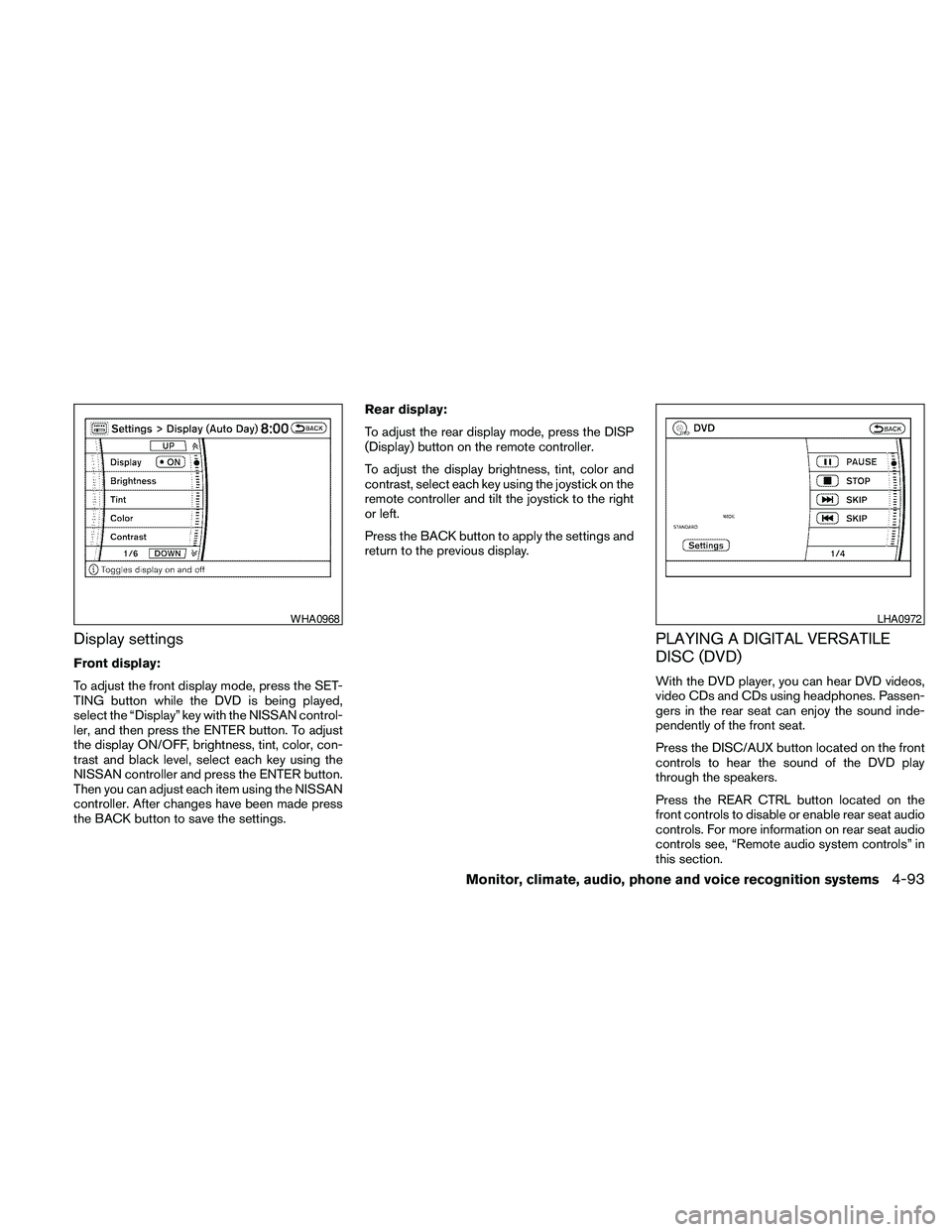
Display settings
Front display:
To adjust the front display mode, press the SET-
TING button while the DVD is being played,
select the “Display” key with the NISSAN control-
ler, and then press the ENTER button. To adjust
the display ON/OFF, brightness, tint, color, con-
trast and black level, select each key using the
NISSAN controller and press the ENTER button.
Then you can adjust each item using the NISSAN
controller. After changes have been made press
the BACK button to save the settings.Rear display:
To adjust the rear display mode, press the DISP
(Display) button on the remote controller.
To adjust the display brightness, tint, color and
contrast, select each key using the joystick on the
remote controller and tilt the joystick to the right
or left.
Press the BACK button to apply the settings and
return to the previous display.
PLAYING A DIGITAL VERSATILE
DISC (DVD)
With the DVD player, you can hear DVD videos,
video CDs and CDs using headphones. Passen-
gers in the rear seat can enjoy the sound inde-
pendently of the front seat.
Press the DISC/AUX button located on the front
controls to hear the sound of the DVD play
through the speakers.
Press the REAR CTRL button located on the
front controls to disable or enable rear seat audio
controls. For more information on rear seat audio
controls see, “Remote audio system controls” in
this section.
WHA0968LHA0972
Monitor, climate, audio, phone and voice recognition systems4-93
Page 258 of 463
Pressing thebutton on the front controls
turns the rear speakers on or off and enables or
disables the wireless headphones .
It is possible to operate the DVD player by remote
control.
Headphones are a wireless type and no cables
are necessary. You can use them in almost all the
ranges in the rear seat. (It is not possible to use
the headphones in the front seat.)
DISC/AUX button
Park the vehicle in a safe location and
apply the parking brake for the front seat
occupants to operate the DVD drive while
watching the images.
Press the DISC/AUX button on the instrument
panel and turn the display to the DVD mode.
When a DVD is loaded, it will be replayed auto-
matically.
The operation screen will be turned on when the
DISC/AUX button located on the instrument
panel is pressed while a DVD is being played,
and it will turn off automatically after a period of
time. To turn it on again, press the DISC/AUX
button once more.
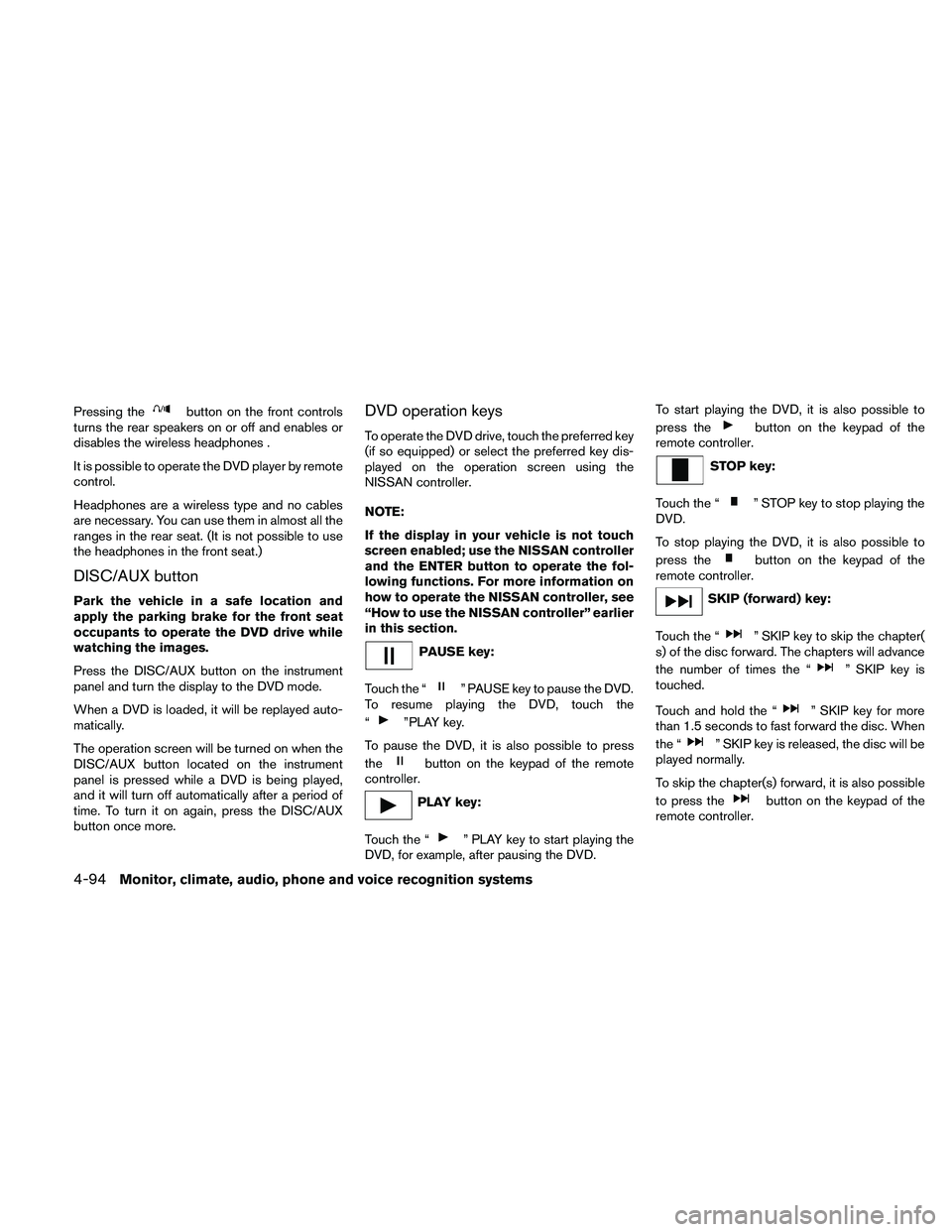
DVD operation keys
To operate the DVD drive, touch the preferred key
(if so equipped) or select the preferred key dis-
played on the operation screen using the
NISSAN controller.
NOTE:
If the display in your vehicle is not touch
screen enabled; use the NISSAN controller
and the ENTER button to operate the fol-
lowing functions. For more information on
how to operate the NISSAN controller, see
“How to use the NISSAN controller” earlier
in this section.
PAUSE key:
Touch the “
” PAUSE key to pause the DVD.
To resume playing the DVD, touch the
“
”PLAY key.
To pause the DVD, it is also possible to press
the
button on the keypad of the remote
controller.
PLAY key:
Touch the “
” PLAY key to start playing the
DVD, for example, after pausing the DVD.To start playing the DVD, it is also possible to
press the
button on the keypad of the
remote controller.
STOP key:
Touch the “
” STOP key to stop playing the
DVD.
To stop playing the DVD, it is also possible to
press the
button on the keypad of the
remote controller.
SKIP (forward) key:
Touch the “
” SKIP key to skip the chapter(
s) of the disc forward. The chapters will advance
the number of times the “
” SKIP key is
touched.
Touch and hold the “
” SKIP key for more
than 1.5 seconds to fast forward the disc. When
the “
” SKIP key is released, the disc will be
played normally.
To skip the chapter(s) forward, it is also possible
to press the
button on the keypad of the
remote controller.
4-94Monitor, climate, audio, phone and voice recognition systems
Page 261 of 463
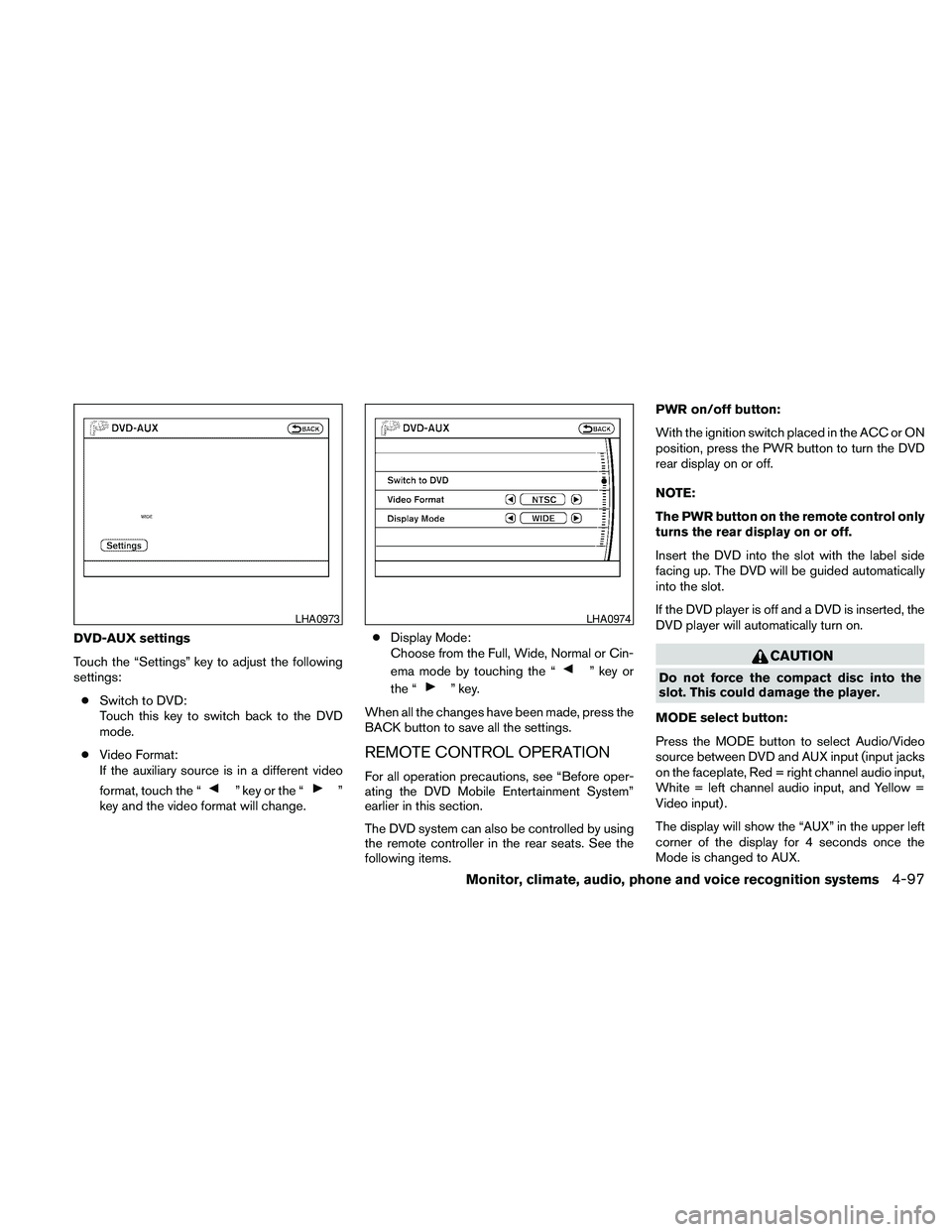
DVD-AUX settings
Touch the “Settings” key to adjust the following
settings:
cSwitch to DVD:
Touch this key to switch back to the DVD
mode.
cVideo Format:
If the auxiliary source is in a different video
format, touch the “
” key or the “”
key and the video format will change.cDisplay Mode:
Choose from the Full, Wide, Normal or Cin-
ema mode by touching the “
” key or
the “
” key.
When all the changes have been made, press the
BACK button to save all the settings.
REMOTE CONTROL OPERATION
For all operation precautions, see “Before oper-
ating the DVD Mobile Entertainment System”
earlier in this section.
The DVD system can also be controlled by using
the remote controller in the rear seats. See the
following items.PWR on/off button:
With the ignition switch placed in the ACC or ON
position, press the PWR button to turn the DVD
rear display on or off.
NOTE:
The PWR button on the remote control only
turns the rear display on or off.
Insert the DVD into the slot with the label side
facing up. The DVD will be guided automatically
into the slot.
If the DVD player is off and a DVD is inserted, the
DVD player will automatically turn on.
CAUTION
Do not force the compact disc into the
slot. This could damage the player.
MODE select button:
Press the MODE button to select Audio/Video
source between DVD and AUX input (input jacks
on the faceplate, Red = right channel audio input,
White = left channel audio input, and Yellow =
Video input) .
The display will show the “AUX” in the upper left
corner of the display for 4 seconds once the
Mode is changed to AUX.
LHA0973LHA0974
Monitor, climate, audio, phone and voice recognition systems4-97
Page 279 of 463
For example, if the current priority levels are:
Priority Level 1 = Phone A
Priority Level 2 = Phone B
Priority Level 3 = Phone C
and you change the priority level of Phone C to
Level 1, then:
Priority Level 1 = Phone C
Priority Level 2 = Phone B
Priority Level 3 = Phone A
“Delete phone”
sE
Use the Delete Phone command to delete a
specific phone or all phones from the BluetoothT
Hands-Free Phone System.
The system announces the names of the phones
already paired with the system and their priority
level. The system then gives you the option to
delete a specific phone, all phones or listen to the
list again.
Once you choose to delete a phone or all phones,
the system asks you to confirm this action.
NOTE:
When you delete a phone, the associated
phone book for that phone will also be
deleted.“Select ringtone”
sF
Use the Select Ringtone command to select the
tone heard in the vehicle when an incoming call is
received.
The system announces the name of the active
phone and asks you to choose from the following
commands:
c“Ringtone” — The system plays a ringtone
and asks if you would like to select that tone.
If you say “No”, the system plays the next
ringtone available and continues to cycle
through the ringtones until you select one or
quit.
c“Silent” — The system asks you to confirm
your wish to disable the ringtone.
“Bluetooth off”
sG
Use the Bluetooth Off command to turn off the
BluetoothTHands-Free Phone System.
When the BluetoothTHands-Free Phone Sys-
tem is off, you will not be able to make or receive
calls using NISSAN Voice Recognition. Also, you
will not have access to the Phone Book.
You can still use the Memo Pad and access
Setup.
SPEAKER ADAPTATION (SA) MODE
Speaker Adaptation allows up to two out-of-
dialect users to train the system to improve rec-
ognition accuracy. By repeating a number of
commands, the users can create a voice model of
their own voice that is stored in the system. The
system is capable of storing a different speaker
adaptation model for memory A and memory B.
If memory A is available, the system will use
memory A to store the model. If memory A is in
use and memory B is available, the system will
use memory B to store the model. If both of the
memory locations are in use, the system will ask
the user to select which memory location should
be overwritten.
Training procedure
The procedure for training a voice is as follows.
1. Position the vehicle in a reasonably quiet
outdoor location.
2. Sit in the driver’s seat with the engine run-
ning, the parking brake on, and the transmis-
sion in P (Park) .
3. Press and hold the
button for more
than 5 seconds.
Monitor, climate, audio, phone and voice recognition systems4-115
Page 318 of 463
WARNING
cDo not leave children or adults who
would normally require the assistance
of others alone in your vehicle. Pets
should also not be left alone. They
could accidentally injure themselves or
others through inadvertent operation of
the vehicle. Also, on hot, sunny days,
temperatures in a closed vehicle could
quickly become high enough to cause
severe or possibly fatal injuries to
people or animals.
cProperly secure all cargo with ropes or
straps to help prevent it from sliding or
shifting. Do not place cargo higher than
the seatbacks. In a sudden stop or col-
lision, unsecured cargo could cause
personal injury.
EXHAUST GAS (carbon monoxide)
WARNING
cDo not breathe exhaust gases; they
contain colorless and odorless carbon
monoxide. Carbon monoxide is danger-
ous. It can cause unconsciousness or
death.cIf you suspect that exhaust fumes are
entering the vehicle, drive with all win-
dows fully open, and have the vehicle
inspected immediately.
cDo not run the engine in closed spaces
such as a garage.
cDo not park the vehicle with the engine
running for any extended length of time.
cKeep the lift gate and rear windows
closed while driving, otherwise exhaust
gases could be drawn into the passen-
ger compartment. If you must drive with
the lift gate or rear windows open, fol-
low these precautions:
1. Open all the windows.
2. Set the
air recirculation but-
ton to off and the fan control dial to
high to circulate the air.
cIf electrical wiring or other cable con-
nections must pass to a trailer through
the seal on the lift gate or the body,
follow the manufacturer’s recommen-
dation to prevent carbon monoxide en-
try into the vehicle.
cThe exhaust system and body should be
inspected by a qualified mechanic
whenever:a. The vehicle is raised for service.
b. You suspect that exhaust fumes are
entering into the passenger
compartment.
c. You notice a change in the sound of
the exhaust system.
d. You have had an accident involving
damage to the exhaust system, un-
derbody, or rear of the vehicle.
THREE-WAY CATALYST
The three-way catalyst is an emission control
device installed in the exhaust system. Exhaust
gases in the three-way catalyst are burned at
high temperatures to help reduce pollutants.
WARNING
cThe exhaust gas and the exhaust sys-
tem are very hot. Keep people, animals
or flammable materials away from the
exhaust system components.
cDo not stop or park the vehicle over
flammable materials such as dry grass,
waste paper or rags. They may ignite
and cause a fire.
PRECAUTIONS WHEN STARTING
AND DRIVING
5-2Starting and driving
Page 321 of 463
cWhen a spare tire is mounted or a wheel
is replaced, tire pressure will not be
indicated, the TPMS will not function
and the low tire pressure warning light
will flash for approximately 1 minute.
The light will remain on after 1 minute.
Contact your NISSAN dealer as soon as
possible for tire replacement and/or
system resetting.
cReplacing tires with those not originally
specified by NISSAN could affect the
proper operation of the TPMS.
cDo not inject any tire liquid or aerosol
tire sealant into the tires, as this may
cause a malfunction of the tire pressure
sensors.
CAUTION
Do not place metalized film or any metal
parts (antenna, etc.) on the windows. This
may cause poor reception of the signals
from the tire pressure sensors, and the
TPMS will not function properly.
Some devices and transmitters may temporarily
interfere with the operation of the TPMS and
cause the low tire pressure warning light to illu-
minate.Some examples are:
– Facilities or electric devices using similar radio
frequencies are near the vehicle.
– If a transmitter set to similar frequencies is
being used in or near the vehicle.
– If a computer (or similar equipment) or a
DC/AC converter is being used in or near the
vehicle.
FCC Notice:
Changes or modifications not expressly ap-
proved by the party responsible for compli-
ance could void the user’s authority to op-
erate the equipment.
This device complies with Part 15 of the
FCC Rules and RSS-210 of Industry
Canada.
Operation is subject to the following two
conditions: (1) This device may not cause
harmful interference, and (2) this device
must accept any interference received, in-
cluding interference that may cause undes-
ired operation of the device.
ON-PAVEMENT AND OFF-ROAD
DRIVING PRECAUTIONS
Utility vehicles have a significantly higher
rollover rate than other types of vehicles.
They have higher ground clearance than passen-
ger cars to make them capable of performing in a
variety of on-pavement and off-road applications.
This gives them a higher center of gravity than
ordinary cars. An advantage of higher ground
clearance is a better view of the road, allowing
you to anticipate problems. However, they are not
designed for cornering at the same speeds as
conventional two-wheel drive vehicles any more
than low-slung sports cars are designed to per-
form satisfactorily under off-road conditions. If at
all possible, avoid sharp turns at high speeds. As
with other vehicles of this type, failure to operate
this vehicle correctly may result in loss of control
or vehicle rollover. In a rollover crash, an unbelted
person is significantly more likely to die than a
person wearing a seat belt.
Be sure to read the driving safety precautions
later in this section.
Starting and driving5-5