change time NISSAN PATHFINDER 2010 Owner´s Manual
[x] Cancel search | Manufacturer: NISSAN, Model Year: 2010, Model line: PATHFINDER, Model: NISSAN PATHFINDER 2010Pages: 463, PDF Size: 5.69 MB
Page 189 of 463
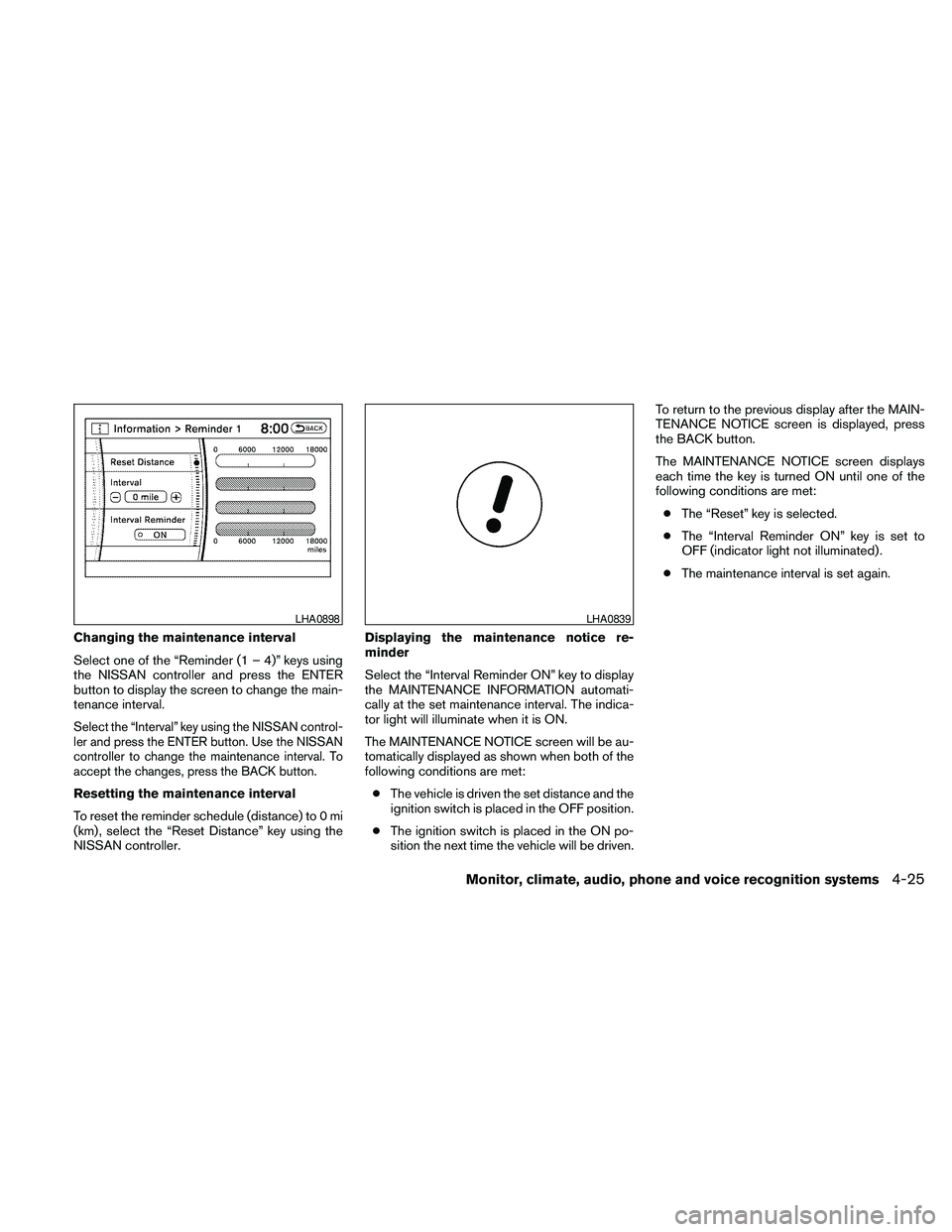
Changing the maintenance interval
Select one of the “Reminder (1 – 4)” keys using
the NISSAN controller and press the ENTER
button to display the screen to change the main-
tenance interval.
Select the “Interval” key using the NISSAN control-
ler and press the ENTER button. Use the NISSAN
controller to change the maintenance interval. To
accept the changes, press the BACK button.
Resetting the maintenance interval
To reset the reminder schedule (distance) to 0 mi
(km) , select the “Reset Distance” key using the
NISSAN controller.Displaying the maintenance notice re-
minder
Select the “Interval Reminder ON” key to display
the MAINTENANCE INFORMATION automati-
cally at the set maintenance interval. The indica-
tor light will illuminate when it is ON.
The MAINTENANCE NOTICE screen will be au-
tomatically displayed as shown when both of the
following conditions are met:
cThe vehicle is driven the set distance and the
ignition switch is placed in the OFF position.
cThe ignition switch is placed in the ON po-
sition the next time the vehicle will be driven.To return to the previous display after the MAIN-
TENANCE NOTICE screen is displayed, press
the BACK button.
The MAINTENANCE NOTICE screen displays
each time the key is turned ON until one of the
following conditions are met:
cThe “Reset” key is selected.
cThe “Interval Reminder ON” key is set to
OFF (indicator light not illuminated) .
cThe maintenance interval is set again.
LHA0898LHA0839
Monitor, climate, audio, phone and voice recognition systems4-25
Page 192 of 463
To turn the screen on:
cPress the SETTING button and select the
“Display” key and then select the “Display
ON” key. Then set the screen to on by press-
ing the ENTER button, or
cHold the
OFF button for approxi-
mately two seconds and the message “re-
suming display” will appear and the “Display
ON” key will be automatically turned on (no
amber indicator) .
Background color:
Select the “Background Color” key; the display
color changes between day and night.
The new settings are automatically saved when
you exit the setting screen by pressing the BACK
button or any other mode button.
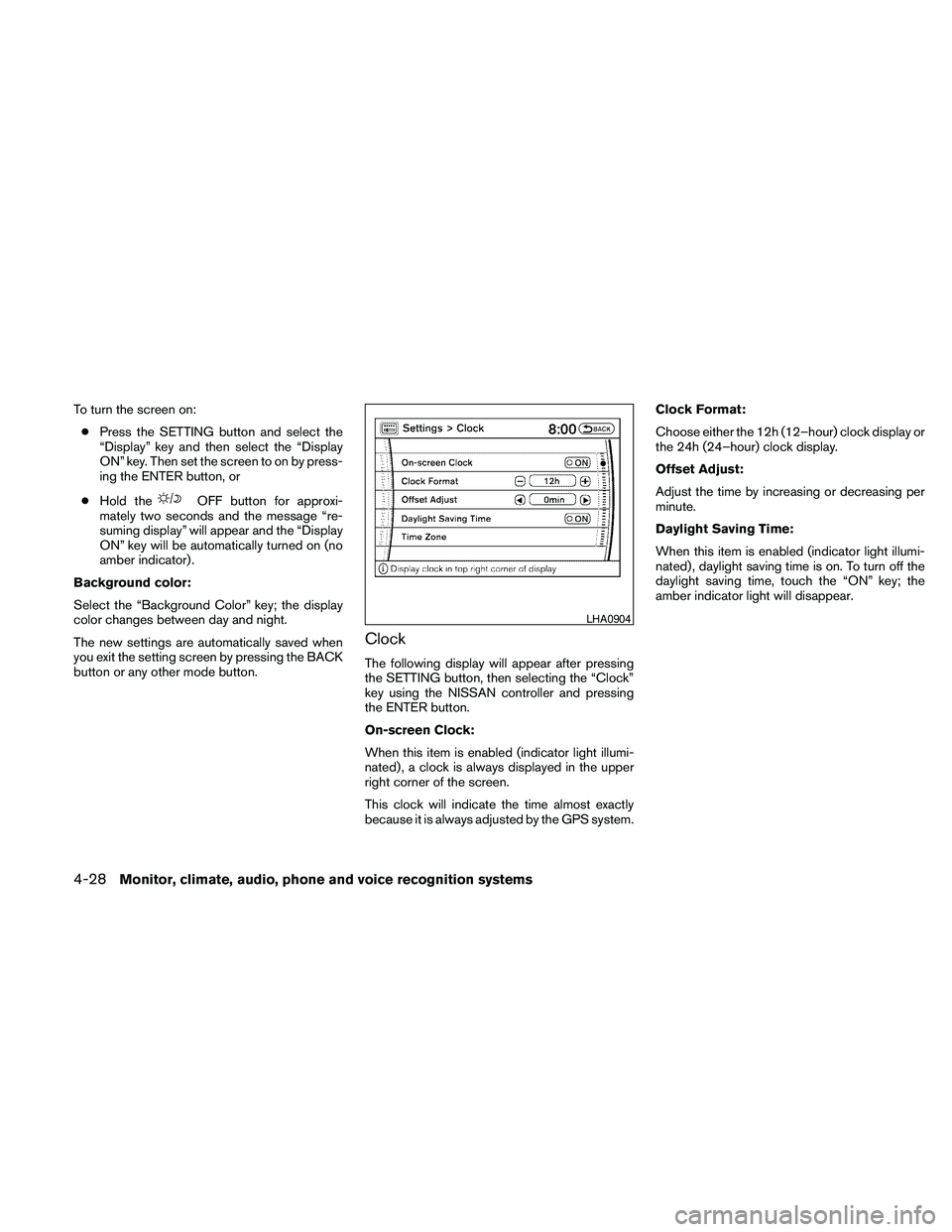
Clock
The following display will appear after pressing
the SETTING button, then selecting the “Clock”
key using the NISSAN controller and pressing
the ENTER button.
On-screen Clock:
When this item is enabled (indicator light illumi-
nated) , a clock is always displayed in the upper
right corner of the screen.
This clock will indicate the time almost exactly
because it is always adjusted by the GPS system.Clock Format:
Choose either the 12h (12–hour) clock display or
the 24h (24–hour) clock display.
Offset Adjust:
Adjust the time by increasing or decreasing per
minute.
Daylight Saving Time:
When this item is enabled (indicator light illumi-
nated) , daylight saving time is on. To turn off the
daylight saving time, touch the “ON” key; the
amber indicator light will disappear.
LHA0904
4-28Monitor, climate, audio, phone and voice recognition systems
Page 193 of 463
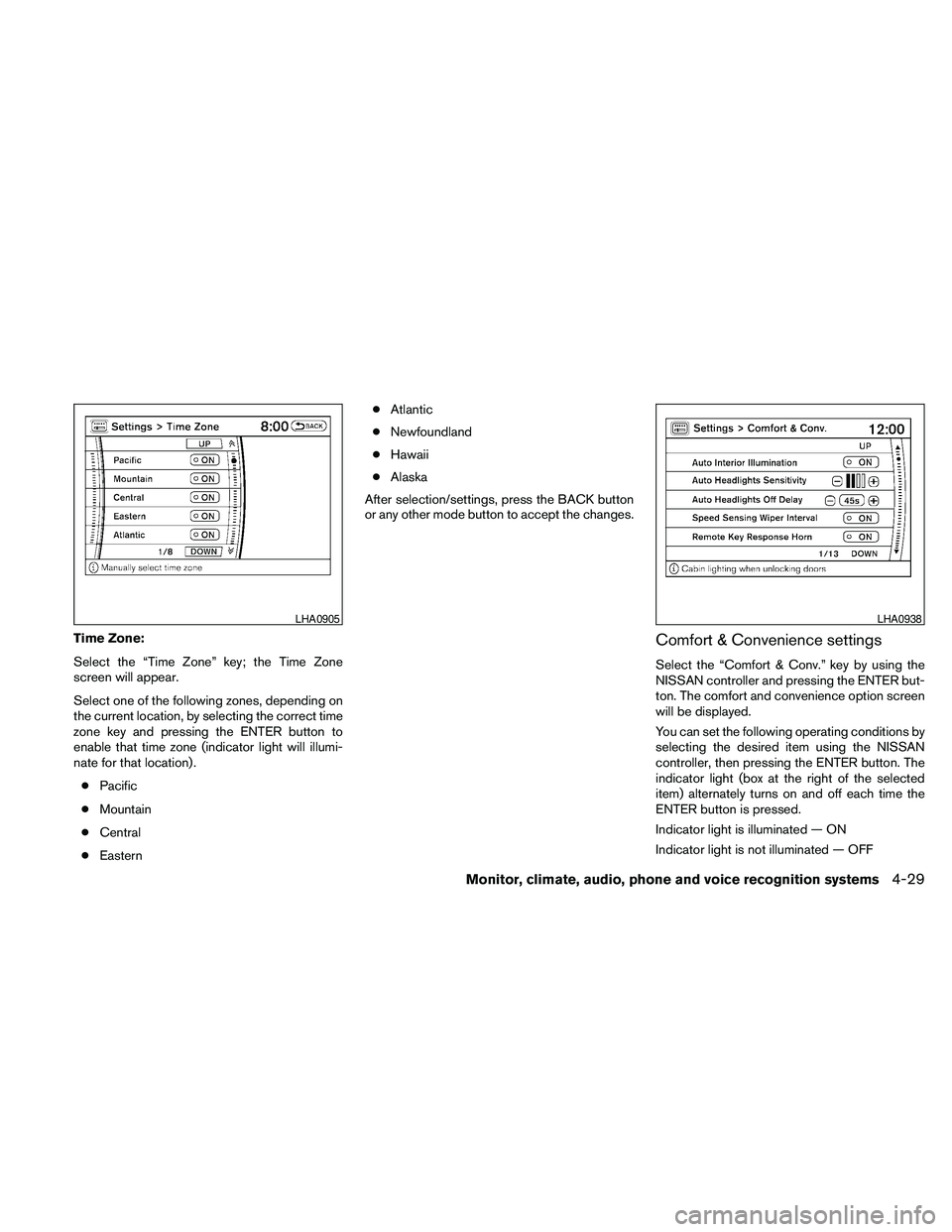
Time Zone:
Select the “Time Zone” key; the Time Zone
screen will appear.
Select one of the following zones, depending on
the current location, by selecting the correct time
zone key and pressing the ENTER button to
enable that time zone (indicator light will illumi-
nate for that location) .
cPacific
cMountain
cCentral
cEasterncAtlantic
cNewfoundland
cHawaii
cAlaska
After selection/settings, press the BACK button
or any other mode button to accept the changes.Comfort & Convenience settings
Select the “Comfort & Conv.” key by using the
NISSAN controller and pressing the ENTER but-
ton. The comfort and convenience option screen
will be displayed.
You can set the following operating conditions by
selecting the desired item using the NISSAN
controller, then pressing the ENTER button. The
indicator light (box at the right of the selected
item) alternately turns on and off each time the
ENTER button is pressed.
Indicator light is illuminated — ON
Indicator light is not illuminated — OFF
LHA0905LHA0938
Monitor, climate, audio, phone and voice recognition systems4-29
Page 194 of 463
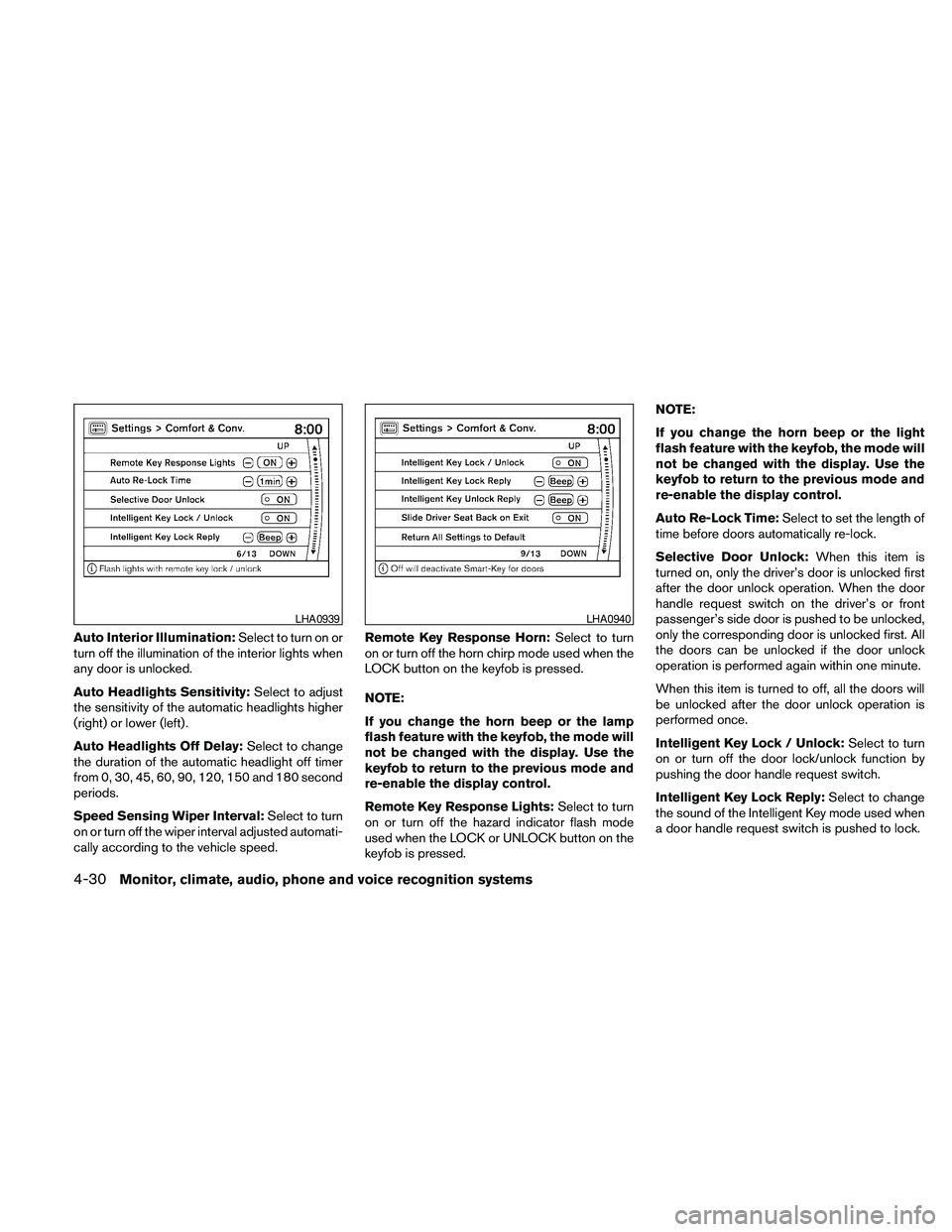
Auto Interior Illumination:Select to turn on or
turn off the illumination of the interior lights when
any door is unlocked.
Auto Headlights Sensitivity:Select to adjust
the sensitivity of the automatic headlights higher
(right) or lower (left) .
Auto Headlights Off Delay:Select to change
the duration of the automatic headlight off timer
from 0, 30, 45, 60, 90, 120, 150 and 180 second
periods.
Speed Sensing Wiper Interval:Select to turn
on or turn off the wiper interval adjusted automati-
cally according to the vehicle speed.Remote Key Response Horn:Select to turn
on or turn off the horn chirp mode used when the
LOCK button on the keyfob is pressed.
NOTE:
If you change the horn beep or the lamp
flash feature with the keyfob, the mode will
not be changed with the display. Use the
keyfob to return to the previous mode and
re-enable the display control.
Remote Key Response Lights:Select to turn
on or turn off the hazard indicator flash mode
used when the LOCK or UNLOCK button on the
keyfob is pressed.NOTE:
If you change the horn beep or the light
flash feature with the keyfob, the mode will
not be changed with the display. Use the
keyfob to return to the previous mode and
re-enable the display control.
Auto Re-Lock Time:Select to set the length of
time before doors automatically re-lock.
Selective Door Unlock:When this item is
turned on, only the driver’s door is unlocked first
after the door unlock operation. When the door
handle request switch on the driver’s or front
passenger’s side door is pushed to be unlocked,
only the corresponding door is unlocked first. All
the doors can be unlocked if the door unlock
operation is performed again within one minute.
When this item is turned to off, all the doors will
be unlocked after the door unlock operation is
performed once.
Intelligent Key Lock / Unlock:Select to turn
on or turn off the door lock/unlock function by
pushing the door handle request switch.
Intelligent Key Lock Reply:Select to change
the sound of the Intelligent Key mode used when
a door handle request switch is pushed to lock.
LHA0939LHA0940
4-30Monitor, climate, audio, phone and voice recognition systems
Page 199 of 463
OPERATING TIPS
cWhen the shift selector is shifted to R (Re-
verse) , the monitor screen automatically
changes to the RearView Monitor mode.
However, the radio can be heard.
cIt may take some time until the RearView
Monitor is displayed after the shift selector
has been shifted to R (Reverse) . Objects
may be distorted momentarily until the Rear-
View Monitor screen is displayed com-
pletely. When the shift selector is returned to
a position other than R (Reverse) , it may take
some time until the screen changes. Objects
on the screen may be distorted until they are
completely displayed.
cWhen the temperature is extremely high or
low, the screen may not clearly display ob-
jects. This is not a malfunction.
cWhen strong light directly enters the cam-
era, objects may not be displayed clearly.
cVertical lines may be seen in objects on the
screen. This is due to strong reflected light
from the bumper. This is not a malfunction.
cThe screen may flicker under fluorescent
light. This is not a malfunction.cThe colors of objects on the RearView Moni-
tor may differ somewhat from those of the
actual object.
cWhen the contrast of objects is low at night,
pressing the SETTING button may not
change the brightness.
cObjects on the monitor may not be clear in a
dark place or at night.
cIf dirt, rain or snow attaches to the camera,
the RearView Monitor may not display ob-
jects. Clean the camera.
cDo not use alcohol, benzine or thinner to
clean the camera. This will cause discolora-
tion. To clean the camera, wipe with a cloth
dampened with a diluted mild cleaning agent
and then wipe with a dry cloth.
cDo not damage the camera as the monitor
screen may be adversely affected.
cDo not use body wax on the camera window.
If body wax does get on the camera window,
wipe off the wax with a clean cloth damp-
ened with mild detergent diluted with water.
Monitor, climate, audio, phone and voice recognition systems4-35
Page 212 of 463
Reception conditions will constantly change be-
cause of vehicle movement. Buildings, terrain,
signal distance and interference from other ve-
hicles can work against ideal reception. De-
scribed below are some of the factors that can
affect your radio reception.
Some cellular phones or other devices may
cause interference or a buzzing noise to come
from the audio system speakers. Storing the de-
vice in a different location may reduce or elimi-
nate the noise.
FM RADIO RECEPTION
Range: FM range is normally limited to 25 – 30 mi
(40 – 48 km) , with monaural (single channel) FM
having slightly more range than stereo FM. Exter-
nal influences may sometimes interfere with FM
station reception even if the FM station is within
25 mi (40 km) . The strength of the FM signal is
directly related to the distance between the
transmitter and receiver. FM signals follow a line-
of-sight path, exhibiting many of the same char-
acteristics as light. For example, they will reflect
off objects.
Fade and drift: As your vehicle moves away from
a station transmitter, the signals will tend to fade
and/or drift.Static and flutter: During signal interference from
buildings, large hills or due to antenna position
(usually in conjunction with increased distance
from the station transmitter) , static or flutter can
be heard. This can be reduced by adjusting the
treble control to reduce treble response.
Multipath reception: Because of the reflective
characteristics of FM signals, direct and reflected
signals reach the receiver at the same time. The
signals may cancel each other, resulting in mo-
mentary flutter or loss of sound.
AM RADIO RECEPTION
AM signals, because of their low frequency, can
bend around objects and skip along the ground.
In addition, the signals can be bounced off the
ionosphere and bent back to earth. Because of
these characteristics, AM signals are also sub-
ject to interference as they travel from transmitter
to receiver.
Fading: Occurs while the vehicle is passing
through freeway underpasses or in areas with
many tall buildings. It can also occur for several
seconds during ionospheric turbulence even in
areas where no obstacles exist.
Static: Caused by thunderstorms, electrical
power lines, electric signs and even traffic lights.
SATELLITE RADIO RECEPTION (if so
equipped)
When the satellite radio is used for the first time
or the battery has been replaced, the satellite
radio may not work properly. This is not a mal-
function. Wait more than 10 minutes with satellite
radio ON and the vehicle outside of any metal or
large building for satellite radio to receive all of
the necessary data.
The satellite radio mode will be skipped unless an
optional satellite receiver and antenna are in-
stalled and an XMT* satellite radio service sub-
scription is active. Satellite radio is not available
in Alaska, Hawaii and Guam.
Satellite radio performance may be affected if
cargo carried on the roof blocks the satellite radio
signal.
If possible, do not put cargo over the satellite
antenna.
A build up of ice on the satellite radio antenna can
affect satellite radio performance. Remove the
ice to restore satellite radio reception.
*XMTis a registered trademark of XM Satellite
Radio, Inc.
4-48Monitor, climate, audio, phone and voice recognition systems
Page 213 of 463
AUDIO OPERATION PRECAUTIONSCompact disc (CD) player
CAUTION
cDo not force a compact disc into the CD
insert slot. This could damage the CD
and/or CD changer/player.
cTrying to load a CD with the CD door
closed could damage the CD and/or CD
changer.
cOnly one CD can be loaded into the CD
player at a time.
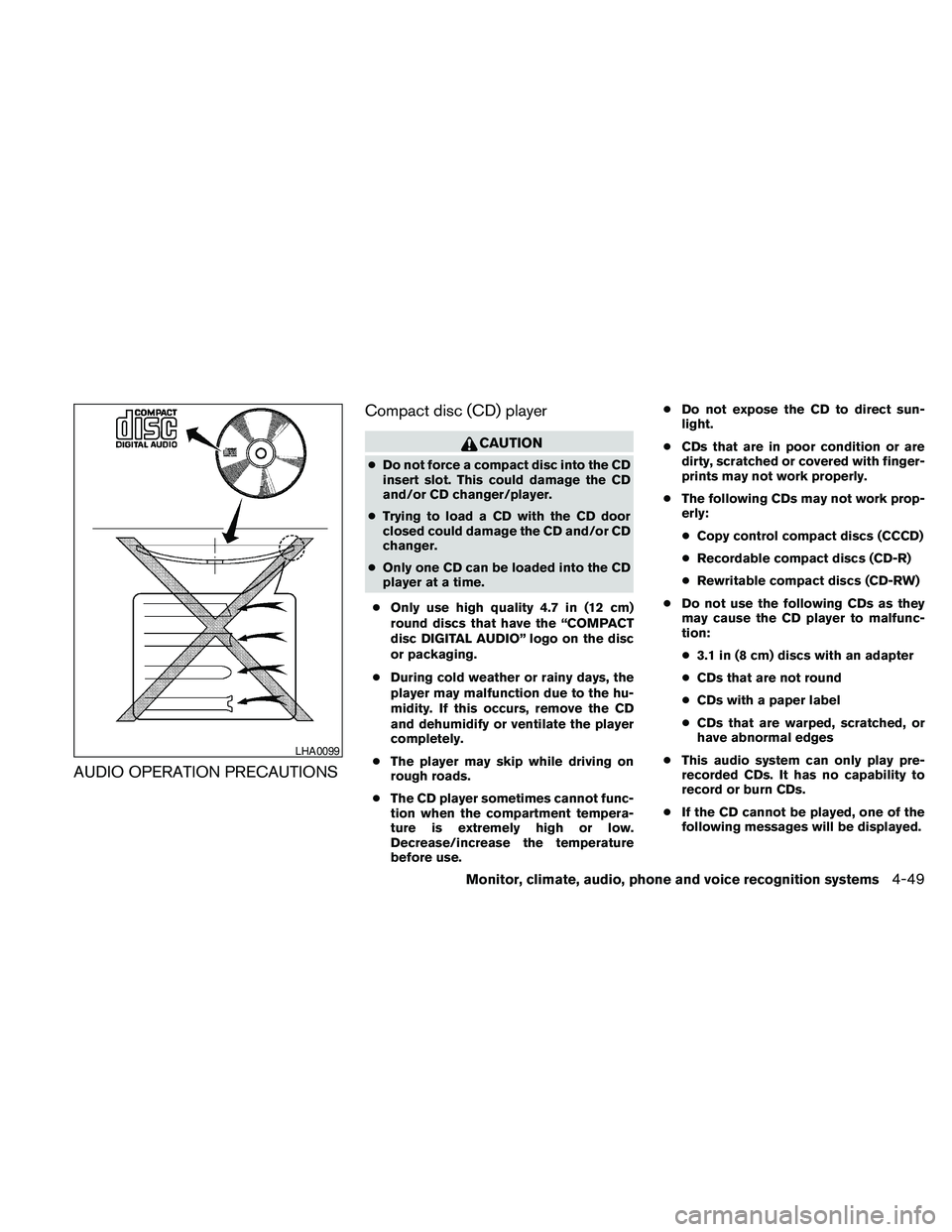
cOnly use high quality 4.7 in (12 cm)
round discs that have the “COMPACT
disc DIGITAL AUDIO” logo on the disc
or packaging.
cDuring cold weather or rainy days, the
player may malfunction due to the hu-
midity. If this occurs, remove the CD
and dehumidify or ventilate the player
completely.
cThe player may skip while driving on
rough roads.
cThe CD player sometimes cannot func-
tion when the compartment tempera-
ture is extremely high or low.
Decrease/increase the temperature
before use.cDo not expose the CD to direct sun-
light.
cCDs that are in poor condition or are
dirty, scratched or covered with finger-
prints may not work properly.
cThe following CDs may not work prop-
erly:
cCopy control compact discs (CCCD)
cRecordable compact discs (CD-R)
cRewritable compact discs (CD-RW)
cDo not use the following CDs as they
may cause the CD player to malfunc-
tion:
c3.1 in (8 cm) discs with an adapter
cCDs that are not round
cCDs with a paper label
cCDs that are warped, scratched, or
have abnormal edges
cThis audio system can only play pre-
recorded CDs. It has no capability to
record or burn CDs.
cIf the CD cannot be played, one of the
following messages will be displayed.
LHA0099
Monitor, climate, audio, phone and voice recognition systems4-49
Page 219 of 463
Bass and Treble to the desired level. You can also
use the SEEK button to adjust Fade and Balance
modes. Fade adjusts the sound level between the
front and rear speakers and Balance adjusts the
sound between the right and left speakers.
Once you have adjusted the sound quality to the
desired level, press the MENU button repeatedly
until the radio or CD display reappears. Other-
wise, the radio or CD display will automatically
reappear after about 10 seconds.
NOTE:
If the clock is enabled, pressing the MENU
button will change the mode as follows:
BAS!TRE!FAD!BAL!CLOCK!
Hour adjustment!Minute adjustment!
Audio!BAS
For more information on setting the clock, see
“Clock set” later in this section.
Clock operation
Press the MENU button until CLOCK is dis-
played; use the SEEK button to turn the clock
display on (CLK ON) or off (CLK OFF) .Clock set
If the clock is not displayed with the ignition
switch in the ACC or ON position, you need to
select the CLK ON mode. Press the MENU but-
ton repeatedly until CLOCK is displayed. Use the
SEEK button to enable CLK ON mode.
1. Press the MENU button repeatedly until
CLOCK mode appears; press the SEEK
button until CLK ON appears.
2. Press the MENU button again; the hours will
start flashing.
3. Press the SEEK button
orto
adjust the hour.
4. Press the MENU button again; the display
will switch to the minute adjustment mode.
5. The minutes will start flashing. Press SEEK
button
orto adjust the minutes.
6. Press the MENU button again to exit the
clock set mode.
The display will return to the regular clock display
after 10 seconds, or press the MENU button
again to return to the regular clock display.Resetting the time
Hold the MENU button down and then press the
TUNE/SEEK button; the time will reset as fol-
lows:
cIf the displayed minutes before the reset are
in the range of :00 - :29, the hour displayed
before the reset will stay the same and the
minutes will be reset to :00.
cIf the displayed minutes before the reset are
in the range of :30 - :59, the hour displayed
before the reset will advance by one hour
and the minutes will be reset to :00.
For example, if the MENU button and the
TUNE/SEEK button are pressed while the time
displayed is between 8:00 and 8:29, the display
will be reset to 8:00. If the buttons were pressed
while the time was between 8:30 and 8:59, the
display will be reset to 9:00. At the same time the
display will return to the audio.
FM/AM radio operation
FM·AM button:
Press the FM·AM button to change from AMÃ!
FM reception.
The FM stereo indicator, ST, illuminates during
FM stereo reception. When the stereo broadcast
signal is weak, the radio automatically changes
from stereo to monaural reception.
Monitor, climate, audio, phone and voice recognition systems4-55
Page 220 of 463
TUNE buttons:
Manual tuning
Press the TUNE
orbutton for less
than 0.5 seconds for manual tuning.
To move quickly through the channels, press and
hold either TUNE
orbutton down
for more than 1.5 seconds.
SEEK buttons:
SEEK tuning
Press the SEEK
orbutton to seek
through the frequencies. Seek tuning begins
from low to high frequencies, or high to low
frequencies, depending on which button is
pressed, and stops at the next broadcasting sta-
tion. Once the highest broadcasting station is
reached, the radio continues in the seek mode at
the lowest broadcasting station.
Station memory operations:
18 stations can be set for the FM and AM radio to
the A, B and C preset button in any combination
of AM or FM stations.1. Press the PRESET A·B·C button to change
between storage banks. The radio displays
the icon A, B or C to indicate which set of
presets are active.
2. Tune to the desired station using manual
TUNE or SEEK tuning. Press and hold any of
the desired station memory buttons (1 – 6)
until a beep sound is heard. (The radio mutes
when the select button is pressed.)
3. The channel indicator will then come on and
the sound will resume. Programming is now
complete.
4. Other buttons can be set in the same man-
ner.
If the battery cable is disconnected, or if the fuse
opens, the radio memory will be canceled. In that
case, reset the desired stations.
Compact disc (CD) player operation
Place the ignition switch in the ACC or ON
position and carefully insert the compact disc
into the slot with the label side up. The compact
disc is automatically pulled into the slot and starts
to play.
If the radio is already operating, it automatically
turns off and the compact disc begins to play.CD button:
When the CD button is pressed with a compact
disc loaded and the radio playing, the radio turns
off and the last used compact disc starts to play.
TUNE (rewind and fast
forward) buttons:
When the TUNE
orbutton is
pressed while the compact disc is playing, the
compact disc plays at an increased speed while
rewinding or fast forwarding. When the button is
released, the compact disc returns to normal play
speed.
SEEK buttons:
Whenis pressed while the compact disc is
playing, the next track following the present one
starts to play from the beginning. Press
several times to skip several tracks. Each time the
button is pressed, the CD advances 1 additional
track. The track number appears in the display
window. (When the last track on the compact disc
is skipped, the first track is played.)
Whenis pressed, the track being played
returns to the beginning. Press
several
times to skip back several tracks. Each time the
button is pressed, the CD moves back one track.
4-56Monitor, climate, audio, phone and voice recognition systems
Page 227 of 463
button:
To insert a CD in the CD changer, press
the
button for less than 1.5 seconds. Se-
lect the loading slot by pressing the CD insert
select button (1 – 6) , then insert the CD.
To insert 6 CDs to the CD changer, press and
hold the
button for more than 1.5 seconds.
The slot numbers (1 – 6) will illuminate on the
display when CDs are loaded into the changer.
DISC·AUX button:
When the DISC·AUX button is pressed with the
system off and the compact disc loaded, the
system will turn on and the compact disc will start
to play.
When the DISC·AUX button is pressed with the
compact disc loaded with the radio playing, the
radio will automatically be turned off and the
compact disc will start to play.
SEEK/CAT and TRACK
buttons:
When the SEEK/CAT
button is pressed
while a compact disc is playing, the track being
played returns to its beginning. Press severaltimes to skip back through tracks. The compact
disc will go back the number of times the button
is pressed.
When the TRACK
button is pressed while
the compact disc is playing, the next track will
start to play from its beginning. Press several
times to skip through tracks. The compact disc
will advance the number of times the button is
pressed. (When the last track on the compact
disc is skipped through, the first track will be
played.)
The NISSAN controller can also be used to se-
lect tracks when a CD is being played.
SEEK/CAT and TRACK
(Rewind·Fast Forward)
buttons:
Press and hold the SEEK/CAT
(rewind)
button or the TRACK
(fast forward) button
while a compact disc is playing, the compact disc
will play while rewinding or fast forwarding. When
the button is released, the compact disc will
return to normal play speed.
When the CD button is pressed with the system
off and the compact disc loaded, the system will
turn on and the compact disc will start to play.When the CD button is pressed with the com-
pact disc loaded with the tape or the radio play-
ing, the tape or radio will automatically be turned
off and the compact disc will start to play.
TUNE FLDR (Folder) knob
While playing an MP3/WMA CD, turn the
TUNE/FLDR knob right or left to scan forward or
backward through available folders.
CD select buttons:
To play another CD that has been loaded, press a
CD select button (1 – 6) .
RPT button:
When the RPT button is pressed while the com-
pact disc is played, the play pattern can be
changed as follows:
CD:
ALL DISC RPT!1 DISC RPT!1 TRK RPT!
ALL DISC RPT
MP3/WMA CD:
ALL DISC RPT!1 DISC RPT!1 FOLDER
RPT!1 TRK RPT!ALL DISC RPT
ALL DISC RPT: All discs loaded will be repeated.
1 DISC RPT: The disc that is currently playing will
be repeated.
Monitor, climate, audio, phone and voice recognition systems4-63