maintenance NISSAN PATHFINDER 2010 Owner´s Manual
[x] Cancel search | Manufacturer: NISSAN, Model Year: 2010, Model line: PATHFINDER, Model: NISSAN PATHFINDER 2010Pages: 463, PDF Size: 5.69 MB
Page 173 of 463
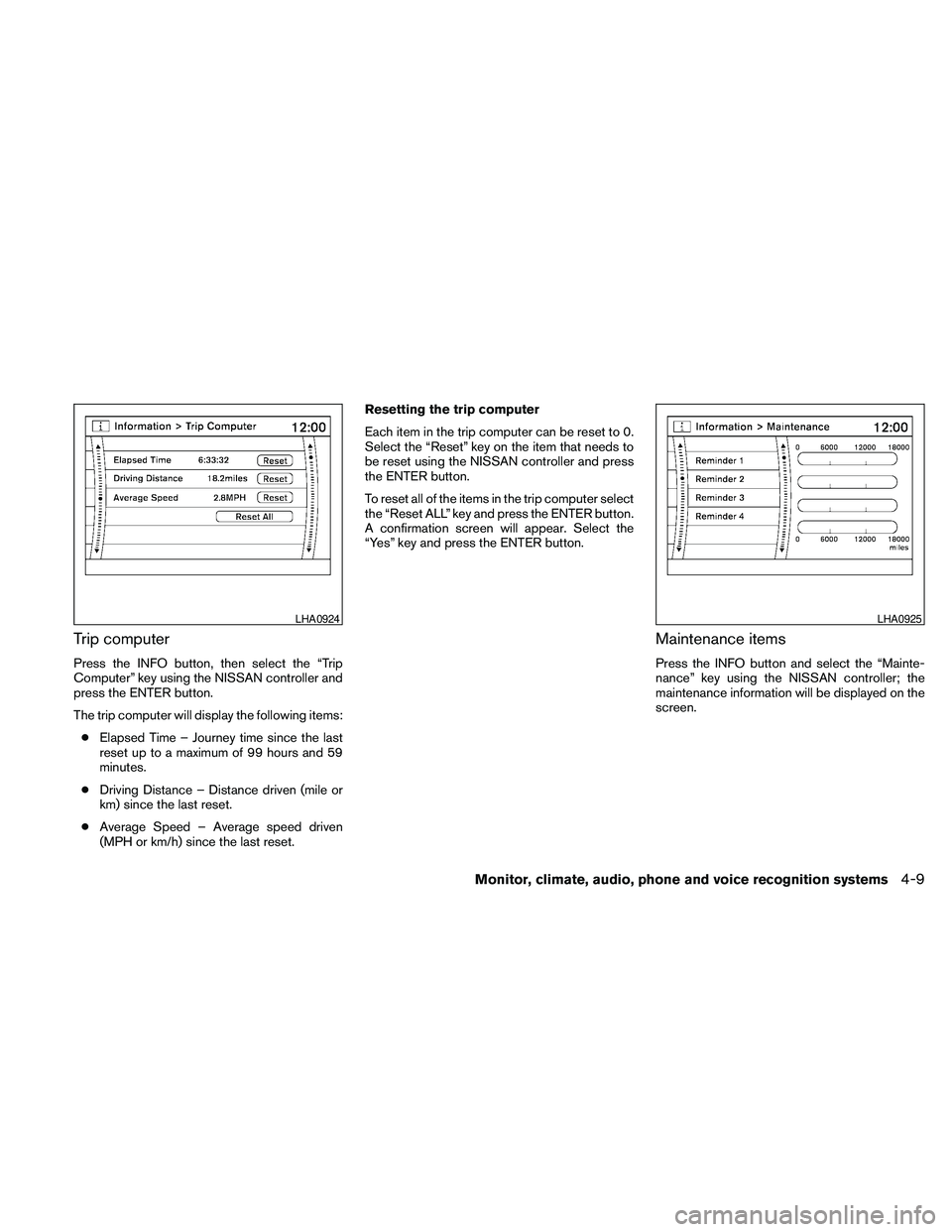
Trip computer
Press the INFO button, then select the “Trip
Computer” key using the NISSAN controller and
press the ENTER button.
The trip computer will display the following items:
cElapsed Time – Journey time since the last
reset up to a maximum of 99 hours and 59
minutes.
cDriving Distance – Distance driven (mile or
km) since the last reset.
cAverage Speed – Average speed driven
(MPH or km/h) since the last reset.Resetting the trip computer
Each item in the trip computer can be reset to 0.
Select the “Reset” key on the item that needs to
be reset using the NISSAN controller and press
the ENTER button.
To reset all of the items in the trip computer select
the “Reset ALL” key and press the ENTER button.
A confirmation screen will appear. Select the
“Yes” key and press the ENTER button.
Maintenance items
Press the INFO button and select the “Mainte-
nance” key using the NISSAN controller; the
maintenance information will be displayed on the
screen.
LHA0924LHA0925
Monitor, climate, audio, phone and voice recognition systems4-9
Page 174 of 463
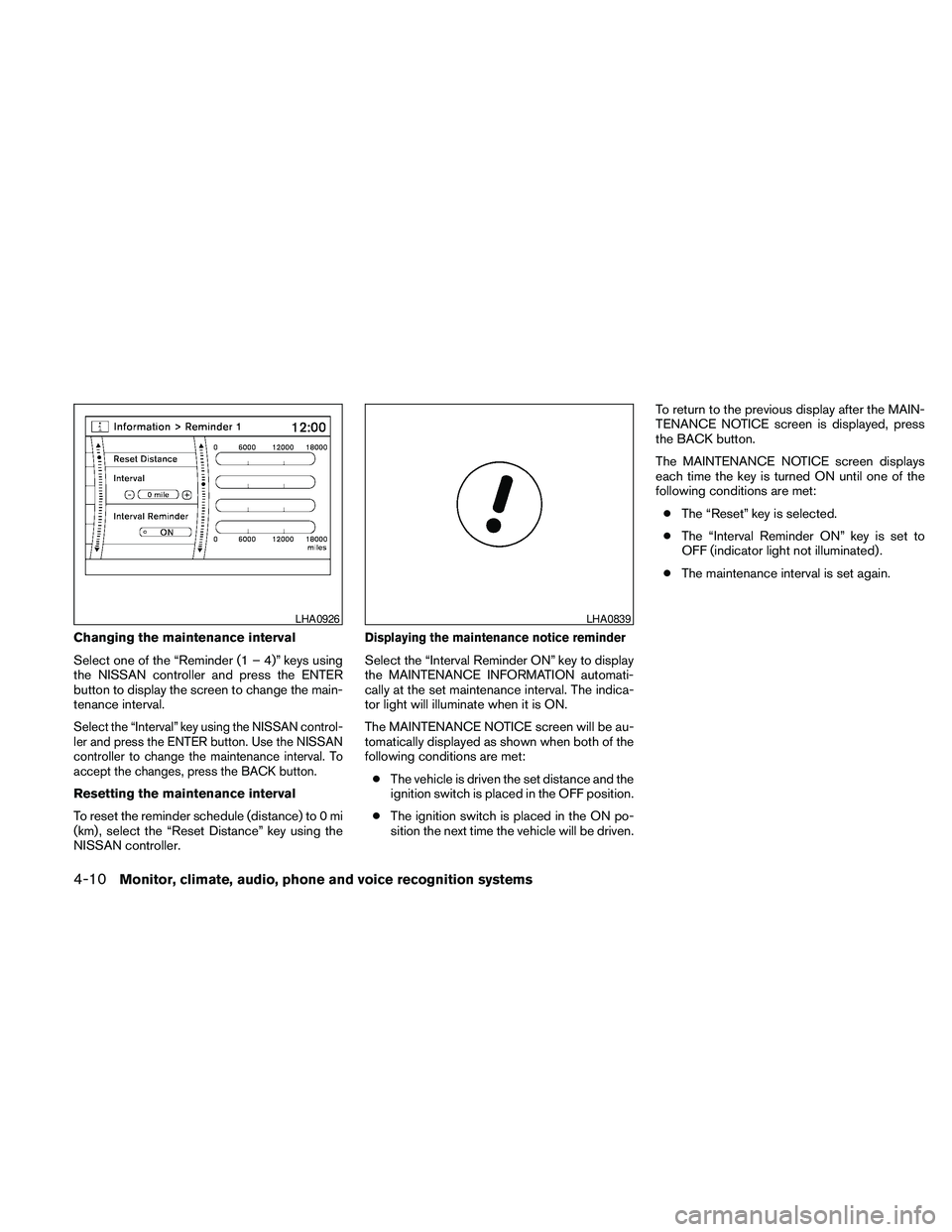
Changing the maintenance interval
Select one of the “Reminder (1 – 4)” keys using
the NISSAN controller and press the ENTER
button to display the screen to change the main-
tenance interval.
Select the “Interval” key using the NISSAN control-
ler and press the ENTER button. Use the NISSAN
controller to change the maintenance interval. To
accept the changes, press the BACK button.
Resetting the maintenance interval
To reset the reminder schedule (distance) to 0 mi
(km) , select the “Reset Distance” key using the
NISSAN controller.
Displaying the maintenance notice reminder
Select the “Interval Reminder ON” key to display
the MAINTENANCE INFORMATION automati-
cally at the set maintenance interval. The indica-
tor light will illuminate when it is ON.
The MAINTENANCE NOTICE screen will be au-
tomatically displayed as shown when both of the
following conditions are met:
cThe vehicle is driven the set distance and the
ignition switch is placed in the OFF position.
cThe ignition switch is placed in the ON po-
sition the next time the vehicle will be driven.To return to the previous display after the MAIN-
TENANCE NOTICE screen is displayed, press
the BACK button.
The MAINTENANCE NOTICE screen displays
each time the key is turned ON until one of the
following conditions are met:
cThe “Reset” key is selected.
cThe “Interval Reminder ON” key is set to
OFF (indicator light not illuminated) .
cThe maintenance interval is set again.
LHA0926LHA0839
4-10Monitor, climate, audio, phone and voice recognition systems
Page 185 of 463
cSymbols:
Shows symbols such as the question mark
(?) .
cDelete:
Deletes the last inputted character with one
touch. Touch and hold the “Delete” key to
delete all of the characters.
cOK:
Completes the character input.
Touch screen maintenance
If you clean the display screen, use a dry, soft
cloth. If additional cleaning is necessary, use a
small amount of neutral detergent with a soft
cloth. Never spray the screen with water or de-
tergent. Dampen the cloth first, and then wipe the
screen.
START-UP SCREEN
When you place the ignition switch in the ACC or
ON position, the SYSTEM START-UP warning is
displayed on the screen. When you read and
agree with the warning, press the ENTER button.
If you do not push the ENTER button, you will not
be able to use the navigation system.
To proceed to the next step, refer to the separate
Navigation System Owner’s Manual.
HOW TO SELECT MENUS ON THE
SCREEN
Vehicle functions are viewed on the center dis-
play screen in menus. Whenever a menu selec-
tion is made or menu item is highlighted, different
areas on the screen provide you with important
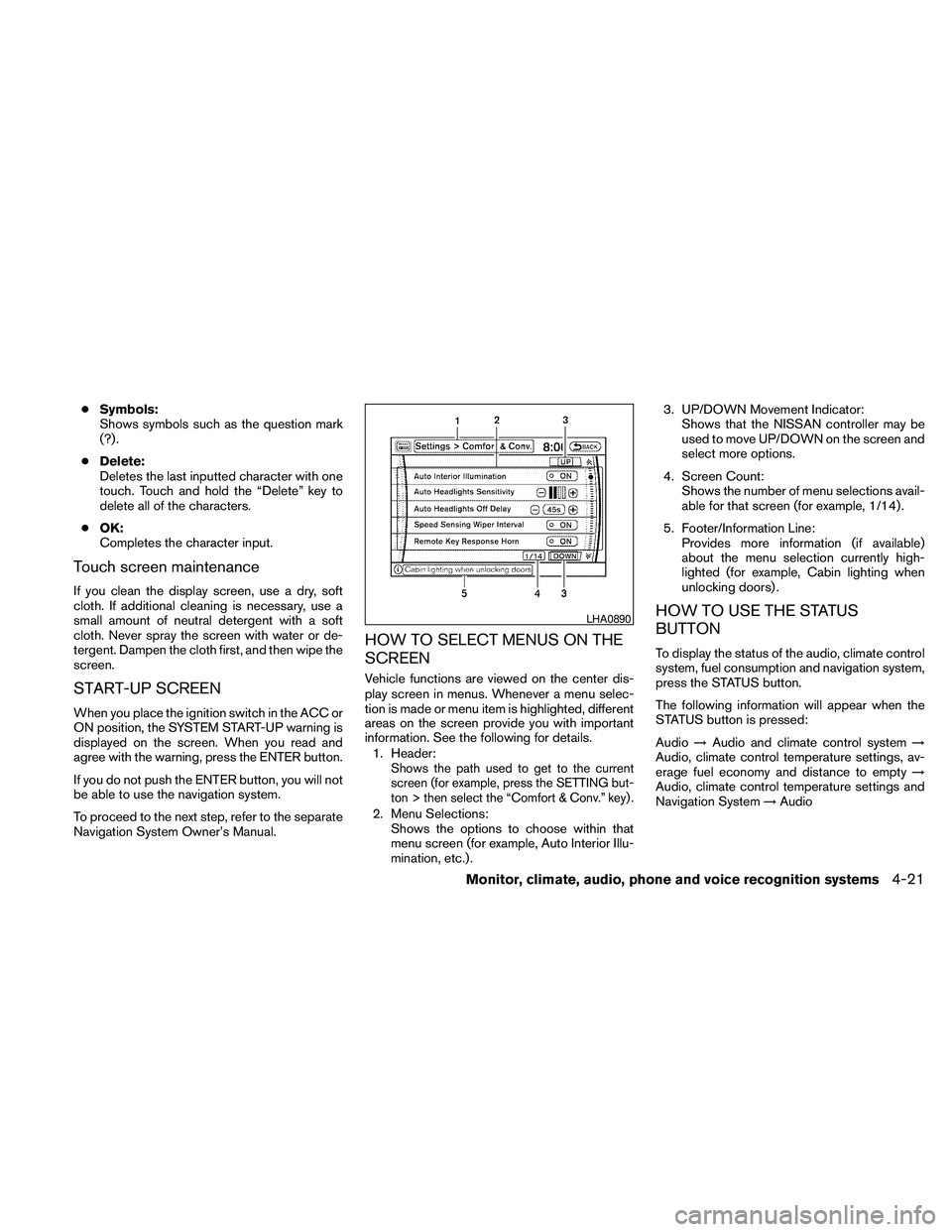
information. See the following for details.
1. Header:
Shows the path used to get to the current
screen (for example, press the SETTING but-
ton > then select the “Comfort & Conv.” key) .
2. Menu Selections:
Shows the options to choose within that
menu screen (for example, Auto Interior Illu-
mination, etc.) .3. UP/DOWN Movement Indicator:
Shows that the NISSAN controller may be
used to move UP/DOWN on the screen and
select more options.
4. Screen Count:
Shows the number of menu selections avail-
able for that screen (for example, 1/14) .
5. Footer/Information Line:
Provides more information (if available)
about the menu selection currently high-
lighted (for example, Cabin lighting when
unlocking doors) .
HOW TO USE THE STATUS
BUTTON
To display the status of the audio, climate control
system, fuel consumption and navigation system,
press the STATUS button.
The following information will appear when the
STATUS button is pressed:
Audio!Audio and climate control system!
Audio, climate control temperature settings, av-
erage fuel economy and distance to empty!
Audio, climate control temperature settings and
Navigation System!Audio
LHA0890
Monitor, climate, audio, phone and voice recognition systems4-21
Page 188 of 463
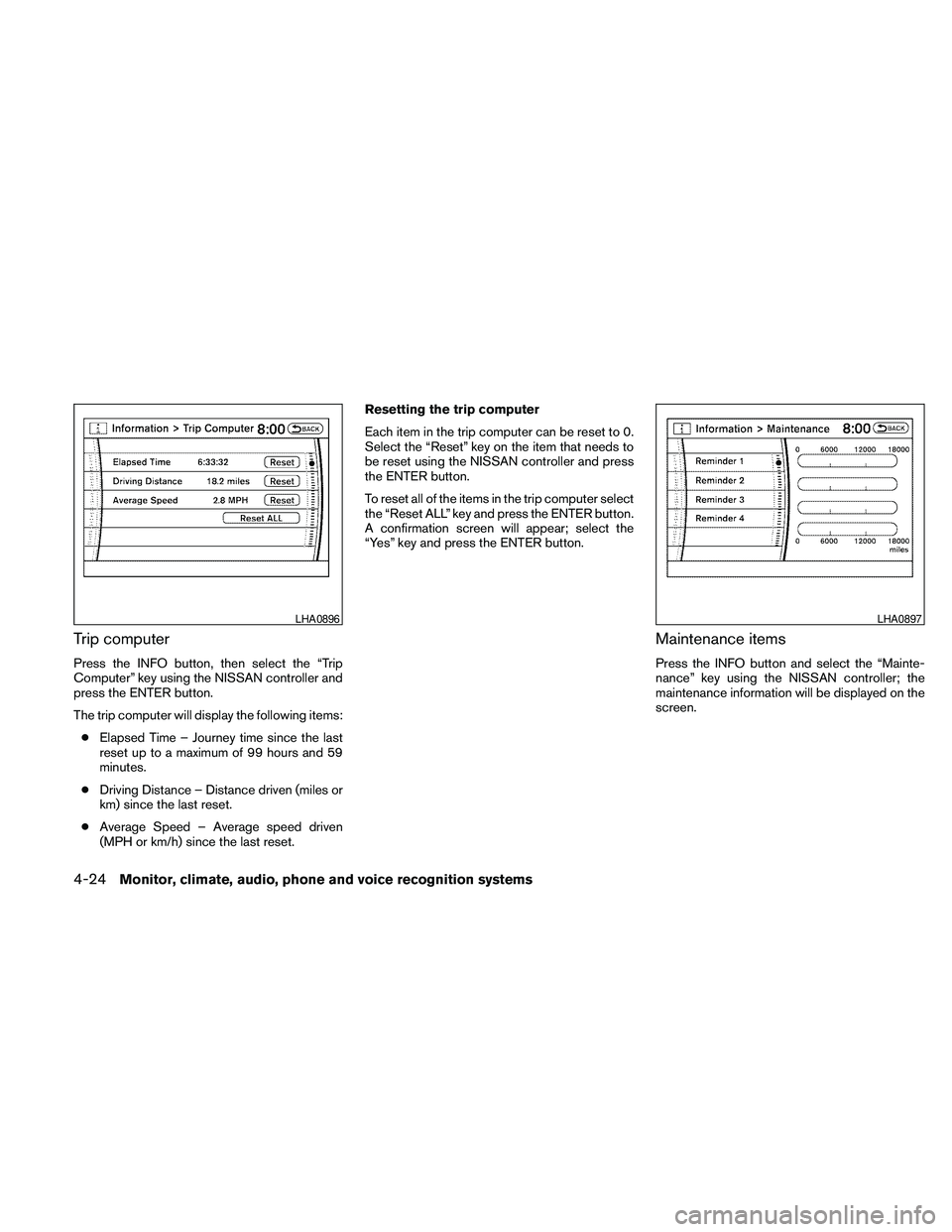
Trip computer
Press the INFO button, then select the “Trip
Computer” key using the NISSAN controller and
press the ENTER button.
The trip computer will display the following items:
cElapsed Time – Journey time since the last
reset up to a maximum of 99 hours and 59
minutes.
cDriving Distance – Distance driven (miles or
km) since the last reset.
cAverage Speed – Average speed driven
(MPH or km/h) since the last reset.Resetting the trip computer
Each item in the trip computer can be reset to 0.
Select the “Reset” key on the item that needs to
be reset using the NISSAN controller and press
the ENTER button.
To reset all of the items in the trip computer select
the “Reset ALL” key and press the ENTER button.
A confirmation screen will appear; select the
“Yes” key and press the ENTER button.
Maintenance items
Press the INFO button and select the “Mainte-
nance” key using the NISSAN controller; the
maintenance information will be displayed on the
screen.
LHA0896LHA0897
4-24Monitor, climate, audio, phone and voice recognition systems
Page 189 of 463
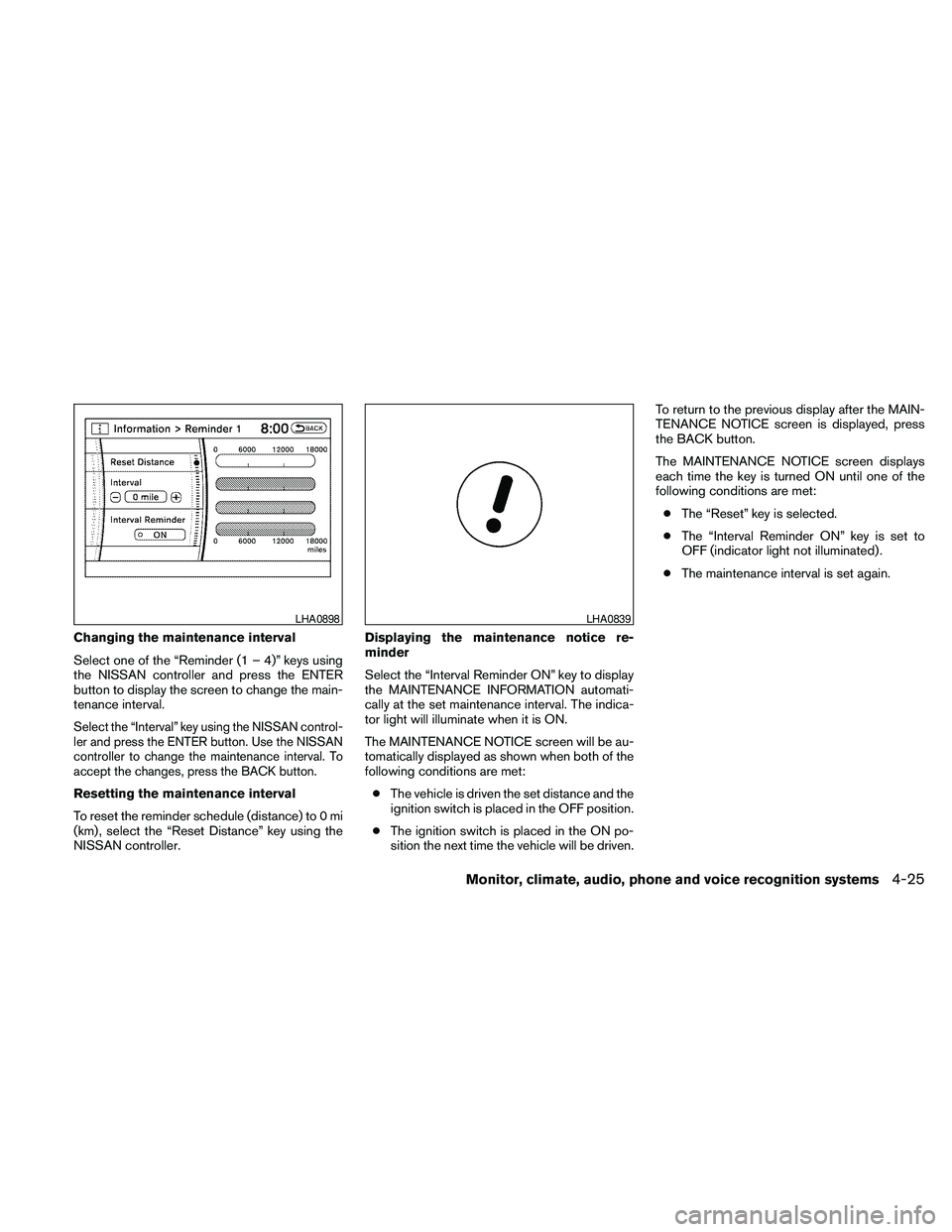
Changing the maintenance interval
Select one of the “Reminder (1 – 4)” keys using
the NISSAN controller and press the ENTER
button to display the screen to change the main-
tenance interval.
Select the “Interval” key using the NISSAN control-
ler and press the ENTER button. Use the NISSAN
controller to change the maintenance interval. To
accept the changes, press the BACK button.
Resetting the maintenance interval
To reset the reminder schedule (distance) to 0 mi
(km) , select the “Reset Distance” key using the
NISSAN controller.Displaying the maintenance notice re-
minder
Select the “Interval Reminder ON” key to display
the MAINTENANCE INFORMATION automati-
cally at the set maintenance interval. The indica-
tor light will illuminate when it is ON.
The MAINTENANCE NOTICE screen will be au-
tomatically displayed as shown when both of the
following conditions are met:
cThe vehicle is driven the set distance and the
ignition switch is placed in the OFF position.
cThe ignition switch is placed in the ON po-
sition the next time the vehicle will be driven.To return to the previous display after the MAIN-
TENANCE NOTICE screen is displayed, press
the BACK button.
The MAINTENANCE NOTICE screen displays
each time the key is turned ON until one of the
following conditions are met:
cThe “Reset” key is selected.
cThe “Interval Reminder ON” key is set to
OFF (indicator light not illuminated) .
cThe maintenance interval is set again.
LHA0898LHA0839
Monitor, climate, audio, phone and voice recognition systems4-25
Page 246 of 463
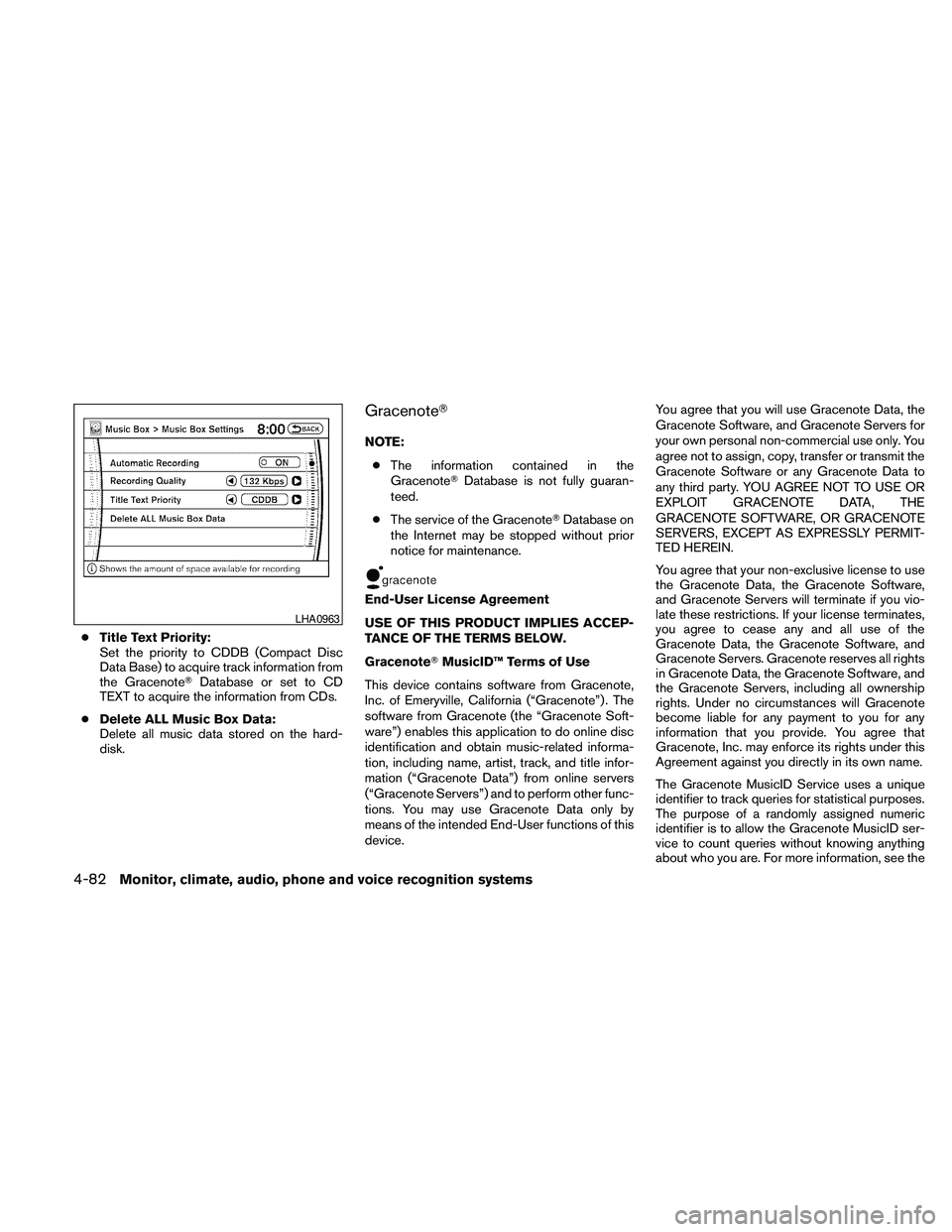
cTitle Text Priority:
Set the priority to CDDB (Compact Disc
Data Base) to acquire track information from
the GracenoteTDatabase or set to CD
TEXT to acquire the information from CDs.
cDelete ALL Music Box Data:
Delete all music data stored on the hard-
disk.
GracenoteT
NOTE:
cThe information contained in the
GracenoteTDatabase is not fully guaran-
teed.
cThe service of the GracenoteTDatabase on
the Internet may be stopped without prior
notice for maintenance.
End-User License Agreement
USE OF THIS PRODUCT IMPLIES ACCEP-
TANCE OF THE TERMS BELOW.
GracenoteTMusicID™ Terms of Use
This device contains software from Gracenote,
Inc. of Emeryville, California (“Gracenote”) . The
software from Gracenote (the “Gracenote Soft-
ware”) enables this application to do online disc
identification and obtain music-related informa-
tion, including name, artist, track, and title infor-
mation (“Gracenote Data”) from online servers
(“Gracenote Servers”) and to perform other func-
tions. You may use Gracenote Data only by
means of the intended End-User functions of this
device.You agree that you will use Gracenote Data, the
Gracenote Software, and Gracenote Servers for
your own personal non-commercial use only. You
agree not to assign, copy, transfer or transmit the
Gracenote Software or any Gracenote Data to
any third party. YOU AGREE NOT TO USE OR
EXPLOIT GRACENOTE DATA, THE
GRACENOTE SOFTWARE, OR GRACENOTE
SERVERS, EXCEPT AS EXPRESSLY PERMIT-
TED HEREIN.
You agree that your non-exclusive license to use
the Gracenote Data, the Gracenote Software,
and Gracenote Servers will terminate if you vio-
late these restrictions. If your license terminates,
you agree to cease any and all use of the
Gracenote Data, the Gracenote Software, and
Gracenote Servers. Gracenote reserves all rights
in Gracenote Data, the Gracenote Software, and
the Gracenote Servers, including all ownership
rights. Under no circumstances will Gracenote
become liable for any payment to you for any
information that you provide. You agree that
Gracenote, Inc. may enforce its rights under this
Agreement against you directly in its own name.
The Gracenote MusicID Service uses a unique
identifier to track queries for statistical purposes.
The purpose of a randomly assigned numeric
identifier is to allow the Gracenote MusicID ser-
vice to count queries without knowing anything
about who you are. For more information, see the
LHA0963
4-82Monitor, climate, audio, phone and voice recognition systems
Page 263 of 463
MENU:
If the media is in PLAY mode and the MENU
button is pressed, the DVD menu will appear on
the screen. Use the Navigation Keys to navigate
within the menu and use ENTER to select the
item.
Press the MENU button again to return to PLAY
mode.
TITLE:
Press the TITLE button to return the DVD media
to the “title” of the DVD.
Press the TITLE button again to return to the
previous stop point and play.
BACK:
Press the BACK button to exit the current active
menu and return to the previous menu.
SUBTITLE:
Press the SUBTITLE button to call up subtitle
selection menu.
Repeatedly press the SUBTITLE button to cycle
through each available subtitle.
AUDIO:
Press the AUDIO button to call up the audio
menu.Repeatedly press the AUDIO button to cycle
through each available audio track.
ANGLE:
Press the ANGLE button to call up the camera
angle menu.
Repeatedly press the ANGLE button to cycle
through each available angle.
CLEAR:
Press the CLEAR button to clear all numeric
inputs, if actuated prior to expiration of the
3-second timer.
NUMERIC KEYPAD (0–9 &¸10):
Press the NUMERIC KEYPAD to directly access
disc chapters, titles or tracks by inputting their
numeric value.
Use the “¸10” button to input numbers greater
than or equal to 10. Up to 3 digits can be inputted
when selecting the chapter/title/track number.
The subsequent actuation of numeric buttons will
continuously shift the previously input number to
the “left”.The chapter/title/track number will be automati-
cally selected (if valid, based on media content) if
3 seconds expire without any keypad inputs.
The operator can cancel the input
chapter/title/track number by actuating the
CLEAR control prior to the expiration of the
3-second timer.
These functions can be used only for the DVD
discs which correspond to them.
CARE AND MAINTENANCE
Use a lightly dampened, lint free cloth to clean the
surfaces of your NISSAN Mobile Entertainment
System (DVD player face, screen, remote control,
etc.) .
Do not attempt to use the system in extreme
temperature conditions [below -4°F (-20°C) or
above 158°F (70°C)].
Do not attempt to operate the system in extreme
humidity conditions (less than 10% or more than
75%) .
Monitor, climate, audio, phone and voice recognition systems4-99
Page 267 of 463
When installing a CB, ham radio or car phone in
your NISSAN, be sure to observe the following
precautions; otherwise, the new equipment may
adversely affect the engine control system and
other electronic parts.
WARNING
cA cellular telephone should not be used
while driving so full attention may be
given to vehicle operation. Some juris-
dictions prohibit the use of cellular tele-
phones while driving.
cIf you must make a call while your ve-
hicle is in motion, the hands free cellu-
lar phone operational mode (if so
equipped) is highly recommended. Ex-
ercise extreme caution at all times so
full attention may be given to vehicle
operation.
cIf you are unable to devote full attention
to vehicle operation while talking on
the phone, pull off the road to a safe
location and stop your vehicle.
CAUTION
cKeep the antenna as far away as pos-
sible from the electronic control
modules.
cKeep the antenna wire more than 8 in
(20 cm) away from the electronic con-
trol system harnesses. Do not route the
antenna wire next to any harness.
cAdjust the antenna standing-wave ratio
as recommended by the manufacturer.
cConnect the ground wire from the CB
radio chassis to the body.
cFor details, consult a NISSAN dealer.
cDo not ground electrical accessories
directly to the battery terminal. Doing
so will bypass the variable voltage con-
trol system and the vehicle battery may
not charge completely. Refer to “Vari-
able voltage control system” in the
“Maintenance and do-it-yourself” sec-
tion later in this manual.
cUse electrical accessories with the en-
gine running to avoid discharging the
vehicle battery.
WARNING
cUse a phone after stopping your vehicle
in a safe location. If you have to use a
phone while driving, exercise extreme
caution at all times so full attention may
be given to vehicle operation.
cIf you are unable to devote full attention
to vehicle operation while talking on
the phone, pull off the road to a safe
location and stop your vehicle.
CAUTION
To avoid discharging the vehicle battery,
use a phone after starting the engine.
CAR PHONE OR CB RADIO BLUETOOTHTHANDS-FREE PHONE
SYSTEM WITHOUT NAVIGATION
SYSTEM (if so equipped)
Monitor, climate, audio, phone and voice recognition systems4-103
Page 299 of 463
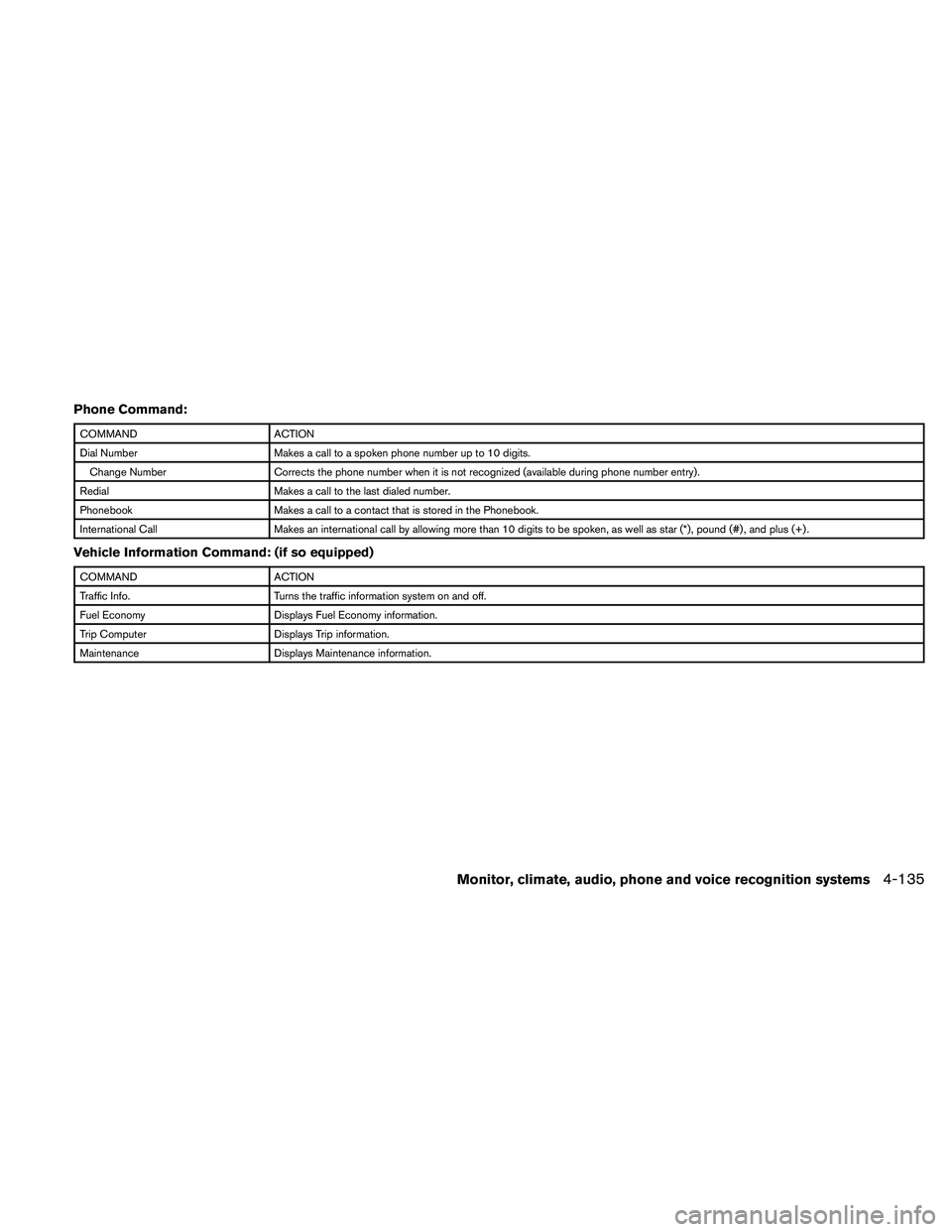
Phone Command:
COMMAND ACTION
Dial Number Makes a call to a spoken phone number up to 10 digits.
Change Number Corrects the phone number when it is not recognized (available during phone number entry) .
Redial Makes a call to the last dialed number.
Phonebook Makes a call to a contact that is stored in the Phonebook.
International Call Makes an international call by allowing more than 10 digits to be spoken, as well as star (*) , pound (#) , and plus (+) .
Vehicle Information Command: (if so equipped)
COMMAND ACTION
Traffic Info. Turns the traffic information system on and off.
Fuel Economy Displays Fuel Economy information.
Trip Computer Displays Trip information.
Maintenance Displays Maintenance information.
Monitor, climate, audio, phone and voice recognition systems4-135
Page 309 of 463
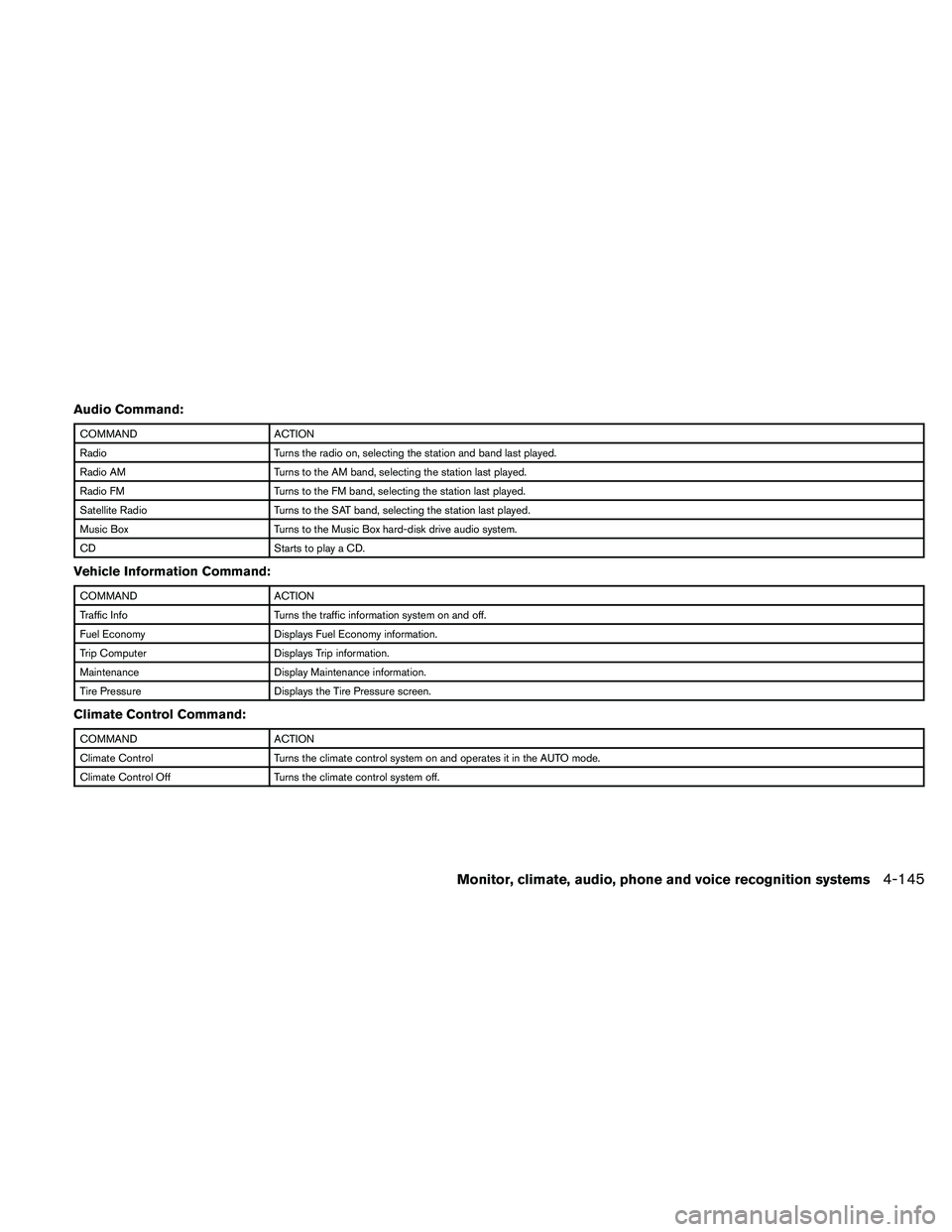
Audio Command:
COMMAND ACTION
Radio Turns the radio on, selecting the station and band last played.
Radio AM Turns to the AM band, selecting the station last played.
Radio FM Turns to the FM band, selecting the station last played.
Satellite Radio Turns to the SAT band, selecting the station last played.
Music Box Turns to the Music Box hard-disk drive audio system.
CD Starts to play a CD.
Vehicle Information Command:
COMMAND ACTION
Traffic Info Turns the traffic information system on and off.
Fuel Economy Displays Fuel Economy information.
Trip Computer Displays Trip information.
Maintenance Display Maintenance information.
Tire Pressure Displays the Tire Pressure screen.
Climate Control Command:
COMMAND ACTION
Climate Control Turns the climate control system on and operates it in the AUTO mode.
Climate Control Off Turns the climate control system off.
Monitor, climate, audio, phone and voice recognition systems4-145