buttons NISSAN PATHFINDER 2010 Owner´s Manual
[x] Cancel search | Manufacturer: NISSAN, Model Year: 2010, Model line: PATHFINDER, Model: NISSAN PATHFINDER 2010Pages: 463, PDF Size: 5.69 MB
Page 220 of 463
TUNE buttons:
Manual tuning
Press the TUNE
orbutton for less
than 0.5 seconds for manual tuning.
To move quickly through the channels, press and
hold either TUNE
orbutton down
for more than 1.5 seconds.
SEEK buttons:
SEEK tuning
Press the SEEK
orbutton to seek
through the frequencies. Seek tuning begins
from low to high frequencies, or high to low
frequencies, depending on which button is
pressed, and stops at the next broadcasting sta-
tion. Once the highest broadcasting station is
reached, the radio continues in the seek mode at
the lowest broadcasting station.
Station memory operations:
18 stations can be set for the FM and AM radio to
the A, B and C preset button in any combination
of AM or FM stations.1. Press the PRESET A·B·C button to change
between storage banks. The radio displays
the icon A, B or C to indicate which set of
presets are active.
2. Tune to the desired station using manual
TUNE or SEEK tuning. Press and hold any of
the desired station memory buttons (1 – 6)
until a beep sound is heard. (The radio mutes
when the select button is pressed.)
3. The channel indicator will then come on and
the sound will resume. Programming is now
complete.
4. Other buttons can be set in the same man-
ner.
If the battery cable is disconnected, or if the fuse
opens, the radio memory will be canceled. In that
case, reset the desired stations.
Compact disc (CD) player operation
Place the ignition switch in the ACC or ON
position and carefully insert the compact disc
into the slot with the label side up. The compact
disc is automatically pulled into the slot and starts
to play.
If the radio is already operating, it automatically
turns off and the compact disc begins to play.CD button:
When the CD button is pressed with a compact
disc loaded and the radio playing, the radio turns
off and the last used compact disc starts to play.
TUNE (rewind and fast
forward) buttons:
When the TUNE
orbutton is
pressed while the compact disc is playing, the
compact disc plays at an increased speed while
rewinding or fast forwarding. When the button is
released, the compact disc returns to normal play
speed.
SEEK buttons:
Whenis pressed while the compact disc is
playing, the next track following the present one
starts to play from the beginning. Press
several times to skip several tracks. Each time the
button is pressed, the CD advances 1 additional
track. The track number appears in the display
window. (When the last track on the compact disc
is skipped, the first track is played.)
Whenis pressed, the track being played
returns to the beginning. Press
several
times to skip back several tracks. Each time the
button is pressed, the CD moves back one track.
4-56Monitor, climate, audio, phone and voice recognition systems
Page 222 of 463
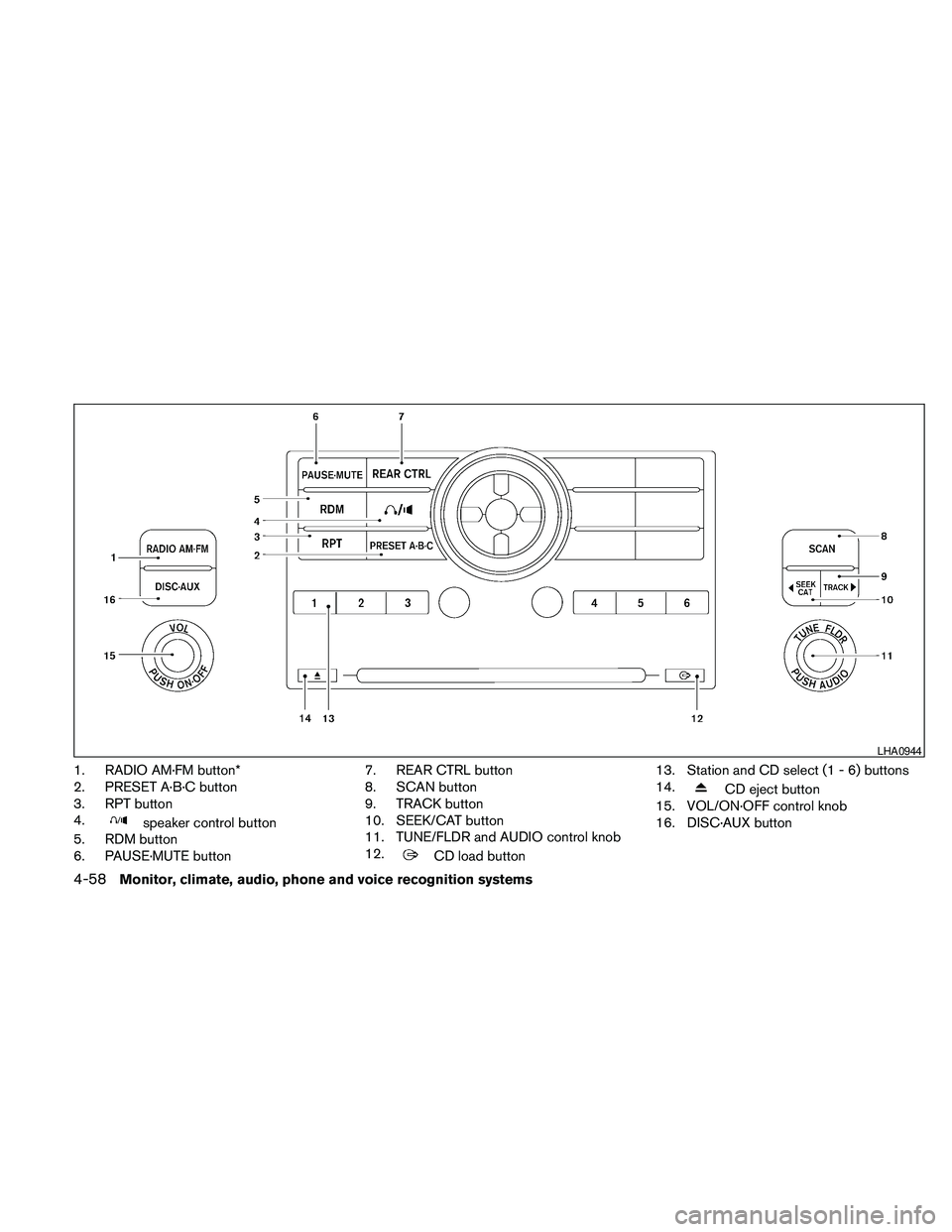
1. RADIO AM·FM button*
2. PRESET A·B·C button
3. RPT button
4.
speaker control button
5. RDM button
6. PAUSE·MUTE button7. REAR CTRL button
8. SCAN button
9. TRACK button
10. SEEK/CAT button
11. TUNE/FLDR and AUDIO control knob
12.
CD load button13. Station and CD select (1 - 6) buttons
14.
CD eject button
15. VOL/ON·OFF control knob
16. DISC·AUX button
LHA0944
4-58Monitor, climate, audio, phone and voice recognition systems
Page 224 of 463
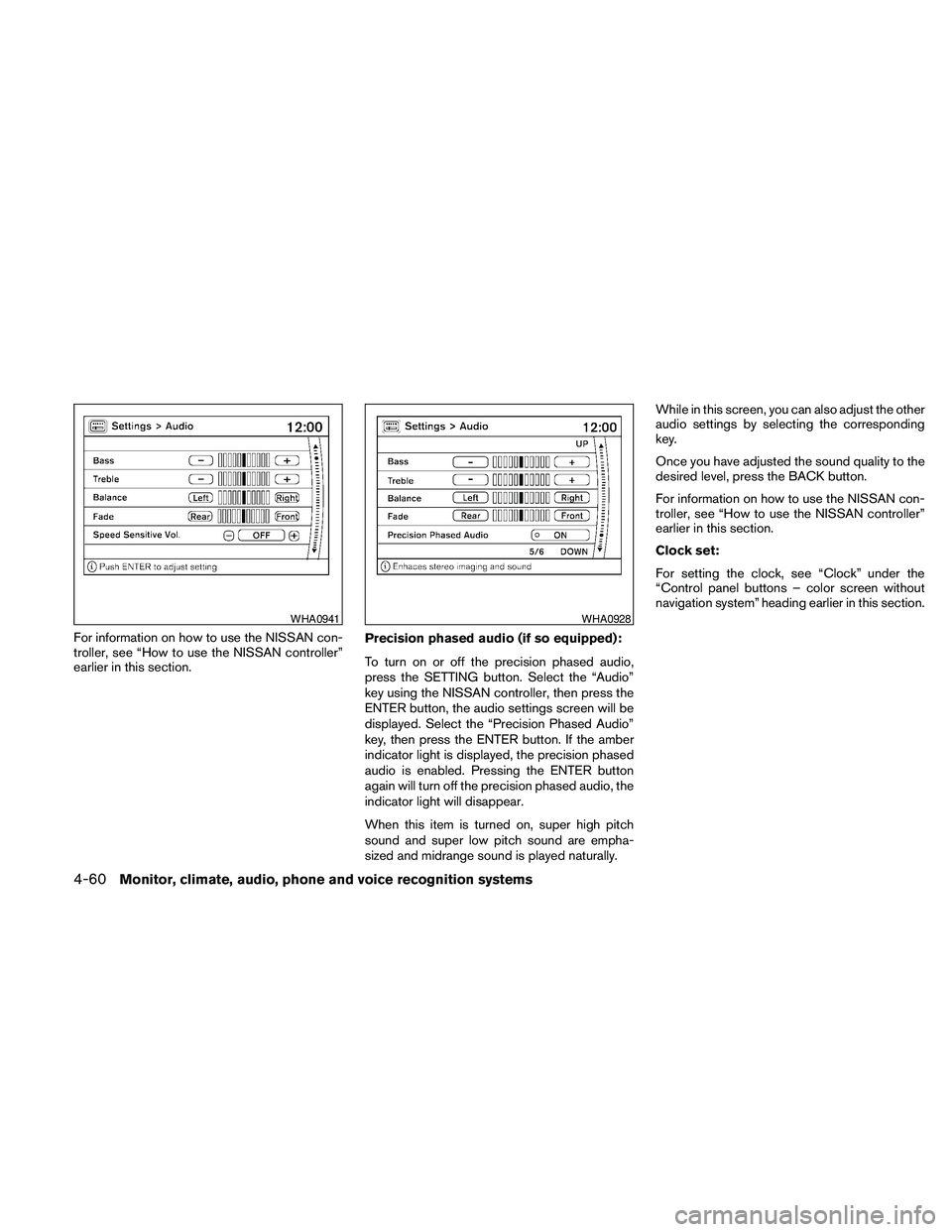
For information on how to use the NISSAN con-
troller, see “How to use the NISSAN controller”
earlier in this section.Precision phased audio (if so equipped):
To turn on or off the precision phased audio,
press the SETTING button. Select the “Audio”
key using the NISSAN controller, then press the
ENTER button, the audio settings screen will be
displayed. Select the “Precision Phased Audio”
key, then press the ENTER button. If the amber
indicator light is displayed, the precision phased
audio is enabled. Pressing the ENTER button
again will turn off the precision phased audio, the
indicator light will disappear.
When this item is turned on, super high pitch
sound and super low pitch sound are empha-
sized and midrange sound is played naturally.While in this screen, you can also adjust the other
audio settings by selecting the corresponding
key.
Once you have adjusted the sound quality to the
desired level, press the BACK button.
For information on how to use the NISSAN con-
troller, see “How to use the NISSAN controller”
earlier in this section.
Clock set:
For setting the clock, see “Clock” under the
“Control panel buttons – color screen without
navigation system” heading earlier in this section.
WHA0941WHA0928
4-60Monitor, climate, audio, phone and voice recognition systems
Page 226 of 463
The FM stereo indicator ST will illuminate during
FM stereo reception. When the stereo broadcast
signal is weak, the radio will automatically change
from stereo to monaural reception.
TUNE/FLDR (Tuning) knob:
To manually tune the radio, turn the TUNE/FLDR
knob to the right or left.
SEEK/CAT and TRACK
tuning buttons:
Press the SEEK/CAT
button or the
TRACK
button for less than 1.5 seconds
to tune from high to low or low to high frequen-
cies and stop at the next broadcasting station.
SCAN tuning:
Press the SCAN button to stop at each broad-
casting station for 5 seconds. Pressing the
SCAN button again during this 5 second period
will stop scan tuning and the radio will remain
tuned to that station. If the SCAN button is not
pressed within 5 seconds, scan tuning moves to
the next station.PRESET A·B·C (Station memory opera-
tions):
18 stations can be set for the FM, AM and SAT
(satellite, if so equipped) radio to the A, B and C
preset button in any combination of FM, AM or
SAT stations.
1. Choose preset bank A, B or C using the
PRESET A·B·C select button.
2. Select the desired FM, AM or SAT station
band.
3. Tune to the desired station using manual,
SEEK or SCAN tuning. Press and hold any
of the desired station memory buttons (1 –
6) until a beep sound is heard.
4. The channel indicator will then come on and
the sound will resume. Programming is now
complete.
5. Other buttons can be set in the same man-
ner.
If the battery cable is disconnected, or if the fuse
opens, the radio memory will be canceled. In that
case, reset the desired stations.
Radio data system (RDS):
RDS stands for Radio Data System, and is a data
information service transmitted by some radio
stations on the FM band (not AM band) . Cur-rently, most RDS stations are in large cities, but
many stations are now considering broadcasting
RDS data.
RDS can display:
cStation call sign, such as “WHFR 98.3”.
cStation name, such as “The Groove”.
cMusic or programming type such as “Clas-
sical”, “Country”, or “Rock”.
cArtist and song information.
If the station broadcasts RDS information, the
RDS icon is displayed.
Compact disc (CD) changer operation
Place the ignition switch in the ACC or ON
position and press the
button, then press
one of the CD insert (1–6) slots. Insert the com-
pact disc into the slot with the label side facing
up. The compact disc will be guided automati-
cally into the slot and start playing.
If the radio is already operating, it will automati-
cally turn off and the compact disc will play.
If the system has been turned off while the com-
pact disc was playing, pressing the
VOL/ON·OFF control knob will start the compact
disc.
4-62Monitor, climate, audio, phone and voice recognition systems
Page 227 of 463
button:
To insert a CD in the CD changer, press
the
button for less than 1.5 seconds. Se-
lect the loading slot by pressing the CD insert
select button (1 – 6) , then insert the CD.
To insert 6 CDs to the CD changer, press and
hold the
button for more than 1.5 seconds.
The slot numbers (1 – 6) will illuminate on the
display when CDs are loaded into the changer.
DISC·AUX button:
When the DISC·AUX button is pressed with the
system off and the compact disc loaded, the
system will turn on and the compact disc will start
to play.
When the DISC·AUX button is pressed with the
compact disc loaded with the radio playing, the
radio will automatically be turned off and the
compact disc will start to play.
SEEK/CAT and TRACK
buttons:
When the SEEK/CAT
button is pressed
while a compact disc is playing, the track being
played returns to its beginning. Press severaltimes to skip back through tracks. The compact
disc will go back the number of times the button
is pressed.
When the TRACK
button is pressed while
the compact disc is playing, the next track will
start to play from its beginning. Press several
times to skip through tracks. The compact disc
will advance the number of times the button is
pressed. (When the last track on the compact
disc is skipped through, the first track will be
played.)
The NISSAN controller can also be used to se-
lect tracks when a CD is being played.
SEEK/CAT and TRACK
(Rewind·Fast Forward)
buttons:
Press and hold the SEEK/CAT
(rewind)
button or the TRACK
(fast forward) button
while a compact disc is playing, the compact disc
will play while rewinding or fast forwarding. When
the button is released, the compact disc will
return to normal play speed.
When the CD button is pressed with the system
off and the compact disc loaded, the system will
turn on and the compact disc will start to play.When the CD button is pressed with the com-
pact disc loaded with the tape or the radio play-
ing, the tape or radio will automatically be turned
off and the compact disc will start to play.
TUNE FLDR (Folder) knob
While playing an MP3/WMA CD, turn the
TUNE/FLDR knob right or left to scan forward or
backward through available folders.
CD select buttons:
To play another CD that has been loaded, press a
CD select button (1 – 6) .
RPT button:
When the RPT button is pressed while the com-
pact disc is played, the play pattern can be
changed as follows:
CD:
ALL DISC RPT!1 DISC RPT!1 TRK RPT!
ALL DISC RPT
MP3/WMA CD:
ALL DISC RPT!1 DISC RPT!1 FOLDER
RPT!1 TRK RPT!ALL DISC RPT
ALL DISC RPT: All discs loaded will be repeated.
1 DISC RPT: The disc that is currently playing will
be repeated.
Monitor, climate, audio, phone and voice recognition systems4-63
Page 230 of 463
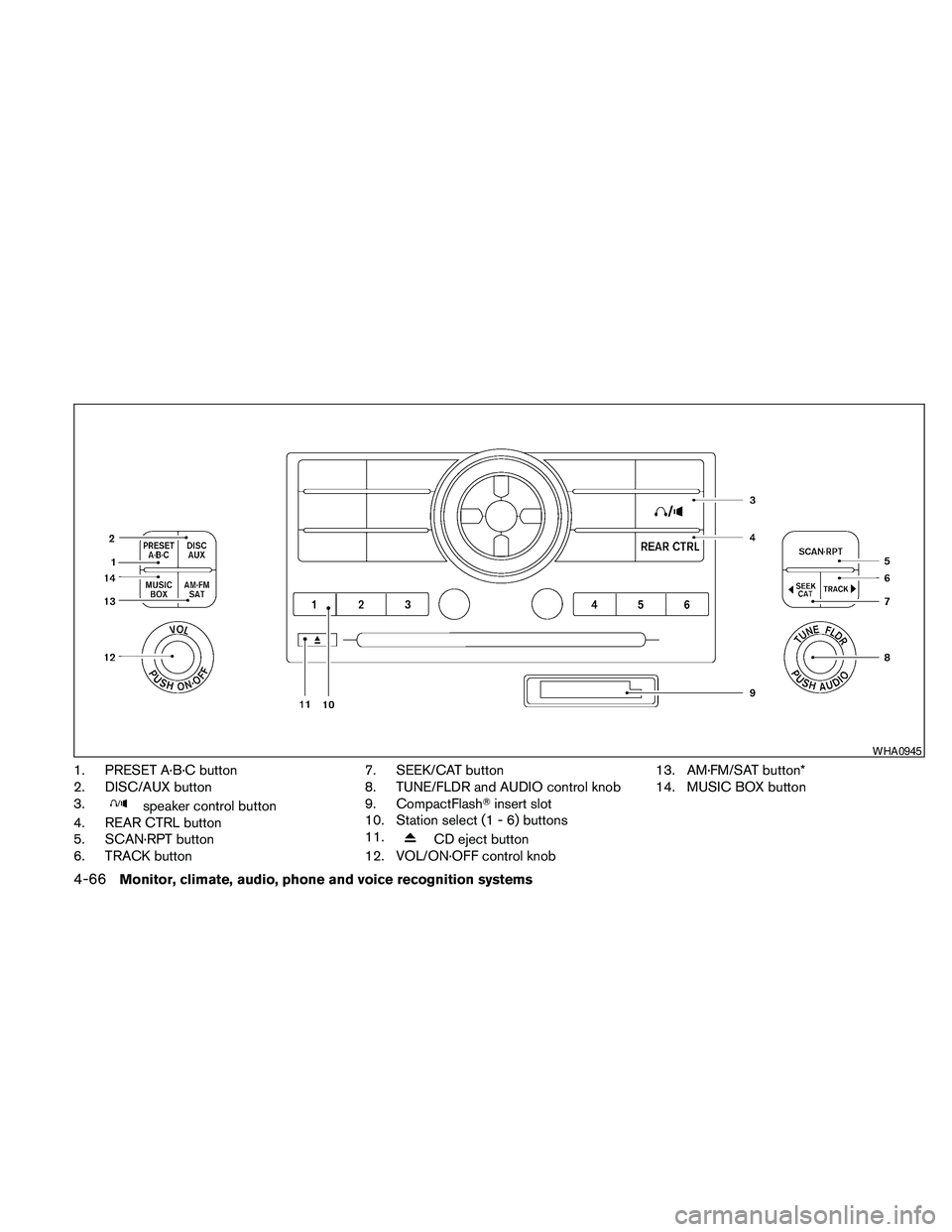
1. PRESET A·B·C button
2. DISC/AUX button
3.
speaker control button
4. REAR CTRL button
5. SCAN·RPT button
6. TRACK button7. SEEK/CAT button
8. TUNE/FLDR and AUDIO control knob
9. CompactFlashTinsert slot
10. Station select (1 - 6) buttons
11.
CD eject button
12. VOL/ON·OFF control knob13. AM·FM/SAT button*
14. MUSIC BOX button
WHA0945
4-66Monitor, climate, audio, phone and voice recognition systems
Page 232 of 463
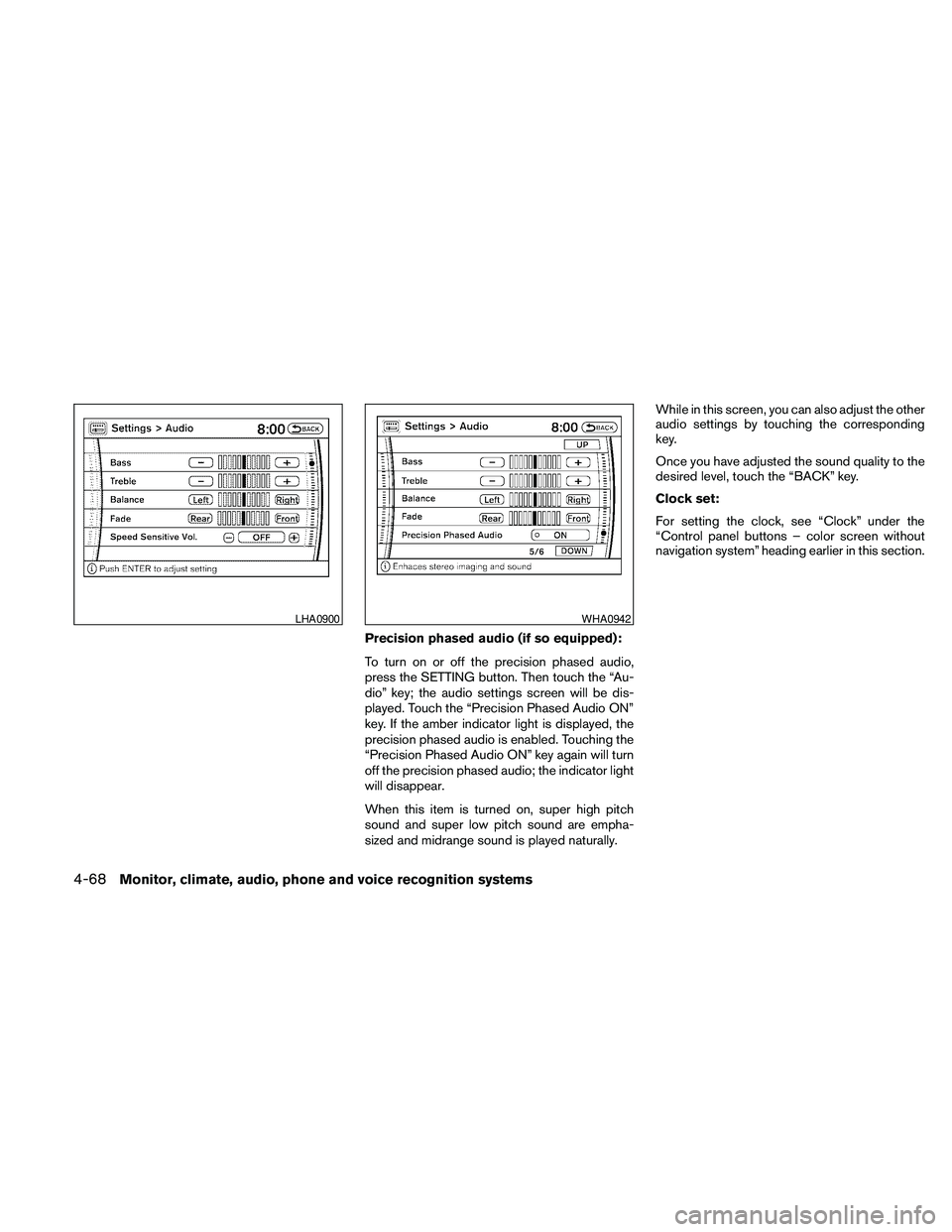
Precision phased audio (if so equipped):
To turn on or off the precision phased audio,
press the SETTING button. Then touch the “Au-
dio” key; the audio settings screen will be dis-
played. Touch the “Precision Phased Audio ON”
key. If the amber indicator light is displayed, the
precision phased audio is enabled. Touching the
“Precision Phased Audio ON” key again will turn
off the precision phased audio; the indicator light
will disappear.
When this item is turned on, super high pitch
sound and super low pitch sound are empha-
sized and midrange sound is played naturally.While in this screen, you can also adjust the other
audio settings by touching the corresponding
key.
Once you have adjusted the sound quality to the
desired level, touch the “BACK” key.
Clock set:
For setting the clock, see “Clock” under the
“Control panel buttons – color screen without
navigation system” heading earlier in this section.
LHA0900WHA0942
4-68Monitor, climate, audio, phone and voice recognition systems
Page 234 of 463
TUNE/FLDR (Tuning) knob:
To manually tune the radio, turn the TUNE/FLDR
knob to the right or left.
SEEK/CAT and TRACK
tuning buttons:
Press the SEEK/CAT
button or the
TRACK
button for less than 1.5 seconds
to tune from high to low or low to high frequen-
cies and stop at the next broadcasting station.
SCAN·RPT (SCAN tuning) button:
Press the SCAN·RPT button to initiate scan tun-
ing. Scan tuning will stop at each broadcasting
station for 5 seconds. Press the SCAN·RPT but-
ton again during this 5 second period to stop
scan tuning; the radio will remain tuned to that
station. If the SCAN·RPT button is not pressed
within 5 seconds, scan tuning moves to the next
station.
PRESET A·B·C (Station memory opera-
tions):
18 stations can be set for the FM, AM and SAT
(satellite, if so equipped) radio to the A, B and C
preset button in any combination of FM, AM or
SAT stations.
1. Choose preset bank A, B or C using the
PRESET A·B·C select button.2. Select the desired FM, AM or SAT station
band.
3. Tune to the desired station using manual,
SEEK or SCAN tuning. Press and hold any
of the desired station memory buttons (1 –
6) until a beep sound is heard.
4. The channel indicator will then come on and
the sound will resume. Programming is now
complete.
5. Other buttons can be set in the same man-
ner.
If the battery cable is disconnected, or if the fuse
opens, the radio memory will be canceled. In that
case, reset the desired stations.
Radio data system (RDS):
RDS stands for Radio Data System, and is a data
information service transmitted by some radio
stations on the FM band (not AM band) . Cur-
rently, most RDS stations are in large cities, but
many stations are now considering broadcasting
RDS data.
RDS can display:
cStation call sign, such as “WHFR 98.3”.
cStation name, such as “The Groove”.
cMusic or programming type such as “Clas-
sical”, “Country”, or “Rock”.cArtist and song information.
If the station broadcasts RDS information, the
RDS icon is displayed.
Compact disc (CD) player operation
Place the ignition switch in the ACC or ON
position and insert the compact disc into the slot
with the label side facing up. The compact disc
will be guided automatically into the slot and start
playing.
If the radio is already operating, it will automati-
cally turn off and the compact disc will play.
If the system has been turned off while the com-
pact disc was playing, pressing the
VOL/ON·OFF control knob will start the compact
disc.
DISC/AUX button:
When the DISC/AUX button is pressed with the
system off and the compact disc loaded, the
system will turn on and the compact disc will start
to play.
When the DISC/AUX button is pressed with the
compact disc loaded but the radio playing, the
radio will automatically be turned off and the
compact disc will start to play.
4-70Monitor, climate, audio, phone and voice recognition systems
Page 235 of 463
SEEK/CAT and TRACK
buttons:
When the SEEK/CAT
button is pressed
while a compact disc is playing, the track being
played returns to its beginning. Press several
times to skip back through tracks. The compact
disc will go back the number of times the button
is pressed.
When the TRACK
button is pressed while
the compact disc is playing, the next track will
start to play from its beginning. Press several
times to skip through tracks. The compact disc
will advance the number of times the button is
pressed. (When the last track on the compact
disc is skipped through, the first track will be
played.)
The NISSAN controller can also be used to se-
lect tracks when a CD is being played.
SEEK/CAT and TRACK
(Rewind·Fast Forward)
buttons:
Press and hold the SEEK/CAT
(rewind)
button or the TRACK
(fast forward) button
while a compact disc is playing; the compact disc
will play while rewinding or fast forwarding. Whenthe button is released, the compact disc will
return to normal play speed.
When the CD button is pressed with the system
off and the compact disc loaded the system will
turn on and the compact disc will start to play.
When the CD button is pressed with the com-
pact disc loaded with the tape or the radio play-
ing, the tape or radio will automatically be turned
off and the compact disc will start to play.
TUNE FLDR (Folder) knob
While playing an MP3/WMA CD, turn the
TUNE/FLDR knob right or left to scan forward or
backward through available folders.
SCAN·RPT (random and repeat) button:
When the SCAN·RPT button is pressed while the
compact disc is being played, the play pattern
can be changed as follows:
CD:
1 DISC RPT!1 TRK RPT!1 DISC RDM!1
DISC RPT
MP3/WMA CD:
1 DISC RPT!1 FOLDER RPT!1 TRK RPT!
1 DISC RDM!1 FOLDER RDM!1 DISC RPT1 DISC RPT: the entire disc will be repeated.
1 TRK RPT: the current track playing will be
repeated.
1 DISC RDM: all tracks will be played randomly.
1 FOLDER RPT: the folder currently being ac-
cessed will be repeated.
1 FOLDER RDM: the tracks in the current folder
being accessed will be played randomly.
REAR CTRL:
Pressing the REAR CTRL button turns the rear
seat audio controller on. Rear Controls UN-
LOCKED will display. Pressing the REAR CTRL
button again will turn the rear seat audio control-
ler off. Rear Controls LOCKED will display. If the
vehicle is not equipped with a rear seat audio
controller, the display will show “Rear Controls
Not Available”.
Press and hold the REAR CTRL button for ap-
proximately 1.5 seconds to turn the rear display
screen on. Rear Display ON will display. Press
and hold the REAR CTRL button again to turn the
rear display screen off. Rear Display OFF will
display. If the vehicle is not equipped with a rear
display screen, the display will show “Rear Con-
trols Not Available”.
Monitor, climate, audio, phone and voice recognition systems4-71
Page 238 of 463
SEEK/CAT and TRACK buttons:
Press theSEEK/CAT button while the CF
card is playing to return to the beginning of the
current track. Press the
TRACK button
while the CF card is playing to skip to the begin-
ning of the next track.
If you press and hold the
SEEK/CAT (re-
wind) button or the
TRACK (fast forward)
button for more than approximately 1.5 seconds,
the CF card will play while rewinding or fast
forwarding. When the
SEEK/CAT (rewind)
button or the
TRACK (fast forward) button
is released, the CF card will return to the normal
playing speed.
The NISSAN controller can also be used to se-
lect tracks when the CF card is being played.
For more information on how to use the NISSAN
controller, see “How to use the NISSAN control-
ler” earlier in this section.
Folder selection:
To change to another folder in the CF card either:
cTurn the TUNE/FLDR knob right or left.
cTouch the desired folder key on screen.
cUse the NISSAN controller.
SCAN·RPT button:
Pressing the SCAN·RPT button while the CF
card is playing changes the play pattern as fol-
lows:
1 CF CARD RPT!1 FOLDER RPT!1 TRK
RPT!1 CF CARD RDM!1 FOLDER RDM!
1 CF CARD RPT
1 CF CARD RPT: the entire CF card will be
repeated.
1 FOLDER RPT: the folder currently being ac-
cessed will be repeated.
1 TRK RPT: the current track playing will be
repeated.
1 CF CARD RDM: all the tracks on the CF card
will be played randomly.
1 FOLDER RDM: the tracks in the current folder
being accessed will be played randomly.
CF eject:
Press the knob next to the CF slot while a CF
card is inserted to eject the CF card.
Troubleshooting messages:
The following messages will be displayed under
certain conditions:
cReading CompactFlashT
The system is reading the CF card inserted
in the slot.cNo CompactFlashTcard
A CF card is not inserted in the slot.
cCompactFlashTread error
The system cannot read the CF card.
cUnplayable file
The system cannot play a music file.
cNo audio file
The CF card inserted in the slot or its folder
does not contain any music files.
Compatibility with other media:
If a commercially available CompactFlashT
adapter is inserted into the slot, other memory
media can also be used.
MUSIC BOX™ HARD DRIVE AUDIO
SYSTEM (if so equipped)
The Music Box Hard Drive audio system can
store songs from CDs being played. The system
has a 9.3 gigabyte (GB) storage capacity and
can record up to 200 hours (approximately 2,900
songs) .
The following CDs can be recorded in the Music
Box Hard Drive audio system:
cCDs without MP3/WMA files.
cHybrid Compact Disc Digital Audio (Hybrid
CD-DA) specification in Super Audio CDs.
4-74Monitor, climate, audio, phone and voice recognition systems