wheel NISSAN PATHFINDER 2010 Owner´s Manual
[x] Cancel search | Manufacturer: NISSAN, Model Year: 2010, Model line: PATHFINDER, Model: NISSAN PATHFINDER 2010Pages: 463, PDF Size: 5.69 MB
Page 172 of 463
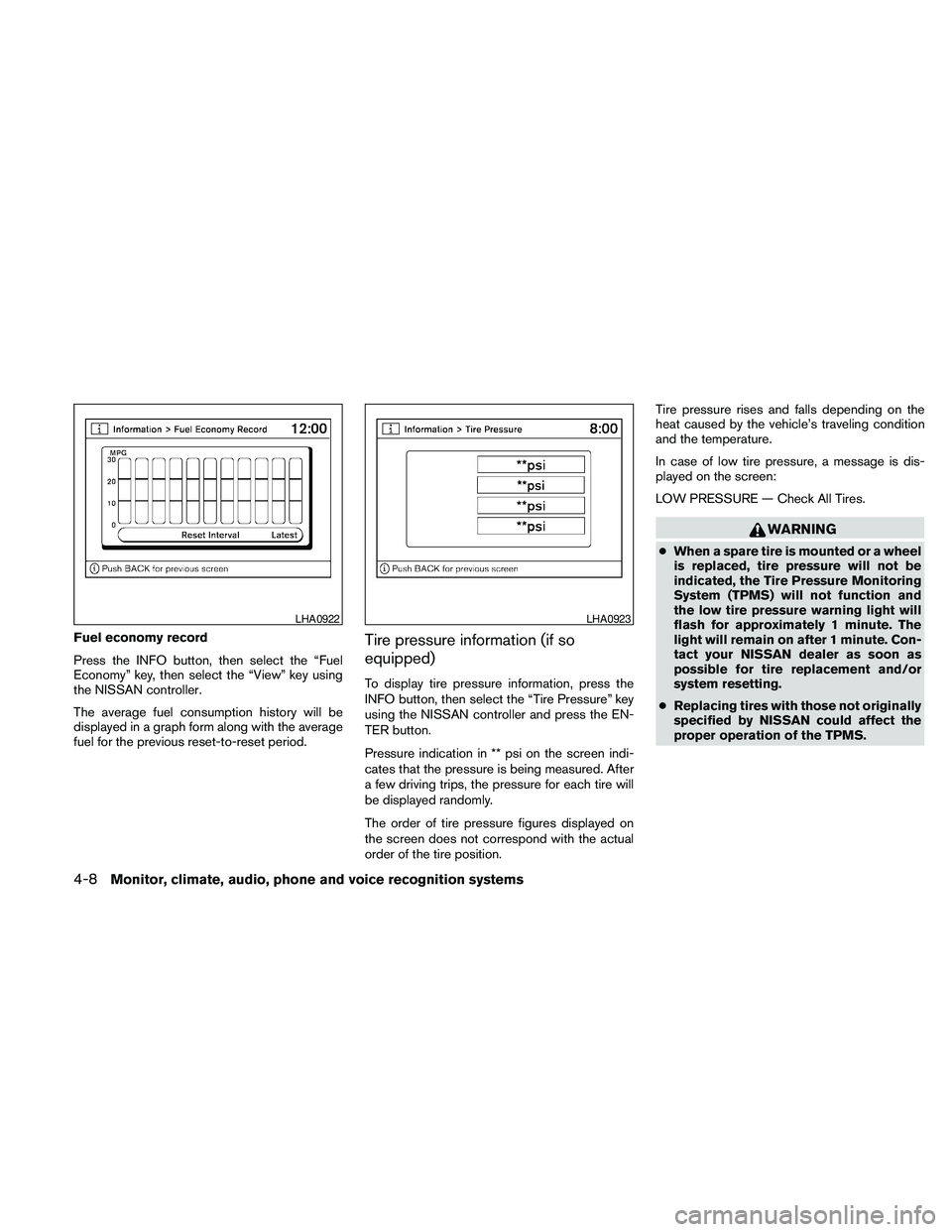
Fuel economy record
Press the INFO button, then select the “Fuel
Economy” key, then select the “View” key using
the NISSAN controller.
The average fuel consumption history will be
displayed in a graph form along with the average
fuel for the previous reset-to-reset period.Tire pressure information (if so
equipped)
To display tire pressure information, press the
INFO button, then select the “Tire Pressure” key
using the NISSAN controller and press the EN-
TER button.
Pressure indication in ** psi on the screen indi-
cates that the pressure is being measured. After
a few driving trips, the pressure for each tire will
be displayed randomly.
The order of tire pressure figures displayed on
the screen does not correspond with the actual
order of the tire position.Tire pressure rises and falls depending on the
heat caused by the vehicle’s traveling condition
and the temperature.
In case of low tire pressure, a message is dis-
played on the screen:
LOW PRESSURE — Check All Tires.
WARNING
cWhen a spare tire is mounted or a wheel
is replaced, tire pressure will not be
indicated, the Tire Pressure Monitoring
System (TPMS) will not function and
the low tire pressure warning light will
flash for approximately 1 minute. The
light will remain on after 1 minute. Con-
tact your NISSAN dealer as soon as
possible for tire replacement and/or
system resetting.
cReplacing tires with those not originally
specified by NISSAN could affect the
proper operation of the TPMS.
LHA0922LHA0923
4-8Monitor, climate, audio, phone and voice recognition systems
Page 187 of 463
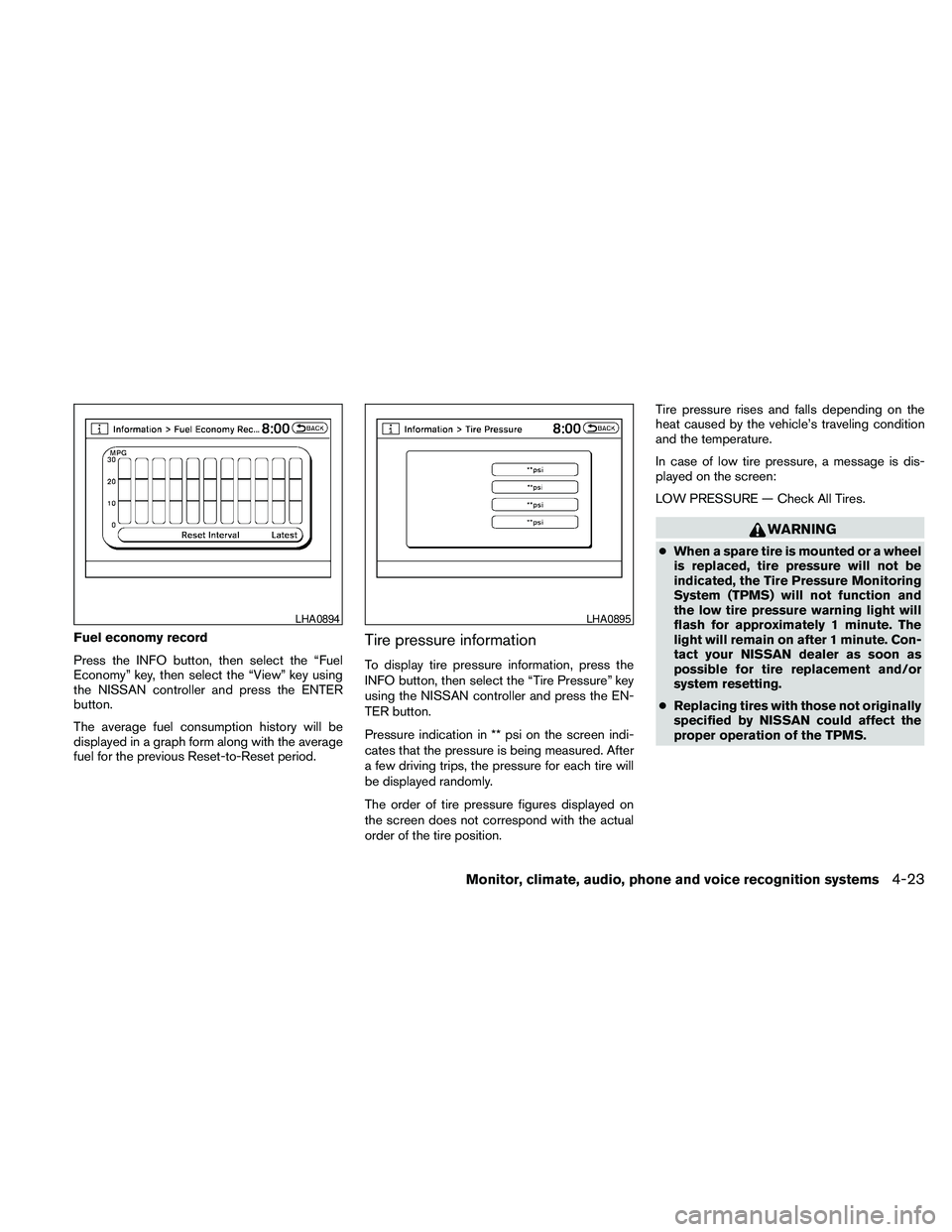
Fuel economy record
Press the INFO button, then select the “Fuel
Economy” key, then select the “View” key using
the NISSAN controller and press the ENTER
button.
The average fuel consumption history will be
displayed in a graph form along with the average
fuel for the previous Reset-to-Reset period.Tire pressure information
To display tire pressure information, press the
INFO button, then select the “Tire Pressure” key
using the NISSAN controller and press the EN-
TER button.
Pressure indication in ** psi on the screen indi-
cates that the pressure is being measured. After
a few driving trips, the pressure for each tire will
be displayed randomly.
The order of tire pressure figures displayed on
the screen does not correspond with the actual
order of the tire position.Tire pressure rises and falls depending on the
heat caused by the vehicle’s traveling condition
and the temperature.
In case of low tire pressure, a message is dis-
played on the screen:
LOW PRESSURE — Check All Tires.
WARNING
cWhen a spare tire is mounted or a wheel
is replaced, tire pressure will not be
indicated, the Tire Pressure Monitoring
System (TPMS) will not function and
the low tire pressure warning light will
flash for approximately 1 minute. The
light will remain on after 1 minute. Con-
tact your NISSAN dealer as soon as
possible for tire replacement and/or
system resetting.
cReplacing tires with those not originally
specified by NISSAN could affect the
proper operation of the TPMS.
LHA0894LHA0895
Monitor, climate, audio, phone and voice recognition systems4-23
Page 240 of 463
If the title information of the track being recorded
is stored either in the hard drive or in the CD, the
title is automatically displayed on the screen. For
title acquisition from the hard-disk drive, music
recognition technology and related data are pro-
vided by GracenoteT.
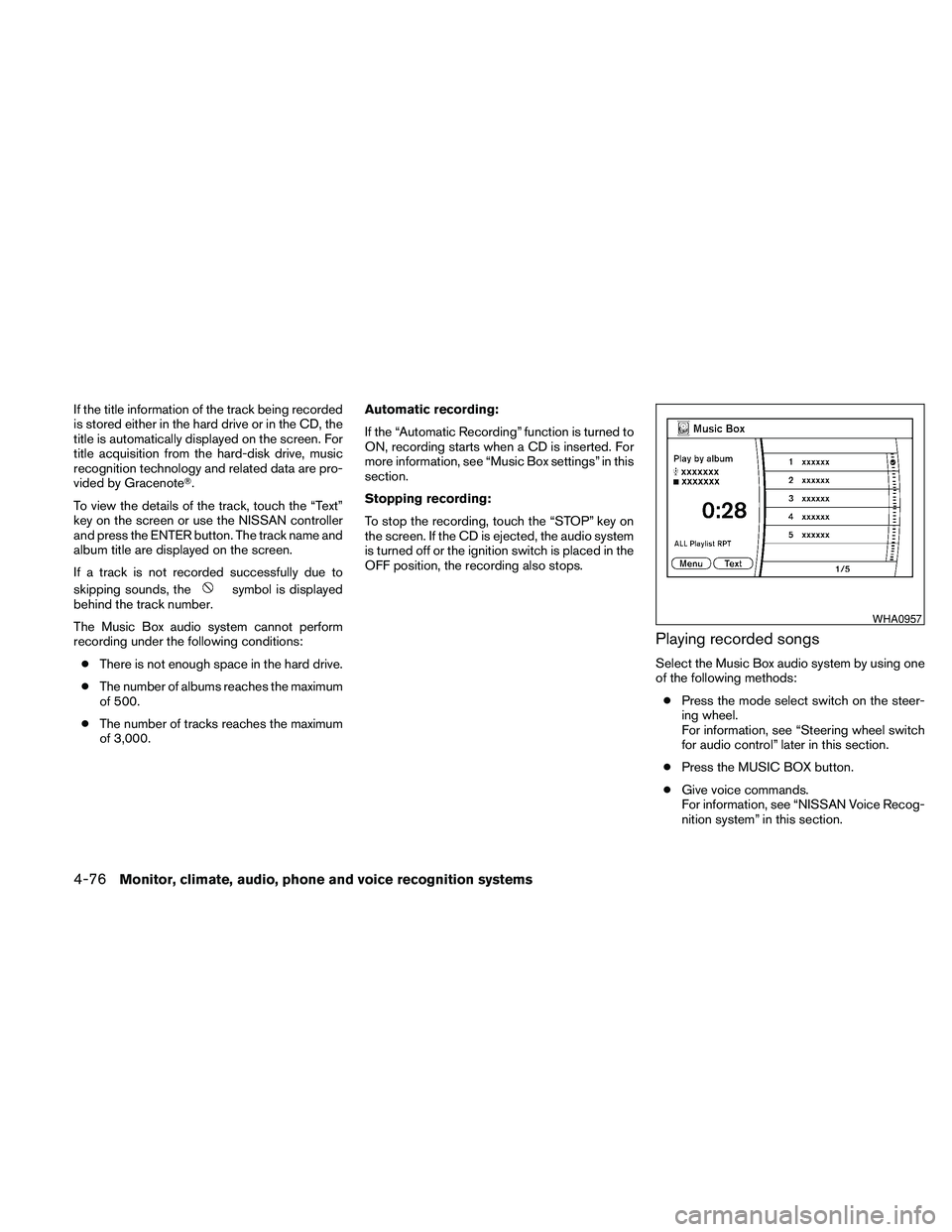
To view the details of the track, touch the “Text”
key on the screen or use the NISSAN controller
and press the ENTER button. The track name and
album title are displayed on the screen.
If a track is not recorded successfully due to
skipping sounds, the
symbol is displayed
behind the track number.
The Music Box audio system cannot perform
recording under the following conditions:
cThere is not enough space in the hard drive.
cThe number of albums reaches the maximum
of 500.
cThe number of tracks reaches the maximum
of 3,000.Automatic recording:
If the “Automatic Recording” function is turned to
ON, recording starts when a CD is inserted. For
more information, see “Music Box settings” in this
section.
Stopping recording:
To stop the recording, touch the “STOP” key on
the screen. If the CD is ejected, the audio system
is turned off or the ignition switch is placed in the
OFF position, the recording also stops.
Playing recorded songs
Select the Music Box audio system by using one
of the following methods:
cPress the mode select switch on the steer-
ing wheel.
For information, see “Steering wheel switch
for audio control” later in this section.
cPress the MUSIC BOX button.
cGive voice commands.
For information, see “NISSAN Voice Recog-
nition system” in this section.
WHA0957
4-76Monitor, climate, audio, phone and voice recognition systems
Page 249 of 463
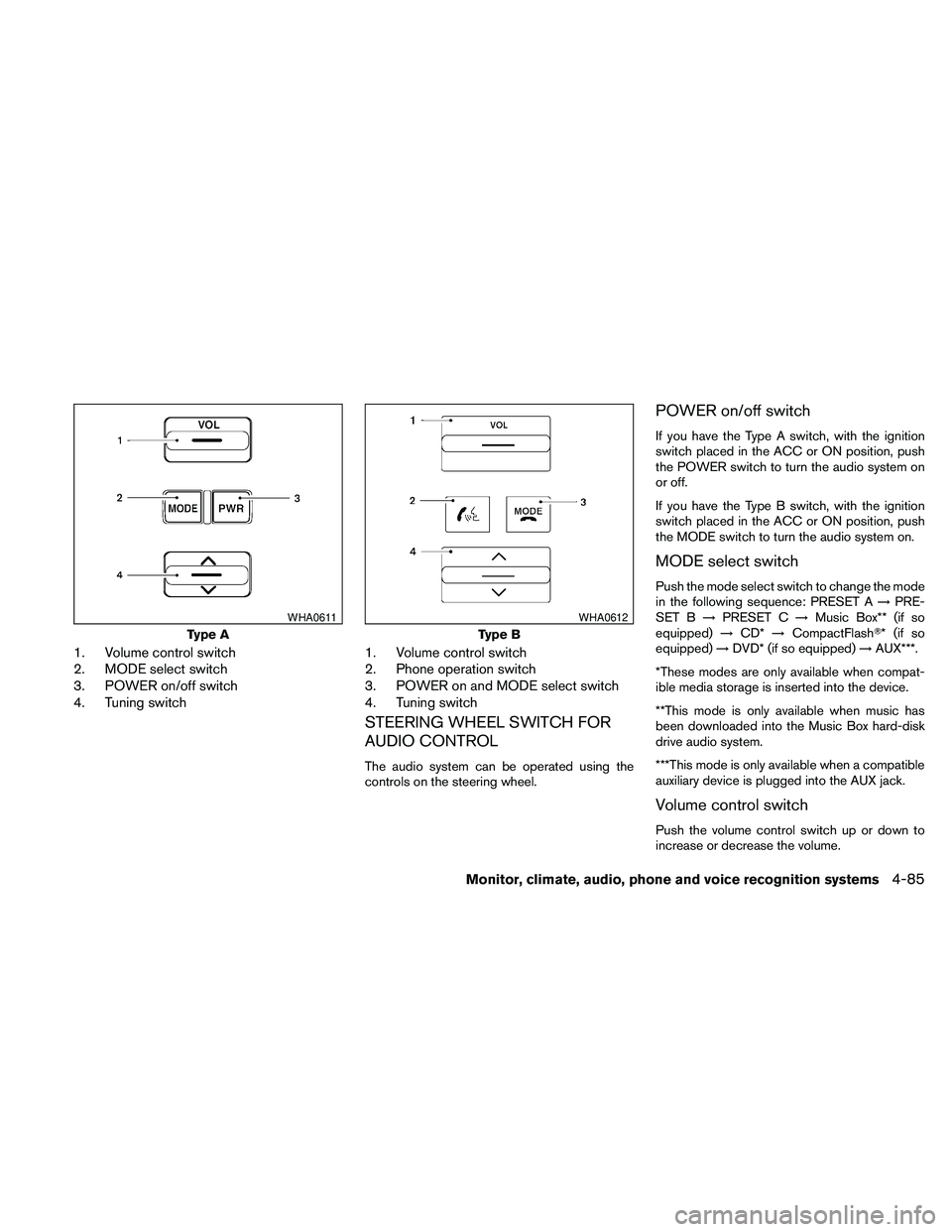
1. Volume control switch
2. MODE select switch
3. POWER on/off switch
4. Tuning switch1. Volume control switch
2. Phone operation switch
3. POWER on and MODE select switch
4. Tuning switch
STEERING WHEEL SWITCH FOR
AUDIO CONTROL
The audio system can be operated using the
controls on the steering wheel.
POWER on/off switch
If you have the Type A switch, with the ignition
switch placed in the ACC or ON position, push
the POWER switch to turn the audio system on
or off.
If you have the Type B switch, with the ignition
switch placed in the ACC or ON position, push
the MODE switch to turn the audio system on.
MODE select switch
Push the mode select switch to change the mode
in the following sequence: PRESET A!PRE-
SET B!PRESET C!Music Box** (if so
equipped)!CD*!CompactFlashT* (if so
equipped)!DVD* (if so equipped)!AUX***.
*These modes are only available when compat-
ible media storage is inserted into the device.
**This mode is only available when music has
been downloaded into the Music Box hard-disk
drive audio system.
***This mode is only available when a compatible
auxiliary device is plugged into the AUX jack.
Volume control switch
Push the volume control switch up or down to
increase or decrease the volume.
Type A
WHA0611
Type B
WHA0612
Monitor, climate, audio, phone and voice recognition systems4-85
Page 270 of 463
Operating tips
To get the best performance out of the NISSAN
Voice Recognition system, observe the following:
cKeep the interior of the vehicle as quiet as
possible. Close the windows to eliminate
surrounding noises (traffic noises, vibration
sounds, etc.) , which may prevent the system
from recognizing voice commands correctly.
cWait until the tone sounds before speaking a
command. Otherwise, the command will not
be received properly.
cStart speaking a command within 5 seconds
after the tone sounds.
cSpeak in a natural voice without pausing
between words.
Giving voice commands
To operate NISSAN Voice Recognition, press
and release the
button located on the
steering wheel. After the tone sounds, speak a
command.
The command given is picked up by the micro-
phone, and voice feedback is given when the
command is accepted.
cIf you need to hear the available commands
for the current menu again, say “Help” and
the system will repeat them.cIf a command is not recognized, the system
announces, “Command not recognized.
Please try again.” Repeat the command in a
clear voice.
cIf you want to go back to the previous com-
mand, you can say “Go back” or “Correc-
tion” any time the system is waiting for a
response.
cYou can cancel a command when the sys-
tem is waiting for a response by saying,
“Cancel” or “Quit.” The system announces
“Cancel” and ends the VR session. You can
also press the
button on the steering
wheel at any time. Whenever the VR session
is cancelled, a double beep is played to
indicate you have exited the system.
cIf you want to adjust the volume of the voice
feedback, press the volume control switches
(+ or -) on the steering wheel while being
provided with feedback. You can also use
the radio volume control knob.
cIn most cases you can interrupt the voice
feedback to speak the next command by
pressing the
button on the steering
wheel.cTo speed the operation you can say multiple
commands. For example, press the
button then say “Phonebook, New entry”
rather than “Phonebook.” Wait for the voice
feedback prompt then say “New entry”.
How to say numbers
NISSAN Voice Recognition requires a certain
way to speak numbers in voice commands. Refer
to the following rules and examples.
cEither “zero” or “oh” can be used for “0”.
Example: 1-800-662-6200
– “One eight oh oh six six two six two oh
oh”, or
– “One eight zero zero six six two six two oh
oh”
cWords can be used for the first 4 digits
places only.
Example: 1-800-662-6200
– “One eight hundred six six two six two oh
oh”,
– NOT “One eight hundred six six two sixty
two hundred, and
– NOT “One eight oh oh six six two sixty two
hundred.
4-106Monitor, climate, audio, phone and voice recognition systems
Page 271 of 463
cNumbers can be spoken in small groups.
The system will prompt you to continue en-
tering digits, if desired.
Example: 1-800-662-6200
– “One eight zero zero”
The system repeats the numbers and
prompts you to enter more.
– “six six two”
The system repeats the numbers and
prompts you to enter more.
– “six two zero zero”
cSay “pound” for “#”. Say “star” for “*” (avail-
able when using the “Call International”
command and the “Send” command during
a call) .
cSay “plus” for “+” (available only when using
the “Call International” command) .
cSay “pause” for a 2 second pause (available
only when storing a phone book number) .
cYou can say “star” for “*” and “pound” for “#”
at any time in any position of the phone
number (available only when using “Call In-
ternational” command) .
See “List of voice commands” and “Interna-
tional” in this section for more information.Example: 1-555-1212 *123
– “One five five five one two one two star
one two three”
NOTE:
For best results, say phone numbers as
single digits.
The voice command “Help” is available at any
time. Please use the “Help” command to get
information on how to use the system.
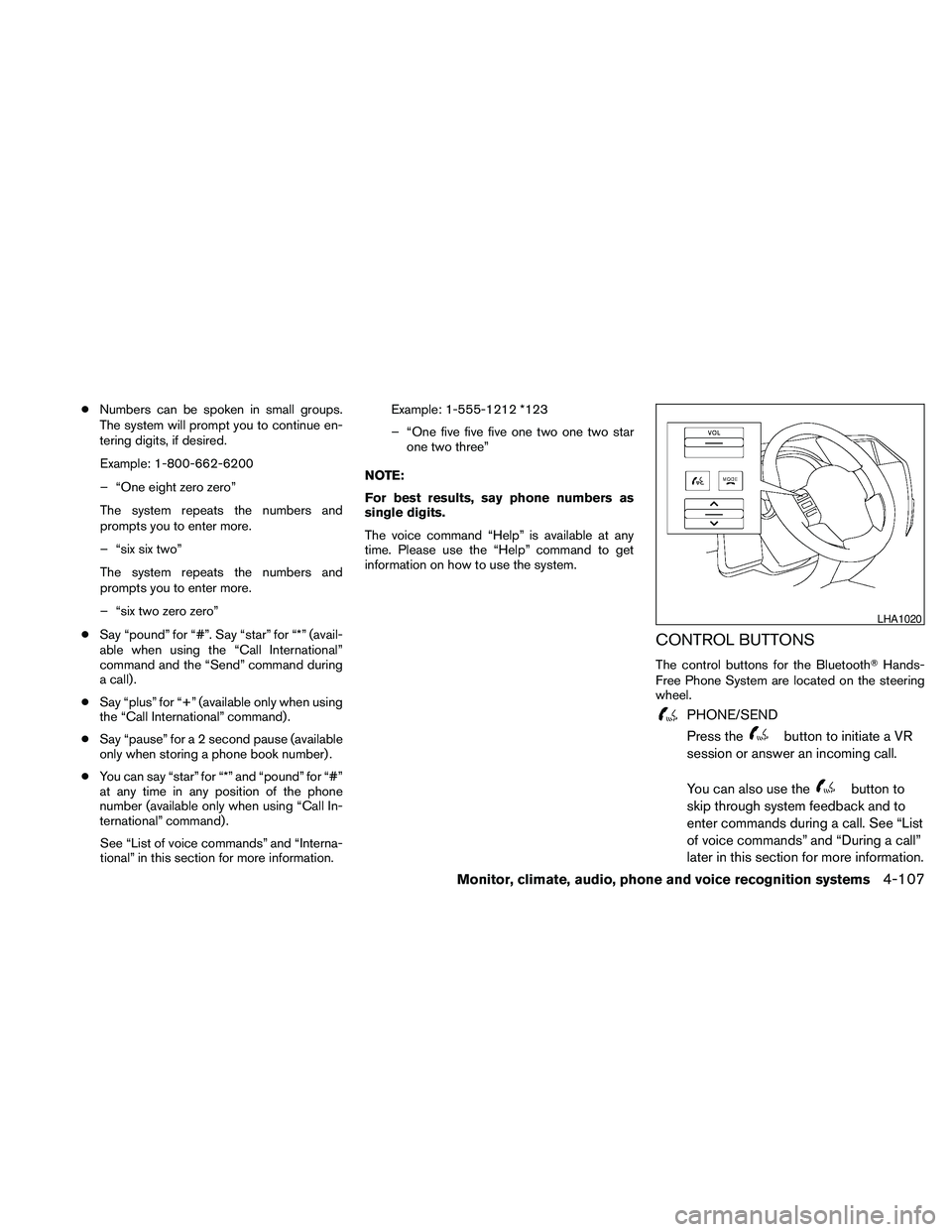
CONTROL BUTTONS
The control buttons for the BluetoothTHands-
Free Phone System are located on the steering
wheel.
PHONE/SEND
Press the
button to initiate a VR
session or answer an incoming call.
You can also use the
button to
skip through system feedback and to
enter commands during a call. See “List
of voice commands” and “During a call”
later in this section for more information.
LHA1020
Monitor, climate, audio, phone and voice recognition systems4-107
Page 272 of 463
PHONE/END
Press the
button to cancel a VR
session or end a call.
GETTING STARTED
The following procedures will help you get
started using the BluetoothTHands-Free Phone
System with NISSAN Voice Recognition. For ad-
ditional command options, refer to “List of voice
commands” in this section.
Choosing a language
You can interact with the BluetoothTHands-Free
Phone System using English, Spanish or French.
To change the language, perform the following.
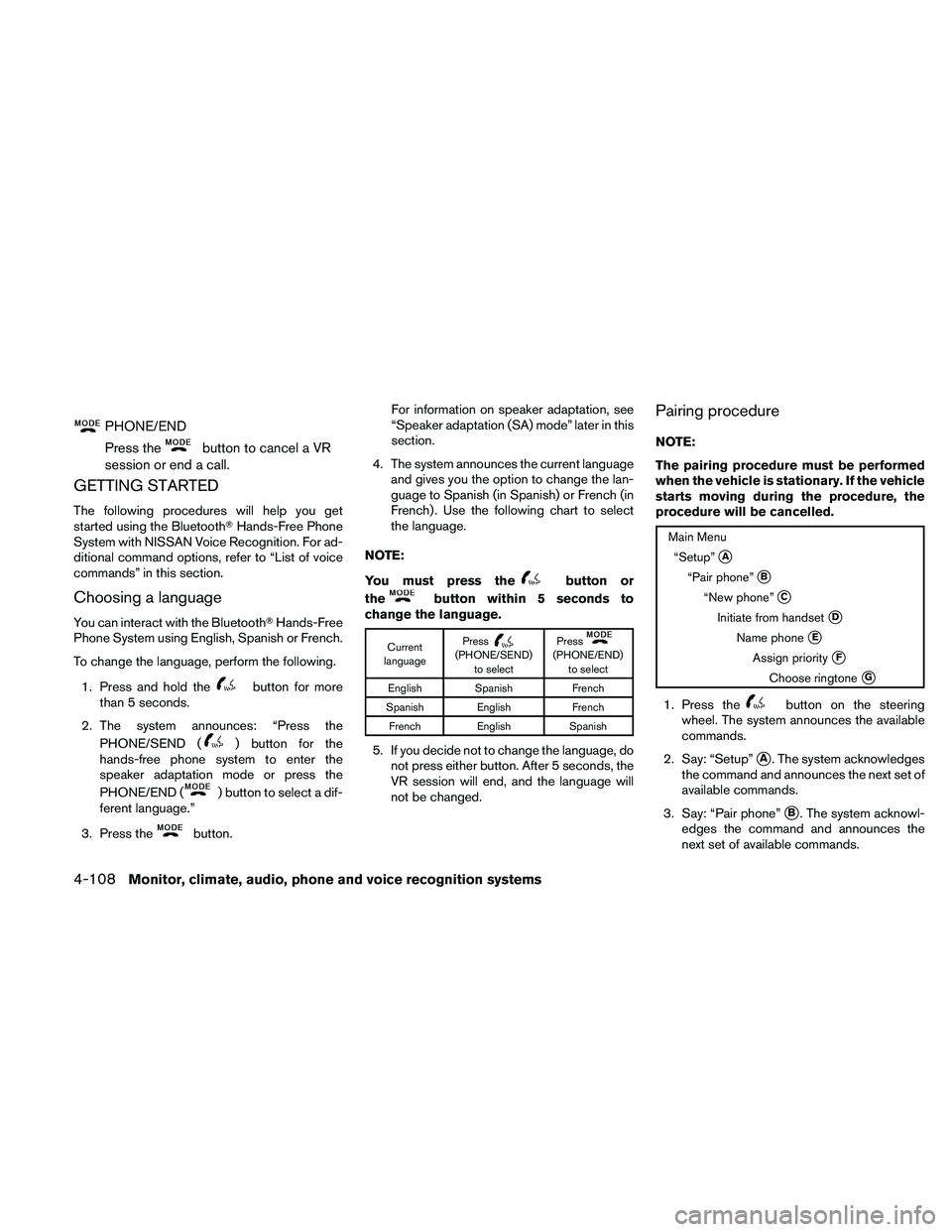
1. Press and hold the
button for more
than 5 seconds.
2. The system announces: “Press the
PHONE/SEND (
) button for the
hands-free phone system to enter the
speaker adaptation mode or press the
PHONE/END (
) button to select a dif-
ferent language.”
3. Press the
button.For information on speaker adaptation, see
“Speaker adaptation (SA) mode” later in this
section.
4. The system announces the current language
and gives you the option to change the lan-
guage to Spanish (in Spanish) or French (in
French) . Use the following chart to select
the language.
NOTE:
You must press the
button or
the
button within 5 seconds to
change the language.
Current
languagePress(PHONE/SEND)
to selectPress(PHONE/END)
to select
English Spanish French
Spanish English French
French English Spanish
5. If you decide not to change the language, do
not press either button. After 5 seconds, the
VR session will end, and the language will
not be changed.
Pairing procedure
NOTE:
The pairing procedure must be performed
when the vehicle is stationary. If the vehicle
starts moving during the procedure, the
procedure will be cancelled.
Main Menu
“Setup”
sA
“Pair phone”sB
“New phone”sC
Initiate from handsetsD
Name phonesE
Assign prioritysF
Choose ringtonesG
1. Press thebutton on the steering
wheel. The system announces the available
commands.
2. Say: “Setup”
sA. The system acknowledges
the command and announces the next set of
available commands.
3. Say: “Pair phone”
sB. The system acknowl-
edges the command and announces the
next set of available commands.
4-108Monitor, climate, audio, phone and voice recognition systems
Page 273 of 463
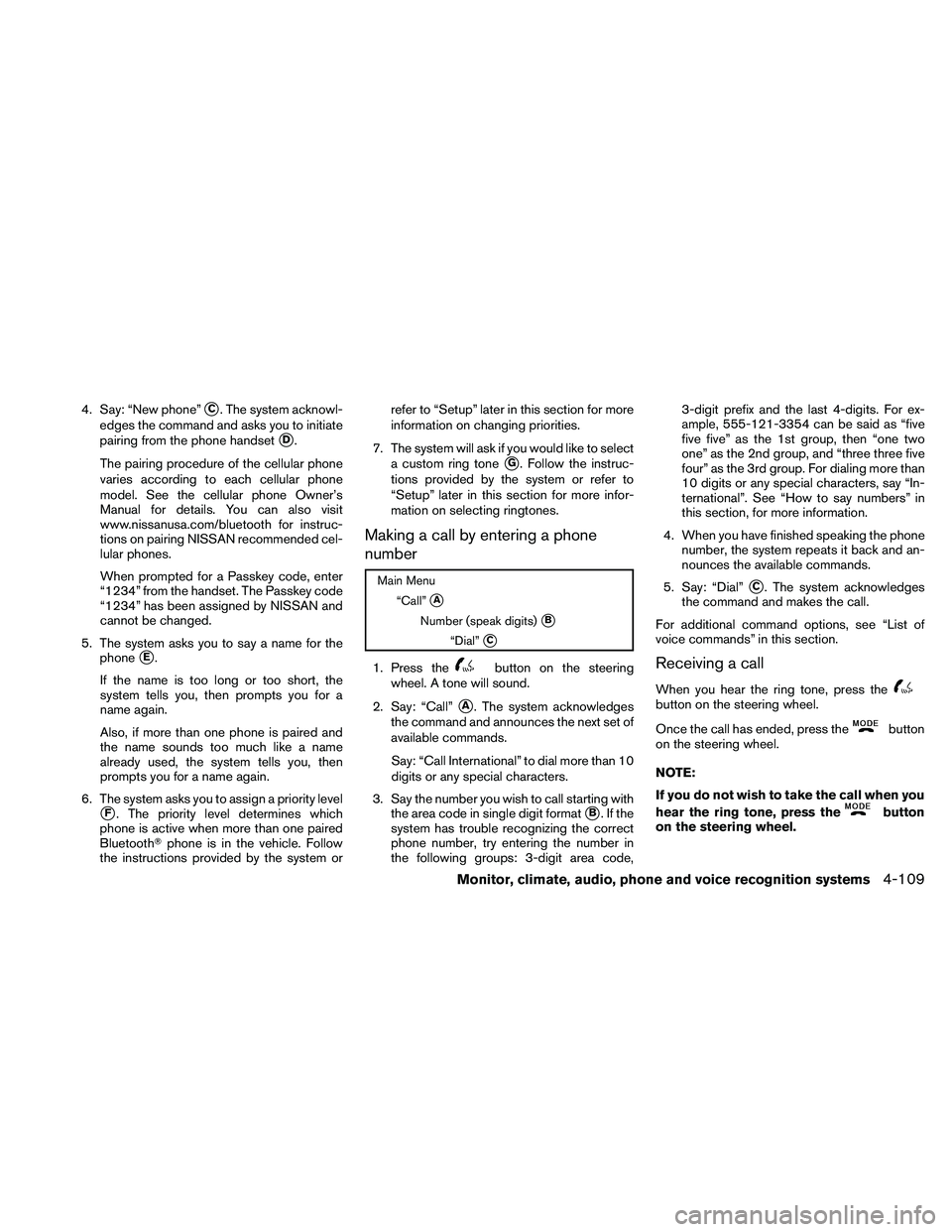
4. Say: “New phone”sC. The system acknowl-
edges the command and asks you to initiate
pairing from the phone handset
sD.
The pairing procedure of the cellular phone
varies according to each cellular phone
model. See the cellular phone Owner’s
Manual for details. You can also visit
www.nissanusa.com/bluetooth for instruc-
tions on pairing NISSAN recommended cel-
lular phones.
When prompted for a Passkey code, enter
“1234” from the handset. The Passkey code
“1234” has been assigned by NISSAN and
cannot be changed.
5. The system asks you to say a name for the
phone
sE.
If the name is too long or too short, the
system tells you, then prompts you for a
name again.
Also, if more than one phone is paired and
the name sounds too much like a name
already used, the system tells you, then
prompts you for a name again.
6. The system asks you to assign a priority level
sF. The priority level determines which
phone is active when more than one paired
BluetoothTphone is in the vehicle. Follow
the instructions provided by the system orrefer to “Setup” later in this section for more
information on changing priorities.
7. The system will ask if you would like to select
a custom ring tone
sG. Follow the instruc-
tions provided by the system or refer to
“Setup” later in this section for more infor-
mation on selecting ringtones.
Making a call by entering a phone
number
Main Menu
“Call”
sA
Number (speak digits)sB
“Dial”sC
1. Press thebutton on the steering
wheel. A tone will sound.
2. Say: “Call”
sA. The system acknowledges
the command and announces the next set of
available commands.
Say: “Call International” to dial more than 10
digits or any special characters.
3. Say the number you wish to call starting with
the area code in single digit format
sB.Ifthe
system has trouble recognizing the correct
phone number, try entering the number in
the following groups: 3-digit area code,3-digit prefix and the last 4-digits. For ex-
ample, 555-121-3354 can be said as “five
five five” as the 1st group, then “one two
one” as the 2nd group, and “three three five
four” as the 3rd group. For dialing more than
10 digits or any special characters, say “In-
ternational”. See “How to say numbers” in
this section, for more information.
4. When you have finished speaking the phone
number, the system repeats it back and an-
nounces the available commands.
5. Say: “Dial”
sC. The system acknowledges
the command and makes the call.
For additional command options, see “List of
voice commands” in this section.
Receiving a call
When you hear the ring tone, press thebutton on the steering wheel.
Once the call has ended, press the
button
on the steering wheel.
NOTE:
If you do not wish to take the call when you
hear the ring tone, press the
button
on the steering wheel.
Monitor, climate, audio, phone and voice recognition systems4-109
Page 274 of 463
For additional command options, see “List of
voice commands” later in this section.
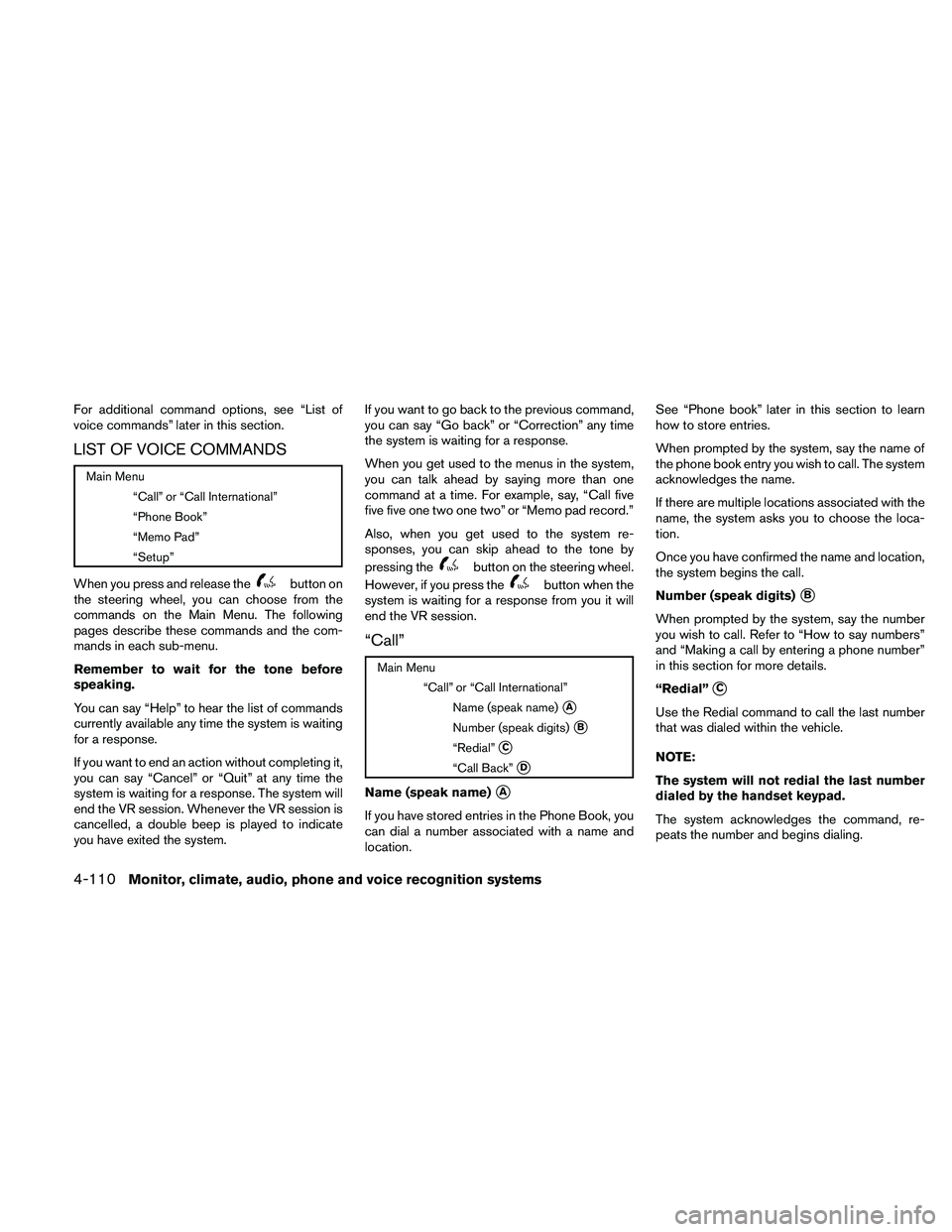
LIST OF VOICE COMMANDS
Main Menu
“Call” or “Call International”
“Phone Book”
“Memo Pad”
“Setup”
When you press and release thebutton on
the steering wheel, you can choose from the
commands on the Main Menu. The following
pages describe these commands and the com-
mands in each sub-menu.
Remember to wait for the tone before
speaking.
You can say “Help” to hear the list of commands
currently available any time the system is waiting
for a response.
If you want to end an action without completing it,
you can say “Cancel” or “Quit” at any time the
system is waiting for a response. The system will
end the VR session. Whenever the VR session is
cancelled, a double beep is played to indicate
you have exited the system.If you want to go back to the previous command,
you can say “Go back” or “Correction” any time
the system is waiting for a response.
When you get used to the menus in the system,
you can talk ahead by saying more than one
command at a time. For example, say, “Call five
five five one two one two” or “Memo pad record.”
Also, when you get used to the system re-
sponses, you can skip ahead to the tone by
pressing the
button on the steering wheel.
However, if you press the
button when the
system is waiting for a response from you it will
end the VR session.
“Call”
Main Menu
“Call” or “Call International”
Name (speak name)
sA
Number (speak digits)sB
“Redial”sC
“Call Back”sD
Name (speak name)sA
If you have stored entries in the Phone Book, you
can dial a number associated with a name and
location.See “Phone book” later in this section to learn
how to store entries.
When prompted by the system, say the name of
the phone book entry you wish to call. The system
acknowledges the name.
If there are multiple locations associated with the
name, the system asks you to choose the loca-
tion.
Once you have confirmed the name and location,
the system begins the call.
Number (speak digits)
sB
When prompted by the system, say the number
you wish to call. Refer to “How to say numbers”
and “Making a call by entering a phone number”
in this section for more details.
“Redial”
sC
Use the Redial command to call the last number
that was dialed within the vehicle.
NOTE:
The system will not redial the last number
dialed by the handset keypad.
The system acknowledges the command, re-
peats the number and begins dialing.
4-110Monitor, climate, audio, phone and voice recognition systems
Page 275 of 463
If a redial number does not exist, the system
announces, “There is no number to redial” and
ends the VR session.
“Call back”
sD
Use the Call Back command to dial the number of
the last incoming call within the vehicle.
The system acknowledges the command, re-
peats the number and begins dialing.
If a call back number does not exist, the system
announces, “There is no number to call back” and
ends the VR session.
International
For dialing more than 10 digits or any special
characters, please say “international”. When the
system acknowledges the command, the system
will prompt you to speak the number.
During a call
During a call there are several command options
available. Press the
button on the steering
wheel to mute the receiving voice and enter com-
mands.
c“Help” — The system announces the avail-
able commands.
c“Go back/Correction” — The system an-
nounces “Go back,” ends the VR session
and returns to the call.c“Cancel/Quit” — The system announces
“Cancel,” ends the VR session and returns
to the call.
c“Send/Enter/Call/Dial” — Use the Send
command to enter numbers, “*” or “#” during
a call. For example, if you were directed to
dial an extension by an automated system:
Say: “Send one two three four.”
The system acknowledges the command
and sends the tones associated with the
numbers. The system then ends the VR ses-
sion and returns to the call. Say “star” for “*”,
Say “pound” for “#”.
c“Transfer call” — Use the Transfer Call com-
mand to transfer the call from the BluetoothT
Hands-Free Phone System to the cellular
phone when privacy is desired.
The system announces, “Transfer call. Call
transferred to privacy mode.” The system
then ends the VR session.
You can also issue the Transfer Call com-
mand again to return to a hands-free call
through the vehicle.
c“Mute” — Use the Mute command to mute
your voice so the other party cannot hear it.
Use the mute command again to unmute
your voice.NOTE:
If a call is ended or the cellular phone
network connection is lost while the Mute
feature is on, the Mute feature will be reset
to “off” for the next call so the other party
can hear your voice.
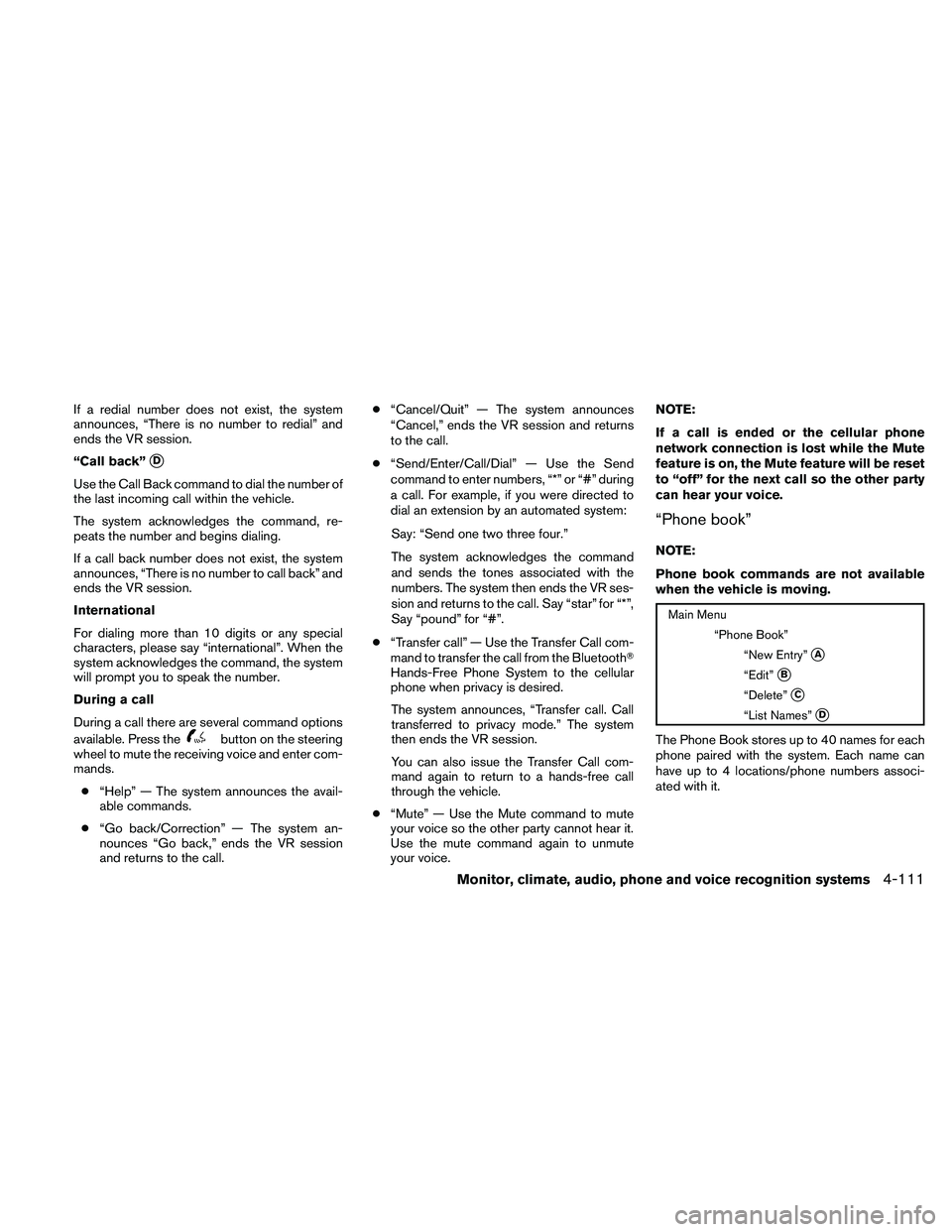
“Phone book”
NOTE:
Phone book commands are not available
when the vehicle is moving.
Main Menu
“Phone Book”
“New Entry”
sA
“Edit”sB
“Delete”sC
“List Names”sD
The Phone Book stores up to 40 names for each
phone paired with the system. Each name can
have up to 4 locations/phone numbers associ-
ated with it.
Monitor, climate, audio, phone and voice recognition systems4-111