Set NISSAN PATHFINDER 2011 Owner´s Manual
[x] Cancel search | Manufacturer: NISSAN, Model Year: 2011, Model line: PATHFINDER, Model: NISSAN PATHFINDER 2011Pages: 474, PDF Size: 5.08 MB
Page 305 of 474
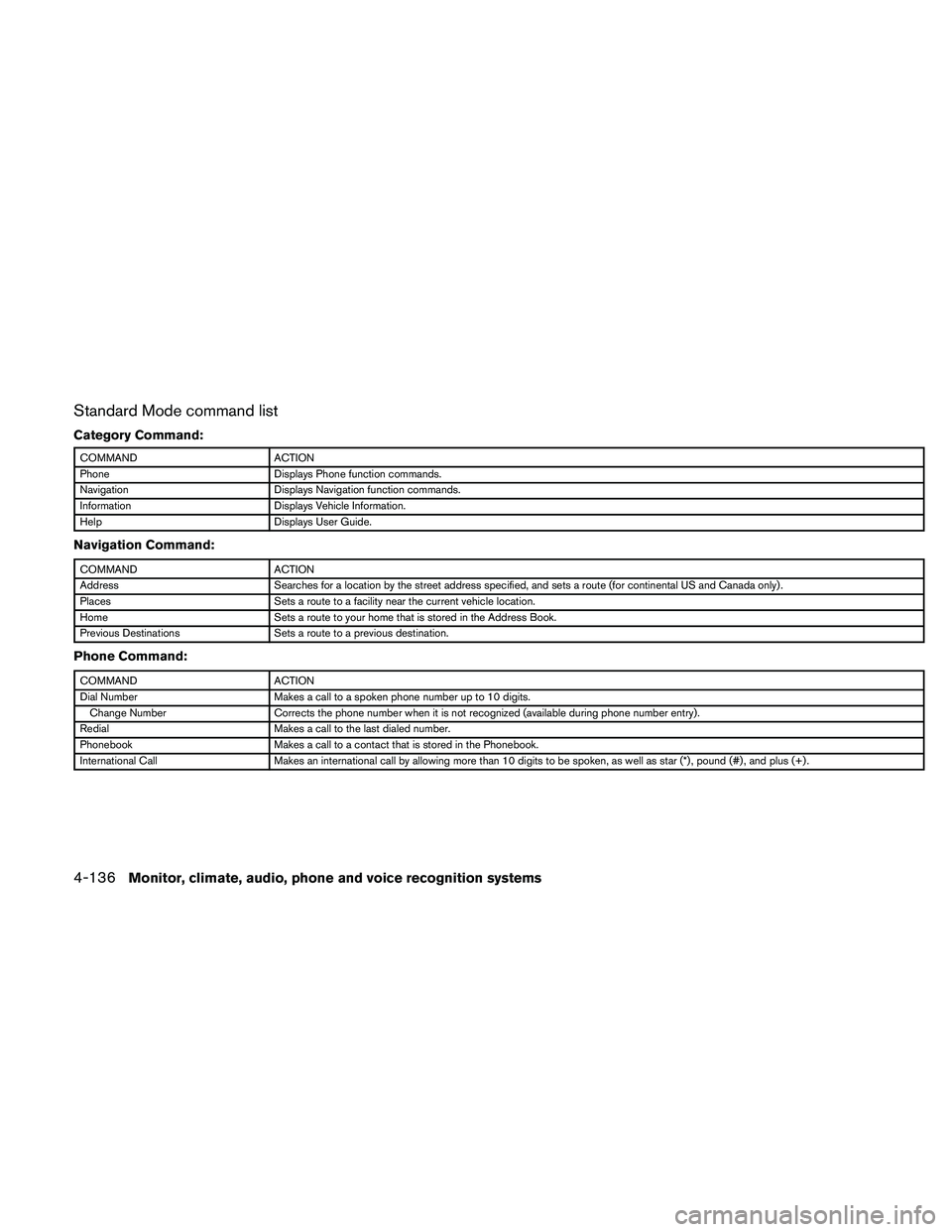
Standard Mode command list
Category Command:
COMMANDACTION
Phone Displays Phone function commands.
Navigation Displays Navigation function commands.
Information Displays Vehicle Information.
Help Displays User Guide.
Navigation Command:
COMMANDACTION
Address Searches for a location by the street address specified, and sets a route (for continental US and Canada only) .
Places Sets a route to a facility near the current vehicle location.
Home Sets a route to your home that is stored in the Address Book.
Previous Destinations Sets a route to a previous destination.
Phone Command:
COMMANDACTION
Dial Number Makes a call to a spoken phone number up to 10 digits.
Change Number Corrects the phone number when it is not recognized (available during phone number entry) .
Redial Makes a call to the last dialed number.
Phonebook Makes a call to a contact that is stored in the Phonebook.
International Call Makes an international call by allowing more than 10 digits to be spoken, as well as star (*) , pound (#) , and plus (+) .
4-136Monitor, climate, audio, phone and voice recognition systems
Page 311 of 474
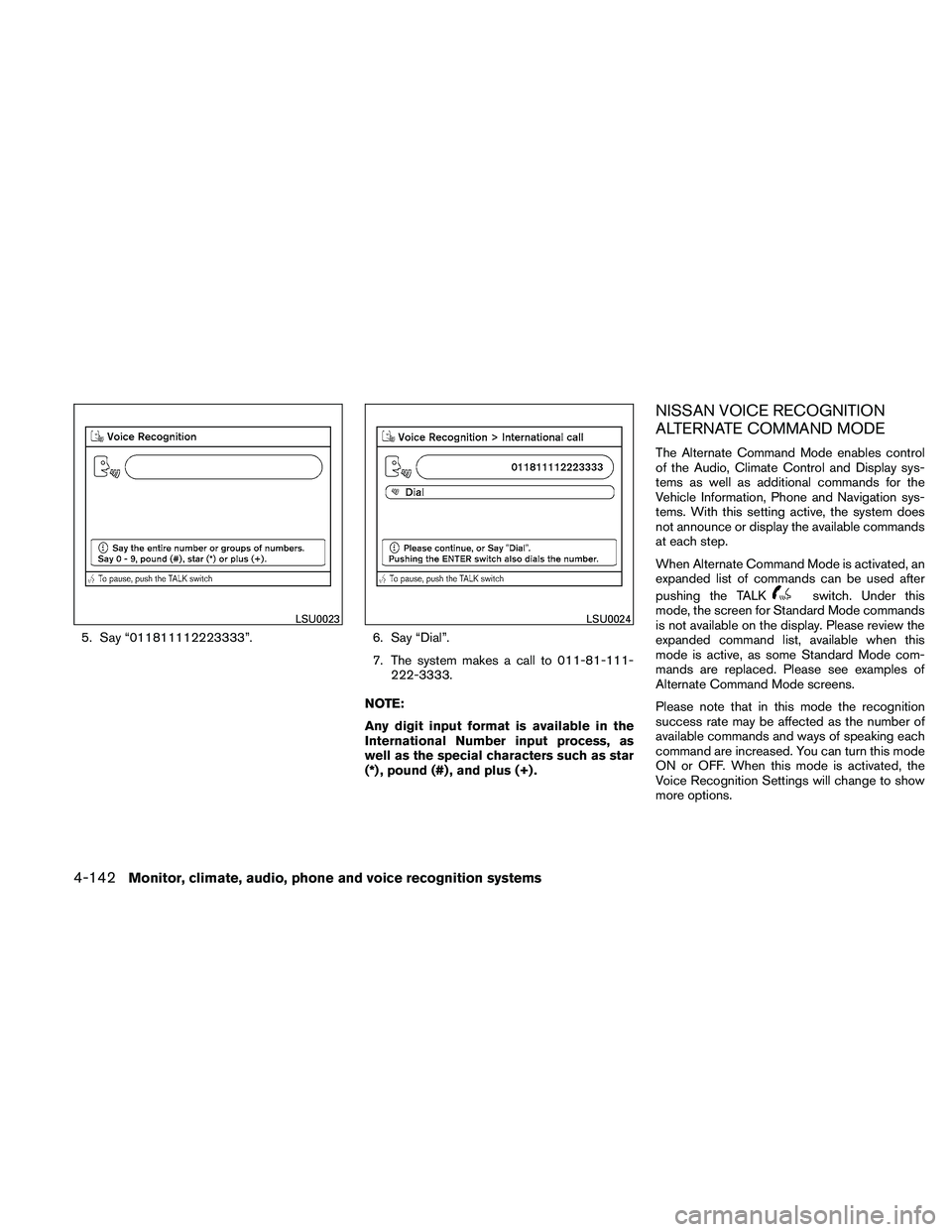
5. Say “011811112223333”.6. Say “Dial”.
7. The system makes a call to 011-81-111- 222-3333.
NOTE:
Any digit input format is available in the
International Number input process, as
well as the special characters such as star
(*) , pound (#) , and plus (+) .
NISSAN VOICE RECOGNITION
ALTERNATE COMMAND MODE
The Alternate Command Mode enables control
of the Audio, Climate Control and Display sys-
tems as well as additional commands for the
Vehicle Information, Phone and Navigation sys-
tems. With this setting active, the system does
not announce or display the available commands
at each step.
When Alternate Command Mode is activated, an
expanded list of commands can be used after
pushing the TALK
switch. Under this
mode, the screen for Standard Mode commands
is not available on the display. Please review the
expanded command list, available when this
mode is active, as some Standard Mode com-
mands are replaced. Please see examples of
Alternate Command Mode screens.
Please note that in this mode the recognition
success rate may be affected as the number of
available commands and ways of speaking each
command are increased. You can turn this mode
ON or OFF. When this mode is activated, the
Voice Recognition Settings will change to show
more options.
LSU0023LSU0024
4-142Monitor, climate, audio, phone and voice recognition systems
Page 312 of 474
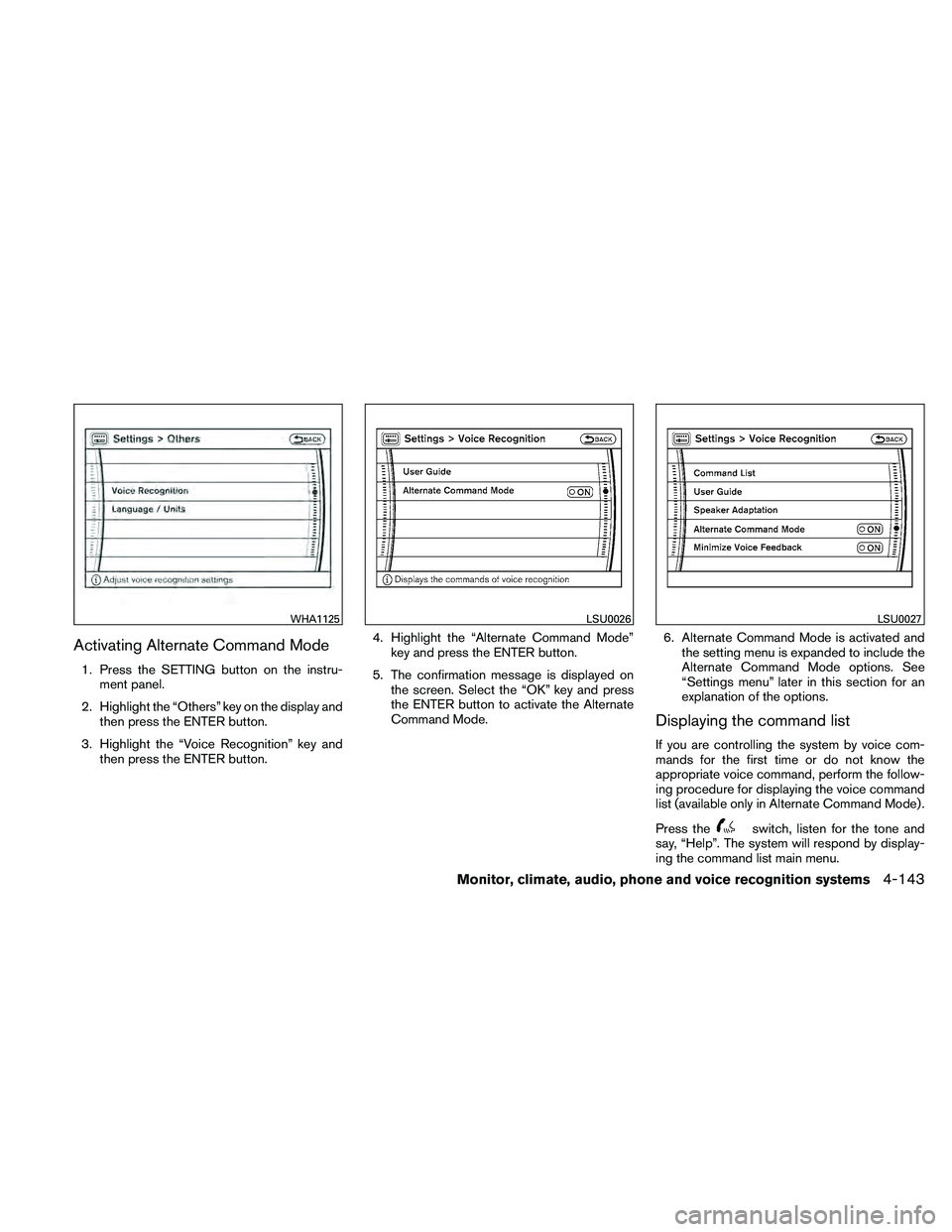
Activating Alternate Command Mode
1. Press the SETTING button on the instru-ment panel.
2. Highlight the “Others” key on the display and then press the ENTER button.
3. Highlight the “Voice Recognition” key and then press the ENTER button. 4. Highlight the “Alternate Command Mode”
key and press the ENTER button.
5. The confirmation message is displayed on the screen. Select the “OK” key and press
the ENTER button to activate the Alternate
Command Mode. 6. Alternate Command Mode is activated and
the setting menu is expanded to include the
Alternate Command Mode options. See
“Settings menu” later in this section for an
explanation of the options.
Displaying the command list
If you are controlling the system by voice com-
mands for the first time or do not know the
appropriate voice command, perform the follow-
ing procedure for displaying the voice command
list (available only in Alternate Command Mode) .
Press the
switch, listen for the tone and
say, “Help”. The system will respond by display-
ing the command list main menu.
WHA1125LSU0026LSU0027
Monitor, climate, audio, phone and voice recognition systems4-143
Page 315 of 474
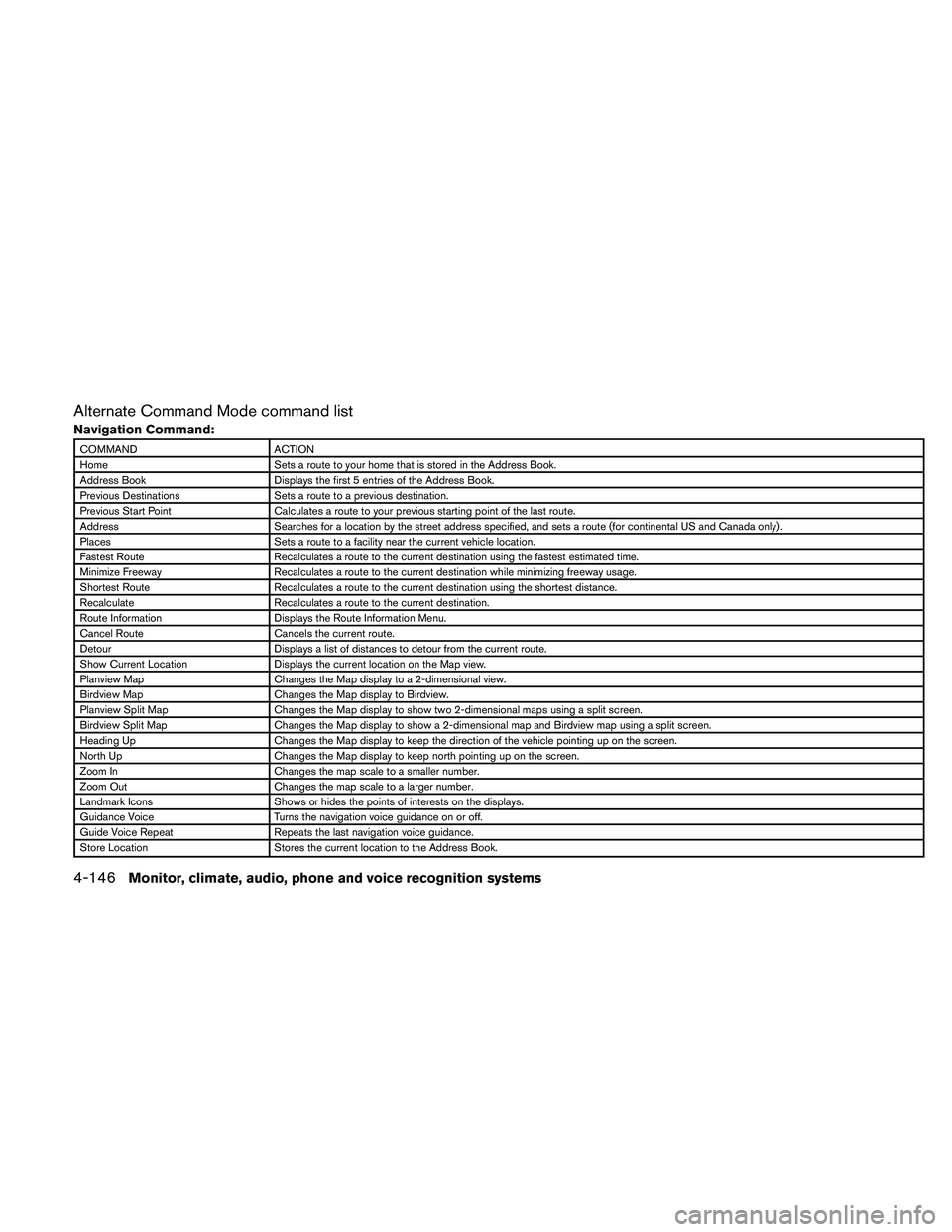
Alternate Command Mode command list
Navigation Command:
COMMANDACTION
Home Sets a route to your home that is stored in the Address Book.
Address Book Displays the first 5 entries of the Address Book.
Previous Destinations Sets a route to a previous destination.
Previous Start Point Calculates a route to your previous starting point of the last route.
Address Searches for a location by the street address specified, and sets a route (for continental US and Canada only) .
Places Sets a route to a facility near the current vehicle location.
Fastest Route Recalculates a route to the current destination using the fastest estimated time.
Minimize Freeway Recalculates a route to the current destination while minimizing freeway usage.
Shortest Route Recalculates a route to the current destination using the shortest distance.
Recalculate Recalculates a route to the current destination.
Route Information Displays the Route Information Menu.
Cancel Route Cancels the current route.
Detour Displays a list of distances to detour from the current route.
Show Current Location Displays the current location on the Map view.
Planview Map Changes the Map display to a 2-dimensional view.
Birdview Map Changes the Map display to Birdview.
Planview Split Map Changes the Map display to show two 2-dimensional maps using a split screen.
Birdview Split Map Changes the Map display to show a 2-dimensional map and Birdview map using a split screen.
Heading Up Changes the Map display to keep the direction of the vehicle pointing up on the screen.
North Up Changes the Map display to keep north pointing up on the screen.
Zoom In Changes the map scale to a smaller number.
Zoom Out Changes the map scale to a larger number.
Landmark Icons Shows or hides the points of interests on the displays.
Guidance Voice Turns the navigation voice guidance on or off.
Guide Voice Repeat Repeats the last navigation voice guidance.
Store Location Stores the current location to the Address Book.
4-146Monitor, climate, audio, phone and voice recognition systems
Page 319 of 474
Tutorial for making a phone call by voice
command operation.
● Help on Speaking
Displays useful tips for how to correctly
speak commands in order for them to be
properly recognized by the system.
● Voice Recognition Settings
Describes the available Voice Recognition
settings.
● Adapting the System to Your Voice
Tutorial for adapting the system to your
voice.
USING THE SYSTEM
Initialization
When the ignition switch is placed in the ON
position, NISSAN Voice Recognition is initialized,
which takes a few seconds. When completed,
the system is ready to accept voice commands. If
the
switch is pressed before the initializa-
tion completes the display will show the mes-
sage: “Phonetic data downloaded. Please wait.”
or a beep sounds.
Before starting
To get the best performance from NISSAN Voice
Recognition, observe the following:
● Keep the interior of the vehicle as quiet as
possible. Close the windows to eliminate the
surrounding noises (traffic noises, vibration
sounds, etc.) , which may prevent the system
from recognizing the voice commands cor-
rectly.
● When the climate control is in the AUTO
mode, the fan speed decreases automati-
cally for easy recognition.
● Wait until a tone sounds before speaking a
command.
● Speak in a natural voice without pausing
between words.
Giving voice commands
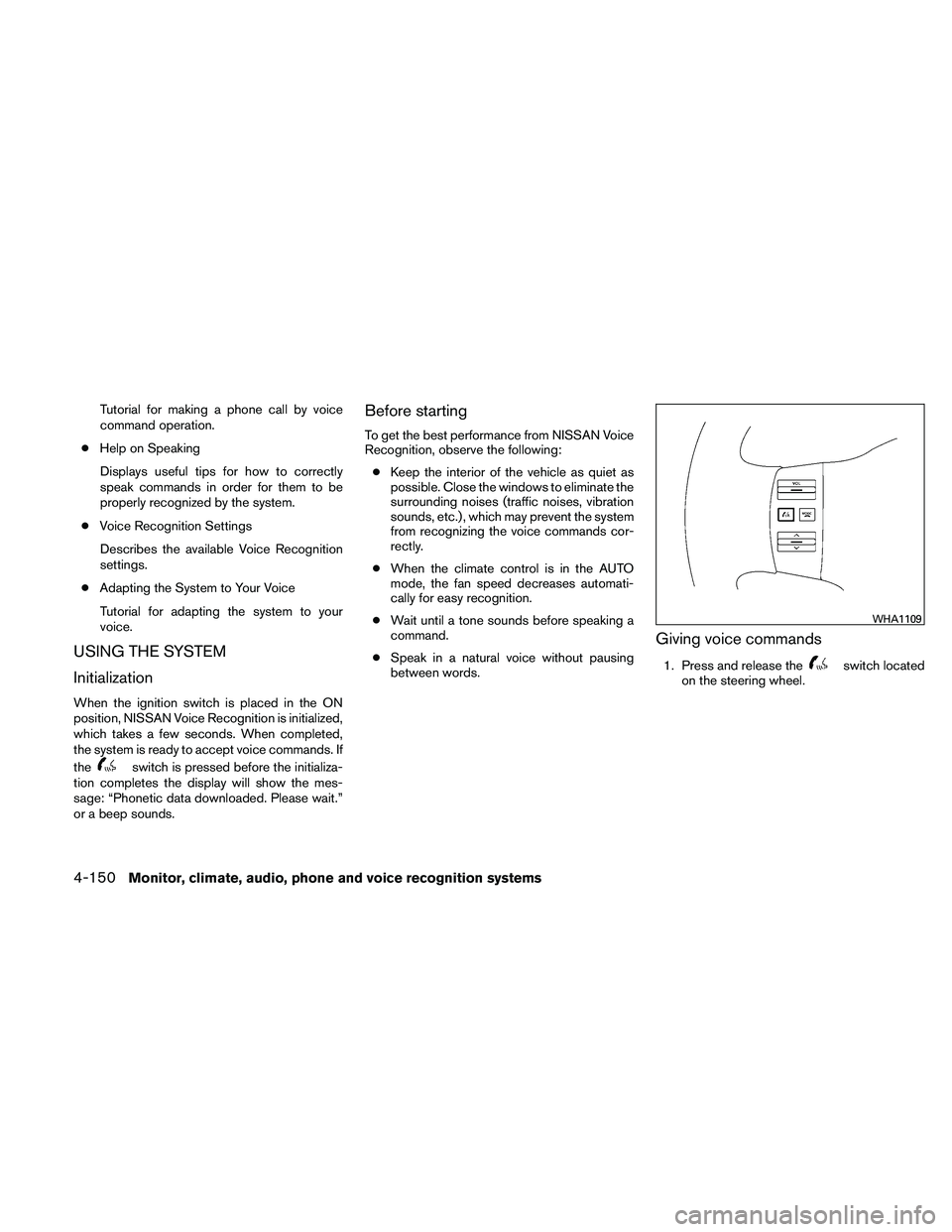
1. Press and release theswitch located
on the steering wheel.
WHA1109
4-150Monitor, climate, audio, phone and voice recognition systems
Page 320 of 474
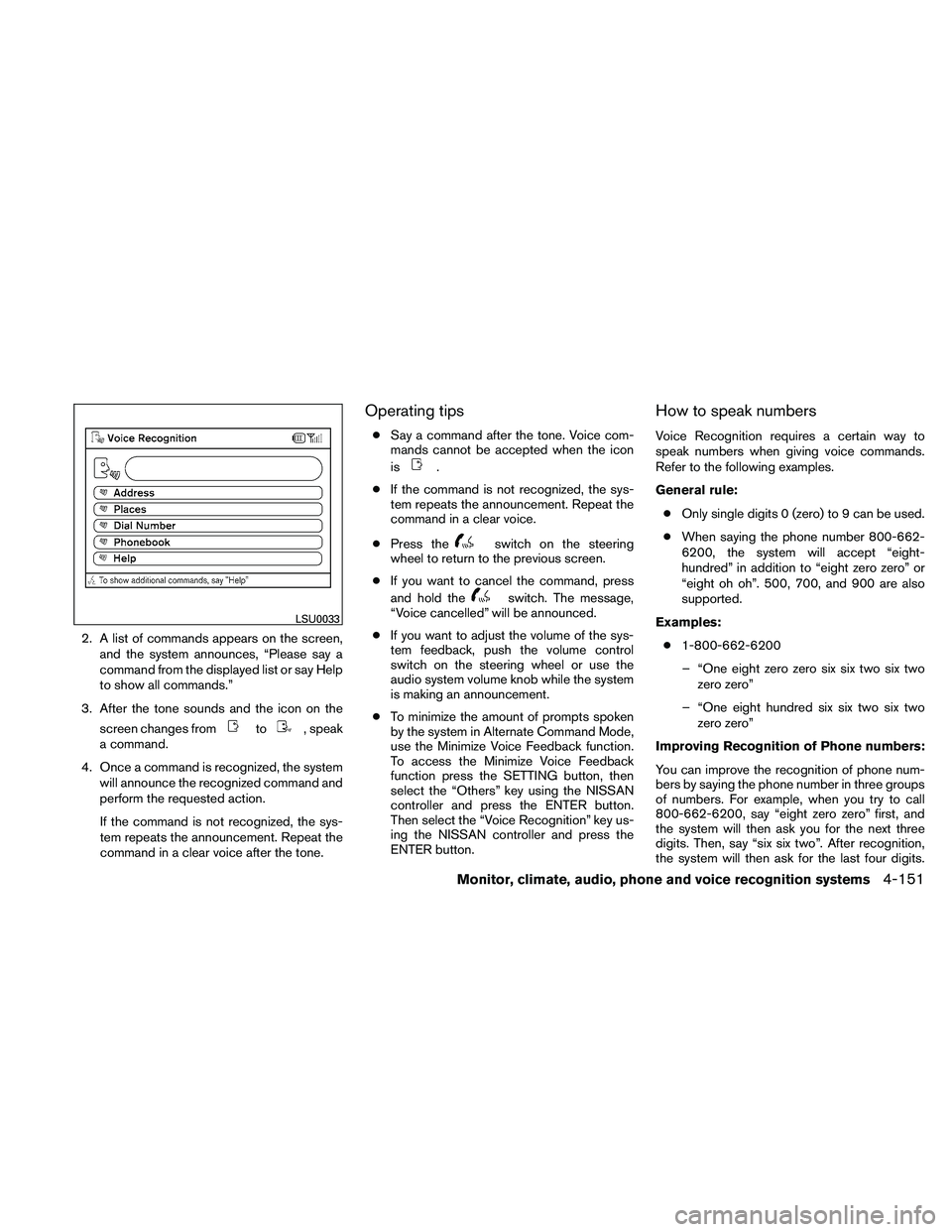
2. A list of commands appears on the screen,and the system announces, “Please say a
command from the displayed list or say Help
to show all commands.”
3. After the tone sounds and the icon on the screen changes from
to, speak
a command.
4. Once a command is recognized, the system will announce the recognized command and
perform the requested action.
If the command is not recognized, the sys-
tem repeats the announcement. Repeat the
command in a clear voice after the tone.
Operating tips
● Say a command after the tone. Voice com-
mands cannot be accepted when the icon
is
.
● If the command is not recognized, the sys-
tem repeats the announcement. Repeat the
command in a clear voice.
● Press the
switch on the steering
wheel to return to the previous screen.
● If you want to cancel the command, press
and hold the
switch. The message,
“Voice cancelled” will be announced.
● If you want to adjust the volume of the sys-
tem feedback, push the volume control
switch on the steering wheel or use the
audio system volume knob while the system
is making an announcement.
● To minimize the amount of prompts spoken
by the system in Alternate Command Mode,
use the Minimize Voice Feedback function.
To access the Minimize Voice Feedback
function press the SETTING button, then
select the “Others” key using the NISSAN
controller and press the ENTER button.
Then select the “Voice Recognition” key us-
ing the NISSAN controller and press the
ENTER button.
How to speak numbers
Voice Recognition requires a certain way to
speak numbers when giving voice commands.
Refer to the following examples.
General rule:
● Only single digits 0 (zero) to 9 can be used.
● When saying the phone number 800-662-
6200, the system will accept “eight-
hundred” in addition to “eight zero zero” or
“eight oh oh”. 500, 700, and 900 are also
supported.
Examples: ● 1-800-662-6200
– “One eight zero zero six six two six two zero zero”
– “One eight hundred six six two six two zero zero”
Improving Recognition of Phone numbers:
You can improve the recognition of phone num-
bers by saying the phone number in three groups
of numbers. For example, when you try to call
800-662-6200, say “eight zero zero” first, and
the system will then ask you for the next three
digits. Then, say “six six two”. After recognition,
the system will then ask for the last four digits.
LSU0033
Monitor, climate, audio, phone and voice recognition systems4-151
Page 321 of 474
Say, “six two zero zero”. Using this method of
phone digit entry can improve recognition perfor-
mance.
NOTE:
When speaking a house number, speak the
number “0” as “zero” or “oh”. If the letter
“O” is included in the house number, it will
not be recognized as “0” even if you speak
“oh” instead of “zero”.
Settings menu
The content of the Settings Menu differs when
the system is in the Alternate Command Mode.
Command List:
Displays the command list for Alternate Com-
mand Mode.
User Guide:
The user guide provides basic instructions for
using Voice Recognition and accessing some
voice commands.
NOTE:
The user guide can also be accessed from
within the INFO menu after pressing the
INFO button.Speaker Adaptation:
Starts a system training procedure to learn the
specific sounds of your voice. See “Speaker ad-
aptation function” in this section.
Alternate Command Mode:
For advanced operation, an Alternate Command
Mode is provided. This setting enables control of
the Audio and Climate Control systems in addi-
tion to additional commands for the Phone and
Navigation systems. With this setting active, the
system does not announce or display the avail-
able commands at each step. When this mode is
activated, the Voice Recognition Settings will
change to show more options.
Minimize Voice Feedback:
Reduces the amount of the information spoken
for each voice instruction.
SPEAKER ADAPTATION FUNCTION
The Voice Recognition system has a function to
learn the user’s voice for better voice recognition
performance. The system can memorize the
voices of up to three persons.
Having the system learn the user’s voice
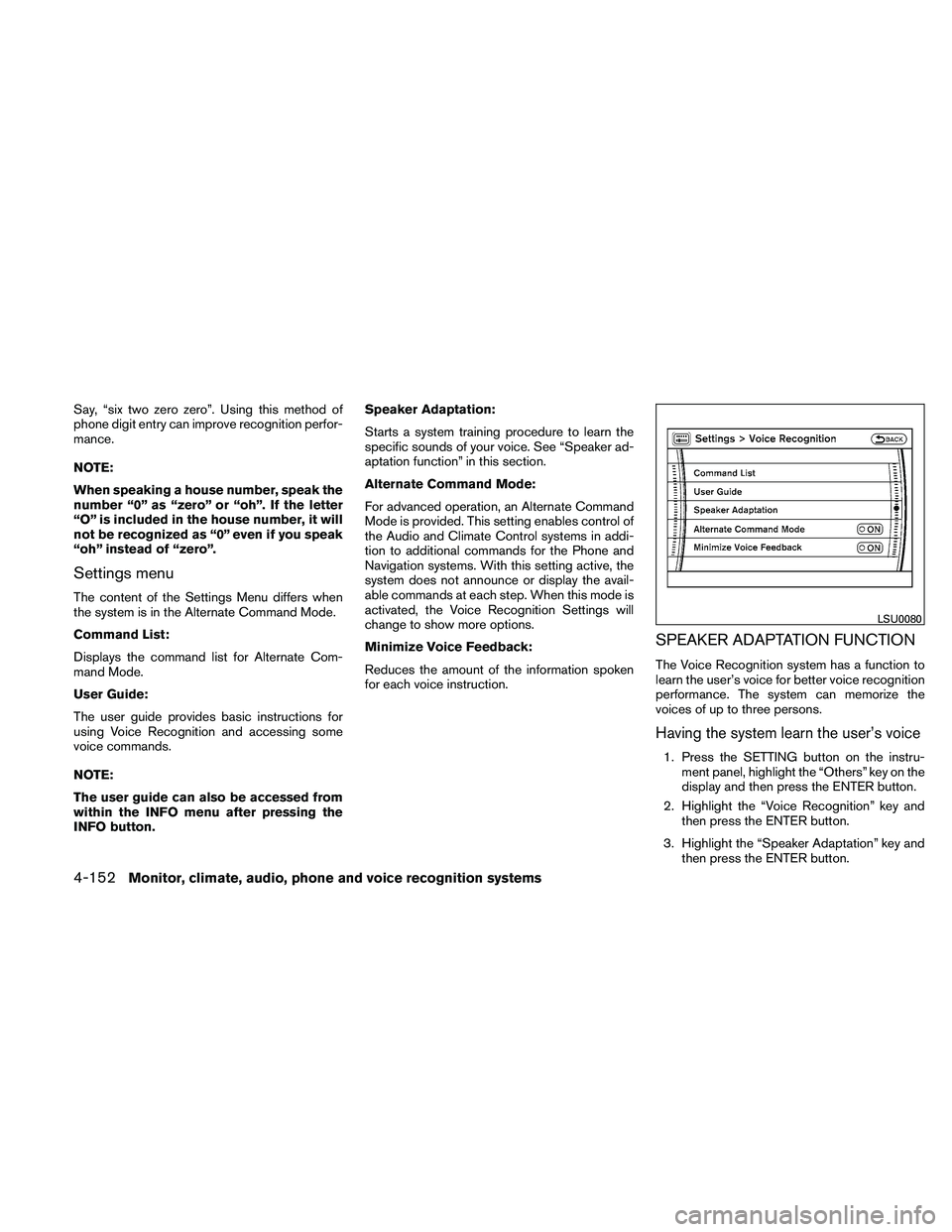
1. Press the SETTING button on the instru-
ment panel, highlight the “Others” key on the
display and then press the ENTER button.
2. Highlight the “Voice Recognition” key and then press the ENTER button.
3. Highlight the “Speaker Adaptation” key and then press the ENTER button.
LSU0080
4-152Monitor, climate, audio, phone and voice recognition systems
Page 323 of 474
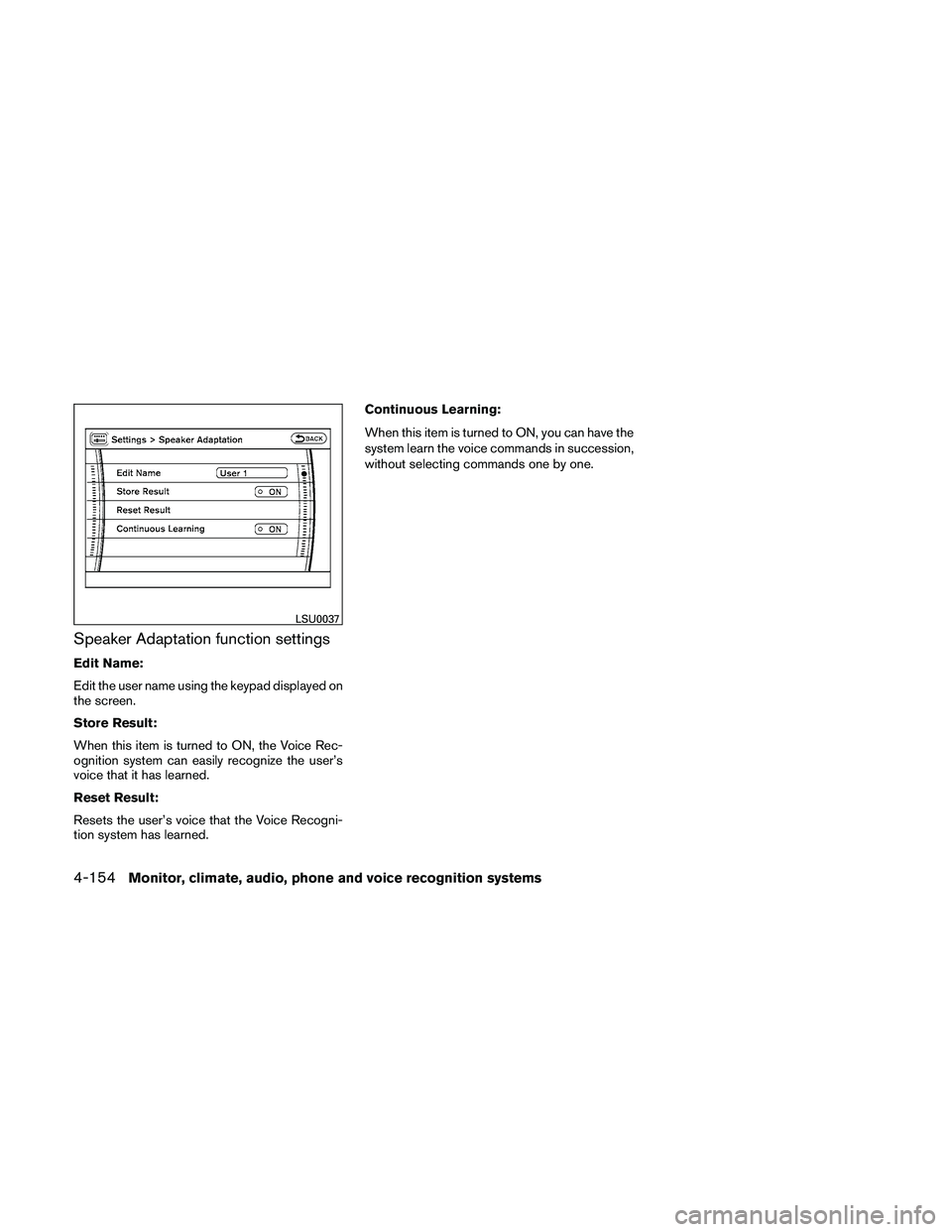
Speaker Adaptation function settings
Edit Name:
Edit the user name using the keypad displayed on
the screen.
Store Result:
When this item is turned to ON, the Voice Rec-
ognition system can easily recognize the user’s
voice that it has learned.
Reset Result:
Resets the user’s voice that the Voice Recogni-
tion system has learned.Continuous Learning:
When this item is turned to ON, you can have the
system learn the voice commands in succession,
without selecting commands one by one.
LSU0037
4-154Monitor, climate, audio, phone and voice recognition systems
Page 327 of 474
WARNING
●Do not leave children or adults who
would normally require the assistance
of others alone in your vehicle. Pets
should also not be left alone. They
could accidentally injure themselves or
others through inadvertent operation of
the vehicle. Also, on hot, sunny days,
temperatures in a closed vehicle could
quickly become high enough to cause
severe or possibly fatal injuries to
people or animals.
● Properly secure all cargo with ropes or
straps to help prevent it from sliding or
shifting. Do not place cargo higher than
the seatbacks. In a sudden stop or col-
lision, unsecured cargo could cause
personal injury.
EXHAUST GAS (carbon monoxide)
WARNING
● Do not breathe exhaust gases; they
contain colorless and odorless carbon
monoxide. Carbon monoxide is danger-
ous. It can cause unconsciousness or
death. ●
If you suspect that exhaust fumes are
entering the vehicle, drive with all win-
dows fully open, and have the vehicle
inspected immediately.
● Do not run the engine in closed spaces
such as a garage.
● Do not park the vehicle with the engine
running for any extended length of time.
● Keep the lift gate and rear windows
closed while driving, otherwise exhaust
gases could be drawn into the passen-
ger compartment. If you must drive with
the lift gate or rear windows open, fol-
low these precautions:
1. Open all the windows.
2. Set the
air recirculation but-
ton to off and the fan control dial to
high to circulate the air.
● If electrical wiring or other cable con-
nections must pass to a trailer through
the seal on the lift gate or the body,
follow the manufacturer’s recommen-
dation to prevent carbon monoxide en-
try into the vehicle.
● The exhaust system and body should be
inspected by a qualified mechanic
whenever: a. The vehicle is raised for service.
b. You suspect that exhaust fumes are
entering into the passenger
compartment.
c. You notice a change in the sound of the exhaust system.
d. You have had an accident involving damage to the exhaust system, un-
derbody, or rear of the vehicle.
THREE-WAY CATALYST
The three-way catalyst is an emission control
device installed in the exhaust system. Exhaust
gases in the three-way catalyst are burned at
high temperatures to help reduce pollutants.
WARNING
●The exhaust gas and the exhaust sys-
tem are very hot. Keep people, animals
or flammable materials away from the
exhaust system components.
● Do not stop or park the vehicle over
flammable materials such as dry grass,
waste paper or rags. They may ignite
and cause a fire.
PRECAUTIONS WHEN STARTING
AND DRIVING
5-2Starting and driving
Page 329 of 474
●The low tire pressure warning light does not
automatically turn off when the tire pressure
is adjusted in all 4 tires. After the tire is
inflated to the recommended pressure, the
vehicle must be driven at speeds above 16
MPH (25 km/h) to activate the TPMS and
turn off the low tire pressure warning light.
Use a tire pressure gauge to check the tire
pressure.
● The CHECK TIRE PRES (pressure) warn-
ing message is displayed in the odometer
when the low tire pressure warning light is
illuminated and low tire pressure is detected.
The CHECK TIRE PRES warning message
turns off when the low tire pressure warning
light turns off. Press the reset button for
more than 1 second to manually turn off the
CHECK TIRE PRES warning message. The
low tire pressure warning light remains illu-
minated until the tires are inflated to the
recommended COLD tire pressure. The
CHECK TIRE PRES warning message is
displayed each time the ignition switch is
placed in the ON position as long as the low
tire pressure warning light remains illumi-
nated. “Check tire pressure warning mes-
sage” in the “Instruments and controls” sec-
tion. ●
The CHECK TIRE PRES warning message
is not displayed if the low tire pressure warn-
ing light illuminates to indicate a TPMS mal-
function.
● Tire pressure rises and falls depending on
the heat caused by the vehicle’s operation
and the outside temperature. Low outside
temperature can lower the temperature of
the air inside the tire which can cause a
lower tire inflation pressure. This may cause
the low tire pressure warning light to illumi-
nate. If the warning light illuminates in low
ambient temperature, check the tire pres-
sure for all 4 tires.
● The Tire and Loading Information label (also
referred to as the vehicle placard or tire
inflation pressure label) is located in the
driver’s door opening.
● You can also check the pressure of all tires
(except the spare tire) on the display screen.
The order of the tire pressure figures dis-
played on the screen does not correspond
with the actual order of the tire position. See
“Tire pressure information” in the “Heater, air
conditioner, audio and phone systems” sec-
tion. For additional information, see “Low tire pressure
warning light” in the “Instruments and controls”
section, “Tire Pressure Monitoring System
(TPMS)” in the “In case of emergency” section.
WARNING
●
If the low tire pressure warning light
illuminates while driving, avoid sudden
steering maneuvers or abrupt braking,
reduce vehicle speed, pull off the road
to a safe location and stop the vehicle
as soon as possible. Driving with under-
inflated tires may permanently damage
the tires and increase the likelihood of
tire failure. Serious vehicle damage
could occur and may lead to an acci-
dent and could result in serious per-
sonal injury. Check the tire pressure for
all four tires. Adjust the tire pressure to
the recommended COLD tire pressure
shown on the Tire and Loading Informa-
tion label to turn the low tire pressure
warning light OFF. If you have a flat tire,
replace it with a spare tire as soon as
possible. (See “Flat tire” in the “In case
of emergency” section for changing a
flat tire.)
5-4Starting and driving