light NISSAN PATHFINDER 2011 Owner´s Manual
[x] Cancel search | Manufacturer: NISSAN, Model Year: 2011, Model line: PATHFINDER, Model: NISSAN PATHFINDER 2011Pages: 474, PDF Size: 5.08 MB
Page 298 of 474
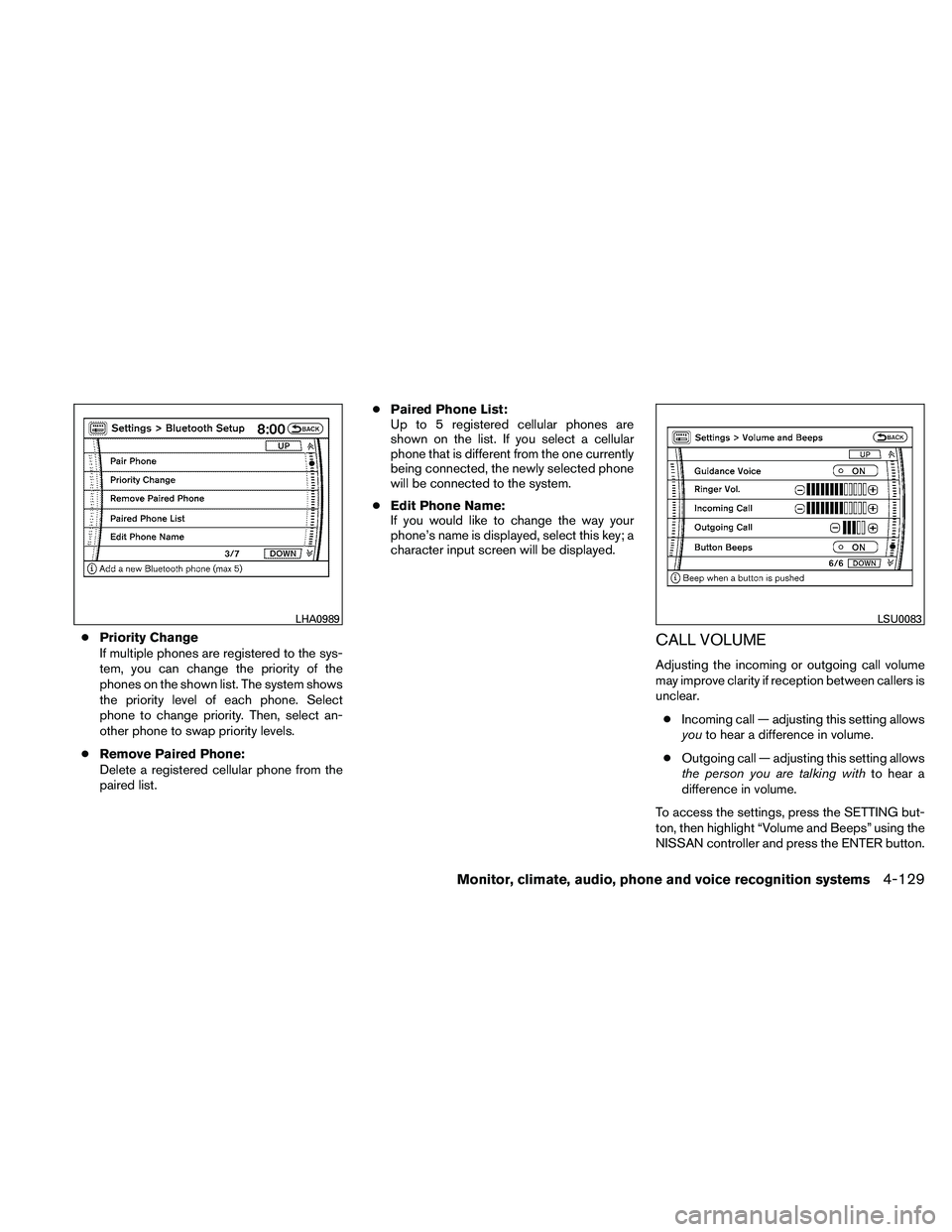
●Priority Change
If multiple phones are registered to the sys-
tem, you can change the priority of the
phones on the shown list. The system shows
the priority level of each phone. Select
phone to change priority. Then, select an-
other phone to swap priority levels.
● Remove Paired Phone:
Delete a registered cellular phone from the
paired list. ●
Paired Phone List:
Up to 5 registered cellular phones are
shown on the list. If you select a cellular
phone that is different from the one currently
being connected, the newly selected phone
will be connected to the system.
● Edit Phone Name:
If you would like to change the way your
phone’s name is displayed, select this key; a
character input screen will be displayed.CALL VOLUME
Adjusting the incoming or outgoing call volume
may improve clarity if reception between callers is
unclear.
● Incoming call — adjusting this setting allows
you to hear a difference in volume.
● Outgoing call — adjusting this setting allows
the person you are talking with to hear a
difference in volume.
To access the settings, press the SETTING but-
ton, then highlight “Volume and Beeps” using the
NISSAN controller and press the ENTER button.
LHA0989LSU0083
Monitor, climate, audio, phone and voice recognition systems4-129
Page 300 of 474
Displaying user guide
If you use the NISSAN Voice Recognition system
for the first time or you do not know how to
operate it, you can display the User Guide for
confirmation.
You can confirm how to use voice commands by
accessing a simplified User Guide, which con-
tains basic instructions and tutorials for several
voice commands.1. Press the INFO button on the instrumentpanel.
2. Highlight the “Others” key using the NISSAN controller and press the ENTER
button.
3. Highlight the “Voice Recognition” key using the NISSAN controller and press the ENTER
button.
NOTE:
You can skip steps 1 to 3 by pressing
the
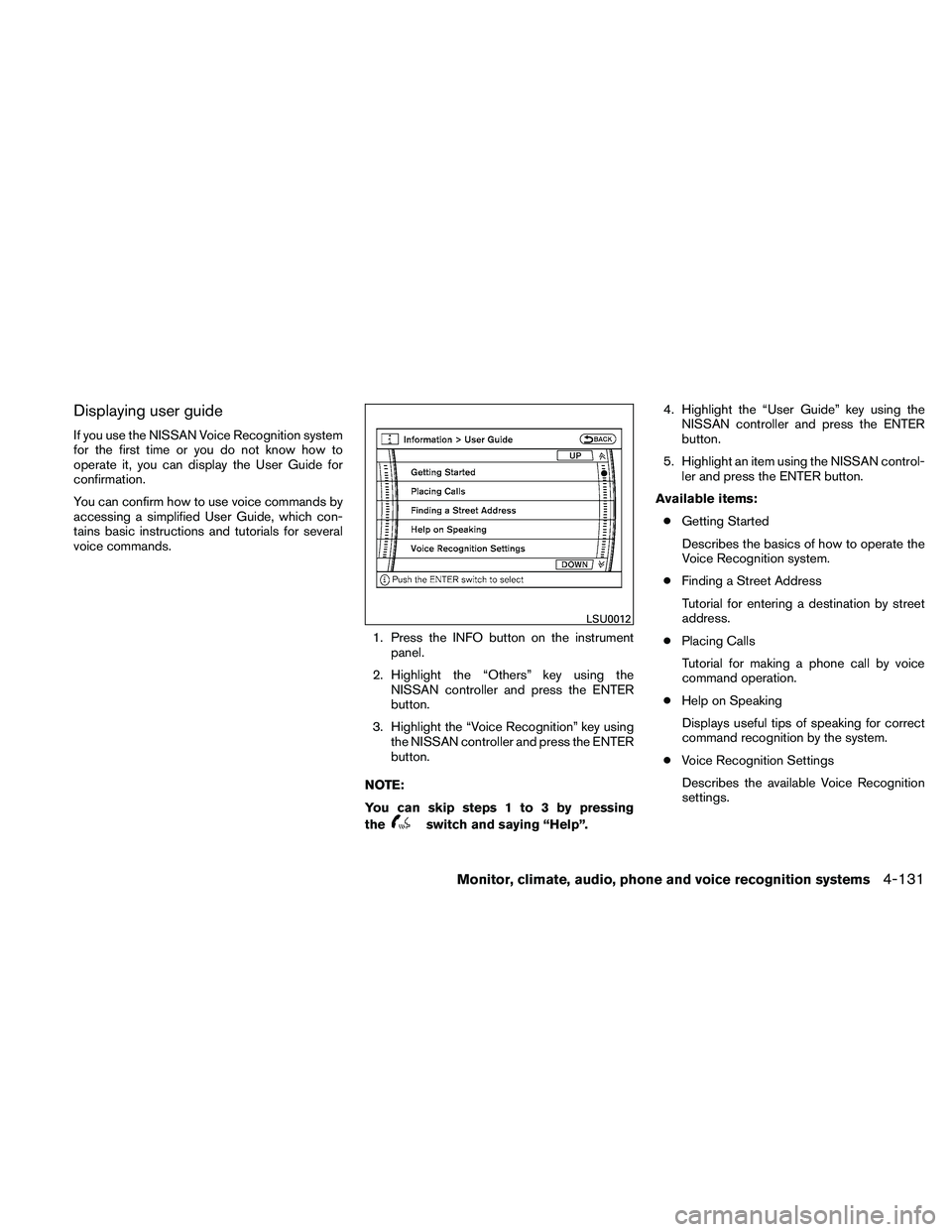
switch and saying “Help”. 4. Highlight the “User Guide” key using the
NISSAN controller and press the ENTER
button.
5. Highlight an item using the NISSAN control- ler and press the ENTER button.
Available items: ● Getting Started
Describes the basics of how to operate the
Voice Recognition system.
● Finding a Street Address
Tutorial for entering a destination by street
address.
● Placing Calls
Tutorial for making a phone call by voice
command operation.
● Help on Speaking
Displays useful tips of speaking for correct
command recognition by the system.
● Voice Recognition Settings
Describes the available Voice Recognition
settings.
LSU0012
Monitor, climate, audio, phone and voice recognition systems4-131
Page 301 of 474
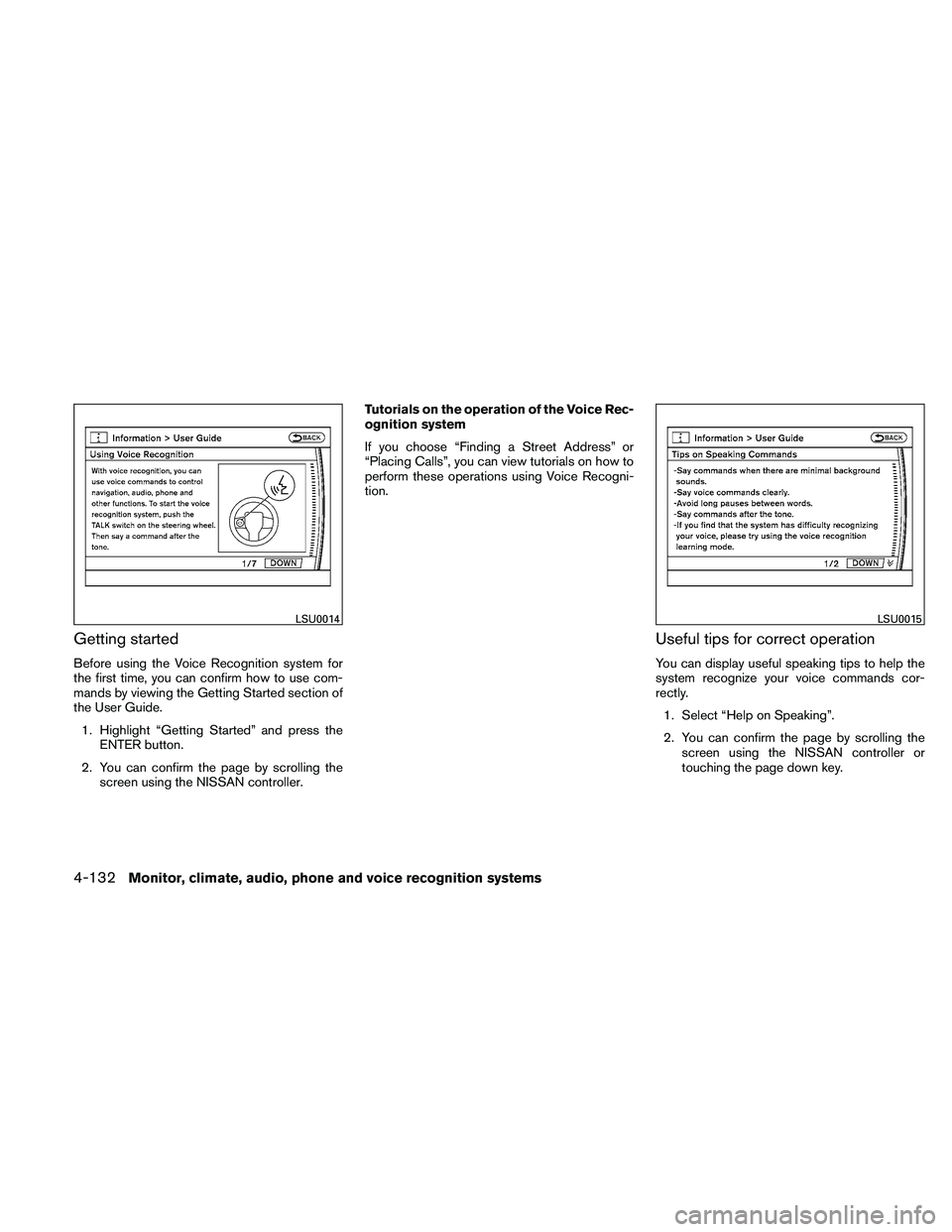
Getting started
Before using the Voice Recognition system for
the first time, you can confirm how to use com-
mands by viewing the Getting Started section of
the User Guide.1. Highlight “Getting Started” and press the ENTER button.
2. You can confirm the page by scrolling the screen using the NISSAN controller. Tutorials on the operation of the Voice Rec-
ognition system
If you choose “Finding a Street Address” or
“Placing Calls”, you can view tutorials on how to
perform these operations using Voice Recogni-
tion.
Useful tips for correct operation
You can display useful speaking tips to help the
system recognize your voice commands cor-
rectly.
1. Select “Help on Speaking”.
2. You can confirm the page by scrolling the screen using the NISSAN controller or
touching the page down key.
LSU0014LSU0015
4-132Monitor, climate, audio, phone and voice recognition systems
Page 302 of 474
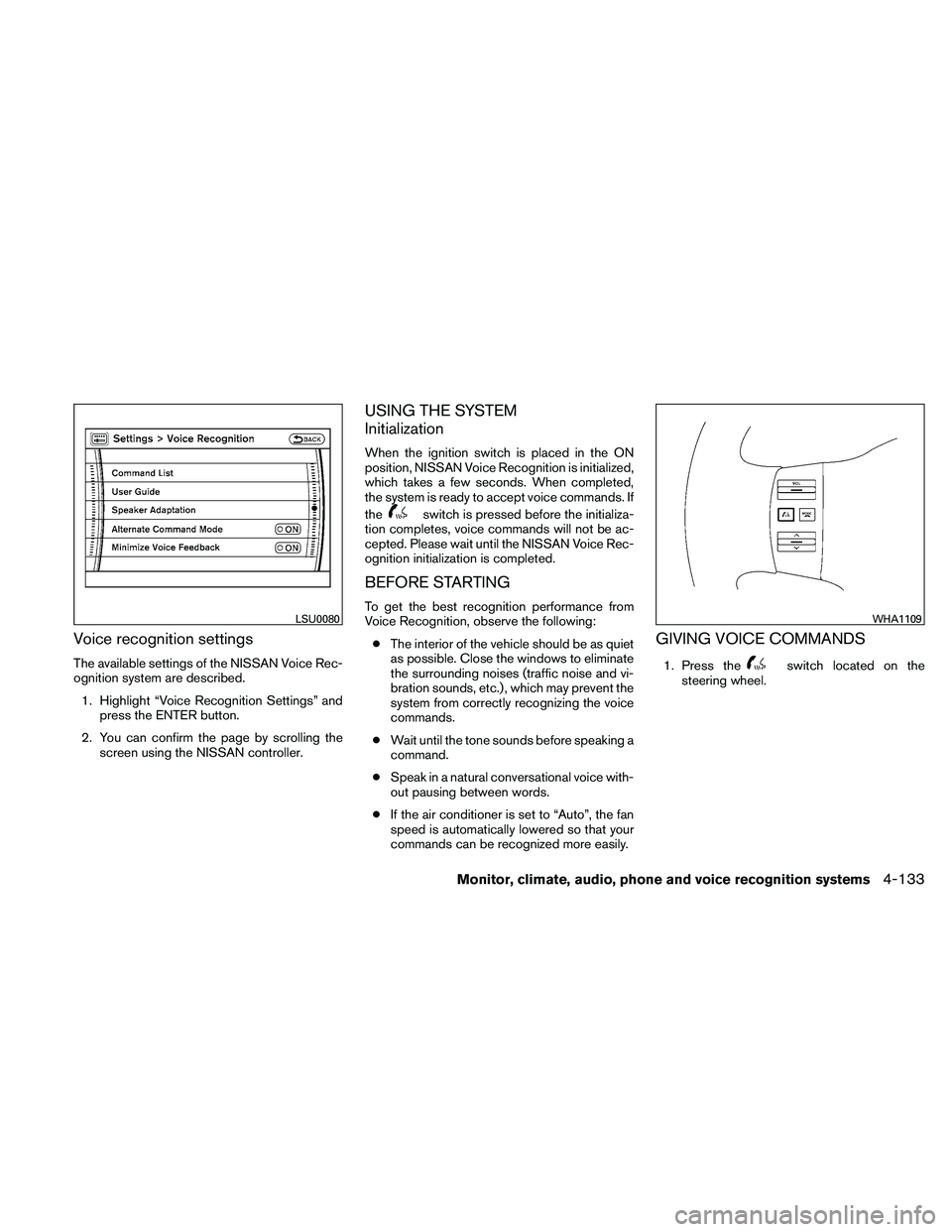
Voice recognition settings
The available settings of the NISSAN Voice Rec-
ognition system are described.1. Highlight “Voice Recognition Settings” and press the ENTER button.
2. You can confirm the page by scrolling the screen using the NISSAN controller.
USING THE SYSTEM
Initialization
When the ignition switch is placed in the ON
position, NISSAN Voice Recognition is initialized,
which takes a few seconds. When completed,
the system is ready to accept voice commands. If
the
switch is pressed before the initializa-
tion completes, voice commands will not be ac-
cepted. Please wait until the NISSAN Voice Rec-
ognition initialization is completed.
BEFORE STARTING
To get the best recognition performance from
Voice Recognition, observe the following:
● The interior of the vehicle should be as quiet
as possible. Close the windows to eliminate
the surrounding noises (traffic noise and vi-
bration sounds, etc.) , which may prevent the
system from correctly recognizing the voice
commands.
● Wait until the tone sounds before speaking a
command.
● Speak in a natural conversational voice with-
out pausing between words.
● If the air conditioner is set to “Auto”, the fan
speed is automatically lowered so that your
commands can be recognized more easily.
GIVING VOICE COMMANDS
1. Press theswitch located on the
steering wheel.
LSU0080WHA1109
Monitor, climate, audio, phone and voice recognition systems4-133
Page 312 of 474
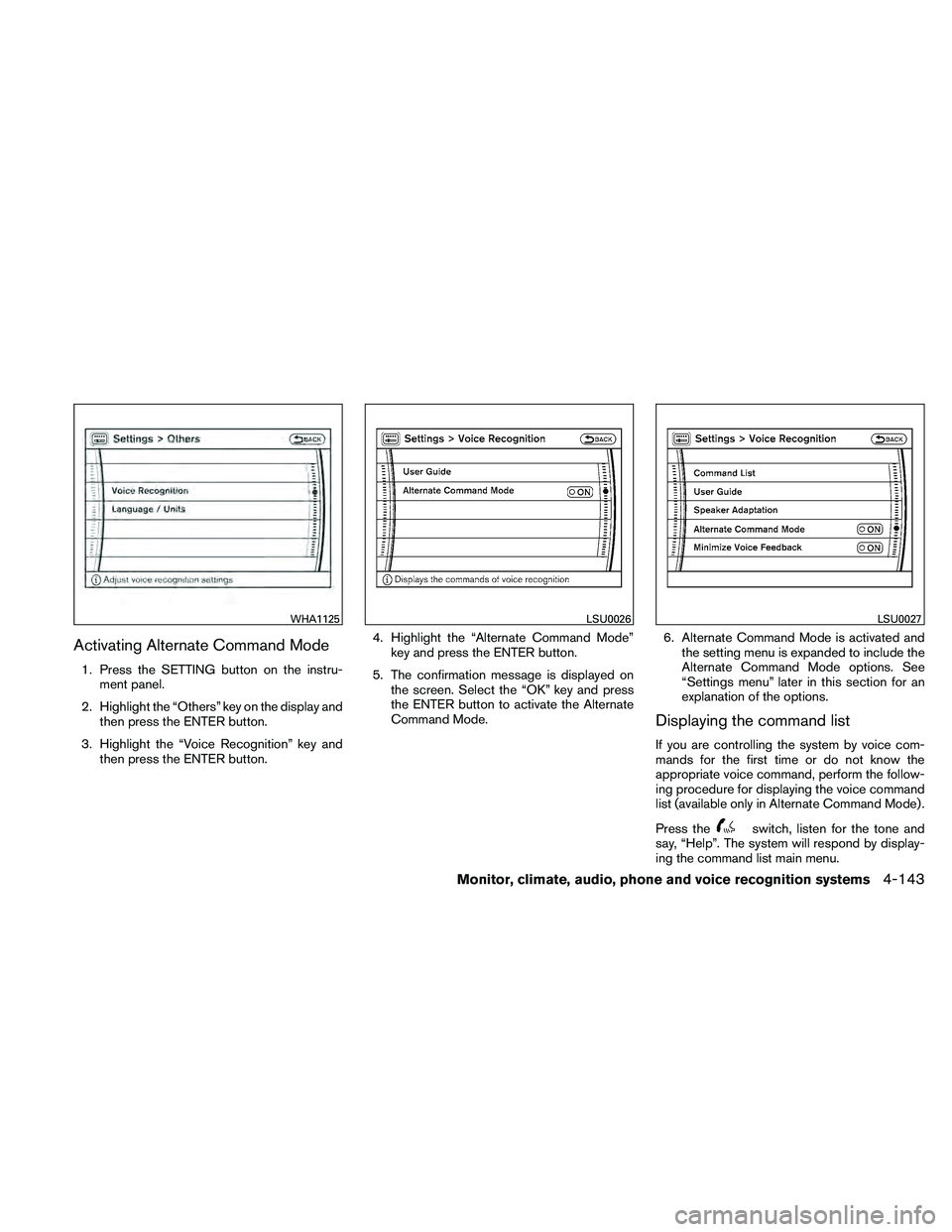
Activating Alternate Command Mode
1. Press the SETTING button on the instru-ment panel.
2. Highlight the “Others” key on the display and then press the ENTER button.
3. Highlight the “Voice Recognition” key and then press the ENTER button. 4. Highlight the “Alternate Command Mode”
key and press the ENTER button.
5. The confirmation message is displayed on the screen. Select the “OK” key and press
the ENTER button to activate the Alternate
Command Mode. 6. Alternate Command Mode is activated and
the setting menu is expanded to include the
Alternate Command Mode options. See
“Settings menu” later in this section for an
explanation of the options.
Displaying the command list
If you are controlling the system by voice com-
mands for the first time or do not know the
appropriate voice command, perform the follow-
ing procedure for displaying the voice command
list (available only in Alternate Command Mode) .
Press the
switch, listen for the tone and
say, “Help”. The system will respond by display-
ing the command list main menu.
WHA1125LSU0026LSU0027
Monitor, climate, audio, phone and voice recognition systems4-143
Page 313 of 474
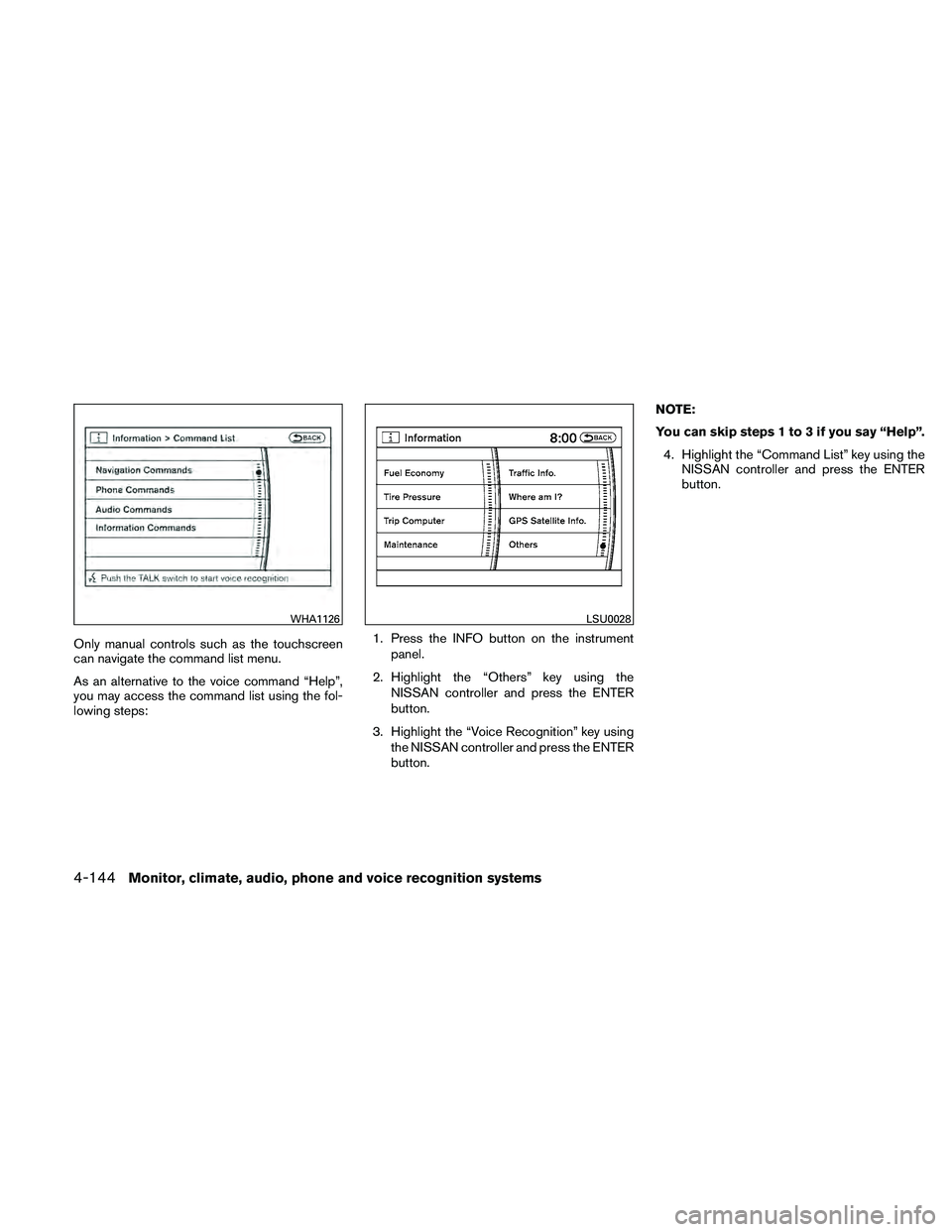
Only manual controls such as the touchscreen
can navigate the command list menu.
As an alternative to the voice command “Help”,
you may access the command list using the fol-
lowing steps:1. Press the INFO button on the instrument
panel.
2. Highlight the “Others” key using the NISSAN controller and press the ENTER
button.
3. Highlight the “Voice Recognition” key using the NISSAN controller and press the ENTER
button. NOTE:
You can skip steps 1 to 3 if you say “Help”.
4. Highlight the “Command List” key using the NISSAN controller and press the ENTER
button.
WHA1126LSU0028
4-144Monitor, climate, audio, phone and voice recognition systems
Page 314 of 474
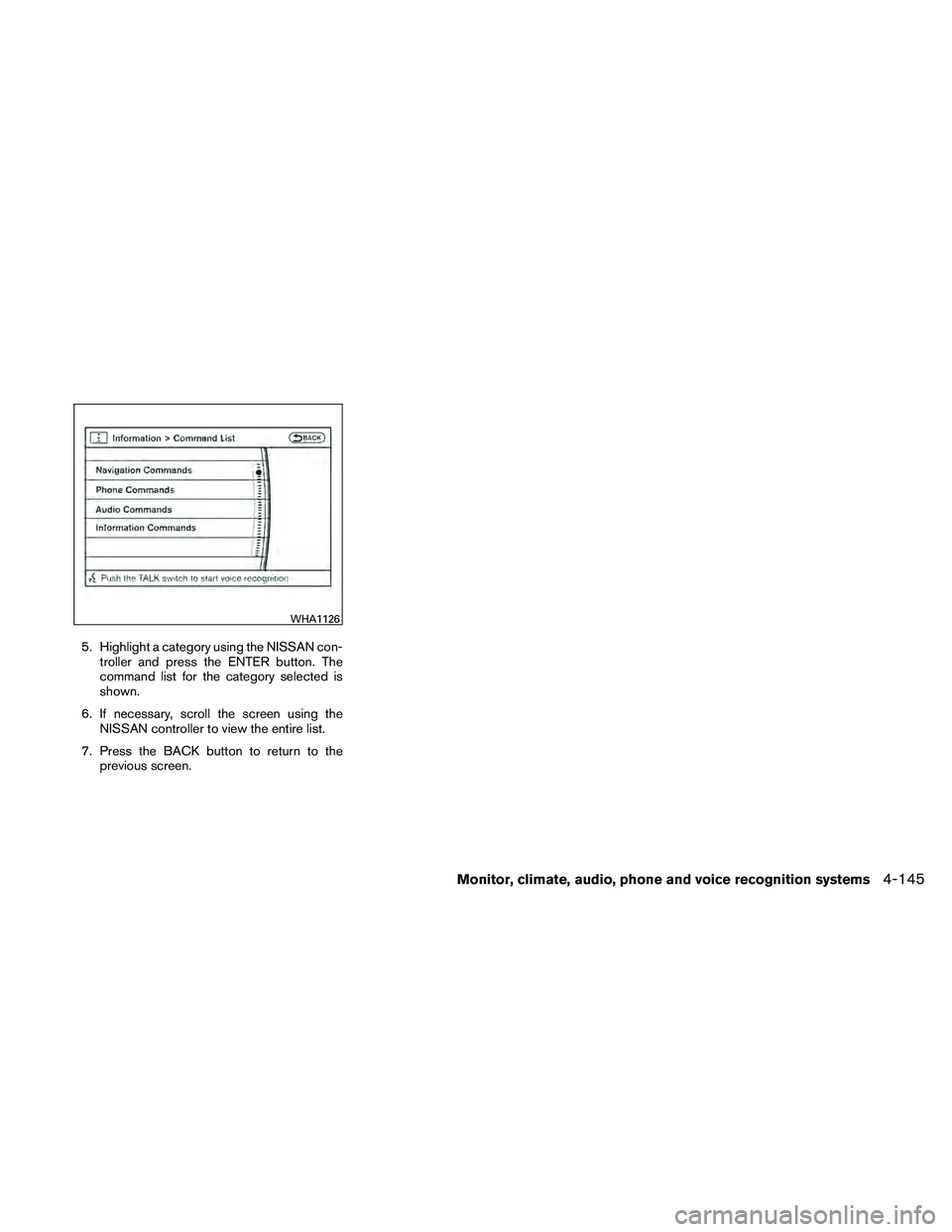
5. Highlight a category using the NISSAN con-troller and press the ENTER button. The
command list for the category selected is
shown.
6. If necessary, scroll the screen using the NISSAN controller to view the entire list.
7. Press the BACK button to return to the previous screen.
WHA1126
Monitor, climate, audio, phone and voice recognition systems4-145
Page 318 of 474
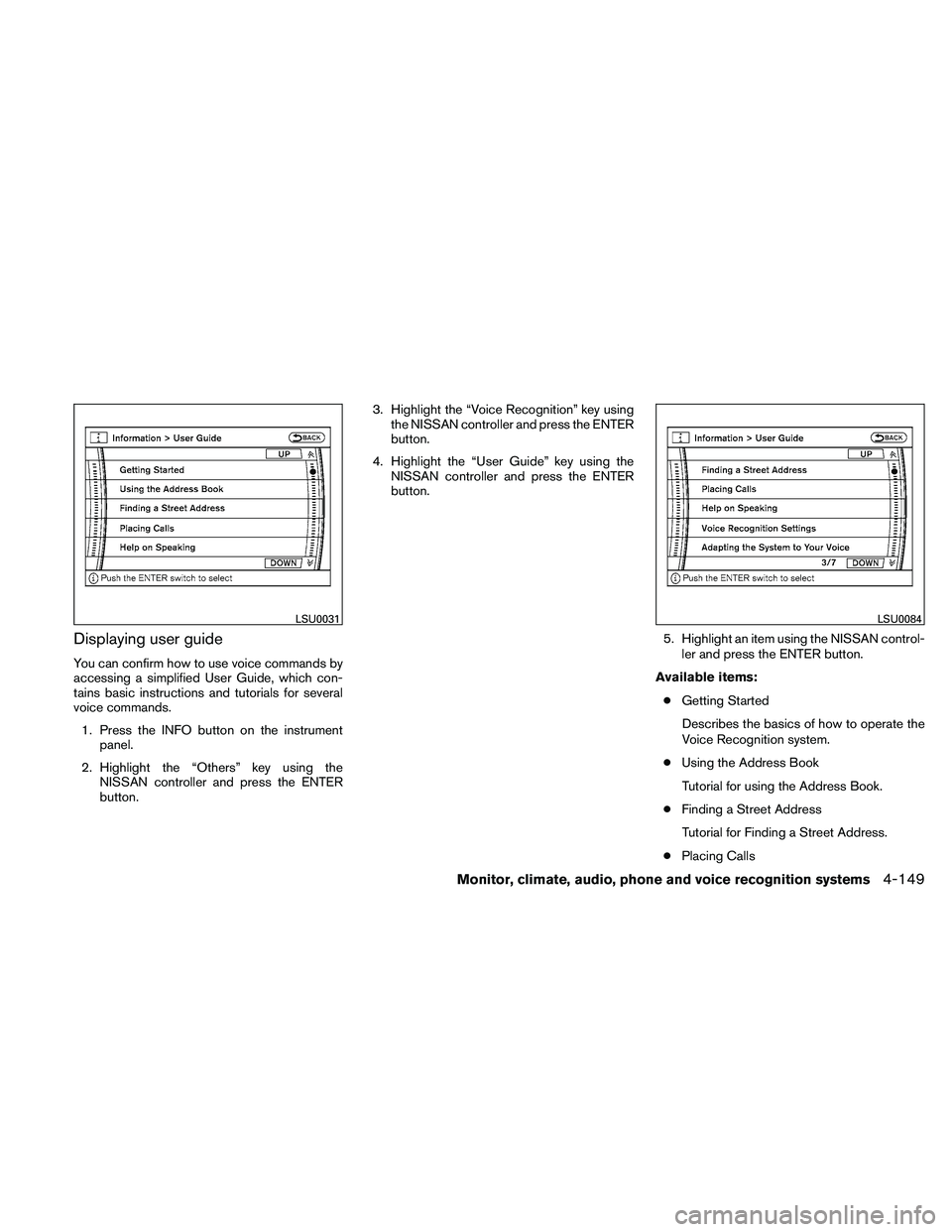
Displaying user guide
You can confirm how to use voice commands by
accessing a simplified User Guide, which con-
tains basic instructions and tutorials for several
voice commands.1. Press the INFO button on the instrument panel.
2. Highlight the “Others” key using the NISSAN controller and press the ENTER
button. 3. Highlight the “Voice Recognition” key using
the NISSAN controller and press the ENTER
button.
4. Highlight the “User Guide” key using the NISSAN controller and press the ENTER
button.
5. Highlight an item using the NISSAN control-ler and press the ENTER button.
Available items: ● Getting Started
Describes the basics of how to operate the
Voice Recognition system.
● Using the Address Book
Tutorial for using the Address Book.
● Finding a Street Address
Tutorial for Finding a Street Address.
● Placing Calls
LSU0031LSU0084
Monitor, climate, audio, phone and voice recognition systems4-149
Page 321 of 474
Say, “six two zero zero”. Using this method of
phone digit entry can improve recognition perfor-
mance.
NOTE:
When speaking a house number, speak the
number “0” as “zero” or “oh”. If the letter
“O” is included in the house number, it will
not be recognized as “0” even if you speak
“oh” instead of “zero”.
Settings menu
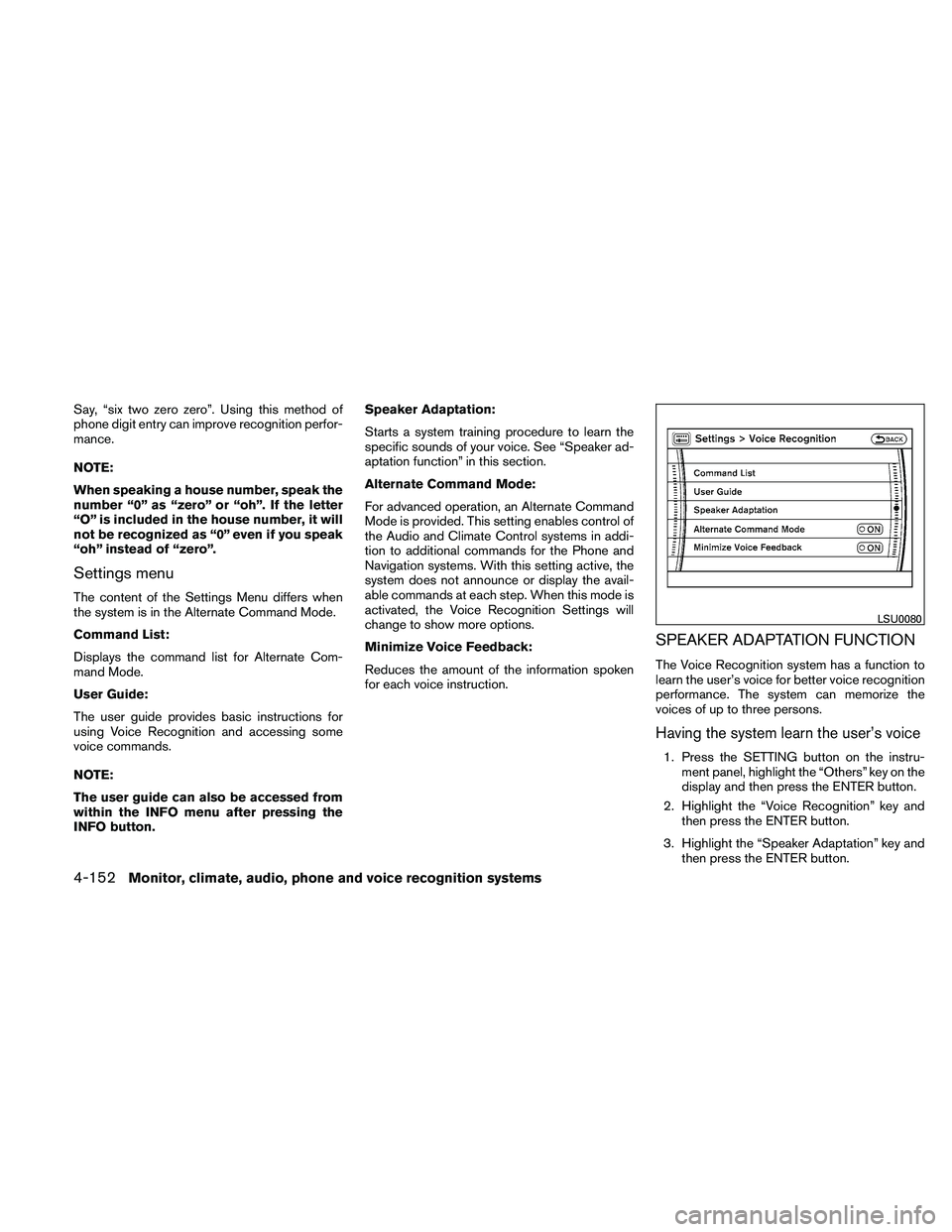
The content of the Settings Menu differs when
the system is in the Alternate Command Mode.
Command List:
Displays the command list for Alternate Com-
mand Mode.
User Guide:
The user guide provides basic instructions for
using Voice Recognition and accessing some
voice commands.
NOTE:
The user guide can also be accessed from
within the INFO menu after pressing the
INFO button.Speaker Adaptation:
Starts a system training procedure to learn the
specific sounds of your voice. See “Speaker ad-
aptation function” in this section.
Alternate Command Mode:
For advanced operation, an Alternate Command
Mode is provided. This setting enables control of
the Audio and Climate Control systems in addi-
tion to additional commands for the Phone and
Navigation systems. With this setting active, the
system does not announce or display the avail-
able commands at each step. When this mode is
activated, the Voice Recognition Settings will
change to show more options.
Minimize Voice Feedback:
Reduces the amount of the information spoken
for each voice instruction.
SPEAKER ADAPTATION FUNCTION
The Voice Recognition system has a function to
learn the user’s voice for better voice recognition
performance. The system can memorize the
voices of up to three persons.
Having the system learn the user’s voice
1. Press the SETTING button on the instru-
ment panel, highlight the “Others” key on the
display and then press the ENTER button.
2. Highlight the “Voice Recognition” key and then press the ENTER button.
3. Highlight the “Speaker Adaptation” key and then press the ENTER button.
LSU0080
4-152Monitor, climate, audio, phone and voice recognition systems
Page 329 of 474
●The low tire pressure warning light does not
automatically turn off when the tire pressure
is adjusted in all 4 tires. After the tire is
inflated to the recommended pressure, the
vehicle must be driven at speeds above 16
MPH (25 km/h) to activate the TPMS and
turn off the low tire pressure warning light.
Use a tire pressure gauge to check the tire
pressure.
● The CHECK TIRE PRES (pressure) warn-
ing message is displayed in the odometer
when the low tire pressure warning light is
illuminated and low tire pressure is detected.
The CHECK TIRE PRES warning message
turns off when the low tire pressure warning
light turns off. Press the reset button for
more than 1 second to manually turn off the
CHECK TIRE PRES warning message. The
low tire pressure warning light remains illu-
minated until the tires are inflated to the
recommended COLD tire pressure. The
CHECK TIRE PRES warning message is
displayed each time the ignition switch is
placed in the ON position as long as the low
tire pressure warning light remains illumi-
nated. “Check tire pressure warning mes-
sage” in the “Instruments and controls” sec-
tion. ●
The CHECK TIRE PRES warning message
is not displayed if the low tire pressure warn-
ing light illuminates to indicate a TPMS mal-
function.
● Tire pressure rises and falls depending on
the heat caused by the vehicle’s operation
and the outside temperature. Low outside
temperature can lower the temperature of
the air inside the tire which can cause a
lower tire inflation pressure. This may cause
the low tire pressure warning light to illumi-
nate. If the warning light illuminates in low
ambient temperature, check the tire pres-
sure for all 4 tires.
● The Tire and Loading Information label (also
referred to as the vehicle placard or tire
inflation pressure label) is located in the
driver’s door opening.
● You can also check the pressure of all tires
(except the spare tire) on the display screen.
The order of the tire pressure figures dis-
played on the screen does not correspond
with the actual order of the tire position. See
“Tire pressure information” in the “Heater, air
conditioner, audio and phone systems” sec-
tion. For additional information, see “Low tire pressure
warning light” in the “Instruments and controls”
section, “Tire Pressure Monitoring System
(TPMS)” in the “In case of emergency” section.
WARNING
●
If the low tire pressure warning light
illuminates while driving, avoid sudden
steering maneuvers or abrupt braking,
reduce vehicle speed, pull off the road
to a safe location and stop the vehicle
as soon as possible. Driving with under-
inflated tires may permanently damage
the tires and increase the likelihood of
tire failure. Serious vehicle damage
could occur and may lead to an acci-
dent and could result in serious per-
sonal injury. Check the tire pressure for
all four tires. Adjust the tire pressure to
the recommended COLD tire pressure
shown on the Tire and Loading Informa-
tion label to turn the low tire pressure
warning light OFF. If you have a flat tire,
replace it with a spare tire as soon as
possible. (See “Flat tire” in the “In case
of emergency” section for changing a
flat tire.)
5-4Starting and driving