climate settings NISSAN PATHFINDER 2015 R52 / 4.G User Guide
[x] Cancel search | Manufacturer: NISSAN, Model Year: 2015, Model line: PATHFINDER, Model: NISSAN PATHFINDER 2015 R52 / 4.GPages: 506, PDF Size: 4.69 MB
Page 211 of 506
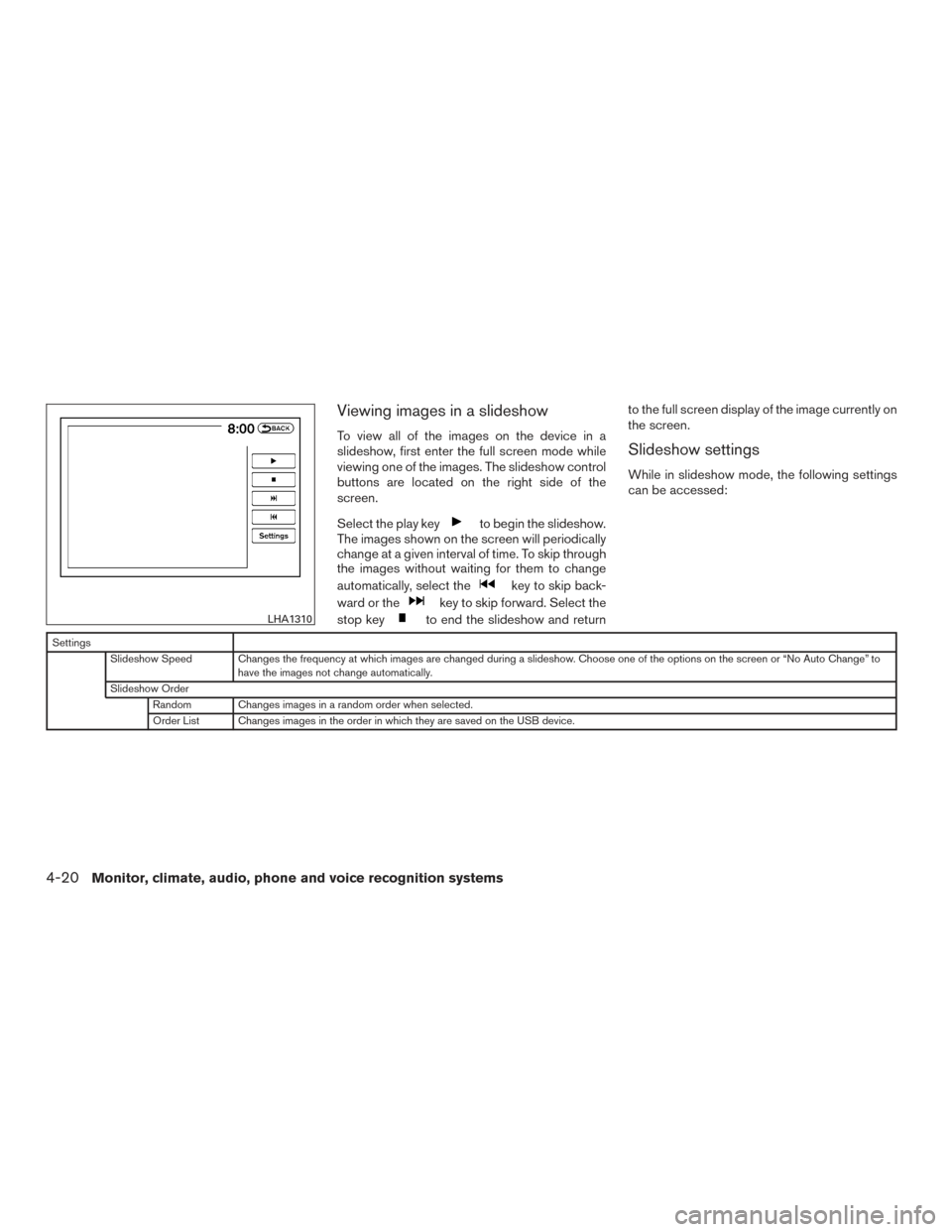
Viewing images in a slideshow
To view all of the images on the device in a
slideshow, first enter the full screen mode while
viewing one of the images. The slideshow control
buttons are located on the right side of the
screen.
Select the play key
to begin the slideshow.
The images shown on the screen will periodically
change at a given interval of time. To skip through
the images without waiting for them to change
automatically, select the
key to skip back-
ward or the
key to skip forward. Select the
stop key
to end the slideshow and return to the full screen display of the image currently on
the screen.
Slideshow settings
While in slideshow mode, the following settings
can be accessed:
Settings
Slideshow Speed Changes the frequency at which images are changed during a slideshow. Choose one of the options on the screen or “No Auto Change” to have the images not change automatically.
Slideshow Order Random Changes images in a random order when selected.
Order List Changes images in the order in which they are saved on the USB device.
LHA1310
4-20Monitor, climate, audio, phone and voice recognition systems
Page 226 of 506
●The system may not detect the follow-
ing objects:
– Fluffy objects such as snow, cloth, cotton, glass or wool.
– Thin objects such as rope, wire or chain.
– Wedge-shaped objects.
● If your vehicle sustains damage to the
bumper fascia, leaving it misaligned or
bent, the sensing zone may be altered
causing inaccurate measurement of ob-
jects or false alarms.
CAUTION
● Excessive noise (such as audio system
volume or an open vehicle window) will
interfere with the tone and it may not be
heard.
● Keep the surface of the sonar sensors
(located on the rear bumper fascia) free
from accumulations of snow, ice and
dirt. Do not scratch the surface of the
sonar sensors when cleaning. If the
sensors are covered, the accuracy of the
sonar function will be diminished. The system gives the tone for rear objects when
the shift lever is in the R (Reverse) position.
The system is deactivated at speeds above
6 mph (10 km/h). It is reactivated at lower
speeds.
When the objects are detected, the indicator
(green) appears and blinks and the tone sounds
intermittently. When the vehicle moves closer to
the object, the color of the indicator turns yellow
and the rate of the blinking and the rate of the
tone increase. When the vehicle is very close to
the object, the indicator stops blinking and turns
red, and the tone sounds continuously.
The intermittent tone will stop after 3 seconds
when an object is detected by only the corner
sonar and the distance does not change.
The tone will stop when the object is no longer
near the vehicle.
In the below cases, the sonar will be turned back
on automatically:
● When the shift lever is in the R (Reverse)
position.
● When vehicle speed decreases below ap-
proximately 6 mph (10 km/h). ●
When the ignition switch is placed in the
OFF position and turned back to the ON
position again.
● The sonar system can be permanently
turned off using the meter settings.
HOW TO ADJUST THE SCREEN
VIEW
To adjust the Display ON/OFF, Brightness, Tint,
Color, Contrast and Black Level of the Around
View® Monitor, press the SETTING button with
the Around View® Monitor on, select the item key
and adjust the level using the NISSAN controller.
Do not adjust the Brightness, Tint, Color, Con-
trast and Black Level of the Around View® Moni-
tor while the vehicle is moving. Make sure the
parking brake is firmly applied.
Monitor, climate, audio, phone and voice recognition systems4-35
Page 258 of 506
Audio settings
AudioBass Adjusts the bass to the desired level.
Treble Adjusts the treble to the desired level.
Balance Adjusts the balance to the desired level. Balance adjusts the sound level between the left and right speakers.
Fade Adjusts the fade to the desired level. Fade adjusts the sound level between the front and rear speakers.
Bass, treble, balance and fade can also be adjusted by pressing the AUDIO control knob and turning it to select the item to adjust. When the desired item
is shown on the display, turn the tuning to adjust and then press the AUDIO button until the display returns to the main audio screen. If the button is not
pressed for approximately 10 seconds, the radio or CD display will automatically reappear.
Monitor, climate, audio, phone and voice recognition systems4-67
Page 263 of 506
Turn the VOL/ON·OFF control knob to adjust the
volume.
This vehicle has Speed Sensitive Volume (SSV)
for audio. The audio volume changes as the driv-
ing speed changes.
Audio settings
AudioBass Adjusts the bass to the desired level.
Treble Adjusts the treble to the desired level.
Balance Adjusts the balance to the desired level. Balance adjusts the sound level between the left and right speakers.
Fade Adjusts the fade to the desired level. Fade adjusts the sound level between the front and rear speakers.
Speed Sensitive Vol. Adjusts the speed sensitive volume function, which increases the volume of the audio system as the speed of the vehicle increases. Set to “OFF” to disable the feature. The higher the setting, the more the volume increases in relation to vehicle speed.
Bass, treble, balance and fade can also be adjusted by pressing the AUDIO control knob and turning it to select the item to adjust. When the desired item
is shown on the display, turn the tuning to adjust and then press the AUDIO button until the display returns to the main audio screen. If the button is not
pressed for approximately 10 seconds, the radio or CD display will automatically reappear.
4-72Monitor, climate, audio, phone and voice recognition systems
Page 268 of 506
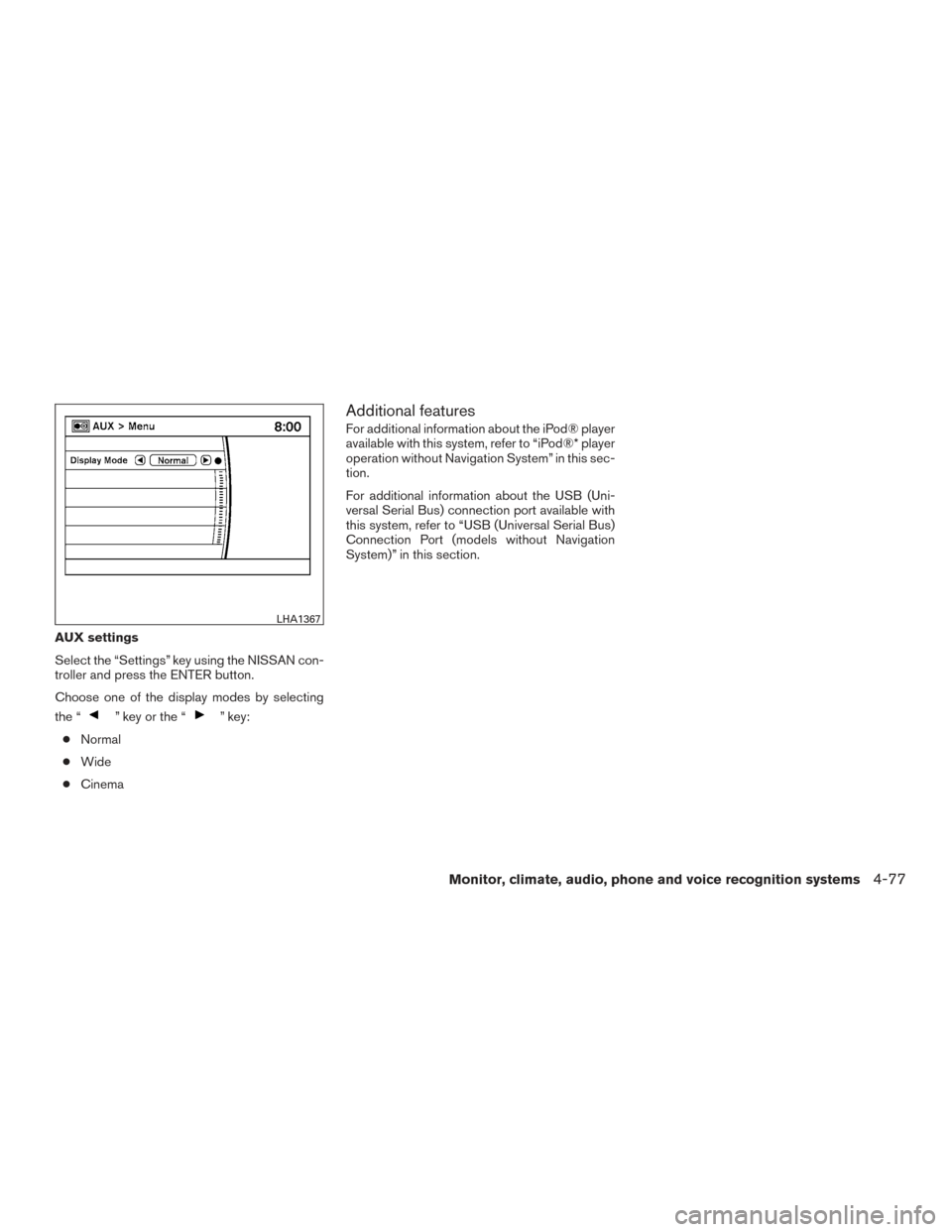
AUX settings
Select the “Settings” key using the NISSAN con-
troller and press the ENTER button.
Choose one of the display modes by selecting
the “
” key or the “” key:
● Normal
● Wide
● Cinema
Additional features
For additional information about the iPod® player
available with this system, refer to “iPod®* player
operation without Navigation System” in this sec-
tion.
For additional information about the USB (Uni-
versal Serial Bus) connection port available with
this system, refer to “USB (Universal Serial Bus)
Connection Port (models without Navigation
System)” in this section.
LHA1367
Monitor, climate, audio, phone and voice recognition systems4-77
Page 270 of 506
This vehicle has Speed Sensitive Volume (SSV)
for audio. The audio volume changes as the driv-
ing speed changes.
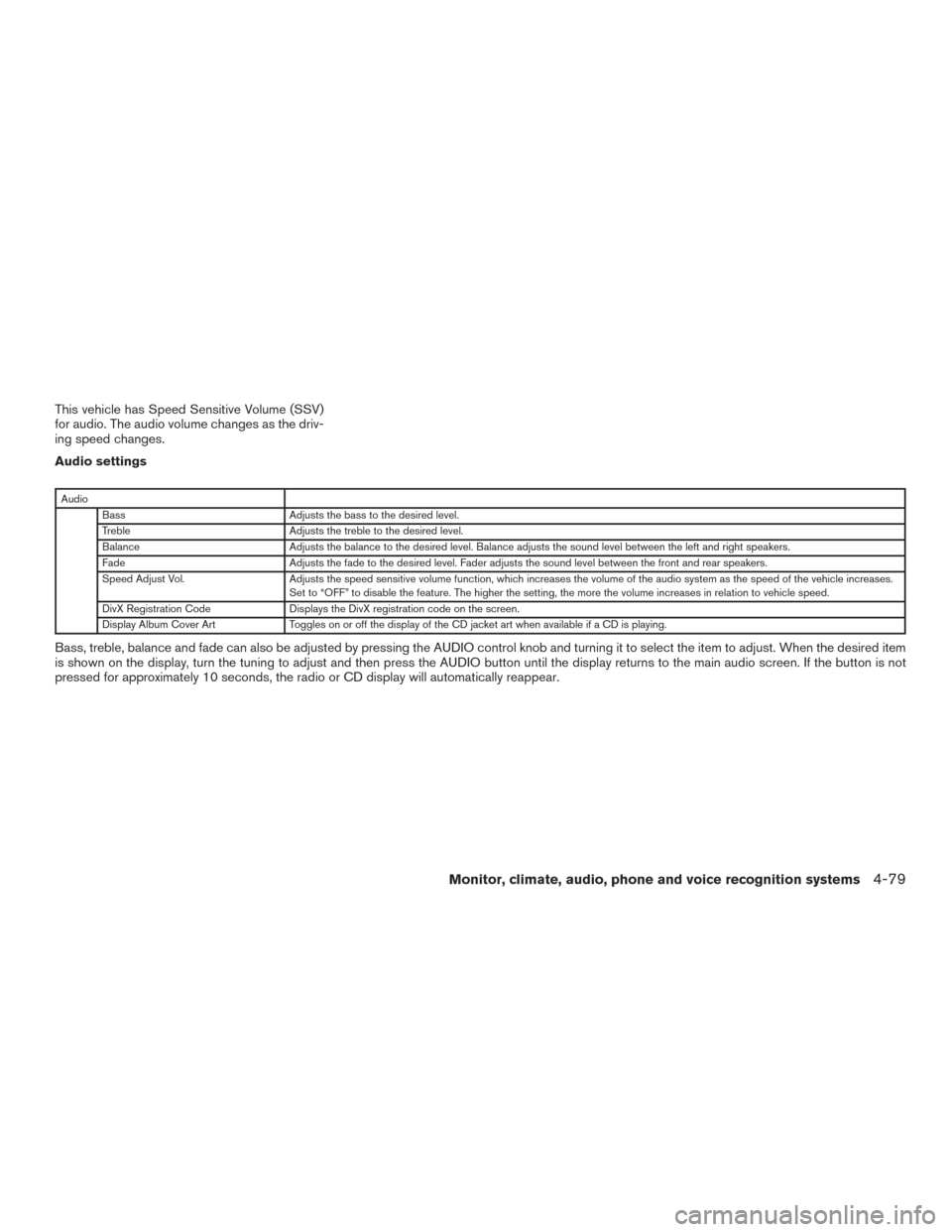
Audio settings
AudioBass Adjusts the bass to the desired level.
Treble Adjusts the treble to the desired level.
Balance Adjusts the balance to the desired level. Balance adjusts the sound level between the left and right speakers.
Fade Adjusts the fade to the desired level. Fader adjusts the sound level between the front and rear speakers.
Speed Adjust Vol. Adjusts the speed sensitive volume function, which increases the volume of the audio system as the speed of the vehicle increases.
Set to “OFF” to disable the feature. The higher the setting, the more the volume increases in relation to vehicle speed.
DivX Registration Code Displays the DivX registration code on the screen.
Display Album Cover Art Toggles on or off the display of the CD jacket art when available if a CD is playing.
Bass, treble, balance and fade can also be adjusted by pressing the AUDIO control knob and turning it to select the item to adjust. When the desired item
is shown on the display, turn the tuning to adjust and then press the AUDIO button until the display returns to the main audio screen. If the button is not
pressed for approximately 10 seconds, the radio or CD display will automatically reappear.
Monitor, climate, audio, phone and voice recognition systems4-79
Page 275 of 506
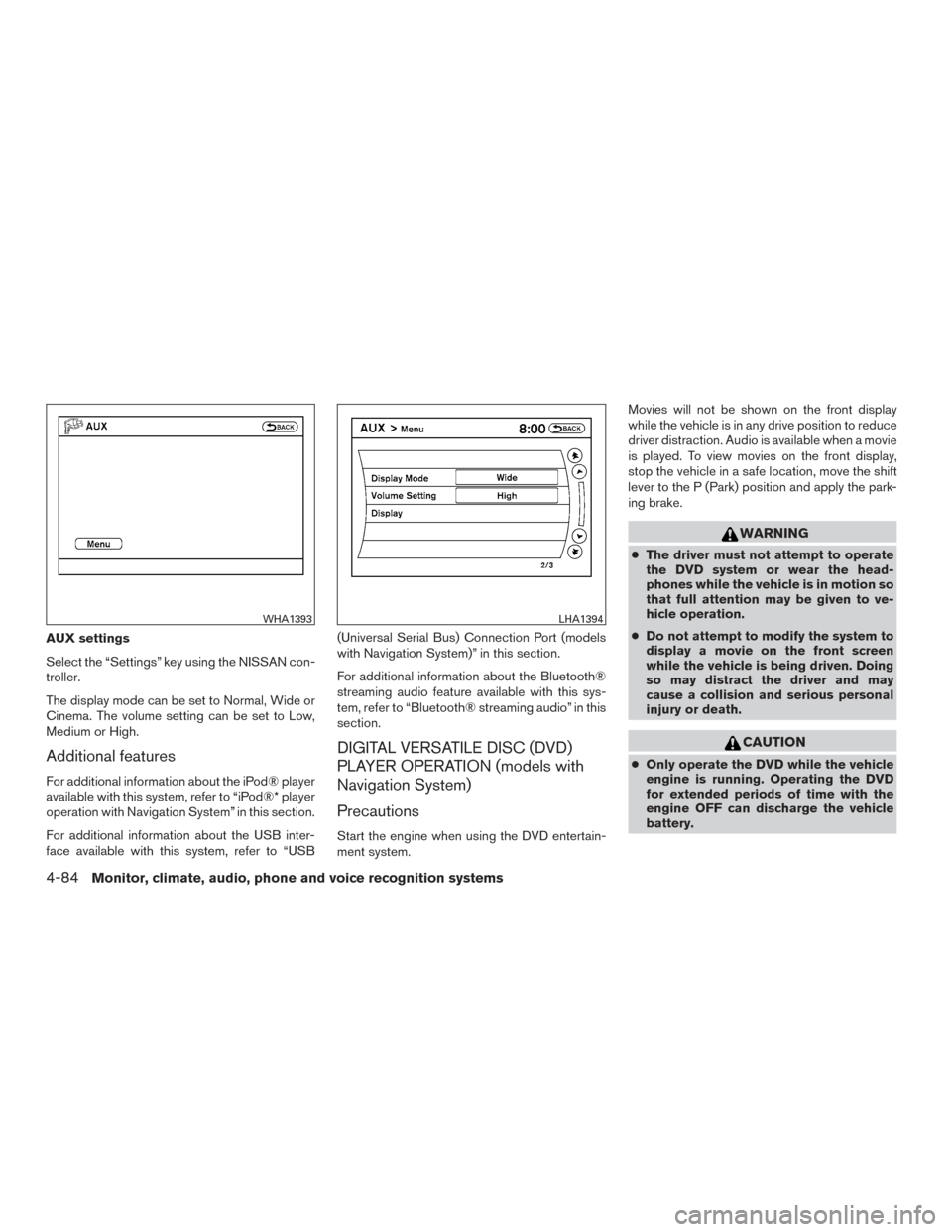
AUX settings
Select the “Settings” key using the NISSAN con-
troller.
The display mode can be set to Normal, Wide or
Cinema. The volume setting can be set to Low,
Medium or High.
Additional features
For additional information about the iPod® player
available with this system, refer to “iPod®* player
operation with Navigation System” in this section.
For additional information about the USB inter-
face available with this system, refer to “USB(Universal Serial Bus) Connection Port (models
with Navigation System)” in this section.
For additional information about the Bluetooth®
streaming audio feature available with this sys-
tem, refer to “Bluetooth® streaming audio” in this
section.
DIGITAL VERSATILE DISC (DVD)
PLAYER OPERATION (models with
Navigation System)
Precautions
Start the engine when using the DVD entertain-
ment system.Movies will not be shown on the front display
while the vehicle is in any drive position to reduce
driver distraction. Audio is available when a movie
is played. To view movies on the front display,
stop the vehicle in a safe location, move the shift
lever to the P (Park) position and apply the park-
ing brake.
WARNING
●
The driver must not attempt to operate
the DVD system or wear the head-
phones while the vehicle is in motion so
that full attention may be given to ve-
hicle operation.
● Do not attempt to modify the system to
display a movie on the front screen
while the vehicle is being driven. Doing
so may distract the driver and may
cause a collision and serious personal
injury or death.
CAUTION
● Only operate the DVD while the vehicle
engine is running. Operating the DVD
for extended periods of time with the
engine OFF can discharge the vehicle
battery.
WHA1393LHA1394
4-84Monitor, climate, audio, phone and voice recognition systems
Page 276 of 506
●Do not allow the system to get wet.
Excessive moisture such as spilled liq-
uids may cause the system to
malfunction.
● While playing VIDEO-CD media, this
DVD player does not guarantee com-
plete functionality of all VIDEO-CD
formats.
Playing a DVD
DISC-AUX button
Park the vehicle in a safe location for the front
seat occupants to operate the DVD drive while
watching the images.
Press the DISC-AUX button until the DVD mode
is active on the display.
When a DVD is loaded, it will be replayed auto-
matically.
The operation screen will be turned on when the
DISC-AUX button is pressed while a DVD is
playing. The operation screen will turn off auto-
matically after a period of time. To turn it on again,
press the DISC-AUX button.
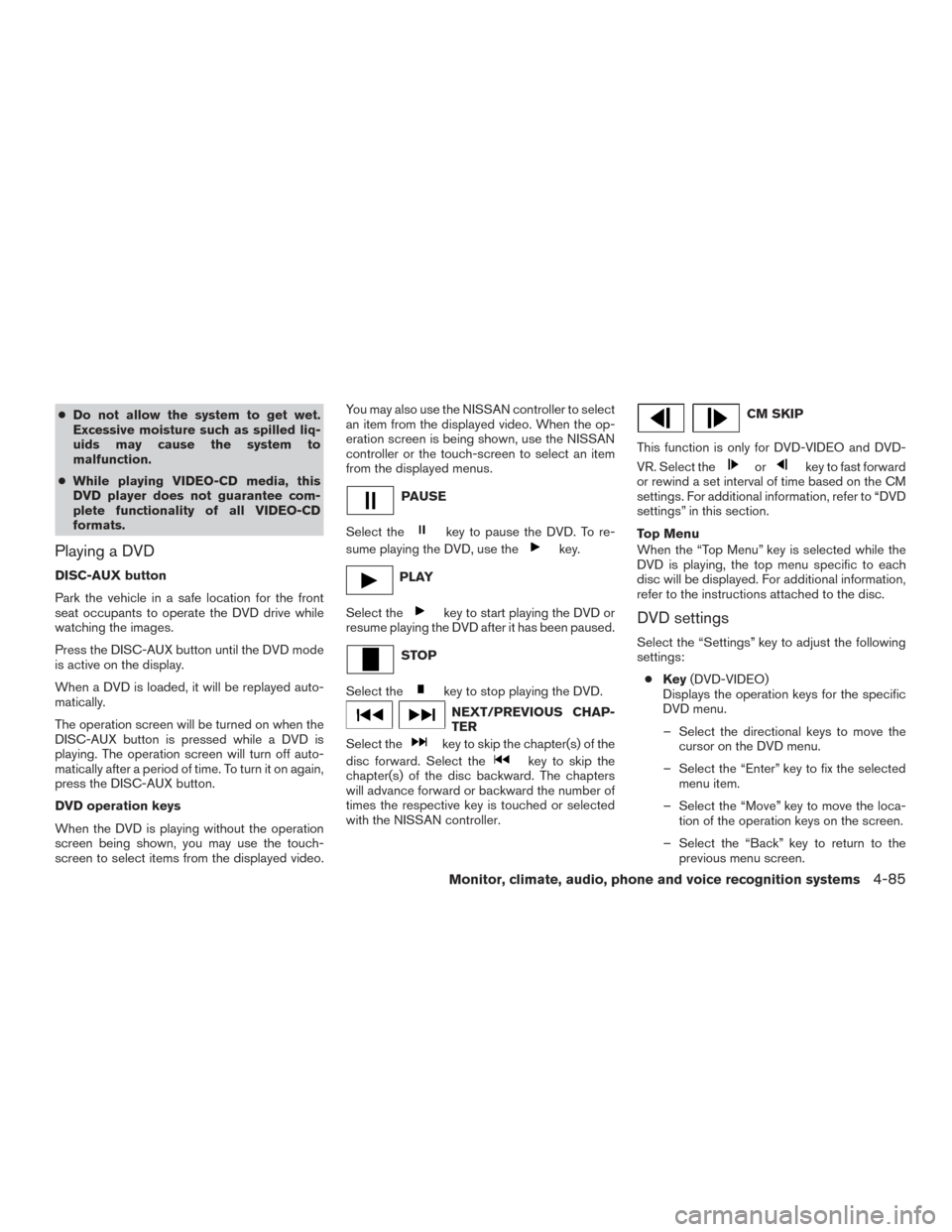
DVD operation keys
When the DVD is playing without the operation
screen being shown, you may use the touch-
screen to select items from the displayed video. You may also use the NISSAN controller to select
an item from the displayed video. When the op-
eration screen is being shown, use the NISSAN
controller or the touch-screen to select an item
from the displayed menus.
PAUSE
Select the
key to pause the DVD. To re-
sume playing the DVD, use the
key.
PLAY
Select the
key to start playing the DVD or
resume playing the DVD after it has been paused.
STOP
Select the
key to stop playing the DVD.
NEXT/PREVIOUS CHAP-
TER
Select the
key to skip the chapter(s) of the
disc forward. Select the
key to skip the
chapter(s) of the disc backward. The chapters
will advance forward or backward the number of
times the respective key is touched or selected
with the NISSAN controller.
CM SKIP
This function is only for DVD-VIDEO and DVD-
VR. Select the
orkey to fast forward
or rewind a set interval of time based on the CM
settings. For additional information, refer to “DVD
settings” in this section.
Top Menu
When the “Top Menu” key is selected while the
DVD is playing, the top menu specific to each
disc will be displayed. For additional information,
refer to the instructions attached to the disc.
DVD settings
Select the “Settings” key to adjust the following
settings:
● Key (DVD-VIDEO)
Displays the operation keys for the specific
DVD menu.
– Select the directional keys to move the cursor on the DVD menu.
– Select the “Enter” key to fix the selected menu item.
– Select the “Move” key to move the loca- tion of the operation keys on the screen.
– Select the “Back” key to return to the previous menu screen.
Monitor, climate, audio, phone and voice recognition systems4-85
Page 282 of 506
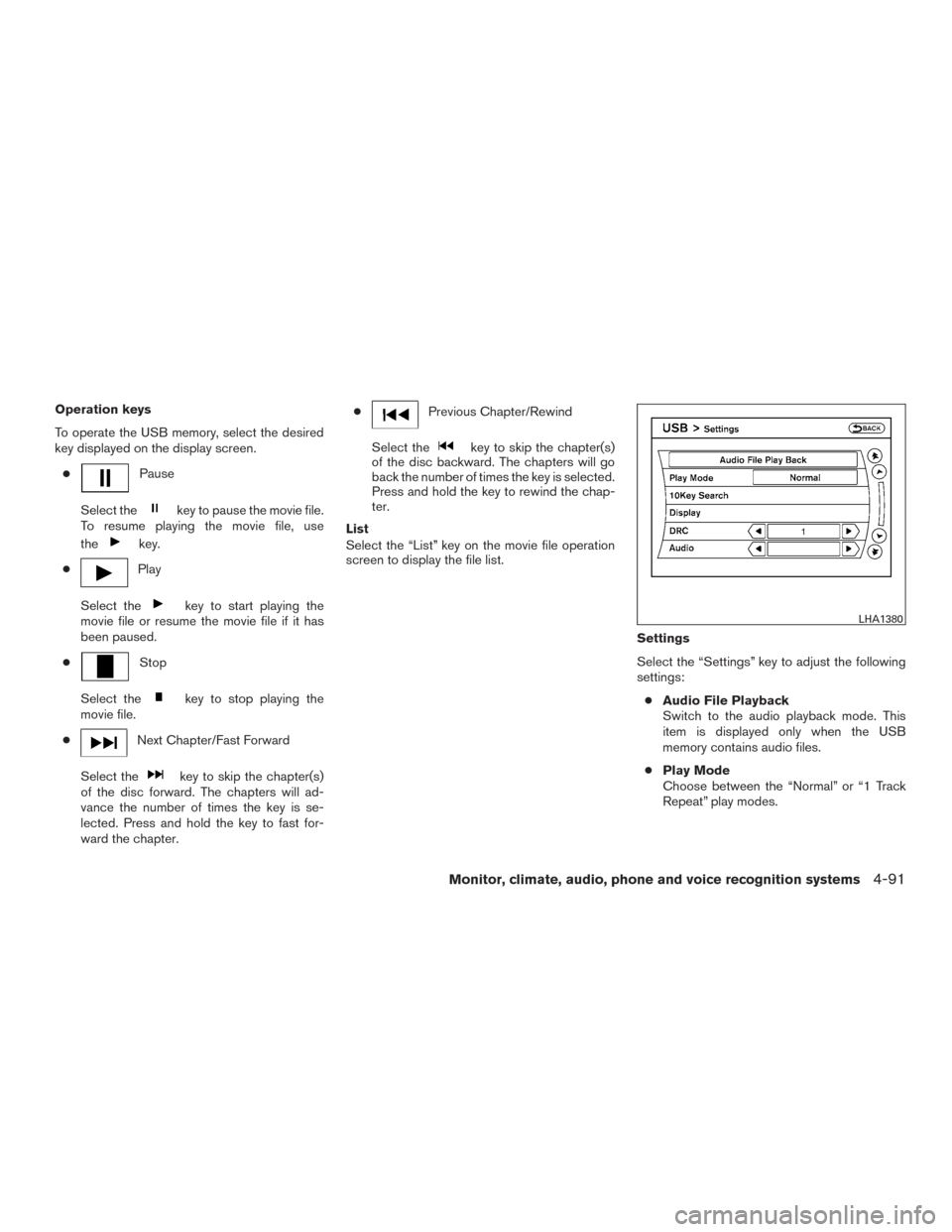
Operation keys
To operate the USB memory, select the desired
key displayed on the display screen.●
Pause
Select the
key to pause the movie file.
To resume playing the movie file, use
the
key.
●
Play
Select the
key to start playing the
movie file or resume the movie file if it has
been paused.
●
Stop
Select the
key to stop playing the
movie file.
●
Next Chapter/Fast Forward
Select the
key to skip the chapter(s)
of the disc forward. The chapters will ad-
vance the number of times the key is se-
lected. Press and hold the key to fast for-
ward the chapter. ●
Previous Chapter/Rewind
Select the
key to skip the chapter(s)
of the disc backward. The chapters will go
back the number of times the key is selected.
Press and hold the key to rewind the chap-
ter.
List
Select the “List” key on the movie file operation
screen to display the file list.
Settings
Select the “Settings” key to adjust the following
settings:● Audio File Playback
Switch to the audio playback mode. This
item is displayed only when the USB
memory contains audio files.
● Play Mode
Choose between the “Normal” or “1 Track
Repeat” play modes.
LHA1380
Monitor, climate, audio, phone and voice recognition systems4-91
Page 285 of 506
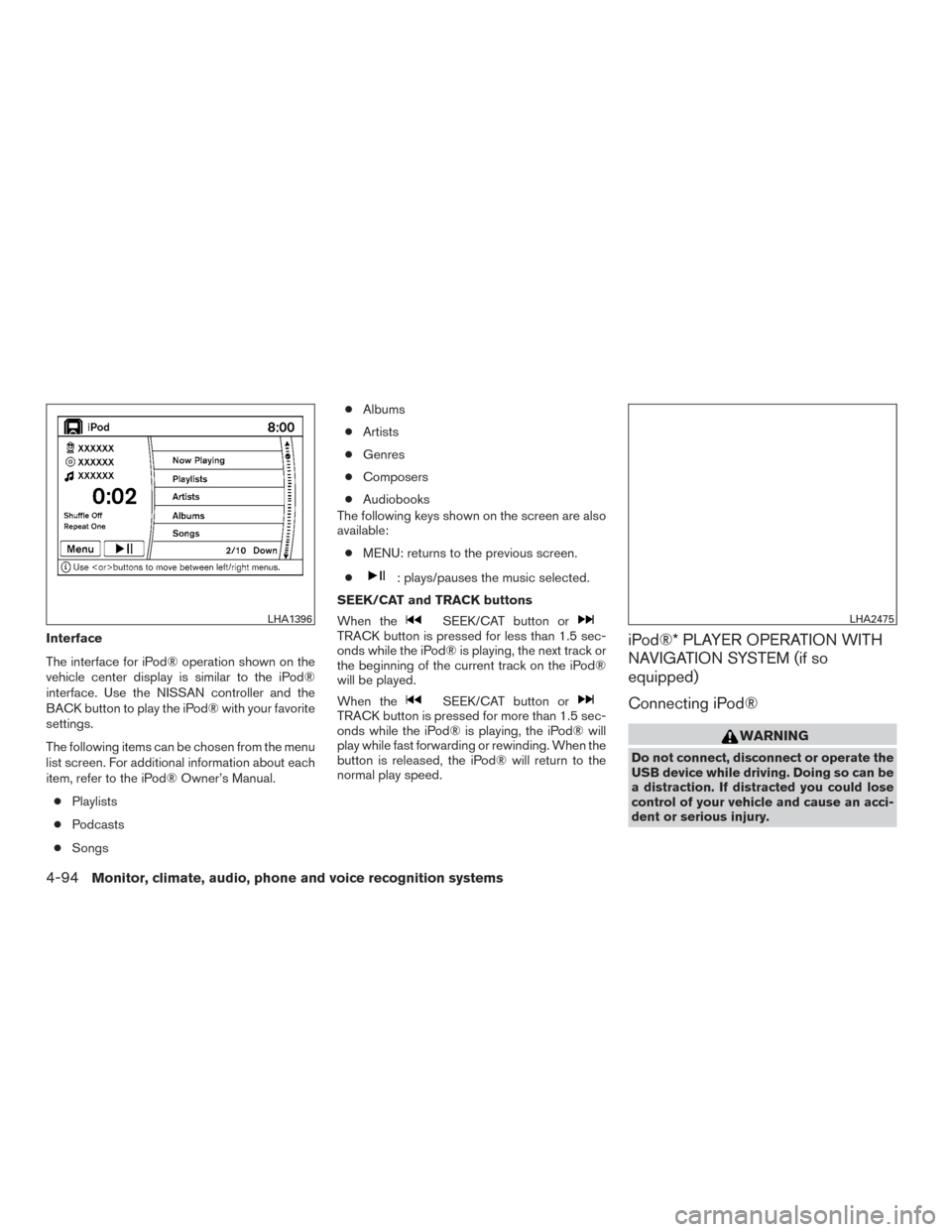
Interface
The interface for iPod® operation shown on the
vehicle center display is similar to the iPod®
interface. Use the NISSAN controller and the
BACK button to play the iPod® with your favorite
settings.
The following items can be chosen from the menu
list screen. For additional information about each
item, refer to the iPod® Owner’s Manual.● Playlists
● Podcasts
● Songs ●
Albums
● Artists
● Genres
● Composers
● Audiobooks
The following keys shown on the screen are also
available:
● MENU: returns to the previous screen.
●
: plays/pauses the music selected.
SEEK/CAT and TRACK buttons
When the
SEEK/CAT button orTRACK button is pressed for less than 1.5 sec-
onds while the iPod® is playing, the next track or
the beginning of the current track on the iPod®
will be played.
When the
SEEK/CAT button orTRACK button is pressed for more than 1.5 sec-
onds while the iPod® is playing, the iPod® will
play while fast forwarding or rewinding. When the
button is released, the iPod® will return to the
normal play speed.
iPod®* PLAYER OPERATION WITH
NAVIGATION SYSTEM (if so
equipped)
Connecting iPod®
WARNING
Do not connect, disconnect or operate the
USB device while driving. Doing so can be
a distraction. If distracted you could lose
control of your vehicle and cause an acci-
dent or serious injury.
LHA1396LHA2475
4-94Monitor, climate, audio, phone and voice recognition systems