light NISSAN PATHFINDER 2016 R52 / 4.G Quick Reference Guide
[x] Cancel search | Manufacturer: NISSAN, Model Year: 2016, Model line: PATHFINDER, Model: NISSAN PATHFINDER 2016 R52 / 4.GPages: 32, PDF Size: 1.88 MB
Page 17 of 32

15
3 ON•OFF BUTTON/FAN SPEED CONTROL DIAL
Turn the fan speed control dial left to decrease fan speed or right to in\
crease
fan speed.
Press the ON•OFF button to turn the system on or off.
4 MODE BUTTON
Press the M ODE button to cycle through the following air flow outlets:
Air flows from the center and side vents.
Air flows from the center , side and foot vents.
Air flows mainly from the foot vents.
Air flows from the front defroster and foot vents.
5 AIR RECIRCULATION BUTTON
Press the air recirculation button to recirculate interior air inside the vehicle.
The indicator light on the button will illuminate. This system is used to avoid certain
outside odors and to help adjust the inside vehicle temperature more eff\
ectively.
The air recirculation mode cannot be activated when the climate control s\
ystem is in the front defroster mode
.
6 REAR AIR CONDITIONER
To control the rear automatic air conditioning system with the front air \
conditioner control panel:
•
T
urn on the front climate control system by
pressing the ON•OFF button.
•
Press the
REAR button.
When the rear automatic air conditioning system is on, the indicator light on the REAR
button will illuminate and the front display will
switch to the “Rear Air-conditioning” screen.
Use the driver’s temperature and fan speed buttons to adjust the settings.
To adjust the front air conditioning system, press the REAR button again.
To turn off the rear automatic air conditioning system from the front con\
trols, press the REAR button until the “Rear Air-conditioning” screen is displayed. Then press
the ON•OFF button
3.
The rear passenger controls are unavailable when the “Rear Air-conditi\
oning” screen is shown on the front display.
7 DEFROSTING/DEFOGGING FRONT AND SIDE WINDOWS
Press the front defroster button to turn the system on. The A/C automatically
turns on when the front defroster mode is selected. This feature removes humidity
from the air.
Turn the temperature control dial 1 to set the desired temperature.
To defrost the front and side windows, set the temperature control 1 and fan
speed control 3 to their maximum settings.
8 REAR WINDOW AND OUTSIDE MIRROR (if so equipped) DEFROSTER SWITCH
Push the rear window defroster switc h to defrost the rear window and
outside mirror (if so equipped).
This function automatically turns off after approximately 15 minutes.
9 A/C BUTTON
Press the A/C button to turn the air conditioner system on or off. This system helps
cool and dehumidify the air inside the cabin and defog the windows.
For more information, refer to the “Instruments and controls (section 2)” and the “Monitor, climate, audio, phone
and voice recognition systems (section 4)” of your Owner’s Manual.
2009259_16b_Pathfinder_US_pQRG_121715.indd 1512/17/15 5:02 PM
To view detailed instructional videos regarding these and other features, please go to www.nissanownersinfo.mobi.
Page 18 of 32
16
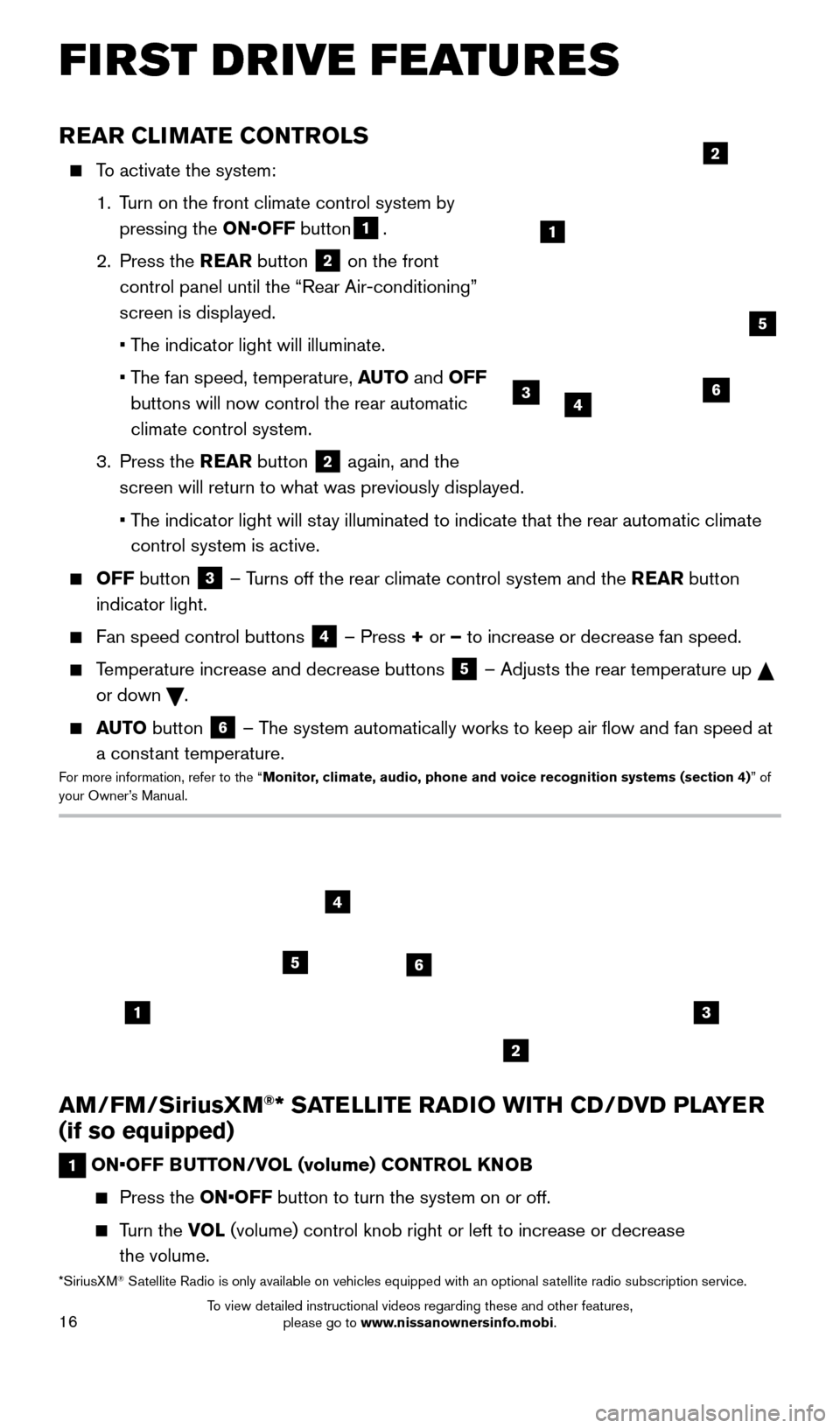
AM/FM/SiriusXM®* SATELLITE RADIO WITH CD/DVD PLAYER
(if so equipped)
1 ON•OFF BUTTON/VOL (volume) CONTROL KNOB
Press the ON•OFF button to turn the system on or off.
Turn the VOL (volume) control knob right or left to increase or decrease
the volume.
13
2
56
4
REAR CLIMATE CONTROLS
To activate the system:
1.
T
urn on the front climate control system by
pressing the ON•OFF button
1.
2.
Press the REAR button
2 on the front
control panel until the “Rear Air-conditioning”
screen is displayed.
• T
he indicator light will illuminate.
•
T
he fan speed, temperature, AUTO and OFF
buttons will now control the rear automatic
climate control system.
3.
Press the REAR button
2 again, and the
screen will return to what was previously displayed.
•
T
he indicator light will stay illuminated to indicate that the rear automatic climate
control system is active.
OFF button 3 – Turns off the rear climate control system and the REAR button
indicator light.
Fan speed control buttons 4 – Press + or – to increase or decrease fan speed.
Temperature increase and decrease buttons 5 – Adjusts the rear temperature up
or down
.
AUTO button 6 – The system automatically works to keep air flow and fan speed at
a constant temperature.
For more information, refer to the “Monitor, climate, audio, phone and voice recognition systems (section 4) ” of
your Owner’s Manual.
2
364
5
1
*SiriusXM® Satellite Radio is only available on vehicles equipped with an optional s\
atellite radio subscription service.
FIRST DRIVE FEATURES
2009259_16b_Pathfinder_US_pQRG_121715.indd 1612/17/15 5:02 PM
To view detailed instructional videos regarding these and other features, please go to www.nissanownersinfo.mobi.
Page 20 of 32
18
CRUISE CONTROL
The cruise control system enables you to set a constant cruising speed once the vehicle has
reached 25 mph (40 km/h).
The system will automatically maintain the set speed until you tap the brake pedal, accelerate,
cancel or turn the system off.
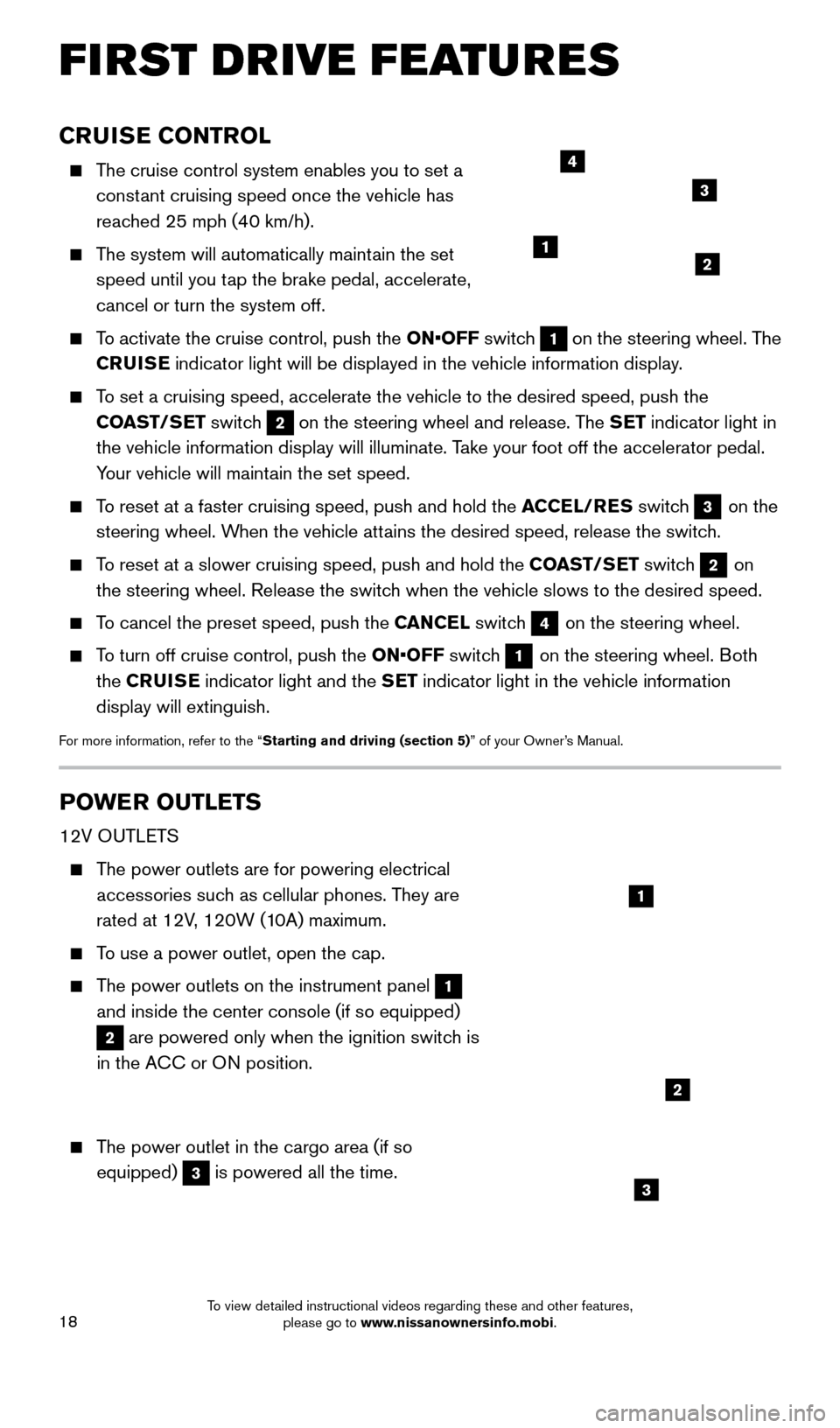
To activate the cruise control, push the ON•OFF switch 1 on the steering wheel. The
CRUISE indicator light will be displayed in the vehicle information display.
To set a cruising speed, accelerate the vehicle to the desired speed, pus\
h the
COAST/SET switch
2 on the steering wheel and release. The SET indicator light in
the vehicle information display will illuminate. Take your foot off the accelerator pedal.
Your vehicle will maintain the set speed.
To reset at a faster cruising speed, push and hold the ACCEL/RES switch 3 on the
steering wheel. When the vehicle attains the desired speed, release the switch.
To reset at a slower cruising speed, push and hold the COAST/SET switch 2 on
the steering wheel. Release the switch when the vehicle slows to the desired speed.
To cancel the preset speed, push the CANCEL switch 4 on the steering wheel.
To turn off cruise control, push the ON•OFF switch 1 on the steering wheel. Both
the CRUISE indicator light and the SET indicator light in the vehicle information
display will extinguish.
For more information, refer to the “Starting and driving (section 5)” of your Owner’s Manual.
POWER OUTLETS
12V OUTLETS
The power outlets are for powering electrical accessories such as cellular phones. They are
rated at 12V, 120W (10A) maximum.
To use a power outlet, open the cap.
The power outlets on the instrument panel 1
and inside the center console (if so equipped)
2 are powered only when the ignition switch is
in the ACC or ON position.
The power outlet in the cargo area (if so equipped)
3 is powered all the time.
12
3
4
1
2
3
FIRST DRIVE FEATURES
2009259_16b_Pathfinder_US_pQRG_121715.indd 1812/17/15 5:02 PM
To view detailed instructional videos regarding these and other features, please go to www.nissanownersinfo.mobi.
Page 29 of 32
27
NAVIGATION SYSTEM (if so equipped)
Your Navigation System can calculate a route
from your current location
to a preferred destination.
The real-time map display
and turn-by-turn voice
guidance will lead you
along the route.
The Navigation System will continually update
your vehicle’s position.
If you have deviated from
the original route, it will
recalculate the route from
your current location.
To help promote safe driving, some functions
cannot be operated or
have limited operation when the vehicle speed is above 5 mph (8 km/h).\
The on-screen
text and keys for these restricted functions will be “grayed-out” \
or muted and cannot
be selected while driving. These functions will become available again when the vehicle
speed is reduced to 5 mph (8 km/h). Voice commands may be available for some of the
restricted functions. For more information, refer to the “Monitor, climate, audio, phone
and voice recognition systems (section 4)” of your Owner’s Manual.
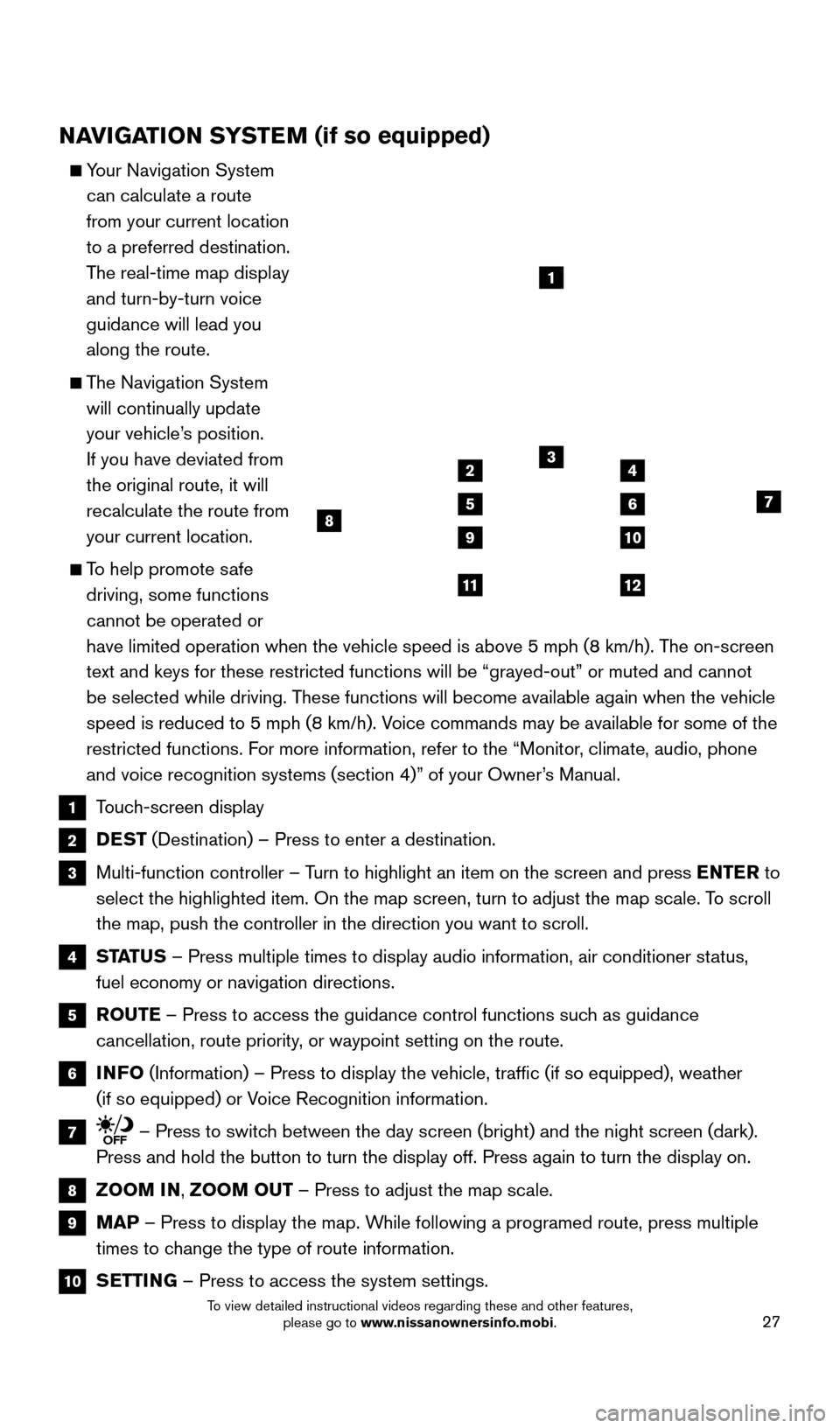
1 Touch-screen display
2 DEST (Destination) – Press to enter a destination.
3 Multi-function controller – T urn to highlight an item on the screen and press ENTER to
select the highlighted item. On the map screen, turn to adjust the map s\
cale. To scroll
the map, push the controller in the direction you want to scroll.
4 STATUS – Press multiple times to display audio information, air conditioner\
status,
fuel economy or navigation directions.
5 ROUTE – Press to access the guidance control functions such as guidance
cancellation, route priority, or waypoint setting on the route.
6 INFO (Information) – Press to display the vehicle, traffic (if so eq\
uipped), weather
(if so equipped) or Voice Recognition information.
7 – Press to switch between the day screen (bright) and the night screen (dark).
Press and hold the button to turn the display off. Press again to turn t\
he display on.
8 ZOOM IN, ZOOM OUT – Press to adjust the map scale.
9 MAP – Press to display the map. While following a programed route, press multiple
times to change the type of route information.
10 SETTING – Press to access the system settings.
1
3
7
9
24
56
10
1112
8
2009259_16b_Pathfinder_US_pQRG_121715.indd 2712/17/15 5:03 PM
To view detailed instructional videos regarding these and other features, please go to www.nissanownersinfo.mobi.
Page 31 of 32
29
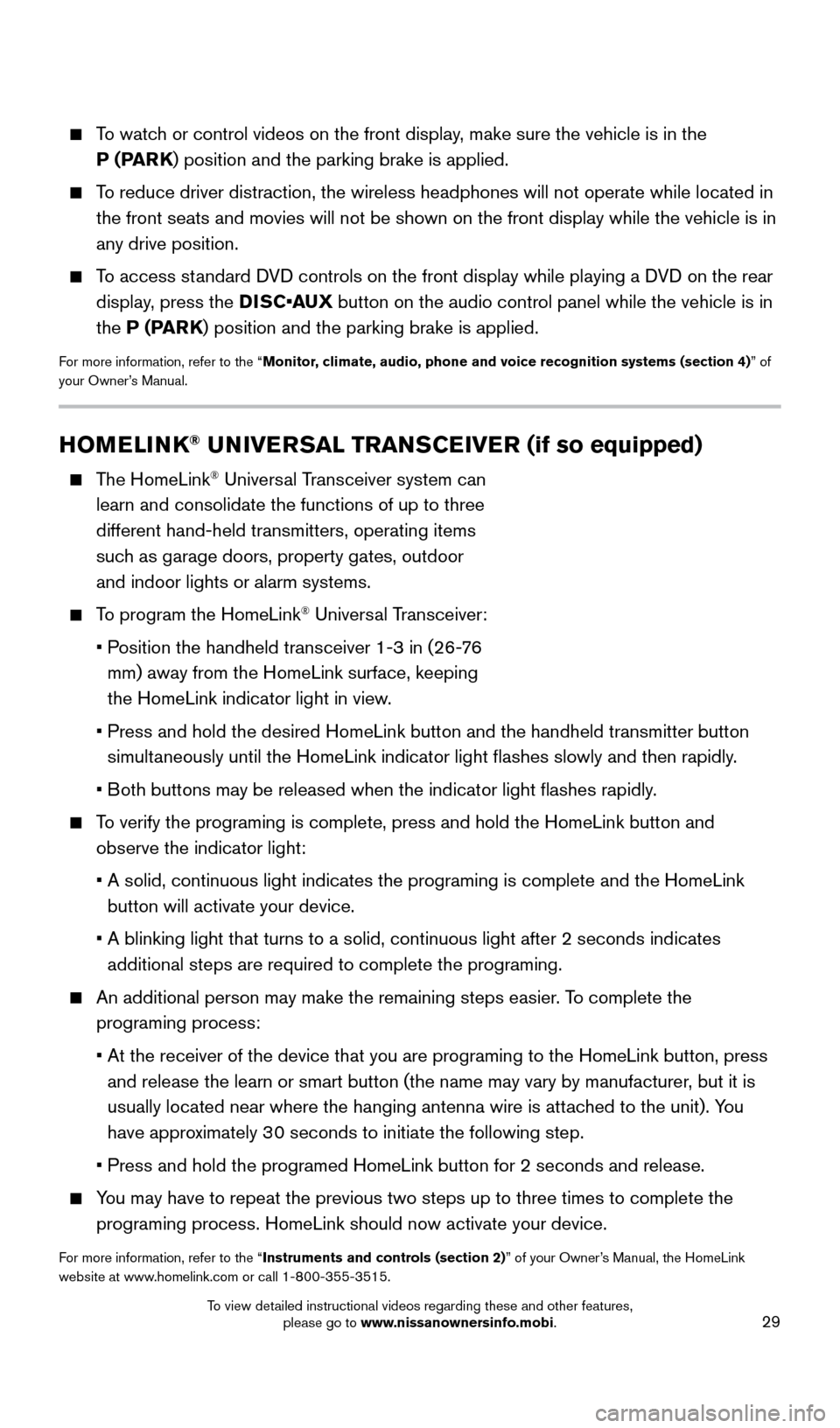
HOMELINK® UNIVERSAL TRANSCEIVER (if so equipped)
The HomeLink® Universal Transceiver system can
learn and consolidate the functions of up to three
different hand-held transmitters, operating items
such as garage doors, property gates, outdoor
and indoor lights or alarm systems.
To program the HomeLink® Universal Transceiver:
•
P
osition the handheld transceiver 1-3 in (26-76
mm) away from the HomeLink surface, keeping
the HomeLink indicator light in view.
•
Press and hold the desired HomeLink button and the handheld transmitter \
button
simultaneously until the HomeLink indicator light flashes slowly and then ra\
pidly.
•
B
oth buttons may be released when the indicator light flashes rapidly.
To verify the programing is complete, press and hold the HomeLink button \
and observe the indicator light:
•
A solid, continuous light indicates the programing is complete and the H\
omeLink
button will activate your device.
•
A blinking light that turns to a solid, continuous light after 2 seconds\
indicates
additional steps are required to complete the programing.
An additional person may make the remaining steps easier . To complete the
programing process:
•
At the receiver of the device that you are programing to the HomeLink bu\
tton, press
and release the learn or smart button (the name may vary by manufacture\
r
, but it is
usually located near where the hanging antenna wire is attached to the unit). You
have approximately 30 seconds to initiate the following step.
•
Press and hold the programed HomeLink button for 2 seconds and release.
You may have to repeat the previous two steps up to three times to comple\
te the programing process. HomeLink should now activate your device.
For more information, refer to the “Instruments and controls (section 2)” of your Owner’s Manual, the HomeLink
website at www.homelink.com or call 1-800-355-3515.
HOMELINK
To watch or control videos on the front display, make sure the vehicle is in the P (PARK) position and the parking brake is applied.
To reduce driver distraction, the wireless headphones will not operate wh\
ile located in the front seats and movies will not be shown on the front display while \
the vehicle is in
any drive position.
To access standard DVD controls on the front display while playing a DVD on the rear display, press the DISC•AUX button on the audio control panel while the vehicle is in
the P (PARK) position and the parking brake is applied.
For more information, refer to the “Monitor, climate, audio, phone and voice recognition systems (section 4) ” of
your Owner’s Manual.
2009259_16b_Pathfinder_US_pQRG_121715.indd 2912/17/15 5:03 PM
To view detailed instructional videos regarding these and other features, please go to www.nissanownersinfo.mobi.