display NISSAN PATHFINDER 2020 Owner´s Manual
[x] Cancel search | Manufacturer: NISSAN, Model Year: 2020, Model line: PATHFINDER, Model: NISSAN PATHFINDER 2020Pages: 482, PDF Size: 5.51 MB
Page 124 of 482
∙ Cruise control system information (if soequipped)
∙ Intelligent Cruise Control (ICC) system information (if so equipped)
∙ NISSAN Intelligent Key® (if so equipped) operation information
∙ Indicators and warnings
∙ Tire Pressure information
HOW TO USE THE VEHICLE
INFORMATION DISPLAY
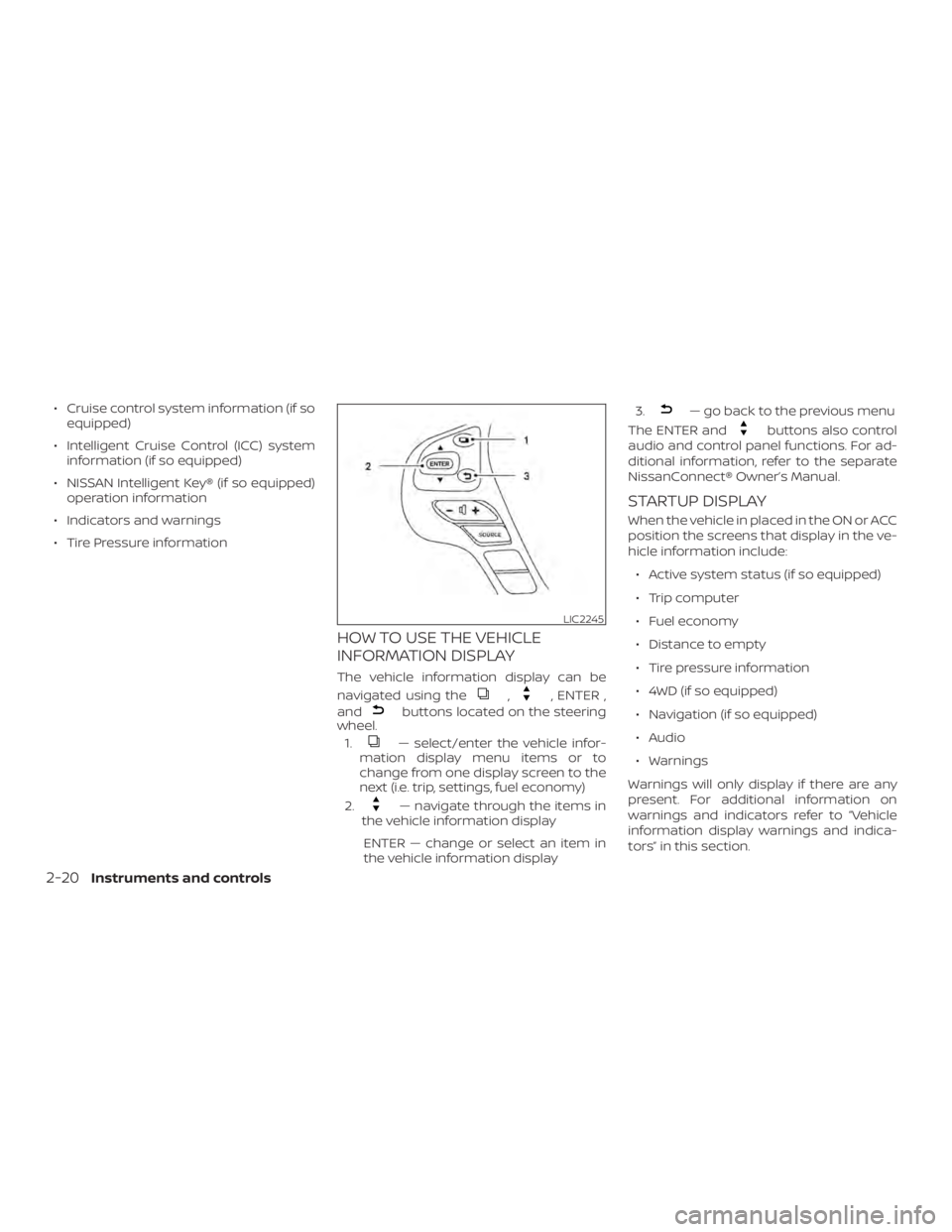
The vehicle information display can be
navigated using the
,, ENTER ,
and
buttons located on the steering
wheel.
1.
— select/enter the vehicle infor-
mation display menu items or to
change from one display screen to the
next (i.e. trip, settings, fuel economy)
2.
— navigate through the items in
the vehicle information display
ENTER — change or select an item in
the vehicle information display 3.
— go back to the previous menu
The ENTER and
buttons also control
audio and control panel functions. For ad-
ditional information, refer to the separate
NissanConnect® Owner’s Manual.
STARTUP DISPLAY
When the vehicle in placed in the ON or ACC
position the screens that display in the ve-
hicle information include:
∙ Active system status (if so equipped)
∙ Trip computer
∙ Fuel economy
∙ Distance to empty
∙ Tire pressure information
∙ 4WD (if so equipped)
∙ Navigation (if so equipped)
∙ Audio
∙ Warnings
Warnings will only display if there are any
present. For additional information on
warnings and indicators refer to “Vehicle
information display warnings and indica-
tors” in this section.
LIC2245
2-20Instruments and controls
Page 125 of 482
To control what items display in the vehicle
information display, refer to “Main menu se-
lection” in this section.
RESETTING THE TRIP COMPUTER
1. Press thebutton until you reach
the trip computer mode.
2. Press the
button again for more
than 1.5 seconds to reset average fuel
consumption, average speed, distance
to empty, and journey time.
SETTINGS
The setting mode allows you to change the
information displayed in the vehicle infor-
mation display:
∙ Driver Assistance
∙ Vehicle Settings
∙ Main Menu Selection
∙ Body Color
∙ Maintenance ∙ Alarms
∙ Language
∙ Unit
∙ Welcome Effect
∙ Factory Reset
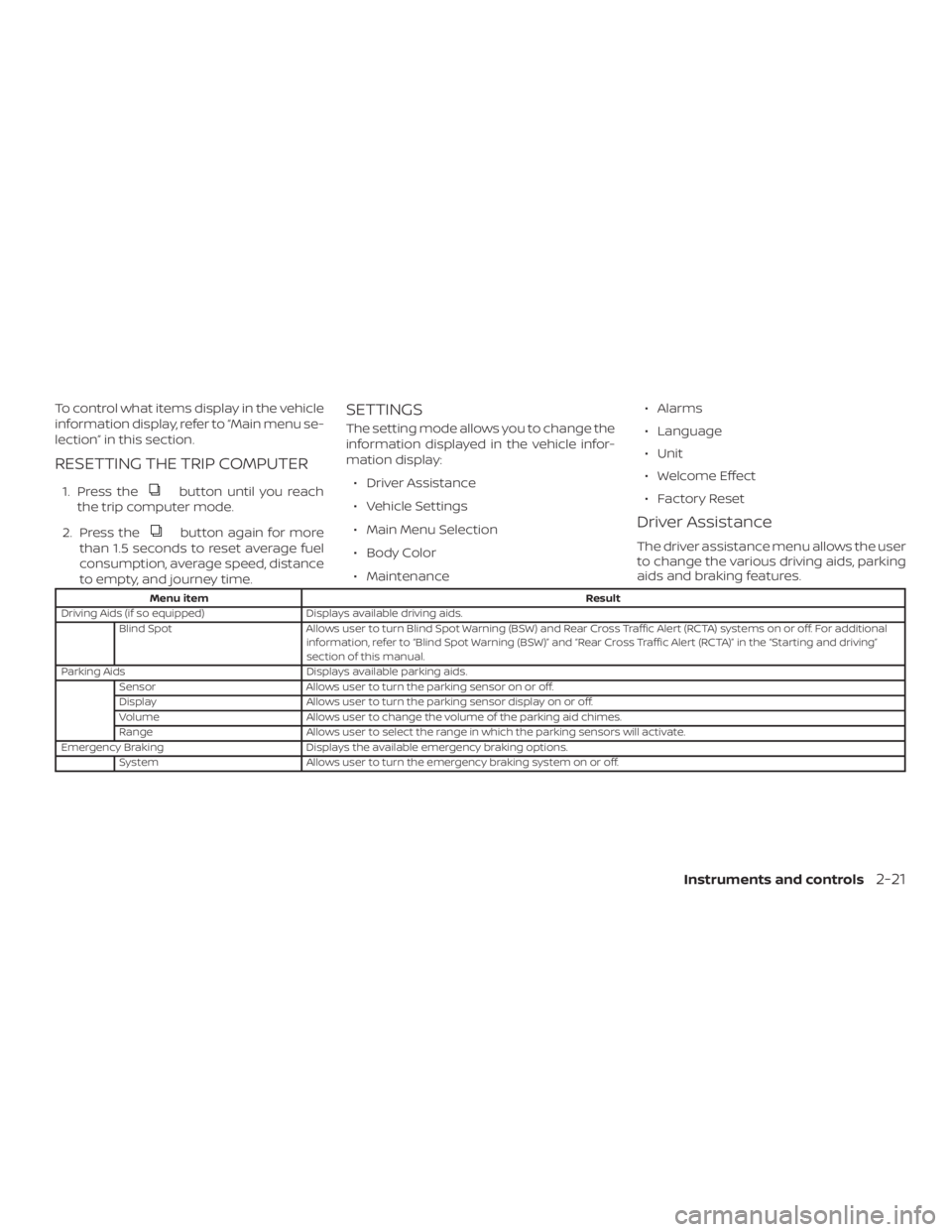
Driver Assistance
The driver assistance menu allows the user
to change the various driving aids, parking
aids and braking features.
Menu item
Result
Driving Aids (if so equipped) Displays available driving aids.
Blind Spot Allows user to turn Blind Spot Warning (BSW) and Rear Cross Traffic Alert (RCTA) systems on or off. For additional
information, refer to “Blind Spot Warning (BSW)” and “Rear Cross Traffic Alert (RCTA)” in the “Starting and driving”
section of this manual.
Parking Aids Displays available parking aids.
Sensor Allows user to turn the parking sensor on or off.
Display Allows user to turn the parking sensor display on or off.
Volume Allows user to change the volume of the parking aid chimes.
Range Allows user to select the range in which the parking sensors will activate.
Emergency Braking Displays the available emergency braking options.
System Allows user to turn the emergency braking system on or off.
Instruments and controls2-21
Page 126 of 482
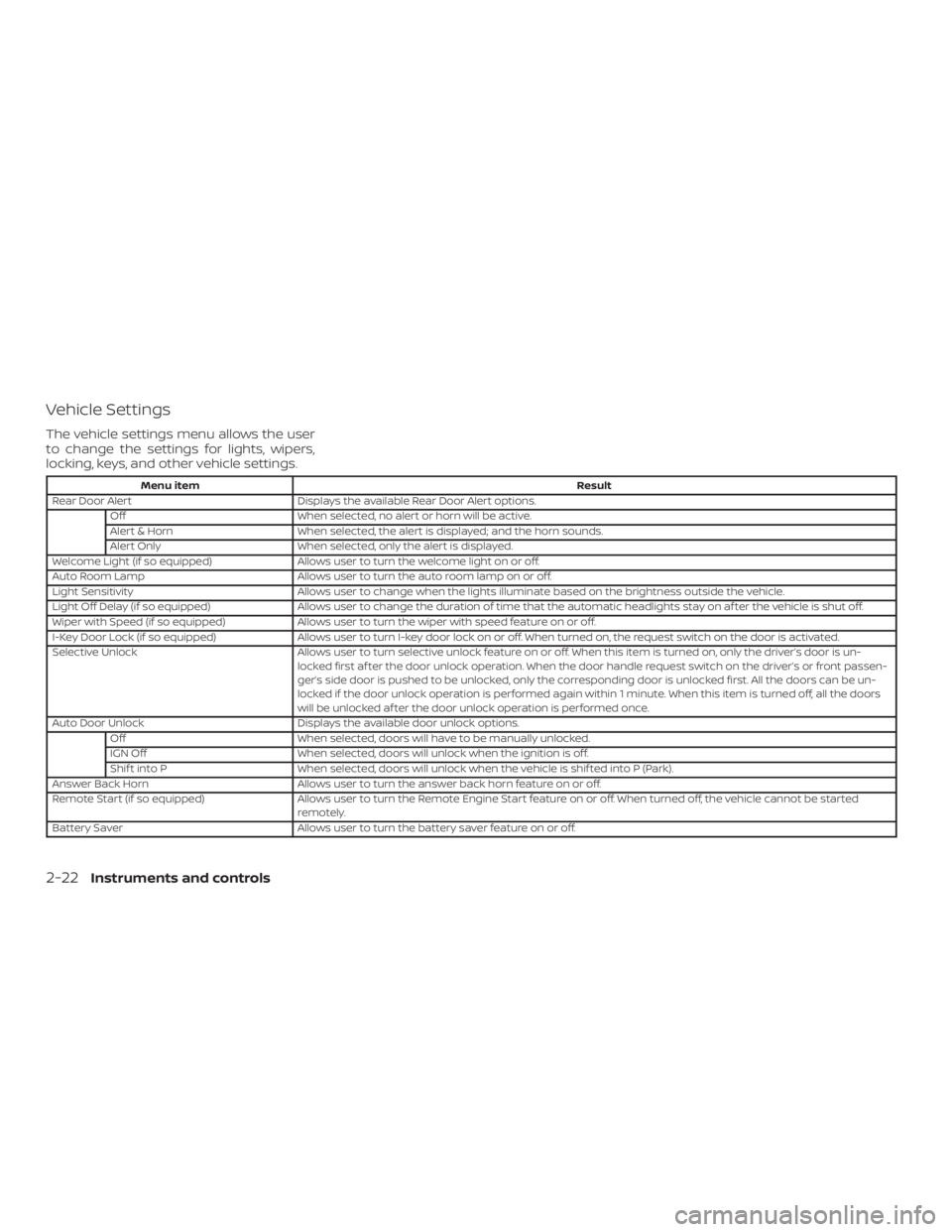
Vehicle Settings
The vehicle settings menu allows the user
to change the settings for lights, wipers,
locking, keys, and other vehicle settings.
Menu itemResult
Rear Door Alert Displays the available Rear Door Alert options.
Off When selected, no alert or horn will be active.
Alert & Horn When selected, the alert is displayed; and the horn sounds.
Alert Only When selected, only the alert is displayed.
Welcome Light (if so equipped) Allows user to turn the welcome light on or off.
Auto Room Lamp Allows user to turn the auto room lamp on or off.
Light Sensitivity Allows user to change when the lights illuminate based on the brightness outside the vehicle.
Light Off Delay (if so equipped) Allows user to change the duration of time that the automatic headlights stay on af ter the vehicle is shut off.
Wiper with Speed (if so equipped) Allows user to turn the wiper with speed feature on or off.
I-Key Door Lock (if so equipped) Allows user to turn I-key door lock on or off. When turned on, the request switch on the door is activated.
Selective Unlock Allows user to turn selective unlock feature on or off. When this item is turned on, only the driver’s door is un-
locked first af ter the door unlock operation. When the door handle request switch on the driver’s or front passen-
ger’s side door is pushed to be unlocked, only the corresponding door is unlocked first. All the doors can be un-
locked if the door unlock operation is performed again within 1 minute. When this item is turned off, all the doors
will be unlocked af ter the door unlock operation is performed once.
Auto Door Unlock Displays the available door unlock options.
Off When selected, doors will have to be manually unlocked.
IGN Off When selected, doors will unlock when the ignition is off.
Shif t into P When selected, doors will unlock when the vehicle is shif ted into P (Park).
Answer Back Horn Allows user to turn the answer back horn feature on or off.
Remote Start (if so equipped) Allows user to turn the Remote Engine Start feature on or off. When turned off, the vehicle cannot be started
remotely.
Battery Saver Allows user to turn the battery saver feature on or off.
2-22Instruments and controls
Page 127 of 482
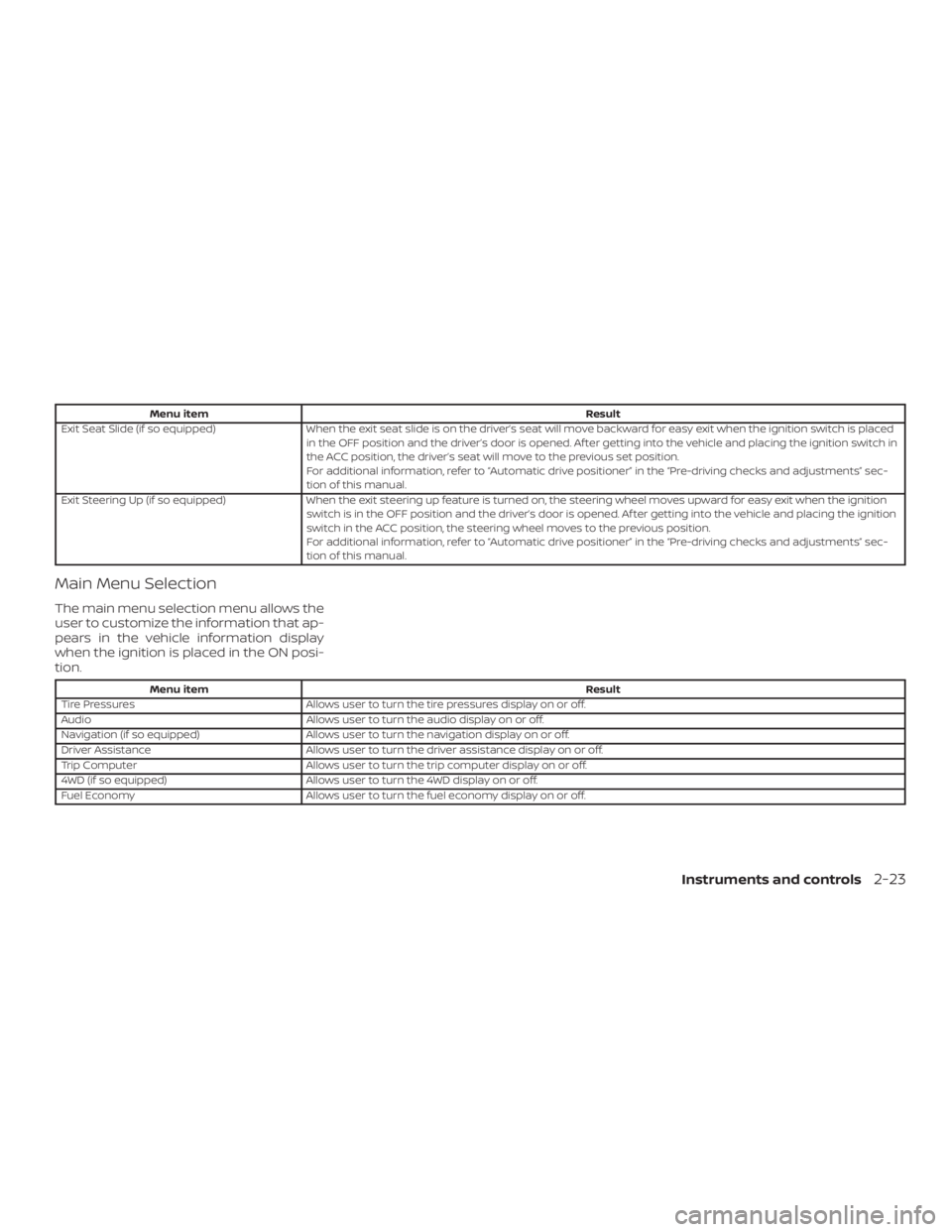
Menu itemResult
Exit Seat Slide (if so equipped) When the exit seat slide is on the driver’s seat will move backward for easy exit when the ignition switch is placed
in the OFF position and the driver’s door is opened. Af ter getting into the vehicle and placing the ignition switch in
the ACC position, the driver’s seat will move to the previous set position.
For additional information, refer to “Automatic drive positioner” in the “Pre-driving checks and adjustments” sec-
tion of this manual.
Exit Steering Up (if so equipped) When the exit steering up feature is turned on, the steering wheel moves upward for easy exit when the ignition
switch is in the OFF position and the driver’s door is opened. Af ter getting into the vehicle and placing the ignition
switch in the ACC position, the steering wheel moves to the previous position.
For additional information, refer to “Automatic drive positioner” in the “Pre-driving checks and adjustments” sec-
tion of this manual.
Main Menu Selection
The main menu selection menu allows the
user to customize the information that ap-
pears in the vehicle information display
when the ignition is placed in the ON posi-
tion.
Menu item Result
Tire Pressures Allows user to turn the tire pressures display on or off.
Audio Allows user to turn the audio display on or off.
Navigation (if so equipped) Allows user to turn the navigation display on or off.
Driver Assistance Allows user to turn the driver assistance display on or off.
Trip Computer Allows user to turn the trip computer display on or off.
4WD (if so equipped) Allows user to turn the 4WD display on or off.
Fuel Economy Allows user to turn the fuel economy display on or off.
Instruments and controls2-23
Page 128 of 482
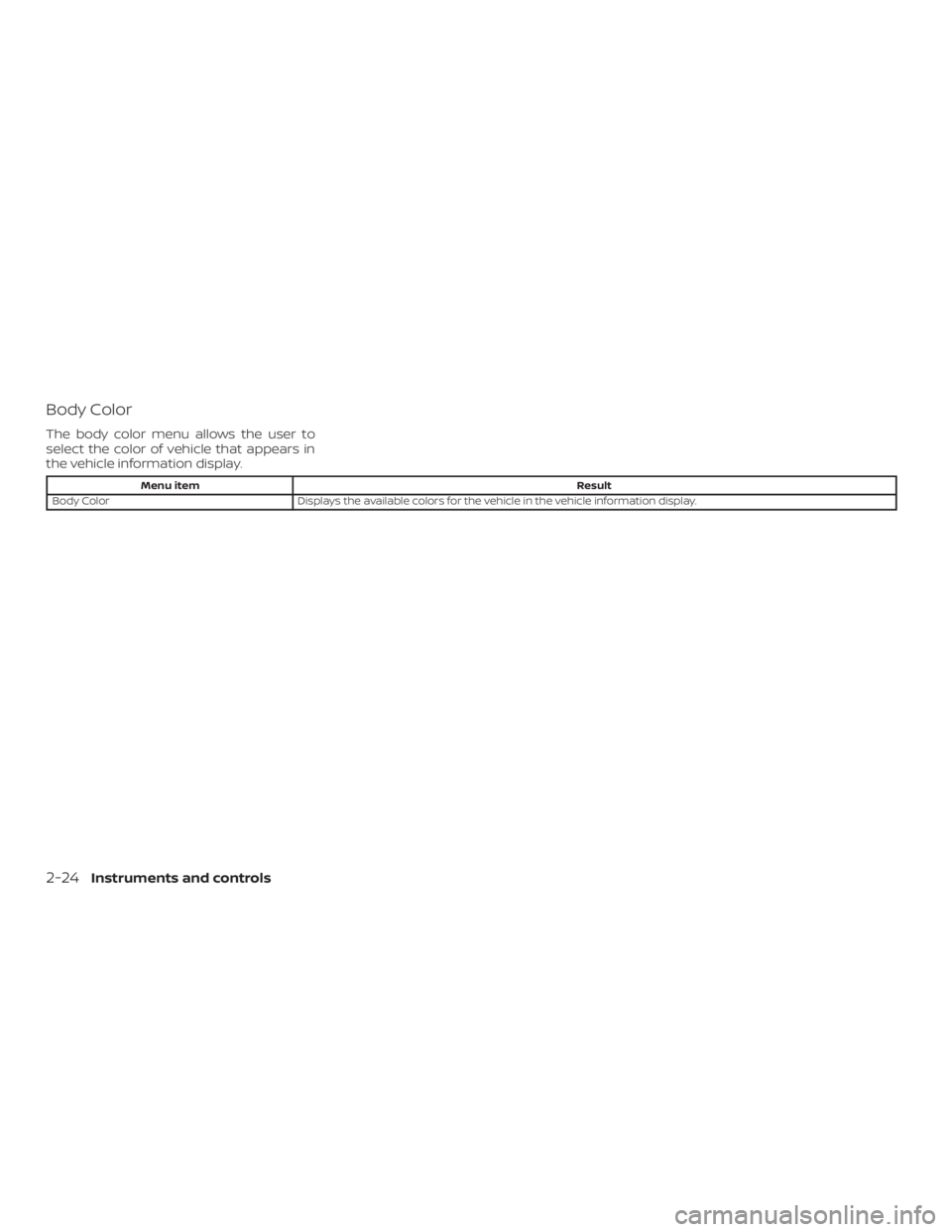
Body Color
The body color menu allows the user to
select the color of vehicle that appears in
the vehicle information display.
Menu itemResult
Body Color Displays the available colors for the vehicle in the vehicle information display.
2-24Instruments and controls
Page 130 of 482
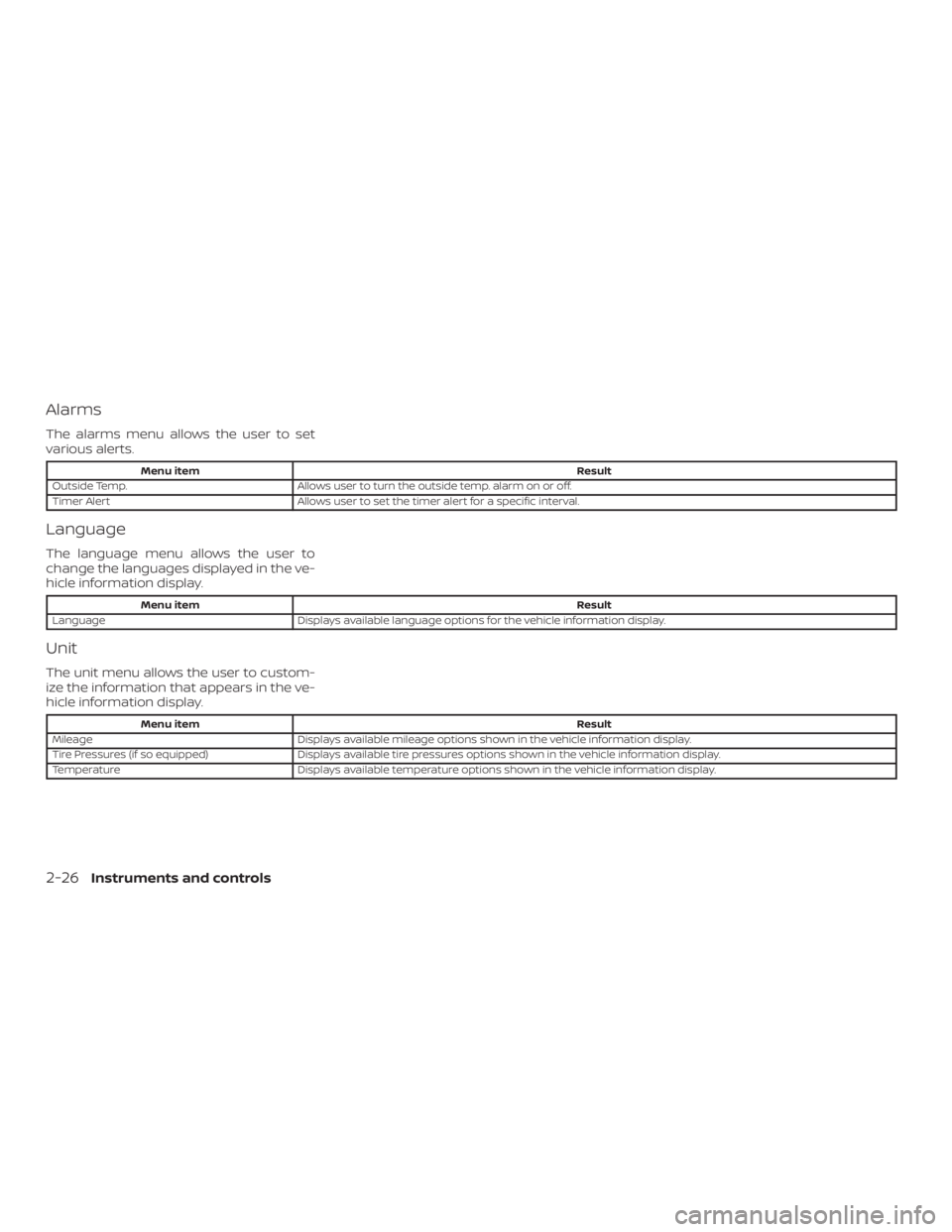
Alarms
The alarms menu allows the user to set
various alerts.
Menu itemResult
Outside Temp. Allows user to turn the outside temp. alarm on or off.
Timer Alert Allows user to set the timer alert for a specific interval.
Language
The language menu allows the user to
change the languages displayed in the ve-
hicle information display.
Menu item Result
Language Displays available language options for the vehicle information display.
Unit
The unit menu allows the user to custom-
ize the information that appears in the ve-
hicle information display.
Menu item Result
Mileage Displays available mileage options shown in the vehicle information display.
Tire Pressures (if so equipped) Displays available tire pressures options shown in the vehicle information display.
Temperature Displays available temperature options shown in the vehicle information display.
2-26Instruments and controls
Page 131 of 482
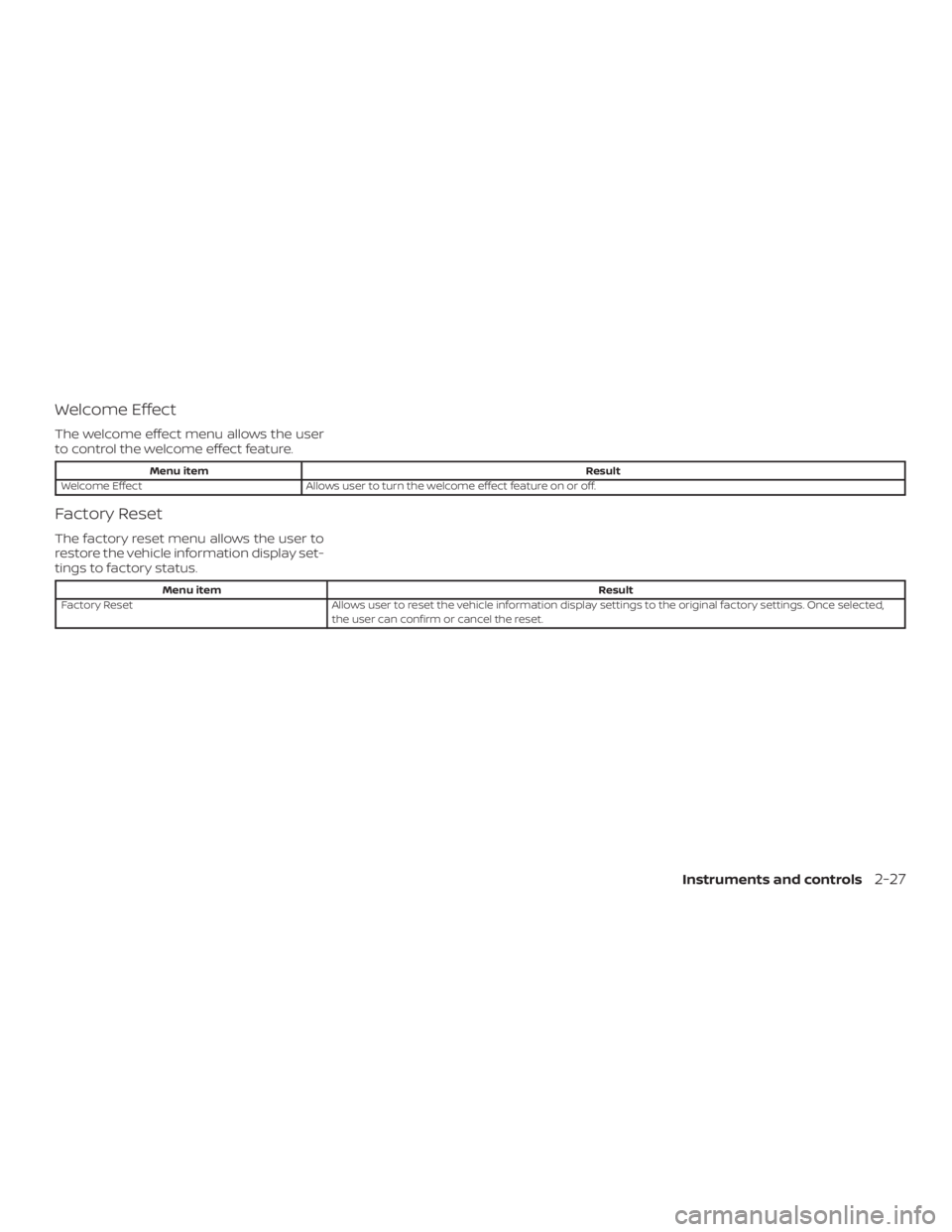
Welcome Effect
The welcome effect menu allows the user
to control the welcome effect feature.
Menu itemResult
Welcome Effect Allows user to turn the welcome effect feature on or off.
Factory Reset
The factory reset menu allows the user to
restore the vehicle information display set-
tings to factory status.
Menu item Result
Factory Reset Allows user to reset the vehicle information display settings to the original factory settings. Once selected,
the user can confirm or cancel the reset.
Instruments and controls2-27
Page 133 of 482
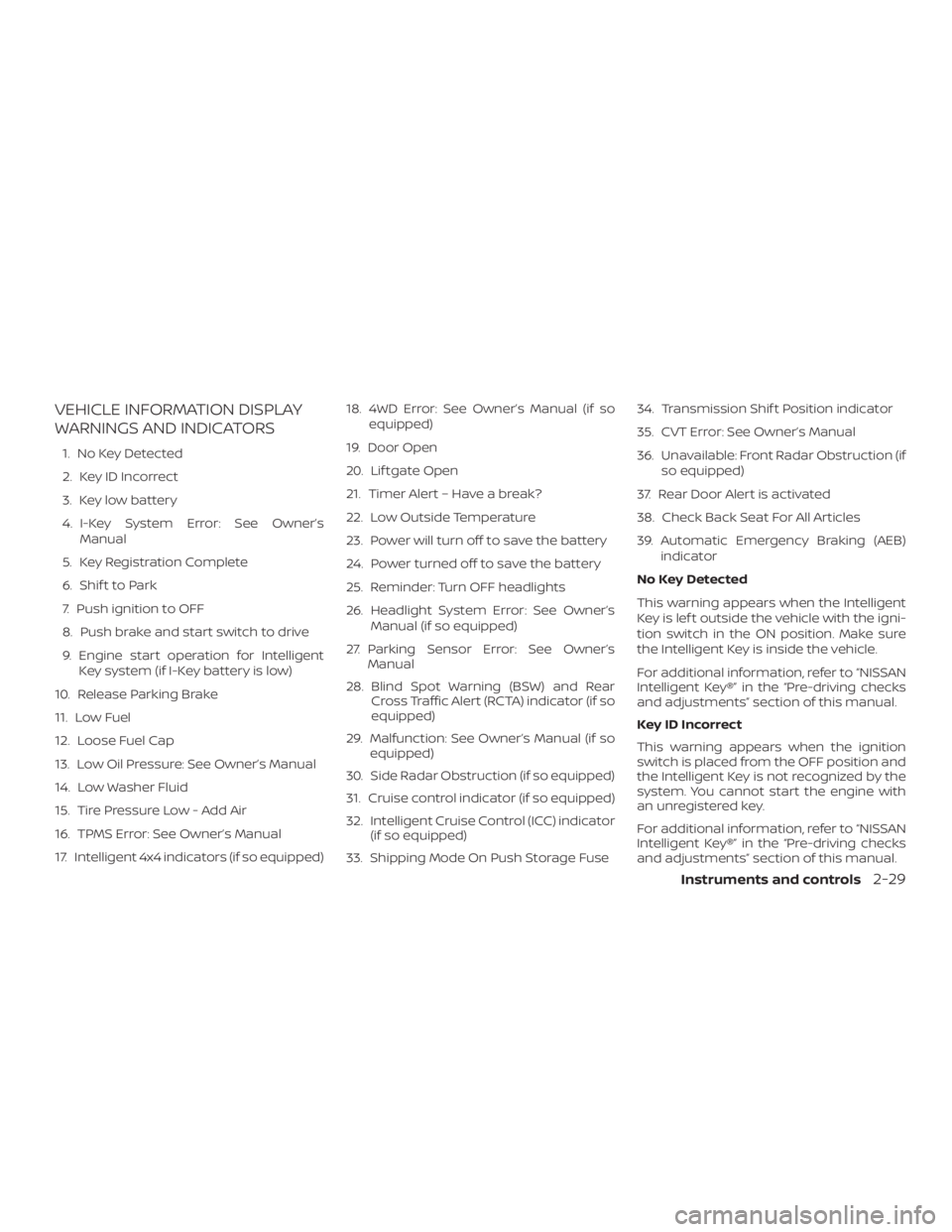
VEHICLE INFORMATION DISPLAY
WARNINGS AND INDICATORS
1. No Key Detected
2. Key ID Incorrect
3. Key low battery
4. I-Key System Error: See Owner’sManual
5. Key Registration Complete
6. Shif t to Park
7. Push ignition to OFF
8. Push brake and start switch to drive
9. Engine start operation for Intelligent Key system (if I-Key battery is low)
10. Release Parking Brake
11. Low Fuel
12. Loose Fuel Cap
13. Low Oil Pressure: See Owner’s Manual
14. Low Washer Fluid
15. Tire Pressure Low - Add Air
16. TPMS Error: See Owner’s Manual
17. Intelligent 4x4 indicators (if so equipped) 18. 4WD Error: See Owner’s Manual (if so
equipped)
19. Door Open
20. Lif tgate Open
21. Timer Alert – Have a break?
22. Low Outside Temperature
23. Power will turn off to save the battery
24. Power turned off to save the battery
25. Reminder: Turn OFF headlights
26. Headlight System Error: See Owner’s Manual (if so equipped)
27. Parking Sensor Error: See Owner’s Manual
28. Blind Spot Warning (BSW) and Rear Cross Traffic Alert (RCTA) indicator (if so
equipped)
29. Malfunction: See Owner’s Manual (if so equipped)
30. Side Radar Obstruction (if so equipped)
31. Cruise control indicator (if so equipped)
32. Intelligent Cruise Control (ICC) indicator (if so equipped)
33. Shipping Mode On Push Storage Fuse 34. Transmission Shif t Position indicator
35. CVT Error: See Owner’s Manual
36. Unavailable: Front Radar Obstruction (if
so equipped)
37. Rear Door Alert is activated
38. Check Back Seat For All Articles
39. Automatic Emergency Braking (AEB) indicator
No Key Detected
This warning appears when the Intelligent
Key is lef t outside the vehicle with the igni-
tion switch in the ON position. Make sure
the Intelligent Key is inside the vehicle.
For additional information, refer to “NISSAN
Intelligent Key®” in the “Pre-driving checks
and adjustments” section of this manual.
Key ID Incorrect
This warning appears when the ignition
switch is placed from the OFF position and
the Intelligent Key is not recognized by the
system. You cannot start the engine with
an unregistered key.
For additional information, refer to “NISSAN
Intelligent Key®” in the “Pre-driving checks
and adjustments” section of this manual.
Instruments and controls2-29
Page 134 of 482
Key low battery
This indicator illuminates when the Intelli-
gent Key battery is running out of power.
If this indicator illuminates, replace the bat-
tery with a new one. For additional infor-
mation, refer to “Battery replacement” in
the “Do-it-yourself ” section of this manual.
I-Key System Error: See Owner’s Manual
Af ter the ignition switch is pushed to the
ON position, this light comes on for a period
of time and then turns off.
The I-Key System Error message warns of
a malfunction with the Intelligent Key sys-
tem. If the light comes on while the engine
is stopped, it may be impossible to start
the engine.
If the light comes on while the engine is
running, you can drive the vehicle. However,
in these cases, have the system checked. It
is recommended that you visit a NISSAN
dealer for this service.
Key Registration Complete
This appears when a new Intelligent Key is
registered to the vehicle.Shif t to Park
This warning illuminates when the ignition
switch is in the ACC or OFF position and the
shif t lever is not in the P (Park) position. Also,
a chime sounds when the ignition switch is
in the ACC or OFF position.
If this warning illuminates, move the shif t
lever to the P (Park) position and start the
engine.
Push ignition to OFF
Af ter the Push ignition to OFF warning illu-
minates, the warning will illuminate if the
ignition switch is placed in the ACC position
when the shif t lever is moved to the P (Park)
position.
To turn off the Push warning, place the ig-
nition switch in the ON position and then in
the LOCK position.
Push brake and start switch to drive
This indicator appears when the shif t lever
is in the P (Park) position.
This indicator also appears when the ve-
hicle has been started using the Remote
Engine Start (if so equipped) function.
This indicator means that the engine will
start by pushing the ignition switch withthe brake pedal depressed. You can start
the engine from any position of the ignition
switch.
Engine start operation for Intelligent
Key system (if I-Key battery level is low)
This indicator appears when the battery of
the Intelligent Key is low and when the In-
telligent Key system and the vehicle are not
communicating normally.
If this appears, touch the ignition switch
with the Intelligent Key while depressing
the brake pedal. For additional information,
refer to “NISSAN Intelligent Key® battery dis-
charge” in the “Starting and driving” section
of this manual.
Release Parking Brake
This warning illuminates in the message
area of the vehicle information display
when the parking brake is set and the ve-
hicle is driven.
Low Fuel
This warning illuminates when the fuel level
in the fuel tank is getting low. Refuel as soon
as it is convenient, preferably before the fuel
gauge reaches 0 (Empty).
Therewillbea
small reserve of fuel in the tank when the
fuel gauge needle reaches 0 (Empty).
2-30Instruments and controls
Page 135 of 482
Loose Fuel Cap
This warning appears when the fuel-filler
cap is not tightened correctly af ter the ve-
hicle has been refueled. For additional in-
formation, refer to “Fuel-filler cap” in the
“Pre-driving checks and adjustments” sec-
tion of this manual.
Low Oil Pressure: See Owner’s Manual
This warning appears in the message area
of the vehicle information display if low oil
pressure is detected. This gauge is not de-
signed to indicate low oil level.The low oil
pressure warning is not designed to indi-
cate a low oil level. Use the dipstick to
check the oil level. For additional informa-
tion, refer to “Engine oil” in the “Do-it-
yourself ” section of this manual.
Low Washer Fluid
This warning illuminates when the
windshield-washer fluid is at a low level.
Add windshield-washer fluid as necessary.
For additional information, refer to
“Windshield-washer fluid” in the “Do-it-
yourself ” section of this manual.
Tire Pressure Low - Add Air
This warning appears when the low tire
pressure warning light in the meter illumi- nates and low tire pressure is detected. The
warning appears each time the ignition
switch is placed in the ON position as long
as the low tire pressure warning light re-
mains illuminated. If this warning appears,
stop the vehicle and adjust the tire pres-
sures of all four tires to the recommended
COLD tire pressure shown on the Tire and
Loading Information label. For additional
information, refer to “Low tire pressure
warning light” in this section and “Tire Pres-
sure Monitoring System (TPMS)” in the
“Starting and driving” section of this
manual.
TPMS Error: See Owner’s Manual
This warning appears when there is an er-
ror with your TPMS. If this warning comes
on, have the system checked. It is recom-
mended that you visit a NISSAN dealer for
this service.
Intelligent 4x4 indicators (if so
equipped)
These indicators show the Intelligent 4x4
system status while the engine is running.
For additional information, refer to “Intelli-
gent 4x4 (I-4x4)” in the “Starting and driving”
section of this manual.
4WD Error: See Owner’s Manual (if so
equipped)
This warning appears when the 4-wheel
drive system is not functioning properly.
For additional information, refer to “Intelli-
gent 4x4 (I-4x4)” in the “Starting and driving”
section of this manual.
Door Open
This warning illuminates when a door has
been opened.
Lif tgate Open
This warning illuminates when the lif tgate
has been opened.
Timer Alert — Have a break?
This indicator appears when the set time is
reached. The time can be set up to six
hours. For additional information, refer to
“Settings” in this section.
Low Outside Temperature
This warning appears if the outside tem-
perature is below 37°F (3°C). The tempera-
ture can be changed to display in Celsius or
Fahrenheit. For additional information, re-
fer to “Settings” in this section.
Instruments and controls2-31