light NISSAN PATHFINDER 2023 Manual Online
[x] Cancel search | Manufacturer: NISSAN, Model Year: 2023, Model line: PATHFINDER, Model: NISSAN PATHFINDER 2023Pages: 665, PDF Size: 4.64 MB
Page 203 of 665
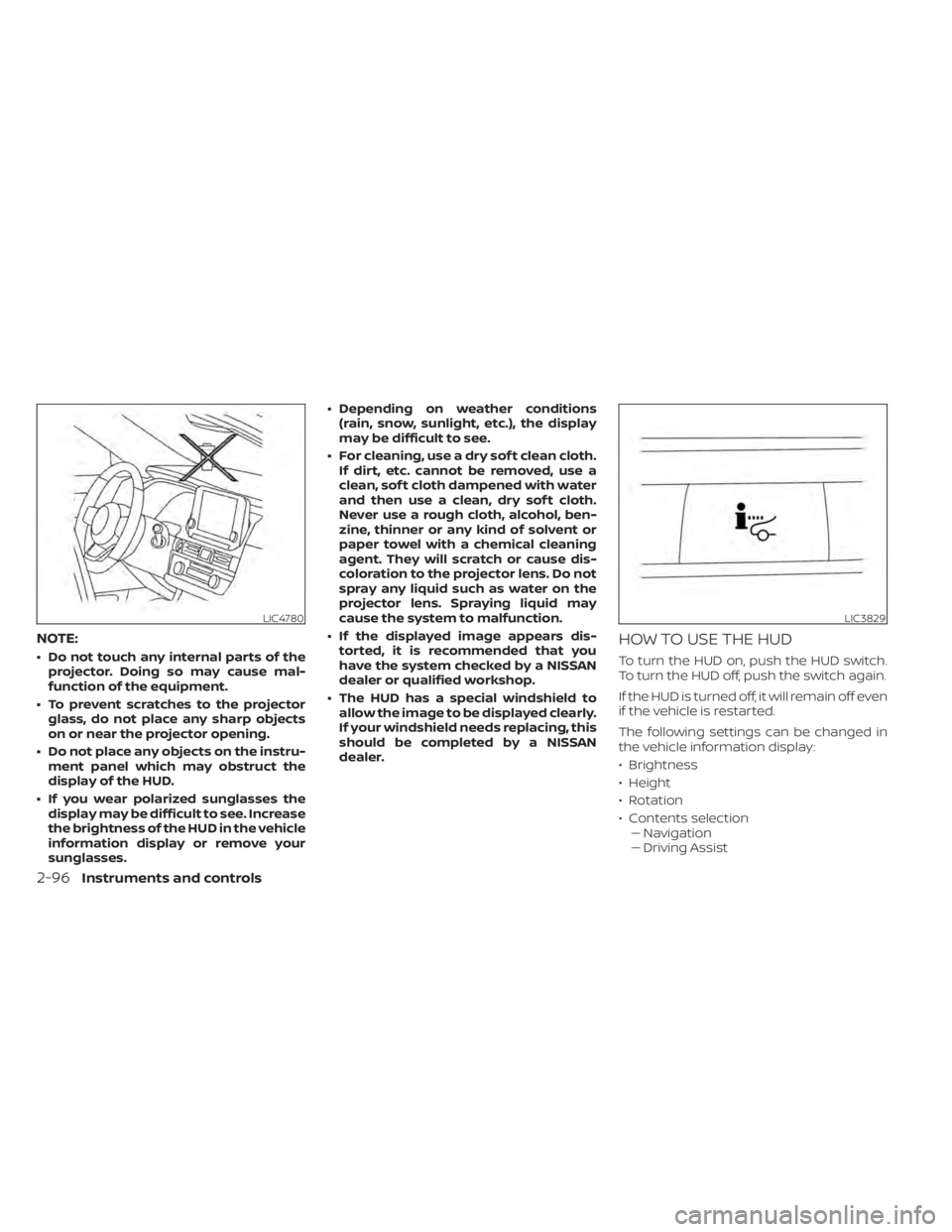
NOTE:
• Do not touch any internal parts of theprojector. Doing so may cause mal-
function of the equipment.
• To prevent scratches to the projector glass, do not place any sharp objects
on or near the projector opening.
• Do not place any objects on the instru- ment panel which may obstruct the
display of the HUD.
• If you wear polarized sunglasses the display may be difficult to see. Increase
the brightness of the HUD in the vehicle
information display or remove your
sunglasses. • Depending on weather conditions
(rain, snow, sunlight, etc.), the display
may be difficult to see.
• For cleaning, use a dry sof t clean cloth. If dirt, etc. cannot be removed, use a
clean, sof t cloth dampened with water
and then use a clean, dry sof t cloth.
Never use a rough cloth, alcohol, ben-
zine, thinner or any kind of solvent or
paper towel with a chemical cleaning
agent. They will scratch or cause dis-
coloration to the projector lens. Do not
spray any liquid such as water on the
projector lens. Spraying liquid may
cause the system to malfunction.
• If the displayed image appears dis- torted, it is recommended that you
have the system checked by a NISSAN
dealer or qualified workshop.
• The HUD has a special windshield to allow the image to be displayed clearly.
If your windshield needs replacing, this
should be completed by a NISSAN
dealer.
HOW TO USE THE HUD
To turn the HUD on, push the HUD switch.
To turn the HUD off, push the switch again.
If the HUD is turned off, it will remain off even
if the vehicle is restarted.
The following settings can be changed in
the vehicle information display:
• Brightness
• Height
• Rotation
• Contents selection –– Navigation
–– Driving Assist
LIC4780LIC3829
2-96Instruments and controls
Page 205 of 665
Display brightness
The brightness of the display may be con-
trolled by the navigation system. The
brightness will also be adjusted automati-
cally according to the exterior ambient
lighting brightness.
NOTE:
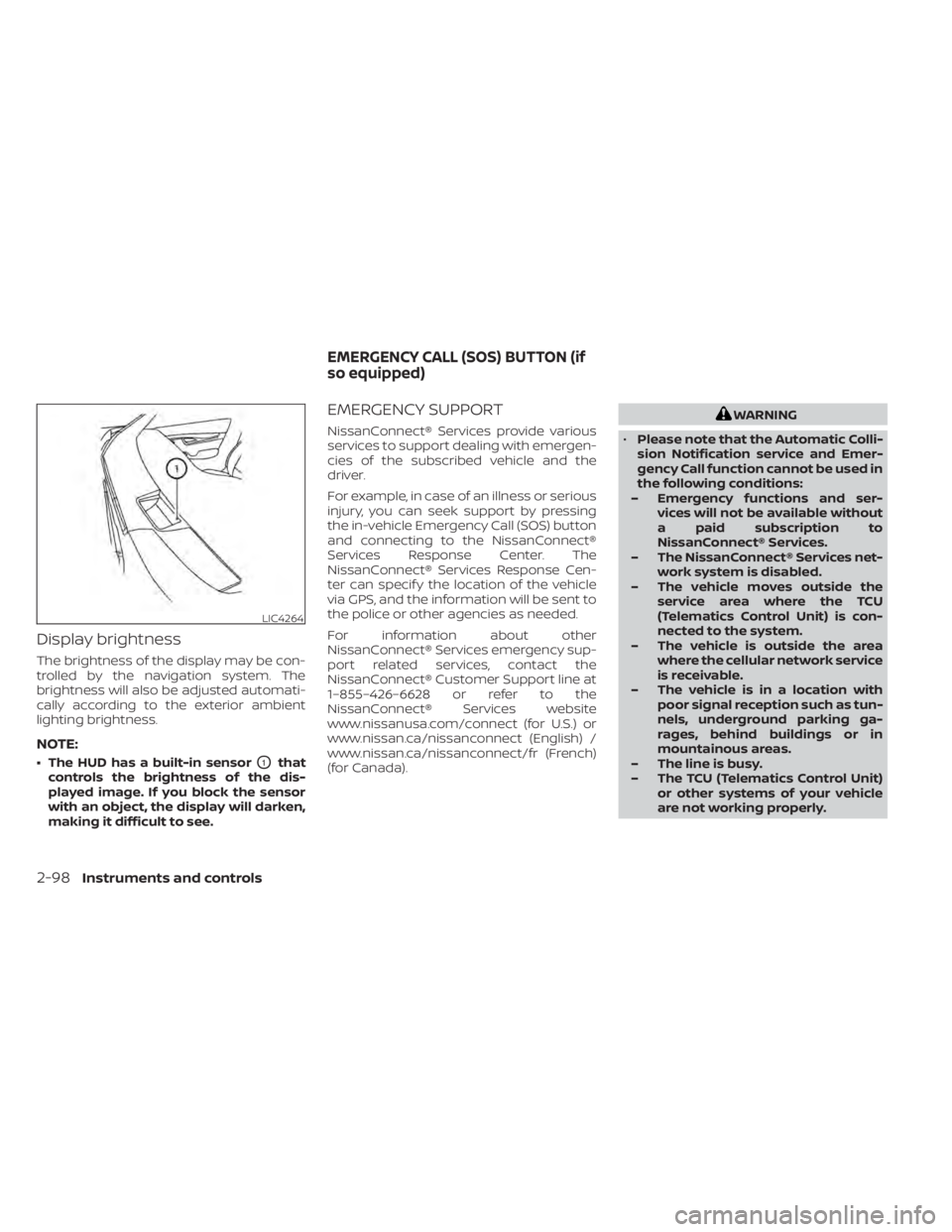
• The HUD has a built-in sensorO1that
controls the brightness of the dis-
played image. If you block the sensor
with an object, the display will darken,
making it difficult to see.
EMERGENCY SUPPORT
NissanConnect® Services provide various
services to support dealing with emergen-
cies of the subscribed vehicle and the
driver.
For example, in case of an illness or serious
injury, you can seek support by pressing
the in-vehicle Emergency Call (SOS) button
and connecting to the NissanConnect®
Services Response Center. The
NissanConnect® Services Response Cen-
ter can specif y the location of the vehicle
via GPS, and the information will be sent to
the police or other agencies as needed.
For information about other
NissanConnect® Services emergency sup-
port related services, contact the
NissanConnect® Customer Support line at
1–855–426–6628 or refer to the
NissanConnect® Services website
www.nissanusa.com/connect (for U.S.) or
www.nissan.ca/nissanconnect (English) /
www.nissan.ca/nissanconnect/fr (French)
(for Canada).
WARNING
• Please note that the Automatic Colli-
sion Notification service and Emer-
gency Call function cannot be used in
the following conditions:
– Emergency functions and ser- vices will not be available without
a paid subscription to
NissanConnect® Services.
– The NissanConnect® Services net- work system is disabled.
– The vehicle moves outside the service area where the TCU
(Telematics Control Unit) is con-
nected to the system.
– The vehicle is outside the area where the cellular network service
is receivable.
– The vehicle is in a location with poor signal reception such as tun-
nels, underground parking ga-
rages, behind buildings or in
mountainous areas.
– The line is busy.
– The TCU (Telematics Control Unit) or other systems of your vehicle
are not working properly.
LIC4264
EMERGENCY CALL (SOS) BUTTON (if
so equipped)
2-98Instruments and controls
Page 206 of 665
– It may not be possible to make anemergency call depending on the
severity of a collision and/or
emergency.
• Park the vehicle in a safe location and
set the parking brake before operat-
ing the Emergency Call (SOS) button.
• Only use this service in case of an
emergency. There may be a penalty
for inappropriate use of the service.
• Radio waves could adversely affect
electric medical equipment. Indi-
viduals who use a pacemaker should
contact the device manufacturer re-
garding any possible effects before
using the system.
• The TCU (Telematics Control Unit) an-
tenna is installed inside the upper
central part of the instrument panel.
An occupant should not get any
closer to the antenna than specified
by the pacemaker manufacturer. The
radio waves from the TCU antenna
may adversely affect the operation
of the pacemaker while using the
NissanConnect® Services.
Making an emergency call
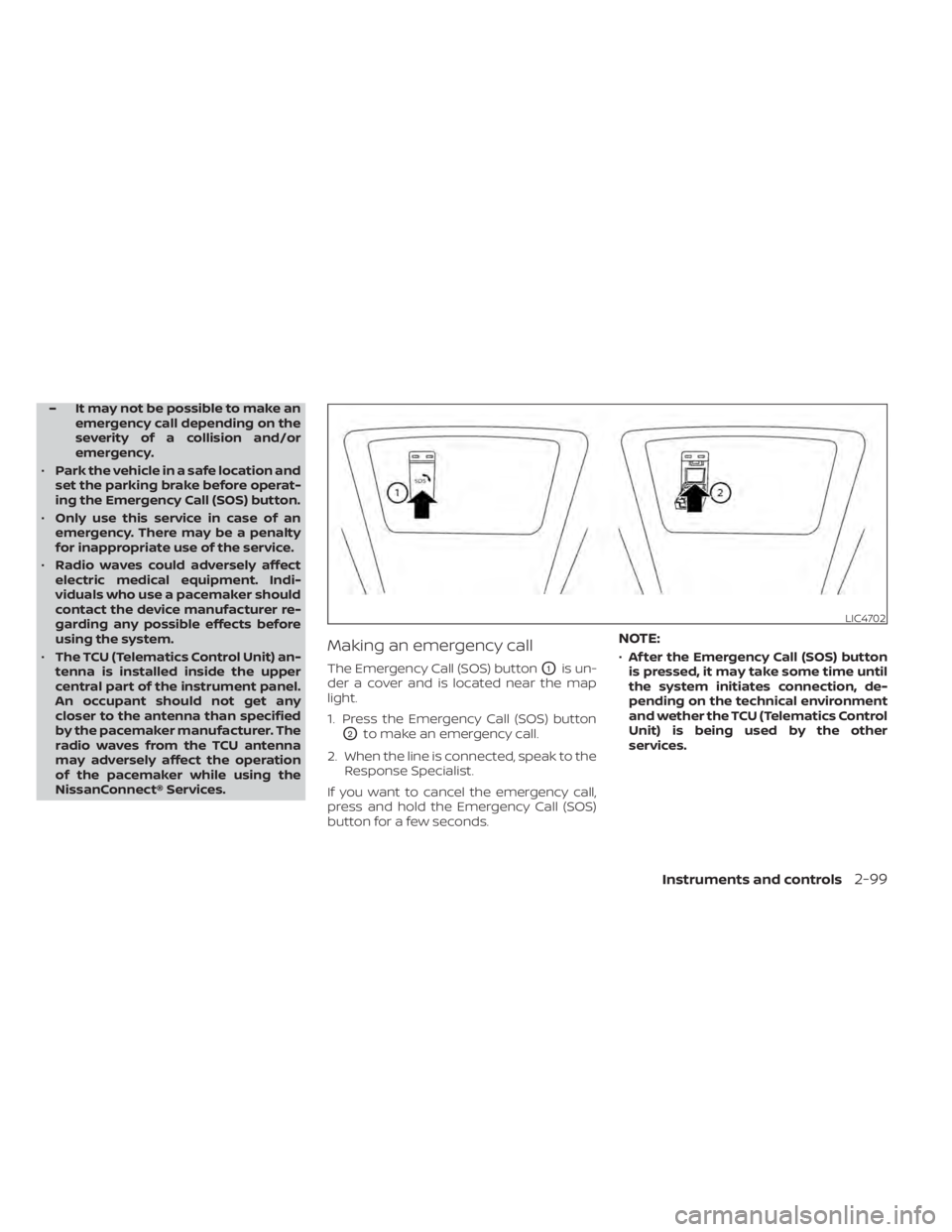
The Emergency Call (SOS) buttonO1is un-
der a cover and is located near the map
light.
1. Press the Emergency Call (SOS) button
O2to make an emergency call.
2. When the line is connected, speak to the Response Specialist.
If you want to cancel the emergency call,
press and hold the Emergency Call (SOS)
button for a few seconds.
NOTE:
• Af ter the Emergency Call (SOS) button
is pressed, it may take some time until
the system initiates connection, de-
pending on the technical environment
and wether the TCU (Telematics Control
Unit) is being used by the other
services.
LIC4702
Instruments and controls2-99
Page 207 of 665
•An indicator light on the Emergency
call (SOS) button shows the readiness
of the emergency support system. If
the indicator light is not illuminated,
pressing the Emergency Call (SOS) but-
ton does not connect your vehicle to
the Response Specialist. The indicator
light blinks while connected to the
NissanConnect® Services Response
Center.
• Even when the indicator light is illumi-
nated, connection to the
NissanConnect® Services Response
Center may not be possible. If this oc-
curs in an emergency situation, con-
tact the authorities by other means.
• To avoid disconnecting the line, keep
the engine running during an emer-
gency call, if it is safe to do so. The Rear Door Alert system functions un-
der certain conditions to indicate there
may be an object or passenger in the rear
seat(s). Check the seat(s) before exiting the
vehicle.
The Rear Door Alert system is initially dis-
abled. The driver can enable the system
using the vehicle information display. For
additional information, see “Vehicle infor-
mation display–7 inch (18 cm) Type A”
(P. 2-23) or “Vehicle information display—12.3
inch (31 cm) Type B” (P. 2-48).
When the system is enabled:
• The system is activated when a rear door
is opened and closed within 10 minutes of
the vehicle being driven. When the driver
door is closed and the system is acti-
vated, a visual message appears in the
vehicle information display. For additional
information, see “Rear Door Alert is acti-
vated” (P. 2-66).
• If a rear door is opened and closed but the vehicle is not driven within approxi-
mately 10 minutes, the system will not be
activated. A rear door must be opened
and closed and the car driven within 10
minutes for the system to activate. When the Rear Door Alert system is acti-
vated:
• When the driver puts the vehicle in the P
(Park) position, a notification message
appears in the vehicle information dis-
play with the options to “Dismiss Mes-
sage” or “Disable Alert” if desired.• Select “Disable Alert” to temporarily disable for that stop.
• No selection or ‘Dismiss Message” will keep the alert enabled for that stop.
• If the alert is enabled when a driver exits the vehicle, a message will appear in the
vehicle information display that states
“Check Back Seat For All Articles.”
If “Horn & Alert” setting is selected:
• An audible horn sound will occur af ter a short time unless a rear door is
opened and closed within a short time
to deactivate the alert.
• If the doors are locked before the alert is deactivated by opening a rear door,
the horn will sound.
• If the lif tgate is opened before a rear door is opened, the horn will be de-
layed until af ter the lif tgate is closed.
REAR DOOR ALERT
2-100Instruments and controls
Page 209 of 665
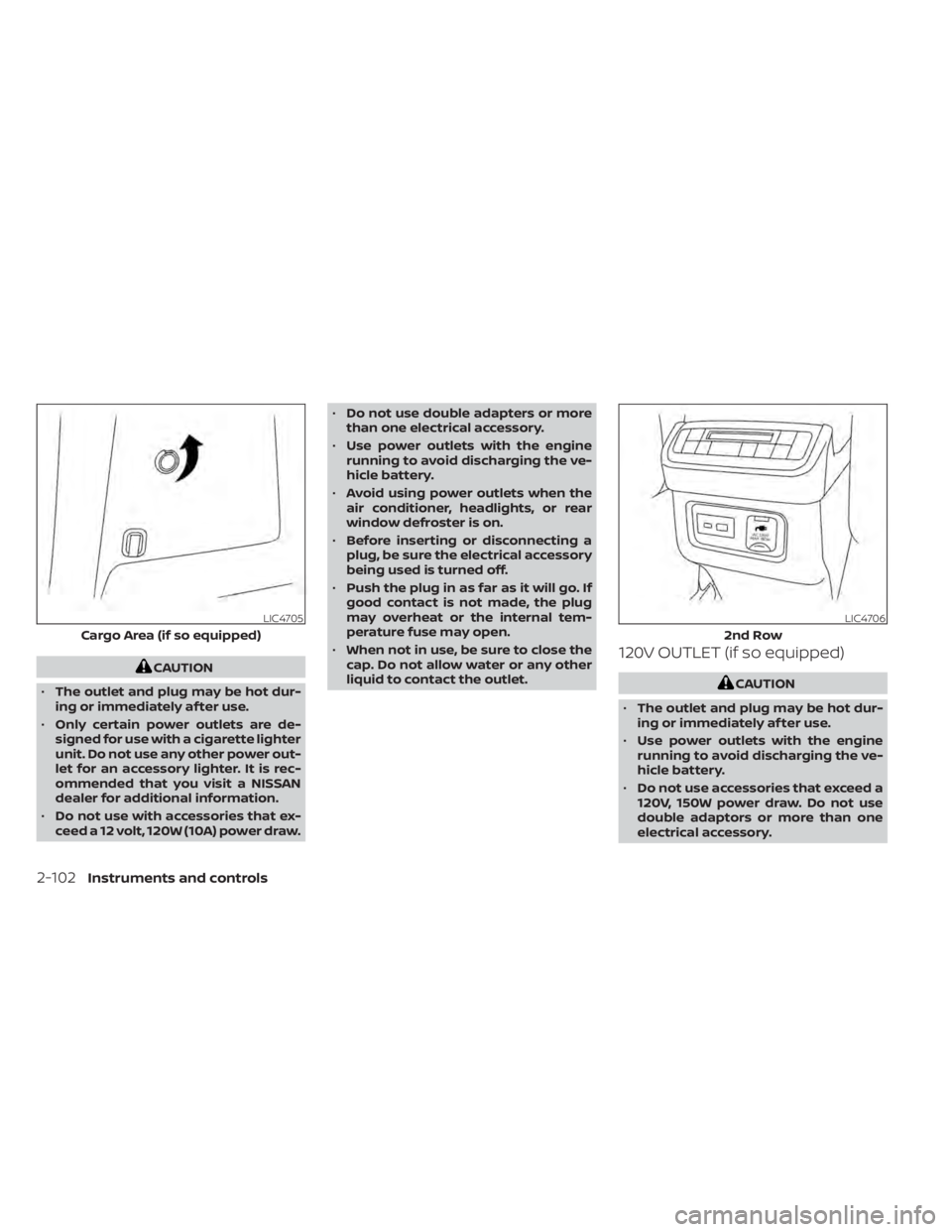
CAUTION
• The outlet and plug may be hot dur-
ing or immediately af ter use.
• Only certain power outlets are de-
signed for use with a cigarette lighter
unit. Do not use any other power out-
let for an accessory lighter. It is rec-
ommended that you visit a NISSAN
dealer for additional information.
• Do not use with accessories that ex-
ceed a 12 volt, 120W (10A) power draw. •
Do not use double adapters or more
than one electrical accessory.
• Use power outlets with the engine
running to avoid discharging the ve-
hicle battery.
• Avoid using power outlets when the
air conditioner, headlights, or rear
window defroster is on.
• Before inserting or disconnecting a
plug, be sure the electrical accessory
being used is turned off.
• Push the plug in as far as it will go. If
good contact is not made, the plug
may overheat or the internal tem-
perature fuse may open.
• When not in use, be sure to close the
cap. Do not allow water or any other
liquid to contact the outlet.120V OUTLET (if so equipped)
CAUTION
• The outlet and plug may be hot dur-
ing or immediately af ter use.
• Use power outlets with the engine
running to avoid discharging the ve-
hicle battery.
• Do not use accessories that exceed a
120V, 150W power draw. Do not use
double adaptors or more than one
electrical accessory.
LIC4705
Cargo Area (if so equipped)
LIC4706
2nd Row
2-102Instruments and controls
Page 210 of 665
•Avoid using power outlets when the
air conditioner, headlights or rear
window defroster is on.
• Before inserting or disconnecting a
plug, be sure the electrical accessory
being used is turned OFF.
• Push the plug in as far as it will go. If
good contact is not made, the plug
may overheat or the internal tem-
perature fuse may open.
• When not in use, be sure to close the
cap. Do not allow water or any other
liquid to contact the outlet.
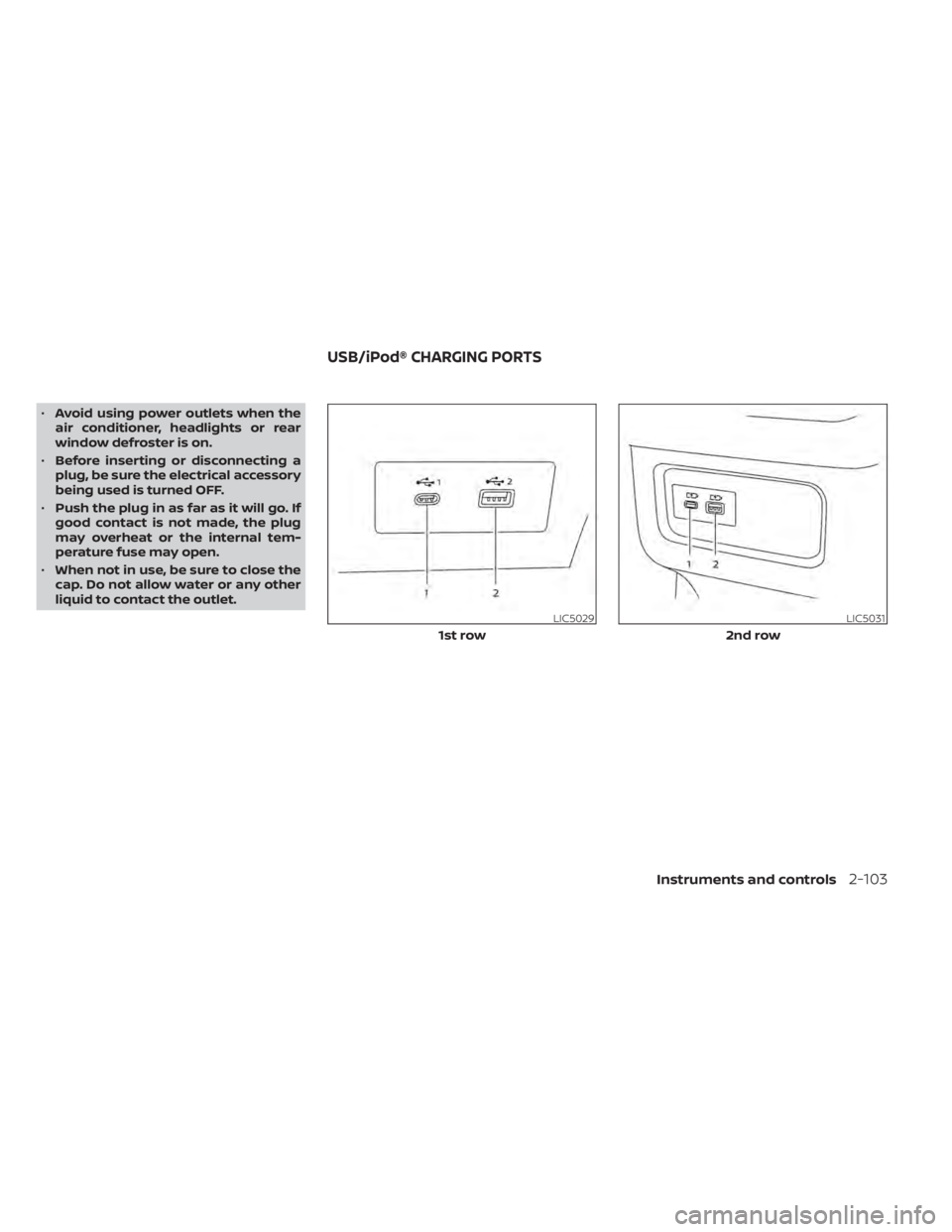
LIC5029
1st row
LIC5031
2nd row
USB/iPod® CHARGING PORTS
Instruments and controls2-103
Page 212 of 665
WARNING
• Never put metallic materials be-
tween the wireless charger and a
smartphone.
• Those who use a pacemaker or other
medical equipment should contact
the electric medical equipment
manufacturer for the possible influ-
ences before use.
• Never put cloth over the smartphone
during charging process.
• Never charge a smartphone when it
is wet.
• Never put metallic materials or small
goods such as a cigarette lighter, In-
telligent Key or memory drive.
CAUTION
• Do not put an RFID/NFC/credit card
between the wireless charger and a
smartphone. This could cause data
corruption in the card.
• Do not use the wireless charger with
dust accumulated or dirt on the pad.
• Do not hit the surface of the wireless
charger. •
Do not spill liquid (water, drinks, etc.)
on the charging pad.
• Do not use grease, oil or alcohol for
cleaning charging pad.
WIRELESS CHARGER INDICATOR
The indicator(1)willil luminate in orange
when the charging process is started.
When the charging has completed, the in-
dicator illuminates in green.
If a malfunction occurs or the charging
process has stopped, the indicator will
blink in orange for 8 seconds then turn off.
WIRELESS CHARGER OPERATION
To use the wireless charger, it is necessary
to seat the smartphone well within the
charging pad. To maximize charging per-
formance, ensure the smartphone is fully
seated on the center of the charging pad
over the "Qi" logo
OA. Because the location
of the power receiver may vary depending
on the smartphone, you will need to try and
find the area that suits your smartphone.
Because some smartphone cases or ac-
cessories may adversely affect charging,
remove them before wireless charging.
Turn off the vibration function of the smart-
phone before wireless charging.
NOTE:
• Only a Qi compatible smartphone can
be used.
• The smartphone may be warmed dur-
ing charging process and the charging
may stop by the protection function of
the wireless charger. This is not a mal-
function. If this occurs, restart charging
af ter the smartphone cooled down.
The indicator will blink in orange then
turn off.
• The wireless charging process may be
stopped by the status of the smart-
phone (battery temperature, etc.).
• If a radio noise interference occurs dur-
ing charging process, put the smart-
phone onto the center (“Qi” logo) posi-
tion of the wireless charger.
• The wireless charging process will stop
during process of searching the Intelli-
gent Key.
• The wireless charging process will not
be started when a USB (Universal Serial
Bus) cable is connected to the smart-
phone. The indicator may illuminate in
orange or blink if the smartphone is
put on the wireless charger with a USB
cable connected. However, charging is
not performed.
Instruments and controls2-105
Page 219 of 665
CAUTION
• Do not use for anything other than
sunglasses.
• Do not leave sunglasses in the sun-
glasses holder while parking in direct
sunlight. The heat may damage the
sunglasses.
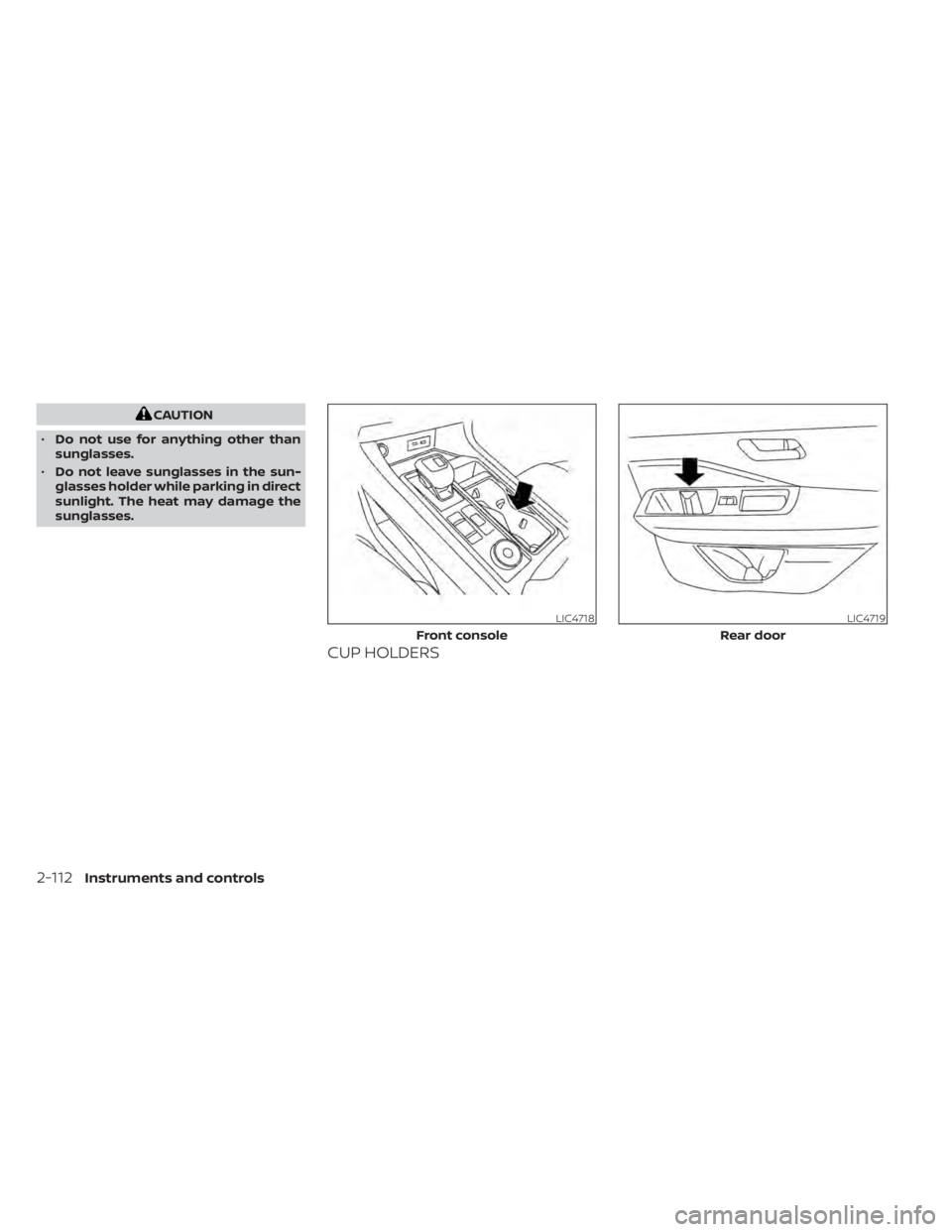
CUP HOLDERS
LIC4718
Front console
LIC4719
Rear door
2-112Instruments and controls
Page 225 of 665
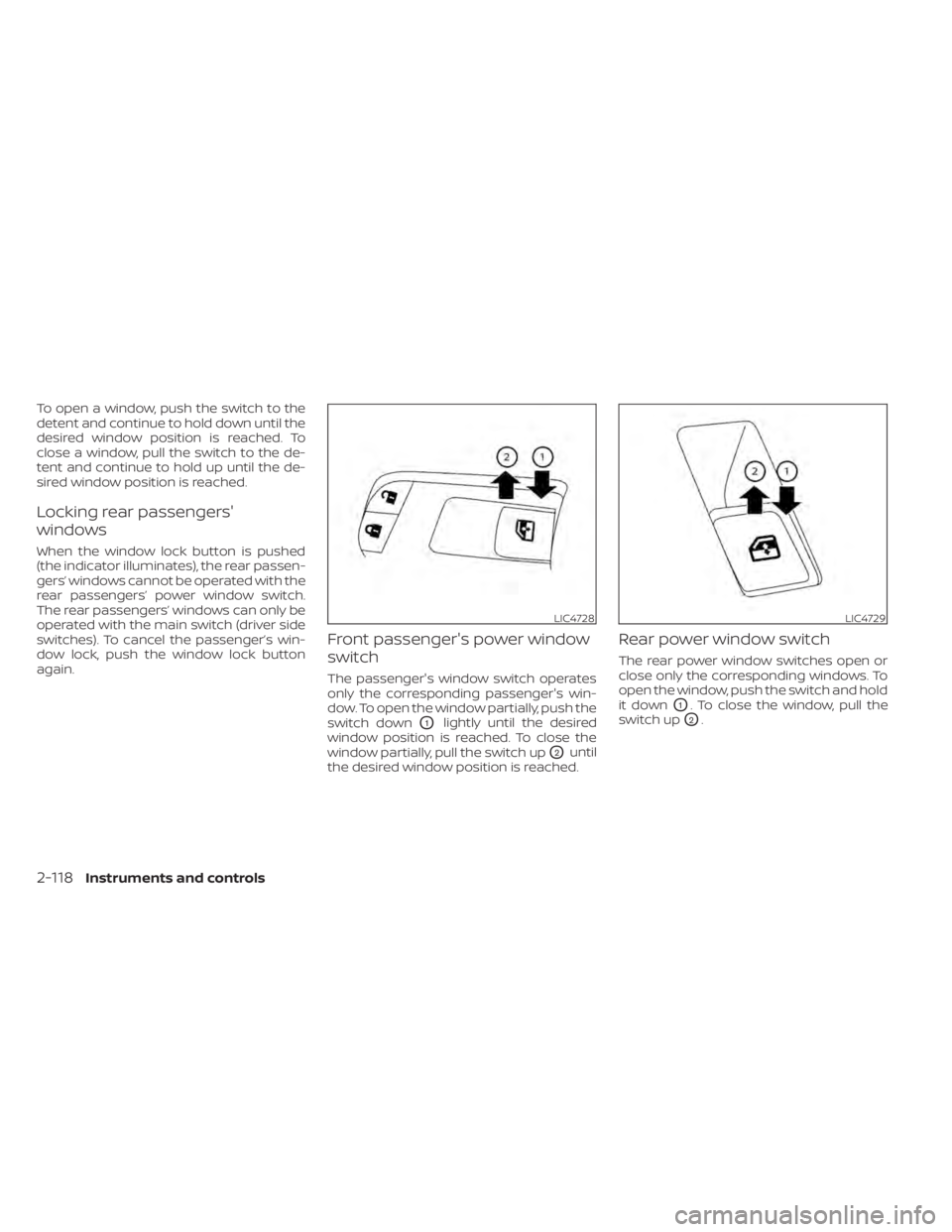
To open a window, push the switch to the
detent and continue to hold down until the
desired window position is reached. To
close a window, pull the switch to the de-
tent and continue to hold up until the de-
sired window position is reached.
Locking rear passengers'
windows
When the window lock button is pushed
(the indicator illuminates), the rear passen-
gers’ windows cannot be operated with the
rear passengers’ power window switch.
The rear passengers’ windows can only be
operated with the main switch (driver side
switches). To cancel the passenger’s win-
dow lock, push the window lock button
again.
Front passenger's power window
switch
The passenger's window switch operates
only the corresponding passenger's win-
dow. To open the window partially, push the
switch down
O1lightly until the desired
window position is reached. To close the
window partially, pull the switch up
O2until
the desired window position is reached.
Rear power window switch
The rear power window switches open or
close only the corresponding windows. To
open the window, push the switch and hold
it down
O1. To close the window, pull the
switch up
O2.
LIC4728LIC4729
2-118Instruments and controls
Page 229 of 665
If the moonroof switch does not
operate
If the moonroof and sunshade do not op-
erate properly, perform the following pro-
cedure to initialize the operation system.
1. If the moonroof and sunshade are open,close them fully by repeatedly pushing
the moonroof switch to the CLOSE
O2
andO4position.
2. Push and hold the moonroof switch to the CLOSE
O4position for 10 seconds.
3. Af ter the moonroof and sunshade move slightly to the closed position and
then move back a little, release the
moonroof switch.
4. Push and hold the moonroof switch to the CLOSE
O4position, and the glass
and shade will move.
5. Release the moonroof switch. Then the moonroof and sunshade will fully open
and then fully close.
6. Check if the moonroof switch operates normally.
WARNING
The driver is always responsible for op-
erating the moonroof properly, includ-
ing the operation by all passengers.
Failure to follow the warnings and in-
structions for proper use of the moon-
roof could result in serious injury or
death.
• Do not allow children to operate the
moonroof. Improper operation by
children may cause an accident. If
children or others get caught in the
moonroof, it could cause serious
injury.
• To help avoid risk of injury or death
through unintended operation of the
moonroof, place the ignition switch
in the OFF position when leaving the
vehicle, and do not leave children and
the Intelligent Key inside the vehicle.
• Do not activate the auto-reverse
function intentionally. If hands or
face, etc. get caught in the moonroof,
it could cause serious injury.CAUTION
• Do not place objects (such as news-
papers, handkerchiefs, etc.) on the
sunshade when it is extending or re-
tracting causing improper operation
or damage to the sunshade.
• Do not push the sunshade arm with
your hands, etc., as this may deform
it. Improper operation or damage to
the sunshade may result.
• Do not put any object into the sun-
shade inlet port as this may result in
improper operation or damage the
sunshade.
• Do not hang any object on the arm
rail as this may result in improper op-
eration or damage the sunshade.
• Do not forcefully pull the sunshade.
Doing so may elongate the sun-
shade. Improper operation or dam-
age to the sunshade may result.
If the moonroof does not operate properly
af ter performing the procedure above,
have your vehicle checked by a NISSAN
dealer.
2-122Instruments and controls