idling stop setting NISSAN PATHFINDER 2023 Owners Manual
[x] Cancel search | Manufacturer: NISSAN, Model Year: 2023, Model line: PATHFINDER, Model: NISSAN PATHFINDER 2023Pages: 665, PDF Size: 4.64 MB
Page 135 of 665
13. Traffic Sign Recognition (if so
equipped)
The Traffic Sign Recognition (TSR) system
provides the driver with information about
the most recently detected speed limit.
For additional information, see “Traffic Sign
Recognition (TSR) (P. 5-35).
14. Idling Stop System (if so
equipped)
The Idling Stop System provides the driver
with information about the amount of fuel
saved while using the system.
For additional information, see “Idling Stop
System” (P. 5-189).
OIL CONTROL SYSTEM (if so
equipped)
The oil control system can be accessed in
the Maintenance portion of the vehicle in-
formation display settings.
Engine oil information informs the distance
to oil change. Never exceed one year or
10,000 miles (16,000 km) between oil
change intervals for the 3.5L 6 cylinder
(VQ35DD engine model).
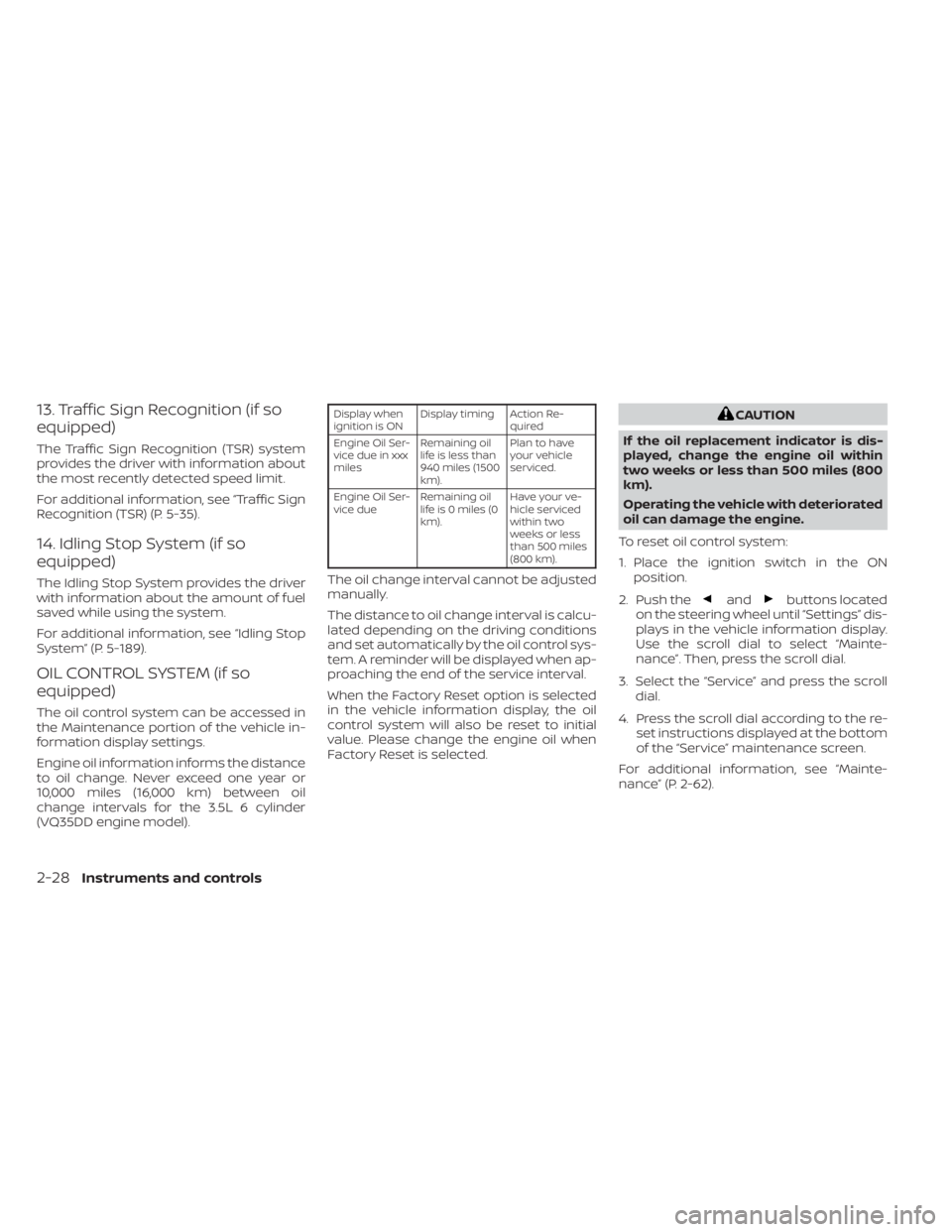
Display when
ignition is ONDisplay timing Action Re-
quired
Engine Oil Ser-
vice due in xxx
miles Remaining oil
life is less than
940 miles (1500
km). Plan to have
your vehicle
serviced.
Engine Oil Ser-
vice due Remaining oil
lifeis0miles(0
km). Have your ve-
hicle serviced
within two
weeks or less
than 500 miles
(800 km).
The oil change interval cannot be adjusted
manually.
The distance to oil change interval is calcu-
lated depending on the driving conditions
and set automatically by the oil control sys-
tem. A reminder will be displayed when ap-
proaching the end of the service interval.
When the Factory Reset option is selected
in the vehicle information display, the oil
control system will also be reset to initial
value. Please change the engine oil when
Factory Reset is selected.
CAUTION
If the oil replacement indicator is dis-
played, change the engine oil within
two weeks or less than 500 miles (800
km).
Operating the vehicle with deteriorated
oil can damage the engine.
To reset oil control system:
1. Place the ignition switch in the ON position.
2. Push the
andbuttons located
on the steering wheel until “Settings” dis-
plays in the vehicle information display.
Use the scroll dial to select “Mainte-
nance”. Then, press the scroll dial.
3. Select the “Service” and press the scroll dial.
4. Press the scroll dial according to the re- set instructions displayed at the bottom
of the “Service” maintenance screen.
For additional information, see “Mainte-
nance” (P. 2-62).
2-28Instruments and controls
Page 138 of 665
Menu itemExplanation
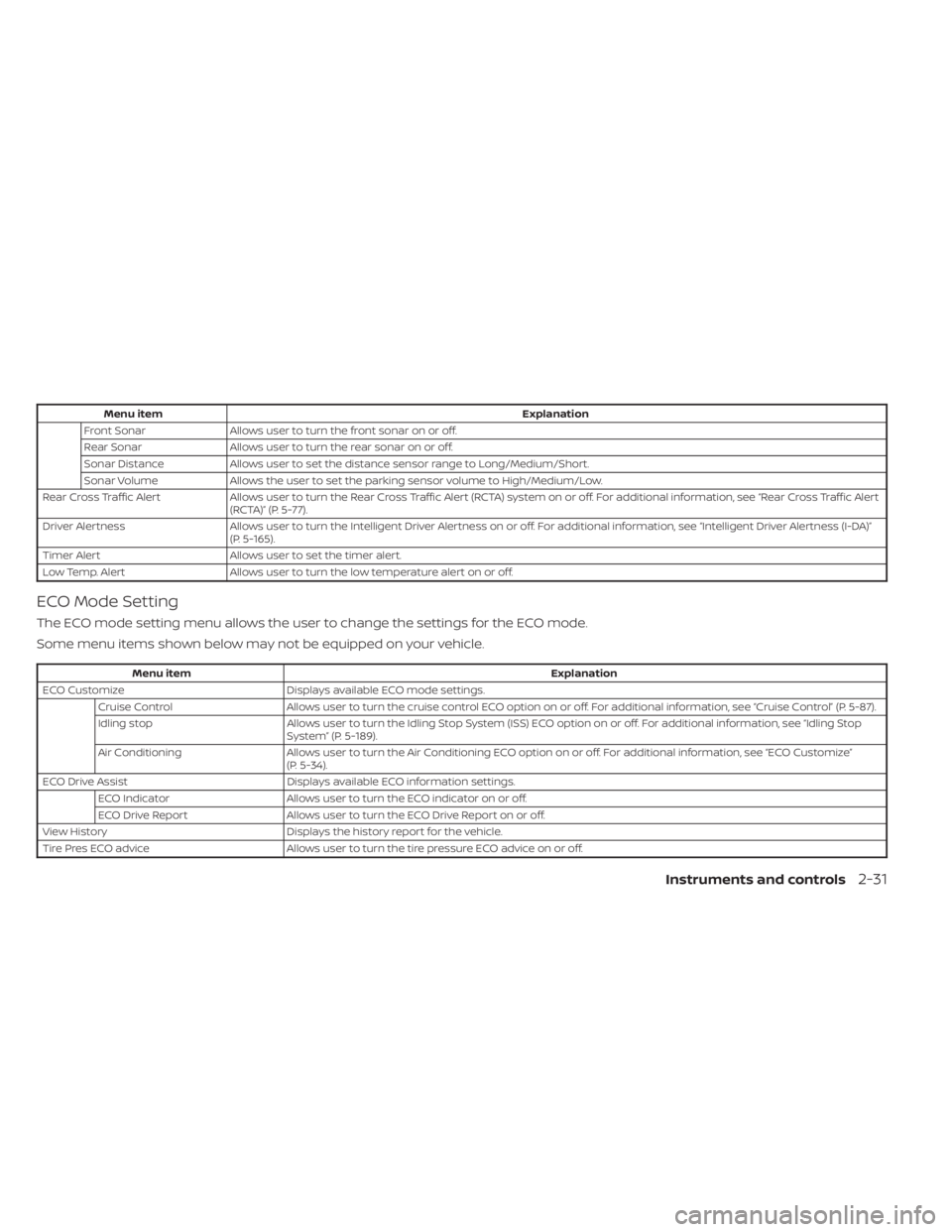
Front Sonar Allows user to turn the front sonar on or off.
Rear Sonar Allows user to turn the rear sonar on or off.
Sonar Distance Allows user to set the distance sensor range to Long/Medium/Short.
Sonar Volume Allows the user to set the parking sensor volume to High/Medium/Low.
Rear Cross Traffic Alert Allows user to turn the Rear Cross Traffic Alert (RCTA) system on or off. For additional information, see “Rear Cross Traffic A lert
(RCTA)” (P. 5-77).
Driver Alertness Allows user to turn the Intelligent Driver Alertness on or off. For additional information, see “Intelligent Driver Alertness (I-D A)”
(P. 5-165).
Timer Alert Allows user to set the timer alert.
Low Temp. Alert Allows user to turn the low temperature alert on or off.
ECO Mode Setting
The ECO mode setting menu allows the user to change the settings for the ECO mode.
Some menu items shown below may not be equipped on your vehicle.
Menu item Explanation
ECO Customize Displays available ECO mode settings.
Cruise Control Allows user to turn the cruise control ECO option on or off. For additional information, see “Cruise Control” (P. 5-87).
Idling stop Allows user to turn the Idling Stop System (ISS) ECO option on or off. For additional information, see “Idling Stop
System” (P. 5-189).
Air Conditioning Allows user to turn the Air Conditioning ECO option on or off. For additional information, see “ECO Customize”
(P. 5-34).
ECO Drive Assist Displays available ECO information settings.
ECO Indicator Allows user to turn the ECO indicator on or off.
ECO Drive Report Allows user to turn the ECO Drive Report on or off.
View History Displays the history report for the vehicle.
Tire Pres ECO advice Allows user to turn the tire pressure ECO advice on or off.
Instruments and controls2-31
Page 143 of 665
Customize Display
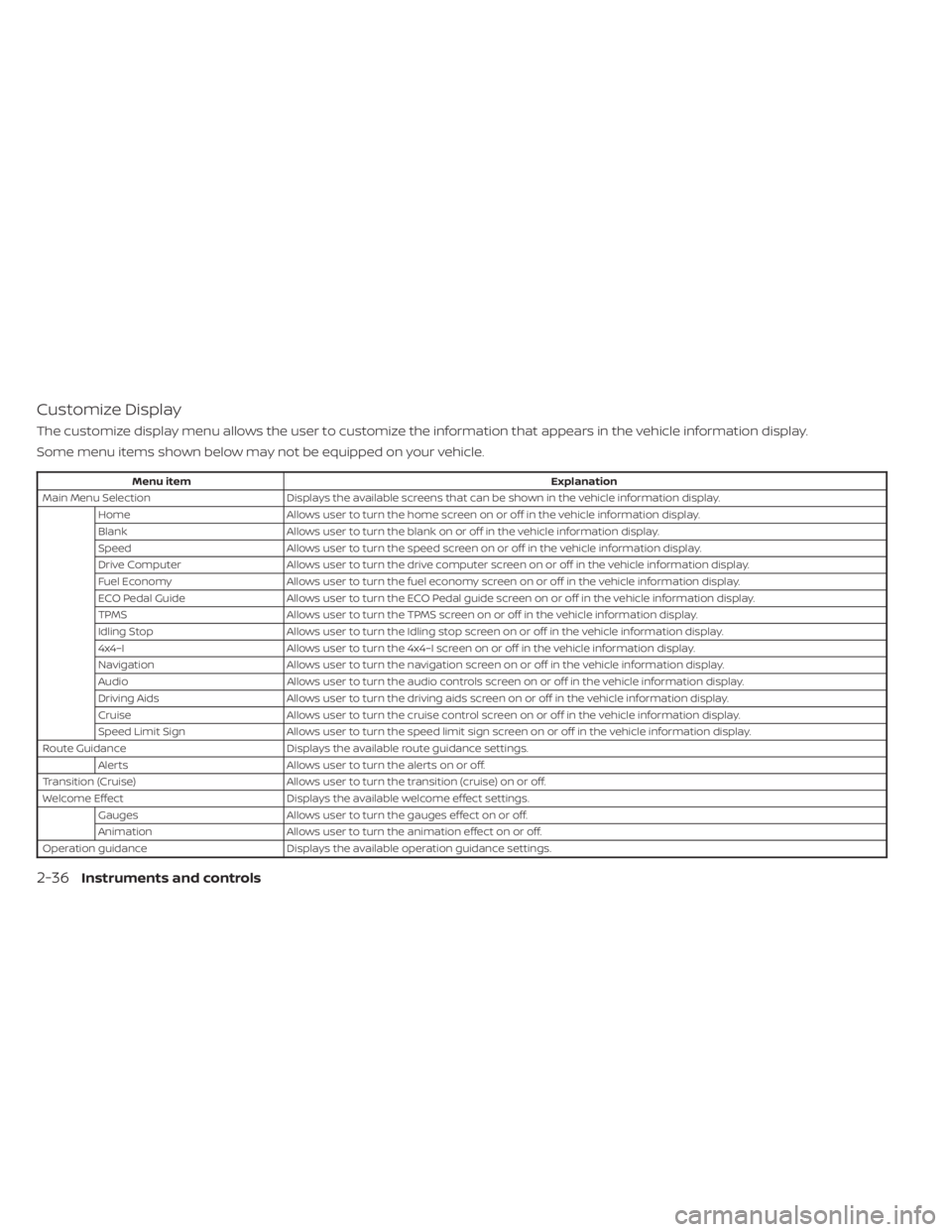
The customize display menu allows the user to customize the information that appears in the vehicle information display.
Some menu items shown below may not be equipped on your vehicle.
Menu itemExplanation
Main Menu Selection Displays the available screens that can be shown in the vehicle information display.
Home Allows user to turn the home screen on or off in the vehicle information display.
Blank Allows user to turn the blank on or off in the vehicle information display.
Speed Allows user to turn the speed screen on or off in the vehicle information display.
Drive Computer Allows user to turn the drive computer screen on or off in the vehicle information display.
Fuel Economy Allows user to turn the fuel economy screen on or off in the vehicle information display.
ECO Pedal Guide Allows user to turn the ECO Pedal guide screen on or off in the vehicle information display.
TPMS Allows user to turn the TPMS screen on or off in the vehicle information display.
Idling Stop Allows user to turn the Idling stop screen on or off in the vehicle information display.
4x4–I Allows user to turn the 4x4–I screen on or off in the vehicle information display.
Navigation Allows user to turn the navigation screen on or off in the vehicle information display.
Audio Allows user to turn the audio controls screen on or off in the vehicle information display.
Driving Aids Allows user to turn the driving aids screen on or off in the vehicle information display.
Cruise Allows user to turn the cruise control screen on or off in the vehicle information display.
Speed Limit Sign Allows user to turn the speed limit sign screen on or off in the vehicle information display.
Route Guidance Displays the available route guidance settings.
Alerts Allows user to turn the alerts on or off.
Transition (Cruise) Allows user to turn the transition (cruise) on or off.
Welcome Effect Displays the available welcome effect settings.
Gauges Allows user to turn the gauges effect on or off.
Animation Allows user to turn the animation effect on or off.
Operation guidance Displays the available operation guidance settings.
2-36Instruments and controls
Page 165 of 665
Head-Up Display (if so equipped)
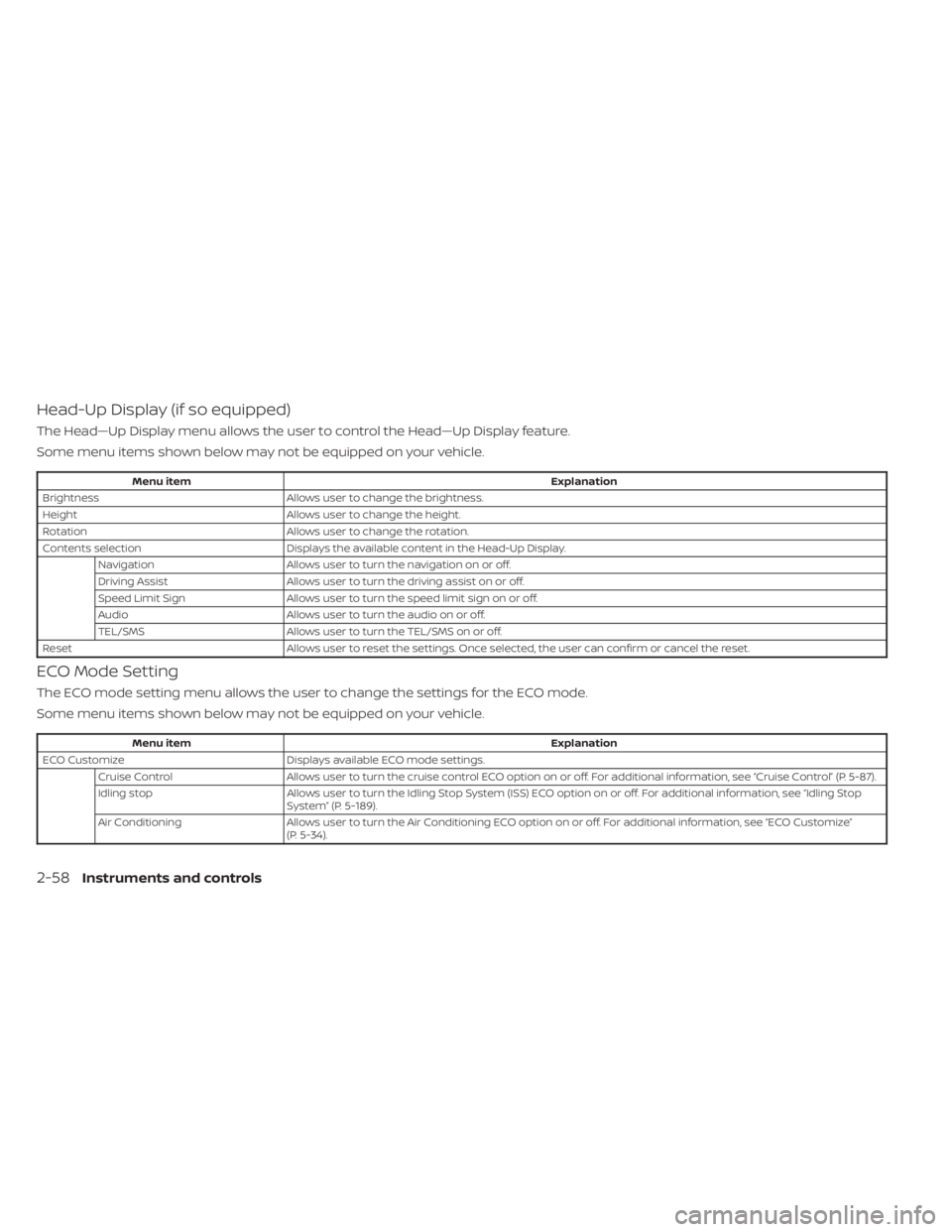
The Head—Up Display menu allows the user to control the Head—Up Display feature.
Some menu items shown below may not be equipped on your vehicle.
Menu itemExplanation
Brightness Allows user to change the brightness.
Height Allows user to change the height.
Rotation Allows user to change the rotation.
Contents selection Displays the available content in the Head-Up Display.
Navigation Allows user to turn the navigation on or off.
Driving Assist Allows user to turn the driving assist on or off.
Speed Limit Sign Allows user to turn the speed limit sign on or off.
Audio Allows user to turn the audio on or off.
TEL/SMS Allows user to turn the TEL/SMS on or off.
Reset Allows user to reset the settings. Once selected, the user can confirm or cancel the reset.
ECO Mode Setting
The ECO mode setting menu allows the user to change the settings for the ECO mode.
Some menu items shown below may not be equipped on your vehicle.
Menu item Explanation
ECO Customize Displays available ECO mode settings.
Cruise Control Allows user to turn the cruise control ECO option on or off. For additional information, see “Cruise Control” (P. 5-87).
Idling stop Allows user to turn the Idling Stop System (ISS) ECO option on or off. For additional information, see “Idling Stop
System” (P. 5-189).
Air Conditioning Allows user to turn the Air Conditioning ECO option on or off. For additional information, see “ECO Customize”
(P. 5-34).
2-58Instruments and controls
Page 170 of 665
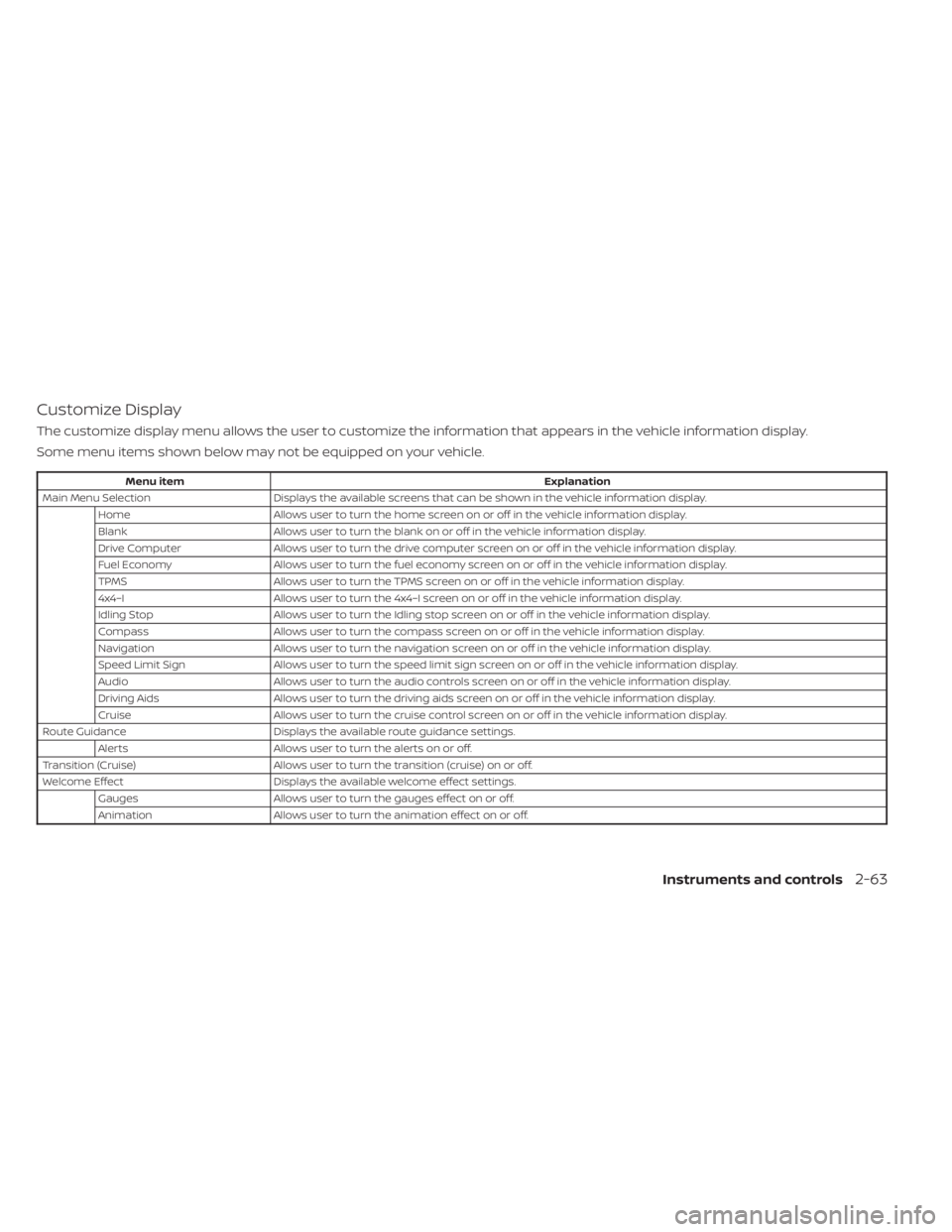
Customize Display
The customize display menu allows the user to customize the information that appears in the vehicle information display.
Some menu items shown below may not be equipped on your vehicle.
Menu itemExplanation
Main Menu Selection Displays the available screens that can be shown in the vehicle information display.
Home Allows user to turn the home screen on or off in the vehicle information display.
Blank Allows user to turn the blank on or off in the vehicle information display.
Drive Computer Allows user to turn the drive computer screen on or off in the vehicle information display.
Fuel Economy Allows user to turn the fuel economy screen on or off in the vehicle information display.
TPMS Allows user to turn the TPMS screen on or off in the vehicle information display.
4x4–I Allows user to turn the 4x4–I screen on or off in the vehicle information display.
Idling Stop Allows user to turn the Idling stop screen on or off in the vehicle information display.
Compass Allows user to turn the compass screen on or off in the vehicle information display.
Navigation Allows user to turn the navigation screen on or off in the vehicle information display.
Speed Limit Sign Allows user to turn the speed limit sign screen on or off in the vehicle information display.
Audio Allows user to turn the audio controls screen on or off in the vehicle information display.
Driving Aids Allows user to turn the driving aids screen on or off in the vehicle information display.
Cruise Allows user to turn the cruise control screen on or off in the vehicle information display.
Route Guidance Displays the available route guidance settings.
Alerts Allows user to turn the alerts on or off.
Transition (Cruise) Allows user to turn the transition (cruise) on or off.
Welcome Effect Displays the available welcome effect settings.
Gauges Allows user to turn the gauges effect on or off.
Animation Allows user to turn the animation effect on or off.
Instruments and controls2-63
Page 314 of 665
•Do not use the recirculation mode for
long periods as it may cause the inte-
rior air to become stale and the win-
dows to fog up.
Start the engine and operate the controls
to activate the air conditioner.
NOTE:
• Odors from inside and outside the ve- hicle can build up in the air conditioner
unit. Odor can enter the passenger
compartment through the vents.
• When parking, set the heater and air conditioner controls to turn off air re-
circulation to allow fresh air into the
passenger compartment. This should
help reduce odors inside the vehicle.
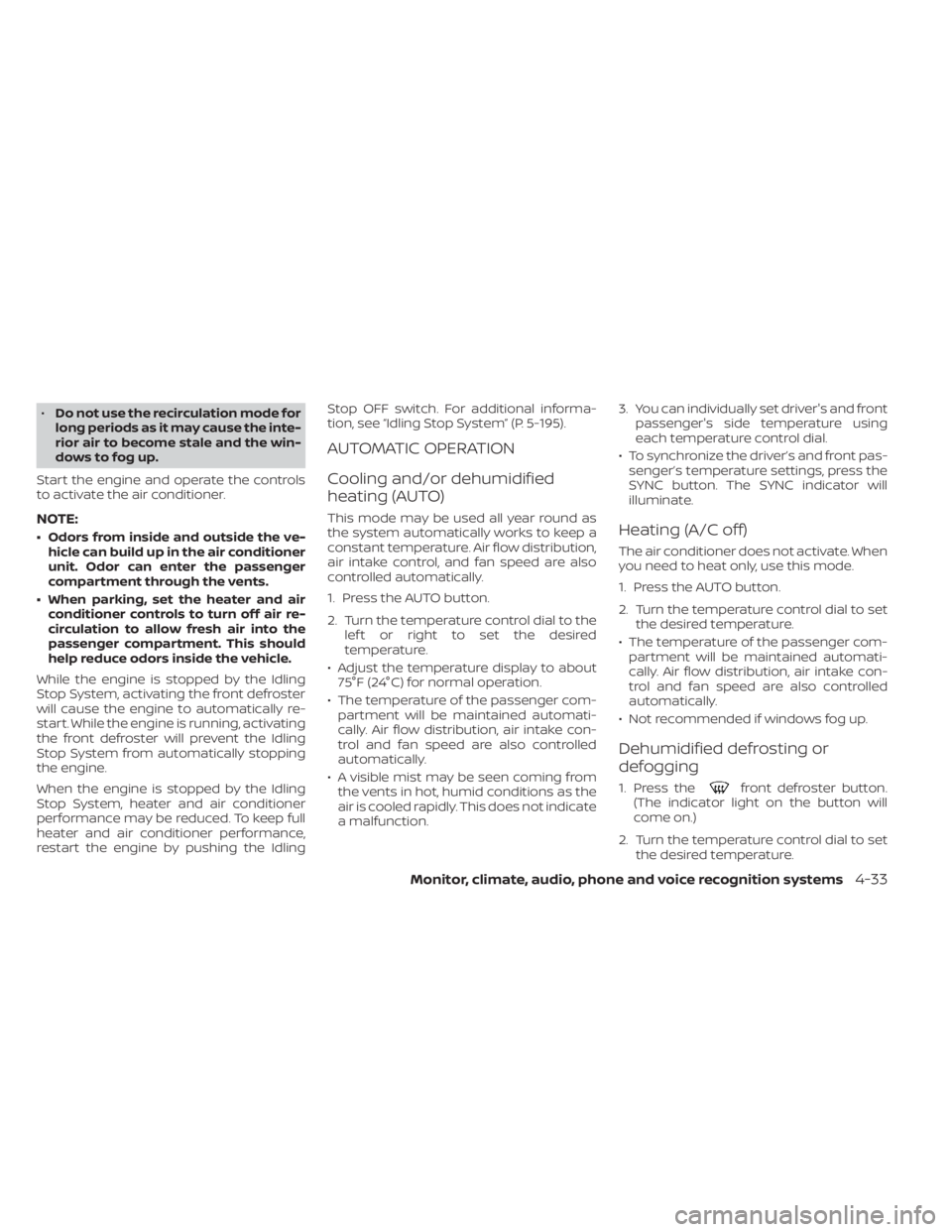
While the engine is stopped by the Idling
Stop System, activating the front defroster
will cause the engine to automatically re-
start. While the engine is running, activating
the front defroster will prevent the Idling
Stop System from automatically stopping
the engine.
When the engine is stopped by the Idling
Stop System, heater and air conditioner
performance may be reduced. To keep full
heater and air conditioner performance,
restart the engine by pushing the Idling Stop OFF switch. For additional informa-
tion, see “Idling Stop System” (P. 5-195).
AUTOMATIC OPERATION
Cooling and/or dehumidified
heating (AUTO)
This mode may be used all year round as
the system automatically works to keep a
constant temperature. Air flow distribution,
air intake control, and fan speed are also
controlled automatically.
1. Press the AUTO button.
2. Turn the temperature control dial to the
lef t or right to set the desired
temperature.
• Adjust the temperature display to about 75°F (24°C) for normal operation.
• The temperature of the passenger com- partment will be maintained automati-
cally. Air flow distribution, air intake con-
trol and fan speed are also controlled
automatically.
• A visible mist may be seen coming from the vents in hot, humid conditions as the
air is cooled rapidly. This does not indicate
a malfunction. 3. You can individually set driver's and front
passenger's side temperature using
each temperature control dial.
• To synchronize the driver’s and front pas- senger’s temperature settings, press the
SYNC button. The SYNC indicator will
illuminate.Heating (A/C off)
The air conditioner does not activate. When
you need to heat only, use this mode.
1. Press the AUTO button.
2. Turn the temperature control dial to set the desired temperature.
• The temperature of the passenger com- partment will be maintained automati-
cally. Air flow distribution, air intake con-
trol and fan speed are also controlled
automatically.
• Not recommended if windows fog up.
Dehumidified defrosting or
defogging
1. Press thefront defroster button.
(The indicator light on the button will
come on.)
2. Turn the temperature control dial to set the desired temperature.
Monitor, climate, audio, phone and voice recognition systems4-33