display NISSAN PATHFINDER HYBRID 2015 Owners Manual
[x] Cancel search | Manufacturer: NISSAN, Model Year: 2015, Model line: PATHFINDER HYBRID, Model: NISSAN PATHFINDER HYBRID 2015Pages: 524, PDF Size: 6.49 MB
Page 264 of 524
●The Bluetooth® audio may be stopped un-
der the following conditions:
●Receiving a call on the Hands-Free
Phone System.
●Checking the connection to the hands-
free phone.
●Do not place the Bluetooth® audio device in
an area surrounded by metal or far away from
the in-vehicle Bluetooth® module to prevent
tone quality degradation and wireless con-
nection disruption.
●While an audio device is connected through
the Bluetooth® wireless connection, the
battery power of the device may discharge
quicker than usual.
●This system supports the Bluetooth® Audio
Distribution Profile (A2DP, AVRCP) .
BLUETOOTH® is a
trademark owned by
Bluetooth SIG, Inc.
and licensed to
Clarion Co., Ltd.
CD or USB with Compressed Audio
Files (models without Navigation
System)
The file types supported by this system are MP3
and WMA.
Explanation of terms
●MP3 — MP3 is short for Moving Pictures
Experts Group Audio Layer 3. MP3 is the
most well-known compressed digital audio
file format. This format allows for near “CD
quality” sound, but at a fraction of the size of
normal audio files. MP3 conversion of an
audio track from CD-ROM can reduce the
file size by approximately a 10:1 ratio with
virtually no perceptible loss in quality. MP3
compression removes the redundant and
irrelevant parts of a sound signal that the
human ear doesn’t hear.
●WMA — Windows Media Audio (WMA)* is a
compressed audio format created by Micro-
soft as an alternative to MP3. The WMA
codec offers greater file compression than
the MP3 codec, enabling storage of more
digital audio tracks in the same amount of
space when compared to MP3s at the same
level of quality.●Bit rate — Bit rate denotes the number of
bits per second used by a digital music file.
The size and quality of a compressed digital
audio file is determined by the bit rate used
when encoding the file.
●Sampling frequency — Sampling frequency
is the rate at which the samples of a signal
are converted from analog to digital (A/D
conversion) per second.
●Multisession — Multisession is one of the
methods for writing data to media. Writing
data once to the media is called a single
session, and writing more than once is called
a multisession.
●ID3/WMA Tag — The ID3/WMA tag is the
part of the encoded MP3 or WMA file that
contains information about the digital music
file such as song title, artist, encoding bit
rate, track time duration, etc. ID3 tag infor-
mation is displayed on the Artist/song title
line on the display.
* Windows®, Windows Media® and Windows
Vista® are registered trademarks and trade-
marks in the United States of America and other
countries of Microsoft Corporation of the USA.
Monitor, climate, audio, phone and voice recognition systems4-53
Page 265 of 524
Playback order
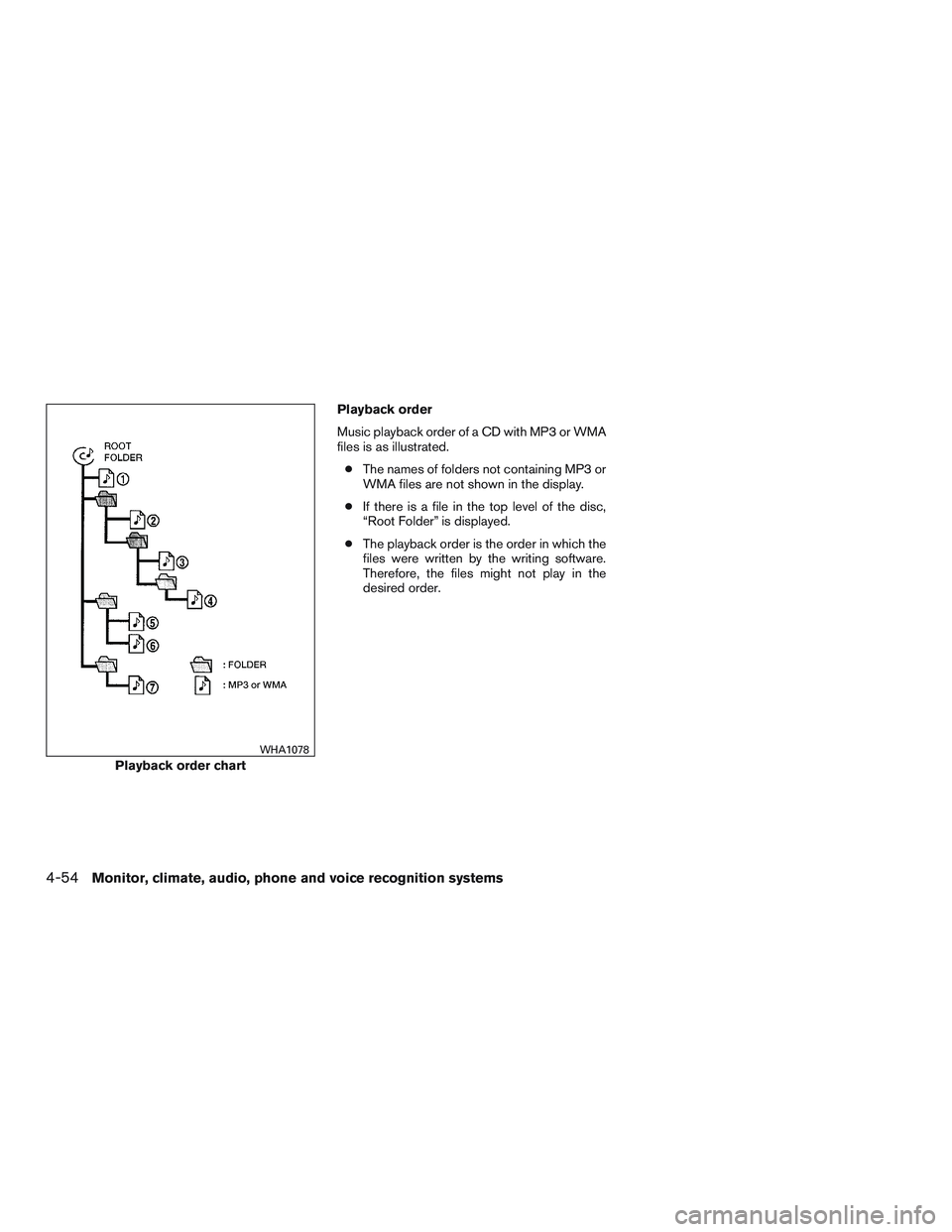
Music playback order of a CD with MP3 or WMA
files is as illustrated.
●The names of folders not containing MP3 or
WMA files are not shown in the display.
●If there is a file in the top level of the disc,
“Root Folder” is displayed.
●The playback order is the order in which the
files were written by the writing software.
Therefore, the files might not play in the
desired order.
Playback order chart
WHA1078
4-54Monitor, climate, audio, phone and voice recognition systems
Page 266 of 524
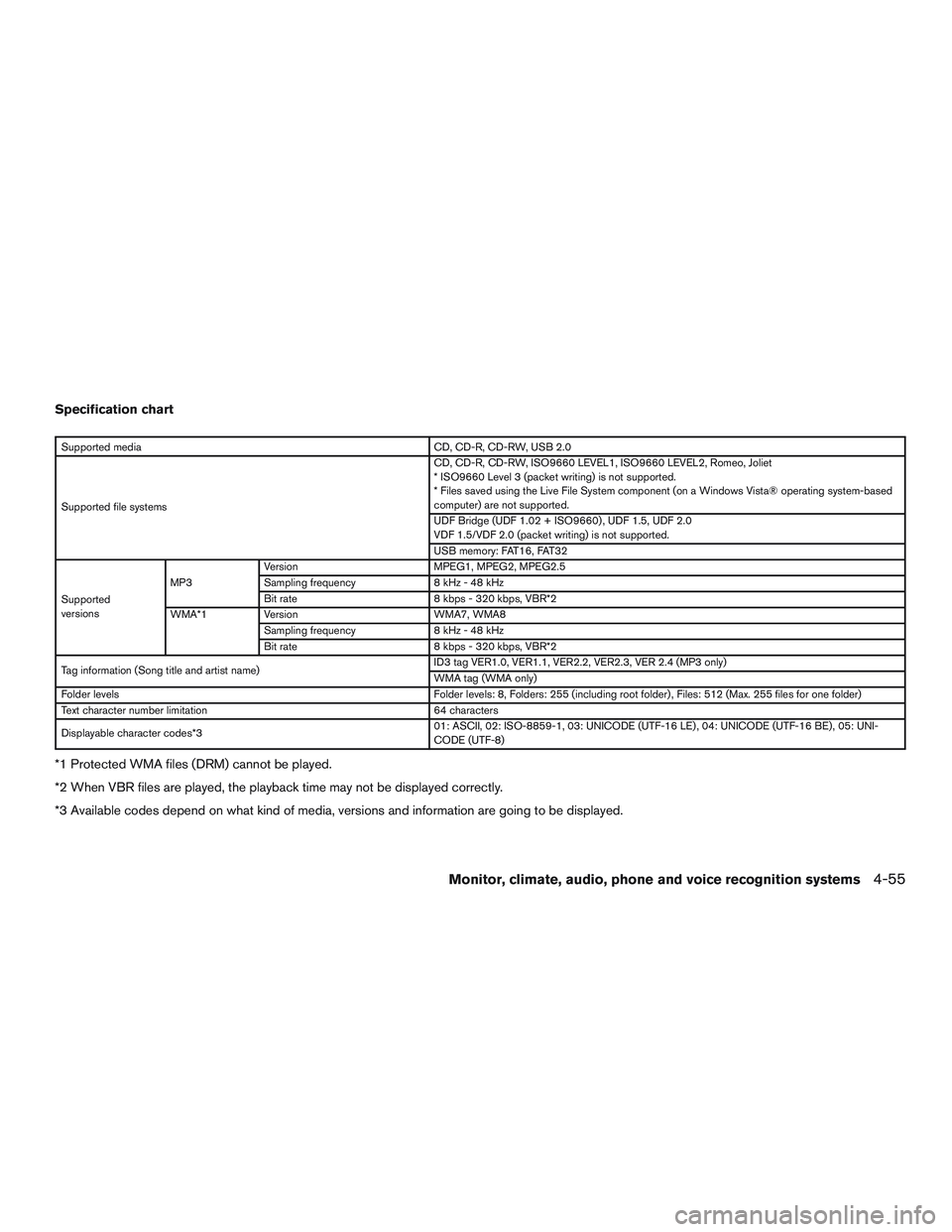
Specification chart
Supported media CD, CD-R, CD-RW, USB 2.0
Supported file systemsCD, CD-R, CD-RW, ISO9660 LEVEL1, ISO9660 LEVEL2, Romeo, Joliet
* ISO9660 Level 3 (packet writing) is not supported.
* Files saved using the Live File System component (on a Windows Vista® operating system-based
computer) are not supported.
UDF Bridge (UDF 1.02 + ISO9660) , UDF 1.5, UDF 2.0
VDF 1.5/VDF 2.0 (packet writing) is not supported.
USB memory: FAT16, FAT32
Supported
versionsMP3Version MPEG1, MPEG2, MPEG2.5
Sampling frequency 8 kHz - 48 kHz
Bit rate 8 kbps - 320 kbps, VBR*2
WMA*1 Version WMA7, WMA8
Sampling frequency 8 kHz - 48 kHz
Bit rate 8 kbps - 320 kbps, VBR*2
Tag information (Song title and artist name)ID3 tag VER1.0, VER1.1, VER2.2, VER2.3, VER 2.4 (MP3 only)
WMA tag (WMA only)
Folder levels Folder levels: 8, Folders: 255 (including root folder) , Files: 512 (Max. 255 files for one folder)
Text character number limitation 64 characters
Displayable character codes*301: ASCII, 02: ISO-8859-1, 03: UNICODE (UTF-16 LE) , 04: UNICODE (UTF-16 BE) , 05: UNI-
CODE (UTF-8)
*1 Protected WMA files (DRM) cannot be played.
*2 When VBR files are played, the playback time may not be displayed correctly.
*3 Available codes depend on what kind of media, versions and information are going to be displayed.
Monitor, climate, audio, phone and voice recognition systems4-55
Page 268 of 524
CD, DVD or USB with Compressed
Audio Files (models with Navigation
System)
The file types supported by this system are MP3,
WMA, AAC/M4A and ATRAC3.
Explanation of terms
●MP3 — MP3 is short for Moving Pictures
Experts Group Audio Layer 3. MP3 is the
most well known compressed digital audio
file format. This format allows for near “CD
quality” sound, but at a fraction of the size of
normal audio files. MP3 conversion of an
audio track can reduce the file size by ap-
proximately 10:1 ratio (Sampling: 44.1 kHz,
Bit rate: 128 kbps) with virtually no percep-
tible loss in quality. The compression re-
duces certain parts of sound that seem in-
audible to most people.
●WMA — Windows Media Audio (WMA) is a
compressed audio format created by Micro-
soft as an alternative to MP3. The WMA
codec offers greater file compression than
the MP3 codec, enabling storage of more
digital audio tracks in the same amount of
space when compared to MP3s at the same
level of quality.●AAC/M4A — Advanced Audio Coding
(AAC) is a lossy audio compression format.
Audio files that have been encoded with
AAC are generally smaller in size and deliver
a higher quality of sound than MP3.
●ATRAC3, ATRAC3 Plus — Adaptive Trans-
form Acoustic Coding (ATRAC) is a lossy
audio compression format developed by
Sony.
●Bit rate — Bit rate denotes the number of
bits per second used by a digital music file.
The size and quality of a compressed digital
audio file is determined by the bit rate used
when encoding the file.
●Sampling frequency — Sampling frequency
is the rate at which the samples of a signal
are converted from analog to digital (A/D
conversion) per second.
●Multisession — Multisession is one of the
methods for writing data to media. Writing
data once to the media is called a single
session, and writing more than once is called
a multisession.●ID3/WMA Tag — The ID3/WMA tag is the
part of the encoded MP3 or WMA file that
contains information about the digital music
file such as song title, artist, album title,
encoding bit rate, track time duration, etc.
ID3 tag information is displayed on the
Album/Artist/Track title line on the display.
* Windows®, Windows Media® and Windows
Vista® are registered trademarks or trademarks
of Microsoft Corporation in the United States of
America and/or other countries.
Monitor, climate, audio, phone and voice recognition systems4-57
Page 269 of 524
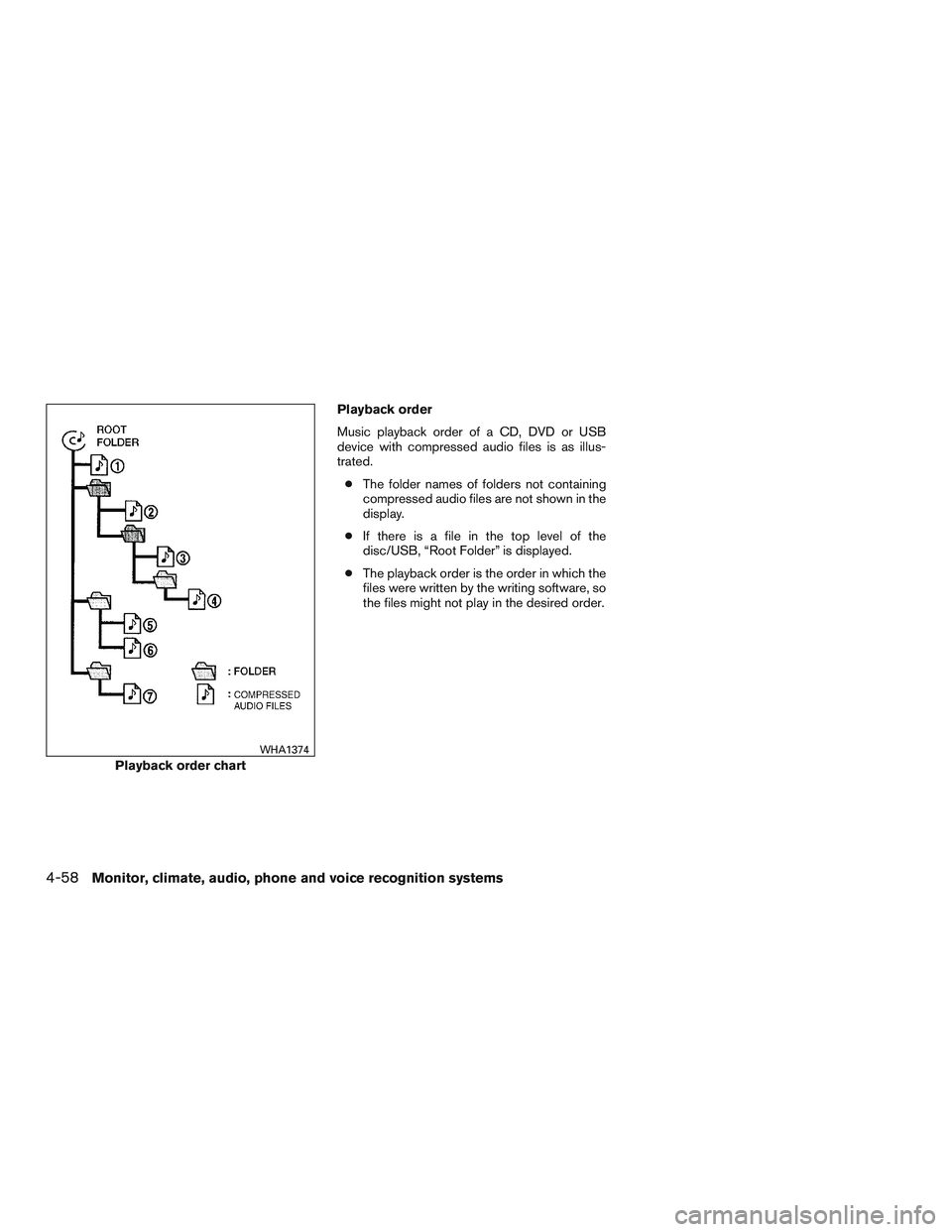
Playback order
Music playback order of a CD, DVD or USB
device with compressed audio files is as illus-
trated.
●The folder names of folders not containing
compressed audio files are not shown in the
display.
●If there is a file in the top level of the
disc/USB, “Root Folder” is displayed.
●The playback order is the order in which the
files were written by the writing software, so
the files might not play in the desired order.
Playback order chart
WHA1374
4-58Monitor, climate, audio, phone and voice recognition systems
Page 270 of 524
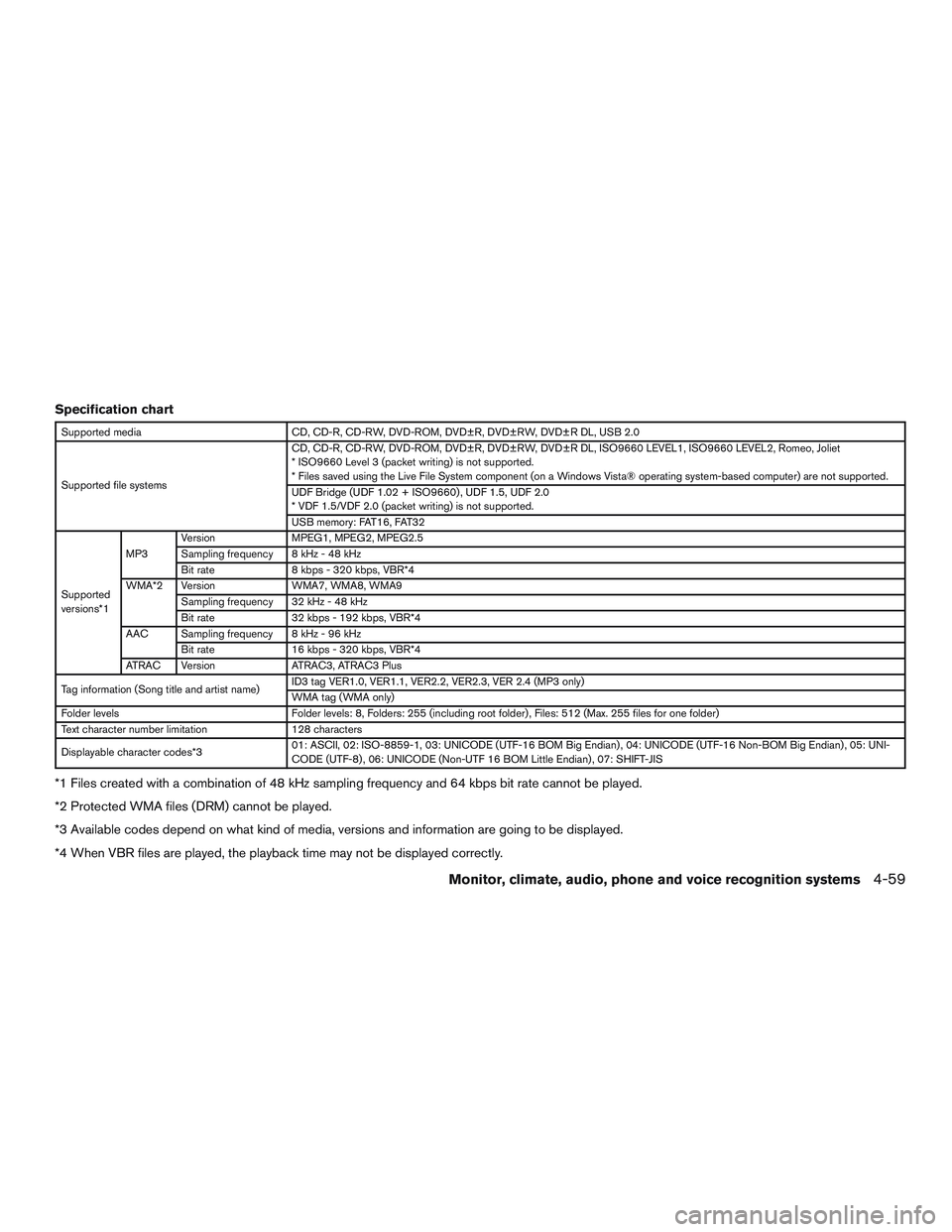
Specification chart
Supported media CD, CD-R, CD-RW, DVD-ROM, DVD±R, DVD±RW, DVD±R DL, USB 2.0
Supported file systemsCD, CD-R, CD-RW, DVD-ROM, DVD±R, DVD±RW, DVD±R DL, ISO9660 LEVEL1, ISO9660 LEVEL2, Romeo, Joliet
* ISO9660 Level 3 (packet writing) is not supported.
* Files saved using the Live File System component (on a Windows Vista® operating system-based computer) are not supported.
UDF Bridge (UDF 1.02 + ISO9660) , UDF 1.5, UDF 2.0
* VDF 1.5/VDF 2.0 (packet writing) is not supported.
USB memory: FAT16, FAT32
Supported
versions*1MP3Version MPEG1, MPEG2, MPEG2.5
Sampling frequency 8 kHz - 48 kHz
Bit rate 8 kbps - 320 kbps, VBR*4
WMA*2 Version WMA7, WMA8, WMA9
Sampling frequency 32 kHz - 48 kHz
Bit rate 32 kbps - 192 kbps, VBR*4
AAC Sampling frequency 8 kHz - 96 kHz
Bit rate 16 kbps - 320 kbps, VBR*4
ATRAC Version ATRAC3, ATRAC3 Plus
Tag information (Song title and artist name)ID3 tag VER1.0, VER1.1, VER2.2, VER2.3, VER 2.4 (MP3 only)
WMA tag (WMA only)
Folder levels Folder levels: 8, Folders: 255 (including root folder) , Files: 512 (Max. 255 files for one folder)
Text character number limitation 128 characters
Displayable character codes*301: ASCII, 02: ISO-8859-1, 03: UNICODE (UTF-16 BOM Big Endian) , 04: UNICODE (UTF-16 Non-BOM Big Endian) , 05: UNI-
CODE (UTF-8) , 06: UNICODE (Non-UTF 16 BOM Little Endian) , 07: SHIFT-JIS
*1 Files created with a combination of 48 kHz sampling frequency and 64 kbps bit rate cannot be played.
*2 Protected WMA files (DRM) cannot be played.
*3 Available codes depend on what kind of media, versions and information are going to be displayed.
*4 When VBR files are played, the playback time may not be displayed correctly.
Monitor, climate, audio, phone and voice recognition systems4-59
Page 275 of 524
Turn the VOL/ON·OFF control knob to adjust the
volume.
This vehicle has Speed Sensitive Volume (SSV)
for audio. The audio volume changes as the driv-
ing speed changes.
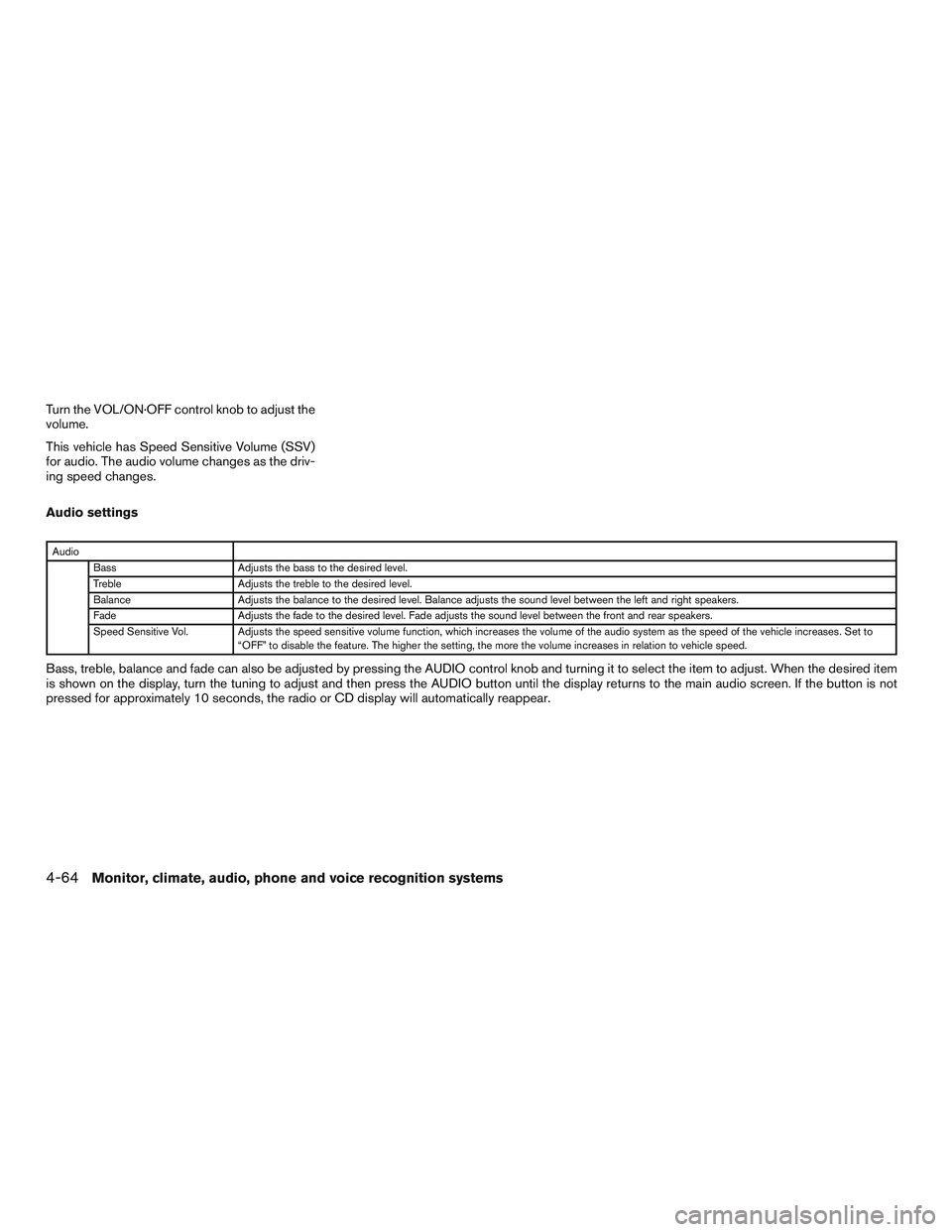
Audio settings
Audio
Bass Adjusts the bass to the desired level.
Treble Adjusts the treble to the desired level.
Balance Adjusts the balance to the desired level. Balance adjusts the sound level between the left and right speakers.
Fade Adjusts the fade to the desired level. Fade adjusts the sound level between the front and rear speakers.
Speed Sensitive Vol. Adjusts the speed sensitive volume function, which increases the volume of the audio system as the speed of the vehicle increases. Set to
“OFF” to disable the feature. The higher the setting, the more the volume increases in relation to vehicle speed.
Bass, treble, balance and fade can also be adjusted by pressing the AUDIO control knob and turning it to select the item to adjust. When the desired item
is shown on the display, turn the tuning to adjust and then press the AUDIO button until the display returns to the main audio screen. If the button is not
pressed for approximately 10 seconds, the radio or CD display will automatically reappear.
4-64Monitor, climate, audio, phone and voice recognition systems
Page 276 of 524
Clock operation
For additional information on setting the clock,
refer to “How to use the setting button” in this
section.
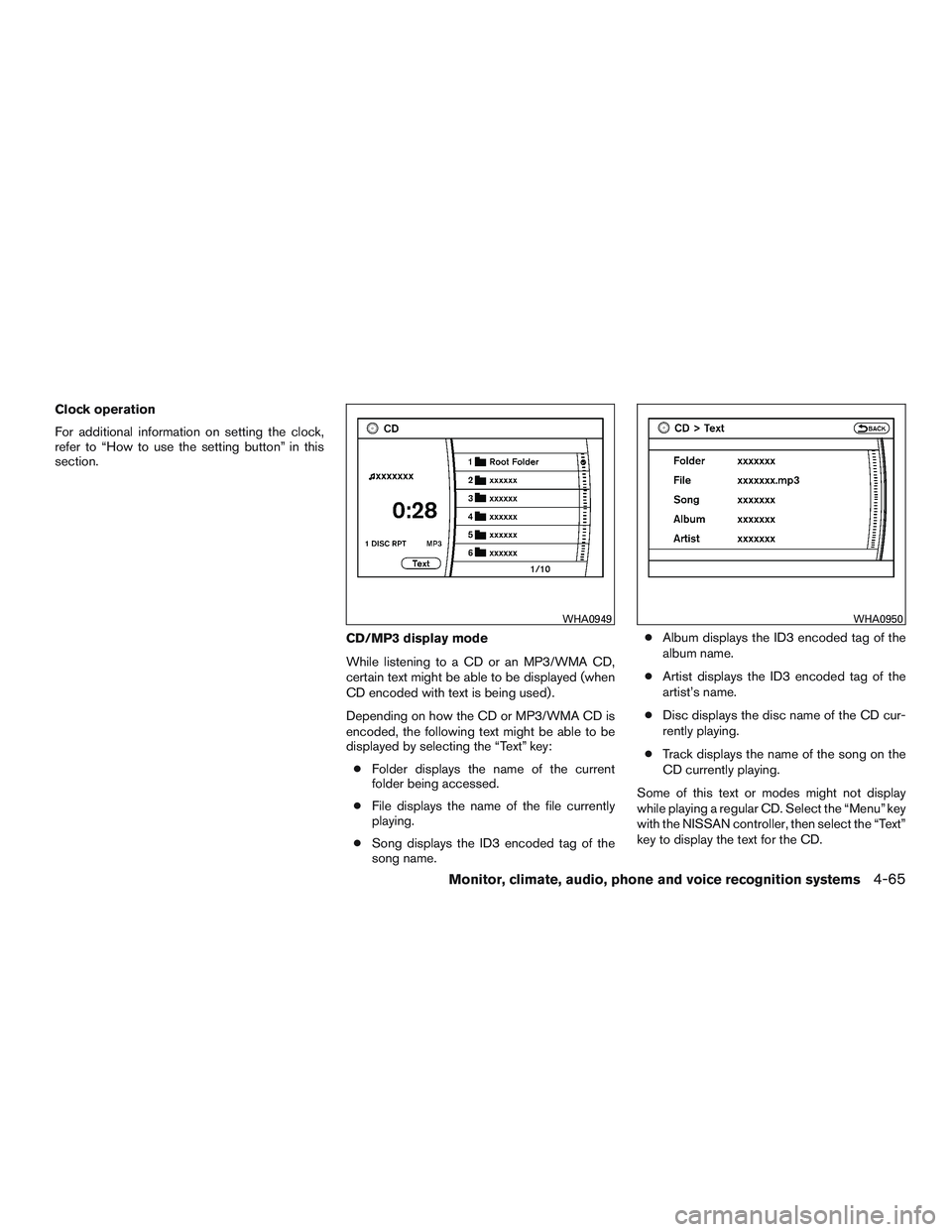
CD/MP3 display mode
While listening to a CD or an MP3/WMA CD,
certain text might be able to be displayed (when
CD encoded with text is being used) .
Depending on how the CD or MP3/WMA CD is
encoded, the following text might be able to be
displayed by selecting the “Text” key:
●Folder displays the name of the current
folder being accessed.
●File displays the name of the file currently
playing.
●Song displays the ID3 encoded tag of the
song name.●Album displays the ID3 encoded tag of the
album name.
●Artist displays the ID3 encoded tag of the
artist’s name.
●Disc displays the disc name of the CD cur-
rently playing.
●Track displays the name of the song on the
CD currently playing.
Some of this text or modes might not display
while playing a regular CD. Select the “Menu” key
with the NISSAN controller, then select the “Text”
key to display the text for the CD.
WHA0949WHA0950
Monitor, climate, audio, phone and voice recognition systems4-65
Page 277 of 524
Press the BACK button to exit the CD text display
screen.
FM/AM/SAT radio operation
FM/AM band select
Pressing the FM·AM button will change the band
as follows:
AM→FM1→FM2→AM
When the FM·AM button is pressed while the
ignition switch is in the ACC or ON position, the
radio will come on at the station last played.
The last station played will also come on when
the VOL/ON·OFF control knob is pressed ON.
If a compact disc is playing when the FM·AM
button is pressed, the compact disc will auto-
matically be turned off and the last radio station
played will come on.
The FM stereo indicator (STEREO) will illuminate
during FM stereo reception. When the stereo
broadcast signal is weak, the radio will automati-
cally change from stereo to monaural reception.
XM band select
Pressing the AUX button will change the band as
follows:
USB→XM1*→XM2*→XM3*→AUX→USBWhen the AUX button is pressed while the igni-
tion switch is in the ACC or ON position, the
radio will come on at the station last played.
The last station played will also come on when
the VOL/ON·OFF control knob is pressed ON.
*When the AUX button is pressed, the satellite
radio mode will be skipped unless an optional
satellite receiver and antenna are installed and a
SiriusXM® Satellite Radio service subscription is
active. Satellite radio is not available in Alaska,
Hawaii and Guam.
If a compact disc is playing when the AUX button
is pressed, the compact disc will automatically be
turned off and the last radio station played will
come on.
TUNE/FOLDER (Tuning) knob
To manually tune the radio, turn the
TUNE/FOLDER knob to the right or left.
SEEK/CAT and TRACK
tuning buttons
Press the SEEK/CAT
button or the
TRACK
button to tune from high to low or
low to high frequencies and stop at the next
broadcasting station.SCAN tuning
Press the SCAN button to stop at each broad-
casting station for 5 seconds. Pressing the
SCAN button again during this 5 second period
will stop scan tuning and the radio will remain
tuned to that station. If the SCAN button is not
pressed within 5 seconds, scan tuning moves to
the next station.
1 to 6 Station memory operations
Six stations can be set for the AM band. Twelve
stations can be set for the FM band (6 for FM1, 6
for FM2) . Eighteen stations can be set for the XM
band (6 for XM1, 6 for XM2, 6 for XM3) .
1. Choose the radio band AM, FM1 or FM2
using the FM·AM select button or choose
the satellite band SAT1 or SAT2 using the
AUX button.
2. Tune to the desired station using manual,
SEEK or SCAN tuning. Press and hold any
of the desired station memory buttons (1 –
6) until a beep sound is heard.
3. The channel indicator will then come on and
the sound will resume. Programming is now
complete.
4. Other buttons can be set in the same man-
ner.
4-66Monitor, climate, audio, phone and voice recognition systems
Page 278 of 524
If the battery cable is disconnected, or if the fuse
opens, the radio memory will be canceled. In that
case, reset the desired stations.
Radio data system (RDS)
RDS stands for Radio Data System, and is a data
information service transmitted by some radio
stations on the FM band (not AM band) . Cur-
rently, most RDS stations are in large cities, but
many stations are now considering broadcasting
RDS data.
RDS can display:
●Station call sign, such as “WHFR 98.3”.
●Station name, such as “The Groove”.
●Music or programming type such as “Clas-
sical”, “Country”, or “Rock”.
When the “Text” key is selected with the NISSAN
controller on the display while the radio is playing,
additional information is displayed on the screen.
If the station broadcasts RDS information, the
RDS icon is displayed.
Compact disc (CD) player operation
Place the ignition in the ACC or ON position and
insert the compact disc into the slot with the label
side facing up. The compact disc will be guided
automatically into the slot and start playing.If the radio is already operating, it will automati-
cally turn off and the compact disc will play.
If the system has been turned off while the com-
pact disc was playing, pressing the
VOL/ON·OFF control knob will start the compact
disc.
DISC button
When the DISC button is pressed with the sys-
tem off and a compact disc loaded, the system
will turn on and the compact disc will start to play.
When the DISC button is pressed with a com-
pact disc loaded with the radio playing, the radio
will automatically be turned off and the compact
disc will start to play.
SEEK/CAT and TRACK
buttons
When the SEEK/CAT
button is pressed
while a compact disc is playing, the track being
played returns to its beginning. Press several
times to skip back through tracks. The compact
disc will go back the number of times the button
is pressed.
When the TRACK
button is pressed while
a compact disc is playing, the next track will start
to play from its beginning. Press several times to
skip through tracks. The compact disc will ad-vance the number of times the button is pressed.
(When the last track on the compact disc is
skipped through, the first track will be played.)
The NISSAN controller can also be used to se-
lect tracks when a CD is playing.
SEEK/CAT and TRACK
(Rewind and Fast For-
ward) buttons
Press and hold the SEEK/CAT
(rewind)
button or the TRACK
(fast forward) button
while a compact disc is playing; the compact disc
will play while rewinding or fast forwarding. When
the button is released, the compact disc will
return to normal play speed.
TUNE/FOLDER knob
While playing an MP3/WMA CD, turn the
TUNE/FOLDER knob right or left to scan forward
or backward through available folders.
RPT (repeat)/RDM (random) button
When the RPT/RDM button is pressed while the
compact disc is playing, the play pattern can be
changed as follows:
CD
Repeat All→1 Track Repeat→1 Disc Random
→Repeat All
Monitor, climate, audio, phone and voice recognition systems4-67