buttons NISSAN QASHQAI 2009 User Guide
[x] Cancel search | Manufacturer: NISSAN, Model Year: 2009, Model line: QASHQAI, Model: NISSAN QASHQAI 2009Pages: 297, PDF Size: 4.09 MB
Page 139 of 297
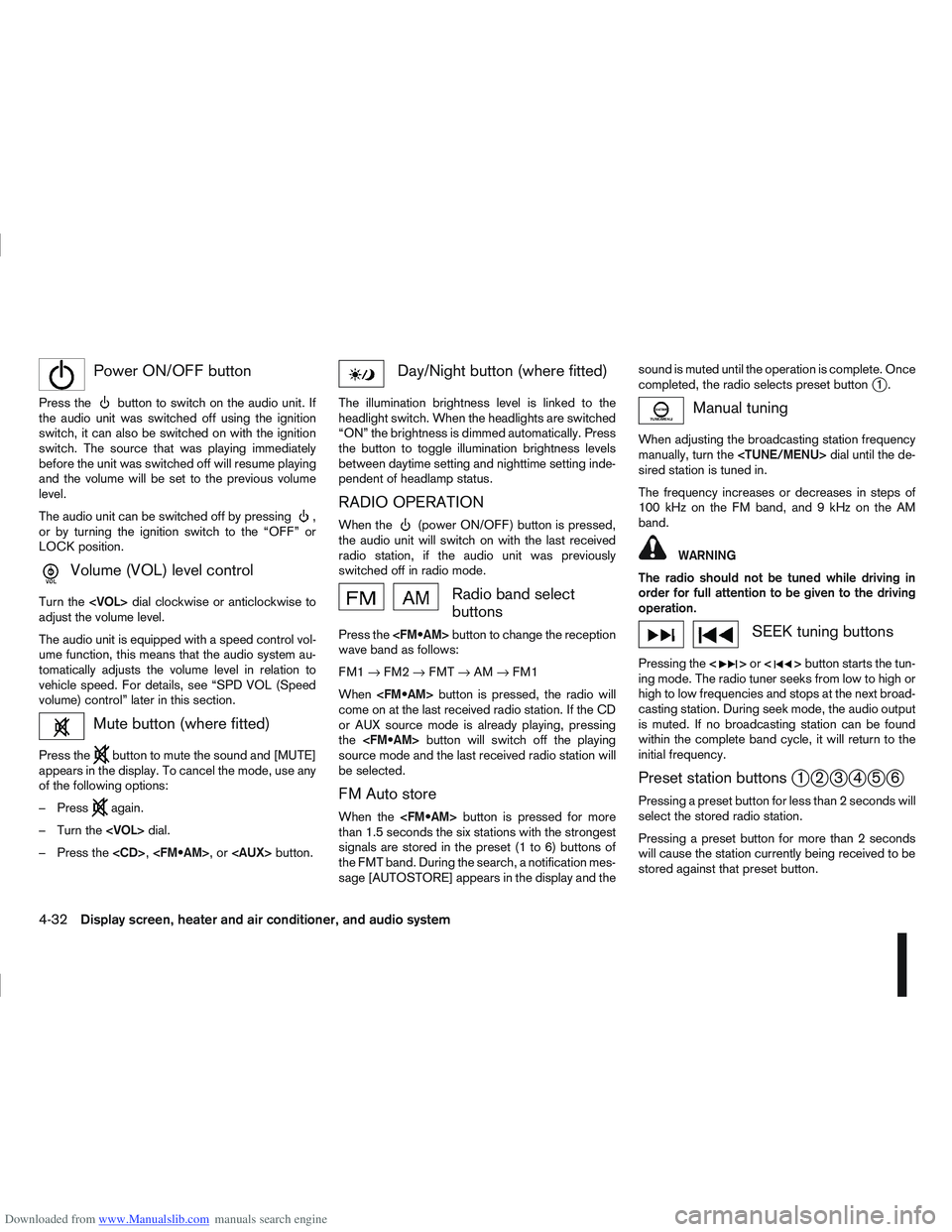
Downloaded from www.Manualslib.com manuals search engine mPower ON/OFF button
Press thebutton to switch on the audio unit. If
the audio unit was switched off using the ignition
switch, it can also be switched on with the ignition
switch. The source that was playing immediately
before the unit was switched off will resume playing
and the volume will be set to the previous volume
level.
The audio unit can be switched off by pressing
,
or by turning the ignition switch to the “OFF” or
LOCK position.
mVolume (VOL) level control
Turn the
adjust the volume level.
The audio unit is equipped with a speed control vol-
ume function, this means that the audio system au-
tomatically adjusts the volume level in relation to
vehicle speed. For details, see “SPD VOL (Speed
volume) control” later in this section.
Mute button (where fitted)
Press thebutton to mute the sound and [MUTE]
appears in the display. To cancel the mode, use any
of the following options:
– Press
again.
– Turn the
– Press the
Day/Night button (where fitted)
The illumination brightness level is linked to the
headlight switch. When the headlights are switched
“ON” the brightness is dimmed automatically. Press
the button to toggle illumination brightness levels
between daytime setting and nighttime setting inde-
pendent of headlamp status.
RADIO OPERATION
When the(power ON/OFF) button is pressed,
the audio unit will switch on with the last received
radio station, if the audio unit was previously
switched off in radio mode.
Radio band select
buttons
Press the button to change the reception
wave band as follows:
FM1 →FM2 →FMT →AM →FM1
When button is pressed, the radio will
come on at the last received radio station. If the CD
or AUX source mode is already playing, pressing
the button will switch off the playing
source mode and the last received radio station will
be selected.
FM Auto store
When the button is pressed for more
than 1.5 seconds the six stations with the strongest
signals are stored in the preset (1 to 6) buttons of
the FMT band. During the search, a notification mes-
sage [AUTOSTORE] appears in the display and the sound is muted until the operation is complete. Once
completed, the radio selects preset button
j1.
Manual tuning
When adjusting the broadcasting station frequency
manually, turn the
sired station is tuned in.
The frequency increases or decreases in steps of
100 kHz on the FM band, and 9 kHz on the AM
band.
WARNING
The radio should not be tuned while driving in
order for full attention to be given to the driving
operation.
SEEK tuning buttons
Pressing the <>or <>button starts the tun-
ing mode. The radio tuner seeks from low to high or
high to low frequencies and stops at the next broad-
casting station. During seek mode, the audio output
is muted. If no broadcasting station can be found
within the complete band cycle, it will return to the
initial frequency.
Preset station buttonsj1j2j3j4j5j6
Pressing a preset button for less than 2 seconds will
select the stored radio station.
Pressing a preset button for more than 2 seconds
will cause the station currently being received to be
stored against that preset button.
4-32Display screen, heater and air conditioner, and audio system
Page 140 of 297
Downloaded from www.Manualslib.com manuals search engine Eighteen stations can be stored in the FM band.
(Six each for FM1, FM2 and FMT)
Six stations can be set for the AM band.
If the battery is disconnected, or if the fuse blows,
the radio memory will be erased. In that case, reset
the desired stations after battery connection or fuse
replacement.
Radio data system (RDS) operation
The RDS is a system through which encoded digital
information is transmitted by FM radio stations in
addition to the normal FM radio broadcasting. The
RDS provides information services such as station
name, traffic information, or news.
NOTE
In some countries or regions, some of these ser-
vices may not be available.
Alternative Frequency (AF) mode:
The AF mode operates in the FM (radio) mode.
The AF mode operates in the FM (radio), AUX or
CD mode (if FM was previously selected in the
radio mode).
The AF function compares signal strengths and
selects the station with the optimum reception
conditions for the currently tuned-in station.
RDS functions
Programme Service (PS) function (station name
display function):
When an RDS station is tuned in with seek or manual
tuning, the RDS data is received and the PS name
is displayed.
TA Traffic announcement
This function operates in FM (Radio), CD or AUX
mode.
Pressing the
The TA indicator is displayed while TA mode is
on.
When
switched off and the TA indicator will disappear
from the display.
Traffic announcement interrupt function:
When a traffic announcement is received, the an-
nouncement is tuned in and the display shows a
notification message with the radio station name e.g.
[TA: Radio 1].
Once the traffic announcement has finished, the unit
returns to the source that was active before the traf-
fic announcement started.
If
the traffic announcement interrupt mode is can-
celled. The TA mode returns to the standby mode
and the audio unit returns to the previous source.
SETUP BUTTON
To configure Audio, Clock, Bluetooth, Language or
Scroll direction settings, perform the following pro-
cedure:
1. Press the
2. Turn the
clockwise, the display will appear in the following
order:
[Audio] ⇔[Clock] ⇔[Bluetooth] ⇔[Language]
⇔ [Scroll Direction]
After the desired levels have been set, press either
the
(Back) button repeatedly, the
button, or wait for 8 seconds without pressing any
buttons to exit the menu screen.
Display brightness (Day/Night mode)
Press the
switch the display brightness between the daytime
and nighttime mode.
Audio adjustments
Press the
screen then select [Audio].
Each time the
will change as follows:
[Bass] →[Treble] →[Balance] →[Fade] →[AUX
VOL] →[SPD VOL] →setup menu screen [Audio]
→ [Bass]
Display screen, heater and air conditioner, and audio system4-33
Page 142 of 297
![NISSAN QASHQAI 2009 User Guide Downloaded from www.Manualslib.com manuals search engine [Russian]
Scroll direction
Sets the scroll direction of the<TUNE/MENU>dial.
For example, to change the way in which you turn
the dial (anticloc](/img/5/56767/w960_56767-141.png "NISSAN QASHQAI 2009 User Guide Downloaded from www.Manualslib.com manuals search engine [Russian]
Scroll direction
Sets the scroll direction of the<TUNE/MENU>dial.
For example, to change the way in which you turn
the dial (anticloc")
Downloaded from www.Manualslib.com manuals search engine [Russian]
Scroll direction
Sets the scroll direction of the
For example, to change the way in which you turn
the dial (anticlockwise or clockwise) in order to scroll
up or down a list.
COMPACT DISC (CD) OPERATION
The CD player can play a music CD or an encoded
MP3/WMA CD and while listening to those CD’s
certain text might be able to be displayed (when CD
encoded with text is being used).
Press the
start to play.
When
mode is already operating, it will automatically turn
off the playing source and the CD play mode will
start.
However, if the CD disc is not loaded, then a notifi-
cation message will be displayed and the audio unit
remains in radio or AUX source mode.
CAUTION
Do not force the CD into the slot. This could
damage the player.
Do not use 8 cm (3.1 in) discs.
CD insert (CD player)
Insert the CD disc into the slot with the label side
facing up. The disc will be guided automatically into
the slot and will start playing. After loading the disc,
track information will be displayed.
NOTE
The CD player accepts normal audio CD or
CD recorded with MP3/WMA files.
Inserting a CD recorded with MP3/WMA files,
the audio unit will automatically detect and
[MP3CD] will be indicated.
An error notification message will be
displayed when inserting a wrong disc type
(e.g. DVD), or the player cannot read the CD
disc. Eject the disc and insert another disc.
CD button
Press the
CD. Playing starts from the track that was being
played when the CD play mode was switched off.
Audio main operation
List view:
While the track is being played, press either the
button to display the available
tracks in a listed view mode. To select a track from
the list, or a track to start listening from, turn the
In the list view mode, quick search can be per-
formed to find a track from the list.
Push the
j6 button then turn the
of the track title then press
a list of the available tracks will be displayed. Select,
and press
Fast Forward (Cue), Fast
Reverse (Review) buttons:
When the
(Cue) or(Review) button is
pressed continuously, the track will be played at
high speed. When the button is released, the track
will be played at normal playing speed.
Track up/down buttons:
Pressing the
orbutton once, the track will
be skipped forward to the next track or backward to
the beginning of the current played track. Press the
orbutton more than once to skip through
the tracks.
Folder browsing:
If the recorded media contains folders with music
files, pressing the
orbutton will play in
sequence the tracks of each folder.
To select a preferred folder:
1. Press the
button and a list of
tracks in the current folder is displayed.
2. Press the
button.
Display screen, heater and air conditioner, and audio system4-35
Page 148 of 297
Downloaded from www.Manualslib.com manuals search engine
To operate the Bluetooth audio streaming use one
of the following methods:
Press the
Press
lighted, then press
The type of display,
jAorjB , shown on the audio
system can vary depending on the Bluetooth® ver-
sion of the device.
Fast Forward (Cue), Fast
Reverse (Review) buttons:
When the
(Cue) or(Review) button is
pressed continuously, the track will be played at
high speed. When the button is released, the track
will be played at normal playing speed.
Track up/down buttons:
Pressing the
orbutton once, the track will
be skipped forward to the next track or backward to
the beginning of the current played track. Press the
orbutton more than once to skip through
the tracks.
Play/Pause:
Press the
press
mbuttonj5 (Type B display screen
only)
If the song contains music information tags (ID3–
tags), the title of the played song will be displayed.
If tags are not provided then the display will not
show any messages.
When the
j5 button is pressed repeatedly fur-
ther information about the song can be displayed
along with the song title.
A long press on
j5 will turn the display into a
detailed overview which after a few seconds returns
to the main display; or press
j5 briefly.
Bluetooth®mobile phone feature
This system offers a hands-free facility for your mo-
bile telephone with Bluetooth® to enhance driving
safety, and comfort.
For details, see “Mobile phone integration for FM
AM radio with CD player” later in this section.
Display screen, heater and air conditioner, and audio system4-41
Page 150 of 297
Downloaded from www.Manualslib.com manuals search engine For details, see the separately provided NISSAN
Connect Owner’s Manual.
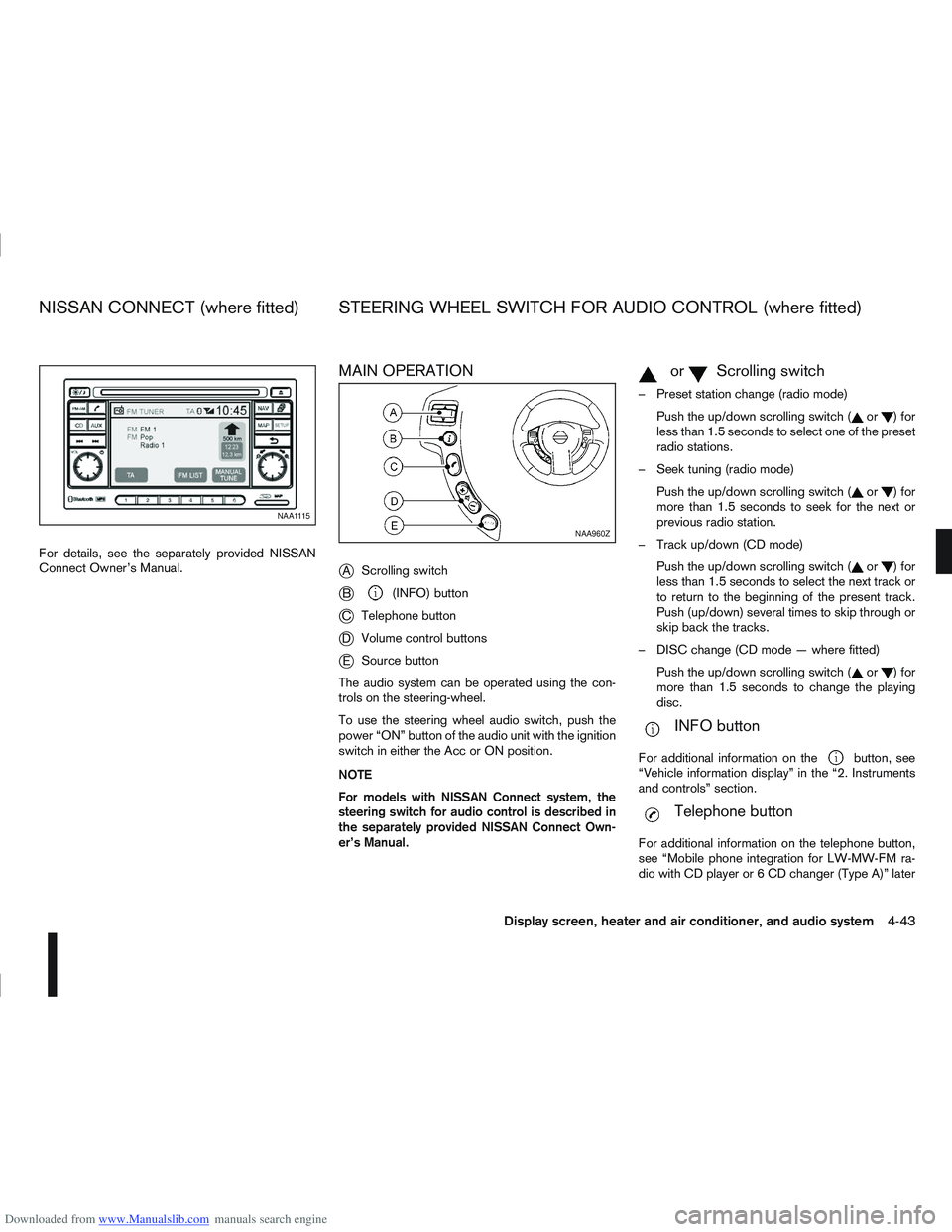
MAIN OPERATION
j
AScrolling switch
jB(INFO) button
jC Telephone button
jDVolume control buttons
jESource button
The audio system can be operated using the con-
trols on the steering-wheel.
To use the steering wheel audio switch, push the
power “ON” button of the audio unit with the ignition
switch in either the Acc or ON position.
NOTE
For models with NISSAN Connect system, the
steering switch for audio control is described in
the separately provided NISSAN Connect Own-
er’s Manual.
mormScrolling switch
– Preset station change (radio mode) Push the up/down scrolling switch (
or)for
less than 1.5 seconds to select one of the preset
radio stations.
– Seek tuning (radio mode) Push the up/down scrolling switch (
or)for
more than 1.5 seconds to seek for the next or
previous radio station.
– Track up/down (CD mode) Push the up/down scrolling switch (
or)for
less than 1.5 seconds to select the next track or
to return to the beginning of the present track.
Push (up/down) several times to skip through or
skip back the tracks.
– DISC change (CD mode — where fitted) Push the up/down scrolling switch (
or)for
more than 1.5 seconds to change the playing
disc.
mINFO button
For additional information on thebutton, see
“Vehicle information display” in the “2. Instruments
and controls” section.
mTelephone button
For additional information on the telephone button,
see “Mobile phone integration for LW-MW-FM ra-
dio with CD player or 6 CD changer (Type A)” later
NAA1115
NAA960Z
NISSAN CONNECT (where fitted) STEERING WHEEL SWITCH FOR AUDIO CONTROL (where fitted)
Display screen, heater and air conditioner, and audio system4-43
Page 151 of 297
Downloaded from www.Manualslib.com manuals search engine in this section or “Mobile phone integration for FM
AM radio with CD player” later in this section.
SOURCE button
Repeatedly press the SOURCE button to select a
source.
mVolume control buttons
Press the + or — button to adjust the volume.When installing large capacity wireless equipment
or a car phone in your NISSAN, be sure to observe
the following as it may adversely affect the Engine
control system and other electronic parts depend-
ing on its installation location.
CAUTION
Keep the antenna as far as possible away from
the Electric Control Module.
Also keep the antenna wire more than 20 cm
(8 inches) away from the Electro Injection har-
ness. Do not route the antenna wire next to
any harness.
Adjust the antenna standing-wave ratio as rec-
ommended by the manufacturer.
Connect the ground wire from the radio chas-
sis to the body.
NOTE
For further information, visit the NISSAN web site:
www.nissan-europe.com. Select your country
from the list and go to the “SERVICES” menu. If
not available on the web site, contact a NISSAN
dealer or qualified workshop.
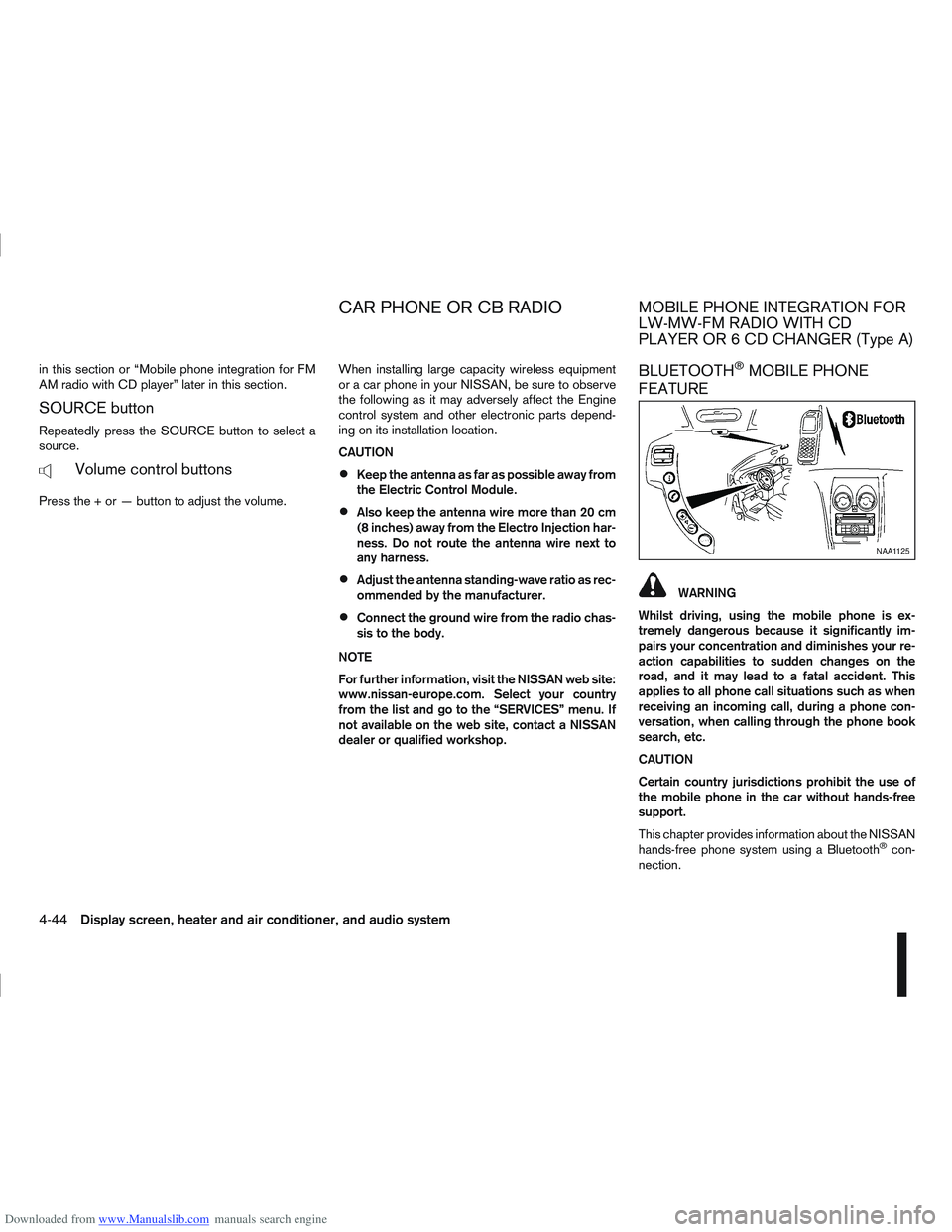
BLUETOOTH®MOBILE PHONE
FEATURE
WARNING
Whilst driving, using the mobile phone is ex-
tremely dangerous because it significantly im-
pairs your concentration and diminishes your re-
action capabilities to sudden changes on the
road, and it may lead to a fatal accident. This
applies to all phone call situations such as when
receiving an incoming call, during a phone con-
versation, when calling through the phone book
search, etc.
CAUTION
Certain country jurisdictions prohibit the use of
the mobile phone in the car without hands-free
support.
This chapter provides information about the NISSAN
hands-free phone system using a Bluetooth
®con-
nection.
NAA1125
CAR PHONE OR CB RADIOMOBILE PHONE INTEGRATION FOR
LW-MW-FM RADIO WITH CD
PLAYER OR 6 CD CHANGER (Type A)
4-44Display screen, heater and air conditioner, and audio system
Page 155 of 297
![NISSAN QASHQAI 2009 User Guide Downloaded from www.Manualslib.com manuals search engine [DELETE NAME]
[EDIT NAME]
[ADD NAME]
Send name using Bluetooth®technology [ADD NAME]
The phone book can store up to 100 names with
numbers and](/img/5/56767/w960_56767-154.png "NISSAN QASHQAI 2009 User Guide Downloaded from www.Manualslib.com manuals search engine [DELETE NAME]
[EDIT NAME]
[ADD NAME]
Send name using Bluetooth®technology [ADD NAME]
The phone book can store up to 100 names with
numbers and")
Downloaded from www.Manualslib.com manuals search engine [DELETE NAME]
[EDIT NAME]
[ADD NAME]
Send name using Bluetooth®technology [ADD NAME]
The phone book can store up to 100 names with
numbers and can be selected for calling. To add a
contact to the phone book proceed as follows:
Action Screen display
Press with a long press the
mbutton ↓ [ADD NAME]
Press
↓ [ENTER NAME]
Turn
Page 157 of 297
![NISSAN QASHQAI 2009 User Guide Downloaded from www.Manualslib.com manuals search engine Delete a name:
To delete a name (contact) from the phone book,
proceed as follows:
ActionScreen display
Briefly press
mbutton
↓ [SEARCH]
Turn](/img/5/56767/w960_56767-156.png "NISSAN QASHQAI 2009 User Guide Downloaded from www.Manualslib.com manuals search engine Delete a name:
To delete a name (contact) from the phone book,
proceed as follows:
ActionScreen display
Briefly press
mbutton
↓ [SEARCH]
Turn")
Downloaded from www.Manualslib.com manuals search engine Delete a name:
To delete a name (contact) from the phone book,
proceed as follows:
ActionScreen display
Briefly press
mbutton
↓ [SEARCH]
Turn
Page 158 of 297
Downloaded from www.Manualslib.com manuals search engine If necessary, turn the
Page 162 of 297
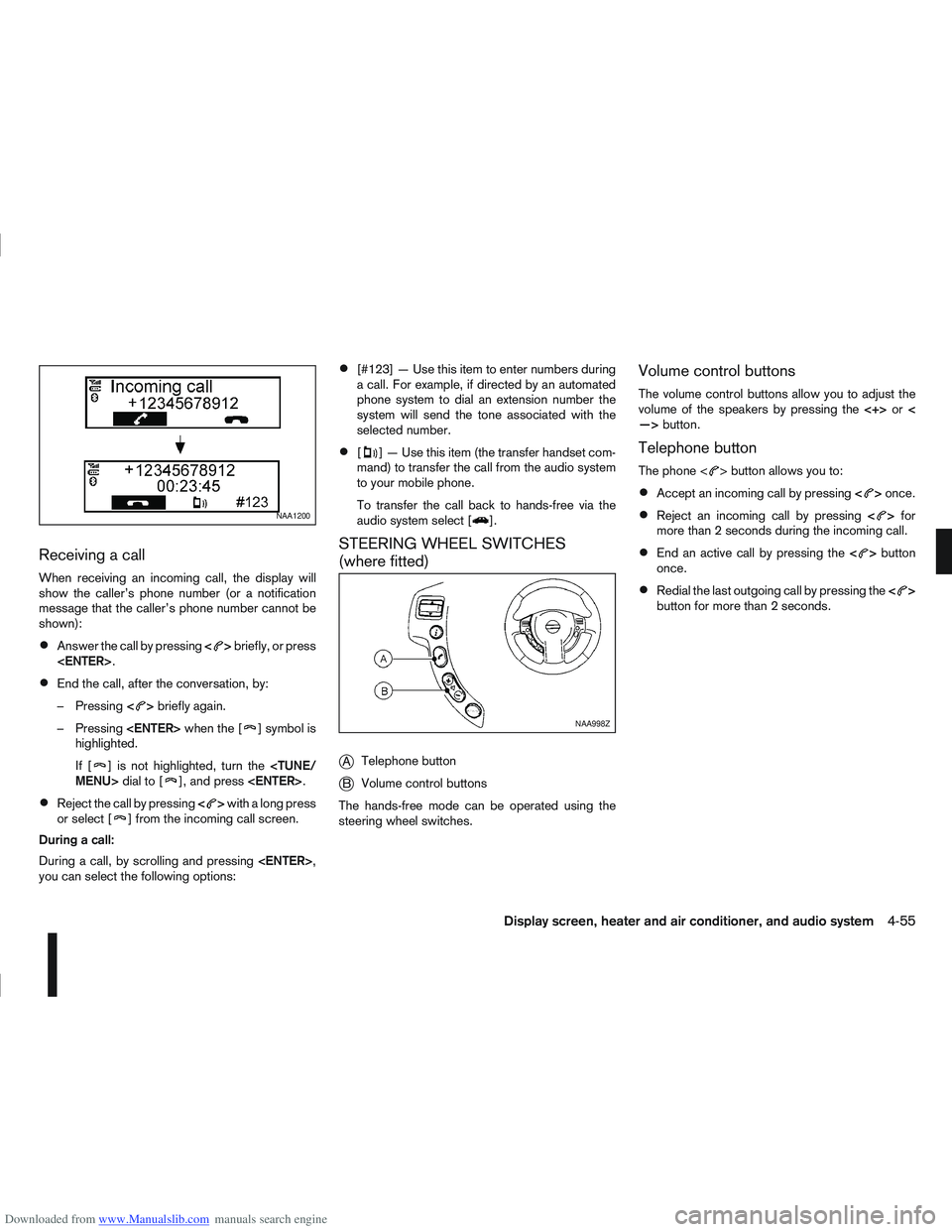
Downloaded from www.Manualslib.com manuals search engine Receiving a call
When receiving an incoming call, the display will
show the caller’s phone number (or a notification
message that the caller’s phone number cannot be
shown):
Answer the call by pressing<>briefly, or press
End the call, after the conversation, by:
– Pressing <
>briefly again.
– Pressing
] symbol is
highlighted.
If [
] is not highlighted, turn the
Reject the call by pressing <>with a long press
or select [] from the incoming call screen.
During a call:
During a call, by scrolling and pressing
you can select the following options:
[#123] — Use this item to enter numbers during
a call. For example, if directed by an automated
phone system to dial an extension number the
system will send the tone associated with the
selected number.
[] — Use this item (the transfer handset com-
mand) to transfer the call from the audio system
to your mobile phone.
To transfer the call back to hands-free via the
audio system select [
].
STEERING WHEEL SWITCHES
(where fitted)
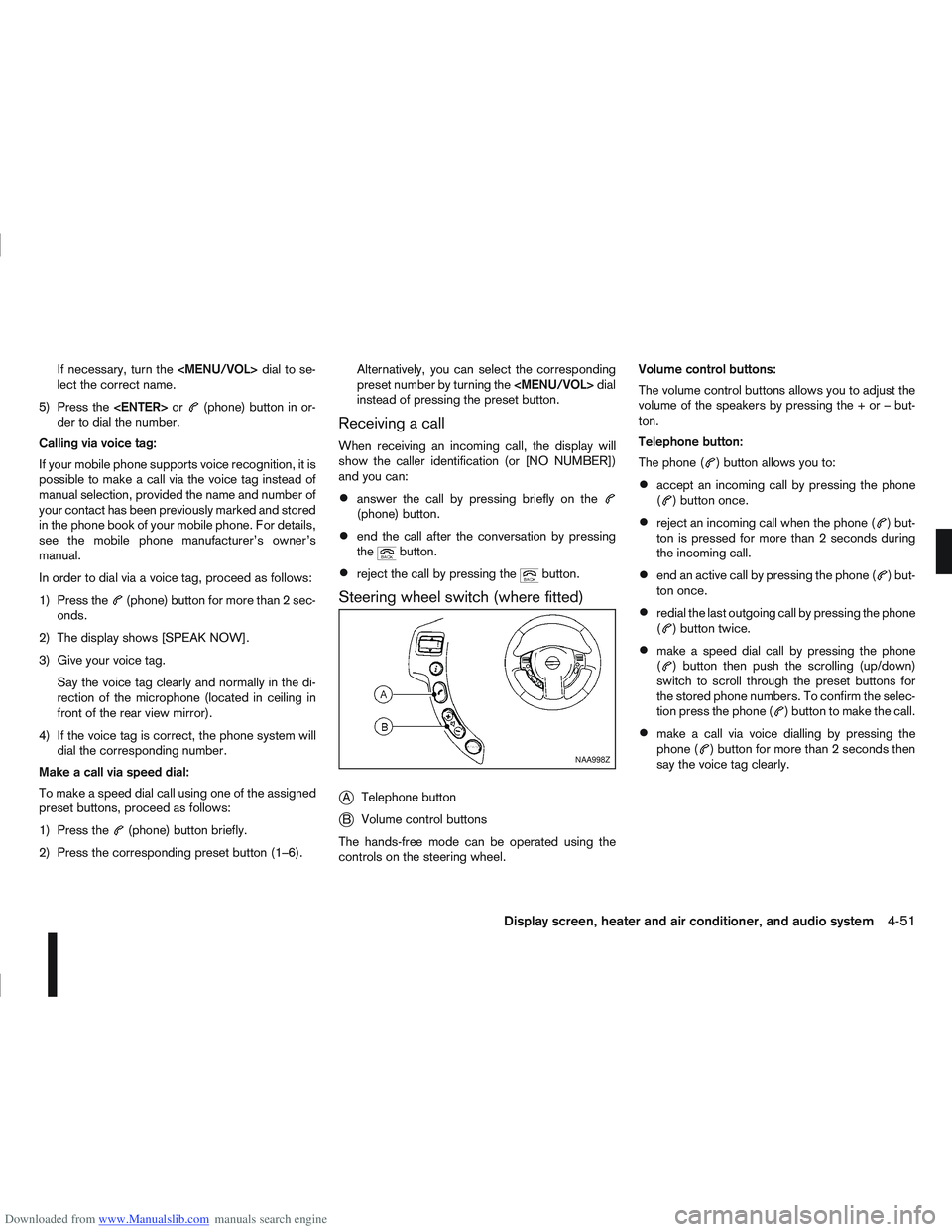
j
A Telephone button
jB Volume control buttons
The hands-free mode can be operated using the
steering wheel switches.
Volume control buttons
The volume control buttons allow you to adjust the
volume of the speakers by pressing the <+>or<
—> button.
Telephone button
The phone <> button allows you to:
Accept an incoming call by pressing <>once.
Reject an incoming call by pressing <>for
more than 2 seconds during the incoming call.
End an active call by pressing the <>button
once.
Redial the last outgoing call by pressing the <>
button for more than 2 seconds.
NAA1200
NAA998Z
Display screen, heater and air conditioner, and audio system4-55