audio NISSAN QASHQAI 2016 Owner´s Manual
[x] Cancel search | Manufacturer: NISSAN, Model Year: 2016, Model line: QASHQAI, Model: NISSAN QASHQAI 2016Pages: 338, PDF Size: 4.87 MB
Page 170 of 338
In order to use your mobile phone with the Blue-
tooth®of the audio system, the mobile phone must
first be setup. For details, see “BLUETOOTH®
settings” later in this section. Once it has been
setup, the hands-free mode is automatically acti-
vated on the registered mobile phone (via Blue-
tooth
®) when it comes into range.
A notification message appears on the audio display
when the phone is connected, when an incoming
call is being received, as well as when a call is initi-
ated.
When a call is active, the audio system, microphone
(located in the ceiling in front of the rear view mir-
ror), and steering wheel switches enable hands-free
communication.
If the audio system is in use at the time, the radio,
CD, iPod, USB audio, Bluetooth audio or AUX
source mode will be muted and will stay muted until
the active call has ended.
The Bluetooth
®system may not be able to connect
with your mobile phone for the following reasons:
•The mobile phone is too far away from the ve-
hicle.
•The Bluetooth®mode on your mobile phone has
not been activated.
•Your mobile phone has not been paired with the
Bluetooth®system of the audio unit.
•The mobile phone does not support Bluetooth®
technology (BT Core v2.0).NOTE
•For models with NissanConnect (Audio with
Navigation system) see the separately pro-
vided Owner’s Manual.
•For details, see your mobile phone’s Owner’s
Manual.
•For assistance with your mobile phone inte-
gration, please visit your local NISSAN dealer.
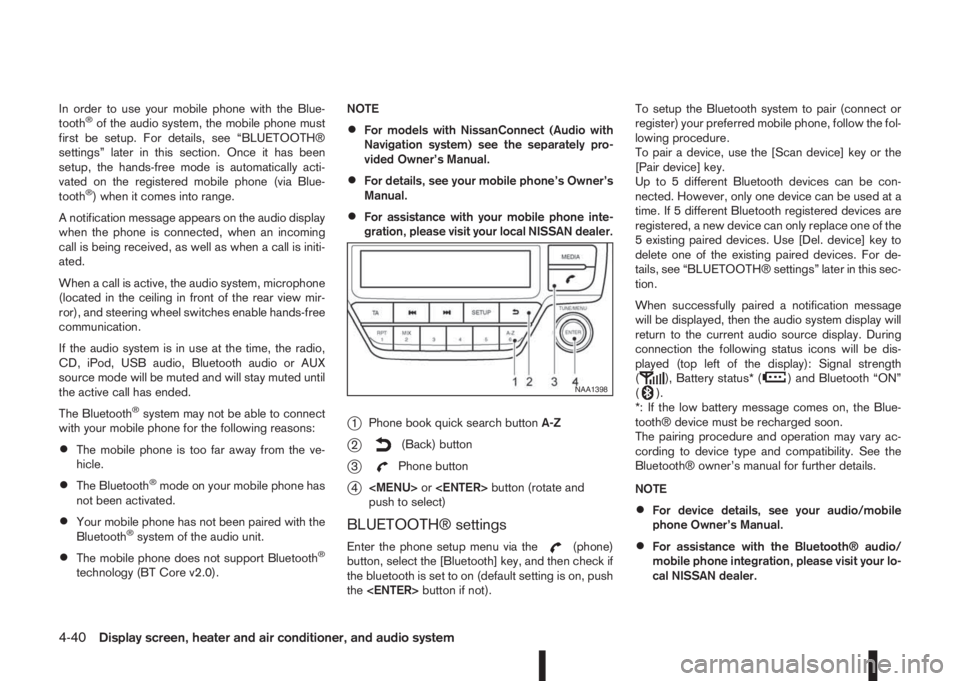
j1Phone book quick search buttonA-Z
j2(Back) button
j3Phone button
j4
Page 171 of 338
![NISSAN QASHQAI 2016 Owner´s Manual •A maximum of 5 Bluetooth devices can be
paired with the system.
To set up the Bluetooth system with a device the
following items are available:
•[Scan device]
Shows all available visible Bluetoot](/img/5/40324/w960_40324-170.png "NISSAN QASHQAI 2016 Owner´s Manual •A maximum of 5 Bluetooth devices can be
paired with the system.
To set up the Bluetooth system with a device the
following items are available:
•[Scan device]
Shows all available visible Bluetoot")
•A maximum of 5 Bluetooth devices can be
paired with the system.
To set up the Bluetooth system with a device the
following items are available:
•[Scan device]
Shows all available visible Bluetooth devices and
initializes Bluetooth connection from the audio
unit.
•[Pair device]
Initializes Bluetooth connection from the mobile
device.
•[Sel. device]
Paired Bluetooth devices are listed and can be
selected for connection.
•[Del. device]
A registered Bluetooth device can be deleted.
•[Bluetooth]
If this setting is turned off, the connection be-
tween the Bluetooth devices and the in-vehicle
Bluetooth module will be cancelled.[Scan devices]:
1) Press the
button. Select [Scan device]
The audio unit searches bluetooth devices and
shows all visible devices.
Pressing the
button cancels the search.
2) Select the device to be paired.
Use the
Page 172 of 338
![NISSAN QASHQAI 2016 Owner´s Manual [Sel. device]:
The paired device list shows which Bluetooth® au-
dio or mobile phone devices have been paired or
registered with the Bluetooth® audio system. If the
list contains devices then select](/img/5/40324/w960_40324-171.png "NISSAN QASHQAI 2016 Owner´s Manual [Sel. device]:
The paired device list shows which Bluetooth® au-
dio or mobile phone devices have been paired or
registered with the Bluetooth® audio system. If the
list contains devices then select")
[Sel. device]:
The paired device list shows which Bluetooth® au-
dio or mobile phone devices have been paired or
registered with the Bluetooth® audio system. If the
list contains devices then select the appropriate de-
vice to connect to the Bluetooth® audio system.
The following symbols (where fitted) indicate the
capability of the registered device:
•: Mobile phone integration
•: Audio streaming (A2DP – Advanced Audio
Distribution Profile)
[Del. device]:
A registered device can be removed from the Blue-
tooth audio system. Select a registered device then
press
[Bluetooth]:
If Bluetooth® has been switched off a notification
message [ON/OFF] appears when you select [Blue-
tooth] from the phone menu (press
). To switch
the Bluetooth® signal on, press
follow up screen will appear. Then select [ON] and
press
menu screen.
HANDS-FREE TELEPHONE
CONTROL
The hands-free mode can be operated using the
telephonebutton on the audio system, or theand (where fitted) on the steering wheel.
Receiving a call
When receiving an incoming call, the display will
show the caller’s phone number (or a notification
message that the caller’s phone number cannot be
shown) and three operation icons.
1. Answering and during a call:
Answer the call by pressing
is
highlighted).
By pressing
options:
•Ending the call by selectingand press
•Put the call on hold by selectingand press
•[]
Use this item (the transfer handset command) to
transfer the call from the audio system to your
mobile phone.
To transfer the call back to hands-free via the
audio system select [
].
•[#123]
Use this item to enter numbers during a call. For
example, if directed by an automated phone sys-
tem to dial an extension number the system will
send the tone associated with the selected num-
ber.
2. Put a call on hold:
Rotate the
Page 173 of 338
– Using call history (Call List menu)
•Dialled
•Received
•Missed
Making a call from the phone book:
Once the Bluetooth
®connection has been made,
between the registered mobile phone and the audio
system, phone book data will be transferred auto-
matically to the audio system. The transfer may take
a while before completion.
NOTE
Phone book data will be erased when:
•Switching to another registered mobile
phone.
•Mobile phone is disconnected.
•The registered mobile phone is deleted from
the audio system.
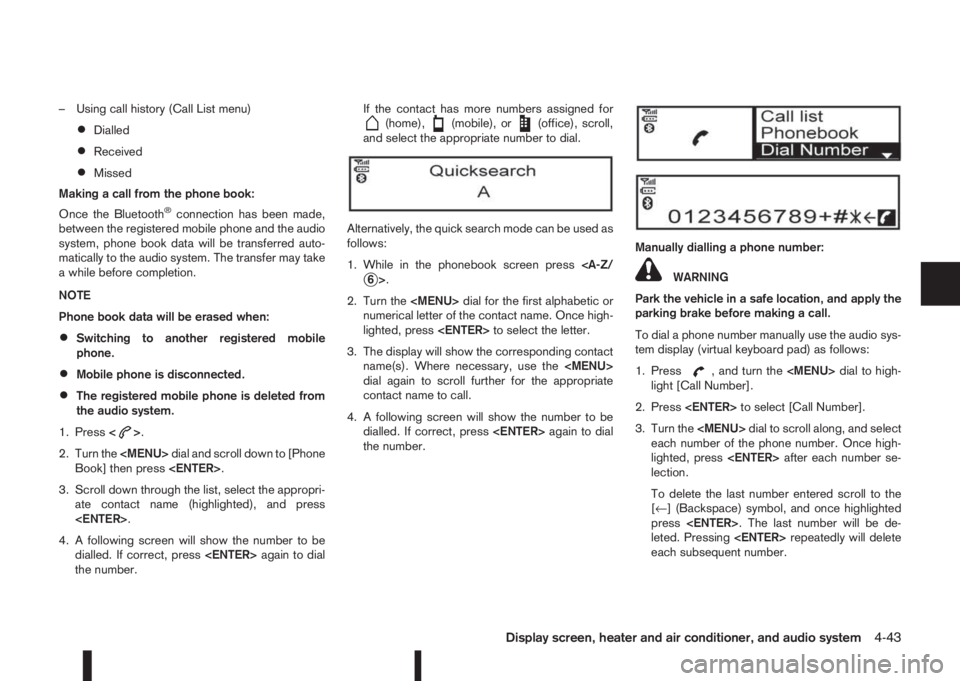
1. Press<
>.
2. Turn the
Page 174 of 338
4. After entering the last number, scroll to thesymbol, and press
number.
Redial:
To redial or call the last number dialled, press
for more than 2 seconds.
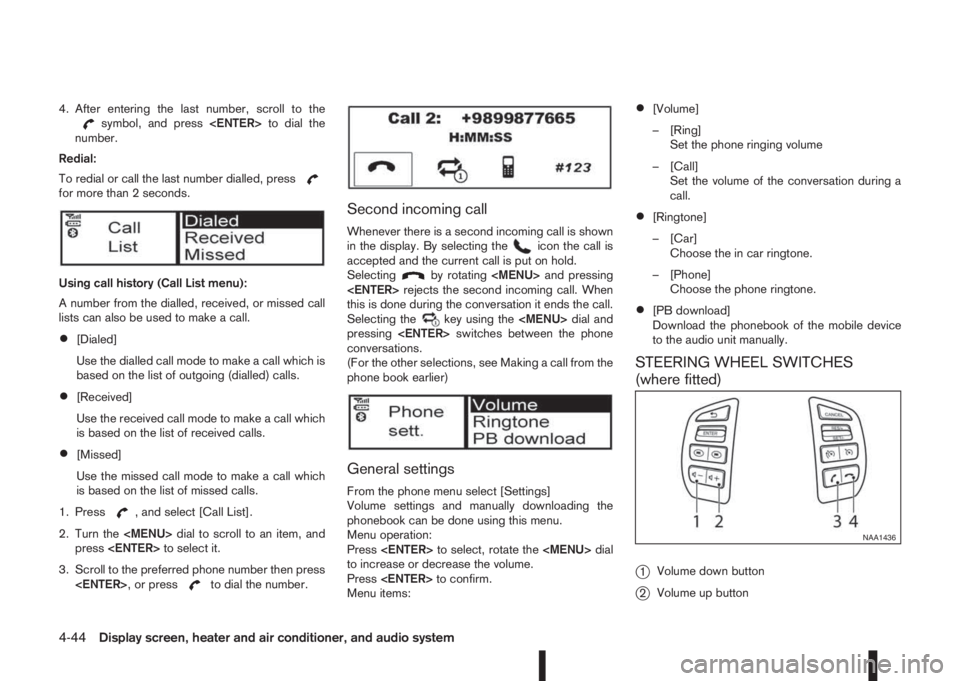
Using call history (Call List menu):
A number from the dialled, received, or missed call
lists can also be used to make a call.
•[Dialed]
Use the dialled call mode to make a call which is
based on the list of outgoing (dialled) calls.
•[Received]
Use the received call mode to make a call which
is based on the list of received calls.
•[Missed]
Use the missed call mode to make a call which
is based on the list of missed calls.
1. Press
, and select [Call List].
2. Turn the
Page 175 of 338
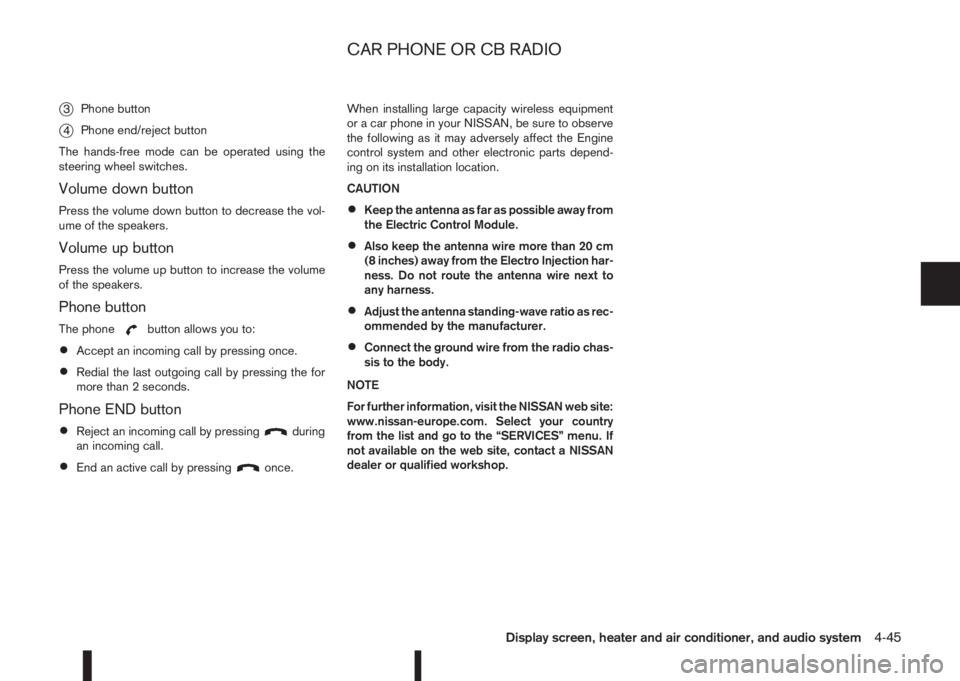
j3Phone button
j4Phone end/reject button
The hands-free mode can be operated using the
steering wheel switches.
Volume down button
Press the volume down button to decrease the vol-
ume of the speakers.
Volume up button
Press the volume up button to increase the volume
of the speakers.
Phone button
The phonebutton allows you to:
•Accept an incoming call by pressing once.
•Redial the last outgoing call by pressing the for
more than 2 seconds.
Phone END button
•Reject an incoming call by pressingduring
an incoming call.
•End an active call by pressingonce.When installing large capacity wireless equipment
or a car phone in your NISSAN, be sure to observe
the following as it may adversely affect the Engine
control system and other electronic parts depend-
ing on its installation location.
CAUTION
•Keep the antenna as far as possible away from
the Electric Control Module.
•Also keep the antenna wire more than 20 cm
(8 inches) away from the Electro Injection har-
ness. Do not route the antenna wire next to
any harness.
•Adjust the antenna standing-wave ratio as rec-
ommended by the manufacturer.
•Connect the ground wire from the radio chas-
sis to the body.
NOTE
For further information, visit the NISSAN web site:
www.nissan-europe.com. Select your country
from the list and go to the “SERVICES” menu. If
not available on the web site, contact a NISSAN
dealer or qualified workshop.
CAR PHONE OR CB RADIO
Display screen, heater and air conditioner, and audio system4-45
Page 194 of 338
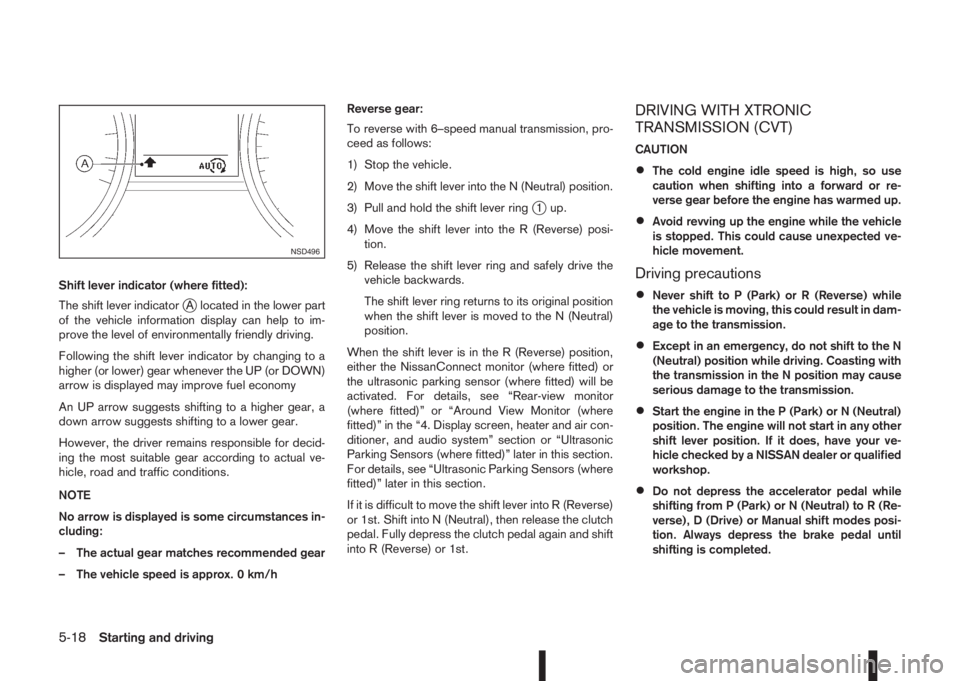
Shift lever indicator (where fitted):
The shift lever indicator
jA located in the lower part
of the vehicle information display can help to im-
prove the level of environmentally friendly driving.
Following the shift lever indicator by changing to a
higher (or lower) gear whenever the UP (or DOWN)
arrow is displayed may improve fuel economy
An UP arrow suggests shifting to a higher gear, a
down arrow suggests shifting to a lower gear.
However, the driver remains responsible for decid-
ing the most suitable gear according to actual ve-
hicle, road and traffic conditions.
NOTE
No arrow is displayed is some circumstances in-
cluding:
– The actual gear matches recommended gear
– The vehicle speed is approx. 0 km/hReverse gear:
To reverse with 6–speed manual transmission, pro-
ceed as follows:
1) Stop the vehicle.
2) Move the shift lever into the N (Neutral) position.
3) Pull and hold the shift lever ring
j1 up.
4) Move the shift lever into the R (Reverse) posi-
tion.
5) Release the shift lever ring and safely drive the
vehicle backwards.
The shift lever ring returns to its original position
when the shift lever is moved to the N (Neutral)
position.
When the shift lever is in the R (Reverse) position,
either the NissanConnect monitor (where fitted) or
the ultrasonic parking sensor (where fitted) will be
activated. For details, see “Rear-view monitor
(where fitted)” or “Around View Monitor (where
fitted)” in the “4. Display screen, heater and air con-
ditioner, and audio system” section or “Ultrasonic
Parking Sensors (where fitted)” later in this section.
For details, see “Ultrasonic Parking Sensors (where
fitted)” later in this section.
If it is difficult to move the shift lever into R (Reverse)
or 1st. Shift into N (Neutral), then release the clutch
pedal. Fully depress the clutch pedal again and shift
into R (Reverse) or 1st.
DRIVING WITH XTRONIC
TRANSMISSION (CVT)
CAUTION
•The cold engine idle speed is high, so use
caution when shifting into a forward or re-
verse gear before the engine has warmed up.
•Avoid revving up the engine while the vehicle
is stopped. This could cause unexpected ve-
hicle movement.
Driving precautions
•Never shift to P (Park) or R (Reverse) while
the vehicle is moving, this could result in dam-
age to the transmission.
•Except in an emergency, do not shift to the N
(Neutral) position while driving. Coasting with
the transmission in the N position may cause
serious damage to the transmission.
•Start the engine in the P (Park) or N (Neutral)
position. The engine will not start in any other
shift lever position. If it does, have your ve-
hicle checked by a NISSAN dealer or qualified
workshop.
•Do not depress the accelerator pedal while
shifting from P (Park) or N (Neutral) to R (Re-
verse), D (Drive) or Manual shift modes posi-
tion. Always depress the brake pedal until
shifting is completed.
NSD496
5-18Starting and driving
Page 196 of 338
P (Park):
Use this position when the vehicle is parked or when
starting the engine. Always make sure that the ve-
hicle is completely stopped before moving the shift
lever into the P (Park) position. For maximum safety,
the footbrake pedal must be depressed before mov-
ing the shift lever into the P (Park) position. Use this
position together with the parking brake. When park-
ing on a hill, first depress the footbrake pedal, apply
the parking brake and then shift into the P (Park)
position.
R (Reverse):
CAUTION
Shift into this position only after the vehicle has
completely stopped.
Use this position to reverse the vehicle.
When the shift lever is in the R (Reverse) position,
either the NissanConnect monitor (where fitted) or
the ultrasonic parking sensor (where fitted) will be
activated. For details, see “Rear-view monitor
(where fitted)” or “Around View Monitor (where
fitted)” in the “4. Display screen, heater and air con-
ditioner, and audio system” section or “Ultrasonic
Parking Sensors (where fitted)” later in this section.
N (Neutral):
Neither forward nor reverse gear is engaged. The
engine can be started in this position. You may shift
to N and restart a stalled engine while driving the
vehicle.D (Drive):
Use this position for all normal forward driving.
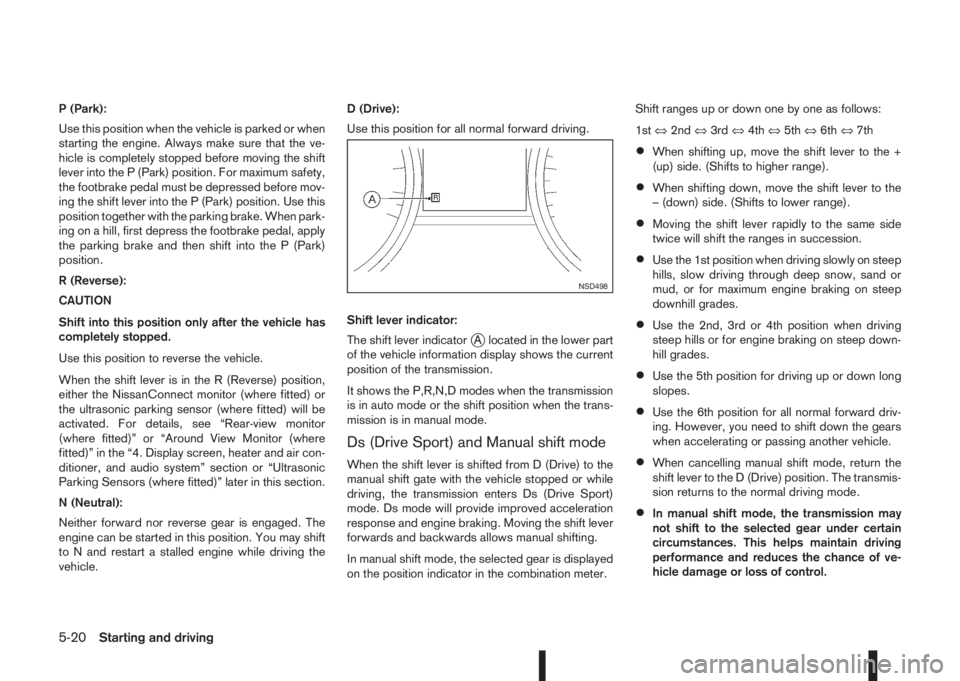
Shift lever indicator:
The shift lever indicator
jA located in the lower part
of the vehicle information display shows the current
position of the transmission.
It shows the P,R,N,D modes when the transmission
is in auto mode or the shift position when the trans-
mission is in manual mode.
Ds (Drive Sport) and Manual shift mode
When the shift lever is shifted from D (Drive) to the
manual shift gate with the vehicle stopped or while
driving, the transmission enters Ds (Drive Sport)
mode. Ds mode will provide improved acceleration
response and engine braking. Moving the shift lever
forwards and backwards allows manual shifting.
In manual shift mode, the selected gear is displayed
on the position indicator in the combination meter.Shift ranges up or down one by one as follows:
1st⇔2nd⇔3rd⇔4th⇔5th⇔6th⇔7th
•When shifting up, move the shift lever to the +
(up) side. (Shifts to higher range).
•When shifting down, move the shift lever to the
– (down) side. (Shifts to lower range).
•Moving the shift lever rapidly to the same side
twice will shift the ranges in succession.
•Use the 1st position when driving slowly on steep
hills, slow driving through deep snow, sand or
mud, or for maximum engine braking on steep
downhill grades.
•Use the 2nd, 3rd or 4th position when driving
steep hills or for engine braking on steep down-
hill grades.
•Use the 5th position for driving up or down long
slopes.
•Use the 6th position for all normal forward driv-
ing. However, you need to shift down the gears
when accelerating or passing another vehicle.
•When cancelling manual shift mode, return the
shift lever to the D (Drive) position. The transmis-
sion returns to the normal driving mode.
•In manual shift mode, the transmission may
not shift to the selected gear under certain
circumstances. This helps maintain driving
performance and reduces the chance of ve-
hicle damage or loss of control.
NSD498
5-20Starting and driving
Page 206 of 338
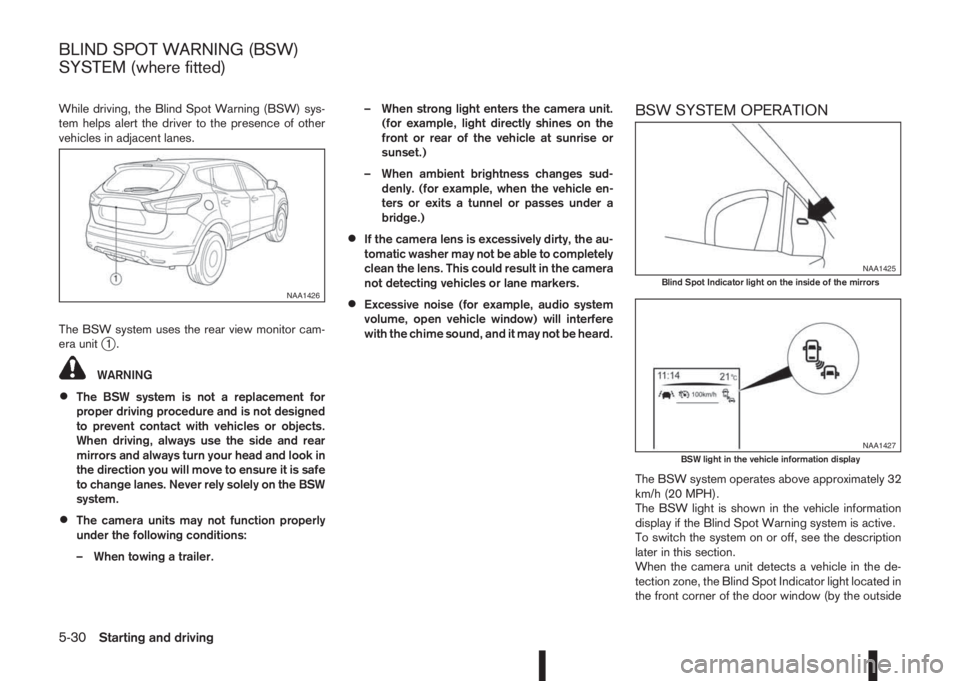
While driving, the Blind Spot Warning (BSW) sys-
tem helps alert the driver to the presence of other
vehicles in adjacent lanes.
The BSW system uses the rear view monitor cam-
era unit
j1.
WARNING
•The BSW system is not a replacement for
proper driving procedure and is not designed
to prevent contact with vehicles or objects.
When driving, always use the side and rear
mirrors and always turn your head and look in
the direction you will move to ensure it is safe
to change lanes. Never rely solely on the BSW
system.
•The camera units may not function properly
under the following conditions:
– When towing a trailer.– When strong light enters the camera unit.
(for example, light directly shines on the
front or rear of the vehicle at sunrise or
sunset.)
– When ambient brightness changes sud-
denly. (for example, when the vehicle en-
ters or exits a tunnel or passes under a
bridge.)
•If the camera lens is excessively dirty, the au-
tomatic washer may not be able to completely
clean the lens. This could result in the camera
not detecting vehicles or lane markers.
•Excessive noise (for example, audio system
volume, open vehicle window) will interfere
with the chime sound, and it may not be heard.
BSW SYSTEM OPERATION
The BSW system operates above approximately 32
km/h (20 MPH).
The BSW light is shown in the vehicle information
display if the Blind Spot Warning system is active.
To switch the system on or off, see the description
later in this section.
When the camera unit detects a vehicle in the de-
tection zone, the Blind Spot Indicator light located in
the front corner of the door window (by the outside
NAA1426
NAA1425Blind Spot Indicator light on the inside of the mirrors
NAA1427BSW light in the vehicle information display
BLIND SPOT WARNING (BSW)
SYSTEM (where fitted)
5-30Starting and driving
Page 210 of 338
– When strong light enters the camera unit.
(for example, light directly shines on the
front or rear of the vehicle at sunrise or
sunset.)
– When ambient brightness changes sud-
denly. (for example, when the vehicle en-
ters or exits a tunnel or passes under a
bridge.)
•Excessive noise (for example, audio system
volume, open vehicle window) will interfere
with the chime sound, and it may not be heard.
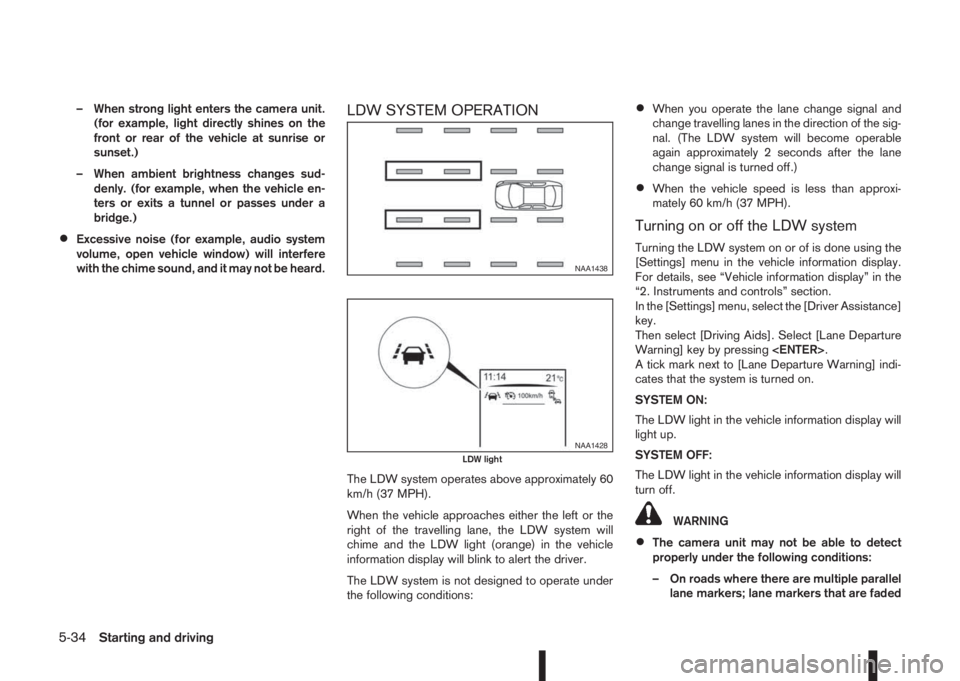
LDW SYSTEM OPERATION
The LDW system operates above approximately 60
km/h (37 MPH).
When the vehicle approaches either the left or the
right of the travelling lane, the LDW system will
chime and the LDW light (orange) in the vehicle
information display will blink to alert the driver.
The LDW system is not designed to operate under
the following conditions:
•When you operate the lane change signal and
change travelling lanes in the direction of the sig-
nal. (The LDW system will become operable
again approximately 2 seconds after the lane
change signal is turned off.)
•When the vehicle speed is less than approxi-
mately 60 km/h (37 MPH).
Turning on or off the LDW system
Turning the LDW system on or of is done using the
[Settings] menu in the vehicle information display.
For details, see “Vehicle information display” in the
“2. Instruments and controls” section.
In the [Settings] menu, select the [Driver Assistance]
key.
Then select [Driving Aids]. Select [Lane Departure
Warning] key by pressing
A tick mark next to [Lane Departure Warning] indi-
cates that the system is turned on.
SYSTEM ON:
The LDW light in the vehicle information display will
light up.
SYSTEM OFF:
The LDW light in the vehicle information display will
turn off.
WARNING
•The camera unit may not be able to detect
properly under the following conditions:
– On roads where there are multiple parallel
lane markers; lane markers that are faded
NAA1438
NAA1428LDW light
5-34Starting and driving