jack NISSAN QASHQAI 2018 Owner´s Manual
[x] Cancel search | Manufacturer: NISSAN, Model Year: 2018, Model line: QASHQAI, Model: NISSAN QASHQAI 2018Pages: 512, PDF Size: 3.19 MB
Page 16 of 512

JVC1090X
1. Side ventilator (P.4-29)
2. Meters and gauges (P.2-5)/Clock (P.2-36)
3. Center ventilator (P.4-29)
4. Audio system* (P.4-38) or Navigation sys-tem**
— RearView Monitor* (P.4-8)
— Intelligent Around View® Monitor*
(P.4-14) — Bluetooth® Hands-Free Phone System*
(P.4-83, P.4-93)
5. Front passenger supplemental air bag (P.1-40)
6. Fuse box cover (P.8-20)
7. Fuel-filler door release handle (P.3-27)
8. Hood release handle (P.3-24) 9. Steering wheel lock lever (P.3-29)
10. Driver’s front-impact air bag (P.1-40)/Horn
(P.2-49)
11. Heater/air conditioner control (P.4-30)
12. Auxiliary input jack (P.4-62) and USB con- nection port (P.4-59, P.4-69)
13. Power outlet (P.2-53)
14. Defroster switch (P.2-42)
15. Glove box (P.2-56)
*: if so equipped
**: See the separate Navigation System Owner’s Manual (if so equipped).
Illustrated table of contents0-7
INSTRUMENT PANEL
Page 81 of 512

2-4Instruments and controls
JVC1090X
1. Side ventilator
2. Meters and gauges/Clock
3. Center ventilator
4. Audio system* or Navigation system**— RearView Monitor*
— Intelligent Around View® Monitor*
— Bluetooth® Hands-Free Phone System* 5. Front passenger supplemental air bag
6. Fuse box cover
7. Fuel-filler door release handle
8. Hood release handle
9. Steering wheel lock lever
10. Driver’s front-impact air bag/Horn
11. Heater/air conditioner control 12. Auxiliary input jack and USB connection
port
13. Power outlet
14. Defroster switch
15. Glove box
*: if so equipped
**: See the separate Navigation System Owner’s Manual (if so equipped).
INSTRUMENT PANEL
Page 154 of 512

JVP0308X
Jackknife type key release buttonLOCK buttonUNLOCK buttonPANIC buttonBattery indicator light
HOW TO USE REMOTE KEYLESS
ENTRY SYSTEM
Welcome light and farewell light
function
When you lock or unlock the doors or the
liftgate, the daytime running lights, park-
ing lights and the tail lights will illuminate
for a period of time. The welcome light
and farewell light function can be dis-
abled. For information about disablingthe welcome light and farewell light
function, see “Vehicle Settings” (P.2-22).
Locking doors
1. Remove the key from the ignition
switch.
2. Close all the doors.
3. Push the LOCK
buttonon the
key fob.
4. All the doors will lock. All of the doors will lock when the
LOCK
button is pushed even
though a door remains open.
5. The hazard indicator flashes twice and the horn chirps once.
. When the LOCK
button is pushed
with all doors locked, the hazard
indicator flashes twice and the horn
chirps once as a reminder that the
doors are already locked.
. Operate the door handles to confirm
that the doors have been securely
locked.
Unlocking doors
1. Push the UNLOCKbuttonon
the key fob.
.The driver’s door unlocks..The hazard indicator flashes once if
all doors are completely closed. 2. Push the UNLOCK
button again
within 5 seconds.
.All the doors and the liftgate unlock..The hazard indicator flashes once if all doors are completely closed.
All doors will be locked automatically
unless one of the following operations is
performed within 1 minute of pushing the
UNLOCK
button.
. Any door or liftgate is opened.
. The ignition switch is placed in the ON
position.
NOTE:
The unlocking operation can be chan-
ged in selective unlock in the Vehicle
Settings of the vehicle information dis-
play. For additional information, refer to
“Vehicle Settings” (P.2-22).
Using panic alarm
If you are near your vehicle and feel
threatened, you may activate the alarm
to call attention as follows:
1. Push the PANIC
buttonon the
key fob for more than 0.5 seconds.
2. The theft warning alarm and head- lights will stay on for 25 seconds.
3. The panic alarm stops when:
.It has run for 25 seconds, or
Pre-driving checks and adjustments3-9
Page 181 of 512

FM-AM-SAT radio with Compact Disc (CD)
player (Type B) (if so equipped) ............................... 4-63
USB (Universal Serial Bus)
connection port ................................................................... 4-74
AUX (Auxiliary) input jack .............................................. 4-75
Steering wheel switch for audio control ......... 4-75
Antenna ........................................................................\
.............. 4-77
CD/USB memory care and cleaning ................... 4-77
NissanConnect
SMMobile Apps smartphone
integration (if so equipped) ............................................... 4-78
Registering with NissanConnect
SM
Mobile Apps ........................................................................\
..... 4-78
Connect phone ..................................................................... 4-78
Application download ..................................................... 4-78
NissanConnect
SMServices (if so equipped) .......... 4-79
Siri® Eyes Free ........................................................................\
...... 4-79 General Information .......................................................... 4-79
Requirements ........................................................................\
. 4-79
Siri® Eyes Free Activation ............................................. 4-80
Operating Siri® Eyes Free ............................................. 4-80
Changing Siri® Eyes Free Settings
(models with navigation system) ........................... 4-80
Changing Siri® Eyes Free Settings
(models without navigation system) .................. 4-81
Troubleshooting guide ................................................... 4-82
Car phone or CB radio .......................................................... 4-83 Bluetooth® Hands-Free Phone System
(models without navigation system) ........................ 4-83
Regulatory information ............................................... 4-84
Using the system .............................................................. 4-85
Bluetooth® Hands-Free Phone System
(models with navigation system) ................................. 4-93 Regulatory information ............................................... 4-94
Control buttons and microphone ....................... 4-95
Voice command ................................................................ 4-95
Connecting procedure ................................................. 4-96
Vehicle phonebook ......................................................... 4-96
Making a call ........................................................................\
4-97
Receiving a call ................................................................... 4-97
During a call ........................................................................\
.. 4-97
Ending a call ........................................................................\
. 4-97
Text messaging (if so equipped) .......................... 4-97
Phone and Bluetooth® settings ............................ 4-99
NISSAN Voice Recognition system
(models with navigation system) ............................. 4-100 Using the system .......................................................... 4-101
System features ............................................................ 4-102
Phone voice commands ......................................... 4-103
Navigation system voice commands ........... 4-103
Audio system voice commands ....................... 4-104
Information voice commands ............................ 4-104
My APPS voice commands ................................... 4-104
Help voice commands .............................................. 4-104
Troubleshooting guide ............................................ 4-104
Page 233 of 512

4-54Heater, air conditioner, audio and phone systems
Bluetooth® audio player operation
If you have a compatible Bluetooth®
audio device that is capable of playing
audio files, the device can be connected
to the vehicle’s audio system so that the
audio files on the device play through the
vehicle’s speakers.
Regulatory information:
Bluetooth® trademark:
Bluetooth® is a trademark
owned by Bluetooth SIG, Inc.
and licensed to Visteon Cor-
poration.
Connecting Bluetooth® device:
To connect your Bluetooth® device to the
vehicle, follow the procedure below:
1. Push the ENTER SETTING/TUNE·FOLDER dial.JVH0620X
2. Select “Bluetooth” .
3. Select “Add Phone” . This same screencan be accessed to remove, replace or
select a different Bluetooth® device.
4. The system acknowledges the com- mand and asks you to initiate a
connection from the Bluetooth® de-
vice. The procedure for connecting a
Bluetooth® device varies according to
the cellular phone model. See the
owner’s manual of the Bluetooth®
device for details.
Bluetooth® audio main operation:
To switch to the Bluetooth® audio mode,
push the
button repeatedly until the
Bluetooth® audio mode is displayed on the screen.
The controls for the Bluetooth® audio are
displayed on the screen. Use the Preset
button to play and use the Presetbutton to pause.
AUX device player operation
The AUX input jack is located on the lower
part of the instrument panel. (See “AUX
(Auxiliary) input jack” (P.4-75).) The AUX
input jack accepts any standard analog
audio input such as from a portable
cassette tape/CD player, MP3 player or
laptop computer.
Push the
button repeatedly to play a
compatible device when it is plugged into
the AUX input jack.
NISSAN strongly recommends using a
stereo mini plug cable when connecting
your music device to the audio system.
Music may not play properly when a
monaural cable is used.
Page 241 of 512

4-62Heater, air conditioner, audio and phone systems
JVH0620X
2. Select “Bluetooth” .
3. Select “Add Phone” . This same screencan be accessed to remove, replace or
select a different Bluetooth® device.
4. The system acknowledges the com- mand and asks you to initiate a
connection from the Bluetooth® de-
vice. The procedure for connecting a
Bluetooth® device varies according to
the cellular phone model. See the
owner’s manual of the Bluetooth®
device for details.
Bluetooth® audio main operation:
To switch to the Bluetooth® audio mode,
push the
button repeatedly until the
Bluetooth® audio mode is displayed on the screen.
The controls for the Bluetooth® audio are
displayed on the screen. Use the Preset
button to play and use the Presetbutton to pause.
AUX device player operation
The AUX input jack is located on the lower
part of the instrument panel. (See “AUX
(Auxiliary) input jack” (P.4-75).) The AUX
input jack accepts any standard analog
audio input such as from a portable
cassette tape/CD player, MP3 player or
laptop computer.
Push the
button repeatedly to play a
compatible device when it is plugged into
the AUX input jack.
NISSAN strongly recommends using a
stereo mini plug cable when connecting
your music device to the audio system.
Music may not play properly when a
monaural cable is used.
Page 252 of 512

JVH1583X
Example
Connecting Bluetooth® audio:
To connect your Bluetooth® audio device
to the vehicle, follow the procedure be-
low:
1. Push the APPS·i button.
2. Touch the “Settings” key.
3. Touch the “Phone & Bluetooth” key.
JVH0750X
4. Touch the “Connect New Device” key.
5. The system acknowledges the com-mand and asks you to initiate con-
necting from the phone handset. The
connecting procedure of the cellular
phone varies according to each cellu-
lar phone model. See the cellular
phone owner’s manual for details.
You can also visit www.nissanusa.
com/bluetooth or www.nissan.ca/
bluetooth for instructions on connect-
ing NISSAN recommended cellular
phones.
Audio main operation:
To switch to the Bluetooth® audio mode,
push the AUX button repeatedly until the Bluetooth® audio mode is displayed on
the screen.
The controls for the Bluetooth® audio are
displayed on the screen.
AUX device player operation
The AUX input jack is located on the lower
part of the instrument panel. (See “AUX
(Auxiliary) input jack” (P.4-75).) The AUX
input jack accepts any standard analog
audio input such as from a portable
cassette tape/CD player, MP3 player or a
laptop computer. Push the AUX button to
play a compatible device plugged into the
AUX input jack.
NISSAN strongly recommends using a
stereo mini plug cable when connecting
your music device to the audio system.
Music may not play properly when a
monaural cable is used.
Heater, air conditioner, audio and phone systems4-73
Page 254 of 512

JVH0684X
AUX (Auxiliary) INPUT JACK
The AUX input jack is located on the lower
part of the instrument panel. The AUX
input jack accepts any standard analog
audio input such as from a portable
cassette tape/CD player, MP3 player or
laptop computer.
JVH1655X
1. Menu control buttons/OK button
2. Volume control buttons
3. Tuning buttons
4. Back button
STEERING WHEEL SWITCH FOR
AUDIO CONTROL
The audio system can be operated using
the controls on the steering wheel.
Menu control buttons/OK button
Push the/buttons to switch the
vehicle information display to audio
mode. Push the OK button until the
preferred available audio source is se-
lected.
Volume control buttons
Push the + or − button to increase or
decrease the volume.
Tuning buttons (models
without navigation system)
Availability of functions may vary depend-
ing on the media and device.
AM and FM radio:
. Push the
/button for less than
1.5 seconds to select the next or the
previous preset station.
. Push the
/button for more
than 1.5 seconds to seek up or down
to the next station.
SXM operation (if so equipped):
. Push the
/button for less than
1.5 seconds to select the next or the
previous preset channel.
. Push the
/button for more
than 1.5 seconds to select the next or
the previous available channel.
iPod®:
. Push the
/button for less than
1.5 seconds to select the next or the
previous track.
Heater, air conditioner, audio and phone systems4-75
Page 399 of 512
5-114Starting and driving
TIRE EQUIPMENT
SUMMER tires have a tread designed to
provide superior performance on dry
pavement. However, the performance of
these tires will be substantially reduced in
snowy and icy conditions. If you operate
your vehicle on snowy or icy roads,
NISSAN recommends the use of MUD &
SNOW or ALL SEASON tires on all four
wheels. It is recommended you consult a
NISSAN dealer for the tire type, size, speed
rating and availability information.
For additional traction on icy roads,
studded tires may be used. However,
some U.S. states and Canadian provinces
prohibit their use. Check local, state and
provincial laws before installing studded
tires.
Skid and traction capabilities of
studded snow tires, on wet or dry
surfaces, may be poorer than that of
non-studded snow tires.
Tire chains may be used. For details, see
“Tire chains” (P.8-36) of this manual.
All-Wheel Drive (AWD) model
If you install snow tires, they must also be
the same size, brand, construction and
tread pattern on all four wheels.
SPECIAL WINTER EQUIPMENT
It is recommended that the following
items be carried in the vehicle during
winter:
.A scraper and stiff-bristled brush to
remove ice and snow from the win-
dows and wiper blades.
. A sturdy, flat board to be placed under
the jack to give it firm support.
. A shovel to dig the vehicle out of
snow-drifts.
. Extra window washer fluid to refill the
reservoir tank.
DRIVING ON SNOW OR ICE
WARNING
.Wet ice (32°F, 0°C and freezing
rain), very cold snow or ice can be
slick and very hard to drive on.
The vehicle will have much less
traction or “grip” under these
conditions. Try to avoid driving
on wet ice until the road is salted
or sanded. .
Whatever the condition, drive
with caution. Accelerate and slow
down with care. If accelerating or
downshifting too fast, the drive
wheels will lose even more trac-
tion.
. Allow more stopping distance
under these conditions. Braking
should be started sooner than on
dry pavement.
. Allow greater following distances
on slippery roads.
. Watch for slippery spots (glare
ice). These may appear on an
otherwise clear road in shaded
areas. If a patch of ice is seen
ahead, brake before reaching it.
Try not to brake while on the ice,
and avoid any sudden steering
maneuvers.
. Do not use cruise control on
slippery roads.
. Snow can trap dangerous ex-
haust gases under your vehicle.
Keep snow clear of the exhaust
pipe and from around your vehi-
cle.
Page 403 of 512
6-4In case of emergency
of the TPMS.
. Do not inject any tire liquid or
aerosol tire sealant into the tires,
as this may cause a malfunction
of the tire pressure sensors.
CHANGING A FLAT TIRE
If you have a flat tire, follow the instruc-
tions below.
Stopping the vehicle
1. Safely move the vehicle off the road
and away from traffic.
2. Turn on the hazard warning flashers.
3. Park on a level surface and apply the parking brake.
4. Continuously Variable Transmission
(CVT) models:
Move the shift lever to the P (Park)
position.
Manual Transmission (MT) models:
Move the shift lever to the R (Reverse)
position.
5. Turn off the engine.
6. Raise the hood to warn other traffic, and to signal professional road assis-
tance personnel that you need assis-
tance. 7. Have all passengers get out of the
vehicle and stand in a safe place, away
from traffic and clear of the vehicle.
WARNING
.Make sure the parking brake is
securely applied and the Manual
Transmission is shifted into R
(Reverse), or the CVT into P (Park).
. Never change tires when the ve-
hicle is on a slope, ice or slippery
areas. This is hazardous.
. Never change tires if oncoming
traffic is close to your vehicle.
Wait for professional road assis-
tance.
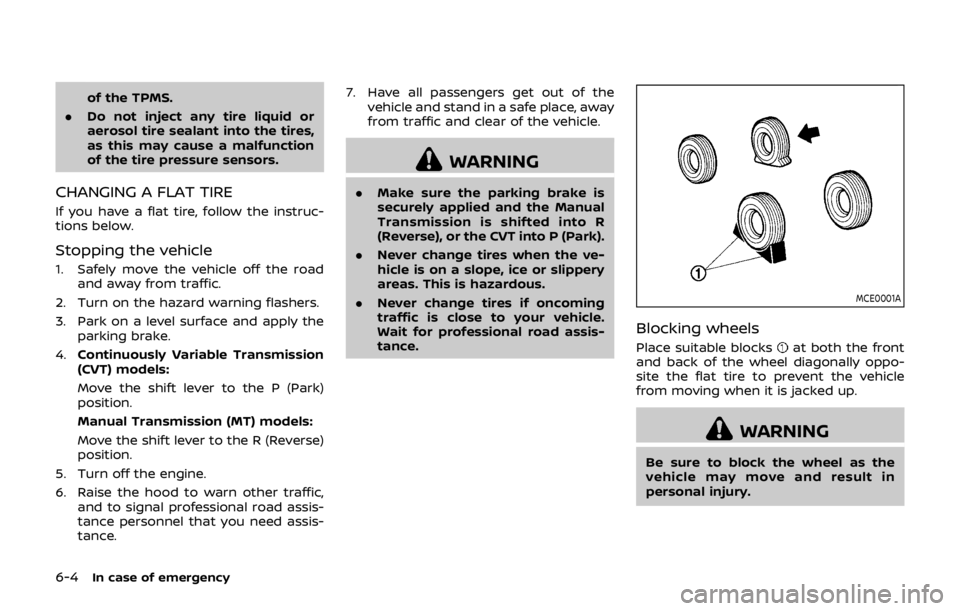
MCE0001A
Blocking wheels
Place suitable blocksat both the front
and back of the wheel diagonally oppo-
site the flat tire to prevent the vehicle
from moving when it is jacked up.
WARNING
Be sure to block the wheel as the
vehicle may move and result in
personal injury.