ignition NISSAN QUEST 2017 RE52 / 4.G Workshop Manual
[x] Cancel search | Manufacturer: NISSAN, Model Year: 2017, Model line: QUEST, Model: NISSAN QUEST 2017 RE52 / 4.GPages: 520, PDF Size: 2.5 MB
Page 195 of 520

4-6Monitor, heater, air conditioner, audio, phone and voice recognition systems
SAA3613
Models without navigation system1. “INFO” button (P.4-11)
2. “STATUS” status display button (P.4-10)
3. “DISP” display setting button (P.4-10)
4. “
” brightness UP button (P.4-10)
5. “ECON” button (P.4-11)
6. “SETTING” button (P.4-15)
7. Multi-function controller (P.4-7)
8. “
OFF” brightness control and display ON/
OFF button (P.4-10)
9. “
” brightness DOWN button (P.4-10)
When you use this system, make sure the
engine is running.
If you use the system with the engine not
running (ignition ON or ACC) for a long
time, it will discharge the battery and the engine may not start.
SAA3025
Models with navigation system
SAA3614Models without navigation system
Page 200 of 520
HOW TO USE ECON BUTTON (models
without navigation system)
Push the “ECON” button to show fuel
economy information. (See “How to use INFO
button” (P.4-11).)
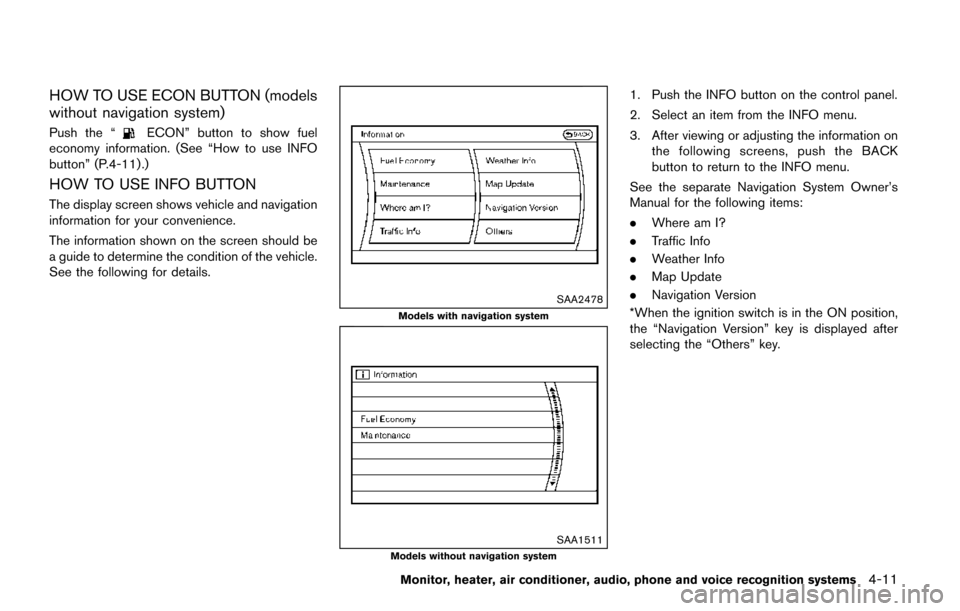
HOW TO USE INFO BUTTON
The display screen shows vehicle and navigation
information for your convenience.
The information shown on the screen should be
a guide to determine the condition of the vehicle.
See the following for details.
SAA2478
Models with navigation system
SAA1511Models without navigation system
1. Push the INFO button on the control panel.
2. Select an item from the INFO menu.
3. After viewing or adjusting the information on the following screens, push the BACK
button to return to the INFO menu.
See the separate Navigation System Owner’s
Manual for the following items:
. Where am I?
. Traffic Info
. Weather Info
. Map Update
. Navigation Version
*When the ignition switch is in the ON position,
the “Navigation Version” key is displayed after
selecting the “Others” key.
Monitor, heater, air conditioner, audio, phone and voice recognition systems4-11
Page 203 of 520
4-14Monitor, heater, air conditioner, audio, phone and voice recognition systems
1. Set the interval (mileage) of the maintenanceschedule. To determine the recommended
maintenance interval, refer to the “9. Main-
tenance and schedules” section.
2. To display the reminder automatically when the desired distance is reached, select the
“Reminder” key.
3. Reset the driving distance to the new maintenance schedule.
4. To return to the previous screen, push the BACK button.
The unit can be converted between “US” and
“Metric”. (See “How to use SETTING button”
(P.4-15) .)
SAA3003
Example
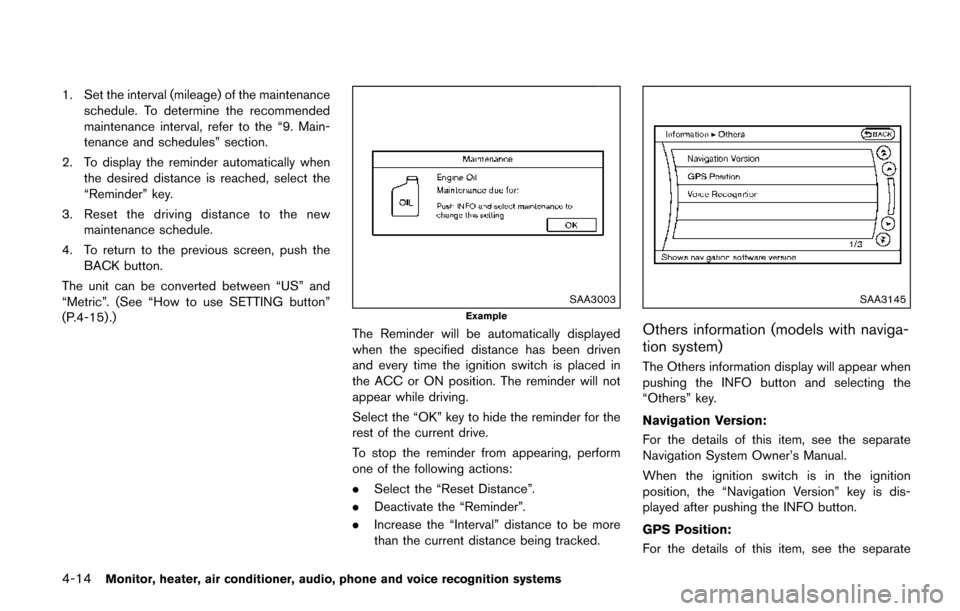
The Reminder will be automatically displayed
when the specified distance has been driven
and every time the ignition switch is placed in
the ACC or ON position. The reminder will not
appear while driving.
Select the “OK” key to hide the reminder for the
rest of the current drive.
To stop the reminder from appearing, perform
one of the following actions:
. Select the “Reset Distance”.
. Deactivate the “Reminder”.
. Increase the “Interval” distance to be more
than the current distance being tracked.
SAA3145
Others information (models with naviga-
tion system)
The Others information display will appear when
pushing the INFO button and selecting the
“Others” key.
Navigation Version:
For the details of this item, see the separate
Navigation System Owner’s Manual.
When the ignition switch is in the ignition
position, the “Navigation Version” key is dis-
played after pushing the INFO button.
GPS Position:
For the details of this item, see the separate
Page 207 of 520
4-18Monitor, heater, air conditioner, audio, phone and voice recognition systems
SAA2917
Models with navigation system
SAA2079Models without navigation system
REAR DISPLAY settings (if so equipped)
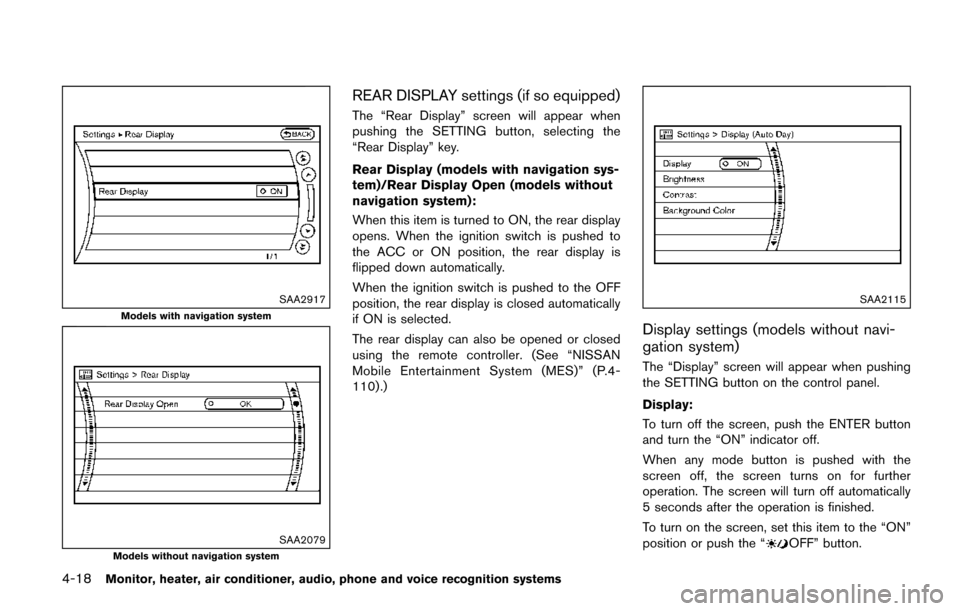
The “Rear Display” screen will appear when
pushing the SETTING button, selecting the
“Rear Display” key.
Rear Display (models with navigation sys-
tem)/Rear Display Open (models without
navigation system):
When this item is turned to ON, the rear display
opens. When the ignition switch is pushed to
the ACC or ON position, the rear display is
flipped down automatically.
When the ignition switch is pushed to the OFF
position, the rear display is closed automatically
if ON is selected.
The rear display can also be opened or closed
using the remote controller. (See “NISSAN
Mobile Entertainment System (MES)” (P.4-
110) .)
SAA2115
Display settings (models without navi-
gation system)
The “Display” screen will appear when pushing
the SETTING button on the control panel.
Display:
To turn off the screen, push the ENTER button
and turn the “ON” indicator off.
When any mode button is pushed with the
screen off, the screen turns on for further
operation. The screen will turn off automatically
5 seconds after the operation is finished.
To turn on the screen, set this item to the “ON”
position or push the “
OFF” button.
Page 209 of 520
4-20Monitor, heater, air conditioner, audio, phone and voice recognition systems
When any mode button is pushed with the
screen off, the screen turns on for further
operation. The screen will turn off automatically
5 seconds after the operation is finished.
To turn on the screen, set this item to the ON
position, or push and hold the “
OFF”
button.
. Brightness/Contrast/Background Color
To adjust the brightness and contrast of the
screen, select the “Brightness” or “Contrast”
key.
Then, you can adjust the brightness and the
contrast using the multi-function controller.
For information on the “Background Color” key,
refer to the separate Navigation System Own-
er’s Manual.
Color Theme:
Choose the theme color of the menu screen.
SAA2488
Models with navigation system
JVH0182MModels without navigation system
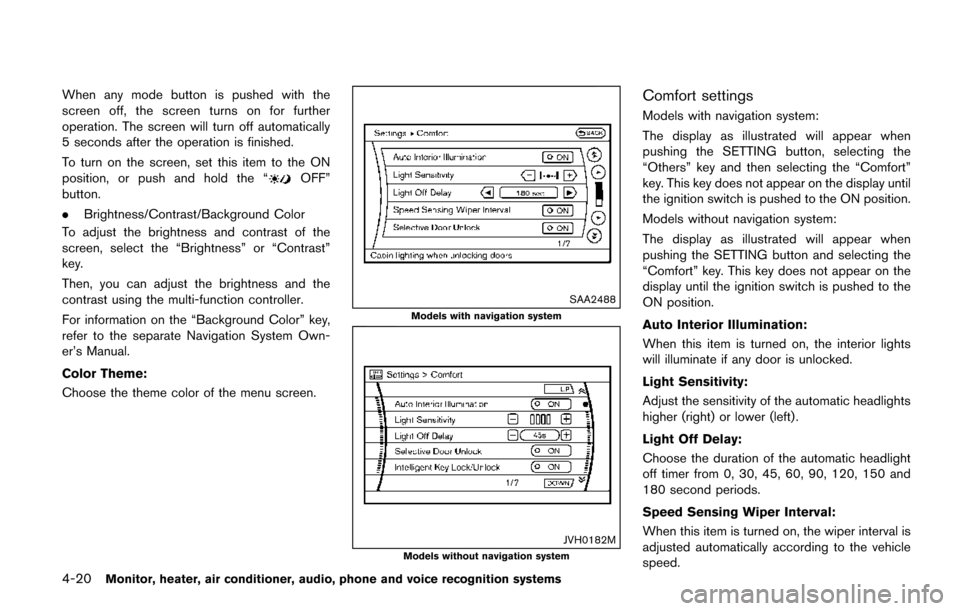
Comfort settings
Models with navigation system:
The display as illustrated will appear when
pushing the SETTING button, selecting the
“Others” key and then selecting the “Comfort”
key. This key does not appear on the display until
the ignition switch is pushed to the ON position.
Models without navigation system:
The display as illustrated will appear when
pushing the SETTING button and selecting the
“Comfort” key. This key does not appear on the
display until the ignition switch is pushed to the
ON position.
Auto Interior Illumination:
When this item is turned on, the interior lights
will illuminate if any door is unlocked.
Light Sensitivity:
Adjust the sensitivity of the automatic headlights
higher (right) or lower (left) .
Light Off Delay:
Choose the duration of the automatic headlight
off timer from 0, 30, 45, 60, 90, 120, 150 and
180 second periods.
Speed Sensing Wiper Interval:
When this item is turned on, the wiper interval is
adjusted automatically according to the vehicle
speed.
Page 210 of 520
Slide Driver Seat Back on Exit (if so
equipped):
When this item is turned on, the driver’s seat
moves backward for easy exit if the ignition
switch is in the OFF position and the driver’s
door is opened. After getting into the vehicle and
pushing the ignition switch to the ACC position,
the driver’s seat moves to the previous position.
Selective Door Unlock:
When this item is turned on, only the driver’s
door is unlocked first after the door unlock
operation. When the door handle request switch
on the driver’s or front passenger’s side door is
pushed to be unlocked, only the corresponding
door is unlocked first. All the doors can be
unlocked if the door unlock operation is per-
formed again within 60 seconds.
When this item is turned off, all the doors will be
unlocked after the door unlock operation is
performed once.
Intelligent Key Lock/Unlock:
When this item is turned on, door lock/unlock
function by pushing the door handle request
switch will be activated.
Return All Settings to Default:
Select this item and then select “YES” to return
all settings to the default.
SAA2487
Models with navigation system
SAA3675Models without navigation system
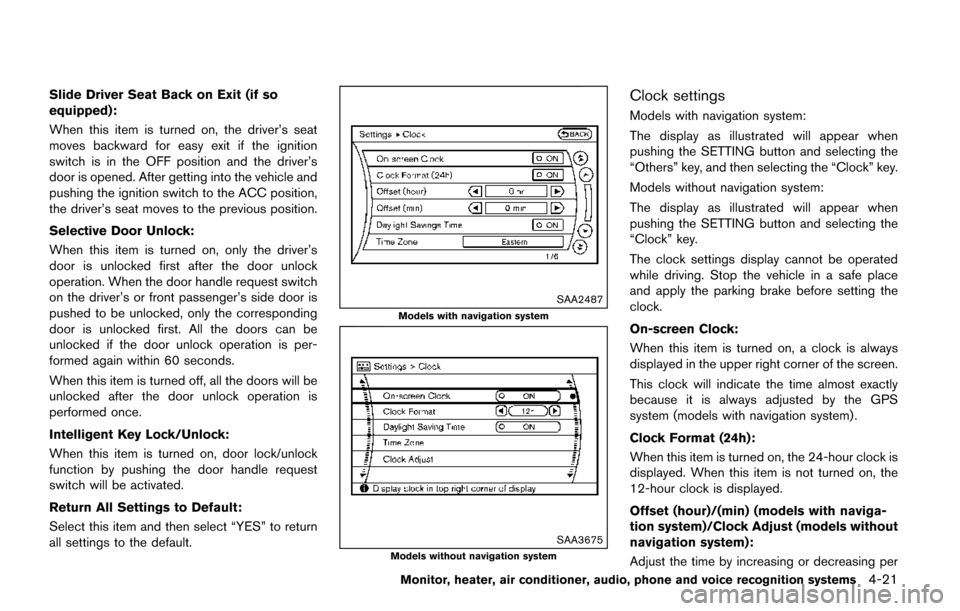
Clock settings
Models with navigation system:
The display as illustrated will appear when
pushing the SETTING button and selecting the
“Others” key, and then selecting the “Clock” key.
Models without navigation system:
The display as illustrated will appear when
pushing the SETTING button and selecting the
“Clock” key.
The clock settings display cannot be operated
while driving. Stop the vehicle in a safe place
and apply the parking brake before setting the
clock.
On-screen Clock:
When this item is turned on, a clock is always
displayed in the upper right corner of the screen.
This clock will indicate the time almost exactly
because it is always adjusted by the GPS
system (models with navigation system) .
Clock Format (24h):
When this item is turned on, the 24-hour clock is
displayed. When this item is not turned on, the
12-hour clock is displayed.
Offset (hour)/(min) (models with naviga-
tion system)/Clock Adjust (models without
navigation system):
Adjust the time by increasing or decreasing per
Monitor, heater, air conditioner, audio, phone and voice recognition systems4-21
Page 214 of 520
WARNING
Failure to follow the warnings and
instructions for proper use of the Rear-
View Monitor system could result in
serious injury or death.
.The RearView Monitor is a conve-
nience but it is not a substitute for
proper backing. Always turn and
look out the windows, and check
mirrors to be sure that it is safe to
move before operating the vehicle.
Always back up slowly.
. The system is designed as an aid to
the driver in showing large station-
ary objects directly behind the vehi-
cle, to help avoid damaging the
vehicle.
. The distance guide line and the
vehicle width line should be used
as a reference only when the vehicle
is on a level paved surface. The
distance viewed on the monitor is
for reference only and may be
different than the actual distance
between the vehicle and displayed
objects.
CAUTION
Do not scratch the camera lens when
cleaning dirt or snow from the front of
the camera.
The RearView Monitor system automatically
shows a rear view of the vehicle when the shift
lever is placed in the R (Reverse) position.
The radio can still be heard while the RearView
Monitor is active.
JVH1274X
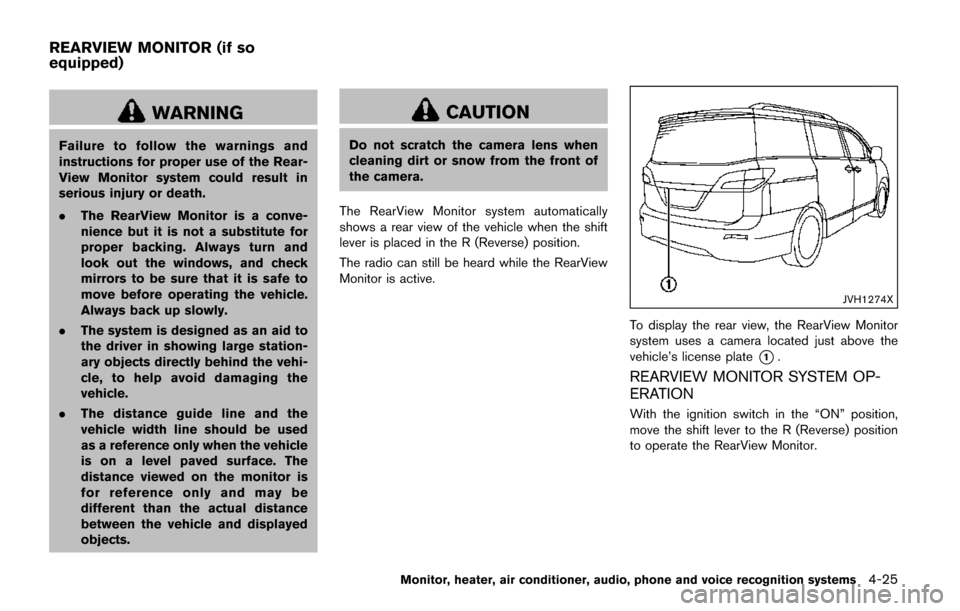
To display the rear view, the RearView Monitor
system uses a camera located just above the
vehicle’s license plate
*1.
REARVIEW MONITOR SYSTEM OP-
ERATION
With the ignition switch in the “ON” position,
move the shift lever to the R (Reverse) position
to operate the RearView Monitor.
Monitor, heater, air conditioner, audio, phone and voice recognition systems4-25
REARVIEW MONITOR (if so
equipped)
Page 222 of 520
Available views:
.Front View
The view to the front of the vehicle.
. Rear View
The view to the rear of the vehicle.
. Bird’s-Eye View
The surrounding view of the vehicle.
. Front-side View
The view around and ahead of the front
passenger’s side wheel.
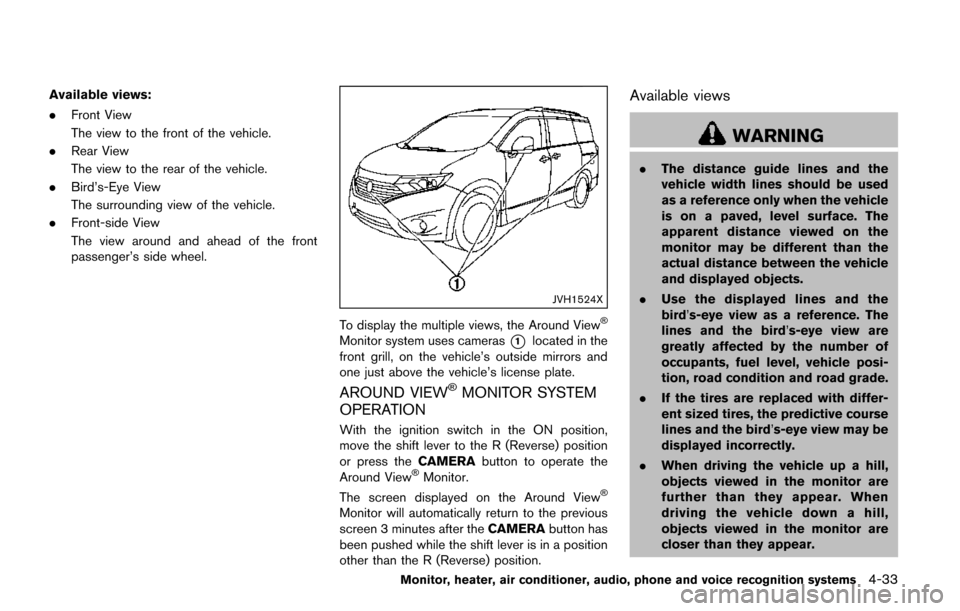
JVH1524X
To display the multiple views, the Around ViewŠ
Monitor system uses cameras*1located in the
front grill, on the vehicle’s outside mirrors and
one just above the vehicle’s license plate.
AROUND VIEWŠMONITOR SYSTEM
OPERATION
With the ignition switch in the ON position,
move the shift lever to the R (Reverse) position
or press the CAMERAbutton to operate the
Around View
ŠMonitor.
The screen displayed on the Around ViewŠ
Monitor will automatically return to the previous
screen 3 minutes after the CAMERAbutton has
been pushed while the shift lever is in a position
other than the R (Reverse) position.
Available views
WARNING
. The distance guide lines and the
vehicle width lines should be used
as a reference only when the vehicle
is on a paved, level surface. The
apparent distance viewed on the
monitor may be different than the
actual distance between the vehicle
and displayed objects.
. Use the displayed lines and the
bird’s-eye view as a reference. The
lines and the bird’s-eye view are
greatly affected by the number of
occupants, fuel level, vehicle posi-
tion, road condition and road grade.
. If the tires are replaced with differ-
ent sized tires, the predictive course
lines and the bird’s-eye view may be
displayed incorrectly.
. When driving the vehicle up a hill,
objects viewed in the monitor are
further than they appear. When
driving the vehicle down a hill,
objects viewed in the monitor are
closer than they appear.
Monitor, heater, air conditioner, audio, phone and voice recognition systems4-33
Page 224 of 520
degrees or less from the straight ahead
position, both the right and left predictive
course lines
*6are displayed. When the
steering wheel turns about 90 degrees or
more, a line is displayed only on the
opposite side of the turn.
JVH0337X
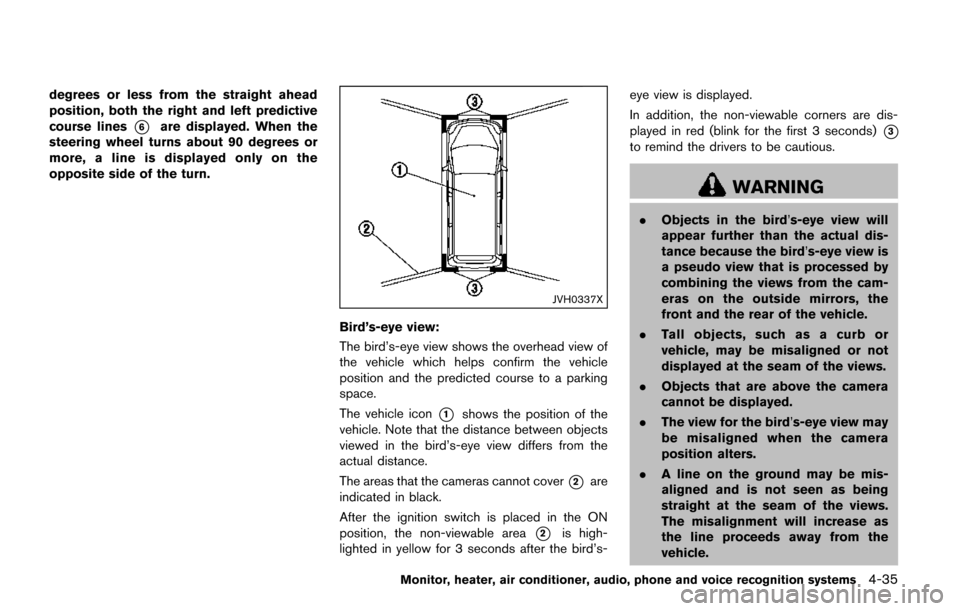
Bird’s-eye view:
The bird’s-eye view shows the overhead view of
the vehicle which helps confirm the vehicle
position and the predicted course to a parking
space.
The vehicle icon
*1shows the position of the
vehicle. Note that the distance between objects
viewed in the bird’s-eye view differs from the
actual distance.
The areas that the cameras cannot cover
*2are
indicated in black.
After the ignition switch is placed in the ON
position, the non-viewable area
*2is high-
lighted in yellow for 3 seconds after the bird’s- eye view is displayed.
In addition, the non-viewable corners are dis-
played in red (blink for the first 3 seconds)
*3
to remind the drivers to be cautious.
WARNING
.
Objects in the bird’s-eye view will
appear further than the actual dis-
tance because the bird’s-eye view is
a pseudo view that is processed by
combining the views from the cam-
eras on the outside mirrors, the
front and the rear of the vehicle.
. Tall objects, such as a curb or
vehicle, may be misaligned or not
displayed at the seam of the views.
. Objects that are above the camera
cannot be displayed.
. The view for the bird’s-eye view may
be misaligned when the camera
position alters.
. A line on the ground may be mis-
aligned and is not seen as being
straight at the seam of the views.
The misalignment will increase as
the line proceeds away from the
vehicle.
Monitor, heater, air conditioner, audio, phone and voice recognition systems4-35
Page 232 of 520
vehicle. When maneuvering, always
use the outside mirror and rearview
mirror and turn and check the sur-
rounding to ensure it is safe to
maneuver.
. The system is deactivated at speeds
above 5 MPH (8 km/h) . It is reacti-
vated at lower speeds.
. The MOD system is not designed to
detect the surrounding stationary
objects.
The Moving Object Detection (MOD) system
can inform the driver of the moving objects
surrounding the vehicle when driving out of
garages, maneuvering into parking lots and in
other such instances.
The MOD system detects moving objects by
using image processing technology on the
image shown on the display.MOD SYSTEM OPERATION
The MOD system will turn on automatically
under the following conditions:
. When the shift lever is in the R (Reverse)
position.
. When the CAMERA button is pushed, the
camera view is activated on the display.
. When vehicle speed decreases below
approximately 5 MPH (8 km/h) .
The MOD system operates in the following
conditions when the camera view is displayed:
. When the shift lever is in the P (Park) or N
(Neutral) position and the vehicle is
stopped, the MOD system detects the
moving objects in the bird’s-eye view. The
MOD system will not operate if the outside
mirrors are moving in or out or if either door
is opened.
. When the shift lever is in the D (Drive)
position, and the vehicle speed is below
approximately 5 MPH (8 km/h) , the MOD
system detects moving objects in the front
view.
. When the shift lever is in the R (Reverse)
position and the vehicle speed is below
approximately 5 MPH (8 km/h) , the MOD
system detects moving objects in the rear
view. The MOD system will not operate if the
liftgate is open. .
When the ignition switch is placed in the
“OFF” position and then back to the “ON”
position.
The MOD system does not detect moving
objects in the front-side view. The MOD icon
is not displayed on the screen when in this view.
When the MOD system detects a moving object
near the vehicle, the yellow frame will be
displayed on the view where the objects are
detected and a chime will sound once. While the
MOD system continues to detect moving
objects, the yellow frame continues to be
displayed.
Monitor, heater, air conditioner, audio, phone and voice recognition systems4-43