change wheel NISSAN ROGUE 2014 2.G User Guide
[x] Cancel search | Manufacturer: NISSAN, Model Year: 2014, Model line: ROGUE, Model: NISSAN ROGUE 2014 2.GPages: 442, PDF Size: 5.19 MB
Page 257 of 442
●A new disc may be rough on the inner and
outer edges. Remove the rough edges by
rubbing the inner and outer edges with the
side of a pen or pencil as illustrated.
1. Source select and power on switch
2. Menu control switch/ENTER button
3.
(Back) switch
4. Volume control switch
STEERING WHEEL SWITCH FOR
AUDIO CONTROL
POWER on switch
With the ignition switch in the ACC or ON posi-
tion, push the SOURCE switch to turn the audio
system on.
SOURCE select switch
Push the source select switch to change the
mode in the following sequence:
AM →FM1 →FM2 →SXM1 (satellite radio, if so
equipped) →SXM2 (satellite radio, if so equip-
ped)→SXM3 (satellite radio, if so equipped) →
CD* →USB/iPod®*→ Bluetooth® Audio* →Au-
dio App*→ AUX*→AM.
* These modes are only available when compat-
ible media storage is inserted into the device or
connected to the system.
Volume control switch
Push the volume control switch to increase or
decrease the volume.
Menu control switch/ENTER button
While the display is showing a map or audio
screen, tilt the Menu Control switch upward or
downward to select a station, track, CD or folder.
For most audio sources, tilting the switch
up/down for more than 1.5 seconds provides a
different function than a tilting up/down for less
than 1.5 seconds.
LHA2950
4-76Monitor, climate, audio, phone and voice recognition systems
Page 271 of 442
●New Text Sound
Select to adjust the volume of the sound that
plays when a new text is received by a phone
connected to the Bluetooth® Hands-Free
Phone System. The setting all the way to the
left indicates that the new text sound will be
muted.
● Show Incoming Text
Select “Driver Only” to have incoming text
messages displayed only in the vehicle infor-
mation display. Select “Both” to have incom-
ing text messages displayed in both the ve-
hicle information display and the center
display screen. Select “None” to have no
display of incoming text messages.
● Edit Custom Messages
Select to set a custom message that will be
available with the standard options when
sending a text message. To set a custom
message, send a text message to your own
phone number while the phone is connected
to the system. Three custom messages can
be set. Custom messages can only be set
while the vehicle is stationary. ●
Auto Reply
Select to turn on or off the Auto Reply func-
tion. When enabled, the vehicle will auto-
matically send a predefined text message to
the sender when a text message is received
while driving.
● Auto Reply Message
Select to choose the message that is sent
when the Auto Reply function is enabled.
Choose from “I’m Driving” or one of the three
custom messages stored in the system.
● Vehicle Signature On/Off
Select to choose whether or not the vehicle
signature is added to outgoing text mes-
sages from the vehicle. This message can-
not be changed or customized.
MANUAL CONTROL
While using the Voice Recognition system, it is
possible to select menu options by using the
steering wheel controls instead of speaking voice
commands. To activate manual control mode,
press the PHONE/SEND (
) button on the
steering wheel to access the phone menu and
then press either up or down on the tuning switch
(
). The manual control mode does not allow dialing a
phone number by digits. The user may select an
entry from the Phonebook or Recent Calls lists.
To reactivate Voice Recognition, exit the manual
control mode by pressing and holding the
PHONE/END (
) button. At that time, press-
ing the PHONE/SEND (
) button will start
the Hands Free Phone System.
4-90Monitor, climate, audio, phone and voice recognition systems
Page 275 of 442
5. Initiate the connecting process from thehandset. The system will display the mes-
sage: “Is PIN XXXXXX displayed on your
Bluetooth device?”. If the PIN is displayed
on your Bluetooth® device, select “Yes” to
complete the pairing process.
For more information, see the Bluetooth® de-
vice’s Owner’s Manual.
VEHICLE PHONEBOOK
To access the vehicle phonebook:
1. Press the
button on the control panel.
2. Touch the “Phonebook” key.
3. Choose the desired entry from the displayed list.
4. The number of the entry will be displayed on the screen. Touch the number to initiate di-
aling.
NOTE:
To scroll quickly through the list, touch the
“A-Z” key in the upper right corner of the
screen. Turn the TUNE/SCROLL knob to
choose a letter or number and then press
ENTER. The list will move to the first entry
that begins with that number or letter.
MAKING A CALL
To make a call, follow the procedure below: 1. Press the
button on the control panel.
The “Phone” screen will appear on the dis-
play.
2. Select one of the following options to make a call:
● “Phonebook”: Select the name from an entry
stored in the vehicle phonebook.
● “Call Lists”: Select the name from the in-
coming, outgoing or missed.
● “Redial”: Dial the last outgoing call from the
vehicle.
● “
”: Input the phone number manually
using a keypad displayed on the screen. For
additional information on how to use the
touch-screen, refer to “How to use the
touch-screen” in this section.
RECEIVING A CALL
When a call is placed to the connected phone,
the display will change to phone mode.
To accept the incoming call, either:
● Press the
button on the steering
wheel, or ●
Touch the
icon on the screen.
To reject the incoming call, either:
● Press the
button on the steering
wheel, or
● Touch the red phone icon on the screen.
DURING A CALL
While a call is active, the following options are
available on the screen:
● “Handset”
Select this option to switch control of the
phone call over to the handset.
● “Mute Mic.”
Select this option to mute the microphone.
Select again to unmute the microphone.
● Red phone (
) icon
Select to end the phone call.
ENDING A CALL
To end a phone call, select the red phone ()
icon on the screen or press the
button on
the steering wheel.
4-94Monitor, climate, audio, phone and voice recognition systems
Page 279 of 442
The NISSAN Voice Recognition system allows
hands-free operation of the systems equipped on
this vehicle, such as the phone and navigation
systems.
To operate NISSAN Voice Recognition, press
the
button located on the steering wheel.
When prompted, speak the command for the
system you wish to activate. The command given
is picked up by the microphone and performed
when it is properly recognized. NISSAN Voice
Recognition will provide a voice response as well
as a message in the center display to inform you
of the command results.
USING THE SYSTEM
Initialization
When the ignition switch is in the ON position,
NISSAN Voice Recognition is initialized, which
takes a few seconds. When completed, the sys-
tem is ready to accept voice commands. If
the
button is pressed before the initializa-
tion completes, the system will announce: “Voice
Recognition System not ready. Please wait.”
Giving voice commands
1. Press thebutton.
2. The system announces: “Please say a cat- egory like phone or a command like points of
interest followed by a brand name”. A list of
available commands is then spoken by the
system.
3. After the tone sounds and the face icon on the display changes, speak a command.
Available commands are discussed later in
this section. 4. Voice and display feedback are provided
when the command is accepted.
● Press the
button to return to the pre-
vious screen.
● If the command is not recognized, the sys-
tem announces provides a list of available
selections.
● If you want to cancel the command or go
back to the previous menu of commands,
press the
button. The system will an-
nounce: “Cancelling voice recognition” or
“Go back” depending on the current menu
level.
● Press the
button to move back
through the menus displayed on the screen.
● If you want to adjust the volume of the voice
feedback, use the volume control switches
on the steering wheel or the volume knob on
the control panel.
● The voice command screen can also be
accessed using the control panel display:
1. Press the [
] button.
2. Touch the “Voice Commands” key.
LHA2879
NISSAN VOICE RECOGNITION
SYSTEM (if so equipped)
4-98Monitor, climate, audio, phone and voice recognition systems
Page 290 of 442
●When a spare tire is mounted or a wheel
is replaced, tire pressure will not be
indicated, the TPMS will not function
and the low tire pressure warning light
will flash for approximately 1 minute.
The light will remain on after 1 minute.
Contact your NISSAN dealer as soon as
possible for tire replacement and/or
system resetting.
● Replacing tires with those not originally
specified by NISSAN could affect the
proper operation of the TPMS.
● Do not inject any tire liquid or aerosol
tire sealant into the tires, as this may
cause a malfunction of the tire pressure
sensors.
CAUTION
● The TPMS may not function properly
when the wheels are equipped with tire
chains or the wheels are buried in snow.
● Do not place metalized film or any
metal parts (antenna, etc.) on the win-
dows. This may cause poor reception of
the signals from the tire pressure sen-
sors, and the TPMS will not function
properly. Some devices and transmitters may temporarily
interfere with the operation of the TPMS and
cause the low tire pressure warning light to illu-
minate.
Some examples are:
– Facilities or electric devices using similar radio
frequencies are near the vehicle.
– If a transmitter set to similar frequencies is being used in or near the vehicle.
– If a computer (or similar equipment) or a DC/AC converter is being used in or near the
vehicle.
FCC Notice:
For USA:
This device complies with Part 15 of the
FCC Rules. Operation is subject to the fol-
lowing two conditions: (1) This device may
not cause harmful interference, and (2) this
device must accept any interference re-
ceived, including interference that may
cause undesired operation. NOTE:
Changes or modification not expressly ap-
proved by the party responsible for compli-
ance could void the user’s authority to op-
erate the equipment.
For Canada:
This device complies with RSS-210 of In-
dustry Canada. Operation is subject to the
following two conditions: (1) this device
may not cause harmful interference, and (2)
this device must accept any interference
received, including interference that may
cause undesired operation of the device.
TPMS with Easy Fill Tire Alert
When adding air to an under-inflated tire, the
TPMS with Easy Fill Tire Alert provides visual and
audible signals outside the vehicle to help you
inflate the tires to the recommended COLD tire
pressure.
Vehicle set-up:
1. Park the vehicle in a safe and level place.
2. Apply the parking brake and place the shift lever to the P (Park) position.
3. Place the ignition switch to the ON position. Do not start the engine.
Starting and driving5-5
Page 292 of 442
2. Do not apply the brakes.
3. Maintain a firm grip on the steering wheelwith both hands and try to hold a straight
course.
4. When appropriate, slowly release the accel- erator pedal to gradually slow the vehicle.
5. If there is nothing in the way, steer the ve- hicle to follow the road while vehicle speed
is reduced. Do not attempt to drive the ve-
hicle back onto the road surface until vehicle
speed is reduced.
6. When it is safe to do so, gradually turn the steering wheel until both tires return to the
road surface. When all tires are on the road
surface, steer the vehicle to stay in the ap-
propriate driving lane.
● If you decide that it is not safe to return the
vehicle to the road surface based on vehicle,
road or traffic conditions, gradually slow the
vehicle to a stop in a safe place off the road.
RAPID AIR PRESSURE LOSS
Rapid air pressure loss or a “blow-out” can occur
if the tire is punctured or is damaged due to
hitting a curb or pothole. Rapid air pressure loss
can also be caused by driving on under-inflated
tires. Rapid air pressure loss can affect the handling
and stability of the vehicle, especially at highway
speeds.
Help prevent rapid air pressure loss by maintain-
ing the correct air pressure and visually inspect
the tires for wear and damage. For additional
information, refer to “Wheels and tires” in the
“Maintenance and do-it-yourself” section of this
manual. If a tire rapidly loses air pressure or
“blows-out” while driving, maintain control of the
vehicle by following the procedure below. Please
note that this procedure is only a general guide.
The vehicle must be driven as appropriate based
on the conditions of the vehicle, road and traffic.
WARNING
The following actions can increase the
chance of losing control of the vehicle if
there is a sudden loss of tire air pressure.
Losing control of the vehicle may cause a
collision and result in personal injury.
●
The vehicle generally moves or pulls in
the direction of the flat tire.
● Do not rapidly apply the brakes.
● Do not rapidly release the accelerator
pedal.
● Do not rapidly turn the steering wheel. 1. Remain calm and do not overreact.
2. Maintain a firm grip on the steering wheel
with both hands and try to hold a straight
course.
3. When appropriate, slowly release the accel- erator pedal to gradually slow the vehicle.
4. Gradually steer the vehicle to a safe location off the road and away from traffic if possible.
5. Lightly apply the brake pedal to gradually stop the vehicle.
6. Turn on the hazard warning flashers and either contact a roadside emergency service
to change the tire. For additional information,
refer to “Changing a flat tire” in the “In case
of emergency” section of this manual.
Starting and driving5-7
Page 310 of 442
– A vehicle which your vehicle over-takes rapidly. For additional informa-
tion, refer to “BSW driving situa-
tions” in this section.
– A vehicle that merges or changes lanes rapidly directly next to your
vehicle.
● The camera unit may not be able to
detect property when your vehicle trav-
els beside the middle section of a ve-
hicle with long wheelbase (e.g. trailer
truck, semi-trailer, tractor) .
● The camera detection zone is designed
based on a standard lane width. When
driving in a wider lane, the camera unit
may not detect vehicles in an adjacent
lane. When driving in a narrow lane, the
camera unit may detect vehicles driving
two lanes away.
● The camera unit is designed to ignore
most stationary objects, however ob-
jects such as guardrails, walls, foliage
and parked vehicles may occasionally
be detected. This is a normal operating
condition. ●
The camera unit may detect the re-
flected image of vehicles or roadside
objects that are not actually in the de-
tection zone, especially when the road
is wet.
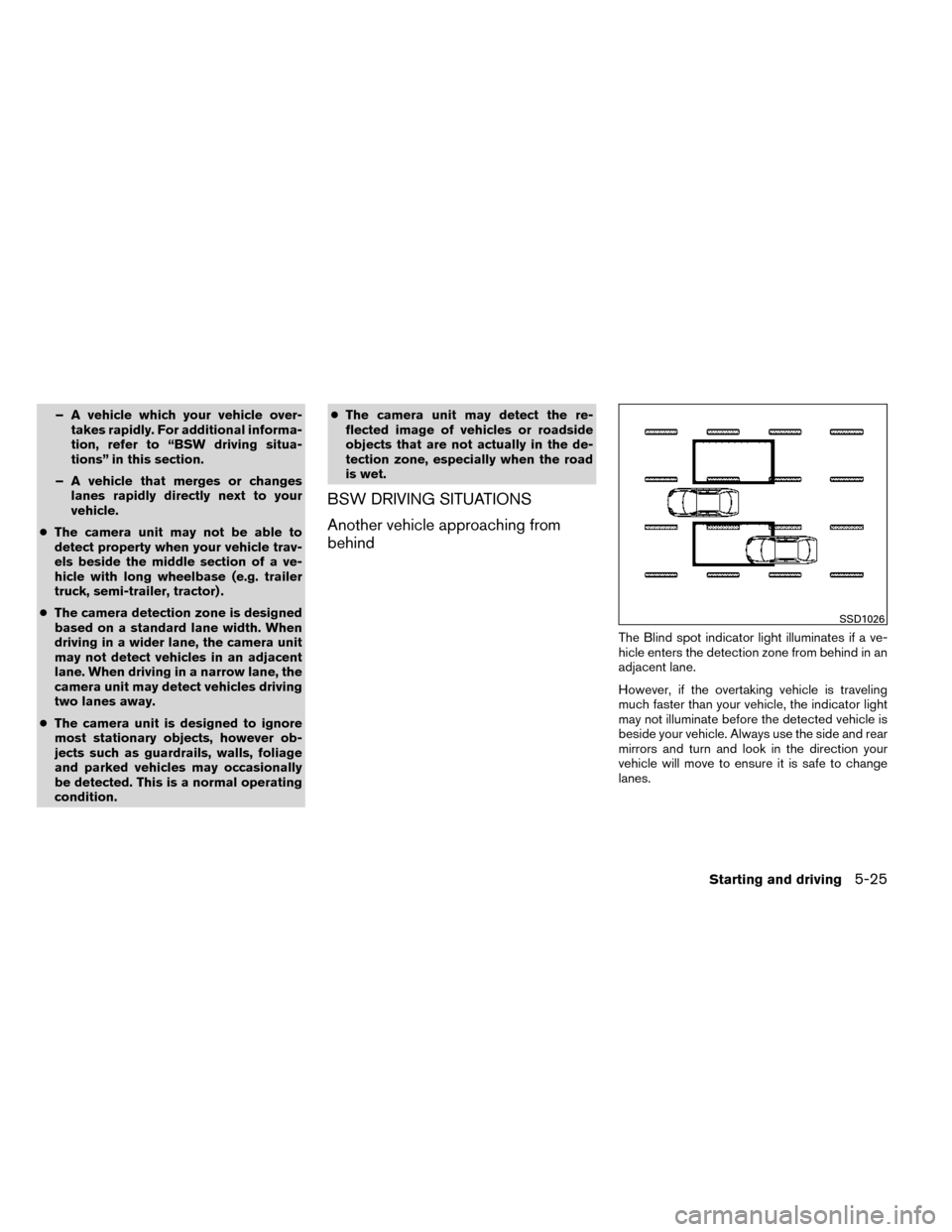
BSW DRIVING SITUATIONS
Another vehicle approaching from
behind
The Blind spot indicator light illuminates if a ve-
hicle enters the detection zone from behind in an
adjacent lane.
However, if the overtaking vehicle is traveling
much faster than your vehicle, the indicator light
may not illuminate before the detected vehicle is
beside your vehicle. Always use the side and rear
mirrors and turn and look in the direction your
vehicle will move to ensure it is safe to change
lanes.
SSD1026
Starting and driving5-25
Page 313 of 442
WARNING
●The camera unit may not be able to
detect properly under the following
conditions:
– On roads where there are multiple parallel lane markers; lane markers
that are faded or not painted clearly;
yellow painted lane markers; non-
standard lane markers; or lane mark-
ers covered with water, dirt, snow,
etc.
– On roads where the discontinued lane markers are still detectable.
– On roads where there are sharp curves.
– On roads where there are sharply contrasting objects, such as shad-
ows, snow, water, wheel ruts, seams
or lines remaining after road repairs.
(The LDW system could detect these
items as lane markers.)
– On roads where the traveling lane merges or separates.
– When the vehicle’s traveling direc- tion does not align with the lane
marker. – When the road surface is very dark
due to weak ambient light or im-
paired tail lamp.
– When traveling close to the vehicle in front of you, which obstructs the lane
camera unit detection range.
– When rain, snow, dirt or object ad- heres to the windshield in front of the
lane camera unit.
– When the headlights are not bright due to dirt on the lens or if the aiming
is not adjusted properly.
– When strong light enters the lane camera unit. (For example, the light
directly shines on the front of the
vehicle at sunrise or sunset) .
– When a sudden change in brightness occurs. (For example, when the ve-
hicle enters or exits a tunnel or under
a bridge) .
BSW/LDW TEMPORARY DISABLED
STATUS
Under the following condition, the BSW and/or
LDW system is turned off temporarily, the BSW
light and/or LDW light will blink, and either of the
following message will appear in the vehicle in-
formation display:
● “Trunk is open”
● “Washer fluid is low”
When the above conditions are corrected, the
BSW and/or LDW system will resume automati-
cally.
BSW/LDW AUTOMATIC
DEACTIVATION
When dirt, rain or snow cannot be removed by the
automatic washer and blower and accumulates on
the camera, making it impossible to detect the
vehicles or the lane markers, the BSW and/or LDW
system will be turned off automatically. The BSW
light (white) and/or LDW light (orange) will blink,
and the “Unavailable : Clean rear camera” will
appear in the vehicle information display.
Action to take:
If the message appears, park the vehicle in a safe
place, clean the camera unit with a soft cloth.
Then turn off and restart the engine.
5-28Starting and driving
Page 322 of 442
●Keep your engine tuned up.
● Follow the recommended scheduled main-
tenance.
● Keep the tires inflated to the correct pres-
sure. Low tire pressure increases tire wear
and lowers fuel economy.
● Keep all the wheels in correct alignment.
Improper alignment increases tire wear and
lowers fuel economy.
● Use the recommended viscosity engine oil.
See “Engine oil and oil filter recommenda-
tions” in “Technical and consumer informa-
tion” in this manual. If any malfunction occurs in the AWD system
while the engine is running, the master warning
light will come on.
The master warning light may illuminate while
trying to free a stuck vehicle due to high pow-
ertrain oil temperature. The driving mode may
change to 2WD. AUTO mode may change to
LOCK mode before the warning light illuminates.
If the master warning light illuminates during op-
eration, stop the vehicle with the engine idling in a
safe place immediately.
Then if the light turns off after a while, you can
continue driving.
A large difference between the diameters of the
front and rear wheels will make the warning light
illuminate. Pull off the road in a safe area and idle
the engine. Check that all tire sizes are the same,
tire pressure is correct, and the tires are not worn.CAUTION
●
If the warning light remains on after the
above operation, have your vehicle
checked by a NISSAN dealer as soon as
possible.
● If the warning light comes on while driv-
ing, there may be a malfunction in the
AWD system.
Reduce the vehicle speed and have your
vehicle checked by a NISSAN dealer as
soon as possible.
● The powertrain may be damaged if you
continue driving with the warning light
illuminated.
● Never drive on dry, hard surface roads in
the LOCK mode, as this will overload
the powertrain and may cause a serious
malfunction.
INCREASING FUEL ECONOMY ALL-WHEEL DRIVE (AWD) (if so
equipped)
Starting and driving5-37
Page 324 of 442
![NISSAN ROGUE 2014 2.G User Guide AWD mode Wheels driven AWD LOCK indicator light Use conditionsAUTO Distribution of torque to
the front and rear wheels
changes automatically,
depending on road condi-
tions encountered [100:0]
←→](/img/5/393/w960_393-323.png "NISSAN ROGUE 2014 2.G User Guide AWD mode Wheels driven AWD LOCK indicator light Use conditionsAUTO Distribution of torque to
the front and rear wheels
changes automatically,
depending on road condi-
tions encountered [100:0]
←→")
AWD mode Wheels driven AWD LOCK indicator light Use conditionsAUTO Distribution of torque to
the front and rear wheels
changes automatically,
depending on road condi-
tions encountered [100:0]
←→
[50:50]. This results
in improved driving
stability. *1
For driving on paved or
slippery roads.
LOCK All-Wheel Drive (AWD) *2,
*3
For driving on rough
roads.
*1 When the rotation difference between the front and rear wheels is large, the AWD mode may change
from AUTO to LOCK for a while, however, this is not a malfunction.
*2 The LOCK mode will change to AUTO mode automatically when the vehicle has been driven at a
high speed. The AWD LOCK indicator light turns off.
*3 LOCK mode will automatically be cancelled when the ignition switch is turned to the OFF position. ●
The AWD torque distribution between the
front and rear wheels can be displayed in the
video information display.
● If the AWD LOCK switch is operated while
accelerating or decelerating, or if the ignition
switch is turned off, you may feel a jolt. This
is normal.
● The oil temperature of the powertrain parts
will increase if the vehicle is continuously
operated under conditions where the differ-
ence in rotation between the front and rear
wheels is large (wheel slip) , such as when
driving the vehicle on rough roads, through
sand or mud, or freeing a stuck vehicle. In
these cases, the master warning light illumi-
nates and the AWD mode changes to 2WD
to protect the powertrain parts. Stop driving
with the engine idling and wait until the
warning light turns off and the AWD returns
to the AUTO mode. If the warning light re-
mains on, have your vehicle checked by a
NISSAN dealer as soon as possible.
Starting and driving5-39