display NISSAN ROGUE 2015 Owner´s Manual
[x] Cancel search | Manufacturer: NISSAN, Model Year: 2015, Model line: ROGUE, Model: NISSAN ROGUE 2015Pages: 440, PDF Size: 4.71 MB
Page 273 of 440
●Send Text
Speak this command to send a text message
response to the sender of the text message.
● Read Text
Speak this command to read the text mes-
sage again.
● Previous Text
Speak this command to move to the previ-
ous text message (if available) .
● Next Text
Speak this command to move to the next text
message (if available) .
NOTE:
Text messages are only displayed if the
vehicle speed is less than 5 mph (8 km/h).
PHONE SETTINGS
To access the phone settings: 1. Press the [
] button.
2. Touch the “Settings” key.
3. Touch the “Phone & Bluetooth” key.
4. Touch the “Phone Settings” key and adjust the following settings as desired: ●
Sort Phonebook By:
Touch “First Name” or “Last Name” to
choose how phonebook entries are alpha-
betically displayed on the screen.
● Use Phonebook From:
Touch “Handset” to use the phone’s phone-
book. Select “SIM” to use the phonebook on
the SIM card. Select “Both” to use both
sources.
● Download Phonebook Now:
Touch to download the phonebook to the
vehicle from the chosen source.
● Record Name for Phonebook Entry:
Touch to record a name for a phonebook
entry for use with the NISSAN Voice Recog-
nition System.
● Phone Notifications for:
Touch “Driver” to have phone notifications
shown in the vehicle information display. Se-
lect “Both” to have phone notifications
shown in both the vehicle information display
and the center display screen.
● Text Messaging:
Touch to toggle the text message function-
ality on or off. ●
Show Incoming Text for:
Touch “Driver” to have incoming text notifi-
cations shown in the vehicle information dis-
play. Select “Both” to have text notifications
shown in both the vehicle information display
and the center display screen. Select “Off”
to turn off all text notifications.
● Auto Reply:
Touch to toggle the auto reply functionality
on or off.
● Auto Reply Message:
Touch to indicate preferred message to be
sent when “Auto Reply” function is activated.
● Use Vehicle’s Signature:
Touch to toggle on or off the addition of the
vehicle signature to outgoing messages.
● Custom Text Messages:
Touch this option to select a custom mes-
sage to edit. There are four customer mes-
sage slots available.
4-94Monitor, climate, audio, phone and voice recognition systems
Page 275 of 440
The NISSAN Voice Recognition system allows
hands-free operation of the systems equipped on
this vehicle, such as the phone and navigation
systems.
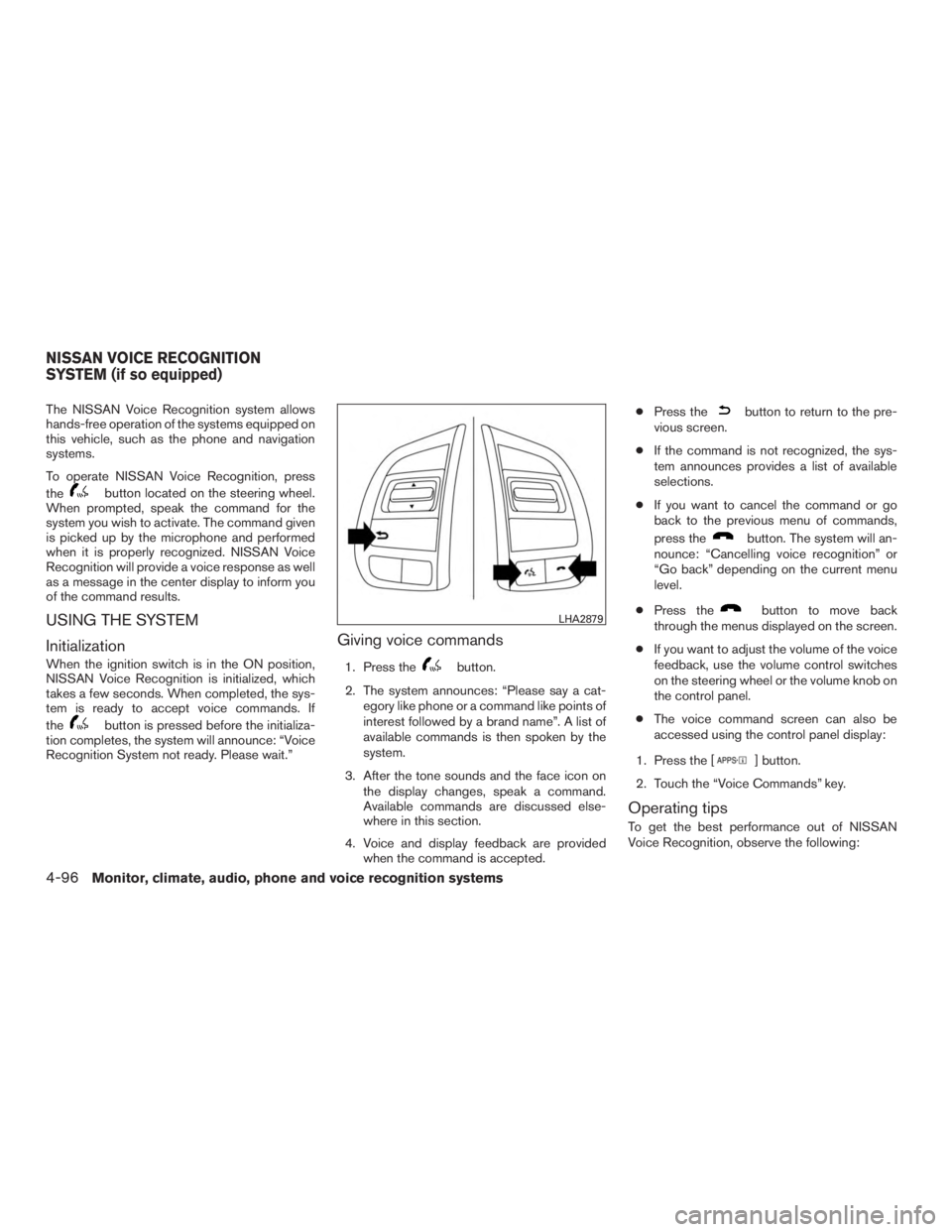
To operate NISSAN Voice Recognition, press
the
button located on the steering wheel.
When prompted, speak the command for the
system you wish to activate. The command given
is picked up by the microphone and performed
when it is properly recognized. NISSAN Voice
Recognition will provide a voice response as well
as a message in the center display to inform you
of the command results.
USING THE SYSTEM
Initialization
When the ignition switch is in the ON position,
NISSAN Voice Recognition is initialized, which
takes a few seconds. When completed, the sys-
tem is ready to accept voice commands. If
the
button is pressed before the initializa-
tion completes, the system will announce: “Voice
Recognition System not ready. Please wait.”
Giving voice commands
1. Press thebutton.
2. The system announces: “Please say a cat- egory like phone or a command like points of
interest followed by a brand name”. A list of
available commands is then spoken by the
system.
3. After the tone sounds and the face icon on the display changes, speak a command.
Available commands are discussed else-
where in this section.
4. Voice and display feedback are provided when the command is accepted. ●
Press the
button to return to the pre-
vious screen.
● If the command is not recognized, the sys-
tem announces provides a list of available
selections.
● If you want to cancel the command or go
back to the previous menu of commands,
press the
button. The system will an-
nounce: “Cancelling voice recognition” or
“Go back” depending on the current menu
level.
● Press the
button to move back
through the menus displayed on the screen.
● If you want to adjust the volume of the voice
feedback, use the volume control switches
on the steering wheel or the volume knob on
the control panel.
● The voice command screen can also be
accessed using the control panel display:
1. Press the [
] button.
2. Touch the “Voice Commands” key.
Operating tips
To get the best performance out of NISSAN
Voice Recognition, observe the following:
LHA2879
NISSAN VOICE RECOGNITION
SYSTEM (if so equipped)
4-96Monitor, climate, audio, phone and voice recognition systems
Page 277 of 440
BLUETOOTH® HANDS-FREE
PHONE SYSTEM VOICE
COMMANDS
To access the Bluetooth® Hands-Free Phone
System voice commands:1. Press the
button.
2. Say “Call” and then a name in the vehicle phonebook to call that entry. Otherwise, say
“Phone” to access various phone com-
mands.
If the Bluetooth® has been set to “Off”, the
system announces: “Bluetooth® is off. Would
you like to turn Bluetooth® on?”
If no phone is connected to the system and the
vehicle is stationary, the system announces:
“There is no phone connected. Would you like to
connect a phone now?” Say “Yes” to connect a
phone. All further Bluetooth® Hands-Free Phone
System voice commands are only available if a
phone is connected.
If a phone is connected and Bluetooth® is set to
“On”, the following voice commands are available:
● Call (a name)
Speak the name of the contact in which you
are trying to call. System will confirm correct
contact. Say “Dial” to initiate dialing. ●
Dial Number
Allows for up to 24 digits to be dialed. After
the number is entered, say “Dial” to initiate
dialing. Say “Correction” to correct the num-
ber entered. Say “Go Back” to return to the
main menu.
● List Phonebook
Starting with the first alphabetical entry in
the vehicle phonebook, the system prompts
for an additional command. Say “Dial” to call
the number of the phonebook entry. Say
“Send Text” to send a text message to the
number of the phonebook entry. Say “Next
Entry” to skip to the next alphabetical entry in
the vehicle phonebook, where the same op-
tions will then be available.
● Recent Calls
The system prompts for an additional com-
mand. Say “Missed Calls”, “Incoming Calls”
or “Outgoing Calls” to display a list of such
calls on the screen.
Speak the number of the entry displayed on
the screen to dial that number or say “Next
Page” to view entries on the next page (if
available) .
● Redial
Redials the last called number. ●
Read Text
Reads an incoming text message. For addi-
tional information about text messaging with
the Bluetooth® Hands-Free Phone System,
refer to “Bluetooth® Hands-Free Phone
System with Navigation System” in this sec-
tion.
● Send Text
Sends a text message. For additional infor-
mation about text messaging with the
Bluetooth® Hands-Free Phone System, re-
fer to “Bluetooth® Hands-Free Phone Sys-
tem with Navigation System” in this section.
● Select Phone
The system replies “Please use manual con-
trols to continue”. Use manual controls to
change the active phone from among the
listed phones connected to the vehicle.
For additional information about the Bluetooth®
Hands-Free Phone System, refer to “Bluetooth®
Hands-Free Phone System with Navigation Sys-
tem” in this section.
4-98Monitor, climate, audio, phone and voice recognition systems
Page 285 of 440
Additional information:● The TPMS does not monitor the tire
pressure of the spare tire.
● The TPMS will activate only when the vehicle
is driven at speeds above 16 mph (25 km/h).
Also, this system may not detect a sudden
drop in tire pressure (for example a flat tire
while driving) .
● The low tire pressure warning light does not
automatically turn off when the tire pressure
is adjusted. After the tire is inflated to the
recommended pressure, the vehicle must be
driven at speeds above 16 mph (25 km/h) to
activate the TPMS and turn off the low tire
pressure warning light. Use a tire pressure
gauge to check the tire pressure.
● The “Tire Pressure Low Add Air” warning
appears each time the ignition switch is
placed in the ON position as long as the low
tire pressure warning light remains illumi-
nated.
● The “Tire Pressure Low Add Air” warning
appears in the vehicle information display
when the low tire pressure warning light is
illuminated and low tire pressure is detected.
The “Tire Pressure Low Add Air” warning
turns off when the low tire pressure warning
light turns off. ●
The “Tire Pressure Low Add Air” warning
does not appear if the low tire pressure
warning light illuminates to indicate a TPMS
malfunction.
● Tire pressure rises and falls depending on
the heat caused by the vehicle’s operation
and the outside temperature. Low outside
temperature can lower the temperature of
the air inside the tire which can cause a
lower tire inflation pressure. This may cause
the low tire pressure warning light to illumi-
nate. If the warning light illuminates, check
the tire pressure for all four tires.
● The Tire and Loading Information label (also
referred to as the vehicle placard or tire
inflation pressure label) is located in the
driver’s door opening.
● You can also check the pressure of all tires
(except the spare tire) on the vehicle infor-
mation display screen. The order of the tire
pressure figures displayed on the screen
corresponds with the actual order of the tire
position.
For additional information, refer to “Low tire pres-
sure warning light” in the “Instruments and con-
trols” section, “Tire Pressure Monitoring System
(TPMS)” in the “In case of emergency” section of
this manual.WARNING
● Radio waves could adversely affect
electric medical equipment. Those who
use a pacemaker should contact the
electric medical equipment manufac-
turer for the possible influences before
use.
● If the low tire pressure warning light
illuminates while driving, avoid sudden
steering maneuvers or abrupt braking,
reduce vehicle speed, pull off the road
to a safe location and stop the vehicle
as soon as possible. Driving with under-
inflated tires may permanently damage
the tires and increase the likelihood of
tire failure. Serious vehicle damage
could occur and may lead to an accident
and could result in serious personal in-
jury. Check the tire pressure for all four
tires. Adjust the tire pressure to the
recommended COLD tire pressure
shown on the Tire and Loading Informa-
tion label to turn the low tire pressure
warning light OFF. If you have a flat tire,
replace it with a spare tire as soon as
possible. (For additional information,
refer to “Flat tire” in the “In case of
emergency” section for changing a flat
tire.)
5-4Starting and driving
Page 289 of 440
DRINKING ALCOHOL/DRUGS AND
DRIVING
WARNING
Never drive under the influence of alcohol
or drugs. Alcohol in the bloodstream re-
duces coordination, delays reaction time
and impairs judgement. Driving after
drinking alcohol increases the likelihood
of being involved in an accident injuring
yourself and others. Additionally, if you
are injured in an accident, alcohol can
increase the severity of the injury.
NISSAN is committed to safe driving. However,
you must choose not to drive under the influence
of alcohol. Every year thousands of people are
injured or killed in alcohol-related collisions. Al-
though the local laws vary on what is considered
to be legally intoxicated, the fact is that alcohol
affects all people differently and most people
underestimate the effects of alcohol.
Remember, drinking and driving don’t mix! That is
true for drugs (over-the-counter, prescription)
and illegal drugs too. Don’t drive if your ability to
operate your vehicle is impaired by alcohol,
drugs, or some other physical condition.
DRIVING SAFETY PRECAUTIONS
Your NISSAN is designed for both normal and
off-road use. However, avoid driving in deep wa-
ter or mud as your NISSAN is mainly designed for
leisure use, unlike a conventional off-road ve-
hicle.
Remember that 2-wheel drive models are less
capable than all-wheel drive models for rough
road driving and extrication when stuck in deep
snow or mud, or the like.
Please observe the following precautions:
WARNING
● Spinning the front wheels on slippery
surface may cause the AWD warning
message to display and the AWD sys-
tem to automatically switch from the
AWD to the 2WD mode. This could re-
duce the traction. Be especially careful
when towing a trailer. (AWD models)
● Drive carefully when off the road and
avoid dangerous areas. Every person
who drives or rides in this vehicle
should be seated with their seat belt
fastened. This will keep you and your
passengers in position when driving
over rough terrain. ●
Do not drive across steep slopes. In-
stead drive either straight up or straight
down the slopes. Off-road vehicles can
tip over sideways much more easily
than they can forward or backward.
● Many hills are too steep for any vehicle.
If you drive up them, you may stall. If
you drive down them, you may not be
able to control your speed. If you drive
across them, you may roll over.
● Do not shift gears while driving on
downhill grades as this could cause
loss of control of the vehicle.
● Stay alert when driving to the top of a
hill. At the top there could be a drop-off
or other hazard that could cause an
accident.
● If your engine stalls or you cannot make
it to the top of a steep hill, never at-
tempt to turn around. Your vehicle could
tip or roll over. Always back straight
down in R (Reverse) gear and apply
brakes to control your speed.
● Heavy braking going down a hill could
cause your brakes to overheat and fade,
resulting in loss of control and an acci-
dent. Apply brakes lightly and use a low
gear to control your speed.
5-8Starting and driving
Page 293 of 440
WARNING
Do not operate the push-button ignition
switch while driving the vehicle except in
an emergency. (The engine will stop when
the ignition switch is pushed 3 consecu-
tive times in quick succession or the igni-
tion switch is pushed and held for more
than 2 seconds.) If the engine stops while
the vehicle is being driven, this could lead
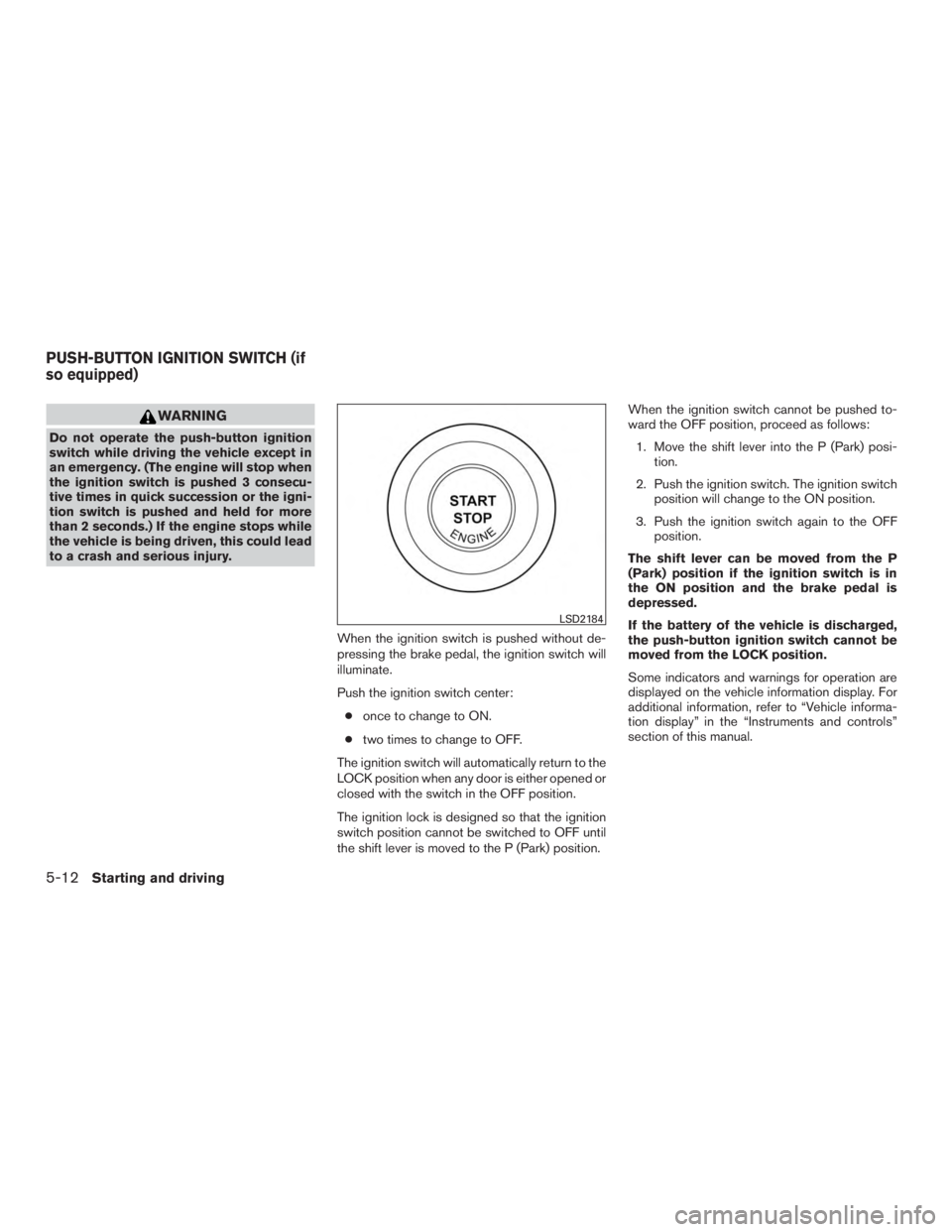
to a crash and serious injury.When the ignition switch is pushed without de-
pressing the brake pedal, the ignition switch will
illuminate.
Push the ignition switch center:● once to change to ON.
● two times to change to OFF.
The ignition switch will automatically return to the
LOCK position when any door is either opened or
closed with the switch in the OFF position.
The ignition lock is designed so that the ignition
switch position cannot be switched to OFF until
the shift lever is moved to the P (Park) position. When the ignition switch cannot be pushed to-
ward the OFF position, proceed as follows:
1. Move the shift lever into the P (Park) posi- tion.
2. Push the ignition switch. The ignition switch position will change to the ON position.
3. Push the ignition switch again to the OFF position.
The shift lever can be moved from the P
(Park) position if the ignition switch is in
the ON position and the brake pedal is
depressed.
If the battery of the vehicle is discharged,
the push-button ignition switch cannot be
moved from the LOCK position.
Some indicators and warnings for operation are
displayed on the vehicle information display. For
additional information, refer to “Vehicle informa-
tion display” in the “Instruments and controls”
section of this manual.
LSD2184
PUSH-BUTTON IGNITION SWITCH (if
so equipped)
5-12Starting and driving
Page 295 of 440
AUTO ACC:
With the vehicle in the P (Park) position, the
Intelligent key with you and the ignition placed
from ON to OFF, the radio can still be used for a
period of time, or until the driver’s door is opened.
After a period of time, functions such as radio,
navigation, and Bluetooth® Hands-Free Phone
System may be restarted by pressing the
“POWER button/ VOLUME control knob”. For
additional information, refer to “Monitor, climate,
audio, phone and voice recognition systems” in
this manual or the key fob unlock button up to a
total of 30 minutes.
EMERGENCY ENGINE SHUT OFF
To shut off the engine in an emergency situation
while driving, perform the following procedure:
– Rapidly push the push-button ignition switchthree consecutive times in less than 1.5 sec-
onds, or
– Push and hold the push-button ignition switch for more than 2 seconds.NISSAN INTELLIGENT KEY®
BATTERY DISCHARGE (if so
equipped)
If the battery of the NISSAN Intelligent Key® is
discharged, or environmental conditions interfere
with the Intelligent Key operation, start the engine
according to the following procedure:
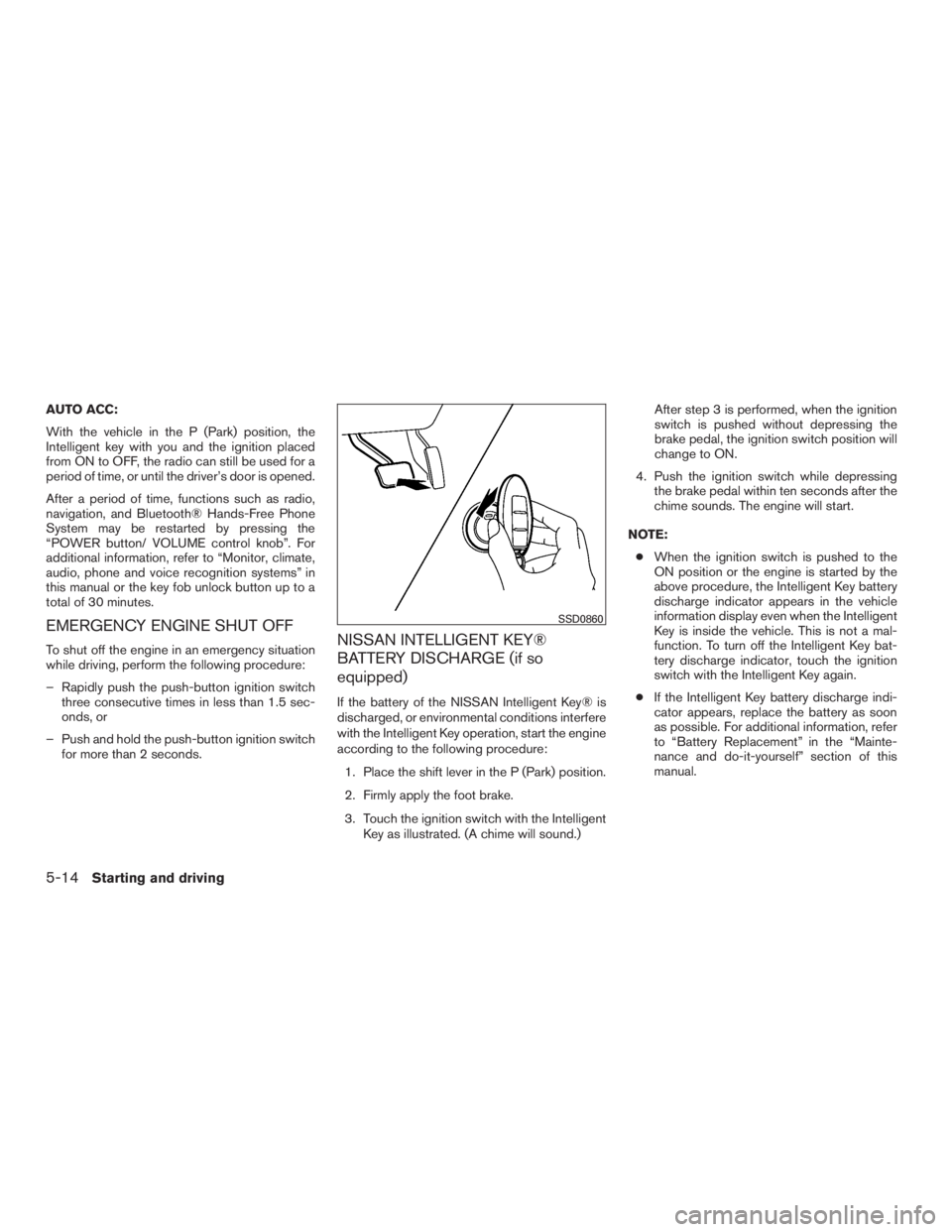
1. Place the shift lever in the P (Park) position.
2. Firmly apply the foot brake.
3. Touch the ignition switch with the Intelligent Key as illustrated. (A chime will sound.) After step 3 is performed, when the ignition
switch is pushed without depressing the
brake pedal, the ignition switch position will
change to ON.
4. Push the ignition switch while depressing the brake pedal within ten seconds after the
chime sounds. The engine will start.
NOTE: ● When the ignition switch is pushed to the
ON position or the engine is started by the
above procedure, the Intelligent Key battery
discharge indicator appears in the vehicle
information display even when the Intelligent
Key is inside the vehicle. This is not a mal-
function. To turn off the Intelligent Key bat-
tery discharge indicator, touch the ignition
switch with the Intelligent Key again.
● If the Intelligent Key battery discharge indi-
cator appears, replace the battery as soon
as possible. For additional information, refer
to “Battery Replacement” in the “Mainte-
nance and do-it-yourself” section of this
manual.
SSD0860
5-14Starting and driving
Page 305 of 440
Detection zone
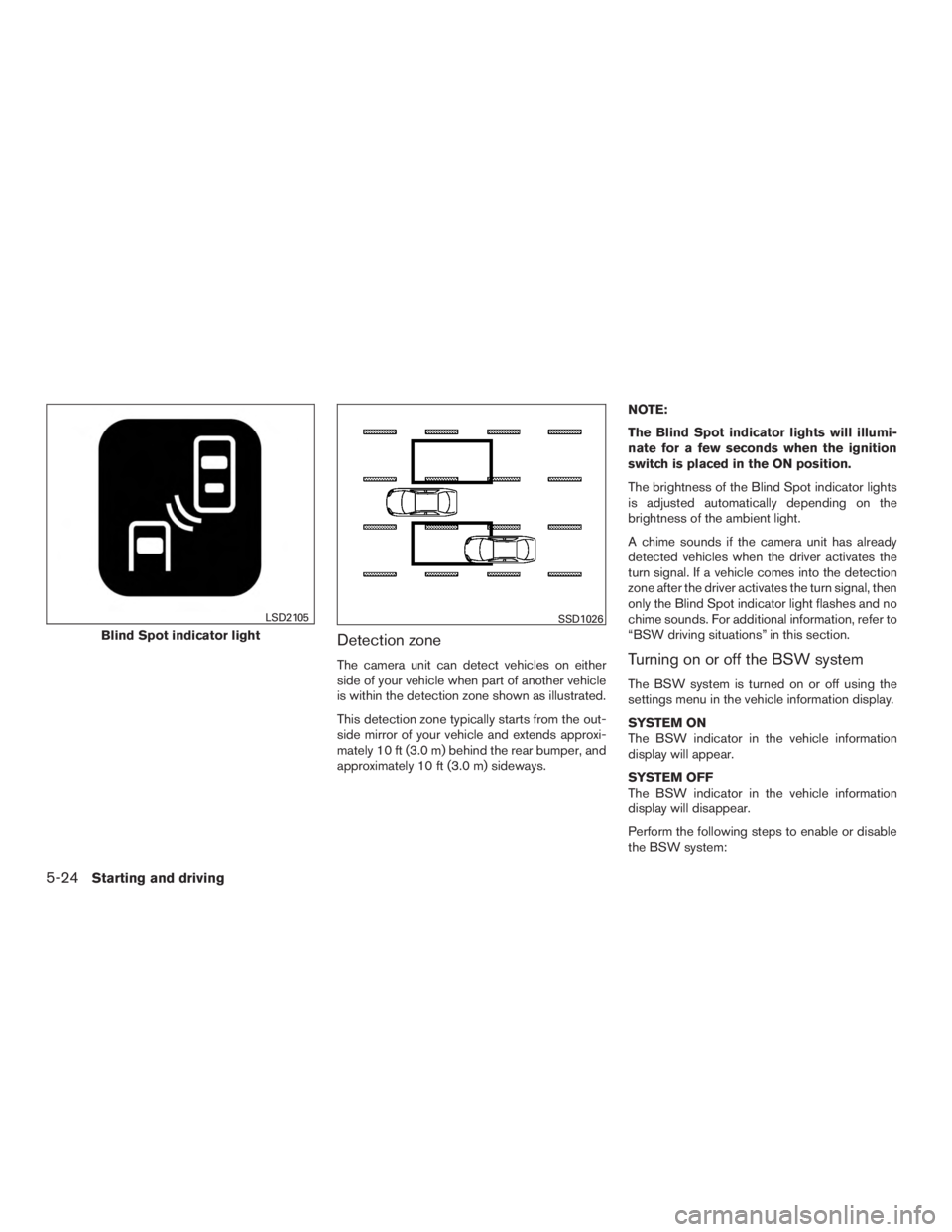
The camera unit can detect vehicles on either
side of your vehicle when part of another vehicle
is within the detection zone shown as illustrated.
This detection zone typically starts from the out-
side mirror of your vehicle and extends approxi-
mately 10 ft (3.0 m) behind the rear bumper, and
approximately 10 ft (3.0 m) sideways.NOTE:
The Blind Spot indicator lights will illumi-
nate for a few seconds when the ignition
switch is placed in the ON position.
The brightness of the Blind Spot indicator lights
is adjusted automatically depending on the
brightness of the ambient light.
A chime sounds if the camera unit has already
detected vehicles when the driver activates the
turn signal. If a vehicle comes into the detection
zone after the driver activates the turn signal, then
only the Blind Spot indicator light flashes and no
chime sounds. For additional information, refer to
“BSW driving situations” in this section.Turning on or off the BSW system
The BSW system is turned on or off using the
settings menu in the vehicle information display.
SYSTEM ON
The BSW indicator in the vehicle information
display will appear.
SYSTEM OFF
The BSW indicator in the vehicle information
display will disappear.
Perform the following steps to enable or disable
the BSW system:
Blind Spot indicator light
LSD2105SSD1026
5-24Starting and driving
Page 306 of 440
1. Press thebutton until “Settings” dis-
plays in the vehicle information display. Use
the
to select “Driver Assistance”.
Then press the ENTER button.
2. Select “Driving Aids”, and press the ENTER button.
3. To set the BSW system to on or off, use the
buttons to navigate in the menu
and use the ENTER button to select or
change an item:
● Select “Blind Spot” and press the ENTER
button.
● To turn on the warning, use the ENTER
button to check box for “Warning (BSW)”
WARNING
● The camera unit may not be able to
detect when certain objects are present
such as:
– Pedestrians, bicycles, animals
– Some types of small vehicles such as motorcycles, and very short length
vehicles
– Oncoming vehicles – A vehicle approaching rapidly from
behind. For additional information,
refer to “BSW driving situations” in
this section.
– A vehicle which your vehicle over- takes rapidly. For additional informa-
tion, refer to “BSW driving situa-
tions” in this section.
– A vehicle that merges or changes lanes rapidly directly next to your
vehicle.
● The camera unit may not be able to
detect property when your vehicle trav-
els beside the middle section of a ve-
hicle with long wheelbase (e.g. trailer
truck, semi-trailer, tractor) .
● The camera detection zone is designed
based on a standard lane width. When
driving in a wider lane, the camera unit
may not detect vehicles in an adjacent
lane. When driving in a narrow lane, the
camera unit may detect vehicles driving
two lanes away. ●
The camera unit is designed to ignore
most stationary objects, however ob-
jects such as guardrails, walls, foliage
and parked vehicles may occasionally
be detected. This is a normal operating
condition.
● The camera unit may detect the re-
flected image of vehicles or roadside
objects that are not actually in the de-
tection zone, especially when the road
is wet.
BSW DRIVING SITUATIONS
Another vehicle approaching from
behind
Starting and driving5-25
Page 309 of 440
Turning on or off the LDW system
The LDW system is turned on or off using the
settings menu in the vehicle information display.
SYSTEM ON:
The LDW light on the instrument panel will light
up.
SYSTEM OFF:
The LDW light on the instrument panel will go
out.
Perform the following steps to enable or disable
the LDW system:1. Press the
button until “Settings” dis-
plays in the vehicle information display. Use
the
to select “Driver Assistance”.
Then press the ENTER button.
2. Select “Driving Aids”, and press the ENTER button.
3. To set the LDW system to on or off, use the
buttons to navigate in the menu
and use the ENTER button to select or
change an item:
● Select “Lane” and press the ENTER but-
ton.
● To turn on the warning, use the ENTER
button to check box for “Warning (LDW)”
WARNING
● The camera unit may not be able to
detect properly under the following
conditions:
– On roads where there are multiple parallel lane markers; lane markers
that are faded or not painted clearly;
yellow painted lane markers; non-
standard lane markers; or lane mark-
ers covered with water, dirt, snow,
etc.
– On roads where the discontinued lane markers are still detectable.
– On roads where there are sharp curves.
– On roads where there are sharply contrasting objects, such as shad-
ows, snow, water, wheel ruts, seams
or lines remaining after road repairs.
(The LDW system could detect these
items as lane markers.)
– On roads where the traveling lane merges or separates.
– When the vehicle’s traveling direc- tion does not align with the lane
marker. – When the road surface is very dark
due to weak ambient light or im-
paired tail lamp.
– When traveling close to the vehicle in front of you, which obstructs the lane
camera unit detection range.
– When rain, snow, dirt or object ad- heres to the windshield in front of the
lane camera unit.
– When the headlights are not bright due to dirt on the lens or if the aiming
is not adjusted properly.
– When strong light enters the lane camera unit. (For example, the light
directly shines on the front of the
vehicle at sunrise or sunset) .
– When a sudden change in brightness occurs. (For example, when the ve-
hicle enters or exits a tunnel or under
a bridge) .
5-28Starting and driving