key NISSAN ROGUE 2016 Owner´s Manual
[x] Cancel search | Manufacturer: NISSAN, Model Year: 2016, Model line: ROGUE, Model: NISSAN ROGUE 2016Pages: 478, PDF Size: 5.94 MB
Page 256 of 478
●Artists
● Albums
● Genres
● Songs
● Composers
● Audiobooks
● Podcasts
Shuffle and repeat play mode
While the iPod® is playing, the play pattern can
be altered so that songs are repeated or played
randomly.
Shuffle
Touch the “Shuffle” key to apply a random play
pattern to the iPod®. When the Shuffle mode is
active, the text is illuminated. Touching the
“Shuffle” key once more will display the “Shuffle
songs” key. To cancel Shuffle mode, touch the
“Shuffle” key again until the text is no longer
illuminated. Repeat
Touch the “Repeat” key to apply a repeat play
pattern to the iPod®. When the repeat mode is
active, the text is illuminated. Touching the “Re-
peat” key once more will display the “Repeat
song” key. To cancel Repeat mode, touch the
“Repeat” key again until the text is no longer
illuminated.
Seek buttons
Press the
orseek button to skip
backward or forward one track.
Press and hold the
orseek button
for 1.5 seconds while a track is playing to reverse
or fast forward the track being played. The track
plays at an increased speed while reversing or
fast forwarding. When the button is released, the
track returns to normal play speed. Scrolling menus
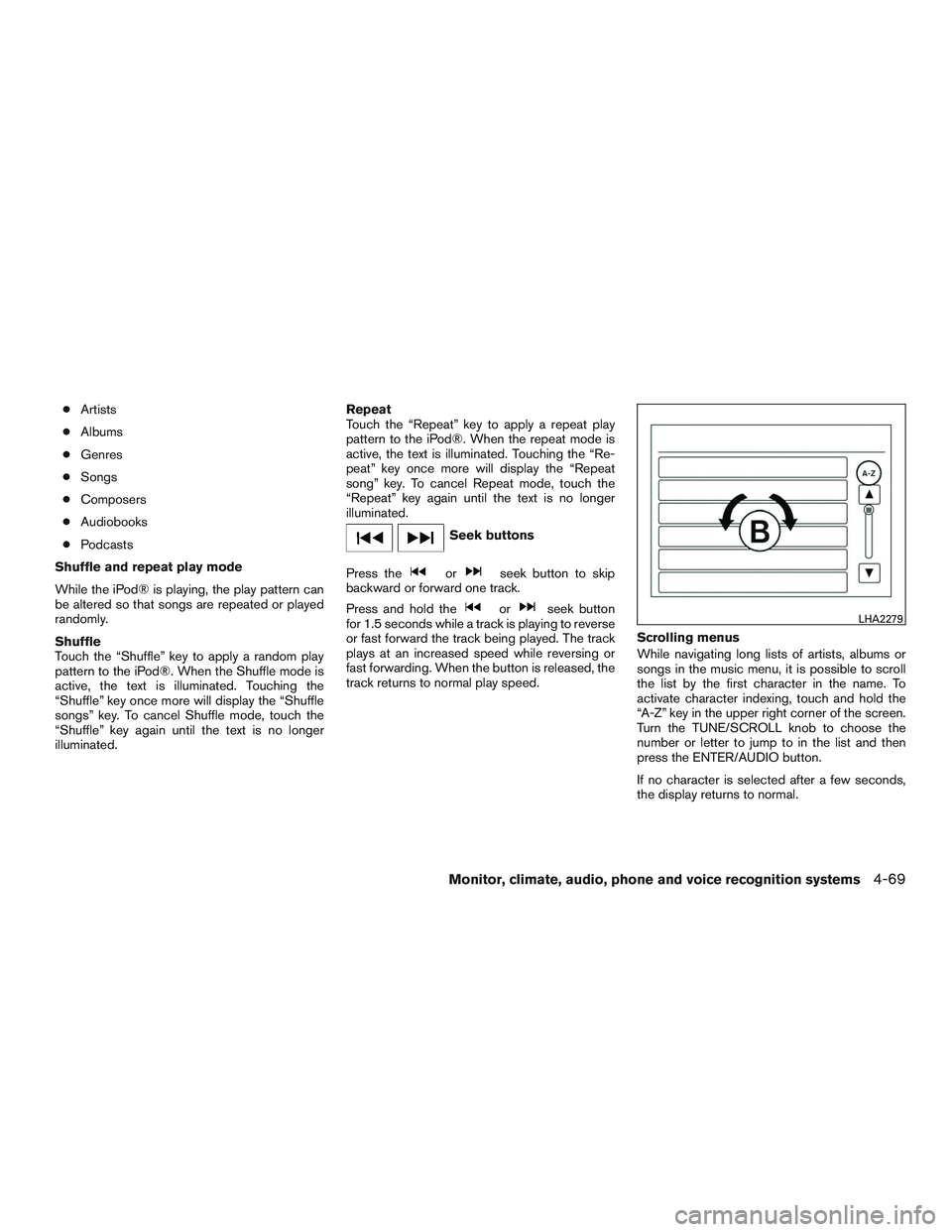
While navigating long lists of artists, albums or
songs in the music menu, it is possible to scroll
the list by the first character in the name. To
activate character indexing, touch and hold the
“A-Z” key in the upper right corner of the screen.
Turn the TUNE/SCROLL knob to choose the
number or letter to jump to in the list and then
press the ENTER/AUDIO button.
If no character is selected after a few seconds,
the display returns to normal.LHA2279
Monitor, climate, audio, phone and voice recognition systems4-69
Page 258 of 478
BLUETOOTH® STREAMING AUDIO
WITH NAVIGATION SYSTEM
If you have a compatible Bluetooth® audio de-
vice that is capable of playing audio files, the
device can be connected to the vehicle’s audio
system so that the audio files on the device play
through the vehicle’s speakers.
Connecting Bluetooth® audio
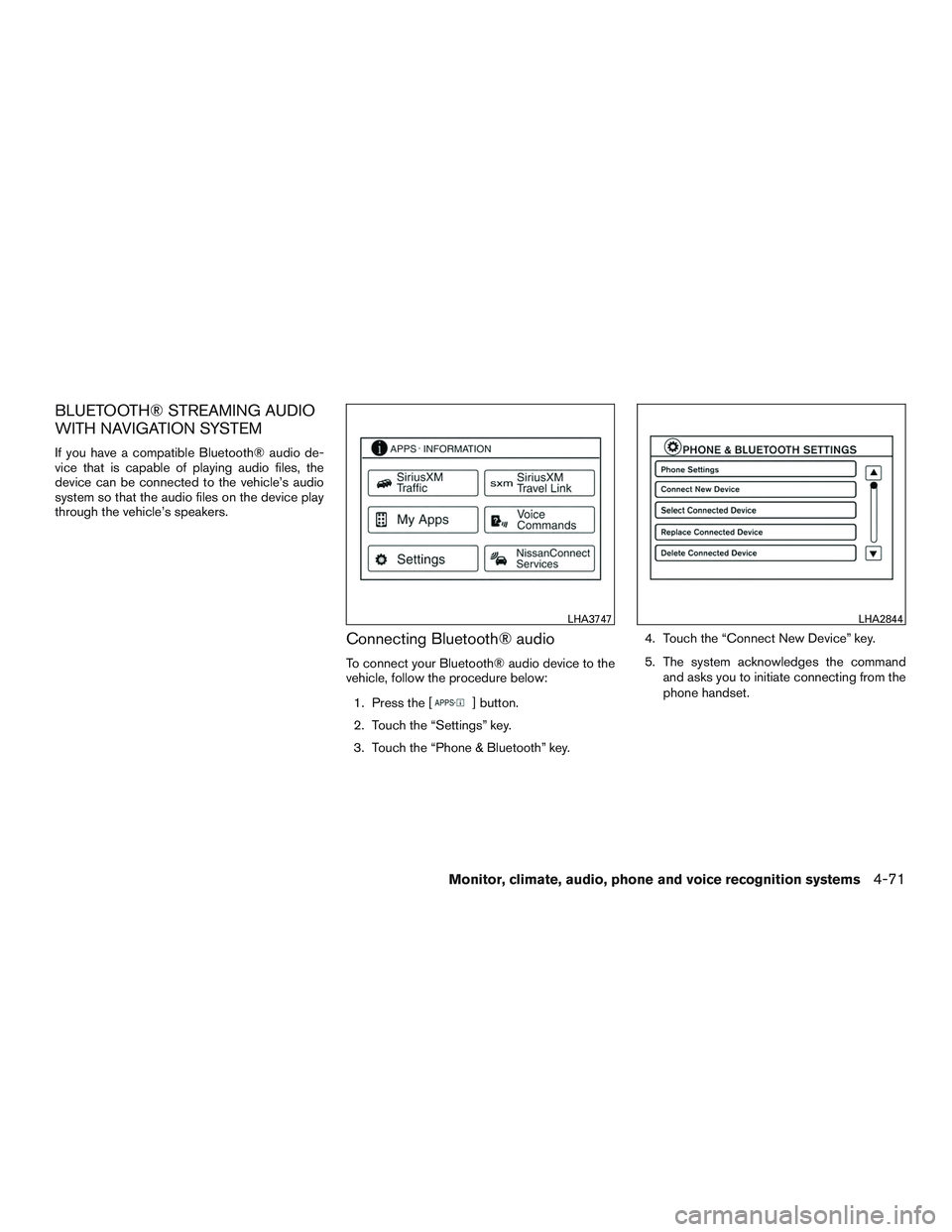
To connect your Bluetooth® audio device to the
vehicle, follow the procedure below:1. Press the [
] button.
2. Touch the “Settings” key.
3. Touch the “Phone & Bluetooth” key. 4. Touch the “Connect New Device” key.
5. The system acknowledges the command
and asks you to initiate connecting from the
phone handset.
LHA3747LHA2844
Monitor, climate, audio, phone and voice recognition systems4-71
Page 282 of 478
– Operation is subject to the following two con-ditions:
1. This device may not cause interference and
2. this device must accept any interference, including interference that may cause unde-
sired operation of the device.
IC Regulatory information
– Operation is subject to the following two con- ditions: (1) this device may not cause interfer-
ence, and (2) this device must accept any
interference, including interference that may
cause undesired operation of the device.
– This Class B digital apparatus meets all re- quirements of the Canadian Interference-
Causing Equipment Regulations.
BLUETOOTH® is a
trademark owned by
Bluetooth SIG, Inc.
and licensed to
Bosch.
VOICE COMMANDS
You can use voice commands to operate various
Bluetooth® Hands-Free Phone System features
using the NISSAN Voice Recognition system. For
additional information, refer to “NISSAN Voice
Recognition System” in this section.
Voice Prompt Interrupt
While using the Voice Recognition system, the
system voice can be interrupted to allow the user
to speak commands. While the system is speak-
ing, press the
button on the steering
wheel. The system voice will stop and a tone will
be heard. After the tone, speak desired command
(displayed on the touch-screen) .
One Shot Call
To use the system faster, you may speak the
second level commands with the main menu
command on the main menu. For example, press
the
button and after the tone say, “Call
Redial”.
CONNECTING PROCEDURE
NOTE:
The connecting procedure must be per-
formed when the vehicle is stationary. If the
vehicle starts moving during the procedure,
the procedure will be cancelled.
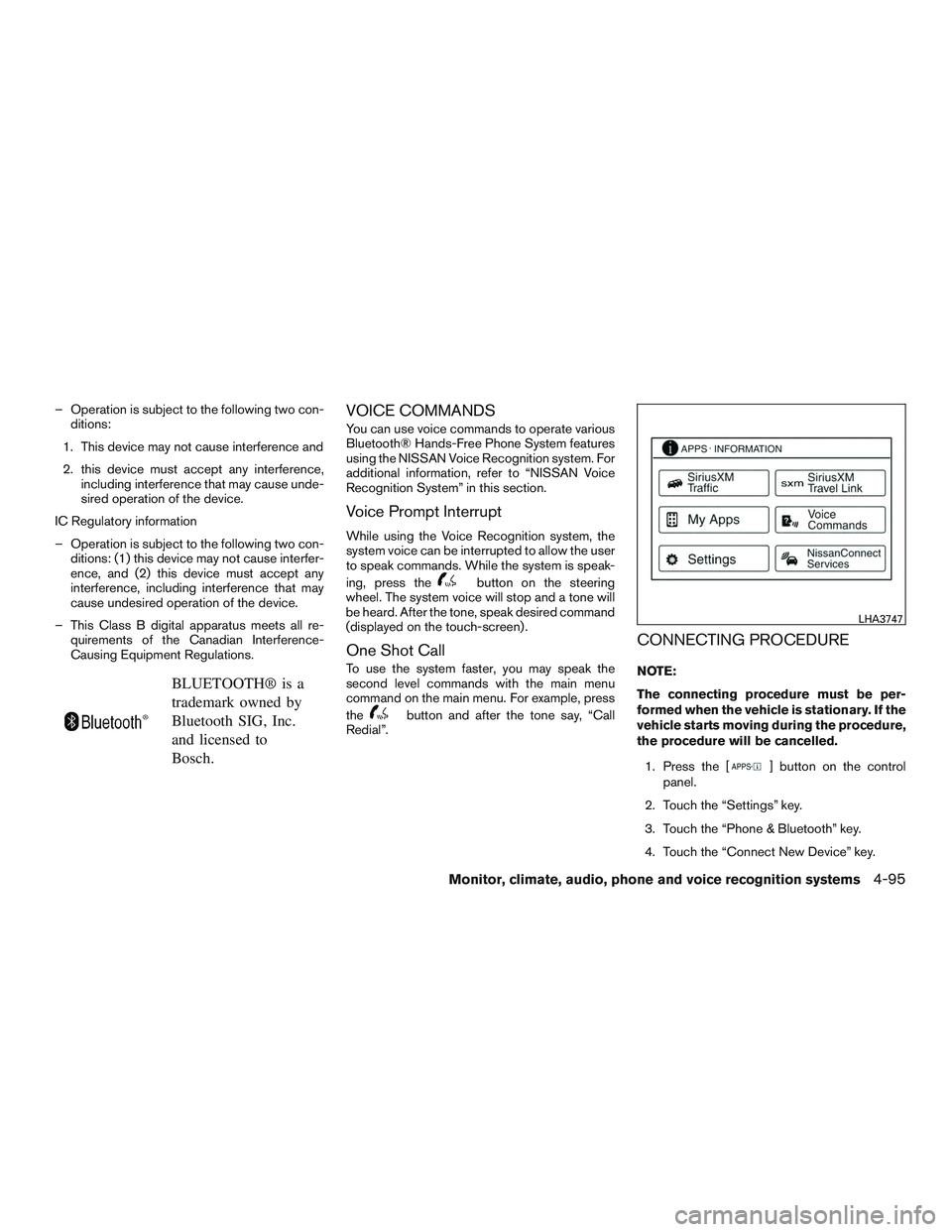
1. Press the [
] button on the control
panel.
2. Touch the “Settings” key.
3. Touch the “Phone & Bluetooth” key.
4. Touch the “Connect New Device” key.
LHA3747
Monitor, climate, audio, phone and voice recognition systems4-95
Page 283 of 478
5. Initiate the connecting process from thehandset. The system will display the mes-
sage: “Is PIN XXXXXX displayed on your
Bluetooth device?”. If the PIN is displayed
on your Bluetooth® device, select “Yes” to
complete the pairing process.
For additional information, refer to the
Bluetooth® device’s Owner’s Manual.
VEHICLE PHONEBOOK
To access the vehicle phonebook:
1. Press the
button on the control panel.
2. Touch the “Phonebook” key.
3. Choose the desired entry from the displayed list.
4. The number of the entry will be displayed on the screen. Touch the number to initiate di-
aling.
NOTE:
To scroll quickly through the list, touch the
“A-Z” key in the upper right corner of the
screen. Turn the TUNE/SCROLL knob to
choose a letter or number and then press
ENTER. The list will move to the first entry
that begins with that number or letter.
MAKING A CALL
To make a call, follow the procedure below: 1. Press the
button on the control panel.
The “Phone” screen will appear on the dis-
play.
2. Select one of the following options to make a call:
● “Phonebook”: Select the name from an entry
stored in the vehicle phonebook.
● “Call Lists”: Select the name from the in-
coming, outgoing or missed.
● “Redial”: Dial the last outgoing call from the
vehicle.
● “
”: Input the phone number manually
using a keypad displayed on the screen. For
additional information, refer to “How to use
the touch-screen” in this section.
RECEIVING A CALL
When a call is placed to the connected phone,
the display will change to phone mode.
To accept the incoming call, either:
● Press the
button on the steering
wheel, or
● Touch the
icon on the screen. To reject the incoming call, either:
● Press the
button on the steering
wheel, or
● Touch the phone icon on the screen.
DURING A CALL
While a call is active, the following options are
available on the screen:
● “Handset”
Select this option to switch control of the
phone call over to the handset.
● “Mute Mic.”
Select this option to mute the microphone.
Select again to unmute the microphone.
● Phone (
) icon
Select to end the phone call.
ENDING A CALL
To end a phone call, select the red phone ()
icon on the screen or press the
button on
the steering wheel.
4-96Monitor, climate, audio, phone and voice recognition systems
Page 286 of 478
![NISSAN ROGUE 2016 Owner´s Manual BLUETOOTH® SETTINGS
To access the phone settings:1. Press the [
] button.
2. Touch the “Settings” key.
3. Touch the “Phone & Bluetooth” key.
Menu Item Result
Phone Settings For additional inf](/img/5/40365/w960_40365-285.png "NISSAN ROGUE 2016 Owner´s Manual BLUETOOTH® SETTINGS
To access the phone settings:1. Press the [
] button.
2. Touch the “Settings” key.
3. Touch the “Phone & Bluetooth” key.
Menu Item Result
Phone Settings For additional inf")
BLUETOOTH® SETTINGS
To access the phone settings:1. Press the [
] button.
2. Touch the “Settings” key.
3. Touch the “Phone & Bluetooth” key.
Menu Item Result
Phone Settings For additional information, refer to “Phone settings” in this section.
Connect New Device Touch to connect a new Bluetooth® device to the Bluetooth® Hands-Free Phone System.
Select Connected Device Touch to choose a Bluetooth® device from a list of those devices connected to the Bluetooth® Hands-Free Phone System.
Replace Connected Device Touch to replace a Bluetooth® device from a list of those devices connected to the Bluetooth® Hands-Free Phone System.
Delete Connected Device Touch to delete a Bluetooth® device from a list of those devices connected to the Bluetooth® Hands-Free Phone System.
Bluetooth Touch to toggle Bluetooth® on and off.
LHA2844
Monitor, climate, audio, phone and voice recognition systems4-99
Page 287 of 478
![NISSAN ROGUE 2016 Owner´s Manual PHONE SETTINGS
To access the phone settings:1. Press the [
] button.
2. Touch the “Settings” key.
3. Touch the “Phone & Bluetooth” key.
4. Touch the “Phone Settings” key and adjust the fol](/img/5/40365/w960_40365-286.png "NISSAN ROGUE 2016 Owner´s Manual PHONE SETTINGS
To access the phone settings:1. Press the [
] button.
2. Touch the “Settings” key.
3. Touch the “Phone & Bluetooth” key.
4. Touch the “Phone Settings” key and adjust the fol")
PHONE SETTINGS
To access the phone settings:1. Press the [
] button.
2. Touch the “Settings” key.
3. Touch the “Phone & Bluetooth” key.
4. Touch the “Phone Settings” key and adjust the following settings as desired:
● Start Siri by:
Touch “Short Press” or “Long Press” to set
how Siri® is operated on the steering wheel.
● Sort Phonebook By:
Touch “First Name” or “Last Name” to
choose how phonebook entries are alpha-
betically displayed on the screen.
● Use Phonebook From:
Touch “Handset” to use the phone’s phone-
book. Touch “SIM” to use the phonebook on
the SIM card. Select “Both” to use both
sources.
● Download Phonebook Now:
Touch to download the phonebook to the
vehicle from the chosen source. ●
Record Name for Phonebook Entry:
Touch to record a name for a phonebook
entry for use with the NISSAN Voice Recog-
nition System.
● Phone Notifications for:
Touch “Driver” to have phone notifications
shown in the vehicle information display. Se-
lect “Both” to have phone notifications
shown in both the vehicle information display
and the center display screen.
● Text Messaging:
Touch to toggle the text message function-
ality on or off.
● Show Incoming Text for:
Touch “Driver” to have incoming text notifi-
cations shown in the vehicle information dis-
play. Touch “Both” to have text notifications
shown in both the vehicle information display
and the center display screen. Touch “Off” to
turn off all text notifications.
● Auto Reply:
Touch to toggle the auto reply functionality
on or off. ●
Auto Reply Message:
Touch to indicate preferred message to be
sent when “Auto Reply” function is activated.
● Use Vehicle’s Signature:
Touch to toggle on or off the addition of the
vehicle signature to outgoing messages.
● Custom Text Messages:
Touch this option to select a custom mes-
sage to edit. There are 4 customer message
slots available.
4-100Monitor, climate, audio, phone and voice recognition systems
Page 289 of 478
The NISSAN Voice Recognition system allows
hands-free operation of the systems equipped on
this vehicle, such as the phone and navigation
systems.
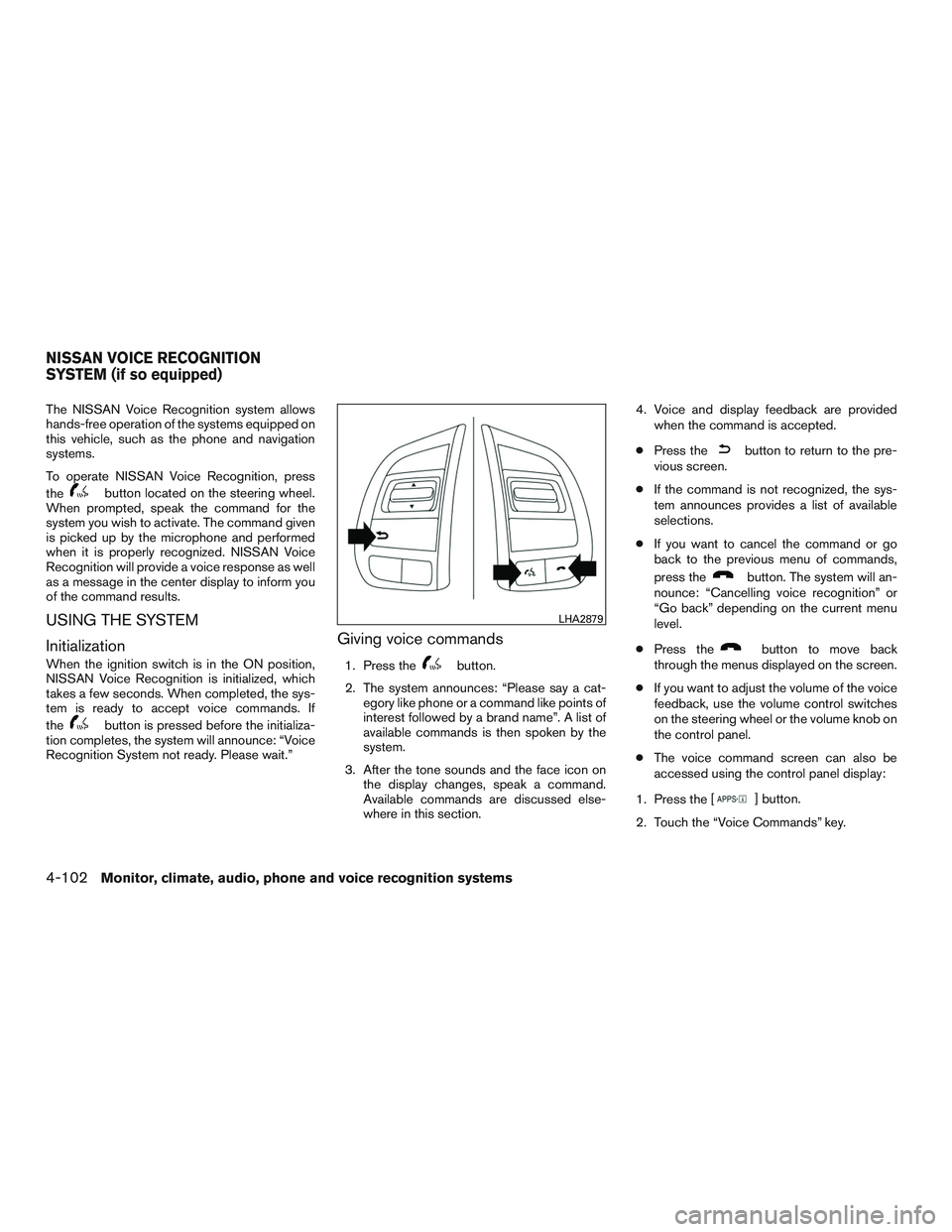
To operate NISSAN Voice Recognition, press
the
button located on the steering wheel.
When prompted, speak the command for the
system you wish to activate. The command given
is picked up by the microphone and performed
when it is properly recognized. NISSAN Voice
Recognition will provide a voice response as well
as a message in the center display to inform you
of the command results.
USING THE SYSTEM
Initialization
When the ignition switch is in the ON position,
NISSAN Voice Recognition is initialized, which
takes a few seconds. When completed, the sys-
tem is ready to accept voice commands. If
the
button is pressed before the initializa-
tion completes, the system will announce: “Voice
Recognition System not ready. Please wait.”
Giving voice commands
1. Press thebutton.
2. The system announces: “Please say a cat- egory like phone or a command like points of
interest followed by a brand name”. A list of
available commands is then spoken by the
system.
3. After the tone sounds and the face icon on the display changes, speak a command.
Available commands are discussed else-
where in this section. 4. Voice and display feedback are provided
when the command is accepted.
● Press the
button to return to the pre-
vious screen.
● If the command is not recognized, the sys-
tem announces provides a list of available
selections.
● If you want to cancel the command or go
back to the previous menu of commands,
press the
button. The system will an-
nounce: “Cancelling voice recognition” or
“Go back” depending on the current menu
level.
● Press the
button to move back
through the menus displayed on the screen.
● If you want to adjust the volume of the voice
feedback, use the volume control switches
on the steering wheel or the volume knob on
the control panel.
● The voice command screen can also be
accessed using the control panel display:
1. Press the [
] button.
2. Touch the “Voice Commands” key.
LHA2879
NISSAN VOICE RECOGNITION
SYSTEM (if so equipped)
4-102Monitor, climate, audio, phone and voice recognition systems
Page 295 of 478
5 Starting and driving
Precautions when starting and driving................5-2
Exhaust gas (carbon monoxide) ..................5-2
Three-way catalyst ..............................5-2
Tire Pressure Monitoring System (TPMS) ..........5-3
On-pavement and off-road driving
precautions ....................................5-7
Avoiding collision and rollover . . ..................5-7
Off-road recovery ...............................5-7
Rapid air pressure loss ..........................5-8
Drinking alcohol/drugs and driving ................5-8
Driving safety precautions .......................5-9
Ignition switch (if so equipped) .....................5-11
Continuously Variable Transmission (CVT) ........5-11
Key positions ................................. 5-11
NISSAN Vehicle Immobilizer System .............5-12
Push-Button Ignition Switch (if so equipped) ........5-12
Operating range ............................... 5-13
Push-button ignition switch positions . . . .........5-13
Emergency engine shut off .....................5-14
NISSAN Intelligent Key® battery discharge
(if so equipped) ............................... 5-14
NISSAN Vehicle Immobilizer System .............5-15
Before starting the engine ......................... 5-15Starting the engine (models without NISSAN
Intelligent Key® system)
........................... 5-16
Starting the engine (models with NISSAN
Intelligent Key® system) ........................... 5-17
Driving the vehicle ................................ 5-18
Continuously Variable Transmission (CVT) ........5-18
Parking brake .................................... 5-22
SPORT mode switch (if so equipped) ...............5-23
ECO mode switch (if so equipped) .................5-23
Blind Spot Warning (BSW) (if so equipped) .........5-24
BSW system operation ........................ 5-25
How to enable/disable the BSW system .........5-26
BSW system limitations ........................ 5-27
BSW driving situations ......................... 5-28
System temporarily unavailable ..................5-31
System maintenance ........................... 5-32
Cruise control .................................... 5-33
Precautions
on cruise control ................... 5-33
Cruise control operations .......................5-34
Forward Emergency Braking (FEB) (if so equipped) . . 5-35 FEB system operation .......................... 5-36
Turning the FEB system on/off ..................5-38
FEB system limitations ......................... 5-38
Page 306 of 478
WARNING
●Never remove or turn the key to the
LOCK position while driving. The steer-
ing wheel will lock (for models with a
steering lock mechanism) . This may
cause the driver to lose control of the
vehicle and could result in serious ve-
hicle damage or personal injury.
● Never place the ignition switch in the
LOCK position while driving. The steer-
ing wheel will lock (for models with a
steering lock mechanism) . This may
cause the driver to lose control of the
vehicle and could result in serious ve-
hicle damage or personal injury.
CONTINUOUSLY VARIABLE
TRANSMISSION (CVT)
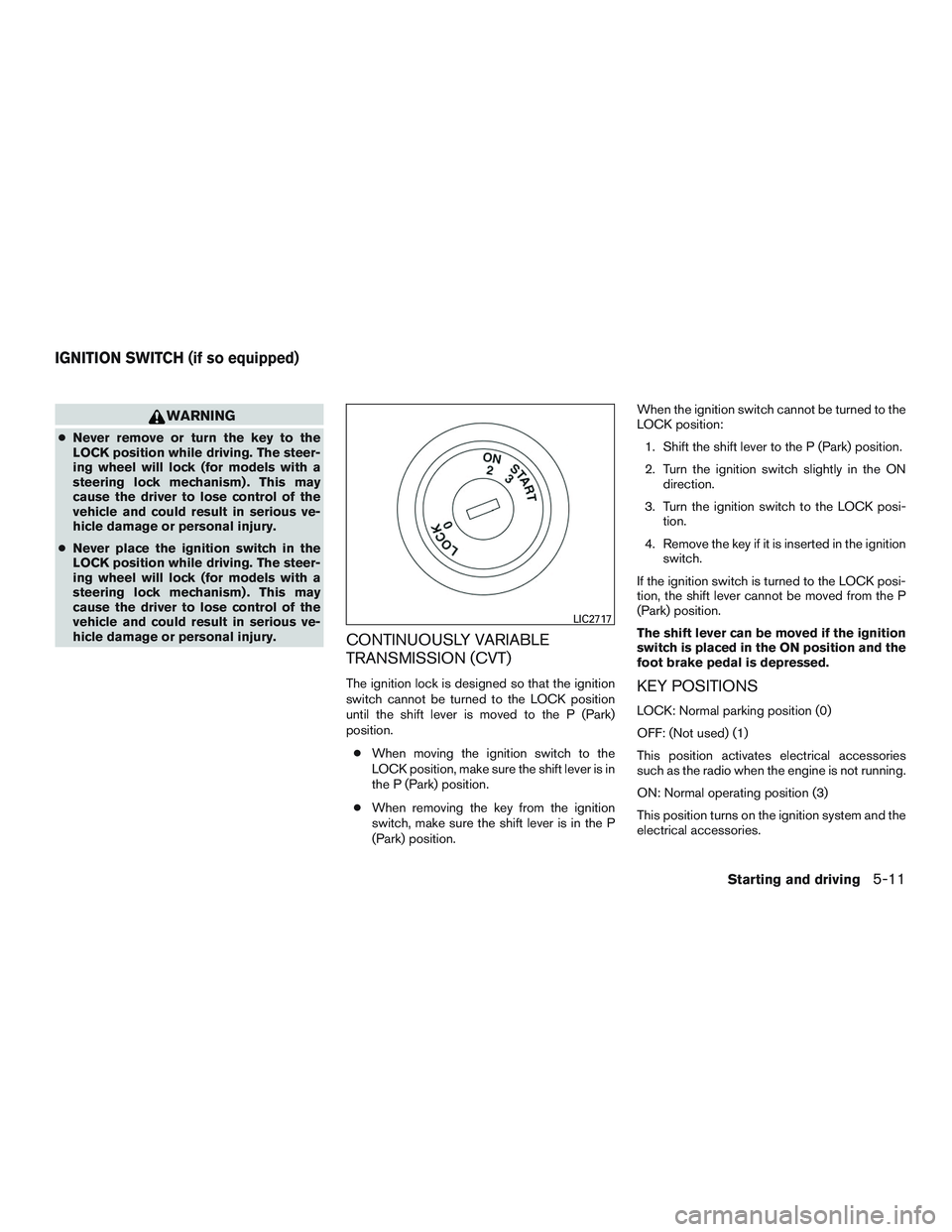
The ignition lock is designed so that the ignition
switch cannot be turned to the LOCK position
until the shift lever is moved to the P (Park)
position.
● When moving the ignition switch to the
LOCK position, make sure the shift lever is in
the P (Park) position.
● When removing the key from the ignition
switch, make sure the shift lever is in the P
(Park) position. When the ignition switch cannot be turned to the
LOCK position:
1. Shift the shift lever to the P (Park) position.
2. Turn the ignition switch slightly in the ON direction.
3. Turn the ignition switch to the LOCK posi- tion.
4. Remove the key if it is inserted in the ignition switch.
If the ignition switch is turned to the LOCK posi-
tion, the shift lever cannot be moved from the P
(Park) position.
The shift lever can be moved if the ignition
switch is placed in the ON position and the
foot brake pedal is depressed.KEY POSITIONS
LOCK: Normal parking position (0)
OFF: (Not used) (1)
This position activates electrical accessories
such as the radio when the engine is not running.
ON: Normal operating position (3)
This position turns on the ignition system and the
electrical accessories.
LIC2717
IGNITION SWITCH (if so equipped)
Starting and driving5-11
Page 307 of 478
START: (4)
This position starts the engine. As soon as the
engine has started, release the key. It automati-
cally returns to the ON position.
NISSAN VEHICLE IMMOBILIZER
SYSTEM
The NISSAN Vehicle Immobilizer System will not
allow the engine to start without the use of the
registered key.
If the engine fails to start using a registered key (for
example, when interference is caused by another
registered key, an automated toll road device or
automatic payment device on the key ring) , restart
the engine using the following procedure:
1. Leave the ignition switch in the ON positionfor approximately 5 seconds.
2. Place the ignition switch in the OFF or LOCK position, and wait approximately
10 seconds.
3. Repeat steps 1 and 2.
4. Restart the engine while holding the device (which may have caused the interference)
separate from the registered key.
If the no start condition re-occurs, NISSAN recom-
mends placing the registered key on a separate key
ring to avoid interference from other devices.
WARNING
Do not operate the push-button ignition
switch while driving the vehicle except in
an emergency. (The engine will stop when
the ignition switch is pushed 3 consecu-
tive times in quick succession or the igni-
tion switch is pushed and held for more
than 2 seconds.) If the engine stops while
the vehicle is being driven, this could lead
to a crash and serious injury.
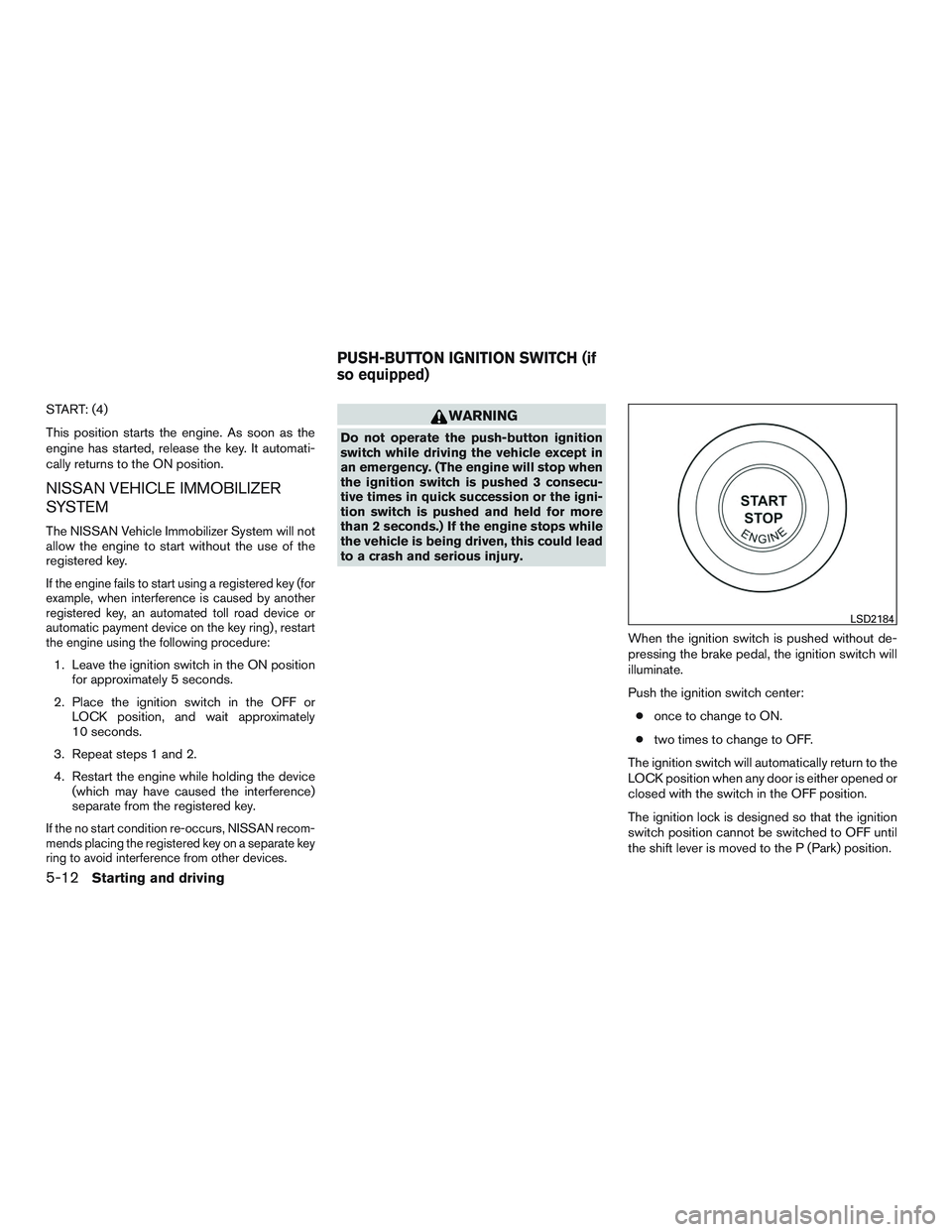
When the ignition switch is pushed without de-
pressing the brake pedal, the ignition switch will
illuminate.
Push the ignition switch center:● once to change to ON.
● two times to change to OFF.
The ignition switch will automatically return to the
LOCK position when any door is either opened or
closed with the switch in the OFF position.
The ignition lock is designed so that the ignition
switch position cannot be switched to OFF until
the shift lever is moved to the P (Park) position.
LSD2184
PUSH-BUTTON IGNITION SWITCH (if
so equipped)
5-12Starting and driving