USB NISSAN ROGUE 2017 Owner´s Manual
[x] Cancel search | Manufacturer: NISSAN, Model Year: 2017, Model line: ROGUE, Model: NISSAN ROGUE 2017Pages: 554, PDF Size: 6.44 MB
Page 270 of 554
vehicle’s audio system. The port is illuminated for
better visibility when the headlight switch is in the
ON position.
Audio file operation
AUX button
Place the ignition switch in the ON position and
press the AUX button to switch to the USB input
mode. If another audio source is playing and a
USB memory device is inserted, press the AUX
button until the center display changes to the
USB memory mode.
If the system has been turned off while the USB
memory was playing, press the POWER button
to restart the USB memory.Play information
Information about the audio files being played is
shown on the display screen of the vehicle’s
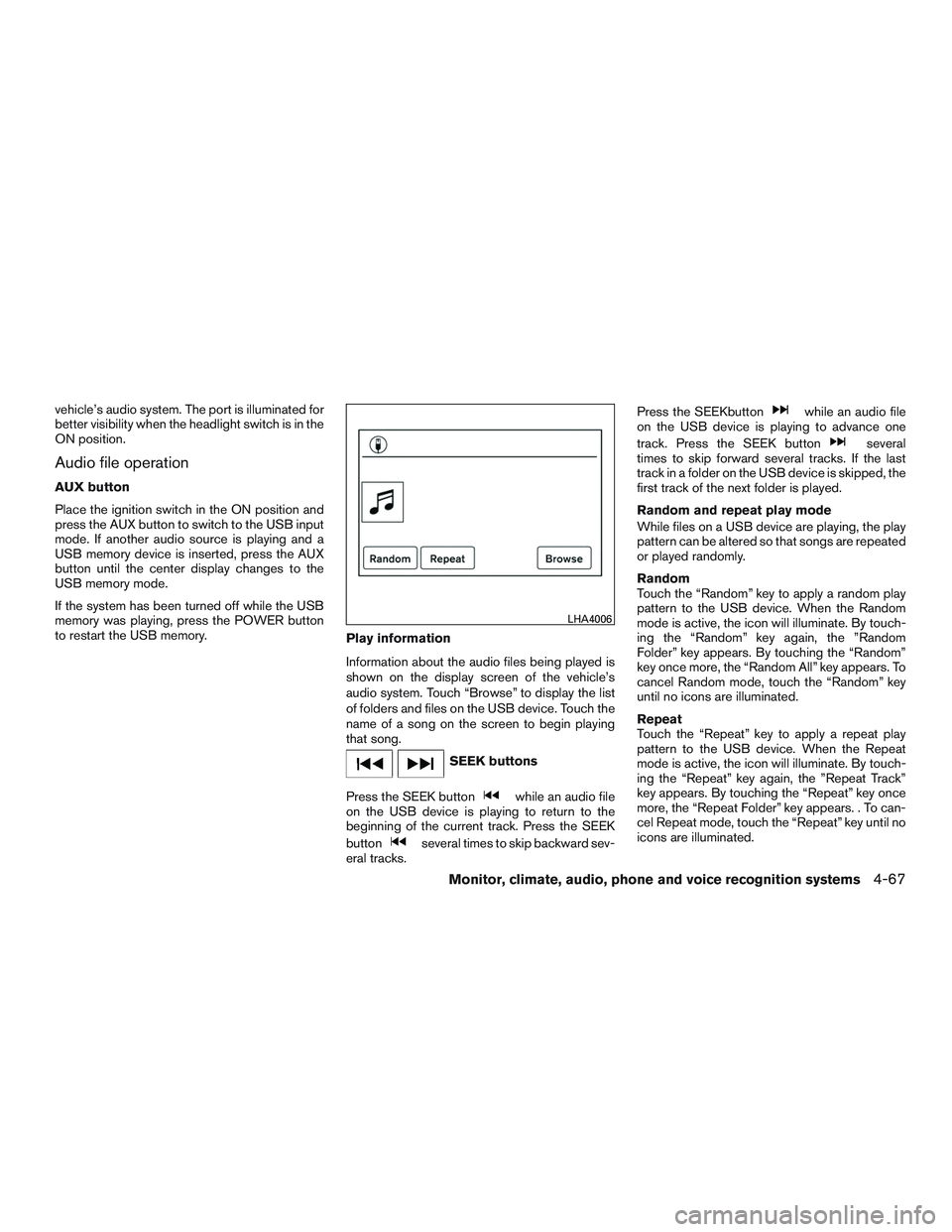
audio system. Touch “Browse” to display the list
of folders and files on the USB device. Touch the
name of a song on the screen to begin playing
that song.
SEEK buttons
Press the SEEK button
while an audio file
on the USB device is playing to return to the
beginning of the current track. Press the SEEK
button
several times to skip backward sev-
eral tracks. Press the SEEKbutton
while an audio file
on the USB device is playing to advance one
track. Press the SEEK button
several
times to skip forward several tracks. If the last
track in a folder on the USB device is skipped, the
first track of the next folder is played.
Random and repeat play mode
While files on a USB device are playing, the play
pattern can be altered so that songs are repeated
or played randomly.
Random
Touch the “Random” key to apply a random play
pattern to the USB device. When the Random
mode is active, the icon will illuminate. By touch-
ing the “Random” key again, the ”Random
Folder” key appears. By touching the “Random”
key once more, the “Random All” key appears. To
cancel Random mode, touch the “Random” key
until no icons are illuminated.
Repeat
Touch the “Repeat” key to apply a repeat play
pattern to the USB device. When the Repeat
mode is active, the icon will illuminate. By touch-
ing the “Repeat” key again, the ”Repeat Track”
key appears. By touching the “Repeat” key once
more, the “Repeat Folder” key appears. . To can-
cel Repeat mode, touch the “Repeat” key until no
icons are illuminated.
LHA4006
Monitor, climate, audio, phone and voice recognition systems4-67
Page 271 of 554
iPod®* PLAYER OPERATION
WITHOUT NAVIGATION SYSTEM (if
so equipped)
Connecting iPod®
WARNING
Do not connect, disconnect, or operate the
USB device while driving. Doing so can be
a distraction. If distracted you could lose
control of your vehicle and cause an acci-
dent or serious injury.
CAUTION
●Do not force the USB device into the
USB port. Inserting the USB device
tilted or up-side-down into the port may
damage the port. Make sure that the
USB device is connected correctly into
the USB port.
● Do not grab the USB port cover (if so
equipped) when pulling the USB device
out of the port. This could damage the
port and the cover.
● Do not leave the USB cable in a place
where it can be pulled unintentionally.
Pulling the cable may damage the port.
For additional information, refer to your device
manufacturer’s owner information regarding the
proper use and care of the device.
To connect an iPod® to the vehicle so that the
iPod® can be controlled with the audio system
controls and display screen, use the USB con-
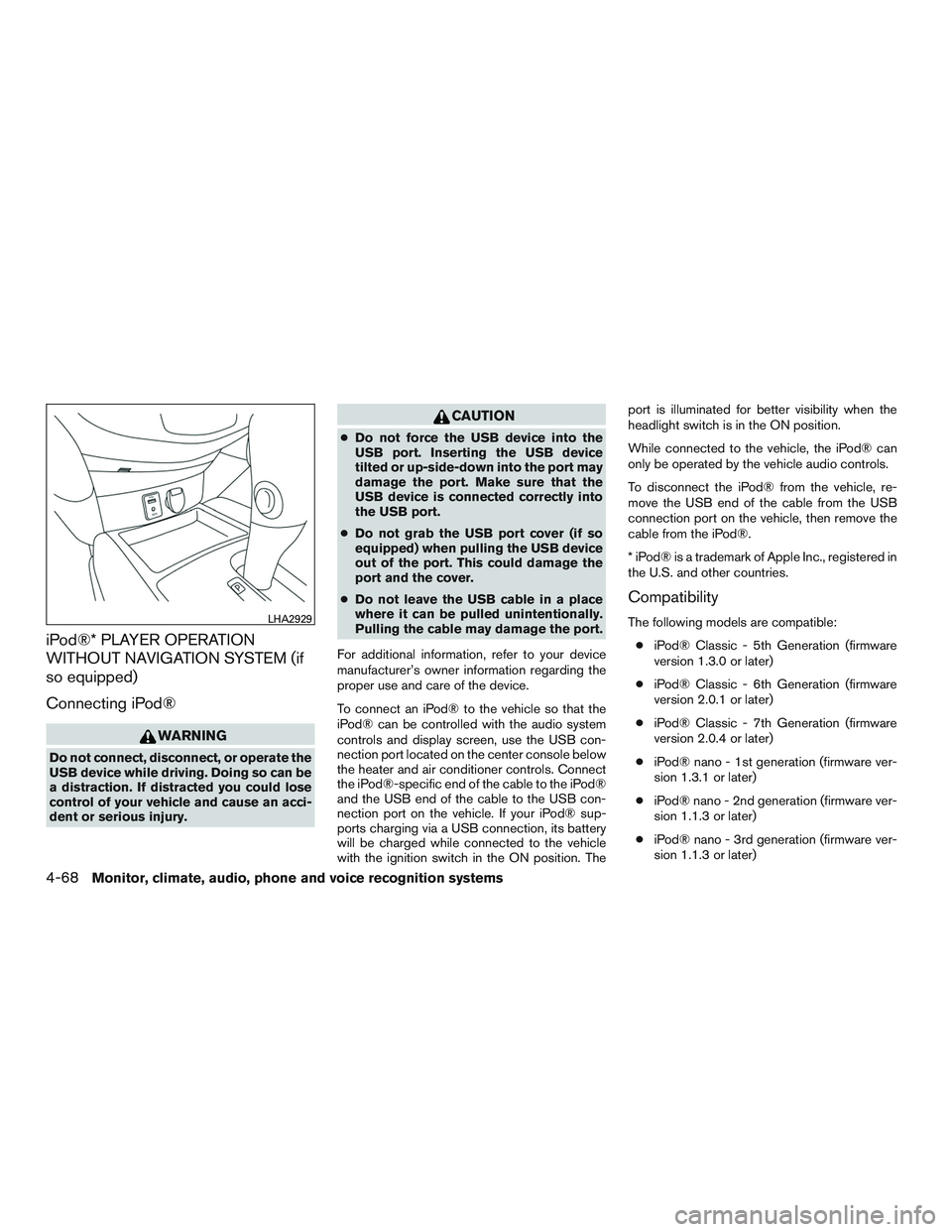
nection port located on the center console below
the heater and air conditioner controls. Connect
the iPod®-specific end of the cable to the iPod®
and the USB end of the cable to the USB con-
nection port on the vehicle. If your iPod® sup-
ports charging via a USB connection, its battery
will be charged while connected to the vehicle
with the ignition switch in the ON position. The port is illuminated for better visibility when the
headlight switch is in the ON position.
While connected to the vehicle, the iPod® can
only be operated by the vehicle audio controls.
To disconnect the iPod® from the vehicle, re-
move the USB end of the cable from the USB
connection port on the vehicle, then remove the
cable from the iPod®.
* iPod® is a trademark of Apple Inc., registered in
the U.S. and other countries.
Compatibility
The following models are compatible:
● iPod® Classic - 5th Generation (firmware
version 1.3.0 or later)
● iPod® Classic - 6th Generation (firmware
version 2.0.1 or later)
● iPod® Classic - 7th Generation (firmware
version 2.0.4 or later)
● iPod® nano - 1st generation (firmware ver-
sion 1.3.1 or later)
● iPod® nano - 2nd generation (firmware ver-
sion 1.1.3 or later)
● iPod® nano - 3rd generation (firmware ver-
sion 1.1.3 or later)LHA2929
4-68Monitor, climate, audio, phone and voice recognition systems
Page 273 of 554
iPod®* PLAYER OPERATION WITH
NAVIGATION SYSTEM (if so
equipped)
Connecting iPod®
WARNING
Do not connect, disconnect, or operate the
USB device while driving. Doing so can be
a distraction. If distracted you could lose
control of your vehicle and cause an acci-
dent or serious injury.
CAUTION
●Do not force the USB device into the
USB port. Inserting the USB device
tilted or up-side-down into the port may
damage the port. Make sure that the
USB device is connected correctly into
the USB port.
● Do not grab the USB port cover (if so
equipped) when pulling the USB device
out of the port. This could damage the
port and the cover.
● Do not leave the USB cable in a place
where it can be pulled unintentionally.
Pulling the cable may damage the port.
For additional information, refer to your device
manufacturer’s owner information regarding the
proper use and care of the device.
To connect an iPod® to the vehicle so that the
iPod® can be controlled with the audio system
controls and display screen, use the USB con-
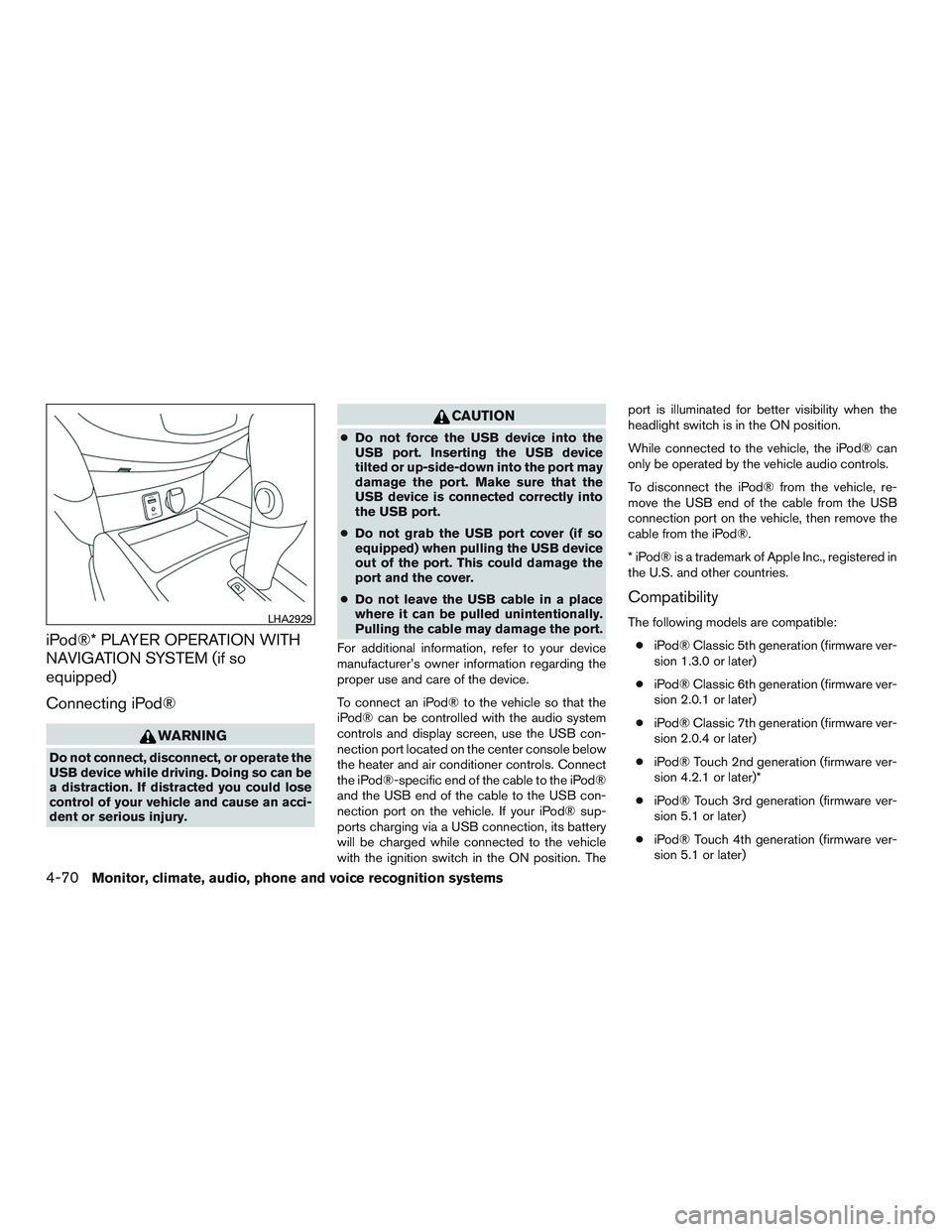
nection port located on the center console below
the heater and air conditioner controls. Connect
the iPod®-specific end of the cable to the iPod®
and the USB end of the cable to the USB con-
nection port on the vehicle. If your iPod® sup-
ports charging via a USB connection, its battery
will be charged while connected to the vehicle
with the ignition switch in the ON position. The port is illuminated for better visibility when the
headlight switch is in the ON position.
While connected to the vehicle, the iPod® can
only be operated by the vehicle audio controls.
To disconnect the iPod® from the vehicle, re-
move the USB end of the cable from the USB
connection port on the vehicle, then remove the
cable from the iPod®.
* iPod® is a trademark of Apple Inc., registered in
the U.S. and other countries.
Compatibility
The following models are compatible:
● iPod® Classic 5th generation (firmware ver-
sion 1.3.0 or later)
● iPod® Classic 6th generation (firmware ver-
sion 2.0.1 or later)
● iPod® Classic 7th generation (firmware ver-
sion 2.0.4 or later)
● iPod® Touch 2nd generation (firmware ver-
sion 4.2.1 or later)*
● iPod® Touch 3rd generation (firmware ver-
sion 5.1 or later)
● iPod® Touch 4th generation (firmware ver-
sion 5.1 or later)LHA2929
4-70Monitor, climate, audio, phone and voice recognition systems
Page 279 of 554
STEERING WHEEL SWITCH FOR
AUDIO CONTROL
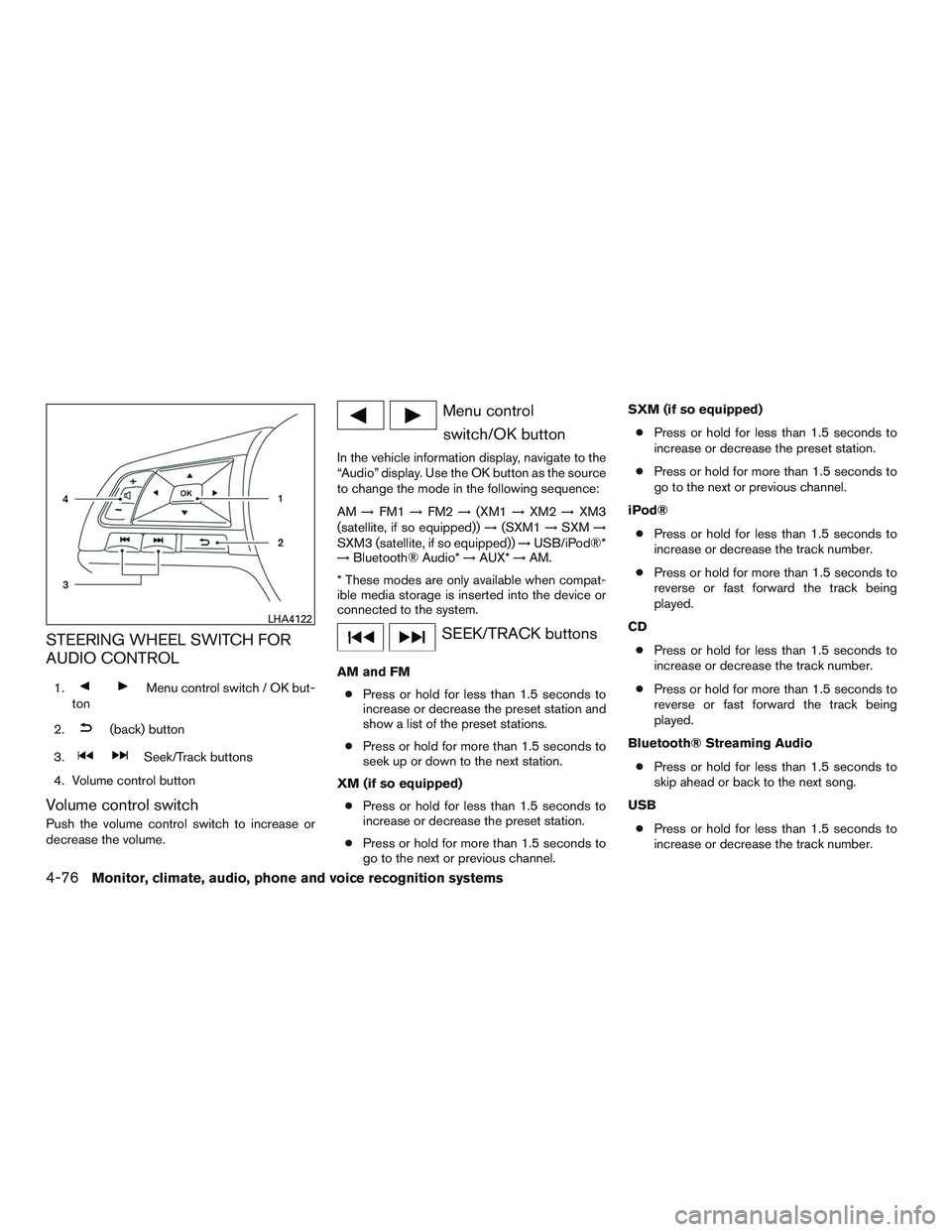
1.Menu control switch / OK but-
ton
2.
(back) button
3.
Seek/Track buttons
4. Volume control button
Volume control switch
Push the volume control switch to increase or
decrease the volume.
Menu control switch/OK button
In the vehicle information display, navigate to the
“Audio” display. Use the OK button as the source
to change the mode in the following sequence:
AM →FM1 →FM2 →(XM1 →XM2 →XM3
(satellite, if so equipped)) →(SXM1 →SXM →
SXM3 (satellite, if so equipped)) →USB/iPod®*
→ Bluetooth® Audio* →AUX* →AM.
* These modes are only available when compat-
ible media storage is inserted into the device or
connected to the system.
SEEK/TRACK buttons
AM and FM ● Press or hold for less than 1.5 seconds to
increase or decrease the preset station and
show a list of the preset stations.
● Press or hold for more than 1.5 seconds to
seek up or down to the next station.
XM (if so equipped) ● Press or hold for less than 1.5 seconds to
increase or decrease the preset station.
● Press or hold for more than 1.5 seconds to
go to the next or previous channel. SXM (if so equipped)
● Press or hold for less than 1.5 seconds to
increase or decrease the preset station.
● Press or hold for more than 1.5 seconds to
go to the next or previous channel.
iPod® ● Press or hold for less than 1.5 seconds to
increase or decrease the track number.
● Press or hold for more than 1.5 seconds to
reverse or fast forward the track being
played.
CD ● Press or hold for less than 1.5 seconds to
increase or decrease the track number.
● Press or hold for more than 1.5 seconds to
reverse or fast forward the track being
played.
Bluetooth® Streaming Audio ● Press or hold for less than 1.5 seconds to
skip ahead or back to the next song.
USB ● Press or hold for less than 1.5 seconds to
increase or decrease the track number.
LHA4122
4-76Monitor, climate, audio, phone and voice recognition systems
Page 280 of 554
●Press or hold for more than 1.5 seconds to
reverse or fast forward the track being
played.
(back) button
Press the(back) button to return to the
previous screen or cancel the current selection.
ANTENNA
The vehicle is equipped with a shark fin antenna
and an antenna pattern is printed inside the rear
window.
CAUTION
● Do not place metalized film near the
rear window glass or attach any metal
parts to it. This may cause poor recep-
tion or noise.
● When cleaning the inside of the rear
window, be careful not to scratch or
damage the rear window antenna.
Lightly wipe along the antenna with a
dampened soft cloth. This vehicle is equipped with Smartphone Inte-
gration technology. This allows many compatible
smartphone applications to be displayed and
easily controlled through the vehicle’s display
screen.
NOTE:
A compatible smartphone and registration
is required to use mobile applications or to
access connected features of certain ve-
hicle applications.
REGISTERING WITH
NISSANCONNECTSMMOBILE APPS
To use the Smartphone Integration feature, it is
necessary for the user to register. In order to
register, visit the NissanConnect
SMMobile Apps
website, www.nissanusa.com/connect/ or
www.nissan.ca/nissanconnect or
www.nissan.ca/nissanconnect/fr and sign up or
create an account through the prompts on the
NissanConnect Mobile Apps. Once registered,
download the NissanConnect Mobile Apps from
your compatible phone’s application download
source and then log into the application. If you
already have an account created through the
App, please log in.
CONNECT PHONE
To use this feature, a compatible smartphone
must be connected via Bluetooth® or USB to the
vehicle. For additional information, refer to
“Bluetooth® Hands-Free Phone System with
Navigation System” in this section.
NOTE:
For vehicles with navigation, Apple
iPhones® REQUIRE the phone to be
plugged in via USB for NissanConnect Mo-
bile Apps to function.
For vehicles without Navigation, Apple
iPhones® must be paired via Bluetooth®
for NissanConnect Mobile Apps to func-
tion.
NOTE:
For Android phones, NissanConnect Mo-
bile Apps REQUIRES the phone to be
paired via Bluetooth®.
NISSANCONNECTSMMOBILE APPS
(if so equipped)
Monitor, climate, audio, phone and voice recognition systems4-77
Page 283 of 554
2. Say “Play (artist name, song name, etc.)”.
3. Your vehicle will automatically change toBluetooth® Audio or iPod® mode* when
the music starts playing. Mode selection is
determined by the phone.
* If the iPhone® is also connected with the USB
cable.
If the audio track does not start playing automati-
cally after Siri Eyes Free ends, try changing the
track or audio source to resume playback.
NOTE:
For best results, use the native music app.
Performance of music control function
while using Podcasts, Audiobook or other
3rd party music apps may vary and is con-
trolled by the iPhone®.
Example 2 – Replying to text messages
1. If a compatible iPhone® is connected and “Show Notifications” of the iPhone® set-
tings is enabled, the vehicle will display a
notification for new incoming text messages.
2. After reading the message, push or push and hold the
TALK switch to reply
using Siri Eyes Free. 3. After a beep sounds, say “Text message” or
a similar command to reply using Siri Eyes
Free.
CHANGING SIRI® EYES FREE
SETTINGS (models without navigation
system)
Settings for Siri® Eyes Free can be found in the
Bluetooth settings menu. For additional informa-
tion, refer to “Bluetooth® settings” in this section.
1. Press the ENTER/SETTING button.
2. Use the TUNE/SCROLL knob to select “Bluetooth” and then press the
ENTER/SETTING button.
3. Use the TUNE/SCROLL knob to select “Siri” and then press the ENTER/SETTING
button.
4. Select “Short Press” or “Long Press” using the TUNE/SCROLL knob and then press
the ENTER/SETTING button.
CHANGING SIRI® EYES FREE
SETTINGS (models with navigation
system)
Settings for Siri® Eyes Free can be found in the
Bluetooth settings menu. For additional informa-
tion, refer to “Bluetooth® settings” in this section.
1. Press the [
] button.
2. Touch the “Settings” key.
3. Touch the “Phone & Bluetooth” key.
4. Touch the “Phone settings” key.
5. Select “Short Press” or “Long Press” to set the activation.
4-80Monitor, climate, audio, phone and voice recognition systems
Page 284 of 554
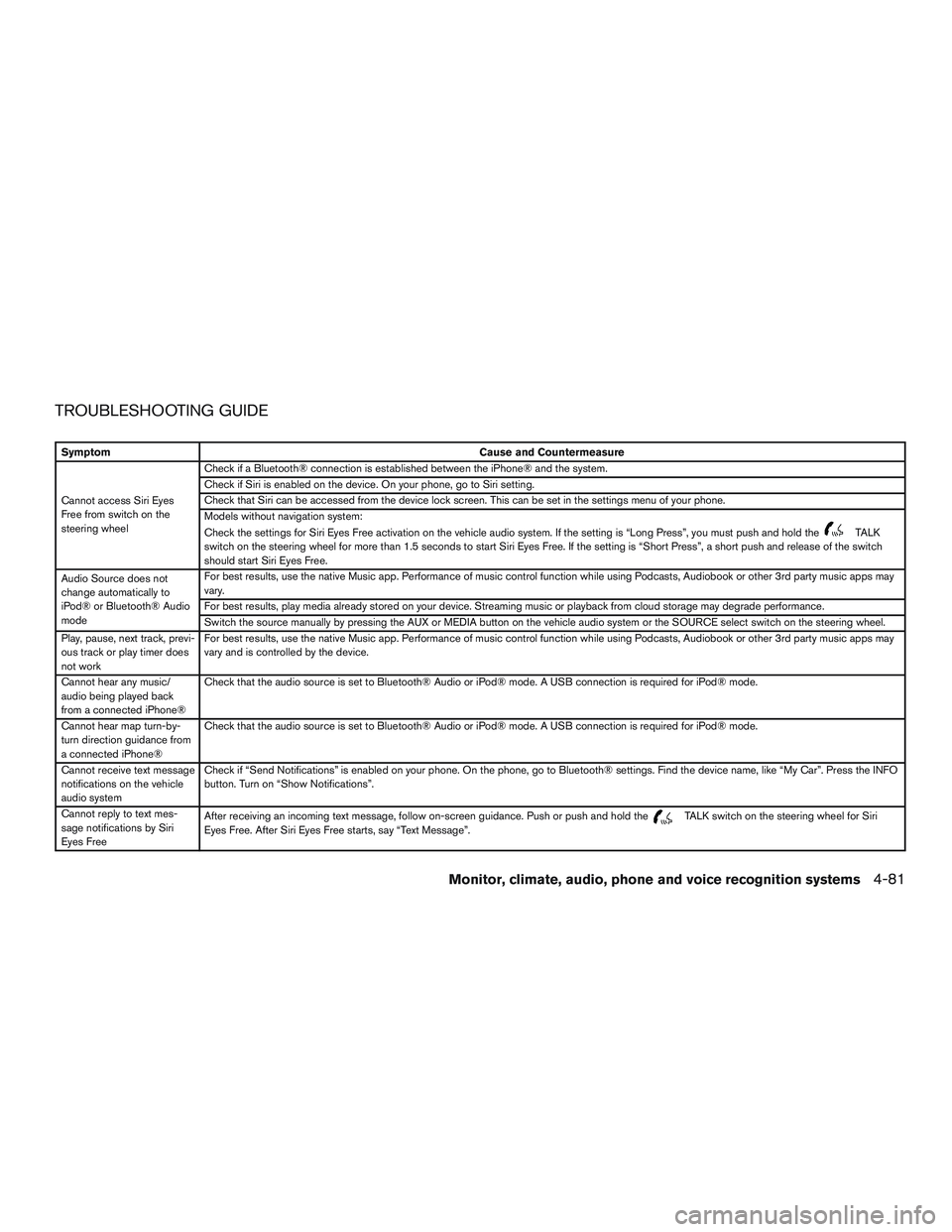
TROUBLESHOOTING GUIDE
SymptomCause and Countermeasure
Cannot access Siri Eyes
Free from switch on the
steering wheel Check if a Bluetooth® connection is established between the iPhone® and the system.
Check if Siri is enabled on the device. On your phone, go to Siri setting.
Check that Siri can be accessed from the device lock screen. This can be set in the settings menu of your phone.
Models without navigation system:
Check the settings for Siri Eyes Free activation on the vehicle audio system. If the setting is “Long Press”, you must push and hold the
TALK
switch on the steering wheel for more than 1.5 seconds to start Siri Eyes Free. If the setting is “Short Press”, a short push and release of the switch
should start Siri Eyes Free.
Audio Source does not
change automatically to
iPod® or Bluetooth® Audio
mode For best results, use the native Music app. Performance of music control function while using Podcasts, Audiobook or other 3rd party music apps may
vary.
For best results, play media already stored on your device. Streaming music or playback from cloud storage may degrade performance.
Switch the source manually by pressing the AUX or MEDIA button on the vehicle audio system or the SOURCE select switch on the steering wheel.
Play, pause, next track, previ-
ous track or play timer does
not work For best results, use the native Music app. Performance of music control function while using Podcasts, Audiobook or other 3rd party music apps may
vary and is controlled by the device.
Cannot hear any music/
audio being played back
from a connected iPhone® Check that the audio source is set to Bluetooth® Audio or iPod® mode. A USB connection is required for iPod® mode.
Cannot hear map turn-by-
turn direction guidance from
a connected iPhone® Check that the audio source is set to Bluetooth® Audio or iPod® mode. A USB connection is required for iPod® mode.
Cannot receive text message
notifications on the vehicle
audio system Check if “Send Notifications” is enabled on your phone. On the phone, go to Bluetooth® settings. Find the device name, like “My Car”. Press the INFO
button. Turn on “Show Notifications”.
Cannot reply to text mes-
sage notifications by Siri
Eyes Free After receiving an incoming text message, follow on-screen guidance. Push or push and hold the
TALK switch on the steering wheel for Siri
Eyes Free. After Siri Eyes Free starts, say “Text Message”.
Monitor, climate, audio, phone and voice recognition systems4-81
Page 538 of 554
11 Index
2nd row bench seat adjustment.........1-6
A
Aiming control, headlights ...........2-44
Air bag (See supplemental restraint
system) .....................1-46
Air bag system Front (See supplemental front impact air bag
system) ...................1-53
Airbagwarninglabels.............1-63
Airbagwarninglight...........1-64,2-16
Air bag warning light, supplemental . .1-64, 2-16
Air cleaner housing filter ............8-14
Air conditioner Air conditioner operation ......4-35,4-41
Air conditioner specification label ....10-11
Air conditioner system refrigerant and
oil recommendations ............10-6
Air conditioner system refrigerant
recommendations ..............10-6
Heater and air conditioner
controls................4-33,4-41
Servicing air conditioner ..........4-43
Airflowcharts..................4-37
Alarm system
(See vehicle security system) .........2-34
All-Wheel Drive .................5-99
Anchor point locations .............1-30
Antenna .....................4-77
Antifreeze ...................5-112
Anti-lock brake warning light ..........2-12Anti-lock Braking System (ABS)
.......5-104
Apps .......................4-77
Armrests .....................1-6
AroundView®Monitor.............4-17
Audible reminders ...............2-19
Audio system ..................4-44
AMradioreception.............4-44
Bluetooth®audio..........4-73,4-74
Bluetooth® streaming audio ....4-73,4-74
Compact disc (CD) player .....4-55,4-62
FM/AM/SAT radio with compact disc (CD)
player.................4-52,4-57
FMradioreception.............4-44
iPod® Player .............4-68,4-70
iPod® player operation .......4-68,4-70
Radio ....................4-44
USB interface ............4-64,4-66
USB (Universal Serial Bus) Connection
Port..................4-64,4-66
Autolight switch .................2-40
Automatic Automatic drive positioner .....3-41,3-43
Automatic power window switch .....2-63
Automatic anti-glare inside mirror .......3-39
Automatic door locks ..............3-7
Automatic drive positioner .......3-41,3-43
AUXjack ....................4-64
AWD.......................5-99
B
Battery .................5- 112, 8-10Charge warning light
............2-13
Battery replacement ..............8-21
Keyfob ...................8-21
NISSAN Intelligent Key® ......8-23,8-24
Before starting the engine ...........5-18
Belt (See drive belt) ..............8-13
Blind Spot Warning (BSW) warning
system......................5-38
Bluetooth® audio ............4-73,4-74
Bluetooth® hands-free phone
system..................4-82,4-95
Bluetooth® streaming audio with Navigation
System .....................4-74
Boosterseats..................1-43
Brake Anti-lock Braking System (ABS) .....5-104
Brake fluid ..................8-9
Brakelight(Seestoplight).........8-27
Brake system ...............5-103
Brakewarninglight.............2-12
Brakewearindicators........2-19,8-17
Parking brake operation ..........5-25
Self-adjusting brakes ............8-17
Brake assist ..................5-105
Brake fluid ....................8-9
Brakes ......................8-17
Brake
system .................5-103
Break-inschedule ...............5-97
Brightness/contrast button ...........4-10
Brightness control Instrument panel ..............2-45
Bulb check/instrument panel ..........2-12
Bulbreplacement................8-27
Page 544 of 554
Rear window wiper and washer
switches...................2-38
Turnsignalswitch..............2-46
Vehicle dynamic control (VDC) off
switch.....................2-50
T
Tachometer ....................2-6
Temperature gauge Engine coolant temperature gauge .....2-6
Theft (NISSAN Vehicle Immobilizer System) ,
engine start .............2-35,5-14,5-17
Three-way catalyst ................5-4
Tire Flat tire .....................6-3
Spare tire ................6-5,8-41
TireandLoadingInformationlabel ....10-11
Tire chains ..................8-37
Tirepressure.................8-29
Tire rotation..................8-38
Types of tires .................8-35
Uniform tire quality grading ........10-25
Wheels and tires ...............8-29
Wheel/tire size ................10-8
Tire pressure Low tire pressure warning light .......2-13
Tire Pressure Monitoring System (TPMS) ....5-5
Top tether strap child restraint .........1-30
Towing Flattowing.................10-24
Towing load/specification .........10-19
Towtrucktowing...............6-13
Trailer towing ................10-16
Towing a trailer .................10-16 Transceiver
HomeLink® Universal
Transceiver ....2-69,2-70,2-71,2-72,2-72
Transmission Continuously Variable Transmission (CVT)
fluid.......................8-9
Driving with Continuously Variable
Transmission (CVT) .............5-20
Travel (See registering a vehicle in another
country) ......................10-9
Trip odometer ...................2-5
Troubleshooting guide
(NISSAN voice recognition system) .....4-108
Turn signal switch ................2-46
U
Uniform tire quality grading ..........10-25
USB interface ...............4-64,4-66
Audio file operation ..........4-65,4-67
V
Vanity mirror ...................3-38
Variable voltage control system .........8-13
Vehicle dimensions and weights ........10-8
Vehicle dynamic control (VDC) off switch . . .2-50
Vehicle Dynamic Control (VDC) system . . .5-105
Vehicle identification ...............10-9
Vehicle identification number (VIN) .......10-9
Vehicle identification number (VIN)
(Chassis number) ................10-9
Vehicle identification number (VIN) plate ....10-9
Vehicle immobilizer system ....2-35,5-14,5-17Vehicle Information Display
...........2-20
Vehicle loading information ..........10-12
Vehicle recovery ..............6-15,6-16
Vehicle security system .............2-34
Vehicle security system (NISSAN Vehicle Immobi-
lizer System) , engine start .....2-35,5-14,5-17
Ventilators ....................4-32
Visors.......................3-38
Voice Prompt Interrupt ..........4-85,4-97
Voice recognition system ...........4-104
W
W
arning Airbagwarninglight.........1-64,2-16
Anti-lock brake warning light ........2-12
Battery charge warning light ........2-13
Blind Spot Warning (BSW) warning
light......................5-38
Brake warning light .............2-12
Hazard warning flasher switch ........6-2
Lane Departure Prevention . .5-27, 5-32, 5-35
Lane Departure Warning
light...............5-27,5-32,5-35
Loose fuel cap warning ........2-31,3-36
Low fuel warning light ........2-15,2-31
Low tire pressure warning light .......2-13
Low windshield-washer fluid warning
light ..................2-15,2-31
Passenger air bag and status light .....1-56
Seat belt warning light ........1-18,2-16
Supplemental air bag warning
light ..................1-64,2-16
TPMS ......................2-4
Vehicle security system ...........2-34
11-7