traction control NISSAN ROGUE 2017 Owner´s Manual
[x] Cancel search | Manufacturer: NISSAN, Model Year: 2017, Model line: ROGUE, Model: NISSAN ROGUE 2017Pages: 554, PDF Size: 6.44 MB
Page 103 of 554
is not ready for an emission control system
inspection/maintenance test. For additional infor-
mation, refer to “Readiness for
Inspection/Maintenance (I/M) test” in the “Tech-
nical and consumer information” section of this
manual.
Operation
The MIL will come on in one of two ways:● MIL on steady — An emission control system
malfunction has been detected. Check the
fuel-filler cap if the Loose Fuel Cap warning
appears in the vehicle information display. If
the fuel-filler cap is loose or missing, tighten
or install the cap and continue to drive the
vehicle. The
light should turn off after
a few driving trips. If the
light does not
turn off after a few driving trips, have the
vehicle inspected. It is recommended that
you visit a NISSAN dealer for this service.
You do not need to have your vehicle towed
to the dealer.
● MIL blinking — An engine misfire has been
detected which may damage the emission
control system. To reduce or avoid emission
control system damage:
– do not drive at speeds above 45 mph (72 km/h).
– avoid hard acceleration or deceleration. – avoid steep uphill grades.
– if possible, reduce the amount of cargo
being hauled or towed.
The MIL may stop blinking and come on steady.
Have the vehicle inspected. It is recommended
that you visit a NISSAN dealer for this service.
You do not need to have your vehicle towed to the
dealer.
CAUTION
Continued vehicle operation without hav-
ing the emission control system checked
and repaired as necessary could lead to
poor driveability, reduced fuel economy,
and possible damage to the emission con-
trol system.
Security indicator light
This light blinks when the ignition switch is
placed in the OFF or LOCK position.
The blinking security indicator light indicates that
the security systems equipped on the vehicle are
operational.
For additional information, refer to “Security sys-
tems” in this section.
Side light and headlight indicator light (green)
The side light and headlight indicator light illumi-
nates when the side light or headlight position is
selected. For additional information, refer to
“Headlight and turn signal switch” in this section.
Slip indicator light
This indicator will blink when the VDC system is
operating, thus alerting the driver to the fact that
the road surface is slippery and the vehicle is
nearing its traction limits.
You may feel or hear the system working; this is
normal.
The light will blink for a few seconds after the
VDC system stops limiting wheel spin.
The
indicator light also comes on when
you place the ignition switch in the ON position.
The light will turn off after approximately 2 sec-
onds if the system is operational. If the light does
not come on have the system checked. It is
recommended that you visit a NISSAN dealer for
this service.
2-18Instruments and controls
Page 253 of 554

USB (Universal Serial Bus)
Connection Port
WARNING
Do not connect, disconnect or operate the
USB device while driving. Doing so can be
a distraction. If distracted you could lose
control of your vehicle and cause an acci-
dent or serious injury.
CAUTION
●Do not force the USB device into the
USB port. Inserting the USB device
tilted or up-side-down into the port may
damage the port. Make sure that the
USB device is connected correctly into
the USB port.
● Do not grab the USB port cover (if so
equipped) when pulling the USB device
out of the port. This could damage the
port and the cover.
● Do not leave the USB cable in a place
where it can be pulled unintentionally.
Pulling the cable may damage the port. The vehicle is not equipped with a USB device.
USB devices should be purchased separately as
necessary.
This system cannot be used to format USB de-
vices. To format a USB device, use a personal
computer.
In some jurisdictions, the USB device for the front
seats plays only sound without images for regu-
latory reasons, even when the vehicle is parked.
This system supports various USB memory de-
vices, USB hard drives and iPod® players. Some
USB devices may not be supported by this sys-
tem.
● Partitioned USB devices may not play cor-
rectly.
● Some characters used in other languages
(Chinese, Japanese, etc.) may not appear
properly in the display. Using English lan-
guage characters with a USB device is rec-
ommended.
General notes for USB use ● For additional information, refer to your de-
vice manufacturer’s owner information re-
garding the proper use and care of the de-
vice. Notes for iPod® use
iPod® is a trademark of Apple Inc., registered in
the U.S. and other countries.
● Improperly plugging in the iPod® may cause
a checkmark to be displayed on and off
(flickering) . Always make sure that the
iPod® is connected properly.
● An iPod® nano (1st Generation) may remain
in fast forward or rewind mode if it is con-
nected during a seek operation. In this case,
please manually reset the iPod®.
● An iPod® nano (2nd Generation) will con-
tinue to fast-forward or rewind if it is discon-
nected during a seek operation.
● An incorrect song title may appear when the
Play Mode is changed while using an iPod®
nano (2nd Generation) .
● Audiobooks may not play in the same order
as they appear on an iPod®.
● Large video files cause slow responses in an
iPod®. The vehicle center display may mo-
mentarily black out, but will soon recover.
● If an iPod® automatically selects large video
files while in the shuffle mode, the vehicle
center display may momentarily black out,
but will soon recover.
4-50Monitor, climate, audio, phone and voice recognition systems
Page 267 of 554
SEEK (Reverse or FastForward) buttons
Press and hold the
orseek buttons
for 1.5 seconds while the compact disc is playing
to reverse or fast forward the track being played.
The compact disc plays at an increased speed
while reversing or fast forwarding. When the but-
ton is released, the compact disc returns to nor-
mal play speed.
SEEK buttons
Press the
seek button while a CD or
MP3/WMA CD is playing to return to the begin-
ning of the current track. Press the
seek
button several times to skip backward several
tracks.
Press the
seek button while a CD or
MP3/WMA CD is playing to advance one track.
Press the
seek button several times to skip
forward several tracks. If the last track on a CD is
skipped, the first track on the disc is played. If the
last track in a folder of an MP3/WMA CD is
skipped, the first track of the next folder is played. AUX button
The AUX IN audio input jack accepts any stan-
dard analog audio input such as from a portable
cassette tape/CD player, MP3 player or a laptop
computer. Press the AUX button to play a com-
patible device plugged into the AUX IN jack.
CD EJECT button
When the
CD EJECT button is pressed
with a compact disc loaded, the compact disc
will eject and the last source will be played.
If the disc is not removed within 10 seconds, the
disc will reload.
Additional features
For additional information, refer to “iPod® player
operation with Navigation System” in this section.
For additional information, refer to “USB (Univer-
sal Serial Bus) Connection Port (models with
Navigation System)” in this section.
For additional information, refer to “Bluetooth®
streaming audio with Navigation System” in this
section.USB (Universal Serial Bus)
CONNECTION PORT (models
without Navigation System) (if so
equipped)
Connecting a device to the USB
Connection Port
WARNING
Do not connect, disconnect, or operate the
USB device while driving. Doing so can be
a distraction. If distracted you could lose
control of your vehicle and cause an acci-
dent or serious injury.
LHA2929
4-64Monitor, climate, audio, phone and voice recognition systems
Page 269 of 554
The current play pattern of the USB device is
displayed on the screen unless no pattern is
applied.
RPT (repeat) button
When the RPT (repeat) button is pressed while
an audio file on the USB device is playing, the
play pattern can be changed as follows:
1 Folder Repeat→1 Track Repeat →OFF
1 Track Repeat: the current track will be re-
peated.
1 Folder Repeat: the current folder will be re-
peated.
OFF: No repeat play pattern is applied. The indi-
cator on the display will turn off.
The current play pattern of the USB device is
displayed on the screen unless no pattern is
applied.
TUNE/SCROLL knob
If there are multiple folders with audio files on the
USB device, turn the TUNE/SCROLL knob to
change folders. Turn the knob to the left to skip
back a folder. Turn the knob to the right to skip
ahead a folder. If there is only one folder of audio
files on the USB device, turning the
TUNE/SCROLL knob in either direction will re-
turn to the first track on the USB device.
USB (Universal Serial Bus)
CONNECTION PORT (models with
Navigation System) (if so equipped)
Connecting a device to the USB
Connection Port
WARNING
Do not connect, disconnect, or operate the
USB device while driving. Doing so can be
a distraction. If distracted you could lose
control of your vehicle and cause an acci-
dent or serious injury.
CAUTION
● To avoid damage and loss of function
when using a USB device, note the fol-
lowing precautions.
● Do not force the USB device into the
USB port. Inserting the USB device
tilted or up-side-down into the port may
damage the port. Make sure that the
USB device is connected correctly into
the USB port.
● Do not grab the USB port cover (if so
equipped) when pulling the USB device
out of the port. This could damage the
port and the cover.
● Do not leave the USB cable in a place
where it can be pulled unintentionally.
Pulling the cable may damage the port.
For additional information, refer to your device
manufacturer’s owner information regarding the
proper use and care of the device.
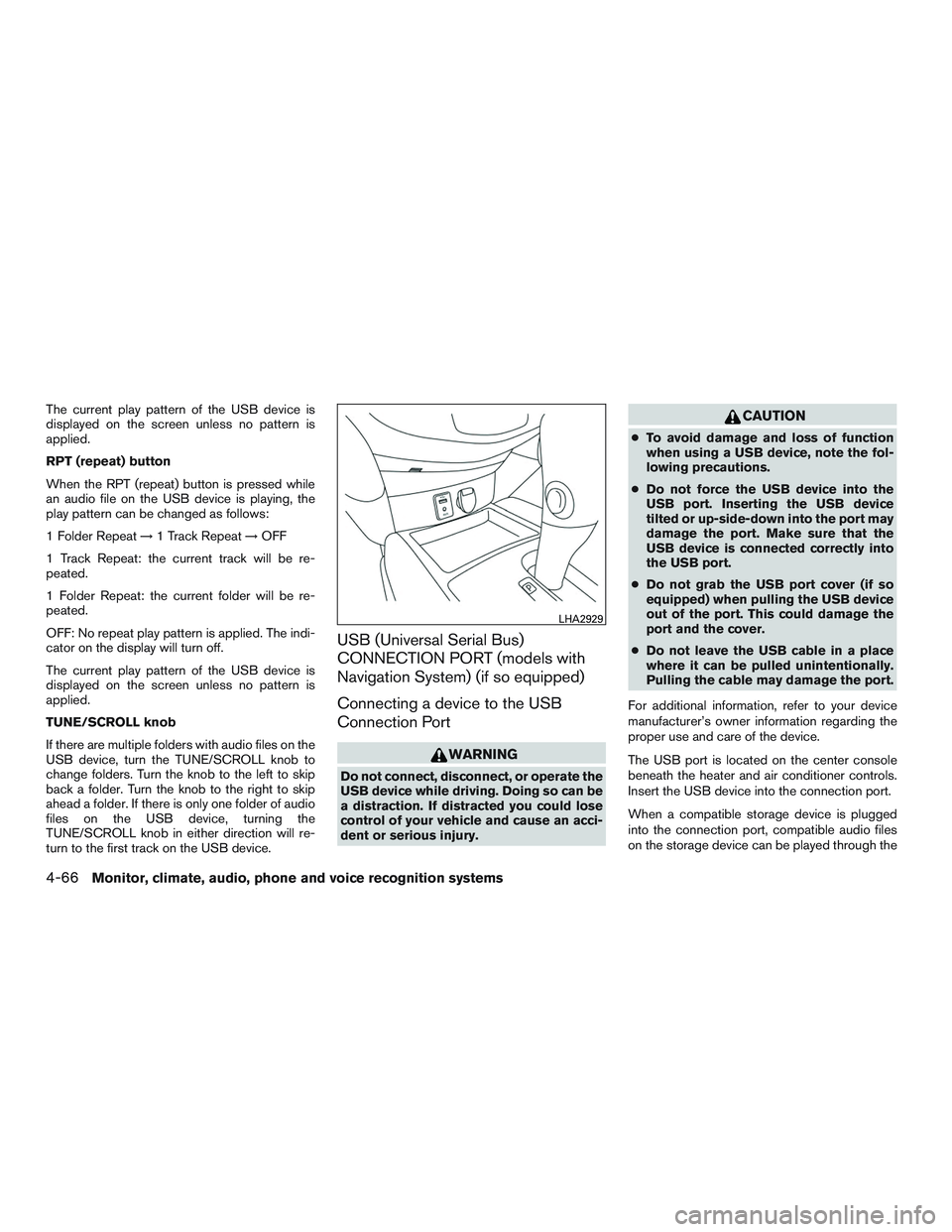
The USB port is located on the center console
beneath the heater and air conditioner controls.
Insert the USB device into the connection port.
When a compatible storage device is plugged
into the connection port, compatible audio files
on the storage device can be played through the
LHA2929
4-66Monitor, climate, audio, phone and voice recognition systems
Page 271 of 554
iPod®* PLAYER OPERATION
WITHOUT NAVIGATION SYSTEM (if
so equipped)
Connecting iPod®
WARNING
Do not connect, disconnect, or operate the
USB device while driving. Doing so can be
a distraction. If distracted you could lose
control of your vehicle and cause an acci-
dent or serious injury.
CAUTION
●Do not force the USB device into the
USB port. Inserting the USB device
tilted or up-side-down into the port may
damage the port. Make sure that the
USB device is connected correctly into
the USB port.
● Do not grab the USB port cover (if so
equipped) when pulling the USB device
out of the port. This could damage the
port and the cover.
● Do not leave the USB cable in a place
where it can be pulled unintentionally.
Pulling the cable may damage the port.
For additional information, refer to your device
manufacturer’s owner information regarding the
proper use and care of the device.
To connect an iPod® to the vehicle so that the
iPod® can be controlled with the audio system
controls and display screen, use the USB con-
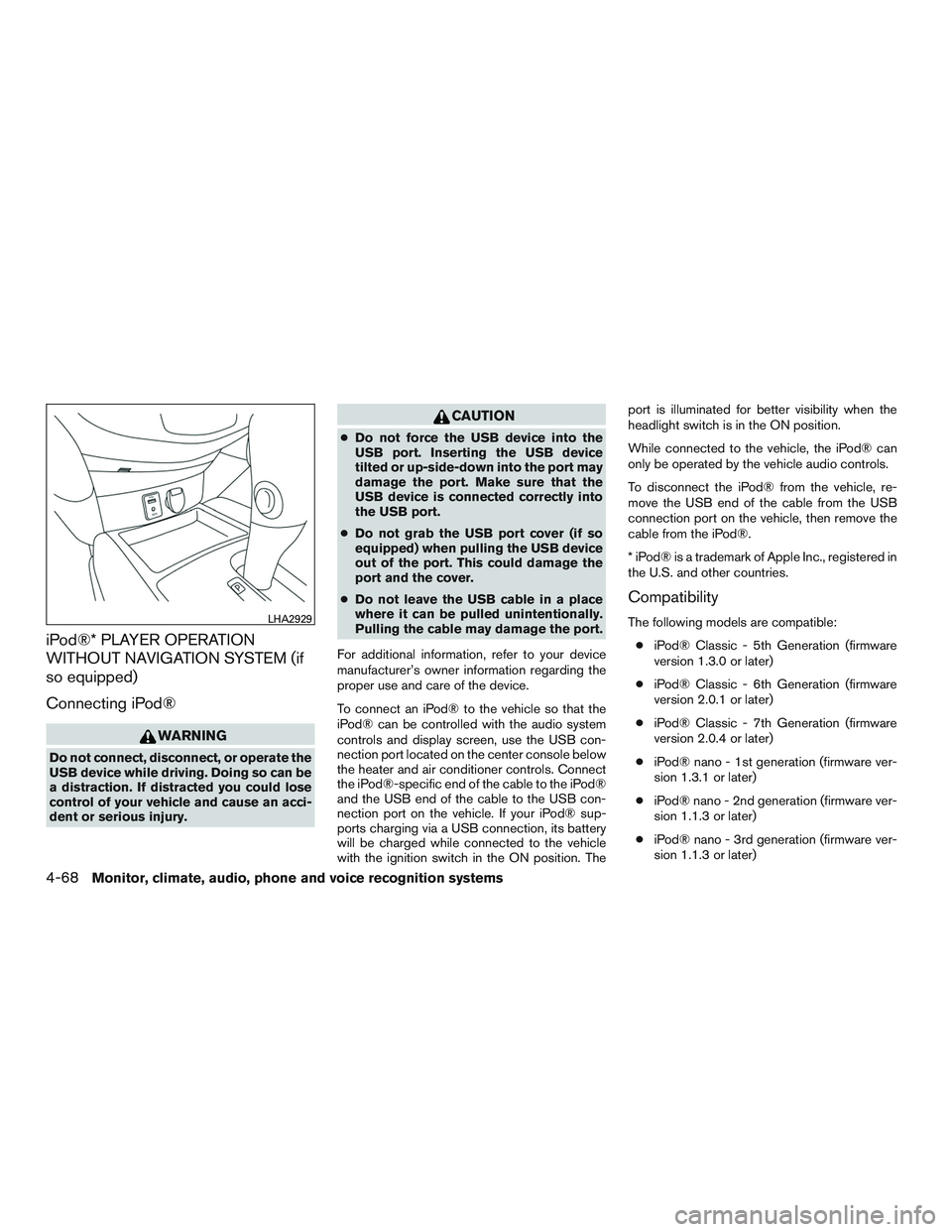
nection port located on the center console below
the heater and air conditioner controls. Connect
the iPod®-specific end of the cable to the iPod®
and the USB end of the cable to the USB con-
nection port on the vehicle. If your iPod® sup-
ports charging via a USB connection, its battery
will be charged while connected to the vehicle
with the ignition switch in the ON position. The port is illuminated for better visibility when the
headlight switch is in the ON position.
While connected to the vehicle, the iPod® can
only be operated by the vehicle audio controls.
To disconnect the iPod® from the vehicle, re-
move the USB end of the cable from the USB
connection port on the vehicle, then remove the
cable from the iPod®.
* iPod® is a trademark of Apple Inc., registered in
the U.S. and other countries.
Compatibility
The following models are compatible:
● iPod® Classic - 5th Generation (firmware
version 1.3.0 or later)
● iPod® Classic - 6th Generation (firmware
version 2.0.1 or later)
● iPod® Classic - 7th Generation (firmware
version 2.0.4 or later)
● iPod® nano - 1st generation (firmware ver-
sion 1.3.1 or later)
● iPod® nano - 2nd generation (firmware ver-
sion 1.1.3 or later)
● iPod® nano - 3rd generation (firmware ver-
sion 1.1.3 or later)LHA2929
4-68Monitor, climate, audio, phone and voice recognition systems
Page 273 of 554
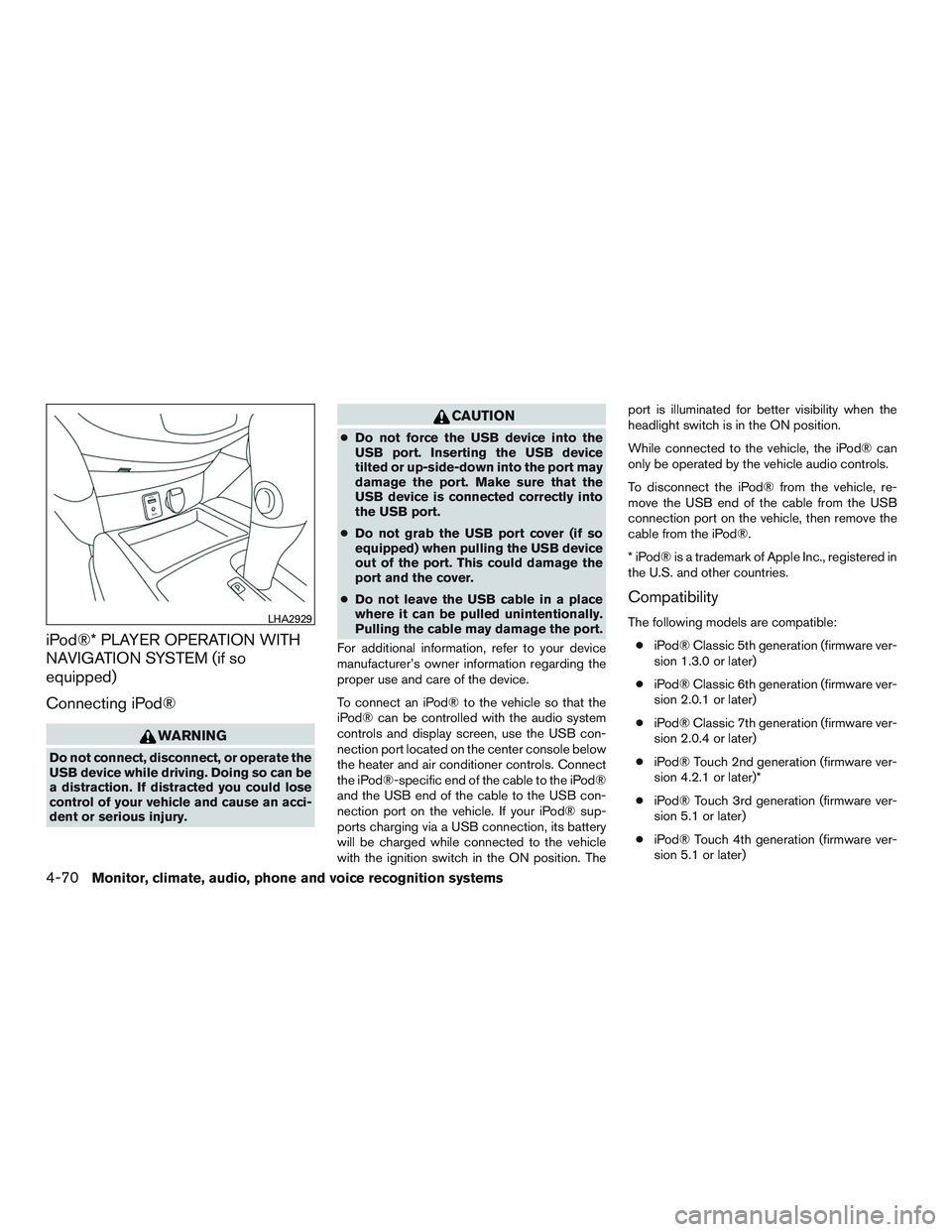
iPod®* PLAYER OPERATION WITH
NAVIGATION SYSTEM (if so
equipped)
Connecting iPod®
WARNING
Do not connect, disconnect, or operate the
USB device while driving. Doing so can be
a distraction. If distracted you could lose
control of your vehicle and cause an acci-
dent or serious injury.
CAUTION
●Do not force the USB device into the
USB port. Inserting the USB device
tilted or up-side-down into the port may
damage the port. Make sure that the
USB device is connected correctly into
the USB port.
● Do not grab the USB port cover (if so
equipped) when pulling the USB device
out of the port. This could damage the
port and the cover.
● Do not leave the USB cable in a place
where it can be pulled unintentionally.
Pulling the cable may damage the port.
For additional information, refer to your device
manufacturer’s owner information regarding the
proper use and care of the device.
To connect an iPod® to the vehicle so that the
iPod® can be controlled with the audio system
controls and display screen, use the USB con-
nection port located on the center console below
the heater and air conditioner controls. Connect
the iPod®-specific end of the cable to the iPod®
and the USB end of the cable to the USB con-
nection port on the vehicle. If your iPod® sup-
ports charging via a USB connection, its battery
will be charged while connected to the vehicle
with the ignition switch in the ON position. The port is illuminated for better visibility when the
headlight switch is in the ON position.
While connected to the vehicle, the iPod® can
only be operated by the vehicle audio controls.
To disconnect the iPod® from the vehicle, re-
move the USB end of the cable from the USB
connection port on the vehicle, then remove the
cable from the iPod®.
* iPod® is a trademark of Apple Inc., registered in
the U.S. and other countries.
Compatibility
The following models are compatible:
● iPod® Classic 5th generation (firmware ver-
sion 1.3.0 or later)
● iPod® Classic 6th generation (firmware ver-
sion 2.0.1 or later)
● iPod® Classic 7th generation (firmware ver-
sion 2.0.4 or later)
● iPod® Touch 2nd generation (firmware ver-
sion 4.2.1 or later)*
● iPod® Touch 3rd generation (firmware ver-
sion 5.1 or later)
● iPod® Touch 4th generation (firmware ver-
sion 5.1 or later)LHA2929
4-70Monitor, climate, audio, phone and voice recognition systems
Page 281 of 554
APPLICATION DOWNLOAD
Once connected, the NissanConnect App will
search your phone to determine which compatible
applications are currently installed. The user will
then choose which apps they want to bring into
their vehicle from the list of apps within the “Man-
age My Apps” section of the NissanConnect App
on their smartphone. The vehicle will then down-
load the in-vehicle interface for each of these com-
patible applications. Once downloaded, the user
can access their selected smartphone applications
through the vehicle touch-screen. For additional
information, refer to www.nissanusa.com/connect
or www.nissan.ca/nissanconnect or
www.nissan.ca/nissanconnect/fr regarding appli-
cation availability.
NissanConnectSMServices is a suite of telemat-
ics tools that provide emergency preparedness,
remote access, customizable alerts and conve-
nience services. This feature is an option on
Navigation equipped vehicles. For additional in-
formation, refer to the separate Navigation Sys-
tem Owner’s Manual. Apple Siri® Eyes Free personal assistant can be
accessed from the vehicle. Siri Eyes Free can be
accessed in Siri Eyes Free mode to reduce user
distraction. In this mode, Siri Eyes Free is avail-
able for interaction by voice control. After con-
necting a compatible Apple device by using
Bluetooth®, Siri Eyes Free can be activated from
the
TALK switch on the steering wheel.
Siri® is a trademark of Apple Inc., registered in
the U.S. and other countries.
● Some Siri Eyes Free functions, such as dis-
playing pictures or opening apps, may not
be available while driving.
● For getting best results, always update your
device to the latest software version.
● Keep the interior of the vehicle as quiet as
possible. Close the windows to eliminate the
surrounding noises (traffic noises, vibration
sounds, etc.) , which may prevent the system
from recognizing the voice commands cor-
rectly.
● For functions that can be used in Siri Eyes
Free, please refer to the Apple website.
NISSANCONNECTSMSERVICES (if so
equipped) SIRI® EYES FREE
4-78Monitor, climate, audio, phone and voice recognition systems
Page 322 of 554
DRIVING SAFETY PRECAUTIONS
Your NISSAN is designed for both normal and
off-road use. However, avoid driving in deep wa-
ter or mud as your NISSAN is mainly designed for
leisure use, unlike a conventional off-road ve-
hicle.
Remember that 2-wheel drive models are less
capable than all-wheel drive models for rough
road driving and extrication when stuck in deep
snow or mud, or the like.
Please observe the following precautions:
WARNING
●Spinning the front wheels on slippery
surface may cause the AWD warning
message to display and the AWD sys-
tem to automatically switch from the
AWD to the 2WD mode. This could re-
duce the traction. Be especially careful
when towing a trailer. (AWD models)
● Drive carefully when off the road and
avoid dangerous areas. Every person
who drives or rides in this vehicle
should be seated with their seat belt
fastened. This will keep you and your
passengers in position when driving
over rough terrain. ●
Do not drive across steep slopes. In-
stead drive either straight up or straight
down the slopes. Off-road vehicles can
tip over sideways much more easily
than they can forward or backward.
● Many hills are too steep for any vehicle.
If you drive up them, you may stall. If
you drive down them, you may not be
able to control your speed. If you drive
across them, you may roll over.
● Do not shift gears while driving on
downhill grades as this could cause
loss of control of the vehicle.
● Stay alert when driving to the top of a
hill. At the top there could be a drop-off
or other hazard that could cause an
accident.
● If your engine stalls or you cannot make
it to the top of a steep hill, never at-
tempt to turn around. Your vehicle could
tip or roll over. Always back straight
down in R (Reverse) gear and apply
brakes to control your speed.
● Heavy braking going down a hill could
cause your brakes to overheat and fade,
resulting in loss of control and an acci-
dent. Apply brakes lightly and use a low
gear to control your speed. ●
Unsecured cargo can be thrown around
when driving over rough terrain. Prop-
erly secure all cargo so it will not be
thrown forward and cause injury to you
or your passengers.
● To avoid raising the center of gravity
excessively, do not exceed the rated
capacity of the roof rack (if so equipped)
and evenly distribute the load.
● Secure heavy loads in the cargo area as
far forward and as low as possible. Do
not equip the vehicle with tires larger
than specified in this manual. This could
cause your vehicle to roll over.
● Do not grip the inside or spokes of the
steering wheel when driving off-road.
The steering wheel could move sud-
denly and injure your hands. Instead
drive with your fingers and thumbs on
the outside of the rim.
● Before operating the vehicle, ensure
that the driver and all passengers have
their seat belts fastened.
● Always drive with the floor mats in place
as the floor may become hot.
Starting and driving5-11
Page 347 of 554
– When traveling close to the vehicle infront of you, which obstructs the lane
camera unit detection range.
– When rain, snow or dirt adheres to the windshield in front of the lane
camera unit.
– When the headlights are not bright due to dirt on the lens or if the aiming
is not adjusted properly.
– When strong light enters the lane camera unit. (For example, the light
directly shines on the front of the
vehicle at sunrise or sunset.)
– When a sudden change in brightness occurs. (For example, when the ve-
hicle enters or exits a tunnel or under
a bridge.)
● Excessive noise will interfere with the
warning chime sound, and the chime
may not be heard.
While the LDP system is operating, you may hear
a sound of brake operation. This is normal and
indicates that the LDP system is operating prop-
erly.SYSTEM TEMPORARILY
UNAVAILABLE
Condition A:
The warning and assist functions of the LDP
system are not designed to work under the fol-
lowing conditions: ● When you operate the lane change signal
and change the traveling lanes in the direc-
tion of the signal. (The LDP system will be
deactivated for approximately 2 seconds af-
ter the lane change signal is turned off.)
● When the vehicle speed lowers to less than
approximately 37 mph (60 km/h).
After the above conditions have finished and the
necessary operating conditions are satisfied, the
warning and assist functions will resume.
Condition B:
The assist function of the LDP system is not
designed to work under the following conditions
(warning is still functional): ● When the brake pedal is depressed.
● When the steering wheel is turned as far as
necessary for the vehicle to change lanes.
● When the vehicle is accelerated during LDP
system operation. ●
When the Intelligent Cruise Control (ICC)
approach warning occurs.
● When the hazard warning flashers are oper-
ated.
● When driving on a curve at high speed.
After the above conditions have finished and the
necessary operating conditions are satisfied, the
LDP system application of the brakes will resume.
Condition C:
If the following messages appear in the vehicle
information display, a chime will sound and the
LDP system will be turned off automatically. ● “Unavailable Road is slippery”:
When the VDC system (except Traction
Control System (TCS) function) or ABS op-
erates.
● “Unavailable VDC OFF”:
When the VDC system is turned off.
Action to take:
When the above conditions no longer exist, turn
off the LDP system. Push the dynamic driver
assistance switch again to turn the LDP system
back on.
5-36Starting and driving
Page 416 of 554
WARNING
Do not pump the brake pedal. Doing so
may result in increased stopping
distances.
Self-test feature
The ABS includes electronic sensors, electric
pumps, hydraulic solenoids and a computer. The
computer has a built-in diagnostic feature that
tests the system each time you start the engine
and move the vehicle at a low speed in forward or
reverse. When the self-test occurs, you may hear
a “clunk” noise and/or feel a pulsation in the brake
pedal. This is normal and does not indicate a
malfunction. If the computer senses a malfunc-
tion, it switches the ABS off and illuminates the
ABS warning light on the instrument panel. The
brake system then operates normally but without
anti-lock assistance.
If the ABS warning light illuminates during the
self-test or while driving, have the vehicle
checked. It is recommended that you visit a
NISSAN dealer for this service.
Normal operation
The ABS operates at speeds above3-6mph(5
- 10 km/h). The speed varies according to road
conditions.When the ABS senses that one or more wheels
are close to locking up, the actuator rapidly ap-
plies and releases hydraulic pressure. This action
is similar to pumping the brakes very quickly. You
may feel a pulsation in the brake pedal and hear a
noise from under the hood or feel a vibration from
the actuator when it is operating. This is normal
and indicates that the ABS is operating properly.
However, the pulsation may indicate that road
conditions are hazardous and extra care is re-
quired while driving.
BRAKE ASSIST
When the force applied to the brake pedal ex-
ceeds a certain level, the brake assist is activated
generating greater braking force than a conven-
tional brake booster even with light pedal force.
WARNING
The brake assist is only an aid to assist
braking operation and is not a collision
warning or avoidance device. It is the driv-
er’s responsibility to stay alert, drive
safely and be in control of the vehicle at all
times.
The VDC system uses various sensors to monitor
driver inputs and vehicle motion. Under certain
driving conditions, the VDC system helps to per-
form the following functions:
● Controls brake pressure to reduce wheel
slip on one slipping drive wheel so power is
transferred to a non-slipping drive wheel on
the same axle.
● Controls brake pressure and engine output
to reduce drive wheel slip based on vehicle
speed (traction control function) .
● Controls brake pressure at individual wheels
and engine output to help the driver maintain
control of the vehicle in the following condi-
tions:
– Understeer (vehicle tends to not follow the steered path despite increased steer-
ing input)
– Oversteer (vehicle tends to spin due to certain road or driving conditions)
The VDC system can help the driver to maintain
control of the vehicle, but it cannot prevent loss of
vehicle control in all driving situations.
VEHICLE DYNAMIC CONTROL (VDC)
SYSTEM
Starting and driving5-105