back up camera NISSAN ROGUE 2021 Owner´s Manual
[x] Cancel search | Manufacturer: NISSAN, Model Year: 2021, Model line: ROGUE, Model: NISSAN ROGUE 2021Pages: 556, PDF Size: 2.7 MB
Page 216 of 556
4-2Monitor, heater, air conditioner, audio and phone systems
For models with NissanConnect® System,
refer to NissanConnect® Owner’s Manual
that includes the following information.
Available functions may vary depending
on the models and specifications.
.Audio
. Hands-Free Phone
. Apple CarPlay®
. Android Auto
TM
.NissanConnect® Services powered by
SiriusXM®
. Navigation system
. Voice recognition
. Information and settings viewable on
NissanConnect®
WAE0334X
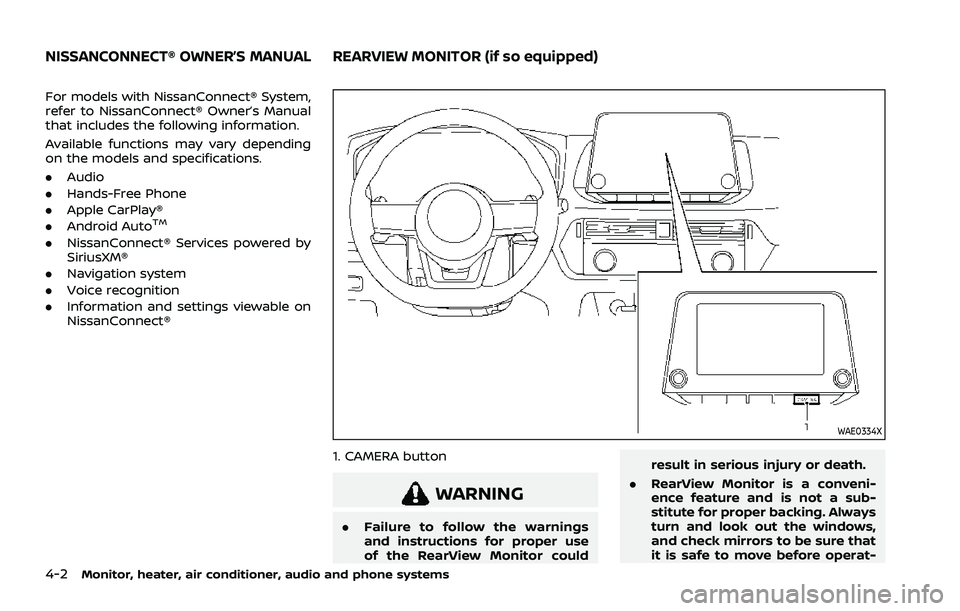
1. CAMERA button
WARNING
.Failure to follow the warnings
and instructions for proper use
of the RearView Monitor could result in serious injury or death.
. RearView Monitor is a conveni-
ence feature and is not a sub-
stitute for proper backing. Always
turn and look out the windows,
and check mirrors to be sure that
it is safe to move before operat-
NISSANCONNECT® OWNER’S MANUALREARVIEW MONITOR (if so equipped)
Page 217 of 556
ing the vehicle. Always back up
slowly.
. The system is designed as an aid
to the driver in showing large
stationary objects directly behind
the vehicle, to help avoid dama-
ging the vehicle.
. The distance guide line and the
vehicle width line should be used
as a reference only when the
vehicle is on a level paved sur-
face. The distance viewed on the
monitor is for reference only and
may be different than the actual
distance between the vehicle and
displayed objects.
CAUTION
Do not scratch the camera lens when
cleaning dirt or snow from the front
of the camera.
The RearView Monitor system automati-
cally shows a rear view of the vehicle
when the shift lever is placed in the R
(Reverse) position.
The radio can still be heard while the
RearView Monitor is active.
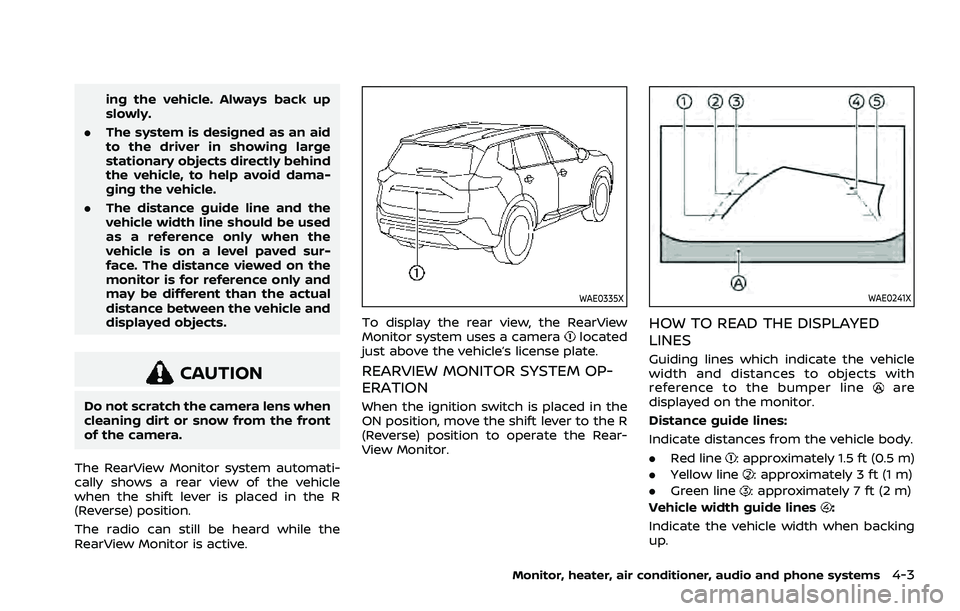
WAE0335X
To display the rear view, the RearView
Monitor system uses a cameralocated
just above the vehicle’s license plate.
REARVIEW MONITOR SYSTEM OP-
ERATION
When the ignition switch is placed in the
ON position, move the shift lever to the R
(Reverse) position to operate the Rear-
View Monitor.
WAE0241X
HOW TO READ THE DISPLAYED
LINES
Guiding lines which indicate the vehicle
width and distances to objects with
reference to the bumper line
are
displayed on the monitor.
Distance guide lines:
Indicate distances from the vehicle body.
. Red line
: approximately 1.5 ft (0.5 m)
. Yellow line
: approximately 3 ft (1 m)
. Green line
: approximately 7 ft (2 m)
Vehicle width guide lines
:
Indicate the vehicle width when backing
up.
Monitor, heater, air conditioner, audio and phone systems4-3
Page 222 of 556
4-8Monitor, heater, air conditioner, audio and phone systems
.Objects viewed in the RearView
Monitor differ from actual dis-
tance because a wide-angle lens
is used.
. Objects in the RearView Monitor
will appear visually opposite
compared to when viewed in the
rearview and outside mirrors.
. Use the displayed lines as a re-
ference. The lines are highly af-
fected by the number of
occupants, fuel level, vehicle po-
sition, road conditions and road
grade.
. Make sure that the liftgate is
securely closed when backing up.
. Do not put anything on the rear-
view camera. The rearview cam-
era is installed above the license
plate.
. When washing the vehicle with
high-pressure water, be sure not
to spray it around the camera.
Otherwise, water may enter the
camera unit causing water con-
densation on the lens, a malfunc-
tion, fire or an electric shock.
. Do not strike the camera. It is a
precision instrument. Otherwise,
it may malfunction or cause da-
mage resulting in a fire or an electric shock.
The following are operating limitations
and do not represent a system malfunc-
tion:
. When the temperature is extremely
high or low, the screen may not clearly
display objects.
. When strong light directly shines on
the camera, objects may not be dis-
played clearly.
. Vertical lines may be seen in objects
on the screen. This is due to strong
reflected light from the bumper.
. The screen may flicker under fluores-
cent light.
. The colors of objects on the RearView
Monitor may differ somewhat from
the actual color of objects.
. Objects on the monitor may not be
clear in a dark environment.
. There may be a delay when switching
between views.
. If dirt, rain or snow accumulates on
the camera, the RearView Monitor
may not display objects clearly. Clean
the camera.
. Do not use wax on the camera lens.
Wipe off any wax with a clean cloth
dampened with a diluted mild clean-
ing agent, then wipe with a dry cloth.
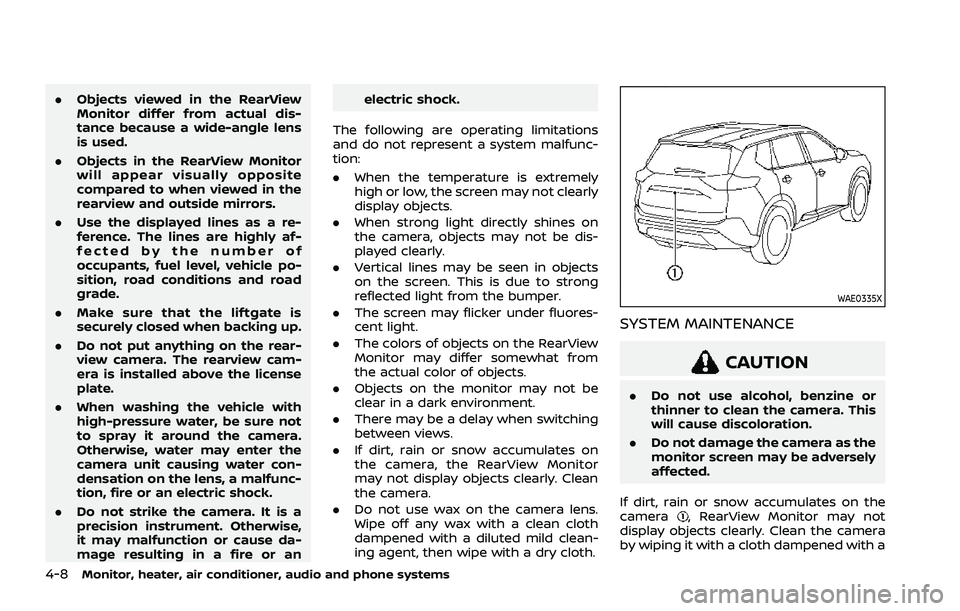
WAE0335X
SYSTEM MAINTENANCE
CAUTION
.Do not use alcohol, benzine or
thinner to clean the camera. This
will cause discoloration.
. Do not damage the camera as the
monitor screen may be adversely
affected.
If dirt, rain or snow accumulates on the
camera
, RearView Monitor may not
display objects clearly. Clean the camera
by wiping it with a cloth dampened with a
Page 231 of 556
WAE0546X
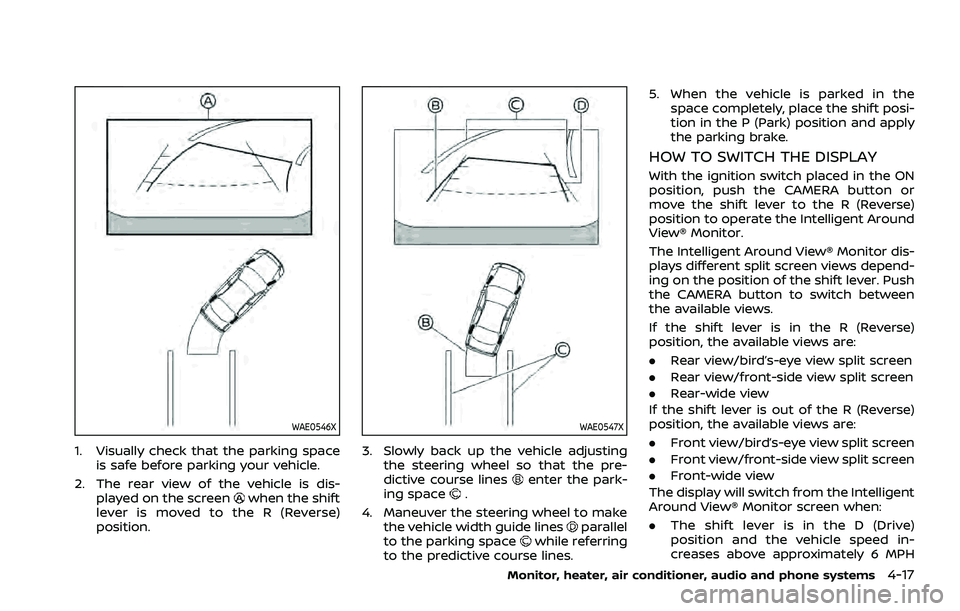
1. Visually check that the parking spaceis safe before parking your vehicle.
2. The rear view of the vehicle is dis- played on the screen
when the shift
lever is moved to the R (Reverse)
position.
WAE0547X
3. Slowly back up the vehicle adjusting the steering wheel so that the pre-
dictive course lines
enter the park-
ing space.
4. Maneuver the steering wheel to make the vehicle width guide lines
parallel
to the parking spacewhile referring
to the predictive course lines. 5. When the vehicle is parked in the
space completely, place the shift posi-
tion in the P (Park) position and apply
the parking brake.
HOW TO SWITCH THE DISPLAY
With the ignition switch placed in the ON
position, push the CAMERA button or
move the shift lever to the R (Reverse)
position to operate the Intelligent Around
View® Monitor.
The Intelligent Around View® Monitor dis-
plays different split screen views depend-
ing on the position of the shift lever. Push
the CAMERA button to switch between
the available views.
If the shift lever is in the R (Reverse)
position, the available views are:
.Rear view/bird’s-eye view split screen
. Rear view/front-side view split screen
. Rear-wide view
If the shift lever is out of the R (Reverse)
position, the available views are:
. Front view/bird’s-eye view split screen
. Front view/front-side view split screen
. Front-wide view
The display will switch from the Intelligent
Around View® Monitor screen when:
. The shift lever is in the D (Drive)
position and the vehicle speed in-
creases above approximately 6 MPH
Monitor, heater, air conditioner, audio and phone systems4-17
Page 238 of 556
4-24Monitor, heater, air conditioner, audio and phone systems
WAE0549XRear and front-side views
WAE0550XFront-wide view / rear-wide view
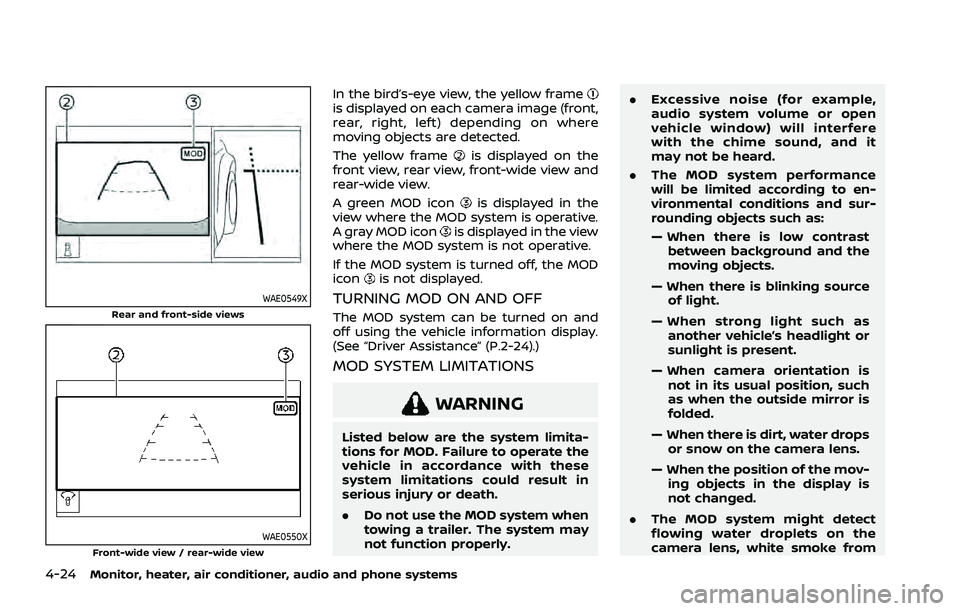
In the bird’s-eye view, the yellow frameis displayed on each camera image (front,
rear, right, left) depending on where
moving objects are detected.
The yellow frame
is displayed on the
front view, rear view, front-wide view and
rear-wide view.
A green MOD icon
is displayed in the
view where the MOD system is operative.
A gray MOD icon
is displayed in the view
where the MOD system is not operative.
If the MOD system is turned off, the MOD
icon
is not displayed.
TURNING MOD ON AND OFF
The MOD system can be turned on and
off using the vehicle information display.
(See “Driver Assistance” (P.2-24).)
MOD SYSTEM LIMITATIONS
WARNING
Listed below are the system limita-
tions for MOD. Failure to operate the
vehicle in accordance with these
system limitations could result in
serious injury or death.
. Do not use the MOD system when
towing a trailer. The system may
not function properly. .
Excessive noise (for example,
audio system volume or open
vehicle window) will interfere
with the chime sound, and it
may not be heard.
. The MOD system performance
will be limited according to en-
vironmental conditions and sur-
rounding objects such as:
— When there is low contrast
between background and the
moving objects.
— When there is blinking source of light.
— When strong light such as another vehicle’s headlight or
sunlight is present.
— When camera orientation is not in its usual position, such
as when the outside mirror is
folded.
— When there is dirt, water drops or snow on the camera lens.
— When the position of the mov- ing objects in the display is
not changed.
. The MOD system might detect
flowing water droplets on the
camera lens, white smoke from
Page 293 of 556
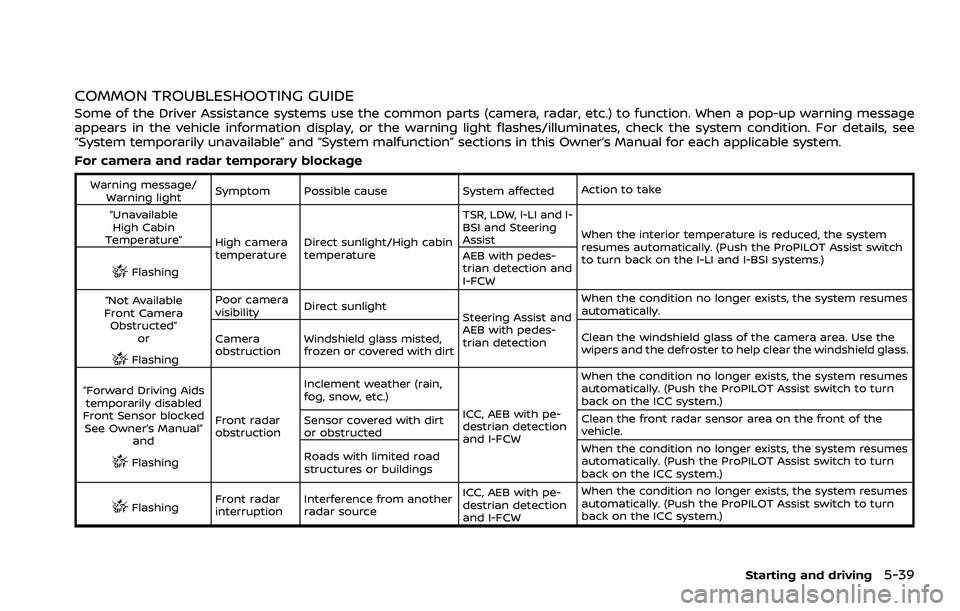
COMMON TROUBLESHOOTING GUIDE
Some of the Driver Assistance systems use the common parts (camera, radar, etc.) to function. When a pop-up warning message
appears in the vehicle information display, or the warning light flashes/illuminates, check the system condition. For details, see
“System temporarily unavailable” and “System malfunction” sections in this Owner’s Manual for each applicable system.
For camera and radar temporary blockage
Warning message/Warning light Symptom Possible cause System affected
Action to take
“Unavailable High Cabin
Temperature” High camera
temperatureDirect sunlight/High cabin
temperature TSR, LDW, I-LI and I-
BSI and Steering
Assist
When the interior temperature is reduced, the system
resumes automatically. (Push the ProPILOT Assist switch
to turn back on the I-LI and I-BSI systems.)
Flashing AEB with pedes-
trian detection and
I-FCW
“Not Available
Front Camera Obstructed”
or
Flashing Poor camera
visibility
Direct sunlight
Steering Assist and
AEB with pedes-
trian detectionWhen the condition no longer exists, the system resumes
automatically.
Camera
obstruction Windshield glass misted,
frozen or covered with dirt Clean the windshield glass of the camera area. Use the
wipers and the defroster to help clear the windshield glass.
“Forward Driving Aids temporarily disabled
Front Sensor blocked See Owner’s Manual” and
Flashing Front radar
obstruction Inclement weather (rain,
fog, snow, etc.)
ICC, AEB with pe-
destrian detection
and I-FCWWhen the condition no longer exists, the system resumes
automatically. (Push the ProPILOT Assist switch to turn
back on the ICC system.)
Sensor covered with dirt
or obstructed Clean the front radar sensor area on the front of the
vehicle.
Roads with limited road
structures or buildings When the condition no longer exists, the system resumes
automatically. (Push the ProPILOT Assist switch to turn
back on the ICC system.)
Flashing
Front radar
interruption Interference from another
radar source ICC, AEB with pe-
destrian detection
and I-FCWWhen the condition no longer exists, the system resumes
automatically. (Push the ProPILOT Assist switch to turn
back on the ICC system.)
Starting and driving5-39
Page 365 of 556
structed, the ICC system will automati-
cally be canceled.
The chime will sound and the “Forward
Driving Aids temporarily disabled Front
Sensor blocked” warning message will
appear in the vehicle information display.
Action to take:
If the warning message appears, stop the
vehicle in a safe place, push the park
button to engage the P (Park) position,
and turn the engine off. When the radar
signal is temporarily interrupted, clean
the sensor area and restart the engine. If
the warning message continues to ap-
pear, have the system checked. It is
recommended that you visit a NISSAN
dealer for this service.
Condition D:
When driving on roads with limited road
structures or buildings (for example, long
bridges, deserts, snow fields, driving next
to long walls), the system may display the
“Forward Driving Aids temporarily dis-
abled Front Sensor blocked” message.
Action to take:
When the above driving conditions no
longer exist, turn the system back on.ICC system malfunction
If the ICC system malfunctions, it will be
turned off automatically, a chime will
sound, and the speed control status
warning (orange) will illuminate.
Action to take:
If the warning illuminates, stop the vehicle
in a safe place. Turn the engine off, restart
the engine and set the ICC system again.
If it is not possible to set the ICC system or
the warning stays on, it may be a
malfunction. Although the normal driving
can be continued, the ICC system should
be inspected. It is recommended that you
visit a NISSAN dealer for this service.
NOTE:
If the ICC system is temporarily unavail-
able, the conventional cruise control
mode may still be used. For additional
information, see “Conventional (fixed
speed) cruise control mode” (P.5-118).
ICC sensor maintenance
The radar sensor is located on the front of
the vehicle.
To keep the ICC system operating prop-
erly, be sure to observe the following:
.Always keep the sensor area clean.
. Do not strike or damage the areas
around the sensor.
. Do not attach a sticker (including
transparent material) or install an
accessory near the sensor. This could
cause failure or malfunction.
. Do not attach metallic objects near
the sensor area (brush guard, etc.).
This could cause failure or malfunc-
tion.
. Do not alter, remove, or paint the front
bumper.
Before customizing or restoring the front
bumper, it is recommended that you visit
a NISSAN dealer.
The camera sensor is located above the
inside mirror.
To keep the proper operation of the
systems and prevent a system malfunc-
tion, be sure to observe the following:
. Always keep the windshield clean.
. Do not attach a sticker (including
transparent material) or install an
accessory near the camera unit.
Starting and driving5-111
Page 381 of 556
— If there is interference byother radar sources.
— When your vehicle’s position or movement is changed
quickly or significantly (for
example, lane change, turning
vehicle, abrupt steering, sud-
den acceleration or decelera-
tion).
— When your vehicle or the ve- hicle, pedestrian or cyclist
ahead moves quickly or sig-
nificantly such that the sys-
tem cannot detect and react
in time (for example, pedes-
trian moving quickly toward
the vehicle at close range,
vehicle cutting in, changing
lanes, making a turn, steering
abruptly, sudden acceleration
or deceleration).
— When the vehicle, pedestrian or cyclist is offset from the
vehicle’s forward path.
— If the speed difference be- tween the two vehicles is
small.
— The pedestrian’s profile is par- tially obscured or unidentifi-
able; for example, due to transporting luggage, push-
ing a stroller, wearing bulky
or very loose-fitting clothing
or accessories, or being in a
unique posture (such as rais-
ing hands).
— There is poor contrast of a person to the background,
such as having clothing color
or pattern which is similar to
the background.
— For approximately 15 seconds after starting the engine
— If the vehicle ahead has a unique or unusual shape, ex-
tremely low or high clearance
heights, or unusual cargo
loading or is narrow (for ex-
ample, a motorcycle).
— When the vehicle, pedestrian or cyclist is located near a
traffic sign, a reflective area
(for example, water on road),
or is in a shadow.
— When multiple pedestrians or cyclists are grouped together.
— When the view of the pedes- trian or cyclist is obscured by
a vehicle or other object. — While towing a trailer or other
vehicle.
. The system performance may be
degraded in the following condi-
tions:
— The vehicle is driven on a
slippery road.
— The vehicle is driven on a slope.
— Excessively heavy baggage is loaded in the rear seat or the
cargo area of your vehicle.
. The system is designed to auto-
matically check the sensor (radar
and camera)’s functionality, with-
in certain limitations. The system
may not detect some forms of
obstruction of the sensor area
such as ice, snow or stickers, for
example. In these cases, the sys-
tem may not be able to warn the
driver properly. Be sure that you
check, clean and clear sensor
areas regularly.
. In some road and traffic condi-
tions, the AEB with pedestrian
detection system may unexpect-
edly apply partial braking. When
acceleration is necessary, de-
press the accelerator pedal to
Starting and driving5-127