navigation system NISSAN ROGUE HYBRID 2017 2.G User Guide
[x] Cancel search | Manufacturer: NISSAN, Model Year: 2017, Model line: ROGUE HYBRID, Model: NISSAN ROGUE HYBRID 2017 2.GPages: 520
Page 122 of 520
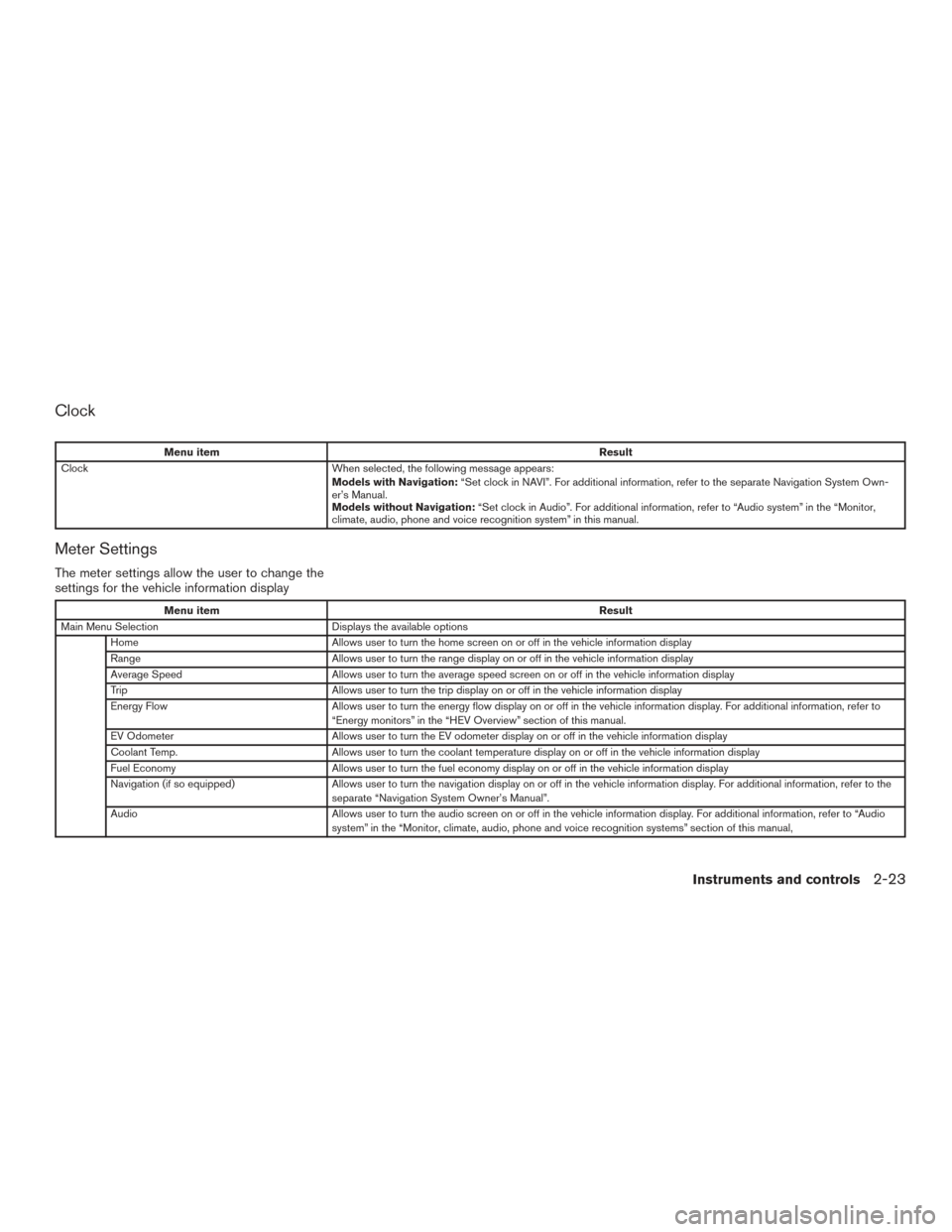
Clock
Menu itemResult
Clock When selected, the following message appears:
Models with Navigation:“Set clock in NAVI”. For additional information, refer to the separate Navigation System Own-
er’s Manual.
Models without Navigation: “Set clock in Audio”. For additional information, refer to “Audio system” in the “Monitor,
climate, audio, phone and voice recognition system” in this manual.
Meter Settings
The meter settings allow the user to change the
settings for the vehicle information display
Menu item Result
Main Menu Selection Displays the available options
Home Allows user to turn the home screen on or off in the vehicle information display
Range Allows user to turn the range display on or off in the vehicle information display
Average Speed Allows user to turn the average speed screen on or off in the vehicle information display
Trip Allows user to turn the trip display on or off in the vehicle information display
Energy Flow Allows user to turn the energy flow display on or off in the vehicle information display. For additional information, refer to
“Energy monitors” in the “HEV Overview” section of this manual.
EV Odometer Allows user to turn the EV odometer display on or off in the vehicle information display
Coolant Temp. Allows user to turn the coolant temperature display on or off in the vehicle information display
Fuel Economy Allows user to turn the fuel economy display on or off in the vehicle information display
Navigation (if so equipped) Allows user to turn the navigation display on or off in the vehicle information display. For additional information, refe rtothe
separate “Navigation System Owner’s Manual”.
Audio Allows user to turn the audio screen on or off in the vehicle information display. For additional information, refer to “Audio
system” in the “Monitor, climate, audio, phone and voice recognition systems” section of this manual,
Instruments and controls2-23
Page 170 of 520
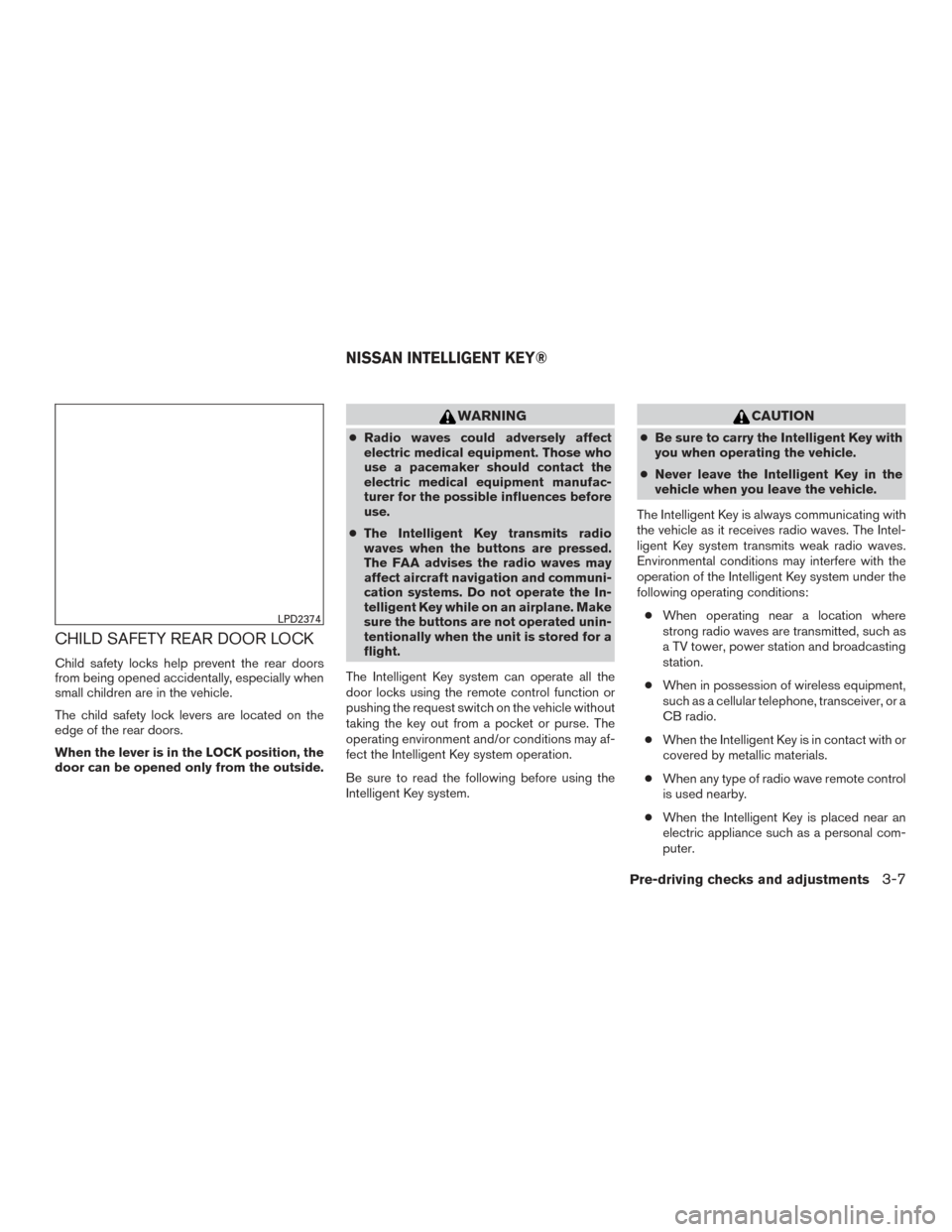
CHILD SAFETY REAR DOOR LOCK
Child safety locks help prevent the rear doors
from being opened accidentally, especially when
small children are in the vehicle.
The child safety lock levers are located on the
edge of the rear doors.
When the lever is in the LOCK position, the
door can be opened only from the outside.
WARNING
●Radio waves could adversely affect
electric medical equipment. Those who
use a pacemaker should contact the
electric medical equipment manufac-
turer for the possible influences before
use.
● The Intelligent Key transmits radio
waves when the buttons are pressed.
The FAA advises the radio waves may
affect aircraft navigation and communi-
cation systems. Do not operate the In-
telligent Key while on an airplane. Make
sure the buttons are not operated unin-
tentionally when the unit is stored for a
flight.
The Intelligent Key system can operate all the
door locks using the remote control function or
pushing the request switch on the vehicle without
taking the key out from a pocket or purse. The
operating environment and/or conditions may af-
fect the Intelligent Key system operation.
Be sure to read the following before using the
Intelligent Key system.
CAUTION
● Be sure to carry the Intelligent Key with
you when operating the vehicle.
● Never leave the Intelligent Key in the
vehicle when you leave the vehicle.
The Intelligent Key is always communicating with
the vehicle as it receives radio waves. The Intel-
ligent Key system transmits weak radio waves.
Environmental conditions may interfere with the
operation of the Intelligent Key system under the
following operating conditions: ● When operating near a location where
strong radio waves are transmitted, such as
a TV tower, power station and broadcasting
station.
● When in possession of wireless equipment,
such as a cellular telephone, transceiver, or a
CB radio.
● When the Intelligent Key is in contact with or
covered by metallic materials.
● When any type of radio wave remote control
is used nearby.
● When the Intelligent Key is placed near an
electric appliance such as a personal com-
puter.
LPD2374
NISSAN INTELLIGENT KEY®
Pre-driving checks and adjustments3-7
Page 204 of 520
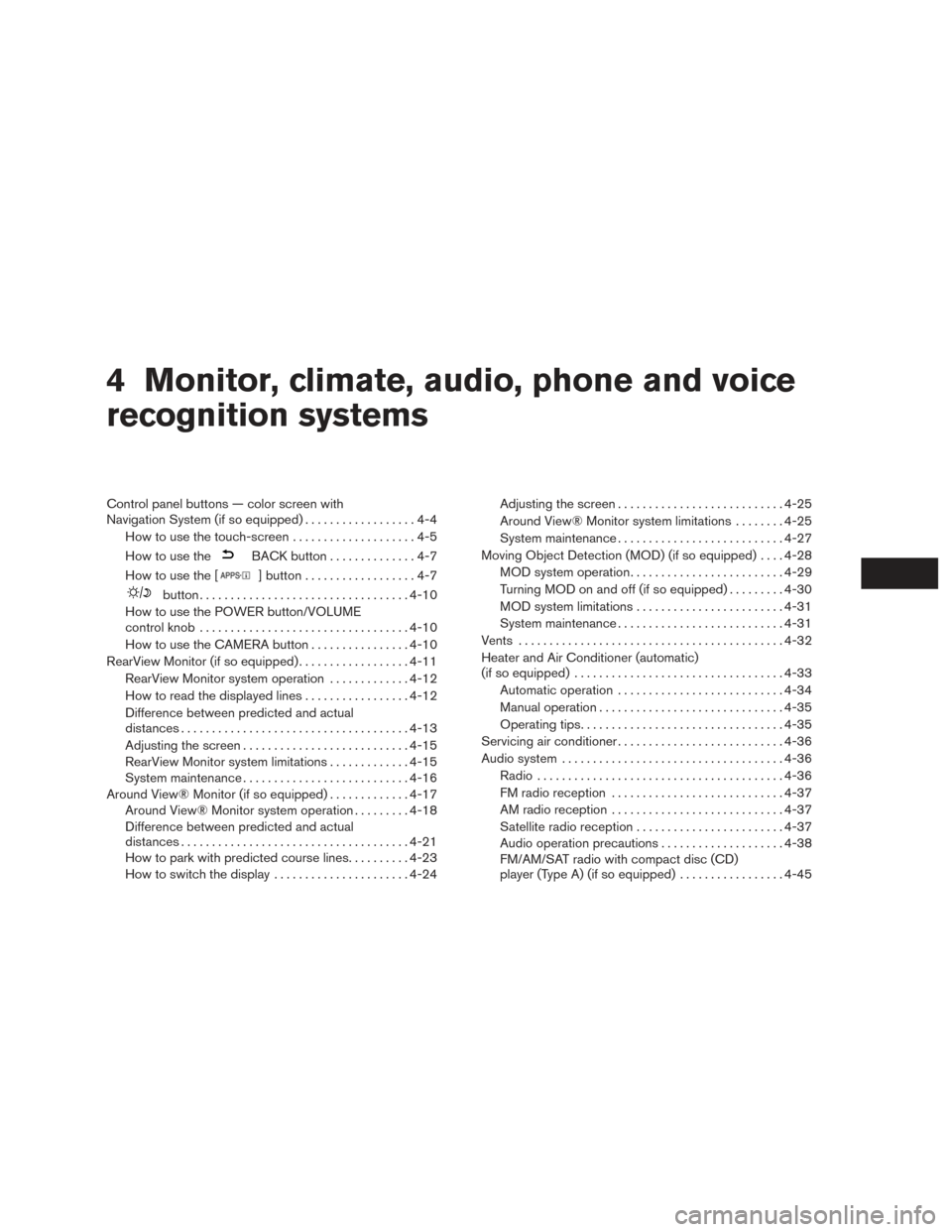
4 Monitor, climate, audio, phone and voice
recognition systems
Control panel buttons — color screen with
Navigation System (if so equipped)..................4-4
How to use the touch-screen . . ..................4-5
How to use the
BACK button ..............4-7
How to use the [
] button ..................4-7
button.................................. 4-10
How to use the POWER button/VOLUME
control knob .................................. 4-10
How to use the CAMERA button ................4-10
RearView Monitor (if so equipped) ..................4-11
RearView Monitor system operation .............4-12
How to read the displayed lines .................4-12
Difference between predicted and actual
distances ..................................... 4-13
Adjusting the screen ........................... 4-15
RearView Monitor system limitations .............4-15
System maintenance ........................... 4-16
Around View® Monitor (if so equipped) .............4-17
Around View® Monitor system operation .........4-18
Difference between predicted and actual
distances ..................................... 4-21
How to park with predicted course lines ..........4-23
How to switch the display ......................4-24Adjusting the screen
........................... 4-25
Around View® Monitor system limitations ........4-25
System maintenance ........................... 4-27
Moving Object Detection (MOD) (if so equipped) ....4-28
MOD system operation ......................... 4-29
Turning MOD on and off (if so equipped) .........4-30
MOD system limitations ........................ 4-31
System maintenance ........................... 4-31
Vents ........................................... 4-32
Heater and Air Conditioner (automatic)
(if so equipped) .................................. 4-33
Automatic operation ........................... 4-34
Manual operation .............................. 4-35
Operating tips ................................. 4-35
Servicing air conditioner ........................... 4-36
Audio system .................................... 4-36
Radio ........................................ 4-36
FM radio reception ............................ 4-37
AM radio reception ............................ 4-37
Satellite radio
reception ........................ 4-37
Audio operation precautions ....................4-38
FM/AM/SAT radio with compact disc (CD)
player (Type A) (if so equipped) .................4-45
Page 205 of 520
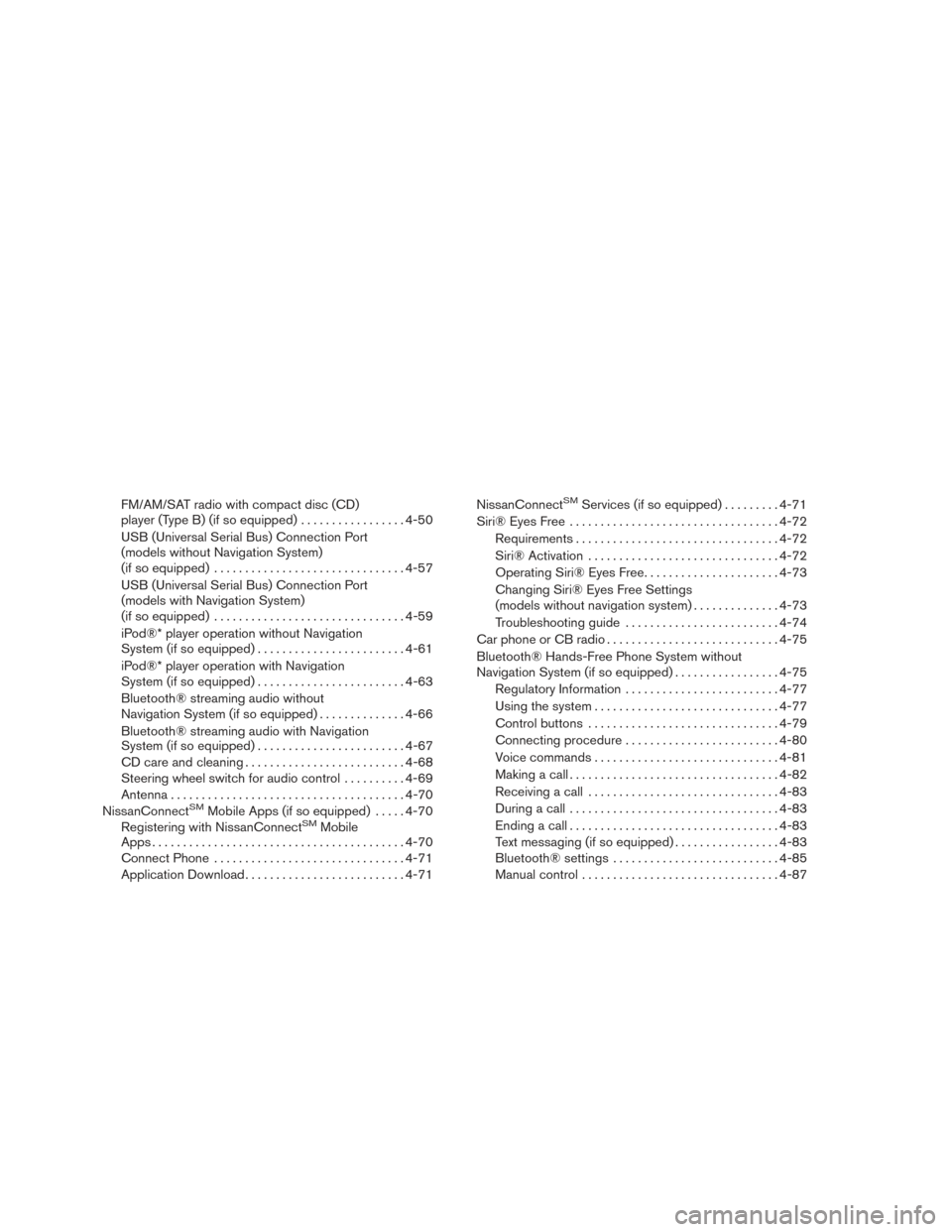
FM/AM/SAT radio with compact disc (CD)
player (Type B) (if so equipped).................4-50
USB (Universal Serial Bus) Connection Port
(models without Navigation System)
(if so equipped) ............................... 4-57
USB (Universal Serial Bus) Connection Port
(models with Navigation System)
(if so equipped) ............................... 4-59
iPod®* player operation without Navigation
System (if so equipped) ........................ 4-61
iPod®* player operation with Navigation
System (if so equipped) ........................ 4-63
Bluetooth® streaming audio without
Navigation System (if so equipped) ..............4-66
Bluetooth® streaming audio with Navigation
System (if so equipped) ........................ 4-67
CD care and cleaning .......................... 4-68
Steering wheel switch for audio control ..........4-69
Antenna ...................................... 4-70
NissanConnect
SMMobile Apps (if so equipped) .....4-70
Registering with NissanConnectSMMobile
Apps ......................................... 4-70
Connect Phone ............................... 4-71
Application Download .......................... 4-71NissanConnect
SMServices (if so equipped) .
........4-71
Siri® Eyes Free .................................. 4-72
Requirements ................................. 4-72
Siri® Activation ............................... 4-72
Operating Siri® Eyes Free ......................4-73
Changing Siri® Eyes Free Settings
(models without navigation system) ..............4-73
Troubleshooting guide ......................... 4-74
Car phone or CB radio ............................ 4-75
Bluetooth® Hands-Free Phone System without
Navigation System (if so equipped) .................4-75
Regulatory Information ......................... 4-77
Using the system .............................. 4-77
Control buttons ............................... 4-79
Connecting procedure ......................... 4-80
Voice commands .............................. 4-81
Making a call . ................................. 4-82
Receiving a call ............................... 4-83
During a call .................................. 4-83
Ending a call .................................. 4-83
Text messaging (if so equipped) .................4-83
Bluetooth® settings ........................... 4-85
Manual control . . .............................. 4-87
Page 206 of 520
Troubleshooting guide......................... 4-87
Bluetooth® Hands-Free Phone System with
Navigation System (if so equipped) .................4-88
Regulatory Information ......................... 4-89
Voice commands .............................. 4-90
Connecting Procedure ......................... 4-91
Vehicle phonebook ............................ 4-91
Making a call .................................. 4-91
Receiving a call ............................... 4-92
During a call .................................. 4-92
Ending a call .................................. 4-92
Text messaging (if so equipped) .................4-92
Bluetooth® settings ........................... 4-94
Phone settings ................................ 4-95Troubleshooting guide
......................... 4-96
NISSAN Voice Recognition System
(if so equipped) .................................. 4-97
Using the system .............................. 4-97
System features ............................... 4-98
Bluetooth® Hands-Free Phone System
voice commands .............................. 4-99
Navigation System voice commands ............4-100
Audio system voice commands .................4-100
Information voice commands ...................4-100
My Apps Voice Commands ....................4-100
Help voice commands ........................ 4-101
Troubleshooting guide ........................ 4-101
Page 207 of 520
WARNING
●Positioning of the heating or air condi-
tioning controls and display controls
should not be done while driving in or-
der that full attention may be given to
the driving operation.
● Do not disassemble or modify this sys-
tem. If you do, it may result in accidents,
fire, or electrical shock.
● Do not use this system if you notice any
abnormality, such as a frozen screen or
lack of sound. Continued use of the
system may result in accident, fire or
electric shock.
● In case you notice any foreign object in
the system hardware, spill liquid on it,
or notice smoke or smell coming from it,
stop using the system immediately. Ig-
noring such conditions may lead to ac-
cidents, fire or electrical shock. It is rec-
ommended that you visit a NISSAN
dealer for servicing.
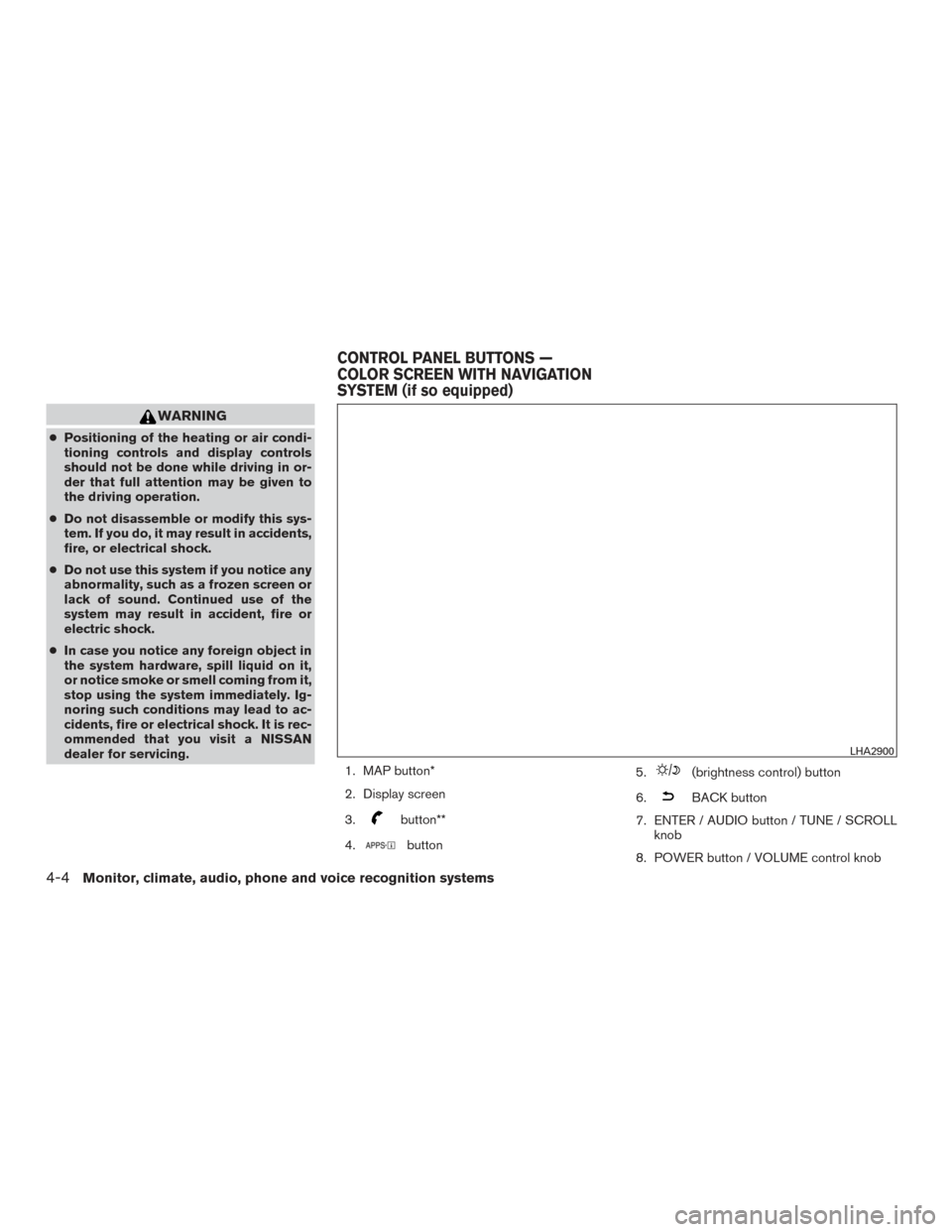
1. MAP button*
2. Display screen
3.
button**
4.
button 5.
(brightness control) button
6.
BACK button
7. ENTER / AUDIO button / TUNE / SCROLL knob
8. POWER button / VOLUME control knob
LHA2900
CONTROL PANEL BUTTONS —
COLOR SCREEN WITH NAVIGATION
SYSTEM (if so equipped)
4-4Monitor, climate, audio, phone and voice recognition systems
Page 208 of 520
9. CAMERA button
10. NAV button*
* For additional information, refer to the separate
Navigation System Owner’s Manual regarding
the Navigation system control buttons .
** For additional information, refer to “Bluetooth®
Hands-Free Phone System with Navigation Sys-
tem” in this section regarding the Bluetooth®
Hands-Free Phone System control button.
When you use this system, make sure the hybrid
system is running.
If you use the system with the hybrid sys-
tem not running for a long time, it will
discharge the battery, and the hybrid sys-
tem will not start.
Reference symbols:
“Example” — Words marked in quotes refer to a
key shown only on the display. These keys can be
selected by touching the screen.HOW TO USE THE TOUCH-
SCREEN
CAUTION
● The glass display screen may break if it
is hit with a hard or sharp object. If the
glass screen breaks, do not touch it.
Doing so could result in an injury.
● To clean the display, never use a rough
cloth, alcohol, benzine, thinner or any
kind of solvent or paper towel with a
chemical cleaning agent. They will
scratch or deteriorate the panel.
● Do not splash any liquid such as water
or car fragrance on the display. Contact
with liquid will cause the system to
malfunction.
To help ensure safe driving, some functions can-
not be operated while driving.
The on-screen functions that are not available
while driving will be “grayed out” or muted.
Park the vehicle in a safe location and then oper-
ate the navigation system.
WARNING
● ALWAYS give your full attention to
driving.
● Avoid using vehicle features that could
distract you. If distracted, you could
lose control of your vehicle and cause
an accident.
Monitor, climate, audio, phone and voice recognition systems4-5
Page 210 of 520
Touch-screen maintenance
If you clean the display screen, use a dry, soft
cloth. If additional cleaning is necessary, use a
small amount of neutral detergent with a soft
cloth. Never spray the screen with water or de-
tergent. Dampen the cloth first and then wipe the
screen.
HOW TO USE THEBACK
BUTTON
Press theBACK button to return to the
previous screen.
HOW TO USE THE [] BUTTON
For additional information, refer to the separate
Navigation System Owner’s Manual regarding
the “SiriusXM® Travel Link”, and “Traffic” fea-
tures.
For additional information, refer to “NissanCon-
nect
SMMobile Apps” in this section regarding
“My Apps” key.
For additional information, refer to “NISSAN
Voice Recognition System” in this section re-
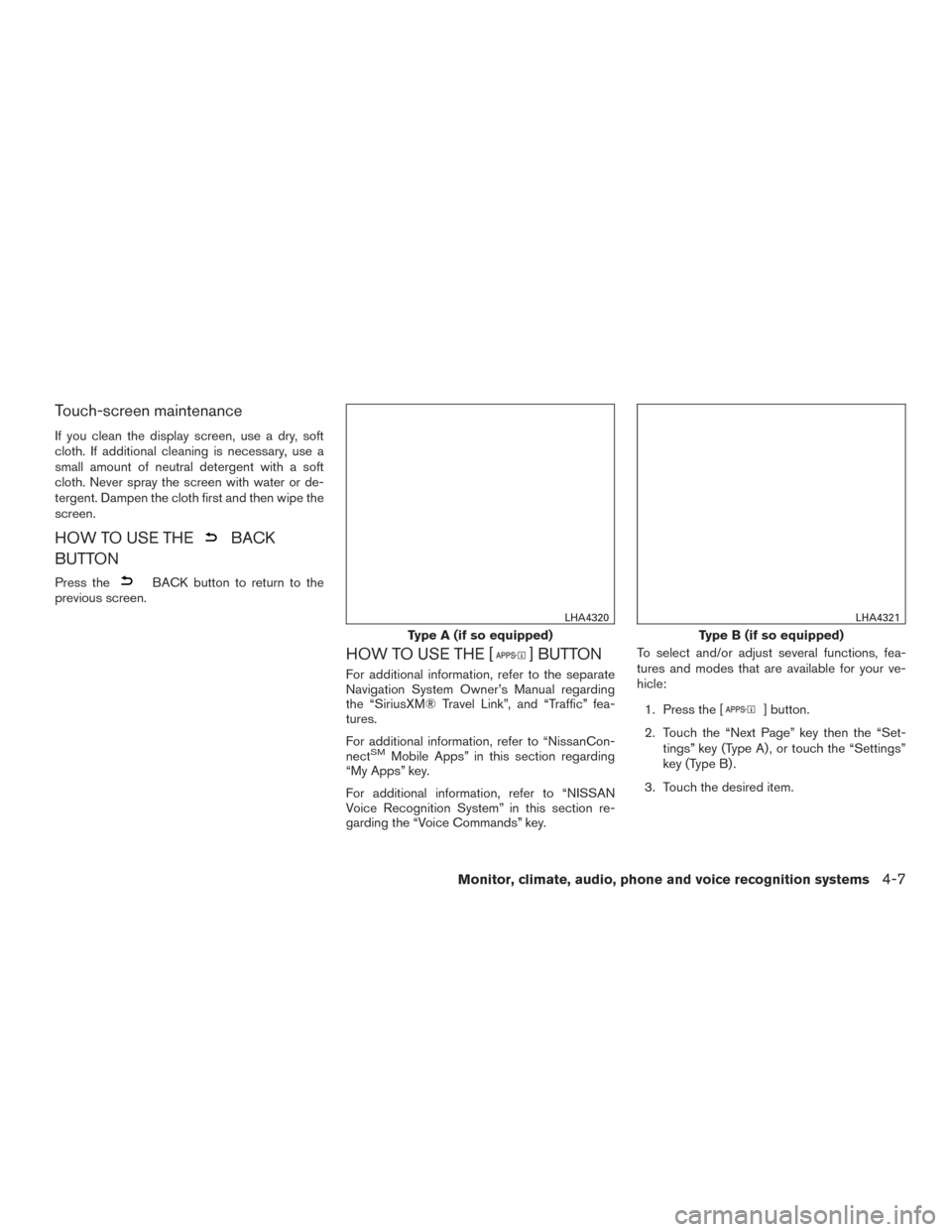
garding the “Voice Commands” key. To select and/or adjust several functions, fea-
tures and modes that are available for your ve-
hicle:
1. Press the [
] button.
2. Touch the “Next Page” key then the “Set- tings” key (Type A) , or touch the “Settings”
key (Type B) .
3. Touch the desired item.
Type A (if so equipped)
LHA4320
Type B (if so equipped)
LHA4321
Monitor, climate, audio, phone and voice recognition systems4-7
Page 212 of 520
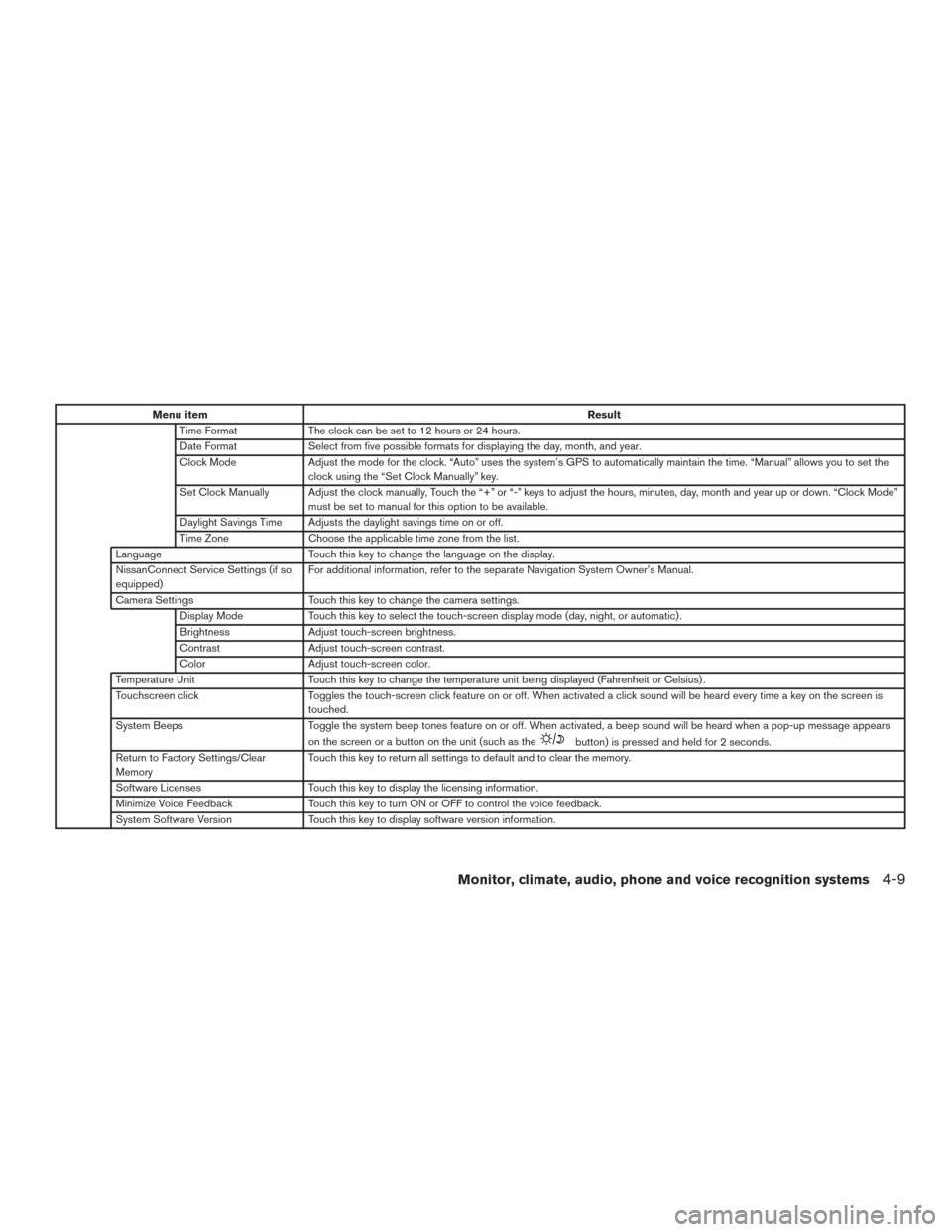
Menu itemResult
Time Format The clock can be set to 12 hours or 24 hours.
Date Format Select from five possible formats for displaying the day, month, and year.
Clock Mode Adjust the mode for the clock. “Auto” uses the system’s GPS to automatically maintain the time. “Manual” allows you to set the
clock using the “Set Clock Manually” key.
Set Clock Manually Adjust the clock manually, Touch the “+” or “-” keys to adjust the hours, minutes, day, month and year up or down. “Clock Mode” must be set to manual for this option to be available.
Daylight Savings Time Adjusts the daylight savings time on or off.
Time Zone Choose the applicable time zone from the list.
Language Touch this key to change the language on the display.
NissanConnect Service Settings (if so
equipped) For additional information, refer to the separate Navigation System Owner’s Manual.
Camera Settings Touch this key to change the camera settings.
Display Mode Touch this key to select the touch-screen display mode (day, night, or automatic) .
Brightness Adjust touch-screen brightness.
Contrast Adjust touch-screen contrast.
Color Adjust touch-screen color.
Temperature Unit Touch this key to change the temperature unit being displayed (Fahrenheit or Celsius) .
Touchscreen click Toggles the touch-screen click feature on or off. When activated a click sound will be heard every time a key on the screen is
touched.
System Beeps Toggle the system beep tones feature on or off. When activated, a beep sound will be heard when a pop-up message appears
on the screen or a button on the unit (such as the
button) is pressed and held for 2 seconds.
Return to Factory Settings/Clear
Memory Touch this key to return all settings to default and to clear the memory.
Software Licenses Touch this key to display the licensing information.
Minimize Voice Feedback Touch this key to turn ON or OFF to control the voice feedback.
System Software Version Touch this key to display software version information.
Monitor, climate, audio, phone and voice recognition systems4-9
Page 213 of 520
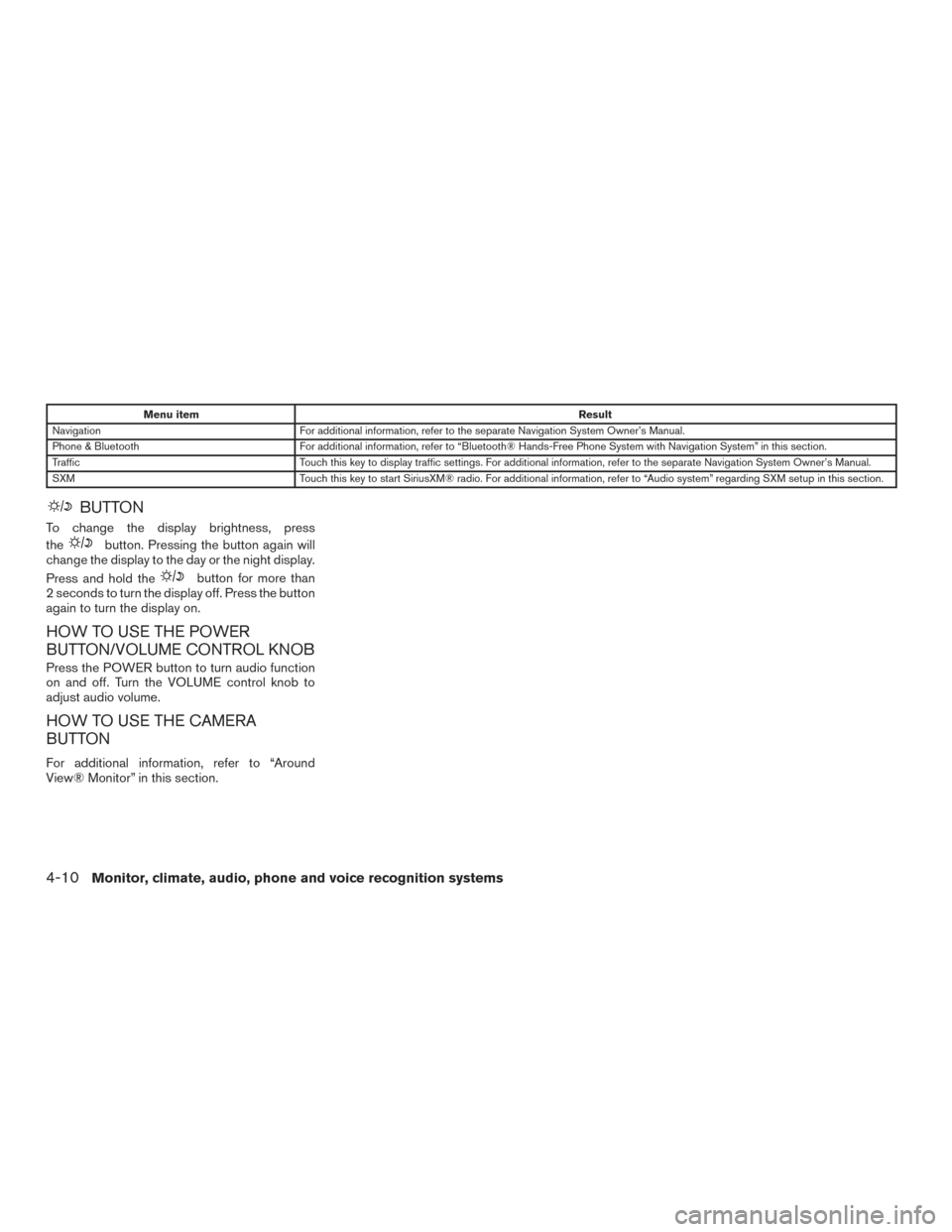
Menu itemResult
Navigation For additional information, refer to the separate Navigation System Owner’s Manual.
Phone & Bluetooth For additional information, refer to “Bluetooth® Hands-Free Phone System with Navigation System” in this section.
Traffic Touch this key to display traffic settings. For additional information, refer to the separate Navigation System Owner’s Manual.
SXM Touch this key to start SiriusXM® radio. For additional information, refer to “Audio system” regarding SXM setup in this section.
BUTTON
To change the display brightness, press
the
button. Pressing the button again will
change the display to the day or the night display.
Press and hold the
button for more than
2 seconds to turn the display off. Press the button
again to turn the display on.
HOW TO USE THE POWER
BUTTON/VOLUME CONTROL KNOB
Press the POWER button to turn audio function
on and off. Turn the VOLUME control knob to
adjust audio volume.
HOW TO USE THE CAMERA
BUTTON
For additional information, refer to “Around
View® Monitor” in this section.
4-10Monitor, climate, audio, phone and voice recognition systems