battery NISSAN ROGUE SPORT 2017 Owner's Manual
[x] Cancel search | Manufacturer: NISSAN, Model Year: 2017, Model line: ROGUE SPORT, Model: NISSAN ROGUE SPORT 2017Pages: 512, PDF Size: 3.33 MB
Page 167 of 512
3-22Pre-driving checks and adjustments
WARNING
To avoid risk of injury or death, do
not use the remote engine start
function when the vehicle is in an
enclosed area such as a garage.
JVP0446X
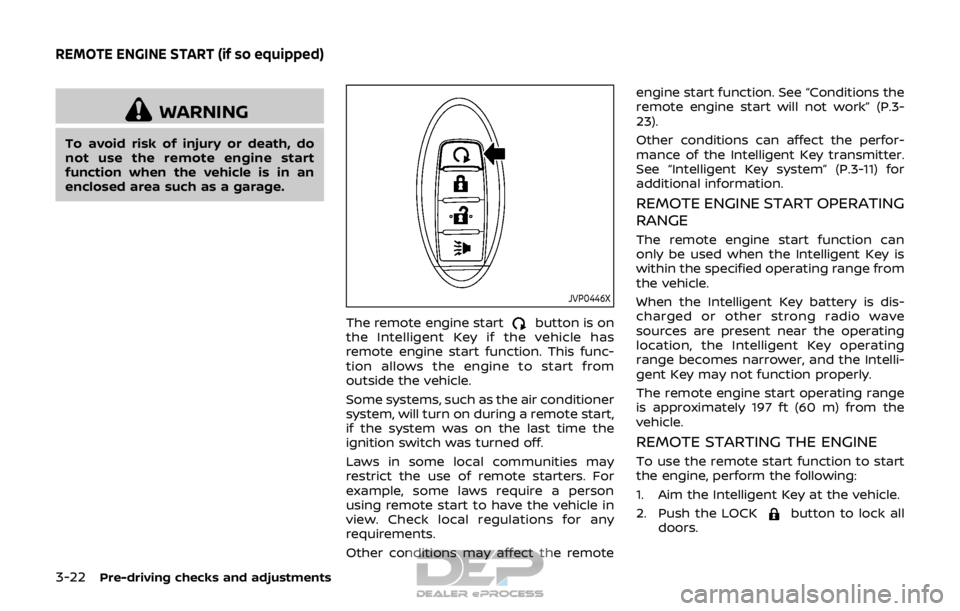
The remote engine startbutton is on
the Intelligent Key if the vehicle has
remote engine start function. This func-
tion allows the engine to start from
outside the vehicle.
Some systems, such as the air conditioner
system, will turn on during a remote start,
if the system was on the last time the
ignition switch was turned off.
Laws in some local communities may
restrict the use of remote starters. For
example, some laws require a person
using remote start to have the vehicle in
view. Check local regulations for any
requirements.
Other conditions may affect the remote engine start function. See “Conditions the
remote engine start will not work” (P.3-
23).
Other conditions can affect the perfor-
mance of the Intelligent Key transmitter.
See “Intelligent Key system” (P.3-11) for
additional information.
REMOTE ENGINE START OPERATING
RANGE
The remote engine start function can
only be used when the Intelligent Key is
within the specified operating range from
the vehicle.
When the Intelligent Key battery is dis-
charged or other strong radio wave
sources are present near the operating
location, the Intelligent Key operating
range becomes narrower, and the Intelli-
gent Key may not function properly.
The remote engine start operating range
is approximately 197 ft (60 m) from the
vehicle.
REMOTE STARTING THE ENGINE
To use the remote start function to start
the engine, perform the following:
1. Aim the Intelligent Key at the vehicle.
2. Push the LOCK
button to lock all
doors.
REMOTE ENGINE START (if so equipped)
Page 171 of 512
3-26Pre-driving checks and adjustments
CAUTION
Do not use accessory carriers that
attach to the liftgate. Doing so will
cause damage to the vehicle.
JVP0396X
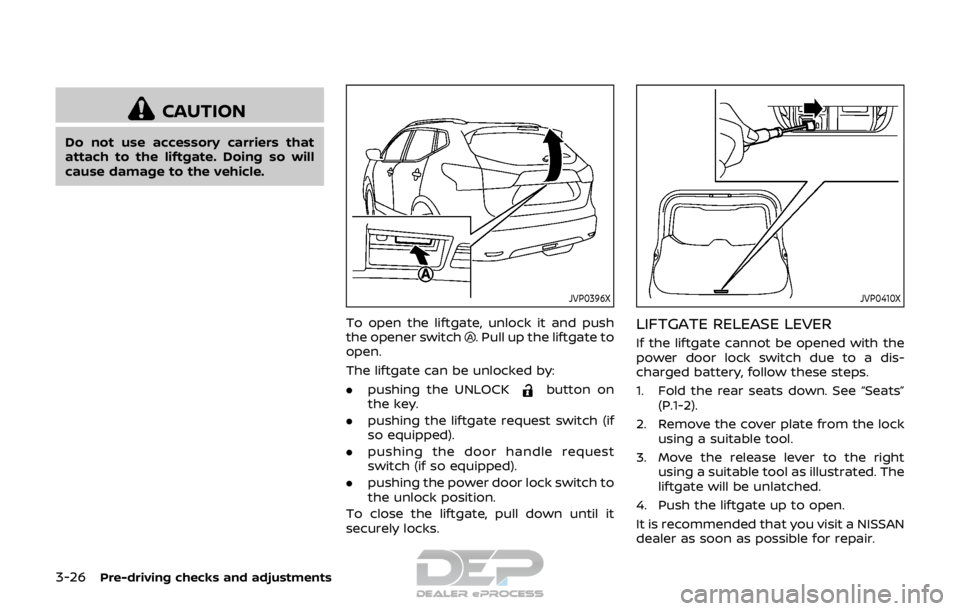
To open the liftgate, unlock it and push
the opener switch. Pull up the liftgate to
open.
The liftgate can be unlocked by:
. pushing the UNLOCK
button on
the key.
. pushing the liftgate request switch (if
so equipped).
. pushing the door handle request
switch (if so equipped).
. pushing the power door lock switch to
the unlock position.
To close the liftgate, pull down until it
securely locks.
JVP0410X
LIFTGATE RELEASE LEVER
If the liftgate cannot be opened with the
power door lock switch due to a dis-
charged battery, follow these steps.
1. Fold the rear seats down. See “Seats” (P.1-2).
2. Remove the cover plate from the lock using a suitable tool.
3. Move the release lever to the right using a suitable tool as illustrated. The
liftgate will be unlatched.
4. Push the liftgate up to open.
It is recommended that you visit a NISSAN
dealer as soon as possible for repair.
Page 183 of 512
4-4Heater, air conditioner, audio and phone systems
When you use this system, make sure the
engine is running.
If you use the system with the engine
not running for a long time, it will
discharge the battery, and the engine
will not start.
Reference symbols:
“Example” — Words marked in quotes
refer to a key shown only on the display.
These keys can be selected by touching
the screen.
HOW TO USE TOUCH SCREEN
CAUTION
.The glass screen on the liquid
crystal display may break if it is
hit with a hard or sharp object. If
the glass screen breaks, do not
touch it. Doing so could result in
an injury.
. To clean the display, never use a
rough cloth, alcohol, benzine,
thinner or any kind of solvent or
paper towel with a chemical
cleaning agent. They will scratch
or deteriorate the panel.
. Do not splash any liquid such as
water or car fragrance on the
display. Contact with liquid will cause the system to malfunction.
To help ensure safe driving, some func-
tions cannot be operated while driving.
The on-screen functions that are not
available while driving will be “grayed
out” or muted.
Park the vehicle in a safe location and
then operate the navigation system.
WARNING
. ALWAYS give your full attention to
driving.
. Avoid using vehicle features that
could distract you. If distracted,
you could lose control of your
vehicle and cause an accident.JVH1582X
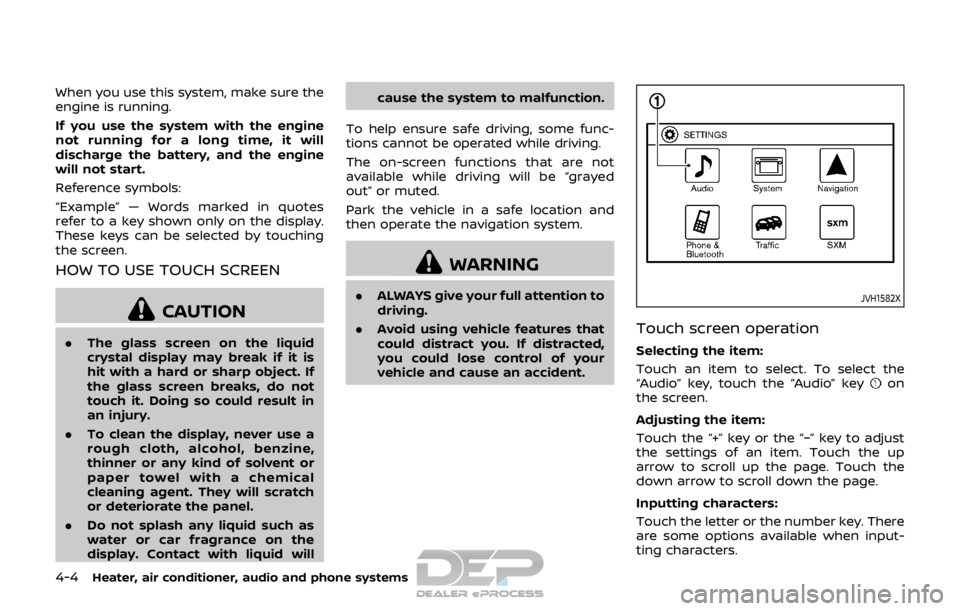
Touch screen operation
Selecting the item:
Touch an item to select. To select the
“Audio” key, touch the “Audio” key
on
the screen.
Adjusting the item:
Touch the “+” key or the “−” key to adjust
the settings of an item. Touch the up
arrow to scroll up the page. Touch the
down arrow to scroll down the page.
Inputting characters:
Touch the letter or the number key. There
are some options available when input-
ting characters.
Page 218 of 512

SAA0306
FM radio reception:
Range: FM range is normally limited to 25
to 30 miles (40 to 48 km), with monaural
(single station) FM having slightly more
range than stereo FM. External influences
may sometimes interfere with FM station
reception even if the FM station is within
25 miles (40 km). The strength of the FM
signal is directly related to the distance
between the transmitter and receiver. FM
signals follow a line-of-sight path, exhibit-
ing many of the same characteristics as
light. For example they will reflect off
objects.
Fade and drift: As your vehicle moves
away from a station transmitter, thesignals will tend to fade and/or drift.
Static and flutter: During signal interfer-
ence from buildings, large hills or due to
antenna position, usually in conjunction
with increased distance from the station
transmitter, static or flutter can be heard.
This can be reduced by lowering the
treble setting to reduce the treble re-
sponse.
Multipath reception: Because of the re-
flective characteristics of FM signals, di-
rect and reflected signals reach the
receiver at the same time. The signals
may cancel each other, resulting in mo-
mentary flutter or loss of sound.
AM radio reception:
AM signals, because of their low fre-
quency, can bend around objects and
skip along the ground. In addition, the
signals can be bounced off the iono-
sphere and bent back to earth. Because
of these characteristics. AM signals are
also subject to interference as they travel
from transmitter to receiver.
Fading: Occurs while the vehicle is pas-
sing through freeway underpasses or in
areas with many tall buildings. It can also
occur for several seconds during iono-
spheric turbulence even in areas where
no obstacles exist.
Static: Caused by thunderstorms, electri-cal power lines, electric signs and even
traffic lights.
Satellite radio reception (if so
equipped):
When the satellite radio is used for the
first time or the battery has been re-
placed, the satellite radio may not work
properly. This is not a malfunction. Wait
more than 10 minutes with the satellite
radio ON and the vehicle away from any
metal or large buildings for the satellite
radio to receive all of the necessary data.
The satellite radio mode requires an
active SiriusXM Satellite Radio subscrip-
tion. The satellite radio is not available in
Alaska, Hawaii and Guam.
Satellite radio performance may be af-
fected if cargo carried on the roof blocks
the satellite radio signal.
If possible, do not put cargo near the
satellite antenna.
A buildup of ice on the satellite radio
antenna can affect satellite radio perfor-
mance. Remove the ice to restore satellite
radio reception.
Heater, air conditioner, audio and phone systems4-39
Page 226 of 512

Bluetooth® Audio player
Bluetooth® is a trademark
owned by Bluetooth SIG, Inc.
and licensed to Robert Bosch
GmbH and Visteon Corpora-
tion.
.Some Bluetooth® audio devices may
not be recognized by the in-vehicle
audio system.
. It is necessary to set up the wireless
connection between a compatible
Bluetooth® audio device and the in-
vehicle Bluetooth® module before
using the Bluetooth® audio player.
. Operating procedure of the Blue-
tooth® audio player will vary depend-
ing on the device. Make sure it is
understood how to operate an audio
device before using it with this system.
. The Bluetooth® audio player may be
stopped under the following condi-
tions:
— Receiving a hands-free call.
— Checking the connection to the
hands-free phone.
. Do not place a Bluetooth® audio
device in an area surrounded by metal
or far away from the in-vehicle Blue-
tooth® module to prevent tone quality
degradation and wireless connection
disruption. .
While an audio device is connected
through a Bluetooth® wireless con-
nection, the battery power of the
device may discharge quicker than
usual.
. This system supports the Bluetooth®
Audio Distribution Profile (A2DP,
AVRCP).
. Wireless LAN (Wi-Fi) and the Blue-
tooth® functions share the same fre-
quency band (2.4 GHz). Using the
Bluetooth® and the wireless LAN func-
tions at the same time may slow down
or disconnect the communication and
cause undesired noise. It is recom-
mended that you turn off the wireless
LAN (Wi-Fi) when using the Bluetooth®
functions.
Heater, air conditioner, audio and phone systems4-47
Page 230 of 512

5. Other buttons can be set in the samemanner.
If the battery cable is disconnected, or if
the fuse opens, the station memory will
be erased. In that case, reset the desired
stations.
CD player operation
Place the ignition switch in the ACC or ON
position. Insert the Compact Disc (CD)
into the slot with the label side facing up.
The CD will be guided automatically into
the slot and start playing.
After loading the CD, the number of
tracks on the CD and the play time will
appear on the display.
If another audio source is already operat-
ing, it will automatically turn off and the
CD will play.
If the system has been turned off while
the CD was playing, pushing the Power/
VOL dial will start the CD.
PLAY:
When the CD button is pushed while a CD
is loaded, the CD will start playing.
CD/MP3 display mode:
While listening to an MP3/WMA CD, cer-
tain text may be displayed on the screen
if the CD has been encoded with text information. Depending on how the MP3/
WMA CD is encoded, information such as
Artist, Song and Folder will be displayed.
The track number and the total number
of tracks in the current folder or on the
current disc are displayed on the screen
as well.
SEEK/TRACK:
When the
orbutton is pushed
and hold while the CD is being played, the
CD will play while fast forwarding or
rewinding. When the button is released,
the CD will return to normal play speed.
When the
orbutton is pushed
while the CD is being played, the next
track or the beginning of the current
track on the CD will be played. Push the
button again to select the previous
track.
REPEAT (RPT):
When the
button is pushed while the
CD is played, the play pattern can be
changed as follows:
(CD)
(Normal) ⇔1 Track Repeat
(CD with compressed audio files)
(Normal) ?1 Folder Repeat ?1 Track
Repeat ?(Normal)
RANDOM (RDM):
When the
button is pushed while a CD
is being played, the play pattern can be
changed as follows:
(CD)
(Normal) ⇔1 Disc Random
(CD with compressed audio files)
(Normal) ?1 Disc Random ?1 Folder
Random ?(Normal)
CD eject:
When the
button is pushed with the
CD loaded, the CD will be ejected.
If the CD comes out and is not removed,
it will be pulled back into the slot to
protect it.
USB memory player operation
USB memory main operation:
The USB connection port is located on
the lower part of the instrument panel.
(See “USB (Universal Serial Bus) connec-
tion port” (P.4-74).) Connect a USB mem-
ory into the port. When the audio system
operates, the system will switch to the
USB memory mode automatically.
If the system has been turned off while
the USB memory was playing, pushing
the Power/VOL dial will start the USB
Heater, air conditioner, audio and phone systems4-51
Page 231 of 512

4-52Heater, air conditioner, audio and phone systems
memory.
PLAY:
To change to the USB memory mode,
push the
button with a USB memory
connected until the USB memory mode is
selected.
Next/Previous File and Fast
Forward/Rewind:
When the
orbutton is pushed
and hold while a USB memory is being
played, the USB memory will play while
forwarding or rewinding. When the but-
ton is released, the USB memory will
return to normal play speed.
When the
orbutton is pushed
while the USB memory is being played,
the next track or the beginning of the
current track on the USB memory will be
played. Push the
button again to
select the previous track.
Folder selection:
To change to another folder in the USB
memory, choose a folder displayed on the
screen using the ENTER SETTING/
TUNE·FOLDER dial.
REPEAT (RPT):
When the
button is pushed while the USB memory is played, the play pattern
can be change as follows.
(Normal)
?1 Folder Repeat ?1 Track
Repeat ?(Normal)
RANDOM (RDM):
When the
button is pushed while a
USB memory is being played, the play
pattern can be changed as follows.
(Normal) ?All Random ?1 Folder Ran-
dom ?(Normal)
BACK button:
When the BACK button is pushed, it
returns to the previous display.
iPod® player operation
Connecting iPod®:
The USB connection port is located on
the lower part of the instrument panel.
(See “USB (Universal Serial Bus) connec-
tion port” (P.4-74).) Connect the iPod®
cable to the USB connection port. When
the audio system operates, the system
will switch to the iPod® mode automati-
cally. The battery of the iPod® is charged
while the cable is connected to the
vehicle.
Depending on the version of the iPod®,
the display on the iPod® shows a NISSAN or Accessory Attached screen when the
connection is completed. When the iPod®
is connected to the vehicle, the iPod®
music library can only be operated by the
vehicle audio controls.
Compatibility:
The following models are compatible:
.
iPod nano® 1G (Firmware version 1.3.1 -)
. iPod nano® 2G (Firmware version 1.1.3
-)
. iPod nano® 3G (Firmware version 1.0.0
-)
. iPod nano® 4G (Firmware version 1.0.2
-)
. iPod nano® 5G (Firmware version 1.0.1
-)
. iPod nano® 6G (Firmware version 1.0 -)
. iPod nano® 7G (Firmware version 1.0.0
-)
. iPod® 5G (Firmware version 1.2.1 -)
. iPod classic® (Firmware version 1.0.0 -)
. iPod Touch® (iOS 1.1 -)
. iPod Touch® 2G (iOS 2.1.1 -)
. iPod Touch® 3G (iOS 3.1 -)
. iPod Touch® 4G (iOS 4.1 -)
. iPod Touch® 5G (iOS 6.0.0 -)
. iPhone® (iOS 1.0.0 - 2.2.1)
. iPhone® 3G (iOS 2.1 -)
Page 237 of 512

4-58Heater, air conditioner, audio and phone systems
NE·SCROLL dial to seek channels from
all of the categories when any cate-
gory is not selected.
Radio Data System (RDS):
RDS stands for Radio Data System, and is
a data information service transmitted by
some radio stations on the FM band (not
AM band) encoded within a regular radio
broadcast. Currently, most RDS stations
are in large cities, but many stations are
now considering broadcasting RDS data.
The station name, such as “The Groove”, is
displayed on the display.
SEEK tuning/CAT (category):
. For AM and FM radio
Push the
orbutton to tune
from low to high or high to low
frequencies and to stop at the next
broadcasting station.
. For SiriusXM Satellite Radio
Push the
orbutton to tune to
the first channel of the next or pre-
vious category.
SCAN tuning:
Push the
button to tune from low to
high frequencies and stop at each broad-
casting station for several seconds. Push-
ing the
button again during this several seconds period will stop SCAN
tuning and the radio will remain tuned to
that station.
If the
button is not pushed within five
seconds, SCAN tuning moves to the next
station.
toStation memory opera-
tions:
6 stations can be set for the AM band. 12
stations can be set for the FM band (6 for
FM1, 6 for FM2). 18 channels can be set for
the satellite radio (6 for XM1, 6 for XM2, 6
for XM3).
1. Choose the radio band using the
or XM button.
2. Tune to the desired station or chan- nel.
3. Push and hold the desired station or channel preset button
tountil
beep sounds.
4. The station or channel indicator will then come on. Memorizing is now
complete.
5. Other buttons can be set in the same manner.
If the battery cable is disconnected, or if
the fuse opens, the station memory will
be erased. In that case, reset the desired
stations or channels.
CD player operation
Place the ignition switch in the ACC or ON
position, and insert the Compact Disc (CD)
into the slot with the label side facing up.
The CD will be guided automatically into
the slot and start playing.
After loading the CD, the number of
tracks on the CD and the play time will
appear on the display.
If another audio source is already operat-
ing, it will automatically turn off and the
CD will play.
If the system was turned off while the CD
was playing, pushing the Power/VOL dial
will start the CD.
PLAY:
With a CD loaded, push the
button
until the CD mode is displayed on the
screen.
CD/MP3 display mode:
While listening to an MP3/WMA CD, cer-
tain text may be displayed on the screen
if the CD has been encoded with text
information. Depending on how the MP3/
WMA CD is encoded, information such as
Artist, Song and Folder will be displayed.
The track number and the total number
of tracks in the current folder or on the
current disc are displayed on the screen
Page 239 of 512

4-60Heater, air conditioner, audio and phone systems
REPEAT (RPT):
When the
button is pushed while the
USB memory is played, the play pattern
can be change as follows.
(Normal) ?1 Folder Repeat ?1 Track
Repeat ?(Normal)
RANDOM (RDM):
When the
button is pushed while a
USB memory is being played, the play
pattern can be changed as follows.
(Normal) ?All Random ?1 Folder Ran-
dom ?(Normal)
BACK button:
When the BACK button is pushed, it
returns to the previous display.
iPod® player operation
Connecting iPod®:
The USB connection port is located on
the lower part of the instrument panel.
(See “USB (Universal Serial Bus) connec-
tion port” (P.4-74).) Connect the iPod®
cable to the USB connection port. When
the audio system operates, the system
will switch to the iPod® mode automati-
cally. The battery of the iPod® is charged
while the cable is connected to the
vehicle. Depending on the version of the iPod®,
the display on the iPod® shows a NISSAN
or Accessory Attached screen when the
connection is completed. When the iPod®
is connected to the vehicle, the iPod®
music library can only be operated by the
vehicle audio controls.
Compatibility:
The following models are compatible:
.
iPod nano® 1G (Firmware version 1.3.1 -)
. iPod nano® 2G (Firmware version 1.1.3
-)
. iPod nano® 3G (Firmware version 1.0.0
-)
. iPod nano® 4G (Firmware version 1.0.2
-)
. iPod nano® 5G (Firmware version 1.0.1
-)
. iPod nano® 6G (Firmware version 1.0 -)
. iPod nano® 7G (Firmware version 1.0.0
-)
. iPod® 5G (Firmware version 1.2.1 -)
. iPod classic® (Firmware version 1.0.0 -)
. iPod Touch® (iOS 1.1 -)
. iPod Touch® 2G (iOS 2.1.1 -)
. iPod Touch® 3G (iOS 3.1 -)
. iPod Touch® 4G (iOS 4.1 -)
. iPod Touch® 5G (iOS 6.0.0 -) .
iPhone® (iOS 1.0.0 - 2.2.1)
. iPhone® 3G (iOS 2.1 -)
. iPhone® 3GS (iOS 3.0 -)
. iPhone® 4/4S (iOS 4.0 -)
. iPhone® 5 (iOS 6.0.0 -)
Operations attributable to firmware up-
date by Apple are not guaranteed.
iPod® main operation:
The system operates when the ignition
switch is placed in the ACC or ON position.
Push the
button repeatedly or push
thebutton to switch to the iPod®
mode.
If the system was turned off while the
iPod® was playing, pushing the Power/
VOL dial will start the iPod®.
If another audio source is playing and the
iPod® is connected, push the
button
repeatedly or push thebutton to
switch to the iPod® mode.
When the
button is pushed while the
iPod® is connected, the interface for iPod®
operation is shown on the display. The
items on the menu list can be scrolled by
turning the ENTER SETTING/TUNE·SC-
ROLL dial while the iPod® is operating.
To select an item, push ENTER SETTING/
TUNE·SCROLL dial. Items in the iPod®
menu appear on the display in the
following order.
Page 245 of 512

4-66Heater, air conditioner, audio and phone systems
channel indicator will then come on.
3. Other keys can be set in the same manner.
If the battery cable is disconnected or if
the fuse opens, the radio memory will be
erased. In that case, reset the desired
stations or channels.
JVH1618X
Smart Favorites preset setup (if so
equipped):
The Smart Favorites feature allows the
user to designate presets, within the
SXM1, SXM2 and SXM3 bands, as their
Smart Favorites. When any of the Smart
Favorite presets are selected, the current
track on that channel will play from the
beginning of the song.
To program a Smart Favorite preset:
1. Push the SXM button.
2. Touch the “Setup” key.
3. Touch the “Tune Start” key to activate (ON) or deactivate (OFF) Smart Favor-
ites. 4. Touch the “Add Preset” key to select
an available preset.
For additional information, refer to “1 to 6
station or channel memory operations”
(P.4-65) in this section regarding preset
memory operations.
NOTE:
. Smart Favorites will start function-
ing only after the audio unit is
turned on for a few minutes.
. Tune Start is supported for music
channels only.