bluetooth NISSAN SENTRA 2014 B17 / 7.G User Guide
[x] Cancel search | Manufacturer: NISSAN, Model Year: 2014, Model line: SENTRA, Model: NISSAN SENTRA 2014 B17 / 7.GPages: 388, PDF Size: 4.31 MB
Page 212 of 388
Seek buttons:
Press the seek button
orto skip
backward or forward one track.
Press and hold the seek button
orfor 1.5 seconds while a track is playing to reverse
or fast forward the track being played. The track
plays at an increased speed while reversing or
fast forwarding. When the button is released, the
track returns to normal play speed.
Scrolling menus:
While navigating long lists of artists, albums or
songs in the music menu, it is possible to scroll
the list by the first character in the name. To
activate character indexing, touch the “A-Z” key in
the upper right corner of the screen. Turn the
TUNE knob to choose the number or letter to
jump to in the list and then press the AUDIO
button.
BLUETOOTH® STREAMING AUDIO
WITHOUT NAVIGATION SYSTEM (if
so equipped)
If you have a compatible Bluetooth® audio de-
vice that is capable of playing audio files, the
device can be connected to the vehicle’s audio
system so that the audio files on the device play
through the vehicle’s speakers.
Connecting Bluetooth® audio
To connect your Bluetooth® audio device to the
vehicle, follow the procedure below:1. Press the
button. The system an-
nounces the available commands.
2. Say “Connect Phone”. The system acknowl- edges the command and announces the
next set of available commands.
3. Say “Add Phone”. The system acknowl- edges the command and asks you to initiate
connecting from the phone handset. The
connecting procedure of the cellular phone
varies according to each cellular phone
model. See the cellular phone Owner’s
Manual for details. You can also visit
www.nissanusa.com/bluetooth for instruc-
tions on connecting NISSAN recommended
cellular phones.LHA2279
Monitor, climate, audio, phone and voice recognition systems4-61
Page 213 of 388
4. When prompted for a Passkey code, enter“1234” from the handset. The Passkey code
“1234” has been assigned by NISSAN and
cannot be changed.
Audio main operation
To switch to the Bluetooth® audio mode, press
the AUX button repeatedly until the Bluetooth®
audio mode is displayed on the screen.
Use the vehicle audio controls or the Bluetooth®
device’s controls to play, pause, skip or reverse
tracks.
BLUETOOTH® STREAMING AUDIO
WITH NAVIGATION SYSTEM (if so
equipped)
If you have a compatible Bluetooth® audio de-
vice that is capable of playing audio files, the
device can be connected to the vehicle’s audio
system so that the audio files on the device play
through the vehicle’s speakers.
Connecting Bluetooth® audio
To connect your Bluetooth® audio device to the
vehicle, follow the procedure below:
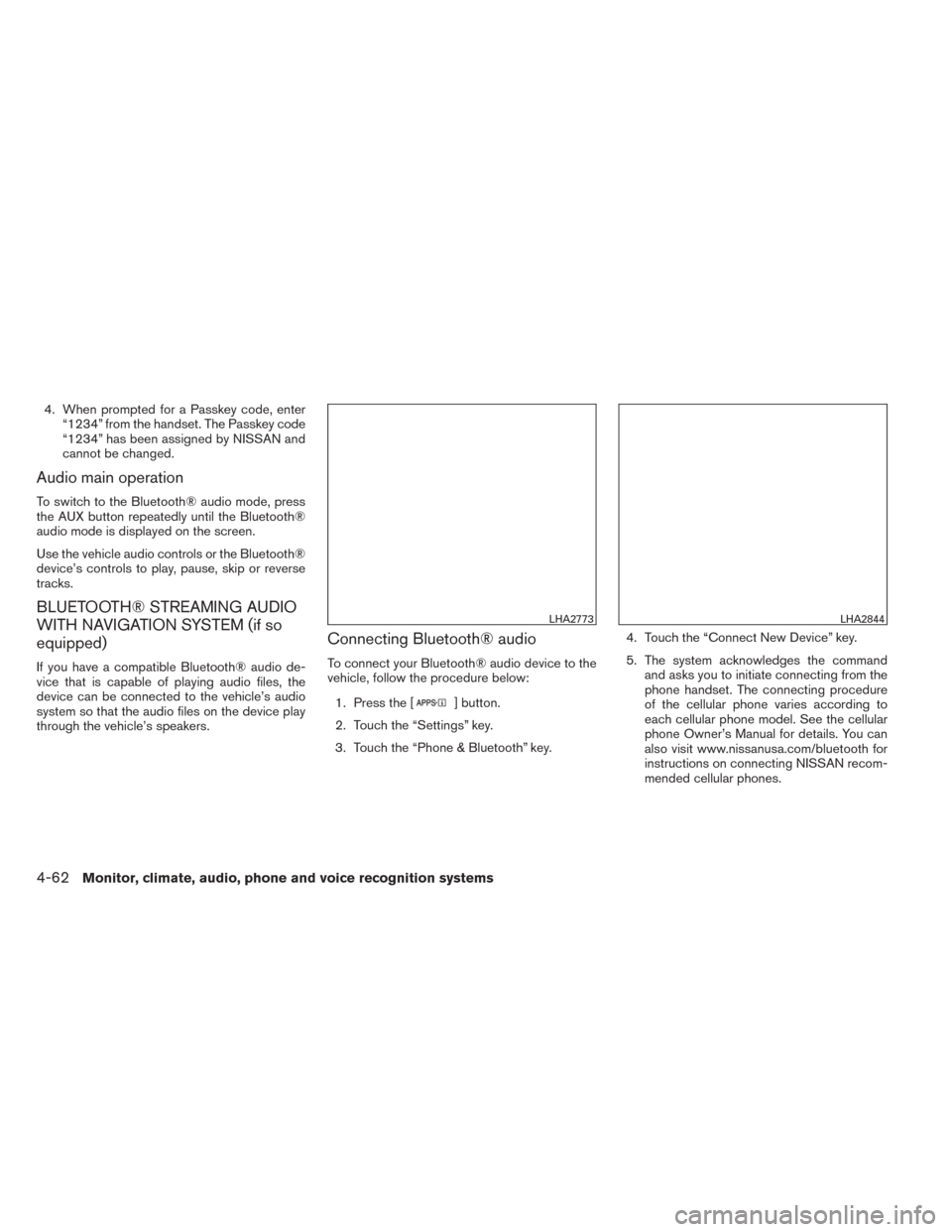
1. Press the [
] button.
2. Touch the “Settings” key.
3. Touch the “Phone & Bluetooth” key. 4. Touch the “Connect New Device” key.
5. The system acknowledges the command
and asks you to initiate connecting from the
phone handset. The connecting procedure
of the cellular phone varies according to
each cellular phone model. See the cellular
phone Owner’s Manual for details. You can
also visit www.nissanusa.com/bluetooth for
instructions on connecting NISSAN recom-
mended cellular phones.
LHA2773LHA2844
4-62Monitor, climate, audio, phone and voice recognition systems
Page 214 of 388
Audio main operation
To switch to the Bluetooth® audio mode, press
the AUX button repeatedly until the Bluetooth®
audio mode is displayed on the screen.
The controls for the Bluetooth® audio are dis-
played on the screen.
PANDORA® AUDIO (if so equipped)
The vehicle’s audio system is capable of playing
audio streaming through a compatible, USB-
connected audio device using the Pandora® mu-
sic service.
Connecting a device for use with
Pandora® audio
Devices capable of streaming Pandora® audio
can be connected to the vehicle’s audio system
via the USB input jack. The USB input jack is
located in the center console.
Launch the Pandora® application on the phone
and then connect with the USB jack. Once con-
nected, the Pandora® controls will be displayed
on the control panel display screen.
Compatibility
The following iPhone® models are compatible
with the system:● iPhone® 3GS
● iPhone® 4
● iPhone® 4S
● iPhone® 5
The latest Pandora® application should be in-
stalled on the phone.
Audio main operation
Models without Navigation System:
To switch to the Pandora® audio mode, press
the AUX button repeatedly until the Pandora®
audio mode is displayed on the screen.
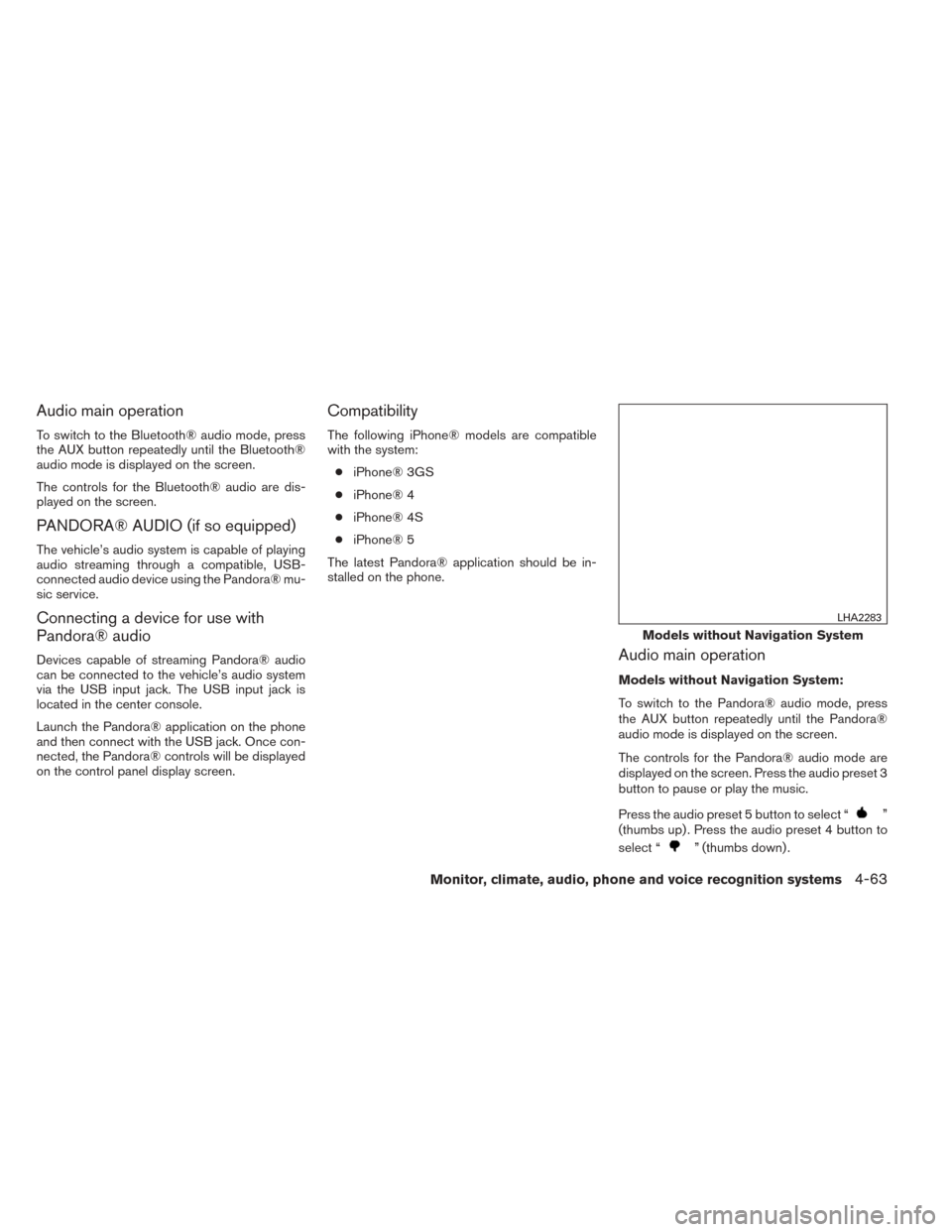
The controls for the Pandora® audio mode are
displayed on the screen. Press the audio preset 3
button to pause or play the music.
Press the audio preset 5 button to select “
”
(thumbs up) . Press the audio preset 4 button to
select “
” (thumbs down) .
Models without Navigation System
LHA2283
Monitor, climate, audio, phone and voice recognition systems4-63
Page 216 of 388
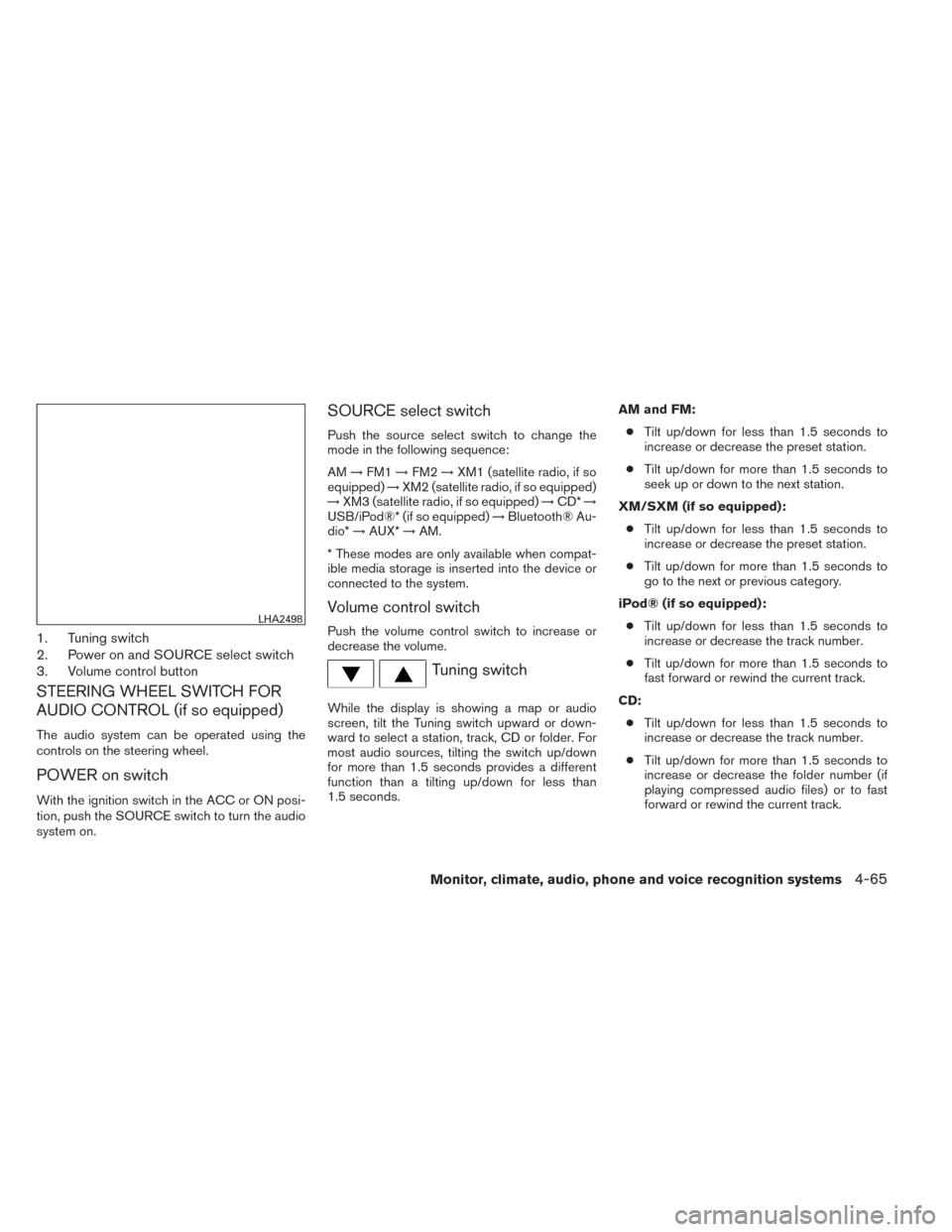
1. Tuning switch
2. Power on and SOURCE select switch
3. Volume control button
STEERING WHEEL SWITCH FOR
AUDIO CONTROL (if so equipped)
The audio system can be operated using the
controls on the steering wheel.
POWER on switch
With the ignition switch in the ACC or ON posi-
tion, push the SOURCE switch to turn the audio
system on.
SOURCE select switch
Push the source select switch to change the
mode in the following sequence:
AM→FM1 →FM2 →XM1 (satellite radio, if so
equipped) →XM2 (satellite radio, if so equipped)
→ XM3 (satellite radio, if so equipped) →CD* →
USB/iPod®* (if so equipped) →Bluetooth® Au-
dio* →AUX* →AM.
* These modes are only available when compat-
ible media storage is inserted into the device or
connected to the system.
Volume control switch
Push the volume control switch to increase or
decrease the volume.
Tuning switch
While the display is showing a map or audio
screen, tilt the Tuning switch upward or down-
ward to select a station, track, CD or folder. For
most audio sources, tilting the switch up/down
for more than 1.5 seconds provides a different
function than a tilting up/down for less than
1.5 seconds. AM and FM:
● Tilt up/down for less than 1.5 seconds to
increase or decrease the preset station.
● Tilt up/down for more than 1.5 seconds to
seek up or down to the next station.
XM/SXM (if so equipped): ● Tilt up/down for less than 1.5 seconds to
increase or decrease the preset station.
● Tilt up/down for more than 1.5 seconds to
go to the next or previous category.
iPod® (if so equipped): ● Tilt up/down for less than 1.5 seconds to
increase or decrease the track number.
● Tilt up/down for more than 1.5 seconds to
fast forward or rewind the current track.
CD: ● Tilt up/down for less than 1.5 seconds to
increase or decrease the track number.
● Tilt up/down for more than 1.5 seconds to
increase or decrease the folder number (if
playing compressed audio files) or to fast
forward or rewind the current track.
LHA2498
Monitor, climate, audio, phone and voice recognition systems4-65
Page 217 of 388
USB (if so equipped):● Tilt up/down for less than 1.5 seconds to
increase or decrease the track number.
● Tilt up/down for more than 1.5 seconds to
fast forward or rewind the current track.
Bluetooth® Audio (if so equipped): ● Tilt up/down for less than 1.5 seconds to
skip ahead or back to the next song.
● Tilt up/down for more than 1.5 seconds to
reverse or fast forward the current track.
Pandora® Audio (if so equipped): ● Tilt up for less than 1.5 seconds to input
“thumbs up” for the current song.
● Tilt down for less than 1.5 seconds to input
“thumbs down” for the current song.
● Tilt up for more than 1.5 seconds to skip to
the next song (if the maximum of six skips per
station per hour has not been exceeded) .ANTENNA
Window antenna
The antenna pattern is printed inside the rear
window.
CAUTION
● Do not place metalized film near the
rear window glass or attach any metal
parts to it. This may cause poor recep-
tion or noise.
● When cleaning the inside of the rear
window, be careful not to scratch or
damage the rear window antenna.
Lightly wipe along the antenna with a
dampened soft cloth. This vehicle is equipped with Smartphone Inte-
gration technology. This allows many compatible
Smartphone applications to be displayed and
easily controlled through the vehicle’s touch-
screen.
NOTE:
A compatible smartphone and registration
is required to use mobile applications or to
access connected features of certain ve-
hicle applications.
REGISTERING WITH
NISSANCONNECT™ APP
To use the Smartphone Integration feature, it is
necessary for the user to register. In order to
register, visit the NissanConnect™ website,
www.nissanusa.com/connect/ and sign up or
create an account through the prompts on the
NissanConnect™ App. Once registered, down-
load the NissanConnect™ App from your com-
patible phone’s application download source and
then log into the application. If you already have
an account created through the App, please log
in.
NISSANCONNECT™ APP
SMARTPHONE INTEGRATION (if so
equipped)
4-66Monitor, climate, audio, phone and voice recognition systems
Page 218 of 388
CONNECT PHONE
To use this feature, a compatible smartphone
must be connected via Bluetooth® or USB to the
vehicle. For more information on connecting your
phone, see “Bluetooth® Hands-Free Phone Sys-
tem with Navigation System” in this section.
NOTE:
For Apple iPhones, NissanConnect™ Apps
REQUIRES the phone to be plugged in via
USB.
NOTE:
For Android phones, NissanConnect™ Apps
REQUIRES the phone to be paired via
Bluetooth.
APPLICATION DOWNLOAD
Once connected, the NissanConnect™ App will
search your phone to determine which compat-
ible applications are currently installed. The user
will then choose which apps they want to bring
into their vehicle from the list of apps within the
“Manage My Apps” section of the NissanCon-
nect™ App on their smartphone. The vehicle will
then download the in-vehicle interface for each of
these compatible applications. Once down-
loaded, the user can access their selected smart-
phone applications through the vehicle touch-
screen. For more information on application
availability see www.nissanusa.com/connect/When installing a CB, ham radio or car phone in
your vehicle, be sure to observe the following
precautions; otherwise, the new equipment may
adversely affect the engine control system and
other electronic parts.
WARNING
●
A cellular phone should not be used for
any purpose while driving so full atten-
tion may be given to vehicle operation.
Some jurisdictions prohibit the use of
cellular phones while driving.
● If you must make a call while your ve-
hicle is in motion, the hands free cellu-
lar phone operational mode is highly
recommended. Exercise extreme cau-
tion at all times so full attention may be
given to vehicle operation.
● If you are unable to devote full attention
to vehicle operation while talking on
the phone, pull off the road to a safe
location and stop your vehicle.
CAR PHONE OR CB RADIO
Monitor, climate, audio, phone and voice recognition systems4-67
Page 219 of 388
CAUTION
●Keep the antenna as far away as pos-
sible from the electronic control
modules.
● Keep the antenna wire more than 8 in
(20 cm) away from the electronic control
system harnesses. Do not route the an-
tenna wire next to any harness.
● Adjust the antenna standing-wave ratio
as recommended by the manufacturer.
● Connect the ground wire from the CB
radio chassis to the body.
● For details, consult a NISSAN dealer.
WARNING
●Use a phone after stopping your vehicle
in a safe location. If you have to use a
phone while driving, exercise extreme
caution at all times so full attention may
be given to vehicle operation.
● If you are unable to devote full attention
to vehicle operation while talking on
the phone, pull off the road to a safe
location and stop your vehicle.
CAUTION
To avoid discharging the vehicle battery,
use a phone after starting the engine.
BLUETOOTH® HANDS-FREE PHONE
SYSTEM WITHOUT NAVIGATION
SYSTEM (Type A) (if so equipped)
4-68Monitor, climate, audio, phone and voice recognition systems
Page 220 of 388
Your NISSAN is equipped with the Bluetooth®
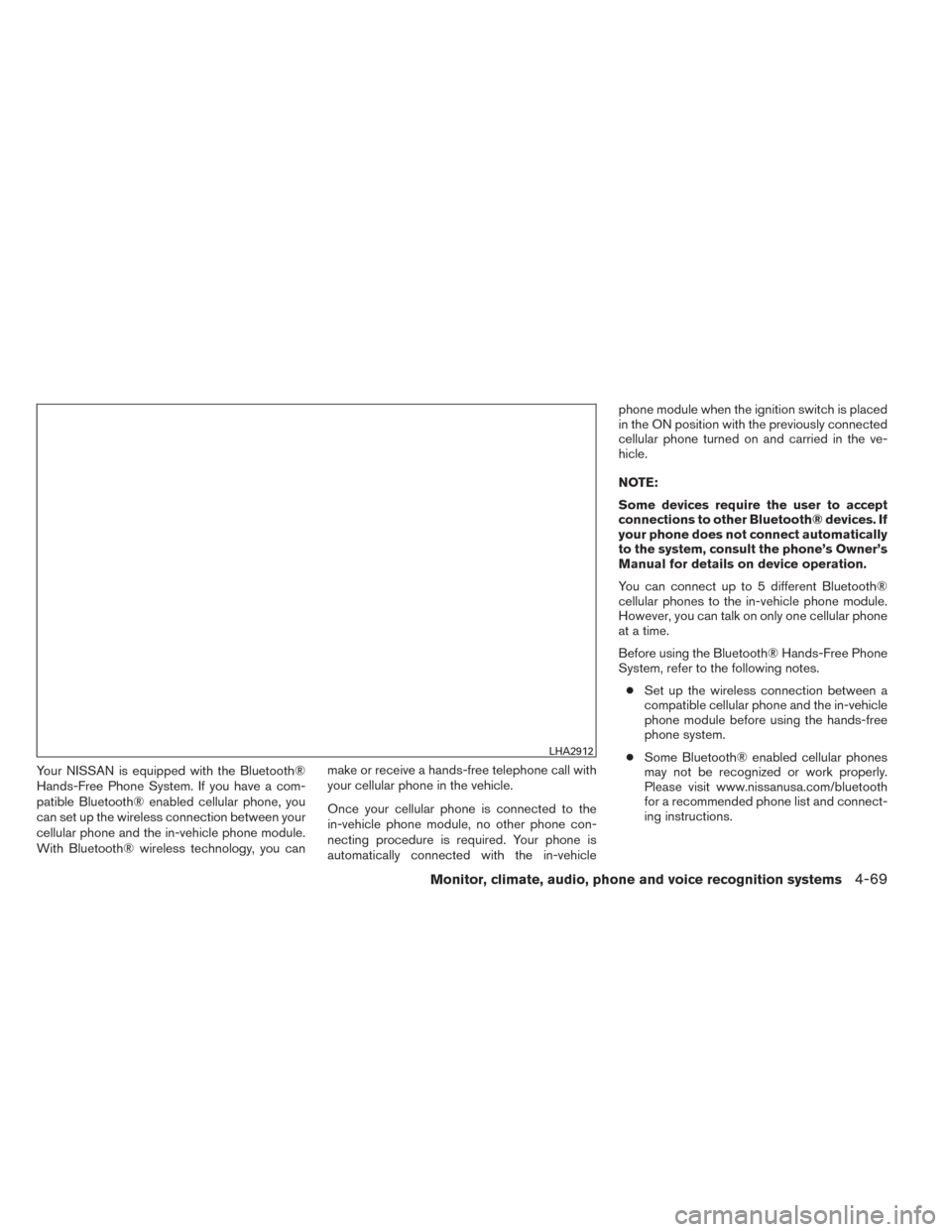
Hands-Free Phone System. If you have a com-
patible Bluetooth® enabled cellular phone, you
can set up the wireless connection between your
cellular phone and the in-vehicle phone module.
With Bluetooth® wireless technology, you canmake or receive a hands-free telephone call with
your cellular phone in the vehicle.
Once your cellular phone is connected to the
in-vehicle phone module, no other phone con-
necting procedure is required. Your phone is
automatically connected with the in-vehiclephone module when the ignition switch is placed
in the ON position with the previously connected
cellular phone turned on and carried in the ve-
hicle.
NOTE:
Some devices require the user to accept
connections to other Bluetooth® devices. If
your phone does not connect automatically
to the system, consult the phone’s Owner’s
Manual for details on device operation.
You can connect up to 5 different Bluetooth®
cellular phones to the in-vehicle phone module.
However, you can talk on only one cellular phone
at a time.
Before using the Bluetooth® Hands-Free Phone
System, refer to the following notes.
● Set up the wireless connection between a
compatible cellular phone and the in-vehicle
phone module before using the hands-free
phone system.
● Some Bluetooth® enabled cellular phones
may not be recognized or work properly.
Please visit www.nissanusa.com/bluetooth
for a recommended phone list and connect-
ing instructions.
LHA2912
Monitor, climate, audio, phone and voice recognition systems4-69
Page 221 of 388
●You will not be able to use a hands-free
phone under the following conditions:
– Your vehicle is outside of the cellular ser- vice area.
– Your vehicle is in an area where it is difficult to receive a cellular signal; such
as in a tunnel, in an underground parking
garage, near a tall building or in a moun-
tainous area.
– Your cellular phone is locked to prevent it from being dialed.
● When the radio wave condition is not ideal
or ambient sound is too loud, it may be
difficult to hear the other person’s voice dur-
ing a call.
● Do not place the cellular phone in an area
surrounded by metal or far away from the
in-vehicle phone module to prevent tone
quality degradation and wireless connection
disruption.
● While a cellular phone is connected through
the Bluetooth® wireless connection, the
battery power of the cellular phone may dis-
charge quicker than usual. The Bluetooth®
Hands-Free Phone System cannot charge
cellular phones. ●
If the hands-free phone system seems to be
malfunctioning, see “Troubleshooting guide”
in this section. You can also visit
www.nissanusa.com/bluetooth for trouble-
shooting help.
● Some cellular phones or other devices may
cause interference or a buzzing noise to
come from the audio system speakers. Stor-
ing the device in a different location may
reduce or eliminate the noise.
● Refer to the cellular phone Owner’s Manual
regarding the telephone charges, cellular
phone antenna and body, etc.
REGULATORY INFORMATION
FCC Regulatory information
– CAUTION: To maintain compliance with FCC’s RF exposure guidelines, use only the
supplied antenna. Unauthorized antenna,
modification, or attachments could damage
the transmitter and may violate FCC regula-
tions.
– Operation is subject to the following two con- ditions:
1. This device may not cause interference and
2. this device must accept any interference, including interference that may cause unde-
sired operation of the device. IC Regulatory information
– Operation is subject to the following two con-
ditions: (1) this device may not cause interfer-
ence, and (2) this device must accept any
interference, including interference that may
cause undesired operation of the device.
– This Class B digital apparatus meets all re- quirements of the Canadian Interference-
Causing Equipment Regulations.
BLUETOOTH® is a
trademark owned by
Bluetooth SIG, Inc.
and licensed to
Visteon.
USING THE SYSTEM
The NISSAN Voice Recognition system allows
hands-free operation of the Bluetooth® Phone
System.
If the vehicle is in motion, some commands may
not be available so full attention may be given to
vehicle operation.
4-70Monitor, climate, audio, phone and voice recognition systems
Page 223 of 388
●Numbers can be spoken in small groups.
The system will prompt you to continue en-
tering digits, if desired.
Example: 1-800-662-6200
– “One eight zero zero”
The system repeats the numbers and
prompts you to enter more.
– “Six six two”
The system repeats the numbers and
prompts you to enter more.
– “Six two zero zero”
● Say “pound” for “#”. Say “star” for “*” (avail-
able when using the “Special Number” com-
mand and the “Send” command during a
call) .
See “List of voice commands” and “Special
number” in this section for more information.
Example: 1-555-1212 *123
– “One five five five one two one two star one two three”
● Say “plus” for “+” (available only when using
the “Special Number” command) .
● Say “pause” for a 2-second pause (available
only when storing a phonebook number) . NOTE:
For best results, say phone numbers as
single digits.
The voice command “Help” is available at any
time. Please use the “Help” command to get
information on how to use the system.
Voice Prompt Interrupt
In most cases you can interrupt the voice feed-
back to speak the next command by pressing
the
button on the steering wheel. After
interrupting the system, wait for a beep before
speaking your command.
One Shot Call
To use the system faster, you may speak the
second level commands with the main menu
command on the main menu. For example, press
the
button and after the tone say, “Call
Redial”.
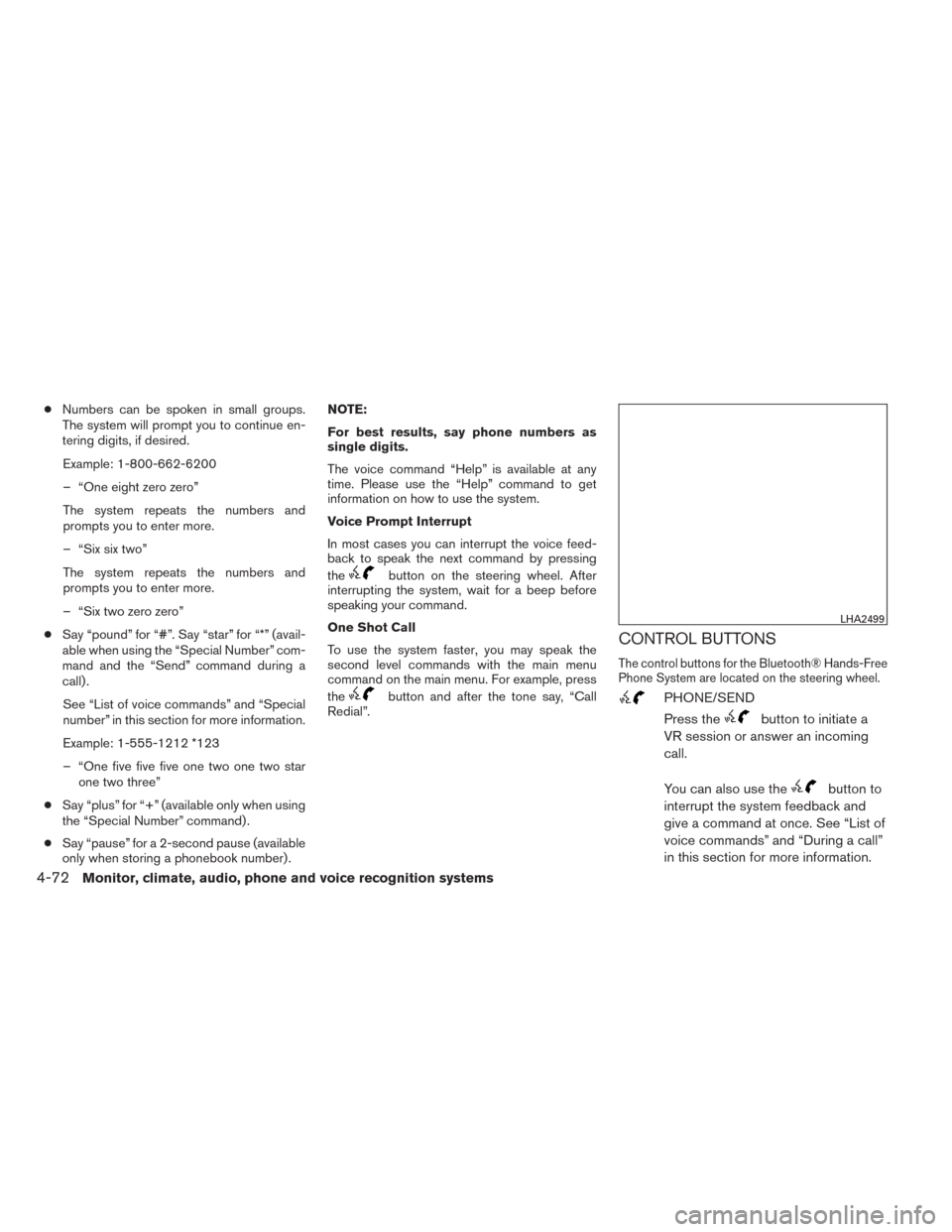
CONTROL BUTTONS
The control buttons for the Bluetooth® Hands-Free
Phone System are located on the steering wheel.
PHONE/SEND
Press the
button to initiate a
VR session or answer an incoming
call.
You can also use the
button to
interrupt the system feedback and
give a command at once. See “List of
voice commands” and “During a call”
in this section for more information.
LHA2499
4-72Monitor, climate, audio, phone and voice recognition systems