climate settings NISSAN SENTRA 2016 B17 / 7.G Owner's Manual
[x] Cancel search | Manufacturer: NISSAN, Model Year: 2016, Model line: SENTRA, Model: NISSAN SENTRA 2016 B17 / 7.GPages: 478, PDF Size: 5.83 MB
Page 264 of 478
Voice Prompt Interrupt
In most cases you can interrupt the voice feed-
back to speak the next command by pressing
the
(Type A) or the(Type B) button
on the steering wheel. After interrupting the sys-
tem, wait for a beep before speaking your com-
mand.
One Shot Call
To use the system faster, you may speak the
second level commands with the main menu
command on the main menu. For example, press
the
(Type A) or the(Type B) button
and after the tone say, “Call Redial”.
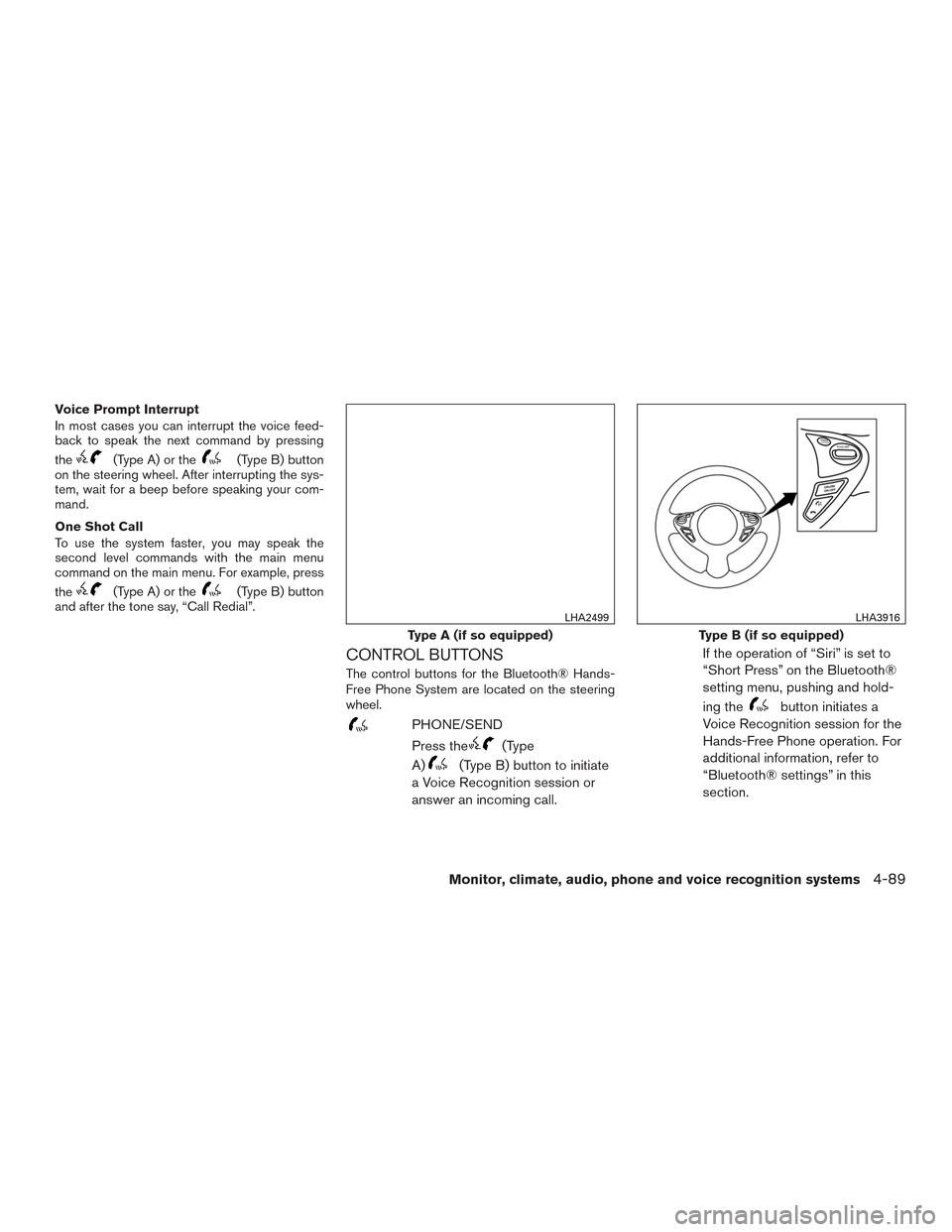
CONTROL BUTTONS
The control buttons for the Bluetooth® Hands-
Free Phone System are located on the steering
wheel.
PHONE/SEND
Press the
(Type
A)
(Type B) button to initiate
a Voice Recognition session or
answer an incoming call. If the operation of “Siri” is set to
“Short Press” on the Bluetooth®
setting menu, pushing and hold-
ing the
button initiates a
Voice Recognition session for the
Hands-Free Phone operation. For
additional information, refer to
“Bluetooth® settings” in this
section.
Type A (if so equipped)
LHA2499
Type B (if so equipped)
LHA3916
Monitor, climate, audio, phone and voice recognition systems4-89
Page 271 of 478
●“No”
● “Where are you?”
● “When?”
● “Custom Messages”
To send one of the custom messages, say
“Custom Messages”. If more than one cus-
tom message is stored, the system will
prompt for the number of the desired cus-
tom message. For additional information on
setting and managing custom text mes-
sages, refer to “Bluetooth® settings” in this
section.
Reading a received text message:
1. Press the
(Type A) or the(Type
B) button on the steering wheel.
2. Say “Phone” after the tone.
3. Say “Read Text” after the tone.
The text message, sender and delivery time are
shown on the screen. Use the tuning switch to
scroll through all text messages if more than one
are available. Press the
button to exit the
text message screen. Press the
(Type A) or
the
(Type B) button to access the follow-
ing options for replying to the text message: ●
Call Back
Speak this command to call the sender of
the text message using the Bluetooth®
Hands-Free Phone System.
● Send Text
Speak this command to send a text message
response to the sender of the text message.
● Read Text
Speak this command to read the text mes-
sage again.
● Previous Text
Speak this command to move to the previ-
ous text message (if available) .
● Next Text
Speak this command to move to the next text
message (if available) .
Siri® Eyes Free (if so equipped)
If a connected phone is equipped with Siri®, it
can also be used to create custom messages
that are sent through the phone. For additional
information, refer to “Siri® Eyes Free” in this
section. NOTE:
Text messages are only displayed if the
vehicle speed is less than 5 mph (8 km/h).
NOTE:
Apple iPhones® can only send text mes-
sages via Siri® Eyes Free.
4-96Monitor, climate, audio, phone and voice recognition systems
Page 272 of 478
BLUETOOTH® SETTINGS
To access and adjust the settings for the
Bluetooth® Hands-Free Phone System:1. Press the ENTER/SETTING button.
2. Use the TUNE/SCROLL knob to select “Bluetooth” and then press the
ENTER/SETTING button:
● Bluetooth
Select “On” or “Off” to turn the vehicle’s
Bluetooth® system on or off.
● Add Phone or Device
For additional information, refer to “Con-
necting procedure” in this section. ●
Delete Phone or Device
Select to delete a phone from the displayed
list. The system will ask to confirm before
deleting the phone.
● Replace Phone
Select to replace a phone from the displayed
list. When a selection is made, the system
will ask to confirm before proceeding. The
recorded phonebook for the phone being
deleted will be saved as long as the new
phone’s phonebook is the same as the old
phone’s phonebook.
● Select Phone or Device
Select to connect to a previously connected
phone from the displayed list.
● Show Incoming Calls
Select “Driver Only” to have incoming call
information displayed only in the vehicle in-
formation display. Select “Both” to have in-
coming call information displayed in both the
vehicle information display and the center
display screen.
● Phonebook Download
Select to turn on or off the automatic down-
load of a connected phone’s phonebook. ●
Siri
Select the
PHONE SEND button op-
eration for Siri® Eyes Free function from
“Short Press” and “Long Press” (if available) .
For additional information, refer to “Siri®
Eyes Free” in this section. “Siri” is displayed
only when a Siri Eyes Free enabled iPhone®
is connected to the vehicle.
● Text Message
Select to turn on or off the vehicle’s text
messaging feature.
● New Text Sound
Select to adjust the volume of the sound that
plays when a new text is received by a phone
connected to the Bluetooth® Hands-Free
Phone System. The setting all the way to the
left indicates that the new text sound will be
muted.
● Show Incoming Text
Select “Driver Only” to have incoming text
messages displayed only in the vehicle infor-
mation display. Select “Both” to have incom-
ing text messages displayed in both the ve-
hicle information display and the center
display screen. Select “None” to have no
display of incoming text messages.
LHA2274
Monitor, climate, audio, phone and voice recognition systems4-97
Page 276 of 478
VOICE COMMANDS
You can use voice commands to operate various
Bluetooth® Hands-Free Phone System features
using the NISSAN Voice Recognition system. For
additional information, refer to “NISSAN Voice
Recognition System” in this section.
Voice Prompt Interrupt
While using the voice recognition system, the
system voice can be interrupted to allow the user
to speak commands. While the system is speak-
ing, press the
(Type A) or the(Type
B) button on the steering wheel. The system
voice will stop and a tone will be heard. After the
tone, speak desired command (displayed on the
touch-screen) .
One Shot Call
To use the system faster, you may speak the
second level commands with the main menu
command on the main menu. For example, press
the
(Type A) or the(Type B) button
and after the tone say, “Call Redial”.
CONNECTING PROCEDURE
NOTE:
The connecting procedure must be per-
formed when the vehicle is stationary. If the
vehicle starts moving during the procedure,
the procedure will be cancelled.
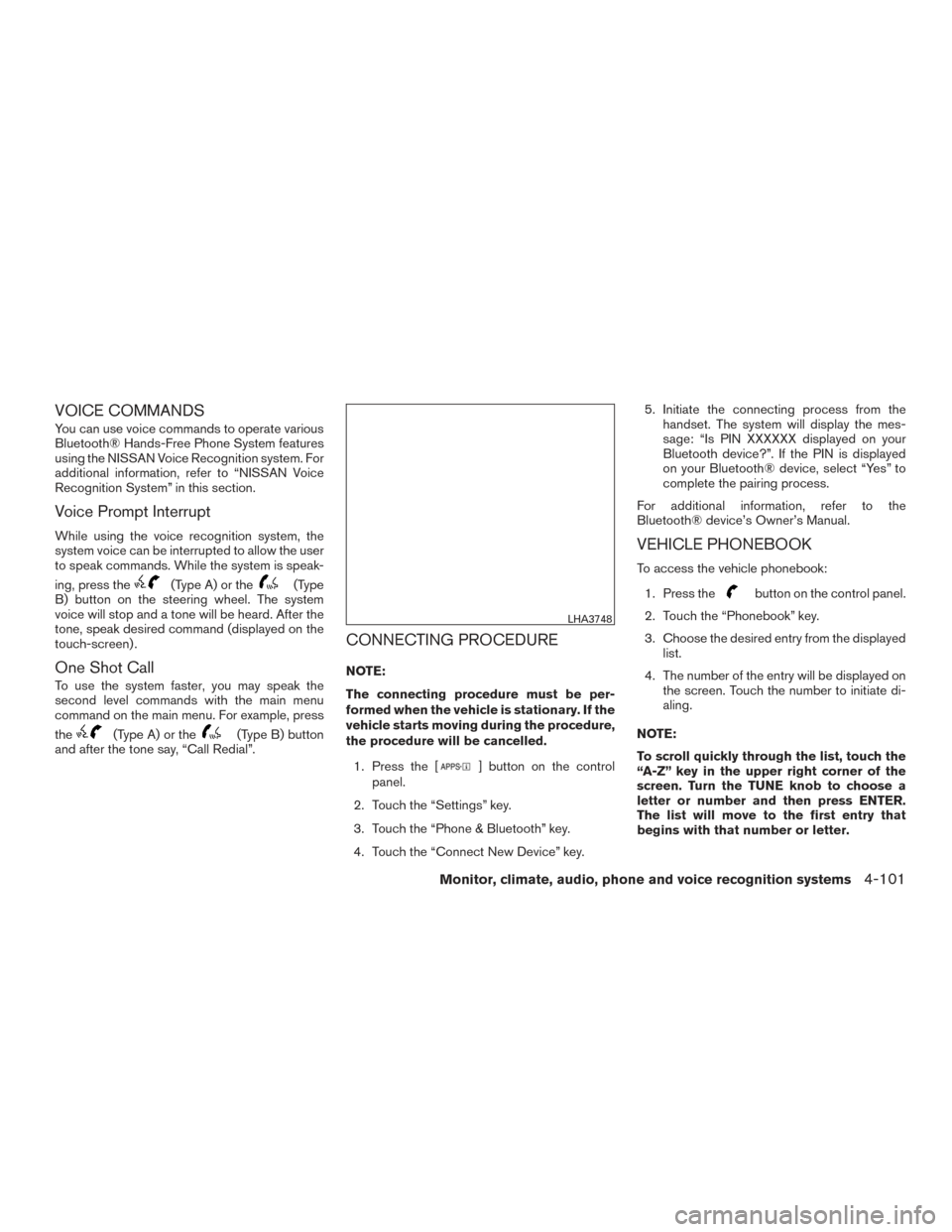
1. Press the [
] button on the control
panel.
2. Touch the “Settings” key.
3. Touch the “Phone & Bluetooth” key.
4. Touch the “Connect New Device” key. 5. Initiate the connecting process from the
handset. The system will display the mes-
sage: “Is PIN XXXXXX displayed on your
Bluetooth device?”. If the PIN is displayed
on your Bluetooth® device, select “Yes” to
complete the pairing process.
For additional information, refer to the
Bluetooth® device’s Owner’s Manual.
VEHICLE PHONEBOOK
To access the vehicle phonebook:
1. Press the
button on the control panel.
2. Touch the “Phonebook” key.
3. Choose the desired entry from the displayed list.
4. The number of the entry will be displayed on the screen. Touch the number to initiate di-
aling.
NOTE:
To scroll quickly through the list, touch the
“A-Z” key in the upper right corner of the
screen. Turn the TUNE knob to choose a
letter or number and then press ENTER.
The list will move to the first entry that
begins with that number or letter.
LHA3748
Monitor, climate, audio, phone and voice recognition systems4-101
Page 278 of 478
NOTE:
This feature is automatically disabled if the
connected device does not support the
Message Access Profile (MAP) . For addi-
tional information, refer to the phone’s
Owner’s Manual for details and instruc-
tions.
NOTE:
Many phones may require special permis-
sion to enable text messaging. Check the
phone’s screen during Bluetooth® pairing.
For some phones, you may need to enable
‘Notifications’ in the phone’s Bluetooth®
menu for text messages to appear on the
head unit. For additional information, refer
to your phone’s Owner’s manual. Text mes-
sage integration requires that the phone
support MAP (Message Access Profile) for
both receiving and sending text messages.
Some phones may not support all text mes-
saging features. Please refer to
www.nissanusa.com/bluetooth or
www.nissan.ca/bluetooth for compatibility
information, as well as your device’s Own-
er’s manual.
The system allows for the sending and receiving
of text messages through the vehicle interface.Sending a text message:
1. Press the
(Type A) or the(Type
B) button on the steering wheel.
2. Say “Phone” after the tone.
3. Say “Send Text” after the tone.
4. The system will provide a list of available commands in order to determine the recipi-
ent of the text message. Choose from the
following:
● To (a name)
● Enter Number
● Missed Calls
● Incoming Calls
● Outgoing Calls
For additional information about these op-
tions, refer to “Voice commands” in this sec-
tion.
5. Once a recipient is chosen, the system prompts for which message to send. Nine
predefined messages are available as well
as three custom messages. To choose one
of the predefined messages, speak one of
the following after the tone:
● “Driving, can’t text” ●
“Call me”
● “On my way”
● “Running late”
● “Okay”
● “Yes”
● “No”
● “Where are you?”
● “When?”
● “Custom Messages”
To send one of the custom messages, say
“Custom Messages”. If more than one cus-
tom message is stored, the system will
prompt for the number of the desired cus-
tom message. For additional information on
setting and managing custom text mes-
sages, refer to “Bluetooth® settings” in this
section.
Reading a received text message:
1. Press the
(Type A) or the(Type
B) button on the steering wheel.
2. Say “Phone” after the tone.
3. Say “Read Text” after the tone.
The text message, sender and delivery time are
shown on the screen. Use the tuning switch to
Monitor, climate, audio, phone and voice recognition systems4-103
Page 279 of 478
scroll through all text messages if more than one
are available. Press the
button to exit the
text message screen. Press the
(Type A) or
the
(Type B) button to access the follow-
ing options for replying to the text message:
● Call Back
Speak this command to call the sender of
the text message using the Bluetooth®
Hands-Free Phone System.
● Send Text
Speak this command to send a text message
response to the sender of the text message.
● Read Text
Speak this command to read the text mes-
sage again.
● Previous Text
Speak this command to move to the previ-
ous text message (if available) . ●
Next Text
Speak this command to move to the next text
message (if available) .
Siri® Eyes Free (if so equipped)
If a connected phone is equipped with Siri®, it
can also be used to create custom messages
that are sent through the phone. For additional
information, refer to “Siri® Eyes Free” in this
section.
NOTE:
Text messages are only displayed if the
vehicle speed is less than 5 mph (8 km/h).
NOTE:
Apple iPhones® can only send text mes-
sages via Siri® Eyes Free.
BLUETOOTH® SETTINGS
To access the phone settings:
1. Press the [
] button.
2. Touch the “Settings” key.
3. Touch the “Phone & Bluetooth” key.
Menu Item Result
Phone Settings For additional information, refer to “Phone settings” in this section.
Connect New Device Touch to connect a new Bluetooth® device to the Bluetooth® Hands-Free Phone System.
Select Connected Device Touch to choose a Bluetooth® device from a list of those devices connected to the Bluetooth® Hands-Free Phone System.
Replace Connected Device Touch to replace a Bluetooth® device from a list of those devices connected to the Bluetooth® Hands-Free Phone System.
Delete Connected Device Touch to delete a Bluetooth® device from a list of those devices connected to the Bluetooth® Hands-Free Phone System.
Bluetooth Touch to toggle Bluetooth® on and off.
LHA2844
4-104Monitor, climate, audio, phone and voice recognition systems
Page 280 of 478
![NISSAN SENTRA 2016 B17 / 7.G Owners Manual PHONE SETTINGS
To access the phone settings:1. Press the [
] button.
2. Touch the “Settings” key.
3. Touch the “Phone & Bluetooth” key.
4. Touch the “Phone Settings” key and adjust the fol](/img/5/501/w960_501-279.png "NISSAN SENTRA 2016 B17 / 7.G Owners Manual PHONE SETTINGS
To access the phone settings:1. Press the [
] button.
2. Touch the “Settings” key.
3. Touch the “Phone & Bluetooth” key.
4. Touch the “Phone Settings” key and adjust the fol")
PHONE SETTINGS
To access the phone settings:1. Press the [
] button.
2. Touch the “Settings” key.
3. Touch the “Phone & Bluetooth” key.
4. Touch the “Phone Settings” key and adjust the following settings as desired:
● Start Siri by:
Touch “Short Press” or “Long Press” to set
how Siri® is operated on the steering wheel.
● Sort Phonebook By:
Touch “First Name” or “Last Name” to
choose how phonebook entries are alpha-
betically displayed on the screen.
● Use Phonebook From:
Touch “Handset” to use the phone’s phone-
book. Touch “SIM” to use the phonebook on
the SIM card. Select “Both” to use both
sources.
● Download Phonebook Now:
Touch to download the phonebook to the
vehicle from the chosen source. ●
Record Name for Phonebook Entry:
Touch to record a name for a phonebook
entry for use with the NISSAN Voice Recog-
nition System.
● Phone Notifications for:
Touch “Driver” to have phone notifications
shown in the vehicle information display. Se-
lect “Both” to have phone notifications
shown in both the vehicle information display
and the center display screen.
● Text Messaging (if so equipped):
Touch to toggle the text message function-
ality on or off.
● Show Incoming Text for:
Touch “Driver” to have incoming text notifi-
cations shown in the vehicle information dis-
play. Touch “Both” to have text notifications
shown in both the vehicle information display
and the center display screen. Touch “Off” to
turn off all text notifications.
● Auto Reply:
Touch to toggle the auto reply functionality
on or off. ●
Auto Reply Message:
Touch to indicate preferred message to be
sent when “Auto Reply” function is activated.
● Use Vehicle’s Signature:
Touch to toggle on or off the addition of the
vehicle signature to outgoing messages.
● Custom Text Messages:
Touch this option to select a custom mes-
sage to edit. There are 4 customer message
slots available.
Monitor, climate, audio, phone and voice recognition systems4-105