key NISSAN SENTRA 2018 Owner´s Manual
[x] Cancel search | Manufacturer: NISSAN, Model Year: 2018, Model line: SENTRA, Model: NISSAN SENTRA 2018Pages: 507, PDF Size: 5.59 MB
Page 266 of 507
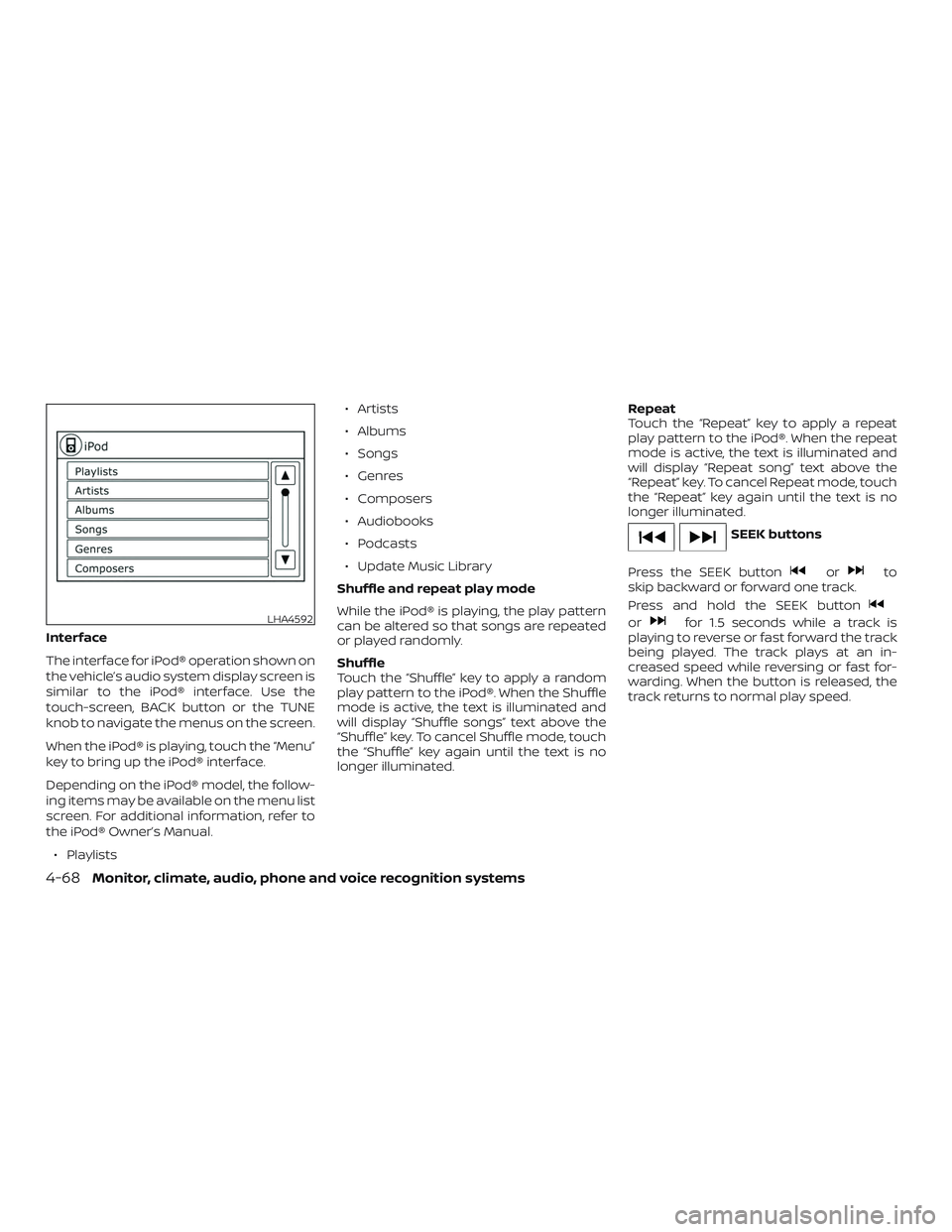
Interface
The interface for iPod® operation shown on
the vehicle’s audio system display screen is
similar to the iPod® interface. Use the
touch-screen, BACK button or the TUNE
knob to navigate the menus on the screen.
When the iPod® is playing, touch the “Menu”
key to bring up the iPod® interface.
Depending on the iPod® model, the follow-
ing items may be available on the menu list
screen. For additional information, refer to
the iPod® Owner’s Manual.∙ Playlists ∙ Artists
∙ Albums
∙ Songs
∙ Genres
∙ Composers
∙ Audiobooks
∙ Podcasts
∙ Update Music Library
Shuffle and repeat play mode
While the iPod® is playing, the play pattern
can be altered so that songs are repeated
or played randomly.
Shuffle
Touch the “Shuffle” key to apply a random
play pattern to the iPod®. When the Shuffle
mode is active, the text is illuminated and
will display “Shuffle songs” text above the
“Shuffle” key. To cancel Shuffle mode, touch
the “Shuffle” key again until the text is no
longer illuminated. Repeat
Touch the “Repeat” key to apply a repeat
play pattern to the iPod®. When the repeat
mode is active, the text is illuminated and
will display “Repeat song” text above the
“Repeat” key. To cancel Repeat mode, touch
the “Repeat” key again until the text is no
longer illuminated.
SEEK buttons
Press the SEEK button
orto
skip backward or forward one track.
Press and hold the SEEK button
orfor 1.5 seconds while a track is
playing to reverse or fast forward the track
being played. The track plays at an in-
creased speed while reversing or fast for-
warding. When the button is released, the
track returns to normal play speed.LHA4592
4-68Monitor, climate, audio, phone and voice recognition systems
Page 267 of 507
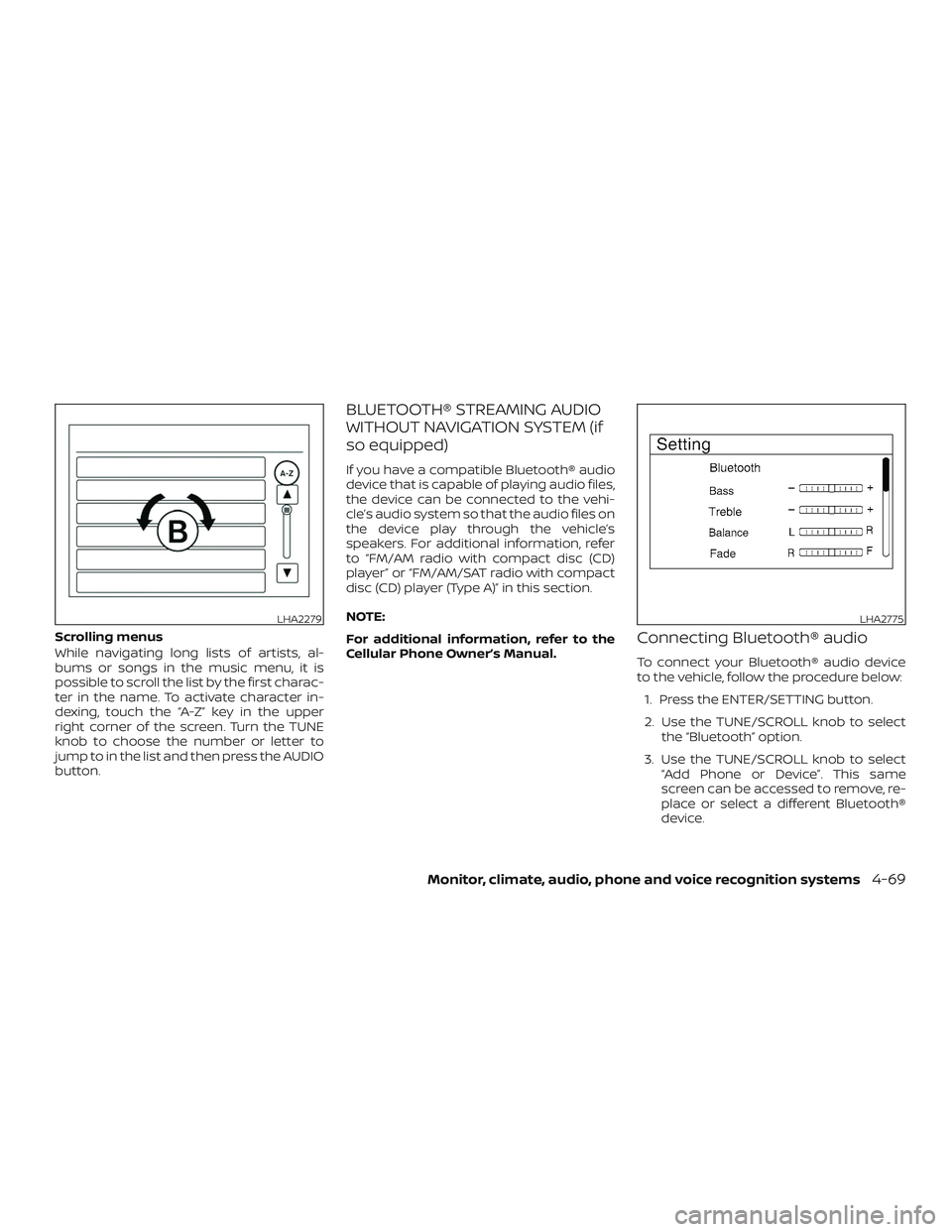
Scrolling menus
While navigating long lists of artists, al-
bums or songs in the music menu, it is
possible to scroll the list by the first charac-
ter in the name. To activate character in-
dexing, touch the “A-Z” key in the upper
right corner of the screen. Turn the TUNE
knob to choose the number or letter to
jump to in the list and then press the AUDIO
button.
BLUETOOTH® STREAMING AUDIO
WITHOUT NAVIGATION SYSTEM (if
so equipped)
If you have a compatible Bluetooth® audio
device that is capable of playing audio files,
the device can be connected to the vehi-
cle’s audio system so that the audio files on
the device play through the vehicle’s
speakers. For additional information, refer
to “FM/AM radio with compact disc (CD)
player” or “FM/AM/SAT radio with compact
disc (CD) player (Type A)” in this section.
NOTE:
For additional information, refer to the
Cellular Phone Owner’s Manual.
Connecting Bluetooth® audio
To connect your Bluetooth® audio device
to the vehicle, follow the procedure below:1. Press the ENTER/SETTING button.
2. Use the TUNE/SCROLL knob to select the “Bluetooth” option.
3. Use the TUNE/SCROLL knob to select “Add Phone or Device”. This same
screen can be accessed to remove, re-
place or select a different Bluetooth®
device.
LHA2279LHA2775
Monitor, climate, audio, phone and voice recognition systems4-69
Page 268 of 507
4. The system acknowledges the com-mand and asks you to initiate connect-
ing from the phone handset. The con-
necting procedure of the cellular
phone varies according to each cellular
phone model. For additional informa-
tion, refer to the cellular phone Owner’s
Manual.
Audio main operation
To switch to the Bluetooth® audio mode,
press the MEDIA button repeatedly until the
Bluetooth® audio mode is displayed on the
screen.
Press the MEDIA button repeatedly to
toggle through the following menu op-
tions;
∙ Title
∙ Artist
∙ Album
BLUETOOTH® STREAMING AUDIO
WITH NAVIGATION SYSTEM (if so
equipped)
If you have a compatible Bluetooth® audio
device that is capable of playing audio files,
the device can be connected to the vehi-
cle’s audio system so that the audio files on
the device play through the vehicle’s
speakers.
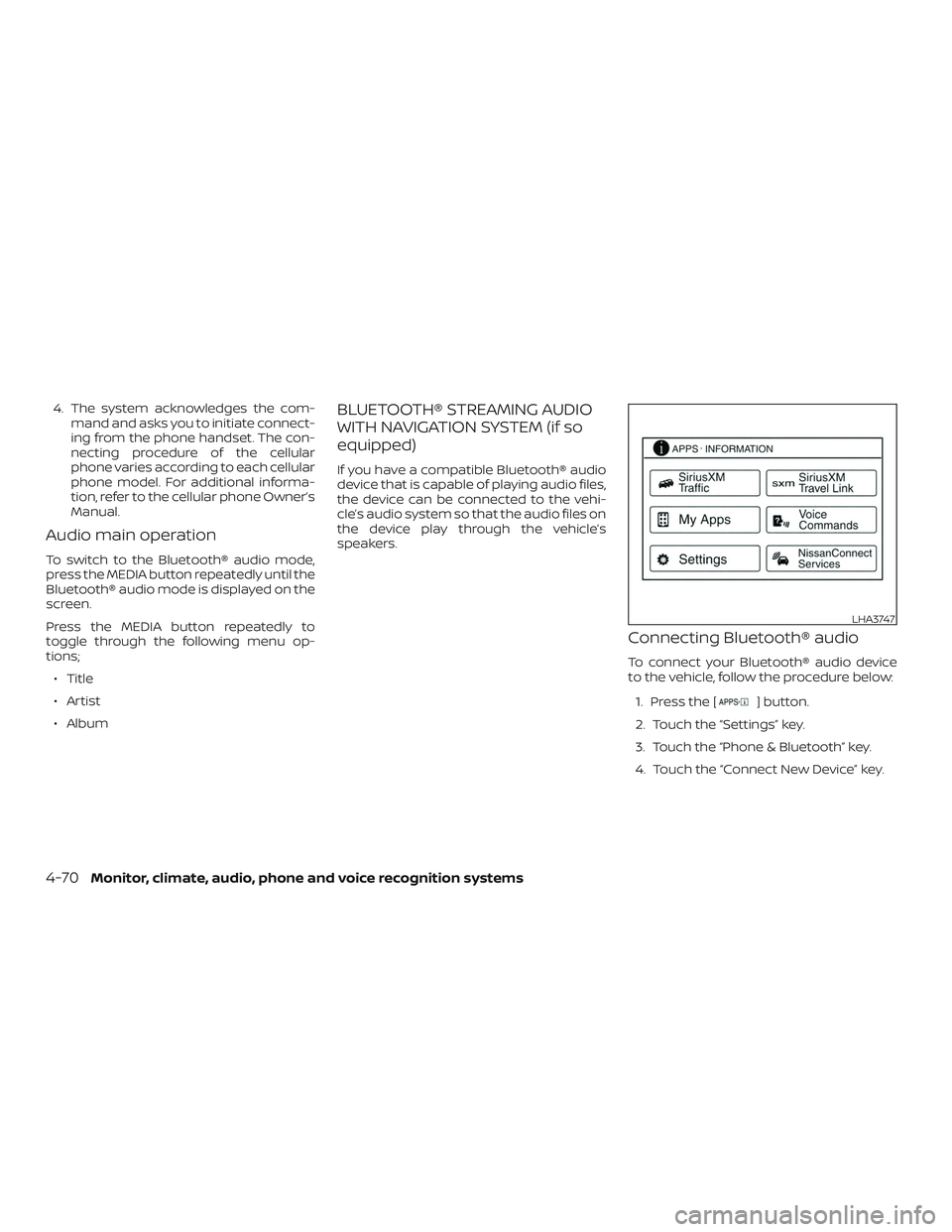
Connecting Bluetooth® audio
To connect your Bluetooth® audio device
to the vehicle, follow the procedure below:
1. Press the [
] button.
2. Touch the “Settings” key.
3. Touch the “Phone & Bluetooth” key.
4. Touch the “Connect New Device” key.
LHA3747
4-70Monitor, climate, audio, phone and voice recognition systems
Page 275 of 507
NOTE:
For best results, use the native music
app. Performance of music control func-
tion while using Podcasts, Audiobook or
other 3rd party music apps may vary and
is controlled by the iPhone®.
Example2–Replying to text messages
1. If a compatible iPhone® is connected and “Show Notifications” of the iPhone®
settings is enabled, the vehicle will dis-
play a notification for new incoming
text messages.
2. Af ter reading the message, push the
switch to go back to the pre-
vious screen then push or push and
hold the
/TALK switch to re-
ply using Siri Eyes Free.
3. Af ter a beep sounds, say “Text mes- sage” or a similar command to reply
using Siri Eyes Free.
CHANGING SIRI® EYES FREE
SETTINGS (models without
navigation system)
Settings for Siri® Eyes Free can be found in
the Bluetooth® settings menu. For addi-
tional information, refer to “Bluetooth® set-
tings” in this section.
1. Press the ENTER/SETTING button.
2. Use the TUNE/SCROLL knob to select “Bluetooth” and then press the
ENTER/SETTING button.
3. Use the TUNE/SCROLL knob to select “Siri” and then press the
ENTER/SETTING button.
4. Select “Short Press” or “Long Press” us- ing the TUNE/SCROLL knob and then
press the ENTER/SETTING button.
CHANGING SIRI® EYES FREE
SETTINGS (models with
navigation system)
Settings for Siri® Eyes Free can be found in
the Bluetooth® settings menu. For addi-
tional information, refer to “Bluetooth® set-
tings” in this section.
1. Press the [
] button.
2. Touch the “Settings” key.
3. Touch the “Phone & Bluetooth” key.
4. Touch the “Phone settings” key.
5. Select “Short Press” or “Long Press” to set the activation.
Monitor, climate, audio, phone and voice recognition systems4-77
Page 292 of 507
BLUETOOTH® is a
trademark owned
by Bluetooth SIG,
Inc. and licensed
to Bosch.
VOICE COMMANDS
You can use voice commands to operate
various Bluetooth® Hands-Free Phone Sys-
tem features using the NISSAN Voice Rec-
ognition system. For additional informa-
tion, refer to “NISSAN Voice Recognition
System” in this section.
Voice Prompt Interrupt
While using the voice recognition system,
the system voice can be interrupted to al-
low the user to speak commands. While
the system is speaking, press the
button on the steering wheel. The system
voice will stop and a tone will be heard.
Af ter the tone, speak desired command
(displayed on the touch-screen).
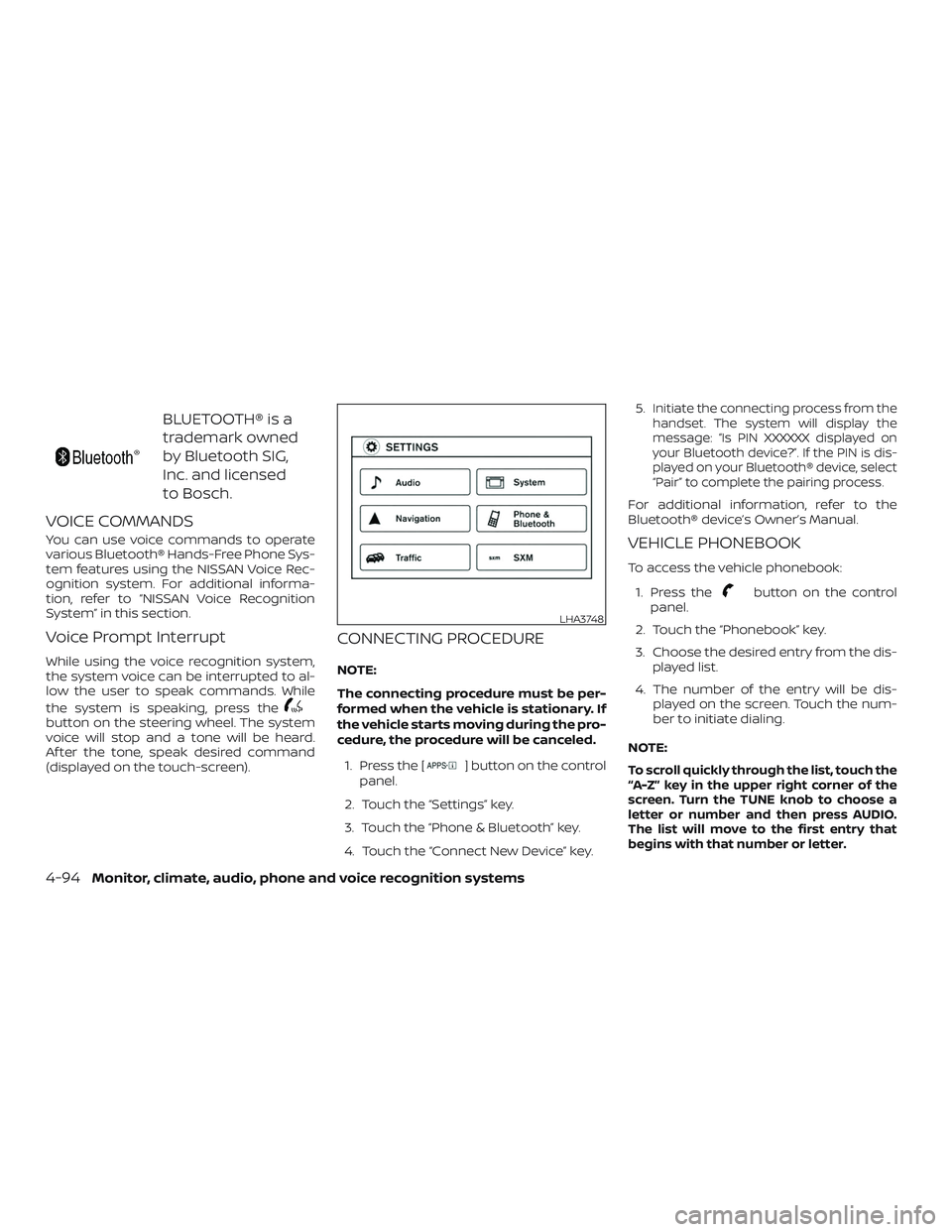
CONNECTING PROCEDURE
NOTE:
The connecting procedure must be per-
formed when the vehicle is stationary. If
the vehicle starts moving during the pro-
cedure, the procedure will be canceled.1. Press the [
] button on the control
panel.
2. Touch the “Settings” key.
3. Touch the “Phone & Bluetooth” key.
4. Touch the “Connect New Device” key. 5.
Initiate the connecting process from the
handset. The system will display the
message: “Is PIN XXXXXX displayed on
your Bluetooth device?”. If the PIN is dis-
played on your Bluetooth® device, select
“Pair” to complete the pairing process.
For additional information, refer to the
Bluetooth® device’s Owner’s Manual.
VEHICLE PHONEBOOK
To access the vehicle phonebook:
1. Press the
button on the control
panel.
2. Touch the “Phonebook” key.
3. Choose the desired entry from the dis- played list.
4. The number of the entry will be dis- played on the screen. Touch the num-
ber to initiate dialing.
NOTE:
To scroll quickly through the list, touch the
“A-Z” key in the upper right corner of the
screen. Turn the TUNE knob to choose a
letter or number and then press AUDIO.
The list will move to the first entry that
begins with that number or letter.
LHA3748
4-94Monitor, climate, audio, phone and voice recognition systems
Page 293 of 507
MAKING A CALL
To make a call, follow the procedure below:1. Press the
button on the control
panel. The “Phone” screen will appear
on the display.
2. Select one of the following options to make a call:
∙ “Phonebook”: Select the name from an entry stored in the vehicle phonebook.
∙ “Call Lists”: Select the name from the incoming, outgoing or missed.
∙ “Redial”: Dial the last outgoing call from the vehicle.
∙“
”: Input the phone number manu-
ally using a keypad displayed on the
screen. For additional information, refer
to “How to use the touch-screen” in this
section.
RECEIVING A CALL
When a call is placed to the connected
phone, the display will change to phone
mode. To accept the incoming call, either:
∙ Press the
button on the steering
wheel, or
∙ Touch the phone icon on the screen.
To reject the incoming call, either:
∙ Press the
button on the steering
wheel, or
∙ Touch the phone icon on the screen.
DURING A CALL
While a call is active, the following options
are available on the screen: ∙ “Handset” Select this option to switch control of
the phone call over to the handset.
∙ “Mute Mic.” Select this option to mute the micro-
phone. Select again to unmute the mi-
crophone.
∙ Phone
icon
Select to end the phone call.
ENDING A CALL
To end a phone call, select the phone
icon on the screen or press thebut-
ton on the steering wheel.
TEXT MESSAGING (if so equipped)
WARNING
∙ Laws in some jurisdictions may re- strict the use of “Text-to-Speech”.
Check local regulations before using
this feature.
∙ Laws in some jurisdictions may re- strict the use of some of the applica-
tions and features, such as social net-
working and texting. Check local
regulations for any requirements.
∙ Use the text messaging feature af ter stopping your vehicle in a safe loca-
tion. If you have to use the feature
while driving, exercise extreme cau-
tion at all times so full attention may
be given to vehicle operation.
∙ If you are unable to devote full atten- tion to vehicle operation while using
the text messaging feature, pull off
the road to a safe location and stop
your vehicle.
Monitor, climate, audio, phone and voice recognition systems4-95
Page 296 of 507
![NISSAN SENTRA 2018 Owner´s Manual BLUETOOTH® SETTINGS
To access the phone settings:1. Press the [
] button.
2. Touch the “Settings” key.
3. Touch the “Phone & Bluetooth” key.
Menu Item Result
Phone Settings For additional inf](/img/5/40329/w960_40329-295.png "NISSAN SENTRA 2018 Owner´s Manual BLUETOOTH® SETTINGS
To access the phone settings:1. Press the [
] button.
2. Touch the “Settings” key.
3. Touch the “Phone & Bluetooth” key.
Menu Item Result
Phone Settings For additional inf")
BLUETOOTH® SETTINGS
To access the phone settings:1. Press the [
] button.
2. Touch the “Settings” key.
3. Touch the “Phone & Bluetooth” key.
Menu Item Result
Phone Settings For additional information, refer to “Phone settings” in this section.
Connect New Device Touch to connect a new Bluetooth® device to the Bluetooth® Hands-Free Phone System.
Select Connected Device Touch to choose a Bluetooth® device from a list of those devices connected to the Bluetooth® Hands-Free Phone System.
Replace Connected Device Touch to replace a Bluetooth® device from a list of those devices connected to the Bluetooth® Hands-Free Phone System.
Delete Connected Device Touch to delete a Bluetooth® device from a list of those devices connected to the Bluetooth® Hands-Free Phone System.
Bluetooth Touch to toggle Bluetooth® on and off.
LHA2844
4-98Monitor, climate, audio, phone and voice recognition systems
Page 297 of 507
![NISSAN SENTRA 2018 Owner´s Manual PHONE SETTINGS
To access the phone settings:1. Press the [
] button.
2. Touch the “Settings” key.
3. Touch the “Phone & Bluetooth” key.
4. Touch the “Phone Settings” key and ad- just the f](/img/5/40329/w960_40329-296.png "NISSAN SENTRA 2018 Owner´s Manual PHONE SETTINGS
To access the phone settings:1. Press the [
] button.
2. Touch the “Settings” key.
3. Touch the “Phone & Bluetooth” key.
4. Touch the “Phone Settings” key and ad- just the f")
PHONE SETTINGS
To access the phone settings:1. Press the [
] button.
2. Touch the “Settings” key.
3. Touch the “Phone & Bluetooth” key.
4. Touch the “Phone Settings” key and ad- just the following settings as desired:
∙ Start Siri® by: Touch “Short Press” or “Long Press” to
set how Siri® is operated on the steering
wheel.
∙ Sort Phonebook By: Touch “First Name” or “Last Name” to
choose how phonebook entries are al-
phabetically displayed on the screen.
∙ Use Phonebook From: Touch “Handset” to use the phone’s
phonebook. Touch “SIM” to use the
phonebook on the SIM card. Select
“Both” to use both sources.
∙ Download Phonebook Now: Touch to download the phonebook to
the vehicle from the chosen source. ∙ Record Name for Phonebook Entry:
Touch to record a name for a phone-
book entry for use with the NISSAN
Voice Recognition System.
∙ Phone Notifications for: Touch “Driver” to have phone notifica-
tions shown in the vehicle information
display. Select “Both” to have phone no-
tifications shown in both the vehicle in-
formation display and the center dis-
play screen.
∙ Text Messaging (if so equipped): Touch to toggle the text message func-
tionality on or off.
∙ Show Incoming Text for (if so equipped): Touch “Driver” to have incoming text no-
tifications shown in the vehicle informa-
tion display. Touch “Both” to have text
notifications shown in both the vehicle
information display and the center dis-
play screen. Touch “Off ” to turn off all
text notifications.
∙ Auto Reply (if so equipped): Touch to toggle the auto reply function-
ality on or off. ∙ Auto Reply Message (if so equipped):
Touch to indicate preferred message to
be sent when “Auto Reply” function is
activated.
∙ Use Vehicle’s Signature (if so equipped): Touch to toggle on or off the addition of
the vehicle signature to outgoing mes-
sages.
∙ Custom Text Messages (if so equipped): Touch this option to select a custom
message to edit. There are 4 customer
message slots available.
Monitor, climate, audio, phone and voice recognition systems4-99
Page 299 of 507
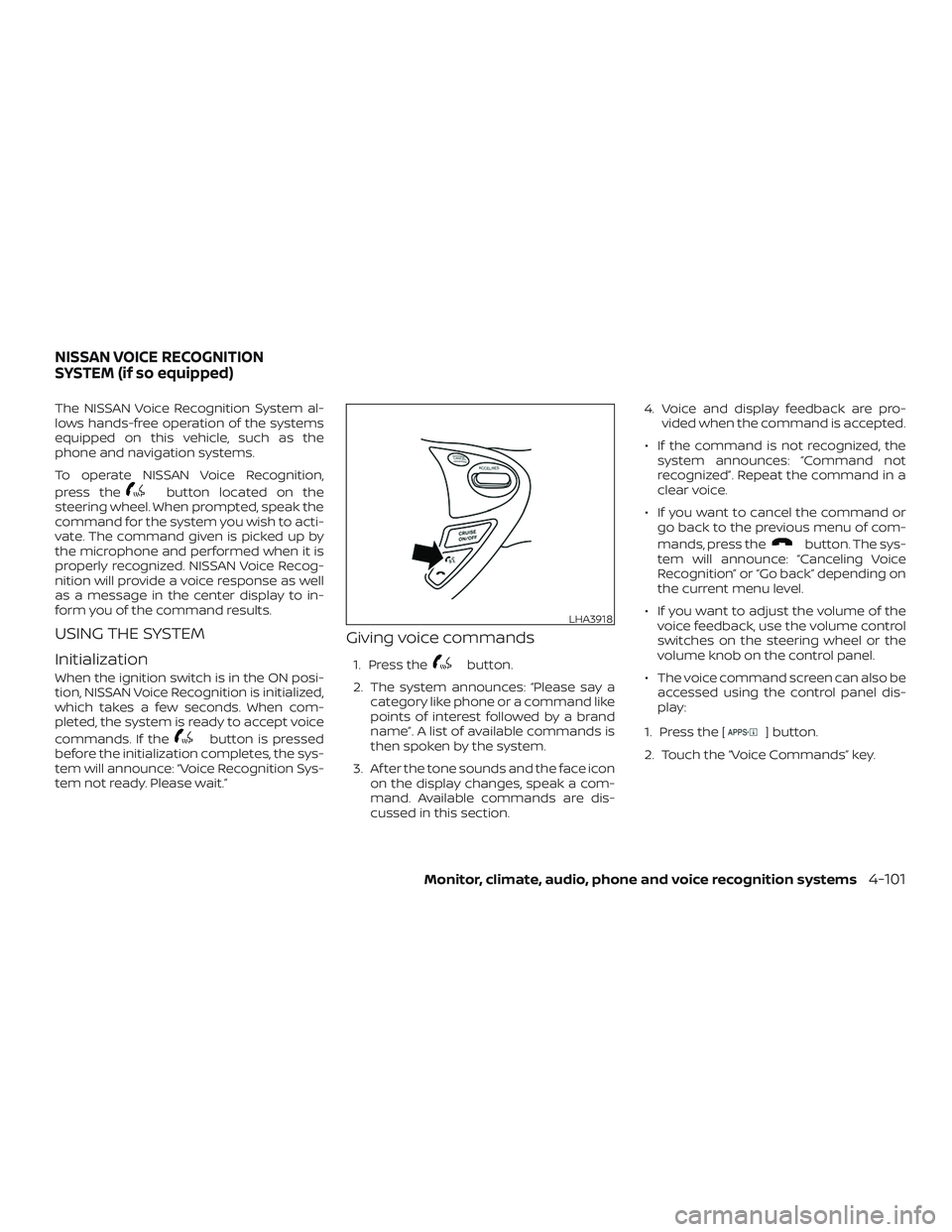
The NISSAN Voice Recognition System al-
lows hands-free operation of the systems
equipped on this vehicle, such as the
phone and navigation systems.
To operate NISSAN Voice Recognition,
press the
button located on the
steering wheel. When prompted, speak the
command for the system you wish to acti-
vate. The command given is picked up by
the microphone and performed when it is
properly recognized. NISSAN Voice Recog-
nition will provide a voice response as well
as a message in the center display to in-
form you of the command results.
USING THE SYSTEM
Initialization
When the ignition switch is in the ON posi-
tion, NISSAN Voice Recognition is initialized,
which takes a few seconds. When com-
pleted, the system is ready to accept voice
commands. If the
button is pressed
before the initialization completes, the sys-
tem will announce: “Voice Recognition Sys-
tem not ready. Please wait.”
Giving voice commands
1. Press thebutton.
2. The system announces: “Please say a category like phone or a command like
points of interest followed by a brand
name”. A list of available commands is
then spoken by the system.
3. Af ter the tone sounds and the face icon on the display changes, speak a com-
mand. Available commands are dis-
cussed in this section. 4. Voice and display feedback are pro-
vided when the command is accepted.
∙ If the command is not recognized, the system announces: “Command not
recognized”. Repeat the command in a
clear voice.
∙ If you want to cancel the command or go back to the previous menu of com-
mands, press the
button. The sys-
tem will announce: “Canceling Voice
Recognition” or “Go back” depending on
the current menu level.
∙ If you want to adjust the volume of the voice feedback, use the volume control
switches on the steering wheel or the
volume knob on the control panel.
∙ The voice command screen can also be accessed using the control panel dis-
play:
1. Press the [
] button.
2. Touch the “Voice Commands” key.
LHA3918
NISSAN VOICE RECOGNITION
SYSTEM (if so equipped)
Monitor, climate, audio, phone and voice recognition systems4-101
Page 306 of 507
5 Starting and driving
Precautions when starting and driving..........5-2
Exhaust gas (carbon monoxide) ..............5-2
Three-way catalyst ...........................5-2
Tire Pressure Monitoring System
(TPMS)........................................5-3
Avoiding collision and rollover ................5-7
Off-roadrecovery ............................5-7
Rapid air pressure loss .......................5-8
Drinking alcohol/drugs and driving ...........5-8
Ignition switch (if so equipped) ...................5-9
Continuously Variable Transmission
(if so equipped) ...............................5-9
Manual transmission (M/T)
(if so equipped) .............................. 5-10
Ignition switch positions .....................5-10
NISSAN Vehicle Immobilizer System ..........5-11
Push-Button Ignition Switch (if so equipped) .....5-11
Operating range ............................. 5-12
Push-button ignition switch positions .......5-12
Emergency engine shut off ..................5-13
NISSAN Intelligent Key® battery
discharge ................................... 5-13
NISSAN Vehicle Immobilizer System .........5-14
Before starting the engine ......................5-14Starting the engine (models without NISSAN
Intelligent Key® system)
........................5-15
Starting the engine (models with NISSAN
Intelligent Key® system) ........................5-16
Driving the vehicle .............................. 5-17
Continuously Variable Transmission
(CVT) (if so equipped) ........................ 5-17
Manual transmission (if so equipped) ........5-23
Parking brake .................................. 5-25
SPORT mode switch (if so equipped) ............5-26
ECO mode switch (if so equipped) ..............5-26
Shif t lever indicator (MRA8DE engine
Manual Transmission models only) ..........5-27
Blind Spot Warning (BSW) (if so equipped) .......5-27
BSW system operation ......................5-29
How to enable/disable the BSW system .....5-30
BSW system limitations ......................5-31
BSW driving situations .......................5-32
System temporarily unavailable .............5-35
System maintenance ........................ 5-36
R
ear Cross Traffic Alert (RCTA) (if so equipped) . . 5-37 RCTA system operation ......................5-38
How to enable/disable the RCTA
system ...................................... 5-40