Pin NISSAN SENTRA 2023 User Guide
[x] Cancel search | Manufacturer: NISSAN, Model Year: 2023, Model line: SENTRA, Model: NISSAN SENTRA 2023Pages: 556, PDF Size: 6.11 MB
Page 218 of 556
System temporarily unavailable
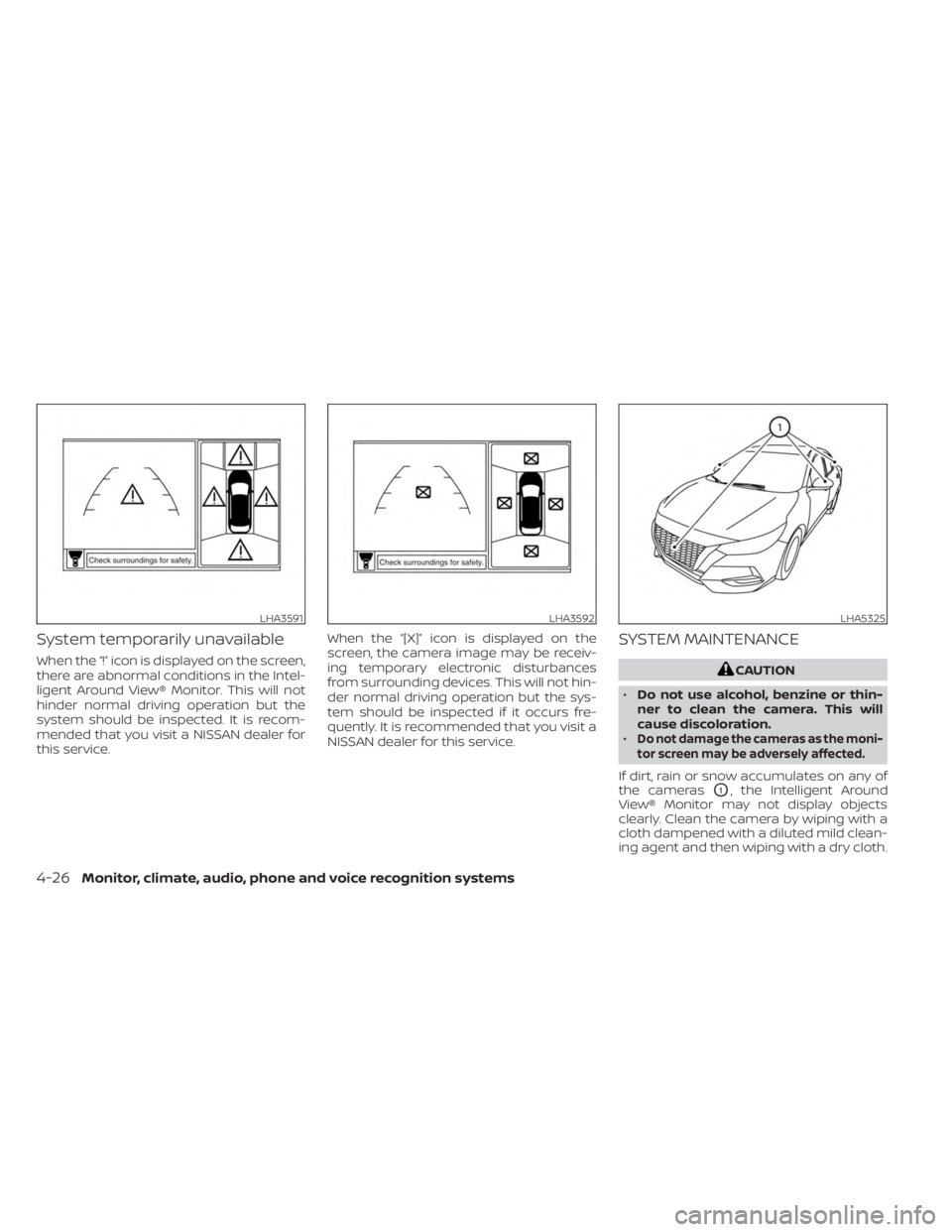
When the “!” icon is displayed on the screen,
there are abnormal conditions in the Intel-
ligent Around View® Monitor. This will not
hinder normal driving operation but the
system should be inspected. It is recom-
mended that you visit a NISSAN dealer for
this service.When the “[X]” icon is displayed on the
screen, the camera image may be receiv-
ing temporary electronic disturbances
from surrounding devices. This will not hin-
der normal driving operation but the sys-
tem should be inspected if it occurs fre-
quently. It is recommended that you visit a
NISSAN dealer for this service.
SYSTEM MAINTENANCE
CAUTION
• Do not use alcohol, benzine or thin-
ner to clean the camera. This will
cause discoloration.
•
Do not damage the cameras as the moni-
tor screen may be adversely affected.
If dirt, rain or snow accumulates on any of
the cameras
O1, the Intelligent Around
View® Monitor may not display objects
clearly. Clean the camera by wiping with a
cloth dampened with a diluted mild clean-
ing agent and then wiping with a dry cloth.
LHA3591LHA3592LHA5325
4-26Monitor, climate, audio, phone and voice recognition systems
Page 221 of 556
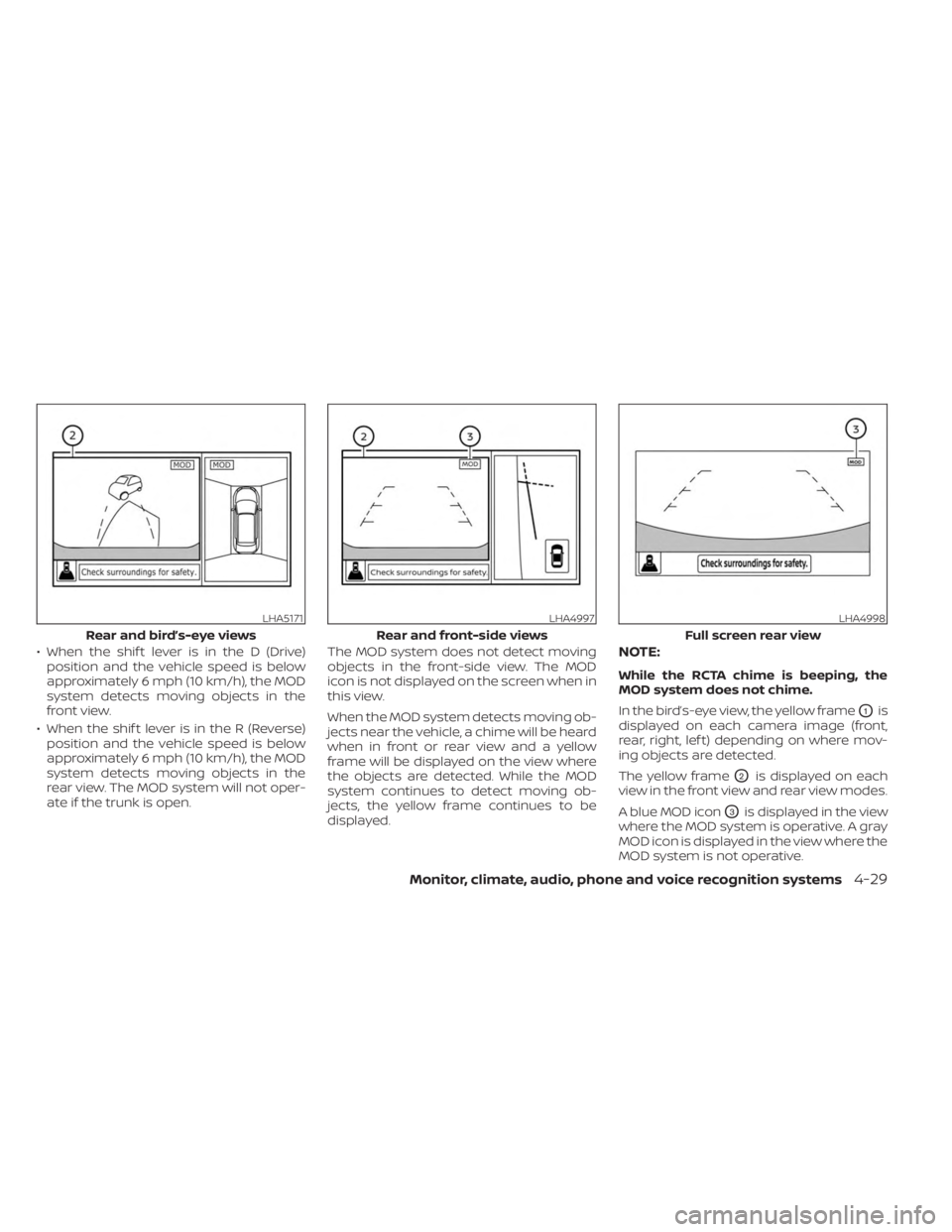
• When the shif t lever is in the D (Drive)position and the vehicle speed is below
approximately 6 mph (10 km/h), the MOD
system detects moving objects in the
front view.
• When the shif t lever is in the R (Reverse) position and the vehicle speed is below
approximately 6 mph (10 km/h), the MOD
system detects moving objects in the
rear view. The MOD system will not oper-
ate if the trunk is open. The MOD system does not detect moving
objects in the front-side view. The MOD
icon is not displayed on the screen when in
this view.
When the MOD system detects moving ob-
jects near the vehicle, a chime will be heard
when in front or rear view and a yellow
frame will be displayed on the view where
the objects are detected. While the MOD
system continues to detect moving ob-
jects, the yellow frame continues to be
displayed.NOTE:
While the RCTA chime is beeping, the
MOD system does not chime.
In the bird’s-eye view, the yellow frame
O1is
displayed on each camera image (front,
rear, right, lef t) depending on where mov-
ing objects are detected.
The yellow frame
O2is displayed on each
view in the front view and rear view modes.
A blue MOD icon
O3is displayed in the view
where the MOD system is operative. A gray
MOD icon is displayed in the view where the
MOD system is not operative.
LHA5171
Rear and bird’s-eye views
LHA4997
Rear and front-side views
LHA4998
Full screen rear view
Monitor, climate, audio, phone and voice recognition systems4-29
Page 223 of 556
SYSTEM MAINTENANCE
CAUTION
• Do not use alcohol, benzine or thin-
ner to clean the camera. This will
cause discoloration.
• Do not damage the camera as the
monitor screen may be adversely
affected.
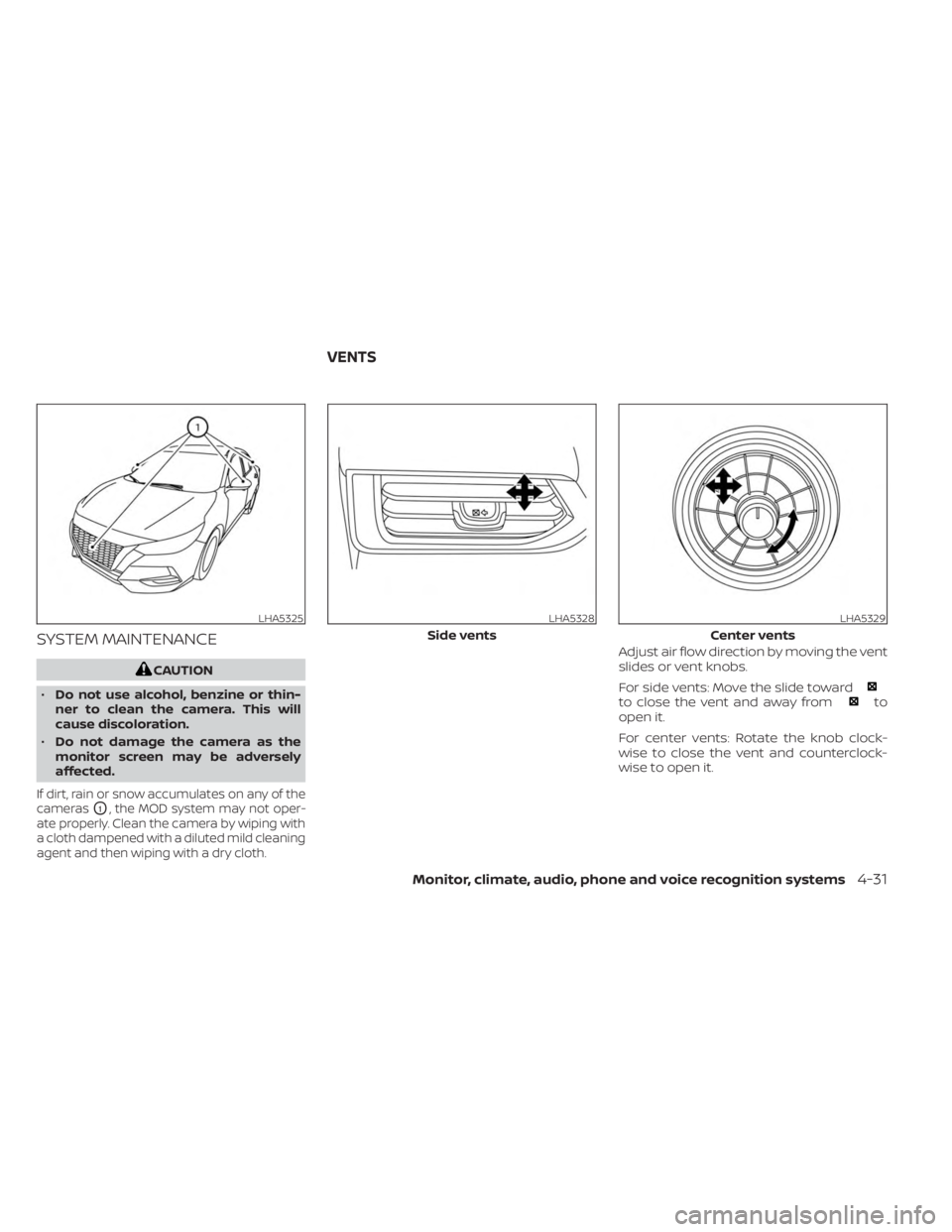
If dirt, rain or snow accumulates on any of the
cameras
O1, the MOD system may not oper-
ate properly. Clean the camera by wiping with
a cloth dampened with a diluted mild cleaning
agent and then wiping with a dry cloth.
Adjust air flow direction by moving the vent
slides or vent knobs.
For side vents: Move the slide toward
to close the vent and away fromto
open it.
For center vents: Rotate the knob clock-
wise to close the vent and counterclock-
wise to open it.
LHA5325LHA5328
Side vents
LHA5329
Center vents
VENTS
Monitor, climate, audio, phone and voice recognition systems4-31
Page 239 of 556
– Do not force the iPod® cable connectorinto the device port.
– Close the center console lid on the cable or connectors.
– Store objects with sharp edges in the storage where the cable is stored.
– Spill liquids on the cable and connectors.
• Do not connect the cable to the iPod® if the cable and/or connectors are wet. It
may damage the iPod®.
• If the cable and connectors are exposed to water, allow the cable and/or connec-
tors to dry completely before connecting
the cable to the iPod® (wait 24 hours for it
to dry).
• If the connector is exposed to fluids other than water, evaporative residue may
cause a short between the connector
pins. In this case, replace the cable, other-
wise damage to the iPod® and a loss of
function may occur.
• If the cable is damaged (insulation cut, connectors cracked, contamination such
as liquids, dust, dirt, etc. in the connec-
tors), do not use the cable. It is recom-
mended that you visit a NISSAN dealer to
replace the cable with a new one. • When not in use for extended periods of
time, store the cable in a clean, dust free
environment at room temperature and
without direct sun exposure.
• Do not use the cable for any other pur- poses other than its intended use in the
vehicle.
*iPod® is a trademark of Apple Inc., regis-
tered in the U.S. and other countries.
Bluetooth® streaming audio
• Some Bluetooth® audio devices may not be recognized by the in-vehicle audio
system.
• It is necessary to set up the wireless con- nection between a compatible
Bluetooth® audio device and the in-
vehicle Bluetooth® module before using
the Bluetooth® audio.
• Operating procedure of the Bluetooth® audio will vary depending on the devices.
Make sure how to operate your audio de-
vice before using it with this system.
• The Bluetooth® audio may be stopped under the following conditions:– Receiving a call on the Bluetooth® Hands-Free Phone System.
– Checking the connection to the hands-free phone. • Do not place the Bluetooth® audio device
in an area surrounded by metal or far
away from the in-vehicle Bluetooth®
module to prevent tone quality degrada-
tion and wireless connection disruption.
• While an audio device is connected through the Bluetooth® wireless connec-
tion, the battery power of the device may
discharge quicker than usual.
• This system supports the Bluetooth® Audio Distribution Profile (A2DP, AVRCP).BLUETOOTH® is a
trademark owned by
Bluetooth SIG, Inc. and
licensed to
Panasonic.
Monitor, climate, audio, phone and voice recognition systems4-47
Page 247 of 556
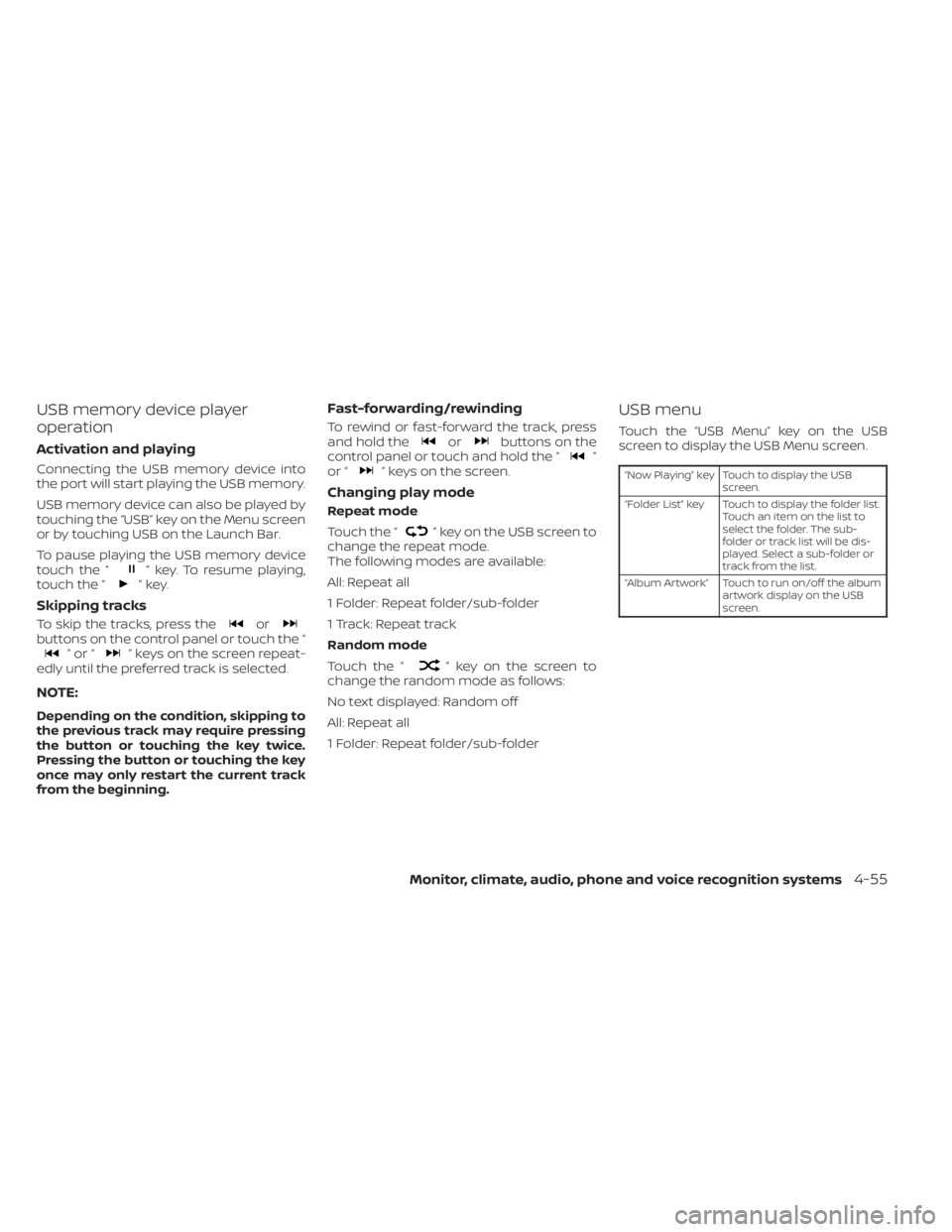
USB memory device player
operation
Activation and playing
Connecting the USB memory device into
the port will start playing the USB memory.
USB memory device can also be played by
touching the “USB” key on the Menu screen
or by touching USB on the Launch Bar.
To pause playing the USB memory device
touch the “
” key. To resume playing,
touch the “”key.
Skipping tracks
To skip the tracks, press theorbuttons on the control panel or touch the “”or“” keys on the screen repeat-
edly until the preferred track is selected.
NOTE:
Depending on the condition, skipping to
the previous track may require pressing
the button or touching the key twice.
Pressing the button or touching the key
once may only restart the current track
from the beginning.
Fast-forwarding/rewinding
To rewind or fast-forward the track, press
and hold theorbuttons on the
control panel or touch and hold the “”
or “” keys on the screen.
Changing play mode
Repeat mode
Touch the “
” key on the USB screen to
change the repeat mode.
The following modes are available:
All: Repeat all
1 Folder: Repeat folder/sub-folder
1 Track: Repeat track
Random mode
Touch the “
” key on the screen to
change the random mode as follows:
No text displayed: Random off
All: Repeat all
1 Folder: Repeat folder/sub-folder
USB menu
Touch the “USB Menu” key on the USB
screen to display the USB Menu screen.
“Now Playing” key Touch to display the USB
screen.
“Folder List” key Touch to display the folder list. Touch an item on the list to
select the folder. The sub-
folder or track list will be dis-
played. Select a sub-folder or
track from the list.
“Album Artwork” Touch to run on/off the album artwork display on the USB
screen.
Monitor, climate, audio, phone and voice recognition systems4-55
Page 250 of 556
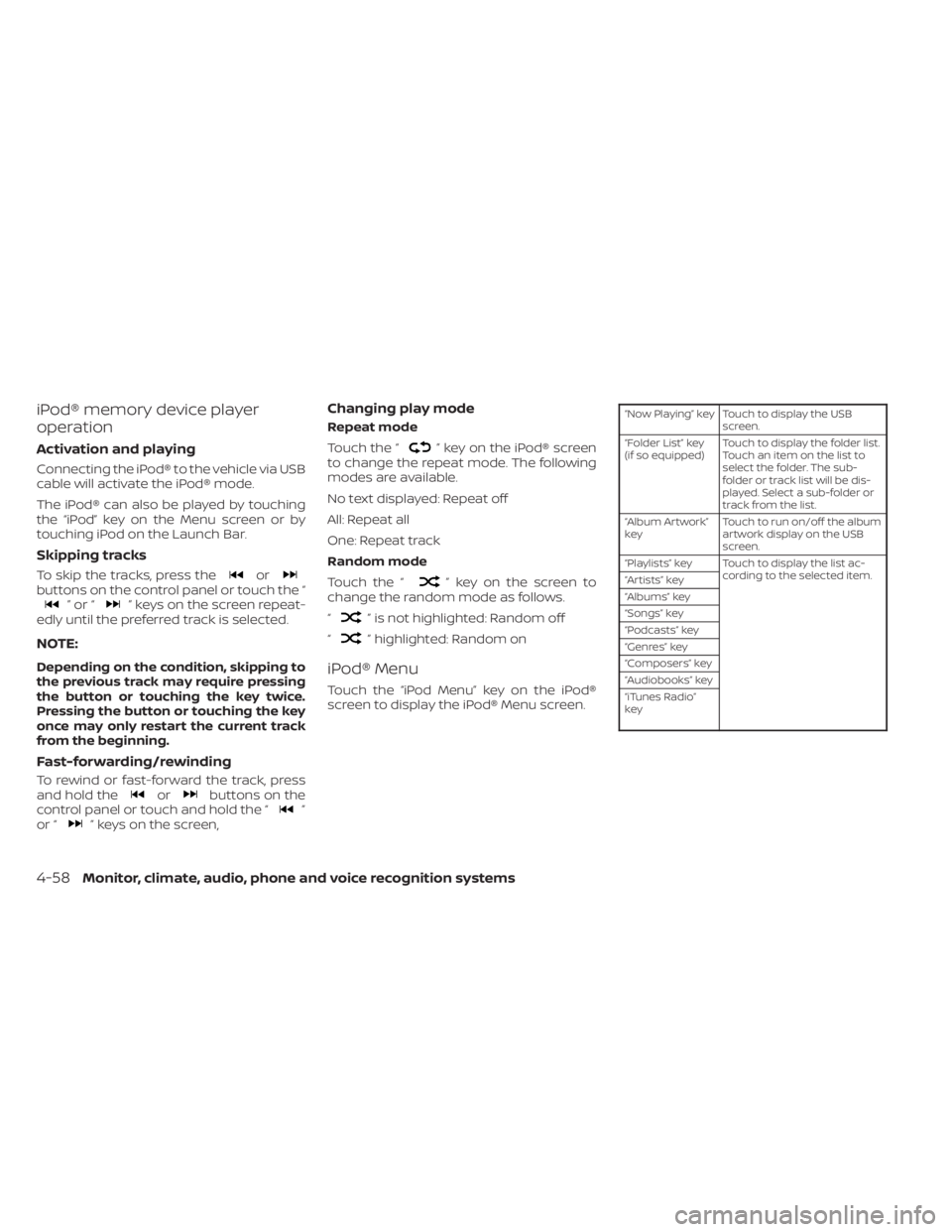
iPod® memory device player
operation
Activation and playing
Connecting the iPod® to the vehicle via USB
cable will activate the iPod® mode.
The iPod® can also be played by touching
the “iPod” key on the Menu screen or by
touching iPod on the Launch Bar.
Skipping tracks
To skip the tracks, press theorbuttons on the control panel or touch the “”or“” keys on the screen repeat-
edly until the preferred track is selected.
NOTE:
Depending on the condition, skipping to
the previous track may require pressing
the button or touching the key twice.
Pressing the button or touching the key
once may only restart the current track
from the beginning.
Fast-forwarding/rewinding
To rewind or fast-forward the track, press
and hold theorbuttons on the
control panel or touch and hold the “”
or “” keys on the screen,
Changing play mode
Repeat mode
Touch the “
” key on the iPod® screen
to change the repeat mode. The following
modes are available.
No text displayed: Repeat off
All: Repeat all
One: Repeat track
Random mode
Touch the “
” key on the screen to
change the random mode as follows.
“
” is not highlighted: Random off
“
” highlighted: Random on
iPod® Menu
Touch the “iPod Menu” key on the iPod®
screen to display the iPod® Menu screen.
“Now Playing” key Touch to display the USB screen.
“Folder List” key
(if so equipped) Touch to display the folder list.
Touch an item on the list to
select the folder. The sub-
folder or track list will be dis-
played. Select a sub-folder or
track from the list.
“Album Artwork”
key Touch to run on/off the album
artwork display on the USB
screen.
“Playlists” key Touch to display the list ac- cording to the selected item.
“Artists” key
“Albums” key
“Songs” key
“Podcasts” key
“Genres” key
“Composers” key
“Audiobooks” key
“iTunes Radio”
key
4-58Monitor, climate, audio, phone and voice recognition systems
Page 251 of 556
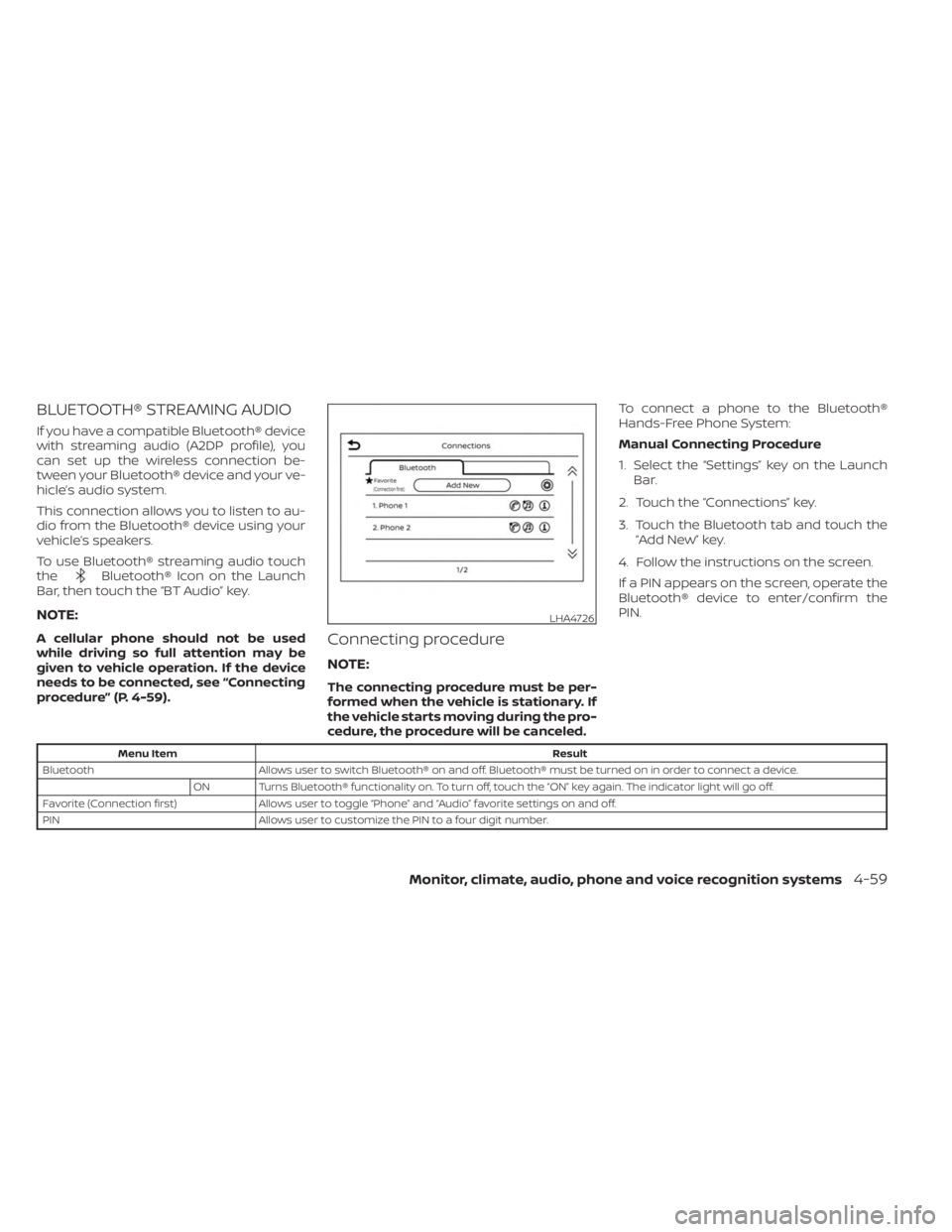
BLUETOOTH® STREAMING AUDIO
If you have a compatible Bluetooth® device
with streaming audio (A2DP profile), you
can set up the wireless connection be-
tween your Bluetooth® device and your ve-
hicle’s audio system.
This connection allows you to listen to au-
dio from the Bluetooth® device using your
vehicle’s speakers.
To use Bluetooth® streaming audio touch
the
Bluetooth® Icon on the Launch
Bar, then touch the “BT Audio” key.
NOTE:
A cellular phone should not be used
while driving so full attention may be
given to vehicle operation. If the device
needs to be connected, see “Connecting
procedure” (P. 4-59).Connecting procedure
NOTE:
The connecting procedure must be per-
formed when the vehicle is stationary. If
the vehicle starts moving during the pro-
cedure, the procedure will be canceled. To connect a phone to the Bluetooth®
Hands-Free Phone System:
Manual Connecting Procedure
1. Select the “Settings” key on the Launch
Bar.
2. Touch the “Connections” key.
3. Touch the Bluetooth tab and touch the “Add New” key.
4. Follow the instructions on the screen.
If a PIN appears on the screen, operate the
Bluetooth® device to enter/confirm the
PIN.
Menu Item Result
Bluetooth Allows user to switch Bluetooth® on and off. Bluetooth® must be turned on in order to connect a device.
ON Turns Bluetooth® functionality on. To turn off, touch the “ON” key again. The indicator light will go off.
Favorite (Connection first) Allows user to toggle “Phone” and “Audio” favorite settings on and off.
PIN Allows user to customize the PIN to a four digit number.
LHA4726
Monitor, climate, audio, phone and voice recognition systems4-59
Page 252 of 556
Automatic Connecting Procedure
If no phone is connected to the system,
press and hold the
button on the
steering wheel for less than 1.5 seconds.
Af ter the prompt, speak “Add Phone”, the
system will announce “transferring to the
add phone settings menu”. The system will
start the pairing procedure. When a com-
patible phone is found, a message with a
PIN appears on the screen. Operate the
Bluetooth® phone to complete the con-
nection process. For additional informa-
tion, see “Bluetooth® connections screen”
(P. 4-81).
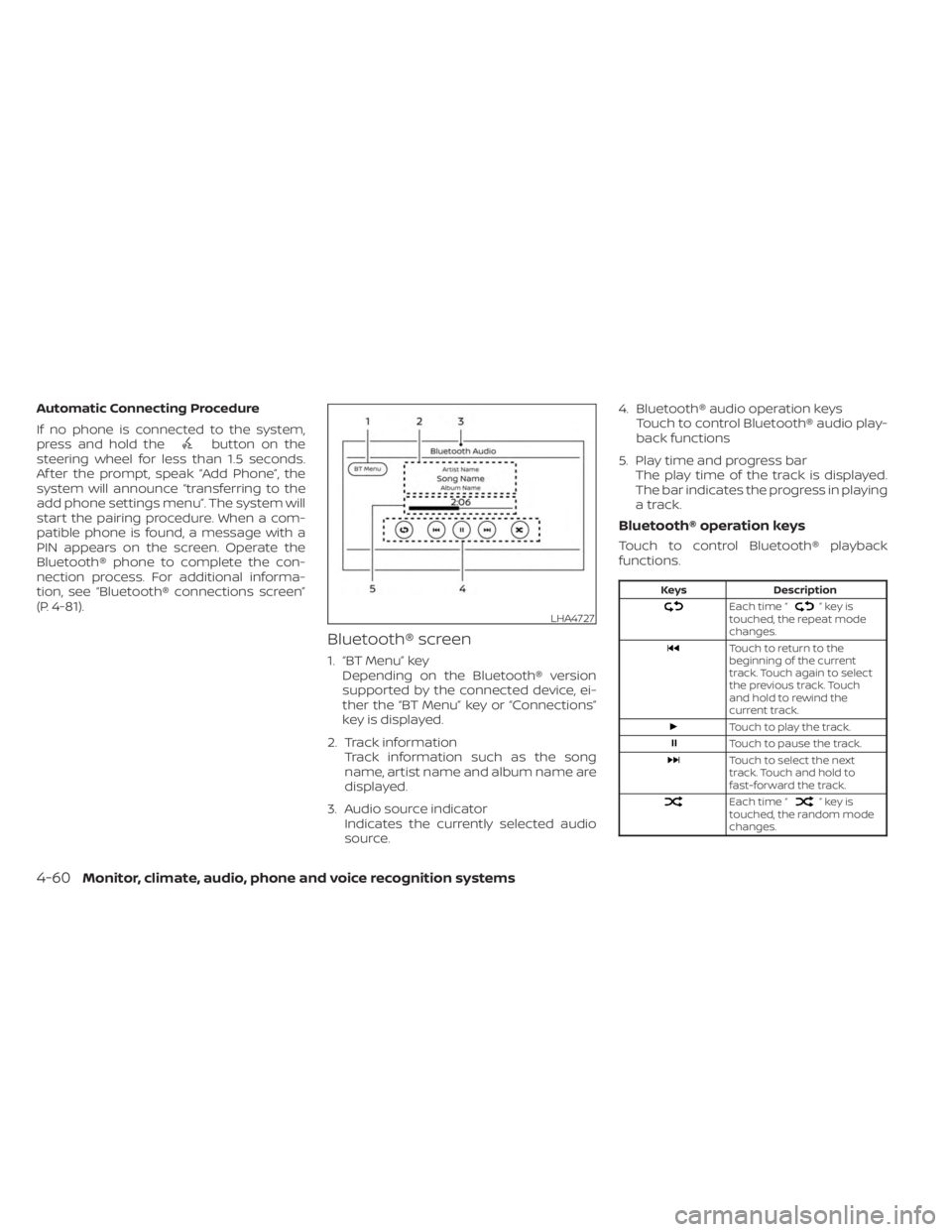
Bluetooth® screen
1. “BT Menu” key Depending on the Bluetooth® version
supported by the connected device, ei-
ther the “BT Menu” key or “Connections”
key is displayed.
2. Track information Track information such as the song
name, artist name and album name are
displayed.
3. Audio source indicator Indicates the currently selected audio
source. 4. Bluetooth® audio operation keys
Touch to control Bluetooth® audio play-
back functions
5. Play time and progress bar The play time of the track is displayed.
The bar indicates the progress in playing
a track.
Bluetooth® operation keys
Touch to control Bluetooth® playback
functions.
Keys Description
Each time “”keyis
touched, the repeat mode
changes.
Touch to return to the
beginning of the current
track. Touch again to select
the previous track. Touch
and hold to rewind the
current track.
Touch to play the track.
Touch to pause the track.
Touch to select the next
track. Touch and hold to
fast-forward the track.
Each time “”keyis
touched, the random mode
changes.
LHA4727
4-60Monitor, climate, audio, phone and voice recognition systems
Page 258 of 556
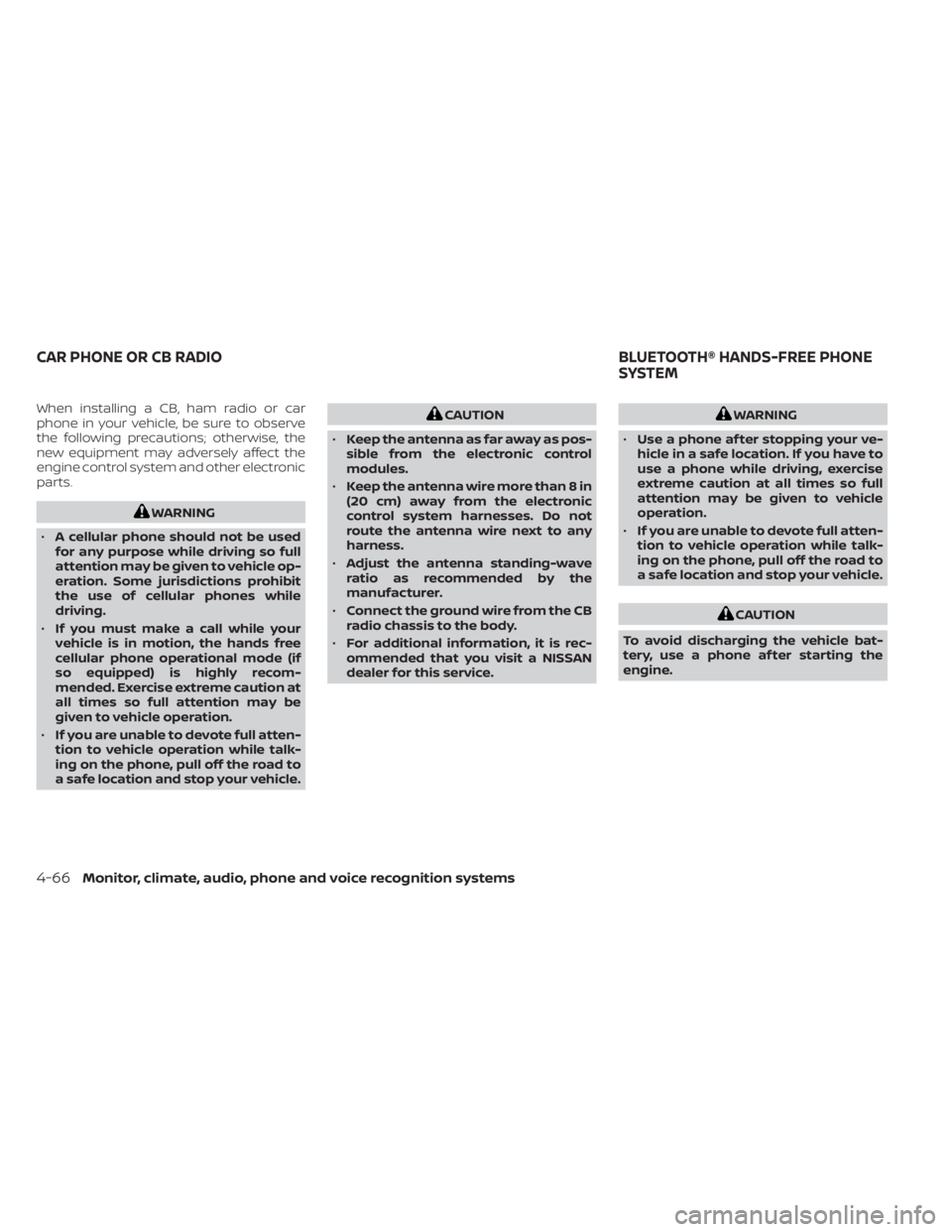
When installing a CB, ham radio or car
phone in your vehicle, be sure to observe
the following precautions; otherwise, the
new equipment may adversely affect the
engine control system and other electronic
parts.
WARNING
• A cellular phone should not be used
for any purpose while driving so full
attention may be given to vehicle op-
eration. Some jurisdictions prohibit
the use of cellular phones while
driving.
• If you must make a call while your
vehicle is in motion, the hands free
cellular phone operational mode (if
so equipped) is highly recom-
mended. Exercise extreme caution at
all times so full attention may be
given to vehicle operation.
• If you are unable to devote full atten-
tion to vehicle operation while talk-
ing on the phone, pull off the road to
a safe location and stop your vehicle.
CAUTION
• Keep the antenna as far away as pos-
sible from the electronic control
modules.
• Keep the antenna wire more than 8 in
(20 cm) away from the electronic
control system harnesses. Do not
route the antenna wire next to any
harness.
• Adjust the antenna standing-wave
ratio as recommended by the
manufacturer.
• Connect the ground wire from the CB
radio chassis to the body.
• For additional information, it is rec-
ommended that you visit a NISSAN
dealer for this service.WARNING
• Use a phone af ter stopping your ve-
hicle in a safe location. If you have to
use a phone while driving, exercise
extreme caution at all times so full
attention may be given to vehicle
operation.
• If you are unable to devote full atten-
tion to vehicle operation while talk-
ing on the phone, pull off the road to
a safe location and stop your vehicle.
CAUTION
To avoid discharging the vehicle bat-
tery, use a phone af ter starting the
engine.
CAR PHONE OR CB RADIO BLUETOOTH® HANDS-FREE PHONE
SYSTEM
4-66Monitor, climate, audio, phone and voice recognition systems
Page 264 of 556
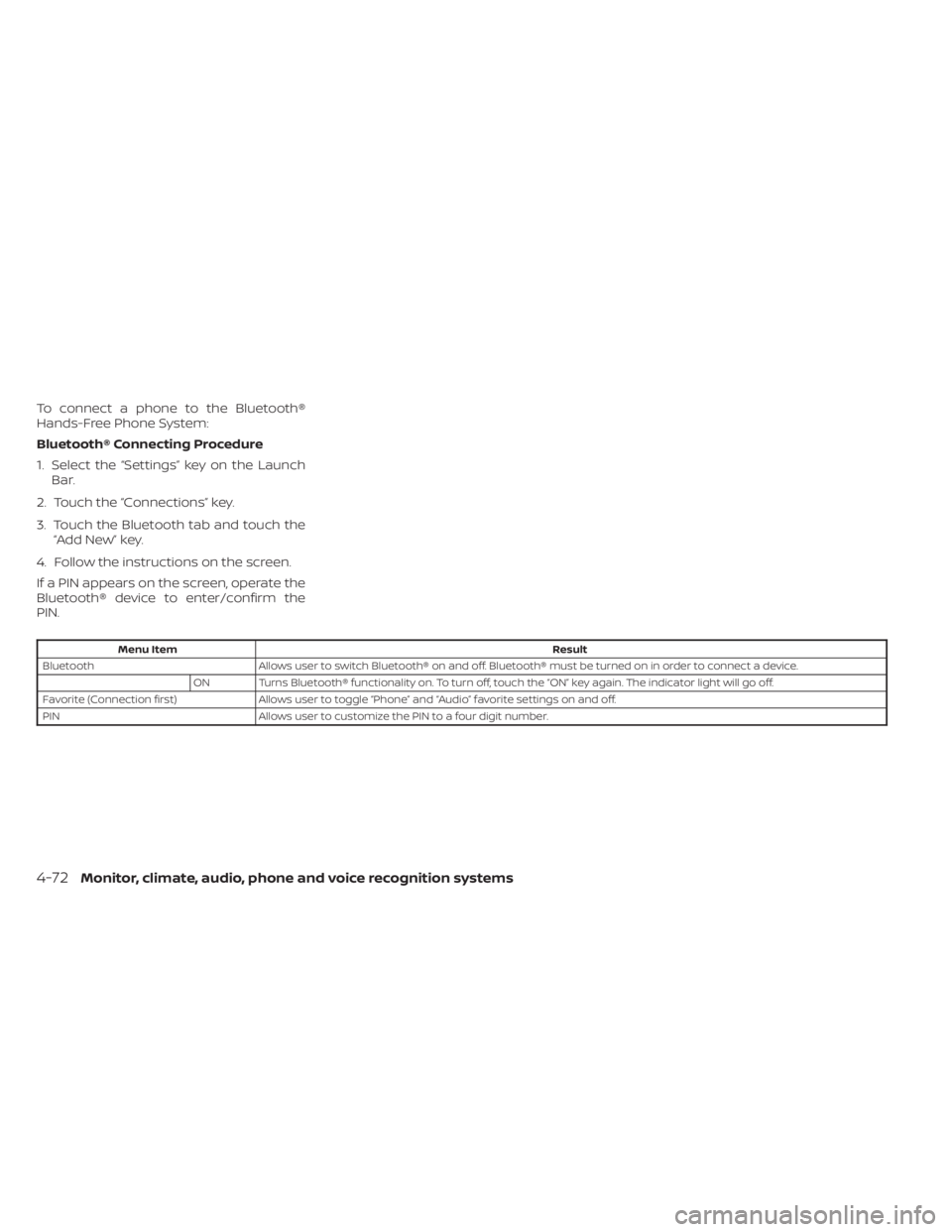
To connect a phone to the Bluetooth®
Hands-Free Phone System:
Bluetooth® Connecting Procedure
1. Select the “Settings” key on the LaunchBar.
2. Touch the “Connections” key.
3. Touch the Bluetooth tab and touch the “Add New” key.
4. Follow the instructions on the screen.
If a PIN appears on the screen, operate the
Bluetooth® device to enter/confirm the
PIN.
Menu Item Result
Bluetooth Allows user to switch Bluetooth® on and off. Bluetooth® must be turned on in order to connect a device.
ON Turns Bluetooth® functionality on. To turn off, touch the “ON” key again. The indicator light will go off.
Favorite (Connection first) Allows user to toggle “Phone” and “Audio” favorite settings on and off.
PIN Allows user to customize the PIN to a four digit number.
4-72Monitor, climate, audio, phone and voice recognition systems