AUX NISSAN SENTRA 2023 Owners Manual
[x] Cancel search | Manufacturer: NISSAN, Model Year: 2023, Model line: SENTRA, Model: NISSAN SENTRA 2023Pages: 556, PDF Size: 6.11 MB
Page 199 of 556
(brightness control) BUTTON
To change the display brightness, press thebutton. Pressing the button again will
change the display to the day or the night
display.
Press and hold the
button for more
than 2 seconds to turn the display off. Press
and hold the button again to turn the dis-
play on.
HOW TO USE THE VOL (volume)
KNOB / PUSH
(power)
BUTTON
Press the PUSH(power) button to turn
audio function on and off. Turn the VOL
(volume) knob to adjust audio volume.
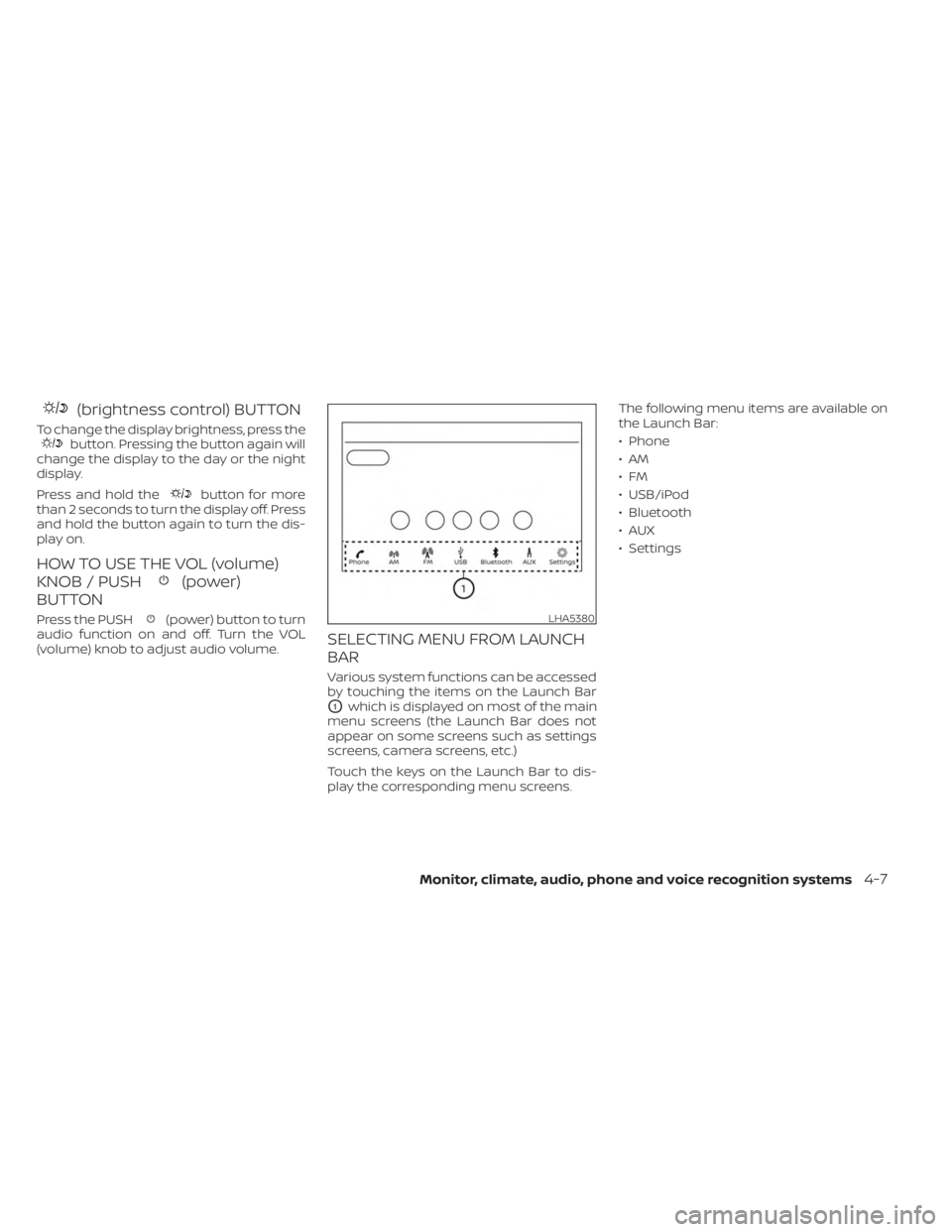
SELECTING MENU FROM LAUNCH
BAR
Various system functions can be accessed
by touching the items on the Launch Bar
O1which is displayed on most of the main
menu screens (the Launch Bar does not
appear on some screens such as settings
screens, camera screens, etc.)
Touch the keys on the Launch Bar to dis-
play the corresponding menu screens. The following menu items are available on
the Launch Bar:
• Phone
•AM
•FM
• USB/iPod
• Bluetooth
•AUX
• Settings
LHA5380
Monitor, climate, audio, phone and voice recognition systems4-7
Page 240 of 556
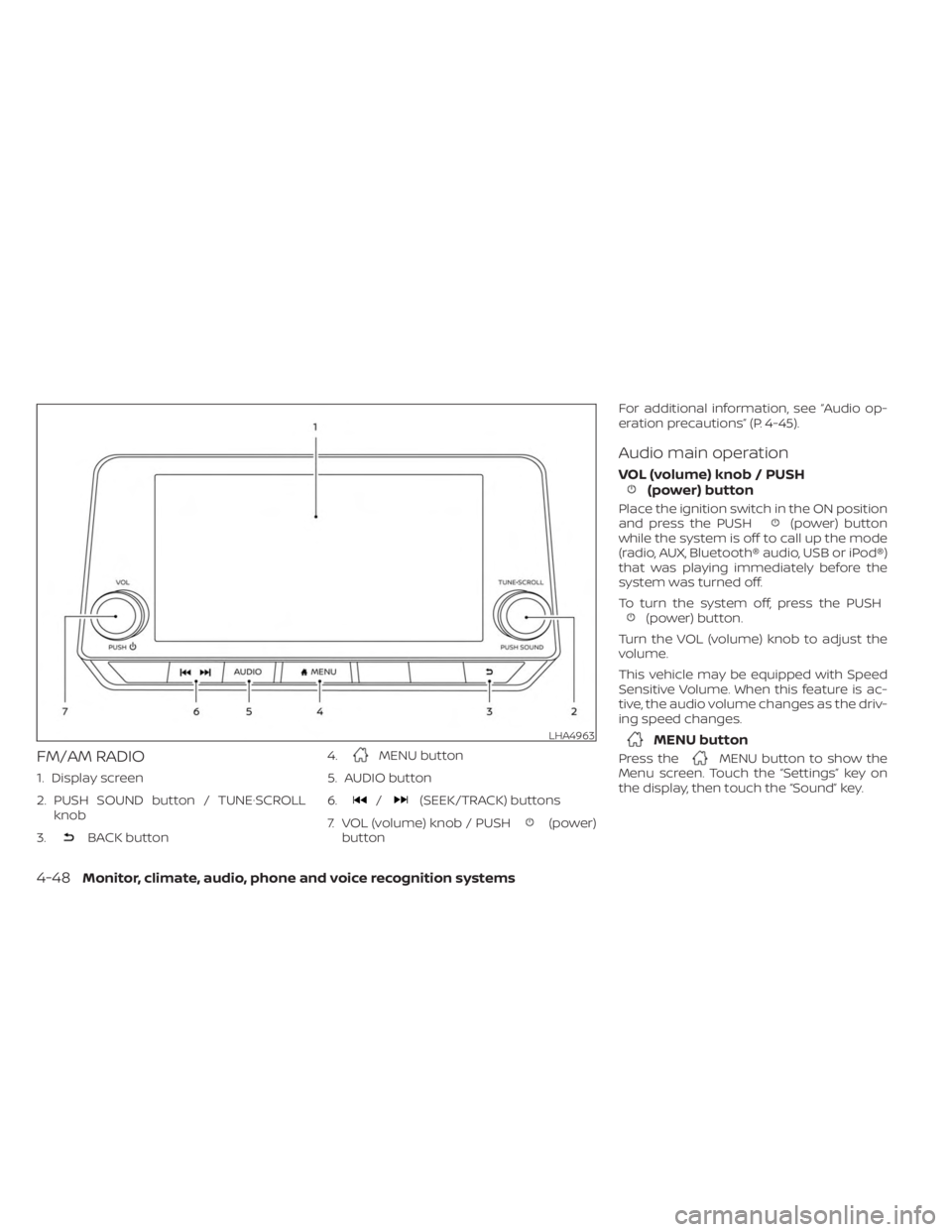
FM/AM RADIO
1. Display screen
2. PUSH SOUND button / TUNE·SCROLLknob
3.
BACK button 4.
MENU button
5. AUDIO button
6.
/(SEEK/TRACK) buttons
7. VOL (volume) knob / PUSH
(power)
button For additional information, see “Audio op-
eration precautions” (P. 4-45).
Audio main operation
VOL (volume) knob / PUSH(power) button
Place the ignition switch in the ON position
and press the PUSH(power) button
while the system is off to call up the mode
(radio, AUX, Bluetooth® audio, USB or iPod®)
that was playing immediately before the
system was turned off.
To turn the system off, press the PUSH
(power) button.
Turn the VOL (volume) knob to adjust the
volume.
This vehicle may be equipped with Speed
Sensitive Volume. When this feature is ac-
tive, the audio volume changes as the driv-
ing speed changes.
MENU button
Press theMENU button to show the
Menu screen. Touch the “Settings” key on
the display, then touch the “Sound” key.
LHA4963
4-48Monitor, climate, audio, phone and voice recognition systems
Page 244 of 556
Auxiliary (AUX) devices operation
Connecting auxiliary devices
Connect an AUX device into the AUX input
jack located on the center console below
the heater and air conditioner controls.
The AUX input jack accepts any standard
analog audio input such as from a portable
cassette player, CD player, MP3 player or
phone.
Insert a 1/8 in (3.5 mm) stereo mini plug in
the audio input jack. If a cable with a mono
plug is used, the audio output may not
function normally.
Activation and playing
Turn on the AUX device. Connect an AUX
cable to the AUX device and the AUX input
jack. Select AUX mode from the audio
source menu screen or by pressing the
Source button on the steering wheel.
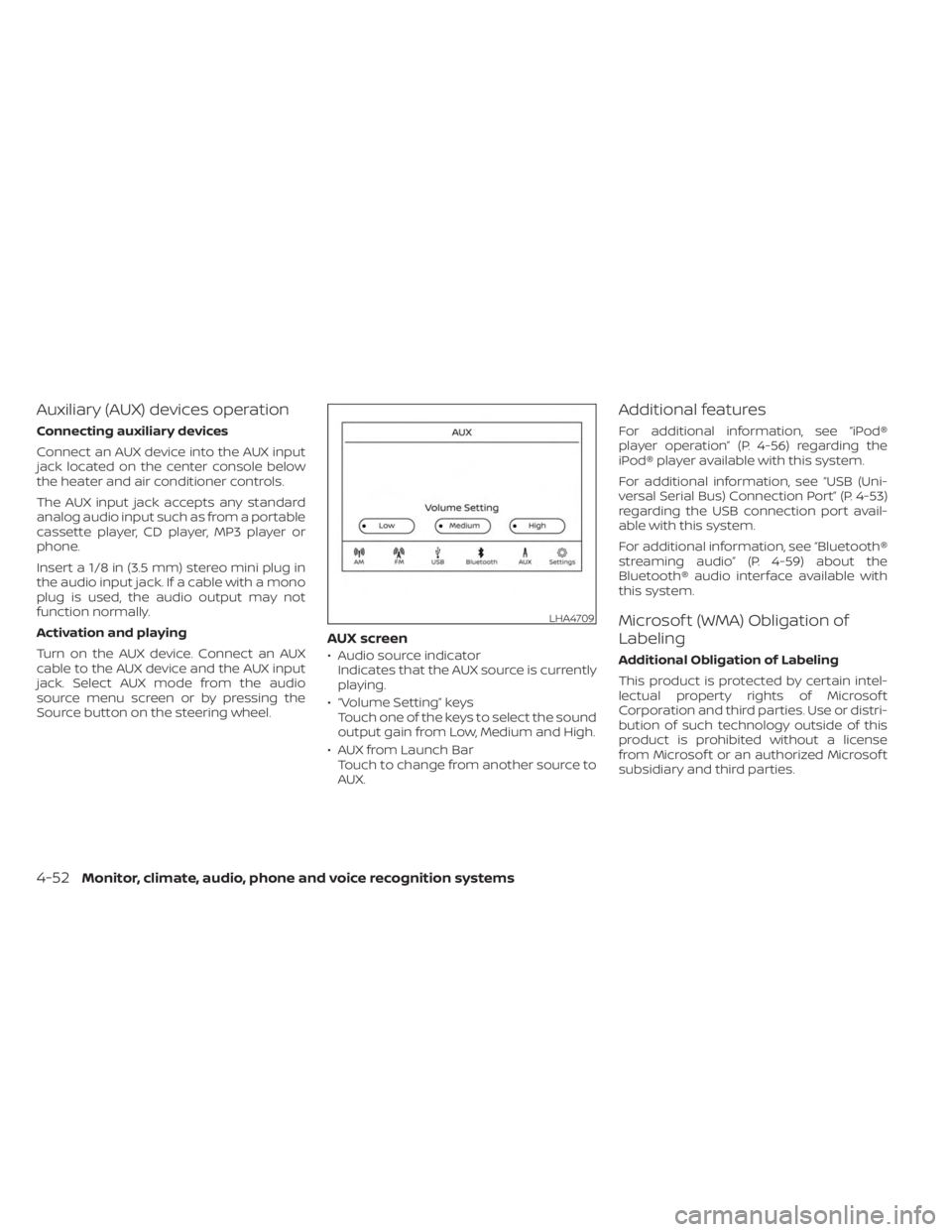
AUX screen
• Audio source indicatorIndicates that the AUX source is currently
playing.
• “Volume Setting” keys Touch one of the keys to select the sound
output gain from Low, Medium and High.
• AUX from Launch Bar Touch to change from another source to
AUX.
Additional features
For additional information, see “iPod®
player operation” (P. 4-56) regarding the
iPod® player available with this system.
For additional information, see “USB (Uni-
versal Serial Bus) Connection Port” (P. 4-53)
regarding the USB connection port avail-
able with this system.
For additional information, see “Bluetooth®
streaming audio” (P. 4-59) about the
Bluetooth® audio interface available with
this system.
Microsof t (WMA) Obligation of
Labeling
Additional Obligation of Labeling
This product is protected by certain intel-
lectual property rights of Microsof t
Corporation and third parties. Use or distri-
bution of such technology outside of this
product is prohibited without a license
from Microsof t or an authorized Microsof t
subsidiary and third parties.
LHA4709
4-52Monitor, climate, audio, phone and voice recognition systems
Page 254 of 556
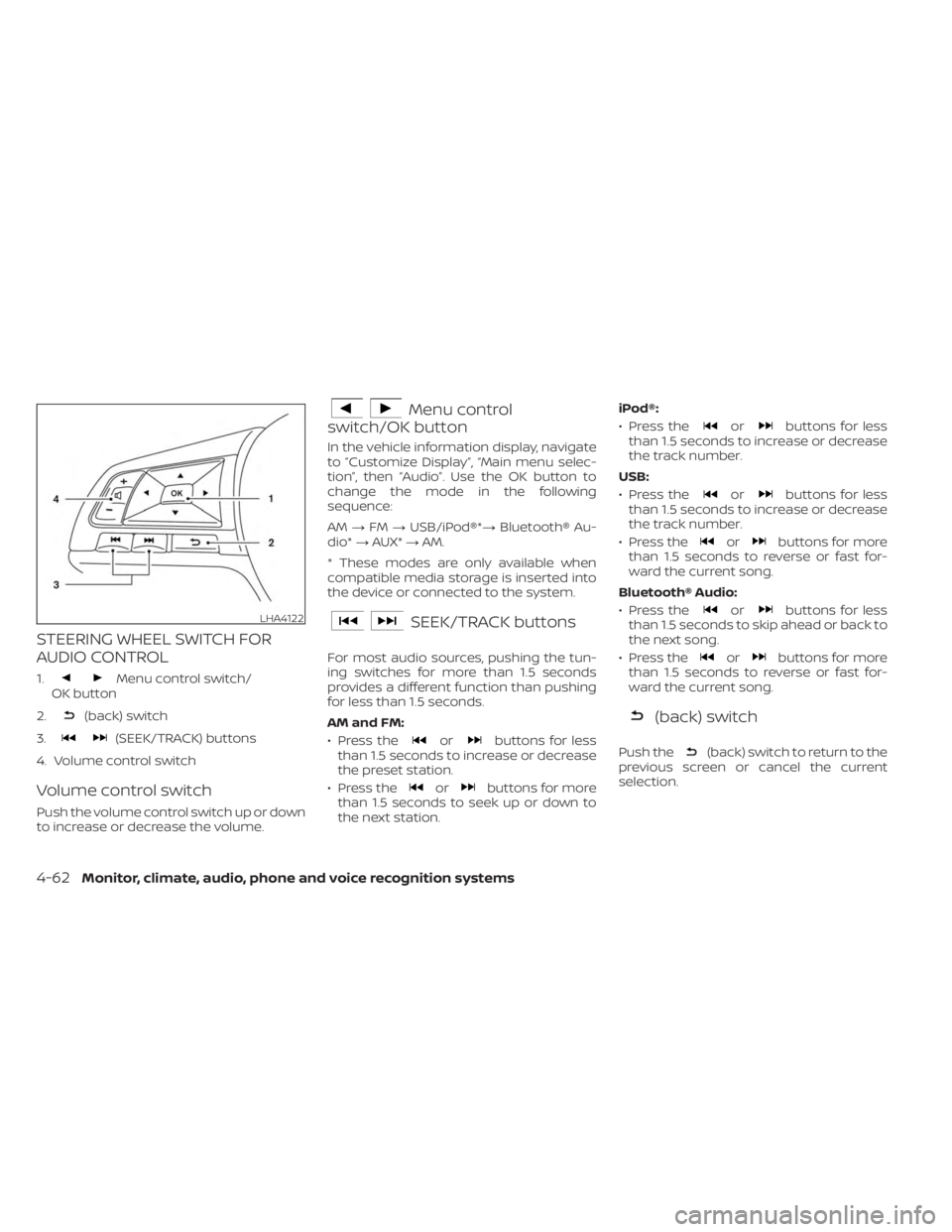
STEERING WHEEL SWITCH FOR
AUDIO CONTROL
1.Menu control switch/
OK button
2.
(back) switch
3.
(SEEK/TRACK) buttons
4. Volume control switch
Volume control switch
Push the volume control switch up or down
to increase or decrease the volume.
Menu control
switch/OK button
In the vehicle information display, navigate
to ”Customize Display”, “Main menu selec-
tion”, then “Audio”. Use the OK button to
change the mode in the following
sequence:
AM →FM →USB/iPod®*→ Bluetooth® Au-
dio* →AUX* →AM.
* These modes are only available when
compatible media storage is inserted into
the device or connected to the system.
SEEK/TRACK buttons
For most audio sources, pushing the tun-
ing switches for more than 1.5 seconds
provides a different function than pushing
for less than 1.5 seconds.
AM and FM:
• Press the
orbuttons for less
than 1.5 seconds to increase or decrease
the preset station.
• Press the
orbuttons for more
than 1.5 seconds to seek up or down to
the next station. iPod®:
• Press the
orbuttons for less
than 1.5 seconds to increase or decrease
the track number.
USB:
• Press the
orbuttons for less
than 1.5 seconds to increase or decrease
the track number.
• Press the
orbuttons for more
than 1.5 seconds to reverse or fast for-
ward the current song.
Bluetooth® Audio:
• Press the
orbuttons for less
than 1.5 seconds to skip ahead or back to
the next song.
• Press the
orbuttons for more
than 1.5 seconds to reverse or fast for-
ward the current song.
(back) switch
Push the(back) switch to return to the
previous screen or cancel the current
selection.
LHA4122
4-62Monitor, climate, audio, phone and voice recognition systems
Page 257 of 556
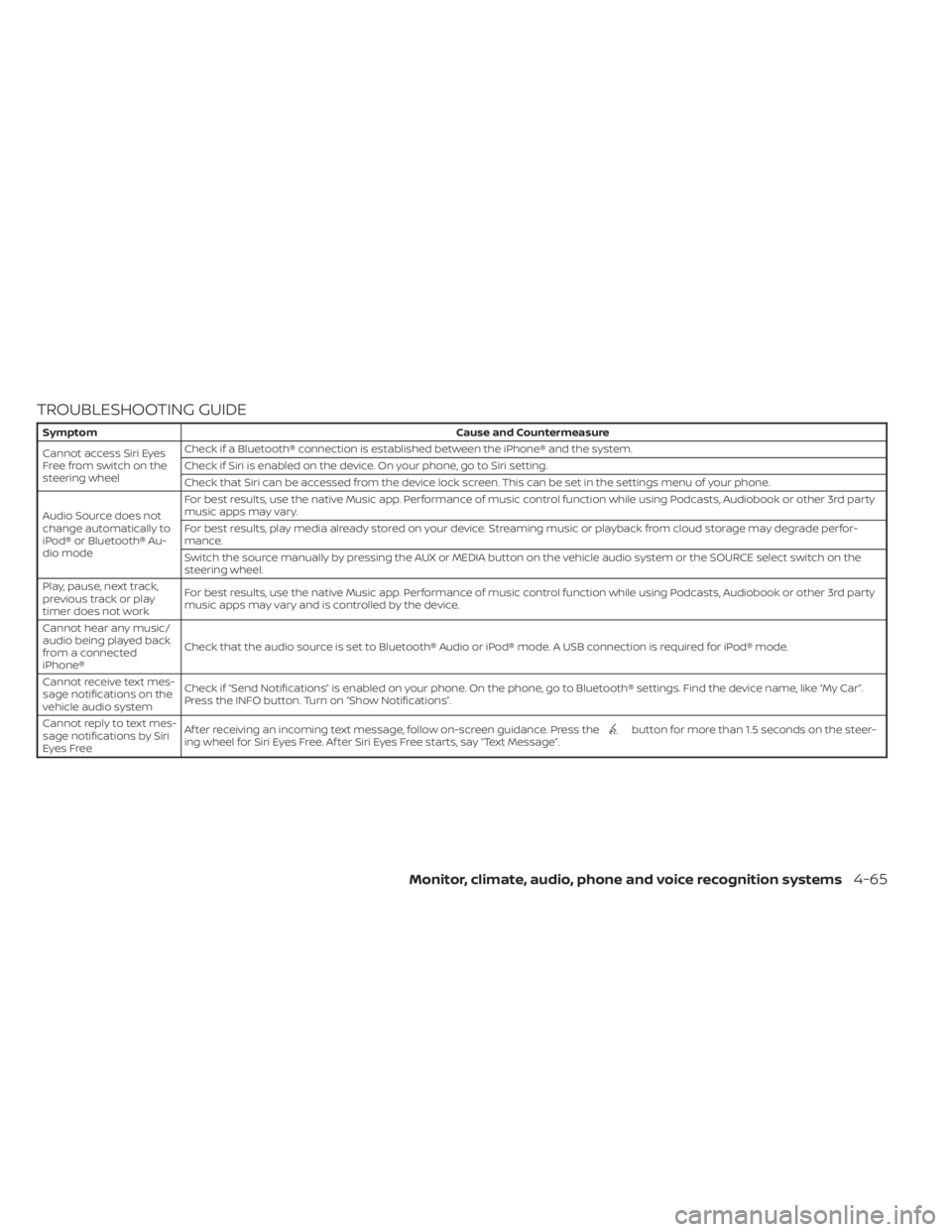
TROUBLESHOOTING GUIDE
SymptomCause and Countermeasure
Cannot access Siri Eyes
Freefromswitchonthe
steering wheel Check if a Bluetooth® connection is established between the iPhone® and the system.
Check if Siri is enabled on the device. On your phone, go to Siri setting.
Check that Siri can be accessed from the device lock screen. This can be set in the settings menu of your phone.
Audio Source does not
change automatically to
iPod® or Bluetooth® Au-
dio mode For best results, use the native Music app. Performance of music control function while using Podcasts, Audiobook or other 3rd party
music apps may vary.
For best results, play media already stored on your device. Streaming music or playback from cloud storage may degrade perfor-
mance.
Switch the source manually by pressing the AUX or MEDIA button on the vehicle audio system or the SOURCE select switch on the
steering wheel.
Play, pause, next track,
previous track or play
timer does not work For best results, use the native Music app. Performance of music control function while using Podcasts, Audiobook or other 3rd party
music apps may vary and is controlled by the device.
Cannot hear any music/
audio being played back
from a connected
iPhone® Check that the audio source is set to Bluetooth® Audio or iPod® mode. A USB connection is required for iPod® mode.
Cannot receive text mes-
sage notifications on the
vehicle audio system Check if “Send Notifications” is enabled on your phone. On the phone, go to Bluetooth® settings. Find the device name, like “My Car”.
Press the INFO button. Turn on “Show Notifications”.
Cannot reply to text mes-
sage notifications by Siri
Eyes Free Af ter receiving an incoming text message, follow on-screen guidance. Press the
button for more than 1.5 seconds on the steer-
ing wheel for Siri Eyes Free. Af ter Siri Eyes Free starts, say “Text Message”.
Monitor, climate, audio, phone and voice recognition systems4-65
Page 381 of 556
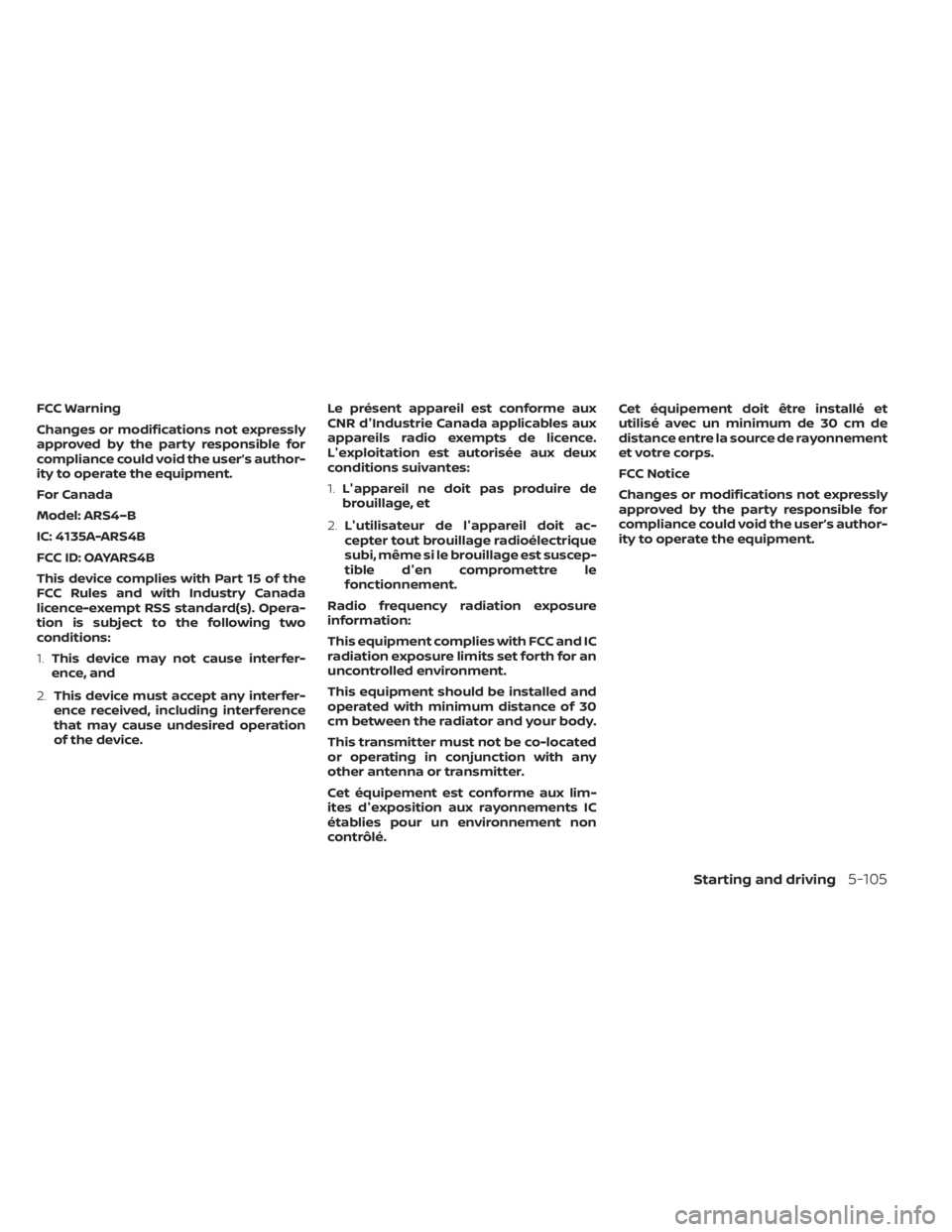
FCC Warning
Changes or modifications not expressly
approved by the party responsible for
compliance could void the user’s author-
ity to operate the equipment.
For Canada
Model: ARS4–B
IC: 4135A-ARS4B
FCC ID: OAYARS4B
This device complies with Part 15 of the
FCC Rules and with Industry Canada
licence-exempt RSS standard(s). Opera-
tion is subject to the following two
conditions:
1.This device may not cause interfer-
ence, and
2. This device must accept any interfer-
ence received, including interference
that may cause undesired operation
of the device. Le présent appareil est conforme aux
CNR d'Industrie Canada applicables aux
appareils radio exempts de licence.
L'exploitation est autorisée aux deux
conditions suivantes:
1.
L'appareil ne doit pas produire de
brouillage, et
2. L'utilisateur de l'appareil doit ac-
cepter tout brouillage radioélectrique
subi, même si le brouillage est suscep-
tible d'en compromettre le
fonctionnement.
Radio frequency radiation exposure
information:
This equipment complies with FCC and IC
radiation exposure limits set forth for an
uncontrolled environment.
This equipment should be installed and
operated with minimum distance of 30
cm between the radiator and your body.
This transmitter must not be co-located
or operating in conjunction with any
other antenna or transmitter.
Cet équipement est conforme aux lim-
ites d'exposition aux rayonnements IC
établies pour un environnement non
contrôlé. Cet équipement doit être installé et
utilisé avec un minimum de 30 cm de
distance entre la source de rayonnement
et votre corps.
FCC Notice
Changes or modifications not expressly
approved by the party responsible for
compliance could void the user’s author-
ity to operate the equipment.
Starting and driving5-105
Page 539 of 556
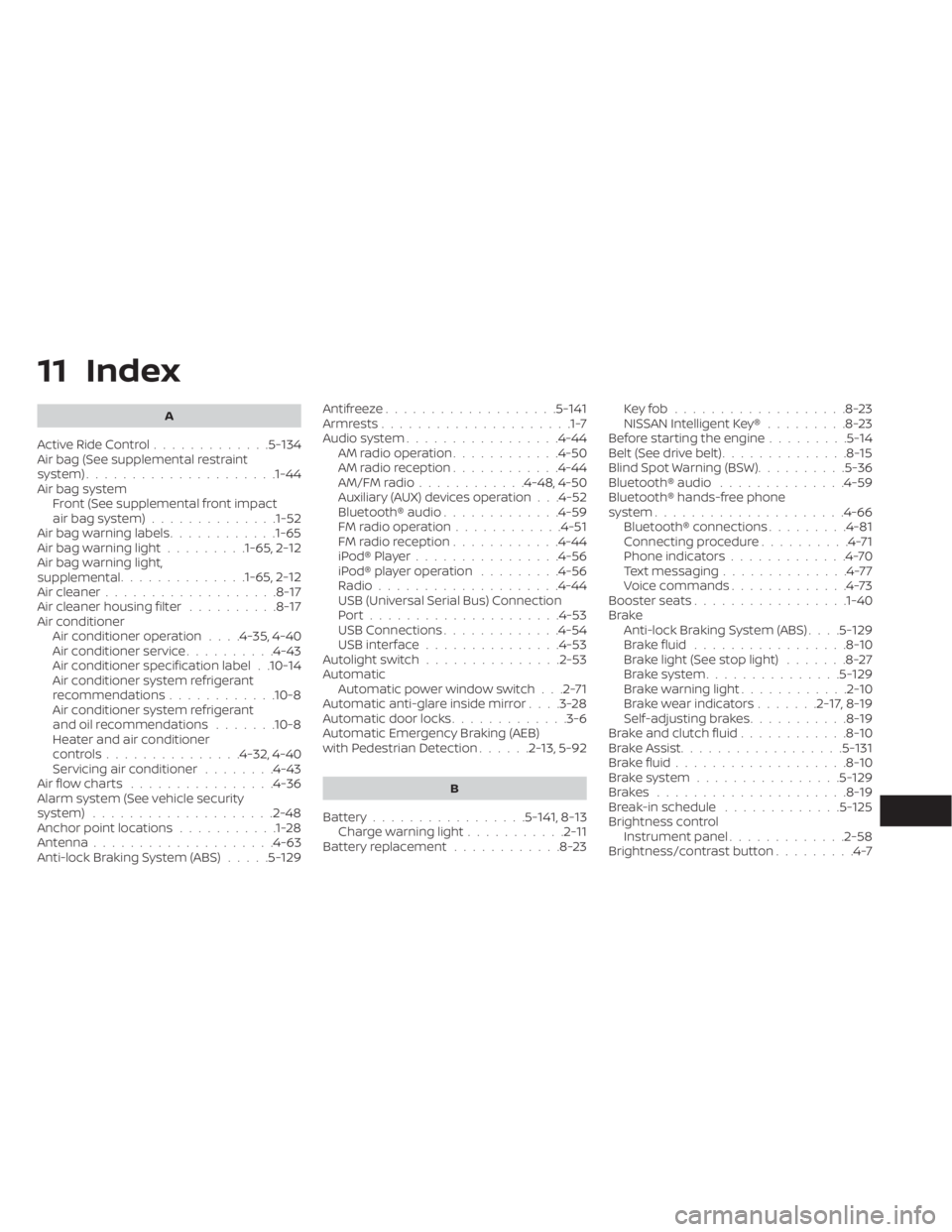
11 Index
A
Active Ride Control.............5-134Air bag (See supplemental restraint
system).....................1-44Air bag system
Front (See supplemental front impact
air bag system)
..............1-52Air bag warning labels............1-65Air bag warning light.........1-65, 2-12Air bag warning light,
supplemental..............1-65, 2-12Air cleaner...................8-17Air cleaner housing filter..........8-17Air conditionerAir conditioner operation. . . .4-35, 4-40Air conditioner service..........4-43Air conditioner specification label. .10-14Air conditioner system refrigerant
recommendations............10-8Air conditioner system refrigerant
and oil recommendations.......10-8Heater and air conditioner
controls...............4-32, 4-40Servicing air conditioner........4-43Air flow charts................4-36Alarm system (See vehicle security
system)................... .2-48Anchor point locations...........1-28Antenna....................4-63Anti-lock Braking System (ABS).....5-129
Antifreeze...................5-141Armrests.....................1-7Audio system.................4-44AM radio operation............4-50AM radio reception............4-44AM/FM radio............4-48, 4-50Auxiliary (AUX) devices operation. . .4-52Bluetooth® audio.............4-59FM radio operation............4-51FM radio reception............4-44iPod® Player................4-56iPod® player operation.........4-56Radio................... .4-44USB (Universal Serial Bus) Connection
Port.................... .4-53USB Connections.............4-54USB interface...............4-53Autolight switch...............2-53Automatic
Automatic power window switch. . .2-71Automatic anti-glare inside mirror. . . .3-28Automatic door locks.............3-6Automatic Emergency Braking (AEB)
with Pedestrian Detection......2-13, 5-92
B
Battery.................5- 141, 8-13Charge warning light...........2-11Battery replacement............8-23
Key fob...................8-23NISSAN Intelligent Key®.........8-23Before starting the engine.........5-14Belt (See drive belt)..............8-15Blind Spot Warning (BSW)..........5-36Bluetooth® audio..............4-59Bluetooth® hands-free phone
system.................... .4-66Bluetooth® connections.........4-81Connecting procedure..........4-71Phone indicators.............4-70Text messaging..............4-77Voice commands.............4-73Booster seats.................1-40Brake
Anti-lock Braking System (ABS). . . .5-129Brake fluid.................8-10Brake light (See stop light).......8-27Brake system...............5-129Brake warning light............2-10Brake wear indicators.......2-17,8-19Self-adjusting brakes...........8-19Brake and clutch fluid............8-10Brake Assist..................5-131Brake fluid...................8-10Brake system................5-129Brakes.....................8-19Break-in schedule.............5-125Brightness controlInstrument panel.............2-58Brightness/contrast button.........4-7