warning NISSAN TITAN 2018 Owner´s Manual
[x] Cancel search | Manufacturer: NISSAN, Model Year: 2018, Model line: TITAN, Model: NISSAN TITAN 2018Pages: 650, PDF Size: 7.54 MB
Page 292 of 650
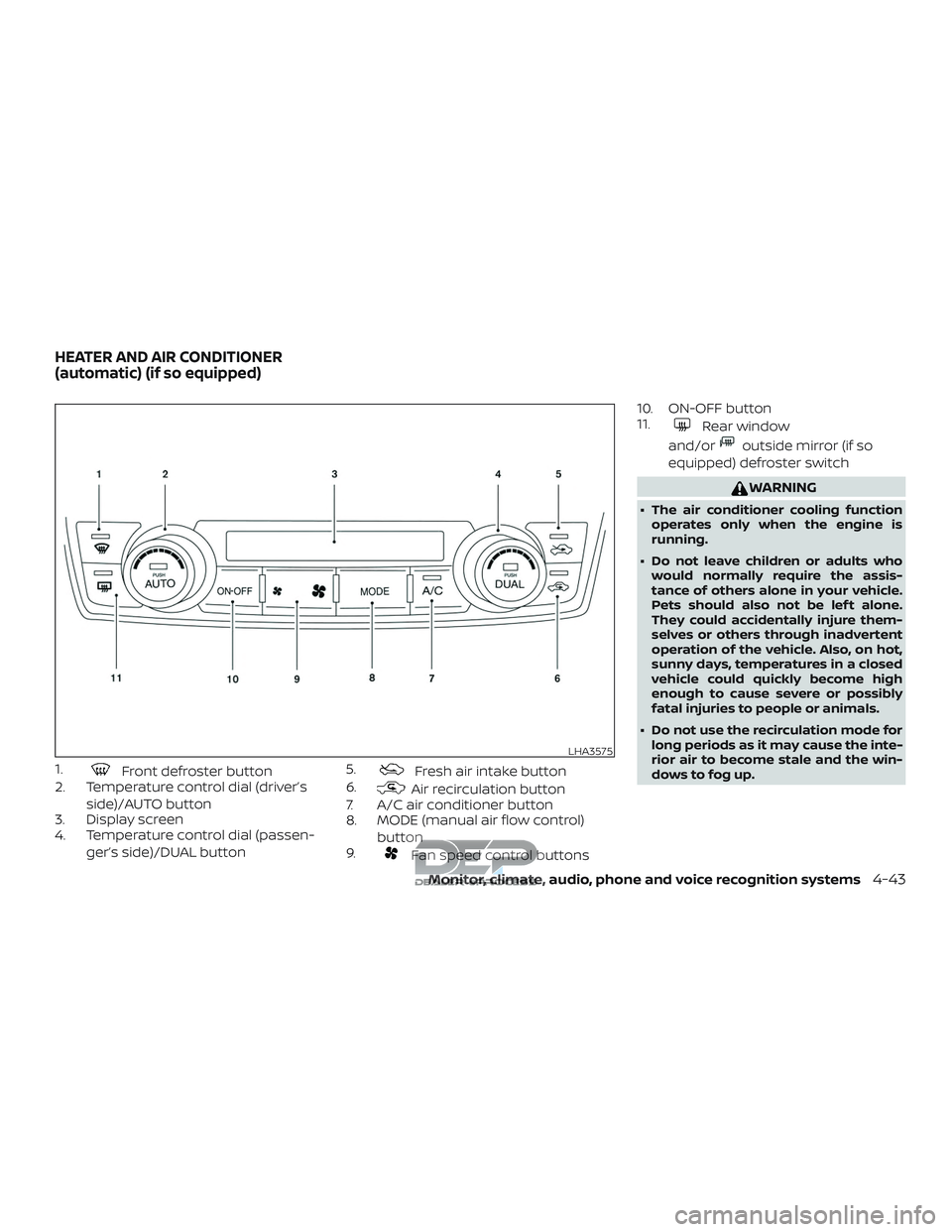
1.Front defroster button
2. Temperature control dial (driver’s
side)/AUTO button
3. Display screen
4. Temperature control dial (passen-
ger’s side)/DUAL button 5.Fresh air intake button
6.
Air recirculation button
7. A/C air conditioner button
8. MODE (manual air flow control)
button
9.
Fan speed control buttons 10. ON-OFF button
11.
Rear window
and/or
outside mirror (if so
equipped) defroster switch
WARNING
∙ The air conditioner cooling function operates only when the engine is
running.
∙ Do not leave children or adults who would normally require the assis-
tance of others alone in your vehicle.
Pets should also not be lef t alone.
They could accidentally injure them-
selves or others through inadvertent
operation of the vehicle. Also, on hot,
sunny days, temperatures in a closed
vehicle could quickly become high
enough to cause severe or possibly
fatal injuries to people or animals.
∙ Do not use the recirculation mode for long periods as it may cause the inte-
rior air to become stale and the win-
dows to fog up.
LHA3575
HEATER AND AIR CONDITIONER
(automatic) (if so equipped)
Monitor, climate, audio, phone and voice recognition systems4-43
Page 297 of 650
∙ If you feel that the air flow mode youhave selected and the outlets the air is
coming out do not match, select
the
mode.
∙ When you change the air flow mode, you may feel air flow from the feet vents
for just a moment. This is not a mal-
function. The air conditioner system in your NISSAN
vehicle is charged with a refrigerant de-
signed with the environment in mind.
This refrigerant does not harm the
earth’s ozone layer.
Special charging equipment and lubricant
is required when servicing your NISSAN air
conditioner. Using improper refrigerants or
lubricants will cause severe damage to
your air conditioner system. For additional
information, refer to “Air conditioner sys-
tem refrigerant and oil recommendations”
in the “Technical and consumer informa-
tion” section of this manual.
It is recommended that you visit a NISSAN
dealer to service your “environmentally
friendly” air conditioner system.
WARNING
The air conditioner system contains re-
frigerant under high pressure. To avoid
personal injury, any air conditioner ser-
vice should be done only by an experi-
enced technician with proper
equipment.
RADIO
With the ignition is placed in the ACC or ON
position, press the
or POWER button
to turn the radio on. If you listen to the radio
with the engine not running, the ignition
should be placed in the ACC position.
Radio reception is affected by station sig-
nal strength, distance from radio transmit-
ter, buildings, bridges, mountains and other
external influences. Intermittent changes
in reception quality normally are caused by
these external influences.
Using a cellular phone in or near the ve-
hicle may influence radio reception quality.
Radio reception
Your NISSAN radio system is equipped with
state-of-the-art electronic circuits to en-
hance radio reception. These circuits are
designed to extend reception range, and to
enhance the quality of that reception.
However, there are some general charac-
teristics of both FM and AM radio signals
that can affect radio reception quality in a
moving vehicle, even when the finest
equipment is used. These characteristics
are completely normal in a given reception
area and do not indicate any malfunction
in your NISSAN radio system.
SERVICING AIR CONDITIONER AUDIO SYSTEM
4-48Monitor, climate, audio, phone and voice recognition systems
Page 304 of 650
USB (Universal Serial Bus)
Connection Port
WARNING
Do not connect, disconnect or operate
the USB device while driving. Doing so
can be a distraction. If distracted you
could lose control of your vehicle and
cause an accident or serious injury.
CAUTION
∙ Do not force the USB device into theUSB port. Inserting the USB device
tilted or up-side-down into the port
may damage the port. Make sure that
the USB device is connected correctly
into the USB port.
∙ Do not grab the USB port cover (if so equipped) when pulling the USB de-
vice out of the port. This could dam-
age the port and the cover.
∙ Do not leave the USB cable in a place where it can be pulled unintentionally.
Pulling the cable may damage the
port. The vehicle is not equipped with a USB de-
vice. USB devices should be purchased
separately as necessary.
This system cannot be used to format USB
devices. To format a USB device, use a per-
sonal computer.
In some jurisdictions, the USB device for the
front seats plays only sound without im-
ages for regulatory reasons, even when the
vehicle is parked.
This system supports various USB
memory devices, USB hard drives and
iPod® players. Some USB devices may not
be supported by this system.
∙ Partitioned USB devices may not play correctly.
∙ Some characters used in other lan- guages (Chinese, Japanese, etc.) may
not appear properly in the display. Using
English language characters with a USB
device is recommended.
General notes for USB use ∙ For additional information, refer to your device manufacturer’s owner informa-
tion regarding the proper use and care
of the device. Notes for iPod® use
iPod® is a trademark of Apple Inc., regis-
tered in the U.S. and other countries.
∙ Improperly plugging in the iPod® may cause a checkmark to be displayed on
and off (flickering). Always make sure
that the iPod® is connected properly.
∙
An iPod® nano (1st Generation) may re-
main in fast forward or rewind mode if it is
connected during a seek operation. In this
case, please manually reset the iPod®.
∙ An iPod® nano (2nd Generation) will continue to fast-forward or rewind if it is
disconnected during a seek operation.
∙ An incorrect song title may appear when the Play Mode is changed while
using an iPod® nano (2nd Generation).
∙ Audiobooks may not play in the same order as they appear on an iPod®.
∙ Large video files cause slow responses in an iPod®. The vehicle center display
may momentarily black out, but will
soon recover.
∙ If an iPod® automatically selects large video files while in the shuffle mode, the
vehicle center display may momen-
tarily black out, but will soon recover.
Monitor, climate, audio, phone and voice recognition systems4-55
Page 323 of 650
SEEK/TRACK (Reverse orFast Forward) buttons
Press and hold the
SEEK button
or
TRACK button for 1.5 seconds while
the compact disc is playing to reverse or
fast forward the track being played. The
compact disc plays at an increased speed
while reversing or fast forwarding. When
the button is released, the compact disc
returns to normal play speed.
SEEK/TRACK buttons
Press the
SEEK button while a CD or
MP3/WMA CD is playing to return to the
beginning of the current track. Press
the
SEEK button several times to skip
backward several tracks.
Press the
TRACK button while a CD or
MP3/WMA CD is playing to advance one
track. Press the
TRACK button several
times to skip forward several tracks. If the
last track on a CD is skipped, the first track
on the disc is played. If the last track in a
folder of an MP3/WMA CD is skipped, the
first track of the next folder is played.
CD EJECT button
When the
CD eject button is pressed
with a compact disc loaded, the compact
disc will eject and the last source will be
played.
If the disc is not removed within 10 seconds,
the disc will reload.
Additional features
For additional information, refer to “iPod®
player operation with Navigation System”
in this section.
For additional information, refer to “USB
(Universal Serial Bus) connection port
(models with Navigation System)” in this
section.
For additional information, refer to
“Bluetooth® streaming audio with Naviga-
tion System” in this section.
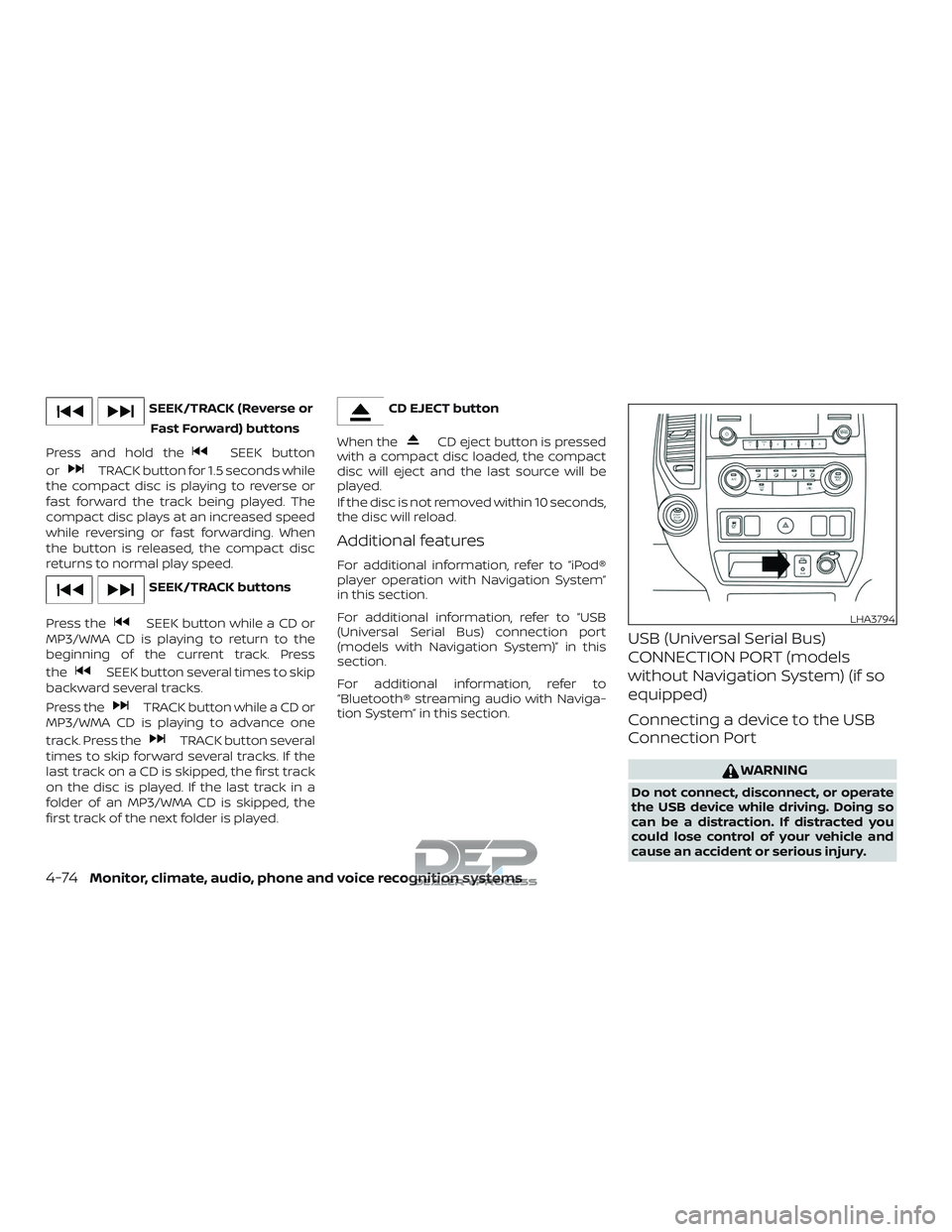
USB (Universal Serial Bus)
CONNECTION PORT (models
without Navigation System) (if so
equipped)
Connecting a device to the USB
Connection Port
WARNING
Do not connect, disconnect, or operate
the USB device while driving. Doing so
can be a distraction. If distracted you
could lose control of your vehicle and
cause an accident or serious injury.
LHA3794
4-74Monitor, climate, audio, phone and voice recognition systems
Page 325 of 650
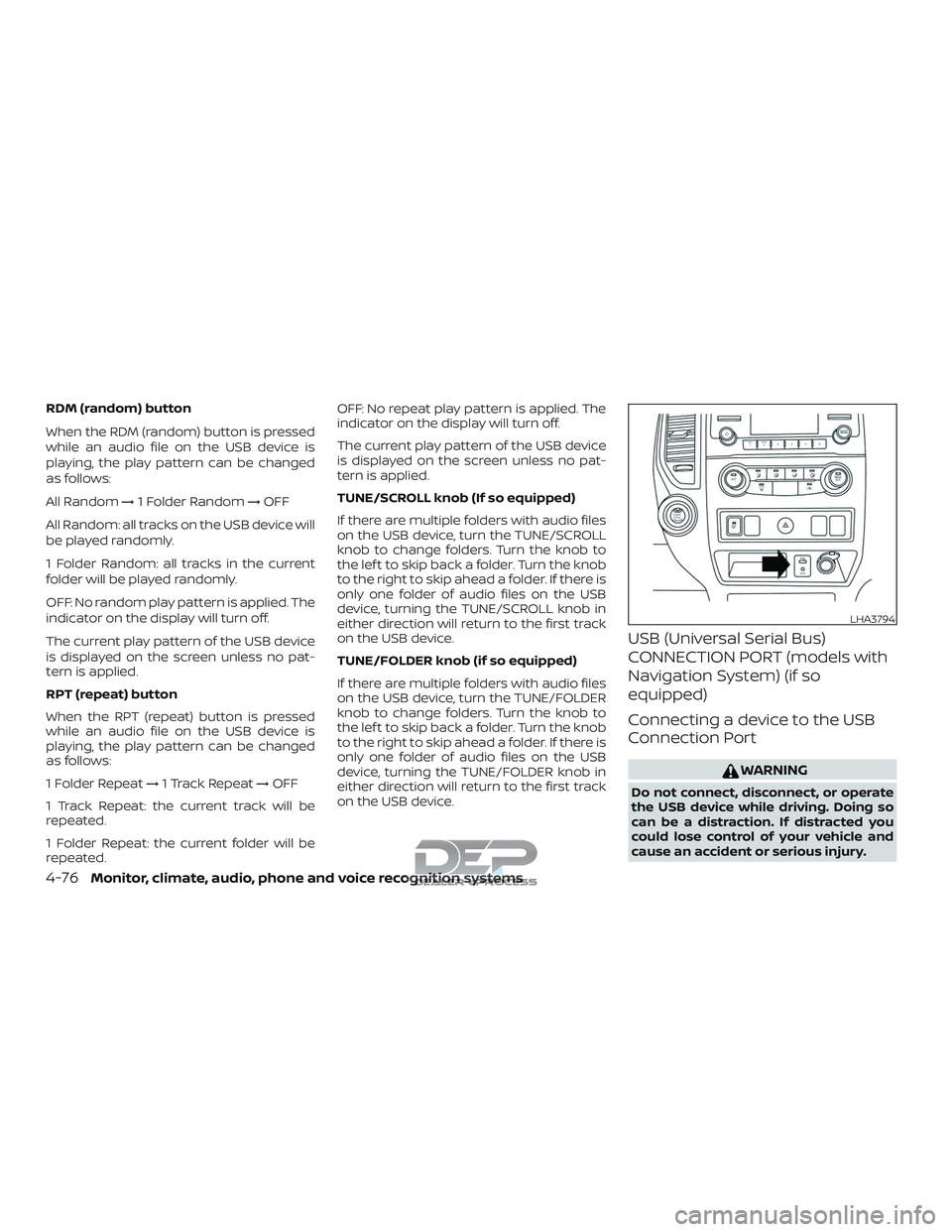
RDM (random) button
When the RDM (random) button is pressed
while an audio file on the USB device is
playing, the play pattern can be changed
as follows:
All Random→1 Folder Random →OFF
All Random: all tracks on the USB device will
be played randomly.
1 Folder Random: all tracks in the current
folder will be played randomly.
OFF: No random play pattern is applied. The
indicator on the display will turn off.
The current play pattern of the USB device
is displayed on the screen unless no pat-
tern is applied.
RPT (repeat) button
When the RPT (repeat) button is pressed
while an audio file on the USB device is
playing, the play pattern can be changed
as follows:
1 Folder Repeat →1 Track Repeat →OFF
1 Track Repeat: the current track will be
repeated.
1 Folder Repeat: the current folder will be
repeated. OFF: No repeat play pattern is applied. The
indicator on the display will turn off.
The current play pattern of the USB device
is displayed on the screen unless no pat-
tern is applied.
TUNE/SCROLL knob (If so equipped)
If there are multiple folders with audio files
on the USB device, turn the TUNE/SCROLL
knob to change folders. Turn the knob to
the lef t to skip back a folder. Turn the knob
to the right to skip ahead a folder. If there is
only one folder of audio files on the USB
device, turning the TUNE/SCROLL knob in
either direction will return to the first track
on the USB device.
TUNE/FOLDER knob (if so equipped)
If there are multiple folders with audio files
on the USB device, turn the TUNE/FOLDER
knob to change folders. Turn the knob to
the lef t to skip back a folder. Turn the knob
to the right to skip ahead a folder. If there is
only one folder of audio files on the USB
device, turning the TUNE/FOLDER knob in
either direction will return to the first track
on the USB device.
USB (Universal Serial Bus)
CONNECTION PORT (models with
Navigation System) (if so
equipped)
Connecting a device to the USB
Connection Port
WARNING
Do not connect, disconnect, or operate
the USB device while driving. Doing so
can be a distraction. If distracted you
could lose control of your vehicle and
cause an accident or serious injury.
LHA3794
4-76Monitor, climate, audio, phone and voice recognition systems
Page 327 of 650
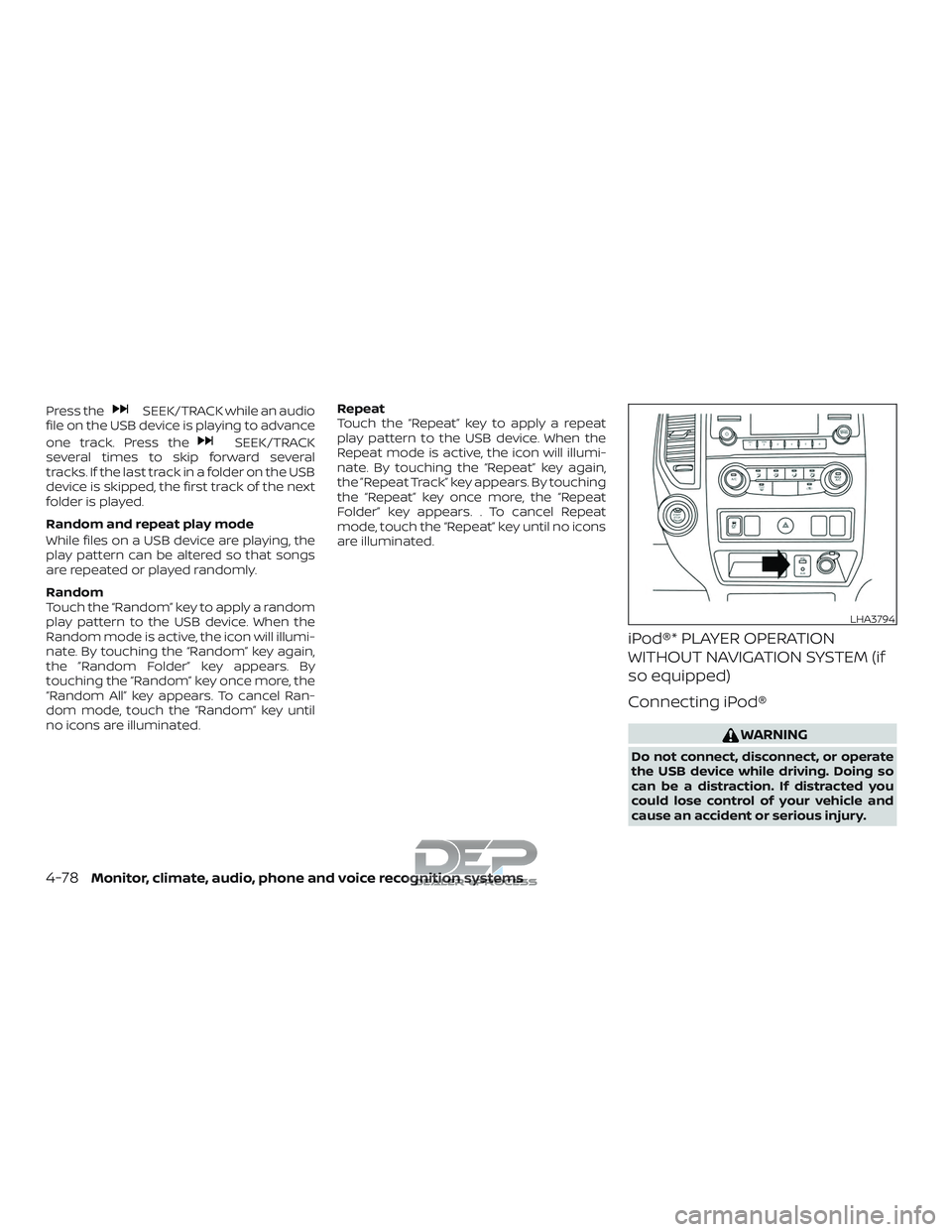
Press theSEEK/TRACK while an audio
file on the USB device is playing to advance
one track. Press the
SEEK/TRACK
several times to skip forward several
tracks. If the last track in a folder on the USB
device is skipped, the first track of the next
folder is played.
Random and repeat play mode
While files on a USB device are playing, the
play pattern can be altered so that songs
are repeated or played randomly.
Random
Touch the “Random” key to apply a random
play pattern to the USB device. When the
Random mode is active, the icon will illumi-
nate. By touching the “Random” key again,
the ”Random Folder” key appears. By
touching the “Random” key once more, the
“Random All” key appears. To cancel Ran-
dom mode, touch the “Random” key until
no icons are illuminated. Repeat
Touch the “Repeat” key to apply a repeat
play pattern to the USB device. When the
Repeat mode is active, the icon will illumi-
nate. By touching the “Repeat” key again,
the ”Repeat Track” key appears. By touching
the “Repeat” key once more, the “Repeat
Folder” key appears. . To cancel Repeat
mode, touch the “Repeat” key until no icons
are illuminated.
iPod®* PLAYER OPERATION
WITHOUT NAVIGATION SYSTEM (if
so equipped)
Connecting iPod®
WARNING
Do not connect, disconnect, or operate
the USB device while driving. Doing so
can be a distraction. If distracted you
could lose control of your vehicle and
cause an accident or serious injury.
LHA3794
4-78Monitor, climate, audio, phone and voice recognition systems
Page 330 of 650
iPod®* PLAYER OPERATION WITH
NAVIGATION SYSTEM (if so
equipped)
Connecting iPod®
WARNING
Do not connect, disconnect, or operate
the USB device while driving. Doing so
can be a distraction. If distracted you
could lose control of your vehicle and
cause an accident or serious injury.
CAUTION
∙ Do not force the USB device into theUSB port. Inserting the USB device
tilted or up-side-down into the port
may damage the port. Make sure that
the USB device is connected correctly
into the USB port.
∙ Do not grab the USB port cover (if so equipped) when pulling the USB de-
vice out of the port. This could dam-
age the port and the cover.
∙ Do not leave the USB cable in a place where it can be pulled unintentionally.
Pulling the cable may damage the
port.
For additional information, refer to your de-
vice manufacturer’s owner information re-
garding the proper use and care of the
device.
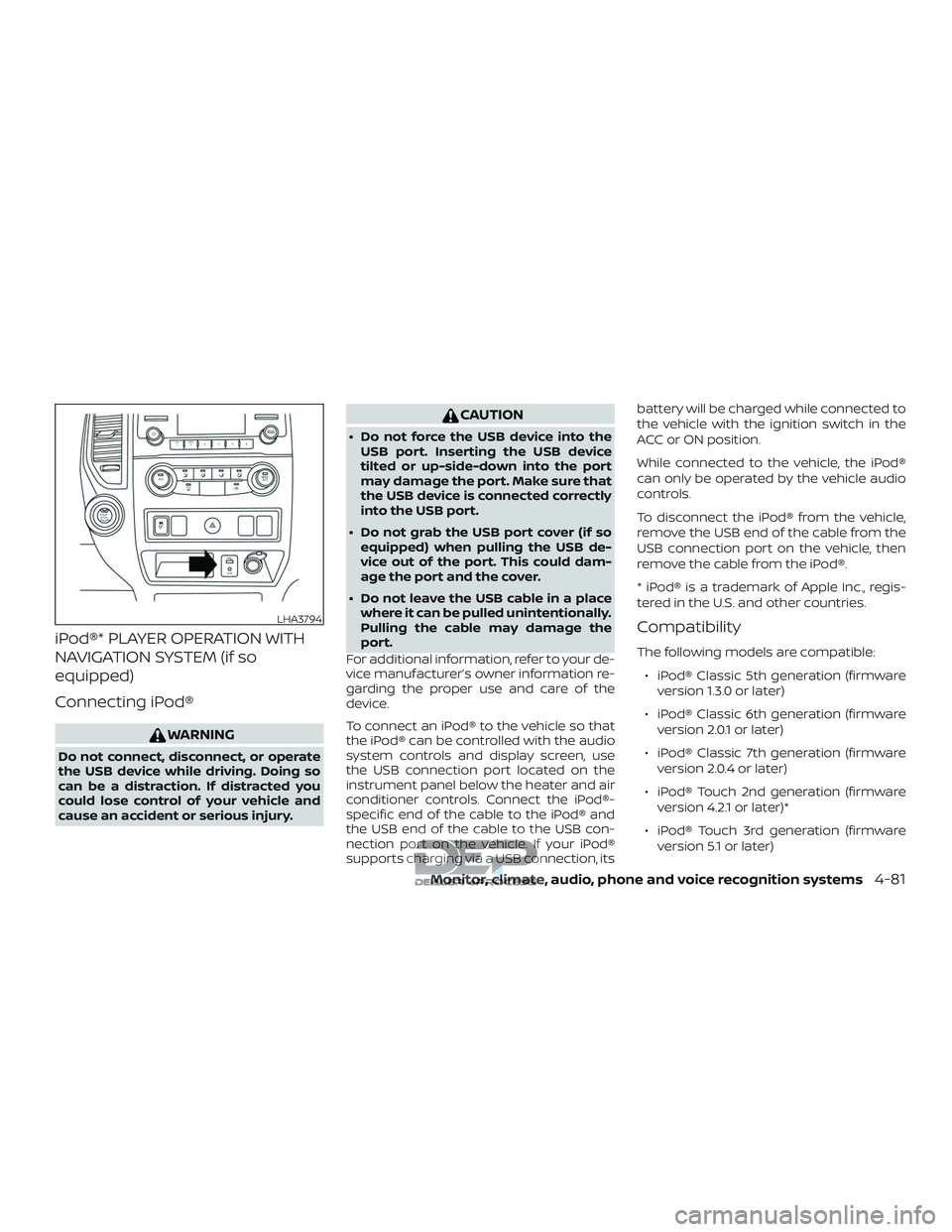
To connect an iPod® to the vehicle so that
the iPod® can be controlled with the audio
system controls and display screen, use
the USB connection port located on the
instrument panel below the heater and air
conditioner controls. Connect the iPod®-
specific end of the cable to the iPod® and
the USB end of the cable to the USB con-
nection port on the vehicle. If your iPod®
supports charging via a USB connection, its battery will be charged while connected to
the vehicle with the ignition switch in the
ACC or ON position.
While connected to the vehicle, the iPod®
can only be operated by the vehicle audio
controls.
To disconnect the iPod® from the vehicle,
remove the USB end of the cable from the
USB connection port on the vehicle, then
remove the cable from the iPod®.
* iPod® is a trademark of Apple Inc., regis-
tered in the U.S. and other countries.
Compatibility
The following models are compatible:
∙ iPod® Classic 5th generation (firmware version 1.3.0 or later)
∙ iPod® Classic 6th generation (firmware version 2.0.1 or later)
∙ iPod® Classic 7th generation (firmware version 2.0.4 or later)
∙ iPod® Touch 2nd generation (firmware version 4.2.1 or later)*
∙ iPod® Touch 3rd generation (firmware version 5.1 or later)
LHA3794
Monitor, climate, audio, phone and voice recognition systems4-81
Page 342 of 650
WARNING
∙ The Mobile Entertainment System isdesigned for rear seat passenger
viewing only.
∙ It is unlawful in most jurisdictions for a person to drive a motor vehicle
which is equipped with a television
viewer or screen that is located in the
motor vehicle at any point forward of
the back of the driver’s seat, or that is
visible, directly or indirectly, to the
driver while operating the vehicle.
∙ In the interest of safety, the monitors should never be installed where they
will be visible, directly or indirectly, by
the operator of the motor vehicle.
∙ If your vehicle is equipped with a wire- less rear seat audio system or any
other wireless infrared device, make
sure it is powered off when operating
the Rear Seat Entertainment System.
If both systems are powered on at the
same time, the two systems may ob-
struct each other, possibly creating
undesirable audio interference
through the wireless headphones. ∙ For safety reasons, when changing
video discs it is recommended that
the vehicle is not in motion, and that
you do not allow children to unfasten
safety belts to change discs or make
any adjustments to the system. Sys-
tem adjustments can be accom-
plished using the remote control unit,
while safety belts remain fastened.
CAUTION
∙ Be sure to run the vehicle engine whileusing the system. Using this system
without running the engine can result
in a battery drain. To avoid the risk of
battery drain, please remember to
turn off the system when the vehicle
is not in use. Do not touch the inner
pins of the jacks on the front panel.
Electrostatic discharge may cause
permanent damage to the system.
NOTE:
Depending on the USB device, it may or
may not charge when connected to the
USB connection port. Not all devices are
able to charge when connected to the
USB connection port. Each monitor includes a built-in dual chan-
nel infrared transmitter for use with wire-
less headphones. The wireless head-
phones must be used within a line of sight
from the transmitter as infrared transmis-
sion, like visible light, travels only in a
straight line.
When placing the headphones on your
head, make sure to observe the Lef t and
Right orientation. The headphones must
be oriented correctly (facing forward) in or-
der to receive the audio signal. Press the
power button on the headphones, then se-
lect channel “A” to listen to monitor A, or
channel “B” to listen to monitor B. Adjust the
audio level using the volume control on
each headphone.
There is a 3.5mm stereo headphone out-
put jack on each monitor which can be
used with any standard stereo headphone
with an in-line volume control (wired head-
phones sold separately).
The system includes a built-in infrared re-
ceiver for use with the included wireless
remote control. For additional information,
refer to “Remote control operation” in this
section.
NISSAN MOBILE ENTERTAINMENT
SYSTEM (MES) (if so equipped)
Monitor, climate, audio, phone and voice recognition systems4-93
Page 347 of 650
∙ Different types of batteries have dif-ferent characteristics. Do not mix dif-
ferent types.
∙ Remove the batteries if the head- phones are not used for a month or
longer.
REMOTE CONTROL OPERATION
Before attempting to operate your remote
control, install the batteries described be-
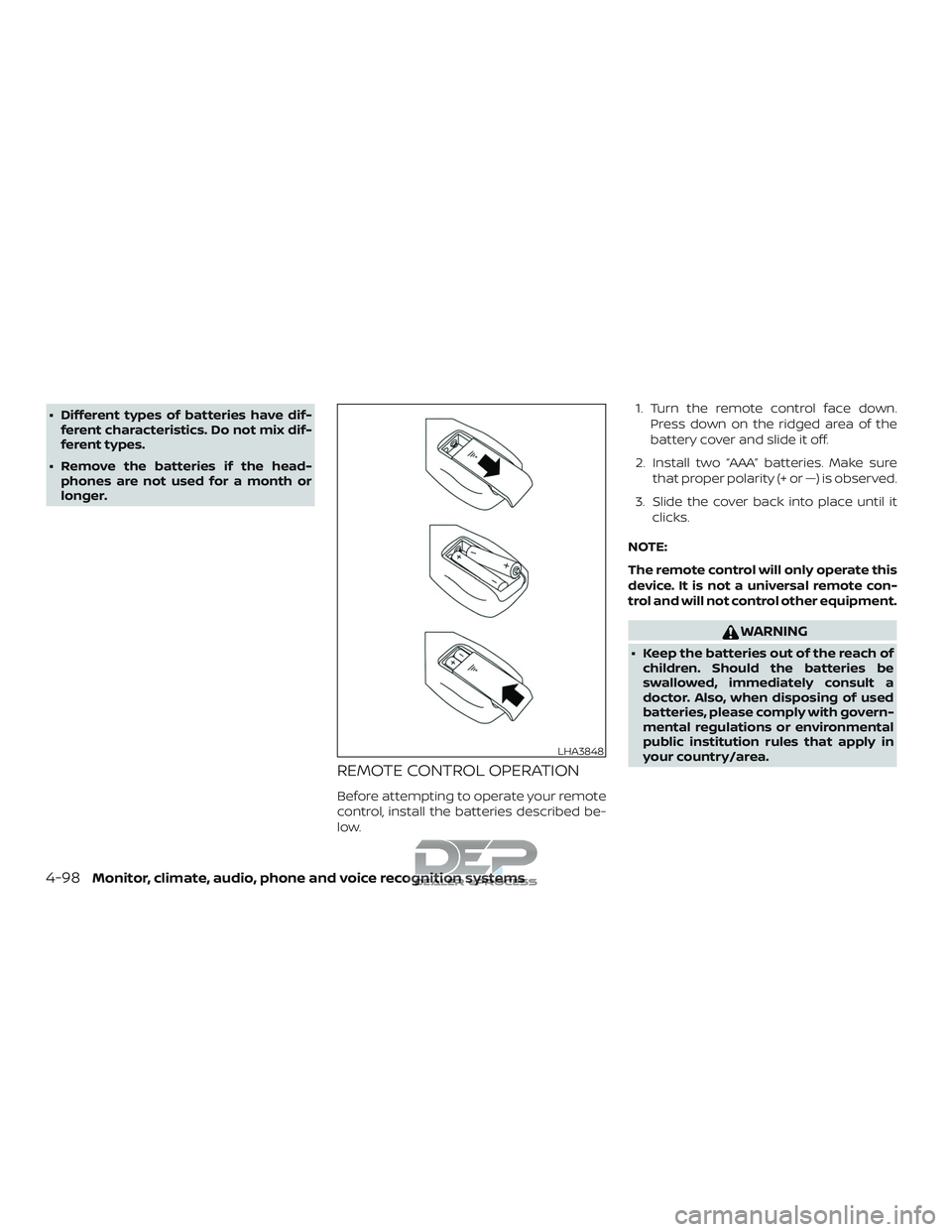
low. 1. Turn the remote control face down.
Press down on the ridged area of the
battery cover and slide it off.
2. Install two “AAA” batteries. Make sure that proper polarity (+ or —) is observed.
3. Slide the cover back into place until it clicks.
NOTE:
The remote control will only operate this
device. It is not a universal remote con-
trol and will not control other equipment.
WARNING
∙ Keep the batteries out of the reach of children. Should the batteries be
swallowed, immediately consult a
doctor. Also, when disposing of used
batteries, please comply with govern-
mental regulations or environmental
public institution rules that apply in
your country/area.
LHA3848
4-98Monitor, climate, audio, phone and voice recognition systems
Page 367 of 650
FCC NOTICE
This device has been tested and found to
comply with the limits for a Class B digital
device, pursuant to part 15 of the FCC Rules.
These limits are designed to provide rea-
sonable protection against harmful inter-
ference in a residential installation. This de-
vice generates, uses, and can radiate radio
frequency energy, and if not installed and
used in accordance with the instructions,
may cause harmful interference to radio
communications. However, there is no
guarantee that interference will not occur
in a particular installation. If this device
does cause unacceptable interference to
radio or television reception, which can be
determined by turning the device off and
on, the user is encouraged to try to correct
the interference by one or more of the fol-
lowing measures:∙ Reorient or relocate the receiving an- tenna.
∙ Increase the separation between the device and receiver.
∙ Connect the device into an outlet on a circuit different from that to which the
receiver is connected. ∙ Consult your dealer or an experienced
radio/TV technician for help.FCC WARNING
WARNING
∙ To assure continued FCC compliance,the user must use the provided
grounded power supply cord and the
shielded video interface cable with
bonded ferrite cores.
∙ Any unauthorized change or modifi- cations to this device would void the
user’s authority to operate this
device.
ITE NOTICE
This Class B digital apparatus complies
with Canadian ICES-003.
This device complies with Industry Canada
license-exempt RSS standard(s). Operation
is subject to the following two conditions:
(1) this device may not cause interference,
and (2) this device must accept any inter-
ference, including interference that may
cause undesired operation of the device. This device and its antenna(s) must not be
co-located or operation in conjunction
with any other antenna or transmitter.
Under Industry Canada regulations, this ra-
dio transmitter may only operate using an
antenna or a type and maximum (or lesser)
gain approved for the transmitter by Indus-
try Canada. To reduce potential radio inter-
ference to other users, the antenna type
and its gain should be so chosen that the
equivalent isotropically radiated power
(e.i.r.p) is not more than that necessary for
successful communication.
4-118Monitor, climate, audio, phone and voice recognition systems