reset NISSAN TITAN 2018 Owner´s Manual
[x] Cancel search | Manufacturer: NISSAN, Model Year: 2018, Model line: TITAN, Model: NISSAN TITAN 2018Pages: 650, PDF Size: 7.54 MB
Page 320 of 650
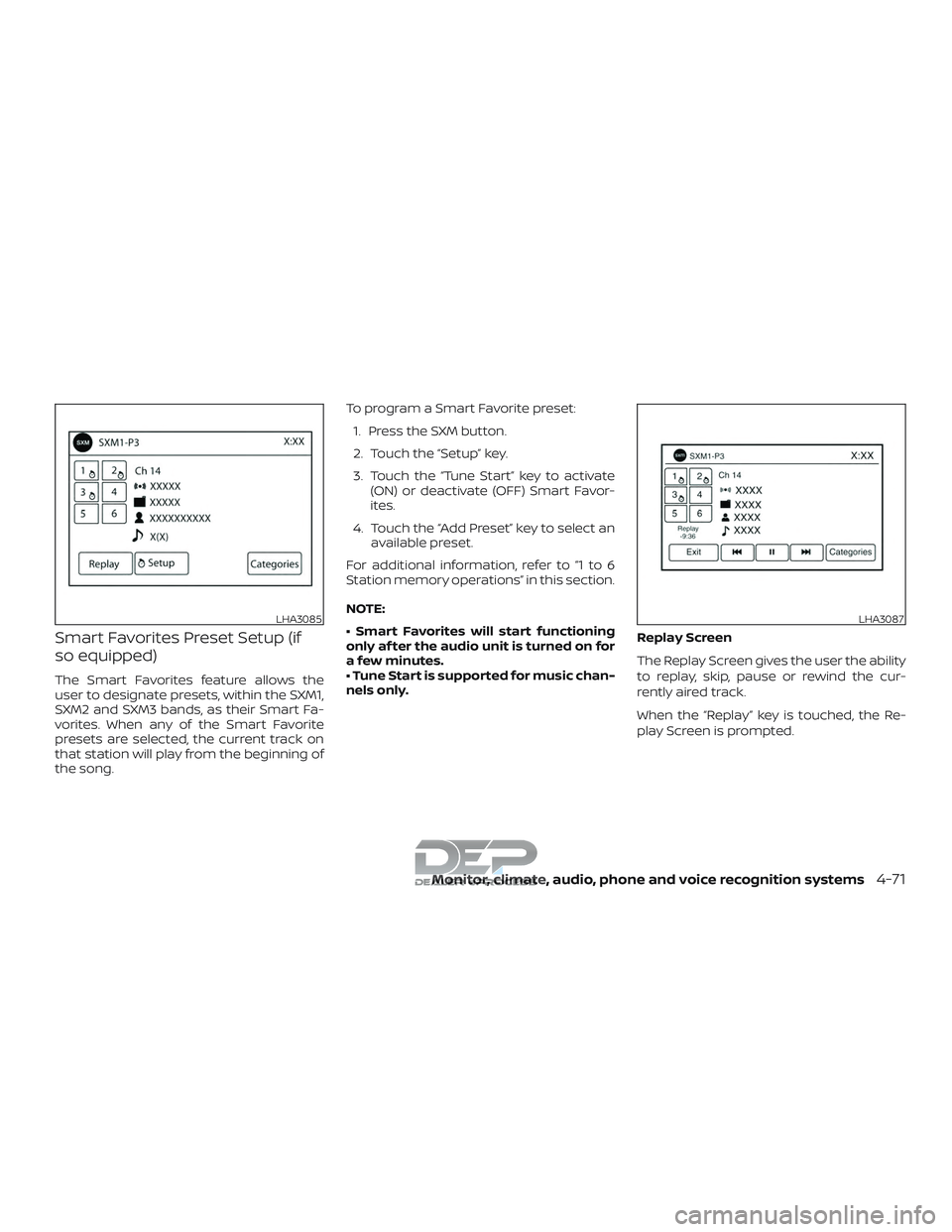
Smart Favorites Preset Setup (if
so equipped)
The Smart Favorites feature allows the
user to designate presets, within the SXM1,
SXM2 and SXM3 bands, as their Smart Fa-
vorites. When any of the Smart Favorite
presets are selected, the current track on
that station will play from the beginning of
the song.To program a Smart Favorite preset:
1. Press the SXM button.
2. Touch the “Setup” key.
3. Touch the “Tune Start” key to activate (ON) or deactivate (OFF) Smart Favor-
ites.
4. Touch the “Add Preset” key to select an available preset.
For additional information, refer to “1 to 6
Station memory operations” in this section.
NOTE:
• Smart Favorites will start functioning
only af ter the audio unit is turned on for
a few minutes.
• Tune Start is supported for music chan-
nels only. Replay Screen
The Replay Screen gives the user the ability
to replay, skip, pause or rewind the cur-
rently aired track.
When the “Replay” key is touched, the Re-
play Screen is prompted.
LHA3085LHA3087
Monitor, climate, audio, phone and voice recognition systems4-71
Page 333 of 650
BLUETOOTH® STREAMING AUDIO
WITHOUT NAVIGATION SYSTEM (if
so equipped)
If you have a compatible Bluetooth® audio
device that is capable of playing audio files,
the device can be connected to the vehi-
cle’s audio system so that the audio files on
the device play through the vehicle’s
speakers.
Connecting Bluetooth® audio
To connect your Bluetooth® audio device
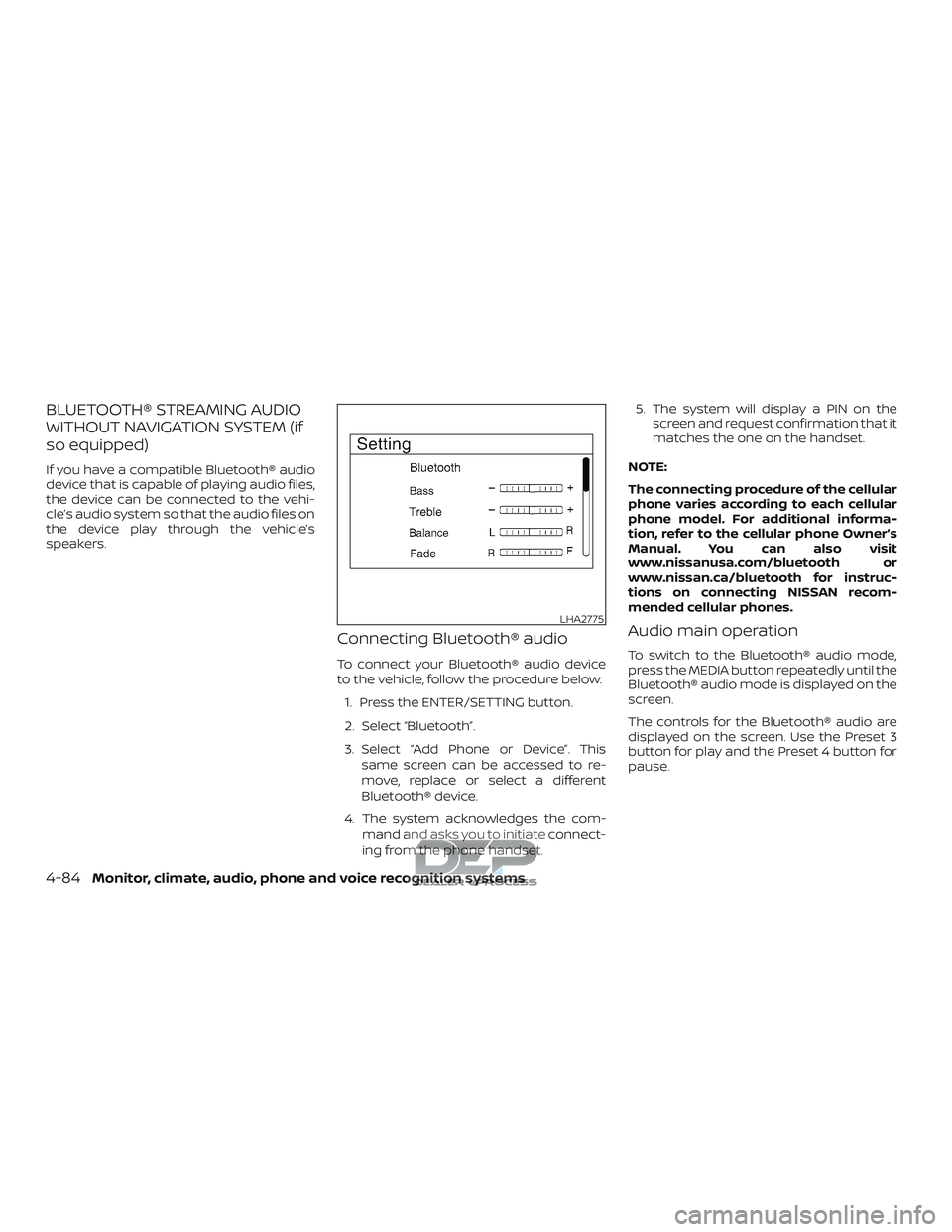
to the vehicle, follow the procedure below:1. Press the ENTER/SETTING button.
2. Select “Bluetooth”.
3. Select “Add Phone or Device”. This same screen can be accessed to re-
move, replace or select a different
Bluetooth® device.
4. The system acknowledges the com- mand and asks you to initiate connect-
ing from the phone handset. 5. The system will display a PIN on the
screen and request confirmation that it
matches the one on the handset.
NOTE:
The connecting procedure of the cellular
phone varies according to each cellular
phone model. For additional informa-
tion, refer to the cellular phone Owner’s
Manual. You can also visit
www.nissanusa.com/bluetooth or
www.nissan.ca/bluetooth for instruc-
tions on connecting NISSAN recom-
mended cellular phones.
Audio main operation
To switch to the Bluetooth® audio mode,
press the MEDIA button repeatedly until the
Bluetooth® audio mode is displayed on the
screen.
The controls for the Bluetooth® audio are
displayed on the screen. Use the Preset 3
button for play and the Preset 4 button for
pause.
LHA2775
4-84Monitor, climate, audio, phone and voice recognition systems
Page 336 of 650
STEERING WHEEL SWITCH FOR
AUDIO CONTROL
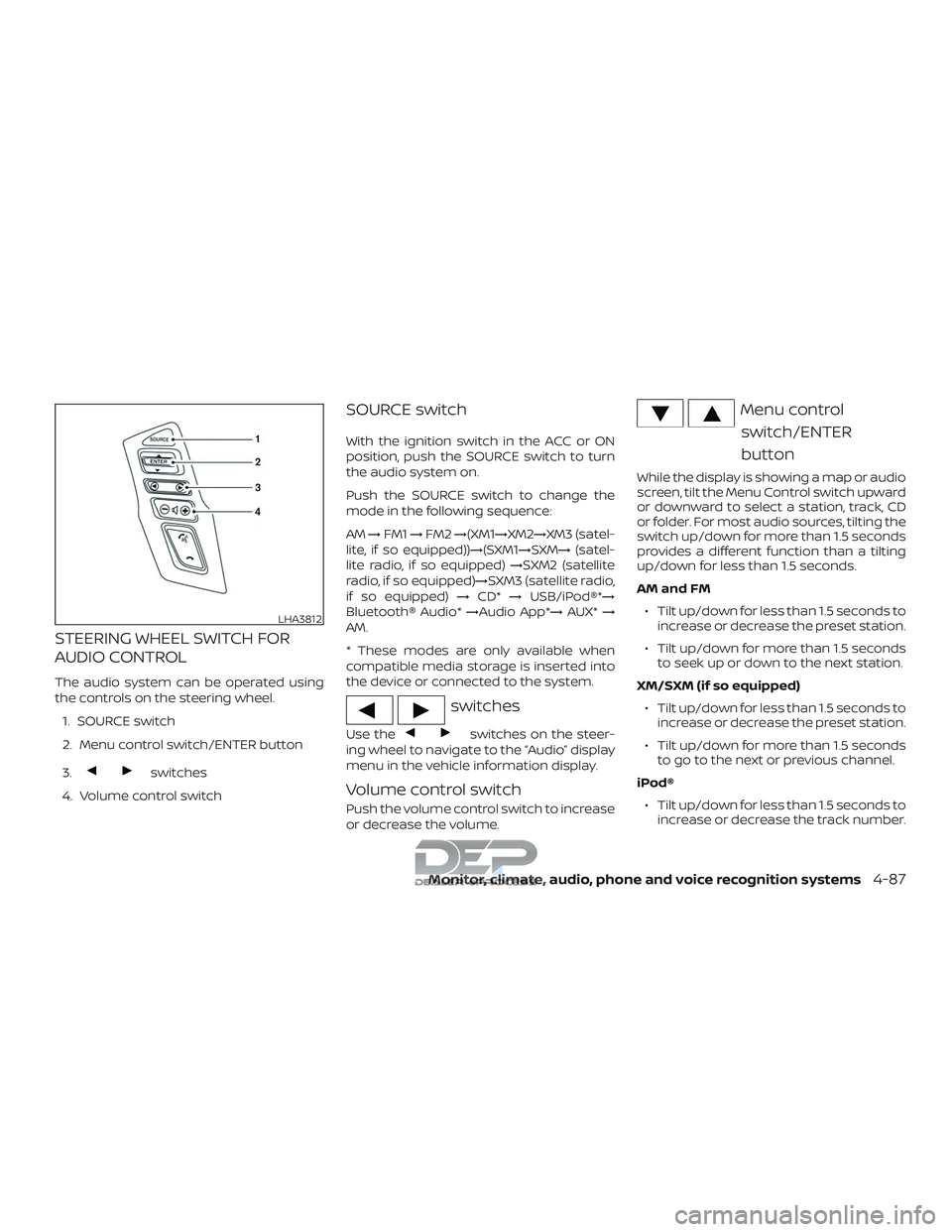
The audio system can be operated using
the controls on the steering wheel.1. SOURCE switch
2. Menu control switch/ENTER button
3.
switches
4. Volume control switch
SOURCE switch
With the ignition switch in the ACC or ON
position, push the SOURCE switch to turn
the audio system on.
Push the SOURCE switch to change the
mode in the following sequence:
AM →FM1 →FM2 →(XM1→XM2→XM3 (satel-
lite, if so equipped))→(SXM1→SXM→ (satel-
lite radio, if so equipped) →SXM2 (satellite
radio, if so equipped)→SXM3 (satellite radio,
if so equipped) →CD* →USB/iPod®*→
Bluetooth® Audio* →Audio App*→AUX*→
AM.
* These modes are only available when
compatible media storage is inserted into
the device or connected to the system.
switches
Use theswitches on the steer-
ing wheel to navigate to the “Audio” display
menu in the vehicle information display.
Volume control switch
Push the volume control switch to increase
or decrease the volume.
Menu control
switch/ENTER
button
While the display is showing a map or audio
screen, tilt the Menu Control switch upward
or downward to select a station, track, CD
or folder. For most audio sources, tilting the
switch up/down for more than 1.5 seconds
provides a different function than a tilting
up/down for less than 1.5 seconds.
AM and FM
∙ Tilt up/down for less than 1.5 seconds to increase or decrease the preset station.
∙ Tilt up/down for more than 1.5 seconds to seek up or down to the next station.
XM/SXM (if so equipped) ∙ Tilt up/down for less than 1.5 seconds to increase or decrease the preset station.
∙ Tilt up/down for more than 1.5 seconds to go to the next or previous channel.
iPod® ∙ Tilt up/down for less than 1.5 seconds to increase or decrease the track number.
LHA3812
Monitor, climate, audio, phone and voice recognition systems4-87
Page 349 of 650
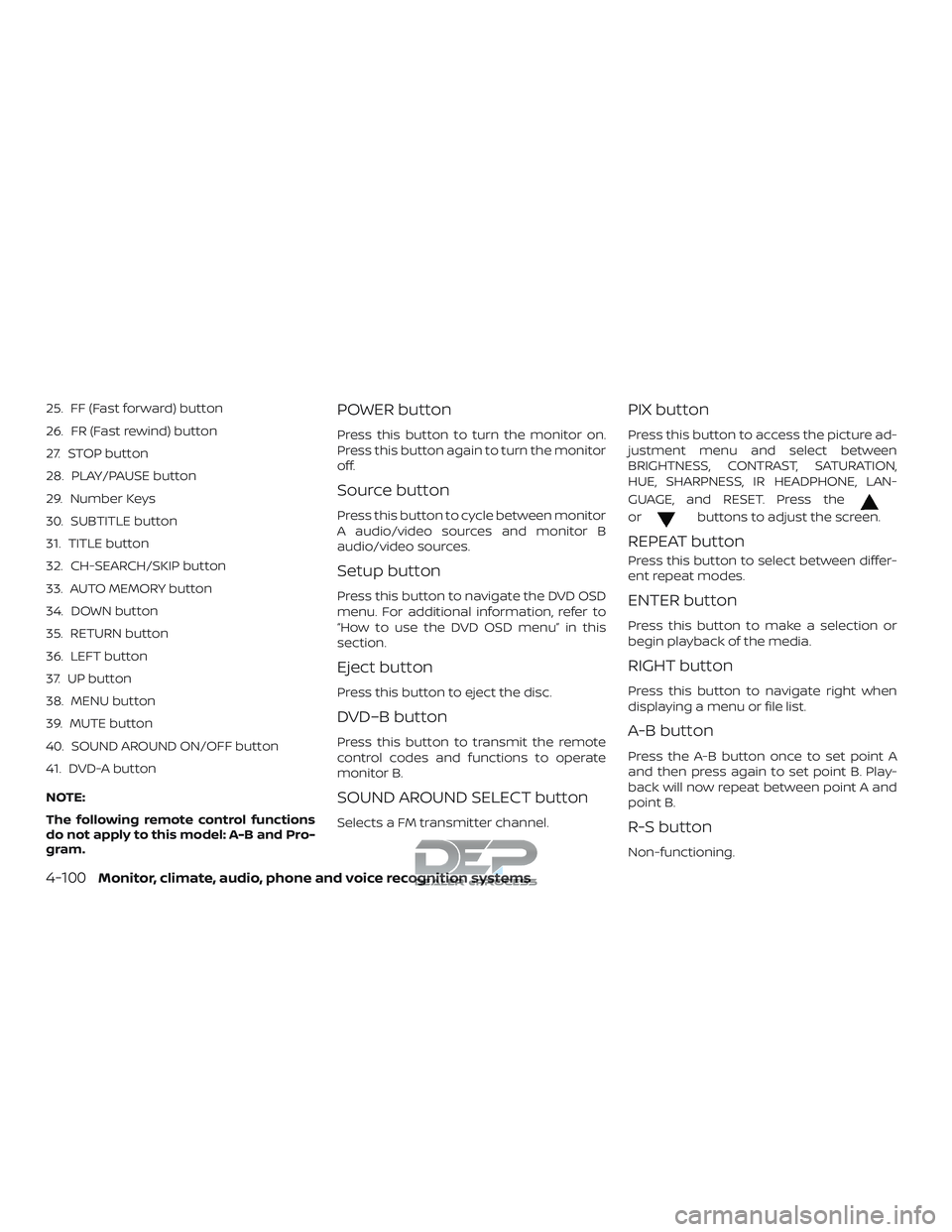
25. FF (Fast forward) button
26. FR (Fast rewind) button
27. STOP button
28. PLAY/PAUSE button
29. Number Keys
30. SUBTITLE button
31. TITLE button
32. CH-SEARCH/SKIP button
33. AUTO MEMORY button
34. DOWN button
35. RETURN button
36. LEFT button
37. UP button
38. MENU button
39. MUTE button
40. SOUND AROUND ON/OFF button
41. DVD-A button
NOTE:
The following remote control functions
do not apply to this model: A-B and Pro-
gram.POWER button
Press this button to turn the monitor on.
Press this button again to turn the monitor
off.
Source button
Press this button to cycle between monitor
A audio/video sources and monitor B
audio/video sources.
Setup button
Press this button to navigate the DVD OSD
menu. For additional information, refer to
“How to use the DVD OSD menu” in this
section.
Eject button
Press this button to eject the disc.
DVD–B button
Press this button to transmit the remote
control codes and functions to operate
monitor B.
SOUND AROUND SELECT button
Selects a FM transmitter channel.
PIX button
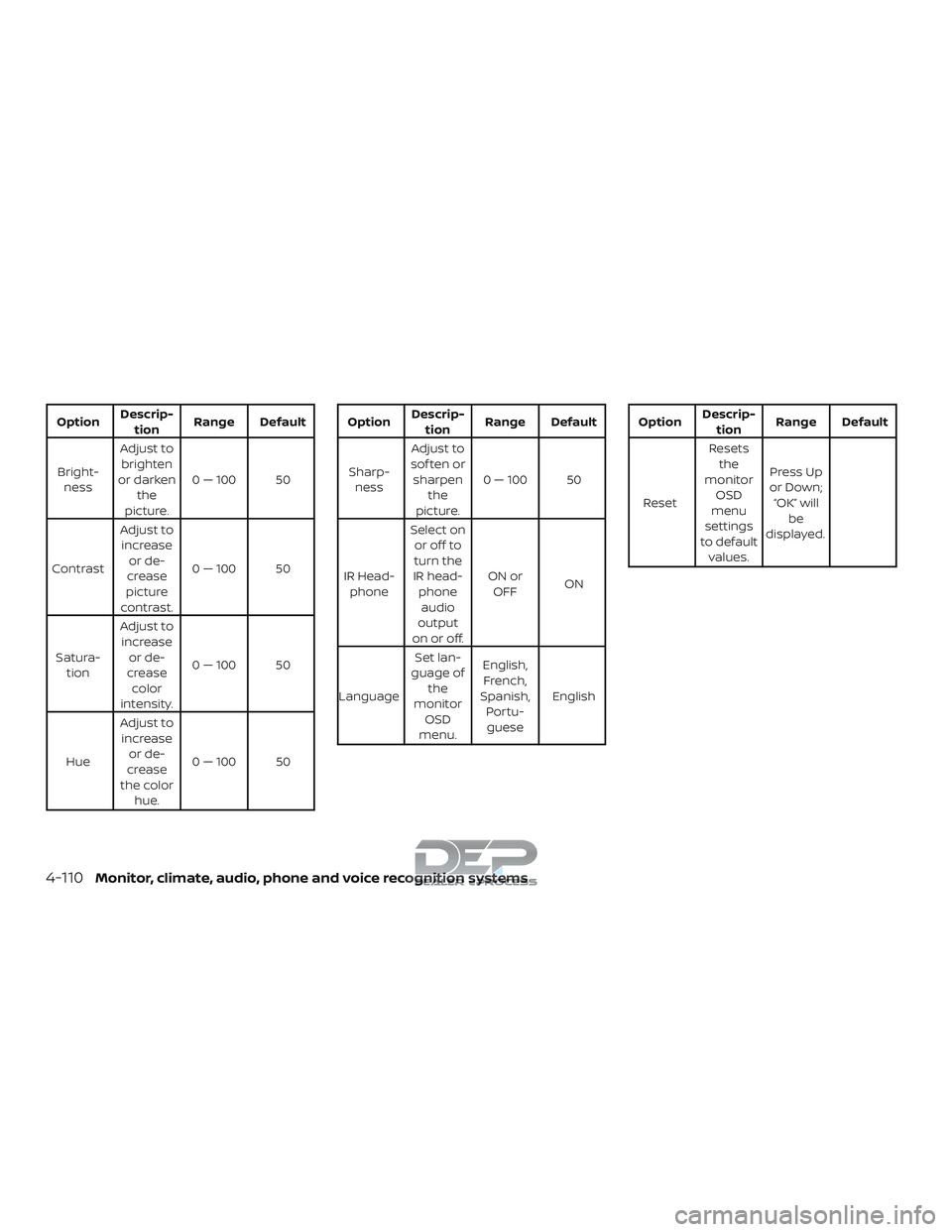
Press this button to access the picture ad-
justment menu and select between
BRIGHTNESS, CONTRAST, SATURATION,
HUE, SHARPNESS, IR HEADPHONE, LAN-
GUAGE, and RESET. Press the
orbuttons to adjust the screen.
REPEAT button
Press this button to select between differ-
ent repeat modes.
ENTER button
Press this button to make a selection or
begin playback of the media.
RIGHT button
Press this button to navigate right when
displaying a menu or file list.
A-B button
Press the A-B button once to set point A
and then press again to set point B. Play-
back will now repeat between point A and
point B.
R-S button
Non-functioning.
4-100Monitor, climate, audio, phone and voice recognition systems
Page 352 of 650
Regional coding
Both the DVD player and discs are coded by
region. These regional codes must match
in order for the disc to play. The system is
preset to the region code designated for
your area by the DVD Copy Control Asso-
ciation. Other regions may not be played in
this system.
Supported Disc Types∙ DVD-Video: DVD contains video
∙ DVD +/- R: DVD contains video
∙ CD-DA: CD contains audio
∙ CD-Video: CD contains video
∙ CD-R/+RW: CD contains audio
Unsupported Disc Types
Before you load a disc, make sure that it is
compatible with the player. Note that the
following disc CANNOT be used with this
system: Optical disc- CD-1, CD-ROM, and
DVD-ROM Mini disc- CDG (audio only, not
graphics), and Blu-ray (list is not all inclu-
sive).
Loading and Playing Discs
Press the POWER button to turn the moni-
tor on. Insert the disc about half way into the disc compartment slot, with the disc’s
label facing the rear of the vehicle. Do NOT
insert the disc at an angle. The Disc must
be inserted straight into the player.
The disc will load automatically and begin
to play. Some discs may start at the root
menu, where playback must be selected to
start a movie. Depending on the disc and
playback location on the disc, a “
”icon
may be displayed in the upper lef t-hand
corner of the screen indicating that play-
back is not possible during certain times.
Additional information on Media
Compatibility
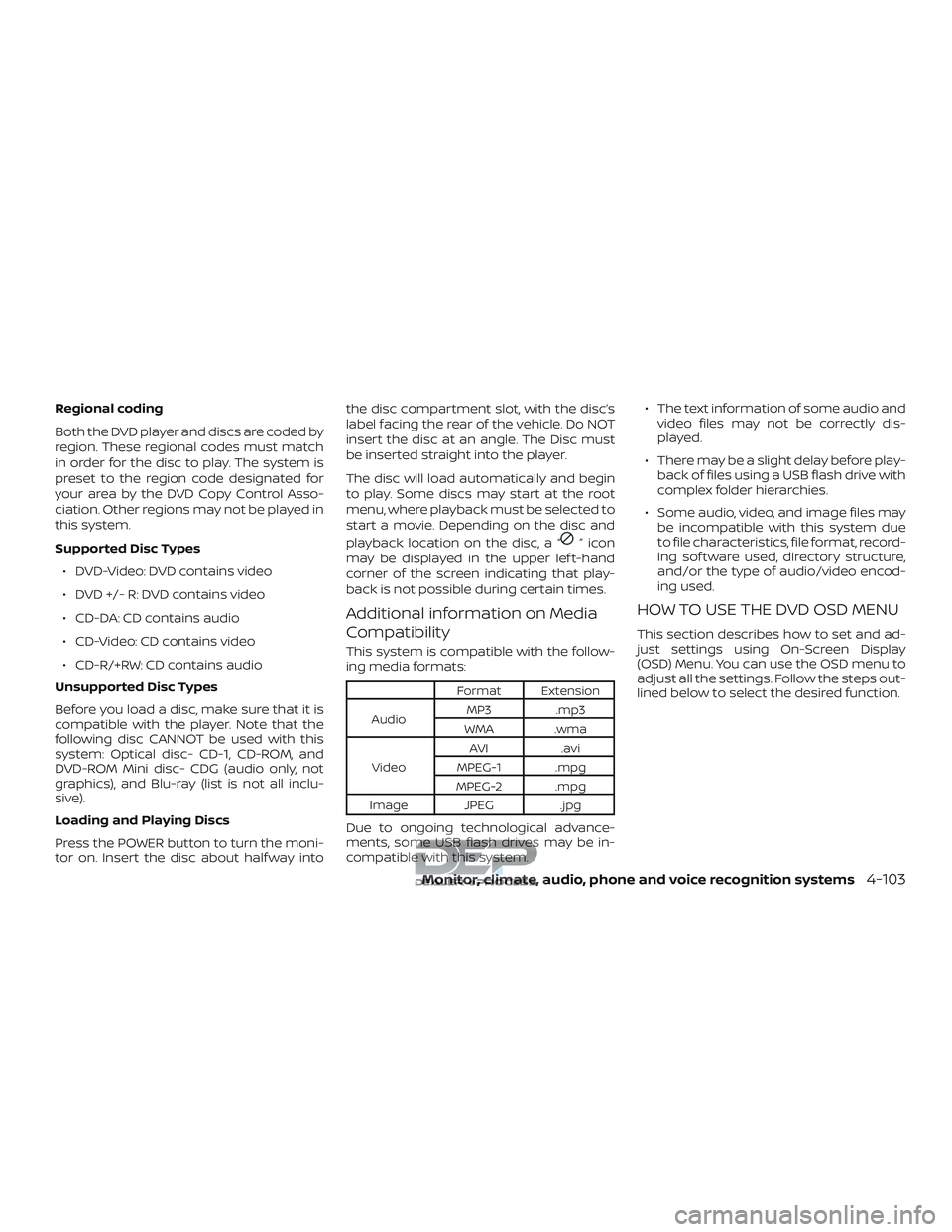
This system is compatible with the follow-
ing media formats:
Format Extension
Audio MP3 .mp3
WMA .wma
Video AVI
.avi
MPEG-1 .mpg
MPEG-2 .mpg
Image JPEG .jpg
Due to ongoing technological advance-
ments, some USB flash drives may be in-
compatible with this system. ∙ The text information of some audio and
video files may not be correctly dis-
played.
∙ There may be a slight delay before play- back of files using a USB flash drive with
complex folder hierarchies.
∙ Some audio, video, and image files may be incompatible with this system due
to file characteristics, file format, record-
ing sof tware used, directory structure,
and/or the type of audio/video encod-
ing used.
HOW TO USE THE DVD OSD MENU
This section describes how to set and ad-
just settings using On-Screen Display
(OSD) Menu. You can use the OSD menu to
adjust all the settings. Follow the steps out-
lined below to select the desired function.
Monitor, climate, audio, phone and voice recognition systems4-103
Page 357 of 650
Disc Menu
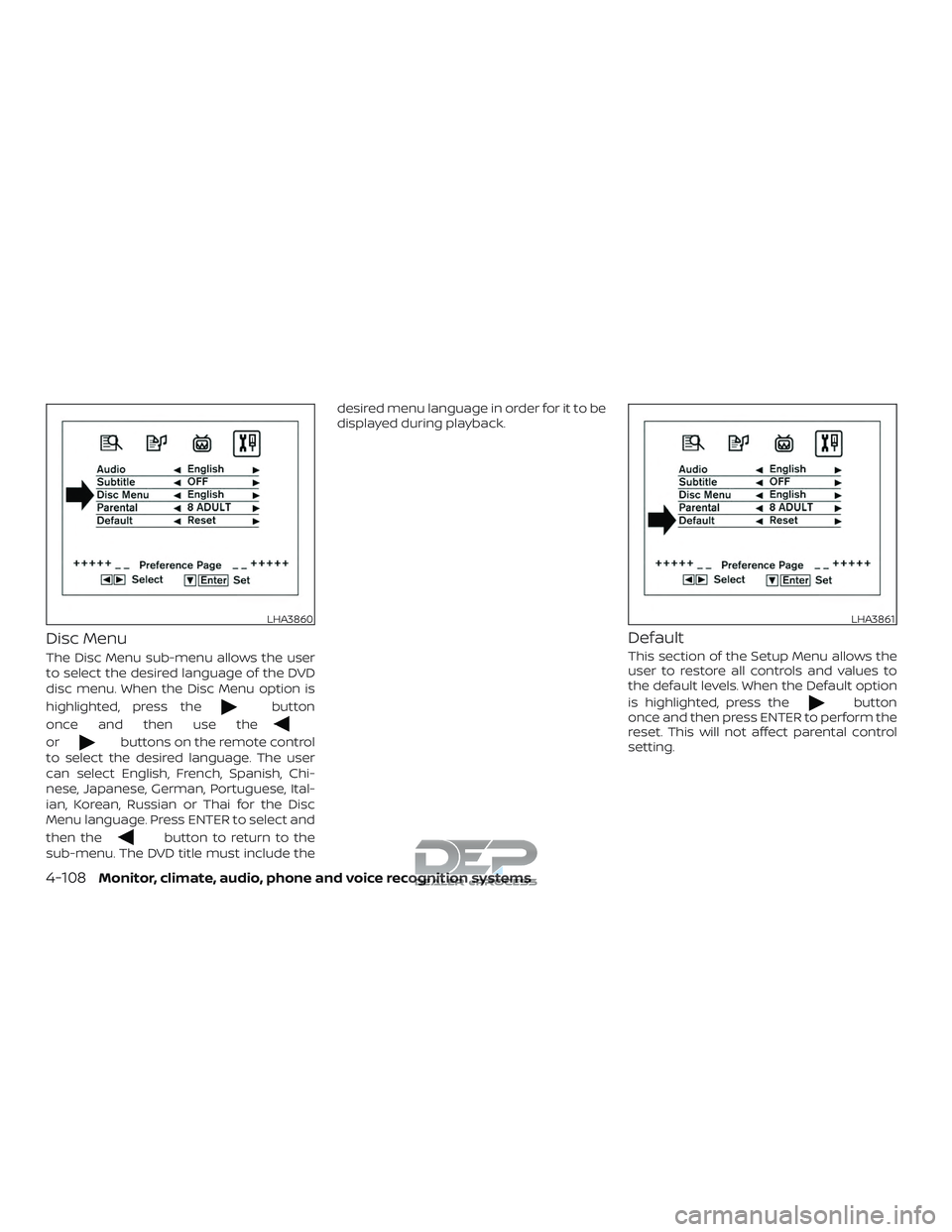
The Disc Menu sub-menu allows the user
to select the desired language of the DVD
disc menu. When the Disc Menu option is
highlighted, press the
button
once and then use the
orbuttons on the remote control
to select the desired language. The user
can select English, French, Spanish, Chi-
nese, Japanese, German, Portuguese, Ital-
ian, Korean, Russian or Thai for the Disc
Menu language. Press ENTER to select and
then the
button to return to the
sub-menu. The DVD title must include the desired menu language in order for it to be
displayed during playback.
Default
This section of the Setup Menu allows the
user to restore all controls and values to
the default levels. When the Default option
is highlighted, press the
button
once and then press ENTER to perform the
reset. This will not affect parental control
setting.
LHA3860LHA3861
4-108Monitor, climate, audio, phone and voice recognition systems
Page 359 of 650
OptionDescrip-
tion Range Default
Bright- ness Adjust to
brighten
or darken the
picture. 0 — 100 50
Contrast Adjust to
increase or de-
crease
picture
contrast. 0 — 100 50
Satura- tion Adjust to
increase or de-
crease color
intensity. 0 — 100 50
Hue Adjust to
increase or de-
crease
the color hue. 0 — 100 50Option
Descrip-
tion Range Default
Sharp- ness Adjust to
sof ten or sharpen the
picture. 0 — 100 50
IR Head- phone Select on
or off to
turn the
IR head- phoneaudio
output
on or off. ON or
OFF ON
Language Set lan-
guage of the
monitor OSD
menu. English,
French,
Spanish, Portu-guese EnglishOption
Descrip-
tion Range Default
Reset Resets
the
monitor OSD
menu
settings
to default values. Press Up
or Down; “OK” will be
displayed.
4-110Monitor, climate, audio, phone and voice recognition systems
Page 402 of 650
shown on the Tire and Loading Infor-
mation label to turn the low tire pres-
sure warning light off. If you have a flat
tire, replace it with a spare tire as soon
as possible. (For additional informa-
tion, refer to “Flat tire” in the “In case of
emergency ” section for changing a
flat tire.)
∙ When replacing a wheel without the TPMS such as the spare tire, when a
spare tire is mounted or a wheel is
replaced, tire pressure will not be indi-
cated, the TPMS will not function and
the low tire pressure warning light will
flash for approximately 1 minute. The
light will remain on af ter 1 minute.
Have your tires replaced and/or TPMS
system reset as soon as possible. It is
recommended that you visit a NISSAN
dealer for this service.
∙ Replacing tires with those not origi- nally specified by NISSAN could affect
the proper operation of the TPMS.
∙ Do not inject any tire liquid or aerosol tire sealant into the tires, as this may
cause a malfunction of the tire pres-
sure sensors.CAUTION
Do not place metalized film or any
metal parts (antenna, etc.) on the win-
dows. This may cause poor reception of
the signals from the tire pressure sen-
sors, and the TPMS will not function
properly.
Some devices and transmitters may tem-
porarily interfere with the operation of the
TPMS and cause the low tire pressure
warning light to illuminate.
Some examples are: ∙ Facilities or electric devices using simi- lar radio frequencies are near the ve-
hicle.
∙ If a transmitter set to similar frequen- cies is being used in or near the vehicle.
∙ If a computer (or similar equipment) or a DC/AC converter is being used in or
near the vehicle.
The low tire pressure warning light may
illuminate in the following cases: ∙ If the vehicle is equipped with a wheel and tire without TPMS.
∙ If the TPMS has been replaced and the ID has not been registered. ∙ If the wheel is not originally specified by
NISSAN.
FCC Notice:
For USA:
This device complies with Part 15 of the
FCC Rules. Operation is subject to the fol-
lowing two conditions: (1) This device
may not cause harmful interference, and
(2) this device must accept any interfer-
ence received, including interference
that may cause undesired operation.
NOTE:
Changes or modifications not expressly
approved by the party responsible for
compliance could void the user’s author-
ity to operate the equipment.
For Canada:
This device complies with Industry
Canada licence-exempt RSS standard(s).
Operation is subject to the following two
conditions: (1) this device may not cause
harmful interference, and (2) this device
must accept any interference received,
including interference that may cause
undesired operation of the device.
Starting and driving5-5
Page 439 of 650
∙ If the(green) indicator light blinks,
push the ON/OFF switch off and have
the system checked. It is recom-
mended that you visit a NISSAN dealer
for this service.
∙ The
(green) indicator light may
blink when the ON/OFF switch is
pushed ON while pushing the
ACCEL/RES, COAST/SET, or CANCEL
switch. To properly set the cruise con-
trol system, use the following proce-
dures.
WARNING
Do not use the cruise control when driv-
ing under the following conditions:
∙ When it is not possible to keep the vehicle at a set speed.
∙ In heavy traffic or in traffic that varies in speed.
∙ On winding or hilly roads.
∙ On slippery roads (rain, snow, ice, etc.).
∙ In very windy areas.
Doing so could cause a loss of vehicle
control and result in an accident.
CRUISE CONTROL OPERATIONS
The cruise control allows driving at a speed
between 25 - 89 mph (40 - 144 km/h) with-
out keeping your foot on the accelerator
pedal.
To turn on the cruise control, push the
ON/OFF switch on. The
(white) indi-
cator light in the vehicle information dis-
play will illuminate.
To set cruising speed, accelerate the ve-
hicle to the desired speed, push the
COAST/SET switch and release it. The
(green) indicator light in the vehicle infor-
mation display will illuminate. Take your
foot off the accelerator pedal. Your vehicle
maintains the set speed.
∙ To pass another vehicle, depress the
accelerator pedal. When you release the
pedal, the vehicle returns to the previ-
ously set speed.
∙ The vehicle may not maintain the set speed when going up or down steep
hills. If this happens, drive without the
cruise control. To cancel the preset speed,
use one of the
following three methods:
∙ Push the CANCEL switch; the
indi-
cator light in the vehicle information
display goes out.
∙ Tap the brake pedal; the
indicator
light goes out.
∙ Push the ON/OFF switch off. The
indicator light in the vehicle information
display goes out.
The cruise control is automatically can-
celed and the
indicator light in the
vehicle information display goes out if:
∙ You depress the brake pedal while pushing the ACCEL/RES or SET/COAST
switch. The preset speed is deleted
from memory.
∙ The vehicle slows down more than 8 mph (13 km/h) below the set speed.
∙ You move the shif t lever to N (Neutral).
To reset at a faster cruising speed, use
one of the following three methods:
∙ Depress the accelerator pedal. When the vehicle attains the desired speed,
push and release the COAST/SET
switch.
5-42Starting and driving
Page 440 of 650
∙ Push and hold the ACCEL/RES switch.When the vehicle attains the speed you
desire, release the switch.
∙ Push and release the ACCEL/RES switch. Each time you do this, the set
speed increases by about 1 mph
(1.6 km/h).
To reset at a slower cruising speed, use
one of the following three methods:
∙ Lightly tap the brake pedal. When the vehicle attains the desired speed, push
the COAST/SET switch and release it.
∙ Push and hold the COAST/SET switch. Release the switch when the vehicle
slows to the desired speed.
∙ Push and release the COAST/SET switch. Each time you do this, the set
speed decreases by about 1 mph
(1.6 km/h).
To resume the preset speed, push and
release the ACCEL/RES switch. The vehicle
returns to the last set cruising speed when
the vehicle speed is over 25 mph (40 km/h).CAUTION
During the first 1,200 miles (2,000 km),
follow these recommendations to ob-
tain maximum engine performance
and ensure the future reliability and
economy of your new vehicle. Failure to
follow these recommendations may re-
sult in shortened engine life and re-
duced engine performance.
∙ Avoid driving for long periods at con- stant speed, either fast or slow, and do
not run the engine over 4,000 RPM.
∙ Do not accelerate at full throttle in any gear.
∙ Avoid quick starts.
∙ Avoid hard braking as much as pos- sible.
∙ Do not tow a trailer for the first 500 miles (805 kilometers). Your engine, axle or
other parts could be damaged. Follow these easy-to-use Fuel Efficient
Driving Tips to help you achieve the most
fuel economy from your vehicle.
1. Use Smooth Accelerator and Brake
Pedal Application
∙ Avoid rapid starts and stops.
∙ Use smooth, gentle accelerator and brake application whenever possible.
∙ Maintain constant speed while com- muting and coast whenever pos-
sible.
2. Maintain Constant Speed
∙ Look ahead to try and anticipate and minimize stops.
∙ Synchronizing your speed with traffic lights allows you to reduce your num-
ber of stops.
∙ Maintaining a steady speed can mini- mize red light stops and improve fuel
efficiency.
BREAK-IN SCHEDULE FUEL EFFICIENT DRIVING TIPS
Starting and driving5-43