remote control NISSAN TITAN 2019 Owner´s Manual
[x] Cancel search | Manufacturer: NISSAN, Model Year: 2019, Model line: TITAN, Model: NISSAN TITAN 2019Pages: 682, PDF Size: 7.99 MB
Page 320 of 682
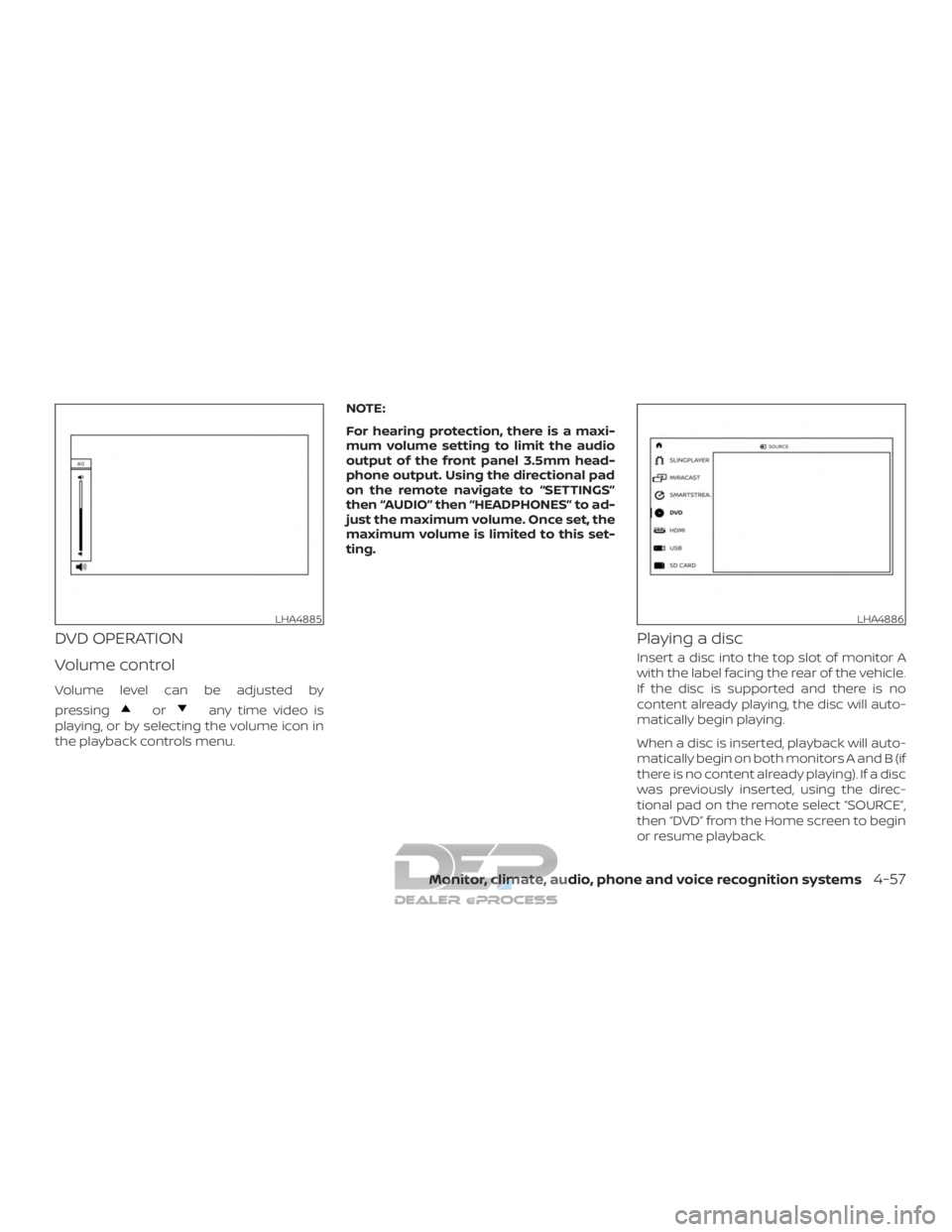
DVD OPERATION
Volume control
Volume level can be adjusted by
pressing
orany time video is
playing, or by selecting the volume icon in
the playback controls menu. NOTE:
For hearing protection, there is a maxi-
mum volume setting to limit the audio
output of the front panel 3.5mm head-
phone output. Using the directional pad
on the remote navigate to “SETTINGS”
then “AUDIO” then “HEADPHONES” to ad-
just the maximum volume. Once set, the
maximum volume is limited to this set-
ting.
Playing a disc
Insert a disc into the top slot of monitor A
with the label facing the rear of the vehicle.
If the disc is supported and there is no
content already playing, the disc will auto-
matically begin playing.
When a disc is inserted, playback will auto-
matically begin on both monitors A and B (if
there is no content already playing). If a disc
was previously inserted, using the direc-
tional pad on the remote select “SOURCE”,
then “DVD” from the Home screen to begin
or resume playback.
LHA4885LHA4886
Monitor, climate, audio, phone and voice recognition systems4-57
Page 321 of 682
Some DVDs may start at the root menu,
where playback must be selected to start a
movie. Use the remote control or front
panel buttons to navigate through the DVD
menu and begin playback.
The system supports DVD parental con-
trols that provide the ability to limit content
playback based on the Motion Picture As-
sociation of America (MPAA) ratings. For
additional information, refer to “About pa-
rental lock” in this section.
Mirroring content
To mirror the content of the opposite
monitor, using the directional pad on the
remote, select “MIRROR” from the Home
Screen. This will allow the identical content
to play on both monitors.
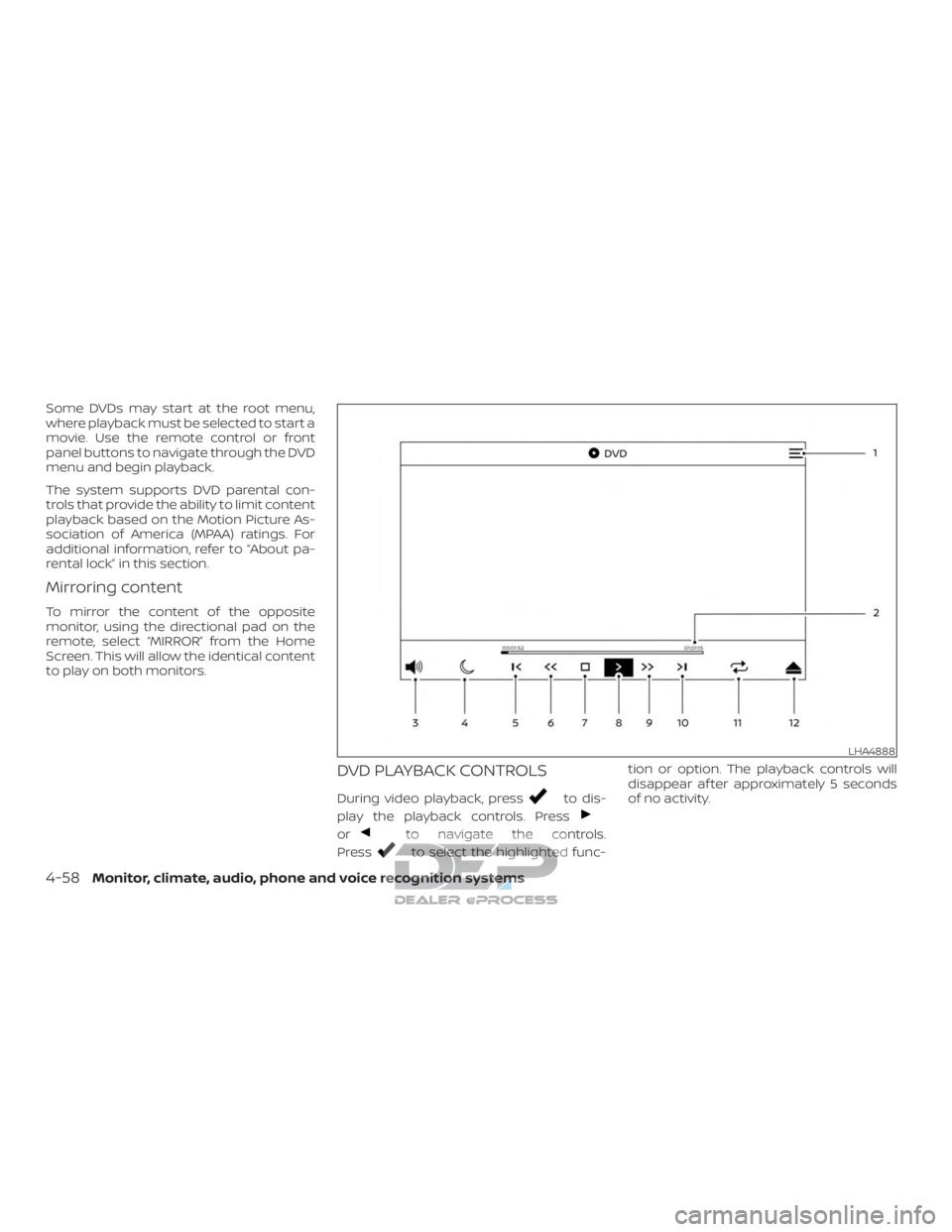
DVD PLAYBACK CONTROLS
During video playback, pressto dis-
play the playback controls. Press
orto navigate the controls.
Press
to select the highlighted func- tion or option. The playback controls will
disappear af ter approximately 5 seconds
of no activity.
LHA4888
4-58Monitor, climate, audio, phone and voice recognition systems
Page 325 of 682
CD PLAYBACK CONTROLS
During audio playback the controls are dis-
played at all times.1. Context Menu
Press
on the remote to open the
context menu. The menu options will
vary, depending on the source.
2. Progress Bar
Shows elapsed time, total time, and
progress bar indicator.
3. Volume
Select to display the volume level indi-
cator. Press
orto increase
or decrease the volume.
4. Night Mode
Select to dim the screen and reduce
eye strain during operation at night.
5. Previous
Select to go to the beginning of the
track. Select again to go to the previous
track.
6. Rewind
Select to rewind at 2x, 4x, 8x, and 16x
speeds. Select to resume playback. 7.
Stop
Select to stop CD playback.
8. Play/Pause
Select once to pause CD playback. Se-
lect again to resume CD playback.
9. Fast Forward
Select to fast forward at 2x, 4x, 8x, and
16x speeds. Select
to resume
playback.
10. Next
Select to go to the next track.
11. Repeat
Select once to repeat the entire CD. Se-
lect again to repeat the currently play-
ing track.
12. Eject
Select to eject the disc.
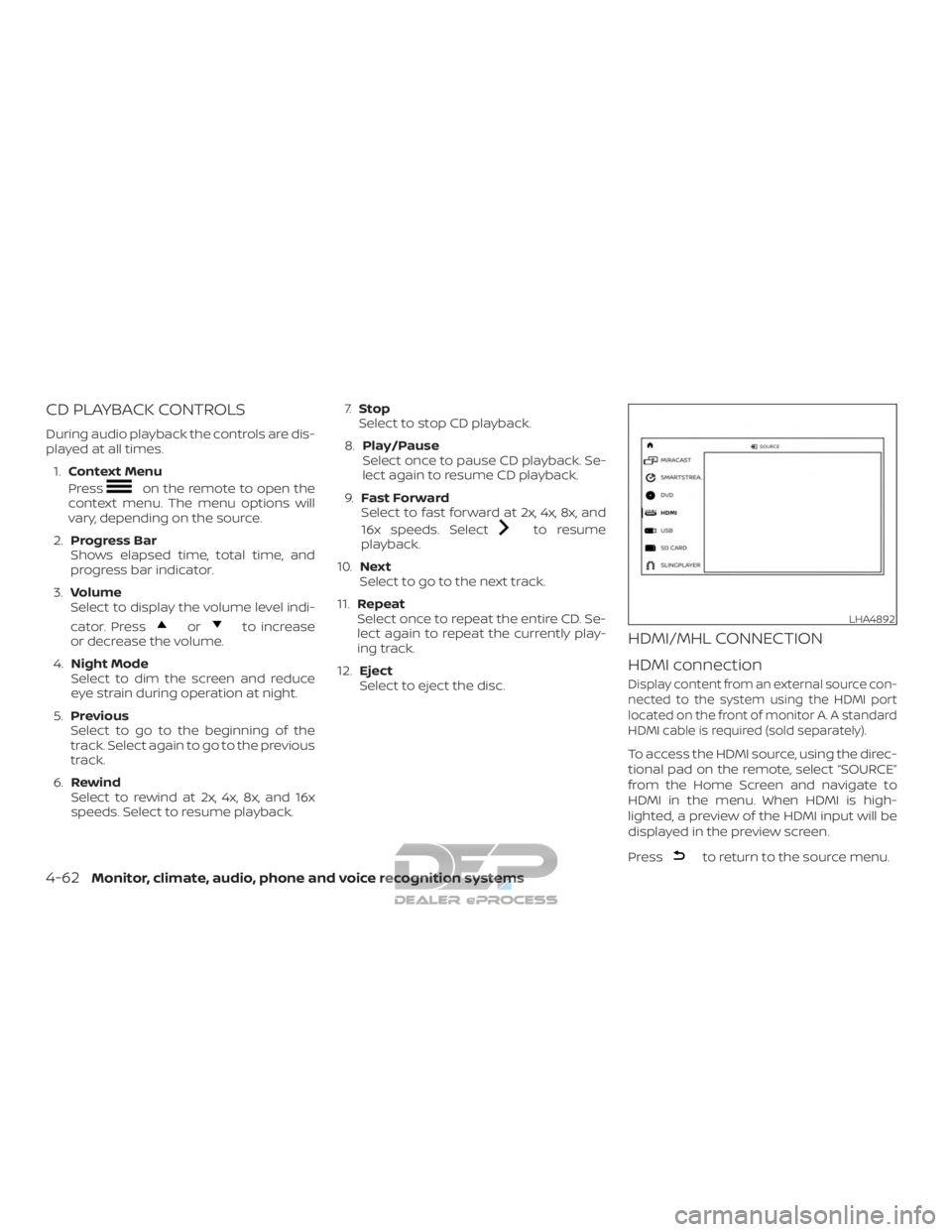
HDMI/MHL CONNECTION
HDMI connection
Display content from an external source con-
nected to the system using the HDMI port
located on the front of monitor A. A standard
HDMI cable is required (sold separately).
To access the HDMI source, using the direc-
tional pad on the remote, select “SOURCE”
from the Home Screen and navigate to
HDMI in the menu. When HDMI is high-
lighted, a preview of the HDMI input will be
displayed in the preview screen.
Press
to return to the source menu.
LHA4892
4-62Monitor, climate, audio, phone and voice recognition systems
Page 326 of 682
NOTE:
HDMI connected devices are indepen-
dent and must be controlled directly
from the source device.
MHL connection
The system also allows mobile devices
supporting Mobile High-Definition Link
(MHL) to be connected. An MHL-to-HDMI
cable is required (sold separately).
Mobile High-Definition Link (MHL) is an in-
dustry standard mobile audio/ video inter-
face that allows connection of smart-
phones, tablets, and other portable
consumer electronics devices to the sys-
tem. MHL transports high-quality uncom-
pressed audio and video from a mobile
source device to the system and at the
same time provides power to recharge the
device.
NOTE:
MHL connected devices are independent
and must be controlled directly from the
source device.
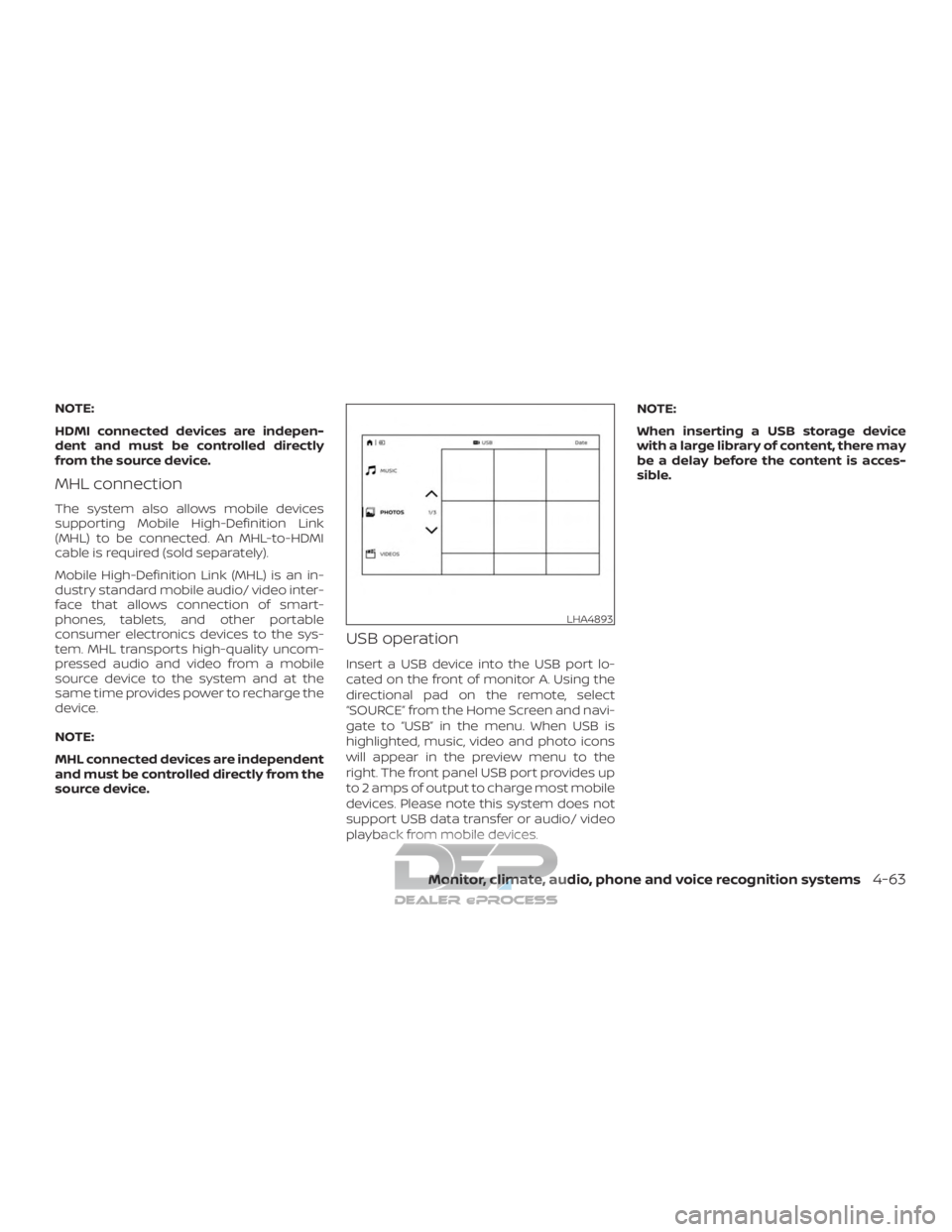
USB operation
Insert a USB device into the USB port lo-
cated on the front of monitor A. Using the
directional pad on the remote, select
“SOURCE” from the Home Screen and navi-
gate to “USB” in the menu. When USB is
highlighted, music, video and photo icons
will appear in the preview menu to the
right. The front panel USB port provides up
to 2 amps of output to charge most mobile
devices. Please note this system does not
support USB data transfer or audio/ video
playback from mobile devices.NOTE:
When inserting a USB storage device
with a large library of content, there may
be a delay before the content is acces-
sible.
LHA4893
Monitor, climate, audio, phone and voice recognition systems4-63
Page 329 of 682
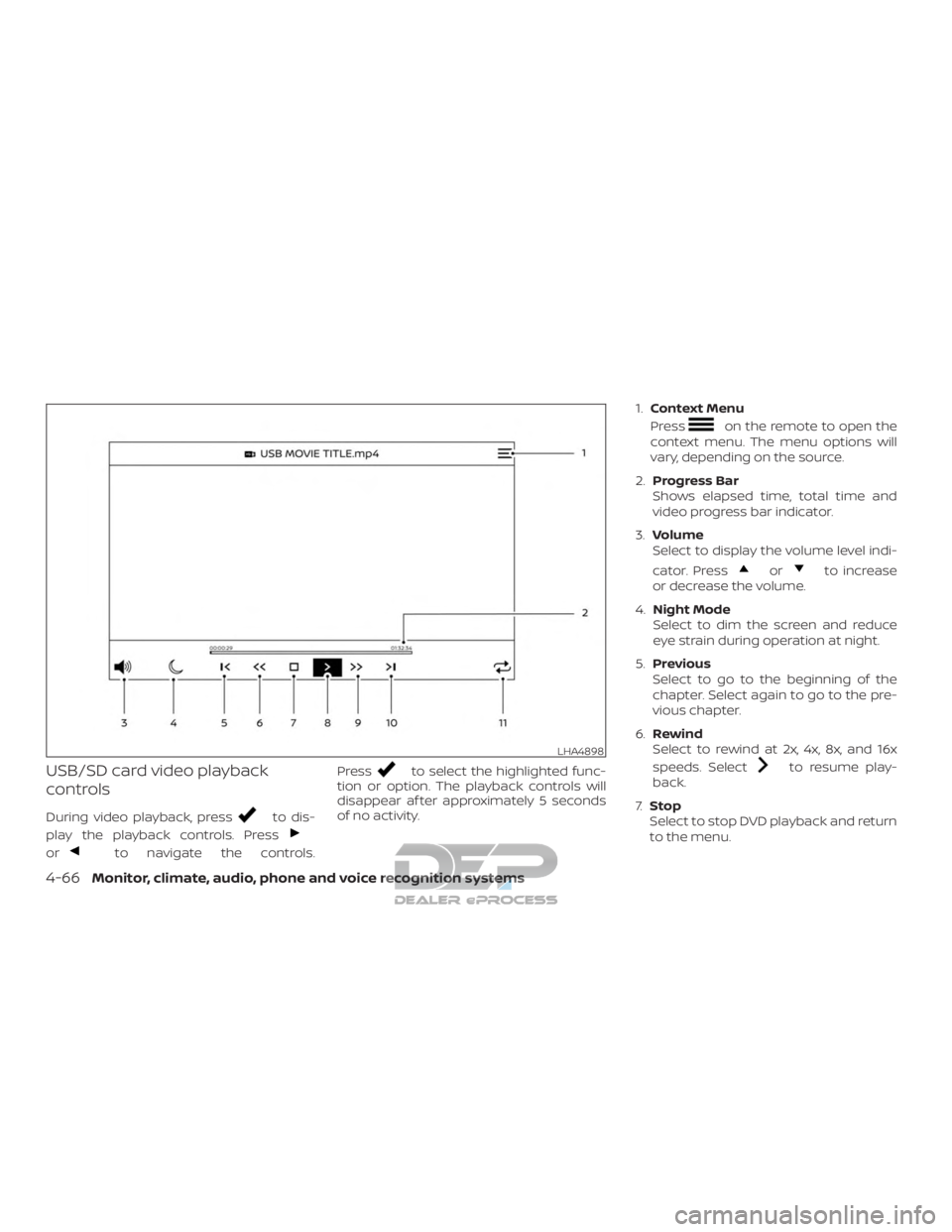
USB/SD card video playback
controls
During video playback, pressto dis-
play the playback controls. Press
orto navigate the controls. Press
to select the highlighted func-
tion or option. The playback controls will
disappear af ter approximately 5 seconds
of no activity. 1.
Context Menu
Press
on the remote to open the
context menu. The menu options will
vary, depending on the source.
2. Progress Bar
Shows elapsed time, total time and
video progress bar indicator.
3. Volume
Select to display the volume level indi-
cator. Press
orto increase
or decrease the volume.
4. Night Mode
Select to dim the screen and reduce
eye strain during operation at night.
5. Previous
Select to go to the beginning of the
chapter. Select again to go to the pre-
vious chapter.
6. Rewind
Select to rewind at 2x, 4x, 8x, and 16x
speeds. Select
to resume play-
back.
7. Stop
Select to stop DVD playback and return
to the menu.
LHA4898
4-66Monitor, climate, audio, phone and voice recognition systems
Page 331 of 682
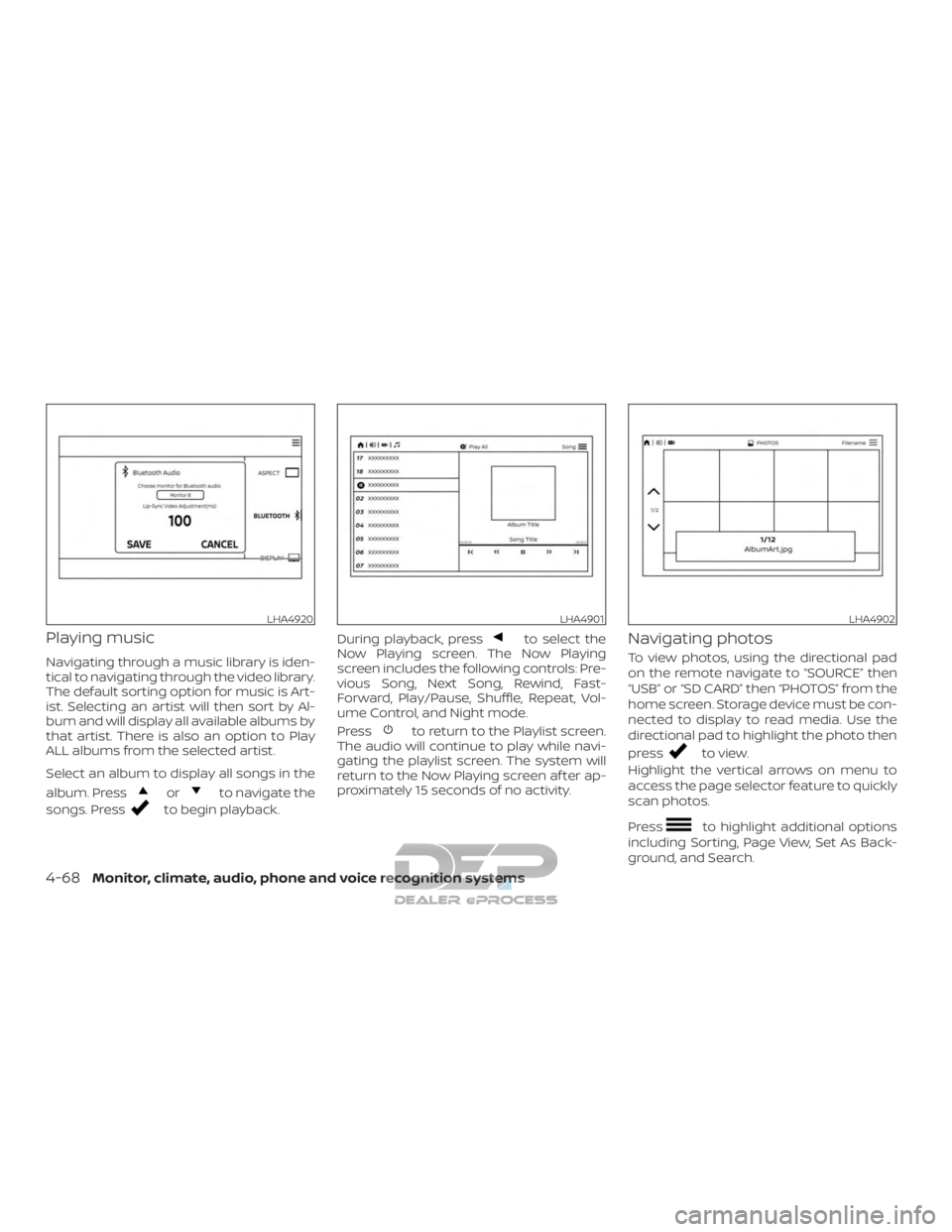
Playing music
Navigating through a music library is iden-
tical to navigating through the video library.
The default sorting option for music is Art-
ist. Selecting an artist will then sort by Al-
bum and will display all available albums by
that artist. There is also an option to Play
ALL albums from the selected artist.
Select an album to display all songs in the
album. Press
orto navigate the
songs. Press
to begin playback. During playback, press
to select the
Now Playing screen. The Now Playing
screen includes the following controls: Pre-
vious Song, Next Song, Rewind, Fast-
Forward, Play/Pause, Shuffle, Repeat, Vol-
ume Control, and Night mode.
Press
to return to the Playlist screen.
The audio will continue to play while navi-
gating the playlist screen. The system will
return to the Now Playing screen af ter ap-
proximately 15 seconds of no activity.
Navigating photos
To view photos, using the directional pad
on the remote navigate to “SOURCE” then
“USB” or “SD CARD” then “PHOTOS” from the
home screen. Storage device must be con-
nected to display to read media. Use the
directional pad to highlight the photo then
press
to view.
Highlight the vertical arrows on menu to
access the page selector feature to quickly
scan photos.
Press
to highlight additional options
including Sorting, Page View, Set As Back-
ground, and Search.
LHA4920LHA4901LHA4902
4-68Monitor, climate, audio, phone and voice recognition systems
Page 332 of 682
Sorting lets you arrange the photos by file-
name or date.
Page View allows the user to view photos in
Fullscreen, Grid, Overview, or Slideshow.
Set As Background sets the selected photo
as the home screen background.
Search prompts the user to input a file-
name or date to find a photo.
SLINGPLAYER®
About Slingplayer®
A Slingbox® (sold separately) connects to
your home network and sits between your
cable or set-top box and your TV. When
accessed remotely, your Slingbox® slings
your content to the RSI system. To use
Slingplayer®, an external internet connec-
tion is required. For additional information,
refer to “Using Wi-Fi” in this section to en-
able Client Mode in the Wi-Fi Settings and
allow the system to connect to a Wi-Fi
hotspot.
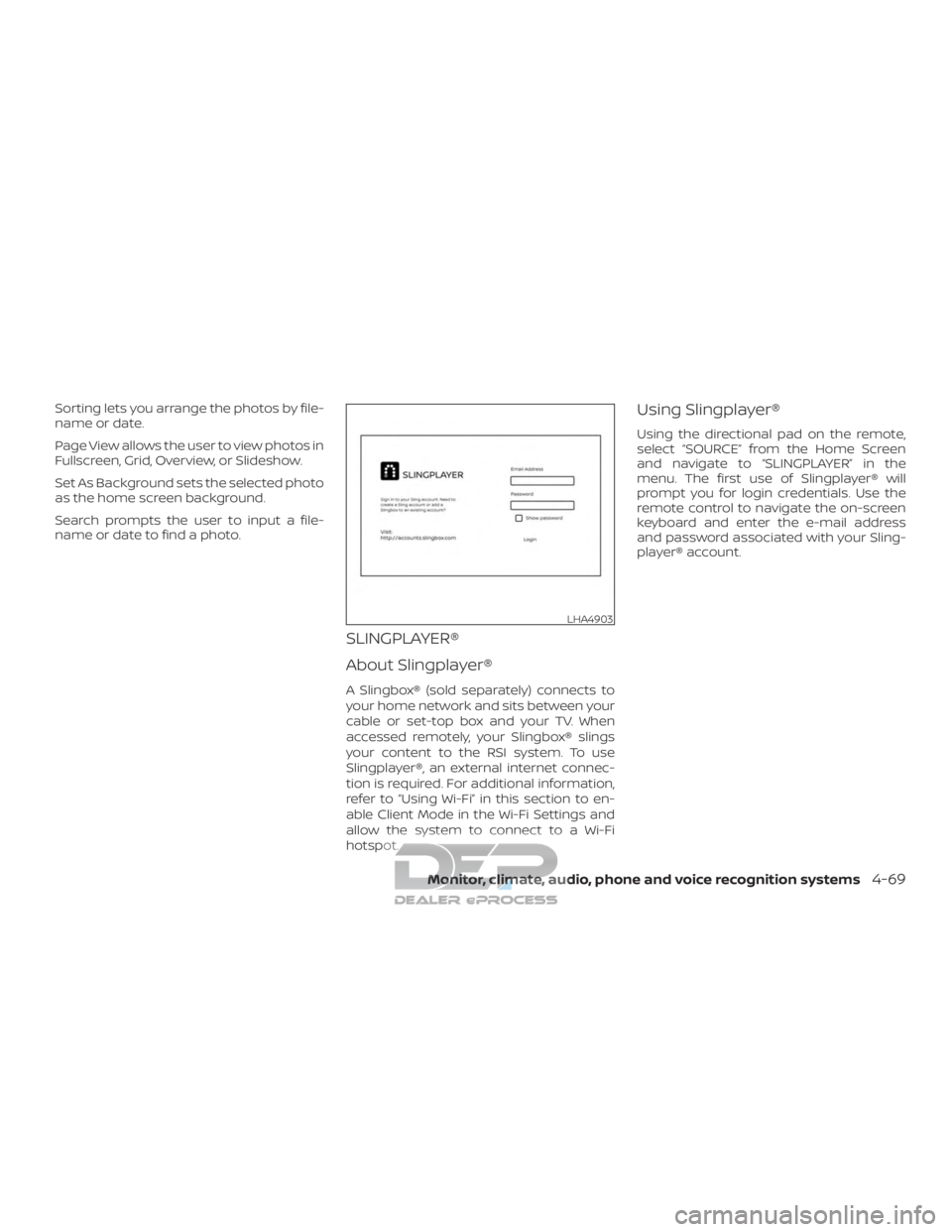
Using Slingplayer®
Using the directional pad on the remote,
select “SOURCE” from the Home Screen
and navigate to “SLINGPLAYER” in the
menu. The first use of Slingplayer® will
prompt you for login credentials. Use the
remote control to navigate the on-screen
keyboard and enter the e-mail address
and password associated with your Sling-
player® account.
LHA4903
Monitor, climate, audio, phone and voice recognition systems4-69
Page 345 of 682
For example, to set the ratings limit for PG
and below, select “RATINGS” then “3” using
the directional pad and press
, based
on the rating levels. For additional informa-
tion, refer to “About parental lock” in this
section. To change password, select “SETTINGS”
then “PARENTAL” from the home screen.
Enter the current password, select “PASS-
WORD” then “MODIFY” to set new password,
press
once to enter, and select again
to confirm. To exit “PARENTAL” menu
press
. To remove the parental lock password, se-
lect “SETTINGS” then “PARENTAL” from the
home screen. Enter the current password.
Select “PASSWORD” then “REMOVE”,
press
to enter, and select again to
confirm. To exit Parental menu press
.
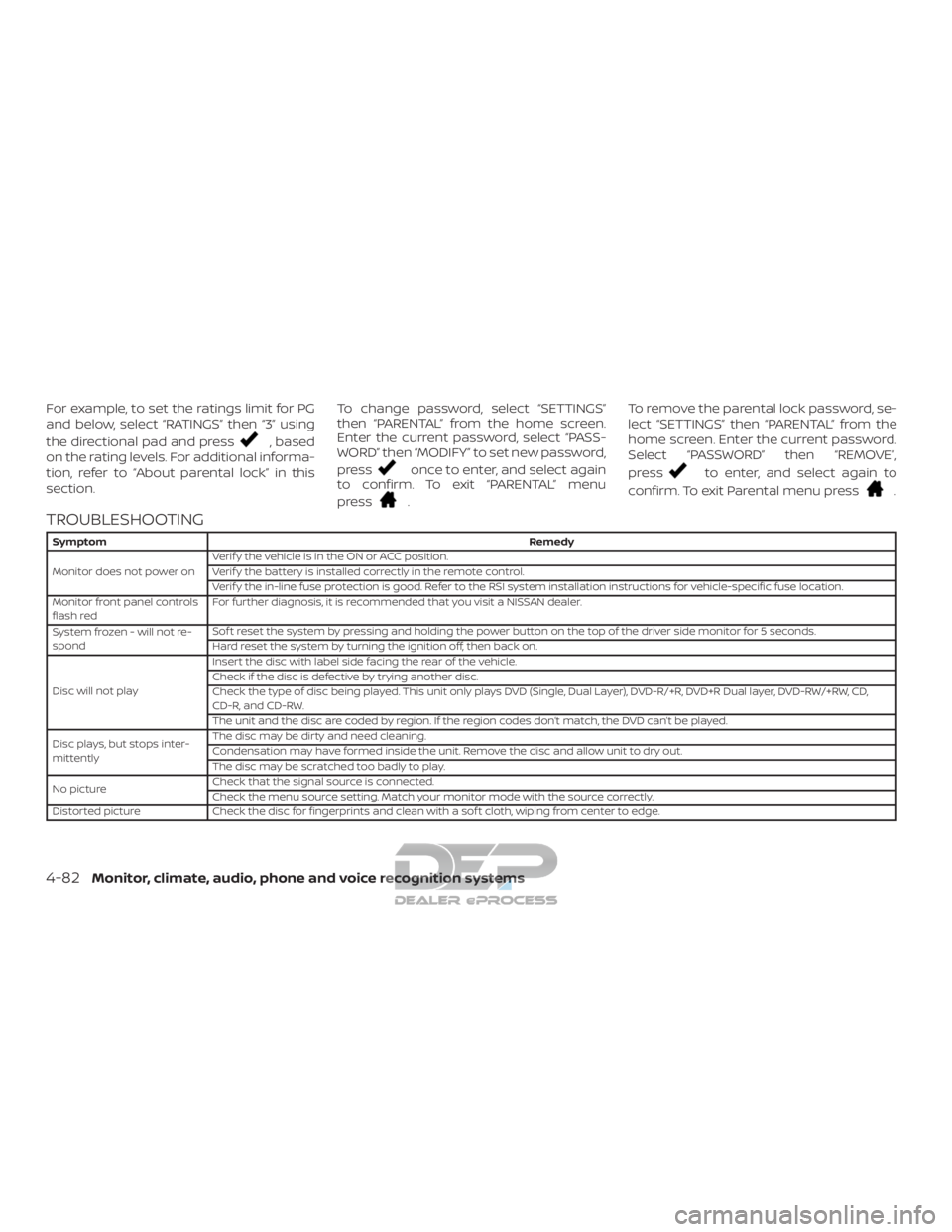
TROUBLESHOOTING
Symptom Remedy
Monitor does not power on Verif y the vehicle is in the ON or ACC position.
Verif y the battery is installed correctly in the remote control.
Verif y the in-line fuse protection is good. Refer to the RSI system installation instructions for vehicle-specific fuse location.
Monitor front panel controls
flash red For further diagnosis, it is recommended that you visit a NISSAN dealer.
System frozen - will not re-
spond Sof t reset the system by pressing and holding the power button on the top of the driver side monitor for 5 seconds.
Hard reset the system by turning the ignition off, then back on.
Disc will not play Insert the disc with label side facing the rear of the vehicle.
Check if the disc is defective by trying another disc.
Check the type of disc being played. This unit only plays DVD (Single, Dual Layer), DVD-R/+R, DVD+R Dual layer, DVD-RW/+RW, CD,
CD-R, and CD-RW.
The unit and the disc are coded by region. If the region codes don’t match, the DVD can’t be played.
Disc plays, but stops inter-
mittently The disc may be dirty and need cleaning.
Condensation may have formed inside the unit. Remove the disc and allow unit to dry out.
The disc may be scratched too badly to play.
No picture Check that the signal source is connected.
Check the menu source setting. Match your monitor mode with the source correctly.
Distorted picture Check the disc for fingerprints and clean with a sof t cloth, wiping from center to edge.
4-82Monitor, climate, audio, phone and voice recognition systems
Page 353 of 682
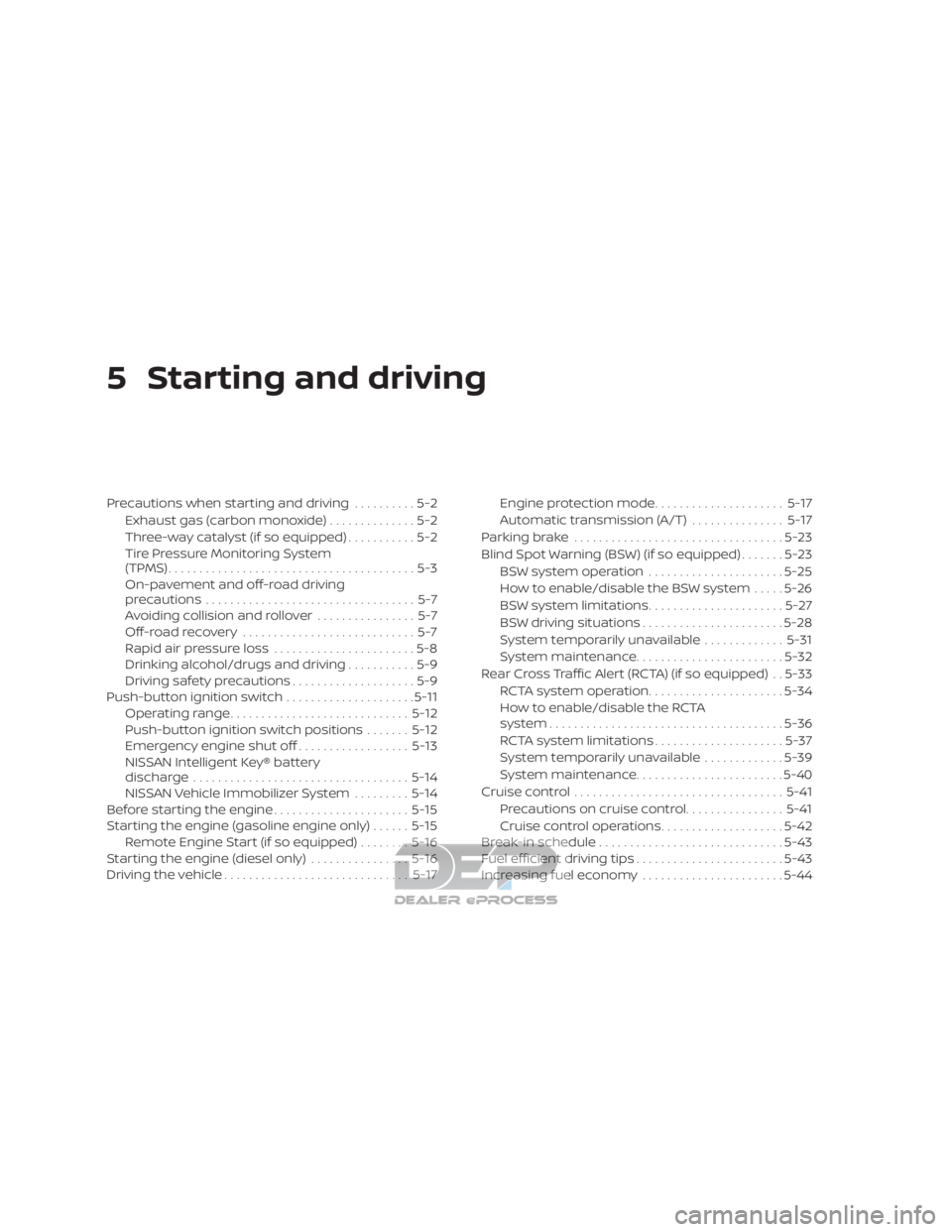
5 Starting and driving
Precautions when starting and driving..........5-2
Exhaust gas (carbon monoxide) ..............5-2
Three-way catalyst (if so equipped) ...........5-2
Tire Pressure Monitoring System
(TPMS)........................................5-3
On-pavement and off-road driving
precautions ..................................5-7
Avoiding collision and rollover ................5-7
Off-roadrecovery ............................5-7
Rapid air pressure loss .......................5-8
Drinking alcohol/drugs and driving ...........5-9
Driving safety precautions ....................5-9
Push-button ignition switch .....................5-11
Operating range ............................. 5-12
Push-button ignition switch positions .......5-12
Emergency engine shut off ..................5-13
NISSAN Intelligent Key® battery
discharge ................................... 5-14
NISSAN Vehicle Immobilizer System .........5-14
Before starting the engine ......................5-15
Starting the engine (gasoline engine only) ......5-15
Remote Engine Start (if so equipped) ........5-16
Starting the engine (diesel only) ................5-16
Driving the vehicle .............................. 5-17Engine protection mode
.....................5-17
Automatic transmission (A/T) ...............5-17
Parking brake .................................. 5-23
Blind Spot Warning (BSW) (if so equipped) .......5-23
BSW system operation ......................5-25
How to enable/disable the BSW system .....5-26
BSW system limitations ......................5-27
BSW driving situations .......................5-28
System temporarily unavailable .............5-31
System maintenance ........................ 5-32
Rear Cross Traffic Alert (RCTA) (if so equipped) . . 5-33 RCTA system operation ......................5-34
How to enable/disable the RCTA
system ...................................... 5-36
RCTA system limitations .....................5-37
System temporarily unavailable .............5-39
System maintenance ........................ 5-40
Cruise control .................................. 5-41
Pr ec autions
on cruise control ................5-41
Cruise control operations ....................5-42
Break-in schedule .............................. 5-43
Fuel efficient driving tips ........................5-43
Increasing fuel economy .......................5-44
Page 594 of 682

Front air bag system
(See supplemental restraint
system)..................1-60, 1-75
Front and rear sonar system ........5-63
Front-door pocket ...............2-71
Front power seat adjustment ........1-5
Frontseats....................1-2
Fuel Capacities and recommended
fuel/lubricants...............10-2
Fuel economy ...............5-44
Fuel gauge ..................2-9
Fueloctanerating.............10-7
Fuel recommendation ..........10-5
Loose fuel cap warning .........2-40
Fuel Cell Vehicle (FCV) System Tire pressure ................8-35
Fuelefficientdrivingtips...........5-43
Fuel-filler door .................3-27
Fuel gauge ....................2-9
Fuses .......................8-23
Fusiblelinks...................8-25
G
Garage door opener, HomeLink® Universal
Transceiver . .2-89, 2-90, 2-91, 2-92, 2-92, 2-93
Gauge Automatic transmission fluid
temperature gauge ............2-10
Engine coolant temperature gauge . .2-8
Engine oil pressure gauge .....2-10,2-11
Fuel gauge ..................2-9
Odometer ..................2-7
Speedometer ................2-7 Tachometer
.................2-8
Trip odometer ................2-7
Voltmeter ..................2-11
General maintenance .............9-2
Glovebox....................2-75
Grocery hooks .................2-81
H
Hazard warning flasher switch ........6-2
Headlightaimingcontrol ..........2-52
Headlight and turn signal switch ......2-49
Headlightcontrolswitch...........2-49
Headlights ...................8-29
Headlights,aimingcontrol..........2-52
Headrestraints................ .1-10
Heatedrearseats...............2-57
Heatedseats..................2-56
Heated steering wheel switch .......2-59
Heater Heater and air conditioner (automatic)
(if so equipped) ..............4-38
Heater and air conditioner controls . .4-39
Heater operation ..........4-31, 4-40
Heater and air conditioner (automatic) . .4-38
Hill descent control switch ..........2-61
Hill descent control system .........5-61
Hill start assist system ............5-62
HomeLink® Universal Transceiver . .2-89, 2-90, 2-91, 2-92, 2-92, 2-93
Hood .......................3-27
Hook Luggage hook ...............2-82
Horn.......................2-54 I
Ignition switch Push-button ignition switch .......5-11
Immobilizer system ..........2-44,5-14
Important vehicle information label . . .10-20
In-cabinmicrofilter ..............8-21
Increasing fuel economy ..........5-44
Indicator lights and audible reminders
(See warning/indicator lights and audible
reminders) .................2-17,2-23
Informationdisplay............. .2-26
Inside automatic anti-glare mirror .....3-34
Instrument brightness control .......2-53
Instrument panel .............0-8,2-4
Instrument paneldimmer
switch.....2-53
Intelligent Around View Monitor .......4-11
Intelligent Key system Key operating range ............3-12
Key operation ................3-13
Mechanical key ...............3-4
Remote keyless entry operation ....3-16
Troubleshooting guide ..........3-22
Warning signals ..............3-22
Interiorlight...................2-87
ISOFIX child restraints .............1-29
J
Jumpstarting..............6-14,8-18
K
Key.........................3-2
11-3