USB NISSAN TITAN 2020 Owner´s Manual
[x] Cancel search | Manufacturer: NISSAN, Model Year: 2020, Model line: TITAN, Model: NISSAN TITAN 2020Pages: 657, PDF Size: 5.1 MB
Page 306 of 657
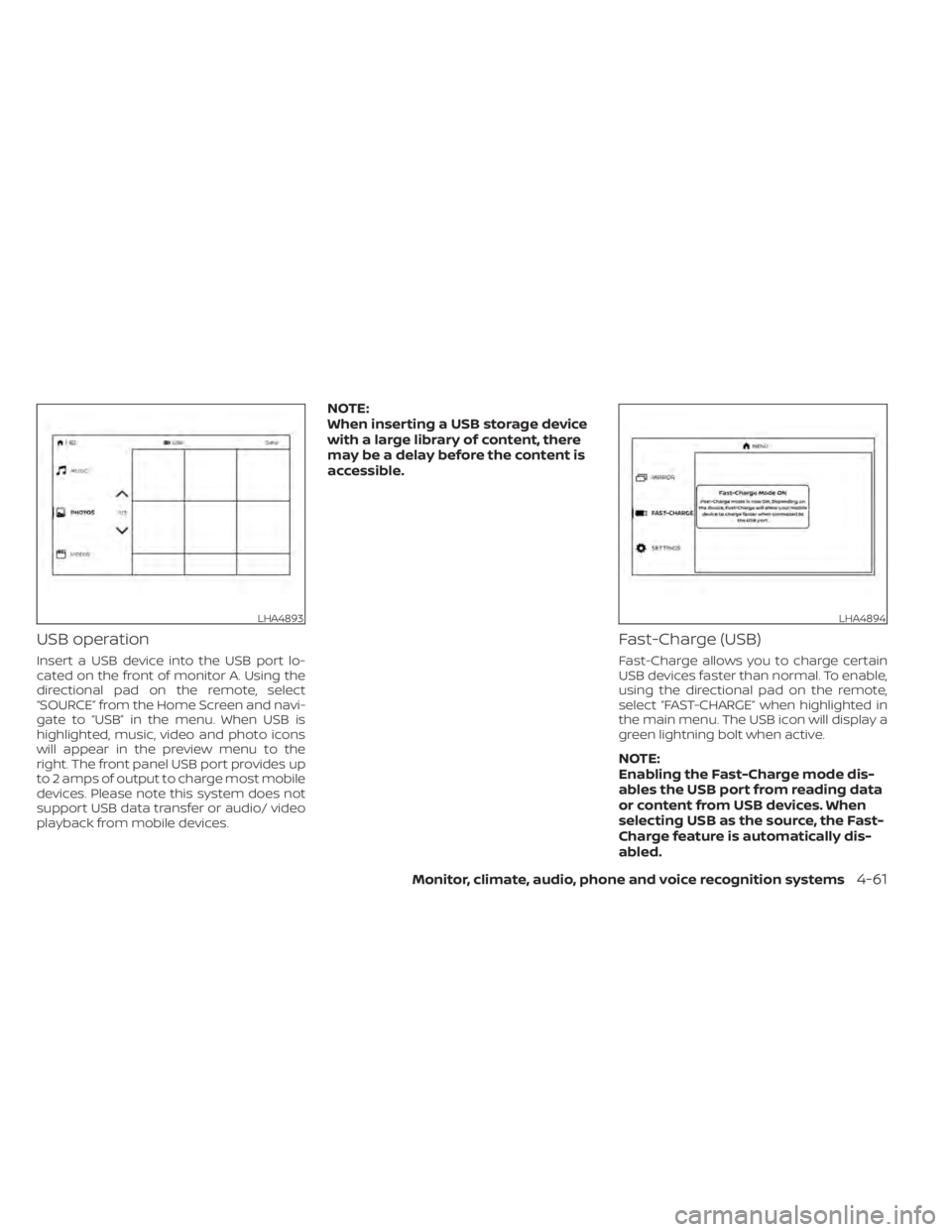
USB operation
Insert a USB device into the USB port lo-
cated on the front of monitor A. Using the
directional pad on the remote, select
“SOURCE” from the Home Screen and navi-
gate to “USB” in the menu. When USB is
highlighted, music, video and photo icons
will appear in the preview menu to the
right. The front panel USB port provides up
to 2 amps of output to charge most mobile
devices. Please note this system does not
support USB data transfer or audio/ video
playback from mobile devices.
NOTE:
When inserting a USB storage device
with a large library of content, there
may be a delay before the content is
accessible.
Fast-Charge (USB)
Fast-Charge allows you to charge certain
USB devices faster than normal. To enable,
using the directional pad on the remote,
select “FAST-CHARGE” when highlighted in
the main menu. The USB icon will display a
green lightning bolt when active.
NOTE:
Enabling the Fast-Charge mode dis-
ables the USB port from reading data
or content from USB devices. When
selecting USB as the source, the Fast-
Charge feature is automatically dis-
abled.
LHA4893LHA4894
Monitor, climate, audio, phone and voice recognition systems4-61
Page 307 of 657
USB/SD CARD OPERATION
SD card operation
Insert a full-size SD card into the SD card
slot located on the lef t side monitor A. Us-
ing the directional pad on the remote, se-
lect “SOURCE” from the Home Screen and
navigate to “SD CARD” in the menu. When
SD Card is highlighted, music, video and
photo icons will appear in the preview
menu to the right.
Basic navigation
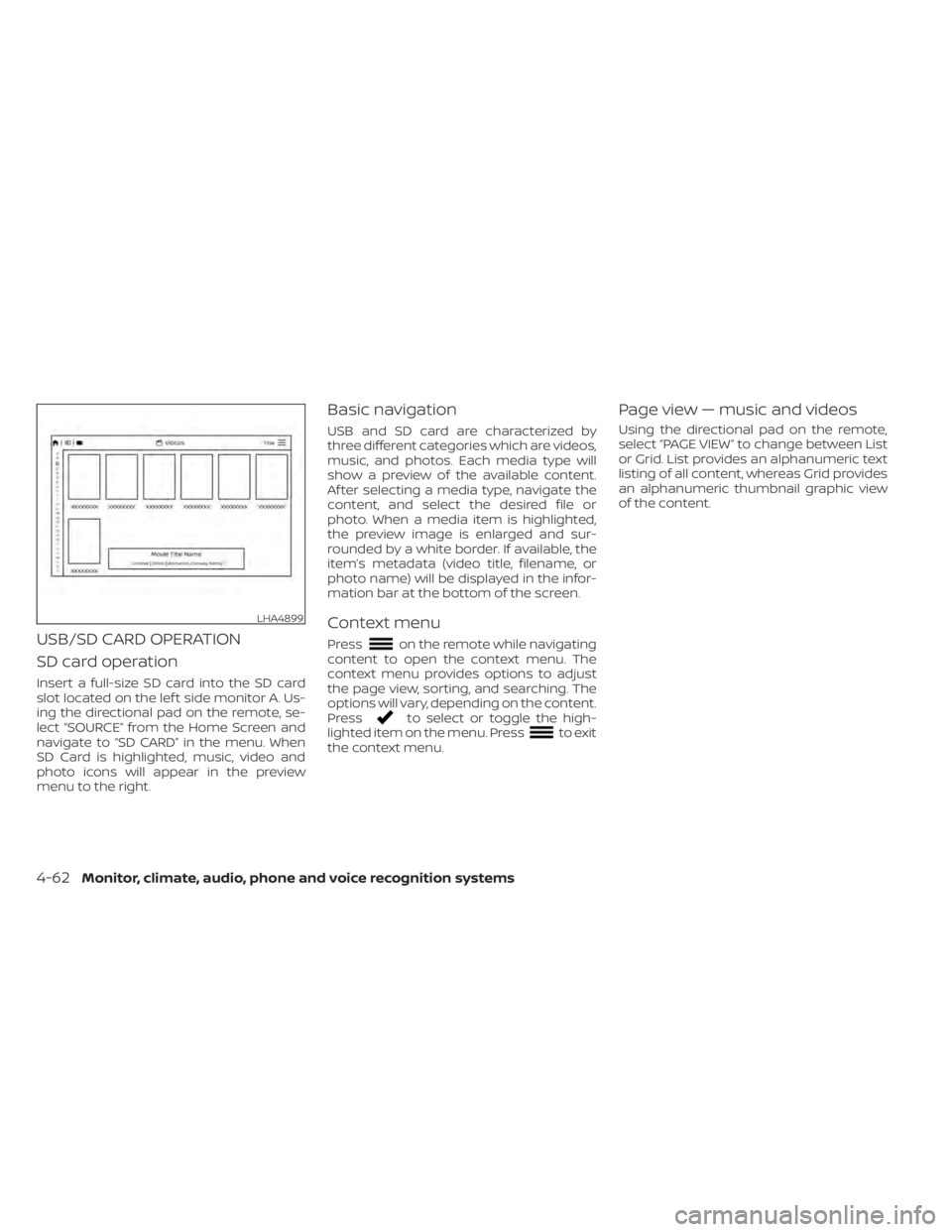
USB and SD card are characterized by
three different categories which are videos,
music, and photos. Each media type will
show a preview of the available content.
Af ter selecting a media type, navigate the
content, and select the desired file or
photo. When a media item is highlighted,
the preview image is enlarged and sur-
rounded by a white border. If available, the
item’s metadata (video title, filename, or
photo name) will be displayed in the infor-
mation bar at the bottom of the screen.
Context menu
Presson the remote while navigating
content to open the context menu. The
context menu provides options to adjust
the page view, sorting, and searching. The
options will vary, depending on the content.
Press
to select or toggle the high-
lighted item on the menu. Pressto exit
the context menu.
Page view — music and videos
Using the directional pad on the remote,
select “PAGE VIEW ” to change between List
or Grid. List provides an alphanumeric text
listing of all content, whereas Grid provides
an alphanumeric thumbnail graphic view
of the content.
LHA4899
4-62Monitor, climate, audio, phone and voice recognition systems
Page 309 of 657
USB/SD card video playback
controls
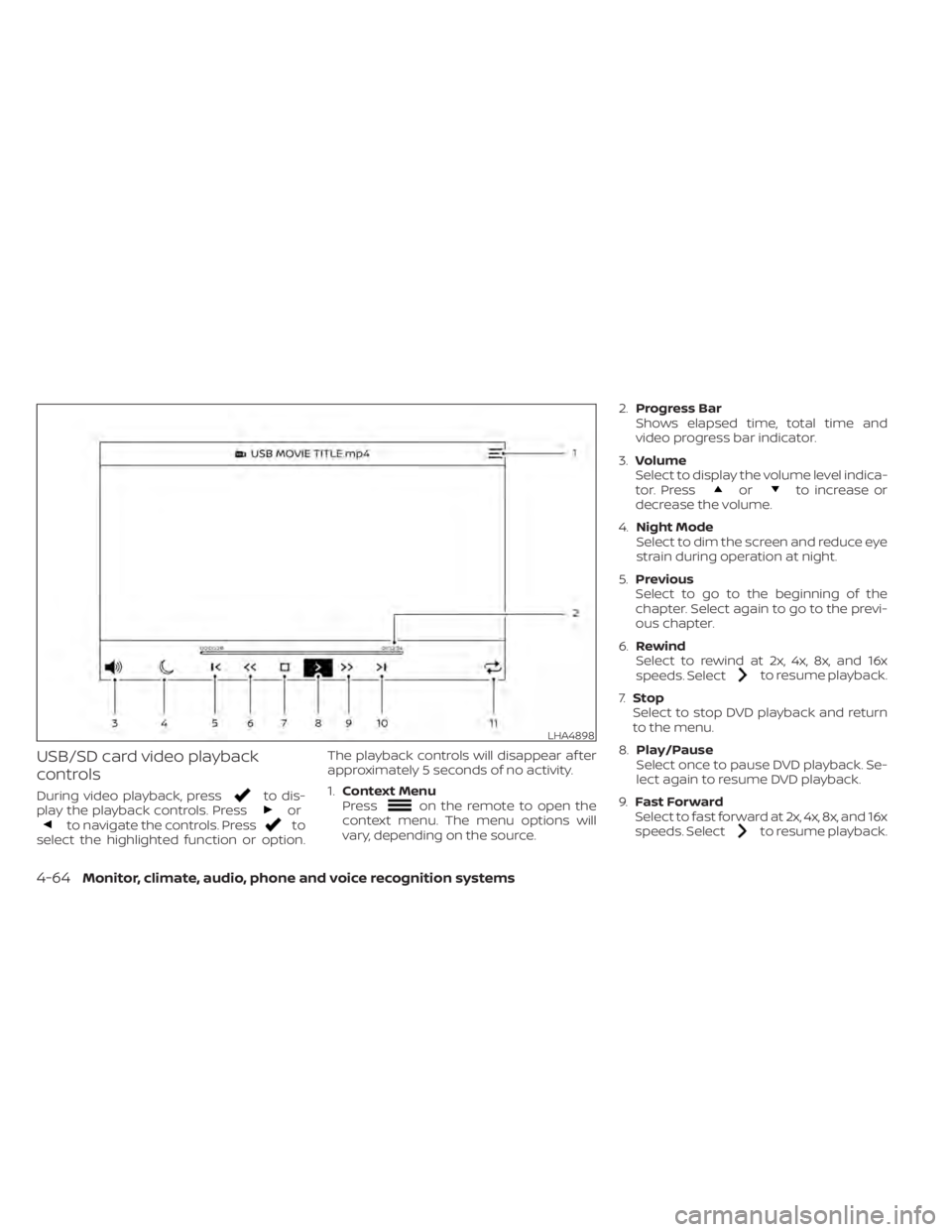
During video playback, pressto dis-
play the playback controls. Pressorto navigate the controls. Pressto
select the highlighted function or option. The playback controls will disappear af ter
approximately 5 seconds of no activity.
1.
Context Menu
Press
on the remote to open the
context menu. The menu options will
vary, depending on the source. 2.
Progress Bar
Shows elapsed time, total time and
video progress bar indicator.
3. Volume
Select to display the volume level indica-
tor. Press
orto increase or
decrease the volume.
4. Night Mode
Select to dim the screen and reduce eye
strain during operation at night.
5. Previous
Select to go to the beginning of the
chapter. Select again to go to the previ-
ous chapter.
6. Rewind
Select to rewind at 2x, 4x, 8x, and 16x
speeds. Select
to resume playback.
7. Stop
Select to stop DVD playback and return
to the menu.
8. Play/Pause
Select once to pause DVD playback. Se-
lect again to resume DVD playback.
9. Fast Forward
Select to fast forward at 2x, 4x, 8x, and 16x
speeds. Select
to resume playback.
LHA4898
4-64Monitor, climate, audio, phone and voice recognition systems
Page 311 of 657
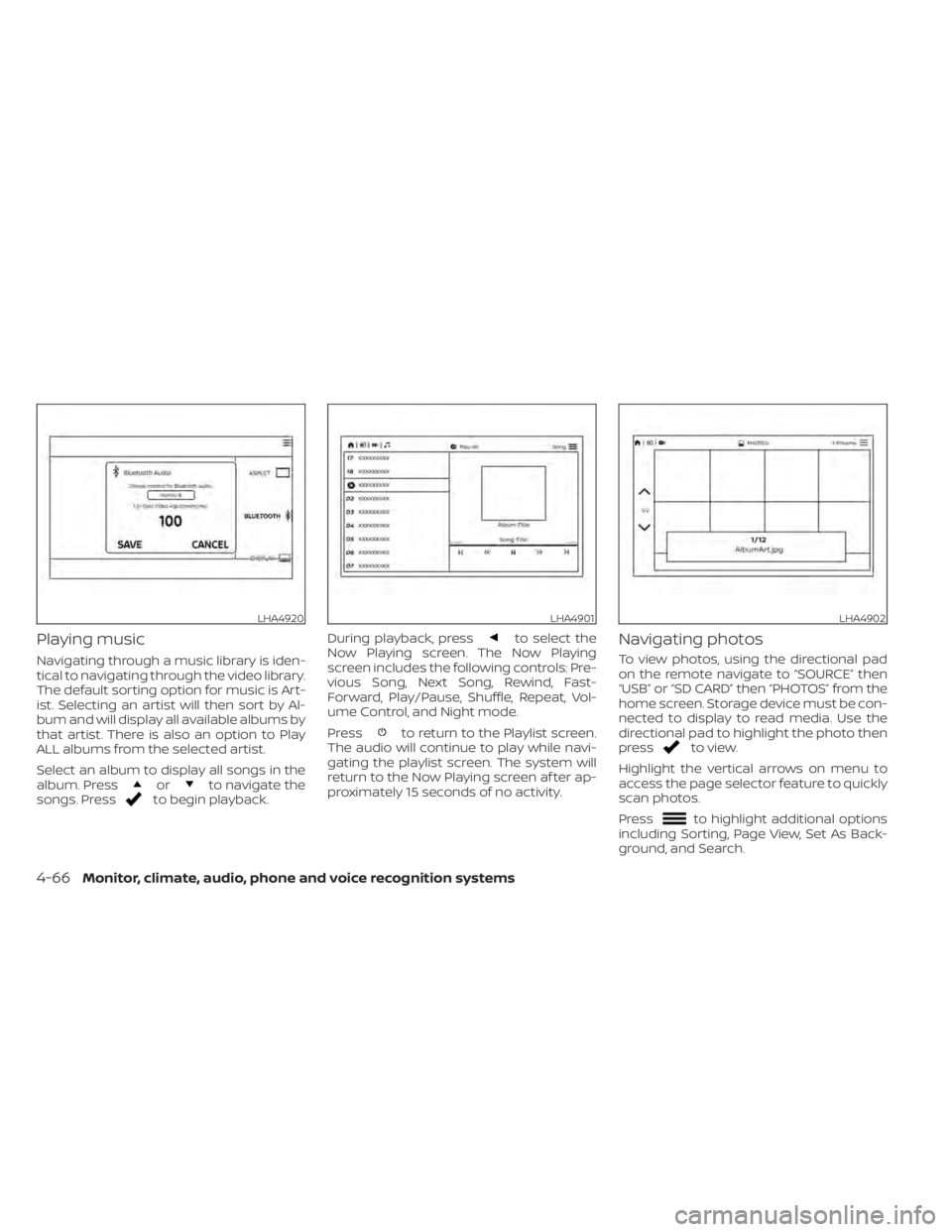
Playing music
Navigating through a music library is iden-
tical to navigating through the video library.
The default sorting option for music is Art-
ist. Selecting an artist will then sort by Al-
bum and will display all available albums by
that artist. There is also an option to Play
ALL albums from the selected artist.
Select an album to display all songs in the
album. Press
orto navigate the
songs. Pressto begin playback. During playback, press
to select the
Now Playing screen. The Now Playing
screen includes the following controls: Pre-
vious Song, Next Song, Rewind, Fast-
Forward, Play/Pause, Shuffle, Repeat, Vol-
ume Control, and Night mode.
Press
to return to the Playlist screen.
The audio will continue to play while navi-
gating the playlist screen. The system will
return to the Now Playing screen af ter ap-
proximately 15 seconds of no activity.
Navigating photos
To view photos, using the directional pad
on the remote navigate to “SOURCE” then
“USB” or “SD CARD” then “PHOTOS” from the
home screen. Storage device must be con-
nected to display to read media. Use the
directional pad to highlight the photo then
press
to view.
Highlight the vertical arrows on menu to
access the page selector feature to quickly
scan photos.
Press
to highlight additional options
including Sorting, Page View, Set As Back-
ground, and Search.
LHA4920LHA4901LHA4902
4-66Monitor, climate, audio, phone and voice recognition systems
Page 318 of 657
Display
Adjust Brightness, Contrast, and Sharp-
ness settings.
Audio
Select the monitor to use for Bluetooth®
audio streaming and set the maximum
volume level when using wired head-
phones.
Advanced
Change the language of the GUI (Graphic
User Interface), reset the RSI system, and
update the sof tware.
Customize
Change the background image of the
home screen using content from an SD
card or USB storage device.
Parental
Set or change the password to limit DVD
content playback using parental control
based on the Motion Picture Association of
America (MPAA) ratings.
Bluetooth
Control Bluetooth® audio streaming (On/
Off ) and select from the available list of
paired devices.
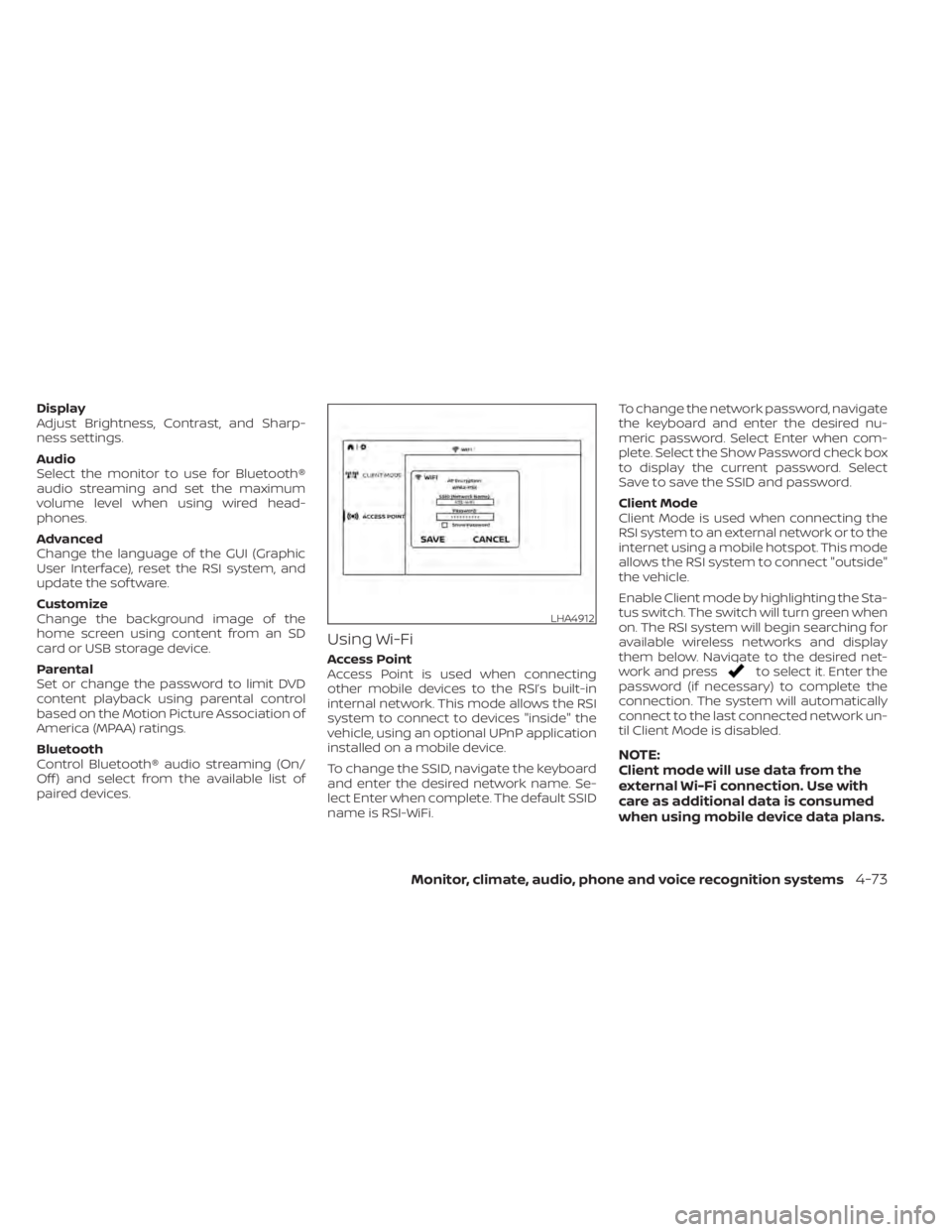
Using Wi-Fi
Access Point
Access Point is used when connecting
other mobile devices to the RSI’s built-in
internal network. This mode allows the RSI
system to connect to devices "inside" the
vehicle, using an optional UPnP application
installed on a mobile device.
To change the SSID, navigate the keyboard
and enter the desired network name. Se-
lect Enter when complete. The default SSID
name is RSI-WiFi.To change the network password, navigate
the keyboard and enter the desired nu-
meric password. Select Enter when com-
plete. Select the Show Password check box
to display the current password. Select
Save to save the SSID and password.
Client Mode
Client Mode is used when connecting the
RSI system to an external network or to the
internet using a mobile hotspot. This mode
allows the RSI system to connect "outside"
the vehicle.
Enable Client mode by highlighting the Sta-
tus switch. The switch will turn green when
on. The RSI system will begin searching for
available wireless networks and display
them below. Navigate to the desired net-
work and pressto select it. Enter the
password (if necessary) to complete the
connection. The system will automatically
connect to the last connected network un-
til Client Mode is disabled.
NOTE:
Client mode will use data from the
external Wi-Fi connection. Use with
care as additional data is consumed
when using mobile device data plans.
LHA4912
Monitor, climate, audio, phone and voice recognition systems4-73
Page 321 of 657
Advanced settings
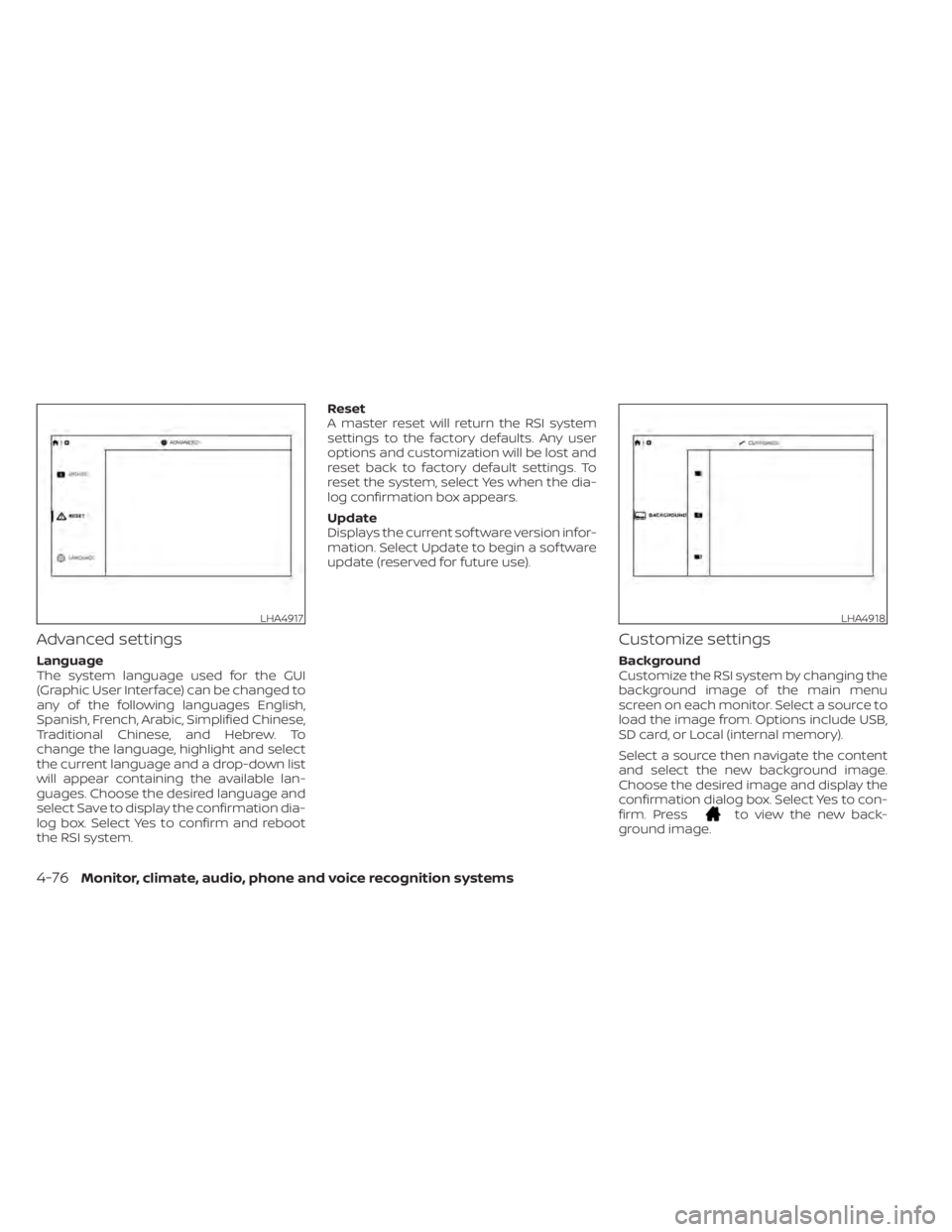
Language
The system language used for the GUI
(Graphic User Interface) can be changed to
any of the following languages English,
Spanish, French, Arabic, Simplified Chinese,
Traditional Chinese, and Hebrew. To
change the language, highlight and select
the current language and a drop-down list
will appear containing the available lan-
guages. Choose the desired language and
select Save to display the confirmation dia-
log box. Select Yes to confirm and reboot
the RSI system.Reset
A master reset will return the RSI system
settings to the factory defaults. Any user
options and customization will be lost and
reset back to factory default settings. To
reset the system, select Yes when the dia-
log confirmation box appears.
Update
Displays the current sof tware version infor-
mation. Select Update to begin a sof tware
update (reserved for future use).
Customize settings
Background
Customize the RSI system by changing the
background image of the main menu
screen on each monitor. Select a source to
load the image from. Options include USB,
SD card, or Local (internal memory).
Select a source then navigate the content
and select the new background image.
Choose the desired image and display the
confirmation dialog box. Select Yes to con-
firm. Press
to view the new back-
ground image.
LHA4917LHA4918
4-76Monitor, climate, audio, phone and voice recognition systems
Page 326 of 657
SymptomRemedy
No sound or distorted sound Make sure that the external media device is connected properly, and all cables are securely inserted into the appropri-
ate jacks.
Verif y that the batteries in the headphones are fresh.
If you are using the wireless headphones, make sure you turn on the power and select the correct monitor (A or B).
Verif y the volume is turned up on headphones and the system.
Verif y nothing is blocking the path between the monitor IR sensor and headphones.
When placing the headphones on your head, make sure to observe the Lef t and Right orientation. The headphones
must be oriented correctly (facing forward) to receive the audio signal.
Monitor feels warm When the monitor is in use for a long period of time, the surface will be warm. This is normal.
Player does not respond to all com-
mands during playback The DVD may not permit some commands. Refer to the specific instructions included with the DVD for more informa-
tion.
A Parental Setting message is displayed,
prohibiting movie playback Enter the 4-digit Parental Password using the remote and then press
. For additional information, refer to
“Changing parental lock” in this section.
Cannot connect mobile device to the in-
ternal RSI Wi-Fi network Check to make sure Wi-Fi is enabled on the mobile device.
Check to make sure RSI is set to Access Point mode.
Check to make sure the correct password is used. For additional information, refer to “Using Wi-Fi” in this section.
Cannot connect RSI system to an exter-
nal Wi-Fi network Check to make sure RSI is set to Client Mode. Check to make sure the correct password is used. For additional infor-
mation, refer to “Using Wi-Fi” in this section.
Cannot establish a Bluetooth® connec-
tion Check to make sure Bluetooth® is enabled on the RSI system. For additional information, refer to “Bluetooth® stream-
ing” in this section.
Cannot establish a Miracast® connection
to the RSI system Check to make sure mobile device supports Miracast®. Visit www.wi-fi.org for a current list of Miracast® certified de-
vices.
Check to make sure Miracast® is enabled on the mobile device.
Select Miracast® source from the RSI main menu.
Cannot play certain files from USB or SD
cards Audio/video files embedded with DRM are not compatible.
Some USB storage devices and SD cards may not be compatible. Replace the external storage device (USB, SD).
Due to ongoing technological advancements, some USB flash drives and SD cards may be incompatible with this
system.
Monitor, climate, audio, phone and voice recognition systems4-81
Page 327 of 657
SymptomRemedy
Cannot connect to external Singbox® Check to make sure RSI is set to Client Mode. For additional information, refer to “Using Wi-Fi” in this section.
Check network upload speed from your home (or wherever the Singbox® is located).
Confirm hotspot or Wi-Fi download speed/connection quality.
Check that your Singbox® is properly set up.
Cannot share content from a mobile de-
vice to the RSI system A compatible UPnP app is required to be installed on the mobile device.
Audio/video files embedded with DRM cannot be streamed to the RSI system.
Cannot share content between mobile
devices using the internal Wi-Fi network Check to make sure Wi-Fi is enabled on the mobile device.
Check to make sure RSI is set to Access Point mode. For additional information, refer to “Using W-Fi” in this section.
SPECIFICATIONS
LCD Backlight Type
LED
Display Type 8.0 inch (Diagonal) a-Si TFT Active Matrix, 1024x3(RGB) x 600 resolution
Supported Disc Types DVD (Single, Dual Layer), DVD-R/+R, DVD+R Dual layer, DVD-RW/+RW, CD, CD-R, CD-RW
Frequency Response 3.5mm Audio Output: 200Hz ~ 16kHz +/- 6dB
HDMI Support Version 1.4b, HDCP 2.1 Compliant
MHL Support Version 2.0, 900mA Maximum Charging Output
Wireless Audio 2-Channel Stereo Headphone Operation, (Typical Infrared Reception/Range: 0.9m; 80°, 1.8m; 50°)
Wi-Fi Network 802.11b/g/n, TX/RX Frequency: 2412 MHz - 2484 MHz, Antenna 1: 802.11b, 802.11g, 802.11n HT20, 802.11n HT40, MIMO Antenna 1+2:
802.11n HT20
Wi-Fi Modulation 802.11b: DSSS (DBPSK / DQPSK / CCK), 802.11g/n: OFDM (BPSK / QPSK / 16QAM / 64QAM)
Bluetooth® Support Version 4.1
Bluetooth® BR/EDR TX/RX Frequency: 2402 MHz - 2480 MHz, Channels: 79, Bluetooth BR (1Mbps): GFSK Modulation, Bluetooth EDR (2Mbps): π/4-DQPSK
Modulation, Bluetooth EDR (3Mbps): 8-DPSK Modulation
Bluetooth® LE TX/RX Frequency: 2402 MHz - 2480 MHz, Channels: 40, Carrier Frequency of Each Channel:, (37 hoppin
g+3Advertisingchannel),
Type of Modulation: Bluetooth LE: GFSK
USB Support Version 1.1, Version 2.0 High Speed, 10 watt (2 Amp) Maximum Charging Output
SD Card Support SD, SDHC, SDXC
4-82Monitor, climate, audio, phone and voice recognition systems
Page 616 of 657
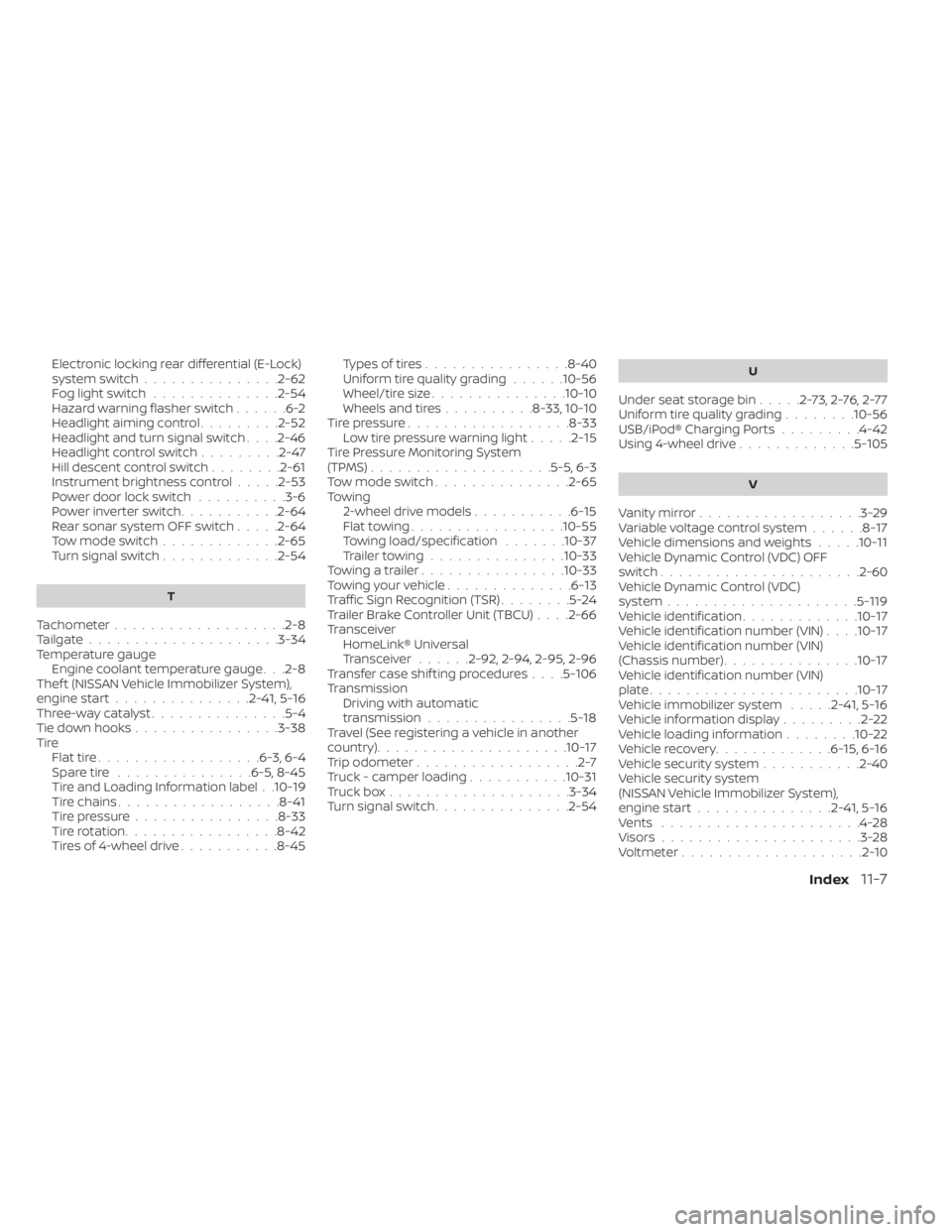
Electronic locking rear differential (E-Lock)
system switch...............2-62Fog light switch..............2-54Hazard warning flasher switch......6-2Headlight aiming control.........2-52Headlight and turn signal switch. . . .2-46Headlight control switch.........2-47Hill descent control switch........2-61Instrument brightness control.....2-53Power door lock switch..........3-6Power inverter switch...........2-64Rear sonar system OFF switch.....2-64Tow mode switch.............2-65Turn signal switch.............2-54
T
Tachometer...................2-8Tailgate.................... .3-34Temperature gauge
Engine coolant temperature gauge. . .2-8Thef t (NISSAN Vehicle Immobilizer System),
engine start...............2-41, 5-16Three-way catalyst...............5-4Tie down hooks................3-38TireFlat tire................. .6-3, 6-4Spare tire...............6-5, 8-45Tire and Loading Information label. .10-19Tire chains..................8-41Tire pressure................8-33Tire rotation.................8-42Tires of 4-wheel drive...........8-45
Types of tires................8-40Uniform tire quality grading......10-56Wheel/tire size...............10-10Wheels and tires..........8-33, 10-10Tire pressure................. .8-33Low tire pressure warning light.....2-15Tire Pressure Monitoring System
(TPMS)................... .5-5, 6-3Tow mode switch...............2-65Towing
2-wheel drive models...........6-15Flat towing................ .10-55Towing load/specification.......10-37Trailer towing...............10-33Towing a trailer................10-33Towing your vehicle..............6-13Traffic Sign Recognition (TSR)........5-24Trailer Brake Controller Unit (TBCU). . . .2-66Transceiver
HomeLink® Universal
Transceiver
......2-92, 2-94, 2-95, 2-96Transfer case shif ting procedures. . . .5-106TransmissionDriving with automatic
transmission
................5-18Travel (See registering a vehicle in another
country).................... .10-17Trip odometer..................2-7Truck - camper loading...........10-31Truck box....................3-34Turn signal switch...............2-54
U
Under seat storage bin.....2-73,2-76,2-77Uniform tire quality grading........10-56USB/iPod® Charging Ports.........4-42Using 4-wheel drive.............5-105
V
Vanity mirror..................3-29Variable voltage control system......8-17Vehicle dimensions and weights.....10-11Vehicle Dynamic Control (VDC) OFF
switch..................... .2-60Vehicle Dynamic Control (VDC)
system.....................5-119Vehicle identification.............10-17Vehicle identification number (VIN). . . .10-17Vehicle identification number (VIN)
(Chassis number)...............10-17Vehicle identification number (VIN)
plate...................... .10-17Vehicle immobilizer system.....2-41, 5-16Vehicle information display.........2-22Vehicle loading information........10-22Vehicle recovery.............6-15,6-16Vehicle security system...........2-40Vehicle security system
(NISSAN Vehicle Immobilizer System),
engine start
...............2-41, 5-16Vents......................4-28Visors......................3-28Voltmeter....................2-10
Index11-7