climate settings NISSAN TITAN 2020 Owner´s Manual
[x] Cancel search | Manufacturer: NISSAN, Model Year: 2020, Model line: TITAN, Model: NISSAN TITAN 2020Pages: 657, PDF Size: 5.1 MB
Page 300 of 657
NOTE:
For hearing protection, there is a
maximum volume setting to limit the
audio output of the front panel
3.5mm headphone output. Using the
directional pad on the remote navi-
gate to “SETTINGS” then “AUDIO” then
“HEADPHONES” to adjust the maxi-
mum volume. Once set, the maximum
volume is limited to this setting.
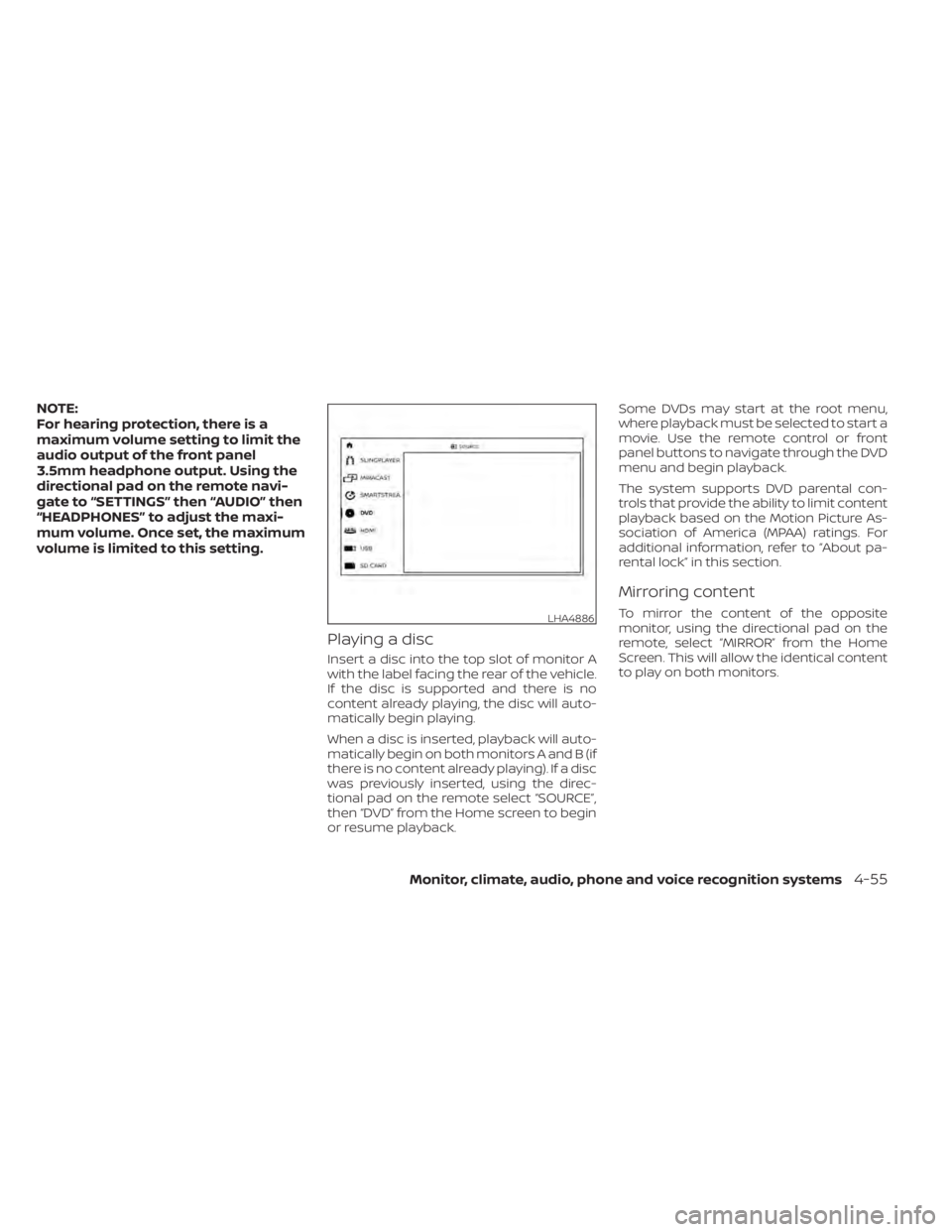
Playing a disc
Insert a disc into the top slot of monitor A
with the label facing the rear of the vehicle.
If the disc is supported and there is no
content already playing, the disc will auto-
matically begin playing.
When a disc is inserted, playback will auto-
matically begin on both monitors A and B (if
there is no content already playing). If a disc
was previously inserted, using the direc-
tional pad on the remote select “SOURCE”,
then “DVD” from the Home screen to begin
or resume playback.Some DVDs may start at the root menu,
where playback must be selected to start a
movie. Use the remote control or front
panel buttons to navigate through the DVD
menu and begin playback.
The system supports DVD parental con-
trols that provide the ability to limit content
playback based on the Motion Picture As-
sociation of America (MPAA) ratings. For
additional information, refer to “About pa-
rental lock” in this section.
Mirroring content
To mirror the content of the opposite
monitor, using the directional pad on the
remote, select “MIRROR” from the Home
Screen. This will allow the identical content
to play on both monitors.LHA4886
Monitor, climate, audio, phone and voice recognition systems4-55
Page 302 of 657
11.Repeat
Select once to repeat the entire DVD.
Select again to repeat the currently
playing chapter one time.
12. Eject
Select to eject the disc.
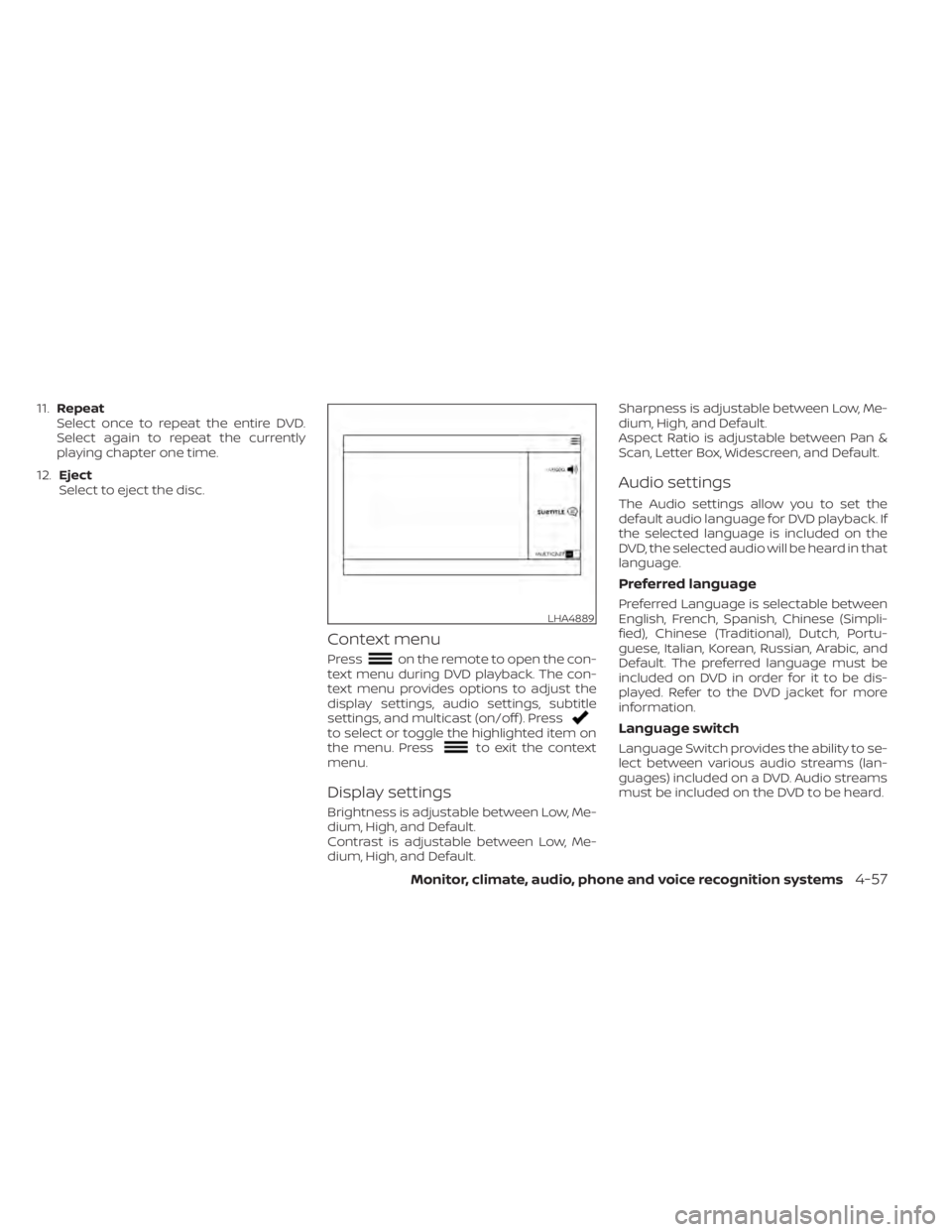
Context menu
Presson the remote to open the con-
text menu during DVD playback. The con-
text menu provides options to adjust the
display settings, audio settings, subtitle
settings, and multicast (on/off ). Press
to select or toggle the highlighted item on
the menu. Pressto exit the context
menu.
Display settings
Brightness is adjustable between Low, Me-
dium, High, and Default.
Contrast is adjustable between Low, Me-
dium, High, and Default. Sharpness is adjustable between Low, Me-
dium, High, and Default.
Aspect Ratio is adjustable between Pan &
Scan, Letter Box, Widescreen, and Default.
Audio settings
The Audio settings allow you to set the
default audio language for DVD playback. If
the selected language is included on the
DVD, the selected audio will be heard in that
language.
Preferred language
Preferred Language is selectable between
English, French, Spanish, Chinese (Simpli-
fied), Chinese (Traditional), Dutch, Portu-
guese, Italian, Korean, Russian, Arabic, and
Default. The preferred language must be
included on DVD in order for it to be dis-
played. Refer to the DVD jacket for more
information.
Language switch
Language Switch provides the ability to se-
lect between various audio streams (lan-
guages) included on a DVD. Audio streams
must be included on the DVD to be heard.
LHA4889
Monitor, climate, audio, phone and voice recognition systems4-57
Page 303 of 657
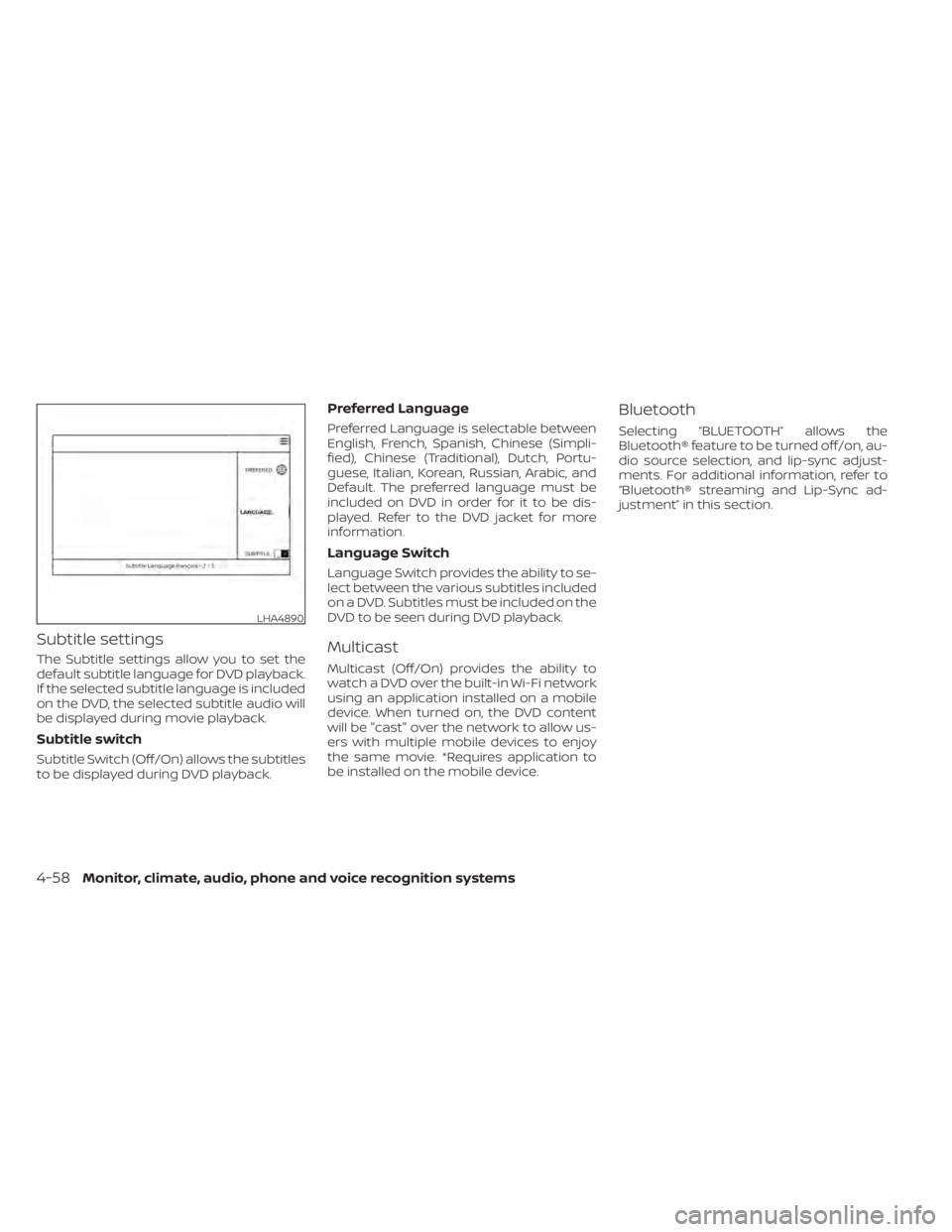
Subtitle settings
The Subtitle settings allow you to set the
default subtitle language for DVD playback.
If the selected subtitle language is included
on the DVD, the selected subtitle audio will
be displayed during movie playback.
Subtitle switch
Subtitle Switch (Off/On) allows the subtitles
to be displayed during DVD playback.
Preferred Language
Preferred Language is selectable between
English, French, Spanish, Chinese (Simpli-
fied), Chinese (Traditional), Dutch, Portu-
guese, Italian, Korean, Russian, Arabic, and
Default. The preferred language must be
included on DVD in order for it to be dis-
played. Refer to the DVD jacket for more
information.
Language Switch
Language Switch provides the ability to se-
lect between the various subtitles included
on a DVD. Subtitles must be included on the
DVD to be seen during DVD playback.
Multicast
Multicast (Off/On) provides the ability to
watch a DVD over the built-in Wi-Fi network
using an application installed on a mobile
device. When turned on, the DVD content
will be "cast" over the network to allow us-
ers with multiple mobile devices to enjoy
the same movie. *Requires application to
be installed on the mobile device.
Bluetooth
Selecting “BLUETOOTH” allows the
Bluetooth® feature to be turned off/on, au-
dio source selection, and lip-sync adjust-
ments. For additional information, refer to
“Bluetooth® streaming and Lip-Sync ad-
justment” in this section.
LHA4890
4-58Monitor, climate, audio, phone and voice recognition systems
Page 310 of 657
10.Next
Select to go to the next chapter.
11. Repeat
Select once to repeat the entire DVD.
Select again to repeat the currently
playing chapter one time.
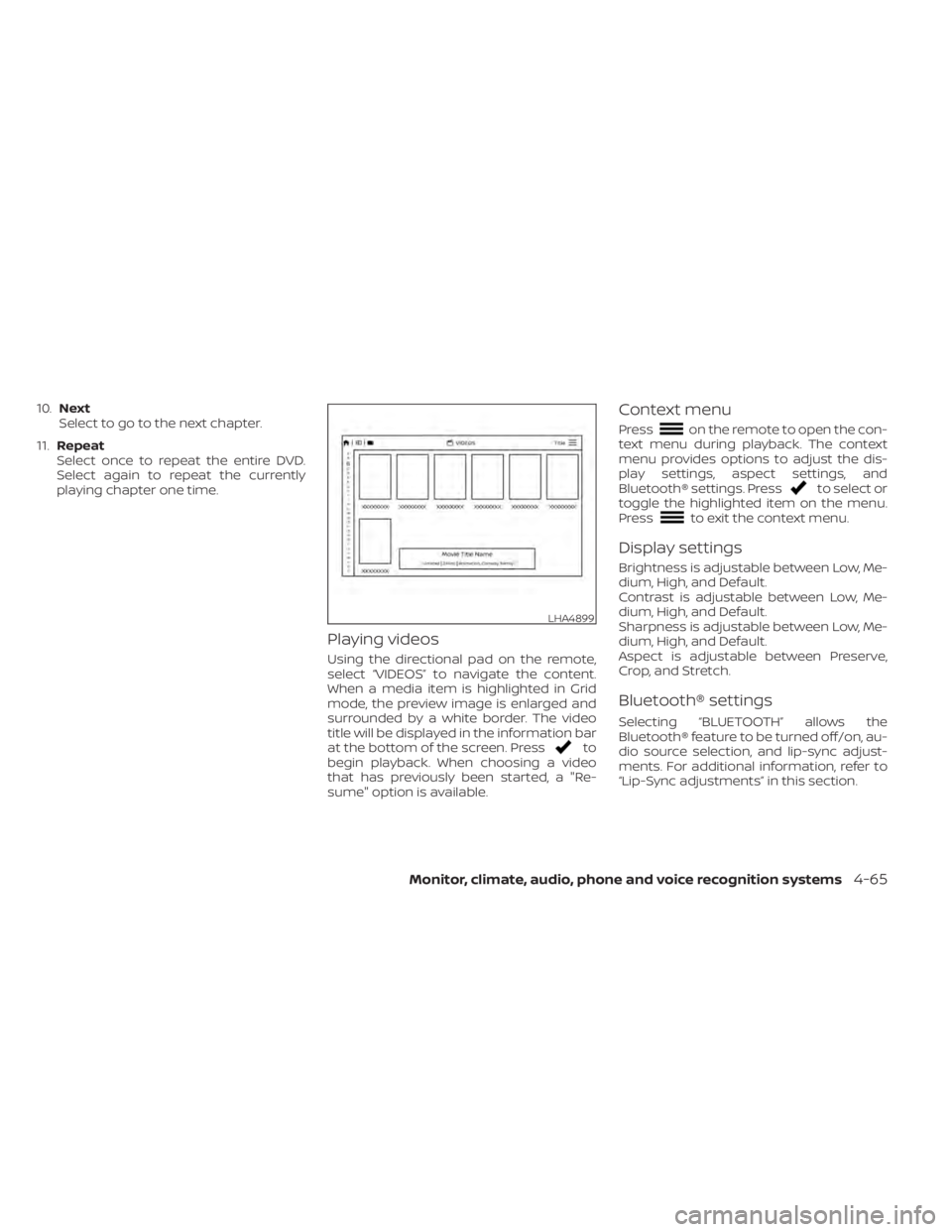
Playing videos
Using the directional pad on the remote,
select “VIDEOS” to navigate the content.
When a media item is highlighted in Grid
mode, the preview image is enlarged and
surrounded by a white border. The video
title will be displayed in the information bar
at the bottom of the screen. Press
to
begin playback. When choosing a video
that has previously been started, a "Re-
sume" option is available.
Context menu
Presson the remote to open the con-
text menu during playback. The context
menu provides options to adjust the dis-
play settings, aspect settings, and
Bluetooth® settings. Press
to select or
toggle the highlighted item on the menu.
Press
to exit the context menu.
Display settings
Brightness is adjustable between Low, Me-
dium, High, and Default.
Contrast is adjustable between Low, Me-
dium, High, and Default.
Sharpness is adjustable between Low, Me-
dium, High, and Default.
Aspect is adjustable between Preserve,
Crop, and Stretch.
Bluetooth® settings
Selecting “BLUETOOTH” allows the
Bluetooth® feature to be turned off/on, au-
dio source selection, and lip-sync adjust-
ments. For additional information, refer to
“Lip-Sync adjustments” in this section.
LHA4899
Monitor, climate, audio, phone and voice recognition systems4-65
Page 312 of 657
Sorting lets you arrange the photos by file-
name or date.
Page View allows the user to view photos in
Fullscreen, Grid, Overview, or Slideshow.
Set As Background sets the selected photo
as the home screen background.
Search prompts the user to input a file-
name or date to find a photo.
SLINGPLAYER®
About Slingplayer®
A Slingbox® (sold separately) connects to
your home network and sits between your
cable or set-top box and your TV. When
accessed remotely, your Slingbox® slings
your content to the RSI system. To use
Slingplayer®, an external internet connec-
tion is required. For additional information,
refer to “Using Wi-Fi” in this section to en-
able Client Mode in the Wi-Fi Settings and
allow the system to connect to a Wi-Fi
hotspot.
Using Slingplayer®
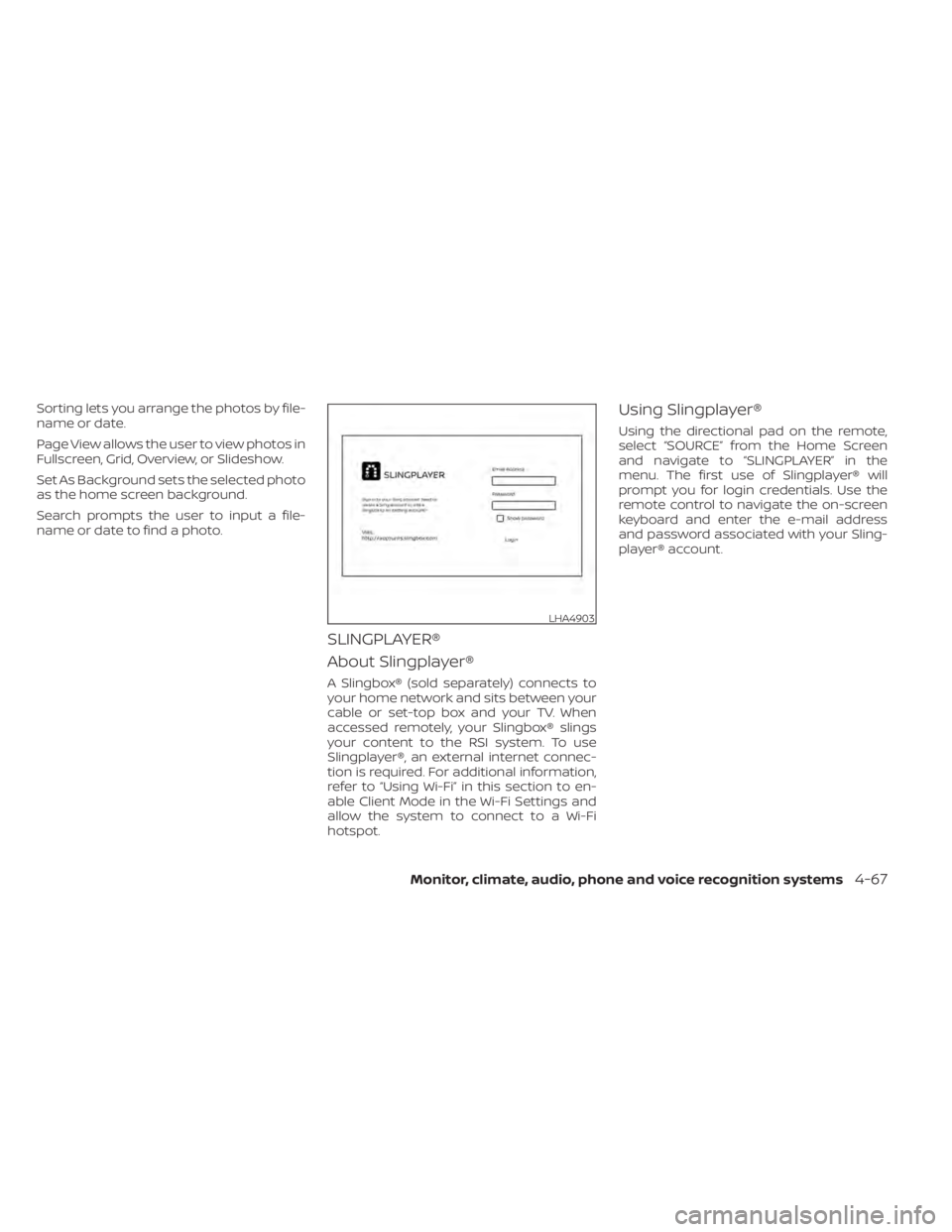
Using the directional pad on the remote,
select “SOURCE” from the Home Screen
and navigate to “SLINGPLAYER” in the
menu. The first use of Slingplayer® will
prompt you for login credentials. Use the
remote control to navigate the on-screen
keyboard and enter the e-mail address
and password associated with your Sling-
player® account.
LHA4903
Monitor, climate, audio, phone and voice recognition systems4-67
Page 313 of 657
Slingplayer® options
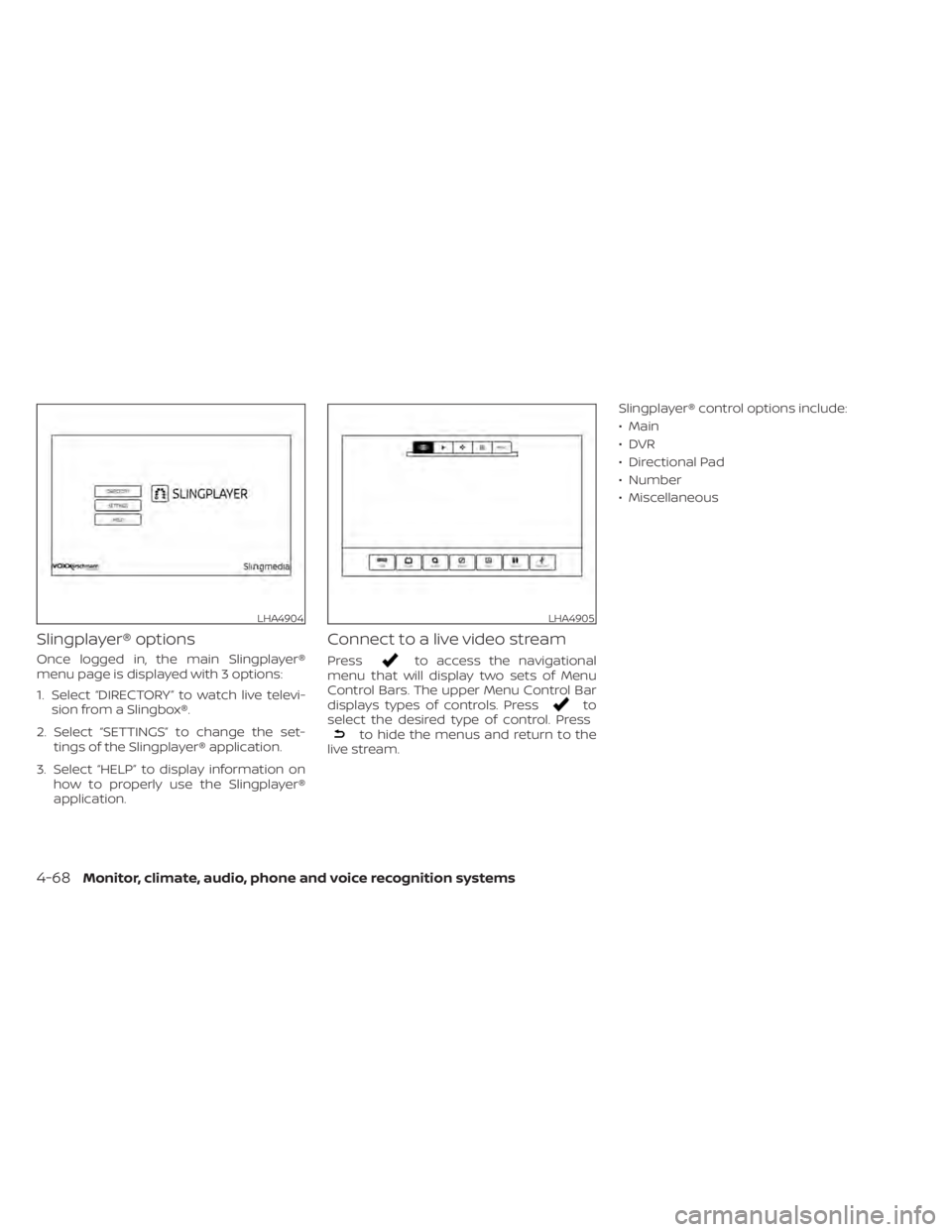
Once logged in, the main Slingplayer®
menu page is displayed with 3 options:
1. Select “DIRECTORY” to watch live televi-sion from a Slingbox®.
2. Select “SETTINGS” to change the set- tings of the Slingplayer® application.
3. Select “HELP” to display information on how to properly use the Slingplayer®
application.
Connect to a live video stream
Pressto access the navigational
menu that will display two sets of Menu
Control Bars. The upper Menu Control Bar
displays types of controls. Press
to
select the desired type of control. Press
to hide the menus and return to the
live stream. Slingplayer® control options include:
• Main
•DVR
• Directional Pad
• Number
• Miscellaneous
LHA4904LHA4905
4-68Monitor, climate, audio, phone and voice recognition systems
Page 316 of 657
SMARTSTREAM
About SmartStream
SmartStream is a wireless connection
technology that allows content streaming
between a mobile device and the RSI sys-
tem and between mobile devices. Content
is streamed over the built-in Wi-Fi network
using an application installed on a mobile
device. There is no need for an external
internet connection.
Using SmartStream
Before using the SmartStream feature, a
compatible UPnP application is required to
be downloaded and installed on your mo-
bile device. To stream content from a mo-
bile device, you must first connect it to the
RSI network.
Connecting a mobile device to
the RSI network:
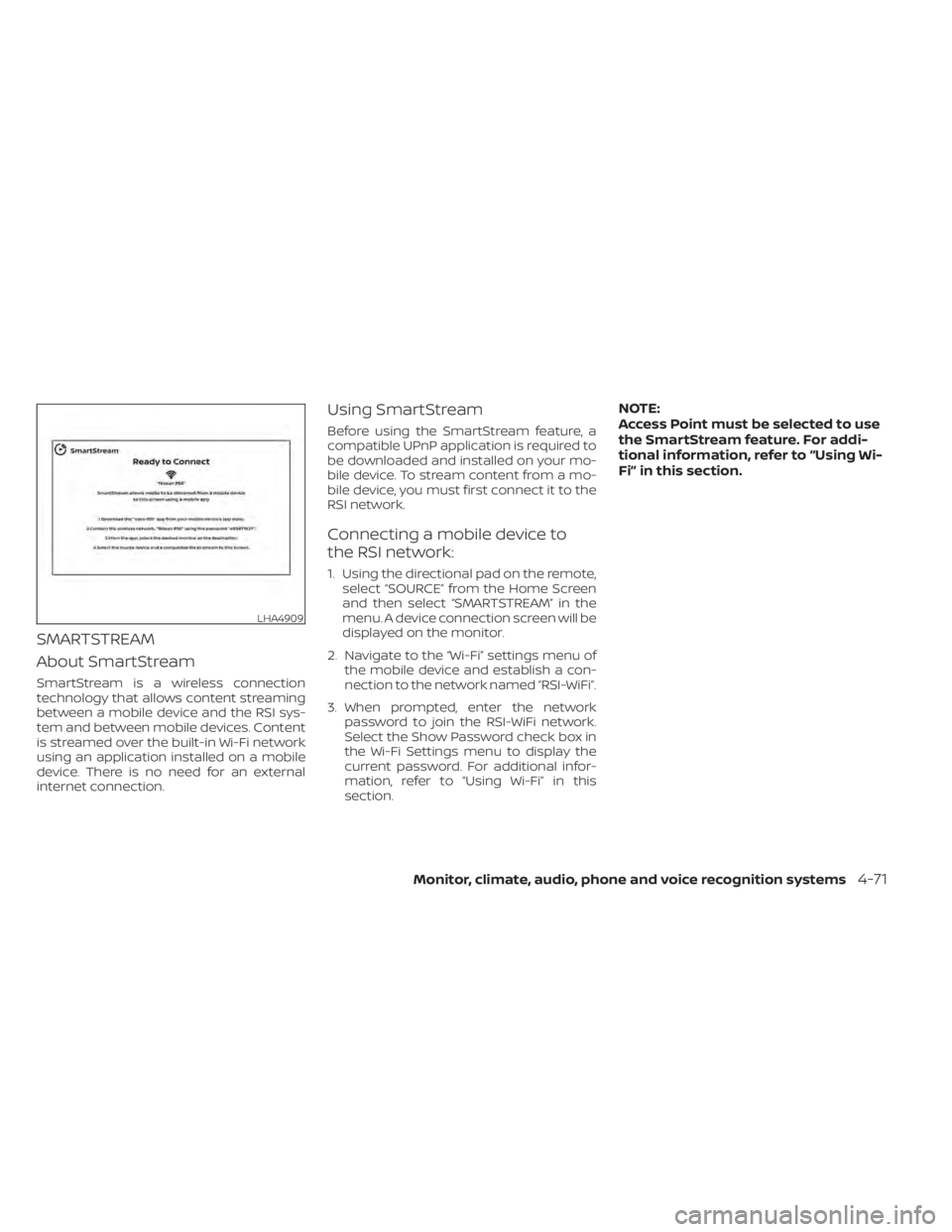
1. Using the directional pad on the remote,select “SOURCE” from the Home Screen
and then select “SMARTSTREAM” in the
menu. A device connection screen will be
displayed on the monitor.
2. Navigate to the “Wi-Fi” settings menu of the mobile device and establish a con-
nection to the network named “RSI-WiFi”.
3. When prompted, enter the network password to join the RSI-WiFi network.
Select the Show Password check box in
the Wi-Fi Settings menu to display the
current password. For additional infor-
mation, refer to “Using Wi-Fi” in this
section.
NOTE:
Access Point must be selected to use
the SmartStream feature. For addi-
tional information, refer to “Using Wi-
Fi” in this section.
LHA4909
Monitor, climate, audio, phone and voice recognition systems4-71
Page 317 of 657
Steaming content from a mobile
device:
1. Once connected, launch the application,and select SmartStream on the mobile
device.
2. Choose the desired monitor to stream to by selecting Monitor A or Monitor B.
Note: To stream content from a mobile
device the monitor must be set to
SmartStream in the source menu. 3. Select the desired source content from
the list of available devices. Content can
be browsed from all devices that are
connected to the RSI Wi-Fi network and
have a compatible UPnP application
installed.
4. Af ter selecting a content source, navi- gate through the folders, and select the
desired file to stream to the monitor.
Once the file is selected, it will begin
streaming to the monitor that was se-
lected in step 2 above.
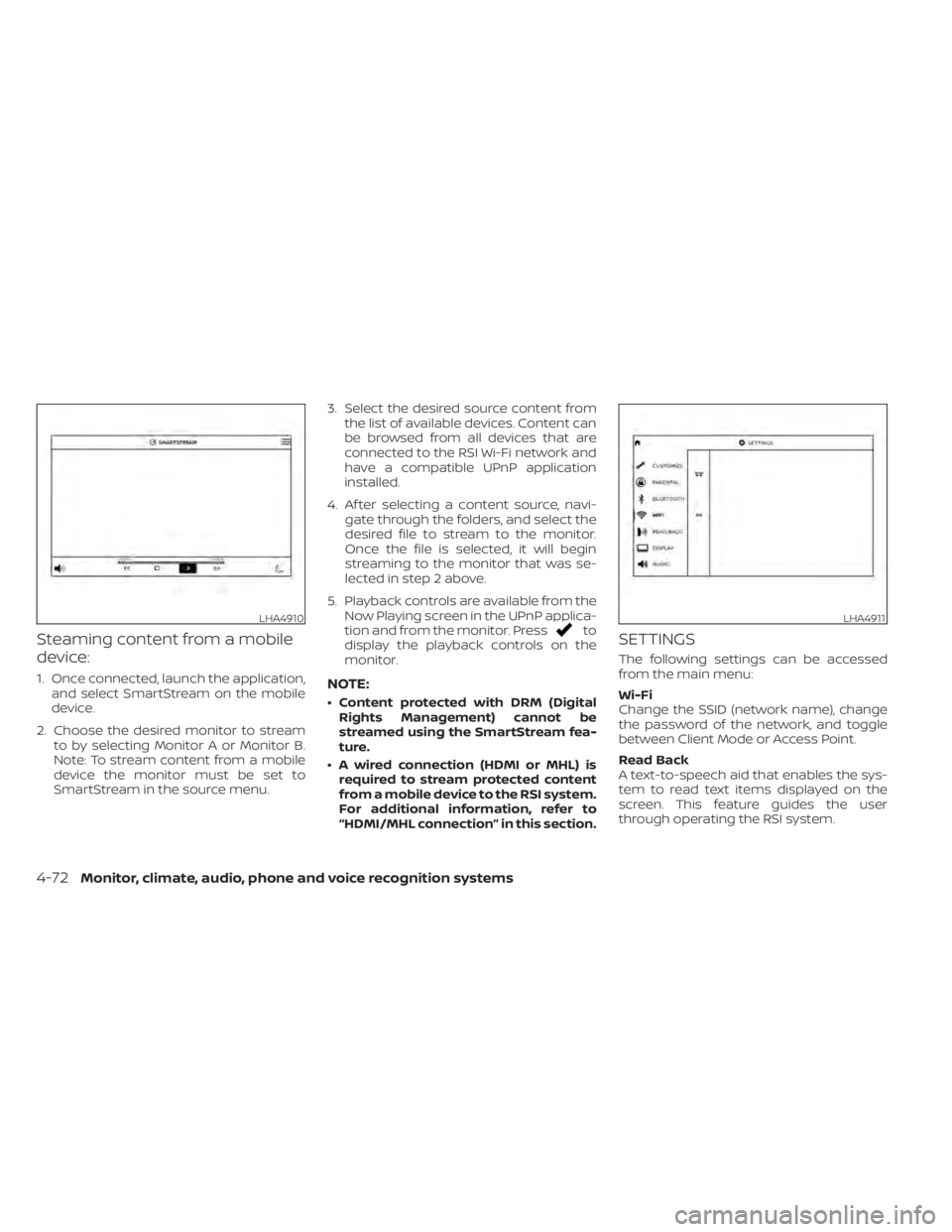
5. Playback controls are available from the Now Playing screen in the UPnP applica-
tion and from the monitor. Press
to
display the playback controls on the
monitor.
NOTE:
• Content protected with DRM (Digital Rights Management) cannot be
streamed using the SmartStream fea-
ture.
• A wired connection (HDMI or MHL) is required to stream protected content
from a mobile device to the RSI system.
For additional information, refer to
“HDMI/MHL connection” in this section.
SETTINGS
The following settings can be accessed
from the main menu:
Wi-Fi
Change the SSID (network name), change
the password of the network, and toggle
between Client Mode or Access Point.
Read Back
A text-to-speech aid that enables the sys-
tem to read text items displayed on the
screen. This feature guides the user
through operating the RSI system.
LHA4910LHA4911
4-72Monitor, climate, audio, phone and voice recognition systems
Page 318 of 657
Display
Adjust Brightness, Contrast, and Sharp-
ness settings.
Audio
Select the monitor to use for Bluetooth®
audio streaming and set the maximum
volume level when using wired head-
phones.
Advanced
Change the language of the GUI (Graphic
User Interface), reset the RSI system, and
update the sof tware.
Customize
Change the background image of the
home screen using content from an SD
card or USB storage device.
Parental
Set or change the password to limit DVD
content playback using parental control
based on the Motion Picture Association of
America (MPAA) ratings.
Bluetooth
Control Bluetooth® audio streaming (On/
Off ) and select from the available list of
paired devices.
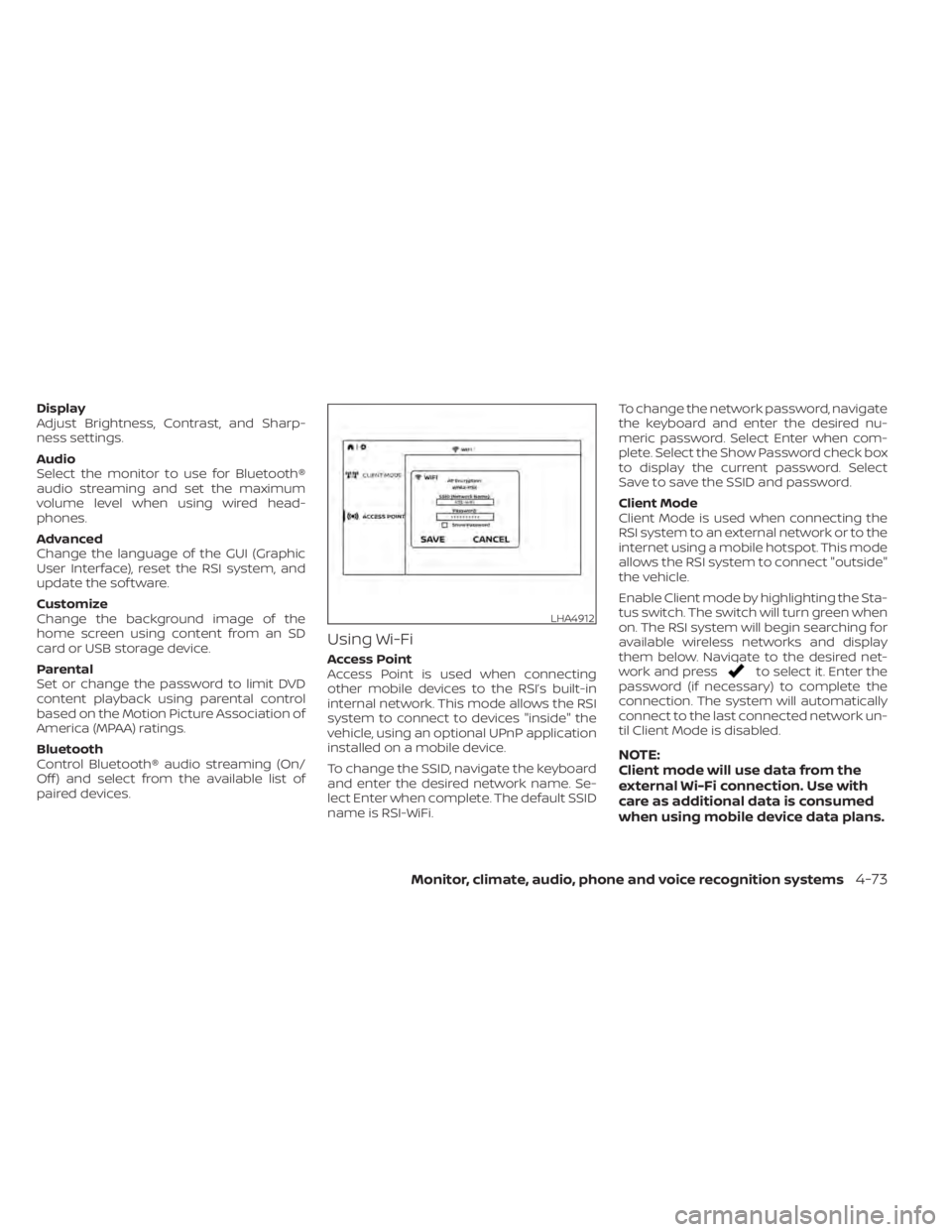
Using Wi-Fi
Access Point
Access Point is used when connecting
other mobile devices to the RSI’s built-in
internal network. This mode allows the RSI
system to connect to devices "inside" the
vehicle, using an optional UPnP application
installed on a mobile device.
To change the SSID, navigate the keyboard
and enter the desired network name. Se-
lect Enter when complete. The default SSID
name is RSI-WiFi.To change the network password, navigate
the keyboard and enter the desired nu-
meric password. Select Enter when com-
plete. Select the Show Password check box
to display the current password. Select
Save to save the SSID and password.
Client Mode
Client Mode is used when connecting the
RSI system to an external network or to the
internet using a mobile hotspot. This mode
allows the RSI system to connect "outside"
the vehicle.
Enable Client mode by highlighting the Sta-
tus switch. The switch will turn green when
on. The RSI system will begin searching for
available wireless networks and display
them below. Navigate to the desired net-
work and pressto select it. Enter the
password (if necessary) to complete the
connection. The system will automatically
connect to the last connected network un-
til Client Mode is disabled.
NOTE:
Client mode will use data from the
external Wi-Fi connection. Use with
care as additional data is consumed
when using mobile device data plans.
LHA4912
Monitor, climate, audio, phone and voice recognition systems4-73
Page 319 of 657
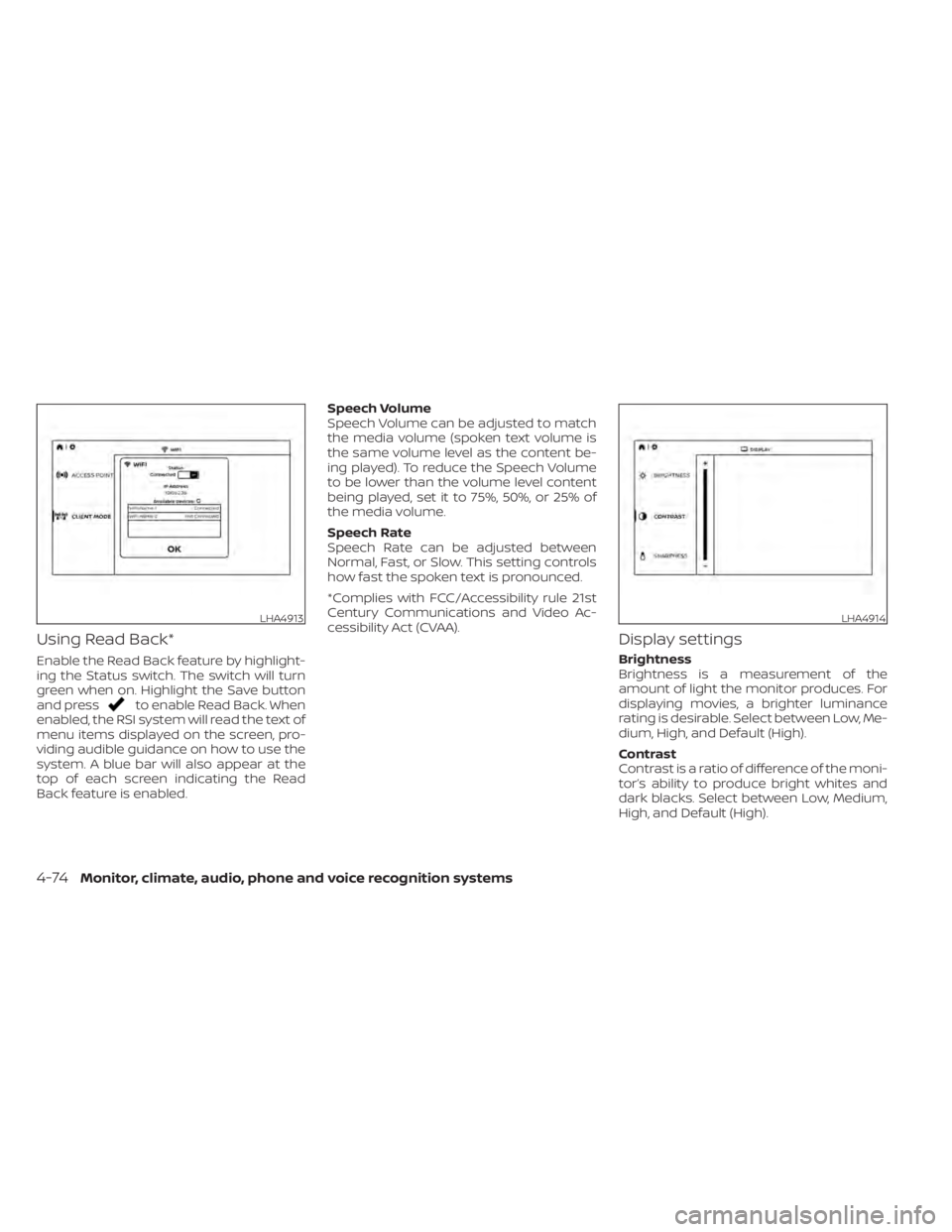
Using Read Back*
Enable the Read Back feature by highlight-
ing the Status switch. The switch will turn
green when on. Highlight the Save button
and press
to enable Read Back. When
enabled, the RSI system will read the text of
menu items displayed on the screen, pro-
viding audible guidance on how to use the
system. A blue bar will also appear at the
top of each screen indicating the Read
Back feature is enabled. Speech Volume
Speech Volume can be adjusted to match
the media volume (spoken text volume is
the same volume level as the content be-
ing played). To reduce the Speech Volume
to be lower than the volume level content
being played, set it to 75%, 50%, or 25% of
the media volume.
Speech Rate
Speech Rate can be adjusted between
Normal, Fast, or Slow. This setting controls
how fast the spoken text is pronounced.
*Complies with FCC/Accessibility rule 21st
Century Communications and Video Ac-
cessibility Act (CVAA).
Display settings
Brightness
Brightness is a measurement of the
amount of light the monitor produces. For
displaying movies, a brighter luminance
rating is desirable. Select between Low, Me-
dium, High, and Default (High).
Contrast
Contrast is a ratio of difference of the moni-
tor’s ability to produce bright whites and
dark blacks. Select between Low, Medium,
High, and Default (High).
LHA4913LHA4914
4-74Monitor, climate, audio, phone and voice recognition systems