mirror NISSAN TITAN 2020 Owner´s Manual
[x] Cancel search | Manufacturer: NISSAN, Model Year: 2020, Model line: TITAN, Model: NISSAN TITAN 2020Pages: 657, PDF Size: 5.1 MB
Page 282 of 657
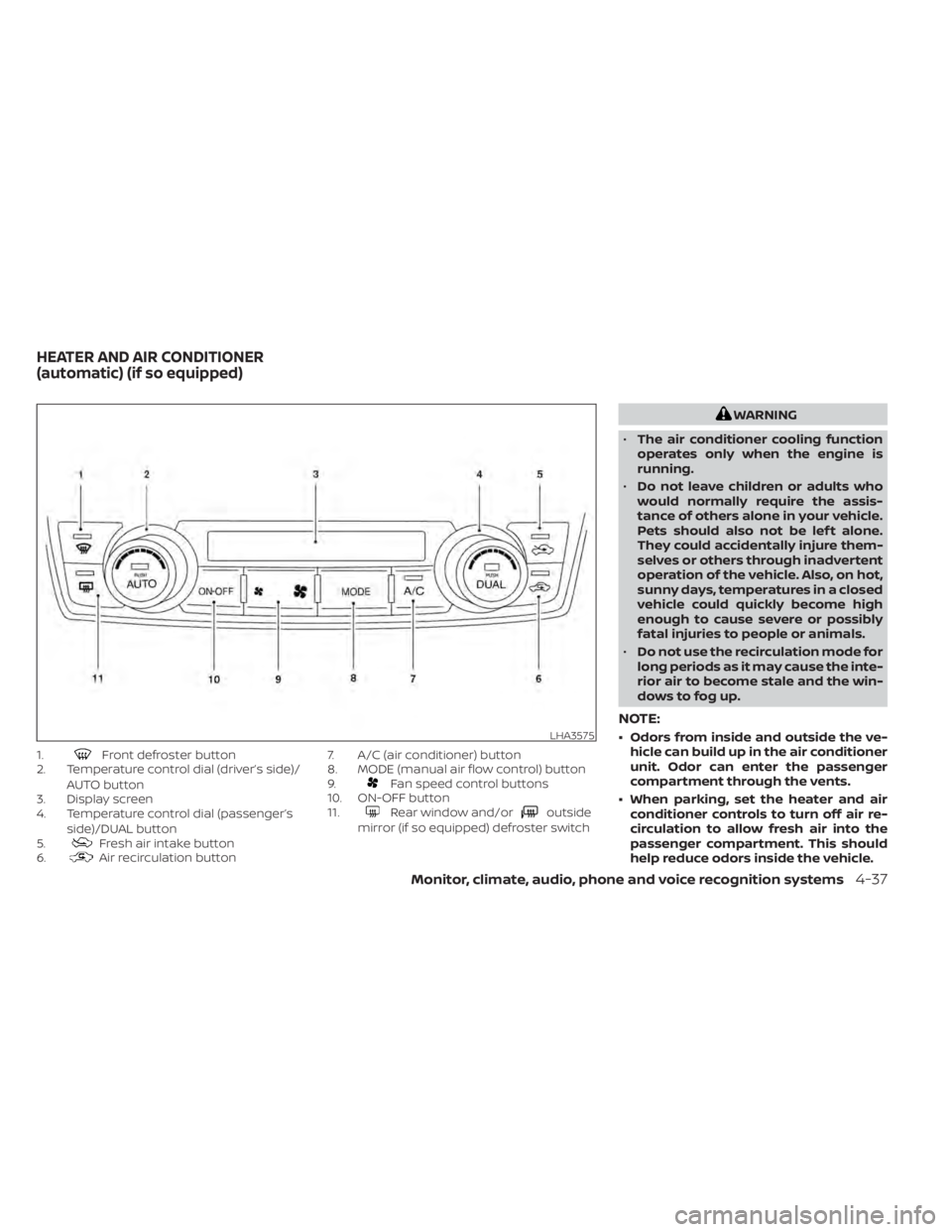
1.Front defroster button
2. Temperature control dial (driver’s side)/
AUTO button
3. Display screen
4. Temperature control dial (passenger’s
side)/DUAL button
5.
Fresh air intake button
6.Air recirculation button 7. A/C (air conditioner) button
8. MODE (manual air flow control) button
9.
Fan speed control buttons
10. ON-OFF button
11.
Rear window and/oroutside
mirror (if so equipped) defroster switch
WARNING
• The air conditioner cooling function
operates only when the engine is
running.
• Do not leave children or adults who
would normally require the assis-
tance of others alone in your vehicle.
Pets should also not be lef t alone.
They could accidentally injure them-
selves or others through inadvertent
operation of the vehicle. Also, on hot,
sunny days, temperatures in a closed
vehicle could quickly become high
enough to cause severe or possibly
fatal injuries to people or animals.
• Do not use the recirculation mode for
long periods as it may cause the inte-
rior air to become stale and the win-
dows to fog up.
NOTE:
• Odors from inside and outside the ve- hicle can build up in the air conditioner
unit. Odor can enter the passenger
compartment through the vents.
• When parking, set the heater and air conditioner controls to turn off air re-
circulation to allow fresh air into the
passenger compartment. This should
help reduce odors inside the vehicle.LHA3575
HEATER AND AIR CONDITIONER
(automatic) (if so equipped)
Monitor, climate, audio, phone and voice recognition systems4-37
Page 285 of 657
When the outside temperature exceeds
70°F (21°C), the air conditioning system may
default to air recirculation mode automati-
cally to reduce overall power consumption.
To exit air recirculation mode, select the
fresh air intake button to enter fresh air
mode.
In Floor/Defrost mode, the recirculation
button can be selected to block outside
odors. However, for maximum defogging in
this mode, it is recommended to turn recir-
culation off when possible.
Fresh air intake
Press thefresh air intake button to
draw outside air into the passenger com-
partment.
Automatic intake air control
In the AUTO mode, the intake air will be
controlled automatically. When the outside
temperature exceeds 70°F (21°C), the air
conditioning system may default to air re-
circulation mode automatically to reduce
overall power consumption. To exit air re-
circulation mode, select the fresh air intake
button to enter fresh air mode. The air re-
circulation indicator will turn off, the fresh
air indicator will turn on. To manually control the intake air, press the
fresh air intake button. To return to the
automatic control mode if thefresh
air indicator is illuminated, press and hold
the
fresh air intake button for about 2
seconds. The fresh air indicator and air re-
circulation indicator lights will flash twice,
and then the intake air will be controlled
automatically. To return to the automatic
control mode if the
air recirculation
icon is illuminated, press and hold the
air recirculation button for about 2 sec-
onds. Theair recirculation indicator
andfresh air intake indicator lights will
flash twice and the intake air will be con-
trolled automatically.
A/C (air conditioner) button
Start the engine, turn thefan speed
control buttons to the desired position and
press the
button to turn on the air
conditioner. To turn off the air conditioner,
press the
button again.
The air conditioner cooling function op-
erates only when the engine is running.
Air flow control
Press the MODE button to manually control
air flow and select the air outlet.
— Air flows from center and side vents.
— Air flows from center and side ventsand foot outlets.
— Air flows mainly from foot outlets.— Air flows from defroster and footoutlets.
To turn system off
Press the ON-OFF button.
Rear window and/or outside
mirror (if so equipped) defroster
switch
For additional information, refer to “Rear
window and/or outside mirror (if so
equipped) defroster switch” in the “Instru-
ments and controls” section of this manual.
4-40Monitor, climate, audio, phone and voice recognition systems
Page 298 of 657
CAUTION
• Always ensure that the batteries are
inserted with the positive and nega-
tive terminals in the correct direction
as shown in the battery
compartment.
• Different types of batteries have dif-
ferent characteristics. Do not mix dif-
ferent types.
• Do not mix old and new batteries.
Mixing old and new batteries will
shorten battery life and/or cause
chemical leaks from the old
batteries.
• When batteries fail to function, re-
place them immediately.
• Keep the batteries out of the reach of
children. In case the batteries are ac-
cidentally swallowed, immediately
consult a doctor. Also, when dispos-
ing of used batteries, please comply
with governmental regulations or
environmental public institution
rules that apply in your country/area.
• Remove the batteries if the head-
phones are not used for a month or
longer.
GENERAL OPERATION
Navigating menus
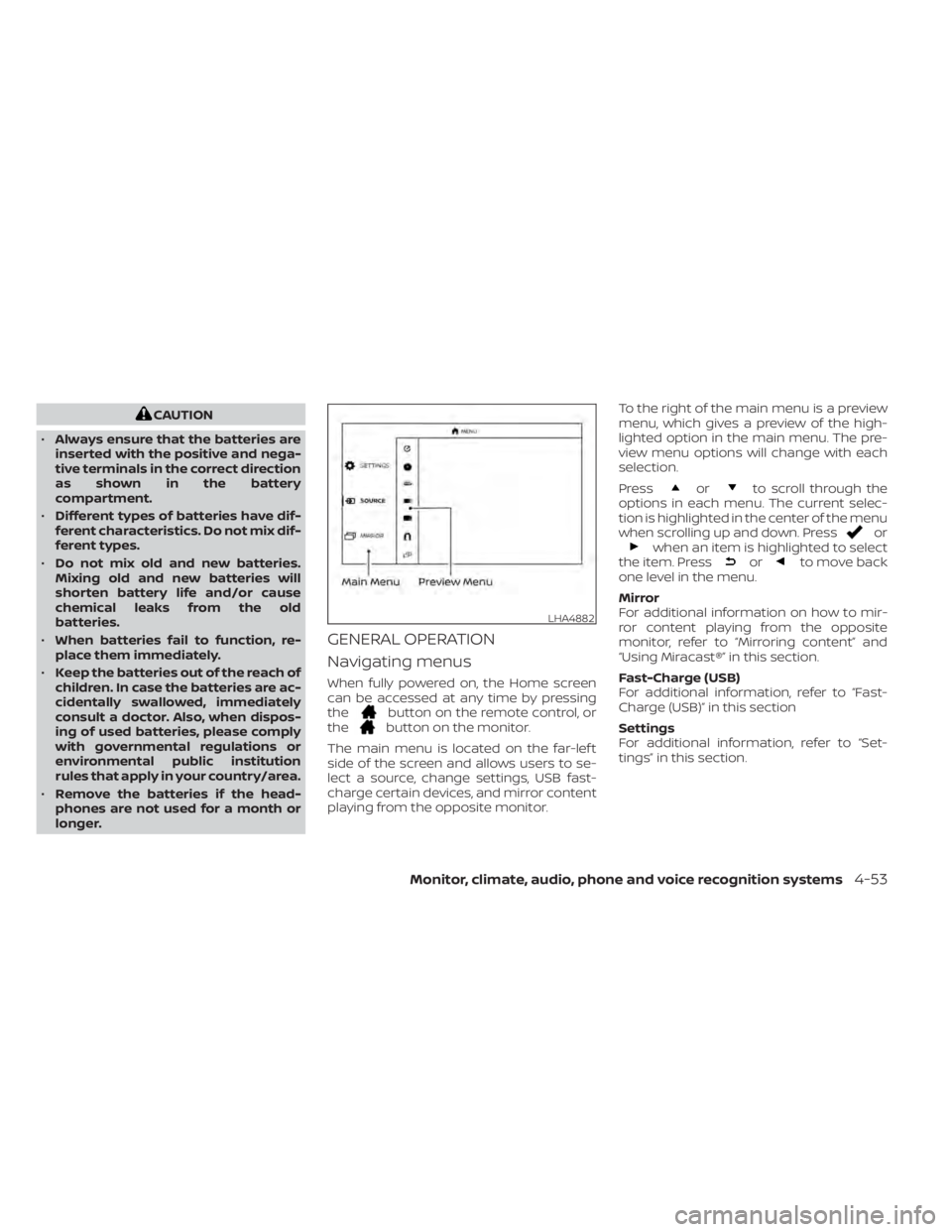
When fully powered on, the Home screen
can be accessed at any time by pressing
the
button on the remote control, or
thebutton on the monitor.
The main menu is located on the far-lef t
side of the screen and allows users to se-
lect a source, change settings, USB fast-
charge certain devices, and mirror content
playing from the opposite monitor. To the right of the main menu is a preview
menu, which gives a preview of the high-
lighted option in the main menu. The pre-
view menu options will change with each
selection.
Press
orto scroll through the
options in each menu. The current selec-
tion is highlighted in the center of the menu
when scrolling up and down. Press
orwhen an item is highlighted to select
the item. Pressorto move back
one level in the menu.
Mirror
For additional information on how to mir-
ror content playing from the opposite
monitor, refer to “Mirroring content” and
“Using Miracast®” in this section.
Fast-Charge (USB)
For additional information, refer to “Fast-
Charge (USB)” in this section
Settings
For additional information, refer to “Set-
tings” in this section.
LHA4882
Monitor, climate, audio, phone and voice recognition systems4-53
Page 300 of 657
NOTE:
For hearing protection, there is a
maximum volume setting to limit the
audio output of the front panel
3.5mm headphone output. Using the
directional pad on the remote navi-
gate to “SETTINGS” then “AUDIO” then
“HEADPHONES” to adjust the maxi-
mum volume. Once set, the maximum
volume is limited to this setting.
Playing a disc
Insert a disc into the top slot of monitor A
with the label facing the rear of the vehicle.
If the disc is supported and there is no
content already playing, the disc will auto-
matically begin playing.
When a disc is inserted, playback will auto-
matically begin on both monitors A and B (if
there is no content already playing). If a disc
was previously inserted, using the direc-
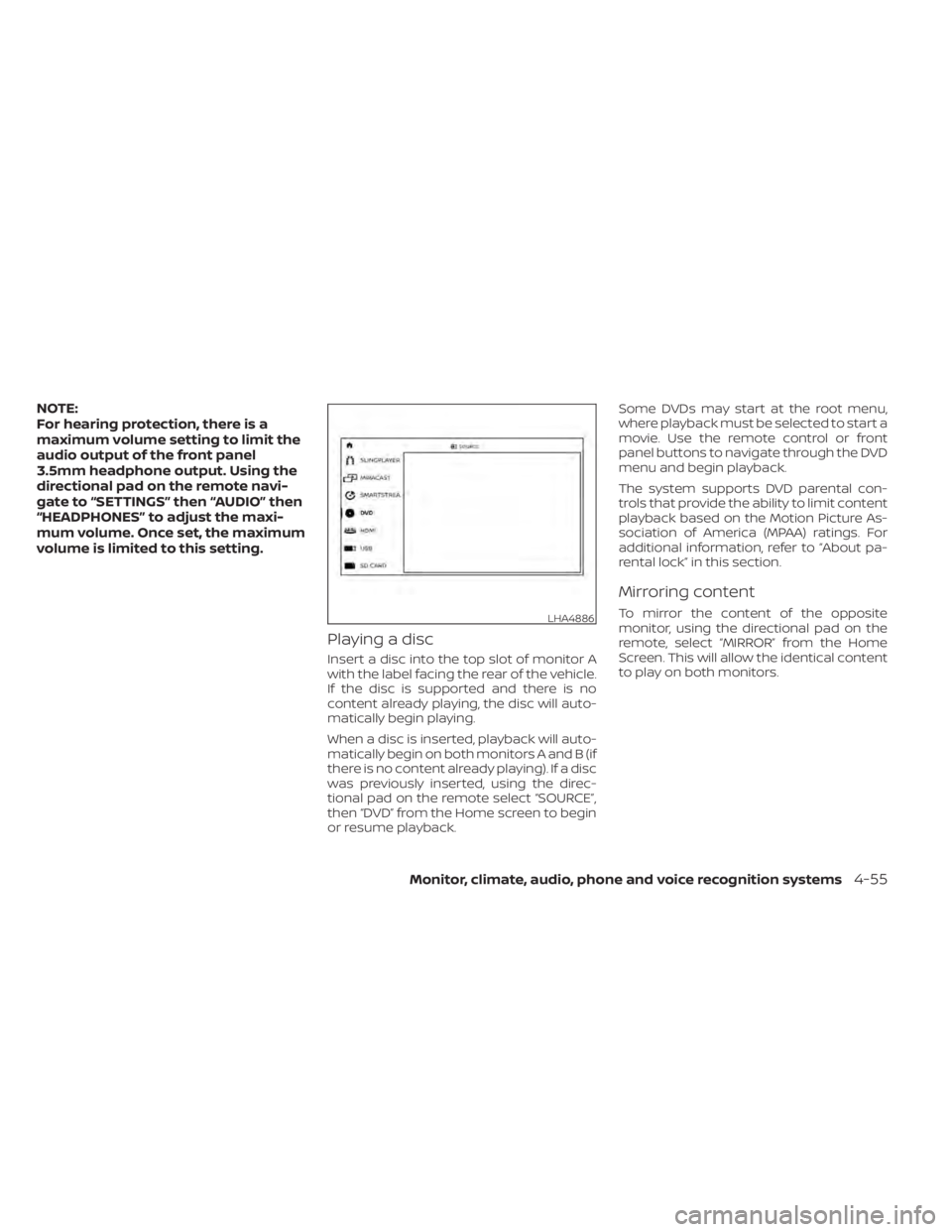
tional pad on the remote select “SOURCE”,
then “DVD” from the Home screen to begin
or resume playback.Some DVDs may start at the root menu,
where playback must be selected to start a
movie. Use the remote control or front
panel buttons to navigate through the DVD
menu and begin playback.
The system supports DVD parental con-
trols that provide the ability to limit content
playback based on the Motion Picture As-
sociation of America (MPAA) ratings. For
additional information, refer to “About pa-
rental lock” in this section.
Mirroring content
To mirror the content of the opposite
monitor, using the directional pad on the
remote, select “MIRROR” from the Home
Screen. This will allow the identical content
to play on both monitors.LHA4886
Monitor, climate, audio, phone and voice recognition systems4-55
Page 315 of 657
MIRACAST®
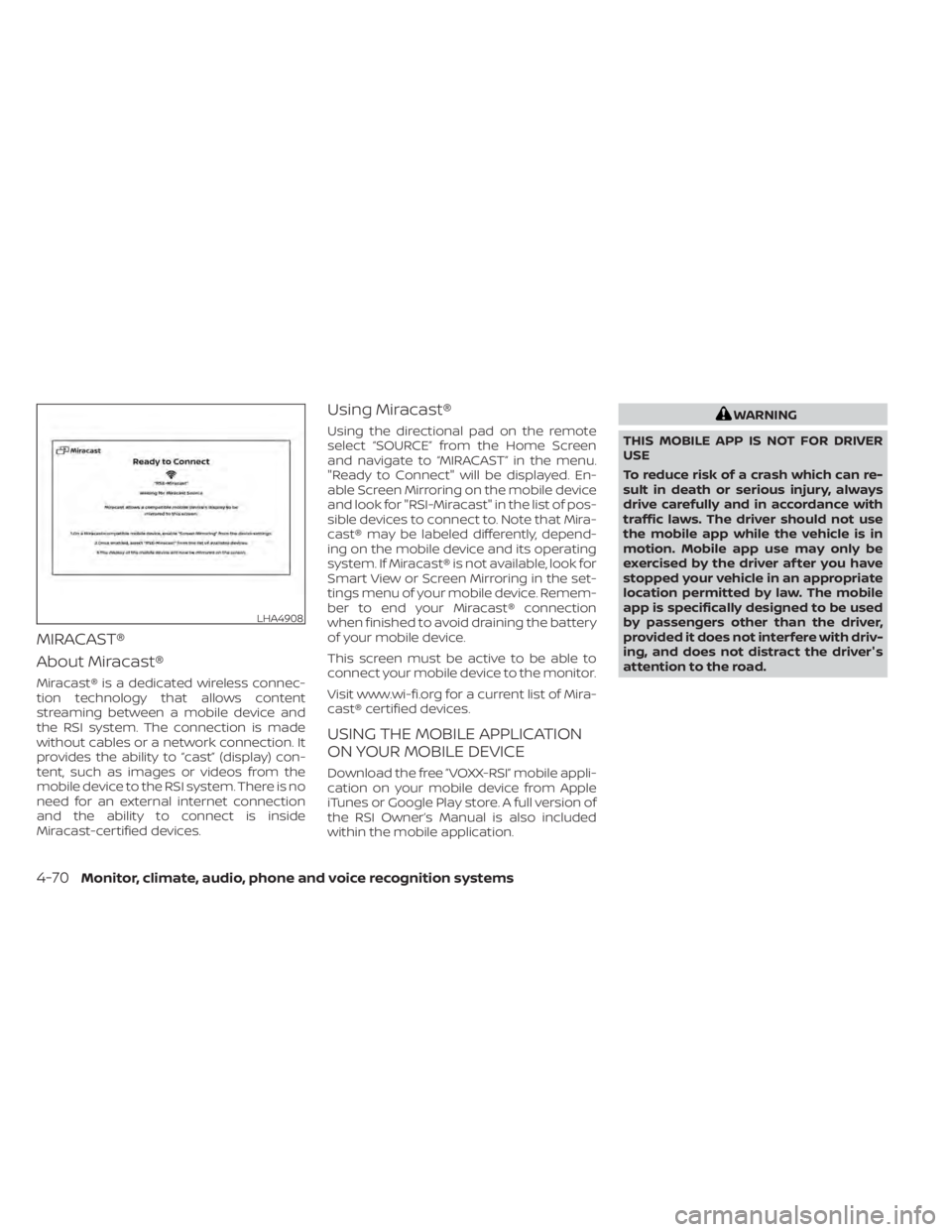
About Miracast®
Miracast® is a dedicated wireless connec-
tion technology that allows content
streaming between a mobile device and
the RSI system. The connection is made
without cables or a network connection. It
provides the ability to “cast” (display) con-
tent, such as images or videos from the
mobile device to the RSI system. There is no
need for an external internet connection
and the ability to connect is inside
Miracast-certified devices.
Using Miracast®
Using the directional pad on the remote
select “SOURCE” from the Home Screen
and navigate to “MIRACAST” in the menu.
"Ready to Connect" will be displayed. En-
able Screen Mirroring on the mobile device
and look for "RSI-Miracast" in the list of pos-
sible devices to connect to. Note that Mira-
cast® may be labeled differently, depend-
ing on the mobile device and its operating
system. If Miracast® is not available, look for
Smart View or Screen Mirroring in the set-
tings menu of your mobile device. Remem-
ber to end your Miracast® connection
when finished to avoid draining the battery
of your mobile device.
This screen must be active to be able to
connect your mobile device to the monitor.
Visit www.wi-fi.org for a current list of Mira-
cast® certified devices.
USING THE MOBILE APPLICATION
ON YOUR MOBILE DEVICE
Download the free ”VOXX-RSI” mobile appli-
cation on your mobile device from Apple
iTunes or Google Play store. A full version of
the RSI Owner’s Manual is also included
within the mobile application.
WARNING
THIS MOBILE APP IS NOT FOR DRIVER
USE
To reduce risk of a crash which can re-
sult in death or serious injury, always
drive carefully and in accordance with
traffic laws. The driver should not use
the mobile app while the vehicle is in
motion. Mobile app use may only be
exercised by the driver af ter you have
stopped your vehicle in an appropriate
location permitted by law. The mobile
app is specifically designed to be used
by passengers other than the driver,
provided it does not interfere with driv-
ing, and does not distract the driver's
attention to the road.
LHA4908
4-70Monitor, climate, audio, phone and voice recognition systems
Page 349 of 657
NISSAN VEHICLE IMMOBILIZER
SYSTEM
The NISSAN Vehicle Immobilizer System
will not allow the engine to start without
the use of the registered key.
If the engine fails to start using a registered
key (for example, when interference is
caused by another registered key, an auto-
mated toll road device or automatic pay-
ment device on the key ring), restart the
engine using the following procedures:
1. Leave the ignition switch in the ON posi-tion for approximately 5 seconds.
2. Place the ignition switch in the OFF or LOCK position, and wait approximately
10 seconds.
3. Repeat steps 1 and 2.
4. Restart the engine while holding the de- vice (which may have caused the inter-
ference) separate from the registered
key.
If the no start condition re-occurs, NISSAN
recommends placing the registered key on
a separate key ring to avoid interference
from other devices. • Make sure the area around the vehicle is
clear.
• Check fluid levels such as engine oil, cool- ant, brake fluid and windshield-washer
fluid as frequently as possible, or at least
whenever you refuel.
• Check that all windows and lights are clean.
• Visually inspect tires for their appearance and condition. Also check tires for proper
inflation.
• Check that all doors are closed.
• Position seat and adjust head restraints/ headrests.
• Adjust inside and outside mirrors.
• Fasten seat belts and ask all passengers to do likewise.
• Check the operation of warning lights when the ignition switch is placed in the
ON position. For additional information,
refer to “Warning lights, indicator lights
and audible reminders” in the “Instru-
ments and controls” section of this
manual. 1. Apply the parking brake.
2. Move the shif t lever to P (Park) or N (Neu-
tral). P (Park) is recommended.
The starter is designed not to operate
unless the shif t lever is in either P
(Park) or N (Neutral).
3. Push the ignition switch to the ON posi- tion. Depress the brake pedal and push
the ignition switch to start the engine.
To start the engine immediately, push
and release the ignition switch while de-
pressing the brake pedal with the igni-
tion switch in any position.
• If the engine is very hard to start in extremely cold weather or when re-
starting, depress the accelerator
pedal a little (approximately 1/3 to the
floor) and while holding, crank the en-
gine. Release the accelerator pedal
when the engine starts.
• If the engine is very hard to start be- cause it is flooded, depress the accel-
erator pedal all the way to the floor
and hold it. Push the ignition switch to
the ON position to start cranking the
engine. Af ter 5 or 6 seconds, stop
cranking by pushing the ignition
switch to the LOCK position. Af ter
BEFORE STARTING THE ENGINE STARTING THE ENGINE
5-16Starting and driving
Page 357 of 657
To engage:Firmly depress the parking
brake.
To release:
1. Firmly apply the foot brake.
2. Move the shif t lever to the P (Park) position.
3. Firmly depress the parking brake pedal and it will release.
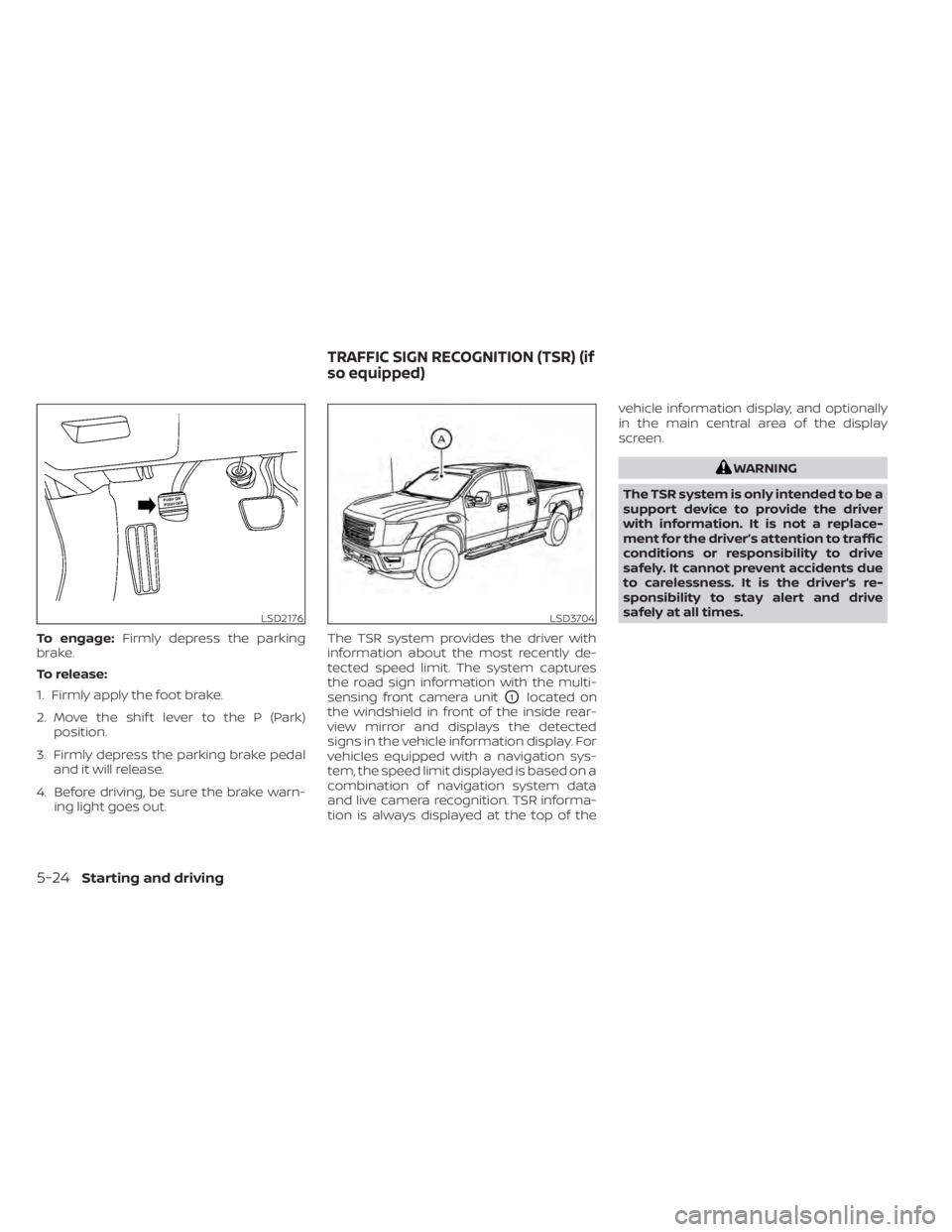
4. Before driving, be sure the brake warn- ing light goes out. The TSR system provides the driver with
information about the most recently de-
tected speed limit. The system captures
the road sign information with the multi-
sensing front camera unit
O1located on
the windshield in front of the inside rear-
view mirror and displays the detected
signs in the vehicle information display. For
vehicles equipped with a navigation sys-
tem, the speed limit displayed is based on a
combination of navigation system data
and live camera recognition. TSR informa-
tion is always displayed at the top of the vehicle information display, and optionally
in the main central area of the display
screen.
WARNING
The TSR system is only intended to be a
support device to provide the driver
with information. It is not a replace-
ment for the driver’s attention to traffic
conditions or responsibility to drive
safely. It cannot prevent accidents due
to carelessness. It is the driver’s re-
sponsibility to stay alert and drive
safely at all times.
LSD2176LSD3704
TRAFFIC SIGN RECOGNITION (TSR) (if
so equipped)
5-24Starting and driving
Page 360 of 657
WARNING
Failure to follow the warnings and in-
structions for proper use of the LDW
system could result in serious injury or
death.
• This system is only a warning device
to inform the driver of a potential un-
intended lane departure. It will not
steer the vehicle or prevent loss of
control. It is the driver’s responsibility
to stay alert, drive safely, keep the
vehicle in the traveling lane, and be in
control of the vehicle at all times. The LDW system will operate when the ve-
hicle is driven at speeds of approximately
37 mph (60 km/h) and above, and only
when the lane markings are clearly visible
on the road.
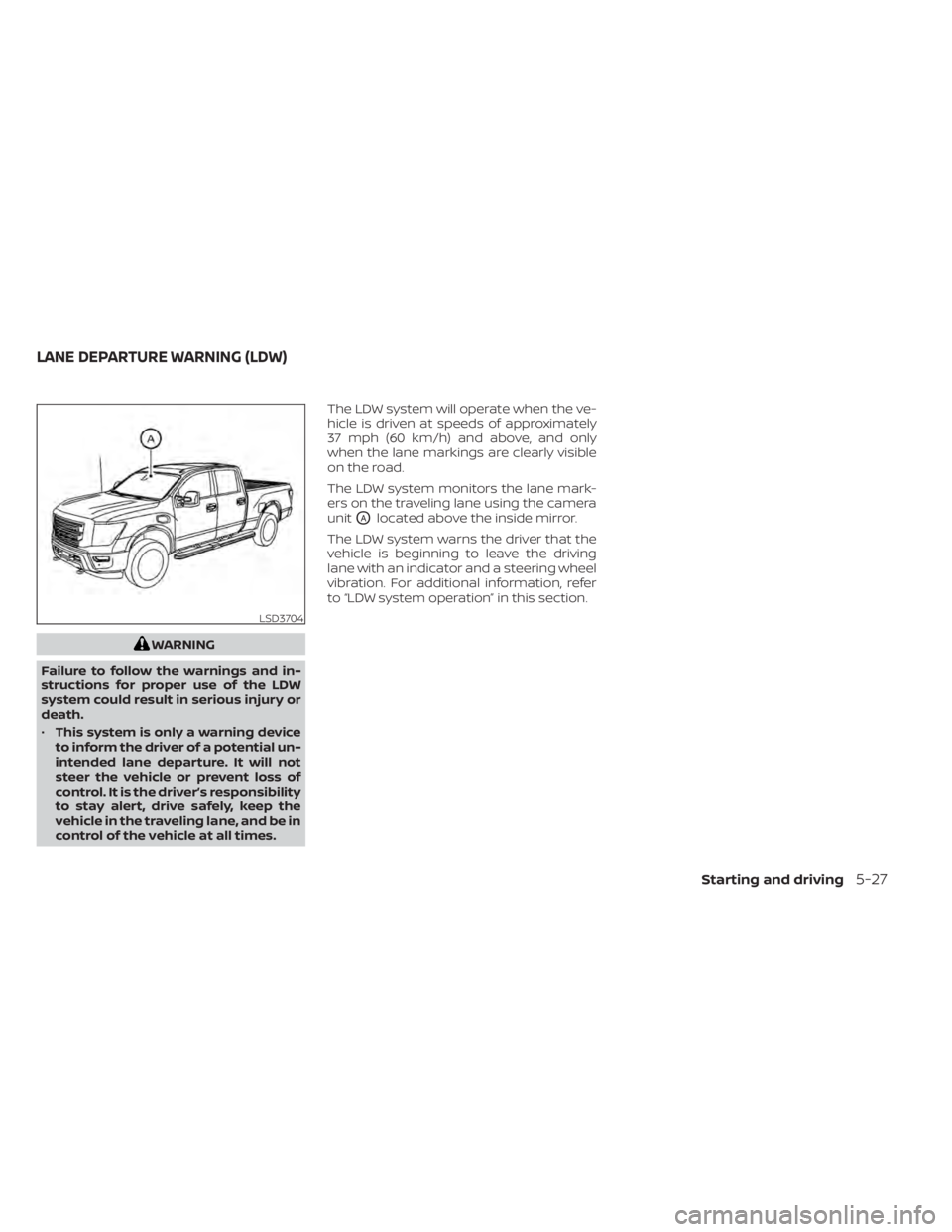
The LDW system monitors the lane mark-
ers on the traveling lane using the camera
unit
OAlocated above the inside mirror.
The LDW system warns the driver that the
vehicle is beginning to leave the driving
lane with an indicator and a steering wheel
vibration. For additional information, refer
to “LDW system operation” in this section.
LSD3704
LANE DEPARTURE WARNING (LDW)
Starting and driving5-27
Page 364 of 657
The LDW system is not designed to warn
under the following conditions:
• When you operate the lane change signaland change traveling lanes in the direc-
tion of the signal. (The LDW system will
become operable again approximately 2
seconds af ter the lane change signal is
turned off.)
• When the vehicle speed lowers to less than approximately 37 mph (60 km/h).
Af ter the above conditions have finished
and the necessary operating conditions
are satisfied, the LDW functions will resume.
SYSTEM MALFUNCTION
If the LDW system malfunctions, it will can-
cel automatically and “Malfunction” will ap-
pear in the vehicle information display. If “
Malfunction” appears in the vehicle infor-
mation display, pull off the road to a safe
location and stop the vehicle. Place the
shif t lever in the P (Park) position and the
ignition switch in the OFF position and re-
start the engine/motor. If “Malfunction”
continues to appear in the vehicle informa-
tion display, have the system checked. It is
recommended that you visit a NISSAN
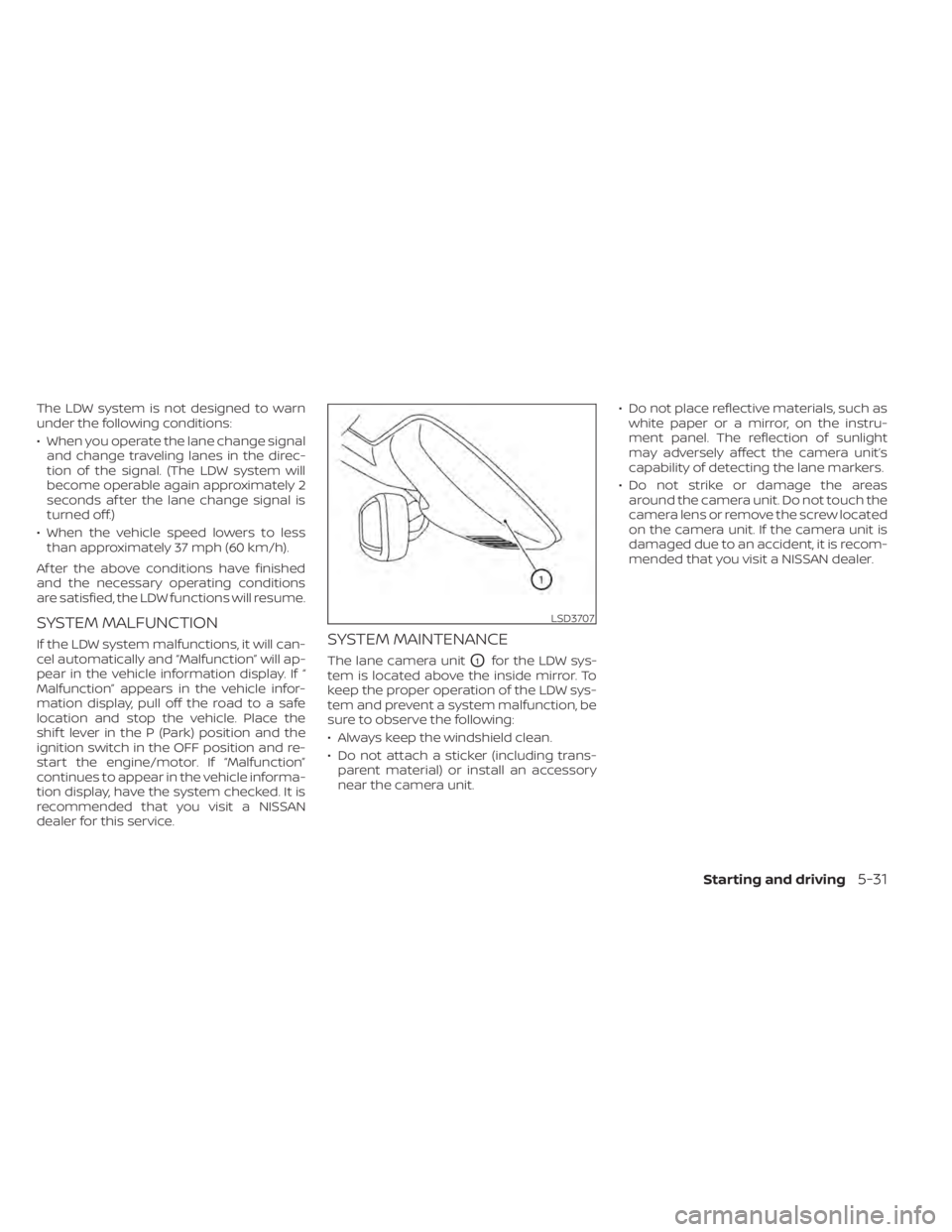
dealer for this service.SYSTEM MAINTENANCE
The lane camera unitO1for the LDW sys-
tem is located above the inside mirror. To
keep the proper operation of the LDW sys-
tem and prevent a system malfunction, be
sure to observe the following:
• Always keep the windshield clean.
• Do not attach a sticker (including trans- parent material) or install an accessory
near the camera unit. • Do not place reflective materials, such as
white paper or a mirror, on the instru-
ment panel. The reflection of sunlight
may adversely affect the camera unit’s
capability of detecting the lane markers.
• Do not strike or damage the areas around the camera unit. Do not touch the
camera lens or remove the screw located
on the camera unit. If the camera unit is
damaged due to an accident, it is recom-
mended that you visit a NISSAN dealer.
LSD3707
Starting and driving5-31
Page 365 of 657
WARNING
Failure to follow the warnings and in-
structions for proper use of the BSW
system could result in serious injury or
death.
• The BSW system is not a replacement
for proper driving procedures and is
not designed to prevent contact with
vehicles or objects. When changing
lanes, always use the side and rear
mirrors and turn and look in the di-
rection your vehicle will move to en-
sure it is safe to change lanes. Never
rely solely on the BSW system.
• Do not use the BSW system when
towing a trailer. The system may not
function properly.
The BSW system helps alert the driver of
other vehicles in adjacent lanes when
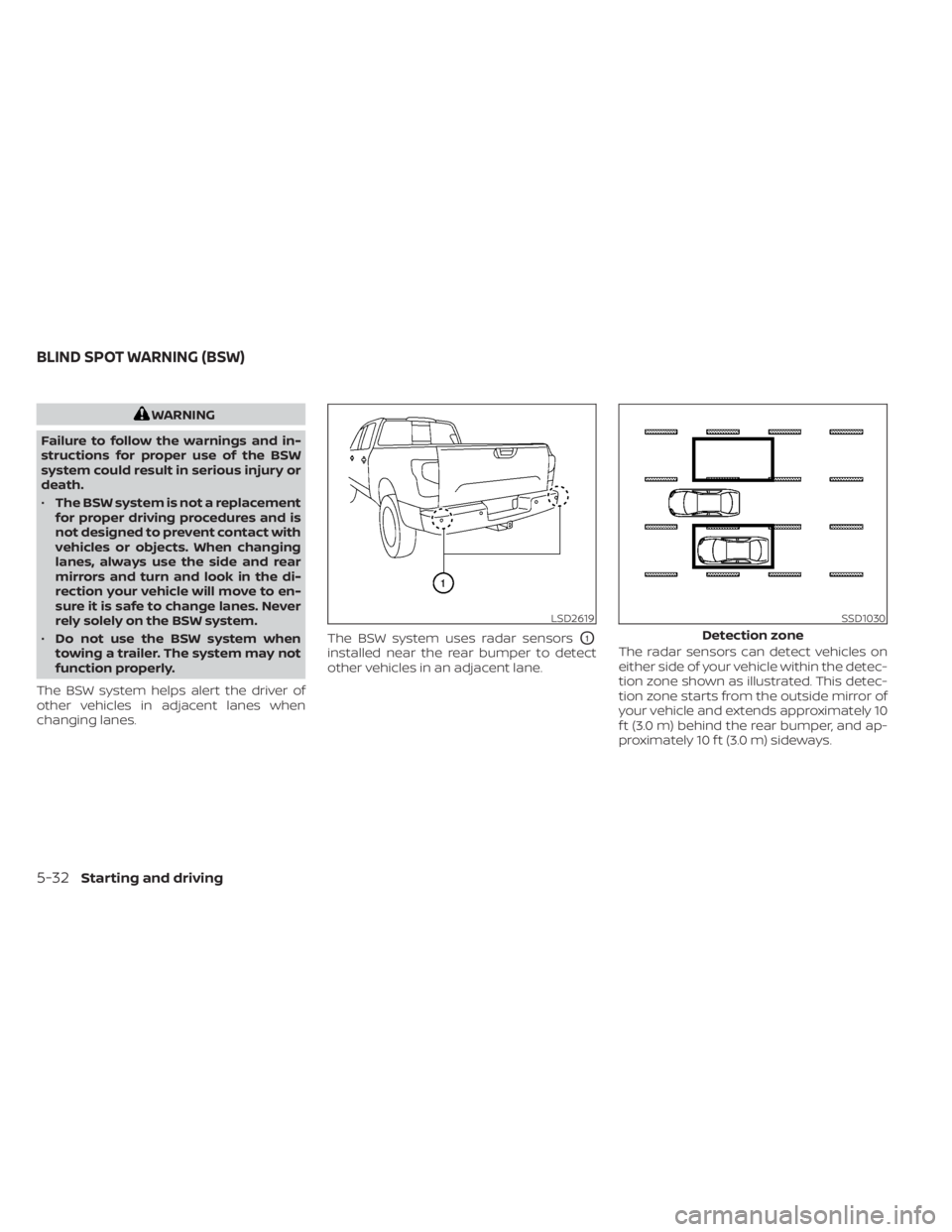
changing lanes. The BSW system uses radar sensors
O1
installed near the rear bumper to detect
other vehicles in an adjacent lane.
The radar sensors can detect vehicles on
either side of your vehicle within the detec-
tion zone shown as illustrated. This detec-
tion zone starts from the outside mirror of
your vehicle and extends approximately 10
f t (3.0 m) behind the rear bumper, and ap-
proximately 10 f t (3.0 m) sideways.
LSD2619SSD1030
Detection zone
BLIND SPOT WARNING (BSW)
5-32Starting and driving