display NISSAN TITAN 2021 Owner´s Manual
[x] Cancel search | Manufacturer: NISSAN, Model Year: 2021, Model line: TITAN, Model: NISSAN TITAN 2021Pages: 638, PDF Size: 4.31 MB
Page 326 of 638
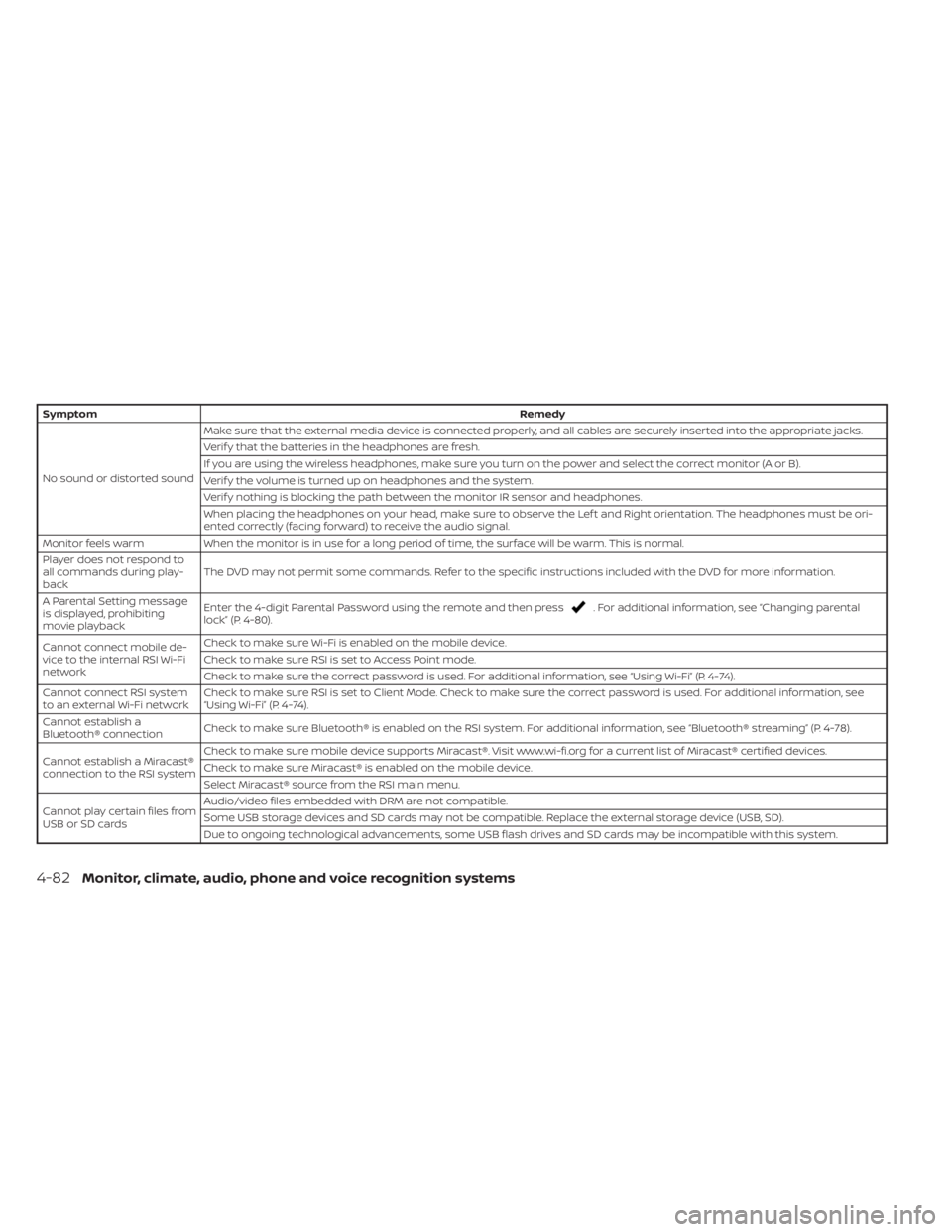
SymptomRemedy
No sound or distorted sound Make sure that the external media device is connected properly, and all cables are securely inserted into the appropriate jacks.
Verif y that the batteries in the headphones are fresh.
If you are using the wireless headphones, make sure you turn on the power and select the correct monitor (A or B).
Verif y the volume is turned up on headphones and the system.
Verif y nothing is blocking the path between the monitor IR sensor and headphones.
When placing the headphones on your head, make sure to observe the Lef t and Right orientation. The headphones must be ori-
ented correctly (facing forward) to receive the audio signal.
Monitor feels warm When the monitor is in use for a long period of time, the surface will be warm. This is normal.
Player does not respond to
all commands during play-
back The DVD may not permit some commands. Refer to the specific instructions included with the DVD for more information.
A Parental Setting message
is displayed, prohibiting
movie playback Enter the 4-digit Parental Password using the remote and then press
. For additional information, see “Changing parental
lock” (P. 4-80).
Cannot connect mobile de-
vice to the internal RSI Wi-Fi
network Check to make sure Wi-Fi is enabled on the mobile device.
Check to make sure RSI is set to Access Point mode.
Check to make sure the correct password is used. For additional information, see “Using Wi-Fi” (P. 4-74).
Cannot connect RSI system
to an external Wi-Fi network Check to make sure RSI is set to Client Mode. Check to make sure the correct password is used. For additional information, see
“Using Wi-Fi” (P. 4-74).
Cannot establish a
Bluetooth® connection Check to make sure Bluetooth® is enabled on the RSI system. For additional information, see “Bluetooth® streaming” (P. 4-78).
Cannot establish a Miracast®
connection to the RSI system Check to make sure mobile device supports Miracast®. Visit www.wi-fi.org for a current list of Miracast® certified devices.
Check to make sure Miracast® is enabled on the mobile device.
Select Miracast® source from the RSI main menu.
Cannot play certain files from
USB or SD cards Audio/video files embedded with DRM are not compatible.
Some USB storage devices and SD cards may not be compatible. Replace the external storage device (USB, SD).
Due to ongoing technological advancements, some USB flash drives and SD cards may be incompatible with this system.
4-82Monitor, climate, audio, phone and voice recognition systems
Page 328 of 638
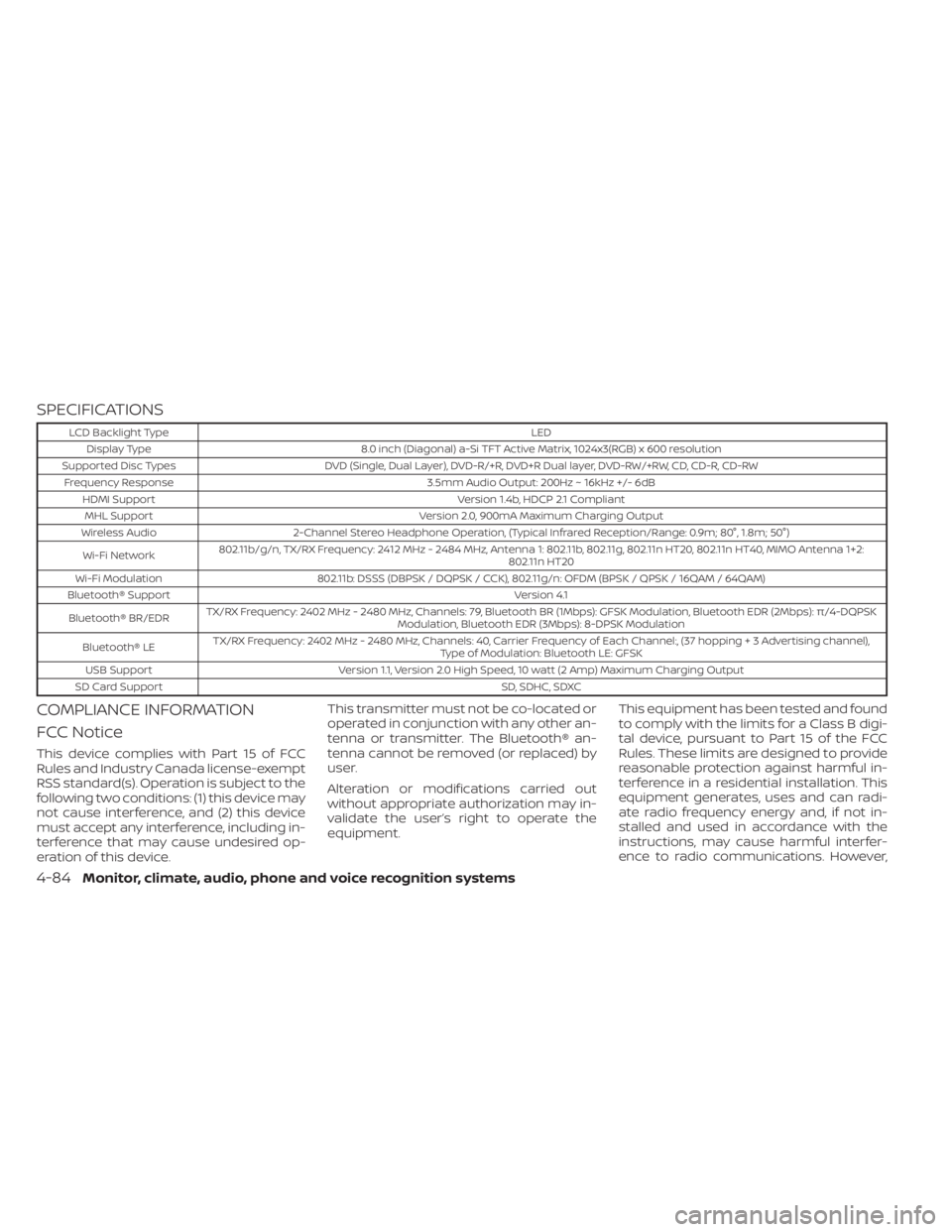
SPECIFICATIONS
LCD Backlight TypeLED
Display Type 8.0 inch (Diagonal) a-Si TFT Active Matrix, 1024x3(RGB) x 600 resolution
Supported Disc Types DVD (Single, Dual Layer), DVD-R/+R, DVD+R Dual layer, DVD-RW/+RW, CD, CD-R, CD-RW
Frequency Response 3.5mm Audio Output: 200Hz ~ 16kHz +/- 6dB
HDMI Support Version 1.4b, HDCP 2.1 Compliant
MHL Support Version 2.0, 900mA Maximum Charging Output
Wireless Audio 2-Channel Stereo Headphone Operation, (Typical Infrared Reception/Range: 0.9m; 80°, 1.8m; 50°)
Wi-Fi Network 802.11b/g/n, TX/RX Frequency: 2412 MHz - 2484 MHz, Antenna 1: 802.11b, 802.11g, 802.11n HT20, 802.11n HT40, MIMO Antenna 1+2:
802.11n HT20
Wi-Fi Modulation 802.11b: DSSS (DBPSK / DQPSK / CCK), 802.11g/n: OFDM (BPSK / QPSK / 16QAM / 64QAM)
Bluetooth® Support Version 4.1
Bluetooth® BR/EDR TX/RX Frequency: 2402 MHz - 2480 MHz, Channels: 79, Bluetooth BR (1Mbps): GFSK Modulation, Bluetooth EDR (2Mbps): π/4-DQPSK
Modulation, Bluetooth EDR (3Mbps): 8-DPSK Modulation
Bluetooth® LE TX/RX Frequency: 2402 MHz - 2480 MHz, Channels: 40, Carrier Frequency of Each Channel:, (37 hoppin
g+3Advertisingchannel),
Type of Modulation: Bluetooth LE: GFSK
USB Support Version 1.1, Version 2.0 High Speed, 10 watt (2 Amp) Maximum Charging Output
SD Card Support SD, SDHC, SDXC
COMPLIANCE INFORMATION
FCC Notice
This device complies with Part 15 of FCC
Rules and Industry Canada license-exempt
RSS standard(s). Operation is subject to the
following two conditions: (1) this device may
not cause interference, and (2) this device
must accept any interference, including in-
terference that may cause undesired op-
eration of this device.This transmitter must not be co-located or
operated in conjunction with any other an-
tenna or transmitter. The Bluetooth® an-
tenna cannot be removed (or replaced) by
user.
Alteration or modifications carried out
without appropriate authorization may in-
validate the user’s right to operate the
equipment.
This equipment has been tested and found
to comply with the limits for a Class B digi-
tal device, pursuant to Part 15 of the FCC
Rules. These limits are designed to provide
reasonable protection against harmful in-
terference in a residential installation. This
equipment generates, uses and can radi-
ate radio frequency energy and, if not in-
stalled and used in accordance with the
instructions, may cause harmful interfer-
ence to radio communications. However,
4-84Monitor, climate, audio, phone and voice recognition systems
Page 345 of 638
When the ignition switch is pushed without
depressing the brake pedal, the ignition
switch position will illuminate as follows:
Push center:
• Once to change to ACC.
• Two times to change to ON.
• Three times to return to OFF.
The ignition switch will automatically re-
turn to the LOCK position when any door is
either opened or closed with the switch in
the OFF position.
The ignition lock is designed so that the
ignition switch position cannot be placed
in the OFF position until the shif t lever is
moved to the P (Park) position.
When the ignition switch cannot be pushed
toward the OFF position, proceed as fol-
lows:
1. Move the shif t lever into the P (Park)position.
2. Push the ignition switch. The ignition switch position will change to the ON
position.
3. Push the ignition switch again to the OFF position. The shif t lever can be moved from the P
(Park) position if the ignition switch is in
the ON position and the brake pedal is
depressed.
If the battery of the vehicle is discharged,
the push-button ignition switch cannot
be moved from the LOCK position.
Some indicators and warnings for opera-
tion are displayed in the meter. For addi-
tional information, see “Vehicle information
display warnings and indicators” (P. 2-31).
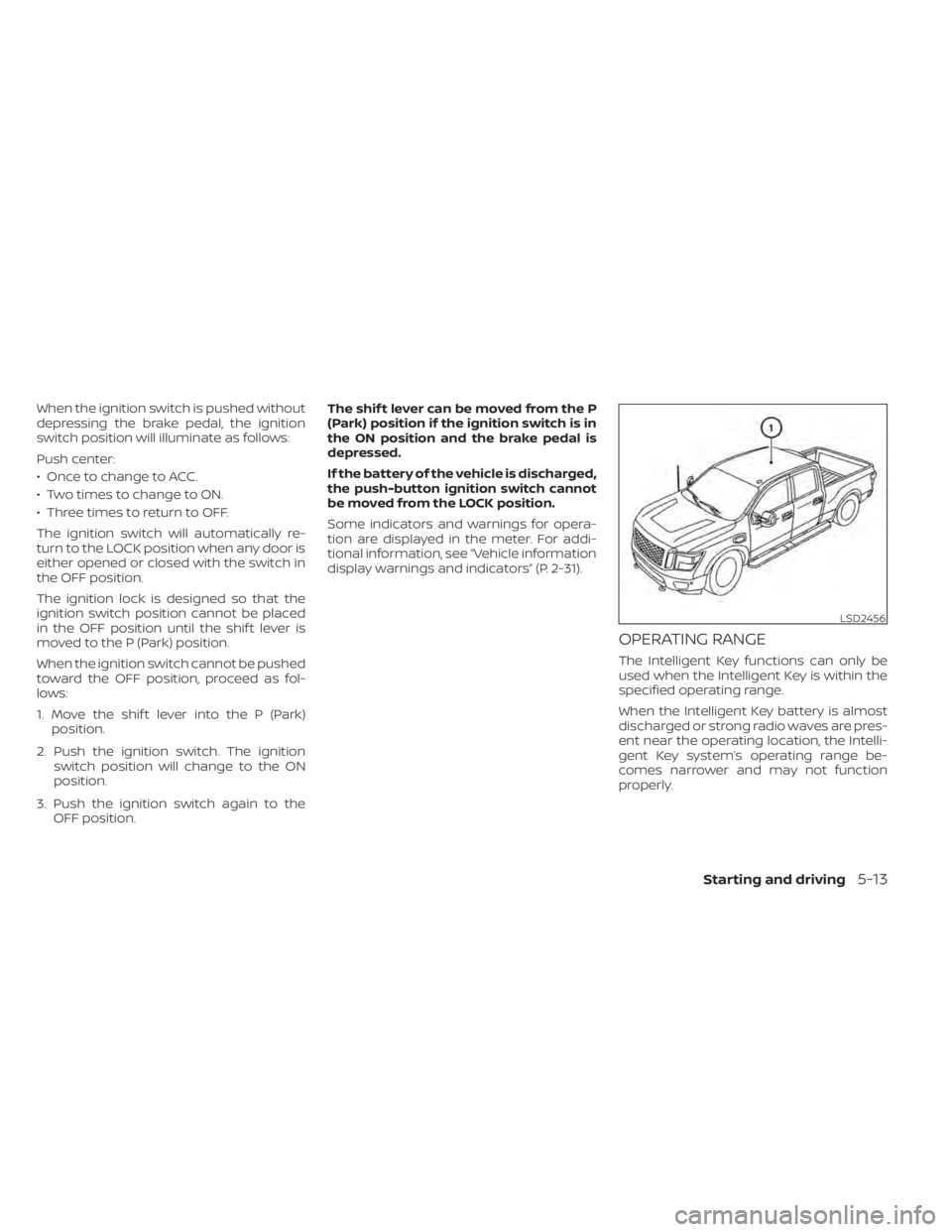
OPERATING RANGE
The Intelligent Key functions can only be
used when the Intelligent Key is within the
specified operating range.
When the Intelligent Key battery is almost
discharged or strong radio waves are pres-
ent near the operating location, the Intelli-
gent Key system’s operating range be-
comes narrower and may not function
properly.
LSD2456
Starting and driving5-13
Page 353 of 638
D (Drive)
Use this position for all normal forward
driving.
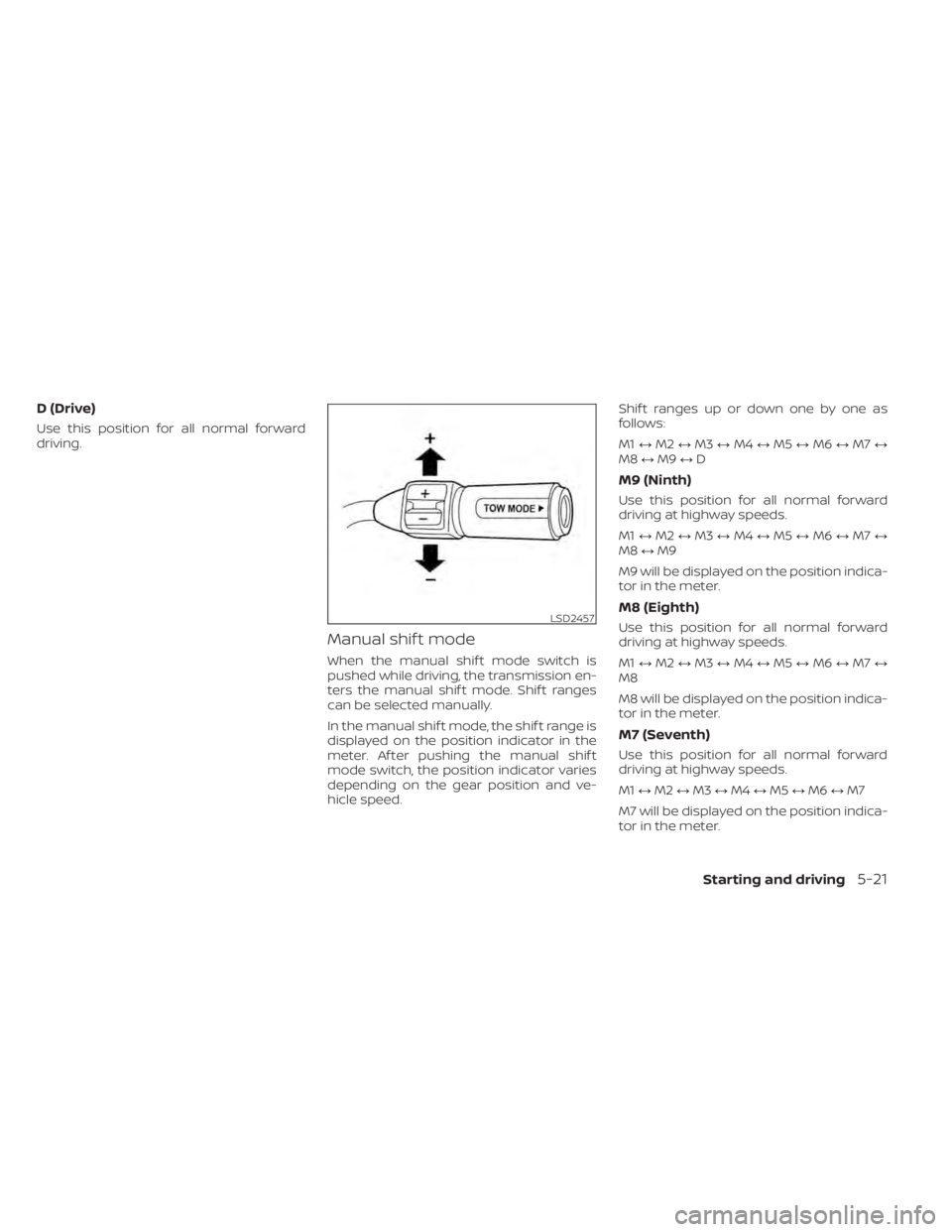
Manual shif t mode
When the manual shif t mode switch is
pushed while driving, the transmission en-
ters the manual shif t mode. Shif t ranges
can be selected manually.
In the manual shif t mode, the shif t range is
displayed on the position indicator in the
meter. Af ter pushing the manual shif t
mode switch, the position indicator varies
depending on the gear position and ve-
hicle speed.Shif t ranges up or down one by one as
follows:
M1
↔M2 ↔M3 ↔M4 ↔M5 ↔M6 ↔M7 ↔
M8 ↔M9 ↔D
M9 (Ninth)
Use this position for all normal forward
driving at highway speeds.
M1 ↔M2 ↔M3 ↔M4 ↔M5 ↔M6 ↔M7 ↔
M8 ↔M9
M9 will be displayed on the position indica-
tor in the meter.
M8 (Eighth)
Use this position for all normal forward
driving at highway speeds.
M1 ↔M2 ↔M3 ↔M4 ↔M5 ↔M6 ↔M7 ↔
M8
M8 will be displayed on the position indica-
tor in the meter.
M7 (Seventh)
Use this position for all normal forward
driving at highway speeds.
M1 ↔M2 ↔M3 ↔M4 ↔M5 ↔M6 ↔M7
M7 will be displayed on the position indica-
tor in the meter.
LSD2457
Starting and driving5-21
Page 354 of 638
M6 (Sixth)
Use this position for all normal forward
driving at highway speeds.
M1↔M2 ↔M3 ↔M4 ↔M5 ↔M6
M6 will be displayed on the position indica-
tor in the meter
M5 (Fif th)
For driving up or down long slopes where
engine braking would be advantageous.
Shif t ranges up or down one by one as
follows:
M1 ↔M2 ↔M3 ↔M4 ↔M5
M5 will be displayed on the position indica-
tor in the meter.
M4 (Fourth)
Use for hill climbing or engine braking on
downhill grades.
Shif t ranges up or down one by one as
follows:
M1 ↔M2 ↔M3 ↔M4
M4 will be displayed on the position indica-
tor in the meter.
M3 (Third)
Use for hill climbing or engine braking on
downhill grades.
Shif t ranges up or down one by one as
follows:
M1 ↔M2 ↔M3
M3 will be displayed on the position indica-
tor in the meter.
M2 (Second)
Use for hill climbing or engine braking on
downhill grades.
Shif t ranges up or down one by one as
follows:
M1 ↔M2
M2 will be displayed on the position indica-
tor in the meter.
M1 (First)
Use this position when climbing steep hills
slowly or driving slowly through deep snow,
sand or mud, or for maximum engine brak-
ing on steep downhill grades.
M1 will be displayed on the position indica-
tor on the meter. • Remember not to drive at high speeds for
extended periods of time in lower than
M4 range. This reduces fuel economy.
When shif ting up
Push the shif t switch to the + (up) side.
(Shif ts to higher range.)
When shif ting down
Push the shif t switch to the − (down) side.
(Shif ts to lower range.)
• The transmission will automatically downshif t the gears. (For example, if you
select the 3rd range, the transmission will
shif t down between the 3rd and 1st
gears.)
• Pushing the shif t switch rapidly will shif t the ranges in succession.
When canceling the manual shif t mode
Press and hold the +(UP) button to return
the transmission to the normal driving
mode.
5-22Starting and driving
Page 356 of 638
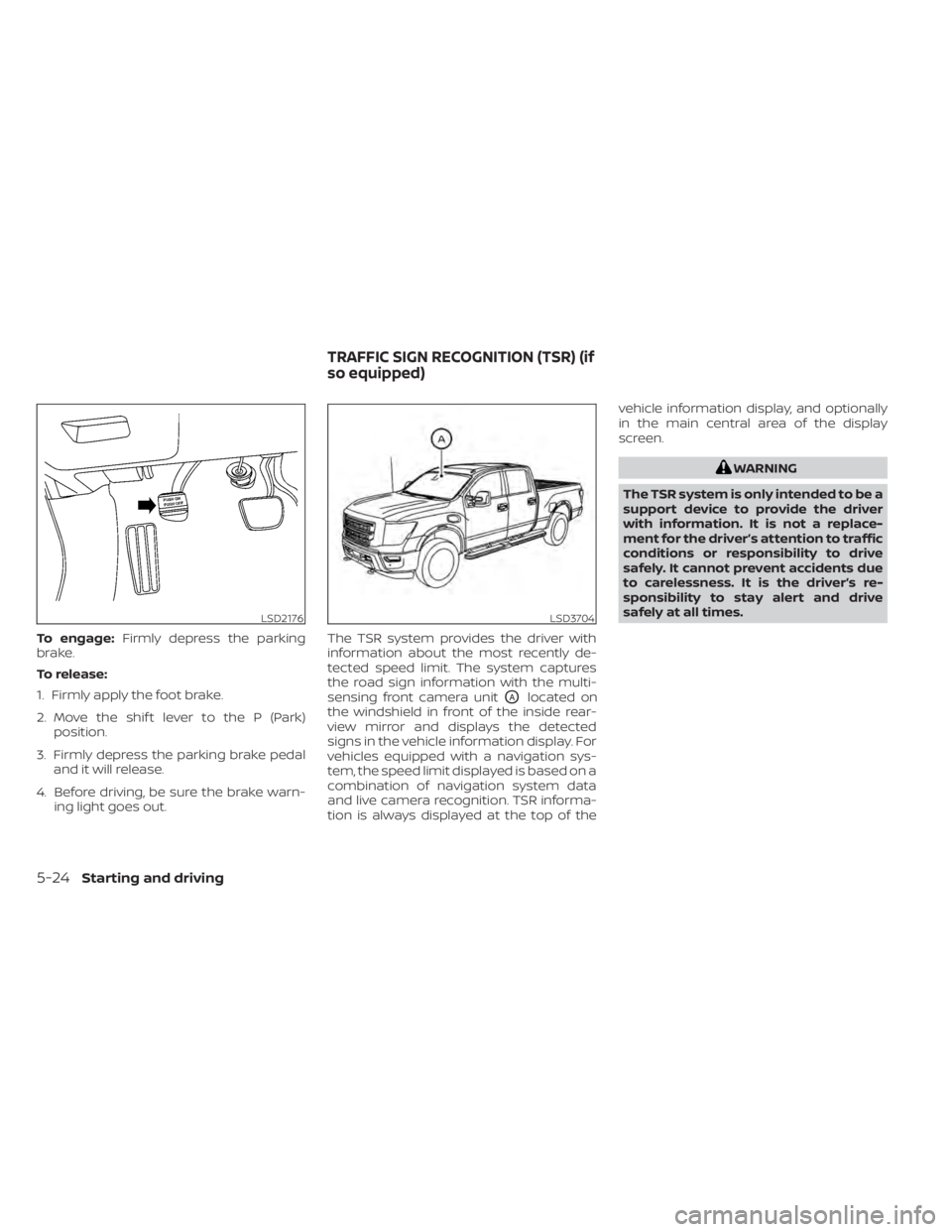
To engage:Firmly depress the parking
brake.
To release:
1. Firmly apply the foot brake.
2. Move the shif t lever to the P (Park) position.
3. Firmly depress the parking brake pedal and it will release.
4. Before driving, be sure the brake warn- ing light goes out. The TSR system provides the driver with
information about the most recently de-
tected speed limit. The system captures
the road sign information with the multi-
sensing front camera unit
OAlocated on
the windshield in front of the inside rear-
view mirror and displays the detected
signs in the vehicle information display. For
vehicles equipped with a navigation sys-
tem, the speed limit displayed is based on a
combination of navigation system data
and live camera recognition. TSR informa-
tion is always displayed at the top of the vehicle information display, and optionally
in the main central area of the display
screen.
WARNING
The TSR system is only intended to be a
support device to provide the driver
with information. It is not a replace-
ment for the driver’s attention to traffic
conditions or responsibility to drive
safely. It cannot prevent accidents due
to carelessness. It is the driver’s re-
sponsibility to stay alert and drive
safely at all times.
LSD2176LSD3704
TRAFFIC SIGN RECOGNITION (TSR) (if
so equipped)
5-24Starting and driving
Page 357 of 638
SYSTEM OPERATION
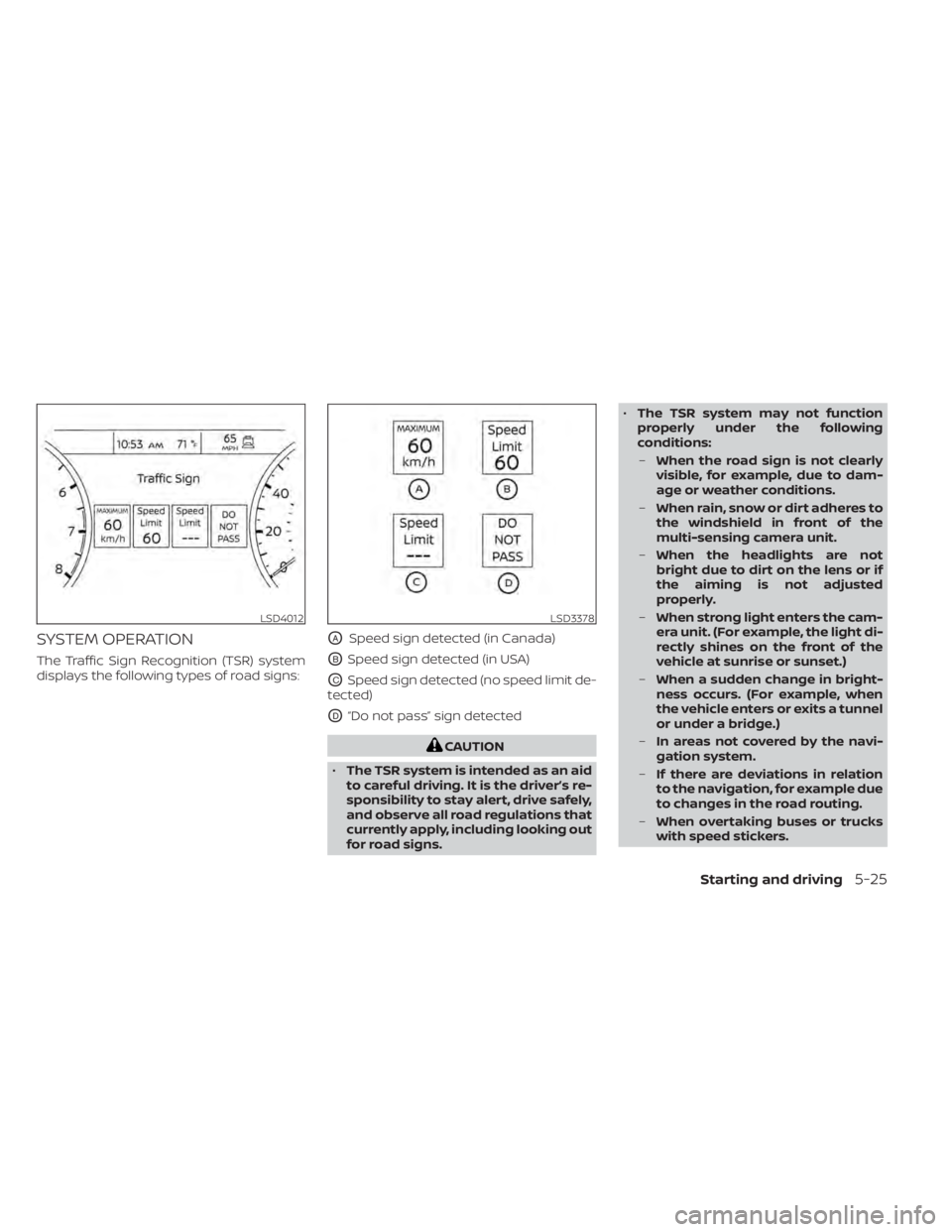
The Traffic Sign Recognition (TSR) system
displays the following types of road signs:
OASpeed sign detected (in Canada)
OBSpeed sign detected (in USA)
OCSpeed sign detected (no speed limit de-
tected)
OD“Do not pass” sign detected
CAUTION
• The TSR system is intended as an aid
to careful driving. It is the driver’s re-
sponsibility to stay alert, drive safely,
and observe all road regulations that
currently apply, including looking out
for road signs. •
The TSR system may not function
properly under the following
conditions:
– When the road sign is not clearly
visible, for example, due to dam-
age or weather conditions.
– When rain, snow or dirt adheres to
the windshield in front of the
multi-sensing camera unit.
– When the headlights are not
bright due to dirt on the lens or if
the aiming is not adjusted
properly.
– When strong light enters the cam-
era unit. (For example, the light di-
rectly shines on the front of the
vehicle at sunrise or sunset.)
– When a sudden change in bright-
ness occurs. (For example, when
the vehicle enters or exits a tunnel
or under a bridge.)
– In areas not covered by the navi-
gation system.
– If there are deviations in relation
to the navigation, for example due
to changes in the road routing.
– When overtaking buses or trucks
with speed stickers.
LSD4012LSD3378
Starting and driving5-25
Page 358 of 638

TURNING THE TRAFFIC SIGN
RECOGNITION (TSR) SYSTEM ON
AND OFF
Perform the following steps to enable or
disable the TSR system.
1. Press the
button until “Settings” dis-
plays in the vehicle information display.
Use the
button to select “Driver As-
sistance.” Then press the ENTER button.
2. Select “Traffic Sign” and press the ENTER button to turn the system on or off.
SYSTEM TEMPORARILY
UNAVAILABLE
If the vehicle is parked in direct sunlight
under high temperature conditions (over
approximately 104°F [40°C]) and then
started, the TSR system may be deacti-
vated automatically. The “Not Available
High Camera Temp” warning message will
appear in the vehicle information display.
Action to take:
When the interior temperature is reduced,
the TSR system will resume operating au-
tomatically.
SYSTEM MALFUNCTION
If the TSR system malfunctions, it will be
turned off automatically and the system
“Malfunction” warning message will appear
in the vehicle information display.
Action to take:
If the TSR “Malfunction” message appears,
pull of the road at a safe location and stop
the vehicle. Turn the engine off and restart
the engine. If the TSR “Malfunction” mes-
sage continues to appear, have the system
checked. It is recommended that you visit a
NISSAN dealer for this service.
SYSTEM MAINTENANCE
The TSR system uses the same multi-
sensing front camera unit that is used by
the Lane Departure Warning (LDW) system,
located in front of the interior rearview mir-
ror. For additional information, see ”System
maintenance” (P. 5-31).
LSD4011
5-26Starting and driving
Page 361 of 638
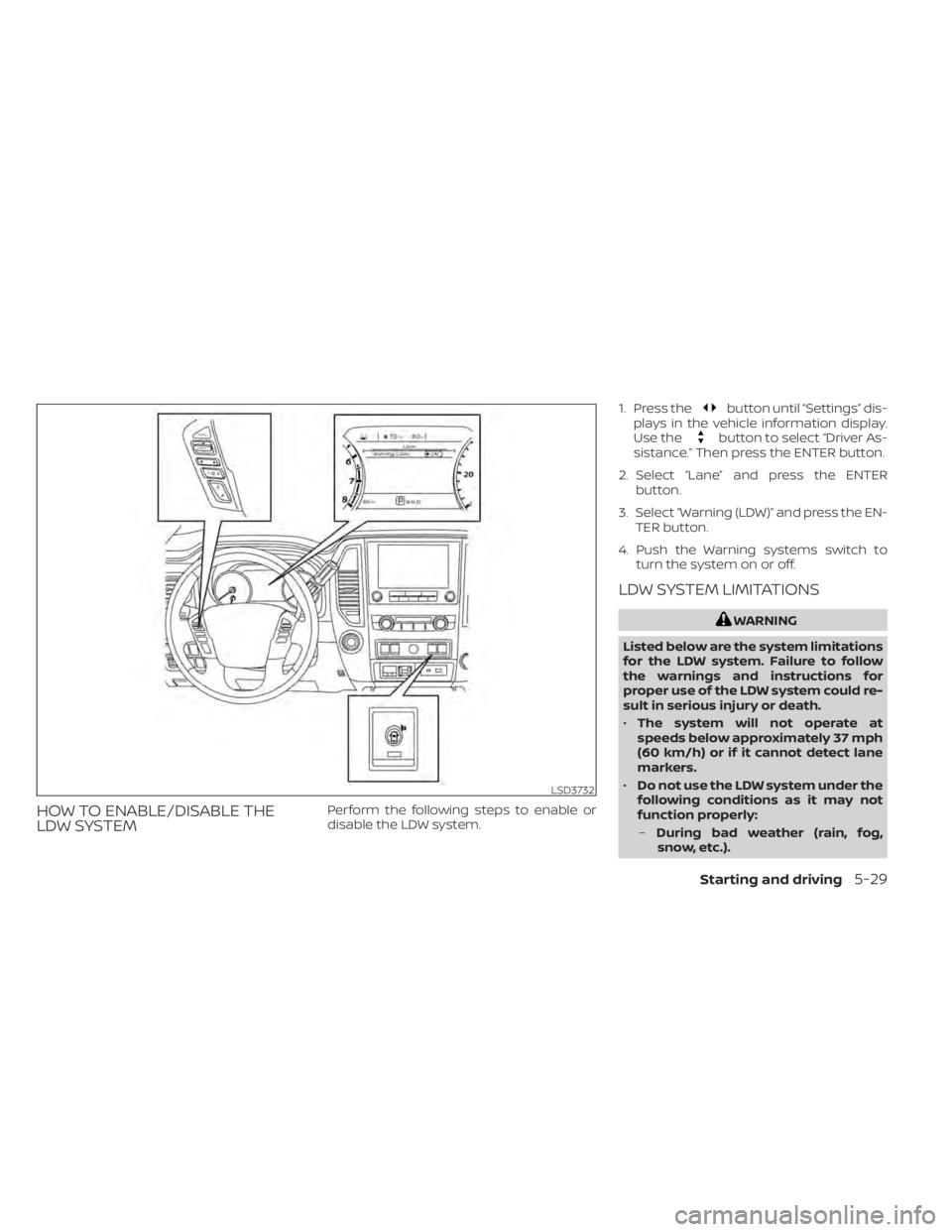
HOW TO ENABLE/DISABLE THE
LDW SYSTEMPerform the following steps to enable or
disable the LDW system.1. Press the
button until “Settings” dis-
plays in the vehicle information display.
Use the
button to select “Driver As-
sistance.” Then press the ENTER button.
2. Select “Lane” and press the ENTER button.
3. Select “Warning (LDW)” and press the EN- TER button.
4. Push the Warning systems switch to turn the system on or off.
LDW SYSTEM LIMITATIONS
WARNING
Listed below are the system limitations
for the LDW system. Failure to follow
the warnings and instructions for
proper use of the LDW system could re-
sult in serious injury or death.
• The system will not operate at
speeds below approximately 37 mph
(60 km/h) or if it cannot detect lane
markers.
• Do not use the LDW system under the
following conditions as it may not
function properly:
– During bad weather (rain, fog,
snow, etc.).
LSD3732
Starting and driving5-29
Page 362 of 638
–When driving on slippery roads,
such as on ice or snow.
– When driving on winding or un-
even roads.
– When there is a lane closure due to
road repairs.
– When driving in a makeshif t or
temporary lane.
– When driving on roads where the
lane width is too narrow.
– When driving without normal tire
conditions (for example, tire wear,
low tire pressure, installation of
spare tire, tire chains, nonstan-
dard wheels).
– When the vehicle is equipped with
non-original brake parts or sus-
pension parts.
– When you are towing a trailer or
other vehicle.
• The system may not function prop-
erly under the following conditions:
– On roads where there are multiple
parallel lane markers; lane mark-
ers that are faded or not painted
clearly; yellow painted lane mark-
ers; non-standard lane markers;
or lane markers covered with wa-
ter, dirt, snow, etc. –
On roads where the discontinued
lane markers are still detectable.
– On roads where there are sharp
curves.
– On roads where there are sharply
contrasting objects, such as shad-
ows, snow, water, wheel ruts,
seams or lines remaining af ter
road repairs. (The LDW system
could detect these items as lane
markers.)
– On roads where the traveling lane
merges or separates.
– When the vehicle’s traveling direc-
tion does not align with the lane
marker.
– When traveling close to the ve-
hicle in front of you, which ob-
structs the lane camera unit de-
tection range.
– When rain, snow, dirt or an object
adheres to the windshield in front
of the lane camera unit.
– When the headlights are not
bright due to dirt on the lens or
if the aiming is not adjusted
properly. –
When strong light enters the lane
camera unit. (For example, the
light directly shines on the front of
the vehicle at sunrise or sunset.)
– When a sudden change in bright-
ness occurs. (For example, when
the vehicle enters or exits a tunnel
or under a bridge.)
SYSTEM TEMPORARILY
UNAVAILABLE
If the vehicle is parked in direct sunlight
under high temperature conditions (over
approximately 104°F [40°C]) and then
started, the LDW system may be deacti-
vated automatically and the following
message will appear in the vehicle infor-
mation display: “Not Available High Camera
Temp.”
When the interior temperature is reduced,
the LDW system will resume operating au-
tomatically.
5-30Starting and driving