CD player NISSAN TITAN 2021 Owner´s Manual
[x] Cancel search | Manufacturer: NISSAN, Model Year: 2021, Model line: TITAN, Model: NISSAN TITAN 2021Pages: 638, PDF Size: 4.31 MB
Page 245 of 638

Remote control operation...................4-51
Remote control buttons .....................4-52
Wireless headphone operation ..............4-53
General operation ........................... 4-54
DVD operation .............................. 4-55
DVD playback controls ......................4-57
CD operation ................................ 4-59
CD playback controls ........................ 4-60
HDMI/MHL connection ......................4-61
USB/SD card operation ......................4-62
Slingplayer® ................................. 4-68Miracast®
................................... 4-70
Using the mobile application on your
mobile device ............................... 4-71
SmartStream ............................... 4-71
Settings ..................................... 4-73
Troubleshooting ............................ 4-81
Specifications ............................... 4-84
Compliance information ....................4-84
Car phone or CB radio .......................... 4-88
iPod®/iPhone® ................................. 4-88
Page 288 of 638
•Be sure to run the vehicle engine
while using the system. Using this
system without running the engine
can result in battery drain. To avoid
the risk of battery drain, please re-
member to turn off the system when
the vehicle is not in use.
WELCOME
Thank you for purchasing this advanced
Rear Seat Infotainment (RSI) system with
built-in Wi-Fi and DVD player. Before oper-
ating this system, read this section thor-
oughly and retain it for future reference.
System features
• Twin 8-inch Color TFT-LCD Panels with 1024x600 Resolution
• Top-load DVD Player (Driver Side Only)
• Internal Wi-Fi Network
• Bluetooth® 4.1 Audio Streaming
• Miracast®/Smart View Capability
• SmartStream Content Sharing
• USB 2.0 Port, SDXC Card Input
• HDMI 1.4 Input with MHL 2.0 Support
• Exclusive Slingplayer® Application
• 3.5mm Stereo Headphone Output
• Front Panel Capacitive Touch Controls • Infrared Wireless Headphones
• Full-Function Slimline Remote Control
• Monitor Screen SharingGETTING STARTED
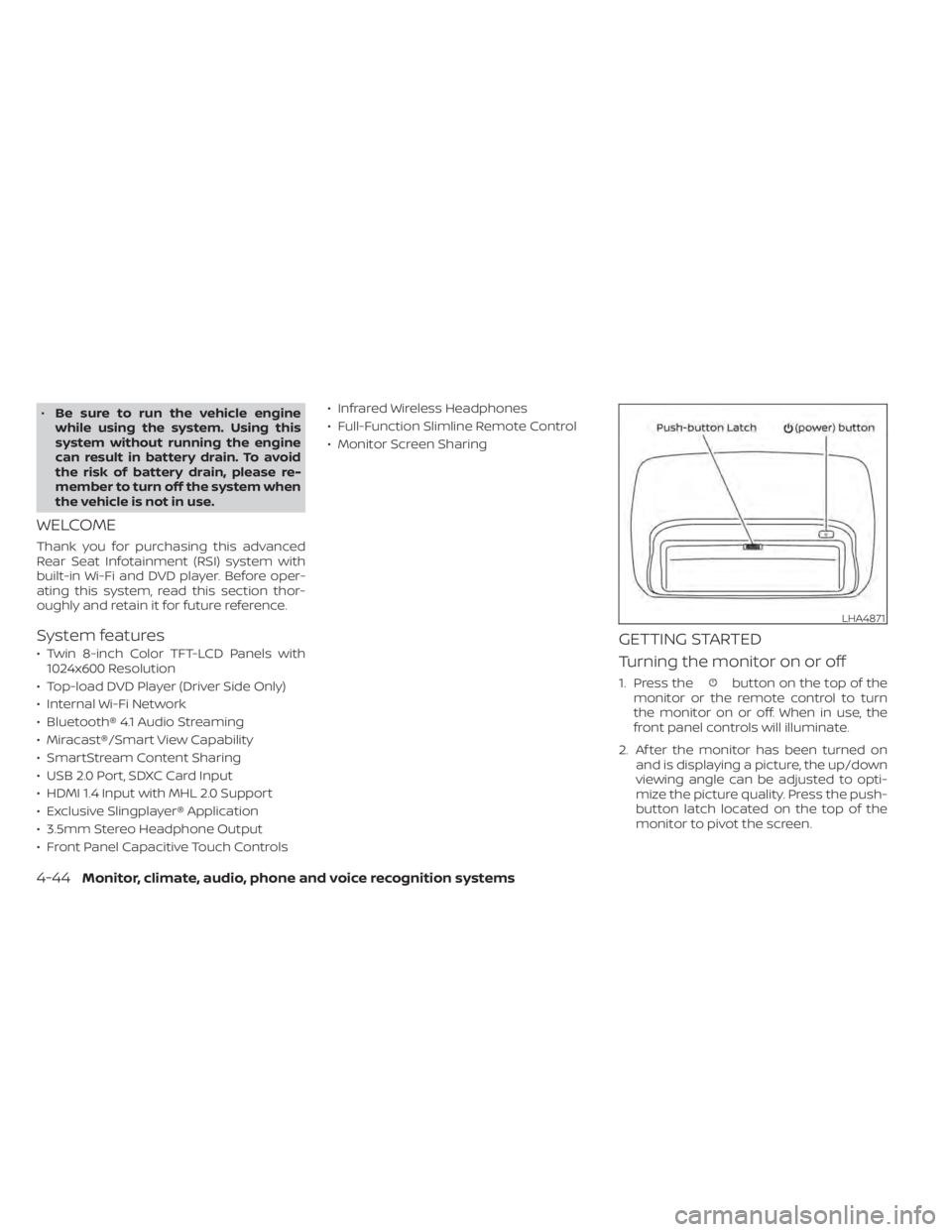
Turning the monitor on or off
1. Press thebutton on the top of the
monitor or the remote control to turn
the monitor on or off. When in use, the
front panel controls will illuminate.
2. Af ter the monitor has been turned on and is displaying a picture, the up/down
viewing angle can be adjusted to opti-
mize the picture quality. Press the push-
button latch located on the top of the
monitor to pivot the screen.
LHA4871
4-44Monitor, climate, audio, phone and voice recognition systems
Page 290 of 638
Notes on discs
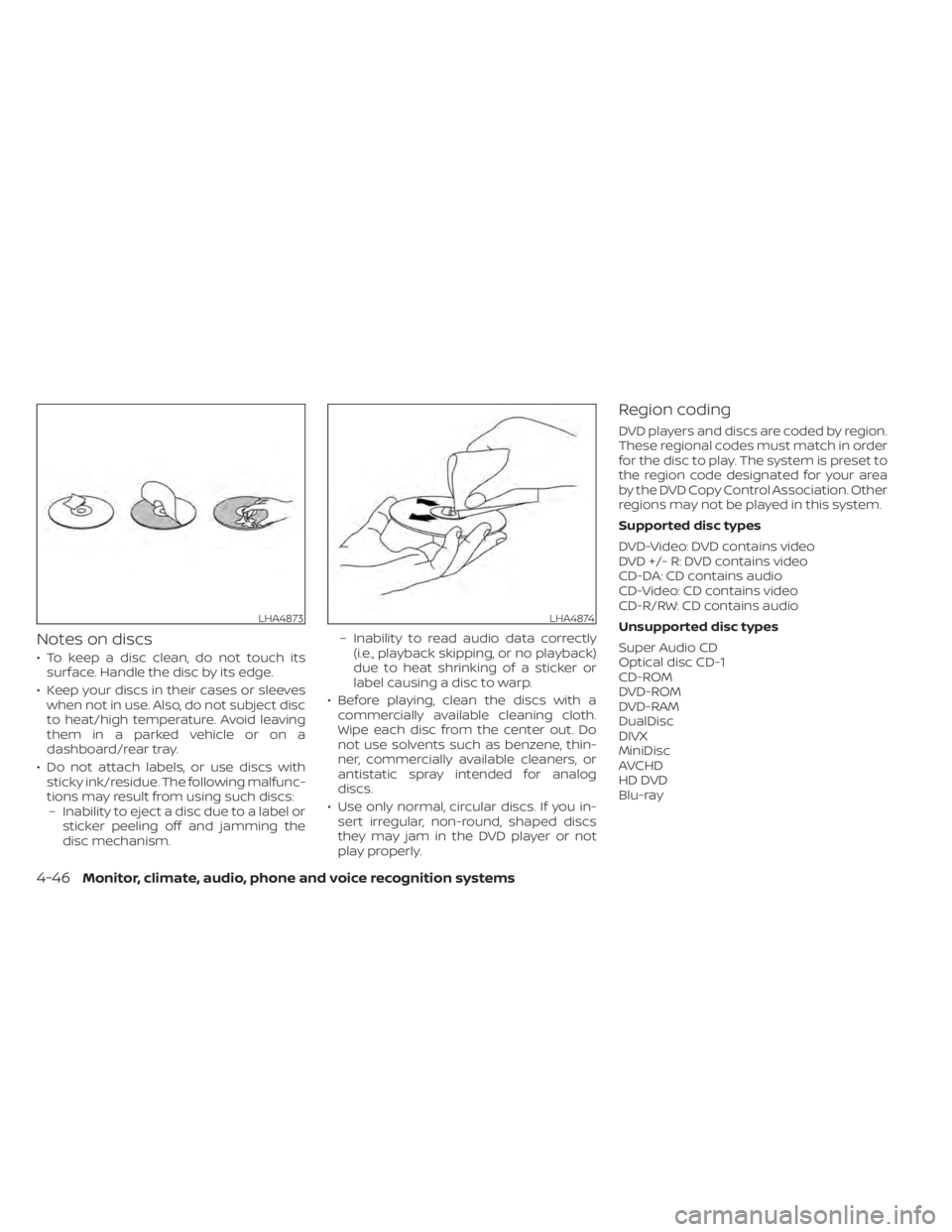
• To keep a disc clean, do not touch itssurface. Handle the disc by its edge.
• Keep your discs in their cases or sleeves when not in use. Also, do not subject disc
to heat/high temperature. Avoid leaving
them in a parked vehicle or on a
dashboard/rear tray.
• Do not attach labels, or use discs with sticky ink/residue. The following malfunc-
tions may result from using such discs:– Inability to eject a disc due to a label or sticker peeling off and jamming the
disc mechanism. – Inability to read audio data correctly
(i.e., playback skipping, or no playback)
due to heat shrinking of a sticker or
label causing a disc to warp.
• Before playing, clean the discs with a commercially available cleaning cloth.
Wipe each disc from the center out. Do
not use solvents such as benzene, thin-
ner, commercially available cleaners, or
antistatic spray intended for analog
discs.
• Use only normal, circular discs. If you in- sert irregular, non-round, shaped discs
they may jam in the DVD player or not
play properly.
Region coding
DVD players and discs are coded by region.
These regional codes must match in order
for the disc to play. The system is preset to
the region code designated for your area
by the DVD Copy Control Association. Other
regions may not be played in this system.
Supported disc types
DVD-Video: DVD contains video
DVD +/- R: DVD contains video
CD-DA: CD contains audio
CD-Video: CD contains video
CD-R/RW: CD contains audio
Unsupported disc types
Super Audio CD
Optical disc CD-1
CD-ROM
DVD-ROM
DVD-RAM
DualDisc
DIVX
MiniDisc
AVCHD
HD DVD
Blu-ray
LHA4873LHA4874
4-46Monitor, climate, audio, phone and voice recognition systems
Page 291 of 638
Loading and playing discs
Press the
(power) button to turn the
monitor on. Insert the disc about half way
into the disc compartment slot on the driv-
er’s side monitor, with the disc’s label facing
the rear of the vehicle. Do NOT insert the
disc at an angle. The disc must be inserted
straight into the player.
The disc will load automatically and begin
to play. Some discs may start at the root
menu, where playback must be selected to
start a movie. Depending on the disc and
playback location on the disc, a “
”icon
may be displayed in the upper-lef t corner
of the screen indicating that playback is
not possible during certain times.
DVD playback will automatically play on
each monitor if there is no content already
playing. You may also select “DVD” from the
source menu to begin DVD playback mode.
Media compatibility
For a list of compatible media formats for
this system, see “Storage device format-
ting” (P. 4-47).
• The metadata or file information of some audio and video files may not be correctly
displayed.
• It is not possible to play content that is protected by DRM (Digital Rights Manage-
ment).
• There may be a delay before playback begins when using USB flash drives or SD
cards with complex folder hierarchies or
many files.
• Some audio, video, and image files may be incompatible with this system due to
file characteristics, file format, recording
sof tware used, directory structure,
and/or the type of audio/video encoding
used.
Storage device formatting
This system is compatible with several
types of formatting for USB flash drives and
SD cards. Refer to the documentation that
comes with your storage device for more
details on how to format.
FAT32 - USB and SDHC
Good for smaller capacity storage devices,
but individual files on the drive must be
<4GB. This format is good for music and
images.
EX-FAT - USB and SDXC
Better choice for larger capacity storage
devices with files that are >4GB. This format
is better for larger files such as full-length
movies.
NTFS - USB and SDXC
Best choice for very large capacity storage
devices - with no limitations on file size. This
format can be used for all file sizes.
Monitor, climate, audio, phone and voice recognition systems4-47
Page 299 of 638
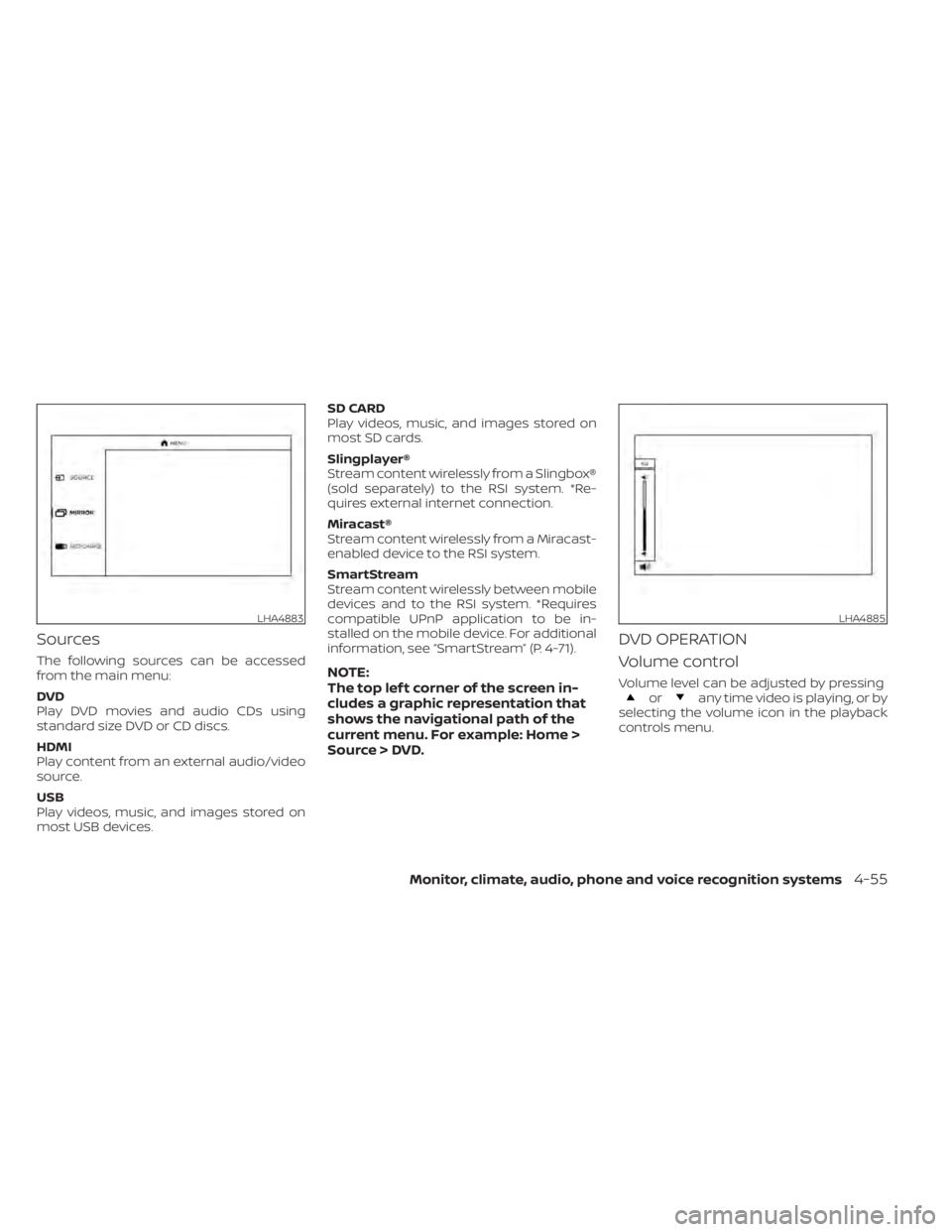
Sources
The following sources can be accessed
from the main menu:
DVD
Play DVD movies and audio CDs using
standard size DVD or CD discs.
HDMI
Play content from an external audio/video
source.
USB
Play videos, music, and images stored on
most USB devices.SD CARD
Play videos, music, and images stored on
most SD cards.
Slingplayer®
Stream content wirelessly from a Slingbox®
(sold separately) to the RSI system. *Re-
quires external internet connection.
Miracast®
Stream content wirelessly from a Miracast-
enabled device to the RSI system.
SmartStream
Stream content wirelessly between mobile
devices and to the RSI system. *Requires
compatible UPnP application to be in-
stalled on the mobile device. For additional
information, see “SmartStream” (P. 4-71).NOTE:
The top lef t corner of the screen in-
cludes a graphic representation that
shows the navigational path of the
current menu. For example: Home >
Source > DVD.
DVD OPERATION
Volume control
Volume level can be adjusted by pressingorany time video is playing, or by
selecting the volume icon in the playback
controls menu.
LHA4883LHA4885
Monitor, climate, audio, phone and voice recognition systems4-55
Page 312 of 638
Sorting lets you arrange the photos by file-
name or date.
Page View allows the user to view photos in
Fullscreen, Grid, Overview, or Slideshow.
Set As Background sets the selected photo
as the home screen background.
Search prompts the user to input a file-
name or date to find a photo.
SLINGPLAYER®About Slingplayer®
A Slingbox® (sold separately) connects to
your home network and sits between your
cable or set-top box and your TV. When
accessed remotely, your Slingbox® slings
your content to the RSI system. To use
Slingplayer®, an external internet connec-
tion is required. For additional information,
see “Using Wi-Fi” (P. 4-74) to enable Client
Mode in the Wi-Fi Settings and allow the
system to connect to a Wi-Fi hotspot.
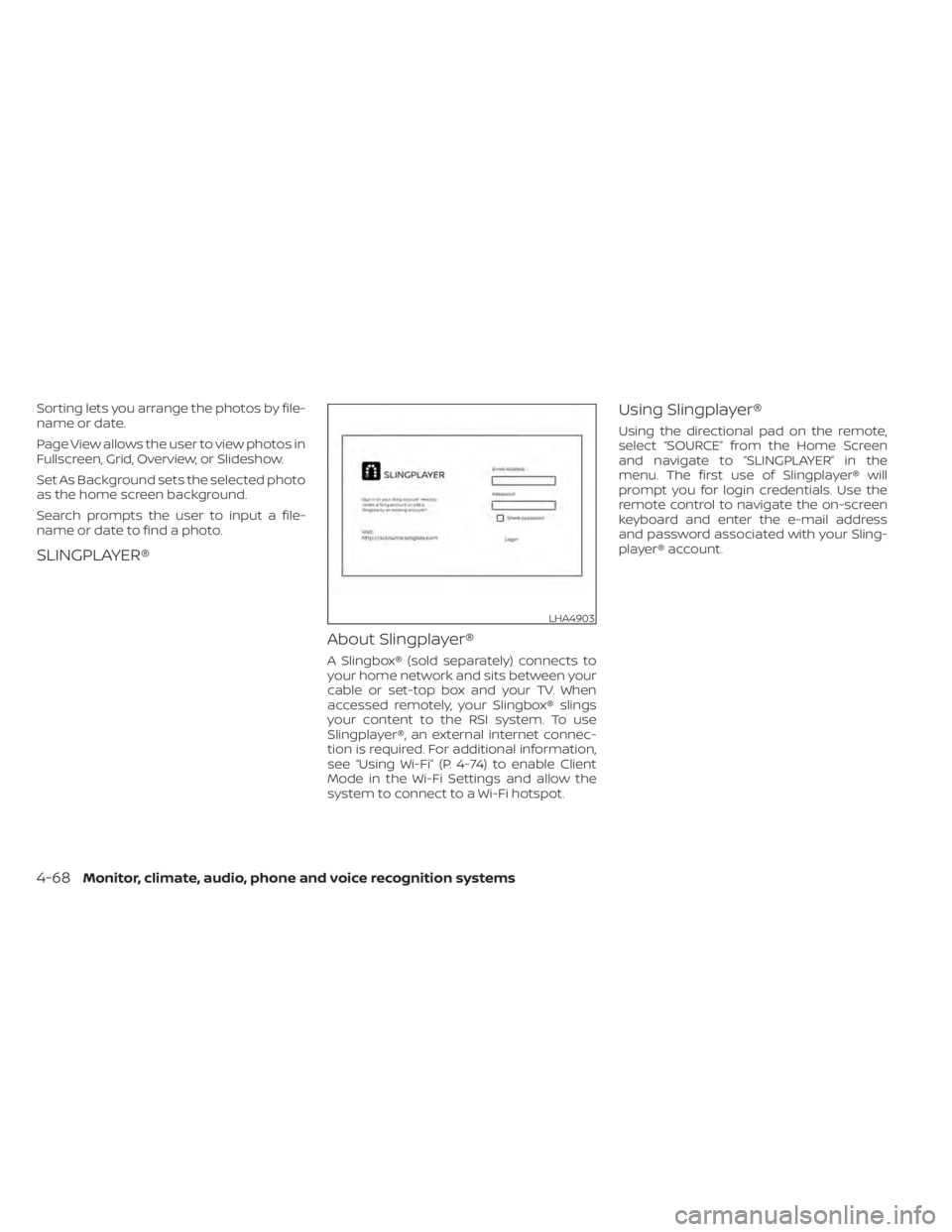
Using Slingplayer®
Using the directional pad on the remote,
select “SOURCE” from the Home Screen
and navigate to “SLINGPLAYER” in the
menu. The first use of Slingplayer® will
prompt you for login credentials. Use the
remote control to navigate the on-screen
keyboard and enter the e-mail address
and password associated with your Sling-
player® account.
LHA4903
4-68Monitor, climate, audio, phone and voice recognition systems
Page 313 of 638
Slingplayer® options
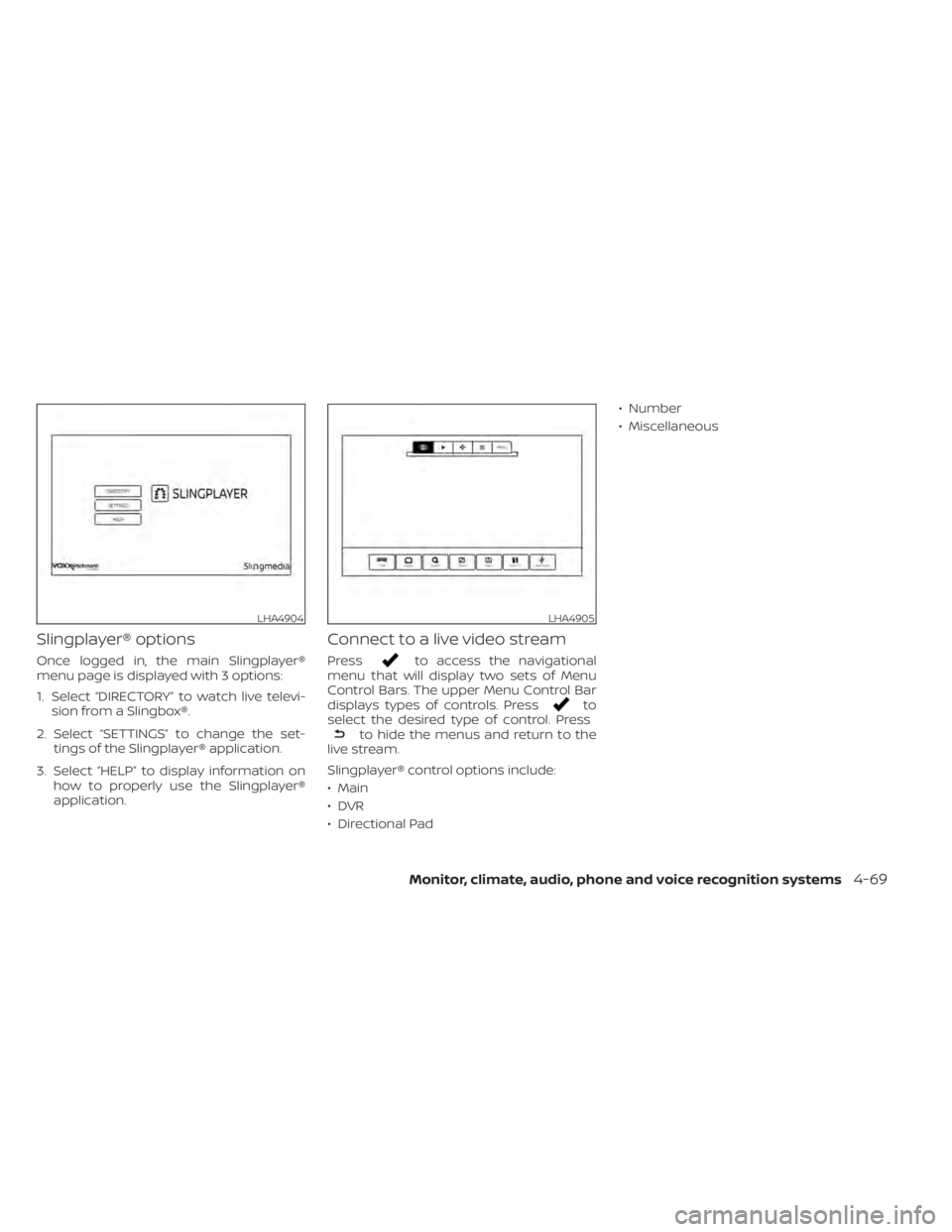
Once logged in, the main Slingplayer®
menu page is displayed with 3 options:
1. Select “DIRECTORY” to watch live televi-sion from a Slingbox®.
2. Select “SETTINGS” to change the set- tings of the Slingplayer® application.
3. Select “HELP” to display information on how to properly use the Slingplayer®
application.
Connect to a live video stream
Pressto access the navigational
menu that will display two sets of Menu
Control Bars. The upper Menu Control Bar
displays types of controls. Press
to
select the desired type of control. Press
to hide the menus and return to the
live stream.
Slingplayer® control options include:
• Main
•DVR
• Directional Pad • Number
• Miscellaneous
LHA4904LHA4905
Monitor, climate, audio, phone and voice recognition systems4-69
Page 314 of 638
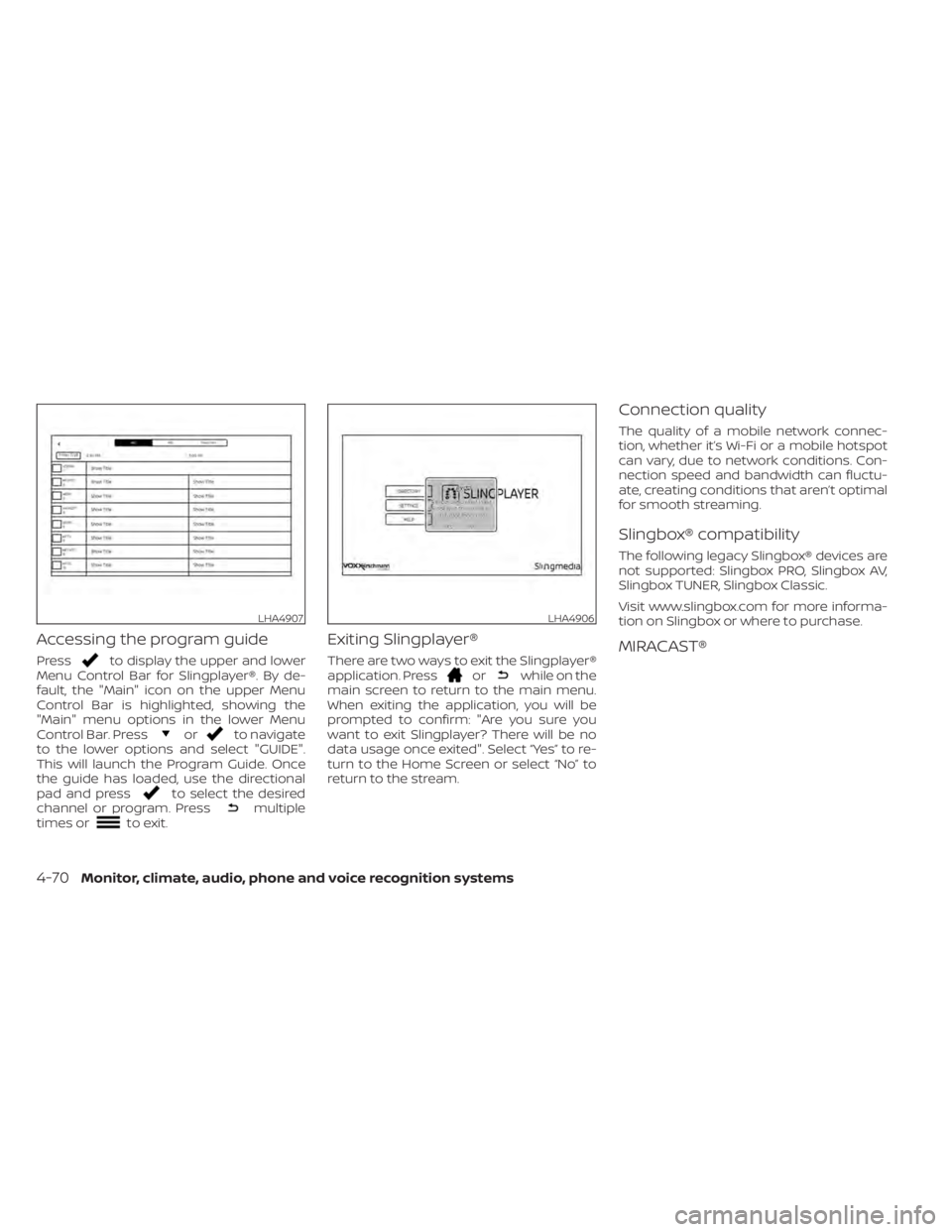
Accessing the program guide
Pressto display the upper and lower
Menu Control Bar for Slingplayer®. By de-
fault, the "Main" icon on the upper Menu
Control Bar is highlighted, showing the
"Main" menu options in the lower Menu
Control Bar. Press
orto navigate
to the lower options and select "GUIDE".
This will launch the Program Guide. Once
the guide has loaded, use the directional
pad and press
to select the desired
channel or program. Pressmultiple
times orto exit.
Exiting Slingplayer®
There are two ways to exit the Slingplayer®
application. Pressorwhile on the
main screen to return to the main menu.
When exiting the application, you will be
prompted to confirm: "Are you sure you
want to exit Slingplayer? There will be no
data usage once exited". Select “Yes” to re-
turn to the Home Screen or select “No” to
return to the stream.
Connection quality
The quality of a mobile network connec-
tion, whether it’s Wi-Fi or a mobile hotspot
can vary, due to network conditions. Con-
nection speed and bandwidth can fluctu-
ate, creating conditions that aren’t optimal
for smooth streaming.
Slingbox® compatibility
The following legacy Slingbox® devices are
not supported: Slingbox PRO, Slingbox AV,
Slingbox TUNER, Slingbox Classic.
Visit www.slingbox.com for more informa-
tion on Slingbox or where to purchase.
MIRACAST®
LHA4907LHA4906
4-70Monitor, climate, audio, phone and voice recognition systems
Page 326 of 638
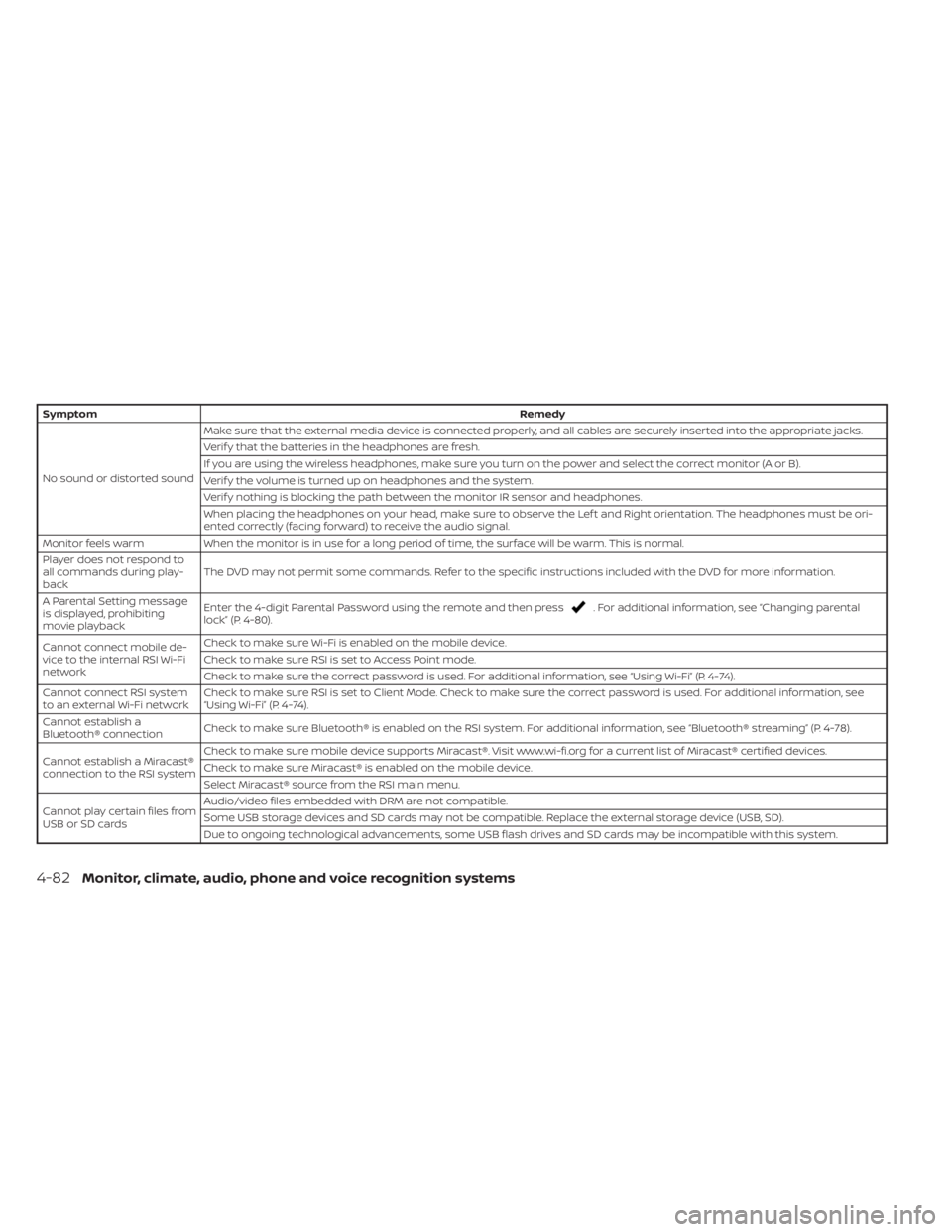
SymptomRemedy
No sound or distorted sound Make sure that the external media device is connected properly, and all cables are securely inserted into the appropriate jacks.
Verif y that the batteries in the headphones are fresh.
If you are using the wireless headphones, make sure you turn on the power and select the correct monitor (A or B).
Verif y the volume is turned up on headphones and the system.
Verif y nothing is blocking the path between the monitor IR sensor and headphones.
When placing the headphones on your head, make sure to observe the Lef t and Right orientation. The headphones must be ori-
ented correctly (facing forward) to receive the audio signal.
Monitor feels warm When the monitor is in use for a long period of time, the surface will be warm. This is normal.
Player does not respond to
all commands during play-
back The DVD may not permit some commands. Refer to the specific instructions included with the DVD for more information.
A Parental Setting message
is displayed, prohibiting
movie playback Enter the 4-digit Parental Password using the remote and then press
. For additional information, see “Changing parental
lock” (P. 4-80).
Cannot connect mobile de-
vice to the internal RSI Wi-Fi
network Check to make sure Wi-Fi is enabled on the mobile device.
Check to make sure RSI is set to Access Point mode.
Check to make sure the correct password is used. For additional information, see “Using Wi-Fi” (P. 4-74).
Cannot connect RSI system
to an external Wi-Fi network Check to make sure RSI is set to Client Mode. Check to make sure the correct password is used. For additional information, see
“Using Wi-Fi” (P. 4-74).
Cannot establish a
Bluetooth® connection Check to make sure Bluetooth® is enabled on the RSI system. For additional information, see “Bluetooth® streaming” (P. 4-78).
Cannot establish a Miracast®
connection to the RSI system Check to make sure mobile device supports Miracast®. Visit www.wi-fi.org for a current list of Miracast® certified devices.
Check to make sure Miracast® is enabled on the mobile device.
Select Miracast® source from the RSI main menu.
Cannot play certain files from
USB or SD cards Audio/video files embedded with DRM are not compatible.
Some USB storage devices and SD cards may not be compatible. Replace the external storage device (USB, SD).
Due to ongoing technological advancements, some USB flash drives and SD cards may be incompatible with this system.
4-82Monitor, climate, audio, phone and voice recognition systems
Page 349 of 638
cranking the engine, release the accel-
erator pedal. Crank the engine with
your foot off the accelerator pedal by
depressing the brake pedal and push-
ing the ignition switch to start the en-
gine. If the engine starts, but fails to
run, repeat the above procedure.
CAUTION
Do not operate the starter for more
than 15 seconds at a time. If the engine
does not start, push the ignition switch
to the OFF position and wait 10 seconds
before cranking again, otherwise the
starter could be damaged.
4. Warm-up
Allow the engine to idle for at least 30
seconds af ter starting. Do not race the
engine while warming it up. Drive at a
moderate speed for a short distance
first, especially in cold weather. In cold
weather, keep the engine running for a
minimum of 2 to 3 minutes before shut-
ting it off. Starting and stopping the en-
gine over a short period of time may
make the vehicle more difficult to start. 5. To stop the engine, move the shif t lever
to the P (Park) position and push the
ignition switch to the OFF position.
In preparation for the next engine start, the
engine may have a slightly delayed shutoff
af ter placing the ignition switch in the OFF
position, depending on the driving condi-
tions.NOTE:
Care should be taken to avoid situa-
tions that can lead to potential bat-
tery discharge and potential no-start
conditions such as:
1. Installation or extended use of elec- tronic accessories that consume bat-
tery power when the engine is not
running (phone chargers, GPS, DVD
players, etc.).
2. The vehicle is not driven regularly and/or only driven short distances.
In these cases, the battery may need to
be charged to maintain battery health.
REMOTE ENGINE START (if so
equipped)
Vehicles started with the Remote Engine
Start require the ignition switch to be
placed in the ON position before the shif t
lever can be moved from the P (Park) posi-
tion. To place the ignition switch in the ON
position, follow these steps:
1. Make sure that the Intelligent Key is on you.
2. Apply the brake.
3. Push the ignition switch once to the ON position.
For additional information, see “NISSAN In-
telligent Key®” (P. 3-2).
Starting and driving5-17