display NISSAN TITAN 2023 Owners Manual
[x] Cancel search | Manufacturer: NISSAN, Model Year: 2023, Model line: TITAN, Model: NISSAN TITAN 2023Pages: 644, PDF Size: 7.8 MB
Page 318 of 644
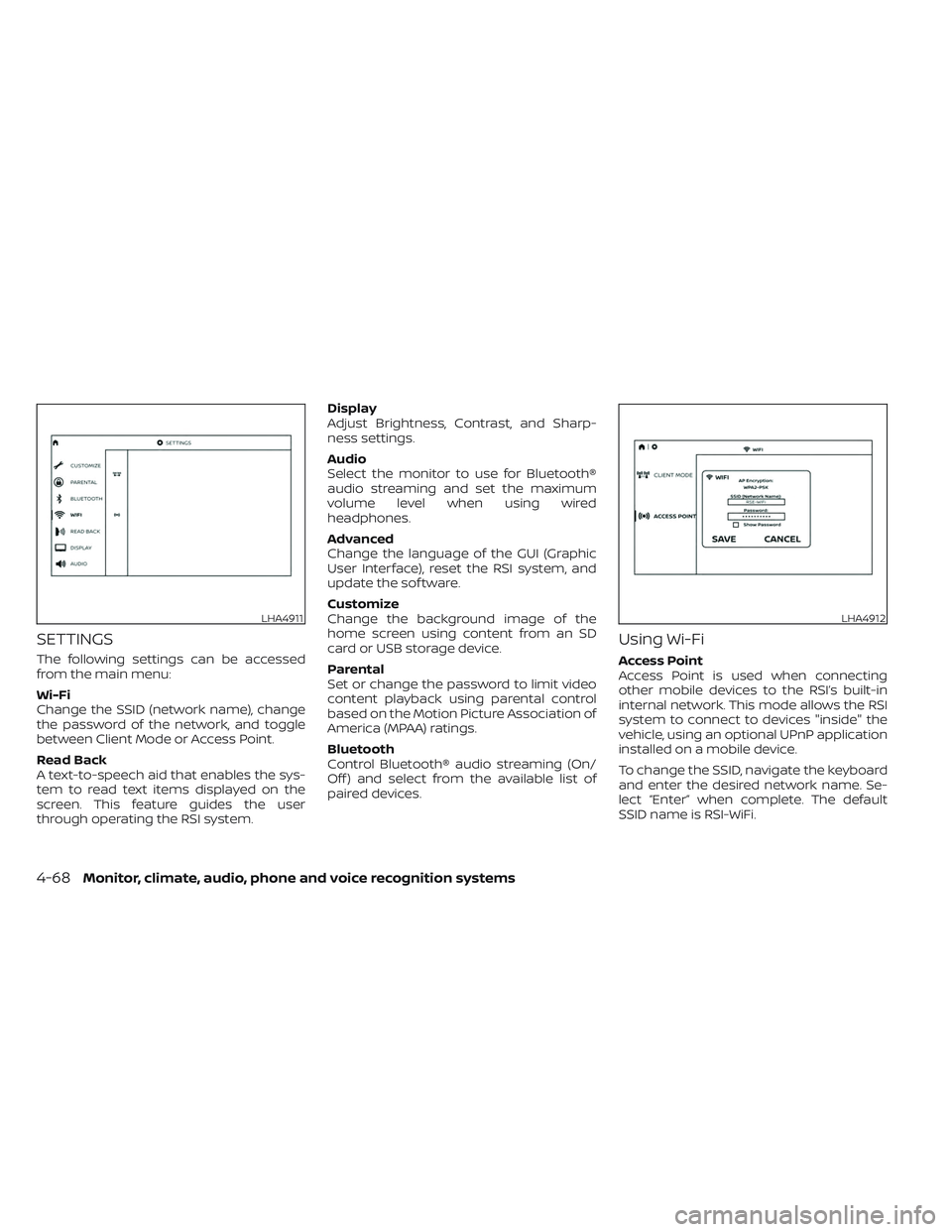
SETTINGS
The following settings can be accessed
from the main menu:
Wi-Fi
Change the SSID (network name), change
the password of the network, and toggle
between Client Mode or Access Point.
Read Back
A text-to-speech aid that enables the sys-
tem to read text items displayed on the
screen. This feature guides the user
through operating the RSI system.Display
Adjust Brightness, Contrast, and Sharp-
ness settings.
Audio
Select the monitor to use for Bluetooth®
audio streaming and set the maximum
volume level when using wired
headphones.
Advanced
Change the language of the GUI (Graphic
User Interface), reset the RSI system, and
update the sof tware.
Customize
Change the background image of the
home screen using content from an SD
card or USB storage device.
Parental
Set or change the password to limit video
content playback using parental control
based on the Motion Picture Association of
America (MPAA) ratings.
Bluetooth
Control Bluetooth® audio streaming (On/
Off ) and select from the available list of
paired devices.
Using Wi-Fi
Access Point
Access Point is used when connecting
other mobile devices to the RSI’s built-in
internal network. This mode allows the RSI
system to connect to devices "inside" the
vehicle, using an optional UPnP application
installed on a mobile device.
To change the SSID, navigate the keyboard
and enter the desired network name. Se-
lect “Enter” when complete. The default
SSID name is RSI-WiFi.
LHA4911LHA4912
4-68Monitor, climate, audio, phone and voice recognition systems
Page 319 of 644
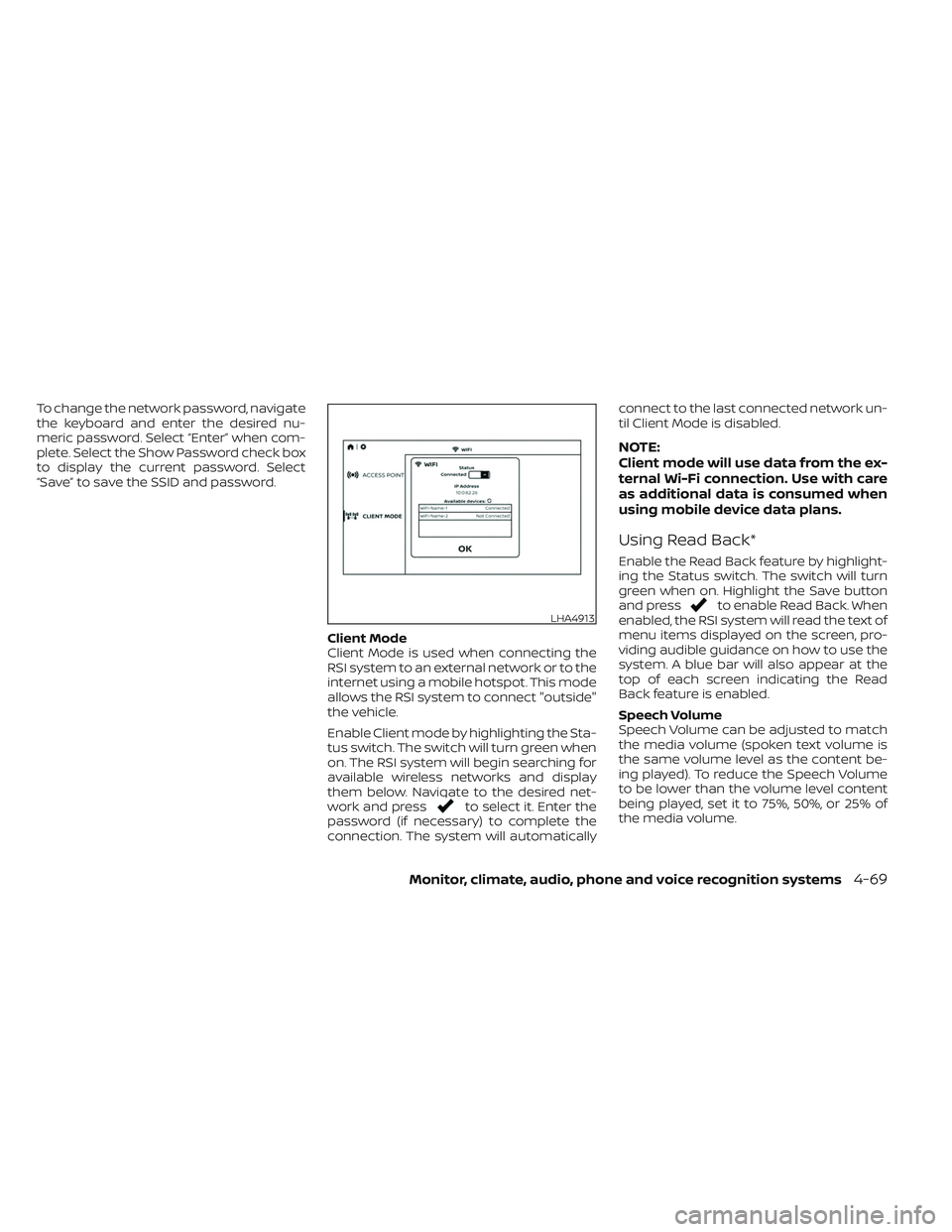
To change the network password, navigate
the keyboard and enter the desired nu-
meric password. Select “Enter” when com-
plete. Select the Show Password check box
to display the current password. Select
“Save” to save the SSID and password.Client Mode
Client Mode is used when connecting the
RSI system to an external network or to the
internet using a mobile hotspot. This mode
allows the RSI system to connect "outside"
the vehicle.
Enable Client mode by highlighting the Sta-
tus switch. The switch will turn green when
on. The RSI system will begin searching for
available wireless networks and display
them below. Navigate to the desired net-
work and press
to select it. Enter the
password (if necessary) to complete the
connection. The system will automatically connect to the last connected network un-
til Client Mode is disabled.
NOTE:
Client mode will use data from the ex-
ternal Wi-Fi connection. Use with care
as additional data is consumed when
using mobile device data plans.
Using Read Back*
Enable the Read Back feature by highlight-
ing the Status switch. The switch will turn
green when on. Highlight the Save button
and press
to enable Read Back. When
enabled, the RSI system will read the text of
menu items displayed on the screen, pro-
viding audible guidance on how to use the
system. A blue bar will also appear at the
top of each screen indicating the Read
Back feature is enabled.
Speech Volume
Speech Volume can be adjusted to match
the media volume (spoken text volume is
the same volume level as the content be-
ing played). To reduce the Speech Volume
to be lower than the volume level content
being played, set it to 75%, 50%, or 25% of
the media volume.LHA4913
Monitor, climate, audio, phone and voice recognition systems4-69
Page 320 of 644
Speech Rate
Speech Rate can be adjusted between
Normal, Fast, or Slow. This setting controls
how fast the spoken text is pronounced.
*Complies with FCC/Accessibility rule 21st
Century Communications and Video Ac-
cessibility Act (CVAA).
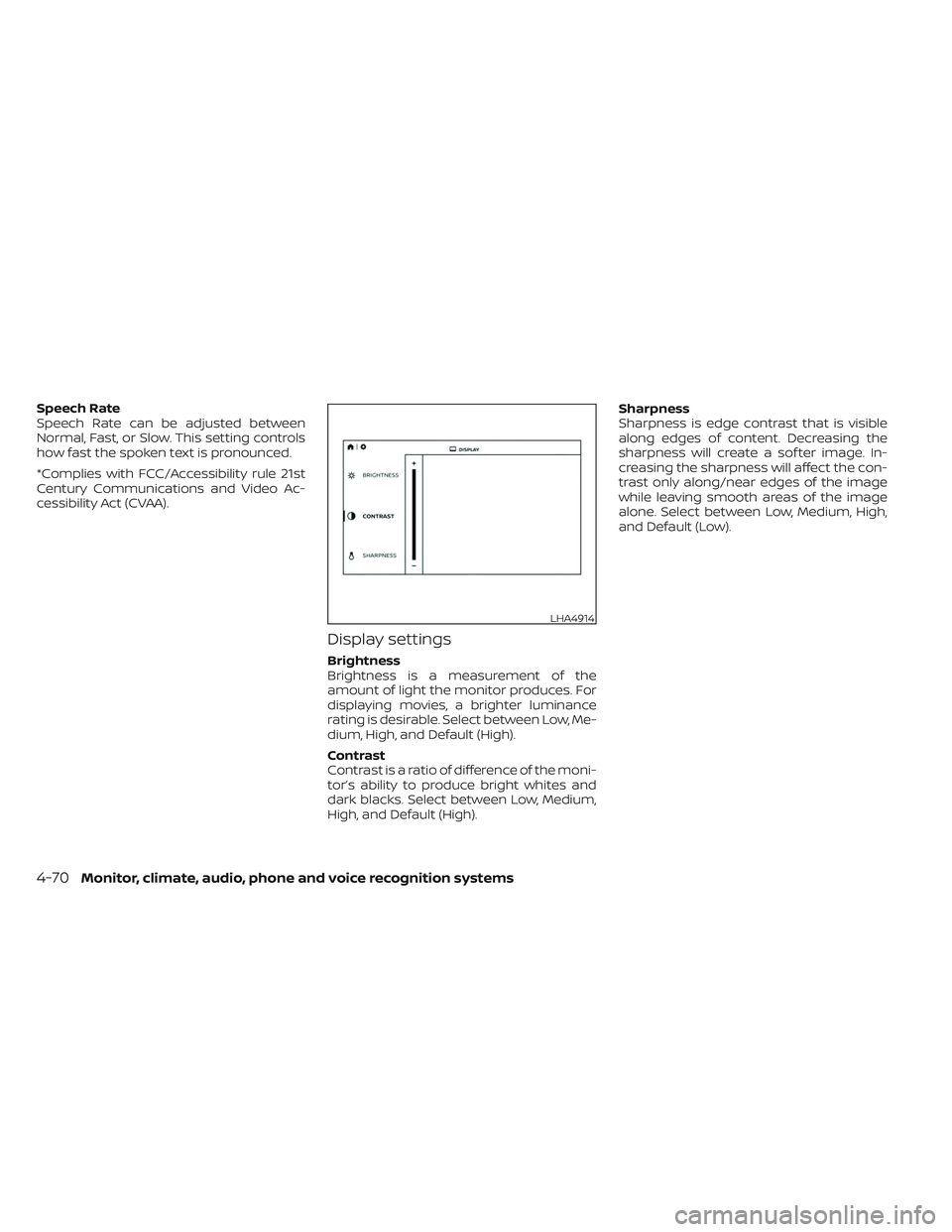
Display settings
Brightness
Brightness is a measurement of the
amount of light the monitor produces. For
displaying movies, a brighter luminance
rating is desirable. Select between Low, Me-
dium, High, and Default (High).
Contrast
Contrast is a ratio of difference of the moni-
tor’s ability to produce bright whites and
dark blacks. Select between Low, Medium,
High, and Default (High).Sharpness
Sharpness is edge contrast that is visible
along edges of content. Decreasing the
sharpness will create a sof ter image. In-
creasing the sharpness will affect the con-
trast only along/near edges of the image
while leaving smooth areas of the image
alone. Select between Low, Medium, High,
and Default (Low).
LHA4914
4-70Monitor, climate, audio, phone and voice recognition systems
Page 322 of 644
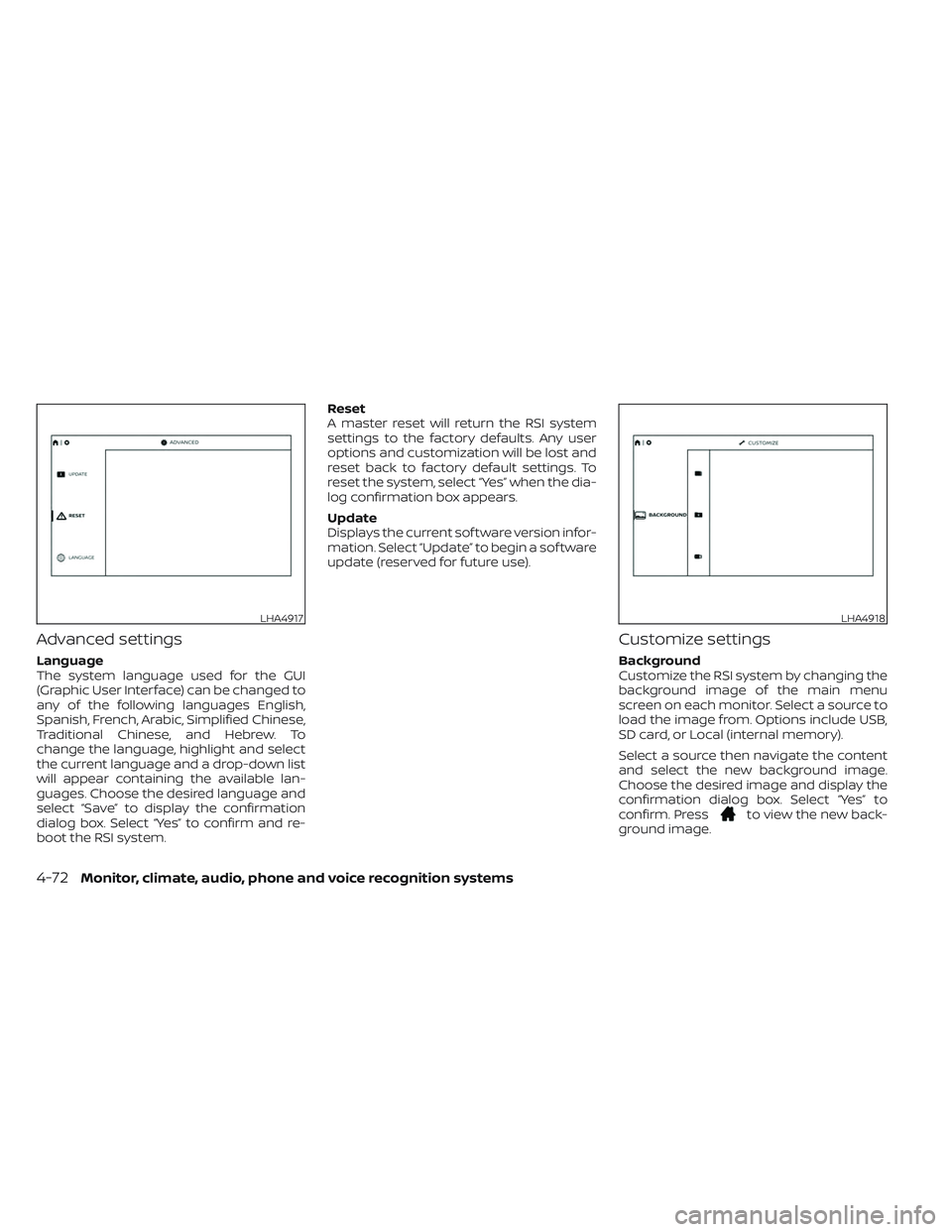
Advanced settings
Language
The system language used for the GUI
(Graphic User Interface) can be changed to
any of the following languages English,
Spanish, French, Arabic, Simplified Chinese,
Traditional Chinese, and Hebrew. To
change the language, highlight and select
the current language and a drop-down list
will appear containing the available lan-
guages. Choose the desired language and
select “Save” to display the confirmation
dialog box. Select “Yes” to confirm and re-
boot the RSI system.Reset
A master reset will return the RSI system
settings to the factory defaults. Any user
options and customization will be lost and
reset back to factory default settings. To
reset the system, select “Yes” when the dia-
log confirmation box appears.
Update
Displays the current sof tware version infor-
mation. Select “Update” to begin a sof tware
update (reserved for future use).
Customize settings
Background
Customize the RSI system by changing the
background image of the main menu
screen on each monitor. Select a source to
load the image from. Options include USB,
SD card, or Local (internal memory).
Select a source then navigate the content
and select the new background image.
Choose the desired image and display the
confirmation dialog box. Select “Yes” to
confirm. Press
to view the new back-
ground image.
LHA4917LHA4918
4-72Monitor, climate, audio, phone and voice recognition systems
Page 323 of 644
NOTE:
• Each monitor can have its own back-ground image.
• The Local source stores the 10 most re- cent background images.
• To restore the default background im- age, perform a factory reset. For addi-
tional information, see “Advanced set-
tings” (P. 4-72).
Bluetooth® streaming
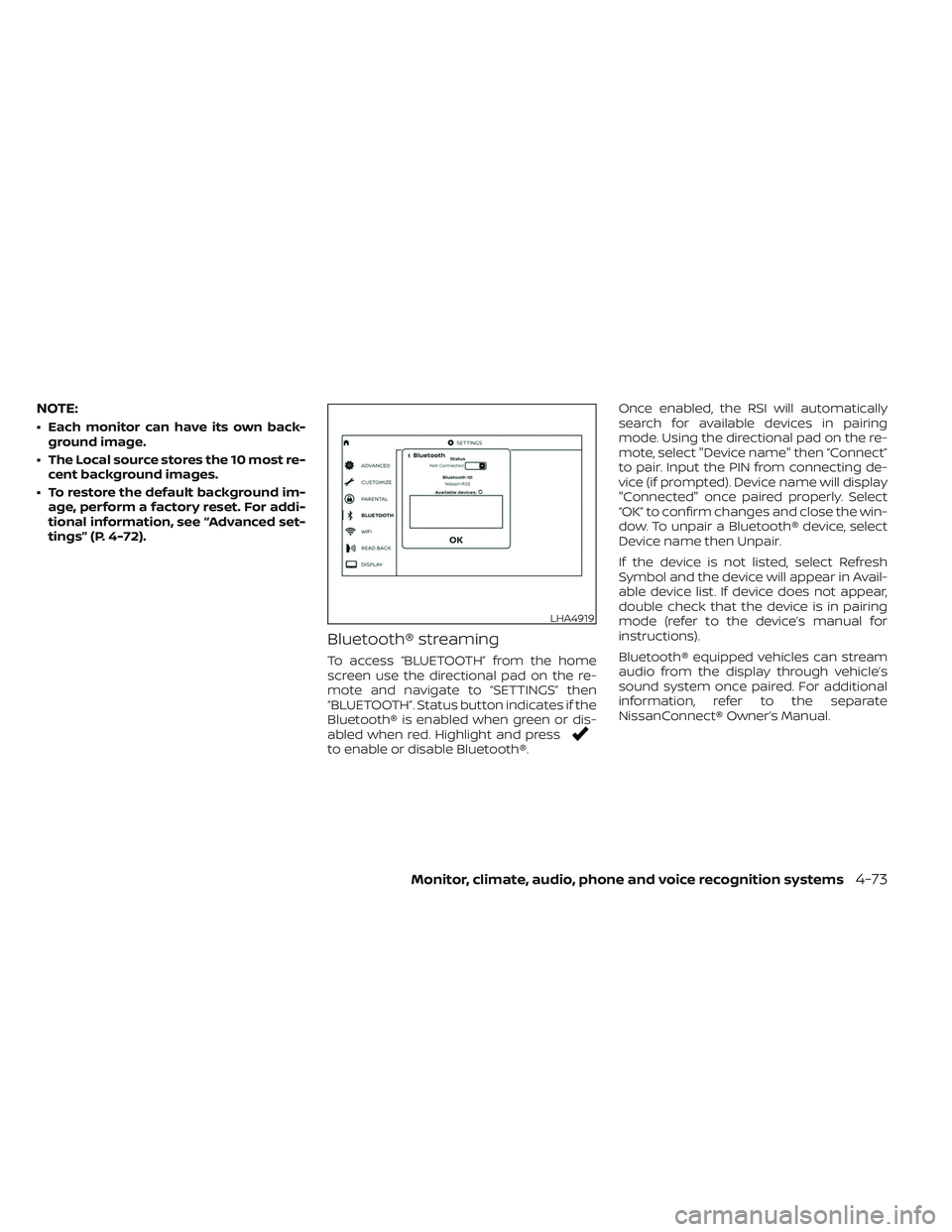
To access “BLUETOOTH” from the home
screen use the directional pad on the re-
mote and navigate to “SETTINGS” then
“BLUETOOTH”. Status button indicates if the
Bluetooth® is enabled when green or dis-
abled when red. Highlight and press
to enable or disable Bluetooth®. Once enabled, the RSI will automatically
search for available devices in pairing
mode. Using the directional pad on the re-
mote, select "Device name" then “Connect”
to pair. Input the PIN from connecting de-
vice (if prompted). Device name will display
"Connected" once paired properly. Select
“OK” to confirm changes and close the win-
dow. To unpair a Bluetooth® device, select
Device name then Unpair.
If the device is not listed, select Refresh
Symbol and the device will appear in Avail-
able device list. If device does not appear,
double check that the device is in pairing
mode (refer to the device’s manual for
instructions).
Bluetooth® equipped vehicles can stream
audio from the display through vehicle’s
sound system once paired. For additional
information, refer to the separate
NissanConnect® Owner’s Manual.
LHA4919
Monitor, climate, audio, phone and voice recognition systems4-73
Page 326 of 644
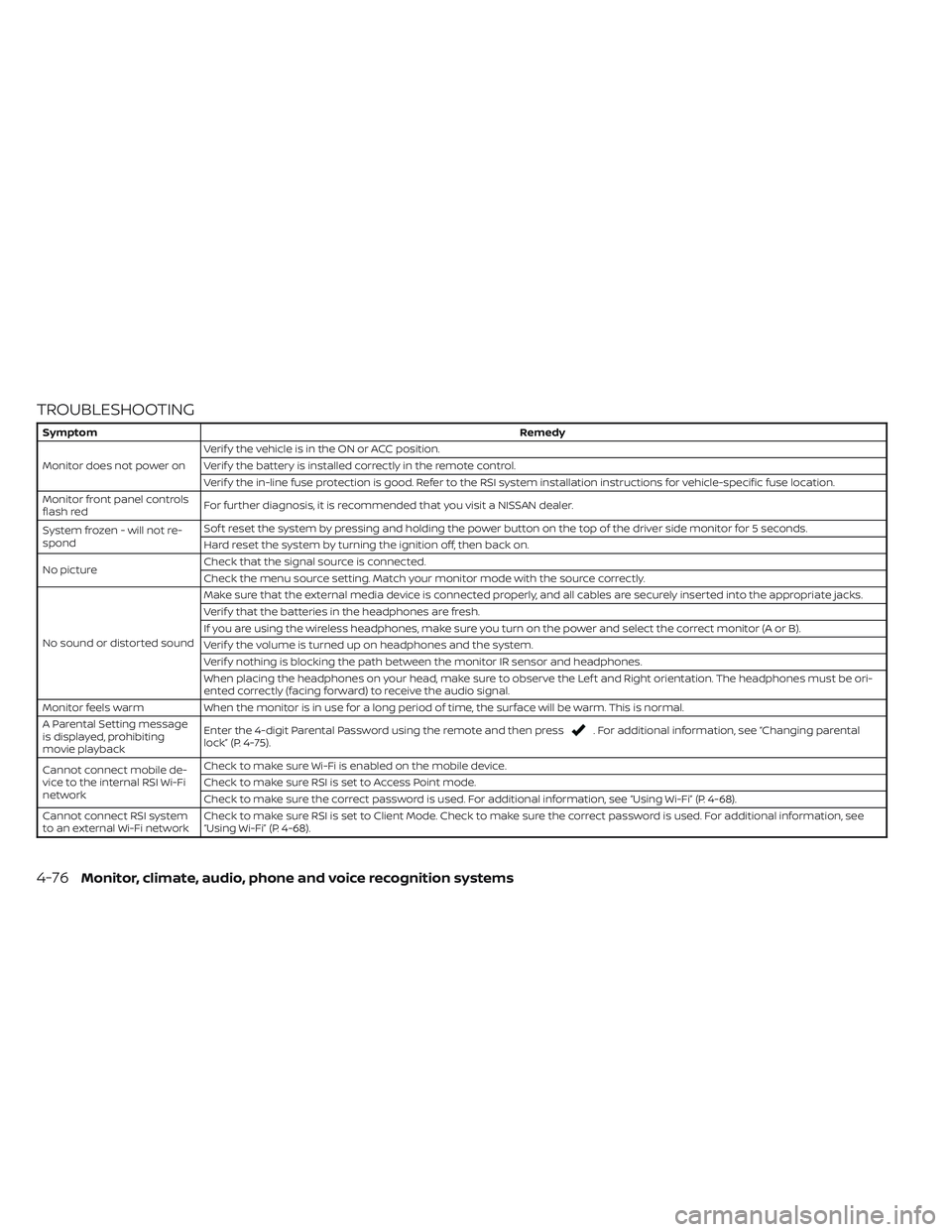
TROUBLESHOOTING
SymptomRemedy
Monitor does not power on Verif y the vehicle is in the ON or ACC position.
Verif y the battery is installed correctly in the remote control.
Verif y the in-line fuse protection is good. Refer to the RSI system installation instructions for vehicle-specific fuse location.
Monitor front panel controls
flash red For further diagnosis, it is recommended that you visit a NISSAN dealer.
System frozen - will not re-
spond Sof t reset the system by pressing and holding the power button on the top of the driver side monitor for 5 seconds.
Hard reset the system by turning the ignition off, then back on.
No picture Check that the signal source is connected.
Check the menu source setting. Match your monitor mode with the source correctly.
No sound or distorted sound Make sure that the external media device is connected properly, and all cables are securely inserted into the appropriate jacks.
Verif y that the batteries in the headphones are fresh.
If you are using the wireless headphones, make sure you turn on the power and select the correct monitor (A or B).
Verif y the volume is turned up on headphones and the system.
Verif y nothing is blocking the path between the monitor IR sensor and headphones.
When placing the headphones on your head, make sure to observe the Lef t and Right orientation. The headphones must be ori-
ented correctly (facing forward) to receive the audio signal.
Monitor feels warm When the monitor is in use for a long period of time, the surface will be warm. This is normal.
A Parental Setting message
is displayed, prohibiting
movie playback Enter the 4-digit Parental Password using the remote and then press
. For additional information, see “Changing parental
lock” (P. 4-75).
Cannot connect mobile de-
vice to the internal RSI Wi-Fi
network Check to make sure Wi-Fi is enabled on the mobile device.
Check to make sure RSI is set to Access Point mode.
Check to make sure the correct password is used. For additional information, see “Using Wi-Fi” (P. 4-68).
Cannot connect RSI system
to an external Wi-Fi network Check to make sure RSI is set to Client Mode. Check to make sure the correct password is used. For additional information, see
“Using Wi-Fi” (P. 4-68).
4-76Monitor, climate, audio, phone and voice recognition systems
Page 328 of 644
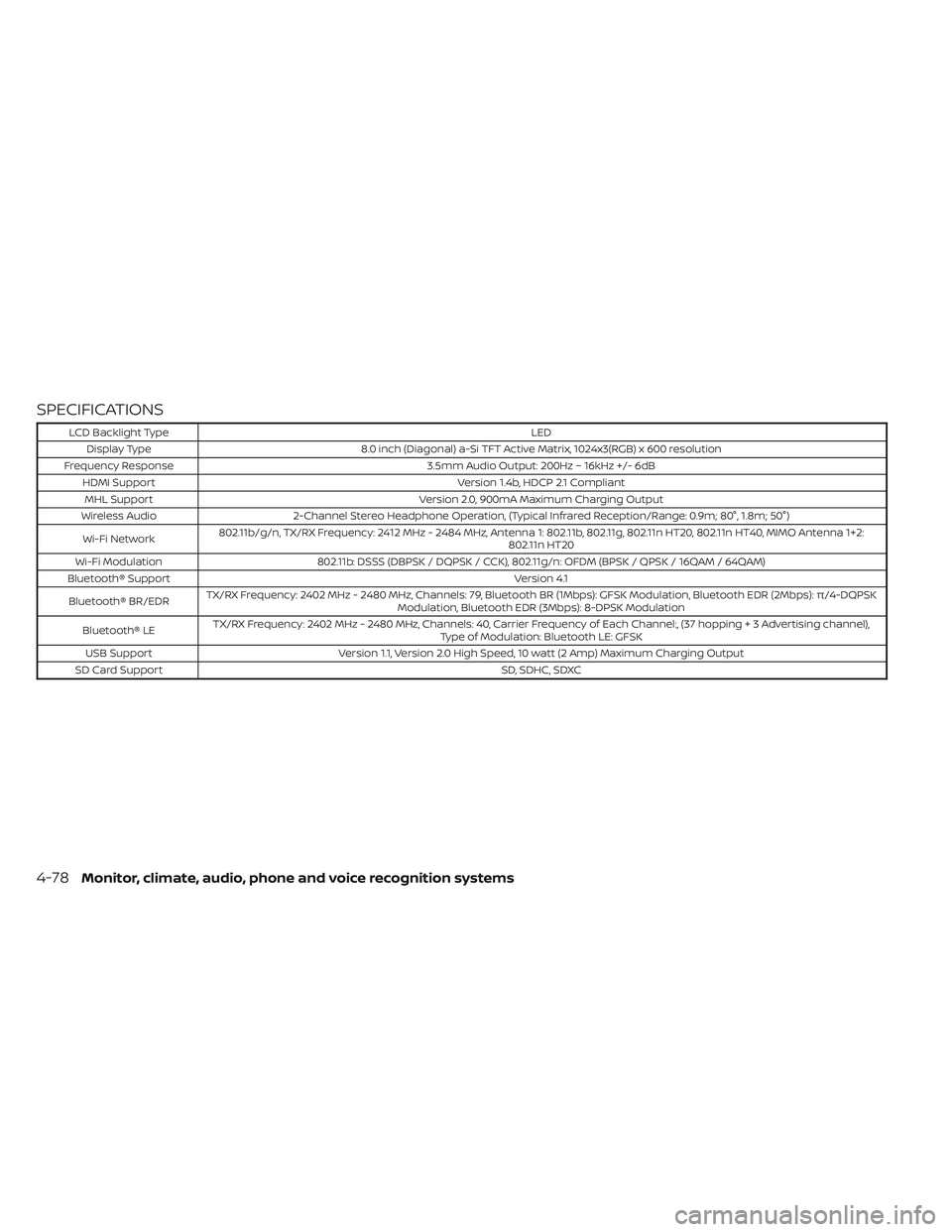
SPECIFICATIONS
LCD Backlight TypeLED
Display Type 8.0 inch (Diagonal) a-Si TFT Active Matrix, 1024x3(RGB) x 600 resolution
Frequency Response 3.5mm Audio Output: 200Hz ~ 16kHz +/- 6dB
HDMI Support Version 1.4b, HDCP 2.1 Compliant
MHL Support Version 2.0, 900mA Maximum Charging Output
Wireless Audio 2-Channel Stereo Headphone Operation, (Typical Infrared Reception/Range: 0.9m; 80°, 1.8m; 50°)
Wi-Fi Network 802.11b/g/n, TX/RX Frequency: 2412 MHz - 2484 MHz, Antenna 1: 802.11b, 802.11g, 802.11n HT20, 802.11n HT40, MIMO Antenna 1+2:
802.11n HT20
Wi-Fi Modulation 802.11b: DSSS (DBPSK / DQPSK / CCK), 802.11g/n: OFDM (BPSK / QPSK / 16QAM / 64QAM)
Bluetooth® Support Version 4.1
Bluetooth® BR/EDR TX/RX Frequency: 2402 MHz - 2480 MHz, Channels: 79, Bluetooth BR (1Mbps): GFSK Modulation, Bluetooth EDR (2Mbps): π/4-DQPSK
Modulation, Bluetooth EDR (3Mbps): 8-DPSK Modulation
Bluetooth® LE TX/RX Frequency: 2402 MHz - 2480 MHz, Channels: 40, Carrier Frequency of Each Channel:, (37 hoppin
g+3Advertisingchannel),
Type of Modulation: Bluetooth LE: GFSK
USB Support Version 1.1, Version 2.0 High Speed, 10 watt (2 Amp) Maximum Charging Output
SD Card Support SD, SDHC, SDXC
4-78Monitor, climate, audio, phone and voice recognition systems
Page 347 of 644
When the ignition switch is pushed without
depressing the brake pedal, the ignition
switch position will illuminate as follows:
Push center:
• Once to change to ACC.
• Two times to change to ON.
• Three times to return to OFF.
The ignition switch will automatically re-
turn to the LOCK position when any door is
either opened or closed with the switch in
the OFF position.
The ignition lock is designed so that the
ignition switch position cannot be placed
in the OFF position until the shif t lever is
moved to the P (Park) position.
When the ignition switch cannot be pushed
toward the OFF position, proceed as fol-
lows:
1. Move the shif t lever into the P (Park)position.
2. Push the ignition switch. The ignition switch position will change to the ON
position.
3. Push the ignition switch again to the OFF position. The shif t lever can be moved from the P
(Park) position if the ignition switch is in
the ON position and the brake pedal is
depressed.
If the battery of the vehicle is discharged,
the push-button ignition switch cannot
be moved from the LOCK position.
Some indicators and warnings for opera-
tion are displayed in the meter. For addi-
tional information, see “Vehicle information
display warnings and indicators” (P. 2-33).
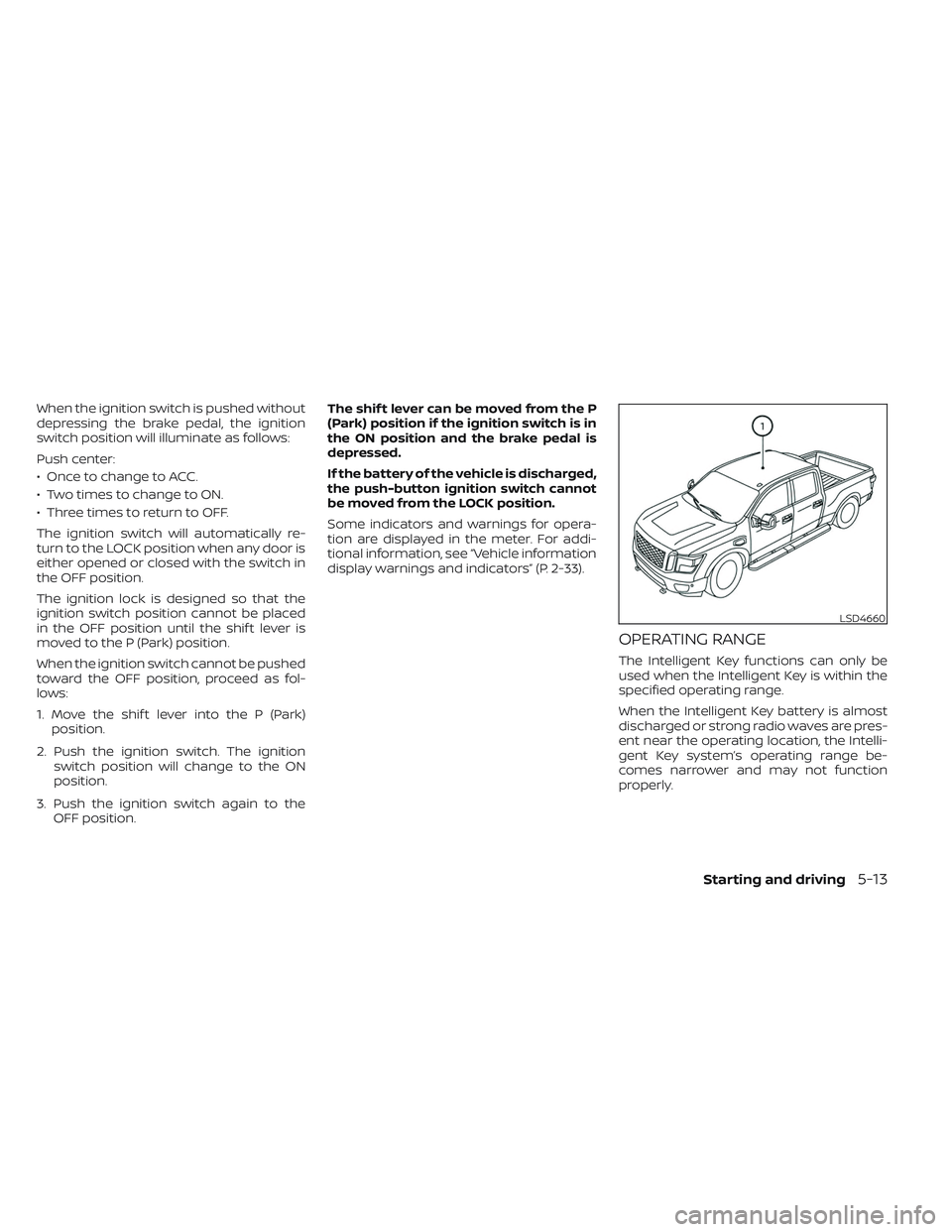
OPERATING RANGE
The Intelligent Key functions can only be
used when the Intelligent Key is within the
specified operating range.
When the Intelligent Key battery is almost
discharged or strong radio waves are pres-
ent near the operating location, the Intelli-
gent Key system’s operating range be-
comes narrower and may not function
properly.
LSD4660
Starting and driving5-13
Page 355 of 644
Manual shif t mode
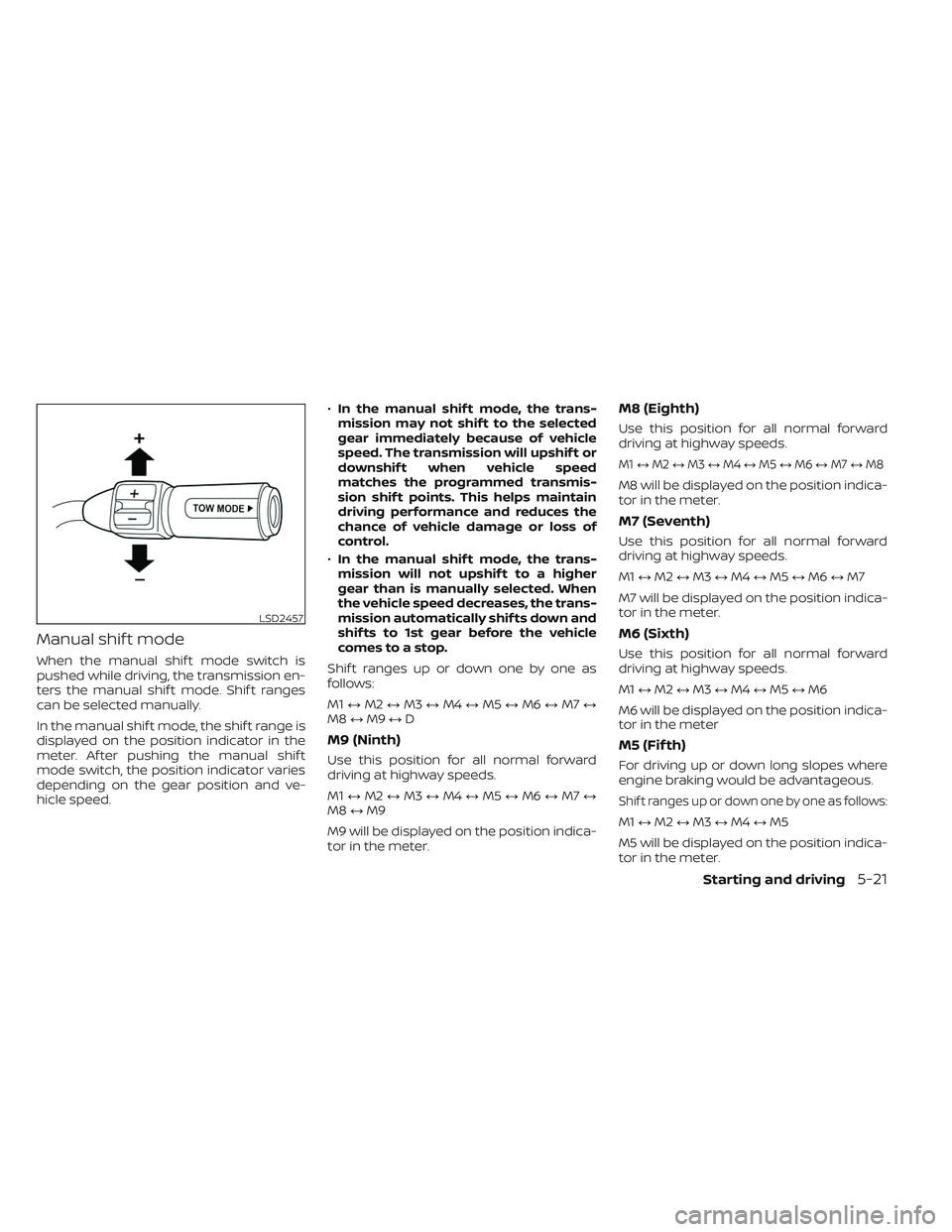
When the manual shif t mode switch is
pushed while driving, the transmission en-
ters the manual shif t mode. Shif t ranges
can be selected manually.
In the manual shif t mode, the shif t range is
displayed on the position indicator in the
meter. Af ter pushing the manual shif t
mode switch, the position indicator varies
depending on the gear position and ve-
hicle speed.•
In the manual shif t mode, the trans-
mission may not shif t to the selected
gear immediately because of vehicle
speed. The transmission will upshif t or
downshif t when vehicle speed
matches the programmed transmis-
sion shif t points. This helps maintain
driving performance and reduces the
chance of vehicle damage or loss of
control.
• In the manual shif t mode, the trans-
mission will not upshif t to a higher
gear than is manually selected. When
the vehicle speed decreases, the trans-
mission automatically shif ts down and
shif ts to 1st gear before the vehicle
comes to a stop.
Shif t ranges up or down one by one as
follows:
M1 ↔M2 ↔M3 ↔M4 ↔M5 ↔M6 ↔M7 ↔
M8 ↔M9 ↔D
M9 (Ninth)
Use this position for all normal forward
driving at highway speeds.
M1 ↔M2 ↔M3 ↔M4 ↔M5 ↔M6 ↔M7 ↔
M8 ↔M9
M9 will be displayed on the position indica-
tor in the meter.
M8 (Eighth)
Use this position for all normal forward
driving at highway speeds.
M1 ↔M2 ↔M3 ↔M4 ↔M5 ↔M6 ↔M7 ↔M8
M8 will be displayed on the position indica-
tor in the meter.
M7 (Seventh)
Use this position for all normal forward
driving at highway speeds.
M1 ↔M2 ↔M3 ↔M4 ↔M5 ↔M6 ↔M7
M7 will be displayed on the position indica-
tor in the meter.
M6 (Sixth)
Use this position for all normal forward
driving at highway speeds.
M1 ↔M2 ↔M3 ↔M4 ↔M5 ↔M6
M6 will be displayed on the position indica-
tor in the meter
M5 (Fif th)
For driving up or down long slopes where
engine braking would be advantageous.
Shif t ranges up or down one by one as follows:
M1 ↔M2 ↔M3 ↔M4 ↔M5
M5 will be displayed on the position indica-
tor in the meter.
LSD2457
Starting and driving5-21
Page 356 of 644
M4 (Fourth)
Use for hill climbing or engine braking on
downhill grades.
Shif t ranges up or down one by one as
follows:
M1↔M2 ↔M3 ↔M4
M4 will be displayed on the position indica-
tor in the meter.
M3 (Third)
Use for hill climbing or engine braking on
downhill grades.
Shif t ranges up or down one by one as
follows:
M1 ↔M2 ↔M3
M3 will be displayed on the position indica-
tor in the meter.
M2 (Second)
Use for hill climbing or engine braking on
downhill grades.
Shif t ranges up or down one by one as
follows:
M1 ↔M2
M2 will be displayed on the position indica-
tor in the meter.
M1 (First)
Use this position when climbing steep hills
slowly or driving slowly through deep snow,
sand or mud, or for maximum engine brak-
ing on steep downhill grades.
M1 will be displayed on the position indica-
tor on the meter.
• Remember not to drive at high speeds for extended periods of time in lower than
M4 range. This reduces fuel economy.
When shif ting up
Push the shif t switch to the + (up) side.
(Shif ts to higher range.)
When shif ting down
Push the shif t switch to the − (down) side.
(Shif ts to lower range.)
• The transmission will automatically downshif t the gears. (For example, if you
select the 3rd range, the transmission will
shif t down between the 3rd and 1st
gears.)
• Pushing the shif t switch rapidly will shif t the ranges in succession.
When canceling the manual shif t mode
Press and hold the +(UP) button to return
the transmission to the normal driving
mode.
Accelerator downshif t
— in D (Drive) position —
For passing or hill climbing, depress the
accelerator pedal to the floor. This shif ts
the transmission down into a lower gear,
depending on the vehicle speed.
Fail-safe
When the fail-safe operation occurs, please
note that the transmission will be locked in
any of the forward gears according to the
condition.
If the vehicle is driven under extreme
conditions, such as excessive wheel
spinning and subsequent hard braking,
the fail-safe system may be activated.
This will occur even if all electrical cir-
cuits are functioning properly. In this
case, place the ignition switch in the OFF
position and wait for 3 seconds. Then
place the ignition switch back in the ON
position. The vehicle should return to its
normal operating condition. If it does not
return to its normal operating condition,
have the transmission checked and re-
paired, if necessary. It is recommended
that you visit a NISSAN dealer for this
service.
5-22Starting and driving