bluetooth NISSAN TITAN 2023 User Guide
[x] Cancel search | Manufacturer: NISSAN, Model Year: 2023, Model line: TITAN, Model: NISSAN TITAN 2023Pages: 644, PDF Size: 7.8 MB
Page 323 of 644
NOTE:
• Each monitor can have its own back-ground image.
• The Local source stores the 10 most re- cent background images.
• To restore the default background im- age, perform a factory reset. For addi-
tional information, see “Advanced set-
tings” (P. 4-72).
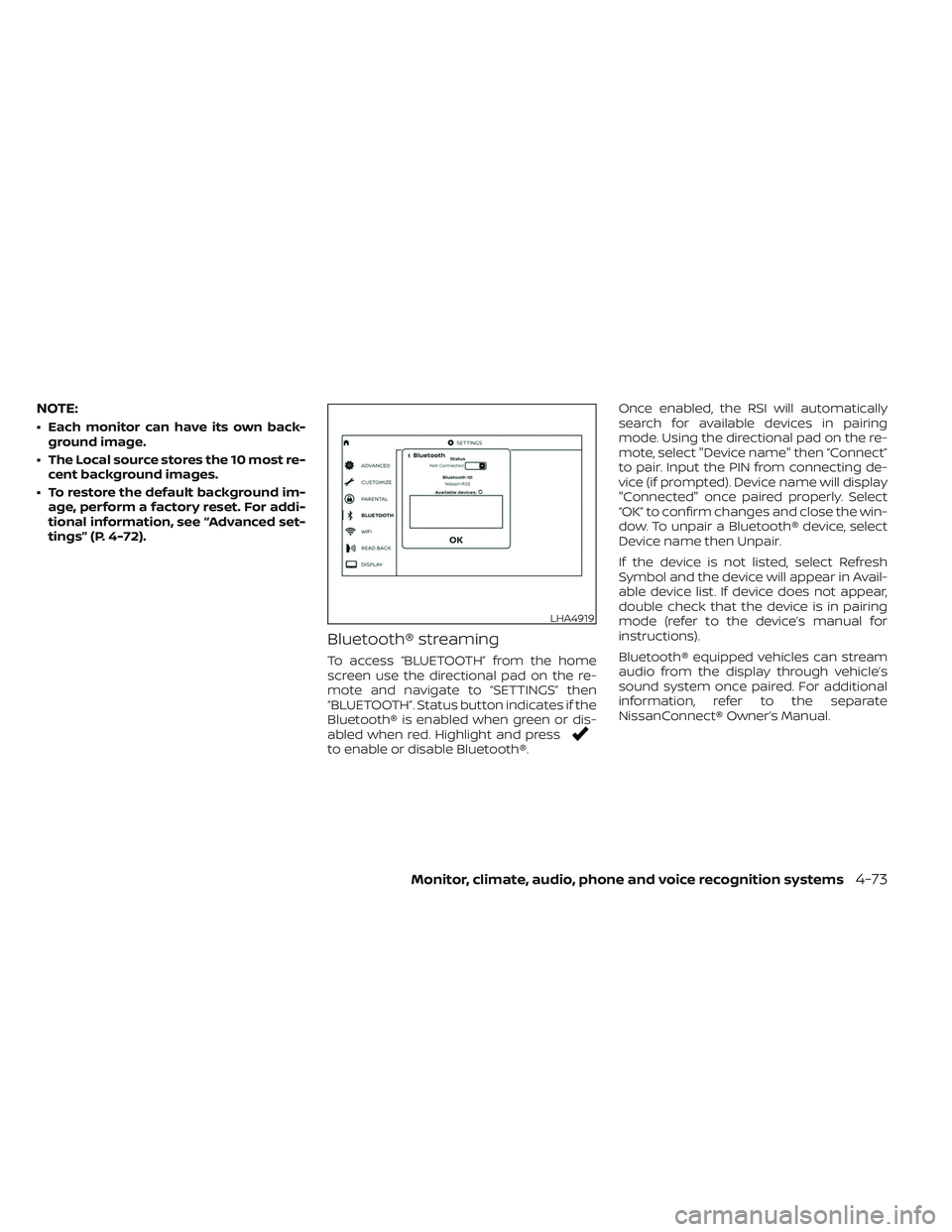
Bluetooth® streaming
To access “BLUETOOTH” from the home
screen use the directional pad on the re-
mote and navigate to “SETTINGS” then
“BLUETOOTH”. Status button indicates if the
Bluetooth® is enabled when green or dis-
abled when red. Highlight and press
to enable or disable Bluetooth®. Once enabled, the RSI will automatically
search for available devices in pairing
mode. Using the directional pad on the re-
mote, select "Device name" then “Connect”
to pair. Input the PIN from connecting de-
vice (if prompted). Device name will display
"Connected" once paired properly. Select
“OK” to confirm changes and close the win-
dow. To unpair a Bluetooth® device, select
Device name then Unpair.
If the device is not listed, select Refresh
Symbol and the device will appear in Avail-
able device list. If device does not appear,
double check that the device is in pairing
mode (refer to the device’s manual for
instructions).
Bluetooth® equipped vehicles can stream
audio from the display through vehicle’s
sound system once paired. For additional
information, refer to the separate
NissanConnect® Owner’s Manual.
LHA4919
Monitor, climate, audio, phone and voice recognition systems4-73
Page 324 of 644
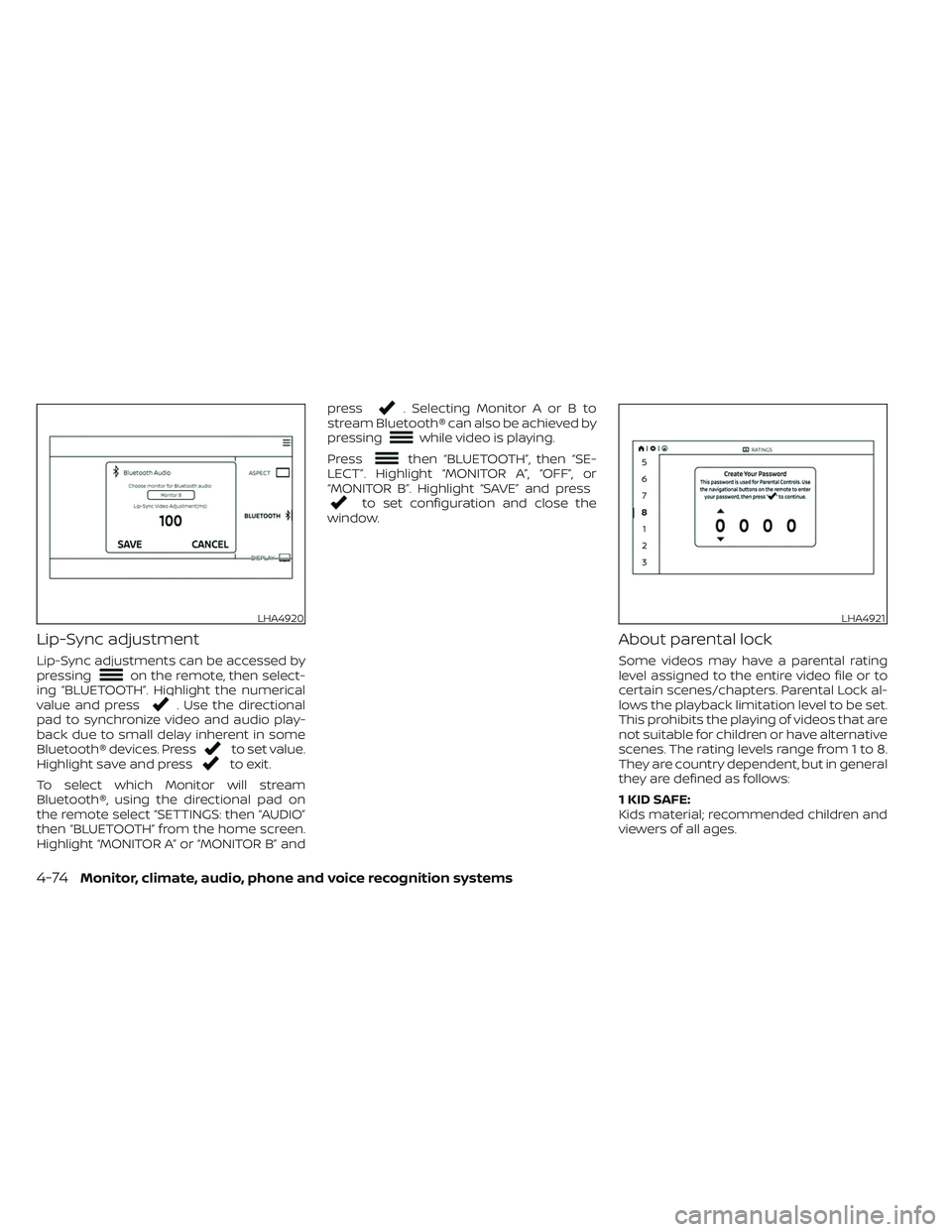
Lip-Sync adjustment
Lip-Sync adjustments can be accessed by
pressingon the remote, then select-
ing “BLUETOOTH”. Highlight the numerical
value and press
. Use the directional
pad to synchronize video and audio play-
back due to small delay inherent in some
Bluetooth® devices. Press
to set value.
Highlight save and pressto exit.
To select which Monitor will stream
Bluetooth®, using the directional pad on
the remote select “SETTINGS: then “AUDIO”
then “BLUETOOTH” from the home screen.
Highlight “MONITOR A” or “MONITOR B” and press
. Selecting Monitor A or B to
stream Bluetooth® can also be achieved by
pressing
while video is playing.
Press
then “BLUETOOTH”, then “SE-
LECT”. Highlight “MONITOR A”, “OFF”, or
“MONITOR B”. Highlight “SAVE” and press
to set configuration and close the
window.
About parental lock
Some videos may have a parental rating
level assigned to the entire video file or to
certain scenes/chapters. Parental Lock al-
lows the playback limitation level to be set.
This prohibits the playing of videos that are
not suitable for children or have alternative
scenes. The rating levels range from 1 to 8.
They are country dependent, but in general
they are defined as follows:
1 KID SAFE:
Kids material; recommended children and
viewers of all ages.
LHA4920LHA4921
4-74Monitor, climate, audio, phone and voice recognition systems
Page 327 of 644
SymptomRemedy
Cannot establish a
Bluetooth® connection Check to make sure Bluetooth® is enabled on the RSI system. For additional information, see “Bluetooth® streaming” (P. 4-73).
Cannot establish a Miracast®
connection to the RSI system Check to make sure mobile device supports Miracast®. Visit www.wi-fi.org for a current list of Miracast® certified devices.
Check to make sure Miracast® is enabled on the mobile device.
Select Miracast® source from the RSI main menu.
Cannot play certain files from
USB or SD cards Audio/video files embedded with DRM are not compatible.
Some USB storage devices and SD cards may not be compatible. Replace the external storage device (USB, SD).
Due to ongoing technological advancements, some USB flash drives and SD cards may be incompatible with this system.
Cannot connect to external
Slingbox® Check to make sure RSI is set to Client Mode. For additional information, see “Using Wi-Fi” (P. 4-68).
Check network upload speed from your home (or wherever the Slingbox® is located).
Confirm hotspot or Wi-Fi download speed/connection quality.
Check that your Slingbox® is properly set up.
Cannot share content from a
mobile device to the RSI sys-
tem A compatible UPnP app is required to be installed on the mobile device.
Audio/video files embedded with DRM cannot be streamed to the RSI system.
Cannot share content be-
tween mobile devices using
the internal Wi-Fi network Check to make sure Wi-Fi is enabled on the mobile device.
Check to make sure RSI is set to Access Point mode. For additional information, see “Using Wi-Fi” (P. 4-68).
Monitor, climate, audio, phone and voice recognition systems4-77
Page 328 of 644
SPECIFICATIONS
LCD Backlight TypeLED
Display Type 8.0 inch (Diagonal) a-Si TFT Active Matrix, 1024x3(RGB) x 600 resolution
Frequency Response 3.5mm Audio Output: 200Hz ~ 16kHz +/- 6dB
HDMI Support Version 1.4b, HDCP 2.1 Compliant
MHL Support Version 2.0, 900mA Maximum Charging Output
Wireless Audio 2-Channel Stereo Headphone Operation, (Typical Infrared Reception/Range: 0.9m; 80°, 1.8m; 50°)
Wi-Fi Network 802.11b/g/n, TX/RX Frequency: 2412 MHz - 2484 MHz, Antenna 1: 802.11b, 802.11g, 802.11n HT20, 802.11n HT40, MIMO Antenna 1+2:
802.11n HT20
Wi-Fi Modulation 802.11b: DSSS (DBPSK / DQPSK / CCK), 802.11g/n: OFDM (BPSK / QPSK / 16QAM / 64QAM)
Bluetooth® Support Version 4.1
Bluetooth® BR/EDR TX/RX Frequency: 2402 MHz - 2480 MHz, Channels: 79, Bluetooth BR (1Mbps): GFSK Modulation, Bluetooth EDR (2Mbps): π/4-DQPSK
Modulation, Bluetooth EDR (3Mbps): 8-DPSK Modulation
Bluetooth® LE TX/RX Frequency: 2402 MHz - 2480 MHz, Channels: 40, Carrier Frequency of Each Channel:, (37 hoppin
g+3Advertisingchannel),
Type of Modulation: Bluetooth LE: GFSK
USB Support Version 1.1, Version 2.0 High Speed, 10 watt (2 Amp) Maximum Charging Output
SD Card Support SD, SDHC, SDXC
4-78Monitor, climate, audio, phone and voice recognition systems
Page 329 of 644
COMPLIANCE INFORMATION
FCC Notice
This device complies with Part 15 of FCC
Rules and Industry Canada license-exempt
RSS standard(s). Operation is subject to the
following two conditions: (1) this device may
not cause interference, and (2) this device
must accept any interference, including in-
terference that may cause undesired op-
eration of this device.
This transmitter must not be co-located or
operated in conjunction with any other an-
tenna or transmitter. The Bluetooth® an-
tenna cannot be removed (or replaced) by
user.
Alteration or modifications carried out
without appropriate authorization may in-
validate the user’s right to operate the
equipment.
This equipment has been tested and found
to comply with the limits for a Class B digi-
tal device, pursuant to Part 15 of the FCC
Rules. These limits are designed to provide
reasonable protection against harmful in-
terference in a residential installation. This
equipment generates, uses and can radi-
ate radio frequency energy and, if not in-
stalled and used in accordance with the
instructions, may cause harmful interfer-ence to radio communications. However,
there is no guarantee that interference will
not occur in a particular installation. If this
equipment does cause harmful interfer-
ence to radio or television reception, which
can be determined by turning the equip-
ment off and on, the user is encouraged to
try to correct the interference by one or
more of the following measures:
• Reorient or relocate the receiving
antenna.
• Increase the separation between the equipment and receiver.
• Connect the equipment into an outlet on a circuit different from that to which the
receiver is connected.
• Consult the dealer or an experienced radio/ TV technician for help.
Bluetooth®
The Bluetooth® word mark and logos are
registered trademarks owned by the
Bluetooth SIG, Inc. and any use of such marks
by Voxx Automotive Corporation is under li-
cense. Other trademarks and trade names
are those of their respective owners.
AAC
AAC is short for Advanced Audio Coding
and refers to an audio compression tech-
nology standard used with MPEG-2 and
MPEG-4. Several applications can be used
to encode AAC files, but file formats and
extensions differ depending on the appli-
cation which is used to encode.
LHA4926
Monitor, climate, audio, phone and voice recognition systems4-79