audio NISSAN TITAN 2023 Workshop Manual
[x] Cancel search | Manufacturer: NISSAN, Model Year: 2023, Model line: TITAN, Model: NISSAN TITAN 2023Pages: 644, PDF Size: 7.8 MB
Page 294 of 644
WELCOME
The Rear Seat Infotainment (RSI) system,
with built-in Wi-Fi, has some advanced fea-
tures. Before operating this system, read
this section thoroughly and retain it for fu-
ture reference.
System features
• Twin 8-inch Color TFT-LCD Panels with1024x600 Resolution
• Internal Wi-Fi Network
• Bluetooth® 4.1 Audio Streaming
• Miracast®/Smart View Capability
• SmartStream Content Sharing
• USB 2.0 Port, SDXC Card Input
• HDMI 1.4 Input with MHL 2.0 Support
• Exclusive Slingplayer® Application
• 3.5mm Stereo Headphone Output
• Front Panel Capacitive Touch Controls
• Infrared Wireless Headphones
• Full-Function Slimline Remote Control
• Monitor Screen Sharing
GETTING STARTED
Turning the monitor on or off
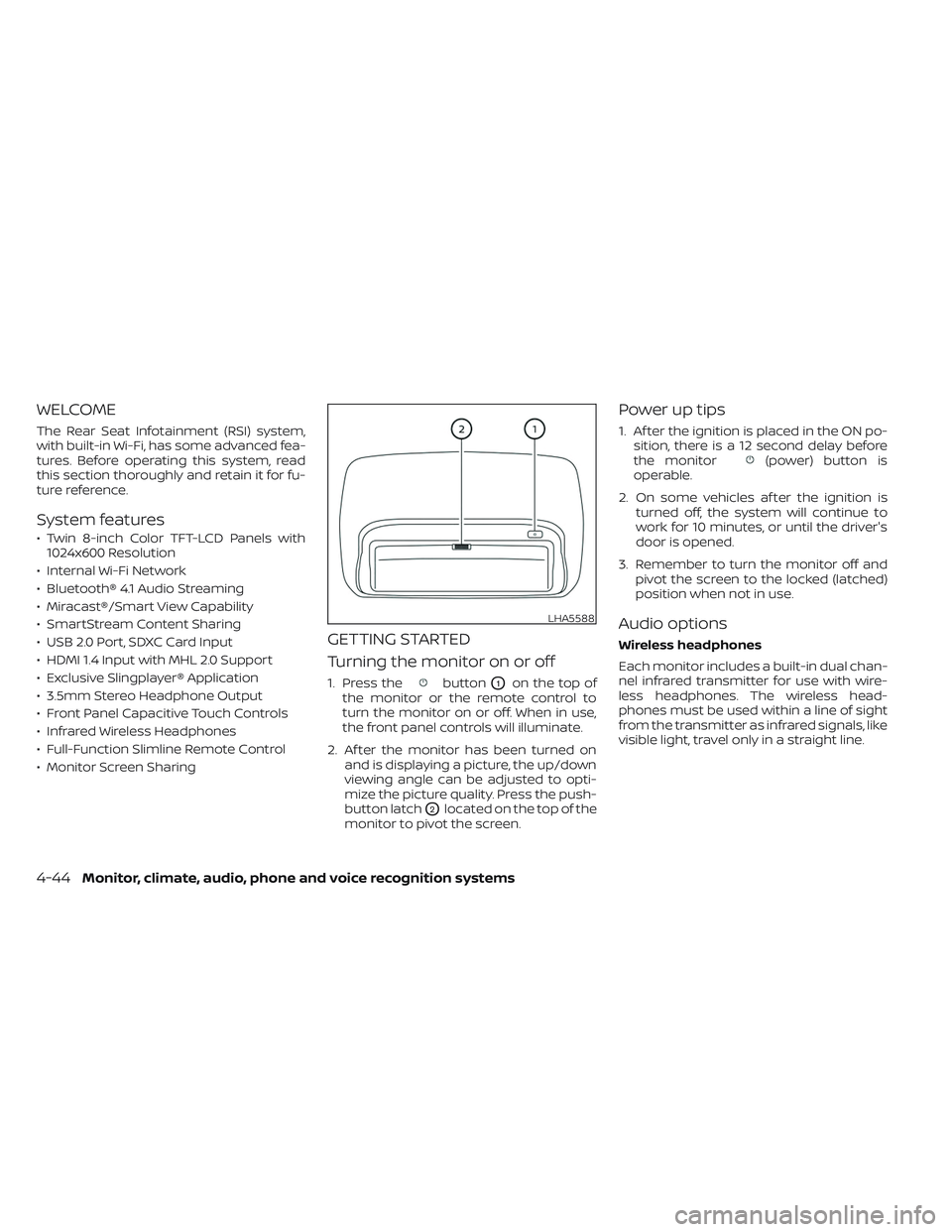
1. Press thebuttonO1on the top of
the monitor or the remote control to
turn the monitor on or off. When in use,
the front panel controls will illuminate.
2. Af ter the monitor has been turned on and is displaying a picture, the up/down
viewing angle can be adjusted to opti-
mize the picture quality. Press the push-
button latch
O2located on the top of the
monitor to pivot the screen.
Power up tips
1. Af ter the ignition is placed in the ON po- sition, there is a 12 second delay before
the monitor
(power) button is
operable.
2. On some vehicles af ter the ignition is turned off, the system will continue to
work for 10 minutes, or until the driver's
door is opened.
3. Remember to turn the monitor off and pivot the screen to the locked (latched)
position when not in use.
Audio options
Wireless headphones
Each monitor includes a built-in dual chan-
nel infrared transmitter for use with wire-
less headphones. The wireless head-
phones must be used within a line of sight
from the transmitter as infrared signals, like
visible light, travel only in a straight line.
LHA5588
4-44Monitor, climate, audio, phone and voice recognition systems
Page 295 of 644
How to use the wireless headphones
When placing the headphones on your
head, make sure to observe the lef t and
right orientation. The headphones must be
oriented correctly (facing forward) to re-
ceive the audio signal. Press the
(power) button on the headphones,
then select channel “A” to listen to monitor
A, or channel “B” to listen to monitor B. Ad-
just the audio level using the volume con-
trol on each headphone.
Wired headphones
There is a 3.5mm stereo headphone out-
put on each monitor which can be used
with most standard stereo headphones
(wired headphones sold separately).
Bluetooth® streaming audio
To listen to audio throughout the entire ve-
hicle, the system includes the ability to
stream audio over a Bluetooth® connec-
tion to the vehicle’s stereo system.
When monitor A is selected as the source
to stream from, the audio output to the
wireless and wired headphones will be dis-
abled (only on monitor A). To use the wire-
less or wired headphones with monitor A,
you must turn off the Bluetooth® stream-
ing feature. To enable/disable Bluetooth® streaming, navigate to the “SETTINGS”
menu, or press
on the remote control
during content playback. For additional in-
formation, see “Settings” (P. 4-68).
Media compatibility
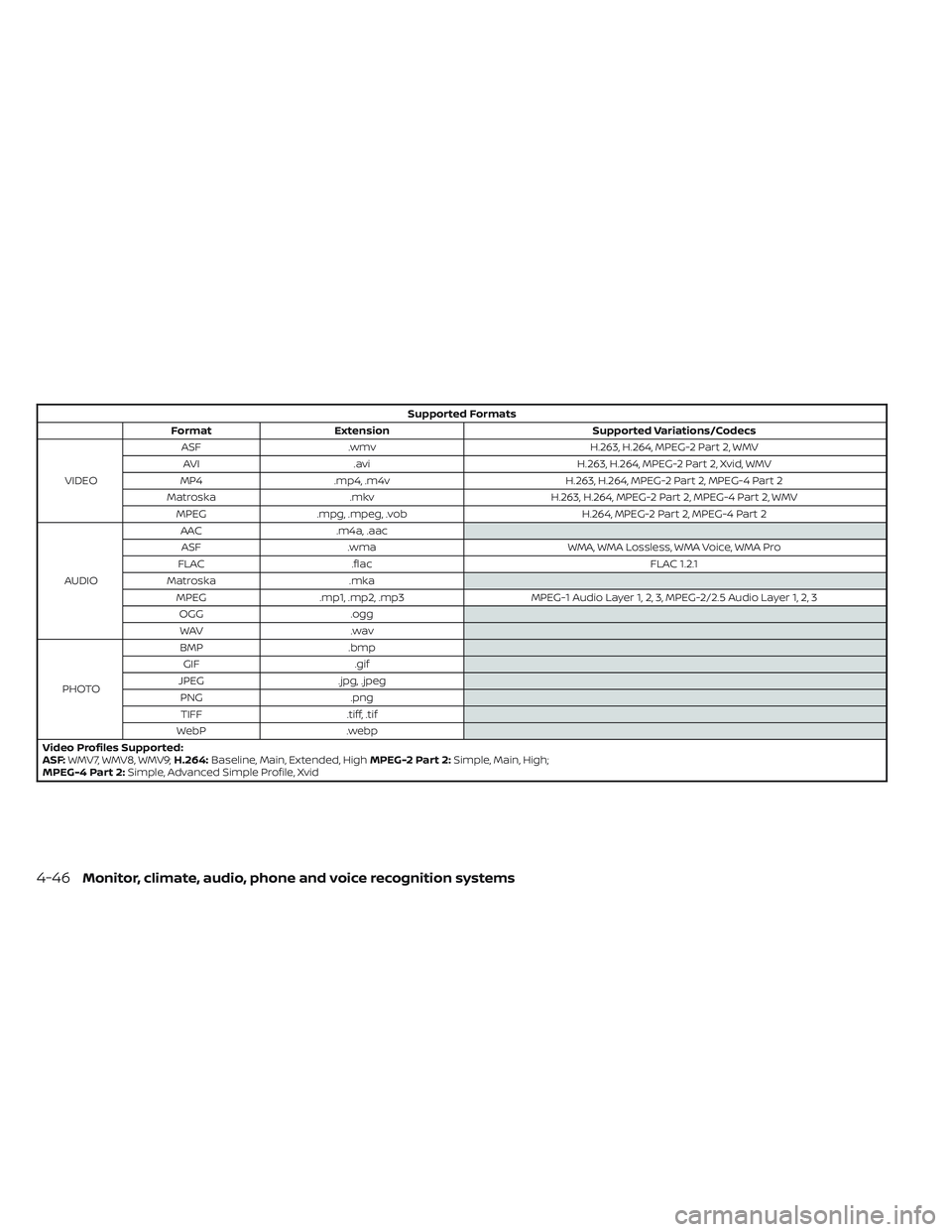
For a list of compatible media formats for
this system, see “Storage device format-
ting” (P. 4-45).
• The metadata or file information of some audio and video files may not be correctly
displayed.
• It is not possible to play content that is protected by DRM (Digital Rights
Management).
• There may be a delay before playback begins when using USB flash drives or SD
cards with complex folder hierarchies or
many files.
• Some audio, video, and image files may be incompatible with this system due to
file characteristics, file format, recording
sof tware used, directory structure,
and/or the type of audio/video encoding
used.
Storage device formatting
This system is compatible with several
types of formatting for USB flash drives and
SD cards. Refer to the documentation that
comes with your storage device for more
details on how to format.
FAT32 - USB and SDHC
Good for smaller capacity storage devices,
but individual files on the drive must be less
than 4GB. This format is good for music
and images.
EX-FAT - USB and SDXC
Better choice for larger capacity storage
devices with files that are more than 4GB.
This format is better for larger files such as
full-length movies.
NTFS - USB and SDXC
Best choice for very large capacity storage
devices - with no limitations on file size. This
format can be used for all file sizes.
Monitor, climate, audio, phone and voice recognition systems4-45
Page 296 of 644
Supported Formats
Format Extension Supported Variations/Codecs
VIDEO ASF
.wmv H.263, H.264, MPEG-2 Part 2, WMV
AVI .avi H.263, H.264, MPEG-2 Part 2, Xvid, WMV
MP4 .mp4, .m4v H.263, H.264, MPEG-2 Part 2, MPEG-4 Part 2
Matroska .mkv H.263, H.264, MPEG-2 Part 2, MPEG-4 Part 2, WMV
MPEG .mpg, .mpeg, .vob H.264, MPEG-2 Part 2, MPEG-4 Part 2
AUDIO AAC
.m4a, .aac
ASF .wma WMA, WMA Lossless, WMA Voice, WMA Pro
FLAC .flac FLAC 1.2.1
Matroska .mka
MPEG .mp1, .mp2, .mp3 MPEG-1 Audio Layer 1, 2, 3, MPEG-2/2.5 Audio Layer 1, 2, 3
OGG .ogg
WAV .wav
PHOTO BMP
.bmp
GIF .gif
JPEG .jpg, .jpeg
PNG .png
TIFF .tiff, .tif
WebP .webp
Video Profiles Supported:
ASF: WMV7, WMV8, WMV9; H.264:Baseline, Main, Extended, High MPEG-2 Part 2:Simple, Main, High;
MPEG-4 Part 2: Simple, Advanced Simple Profile, Xvid
4-46Monitor, climate, audio, phone and voice recognition systems
Page 297 of 644
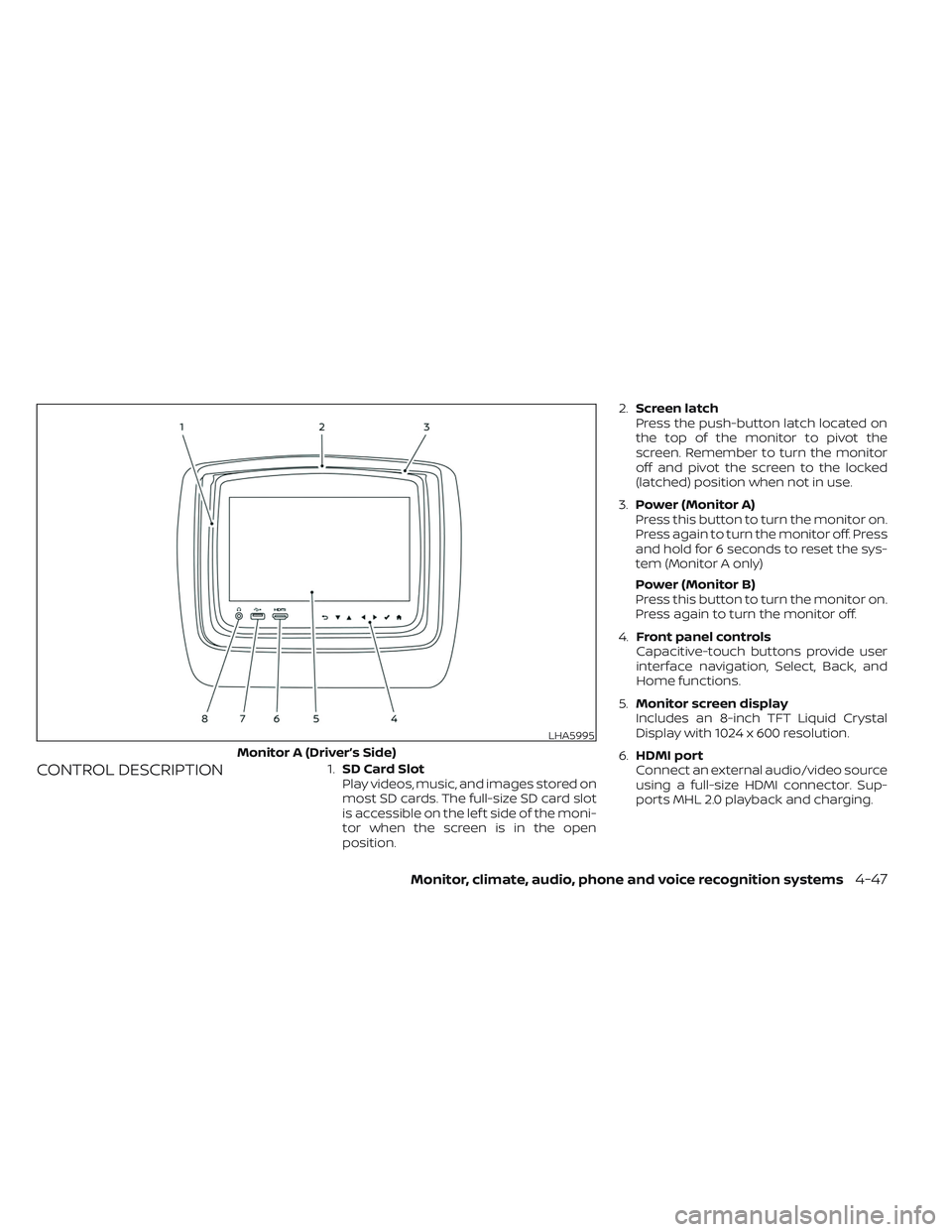
CONTROL DESCRIPTION1.SD Card Slot
Play videos, music, and images stored on
most SD cards. The full-size SD card slot
is accessible on the lef t side of the moni-
tor when the screen is in the open
position. 2.
Screen latch
Press the push-button latch located on
the top of the monitor to pivot the
screen. Remember to turn the monitor
off and pivot the screen to the locked
(latched) position when not in use.
3. Power (Monitor A)
Press this button to turn the monitor on.
Press again to turn the monitor off. Press
and hold for 6 seconds to reset the sys-
tem (Monitor A only)
Power (Monitor B)
Press this button to turn the monitor on.
Press again to turn the monitor off.
4. Front panel controls
Capacitive-touch buttons provide user
interface navigation, Select, Back, and
Home functions.
5. Monitor screen display
Includes an 8-inch TFT Liquid Crystal
Display with 1024 x 600 resolution.
6. HDMI port
Connect an external audio/video source
using a full-size HDMI connector. Sup-
ports MHL 2.0 playback and charging.
LHA5995
Monitor A (Driver’s Side)
Monitor, climate, audio, phone and voice recognition systems4-47
Page 298 of 644
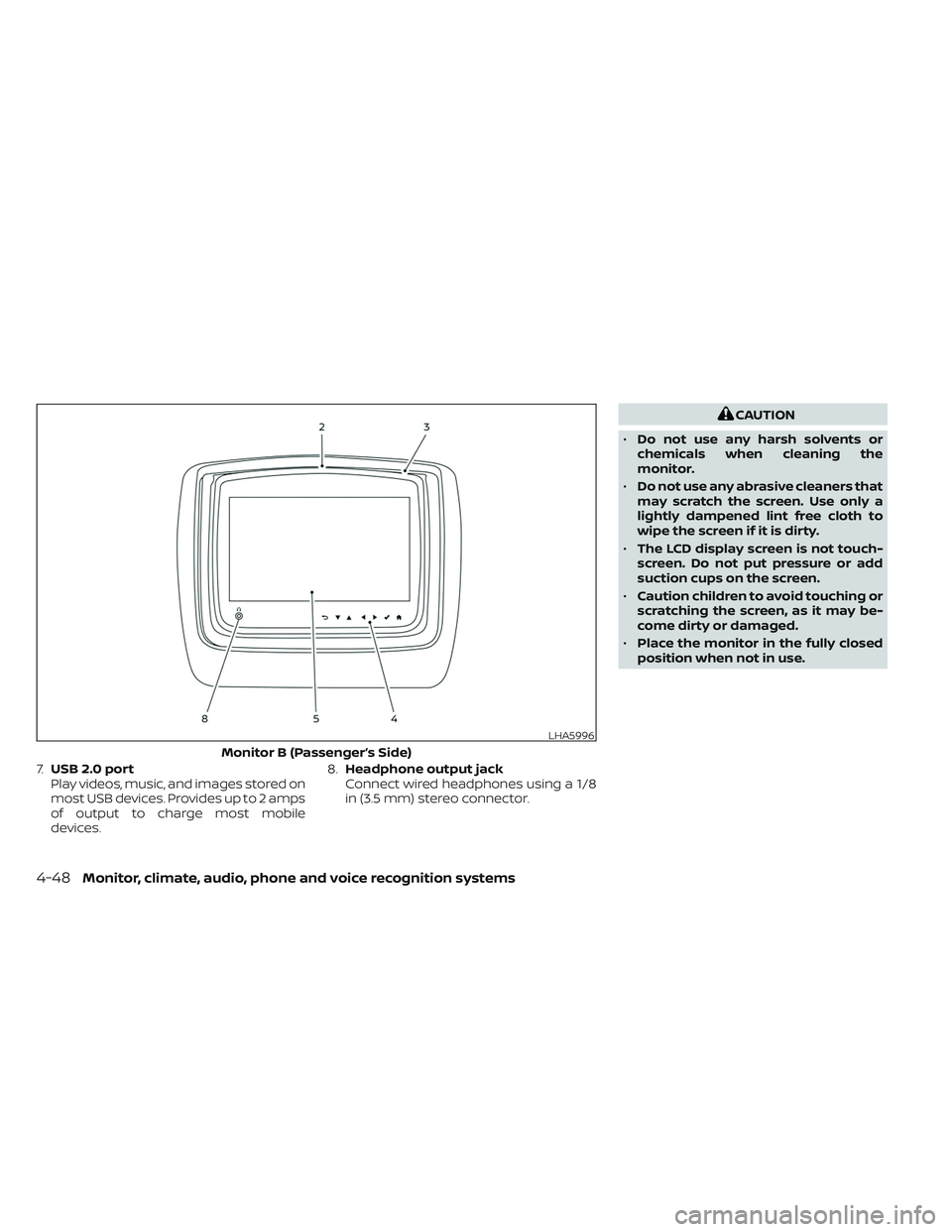
7.USB 2.0 port
Play videos, music, and images stored on
most USB devices. Provides up to 2 amps
of output to charge most mobile
devices. 8.
Headphone output jack
Connect wired headphones using a 1/8
in (3.5 mm) stereo connector.
CAUTION
• Do not use any harsh solvents or
chemicals when cleaning the
monitor.
• Do not use any abrasive cleaners that
may scratch the screen. Use only a
lightly dampened lint free cloth to
wipe the screen if it is dirty.
• The LCD display screen is not touch-
screen. Do not put pressure or add
suction cups on the screen.
• Caution children to avoid touching or
scratching the screen, as it may be-
come dirty or damaged.
• Place the monitor in the fully closed
position when not in use.
LHA5996
Monitor B (Passenger’s Side)
4-48Monitor, climate, audio, phone and voice recognition systems
Page 299 of 644
REMOTE CONTROL OPERATION
Before use
Before attempting to operate your remote
control, turn the remote control face down
and remove the battery insulator by pulling
the clear plastic tab away from the remote
control.
Replacing the battery
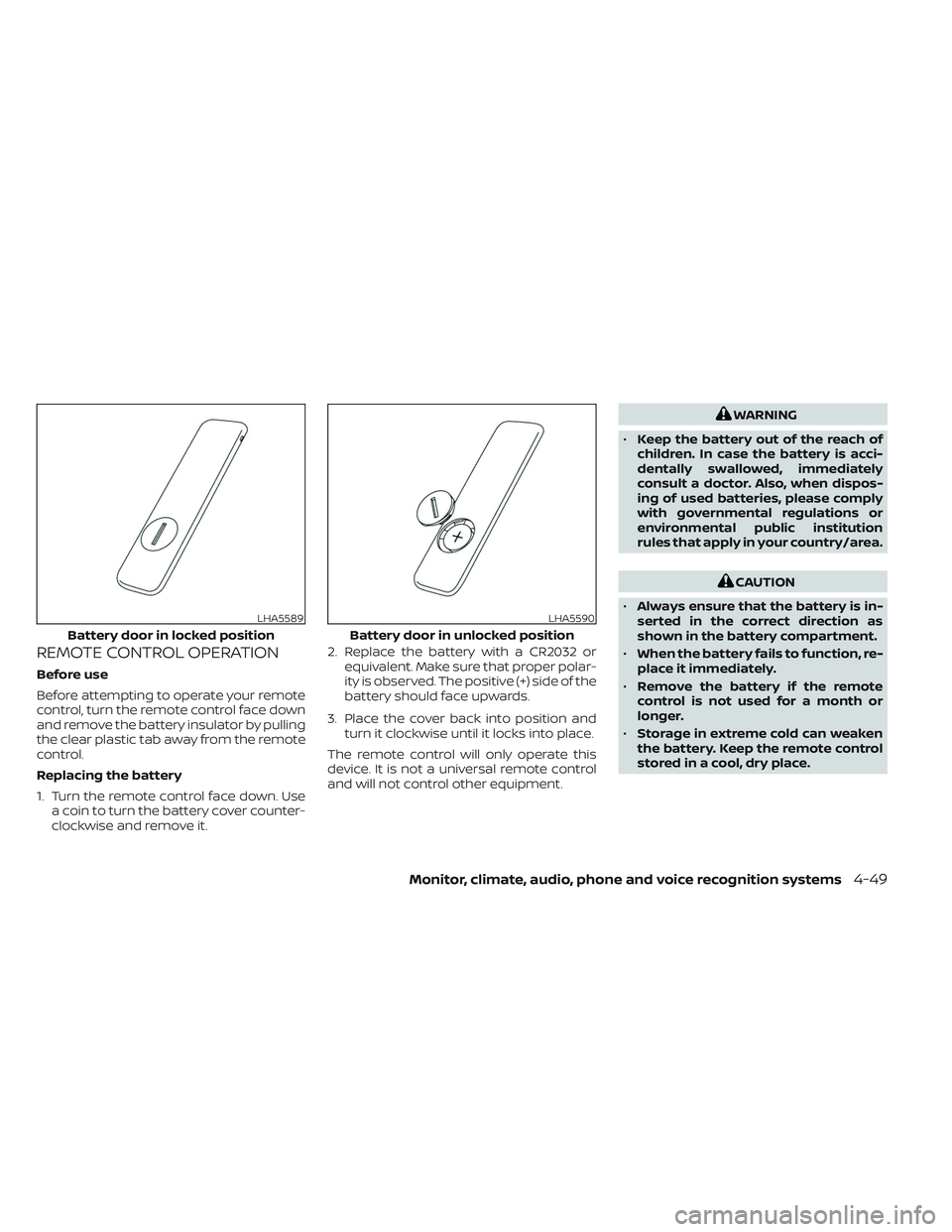
1. Turn the remote control face down. Usea coin to turn the battery cover counter-
clockwise and remove it. 2. Replace the battery with a CR2032 or
equivalent. Make sure that proper polar-
ity is observed. The positive (+) side of the
battery should face upwards.
3. Place the cover back into position and turn it clockwise until it locks into place.
The remote control will only operate this
device. It is not a universal remote control
and will not control other equipment.
WARNING
• Keep the battery out of the reach of
children. In case the battery is acci-
dentally swallowed, immediately
consult a doctor. Also, when dispos-
ing of used batteries, please comply
with governmental regulations or
environmental public institution
rules that apply in your country/area.
CAUTION
• Always ensure that the battery is in-
serted in the correct direction as
shown in the battery compartment.
• When the battery fails to function, re-
place it immediately.
• Remove the battery if the remote
control is not used for a month or
longer.
• Storage in extreme cold can weaken
the battery. Keep the remote control
stored in a cool, dry place.
LHA5589
Battery door in locked position
LHA5590
Battery door in unlocked position
Monitor, climate, audio, phone and voice recognition systems4-49
Page 300 of 644
REMOTE CONTROL BUTTONS
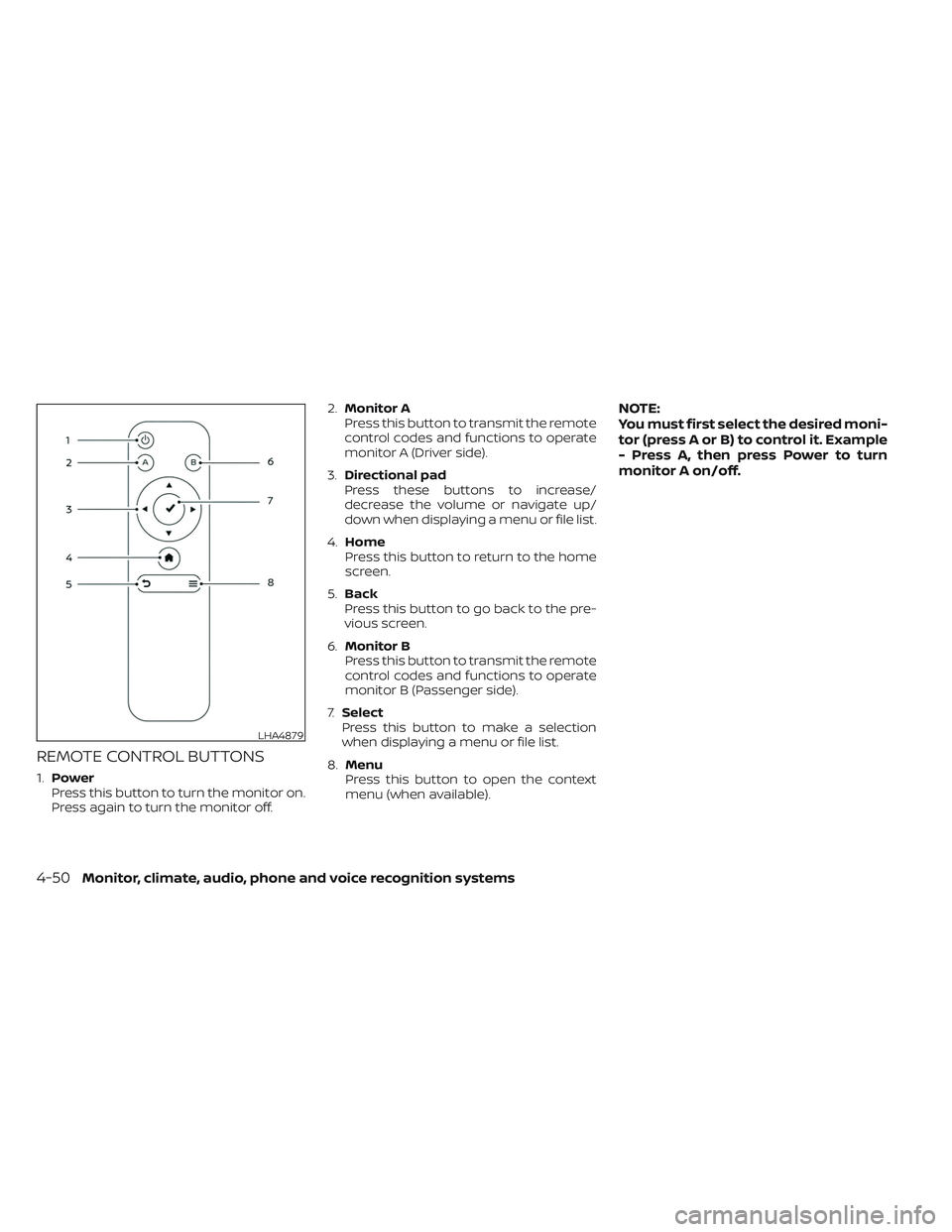
1.Power
Press this button to turn the monitor on.
Press again to turn the monitor off. 2.
Monitor A
Press this button to transmit the remote
control codes and functions to operate
monitor A (Driver side).
3. Directional pad
Press these buttons to increase/
decrease the volume or navigate up/
down when displaying a menu or file list.
4. Home
Press this button to return to the home
screen.
5. Back
Press this button to go back to the pre-
vious screen.
6. Monitor B
Press this button to transmit the remote
control codes and functions to operate
monitor B (Passenger side).
7. Select
Press this button to make a selection
when displaying a menu or file list.
8. Menu
Press this button to open the context
menu (when available).
NOTE:
You must first select the desired moni-
tor (press A or B) to control it. Example
- Press A, then press Power to turn
monitor A on/off.
LHA4879
4-50Monitor, climate, audio, phone and voice recognition systems
Page 301 of 644
WIRELESS HEADPHONE
OPERATIONInstalling the batteries
Before attempting to operate the head-
phones, install the batteries as described
below:
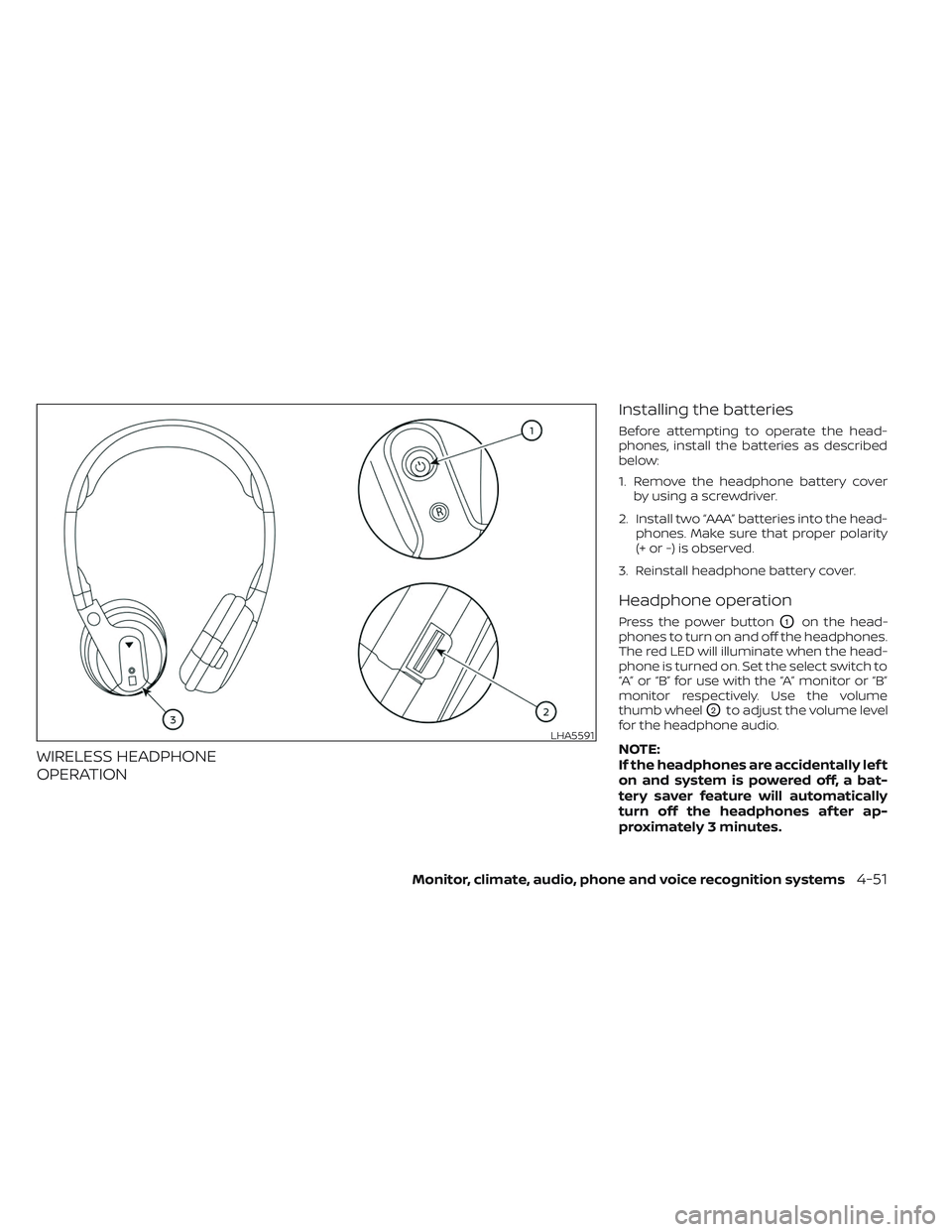
1. Remove the headphone battery cover
by using a screwdriver.
2. Install two “AAA” batteries into the head- phones. Make sure that proper polarity
(+ or -) is observed.
3. Reinstall headphone battery cover.
Headphone operation
Press the power buttonO1on the head-
phones to turn on and off the headphones.
The red LED will illuminate when the head-
phone is turned on. Set the select switch to
“A” or “B” for use with the “A” monitor or “B”
monitor respectively. Use the volume
thumb wheel
O2to adjust the volume level
for the headphone audio.
NOTE:
If the headphones are accidentally lef t
on and system is powered off, a bat-
tery saver feature will automatically
turn off the headphones af ter ap-
proximately 3 minutes.LHA5591
Monitor, climate, audio, phone and voice recognition systems4-51
Page 302 of 644
WARNING
• Keep the batteries out of the reach of
children. In case the batteries are ac-
cidentally swallowed, immediately
consult a doctor. Also, when dispos-
ing of used batteries, please comply
with governmental regulations or
environmental public institution
rules that apply in your country/area.
CAUTION
• Always ensure that the batteries are
inserted with the positive and nega-
tive terminals in the correct direction
as shown in the battery compart-
ment
O3.
• Different types of batteries have dif-
ferent characteristics. Do not mix dif-
ferent types.
• Do not mix old and new batteries.
Mixing old and new batteries will
shorten battery life and/or cause
chemical leaks from the old
batteries. •
When batteries fail to function, re-
place them immediately.
• Remove the batteries if the head-
phones are not used for a month or
longer.
GENERAL OPERATION
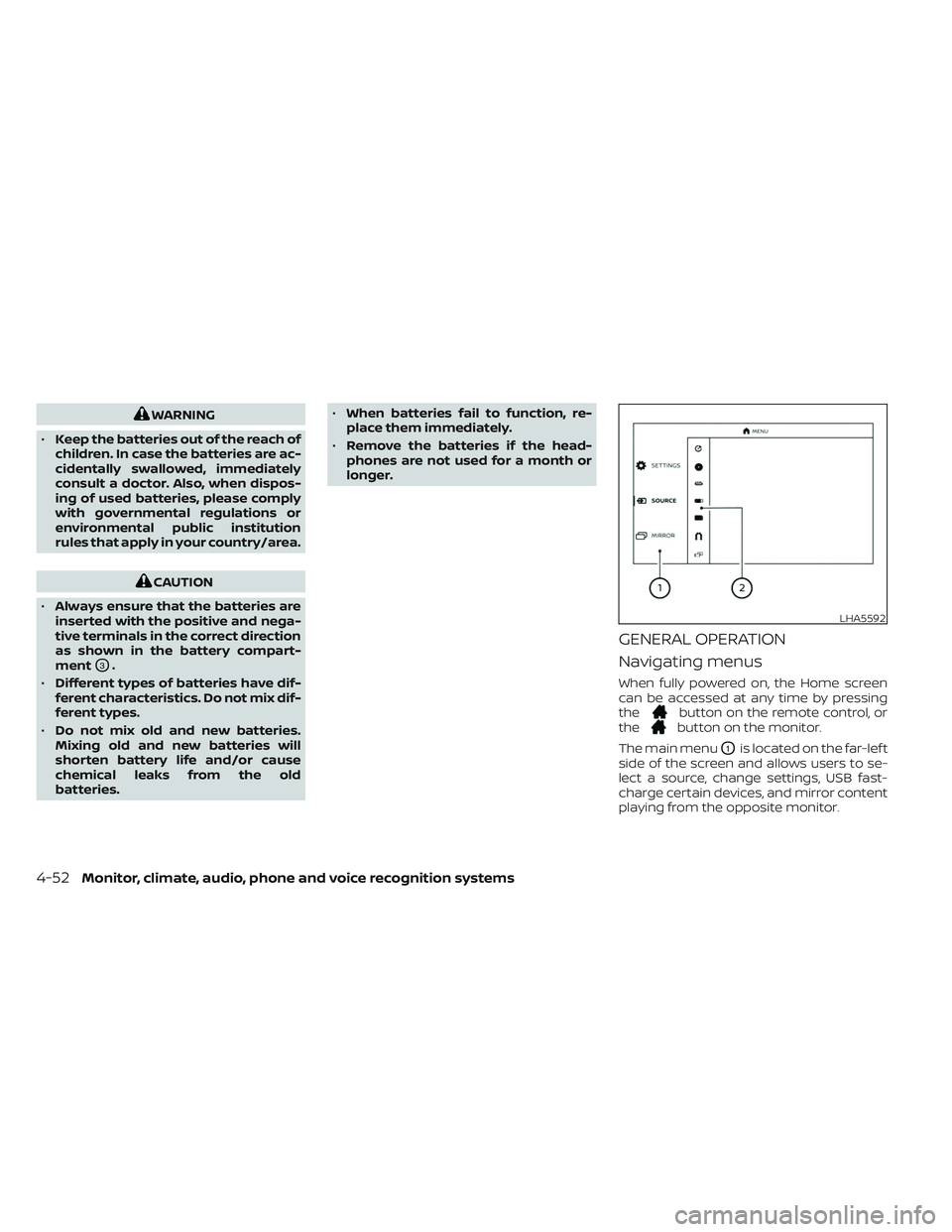
Navigating menus
When fully powered on, the Home screen
can be accessed at any time by pressing
the
button on the remote control, or
thebutton on the monitor.
The main menu
O1is located on the far-lef t
side of the screen and allows users to se-
lect a source, change settings, USB fast-
charge certain devices, and mirror content
playing from the opposite monitor.
LHA5592
4-52Monitor, climate, audio, phone and voice recognition systems
Page 303 of 644
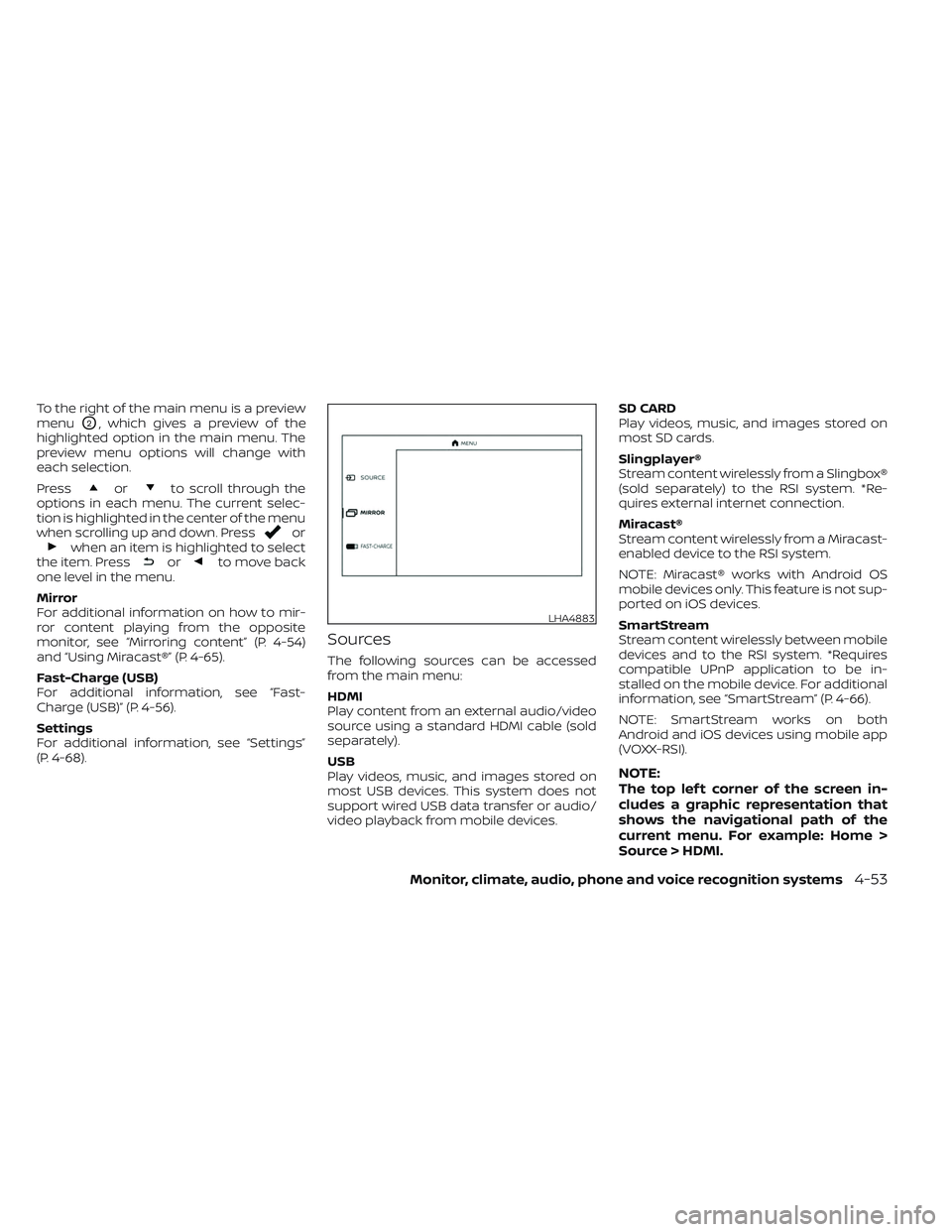
To the right of the main menu is a preview
menu
O2, which gives a preview of the
highlighted option in the main menu. The
preview menu options will change with
each selection.
Press
orto scroll through the
options in each menu. The current selec-
tion is highlighted in the center of the menu
when scrolling up and down. Press
orwhen an item is highlighted to select
the item. Pressorto move back
one level in the menu.
Mirror
For additional information on how to mir-
ror content playing from the opposite
monitor, see “Mirroring content” (P. 4-54)
and “Using Miracast®” (P. 4-65).
Fast-Charge (USB)
For additional information, see “Fast-
Charge (USB)” (P. 4-56).
Settings
For additional information, see “Settings”
(P. 4-68).
Sources
The following sources can be accessed
from the main menu:
HDMI
Play content from an external audio/video
source using a standard HDMI cable (sold
separately).
USB
Play videos, music, and images stored on
most USB devices. This system does not
support wired USB data transfer or audio/
video playback from mobile devices. SD CARD
Play videos, music, and images stored on
most SD cards.
Slingplayer®
Stream content wirelessly from a Slingbox®
(sold separately) to the RSI system. *Re-
quires external internet connection.
Miracast®
Stream content wirelessly from a Miracast-
enabled device to the RSI system.
NOTE: Miracast® works with Android OS
mobile devices only. This feature is not sup-
ported on iOS devices.
SmartStream
Stream content wirelessly between mobile
devices and to the RSI system. *Requires
compatible UPnP application to be in-
stalled on the mobile device. For additional
information, see “SmartStream” (P. 4-66).
NOTE: SmartStream works on both
Android and iOS devices using mobile app
(VOXX-RSI).
NOTE:
The top lef t corner of the screen in-
cludes a graphic representation that
shows the navigational path of the
current menu. For example: Home >
Source > HDMI.
LHA4883
Monitor, climate, audio, phone and voice recognition systems4-53