navigation system NISSAN TITAN 2023 Owners Manual
[x] Cancel search | Manufacturer: NISSAN, Model Year: 2023, Model line: TITAN, Model: NISSAN TITAN 2023Pages: 644, PDF Size: 7.8 MB
Page 4 of 644
For descriptions specified for 4-wheel drive
models, amark is placed at the be-
ginning of the applicable sections/items.
As with other vehicles with features for
off-road use, failure to operate 4-wheel
drive models correctly may result in loss
of control or a collision. For additional
information, see “Driving safety precau-
tions” (P. 5-10).
ON-PAVEMENT AND OFF-ROAD DRIVING
This vehicle will handle and maneuver
differently from an ordinary passenger
car because it has a higher center of
gravity for off-road use. As with other
vehicles with features of this type, fail-
ure to operate this vehicle correctly may
result in loss of control or an accident.
For additional information, see “On-
pavement and off-road driving precau-
tions” (P. 5-8), “Avoiding collision and
roll- over” (P. 5-9) and “Driving safety
precautions” (P. 5-10).
MODIFICATION OF YOUR VEHICLE
This vehicle should not be modified.
Modification could affect its perfor-
mance, safety, emissions or durability
and may even violate governmental
regulations. In addition, damage or per-
formance problems resulting from
modifications may not be covered un-
der NISSAN warranties.
WARNING
Installing an af termarket On-Board Di-
agnostic (OBD) plug-in device that uses
the port during normal driving, for ex-
ample remote insurance company
monitoring, remote vehicle diagnos-
tics, telematics or engine reprogram-
ming, may cause interference or dam-
age to vehicle systems. We do not
recommend or endorse the use of any
af termarket OBD plug-in devices, un-
less specifically approved by NISSAN.
The vehicle warranty may not cover
damage caused by any af termarket
plug-in device. This manual includes information for all
features and equipment available on this
model. Features and equipment in your ve-
hicle may vary depending on model, trim
level, options selected, order, date of pro-
duction, region or availability. Therefore,
you may find information about features or
equipment that are not included or in-
stalled on your vehicle.
All information, specifications and illustra-
tions in this manual are those in effect at
the time of printing. NISSAN reserves the
right to change specifications, perfor-
mance, design or component suppliers
without notice and without obligation.
From time to time, NISSAN may update or
revise this manual to provide Owners with
the most accurate information currently
available. Please carefully read and retain
with this manual all revision updates sent
to you by NISSAN to ensure you have ac-
cess to accurate and up-to-date informa-
tion regarding your vehicle. Current ver-
sions of vehicle Owner's Manuals and any
updates can also be found in the Owner
section of the NISSAN website at
https://
owners.nissanusa.com/nowners/
navigation/manualsGuide . If you have
questions concerning any information in
WHEN READING THE MANUAL
Page 134 of 644
Towing Settings
The towing settings menu allows the user to access the trailer light check.
Menu itemExplanation
Trailer light check Allows user to select a mode in which the vehicle will test various lights that could affect a trailer if connected
properly. This feature can also be activated using the NISSAN Intelligent Key®. For additional information, see
“NISSAN Intelligent Key® system” (P. 3-9) and “Towing a trailer” (P. 10-32).
Alerts
The alarm menu allows the user to set specific alarms for various items on the vehicle.
Some menu items shown below may not be equipped on your vehicle.
Menu item Explanation
Timer Alert Allows user to set the timer alert alarm.
Navigation Allows user to turn the navigation alarm on or off.
Phone Allows user to turn the phone alarm on or off.
Mail Allows user to turn the mail alarm on or off.
2-30Instruments and controls
Page 215 of 644
CHILD SAFETY REAR DOOR LOCK
(if so equipped)
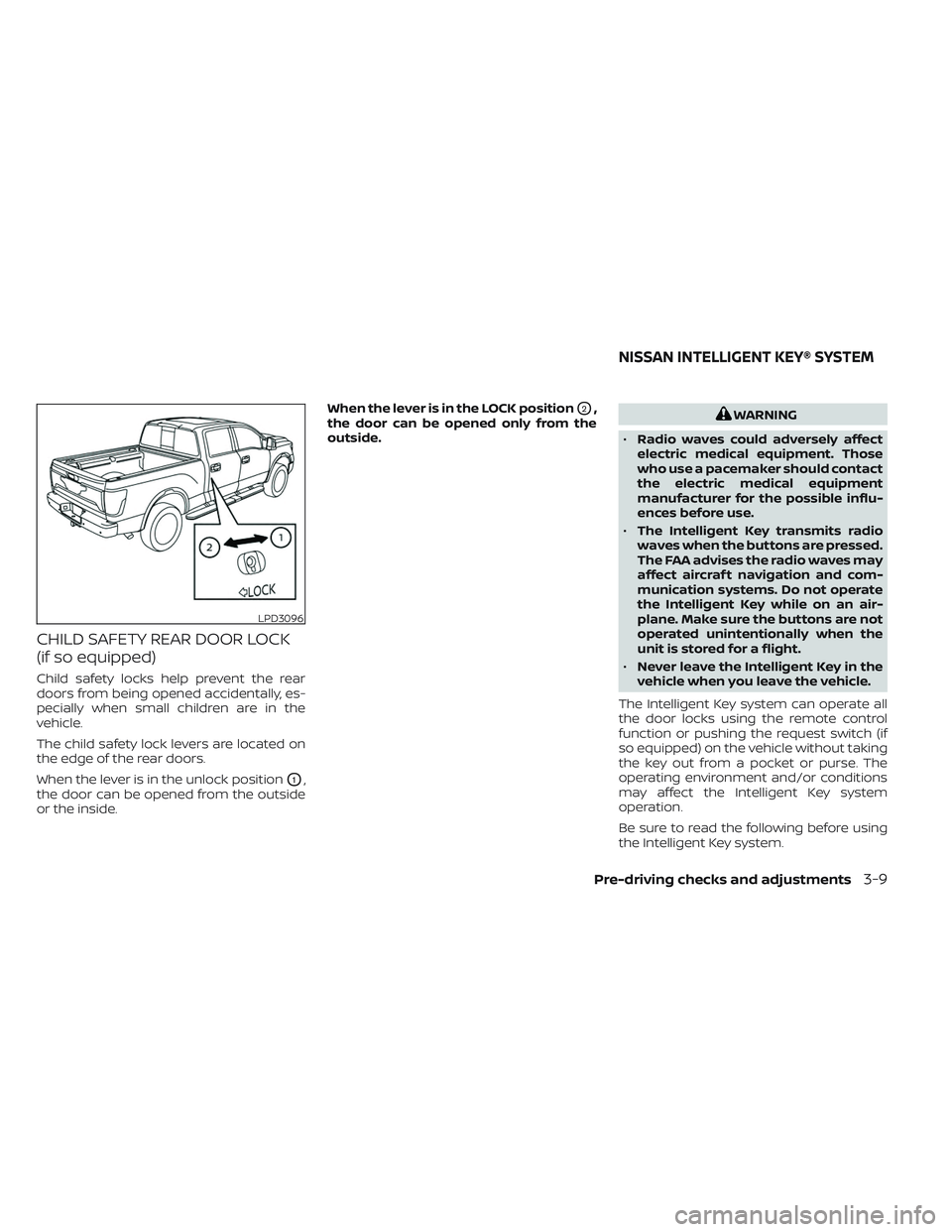
Child safety locks help prevent the rear
doors from being opened accidentally, es-
pecially when small children are in the
vehicle.
The child safety lock levers are located on
the edge of the rear doors.
When the lever is in the unlock position
O1,
the door can be opened from the outside
or the inside. When the lever is in the LOCK position
O2,
the door can be opened only from the
outside.WARNING
• Radio waves could adversely affect
electric medical equipment. Those
who use a pacemaker should contact
the electric medical equipment
manufacturer for the possible influ-
ences before use.
• The Intelligent Key transmits radio
waves when the buttons are pressed.
The FAA advises the radio waves may
affect aircraf t navigation and com-
munication systems. Do not operate
the Intelligent Key while on an air-
plane. Make sure the buttons are not
operated unintentionally when the
unit is stored for a flight.
• Never leave the Intelligent Key in the
vehicle when you leave the vehicle.
The Intelligent Key system can operate all
the door locks using the remote control
function or pushing the request switch (if
so equipped) on the vehicle without taking
the key out from a pocket or purse. The
operating environment and/or conditions
may affect the Intelligent Key system
operation.
Be sure to read the following before using
the Intelligent Key system.
LPD3096
NISSAN INTELLIGENT KEY® SYSTEM
Pre-driving checks and adjustments3-9
Page 252 of 644
Refer to the digital NissanConnect® Own-
er’s manual using the QR code on this
page, or your printed NissanConnect®
Owner’s manual (if so equipped). This
manual includes the following information:
• NissanConnect® Services (if so equipped)
• Navigation system (if so equipped)
• Audio system
• Apple CarPlay®
• Android Auto™
• Bluetooth® Hands-Free Phone system
• Viewing information
• Other settings• Voice recognition
• General system information
LHA5688
NISSANCONNECT® OWNER’S
MANUAL
4-2Monitor, climate, audio, phone and voice recognition systems
Page 297 of 644
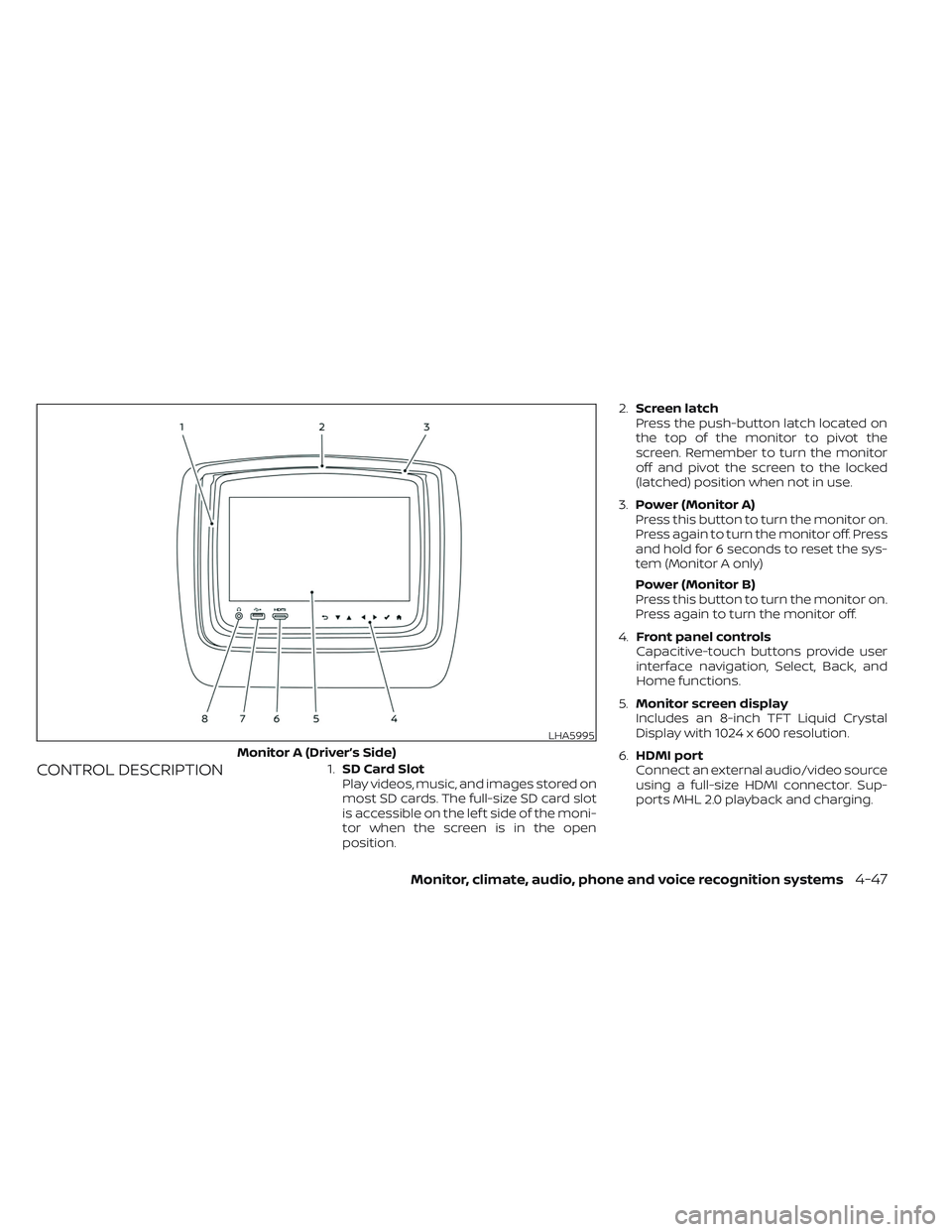
CONTROL DESCRIPTION1.SD Card Slot
Play videos, music, and images stored on
most SD cards. The full-size SD card slot
is accessible on the lef t side of the moni-
tor when the screen is in the open
position. 2.
Screen latch
Press the push-button latch located on
the top of the monitor to pivot the
screen. Remember to turn the monitor
off and pivot the screen to the locked
(latched) position when not in use.
3. Power (Monitor A)
Press this button to turn the monitor on.
Press again to turn the monitor off. Press
and hold for 6 seconds to reset the sys-
tem (Monitor A only)
Power (Monitor B)
Press this button to turn the monitor on.
Press again to turn the monitor off.
4. Front panel controls
Capacitive-touch buttons provide user
interface navigation, Select, Back, and
Home functions.
5. Monitor screen display
Includes an 8-inch TFT Liquid Crystal
Display with 1024 x 600 resolution.
6. HDMI port
Connect an external audio/video source
using a full-size HDMI connector. Sup-
ports MHL 2.0 playback and charging.
LHA5995
Monitor A (Driver’s Side)
Monitor, climate, audio, phone and voice recognition systems4-47
Page 303 of 644
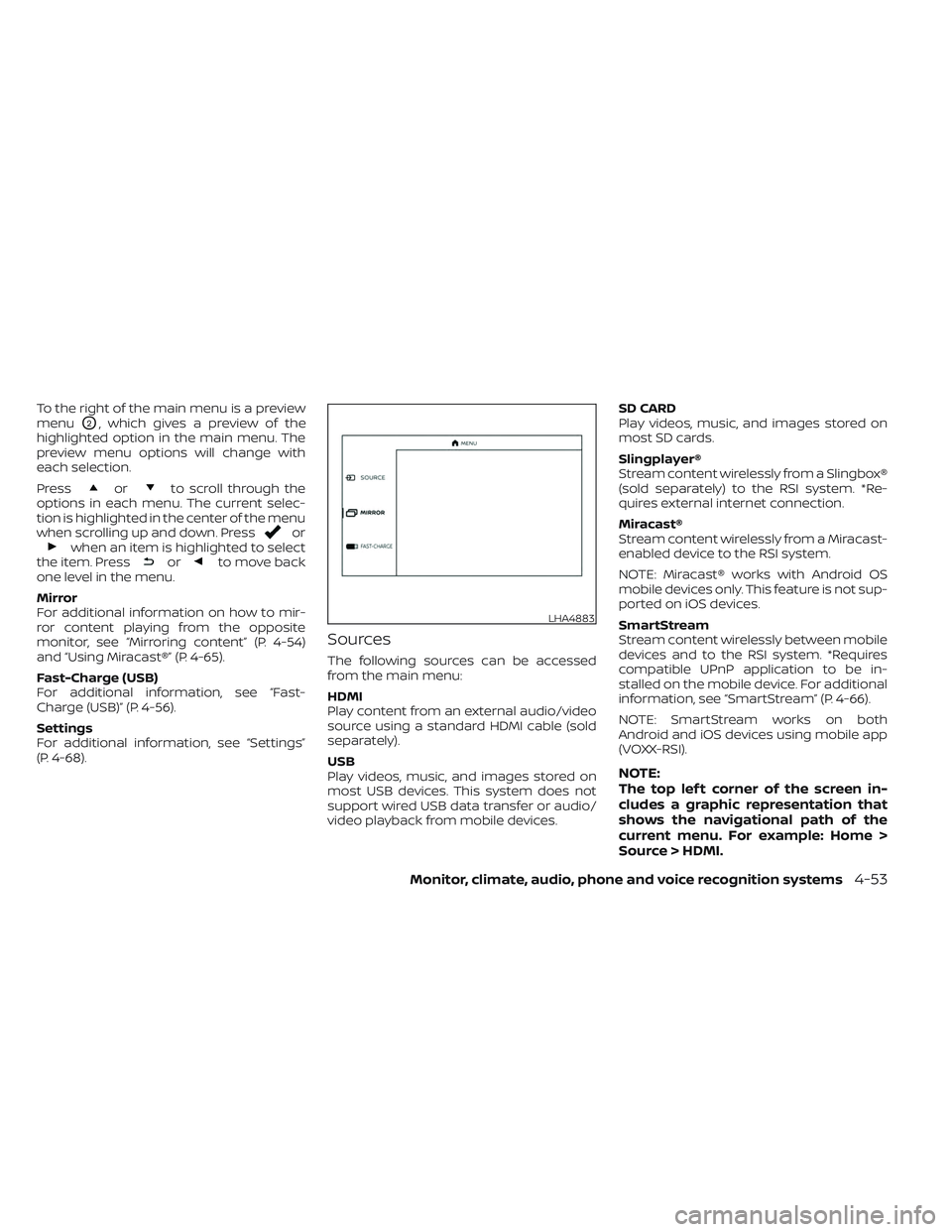
To the right of the main menu is a preview
menu
O2, which gives a preview of the
highlighted option in the main menu. The
preview menu options will change with
each selection.
Press
orto scroll through the
options in each menu. The current selec-
tion is highlighted in the center of the menu
when scrolling up and down. Press
orwhen an item is highlighted to select
the item. Pressorto move back
one level in the menu.
Mirror
For additional information on how to mir-
ror content playing from the opposite
monitor, see “Mirroring content” (P. 4-54)
and “Using Miracast®” (P. 4-65).
Fast-Charge (USB)
For additional information, see “Fast-
Charge (USB)” (P. 4-56).
Settings
For additional information, see “Settings”
(P. 4-68).
Sources
The following sources can be accessed
from the main menu:
HDMI
Play content from an external audio/video
source using a standard HDMI cable (sold
separately).
USB
Play videos, music, and images stored on
most USB devices. This system does not
support wired USB data transfer or audio/
video playback from mobile devices. SD CARD
Play videos, music, and images stored on
most SD cards.
Slingplayer®
Stream content wirelessly from a Slingbox®
(sold separately) to the RSI system. *Re-
quires external internet connection.
Miracast®
Stream content wirelessly from a Miracast-
enabled device to the RSI system.
NOTE: Miracast® works with Android OS
mobile devices only. This feature is not sup-
ported on iOS devices.
SmartStream
Stream content wirelessly between mobile
devices and to the RSI system. *Requires
compatible UPnP application to be in-
stalled on the mobile device. For additional
information, see “SmartStream” (P. 4-66).
NOTE: SmartStream works on both
Android and iOS devices using mobile app
(VOXX-RSI).
NOTE:
The top lef t corner of the screen in-
cludes a graphic representation that
shows the navigational path of the
current menu. For example: Home >
Source > HDMI.
LHA4883
Monitor, climate, audio, phone and voice recognition systems4-53
Page 307 of 644
Basic navigation
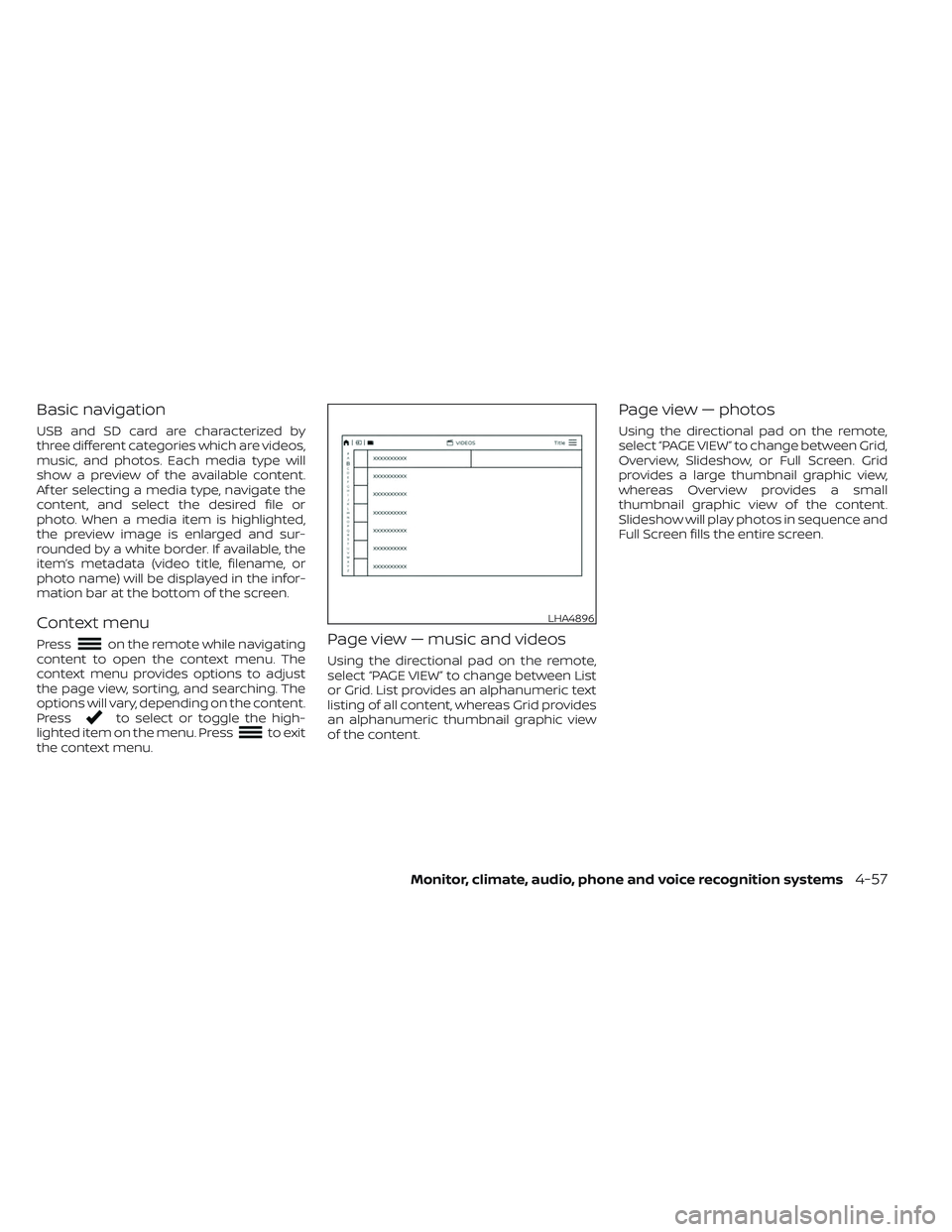
USB and SD card are characterized by
three different categories which are videos,
music, and photos. Each media type will
show a preview of the available content.
Af ter selecting a media type, navigate the
content, and select the desired file or
photo. When a media item is highlighted,
the preview image is enlarged and sur-
rounded by a white border. If available, the
item’s metadata (video title, filename, or
photo name) will be displayed in the infor-
mation bar at the bottom of the screen.
Context menu
Presson the remote while navigating
content to open the context menu. The
context menu provides options to adjust
the page view, sorting, and searching. The
options will vary, depending on the content.
Press
to select or toggle the high-
lighted item on the menu. Pressto exit
the context menu.
Page view — music and videos
Using the directional pad on the remote,
select “PAGE VIEW ” to change between List
or Grid. List provides an alphanumeric text
listing of all content, whereas Grid provides
an alphanumeric thumbnail graphic view
of the content.
Page view — photos
Using the directional pad on the remote,
select “PAGE VIEW ” to change between Grid,
Overview, Slideshow, or Full Screen. Grid
provides a large thumbnail graphic view,
whereas Overview provides a small
thumbnail graphic view of the content.
Slideshow will play photos in sequence and
Full Screen fills the entire screen.
LHA4896
Monitor, climate, audio, phone and voice recognition systems4-57
Page 313 of 644
Slingplayer® options
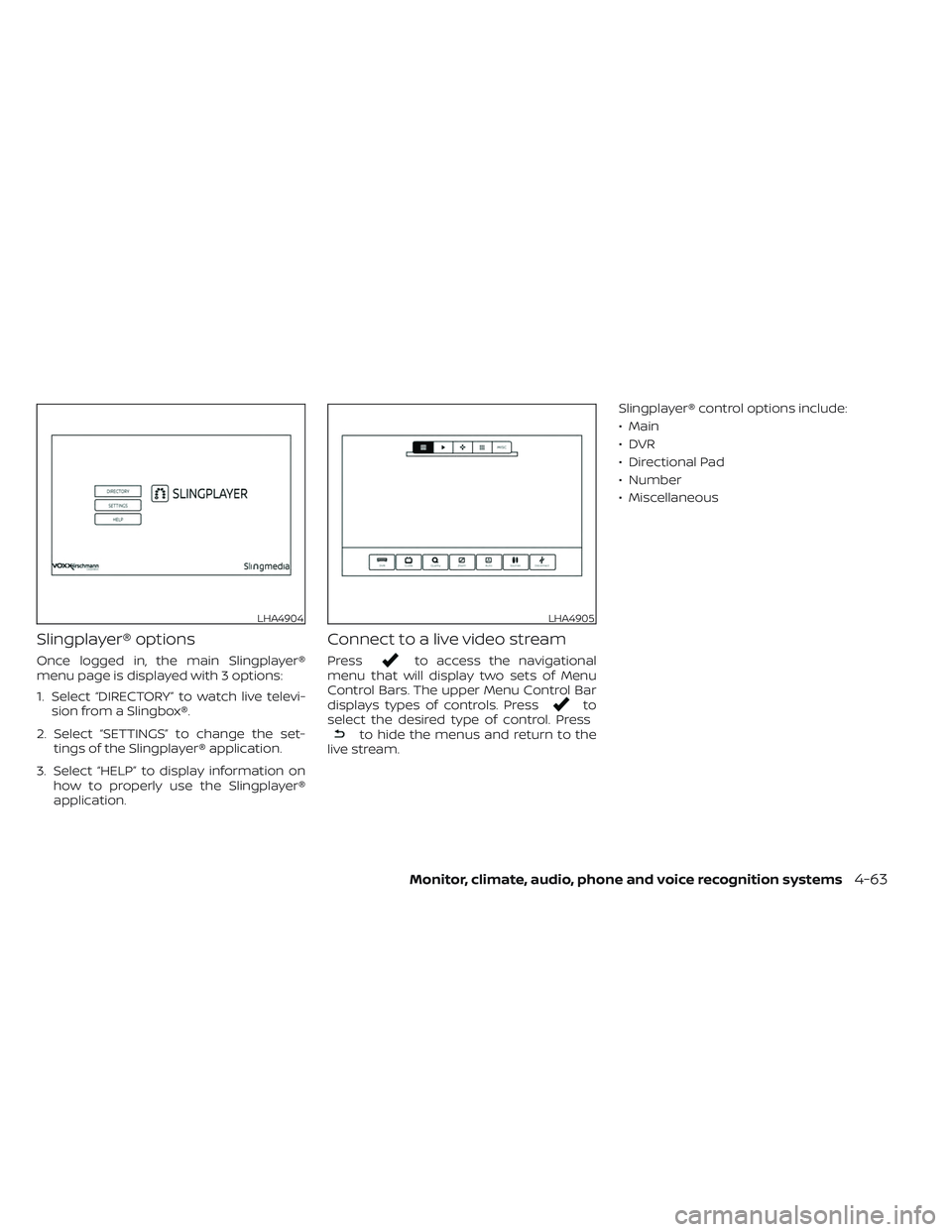
Once logged in, the main Slingplayer®
menu page is displayed with 3 options:
1. Select “DIRECTORY” to watch live televi-sion from a Slingbox®.
2. Select “SETTINGS” to change the set- tings of the Slingplayer® application.
3. Select “HELP” to display information on how to properly use the Slingplayer®
application.
Connect to a live video stream
Pressto access the navigational
menu that will display two sets of Menu
Control Bars. The upper Menu Control Bar
displays types of controls. Press
to
select the desired type of control. Press
to hide the menus and return to the
live stream. Slingplayer® control options include:
• Main
•DVR
• Directional Pad
• Number
• Miscellaneous
LHA4904LHA4905
Monitor, climate, audio, phone and voice recognition systems4-63
Page 357 of 644
WARNING
• Be sure the parking brake is fully re-
leased before driving. Failure to do so
can cause brake failure and lead to
an accident.
• Do not release the parking brake
from outside the vehicle.
• Do not use the shif t lever in place of
the parking brake. When parking, be
sure the parking brake is fully
engaged.
• To help avoid risk of injury or death
through unintended operation of the
vehicle and/or its systems, do not
leave children, people who require
the assistance of others or pets unat-
tended in your vehicle. Additionally,
the temperature inside a closed ve-
hicle on a warm day can quickly be-
come high enough to cause a signifi-
cant risk of injury or death to people
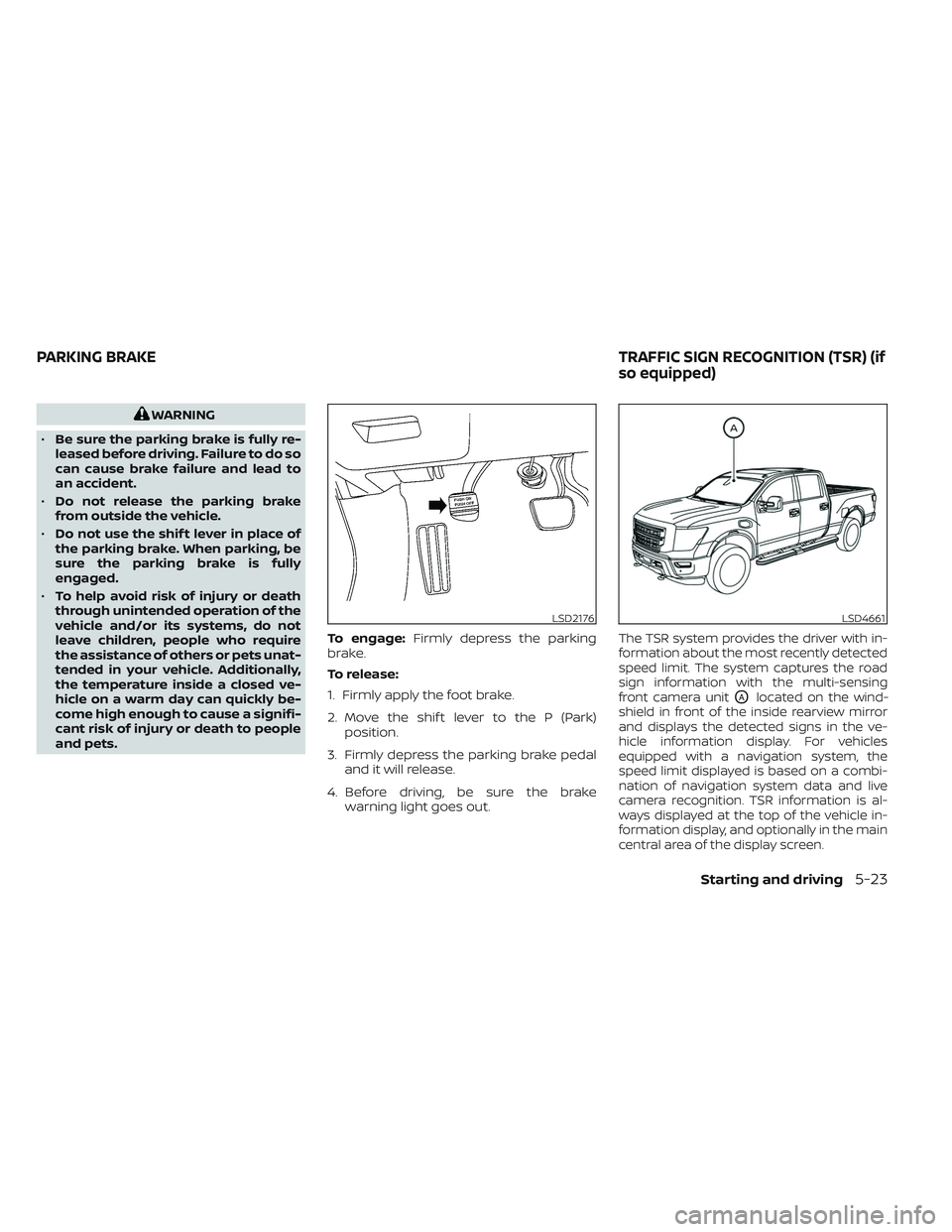
and pets. To engage:
Firmly depress the parking
brake.
To release:
1. Firmly apply the foot brake.
2. Move the shif t lever to the P (Park) position.
3. Firmly depress the parking brake pedal and it will release.
4. Before driving, be sure the brake warning light goes out.
The TSR system provides the driver with in-
formation about the most recently detected
speed limit. The system captures the road
sign information with the multi-sensing
front camera unit
OAlocated on the wind-
shield in front of the inside rearview mirror
and displays the detected signs in the ve-
hicle information display. For vehicles
equipped with a navigation system, the
speed limit displayed is based on a combi-
nation of navigation system data and live
camera recognition. TSR information is al-
ways displayed at the top of the vehicle in-
formation display, and optionally in the main
central area of the display screen.
LSD2176LSD4661
PARKING BRAKE TRAFFIC SIGN RECOGNITION (TSR) (if
so equipped)
Starting and driving5-23
Page 359 of 644
–When rain, snow or dirt adheres to
the windshield in front of the
multi-sensing camera unit.
– When the headlights are not
bright, for example, due to dirt on
the lens or if the aiming is not ad-
justed properly.
– When strong light enters the cam-
era unit. (For example, the light di-
rectly shines on the front of the
vehicle at sunrise or sunset.)
– When a sudden change in bright-
ness occurs. (For example, when
the vehicle enters or exits a tunnel
or under a bridge.)
– If there are deviations in relation
to the navigation, for example due
to changes in the road routing.
– When overtaking buses or trucks
with speed stickers.
TURNING THE TRAFFIC SIGN
RECOGNITION (TSR) SYSTEM ON
AND OFF
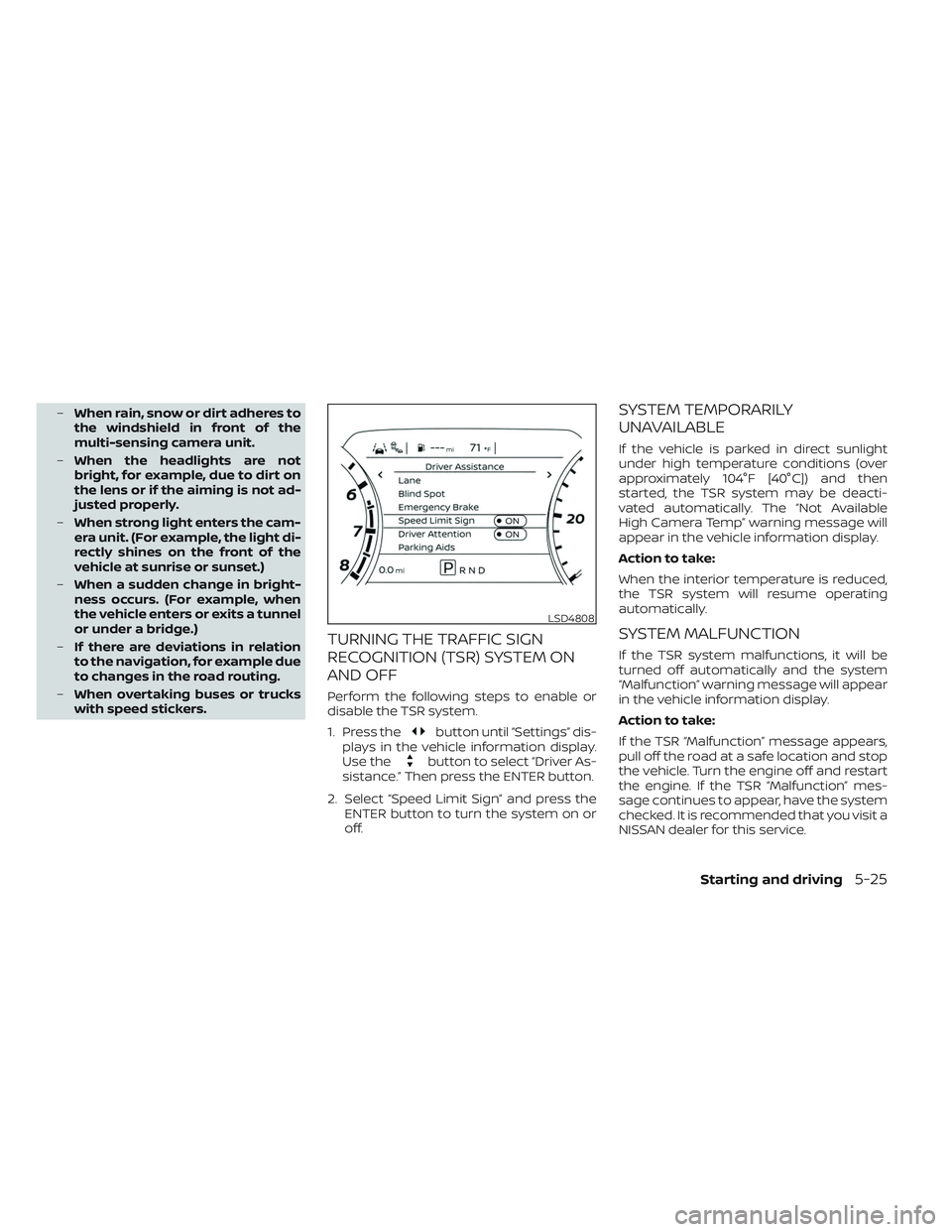
Perform the following steps to enable or
disable the TSR system.
1. Press the
button until “Settings” dis-
plays in the vehicle information display.
Use the
button to select “Driver As-
sistance.” Then press the ENTER button.
2. Select “Speed Limit Sign” and press the ENTER button to turn the system on or
off.
SYSTEM TEMPORARILY
UNAVAILABLE
If the vehicle is parked in direct sunlight
under high temperature conditions (over
approximately 104°F [40°C]) and then
started, the TSR system may be deacti-
vated automatically. The “Not Available
High Camera Temp” warning message will
appear in the vehicle information display.
Action to take:
When the interior temperature is reduced,
the TSR system will resume operating
automatically.
SYSTEM MALFUNCTION
If the TSR system malfunctions, it will be
turned off automatically and the system
“Malfunction” warning message will appear
in the vehicle information display.
Action to take:
If the TSR “Malfunction” message appears,
pull off the road at a safe location and stop
the vehicle. Turn the engine off and restart
the engine. If the TSR “Malfunction” mes-
sage continues to appear, have the system
checked. It is recommended that you visit a
NISSAN dealer for this service.
LSD4808
Starting and driving5-25