climate control NISSAN VERSA 2014 User Guide
[x] Cancel search | Manufacturer: NISSAN, Model Year: 2014, Model line: VERSA, Model: NISSAN VERSA 2014Pages: 365, PDF Size: 3.47 MB
Page 155 of 365
Heating and defogging
This mode heats the interior and defogs the wind-
shield.1. Move the air intake lever to the
posi-
tion.
2. Turn the air flow control dial to the
position.
3. Turn the fan control dial to the desired posi- tion.
4. Turn the temperature control dial to the de- sired position between the middle and the
hot position.
When the
orposition is selected,
press the
button to turn on the air condi-
tioner for better performance. This will dehumidify
the air and help defog the windows.
Operating tips
Clear snow and ice from the wiper blades
and air inlet in front of the windshield. This
improves heater operation.
AIR CONDITIONER OPERATION (if
so equipped)
Start the engine, turn the fan control dial to the
desired position, and press the
button to
activate the air conditioner. When the air condi-
tioner is on, cooling and dehumidifying functions
are added to the heater operation.
The air conditioner cooling function oper-
ates only when the engine is running.
Cooling
This mode is used to cool and dehumidify the air.
1. Move the air intake lever to the
posi-
tion.
2. Turn the air flow control dial to the
position.
3. Turn the fan control dial to the desired posi- tion.
4. Press the
button. The indicator light
comes on.
5. Turn the temperature control dial to the de- sired position. ●
For quick cooling when the outside tem-
perature is high, move the air intake lever to
the
position. Be sure to return to
the
position for normal cooling.
Dehumidified heating
This mode is used to heat and dehumidify the air.
1. Move the air intake lever to the
posi-
tion.
2. Turn the air flow control dial to the
position.
3. Turn the fan control dial to the desired posi- tion.
4. Press the
button. The indicator light
comes on.
5. Turn the temperature control dial to the de- sired position.
Dehumidified defogging
This mode is used to defog the windows and
dehumidify the air.
1. Move the air intake lever to the
posi-
tion.
2. Turn the air flow control dial to the
position.
4-18Monitor, climate, audio, phone and voice recognition systems
Page 156 of 365
3. Turn the fan control dial to the desired posi-tion.
4. Turn the temperature control dial to the de- sired position.
Operating tips
●Keep the windows closed while the air con-
ditioner is in operation.
● After parking in the sun, drive for 2 or 3 min-
utes with the windows open to vent hot air
from the passenger compartment. Then,
close the windows. This allows the air con-
ditioner to cool the interior more quickly.
● The air conditioning system should be
operated for approximately 10 minutes
at least once a month. This helps pre-
vent damage to the system due to lack
of lubrication.
● A visible mist may be seen coming from the
ventilators in hot, humid conditions as the air
is cooled rapidly. This does not indicate a
malfunction. ●
If the engine coolant temperature
gauge indicates engine coolant tem-
perature over the normal range, turn
the air conditioner off. See “If your
vehicle overheats” in the “In case of
emergency” section of this manual.AIR FLOW CHARTS
The following charts show the button and dial
positions for MAXIMUM AND QUICK heating,
cooling or defrosting. The air intake lever
should always be in the
position for
heating and defrosting.
Monitor, climate, audio, phone and voice recognition systems4-19
Page 161 of 365
Static and flutter: During signal interference from
buildings, large hills or due to antenna position
(usually in conjunction with increased distance
from the station transmitter) , static or flutter can
be heard. This can be reduced by adjusting the
treble control to reduce treble response.
Multipath reception: Because of the reflective
characteristics of FM signals, direct and reflected
signals reach the receiver at the same time. The
signals may cancel each other, resulting in mo-
mentary flutter or loss of sound.
AM RADIO RECEPTION
AM signals, because of their low frequency, can
bend around objects and skip along the ground.
In addition, the signals can be bounced off the
ionosphere and bent back to earth. Because of
these characteristics, AM signals are also sub-
ject to interference as they travel from transmitter
to receiver.
Fading: Occurs while the vehicle is passing
through freeway underpasses or in areas with
many tall buildings. It can also occur for several
seconds during ionospheric turbulence even in
areas where no obstacles exist.
Static: Caused by thunderstorms, electrical
power lines, electric signs and even traffic lights.
SATELLITE RADIO RECEPTION (if so
equipped)
When the satellite radio is used for the first time
or the battery has been replaced, the satellite
radio may not work properly. This is not a mal-
function. Wait more than 10 minutes with satellite
radio ON and the vehicle outside of any metal or
large building for satellite radio to receive all of
the necessary data.
No satellite radio reception is available unless
there is an active SiriusXM Satellite Radio service
subscription. Satellite radio is not available in
Alaska, Hawaii and Guam. If satellite radio is not
operational then pressing the RADIO button will
switch between FM and AM bands.
Satellite radio performance may be affected if
cargo carried on the roof blocks the satellite radio
signal.
If possible, do not put cargo over the satellite
antenna.
A build up of ice on the satellite radio antenna can
affect satellite radio performance. Remove the
ice to restore satellite radio reception.
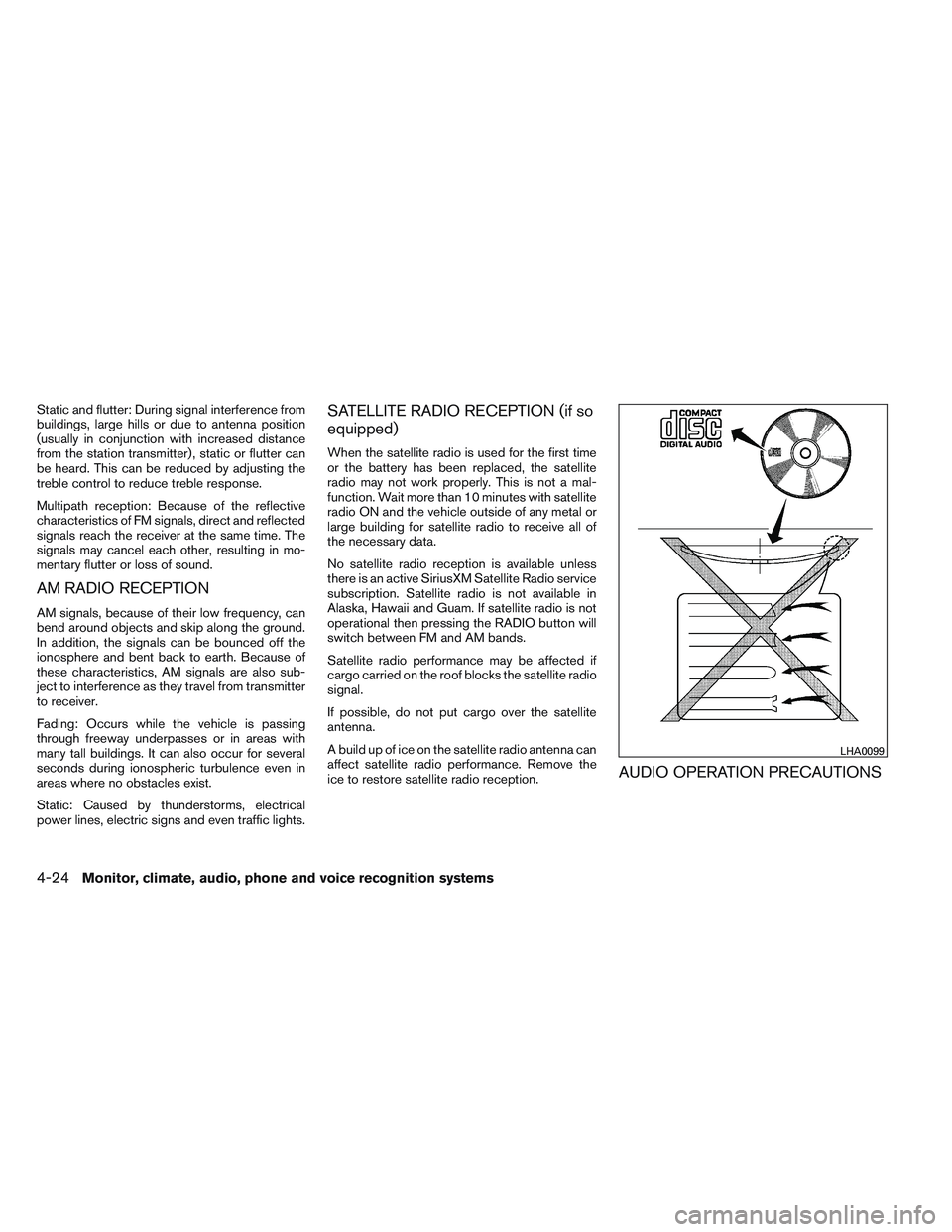
AUDIO OPERATION PRECAUTIONS
LHA0099
4-24Monitor, climate, audio, phone and voice recognition systems
Page 162 of 365
Compact disc (CD) player
CAUTION
●Do not force a compact disc into the CD
insert slot. This could damage the CD
and/or CD changer/player.
● Trying to load a CD with the CD door
closed could damage the CD and/or CD
changer.
● Only one CD can be loaded into the CD
player at a time.
● Only use high quality 4.7 in (12 cm)
round discs that have the “COMPACT
disc DIGITAL AUDIO” logo on the disc
or packaging.
● During cold weather or rainy days, the
player may malfunction due to the hu-
midity. If this occurs, remove the CD
and dehumidify or ventilate the player
completely.
● The player may skip while driving on
rough roads.
● The CD player sometimes cannot func-
tion when the compartment tempera-
ture is extremely high or low.
Decrease/increase the temperature
before use. ●
Do not expose the CD to direct sun-
light.
● CDs that are in poor condition or are
dirty, scratched or covered with finger-
prints may not work properly.
● The following CDs may not work prop-
erly:
● Copy control compact discs (CCCD)
● Recordable compact discs (CD-R)
● Rewritable compact discs (CD-RW)
● Do not use the following CDs as they
may cause the CD player to malfunc-
tion:
● 3.1 in (8 cm) discs with an adapter
● CDs that are not round
● CDs with a paper label
● CDs that are warped, scratched, or
have abnormal edges
● This audio system can only play pre-
recorded CDs. It has no capability to
record or burn CDs.
● If the CD cannot be played, one of the
following messages will be displayed. CHECK DISC:
●
Confirm that the CD is inserted cor-
rectly (the label side is facing up,
etc.) .
● Confirm that the CD is not bent or
warped and it is free of scratches.
PRESS EJECT:
This is an error due to excessive tem-
perature inside the player. Remove the
CD by pressing the EJECT button. After
a short time, reinsert the CD. The CD
can be played when the temperature of
the player returns to normal.
UNPLAYABLE:
The file is unplayable in this audio sys-
tem (only MP3 or WMA (if so equipped)
CD) .
Monitor, climate, audio, phone and voice recognition systems4-25
Page 167 of 365
USB (Universal Serial Bus) memory (if
so equipped)
WARNING
Do not connect/disconnect or operate the
USB device while driving. Doing so can be
a distraction. If distracted you could lose
control of your vehicle and cause an acci-
dent or serious injury.
CAUTION
●Do not force the USB device into the
USB port. Inserting the USB device
tilted or up-side-down into the port may
damage the port. Make sure that the
USB device is connected correctly into
the USB port.
● Do not grab the USB port cover (if so
equipped) when pulling the USB device
out of the port. This could damage the
port and the cover.
● Do not leave the USB cable in a place
where it can be pulled unintentionally.
Pulling the cable may damage the port.
The vehicle is not equipped with a USB device.
USB devices should be purchased separately as
necessary. This system cannot be used to format USB de-
vices. To format a USB device, use a personal
computer.
In some states/area, the USB device for the front
seats plays only sound without images for regu-
latory reasons, even when the vehicle is parked.
This system supports various USB memory de-
vices, USB hard drives and iPod® players. Some
USB devices may not be supported by this sys-
tem.
● Partitioned USB devices may not play cor-
rectly.
● Some characters used in other languages
(Chinese, Japanese, etc.) may not appear
properly in the display. Using English lan-
guage characters with a USB device is rec-
ommended.
General notes for USB use: ● Refer to your device manufacturer’s owner
information regarding the proper use and
care of the device.
Notes for iPod® use:
iPod® is a trademark of Apple Inc., registered in
the U.S. and other countries. ●
Improperly plugging in the iPod® may cause
a checkmark to be displayed on and off
(flickering) . Always make sure that the
iPod® is connected properly.
● An iPod® nano (1st Generation) may remain
in fast forward or rewind mode if it is con-
nected during a seek operation. In this case,
please manually reset the iPod®.
● An iPod® nano (2nd Generation) will con-
tinue to fast-forward or rewind if it is discon-
nected during a seek operation.
● An incorrect song title may appear when the
Play Mode is changed while using an iPod®
nano (2nd Generation) .
● Audiobooks may not play in the same order
as they appear on an iPod®.
● Large video files cause slow responses in an
iPod®. The vehicle center display may mo-
mentarily black out, but will soon recover.
● If an iPod® automatically selects large video
files while in the shuffle mode, the vehicle
center display may momentarily black out,
but will soon recover.
4-30Monitor, climate, audio, phone and voice recognition systems
Page 168 of 365
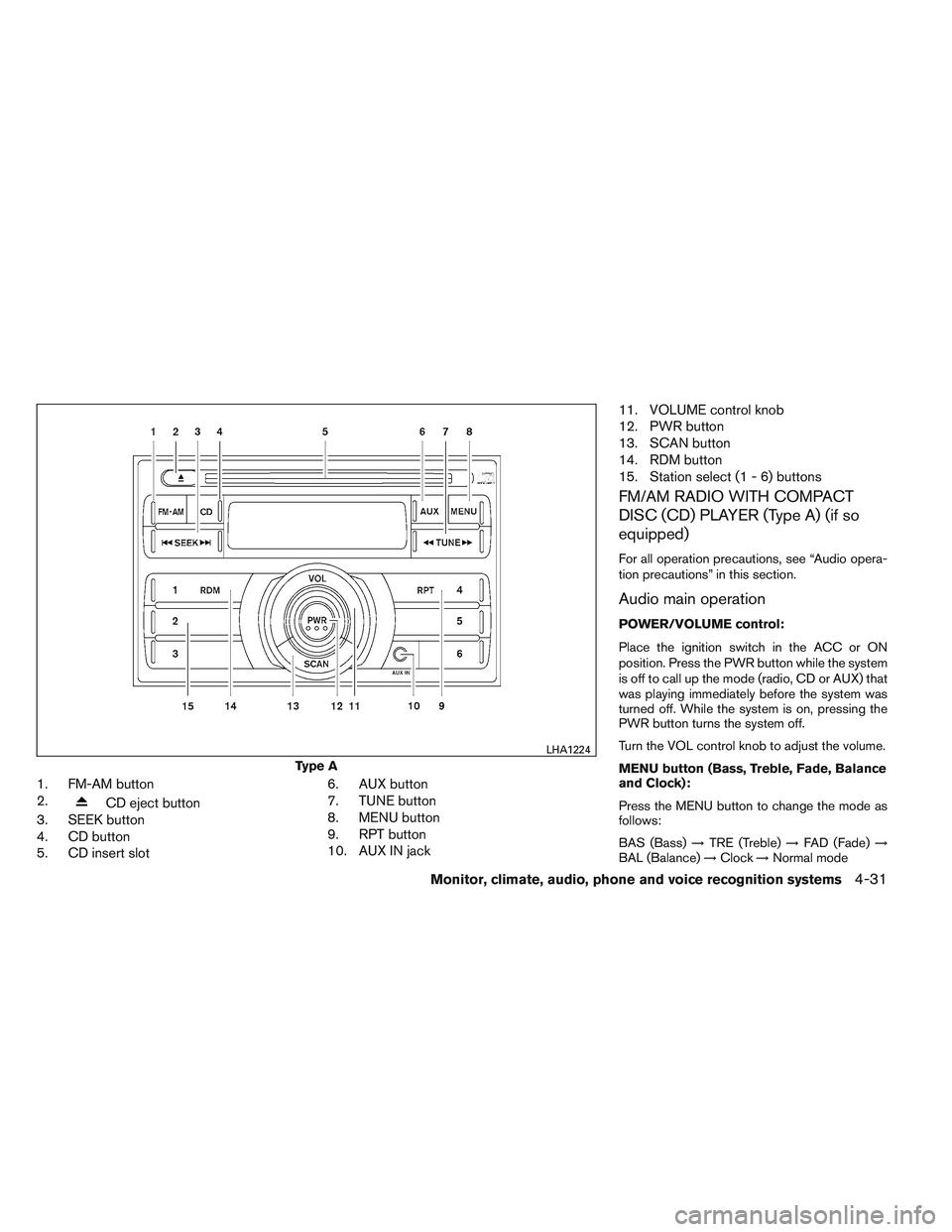
1. FM-AM button
2.
CD eject button
3. SEEK button
4. CD button
5. CD insert slot 6. AUX button
7. TUNE button
8. MENU button
9. RPT button
10. AUX IN jack11. VOLUME control knob
12. PWR button
13. SCAN button
14. RDM button
15. Station select (1 - 6) buttons
FM/AM RADIO WITH COMPACT
DISC (CD) PLAYER (Type A) (if so
equipped)
For all operation precautions, see “Audio opera-
tion precautions” in this section.
Audio main operation
POWER/VOLUME control:
Place the ignition switch in the ACC or ON
position. Press the PWR button while the system
is off to call up the mode (radio, CD or AUX) that
was playing immediately before the system was
turned off. While the system is on, pressing the
PWR button turns the system off.
Turn the VOL control knob to adjust the volume.
MENU button (Bass, Treble, Fade, Balance
and Clock):
Press the MENU button to change the mode as
follows:
BAS (Bass)
→TRE (Treble) →FAD (Fade) →
BAL (Balance) →Clock →Normal mode
Type A
LHA1224
Monitor, climate, audio, phone and voice recognition systems4-31
Page 171 of 365
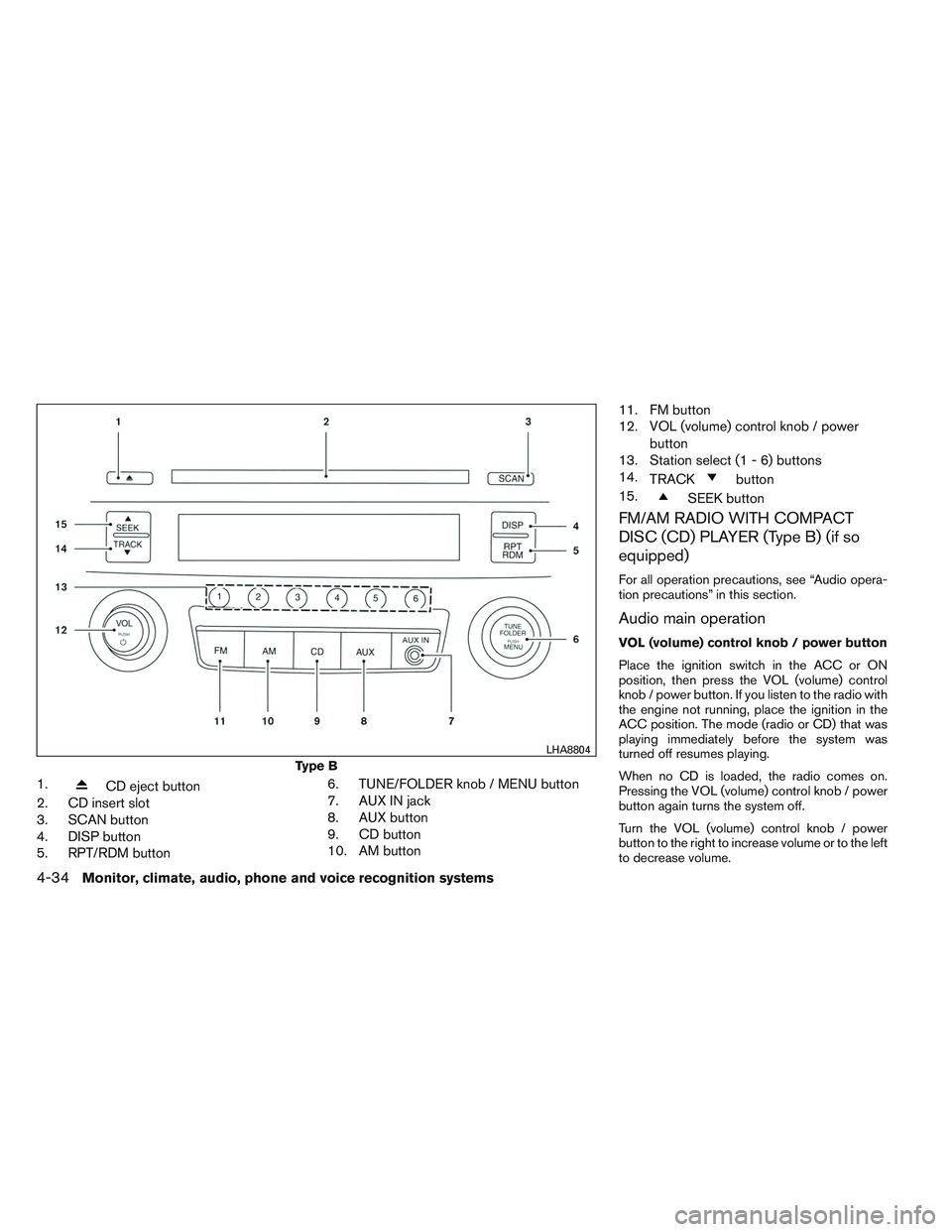
1.CD eject button
2. CD insert slot
3. SCAN button
4. DISP button
5. RPT/RDM button 6. TUNE/FOLDER knob / MENU button
7. AUX IN jack
8. AUX button
9. CD button
10. AM button11. FM button
12. VOL (volume) control knob / power
button
13. Station select (1 - 6) buttons
14. TRACK
button
15.
SEEK button
FM/AM RADIO WITH COMPACT
DISC (CD) PLAYER (Type B) (if so
equipped)
For all operation precautions, see “Audio opera-
tion precautions” in this section.
Audio main operation
VOL (volume) control knob / power button
Place the ignition switch in the ACC or ON
position, then press the VOL (volume) control
knob / power button. If you listen to the radio with
the engine not running, place the ignition in the
ACC position. The mode (radio or CD) that was
playing immediately before the system was
turned off resumes playing.
When no CD is loaded, the radio comes on.
Pressing the VOL (volume) control knob / power
button again turns the system off.
Turn the VOL (volume) control knob / power
button to the right to increase volume or to the left
to decrease volume.
Type B
LHA8804
4-34Monitor, climate, audio, phone and voice recognition systems
Page 174 of 365
When the TRACKbutton is pressed, the
track being played returns to the beginning.
Press the TRACK
button several times to
skip back several tracks. Each time the button is
pressed the CD moves back one track.
RPT/RDM button:
Press the RPT/RDM button while a compact disc
is playing to change the play pattern as follows:
CD:
TRACK REPEAT →DISC RANDOM →DISC
REPEAT
MP3/WMA CD:
FOLDER REPEAT →TRACK REPEAT →DISC
RANDOM →FOLDER RANDOM →DISC RE-
PEAT
TRACK REPEAT: The track that is currently play-
ing will be repeated.
DISC RANDOM: The order of the tracks on the
disc will be mixed during play.
DISC REPEAT: The disc currently playing will be
repeated.
FOLDER REPEAT: The tracks in the current
folder will be repeated.
FOLDER RANDOM: The order of the tracks in
the folder will be mixed during play. SCAN (CDs) button:
Press the SCAN button for less than 1.5 seconds
to scan all tracks of the current disc for 10 sec-
onds per track. The SCAN icon is flashed during
scan mode.
The scan mode is canceled once it scans through
all tracks on the disc, or if the SCAN button is
pressed during scan mode.
CD EJECT:
When the
button is pressed with a com-
pact disc loaded, the compact disc will be
ejected.
When the
button is pressed while the
compact disc is playing, the compact disc will
eject and the system will turn off.
AUX (Auxiliary) button:
The AUX IN jack is located on the CD player. The
AUX IN audio input jack accepts any standard
analog audio input such as from a portable cas-
sette tape/CD player, MP3 player or laptop com-
puters.
Press the AUX button to play a compatible device
when it is plugged into the AUX IN jack. Press the MENU button repeatedly until “AUX IN
Volume” appears on the screen to control the
incoming volume level of the auxiliary input de-
vice. Turn the TUNE/FOLDER knob to adjust the
level between 0 and +3.
Monitor, climate, audio, phone and voice recognition systems4-37
Page 176 of 365
FM/AM/SAT RADIO WITH
COMPACT DISC (CD) PLAYER (Type
A) (if so equipped)
For all operation precautions, see “Audio opera-
tion precautions” in this section.
Audio main operation
VOL (volume) knob / ON-OFF button:
Place the ignition switch in the ACC or ON
position and press the VOL (volume) knob /
ON-OFF button while the system is off to call up
the mode that was playing immediately before the
system was turned off.
To turn the system off, press the VOL (volume)
knob / ON-OFF button.
Turn the VOL (volume) knob / ON-OFF button to
adjust the volume.SETTING button:
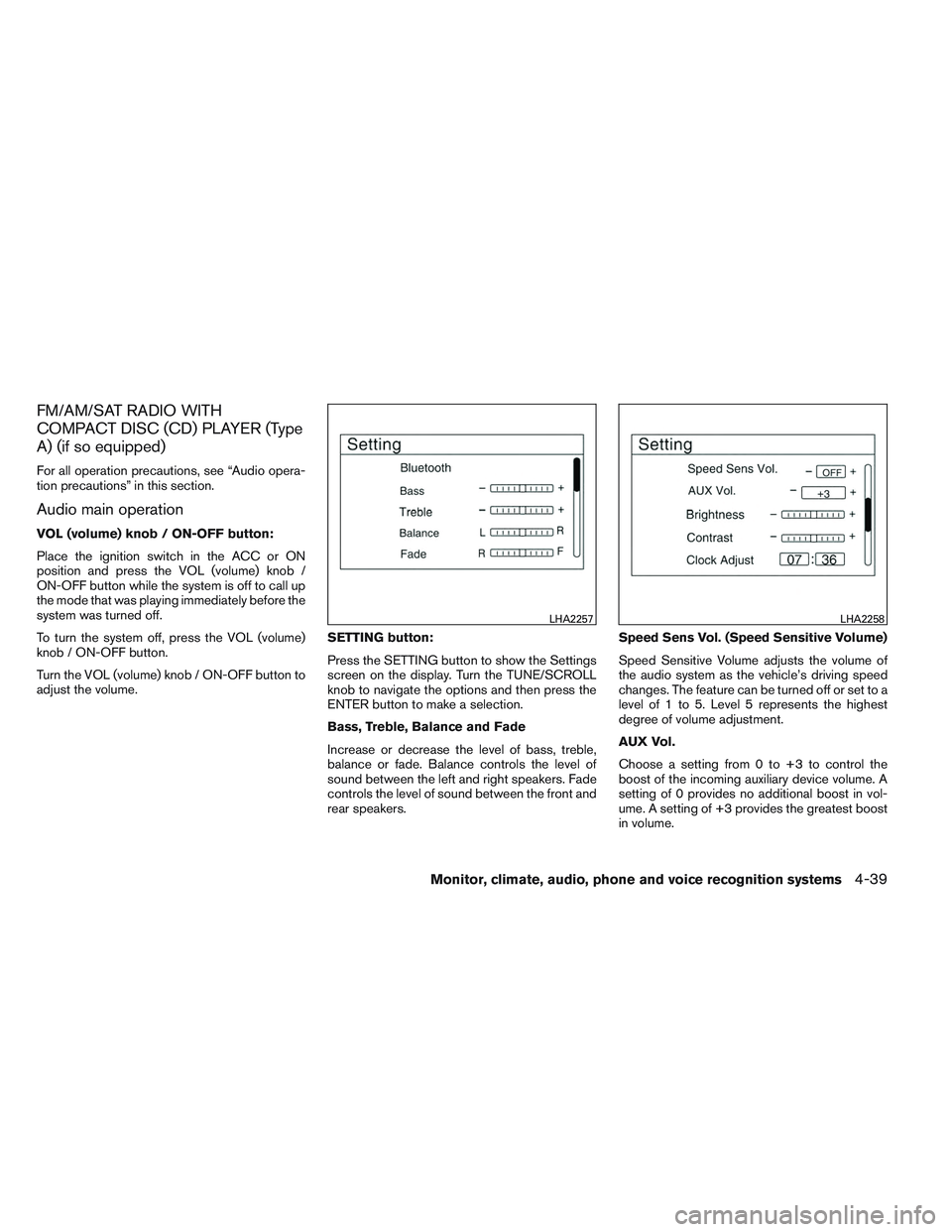
Press the SETTING button to show the Settings
screen on the display. Turn the TUNE/SCROLL
knob to navigate the options and then press the
ENTER button to make a selection.
Bass, Treble, Balance and Fade
Increase or decrease the level of bass, treble,
balance or fade. Balance controls the level of
sound between the left and right speakers. Fade
controls the level of sound between the front and
rear speakers.Speed Sens Vol. (Speed Sensitive Volume)
Speed Sensitive Volume adjusts the volume of
the audio system as the vehicle’s driving speed
changes. The feature can be turned off or set to a
level of 1 to 5. Level 5 represents the highest
degree of volume adjustment.
AUX Vol.
Choose a setting from 0 to +3 to control the
boost of the incoming auxiliary device volume. A
setting of 0 provides no additional boost in vol-
ume. A setting of +3 provides the greatest boost
in volume.
LHA2257LHA2258
Monitor, climate, audio, phone and voice recognition systems4-39
Page 177 of 365
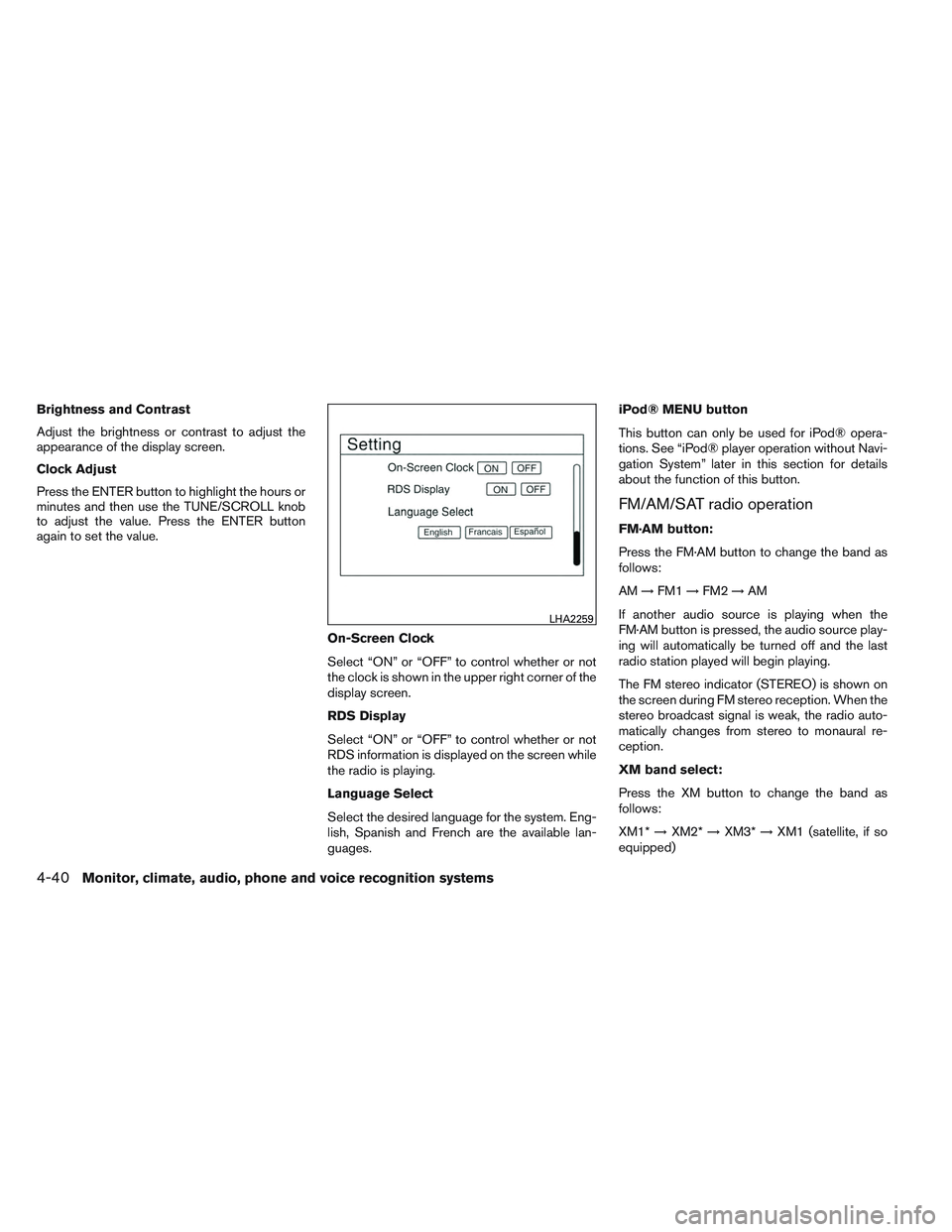
Brightness and Contrast
Adjust the brightness or contrast to adjust the
appearance of the display screen.
Clock Adjust
Press the ENTER button to highlight the hours or
minutes and then use the TUNE/SCROLL knob
to adjust the value. Press the ENTER button
again to set the value.On-Screen Clock
Select “ON” or “OFF” to control whether or not
the clock is shown in the upper right corner of the
display screen.
RDS Display
Select “ON” or “OFF” to control whether or not
RDS information is displayed on the screen while
the radio is playing.
Language Select
Select the desired language for the system. Eng-
lish, Spanish and French are the available lan-
guages.iPod® MENU button
This button can only be used for iPod® opera-
tions. See “iPod® player operation without Navi-
gation System” later in this section for details
about the function of this button.
FM/AM/SAT radio operation
FM·AM button:
Press the FM·AM button to change the band as
follows:
AM
→FM1 →FM2 →AM
If another audio source is playing when the
FM·AM button is pressed, the audio source play-
ing will automatically be turned off and the last
radio station played will begin playing.
The FM stereo indicator (STEREO) is shown on
the screen during FM stereo reception. When the
stereo broadcast signal is weak, the radio auto-
matically changes from stereo to monaural re-
ception.
XM band select:
Press the XM button to change the band as
follows:
XM1* →XM2* →XM3* →XM1 (satellite, if so
equipped)
LHA2259
4-40Monitor, climate, audio, phone and voice recognition systems