ignition NISSAN VERSA 2018 Service Manual
[x] Cancel search | Manufacturer: NISSAN, Model Year: 2018, Model line: VERSA, Model: NISSAN VERSA 2018Pages: 354, PDF Size: 4.84 MB
Page 174 of 354
Clock Set
1. Press the ENTER/CLOCK button.
2. Turn the TUNE/FOLDER knob to select
CLOCK.
3. Press the ENTER/CLOCK button.
4. Turn the TUNE/FOLDER knob to select
“set time”.
5. Press the ENTER/CLOCK button.
6. Rotate the TUNE/FOLDER knob to ad-
just hours.
7. Press the ENTER/CLOCK button.
8. Turn the TUNE/FOLDER knob to adjust
minutes.
9. Press the ENTER/CLOCK button.
10. Press the
BACK button to finish.
iPod MENU button
This button can only be used for iPod® op-
erations. For additional information, refer to
“iPod® player operation” in this section.
DISP (display) button
The DISP (display) button turns the display
screen on or off.
BACK button
Press the
BACK button to return to
the previous menu screen.
FM/AM/SAT radio operation
FM·AM button
Press the FM·AM button to change the
band as follows:
AM→FM1→FM2→AM
If another audio source is playing when the
FM·AM button is pressed, the audio source
playing will automatically be turned off and
the last radio station played will begin play-
ing.
XM band select
Press the XM button to change the band as
follows:
XM1*→XM2*→XM3*→XM1 (satellite, if so
equipped)
When the XM button is pressed while the
ignition switch is in the ACC or ON position,
the radio will come on at the station last
played.
The last station played will also come on
when the
(power) button is pressed
on.*When the XM button is pressed, the satel-
lite radio reception will not be available un-
less an optional satellite receiver and an-
tenna are installed and a SiriusXM® Satellite
Radio service subscription is active. Satel-
lite radio is not available in Alaska, Hawaii
and Guam.
If a compact disc is playing when the XM
button is pressed, the compact disc will
automatically be turned off and the last
radio station played will come on.
TUNE/SCROLL knob (Tuning)
Turn the TUNE/SCROLL knob to the lef t or
right for manual tuning.
SEEK tuning
Press the
SEEK button orTRACK button to tune from low to high or
high to low frequencies and to stop at the
next broadcasting station.
SCAN tuning
Press the SCAN button to stop at each
broadcasting station for 5 seconds. SCAN
will appear on the screen while the radio is
scan tuning.
Pressing the button again during this
5 second period will stop SCAN tuning and
Display screen, heater, air conditioner, audio and phone systems4-39
Page 177 of 354
USB (Universal Serial Bus)
CONNECTION PORT (if so
equipped)
Connecting a device to the USB
connection port
WARNING
Do not connect, disconnect or operate
the USB device while driving. Doing so
can be a distraction. If distracted you
could lose control of your vehicle and
cause an accident or serious injury.
CAUTION
∙ Do not force the USB device into the
USB port. Inserting the USB device
tilted or up-side-down into the port
may damage the port. Make sure that
the USB device is connected correctly
into the USB port.
∙ Do not grab the USB port cover (if so
equipped) when pulling the USB de-
vice out of the port. This could dam-
age the port and the cover.
∙ Do not leave the USB cable in a place
where it can be pulled unintentionally.
Pulling the cable may damage the
port.
For additional information, refer to your de-
vice manufacturer’s owner information re-
garding the proper use and care of the
device.
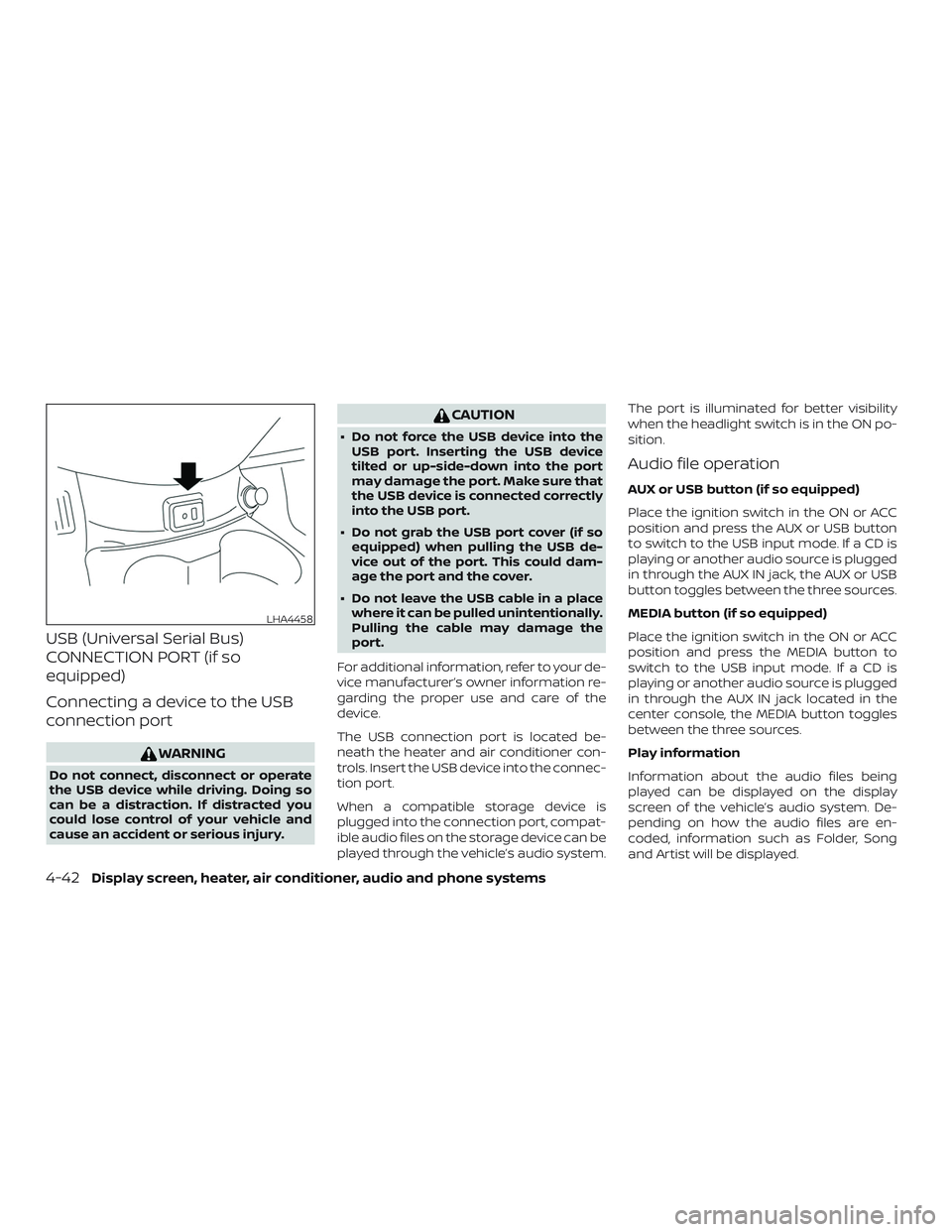
The USB connection port is located be-
neath the heater and air conditioner con-
trols. Insert the USB device into the connec-
tion port.
When a compatible storage device is
plugged into the connection port, compat-
ible audio files on the storage device can be
played through the vehicle’s audio system.The port is illuminated for better visibility
when the headlight switch is in the ON po-
sition.
Audio file operation
AUX or USB button (if so equipped)
Place the ignition switch in the ON or ACC
position and press the AUX or USB button
to switch to the USB input mode. If a CD is
playing or another audio source is plugged
in through the AUX IN jack, the AUX or USB
button toggles between the three sources.
MEDIA button (if so equipped)
Place the ignition switch in the ON or ACC
position and press the MEDIA button to
switch to the USB input mode. If a CD is
playing or another audio source is plugged
in through the AUX IN jack located in the
center console, the MEDIA button toggles
between the three sources.
Play information
Information about the audio files being
played can be displayed on the display
screen of the vehicle’s audio system. De-
pending on how the audio files are en-
coded, information such as Folder, Song
and Artist will be displayed.
LHA4458
4-42Display screen, heater, air conditioner, audio and phone systems
Page 179 of 354
iPod®* PLAYER OPERATION (if so
equipped)
Connecting iPod®
WARNING
Do not connect, disconnect or operate
the USB device while driving. Doing so
can be a distraction. If distracted you
could lose control of your vehicle and
cause an accident or serious injury.
CAUTION
∙ Do not force the USB device into the
USB port. Inserting the USB device
tilted or up-side-down into the port
may damage the port. Make sure that
the USB device is connected correctly
into the USB port.
∙ Do not grab the USB port cover (if so
equipped) when pulling the USB de-
vice out of the port. This could dam-
age the port and the cover.
∙ Do not leave the USB cable in a place
where it can be pulled unintentionally.
Pulling the cable may damage the
port.
For additional information, refer to your de-
vice manufacturer’s owner information re-
garding the proper use and care of the
device.
To connect an iPod® to the vehicle so that
the iPod® can be controlled with the audio
system controls and display screen, use
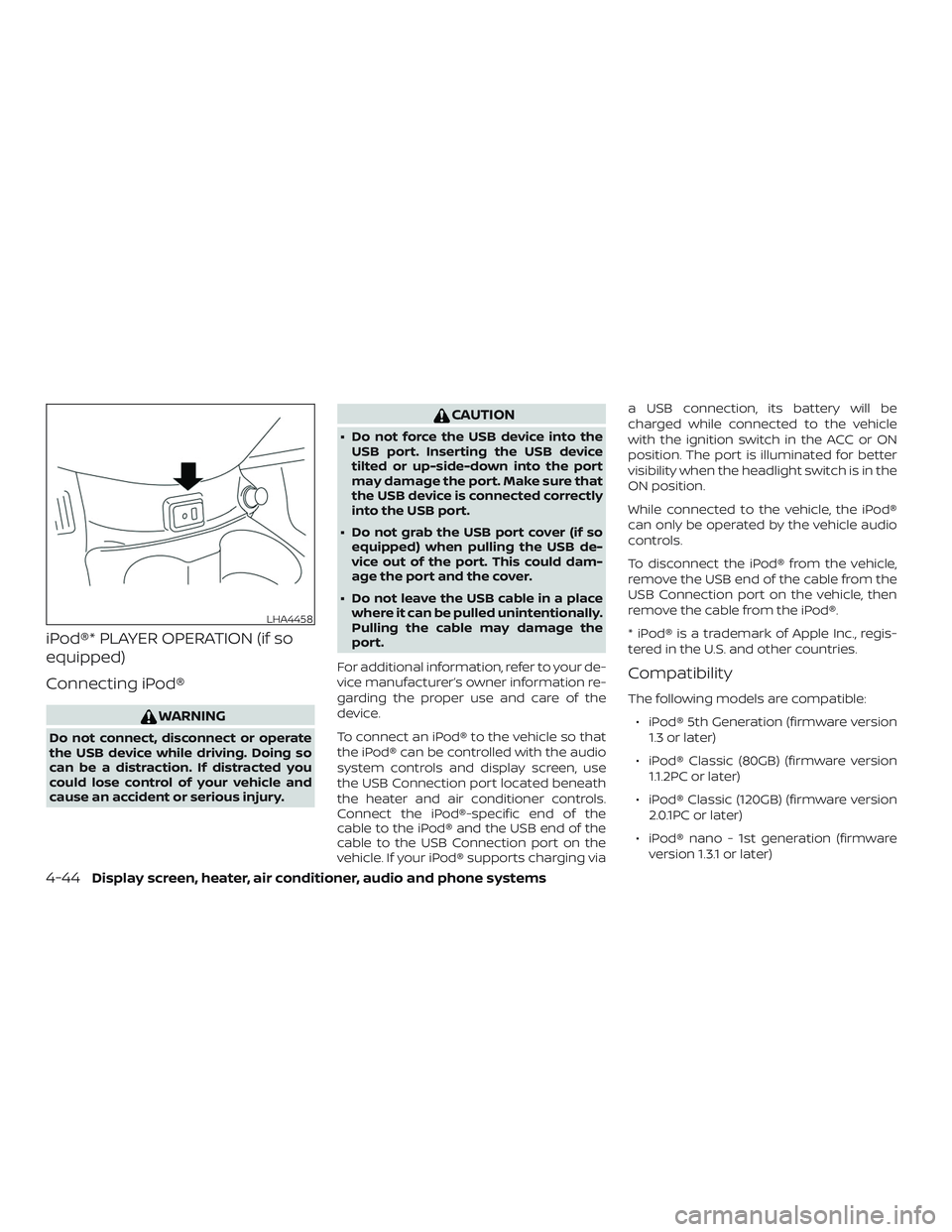
the USB Connection port located beneath
the heater and air conditioner controls.
Connect the iPod®-specific end of the
cable to the iPod® and the USB end of the
cable to the USB Connection port on the
vehicle. If your iPod® supports charging viaa USB connection, its battery will be
charged while connected to the vehicle
with the ignition switch in the ACC or ON
position. The port is illuminated for better
visibility when the headlight switch is in the
ON position.
While connected to the vehicle, the iPod®
can only be operated by the vehicle audio
controls.
To disconnect the iPod® from the vehicle,
remove the USB end of the cable from the
USB Connection port on the vehicle, then
remove the cable from the iPod®.
* iPod® is a trademark of Apple Inc., regis-
tered in the U.S. and other countries.
Compatibility
The following models are compatible:
∙ iPod® 5th Generation (firmware version
1.3 or later)
∙ iPod® Classic (80GB) (firmware version
1.1.2PC or later)
∙ iPod® Classic (120GB) (firmware version
2.0.1PC or later)
∙ iPod® nano - 1st generation (firmware
version 1.3.1 or later)
LHA4458
4-44Display screen, heater, air conditioner, audio and phone systems
Page 180 of 354
∙ iPod® nano - 2nd generation (firmware
version 1.1.3 or later)
∙ iPod® nano - 3rd generation (firmware
version 1.1.3PC or later)
∙ iPod® nano - 4th generation (firmware
version 1.0PC or later)
∙ iPod® nano - 5th generation (8GB) (firm-
ware version 1.0.2PC or later)
∙ iPod® nano - 5th generation (16GB)
(firmware version 1.0.1PC or later)
∙ iPod® nano - 6th generation (8GB) (firm-
ware version 1.2PC or later)
∙ iPod® nano - 6th generation (8GB) (firm-
ware version 1.1PC or later)
∙ iPod® Touch - 1st generation (firmware
version 2.2.1 or later)
∙ iPod® Touch - 2nd generation (firmware
version 2.2.1 or later)
∙ iPod® Touch - 3rd generation (firmware
version 3.1.3 or later)
∙ iPod® Touch - 4th generation (firmware
version 4.3.5 or later)
∙ iPhone® 3G (firmware version 4.1 or later)
∙ iPhone® 3GS (firmware version 4.3 or
later)∙ iPhone® 4 (firmware version 5.0 or later)
∙ iPhone® 4S (firmware version 5.1 or later)
∙ iPad® (firmware version 4.3.2 or later)
∙ iPad® 2 (firmware version 4.3.3 or later)
Make sure that your iPod® firmware is up-
dated to the version indicated above.
Audio main operation
Place the ignition switch to the ACC or ON
position. Then, press the iPod MENU button
or MEDIA button repeatedly to switch to
the iPod® mode.
If the audio system is turned off while the
iPod® is playing, the iPod® plays when the
audio system is turned back on.
If the audio system is off, pressing the iPod
MENU button or MEDIA button turns the
audio system on and plays the iPod®.
If the audio system is on, the audio system
automatically begins playing tracks from
the iPod® when it is plugged into the con-
nection port.
SEEK/CAT or TRACK
buttons
Press the SEEK/CAT or TRACK
buttons
orto skip backward or
forward one track.
Press and hold the SEEK/CAT or TRACK
buttons
orfor 1.5 seconds while
a track is playing to reverse or fast forward
the track being played. The track plays at
an increased speed while reversing or fast
forwarding. When the button is released,
the track returns to normal play speed.
(RPT) REPEAT
When the RPT button is pressed while a
track is being played, the play pattern can
be changed as follows:
Repeat Off→1 Track Repeat→All Repeat→
Repeat Off
1 Track Repeat: the current track will be
repeated.
All Repeat: all songs in the current list are
repeated.
Repeat Off: no repeat play pattern is ap-
plied.
Display screen, heater, air conditioner, audio and phone systems4-45
Page 186 of 354
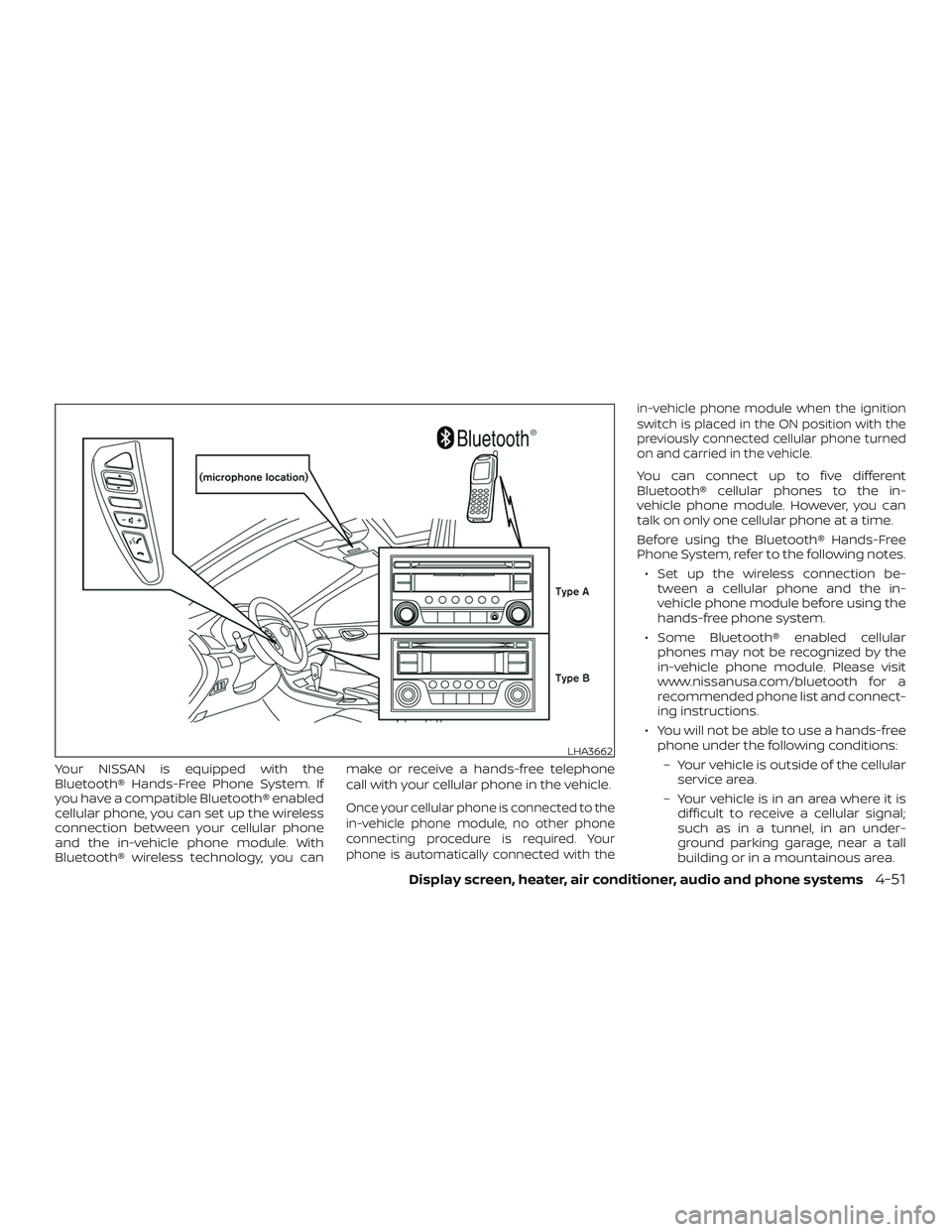
Your NISSAN is equipped with the
Bluetooth® Hands-Free Phone System. If
you have a compatible Bluetooth® enabled
cellular phone, you can set up the wireless
connection between your cellular phone
and the in-vehicle phone module. With
Bluetooth® wireless technology, you canmake or receive a hands-free telephone
call with your cellular phone in the vehicle.
Once your cellular phone is connected to the
in-vehicle phone module, no other phone
connecting procedure is required. Your
phone is automatically connected with thein-vehicle phone module when the ignition
switch is placed in the ON position with the
previously connected cellular phone turned
on and carried in the vehicle.
You can connect up to five different
Bluetooth® cellular phones to the in-
vehicle phone module. However, you can
talk on only one cellular phone at a time.
Before using the Bluetooth® Hands-Free
Phone System, refer to the following notes.
∙ Set up the wireless connection be-
tween a cellular phone and the in-
vehicle phone module before using the
hands-free phone system.
∙ Some Bluetooth® enabled cellular
phones may not be recognized by the
in-vehicle phone module. Please visit
www.nissanusa.com/bluetooth for a
recommended phone list and connect-
ing instructions.
∙ You will not be able to use a hands-free
phone under the following conditions:
– Your vehicle is outside of the cellular
service area.
– Your vehicle is in an area where it is
difficult to receive a cellular signal;
such as in a tunnel, in an under-
ground parking garage, near a tall
building or in a mountainous area.
LHA3662
Display screen, heater, air conditioner, audio and phone systems4-51
Page 188 of 354
Initialization
When the ignition switch is placed in the ON
position, NISSAN Voice Recognition is initial-
ized, which takes a few seconds. If the
button is pressed before the initialization
completes, the system will announce
“Hands-free phone system not ready” and
will not react to voice commands.
Operating tips
To get the best performance out of the
NISSAN Voice Recognition system, observe
the following:
∙ Keep the interior of the vehicle as quiet
as possible. Close the windows to elimi-
nate surrounding noises (traffic noises,
vibration sounds, etc.), which may pre-
vent the system from recognizing voice
commands correctly.
∙ Wait until the tone sounds before
speaking a command. Otherwise, the
command will not be received properly.
∙ Start speaking a command within
5 seconds af ter the tone sounds.
∙ Speak in a natural voice without paus-
ing between words.
Giving voice commands
To operate NISSAN Voice Recognition,
press and release the
button located
on the steering wheel. Af ter the tone
sounds, speak a command.
The command given is picked up by the
microphone, and voice feedback is given
when the command is accepted.
∙ If you need to hear the available com-
mands for the current menu again, say
“Help” and the system will repeat them.
∙ If a command is not recognized, the
system announces, “Command not
recognized. Please try again.” Make sure
the command is said exactly as
prompted by the system and repeat
the command in a clear voice.
∙ If you want to go back to the previous
command, you can say “Go back” or
“Correction” any time the system is
waiting for a response.∙
You can cancel a command when the
system is waiting for a response by say-
ing, “Cancel” or “Quit.” The system an-
nounces “Cancel” and ends the Voice
Recognition session. You can also press
and hold the
button on the steer-
ing wheel for 5 seconds at any time to
end the Voice Recognition session.
Whenever the Voice Recognition session
is canceled, a double beep is played to
indicate you have exited the system.
∙ If you want to adjust the volume of the
voice feedback, press the volume con-
trol switches (+ or -) on the steering
wheel while being provided with feed-
back. You can also use the radio volume
control knob.
∙ In most cases you can interrupt the
voice feedback to speak the next com-
mand by pressing the
button on
the steering wheel.
∙ To use the system faster, you may
speak the second level commands with
the main menu command on the main
menu. For example, press the
but-
ton and af ter the tone say, “Call Redial.”
Display screen, heater, air conditioner, audio and phone systems4-53
Page 197 of 354
VOICE ADAPTATION (VA) MODE
Voice Adaptation (VA) allows up to two out-
of-dialect users to train the system to im-
prove recognition accuracy. By repeating a
number of commands, the users can cre-
ate a voice model of their own voice that is
stored in the system. The system is ca-
pable of storing a different Voice Adapta-
tion model for each connected phone.
Training procedure
The procedure for training a voice is as fol-
lows.
1. Position the vehicle in a reasonably
quiet outdoor location.
2. Sit in the driver’s seat with the engine
running, the parking brake on, and the
transmission in P (Park).
3. Press and hold the
button for
more than 5 seconds.
4. The system announces: “Press the
PHONE/SEND
button for the
hands-free phone system to enter the
voice adaptation mode or press the
PHONE/END
button to select a
different language.”5. Press the
button.
For additional information on selecting
a different language, refer to “Choosing
a language” in this section.
6. Voice memory A or memory B is se-
lected automatically. If both memory
locations are already in use, the system
will prompt you to overwrite one. Fol-
low the instructions provided by the
system.
7. When preparation is complete and you
are ready to begin, press the
but-
ton.
8. The VA mode will be explained. Follow
the instructions provided by the sys-
tem.
9. When training is finished, the system
will tell you an adequate number of
phrases have been recorded.
10. The system will announce that voice
adaptation has been completed and
the system is ready.
The VA mode will stop if:
∙ The
button is pressed for more
than 5 seconds in VA mode.∙ The vehicle begins moving during VA
mode.
∙ The ignition switch is placed in the OFF
or LOCK position.
Training phrases
During the Voice Adaptation mode, the sys-
tem instructs the trainer to say the follow-
ing phrases. The system will prompt you for
each phrase.
∙ phonebook transfer entry
∙ dial three oh four two nine
∙ delete call back number
∙ incoming
∙ transfer entry
∙ eight pause nine three two pause seven
∙ delete all entries
∙ call seven two four zero nine
∙ phonebook delete entry
∙ next entry
∙ dial star two one seven oh
∙yes
∙no
4-62Display screen, heater, air conditioner, audio and phone systems
Page 201 of 354
with the in-vehicle phone module when
the ignition switch is placed in the ON po-
sition with the previously connected cellu-
lar phone turned on and carried in the ve-
hicle.
NOTE:
Some devices require the user to accept
connections to other Bluetooth® de-
vices. If your phone does not connect au-
tomatic ally to the system, consult the
phone’s Owner’s Manual for details on
device operation.
You can connect up to five different
Bluetooth® cellular phones to the in-
vehicle phone module. However, you can
talk on only one cellular phone at a time.
Before using the Bluetooth® Hands-Free
Phone System, refer to the following notes.
∙ Set up the wireless connection be-
tween a compatible cellular phone and
the in-vehicle phone module before us-
ing the hands-free phone system.∙ Some Bluetooth® enabled cellular
phones may not be recognized or work
properly. Please visit
www.nissanusa.com/bluetooth or
www.nissan.ca/bluetooth for a recom-
mended phone list and connecting in-
structions.
∙ You will not be able to use a hands-free
phone under the following conditions:
– Your vehicle is outside of the cellular
service area.
– Your vehicle is in an area where it is
difficult to receive a cellular signal;
such as in a tunnel, in an under-
ground parking garage, near a tall
building or in a mountainous area.
– Your cellular phone is locked to pre-
vent it from being dialed.
∙ When the radio wave condition is not
ideal or ambient sound is too loud, it
may be difficult to hear the other per-
son’s voice during a call.
∙ Do not place the cellular phone in an
area surrounded by metal or far away
from the in-vehicle phone module to
prevent tone quality degradation and
wireless connection disruption.∙While a cellular phone is connected
through the Bluetooth® wireless connec-
tion, the battery power of the cellular
phone may discharge quicker than usual.
The Bluetooth® Hands-Free Phone Sys-
tem cannot charge cellular phones.
∙ For additional information, you can visit
www.nissanusa.com/bluetooth or
www.nissan.ca/bluetooth for trouble-
shooting help.
∙ Some cellular phones or other devices
may cause interference or a buzzing
noise to come from the audio system
speakers. Storing the device in a differ-
ent location may reduce or eliminate
the noise.
∙ For additional information, refer to the
cellular phone Owner’s Manual regard-
ing the telephone charges, cellular
phone antenna and body, etc.
REGULATORY INFORMATION
FCC Regulatory information
– CAUTION: To maintain compliance with
FCC’s RF exposure guidelines, use only
the supplied antenna. Unauthorized an-
tenna, modification, or attachments
could damage the transmitter and may
violate FCC regulations.
4-66Display screen, heater, air conditioner, audio and phone systems
Page 202 of 354
– Operation is subject to the following two
conditions:
1. This device may not cause interference
and
2. this device must accept any interfer-
ence, including interference that may
cause undesired operation of the de-
vice.
IC Regulatory information
– Operation is subject to the following two
conditions: (1) this device may not cause
interference, and (2) this device must ac-
cept any interference, including interfer-
ence that may cause undesired opera-
tion of the device.
– This Class B digital apparatus meets all
requirements of the Canadian
Interference-Causing Equipment Regu-
lations.
BLUETOOTH® is a
trademark owned
by Bluetooth SIG,
Inc. and licensed
to Visteon.
USING THE SYSTEM
The system allows hands-free operation of
the Bluetooth® Hands-Free Phone System.
If the vehicle is in motion, some commands
may not be available so full attention may
be given to vehicle operation.
Initialization
When the ignition switch is placed in the ON
position, NISSAN Voice Recognition is initial-
ized, which takes a few seconds. If the
button is pressed before the initialization
completes, the system will announce
“Hands-free phone system not ready” and
will not react to voice commands.
Operating tips
To get the best performance out of the
NISSAN Voice Recognition system, observe
the following:
∙ Keep the interior of the vehicle as quiet
as possible. Close the windows to elimi-
nate surrounding noises (traffic noises,
vibration sounds, etc.), which may pre-
vent the system from recognizing voice
commands correctly.
∙ Wait until the tone sounds before
speaking a command. Otherwise, the
command will not be received properly.∙ Start speaking a command within
5 seconds af ter the tone sounds.
∙ Speak in a natural voice without paus-
ing between words.
Giving voice commands
To operate NISSAN Voice Recognition,
press and release the
button located
on the steering wheel. Af ter the tone
sounds, speak a command.
The command given is picked up by the
microphone, and voice feedback is given
when the command is accepted.
∙ If you need to hear the available com-
mands for the current menu again, say
“Help” and the system will repeat them.
∙ If a command is not recognized, the
system announces, “Command not
recognized. Please try again.” Make sure
the command is said exactly as
prompted by the system and repeat
the command in a clear voice.
∙ If you want to go back to the previous
command, you can say “Go back” or
“Correction” any time the system is
waiting for a response.
Display screen, heater, air conditioner, audio and phone systems4-67
Page 212 of 354
5 Starting and driving
Precautions when starting and driving..........5-2
Exhaust gas (carbon monoxide)..............5-2
Three-way catalyst...........................5-2
Tire Pressure Monitoring System
(TPMS)........................................5-3
Avoiding collision and rollover................5-6
Off-roadrecovery ............................5-6
Rapid air pressure loss.......................5-7
Drinking alcohol/drugs and driving...........5-8
Ignition switch...................................5-8
Continuously Variable Transmission
(if so equipped)...............................5-8
Manual transmission (if so equipped).........5-9
Ignition switch positions......................5-9
Before starting the engine......................5-10
Starting the engine.............................5-10
Driving the vehicle...............................5-11
Continuously Variable Transmission
(CVT) (if so equipped).........................5-11
Manual transmission (if so equipped)........5-16
Parking brake..................................5-18
Cruise control (if so equipped)..................5-19Precautions on cruise control................5-19
Cruise control operations....................5-19
Break-in schedule..............................5-20
Fuel efficient driving tips........................5-21
Increasing fuel economy.......................5-22
Parking/parking on hills........................5-23
Power steering.................................5-24
Brake system...................................5-25
Brake precautions...........................5-25
Anti-lock Braking System (ABS)..............5-25
Brake assist.................................5-26
Vehicle Dynamic Control (VDC) system.........5-27
Brake force distribution......................5-28
Cold weather driving...........................5-29
Freeing a frozen door lock...................5-29
Antifreeze...................................5-29
Battery......................................5-29
Draining of coolant water....................5-30
Tire equipment..............................
5-30
Special winter equipment...................5-30
Driving on snow or ice.......................5-30
Engine block heater (if so equipped).........5-31