bluetooth NISSAN VERSA NOTE 2014 2.G Owner's Guide
[x] Cancel search | Manufacturer: NISSAN, Model Year: 2014, Model line: VERSA NOTE, Model: NISSAN VERSA NOTE 2014 2.GPages: 372, PDF Size: 3.94 MB
Page 233 of 372
TEXT MESSAGING
WARNING
●Laws in some jurisdictions may restrict
the use of some of the applications and
features, such as social networking and
texting. Check local regulations for any
requirements.
● Laws in some jurisdictions may restrict
the use of “Text-to-Speech”. Check lo-
cal regulations before using this
feature. ●
Use the text messaging feature after
stopping your vehicle in a safe location.
If you have to use the feature while
driving, exercise extreme caution at all
times so full attention may be given to
vehicle operation.
● If you are unable to devote full attention
to vehicle operation while using the text
messaging feature, pull off the road to a
safe location and stop your vehicle.
The system allows for the sending and receiving
of text messages through the vehicle interface.
Sending a text message:
1. Press the
button.
2. Say “Phone”.
3. Say “Send Text”.
4. The system will provide a list of available commands in order to determine the recipi-
ent of the text message. Choose from the
following:
● To (a name)
● Enter Number
● Missed Calls
● Incoming Calls ●
Outgoing Calls
For more information about these options,
see “Voice commands” in this section.
5. Once a recipient is chosen, the system prompts for which message to send. Seven
predefined messages are available as well
as four custom messages. To choose one of
the predefined messages, speak one of the
following:
● “Driving, can’t text”
● “Call me”
● “On my way”
● “Running late”
● “Okay”
● “Yes”
● “No”
● Custom Messages
To send one of the custom messages, say
“Custom Messages”. If more than one cus-
tom message is stored, the system will
prompt for the number of the desired cus-
tom message. For more information on set-
ting and managing custom text messages,
see “Bluetooth® settings” in this section.
LHA2300
4-90Monitor, climate, audio, phone and voice recognition systems
Page 234 of 372
Reading a received text message:1. Press the
button.
2. Say “Read Text”.
The text message, sender and delivery time are
shown on the screen. Use the tuning switch to
scroll through all text messages if more than one
are available. Press the
button to exit the
text message screen. Press the
button to
access the following options for replying to the
text message: ●
Call Back
Speak this command to call the sender of
the text message using the Bluetooth®
Hands-Free Phone System.
● Send Text
Speak this command to send a text message
response to the sender of the text message.
● Read Text
Speak this command to read the text mes-
sage again.
● Previous Text
Speak this command to move to the previ-
ous text message (if available) .
● Next Text
Speak this command to move to the next text
message (if available) .
NOTE:
Text messages are only displayed if the
vehicle speed is less than 5 mph.
BLUETOOTH SETTINGS
To access the phone settings: 1. Press the MENU button.
2. Select the “Settings” key.
LHA2301LHA2253
Monitor, climate, audio, phone and voice recognition systems4-91
Page 235 of 372
3. Select the “Phone & Bluetooth” key.●Phone Settings
See “Phone settings” in this section for more
information.
● Connect New Device
Select to connect a new Bluetooth® device
to the Bluetooth® Hands-Free Phone Sys-
tem.
● Select Connected Device
Select to choose a Bluetooth® device from
a list of those devices connected to the
Bluetooth® Hands-Free Phone System. ●
Replace Connected Device
Select to replace a Bluetooth® device from
a list of those devices connected to the
Bluetooth® Hands-Free Phone System.
● Delete Connected Device
Select to delete a Bluetooth® device from a
list of those devices connected to the
Bluetooth® Hands-Free Phone System.
● Bluetooth
Select to toggle the Bluetooth® on and off.
LHA2248LHA2265
4-92Monitor, climate, audio, phone and voice recognition systems
Page 236 of 372
PHONE SETTINGS
To access the phone settings:1. Press the MENU button.
2. Select the “Settings” key.
3. Select the “Phone & Bluetooth” key.
4. Select the “Phone Settings” key and adjust the following settings as desired:
● Sort Phonebook By:
Select “First Name” or “Last Name” to
choose how phonebook entries are alpha-
betically displayed on the screen. ●
Use Phonebook From:
Select “Handset” to use the phone’s phone-
book. Select “SIM” to use the phonebook on
the SIM card. Select “Both” to use both
sources.
● Download Phonebook Now
Select to download the phonebook to the
vehicle from the chosen source.
● Record Name for Phonebook Entry
Select to record a name for a phonebook
entry for use with the NISSAN Voice Recog-
nition System. ●
Text Messaging
Select to toggle the text messaging func-
tionality on or off.
● Show Incoming Text for
Select “Driver” to have text message notifi-
cations shown in the vehicle information dis-
play. Select “Off” to have text message noti-
fications shown in both the vehicle
information display and the center display
screen. Select “None” to have text message
notifications not displayed.
● Auto Reply Message
Select to choose a message that is sent
when the auto reply function is activated.
● Use Vehicle’s Signature
Select to toggle on or off the addition of the
vehicle signature to outgoing messages.
● Custom Text Messages
Select to create and use up to four Custom
Text Messages.
LHA2650LHA2651
Monitor, climate, audio, phone and voice recognition systems4-93
Page 238 of 372
●The voice command screen can also be
accessed using the control panel display:
1. Press the MENU button.
2. Select the “Voice Commands” key.
Operating tips
To get the best performance out of NISSAN
Voice Recognition, observe the following: ● Keep the interior of the vehicle as quiet as
possible. Close the windows to eliminate the
surrounding noises (traffic noises, vibration
sounds, etc.) , which may prevent the system
from recognizing the voice commands cor-
rectly. ●
Wait until a tone sounds before speaking a
command. Otherwise, the command will not
be received properly.
● Start speaking a command within 3.5 sec-
onds after the tone sounds.
● Speak in a natural voice without pausing
between words.
SYSTEM FEATURES
NISSAN Voice Recognition can activate the fol-
lowing systems:
● Bluetooth Hands-Free Phone System
● Navigation
● Audio
● Information
For additional information on the navigation sys-
tem, see the separate Navigation System Own-
er’s Manual.
LHA2253LHA2281
Monitor, climate, audio, phone and voice recognition systems4-95
Page 239 of 372
How to say numbers
NISSAN Voice Recognition requires a certain
way to speak numbers in voice commands. Refer
to the following examples.
General rule: Either “zero” or “oh” can be used for
“0”.
Phone numbers
Speak phone numbers according to the following
example. For 1-800-662-6200, say dial number
and then speak the phone number in any of the
following formats:● “one eight oh oh six six two six two oh oh”
● “one eight hundred six six two six two oh oh”
● “one eight zero zero six six two six two oh oh”
For the best voice recognition phone dialing re-
sults, say phone numbers as single digits. Also,
full numbers can only be spoken for “800”. For
example, you cannot say 555-6000 as “five five
five six thousand”.
BLUETOOTH® HANDS-FREE
PHONE SYSTEM VOICE
COMMANDS
To access the Bluetooth® Hands-Free Phone
System voice commands:
1. Press the
button.
2. Say “Call” and then a name in the vehicle phonebook to call that entry. Otherwise, say
“Phone” to access various phone com-
mands.
If the Bluetooth® has been set to “Off”, the
system announces: “Bluetooth® is off. Would
you like to turn Bluetooth® on?”
If no phone is connected to the system and the
vehicle is stationary, the system announces:
“There is no phone connected. Would you like to
connect a phone now?” Say “Yes” to connect a
phone. All further Bluetooth® Hands-Free Phone
System voice commands are only available if a
phone is connected.
If a phone is connected and Bluetooth® is set to
“On”, the following voice commands are avail-
able: ● Call (a name)
Allows user to select a contact and dial
immediately. ●
Dial Number
Allows for up to 24 digits to be dialed. After
the number is entered, say “Dial” to initiate
dialing. Say “Correction” to correct the num-
ber entered. Say “Go Back” to return to the
main menu.
● List Phonebook
Starting with the first alphabetical entry in
the vehicle phonebook, the system prompts
for an additional command. Say “Dial” to call
the number of the phonebook entry. Say
“Send Text” to send a text message to the
number of the phonebook entry. Say “Next
Entry” to skip to the next alphabetical entry in
the vehicle phonebook, where the same op-
tions will then be available.
● Recent Calls
The system prompts for an additional com-
mand. Say “Missed Calls”, “Incoming Calls”
or “Outgoing Calls” to display a list of such
calls on the screen.
Speak the number of the entry displayed on
the screen to dial that number or say “Next
Page” to view entries on the next page (if
available) .
● Redial
Redials the last called number.
4-96Monitor, climate, audio, phone and voice recognition systems
Page 240 of 372
●Read Text
Reads an incoming text message. For more
information about text messaging with the
Bluetooth® Hands-Free Phone System, see
“Bluetooth® Hands-Free Phone System
with Navigation System” in this section.
● Send Text
Sends a text message. For more information
about text messaging with the Bluetooth®
Hands-Free Phone System, see
“Bluetooth® Hands-Free Phone System
with Navigation System” in this section.
● Select Phone
The system replies “Please use manual con-
trols to continue”. Use manual controls to
change the active phone from among the
listed phones connected to the vehicle.
For more information about the Bluetooth®
Hands-Free Phone System, see “Bluetooth®
Hands-Free Phone System with Navigation Sys-
tem” in this section.NAVIGATION SYSTEM VOICE
COMMANDS
The following voice commands are available for
the Navigation System:
● Places
● Street Address
● Address Book
● Home
● Previous Destination
For more information about these commands,
see the separate Navigation System Owner’s
Manual.
AUDIO SYSTEM VOICE
COMMANDS
To access the audio system voice commands: 1. Press the button.
2. Say “Audio”
3. Speak a command from the following avail- able commands:
● FM
Switches the audio system to the FM mode.
● AM Switches the audio system to the AM mode.
● XM (satellite radio, if so equipped)
Switches the audio system to the SiriusXM
Satellite Radio mode.
● CD
Switches the audio system to the CD mode.
A CD must be inserted for this command to
be functional.
● iPod®
Switches the audio system to the iPod®
mode. An iPod® must be connected for this
command to be available and functional.
The following sub-commands are available
for iPod®:
– Now Playing
– Menu
– Playlists
– Artists
– Albums
– Genres
– Songs
– Shuffle Songs*
– Composers*
Monitor, climate, audio, phone and voice recognition systems4-97
Page 241 of 372
– Audiobooks*
– Podcasts*
* Say “Next Page” to access these com-
mands. Say “Previous Page” to return to the
first page of commands.
● USB
Switches the audio system to the USB
mode. A USB device must be inserted for
this command to be available and functional.
● Pandora®
Switches the audio system to the Pandora®
audio mode. A compatible Bluetooth® au-
dio device with a Pandora® application
must be connected to the system for this
command to be functional.
● Bluetooth®
Switches the audio system to the
Bluetooth® audio mode. A compatible
Bluetooth® audio device must be con-
nected to the system for this command to be
functional. ●
AUX
Switches the audio system to the AUX
mode. An AUX device must be connected
for this command to be functional.
For more information about the audio system, see
“Audio system” in this section.
INFORMATION VOICE COMMANDS
The following voice commands are available for
the information functions of the Navigation Sys-
tem: ● Traffic
● Current Weather
● Weather Forecast
● Google Send-To-Car
● Google Search
For more information about these commands,
see the separate Navigation System Owner’s
Manual.
HELP VOICE COMMANDS
The following voice commands can be spoken to
have the system provide instructions and tips for
using the NISSAN Voice Recognition system. ● List Commands
● What Can I Say?
● General Help
● Quit
● Exit
4-98Monitor, climate, audio, phone and voice recognition systems
Page 364 of 372
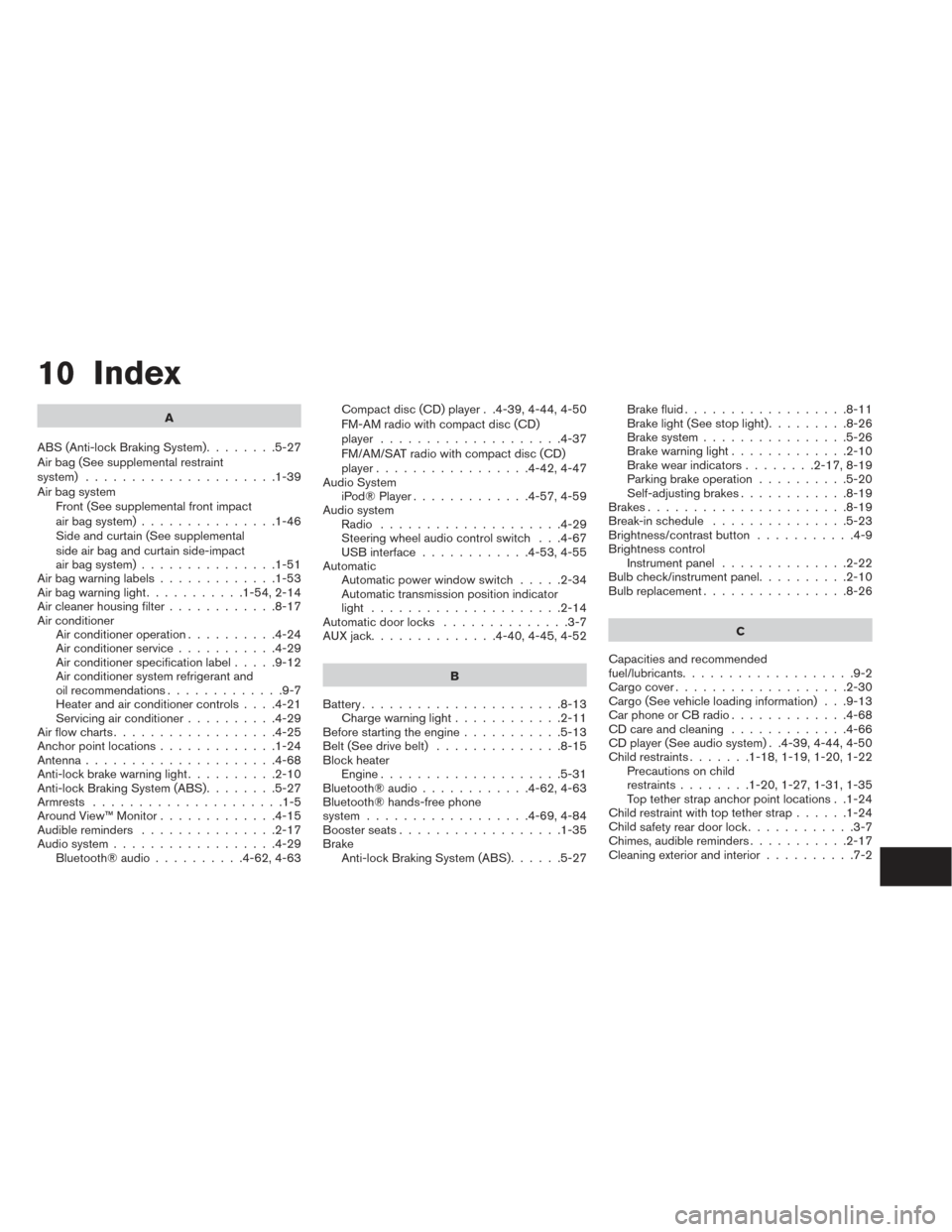
10 Index
A
ABS (Anti-lock Braking System) ........5-27
Air bag (See supplemental restraint
system) .....................1-39
Air bag system Front (See supplemental front impact
air bag system) ...............1-46
Side and curtain (See supplemental
side air bag and curtain side-impact
air bag system) ...............1-51
Airbagwarninglabels.............1-53
Airbagwarninglight...........1-54,2-14
Air cleaner housing filter ............8-17
Air conditioner Air conditioner operation ..........4-24
Air conditioner service ...........4-29
Air conditioner specification label .....9-12
Air conditioner system refrigerant and
oil recommendations .............9-7
Heater and air conditioner controls ....4-21
Servicing air conditioner ..........4-29
Airflowcharts..................4-25
Anchor point locations .............1-24
Antenna.....................4-68
Anti-lock brake warning light ..........2-10
Anti-lock Braking System (ABS) ........5-27
Armrests .....................1-5
AroundView™Monitor.............4-15
Audible reminders ...............2-17
Audio system ..................4-29
Bluetooth®audio..........4-62,4-63 Compact disc (CD) player . .4-39, 4-44, 4-50
FM-AM radio with compact disc (CD)
player ....................4-37
FM/AM/SAT radio with compact disc (CD)
player.................4-42,4-47
Audio System iPod®Player.............4-57,4-59
Audio system Radio ....................4-29
Steering wheel audio control switch . . .4-67
USB interface ............4-53,4-55
Automatic Automatic power window switch .....2-34
Automatic transmission position indicator
light .....................2-14
Automatic door locks ..............3-7
AUXjack..............4-40,4-45,4-52
B
Battery ......................8-13
Charge warning light ............2-11
Before starting the engine ...........5-13
Belt (See drive belt) ..............8-15
Block heater Engine ....................5-31
Bluetooth®audio............4-62,4-63
Bluetooth® hands-free phone
system ..................4-69,4-84
Boosterseats..................1-35
Brake Anti-lock Braking System (ABS) ......5-27Brakefluid..................8-11
Brakelight(Seestoplight).........8-26
Brake system
................5-26
Brake warning light .............2-10
Brake wear indicators ........2-17,8-19
Parking brake operation ..........5-20
Self-adjusting brakes ............8-19
Brakes ......................8-19
Break-inschedule ...............5-23
Brightness/contrast button ...........4-9
Brightness control Instrument panel ..............2-22
Bulb check/instrument panel ..........2-10
Bulbreplacement................8-26
C
Capacities and recommended
fuel/lubricants ...................9-2
Cargocover...................2-30
Cargo (See vehicle loading information) . . .9-13
Car phone or CB radio .............4-68
CD care and cleaning .............4-66
CD player (See audio system) . .4-39, 4-44, 4-50
Child restraints .......1-18,1-19,1-20,1-22
Precautions on child
restraints ........1-20,1-27,1-31,1-35
Top tether strap anchor point locations . .1-24
Child restraint with top tether strap ......1-24
Child
safety rear door lock ............3-7
Chimes,audiblereminders...........2-17
Cleaning exterior and interior ..........7-2
Page 366 of 372
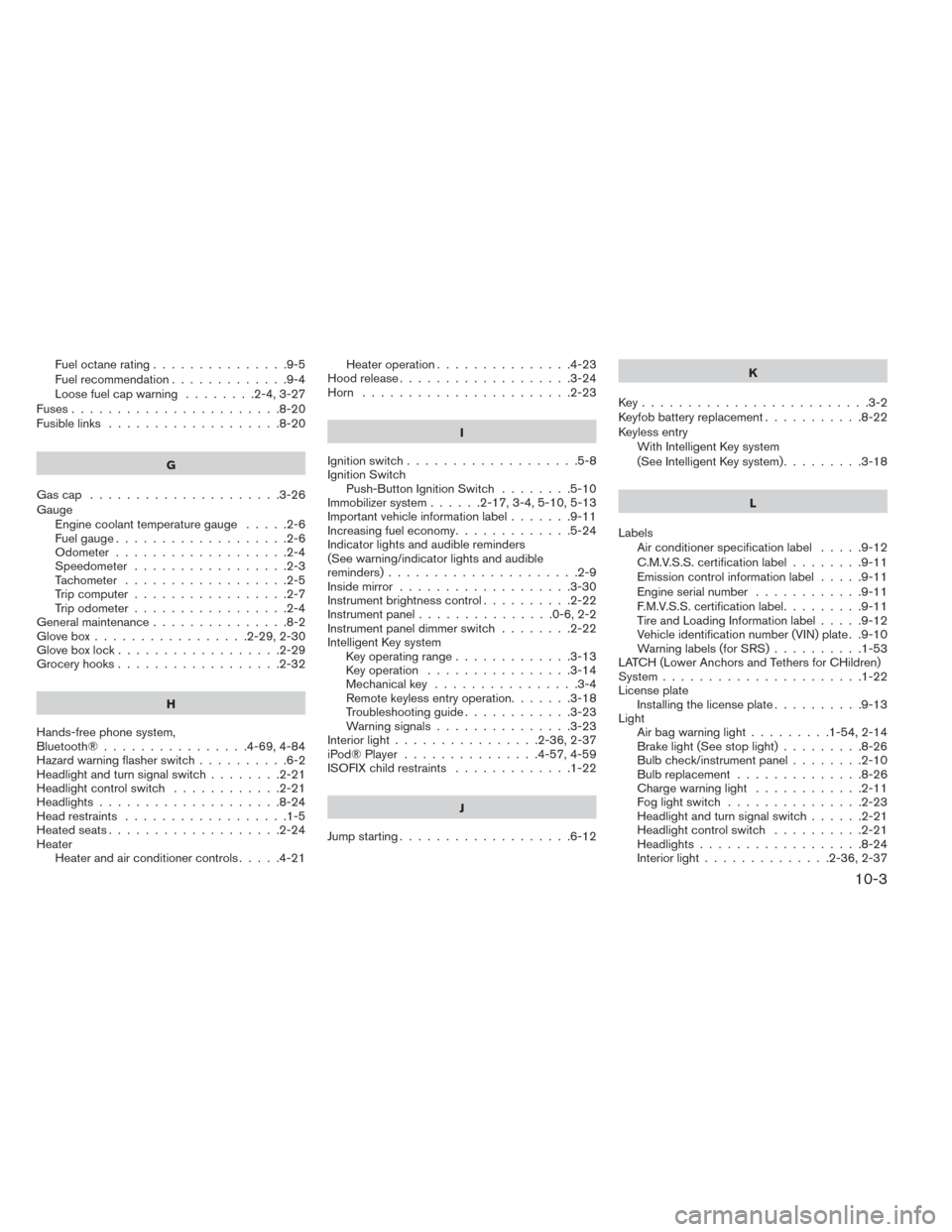
Fueloctanerating...............9-5
Fuel recommendation.............9-4
Loosefuelcapwarning ........2-4,3-27
Fuses.......................8-20
Fusiblelinks ...................8-20
G
Gascap .....................3-26
Gauge Engine coolant temperature gauge .....2-6
Fuel gauge ...................2-6
Odometer ...................2-4
Speedometer .................2-3
Tachometer ..................2-5
Trip computer .................2-7
Trip odometer .................2-4
Generalmaintenance...............8-2
Glovebox.................2-29,2-30
Gloveboxlock..................2-29
Grocery hooks ..................2-32
H
Hands-free phone system,
Bluetooth®................4-69,4-84
Hazard warning flasher switch ..........6-2
Headlightandturnsignalswitch........2-21
Headlightcontrolswitch ............2-21
Headlights....................8-24
Head restraints ..................1-5
Heated seats ...................2-24
Heater Heater and air conditioner controls .....4-21Heater operation
...............4-23
Hood release ...................3-24
Horn .......................2-23
I
Ignition switch ...................5-8
Ignition Switch Push-Button Ignition Switch ........5-10
Immobilizer system ......2-17,3-4,5-10,5-13
Important vehicle information label .......9-11
Increasing fuel economy .............5-24
Indicator lights and audible reminders
(See warning/indicator lights and audible
reminders).....................2-9
Inside mirror ...................3-30
Instrument brightness control ..........2-22
Instrument panel ...............0-6,2-2
Instrument panel dimmer switch ........2-22
Intelligent Key system Key operating range .............3-13
Key operation ................3-14
Mechanicalkey ................3-4
Remote keyless entry operation .......3-18
Troubleshooting guide ............3-23
Warning signals ...............3-23
Interiorlight................2-36,2-37
iPod® Player ...............4-57,4-59
ISOFIX child restraints .............1-22
J
Jump starting ...................6-12 K
Key.........................3-2
Keyfob battery replacement ...........8-22
Keyless entry With Intelligent Key system
(See Intelligent Key system) .........3-18
L
Labels Air conditioner specification label .....9-12
C.M.V.S.S. certification label ........9-11
Emission control information label .....9-11
Engine serial number ............9-11
F.M.V.S.S. certification label .........9-11
Tire and Loading Information label .....9-12
Vehicle identification number (VIN) plate . .9-10
Warning labels (for SRS) ..........
1-53
LATCH (Lower Anchors and Tethers for CHildren)
System ......................1-22
License plate Installing the license plate ..........9-13
Light Airbagwarninglight.........1-54, 2-14
Brake light (See stop light) .........8-26
Bulb check/instrument panel ........2-10
Bulbreplacement..............8-26
Chargewarninglight ............2-11
Fog light switch ...............2-23
Headlightandturnsignalswitch......2-21
Headlight control switch ..........2-21
Headlights..................8-24
Interiorlight..............2-36,2-37
10-3